Word not responding on Mac often means your document is frozen usually when you need it most, and the longer it stays this way, the higher the data loss risk. MacKeeper's Smart Uninstaller helps fix this issue by removing leftover app files, broken extensions, and outdated Microsoft Office components that commonly trigger freezes. This gives you a cleaner, more stable Mac workspace.
Microsoft Word may stop responding on Mac for several underlying reasons, most of which are related to how your system handles memory, software, or file structures. Identifying the root cause is the first step if you want to fix Microsoft Word not responding on Mac without risking losing any unsaved data.
The most common reasons behind Microsoft Word failure include:
Limited system memory. When your Mac is low on RAM, large Word documents or multiple background apps can overwhelm the system, causing Word to unexpectedly freeze.
Incompatible software. After a macOS or Microsoft Office update, mismatched versions can lead to crashes during startup or while editing.
Corrupted Word preferences or documents. Damaged .plist files or incomplete AutoRecovery saves often prevent Word from promptly opening or responding.
Problematic plugins or add-ins. Third-party extensions, especially older ones, may block Word's normal operation or interfere with startup tasks.
A note from our experts:
Simply deleting an app from your Mac doesn't totally erase it. Hidden files, old plugins, and app remnants often remain buried in system folders, slowing down performance and wasting valuable disk space. This is why we recommend using MacKeeper's Smart Uninstaller. It thoroughly removes apps and their associated files in one go, helping you avoid leftover clutter and system slowdowns.
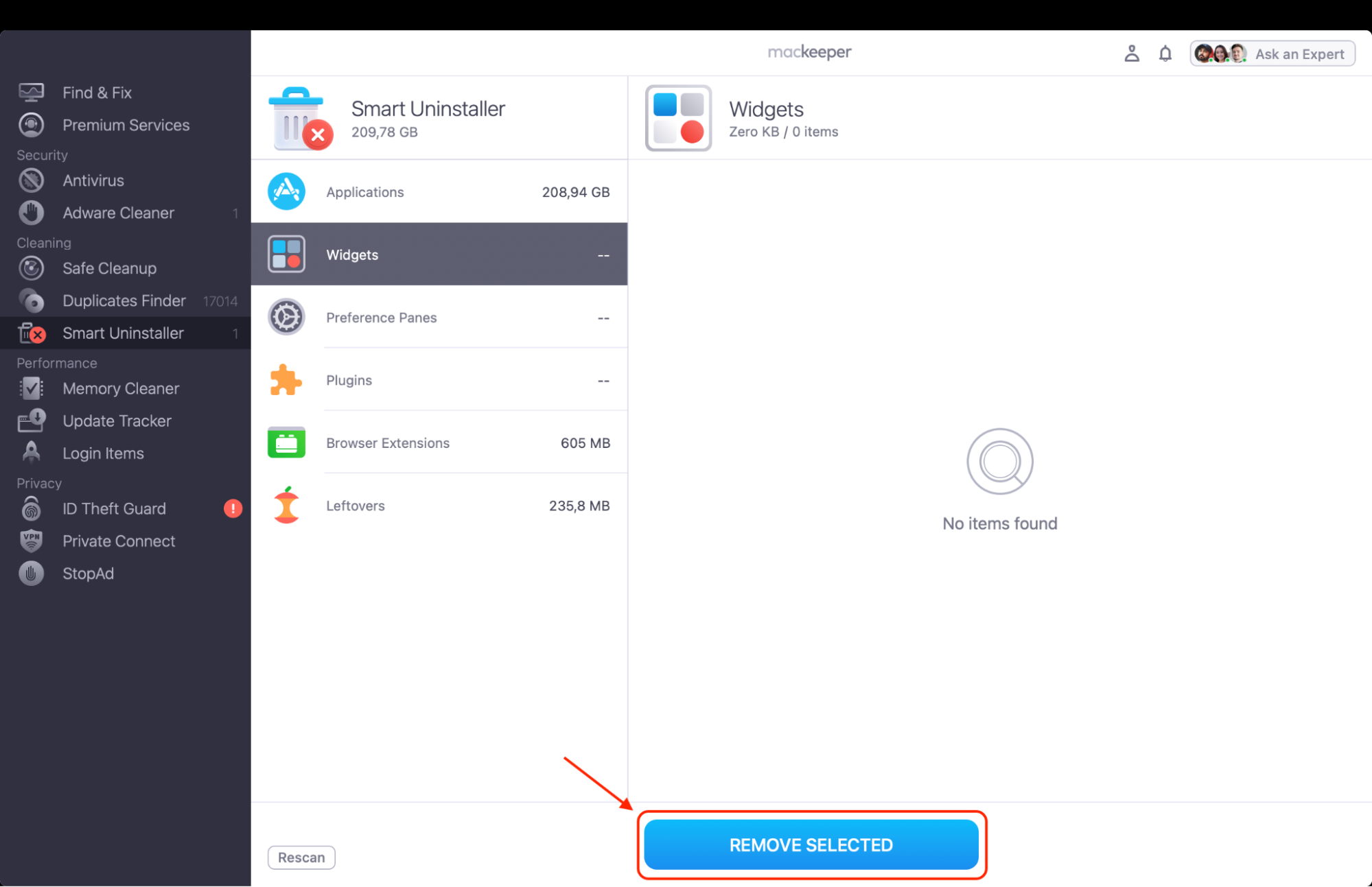
Here's how to use Smart Uninstaller to scan and uninstall apps:
Open MacKeeper and choose Smart Uninstaller from the sidebar. This tool automatically detects installed apps, browser extensions, widgets, and residual files that are no longer used.
Click Start Scan to begin analyzing your system. The scan identifies everything removable and sorts it into clear categories, such as Applications, Leftovers, and Plugins.
Review the scan results and select what you want to remove. You can pick individual apps, highlight rarely used software, or remove all leftover files at once.
Click Remove Selected to completely uninstall the chosen items. Smart Uninstaller erases every trace of the selected apps, including files buried deep in Library folders.
Step 1. Open MacKeeper and choose Smart Uninstaller from the left-side barStep. 2. Click Start Scan to see a list of removable itemsStep. 3. Hit Remove to uninstall all the chosen applications
What to do if Word is not responding on Mac
If Word keeps crashing on your Mac, start by force-quitting the app to remove any frozen processes. You can then restart your device to clear temporary system glitches and check for available Word updates since older versions often crash due to bugs or macOS incompatibility. Disable any third-party plugins that might interfere with Word's startup.
Open Word in Safe Mode to bypass add-ins and isolate the issue. You can also delete Auto Recovery files or reset Word preferences to remove corrupted settings. These steps will usually resolve most issues without requiring an app reinstall and are safe to try, even if you're not tech-savvy.
1. Force quit Word
If Microsoft Word freezes and won't respond to any commands, the fastest solution is to force quit the app. Our experts suggest this step before anything else because it closes the unresponsive process without the need to restart your Mac. You can do it through the Apple menu or Activity Monitor. Many users look for ways to download Word for Mac for free, but all versions are at risk of occasional freezes. It’s therefore good to know how to force quit safely.
Follow these steps to force quit Word on Mac:
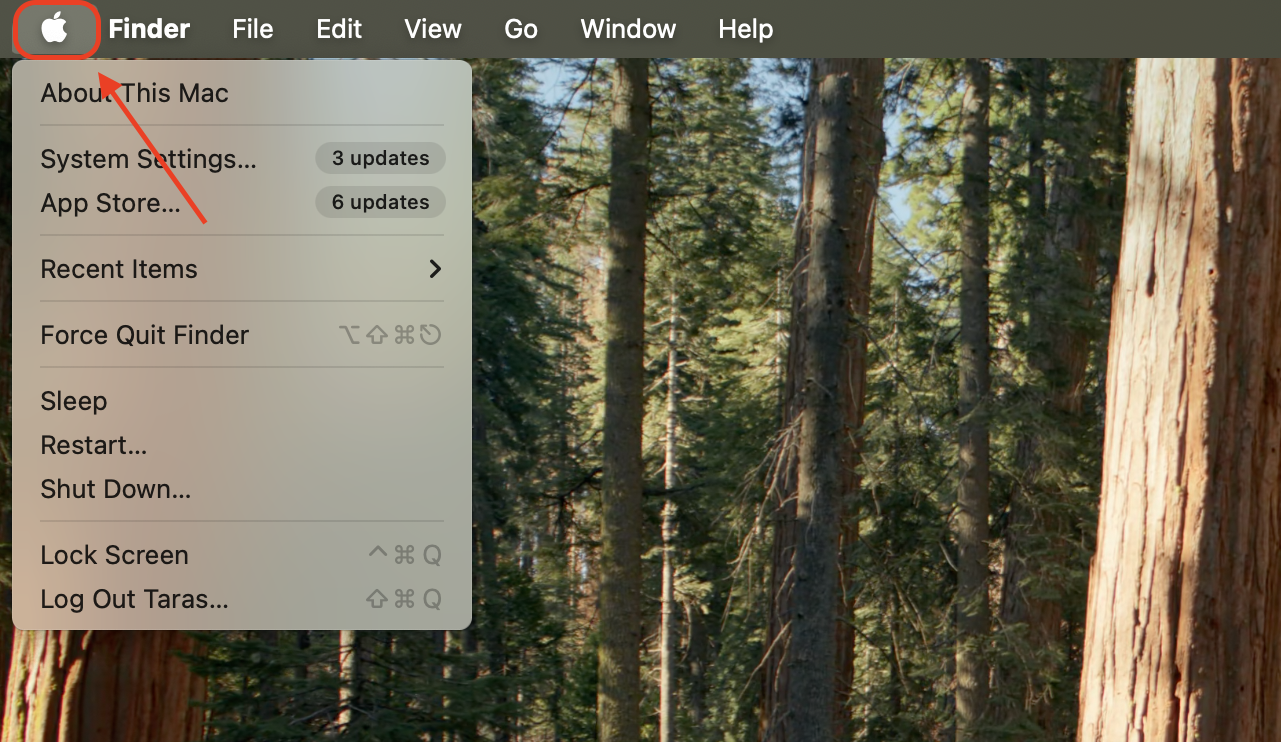
Click the Apple logo in the top-left corner of your screen.
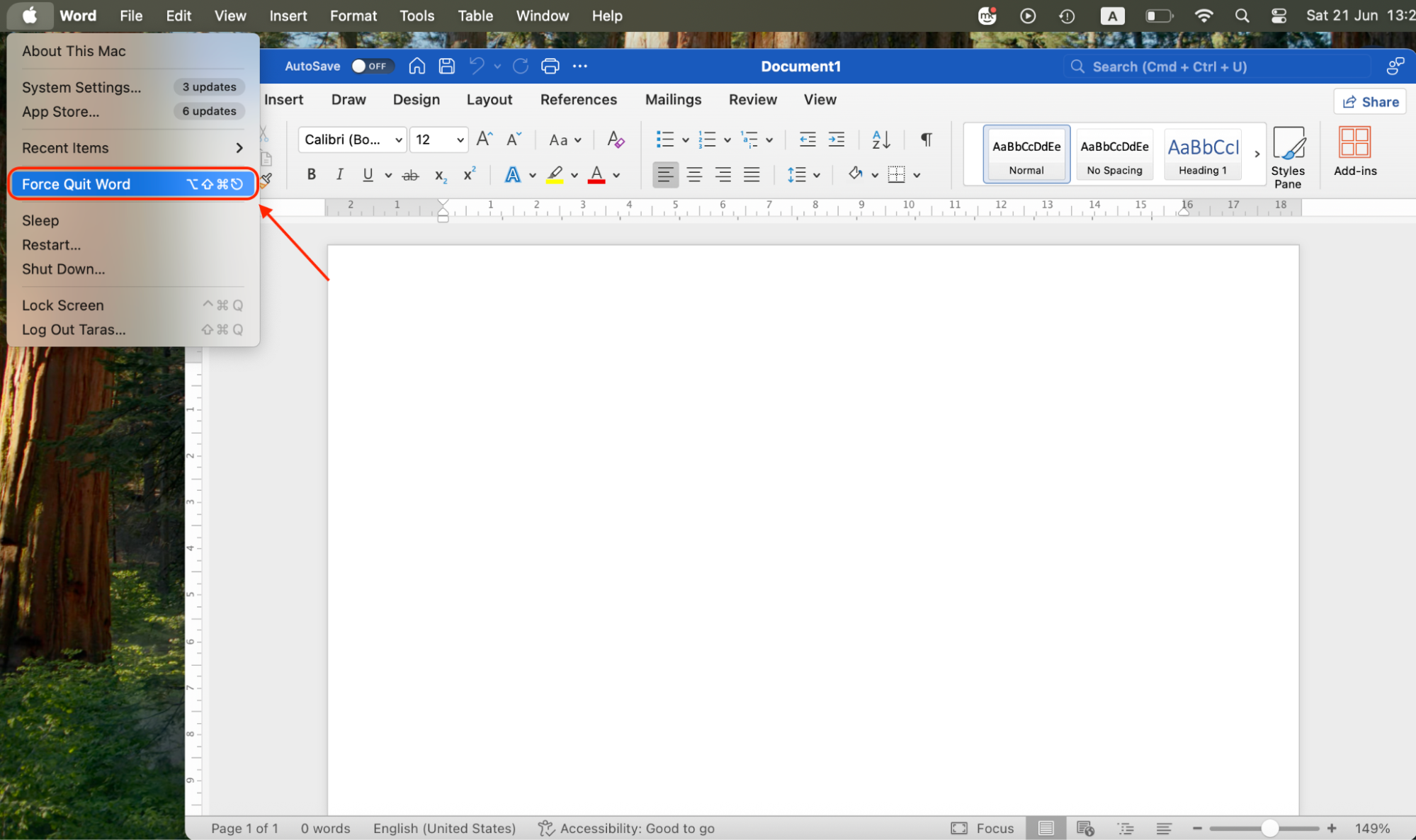
Select Force Quit from the dropdown.
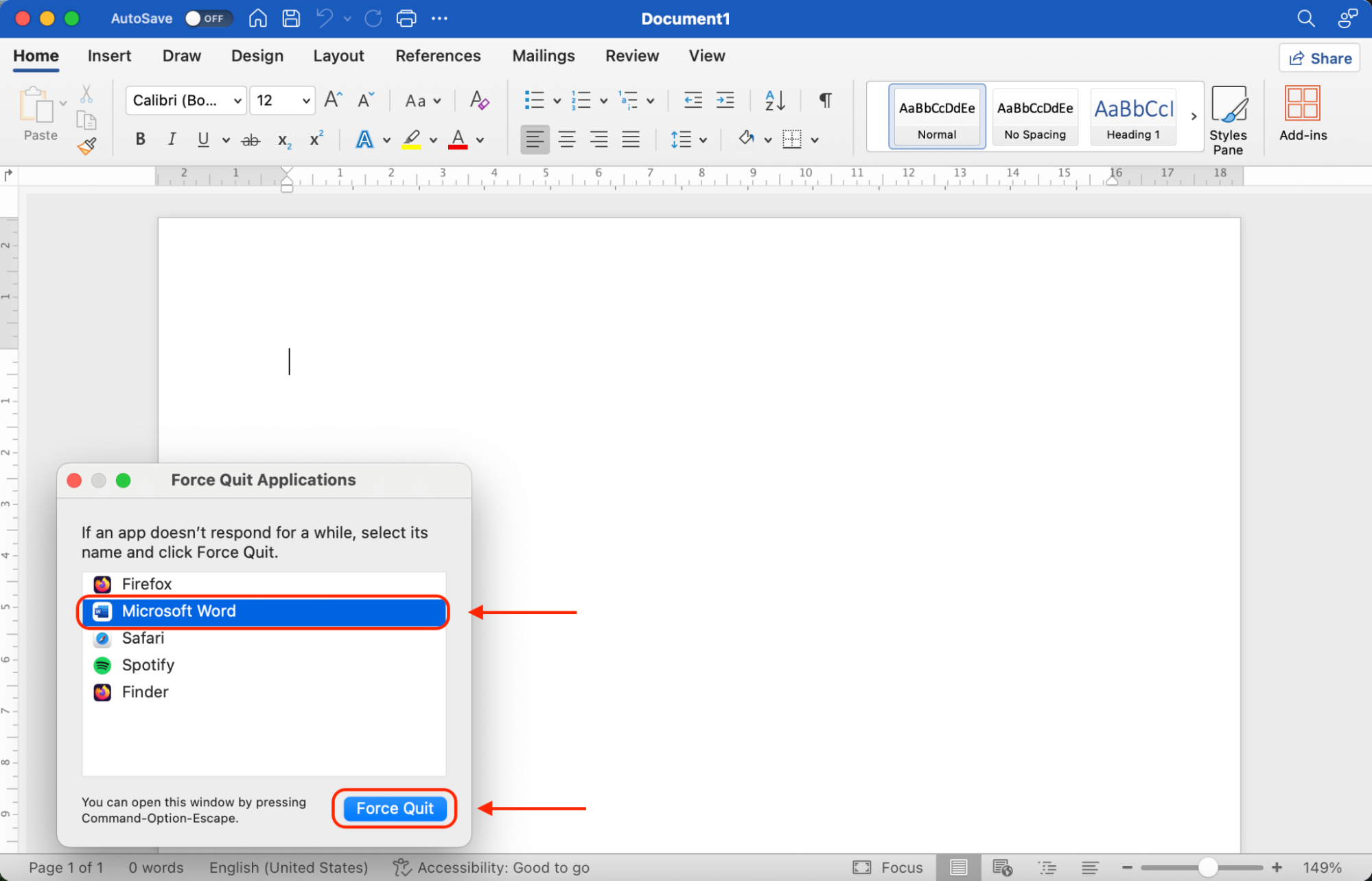
Select Microsoft Word from the list of open apps.
Click Force Quit, then confirm.
If that doesn't work, open Activity Monitor from Applications > Utilities.
Search for "Word", select the process, and click the (×) button to force it to close.
Step 1. Click the Apple logo in the top-left corner of your screenStep 2. Select Force Quit from the dropdownStep 3. In the list of open apps, select Microsoft Word and click Force Quit, then confirm
2. Disable Add-ins
Some Word add-ins, especially older or third-party ones, can cause freezing or slow performance. Our team often identifies these as hidden causes behind repeated crashes and disabling them helps you determine if one is to blame. If Word starts behaving normally after this step, you've likely found the culprit.
To disable add-ins in Word on Mac:
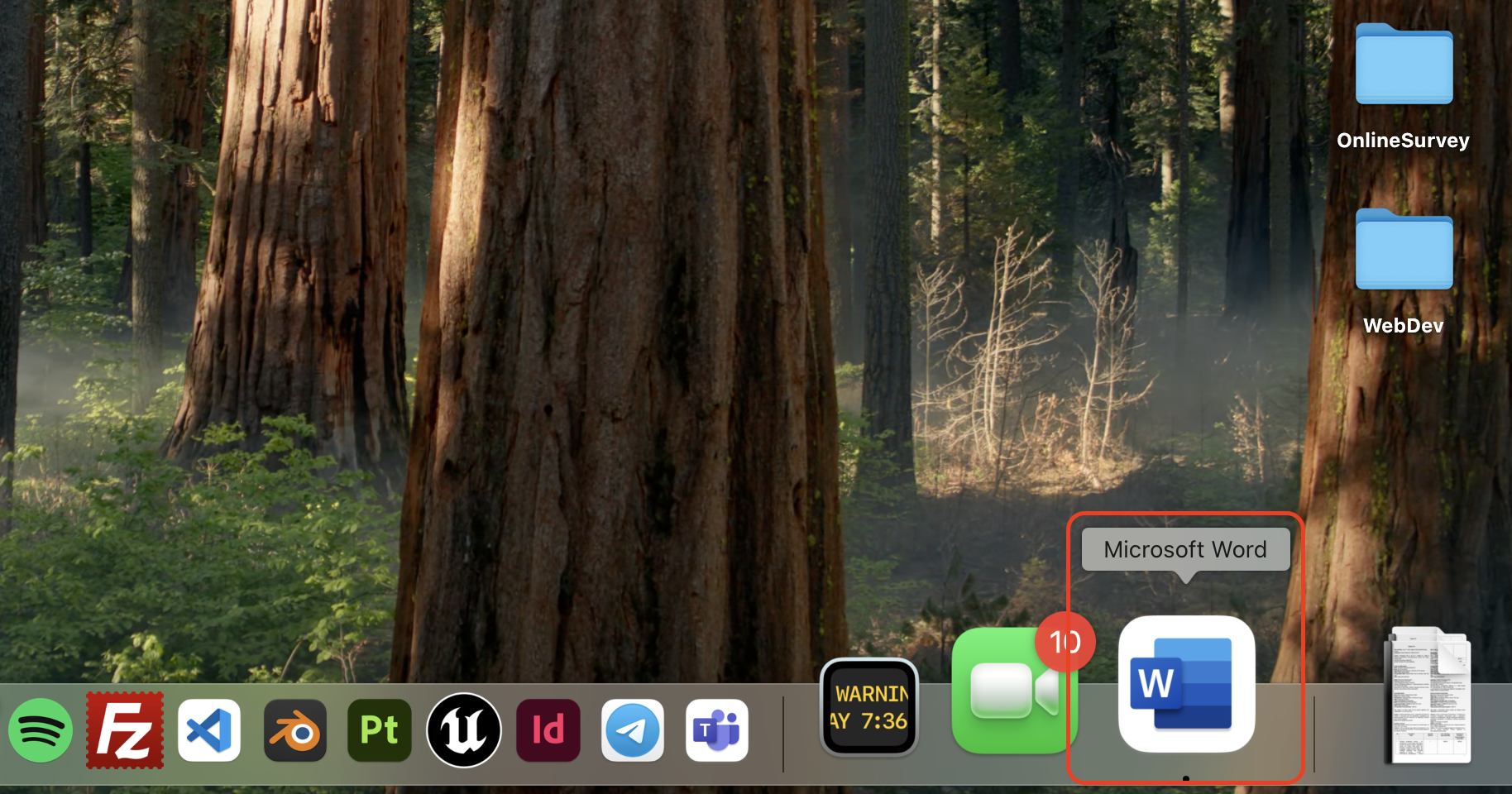
Open Microsoft Word.
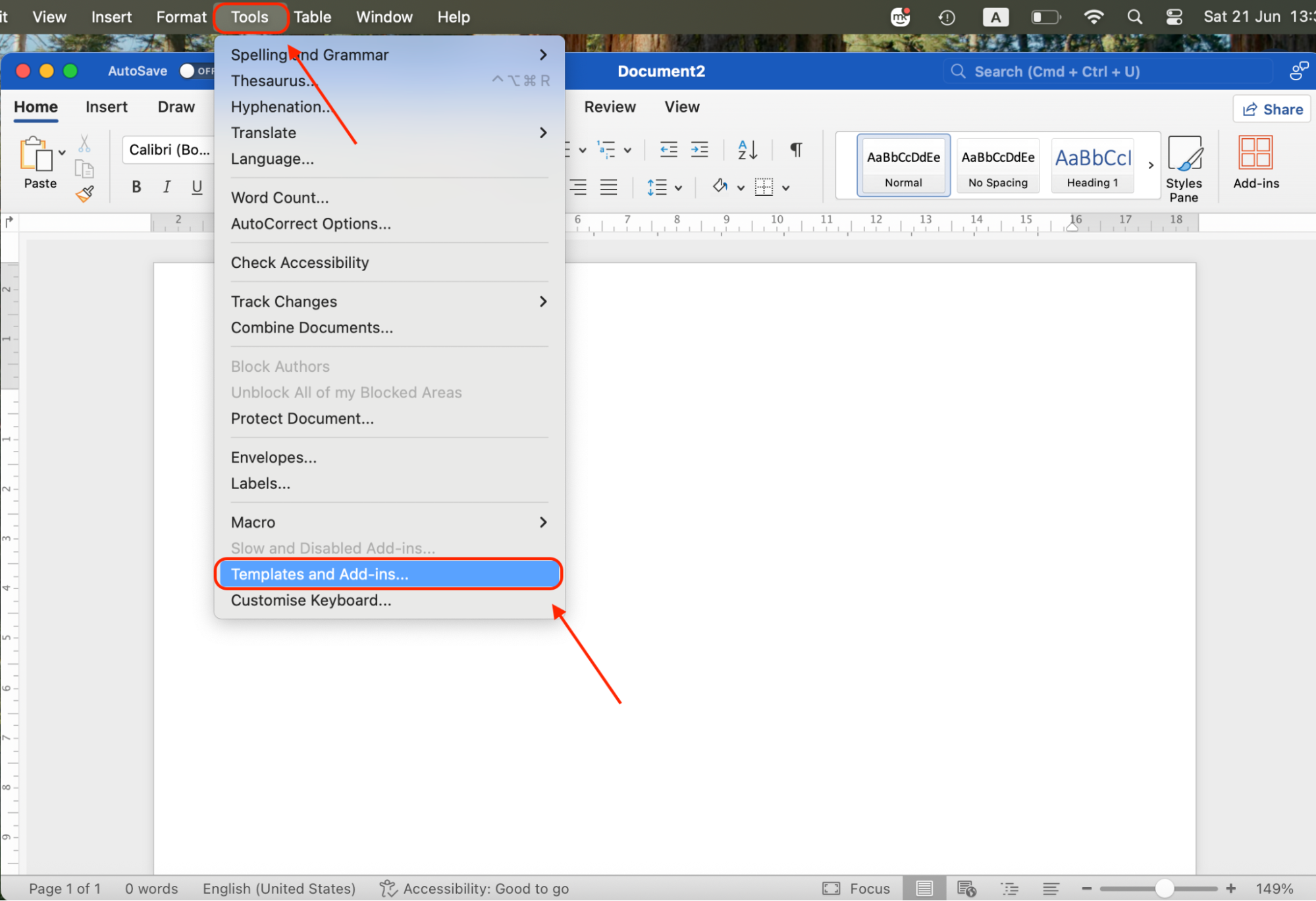
Go to Tools > Templates and Add-ins from the top menu.
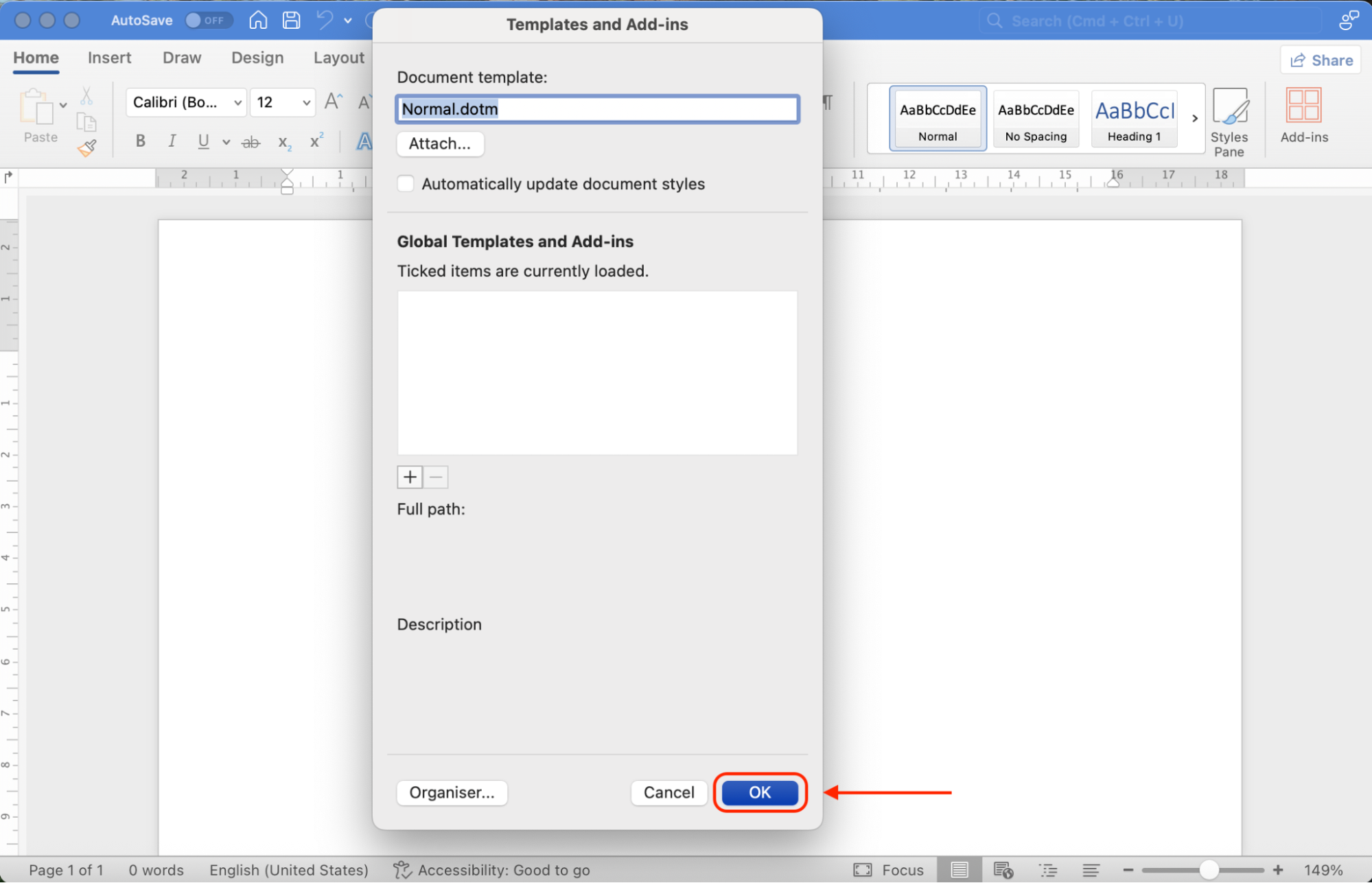
In the dialog box, uncheck all active add-ins.
Click OK to confirm and close the window.
Restart Word and check if it works more effectively.
If it does, re-enable add-ins individually to find the faulty one.
Step 1. Open Microsoft WordStep 2. From the top menu, go to Tools > Templates and Add-insStep 3. In the dialog box, uncheck all active add-ins and click OK to confirm
3. Remove Auto Recovery Folder
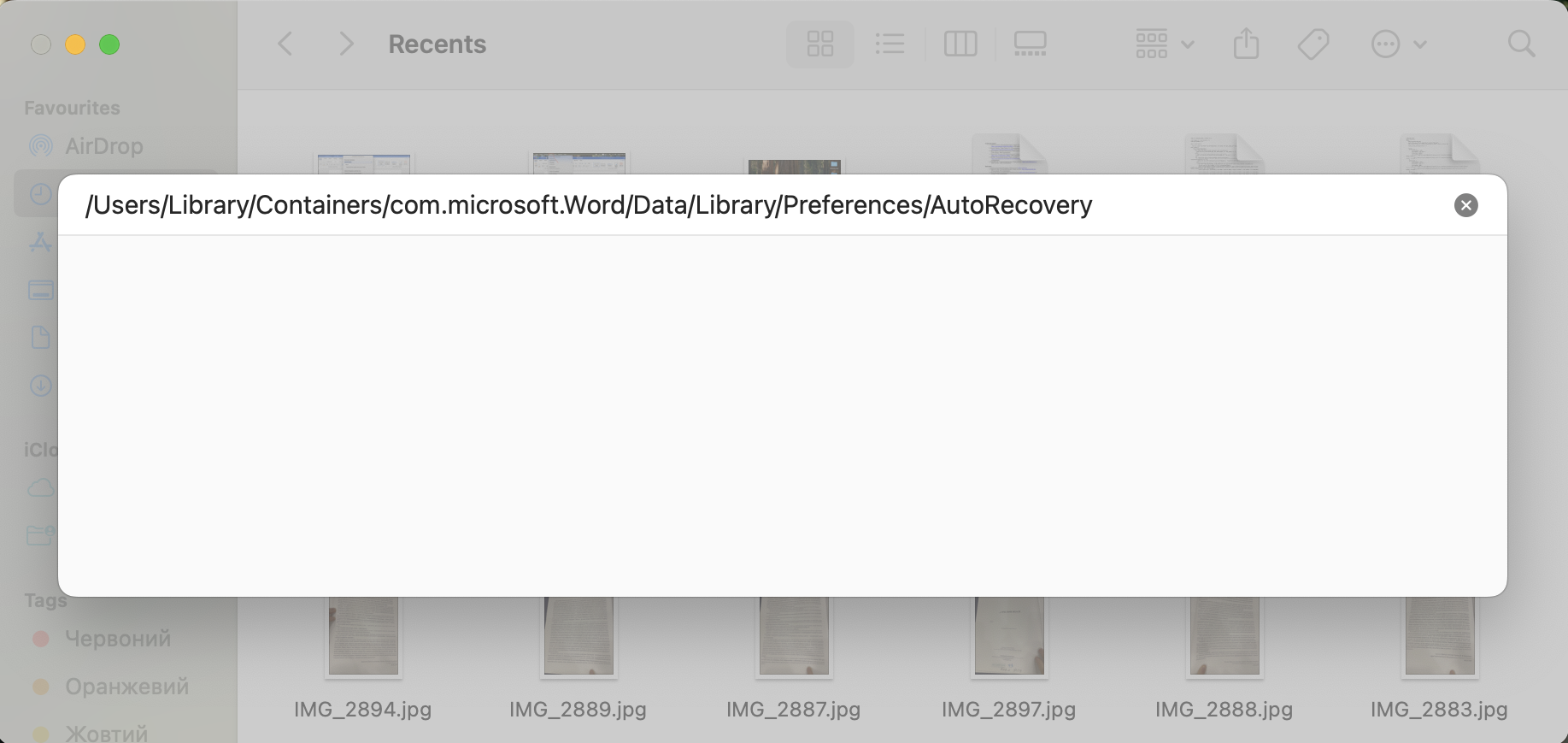
When Word crashes frequently, it might be trying to load a corrupt Auto Recovery file. Our experts often use this fix when documents keep hanging at startup and deleting this folder won’t erase your saved work. Instead, it only removes temporary backup files that can trigger launch errors. This method also helps if you want to stop a Microsoft AutoUpdate on your Mac from reloading these problematic files.
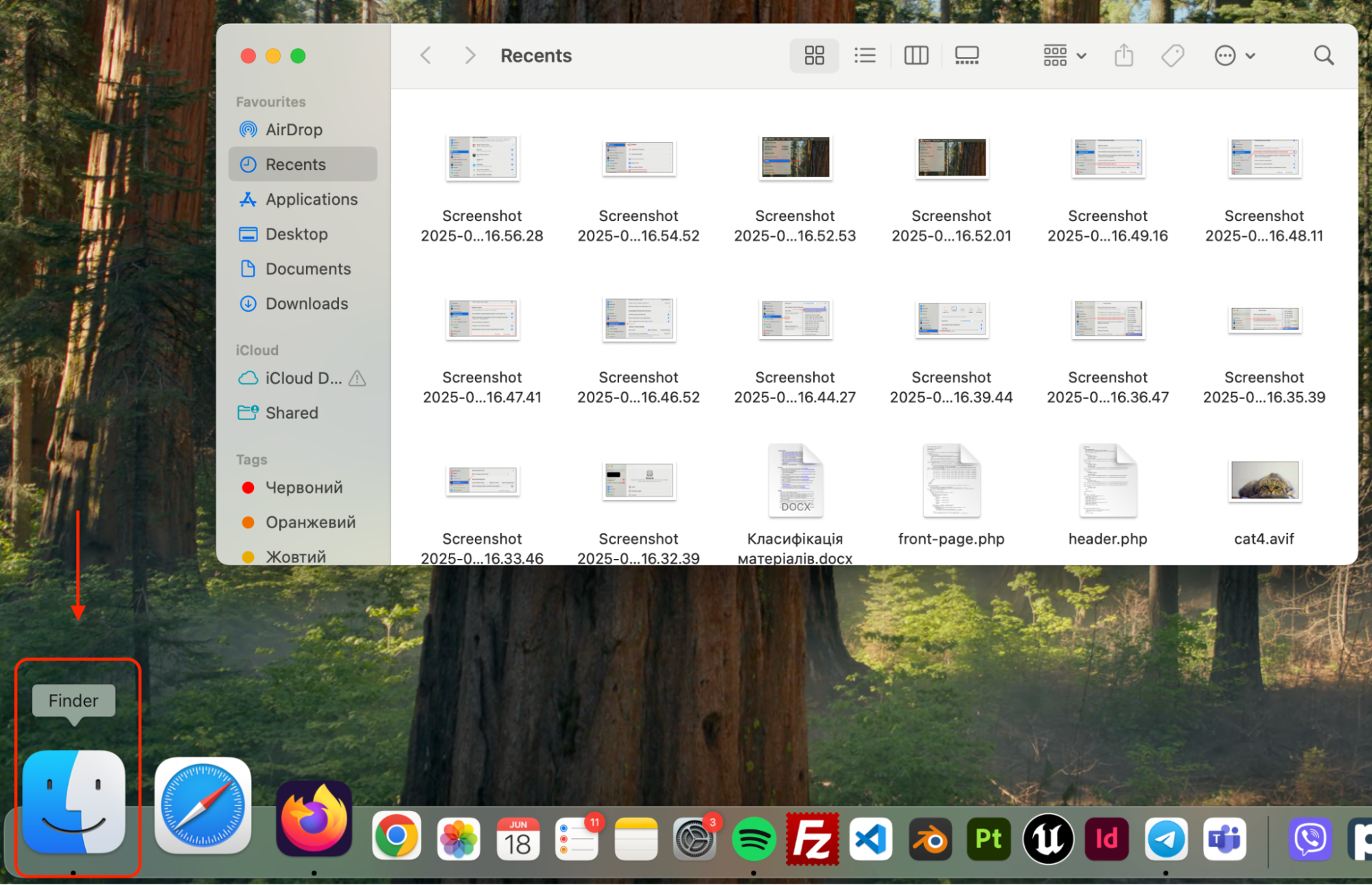
Step 1. Open FinderStep 2. Click Go > Go to FolderStep 3. Type: /Users/Library/Containers/com.microsoft.Word/Data/Library/Preferences/AutoRecovery and press Return
4. Clear cache and temporary files
Over time, Microsoft Word accumulates temporary data, logs, and cached files that can clutter your system and reduce performance. Our experts often recommend clearing these Office-related files when Word starts lagging or freezing during simple actions like saving or scrolling.
To clear Word's cache and temp files on Mac:
Open Finder.
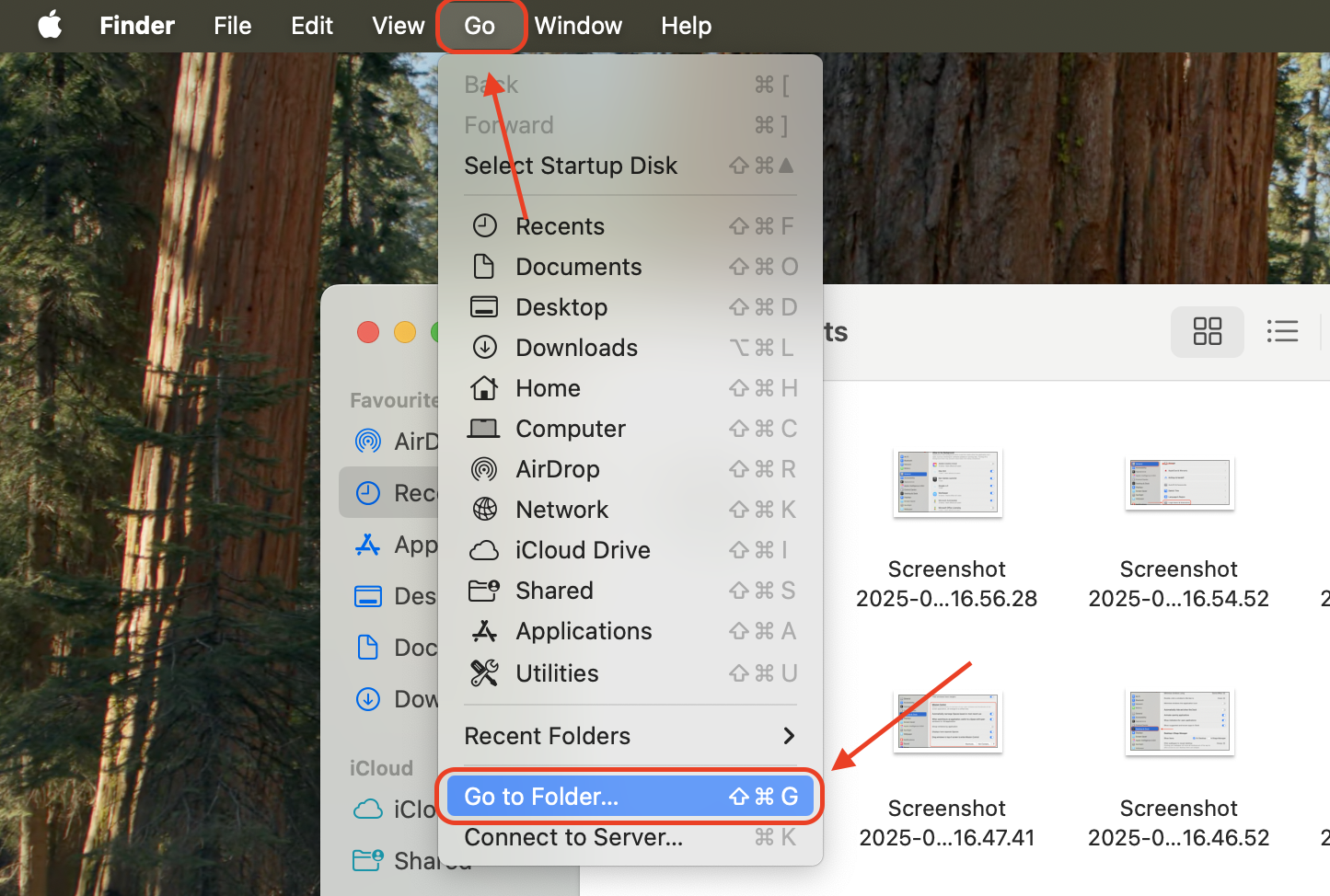
In the top menu, click Go and choose Go to Folder.
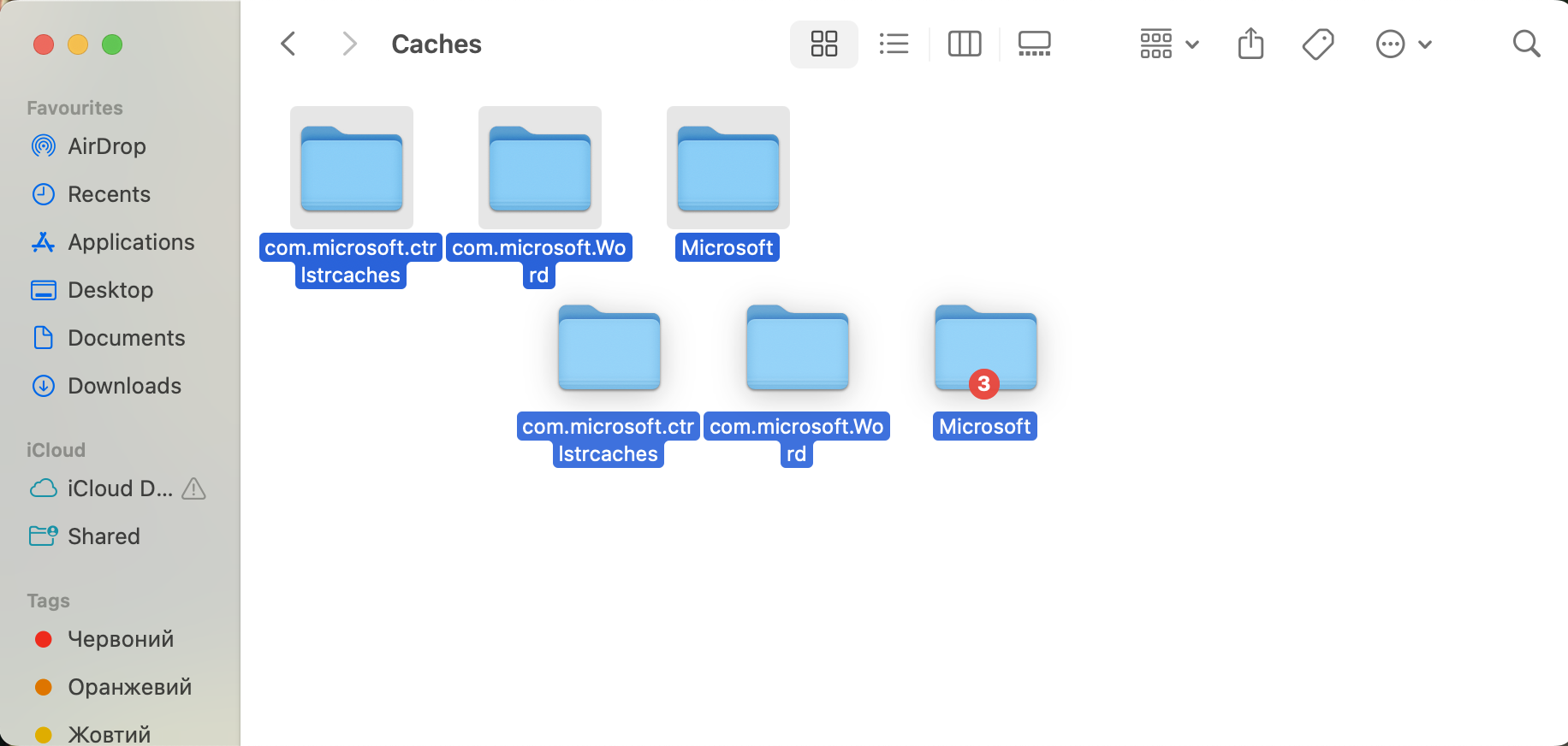
Enter ~/Library/Containers/com.microsoft.Word/Data/Library/Caches and click Go.
Select the contents, then drag them to Trash.
Repeat the process for ~/Library/Caches and locate any Microsoft or Office-related folders.
Empty the Trash and restart Microsoft Word.
Step 1. Open FinderStep 2. Click Go > Go to FolderStep 3. Type: ~/Library/Containers/com.microsoft.Word/Data/Library/Caches and press EnterStep 4. Select the contents and drag them to Trash
5. Update Word on Mac
If Word is crashing regularly or certain features simply aren't working, running an outdated version could be the reason why and is an issue our team sees frequently. This is because macOS updates can create incompatibilities with older Office versions and the easiest fix is to keep your apps up to date. You can do this using either the App Store or Microsoft AutoUpdate.
To update Word via the App Store:
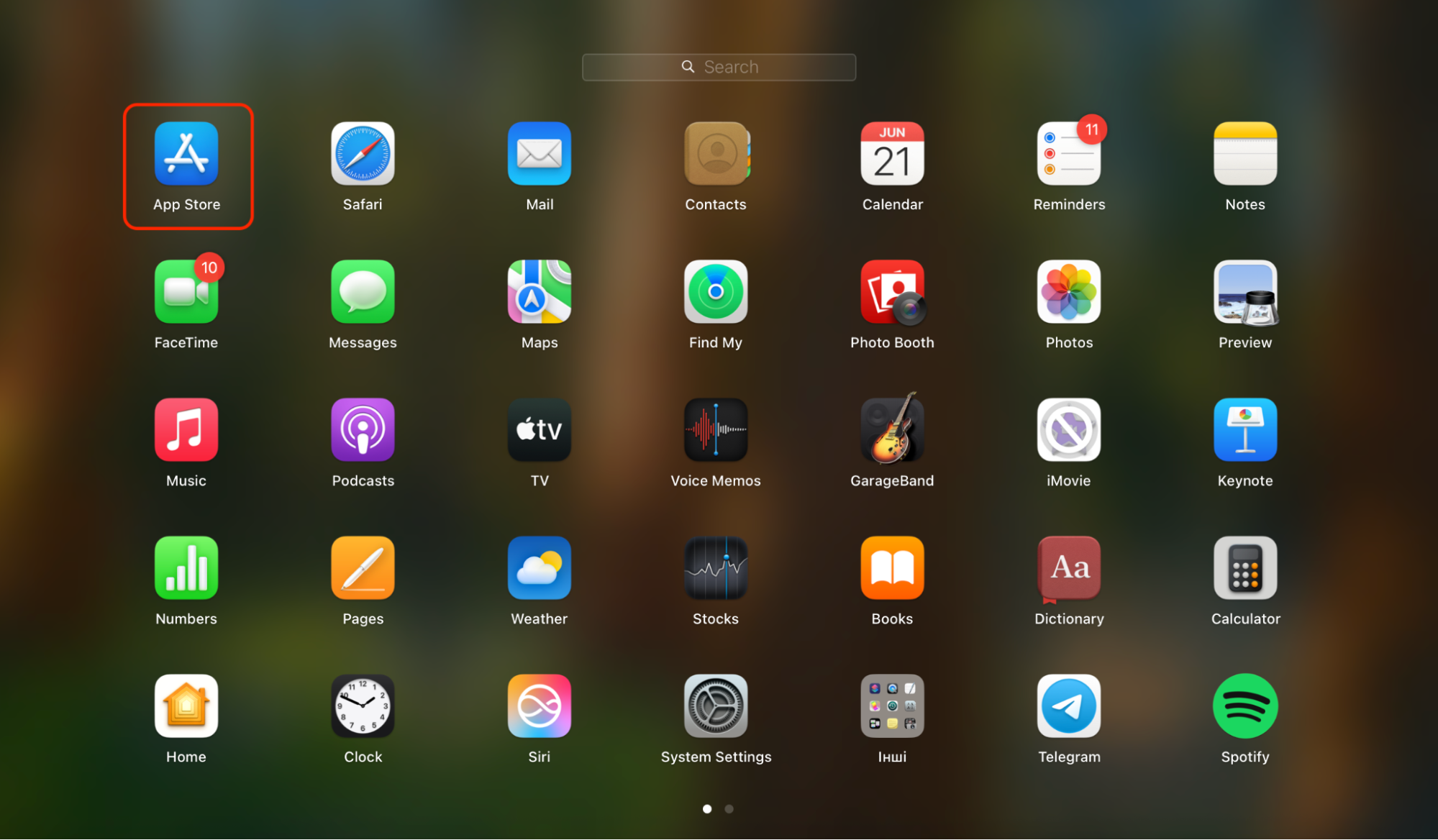
Open the App Store on your Mac.
Click Updates in the left sidebar.
If you see Microsoft Word listed, click Update next to it.
Step 1. Open the App Store on your MacStep 2. Click Updates in the left sidebar
To use Microsoft AutoUpdate:
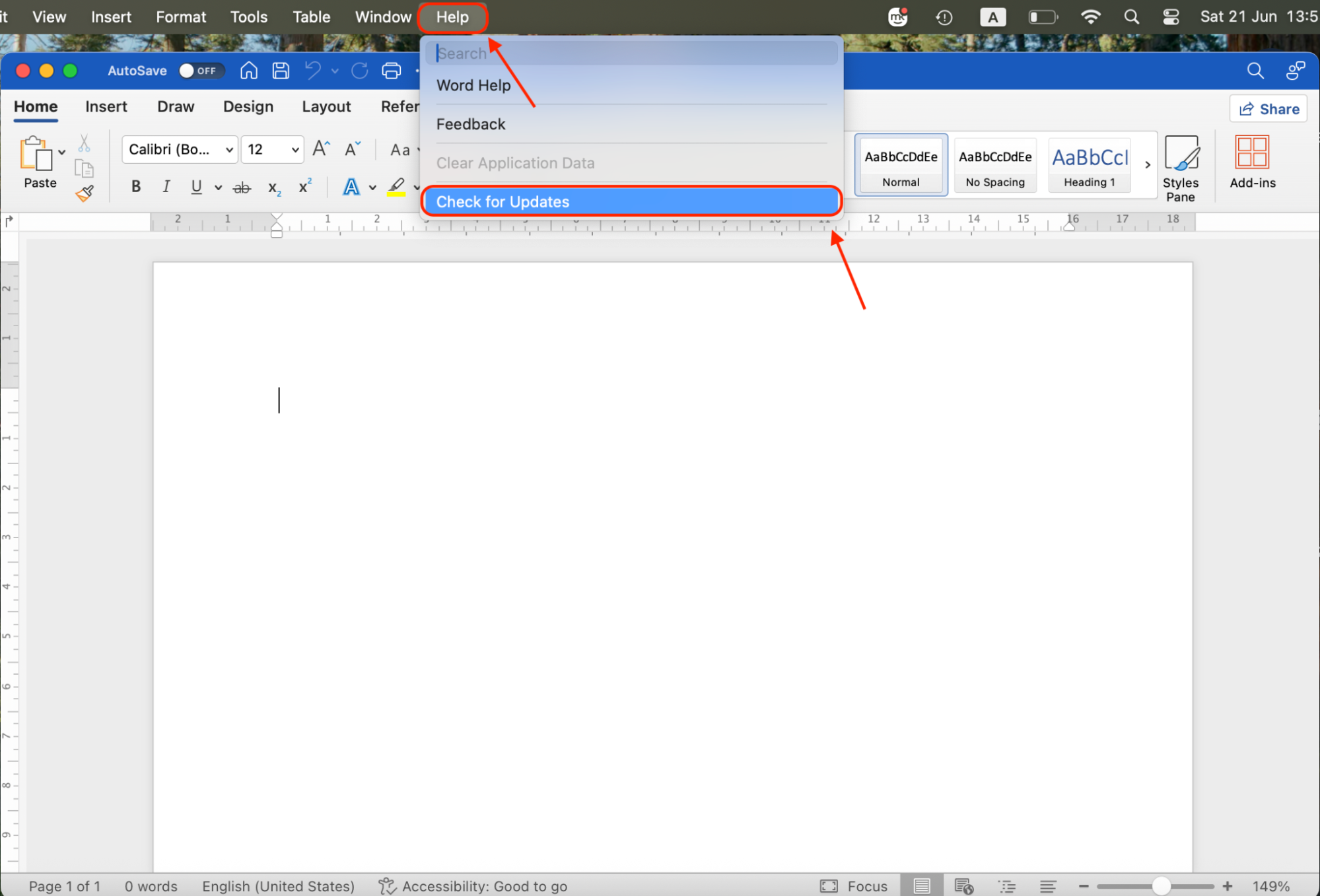
Open Microsoft Word.
In the top menu, click Help > Check for Updates.
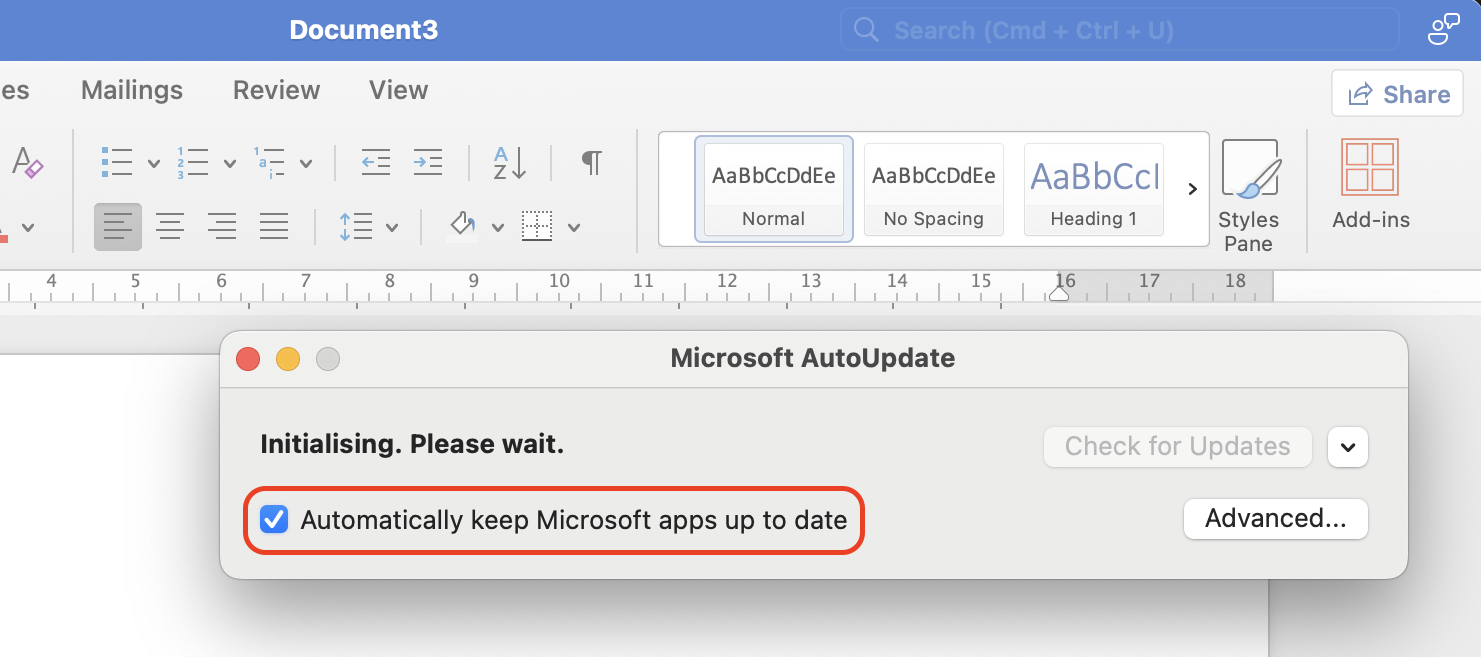
The AutoUpdate tool will open. Select Automatically Download and Install.
Click Update to install the latest version.
Step 1. Open Microsoft WordStep 2. In the top menu, click Help > Check for UpdatesStep 3. The AutoUpdate tool will open. Select Automatically Download and Install
6. Open Microsoft Word in Safe Mode
Launching Word in Safe Mode is a great way to test if add-ins or corrupted settings are causing issues. In this mode, Word runs with the minimum required resources: no templates, no plug-ins, and no AutoRecovery interference. Our experts use this method to isolate and identity the problem when Word won't start or crashes on launch.
To open Word in Safe Mode on Mac:
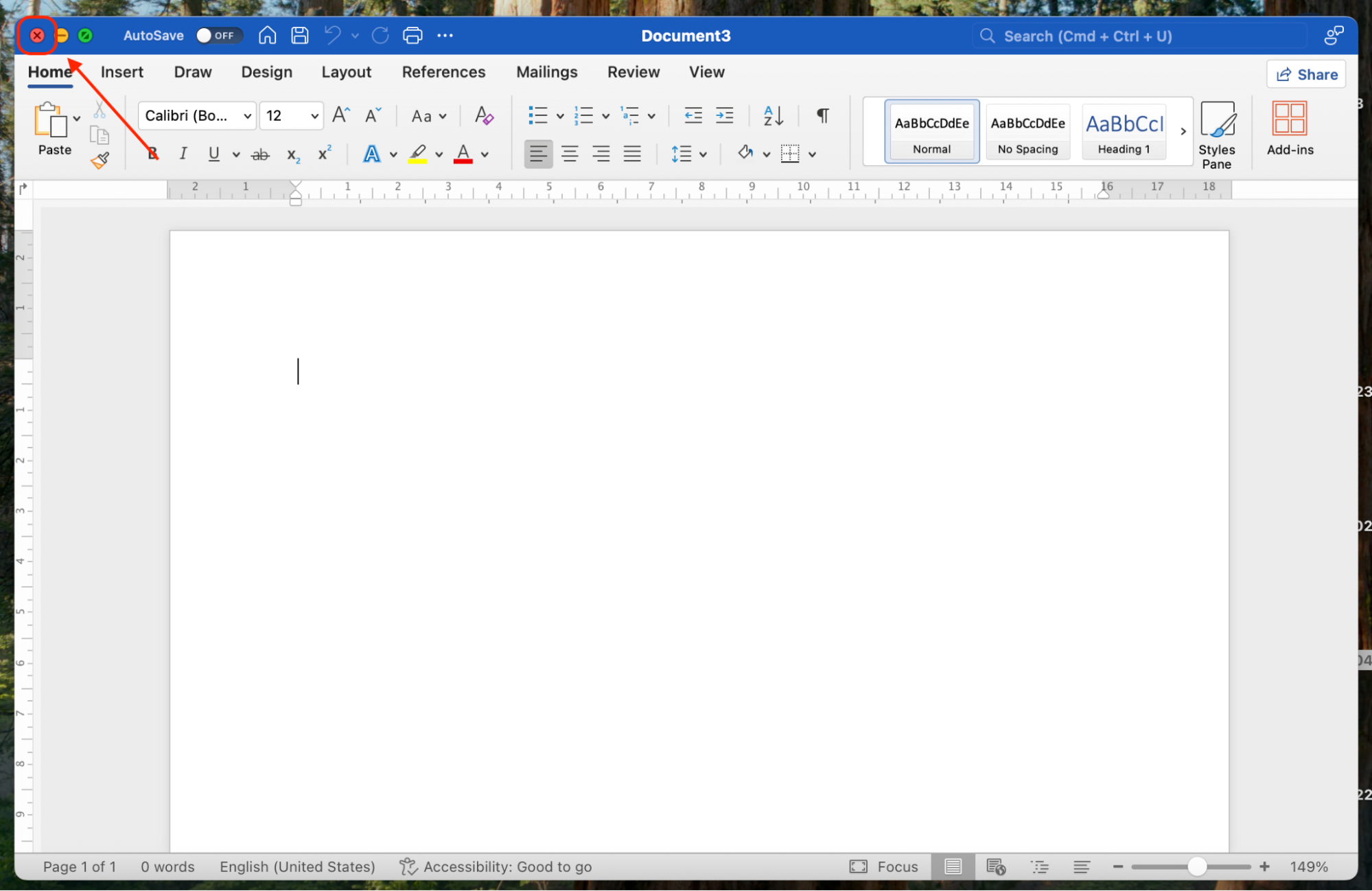
Shut down Microsoft Word completely.
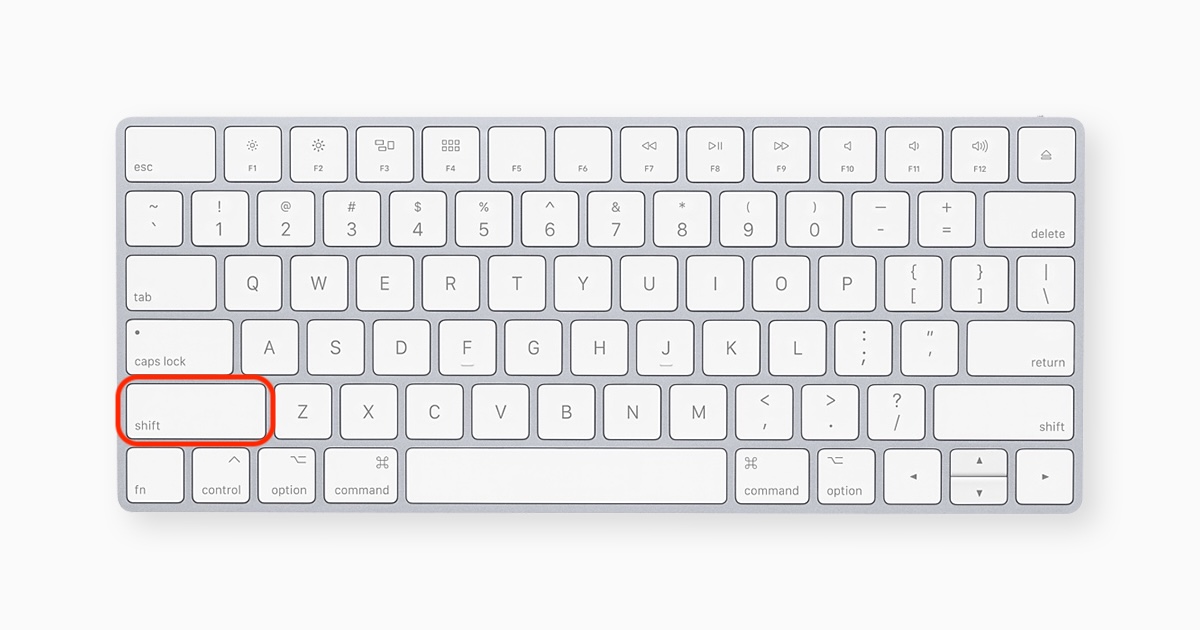
Hold the Shift key on your keyboard.
While holding Shift, open Word from your Applications folder or Dock.
Release the Shift key once Word finishes loading.
Step 1. Completely shut down Microsoft WordStep 2. While holding Shift, open Word from your Applications folder or Dock
7. Reset Word preferences
When nothing else works—if Word keeps crashing, opens blank, or behaves erratically—resetting your preferences can help. This method deletes corrupted preference files, forcing Microsoft Word to create fresh ones. Our team usually uses this fix when persistent errors resist updates and Safe Mode. Be aware that this will reset toolbars, custom styles, and recent documents lists.
To reset Word preferences on Mac:
Quit Microsoft Word if it’s open.
Open Finder, then click Go > Go to Folder in the top menu.
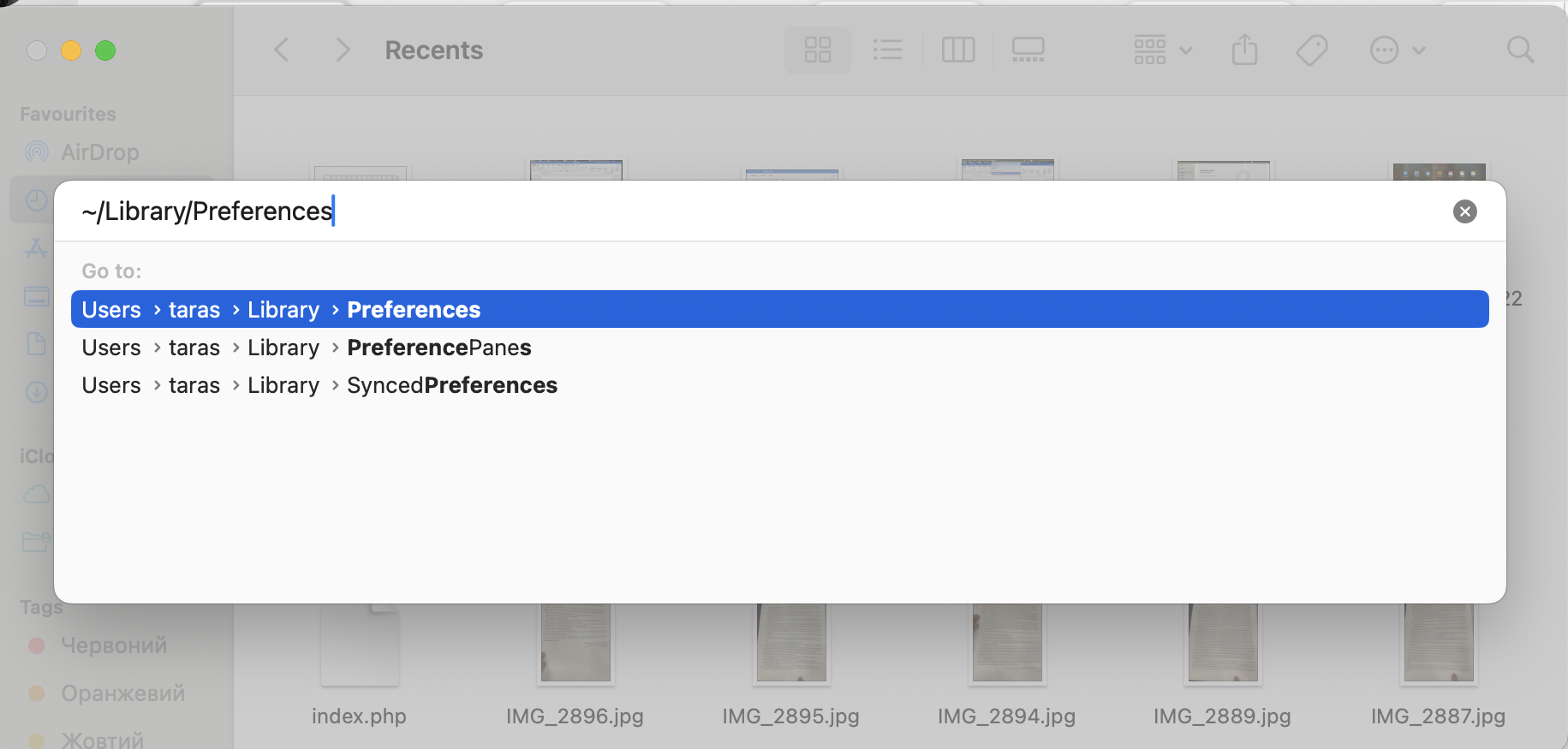
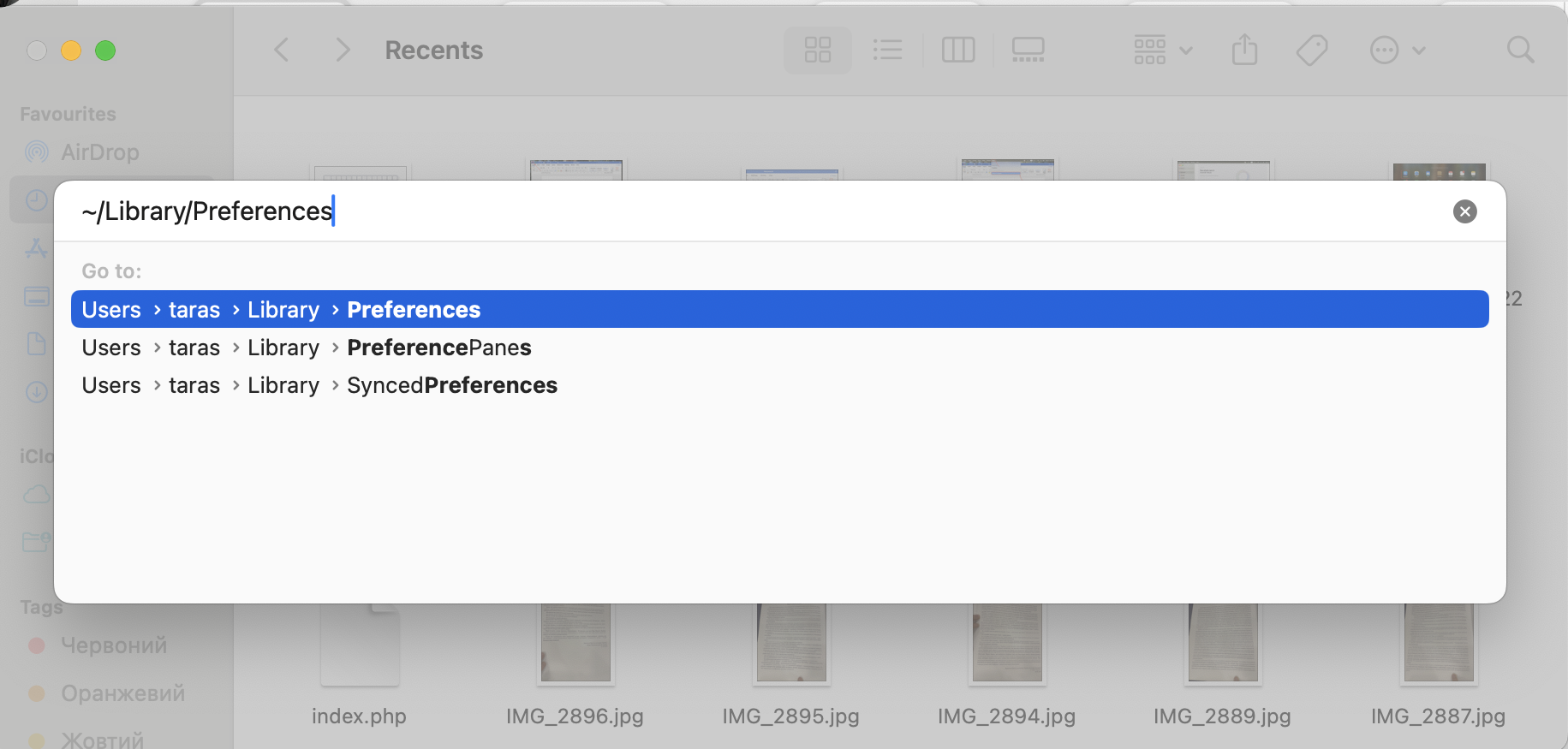
Enter ~/Library/Preferences and click Go.
Locate files named com.microsoft.Word.plist and com.microsoft.Office.plist.
Move both to your Desktop (you can delete them later if things work).
Relaunch Word to generate new preference files.
Step 1. Open FinderStep 2. Click Go > Go to FolderStep 3. Enter ~/Library/Preferences
Can you recover unsaved Word documents on Mac
Yes, you can often recover unsaved Word document on Mac—even if the app froze or crashed before you hit Save. The good news is that Microsoft Word has a built-in AutoRecover feature that quietly saves your work every few minutes in the background. If Word crashes, it usually reopens with a recovery panel showing any unsaved versions.
If you don't see this, don't panic. You can still manually check the AutoRecovery folder: open Finder, click Go > Go to Folder, and paste this path: ~/Library/Containers/com.microsoft.Word/Data/Library/Preferences/AutoRecovery
You'll likely find backup versions of your document that you can open and save.
Another way to recover an unsaved Word document on Mac is by searching for temporary files. These are sometimes created during editing and can survive a system crash. Open Finder and look for files that begin with "~Word Work File". Even retrieving partial content is better than starting over. If all else fails, third-party recovery tools can scan your drive for recently lost files and it’s absolutely worth double-checking before you start rewriting anything.
Conclusion
When you run into the issue of a Word document not responding on Mac, it can quickly derail your workflow, especially if you're in the middle of something really important. Fortunately, there are clear steps you can take: force quitting Word, disabling problematic add-ins, clearing cached data, updating the app, or resetting preferences. In many cases, you can also recover unsaved work thanks to AutoRecover or temporary files. Each method we've shared helps you isolate the cause and get Word running smoothly again.
For ongoing stability, our experts recommend using MacKeeper's Smart Uninstaller. That's how you remove every leftover file and background item that can trigger issues later. If Word or other apps freeze, hang, or fail to update correctly, cleaning up unnecessary system clutter can make a huge difference. With just a few clicks, you can wipe out traces of old apps and give your Mac a healthier, more reliable foundation for smooth operating.
We respect your privacy and
use cookies
for the best site experience.
Privacy Preferences Center
We use cookies along with other tools to give you the best possible experience while using the
MacKeeper website. Cookies are small text files that help the website load faster. The cookies we
use don’t contain any type of personal data meaning they never store information such as your
location, email address, or IP address.
Help us improve how you interact with our website by accepting the use of cookies. You can change
your privacy settings whenever you like.
Manage consent
All cookies
These cookies are strictly necessary for enabling basic website functionality (including page
navigation, form submission, language detection, post commenting), downloading and purchasing
software. The website might malfunction without these cookies.