An overwhelming number of folders or a cluttered macOS desktop can make it challenging to locate important documents. To streamline your search, we’ll show you how to view all files on your Mac. If you want to tidy up further, download MacKeeper’s Duplicates Finder.
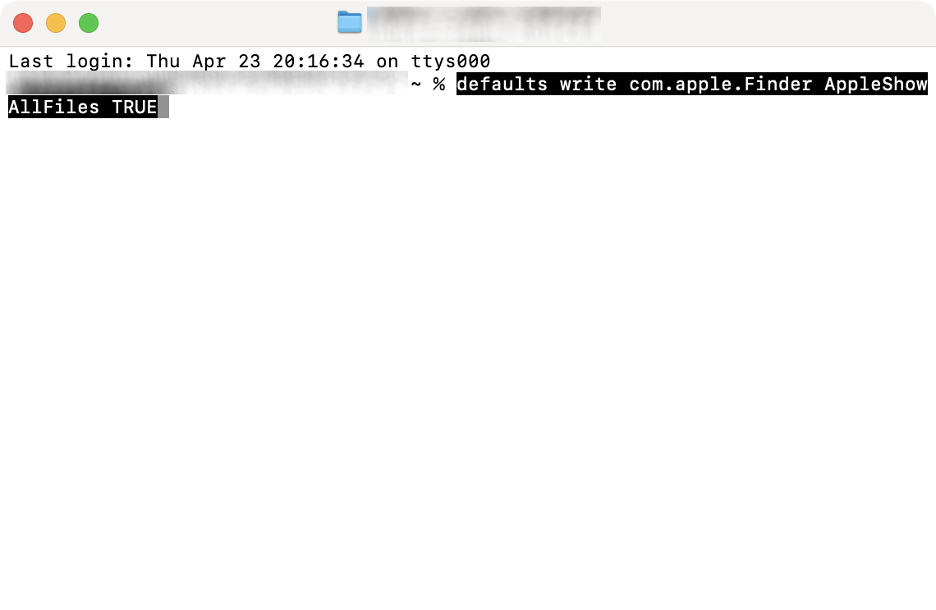
To find files on your Mac, open Finder and enter the file name in the search bar. To reveal hidden files, navigate to Finder > Applications > Utilities, launch Terminal, and enter the defaults write com.apple.Finder AppleShowAllFiles TRUE command.
How does macOS file system work?
The current macOS file system, known as Apple File System (APFS), is a modern 64-bit architecture designed for both SSD and HDD storage. APFS employs a “copy-on-write” technique, ensuring that changes are never overwritten. Instead, new copies are organized within each partition’s containers, allowing multiple volumes to be stored efficiently. This hierarchical structure makes APFS more resilient to data corruption and system crashes than HFS+, the previous standard used in Apple devices.
How to find all files on Mac?
You can check all files on Mac in several ways— whether you’re looking to find large files or uncover hidden ones. Options include using Finder, macOS Terminal commands, dedicated recovery software, or a simple keyboard shortcut. We’ll cover them all below.
A note from our experts:
Is your Mac running low on storage? Cleaning up your device doesn’t mean you need to sift through every file manually. MacKeeper’s Duplicates Finder, designed specifically for macOS, makes it easy to remove duplicate and similar-looking files, especially in your Downloads and Photo Library, while ensuring your originals stay safe.
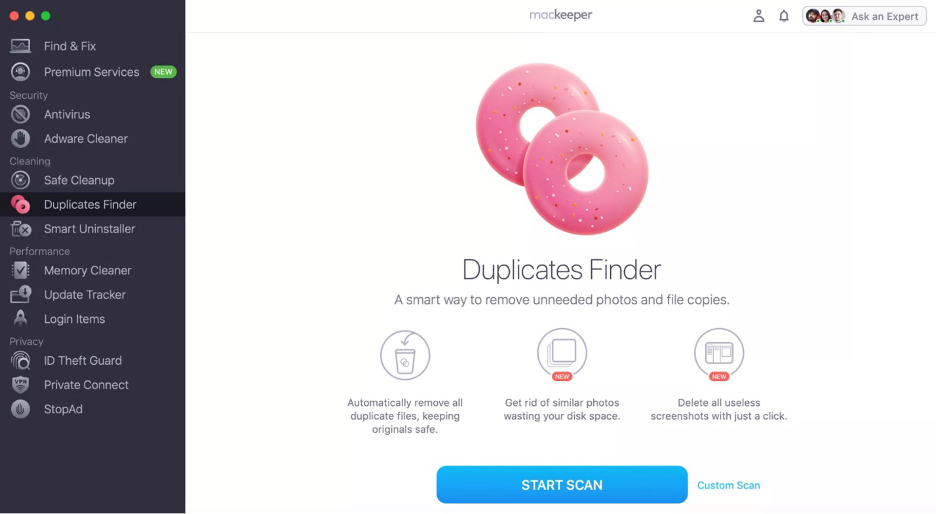
Here’s how to use MacKeeper’s Duplicates Finder on a Mac:
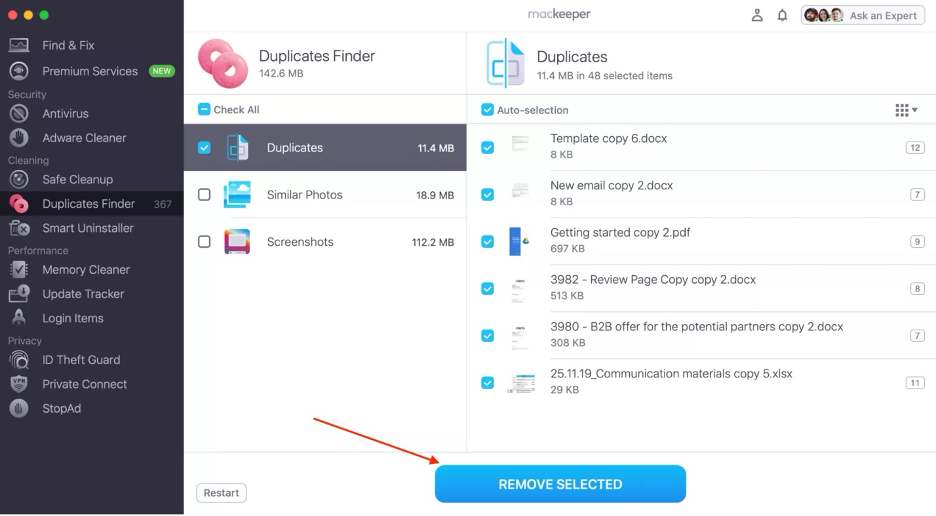
Choose a folder: Duplicates, Similar Photos, or Screenshots.
Select the items to delete, then click Remove Selected.
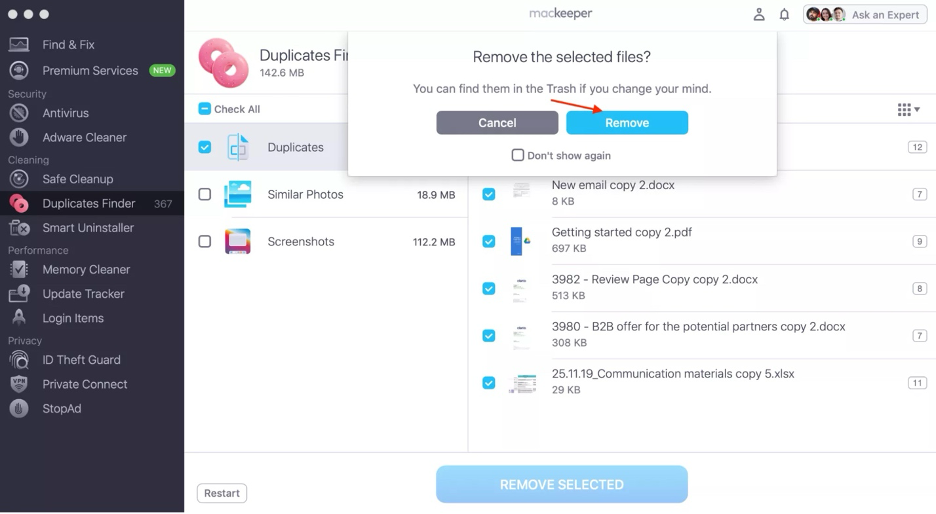
Click Remove again.
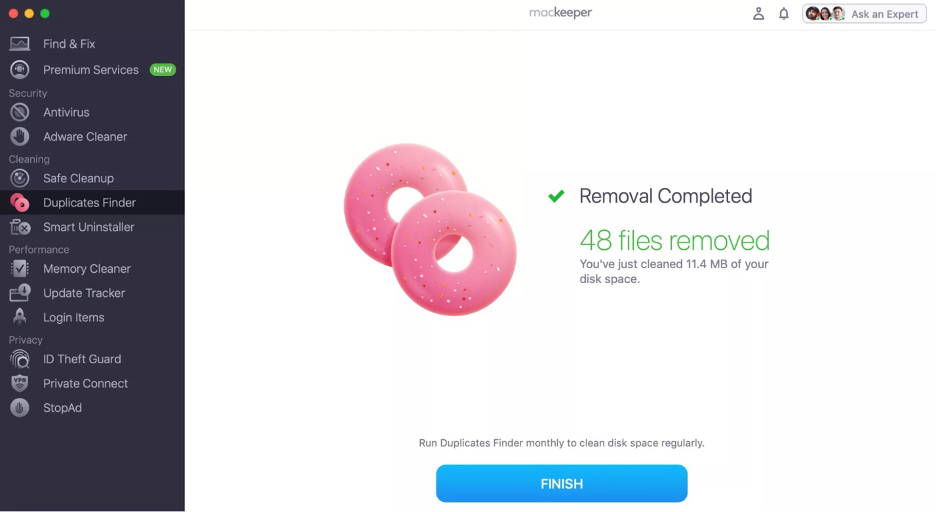
Step 1. MacKeeper > Duplicate Finder > Start ScanStep 2. Choose files to delete > Click Remove SelectedStep 3. Click RemoveStep 4. Click Finish or repeat the process to clean other folders
1. Find files on Mac with Finder
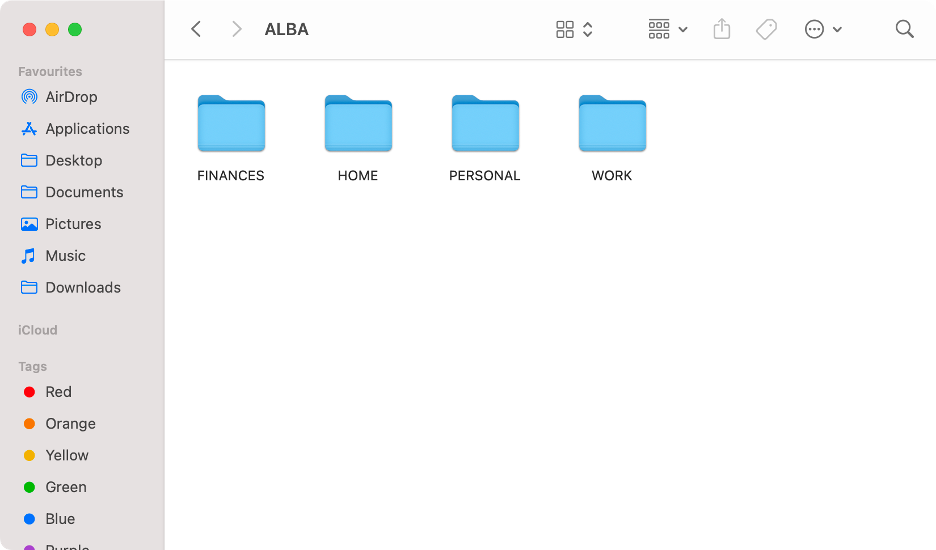
We’d like to start with the basics: learning how to access files on your Mac using Finder. While this method may not always be the fastest—especially if your Mac is cluttered, packed with folders, or you’re unsure of the file name—we believe it’s the most accessible way to begin. Just open Finder, and you’re ready to browse your files.
Follow these steps to find files using Finder:
Click the Finder icon on your Dock.
Choose a folder in the left sidebar.
Navigate through your folders and files.
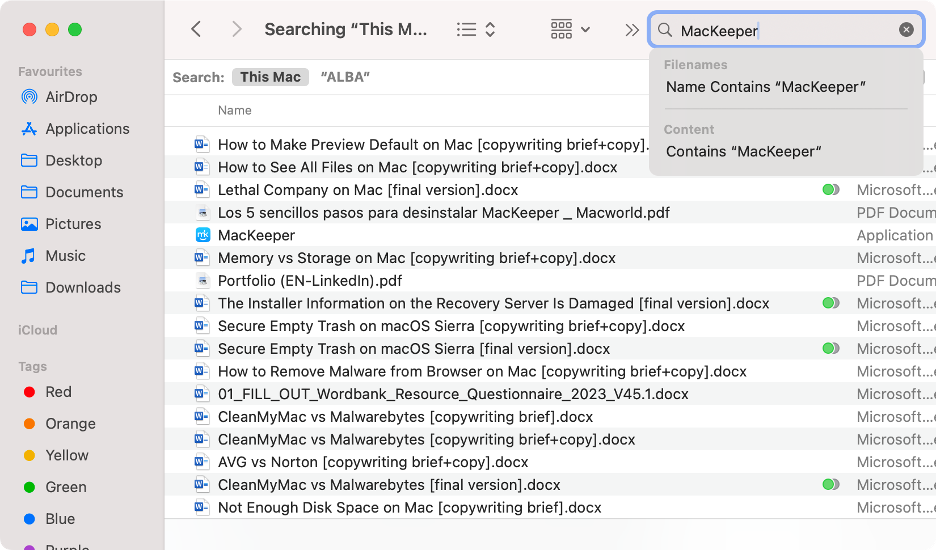
Alternatively, use the search tool in Finder. Results will include all files that contain the keyword in their names or in their contents.
Step 1. Launch FinderStep 2. Navigate folders on FinderStep 3. Use the search tool in Finder
2. Check files on Mac using Terminal commands
Based on our experience, hidden files are among the most difficult to locate on a Mac. These include specific system files and folders that macOS deliberately conceals to keep your computer organized and to prevent accidental deletion. However, if you still wish to view every file (including those hidden by default), we suggest using the Terminal utility.
Here’s how to show all files on Mac via Terminal:
Launch Finder on your Mac.
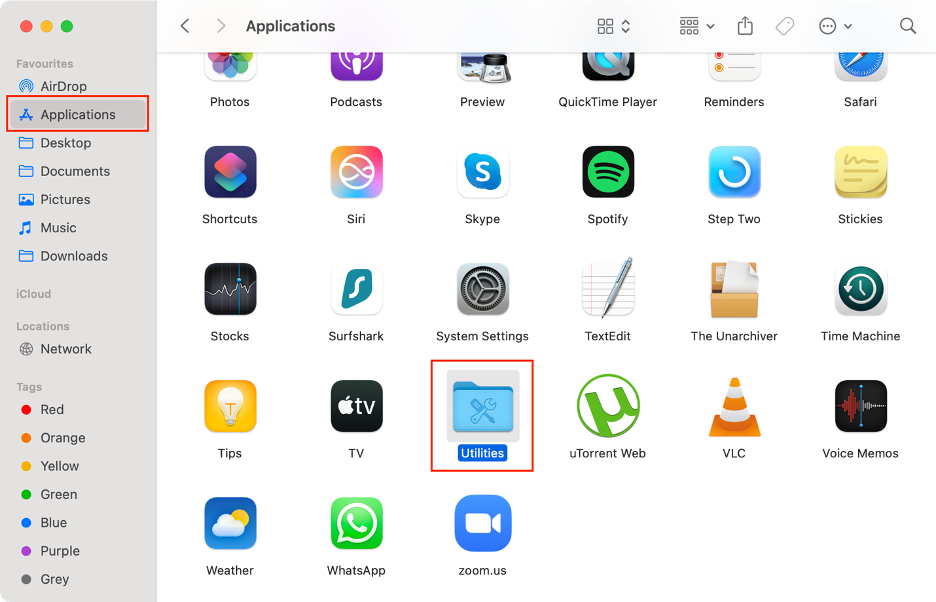
Select Applications from the sidebar.
Double-click on the Utilities folder.
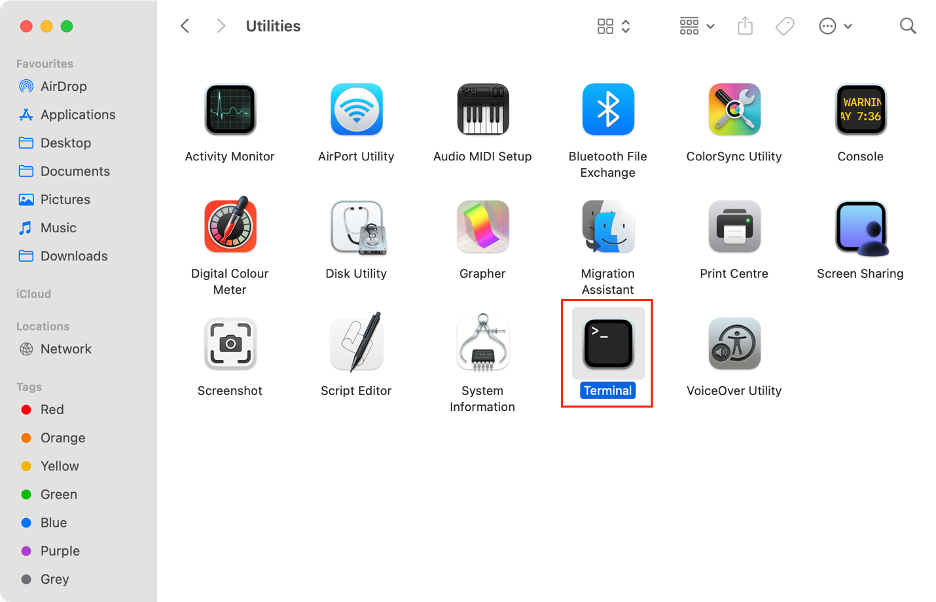
Launch Terminal.
Type the following command: defaults write com.apple.Finder AppleShowAllFiles TRUE.
Press Enter.
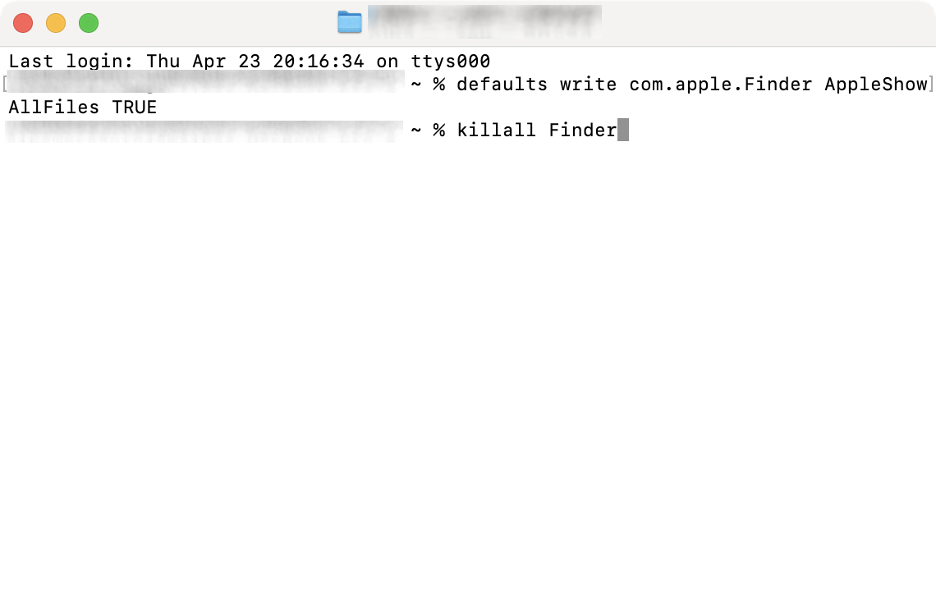
Then, type killall Finder, and press Enter again.
Step 1. Finder > Applications > UtilitiesStep 2. Launch TerminalStep 3. Enter the command “defaults write com.apple.Finder AppleShowAllFiles TRUE”Step 4. Enter the command “killall Finder”
3. Show files with recovery software
If none of the basic methods have worked, we advise using third-party recovery software for a more advanced approach. There are several reputable options, such as Cleverfiles’ Disk Drill and EaseUS Data Recovery Wizard. Our experts recommend these tools because they make scanning your entire disk (including recoverable deleted files) simple and intuitive.
While each app is different, we’ll demonstrate how to show all files on Mac using the Cleverfiles tool:
Download and install Disk Drill.
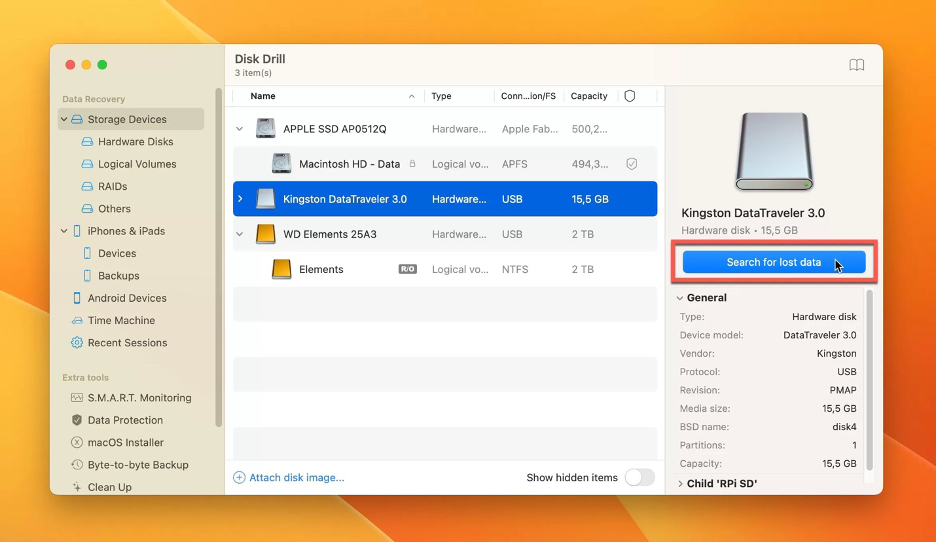
Select the drive where you want to locate the file.
Click Search for lost data.
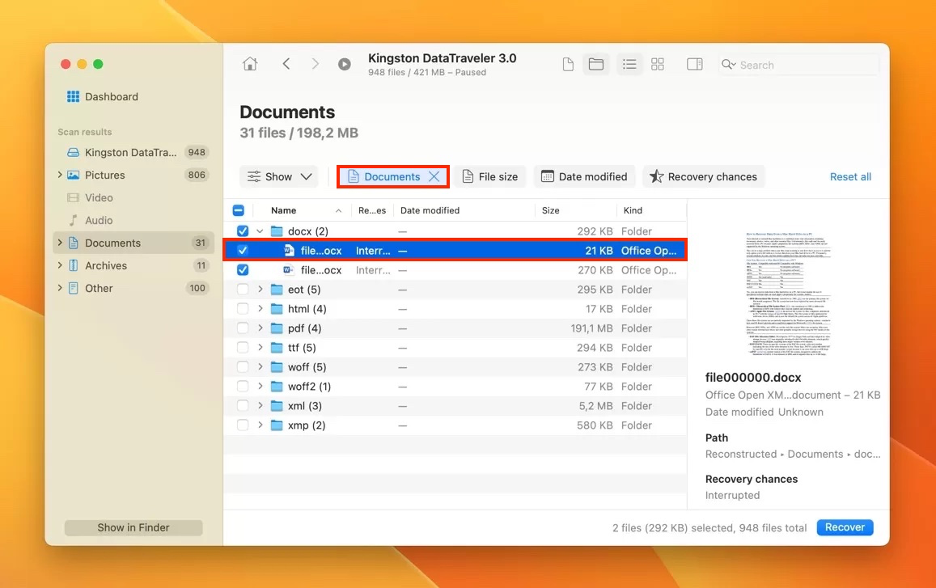
Use filters to narrow down the results by file type.
Select the file(s) to restore.
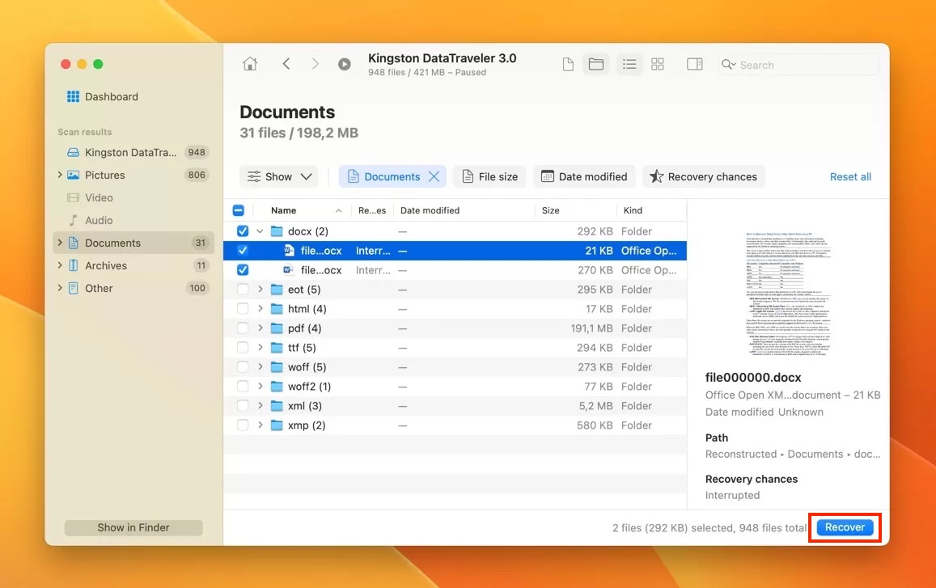
Click Recover.
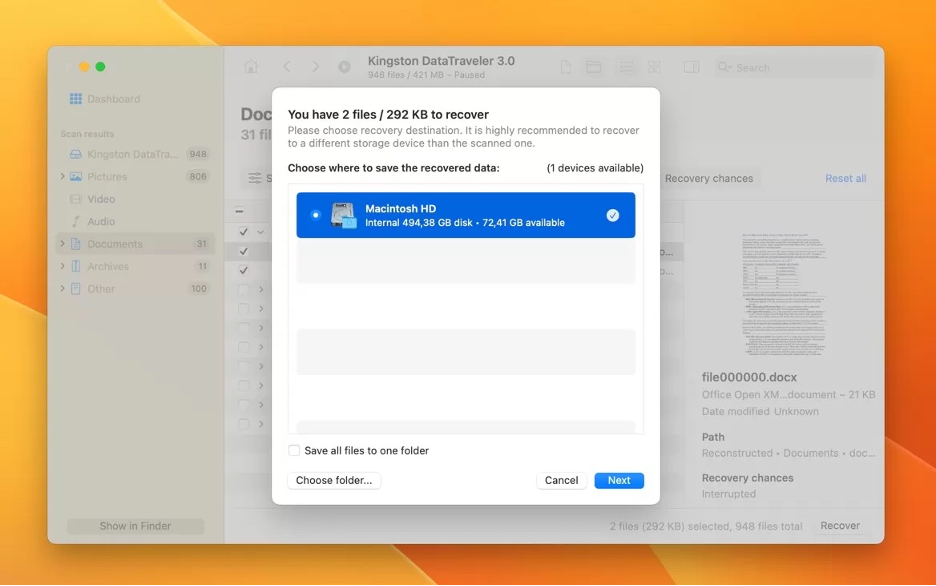
On the pop-up window, select the drive where you want to save it, then click Next.
Step 1. Launch Drill Drive > Select drive > Click Search for lost dataStep 2. Filter the results > Select the file to recoverStep 3. Click RecoverStep 4. Select the drive where you want to save it
4. View files on Mac with keyboard shortcut
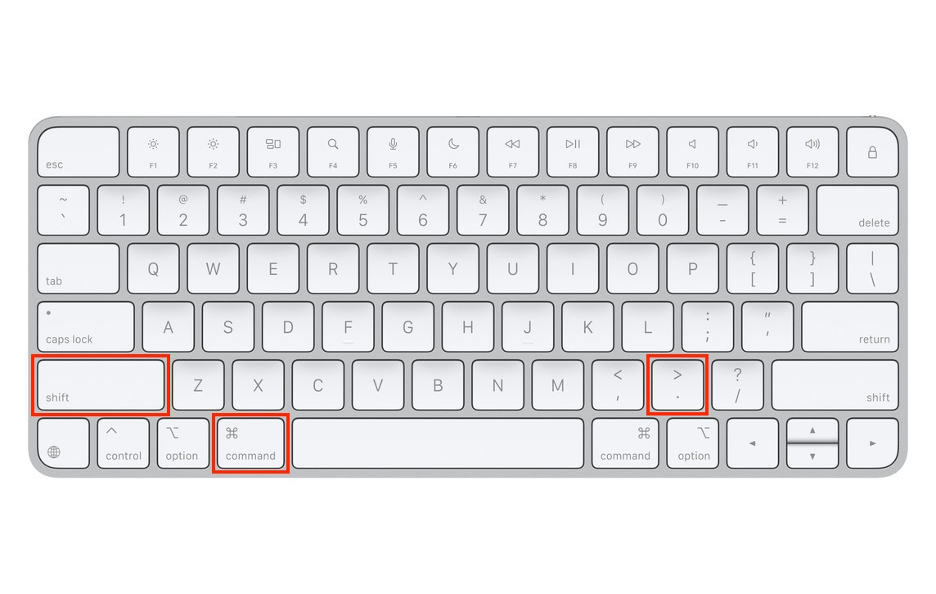
Our final recommended method is perfect for those who prefer to navigate their Mac entirely with the keyboard. Keyboard shortcuts go far beyond just copying and pasting. They can help you search for documents (and even show hidden files on Mac) with a simple key combination. This approach makes the search process noticeably faster and more efficient.
Below, you’ll find the main keyboard shortcuts for viewing files on a Mac:
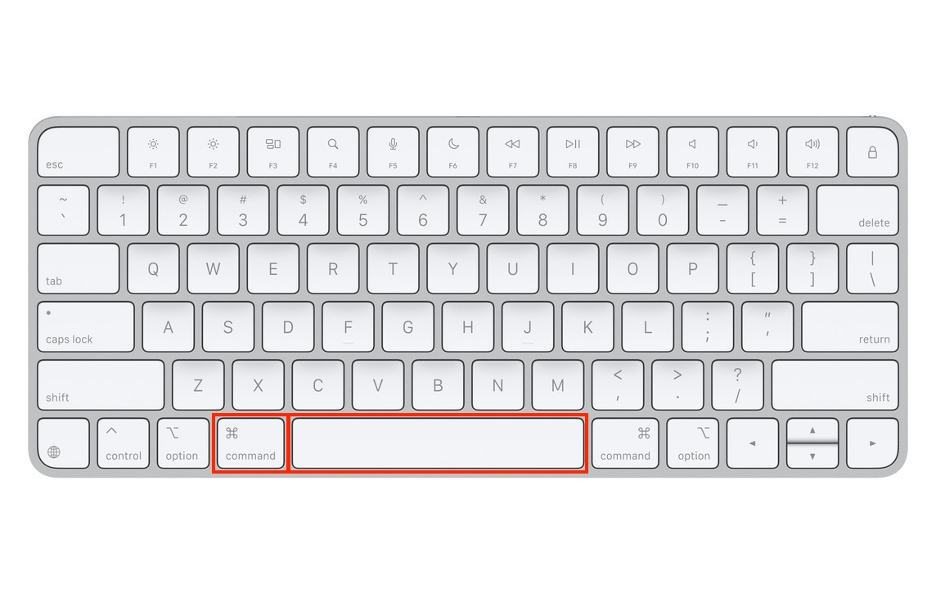
Press Command + Space to open Spotlight and search “Finder”.
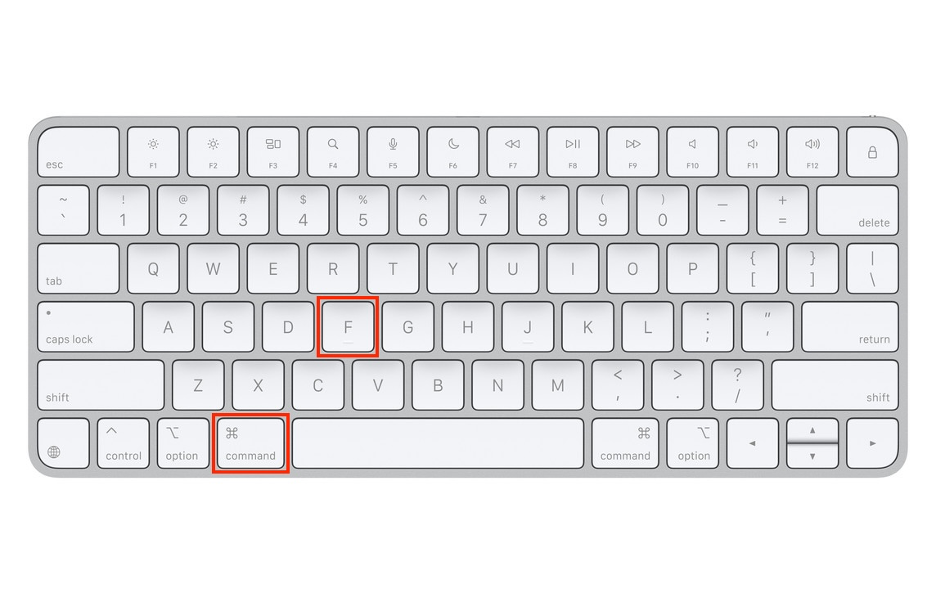
In Finder, press Command + F to use the search tool.
Also in Finder, press Command + Shift + . to reveal hidden files.
If your Mac has become cluttered with countless folders, knowing how to quickly locate any file can save you time and frustration. There are several effective methods: start by browsing through Finder or using its search tool, try a handy keyboard shortcut, or use Terminal commands to reveal hidden files. Third-party apps can also help.
These strategies are also great for decluttering your system by finding duplicate files. To make the process even faster, try MacKeeper’s Duplicates Finder. Not only does it streamline removing duplicates, but you’ll gain access to a suite of other MacKeeper tools, an all-in-one macOS utility from Clario Tech, complete with antivirus protection and performance monitoring.
We respect your privacy and
use cookies
for the best site experience.
Privacy Preferences Center
We use cookies along with other tools to give you the best possible experience while using the
MacKeeper website. Cookies are small text files that help the website load faster. The cookies we
use don’t contain any type of personal data meaning they never store information such as your
location, email address, or IP address.
Help us improve how you interact with our website by accepting the use of cookies. You can change
your privacy settings whenever you like.
Manage consent
All cookies
These cookies are strictly necessary for enabling basic website functionality (including page
navigation, form submission, language detection, post commenting), downloading and purchasing
software. The website might malfunction without these cookies.