Picking the best Mac utility software can feel like digging through an endless app store, and a cluttered, sluggish Mac only adds to the frustration. Our team starts with MacKeeper’s Safe Cleanup, which clears caches, logs, and other junk in a few clicks while leaving your personal files untouched.
How to choose right utility software for your Mac?
The best utility software for Mac solves an issue you face every week, runs natively on Apple silicon, and gets updated soon after each macOS release. Before installing anything, check what macOS already does for free and what the app will cost you over a year.
Here’s what our team checks before installing:
A real need. Since the first Macintosh, Apple has kept adding features that once required extra apps.
Active updates. macOS 27 Golden Gate supports only Apple silicon Macs and broke several menu bar managers.
Fair pricing. Compare one-time licenses with subscriptions over two or three years.
Trusted permissions. Grant Accessibility or Screen Recording access only to developers you trust.
In our experience, the best Mac utility app is one you forget is running until you need it. Utilities also work best alongside the regular maintenance MacBook owners should do anyway, like updating macOS and clearing junk.
Top utility software for Mac
We’ve tried dozens of apps, and these ten picks of top macOS utility software cover cleaning, productivity, window management, hardware monitoring, and customization. Most of them offer a free version or a trial.
1. MacKeeper: All-in-one Mac maintenance app
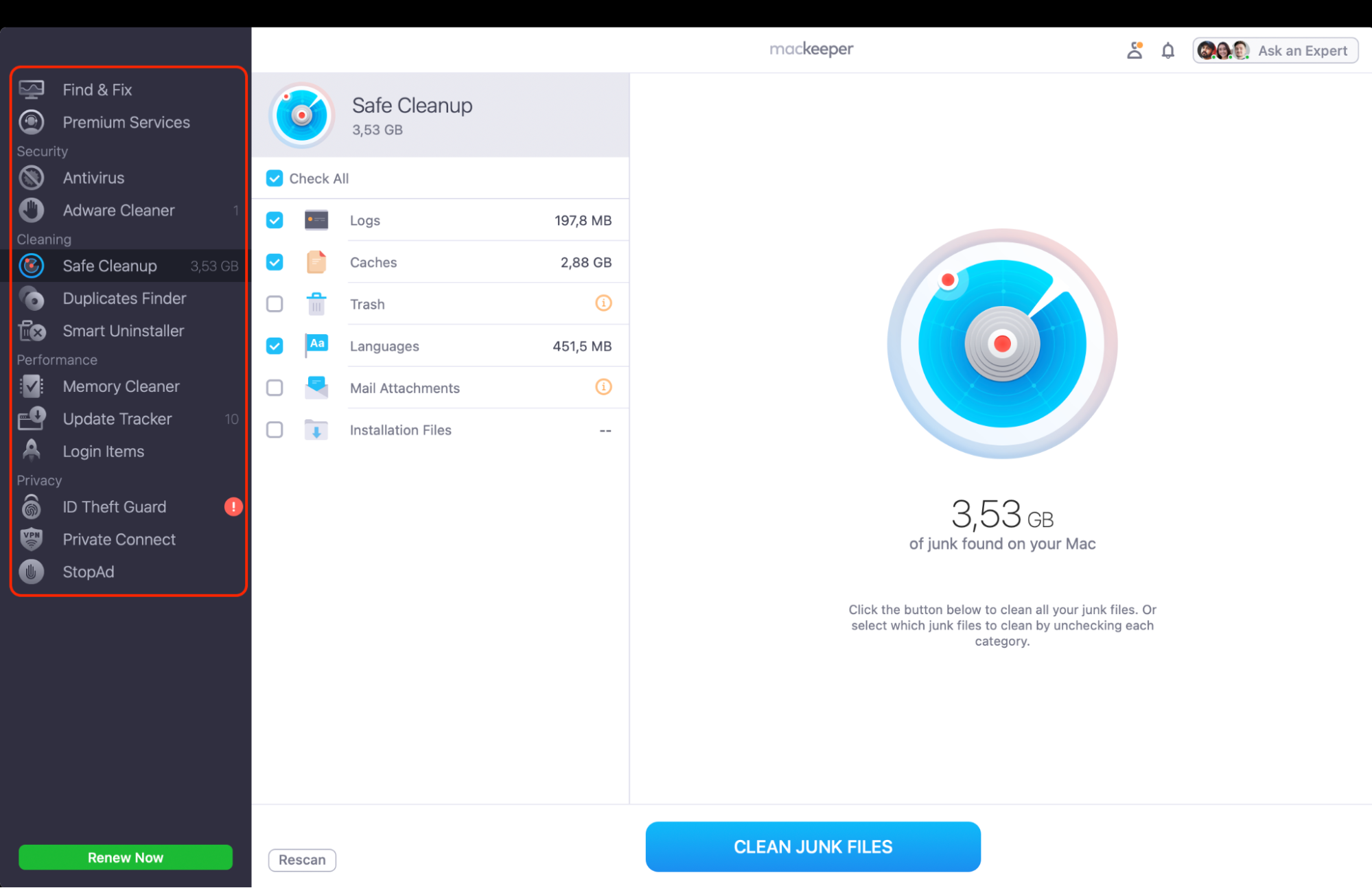
MacKeeper combines cleanup, security, privacy, and performance tools, so you don’t need separate utilities to keep your Mac tidy and safe.
MacKeeper’s main tools include:
Safe Cleanup. It removes caches, logs, and other junk files.
Antivirus. Real-time protection scans for and blocks malicious files.
Memory Cleaner. It quits memory-heavy processes to help you improve Mac speed.
Private Connect. The built-in VPN keeps your browsing private.
Pricing: Monthly and yearly subscriptions are available for one or several Macs.
Drawbacks: It isn’t a one-time purchase, and real-time protection needs a few permission steps.
Open MacKeeper to find all its tools grouped in the left sidebar
A note from our experts:
Is your Mac still slow even with all the right utilities in place? In our experience, junk buildup is often the real culprit, because caches, logs, and leftover files quietly eat storage and slow down everyday tasks. That’s why timely cleaning is the first step our team takes whenever a Mac needs a performance tune-up.
MacKeeper’s Safe Cleanup finds that junk in one scan and lets you choose what to remove, so your personal files stay where they are. MacKeeper protects your Mac from clutter and online threats in a single app. MacKeeper also offers memory optimization, so you can free up RAM right after a cleanup.
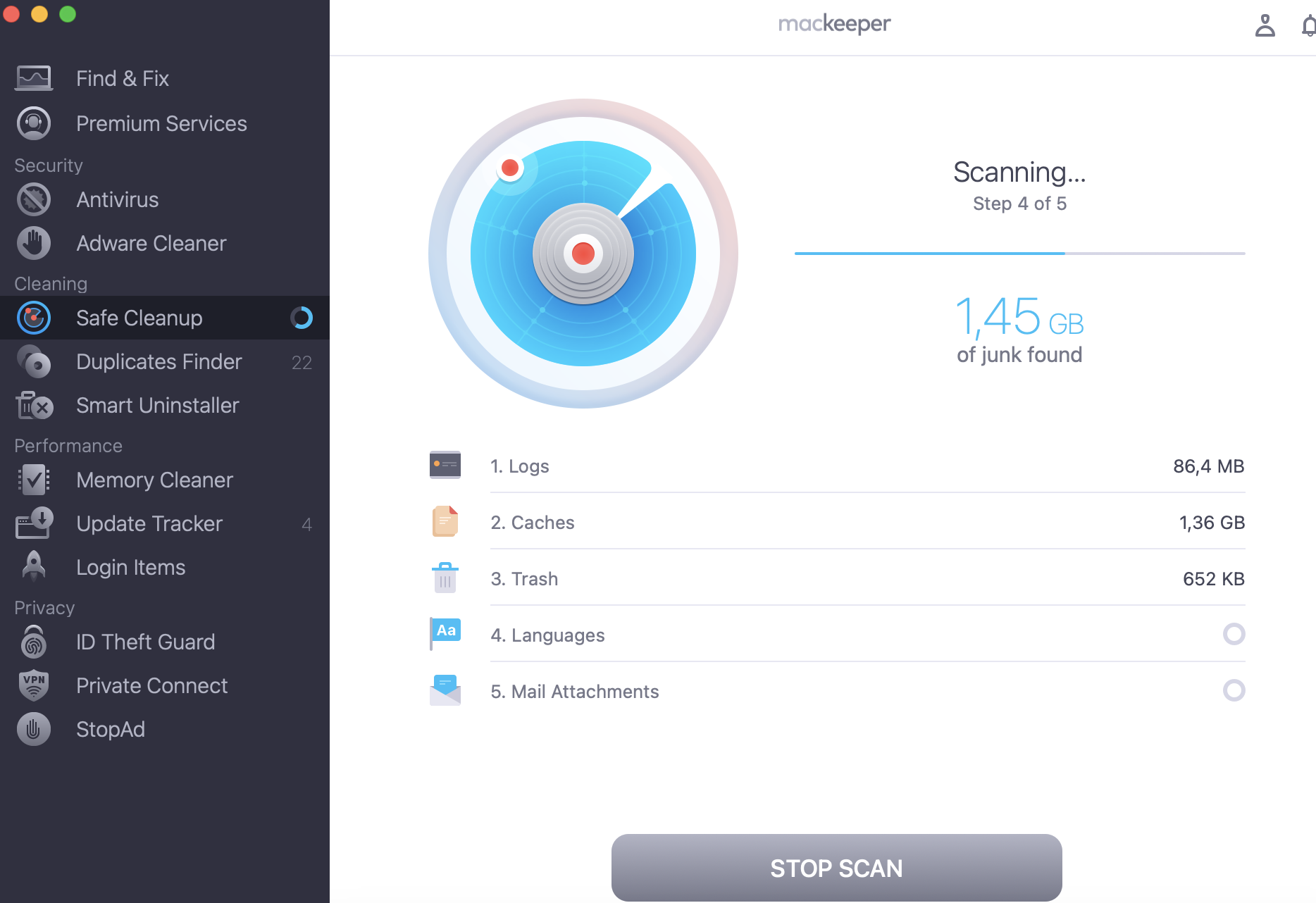
Click Start Scan and wait while MacKeeper checks your drive.
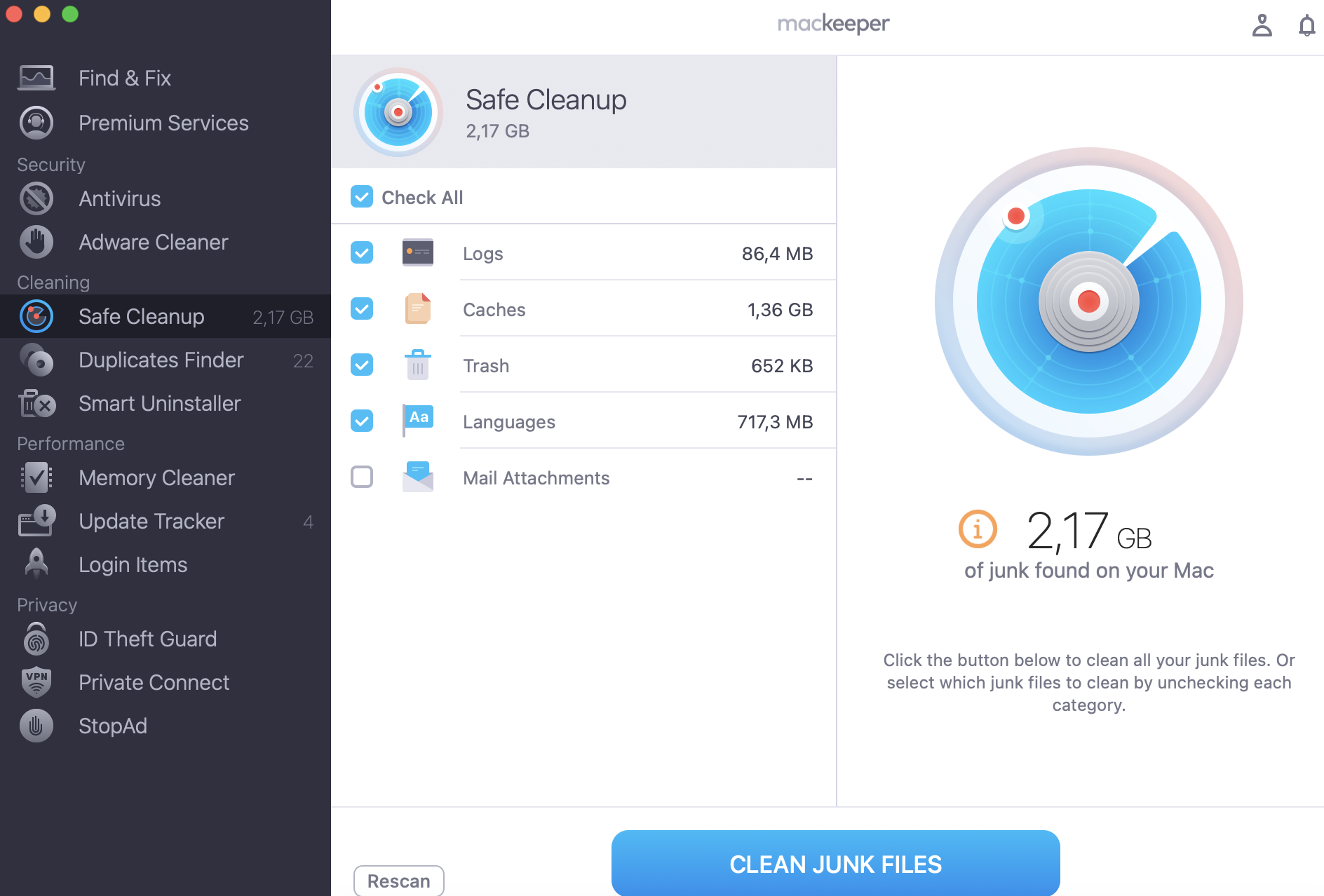
Review the junk categories it found, such as Logs, Caches, and Trash, then click Clean Junk Files.
Step 1. Open MacKeeper and select Safe Cleanup to open the junk scanning toolStep 2. Review the categories MacKeeper found, then click Clean Junk Files
2. Alfred: Smart search and workflows
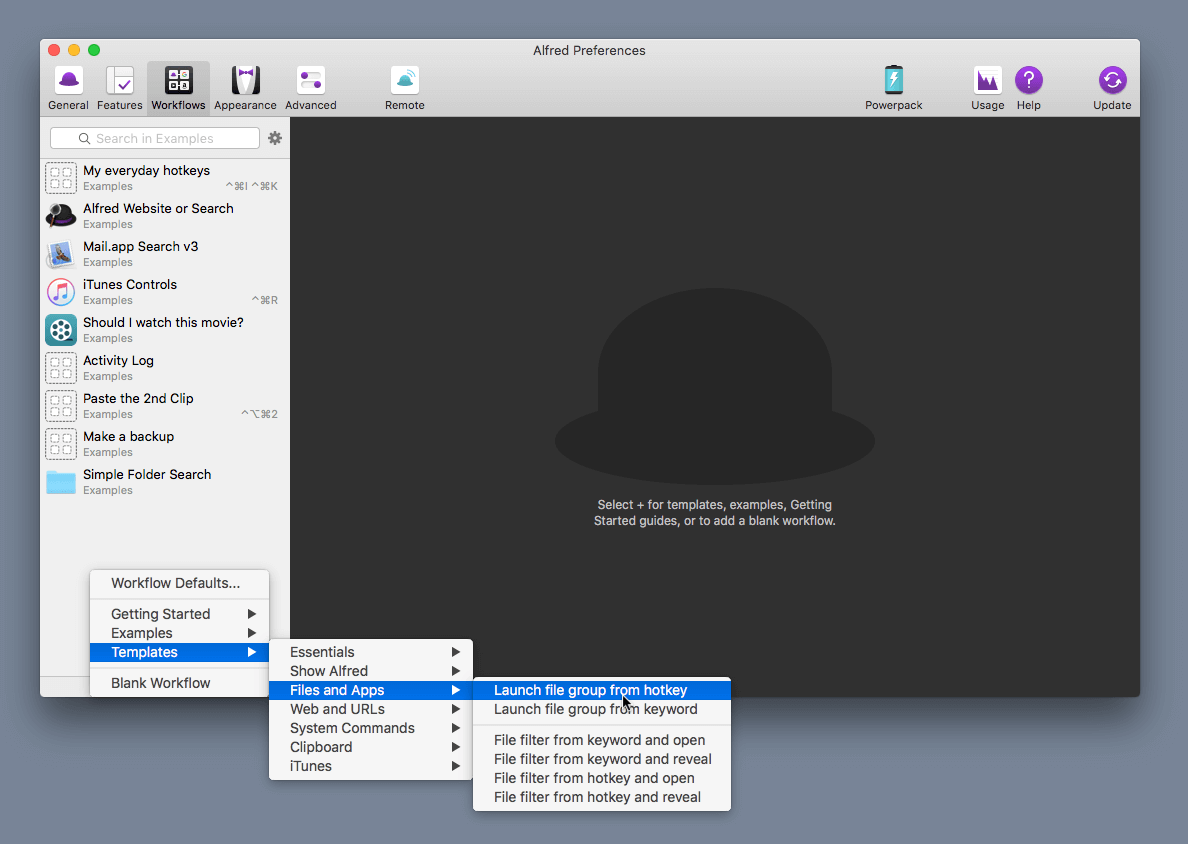
Alfred is a keyboard-driven launcher that opens apps, finds files, and runs quick calculations from a single hotkey. It’s our first install when we want to search on Mac faster.
Alfred stands out with:
Deep file search. Open, move, or email files from the search bar.
Workflows. Custom automations chain hotkeys, scripts, and apps together.
Clipboard history. It saves what you copy and expands text snippets.
Pricing: The core app is free, and the Powerpack costs £34, or £59 with lifetime upgrades.
Drawbacks: Key features need the Powerpack, and Spotlight in macOS Tahoe and later now covers basic actions.
Press the Alfred hotkey and start typing to see instant results
3. Amphetamine: Custom keep-awake control
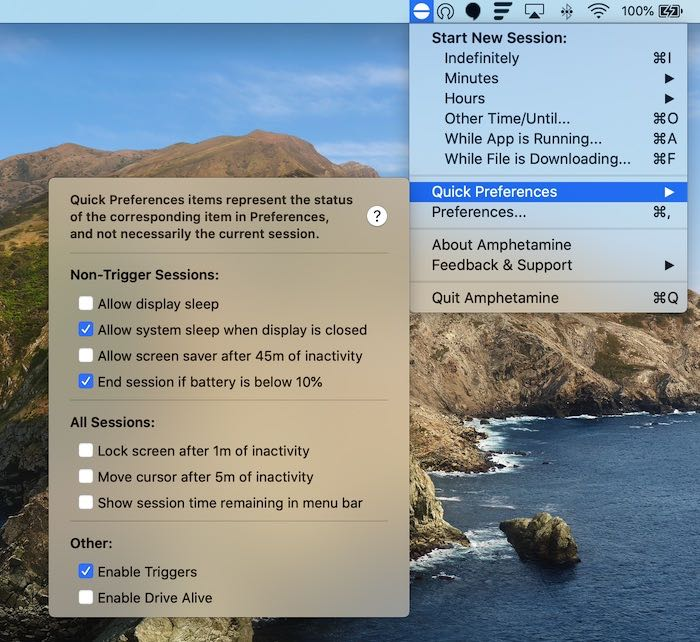
Amphetamine keeps your Mac awake during long downloads, presentations, or overnight backups. It’s the tool our team reaches for when built-in settings can’t keep Mac from sleeping the way we need.
With Amphetamine, you can:
Set sessions. Stay awake for a set time or until a download finishes.
Create triggers. Sessions start when an app runs or a display connects.
Manage the display. The screen can turn off while your Mac keeps working.
Pricing: Amphetamine is free on the Mac App Store, with no ads or in-app purchases.
Drawbacks: The many options take time to learn, and staying awake on battery drains a MacBook faster.
Click the Amphetamine menu bar icon to start a keep-awake session
4. Rectangle: Quick window snapping
Rectangle is an open-source window manager that snaps windows into halves, thirds, or quarters with shortcuts or a drag to the screen edge. To see all open windows on Mac at once, pair it with Mission Control.
Rectangle’s window controls include:
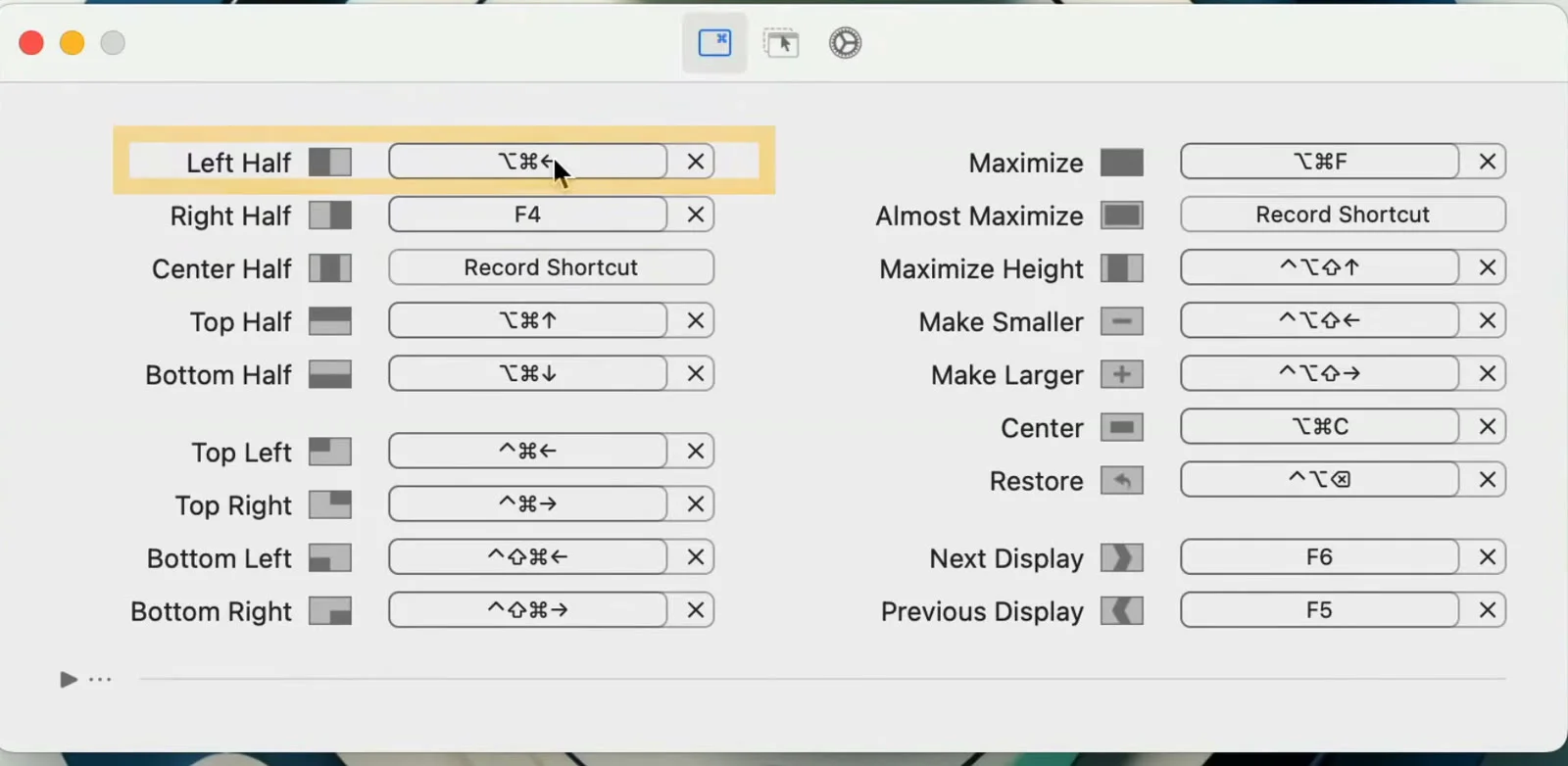
Keyboard shortcuts. Every layout has a remappable shortcut.
Snap areas. Drag a window to an edge, and it resizes to fit.
Multi-display support. One shortcut moves a window to another monitor.
Pricing: Rectangle is free, and Rectangle Pro adds custom layouts for a one-time $9.99.
Drawbacks: It isn’t on the Mac App Store, and macOS Sequoia and later already offer basic tiling.
Open the Rectangle settings to view or change layout shortcuts
5. Bartender: Menu bar organization
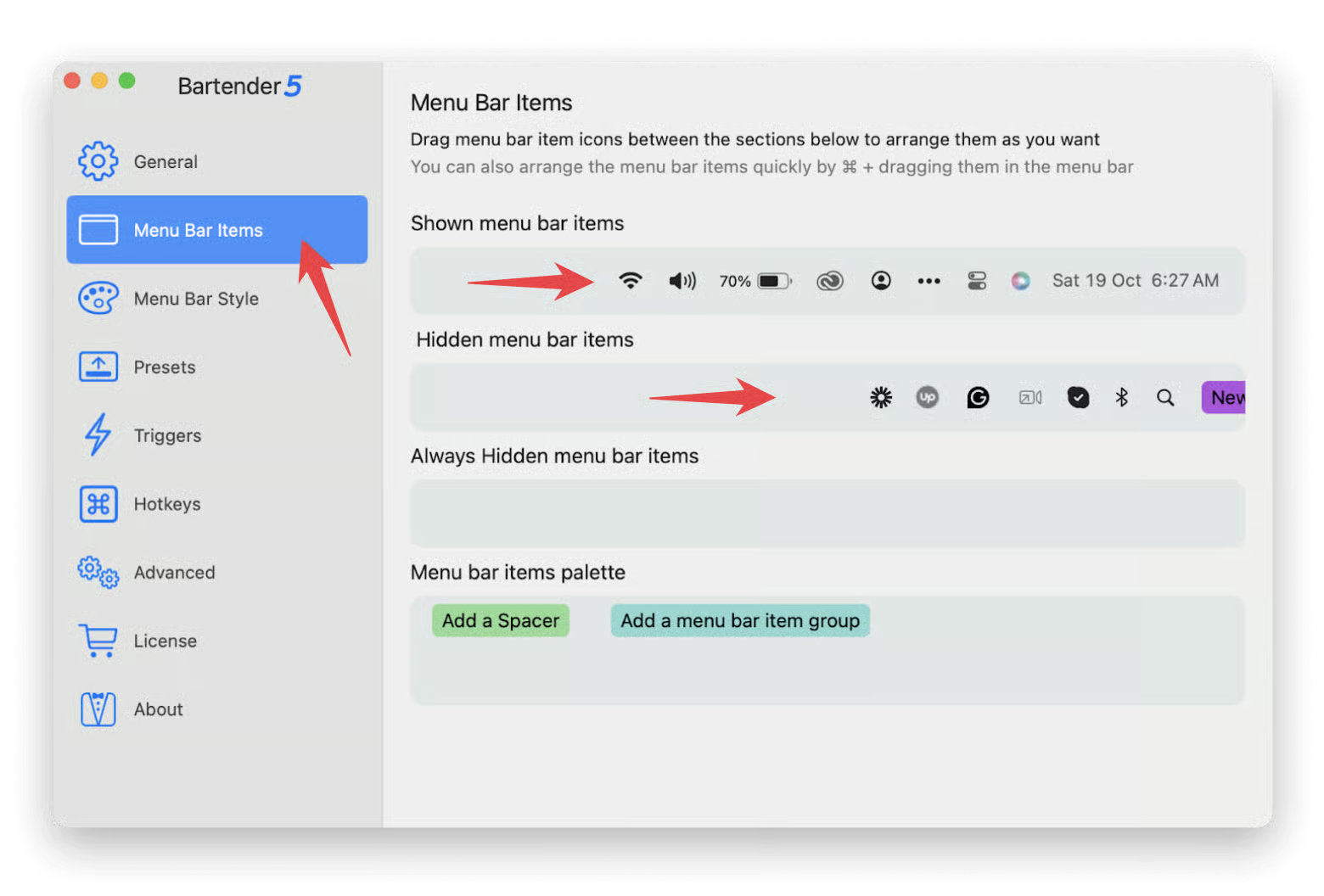
Bartender hides, groups, and rearranges menu bar icons, which matters most on MacBooks with a notch, where extra icons vanish behind the camera. It’s our go-to tool when you want to customize Menu bar on Mac beyond what System Settings allows.
Bartender organizes icons with:
Hidden sections. Rarely used icons stay out of sight until you hover.
Triggers. Icons reappear on conditions like a low battery.
Bartender Bar. A separate bar shows hidden items.
Pricing: A one-time license includes Bartender 7 for macOS 27, with yearly Pro and lifetime tiers also available.
Drawbacks: Major macOS updates have broken Bartender before, so full support can lag behind new releases.
Drag icons into the hidden section in Bartender settings
6. Paste: Clipboard history manager
Paste is a visual clipboard manager that saves the text, links, images, and files you copy as a strip of cards. We suggest it when the built-in clipboard history on Mac feels too basic.
Paste makes reusing content easier with:
Unlimited history. Search everything you’ve ever copied.
Pinboards. Frequently used snippets live in organized collections.
iCloud sync. Your clipboard follows you to your iPhone and iPad.
Pricing: Paste costs $3.99 a month or $29.99 a year, with a lifetime option on the Mac App Store.
Drawbacks: It’s a subscription for a simple task, and Spotlight now keeps a free clipboard history.
Press the Paste shortcut to open your clipboard history
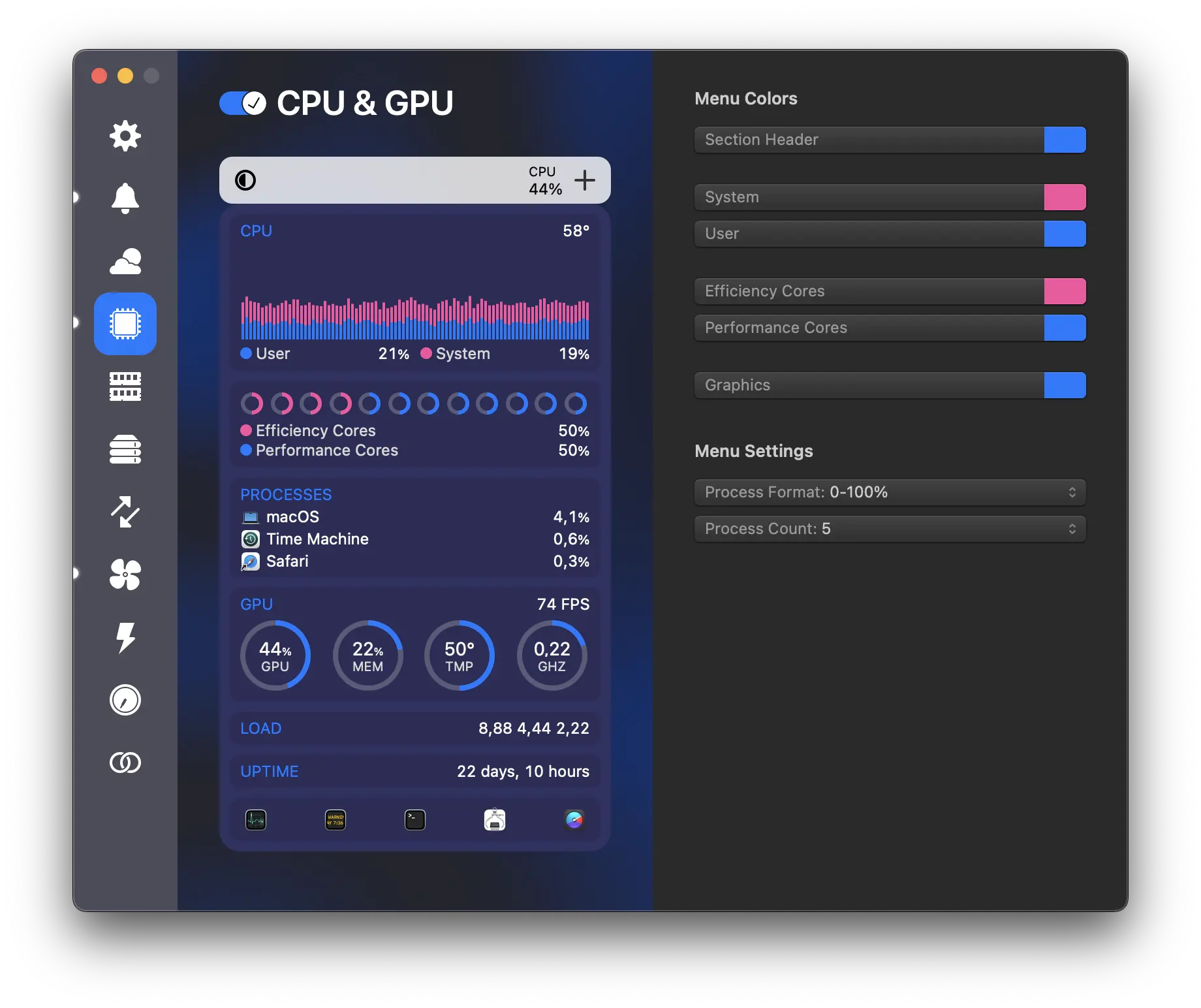
7. iStat Menus: Monitor system stats in real time
iStat Menus puts live hardware stats in your menu bar, and Mac users have relied on it for nearly 20 years. It’s a quick way to check memory usage or find out why your fans suddenly spin up.
iStat Menus keeps an eye on:
CPU and GPU load. Live graphs show which apps use the most resources.
Memory and disks. Graphs reveal when RAM runs short.
Sensors and battery. It tracks temperatures, fan speeds, and battery health.
Pricing: A one-time license costs $11.99 on the Mac App Store.
Drawbacks: The amount of data can overwhelm casual users, and weather needs a subscription after six months.
Click the iStat Menus CPU item to see live usage
8. BetterTouchTool: Customize gestures and input devices
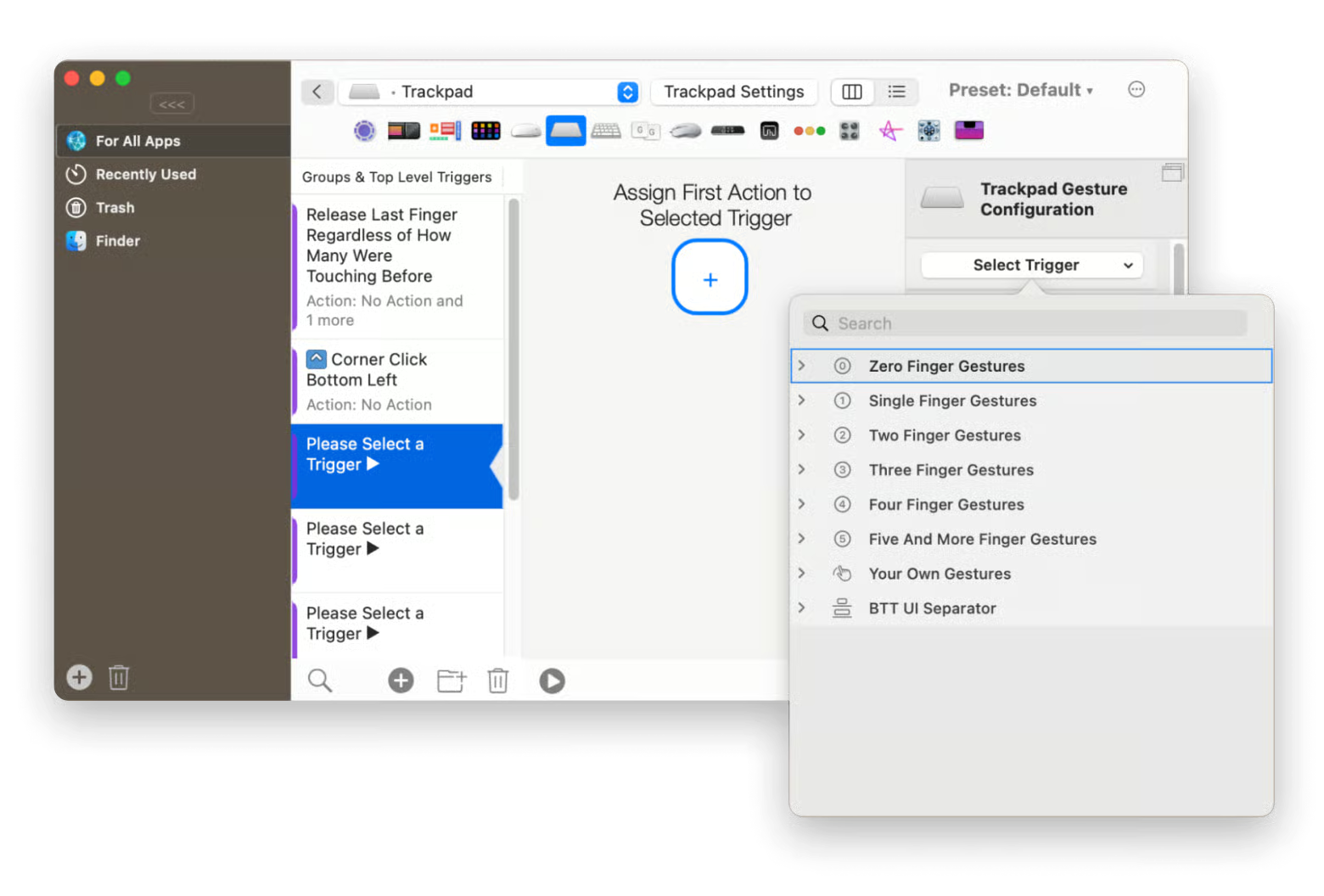
BetterTouchTool lets you customize the trackpad, Magic Mouse, keyboard, and even the Touch Bar on older MacBook Pro models. You can assign actions to gestures and hotkeys, so repetitive tasks take a single swipe.
Our favorite BetterTouchTool options are:
Custom gestures. Map a three-finger tap to almost any action.
Key sequences. Launch apps or insert text with one key combination.
Window snapping. Built-in tiling may replace a separate app.
Pricing: A standard license with two years of updates costs $15, a lifetime license costs $25, and the trial lasts 45 days.
Drawbacks: The dense settings take real time to learn.
Select Trackpad in BetterTouchTool and assign an action to a gesture
9. CleanShot X: Screen capture and recording
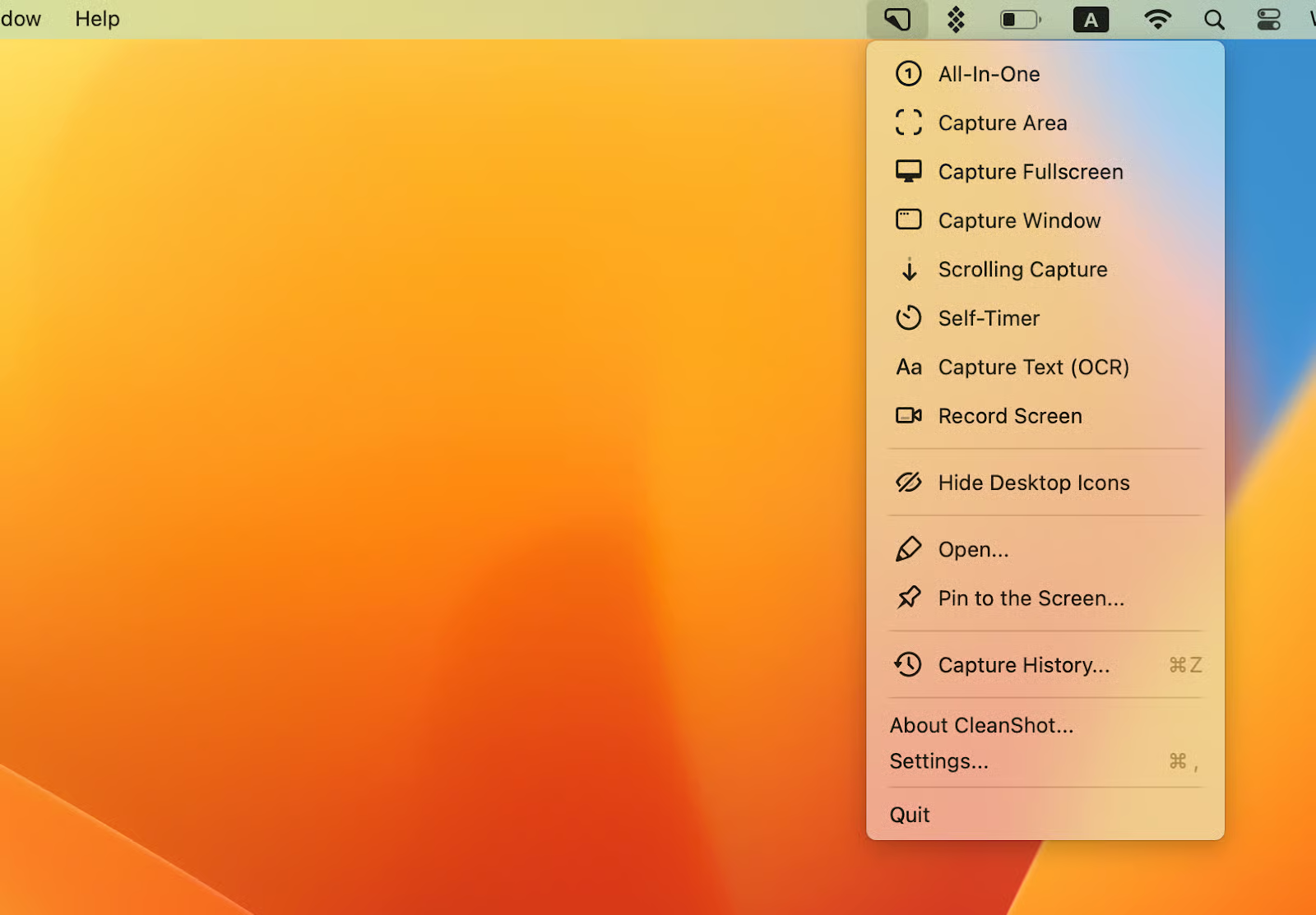
CleanShot X is a capture and recording tool for people who grab their screen every day. Apple’s built-in options are enough if you only need to take screenshot on macOS now and then.
CleanShot X’s standout tools are:
Scrolling capture. Grab a full webpage in one image.
Text recognition (OCR). It copies text from images and videos.
Annotations. Add arrows, blur private details, and record GIFs.
Pricing: The app costs $29 once with a year of updates, and renewals cost $19 a year.
Drawbacks: There’s no free version, and unlimited cloud storage costs extra.
Choose a capture mode from the CleanShot X menu bar icon
10. 1Password: Safeguard passwords and sensitive data
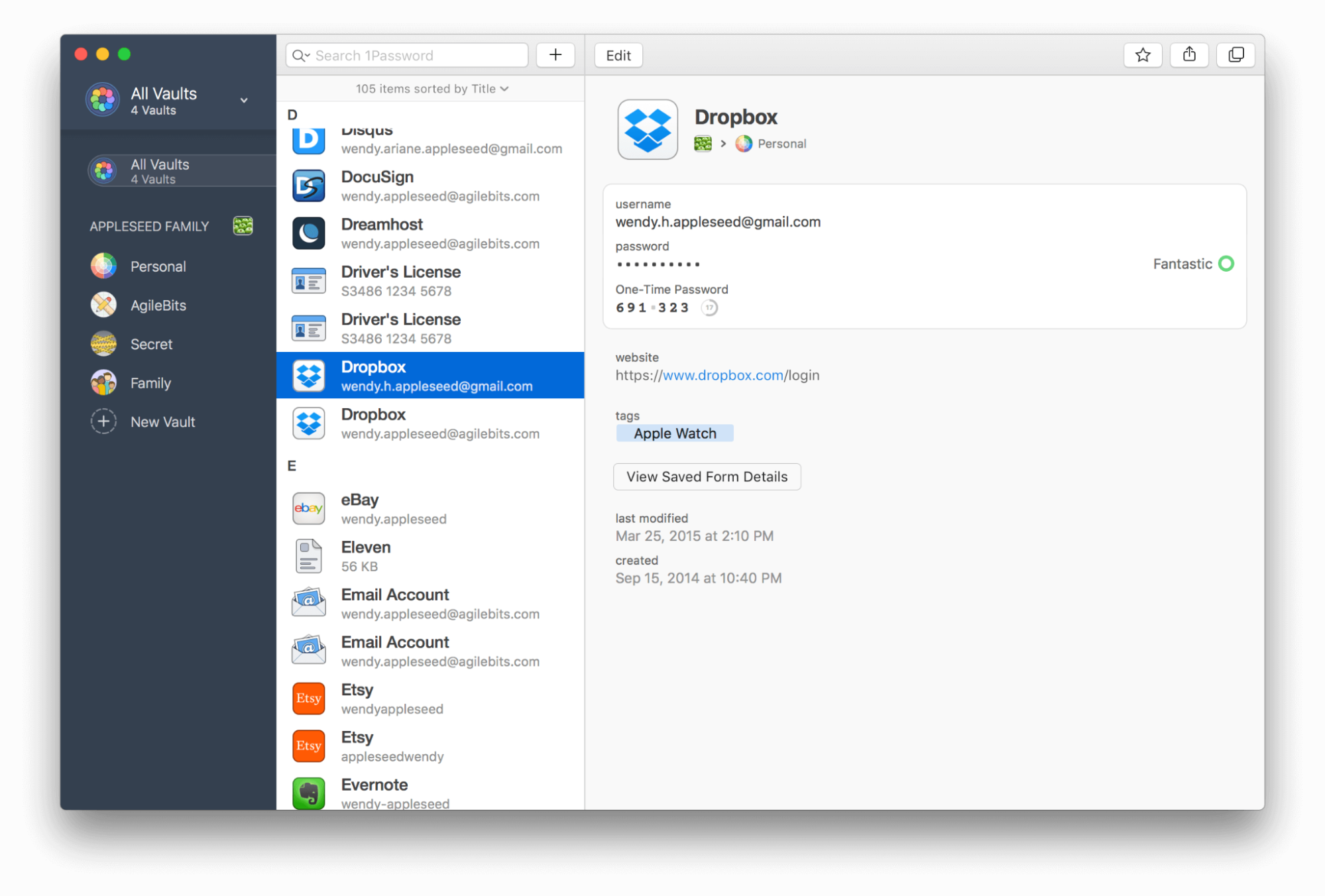
1Password generates strong credentials, autofills logins, and stores them in encrypted vaults across Mac, Windows, iPhone, and Android. If you’ve ever dealt with a Keychain password not working, you’ll value having every login in one well-managed place.
1Password keeps accounts safe with:
Password generator. It creates a unique password for every account.
Browser autofill. Logins, cards, and addresses fill in with a click.
Watchtower. It flags weak, reused, or breached passwords.
Pricing: The Individual plan costs $3.99 a month billed yearly, and Families costs $5.99 a month for five people.
Drawbacks: There’s no free tier, and Apple’s free Passwords app may be enough for Apple-only households.
Select a login in your 1Password vault to view or copy it
Conclusion
Choosing the best Mac utility software comes down to fixing small daily annoyances, from a crowded menu bar to a MacBook that slows to a crawl. A focused set of apps helps you work faster, keep your workspace organized, and get smoother performance.
Start with the basics, though. MacKeeper’s Safe Cleanup clears caches, logs, and other junk in a few clicks, so your other utilities have room to run. MacKeeper offers adware and malware removal to keep your browsing safe. MacKeeper is Apple-notarized, so you can install it with confidence. Download MacKeeper and give your Mac a clean start today.
We respect your privacy and
use cookies
for the best site experience.
Privacy Preferences Center
We use cookies along with other tools to give you the best possible experience while using the
MacKeeper website. Cookies are small text files that help the website load faster. The cookies we
use don’t contain any type of personal data meaning they never store information such as your
location, email address, or IP address.
Help us improve how you interact with our website by accepting the use of cookies. You can change
your privacy settings whenever you like.
Manage consent
All cookies
These cookies are strictly necessary for enabling basic website functionality (including page
navigation, form submission, language detection, post commenting), downloading and purchasing
software. The website might malfunction without these cookies.