If you’ve noticed Slack lagging or failing to load images, you can clear the Slack cache on Mac to instantly refresh the app and resolve frustrating connectivity glitches. Our team recommends using MacKeeper’s Safe Cleanup to automate this process, as it thoroughly removes deeply embedded junk files that manual cleanup often misses, ensuring your workspace remains fast and responsive.
To delete the Slack cache on your Mac and resolve performance lags, you should navigate to the Help menu in the app, select Troubleshooting, then click Clear Cache and Restart. Our team suggests this quick fix to refresh your workspace, remove corrupted data, and restore a smooth, stable connection instantly.
Why clear Slack cache on Mac?
You should reset the Slack cache on your Mac to fix persistent performance issues, resolve software bugs, and free up valuable disk space. Our experts have found that a corrupted or overloaded cache often leads to slow loading times, display errors, and notification failures. Regularly clearing it ensures your app runs smoothly.
A note from our experts:
While a specific app reset is great, we recommend you clear the Slack cache on a Mac as part of a deeper system refresh to reclaim maximum storage. Based on our experience, built-in tools often leave behind hidden leftovers in system folders that continue to hog memory. We suggest using MacKeeper’s Safe Cleanup, as it is a macOS utility software that offers memory optimization by targeting these redundant files.
Follow these steps to deep-clean your cache:
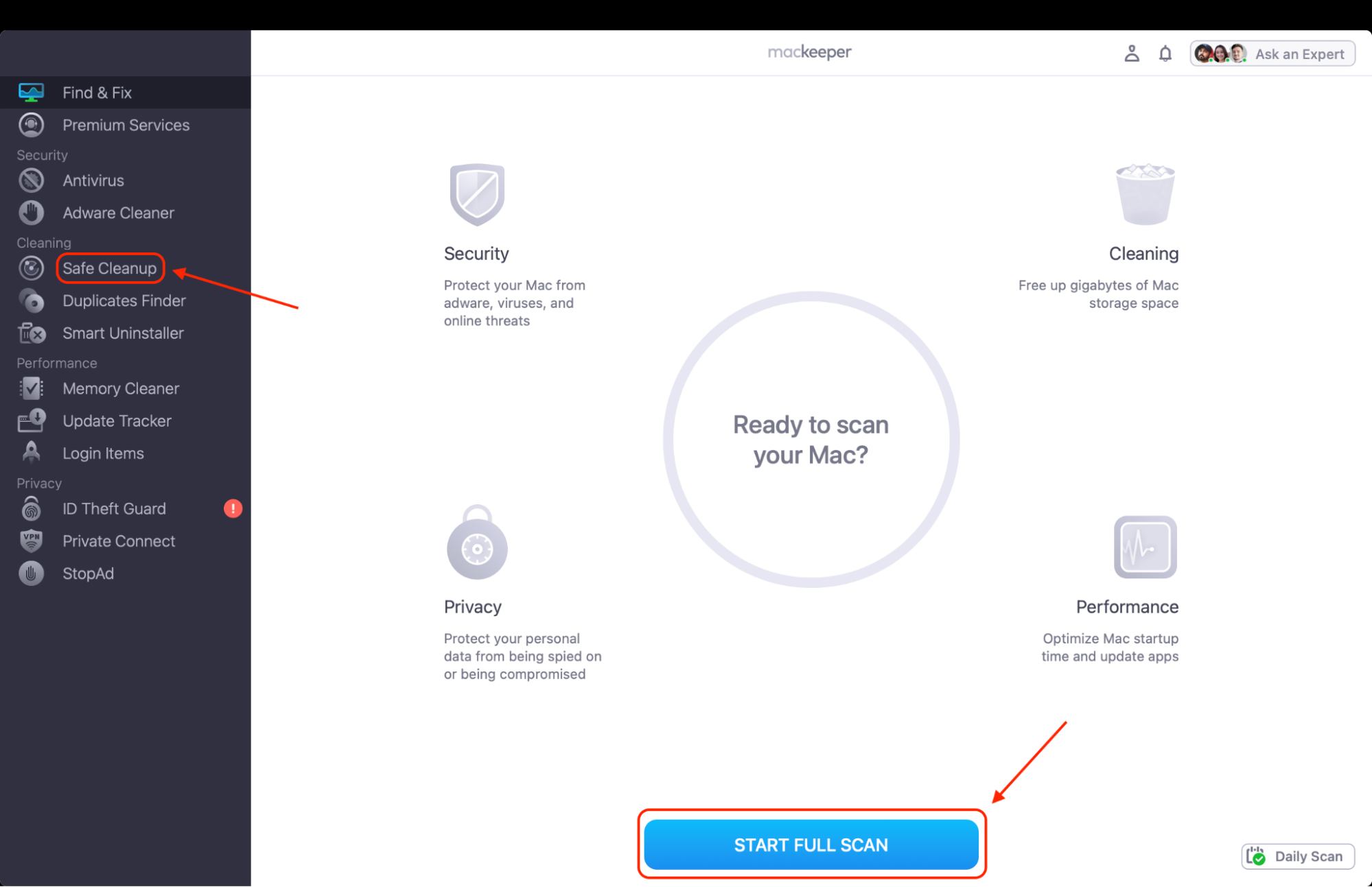
Launch the MacKeeper app and navigate to the Safe Cleanup tab to begin a full system scan for junk.
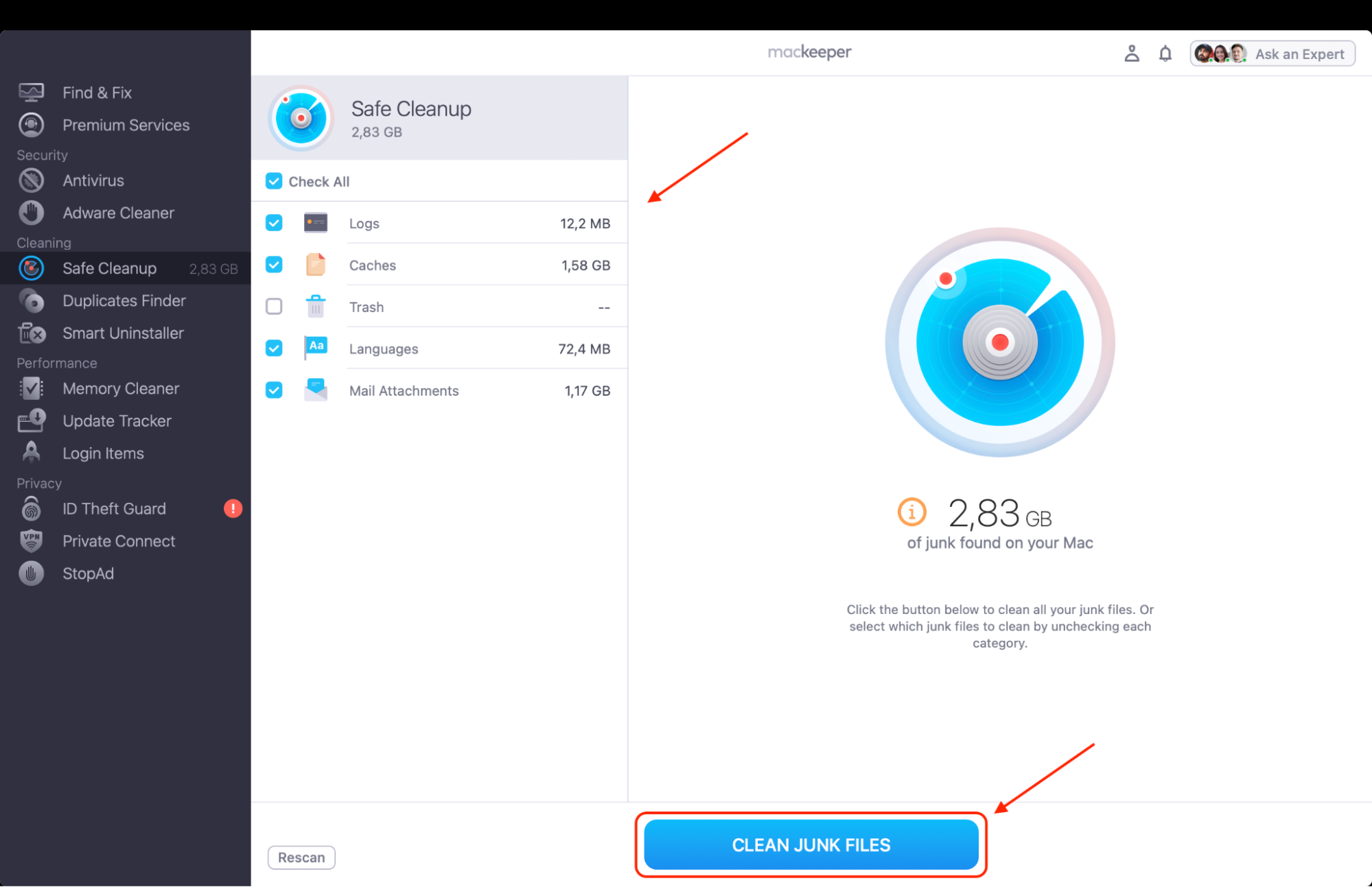
Filter through the detected logs and caches to ensure you are only removing unnecessary data.
Click the Clean Junk Files button to instantly wipe away the identified clutter and boost your Mac’s efficiency.
Step 1. Select Safe Cleanup and click the Start Full Scan buttonStep 2. Choose the files you’d like to delete and click Clean Junk Files
When clearing Slack cache isn’t necessary?
To start with, clearing the Slack cache isn't necessary if the app is running smoothly. The cache actually speeds up loading by storing temporary data for quick access to messages and files. As our internal tests show, it only becomes needed when you experience slow performance, connection issues, or excessive storage usage. That’s why if you have a stable internet connection and aren't facing glitches, it is generally fine to let the cache build up to enhance your user experience.
Will clearing Slack cache log you out or delete messages?
No, clearing the Slack cache will not delete your messages, as those are safely stored on Slack's remote servers. However, based on our team's hands-on evaluation, the process might log you out of your specific workspace and will remove temporary files that help the app load faster. While clearing "data" on mobile devices often logs you out, on a Mac desktop, the Clear Cache & Exit option usually keeps you logged in while forcing a refresh in order to fix display bugs.
How to delete Slack cache on Mac?
To delete the Slack cache on a Mac, the easiest way is through the app's built-in menu: open Slack, click Help in the top menu bar, hover over Troubleshooting, and select Clear Cache and Exit. This automatically removes temporary files and restarts the app for you. For a more thorough manual removal of associated files, you can use Finder to access and delete folders within ~/Library/Application Support/Slack/, ensuring every hidden leftover is fully gone.
You can delete folders within ~/Library/Application Support/Slack/ from going to Finder and choosing Go > Go to Folder
1. Manual method via Slack app
Our team suggests using the built-in troubleshooting tools within the application as the primary way to Mac clear app data.
To perform a manual reset using the internal tools, follow these steps:
Open the Slack application on your desktop to begin the process.
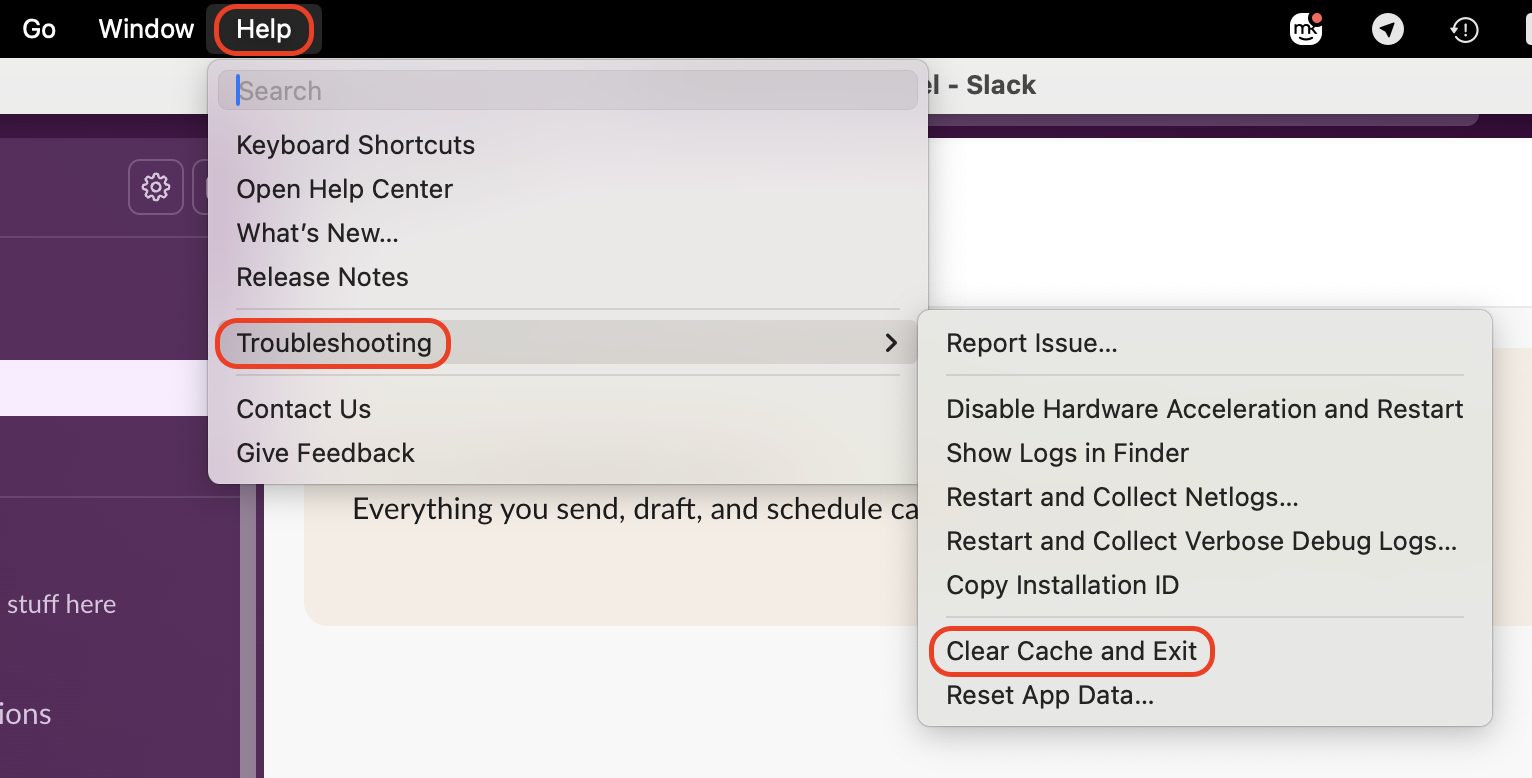
Navigate your cursor to the very top of your screen and click on the Help tab in the menu bar.
Hover your mouse over the Troubleshooting option to reveal the secondary list of actions.
Select the option labeled Clear Cache and Restart to trigger the purge.
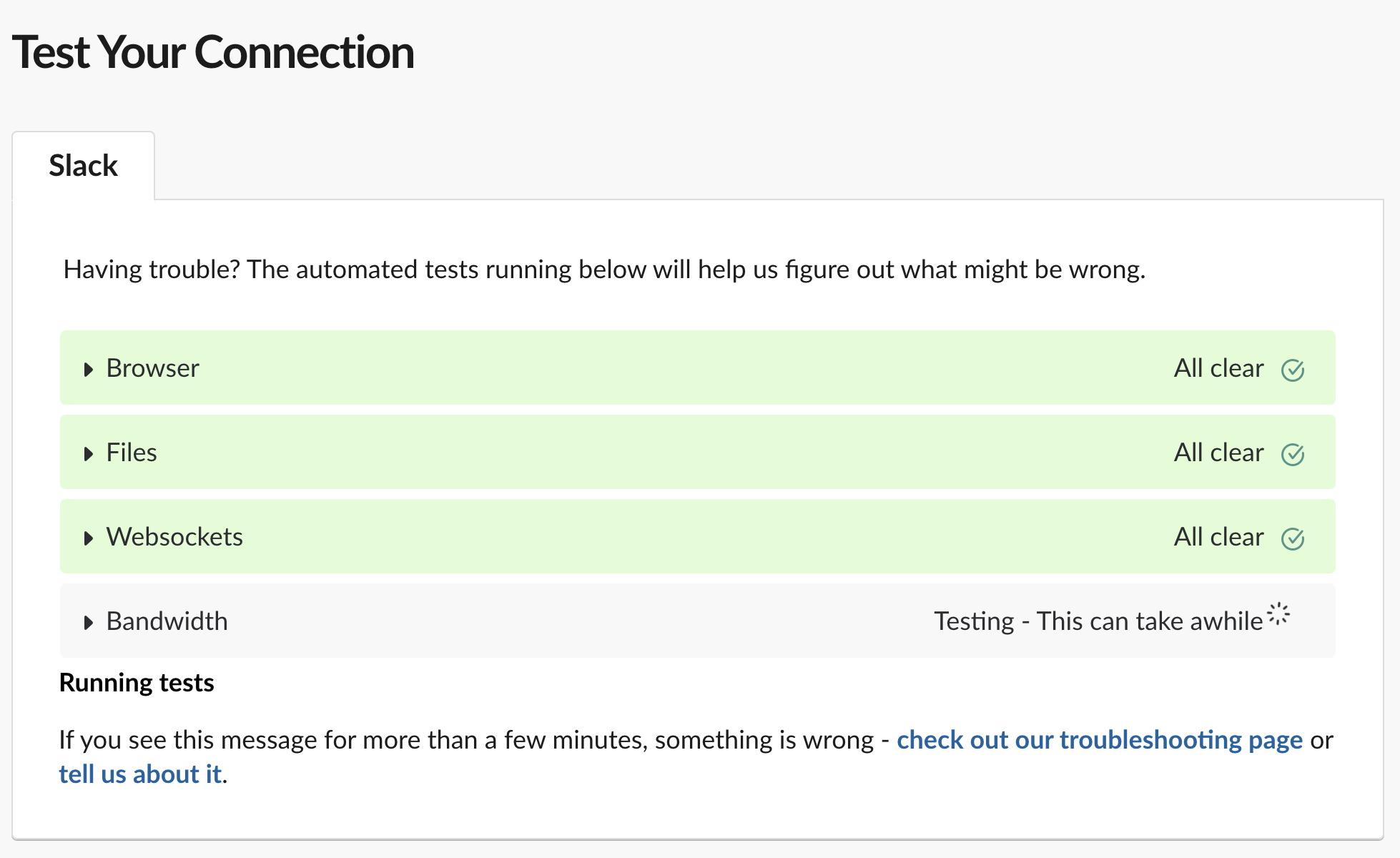
Check the Slack connection test at slack.com/help/test if you are still experiencing login or sync errors.
Step 1. Click Help in the top menu bar, hover over Troubleshooting, and select Clear Cache and ExitStep 2. Check the Slack connection test at slack.com/help/test if you are still experiencing login or sync errors
2. Using Finder or Direct file removal
If the application is frozen or won't open, we’ve found that a direct manual intervention is the best way to learn how to delete temp files on a Mac.
Follow these instructions:
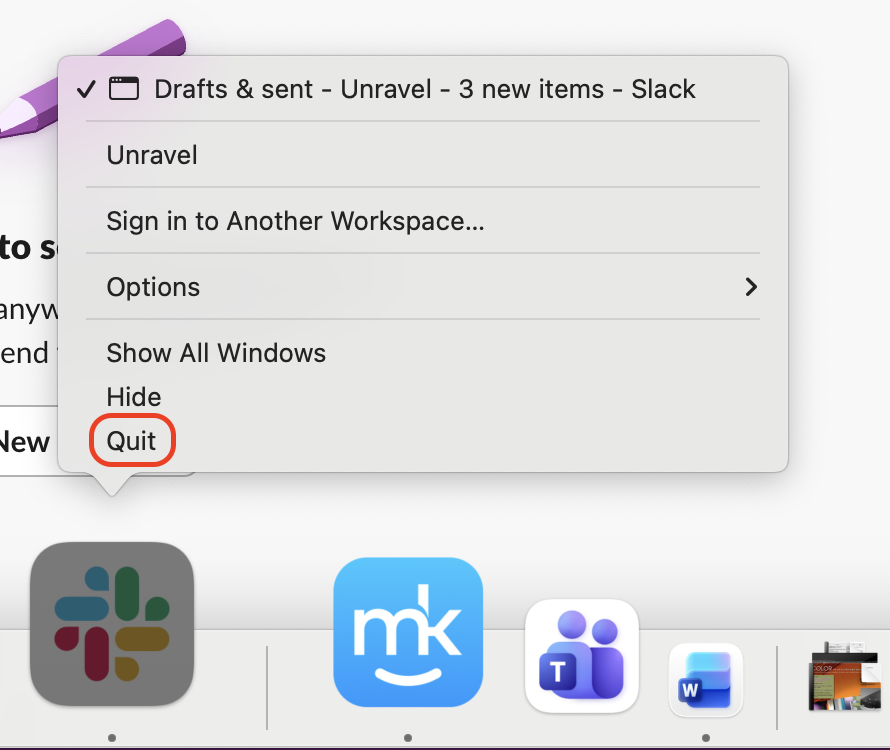
Ensure the app is fully closed by right-clicking the icon and selecting Quit or pressing Command + Q.
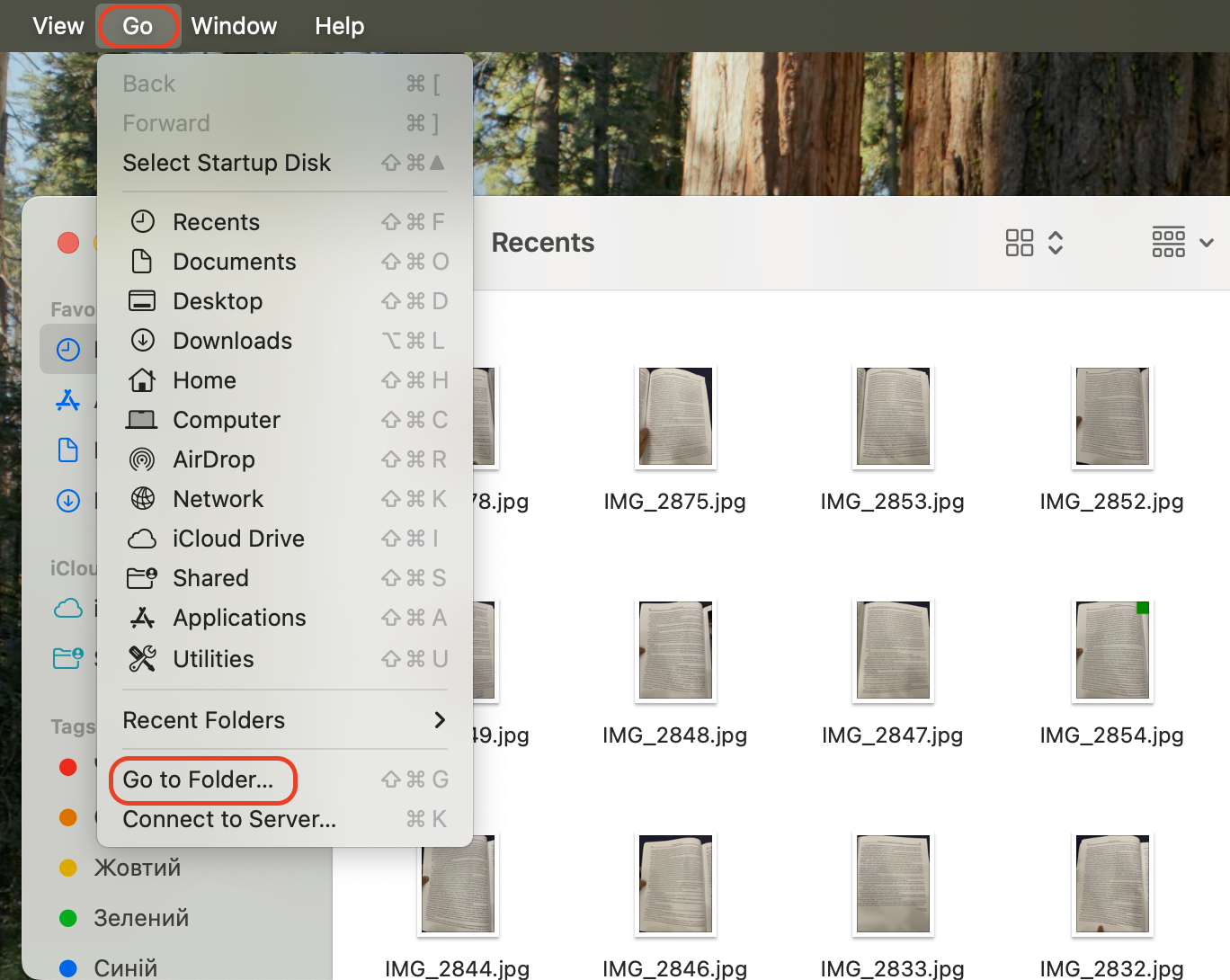
Open a new Finder window and click on the Go menu located at the top of your screen.
Choose the Go to Folder option from the dropdown list to open the path entry box.
Carefully type or paste the exact path ~/Library/Application Support/Slack and hit the Enter key.
Locate the specific folders labeled as Cache, GPUCache, and Code Cache within this directory.
Select every file inside these folders and drag them directly into your Trash.
Repeat this process for the general cache path by entering ~/Library/Caches in the Go to Folder box.
Right-click your Trash and select Empty Trash to permanently remove the data and free up space.
Step 1. Quit the Slack appStep 2. Open a new Finder window, click on the Go, and choose the Go to Folder option from the dropdown listStep 3. Paste ~/Library/Application Support/Slack and hit the Enter key. Move all the files inside these folders—Cache, GPUCache, and Code Cache—to Trash
3. Using third‑party tools
When you want a more comprehensive solution, using specialized software is the most efficient way to learn how to clear system data on a Mac.
Follow this action plan to clear your system data using automated software:
Launch the application and select the Safe Cleanup module from the sidebar menu.
Click the blue Scan button to allow the tool to analyze your disk for junk files, caches, and leftovers.
Click on the Clean Junk Files button to safely delete the selected items and instantly reclaim storage.
Navigate to the Premium Services section if you require real-time help from a technician.
Click Chat Now to connect with an expert who can guide you through more complex system optimizations.
Open MacKeeper, click Premium Services in the sidebar, then choose Chat Now
Conclusion
To wrap up, you should clear the Slack cache on your Mac whenever you encounter persistent glitches, slow loading times, or connectivity errors that disrupt your workflow. The experts at our team suggest using MacKeeper’s Safe Cleanup to streamline this process, as it identifies hidden junk and redundant system data that manual methods often overlook. Our macOS utility software, developed by Clario Tech, offers a safer, more comprehensive way to protect your Mac while ensuring you only remove files that no longer matter.
We respect your privacy and
use cookies
for the best site experience.
Privacy Preferences Center
We use cookies along with other tools to give you the best possible experience while using the
MacKeeper website. Cookies are small text files that help the website load faster. The cookies we
use don’t contain any type of personal data meaning they never store information such as your
location, email address, or IP address.
Help us improve how you interact with our website by accepting the use of cookies. You can change
your privacy settings whenever you like.
Manage consent
All cookies
These cookies are strictly necessary for enabling basic website functionality (including page
navigation, form submission, language detection, post commenting), downloading and purchasing
software. The website might malfunction without these cookies.