TeamViewer is a practical solution for remotely accessing your Mac, but is it actually safe to use? In this article, we examine whether TeamViewer is safe or it presents any security risks. And if you really want to keep things private, consider using MacKeeper’s VPN Private Connect to browse safely and keep your activities private.
TeamViewer is a widely used app that allows you to connect to a Mac remotely from another MacBook. While security concerns are always worth considering, TeamViewer is undeniably handy when you need to control a macOS device from afar. Whether accessing work documents from home or providing remote IT support, this software makes remote access simple and efficient.
Moreover, TeamViewer stands out for its impressive range of online collaboration features, including full device control, easy file transfers, session recording, and real-time chat. On top of these powerful tools, its intuitive interface makes it the go-to remote access solution for millions of users worldwide.
Is TeamViewer secure?
If you’re wondering if TeamViewer is safe or not, it’s important to understand that its safety largely depends on how you set up and use the software. While TeamViewer incorporates industry-standard security features, your configuration choices and remote access habits play a significant role in maintaining a secure environment. It’s also worth noting that some vulnerabilities have been reported in the past, underscoring the need for best practices.
Below, our experts will walk you through TeamViewer’s key security features.
1. Encryption
TeamViewer employs AES 256-bit encryption, a gold standard in data protection trusted across industries and commonly used by leading VPN services. This robust encryption is further supported by protocols such as RSA 4096-bit for secure key exchange and Perfect Forward Secrecy, which ensures that even if one session key is compromised, other sessions remain protected.
2. Two-factor authentication
TeamViewer offers the possibility to enable two-factor authentication (2FA) for added security. With 2FA turned on, you’ll need to provide a security code each time you establish a connection. This could be either a one-time password sent via text or biometric verification, such as fingerprint or facial recognition. To take advantage of this extra layer of protection, you might also need to download a trusted 2FA app on your mobile device.
3. Trusted devices and access controls
TeamViewer provides a convenient list of trusted users, accessible directly from your profile settings. Regularly reviewing this list helps you quickly spot and remove any unfamiliar devices or users that should no longer have access to your computer. Additionally, TeamViewer’s access control features give you the flexibility to decide who has full, limited, or no access at all to your device.
4. Brute-force protection
A brute-force attack occurs when an attacker repeatedly tries different passwords in an attempt to guess the correct one and gain unauthorized access. To defend against these attacks, TeamViewer uses AES 256-bit encryption and implements a smart system that automatically increases the waiting period after each failed password attempt.
Has TeamViewer ever been hacked?
Numerous TeamViewer vulnerabilities have been discovered over the years. In 2016, Chinese hackers breached the program’s system, and in 2017, it was revealed that cybercriminals could remotely take control of users’ computers during desktop sessions. By 2020, attackers were able to steal users’ operating system passwords, and in 2024, additional attackers leveraged TeamViewer to deploy ransomware.
Other documented incidents include hackers exploiting TeamViewer to access sensitive data and conduct man-in-the-middle attacks, particularly on public or unsecured Wi-Fi networks. Weak password security has also been exploited, allowing unauthorized access to users’ computers.
How secure is TeamViewer on Mac?
Like all software, TeamViewer is susceptible to zero-day exploits and external password breaches, which typically result from weak user practices. To help mitigate these risks, TeamViewer implements strict application permissions for screen sharing on macOS, provides frequent updates to patch security issues, and enforces limited access when the app isn’t in use.
Is TeamViewer safe for businesses?
TeamViewer may be safe for personal use, but this doesn’t guarantee its suitability for business environments. Organizations have additional security concerns that go beyond standard encryption and two-factor authentication. Businesses should implement robust configuration protocols to maximize security, carefully managing user access to sensitive systems, defining employee permissions, adhering to compliance requirements, and enforcing centralized security policies.
What are the main TeamViewer security risks?
As previously noted, TeamViewer carries the common security risks found in many apps, including unauthorized access, vulnerabilities when connecting to unsecured Wi-Fi networks, and exposure to zero-day brute-force exploits. Additional dangers result from poor user practices, such as postponing critical software updates (which can leave systems exposed) or using weak or reused passwords, significantly increasing the likelihood of password breaches.
A note from our experts:
Worried about the privacy of your Mac? We believe you should look beyond the security risks of TeamViewer and similar apps. For total protection of your online activity, consider using MacKeeper’s VPN Private Connect. Developed by Clario Tech, this macOS tool is trusted by millions to secure and anonymize their Internet connections, essential when connecting to public networks.
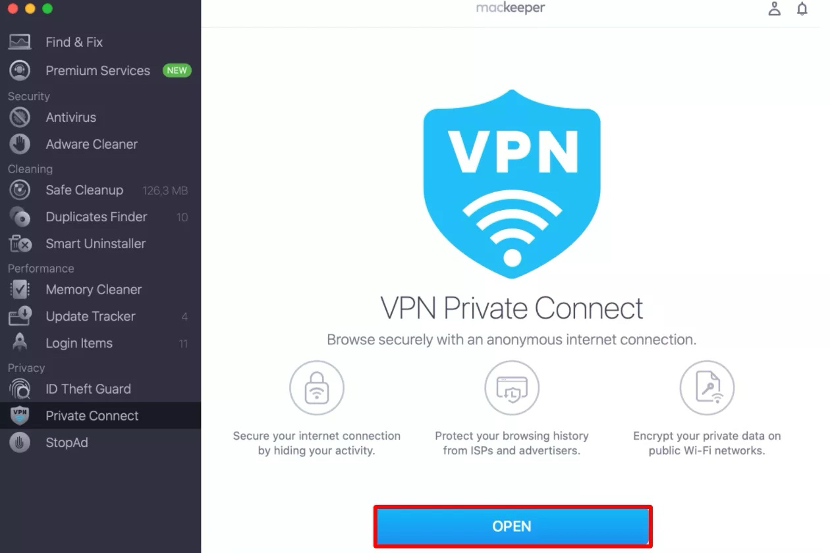
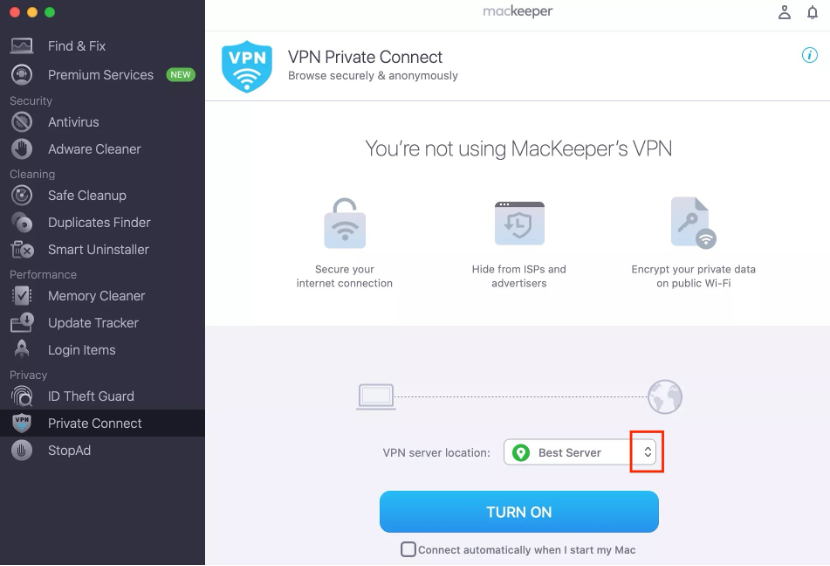
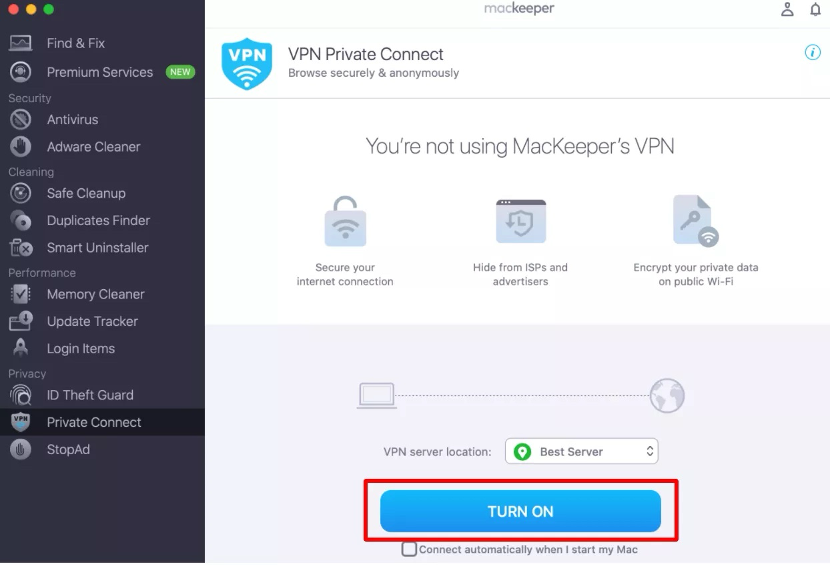
Here’s how to use MacKeeper’s VPN Private Connect:
Select Private Connect under Privacy from the sidebar.
Click Open.
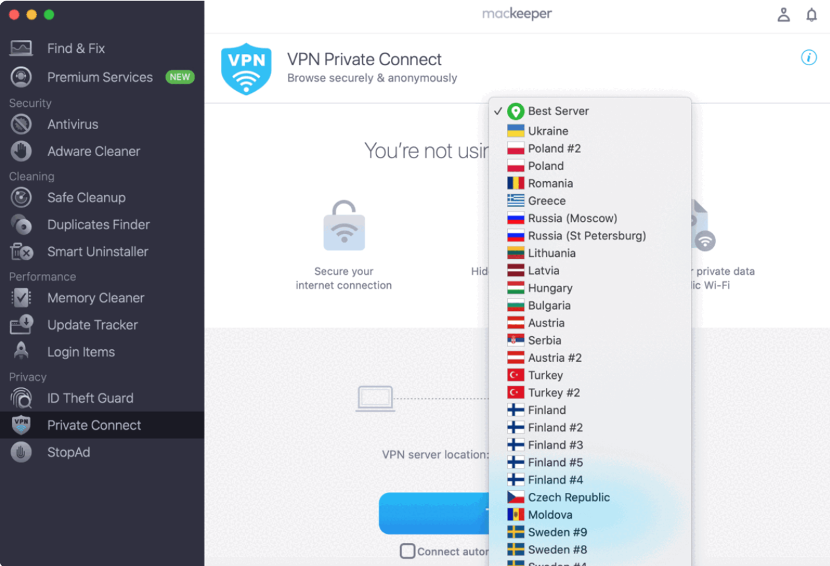
Use the arrows next to the VPN server location dropdown menu to select your preferred location.
Click Turn On.
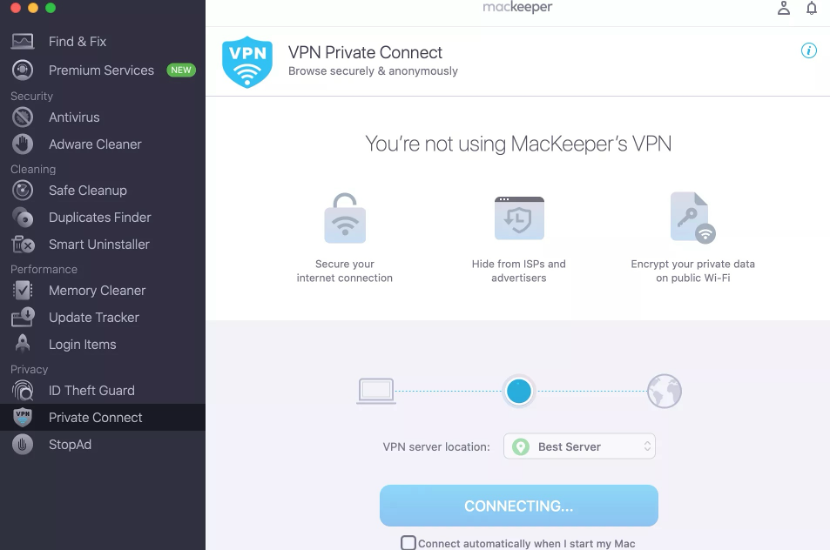
Wait while it connects you to the server.
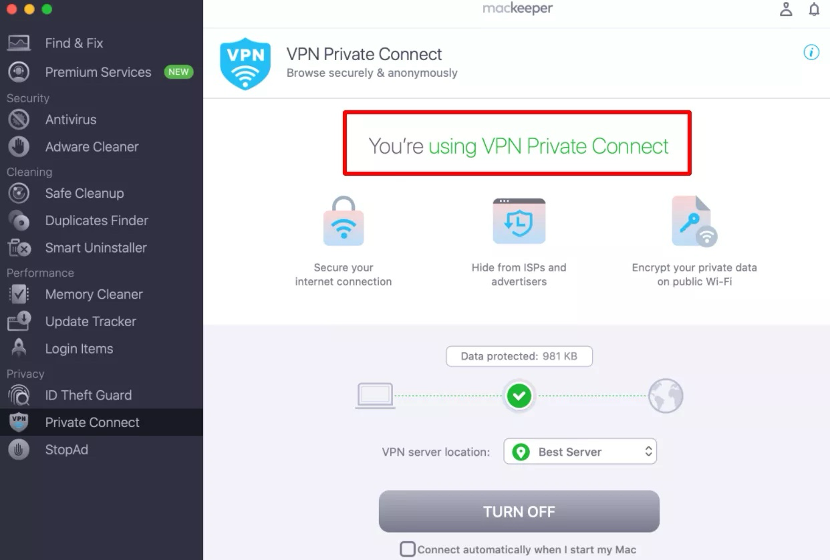
Step 1. Private Connect > OpenStep 2. Click the arrows on the dropdown menuStep 3. Choose a serverStep 4. Turn on MacKeeper’s VPNStep 5. Wait until the VPN server is connectedStep 6. Check VPN Private Connect is finally connected
How to safely use TeamViewer?
In addition to using tools like MacKeeper’s VPN Private Connect to protect your online privacy, our team of experts recommends adhering to these essential guidelines for safe TeamViewer use: keep the app updated, use strong, unique passwords, carefully control access permissions, and enable two-factor authentication for added security.
1. Keep TeamViewer updated
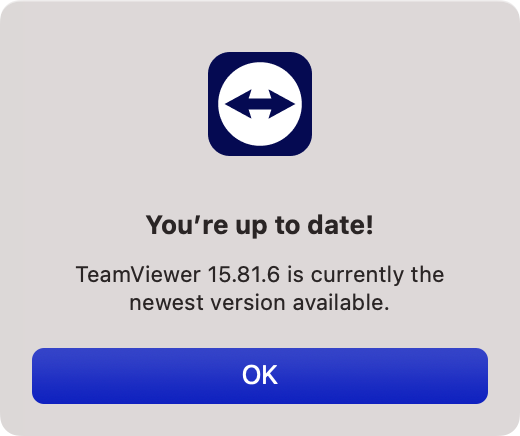
Regular software updates are essential for maintaining security. Our top recommendation is to always ensure both TeamViewer and macOS are running the latest versions. Updates not only resolve bugs but also deliver crucial patches to address newly discovered security vulnerabilities.
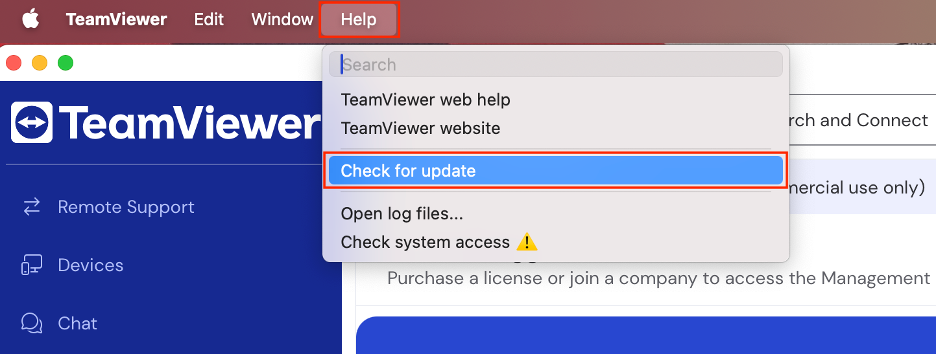
To keep TeamViewer current and secure, follow these steps:
Launch TeamViewer.
Click Help from the menu bar.
Select Check for updates.
Proceed to update your app if needed.
Step 1. TeamViewer > Help > Check for updatesStep 2. Check TeamViewer is up to date
2. Use strong and unique password
To further strengthen your TeamViewer account security, we also recommend always using strong and unique passwords. We suggest using passwords longer than 16 characters and incorporating a mix of uppercase and lowercase letters, numbers, and symbols. Avoid reusing passwords from other accounts, as this increases vulnerability. Our expert tip: consider using a password manager to automatically generate and securely store complex passwords.
3. Enable two-factor authentication
TeamViewer provides two-factor authentication, a critical feature that must be enabled to be effective. Once activated, it requires an additional security code each time you establish a connection, offering a powerful safeguard against compromised passwords. Based on our experience, enabling two-factor authentication will reduce your account’s security risks.
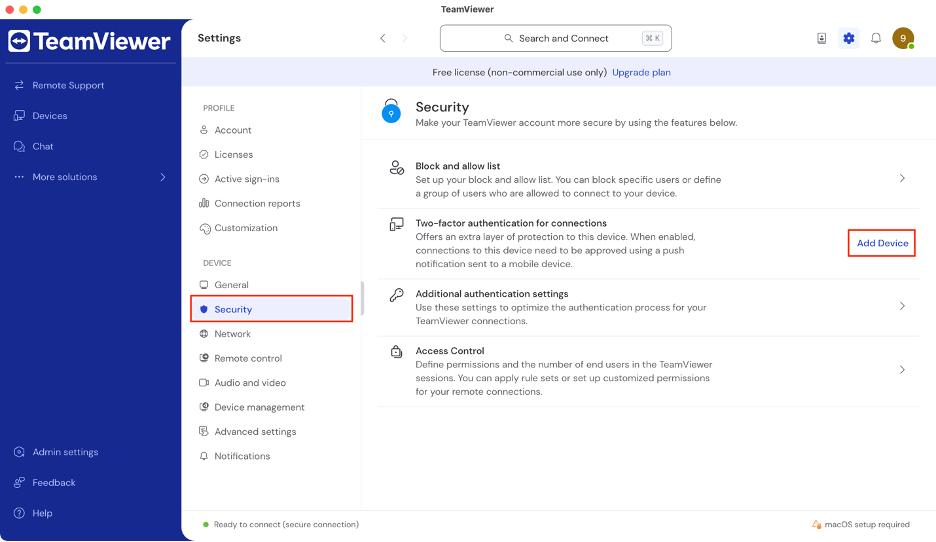
Follow these steps to set it up in TeamViewer:
Open TeamViewer.
Click Settings (the gear icon).
Select Security from the sidebar menu.
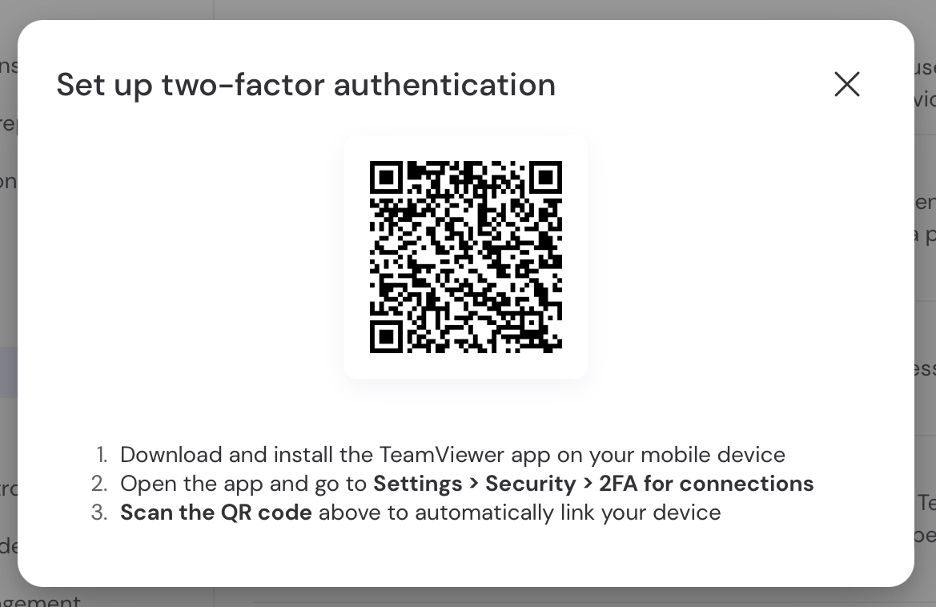
Click Add Device next to Two-factor authentication for connections.
Download the TeamViewer app on your phone and follow the steps to set it up.
Step 1. TeamViewer > SettingsStep 2. DEVICE > Security > Two-factor authentication for connections > Add deviceStep 3. Follow the steps to set up two-factor authentication
4. Review trusted devices and active sessions
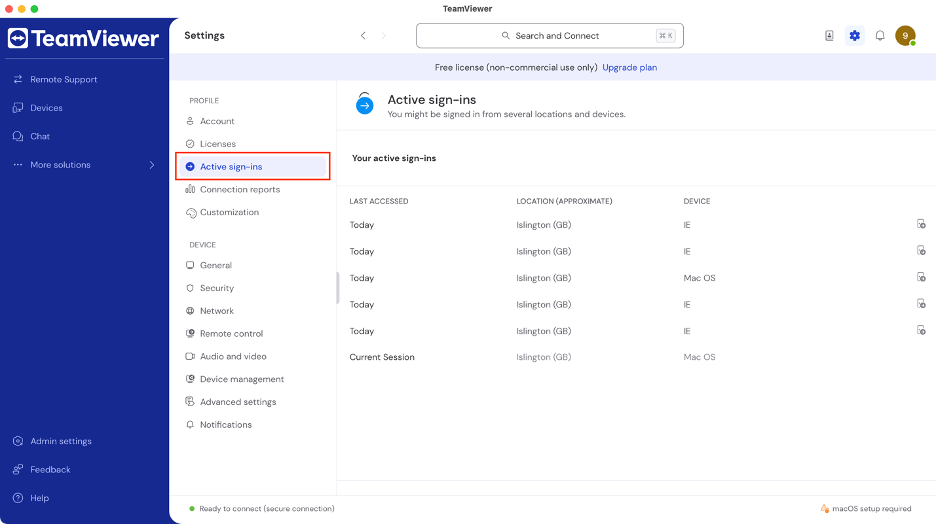
For enhanced security, our experts recommend regularly reviewing your list of trusted devices in TeamViewer and removing any you don’t recognize or need. Likewise, routinely monitor the list of active sessions to identify and immediately disconnect any unauthorized connections. This will help ensure only approved devices and users have access to your remote sessions.
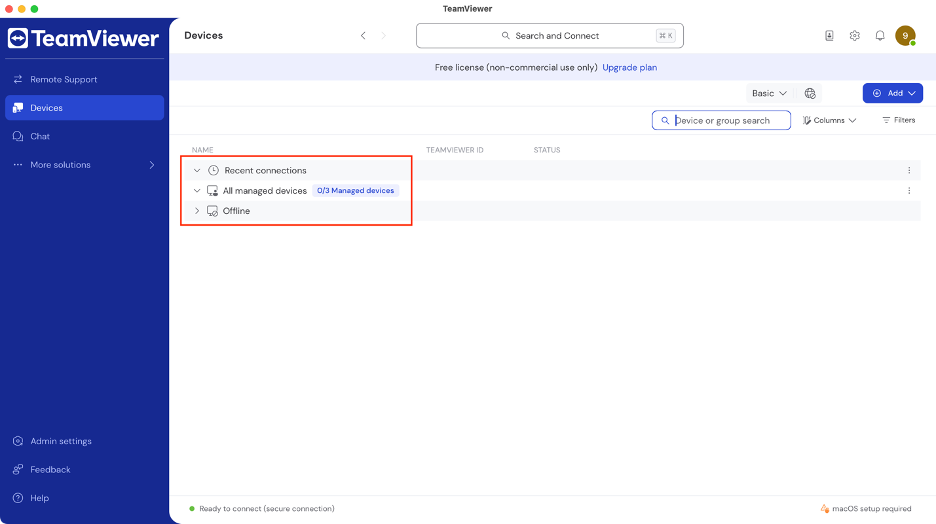
To review and manage these lists, see the steps below:
Launch TeamViewer.
Go to the main page and check under All managed devices.
Also check under Recent connections or any active connections.
Alternatively, go to Settings, then click Active sign-ins.
Step 1. Check under Recent connections and All managed devicesStep 2. Settings > Active sign-ins
5. Restrict who can connect
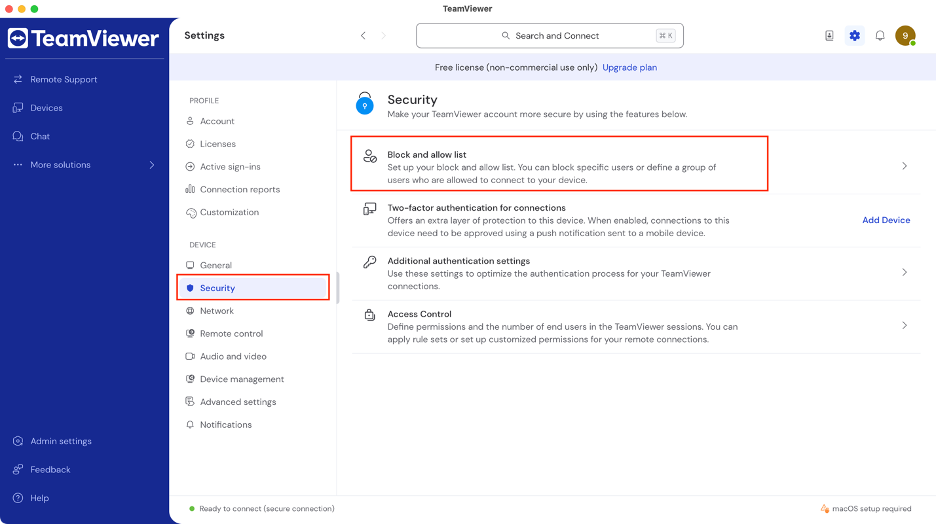
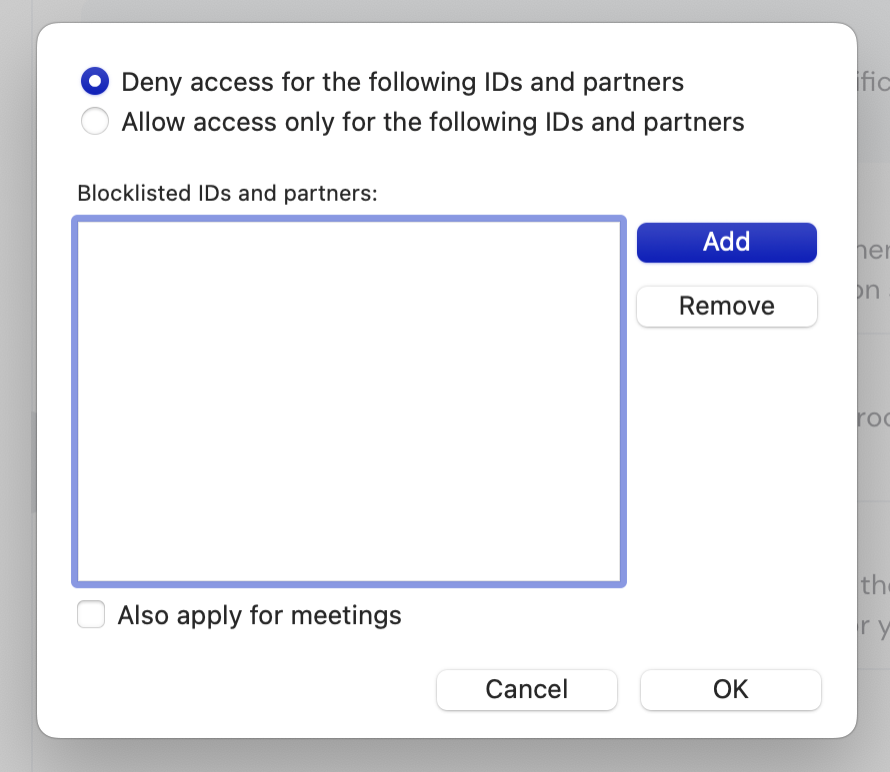
Beyond managing trusted devices, TeamViewer offers a suite of advanced tools for controlling user access to your account. For instance, you can assign policies to grant tailored privileges, create user roles to customize permissions, and configure conditional access for specific users and devices.
Unfortunately, these powerful options are only available on some Premium plans. For free users, the easiest way to manage who can connect is to use the Block and allow list. Here’s how:
To add an extra level of security when using TeamViewer, we recommend limiting remote sessions to only the necessary duration, especially when neither end is actively monitoring the connection. Leaving sessions open and unattended increases the risk of third-party attacks, particularly when combined with other vulnerabilities such as weak passwords or public network usage. As such, our expert advice is to always close the connection as soon as your task is complete to reduce exposure.
7. Never grant access to unknown people
While it may seem obvious, we’d like to emphasize the importance of never granting access to your TeamViewer account to anyone you don’t fully trust or recognize. Scammers often pose as legitimate technical support agents or initiate phishing attempts to gain unauthorized access. Social engineering tactics can be sophisticated and deceptive, so always verify the identity of anyone requesting remote access before proceeding.
What to do if you suspect unauthorized TeamViewer access?
If you suspect unauthorized access to your TeamViewer account, our experts advise immediately disconnecting your computer from the internet to terminate any active connections. Once offline, reconnect to change your TeamViewer password and enable two-factor authentication if you haven’t already. We also recommend closely monitoring your other accounts (especially your bank accounts) for suspicious activity, as they may also be at risk.
All you need to know about TeamViewer security risk
So, is it safe to use TeamViewer? TeamViewer is generally considered a secure remote access app, but, like many other programs, it has experienced security breaches and cyberattacks, raising concerns about its overall safety. To minimize your risk and stay ahead of potential threats, take proactive steps: regularly update the app, use strong passwords, enable two-factor authentication, and review active sessions for suspicious activity.
If you’re worried about your Mac’s security, it’s crucial to also safeguard your online activity with MacKeeper’s VPN Private Connect. MacKeeper provides other cybersecurity features, including antivirus protection, Mac cleanup, and performance optimization.
We respect your privacy and
use cookies
for the best site experience.
Privacy Preferences Center
We use cookies along with other tools to give you the best possible experience while using the
MacKeeper website. Cookies are small text files that help the website load faster. The cookies we
use don’t contain any type of personal data meaning they never store information such as your
location, email address, or IP address.
Help us improve how you interact with our website by accepting the use of cookies. You can change
your privacy settings whenever you like.
Manage consent
All cookies
These cookies are strictly necessary for enabling basic website functionality (including page
navigation, form submission, language detection, post commenting), downloading and purchasing
software. The website might malfunction without these cookies.