Did Avast flag your search engine as unsafe, or quietly change it on you? This Avast remove bad search engine issue is common, and it can leave you with a search provider you didn’t pick. MacKeeper’s Antivirus detects threats in real time and helps you clean up unwanted browser changes—scan your Mac below.
Below, we’ll explain what Avast means by a bad search engine, why these warnings show up, and how you can restore the browser setup you want.
What does “bad search engine” mean in Avast?
When you see an Avast warning about bad search engine activity, it usually points to one of a few things. It doesn’t always mean the search engine itself is malware—often it’s a sign that something changed your browser settings without asking.
Avast might flag any of these:
An unwanted search provider you didn’t set up
A suspicious browser redirect that sends you somewhere unexpected
A changed homepage or new-tab page
A search engine with a low reputation score
A browser hijacker quietly altering your settings
Sometimes the cause is that hijacker. When it is, you can get rid of browser hijacker on Mac and stop it from changing your search again.
Why does Avast say search engine or website is unsafe?
An Avast search engine warning doesn’t appear at random. Avast weighs several signals before it labels a site or search engine unsafe, and most of them are about reputation and behavior—often triggered when opening a new site—rather than a confirmed virus.
Below, we’ll cover the most common reasons:
Suspicious redirects that bounce you between pages
Low reputation data tied to a site or domain
HTTPS scanning that inspects secure traffic
A browser extension acting in unexpected ways
A compromised web page that’s been tampered with
Outdated software with known security gaps
A false positive, where a safe site gets flagged by mistake
A note from our experts:
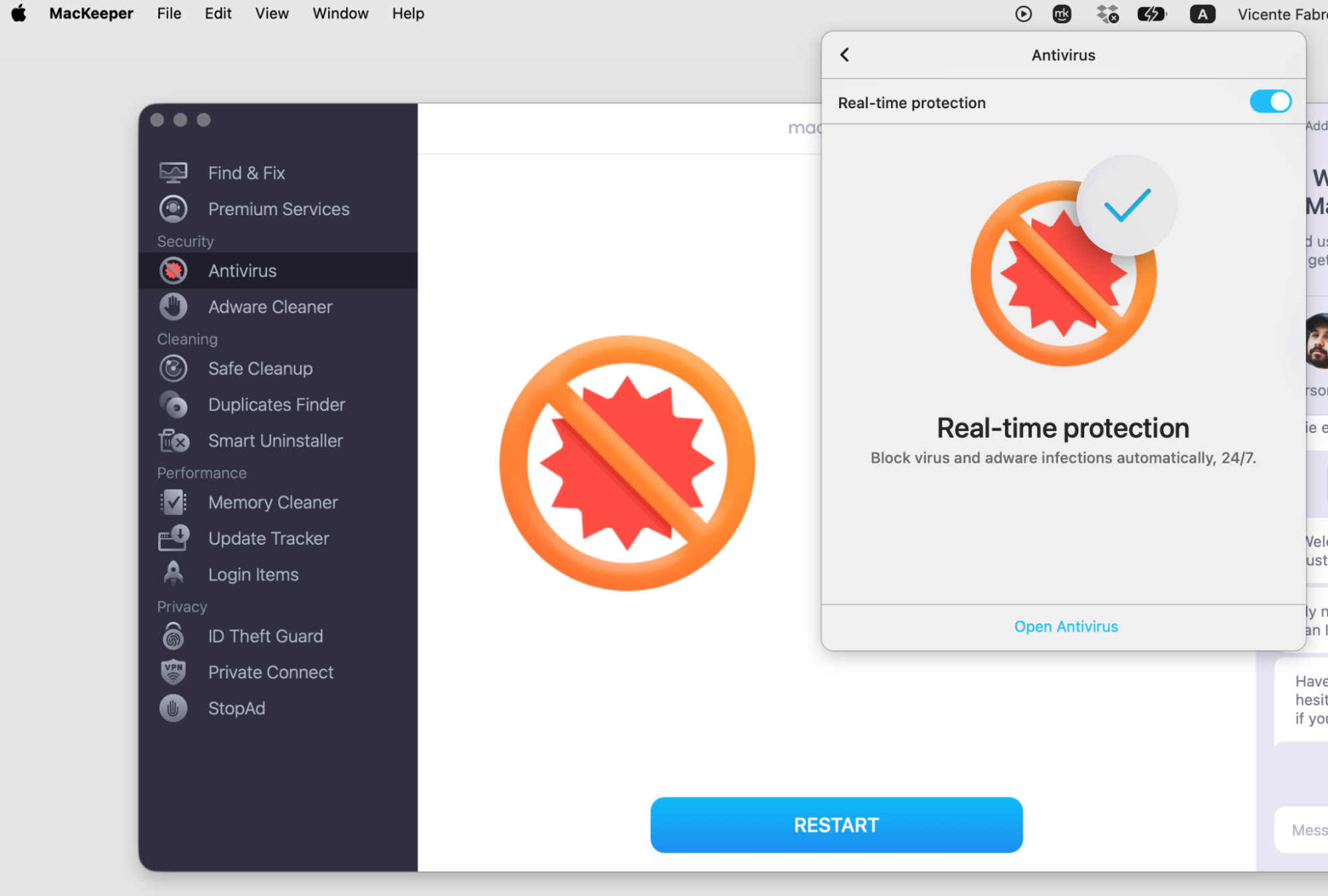
If you’d like peace of mind, it helps to check for viruses on Mac and confirm your device is clean, so your browsing stays safer before you change anything. MacKeeper’s Antivirus is the right tool to get this job done easily and quickly, especially if you turn on the 24/7 real-time protection feature.
Do the scan to check if there any threats on your computer and delete them if so.
Then, for the future security, enable the Real-time protection feature in the right upper corner.
Why did Avast flag or change your search engine?
Avast includes several features that can touch your browser, and any one of them might be behind a sudden change. Once you spot the cause, you can change search engine on MacBook back to the provider you prefer.
Knowing which feature did it makes the cleanup much simpler.
Here’s what each one can do:
Avast Smart Scan—suggests cleanup that can alter your settings, so review each prompt before accepting it.
Avast Browser Cleanup—adjusts extensions and search, so decline the changes you don’t want.
Avast Secure Browser—sets itself as the default, so switch your default back when you’d rather not use it.
Avast browser extensions—can redirect or block searches, so remove the ones you don’t need.
Avast Web Guard—may block certain providers, so adjust the setting if it’s too strict.
How to remove bad search engine with Avast?
In our experience, the cleanup is simpler than it looks. Removing browser malware starts with seeing what Avast detected or changed, then clearing anything suspicious and restoring your search engine.
Let’s walk through it together:
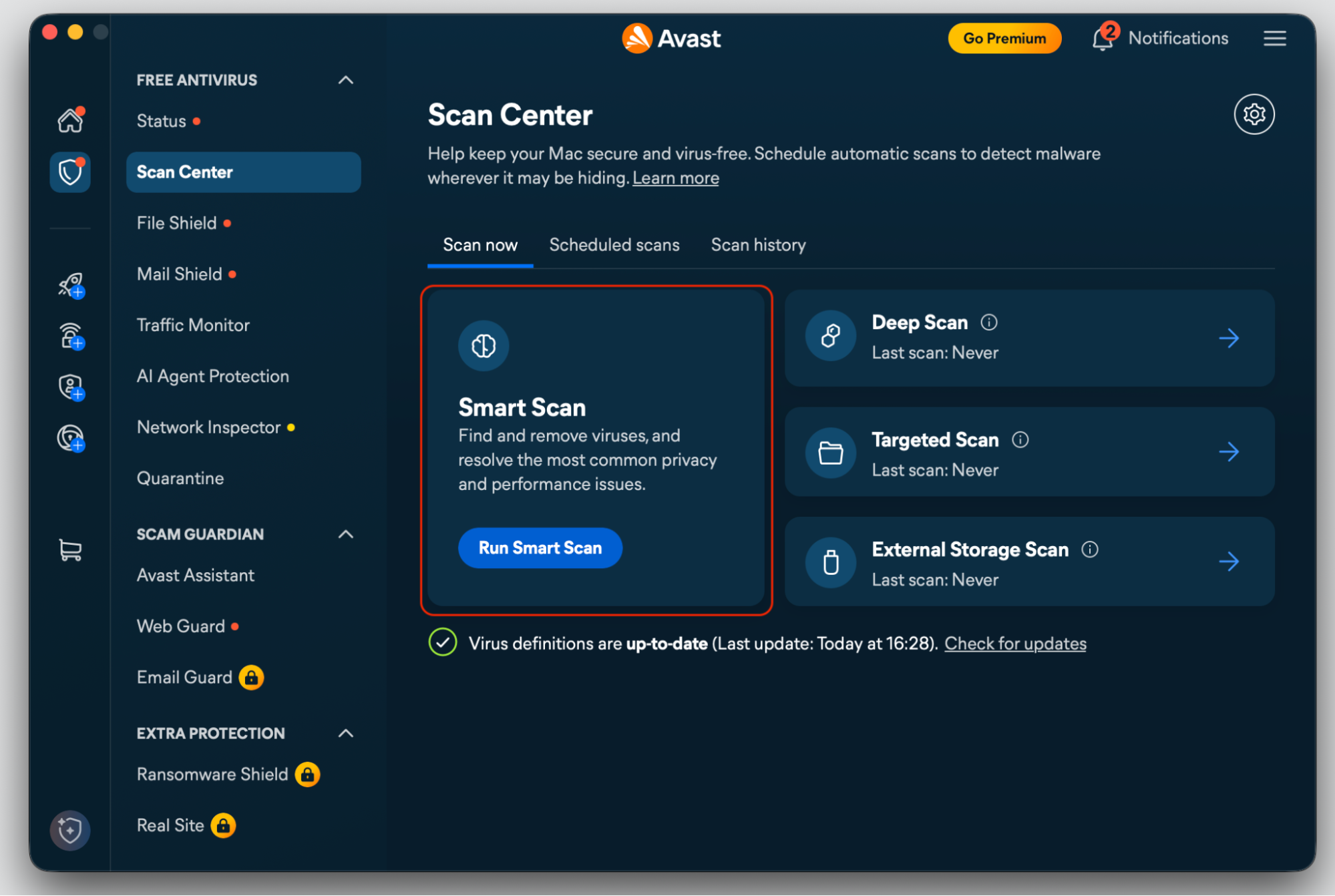
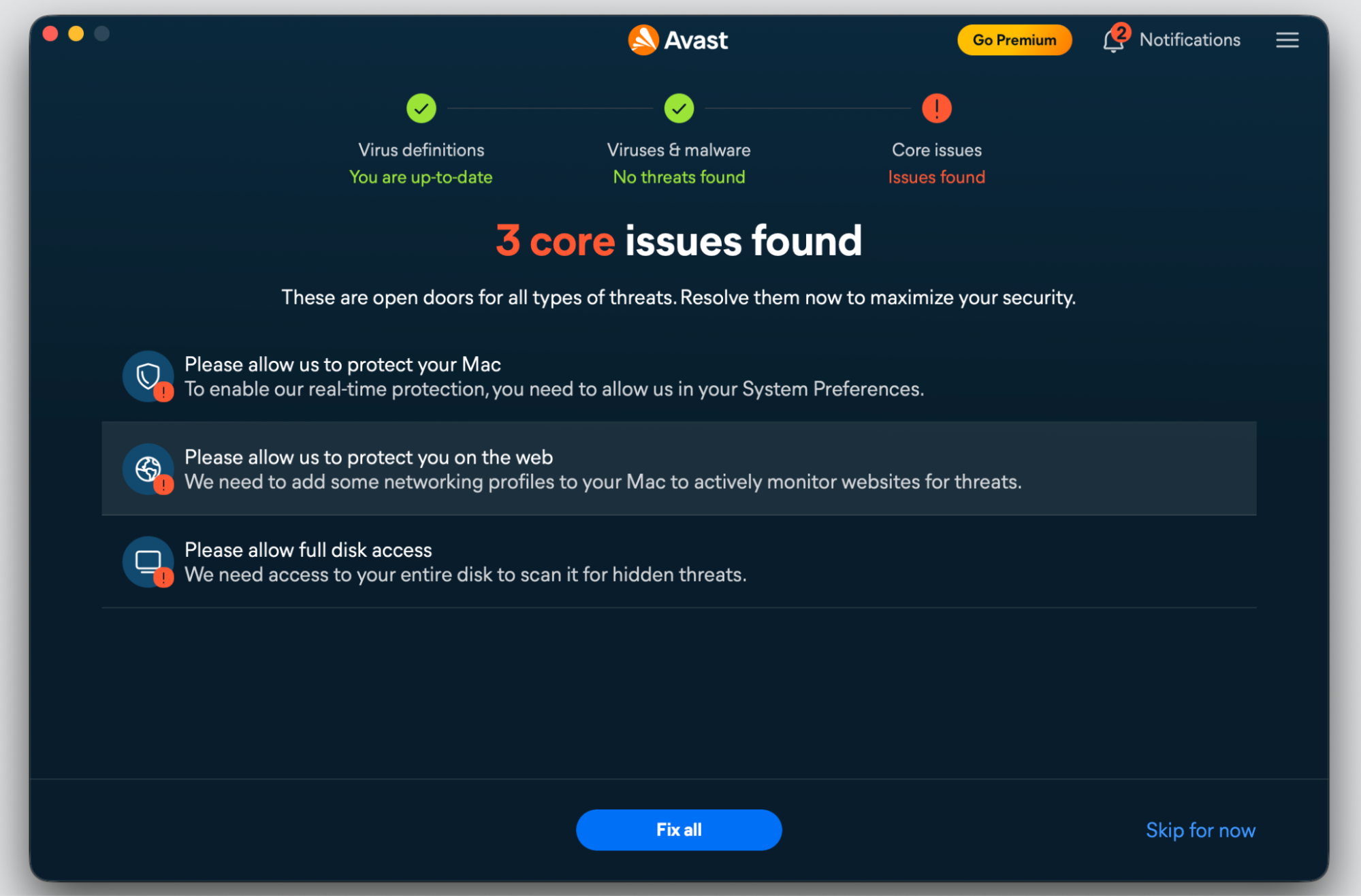
Open Avast and review its recent scan results and cleanup history.
Note any search engine, homepage, or extension Avast changed.
Quit your browser, then reopen it to refresh the settings.
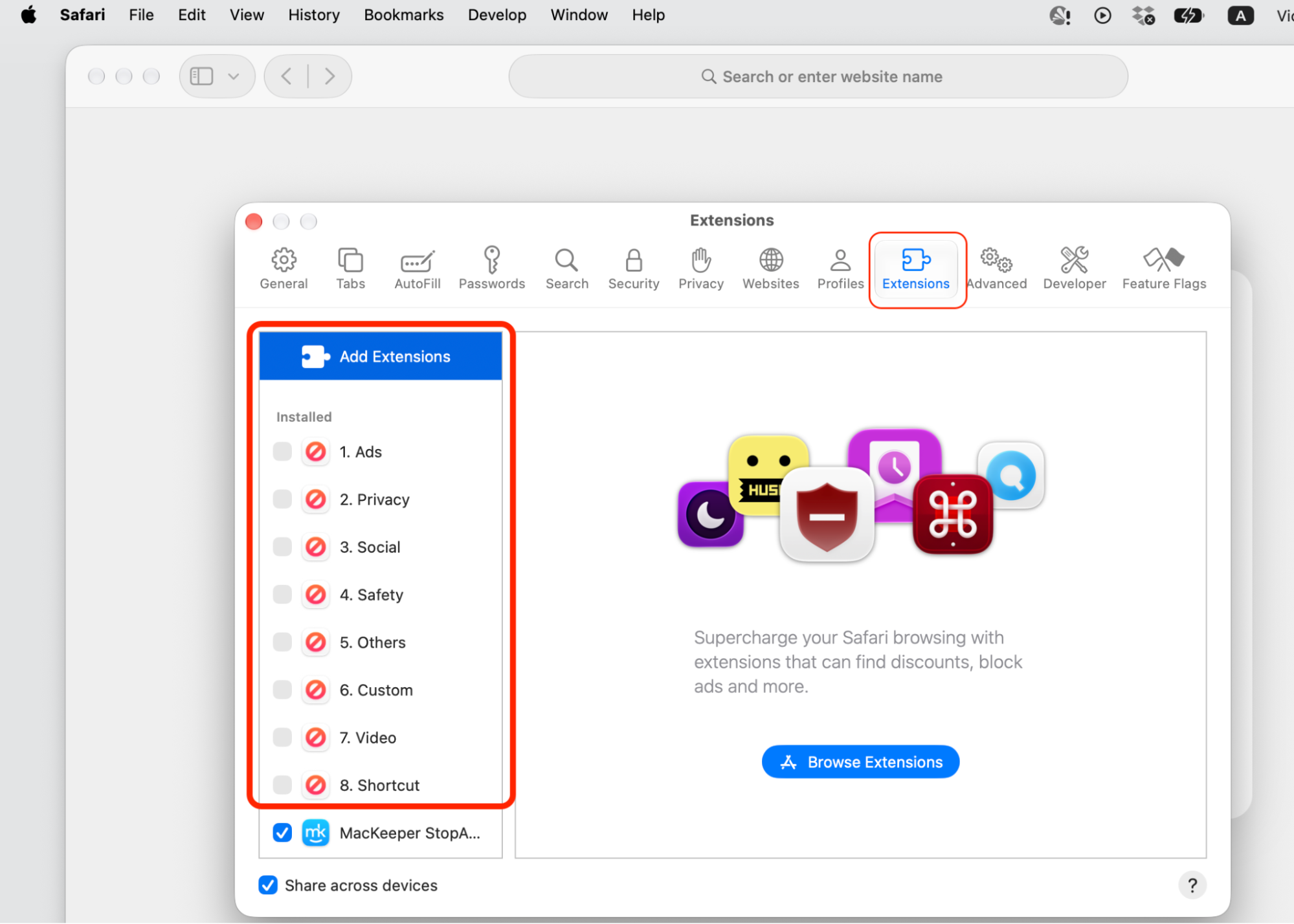
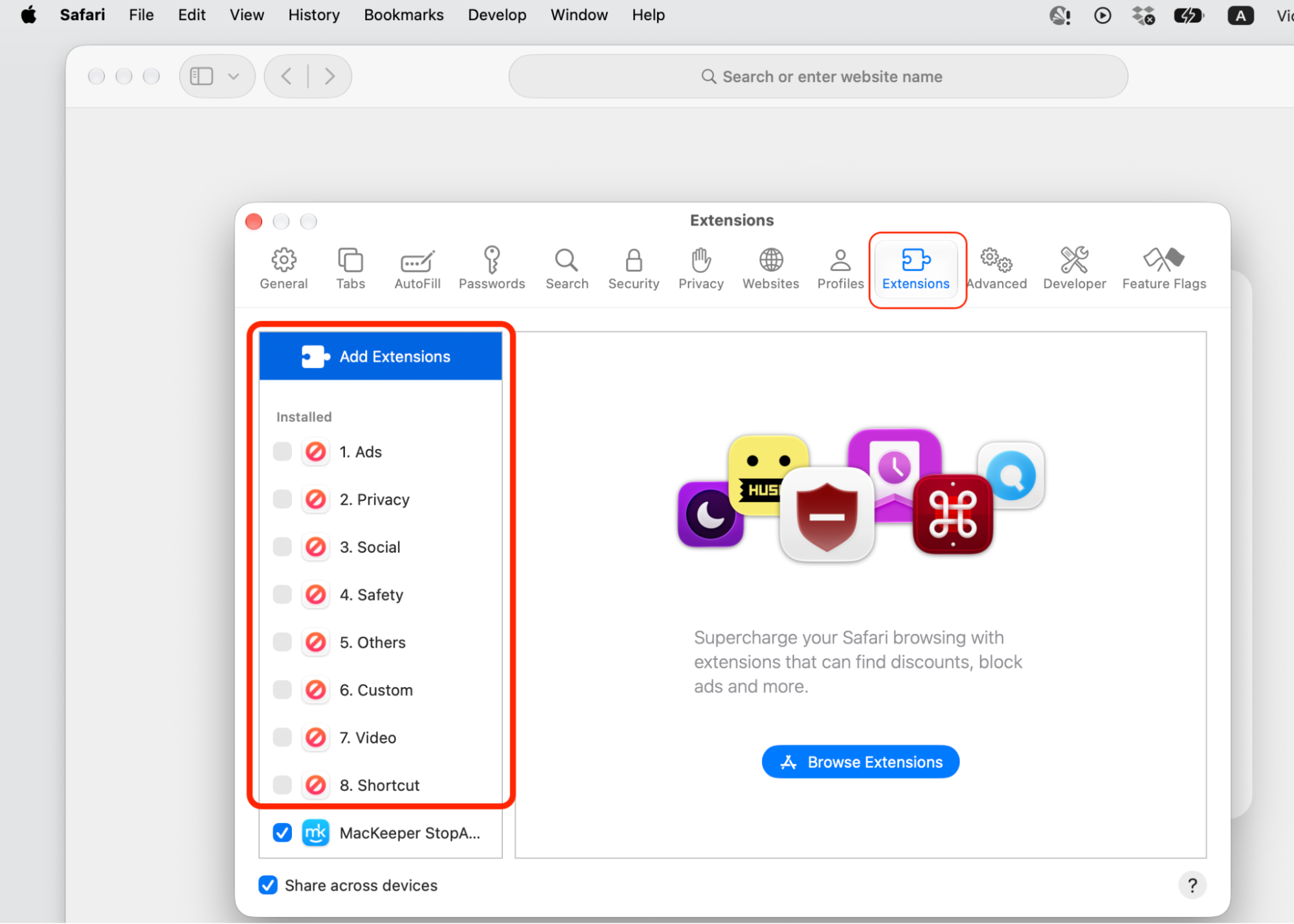
Remove unknown extensions from Safari or Chrome.
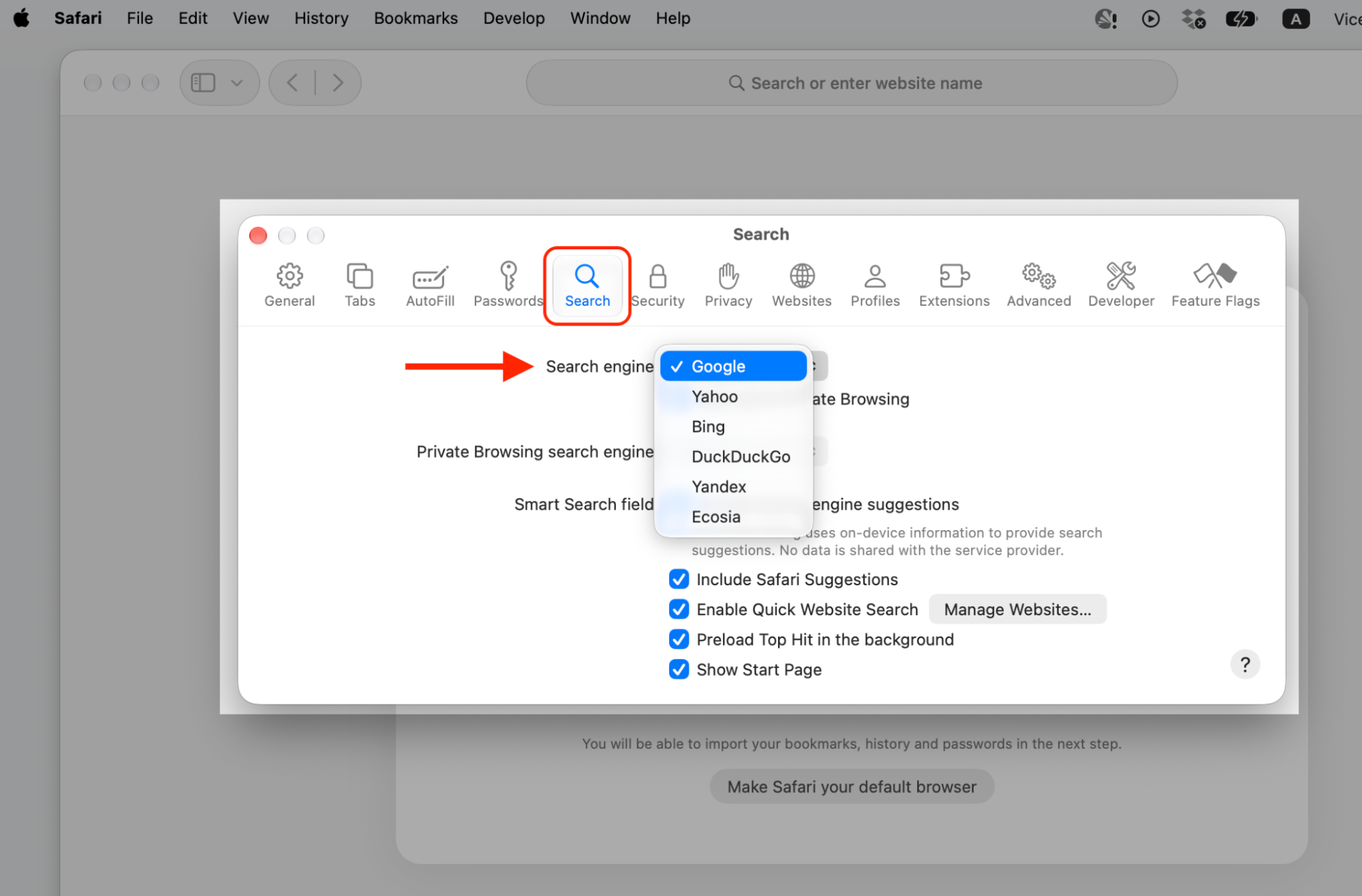
Set your preferred search engine in your browser preferences.
Run a fresh scan to confirm nothing suspicious remains.
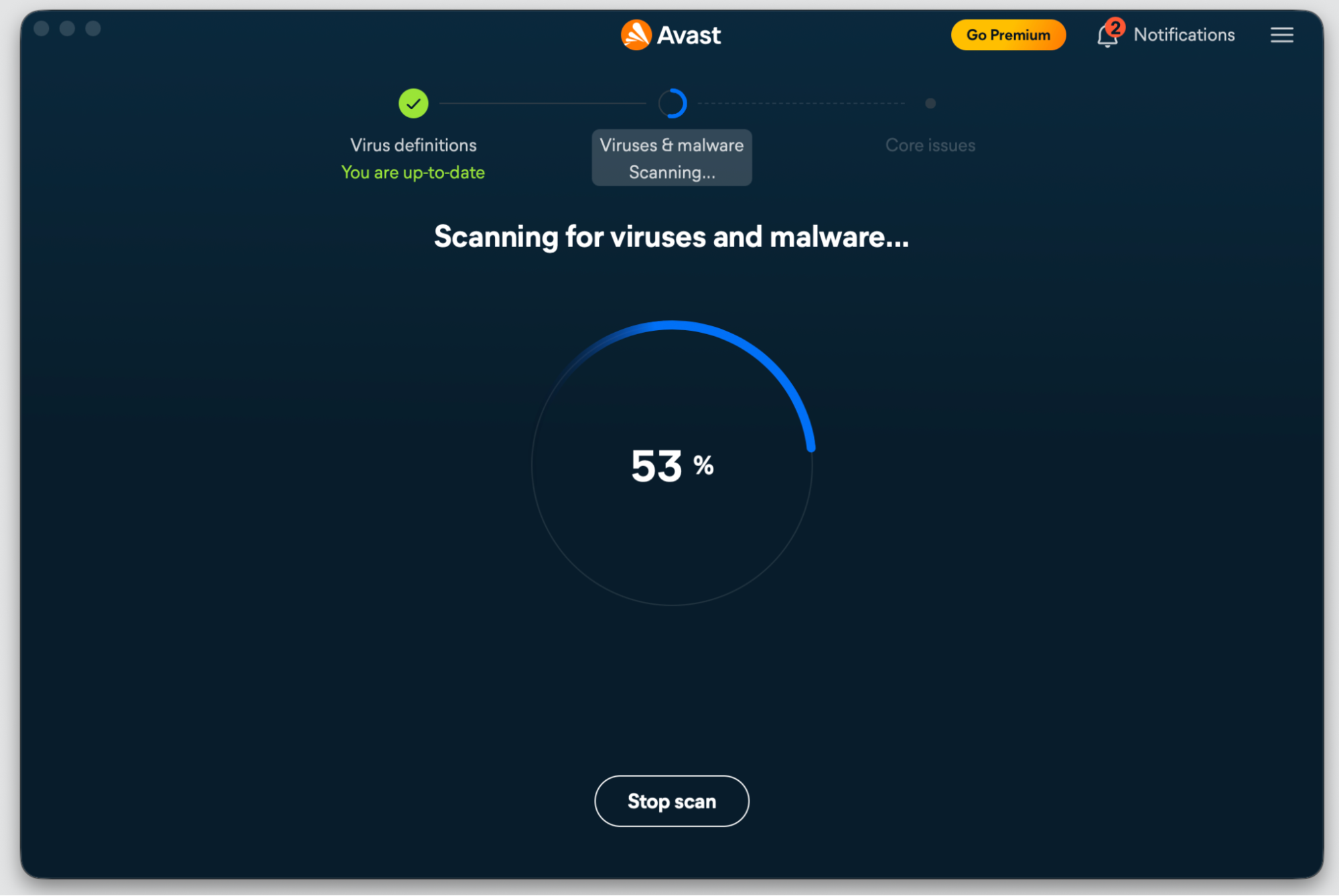
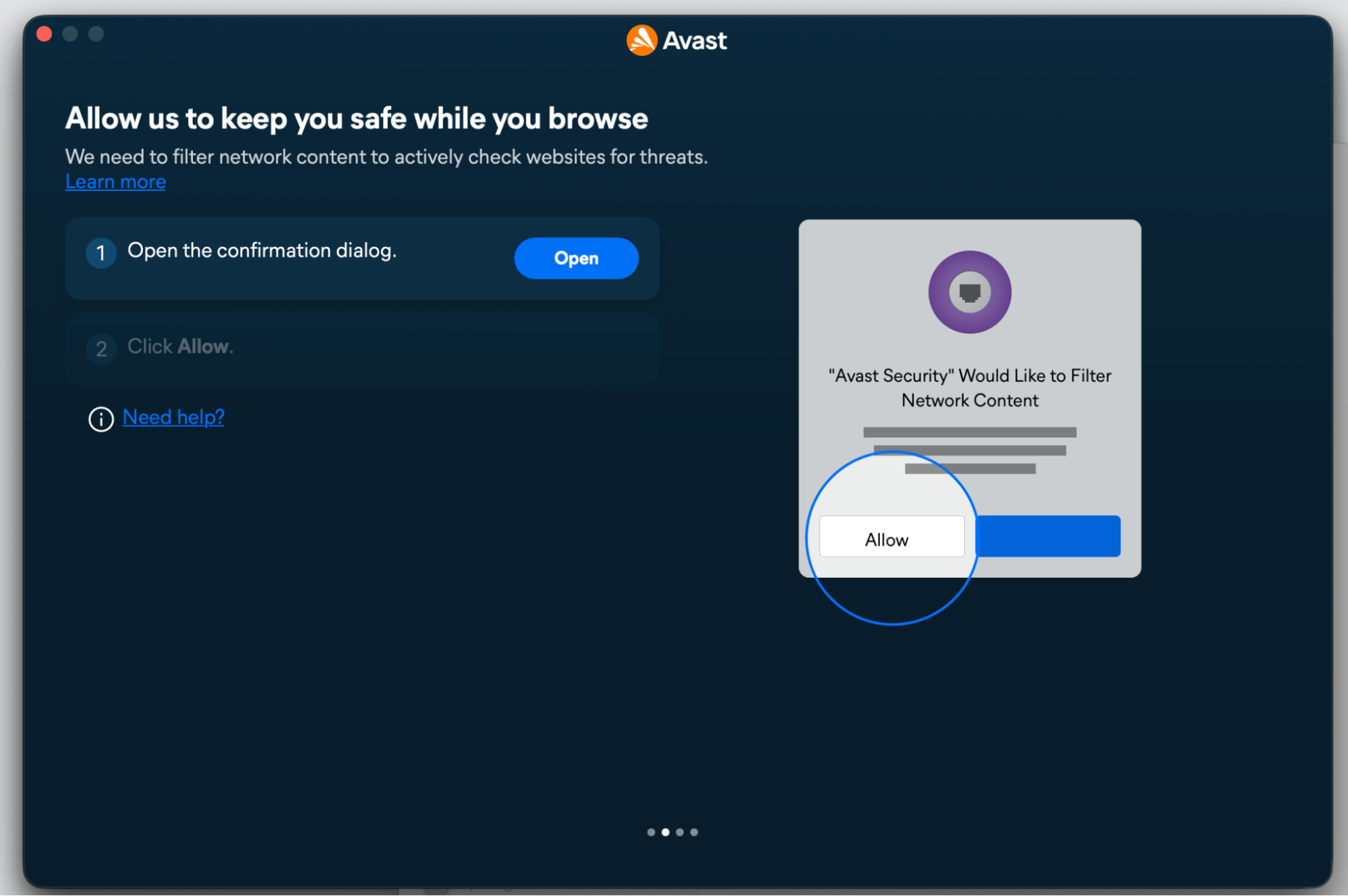
Step 1. Open Avast and run Smart ScanStep 2. Wait until the process is completeStep 3. Review recent scan results and fix the issues with AvastStep 4. Set your preferred search engine in your browser preferencesStep 5. Remove unknown extensions from browsers
What to do if Avast keeps changing search engine to Yahoo or another provider?
If Avast keeps switching your search to Yahoo or another provider, the setting is probably being reapplied somewhere. The trick is finding what reapplies it and turning that off.
We’d check these spots first:
Avast cleanup prompts that suggest a new search provider
Browser cleanup settings inside Avast
Avast extensions in Safari or Chrome
Your browser’s own default search setting
Whenever Avast offers to change your search, look for the option that lets you keep your existing provider, and decline the rest.
How to remove Avast Secure Browser as default browser?
Avast Secure Browser sometimes installs alongside Avast and even launches at startup as your default. If you’d rather stick with Safari or Chrome, you can switch back in about a minute, whether you’re on a new MacBook or an older Macintosh.
We’ll switch it back in four steps:
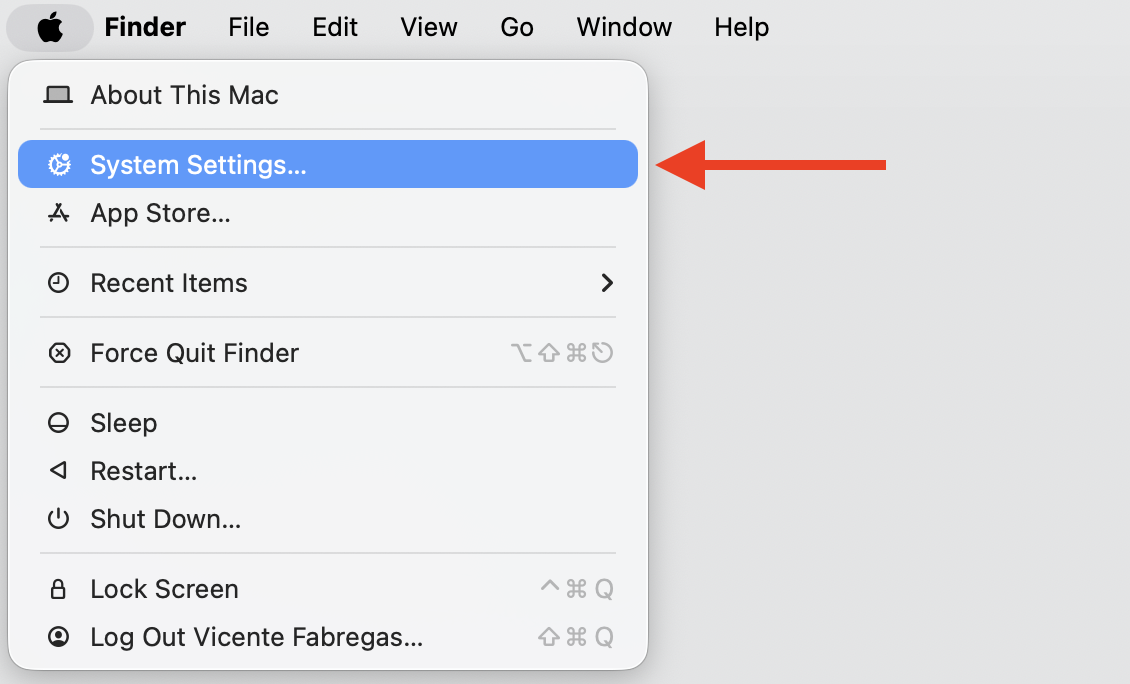
Open the Apple menu and select System Settings.
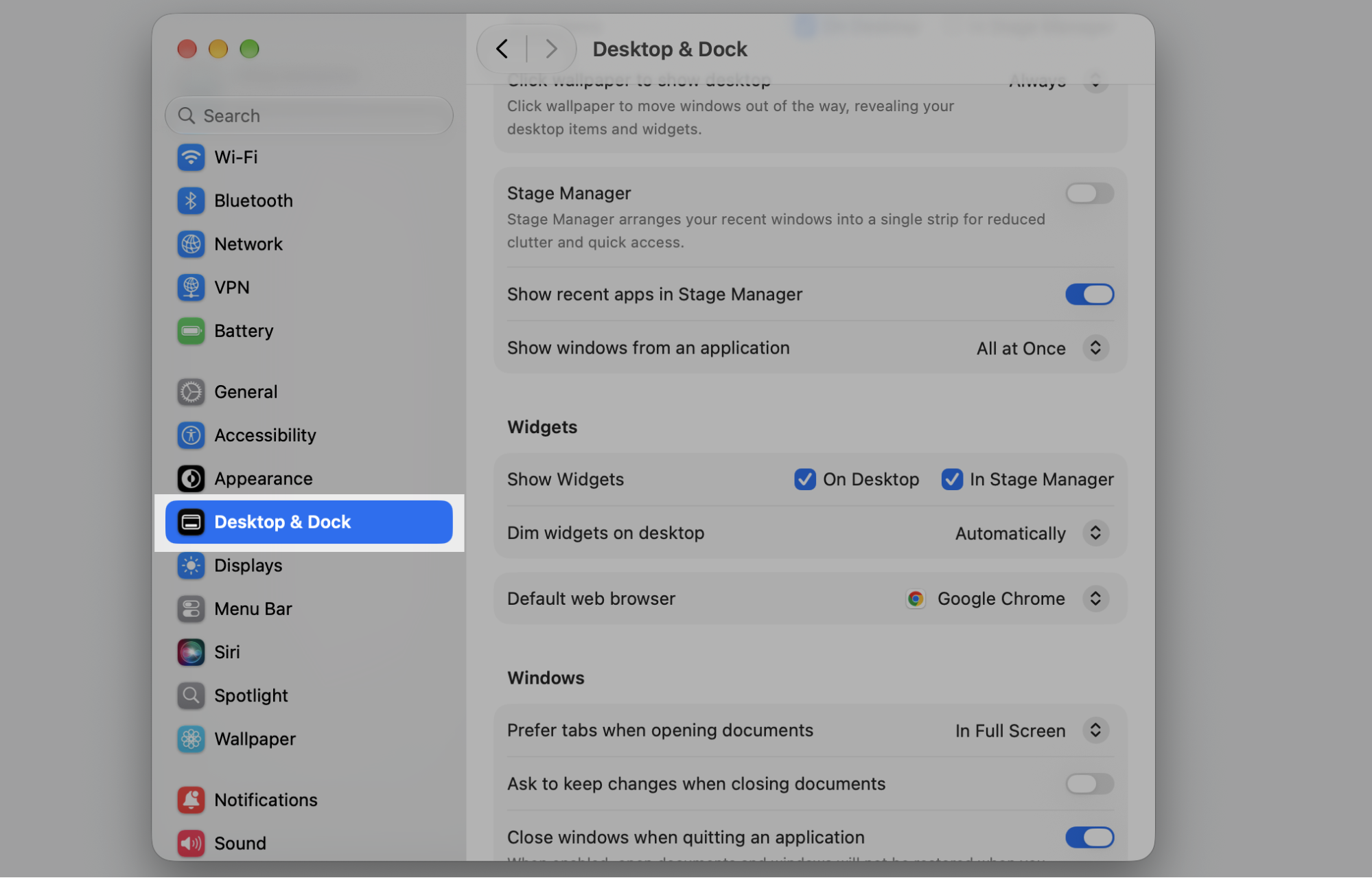
Click Desktop & Dock in the macOS sidebar.
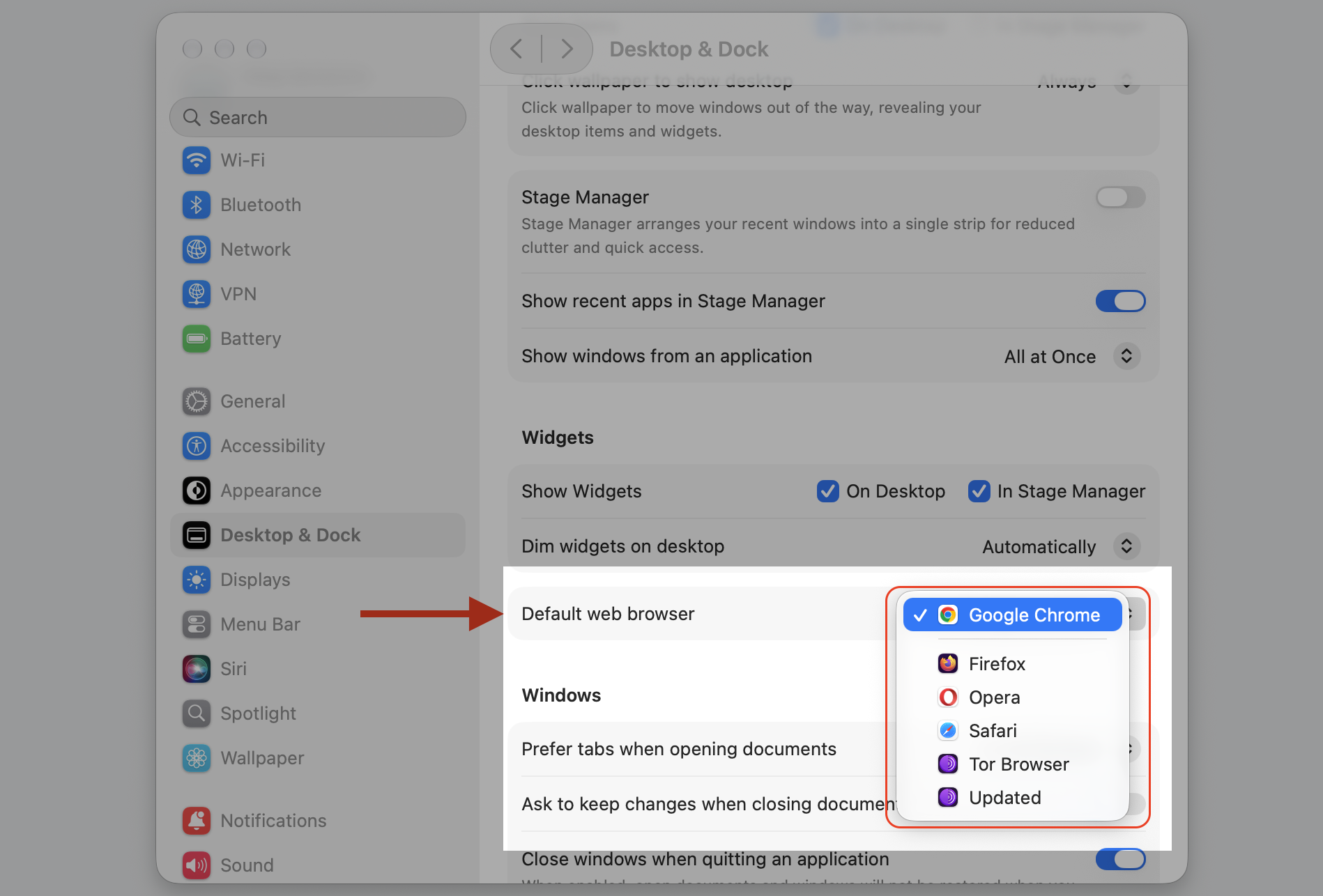
Scroll to Default web browser and pick your preferred browser.
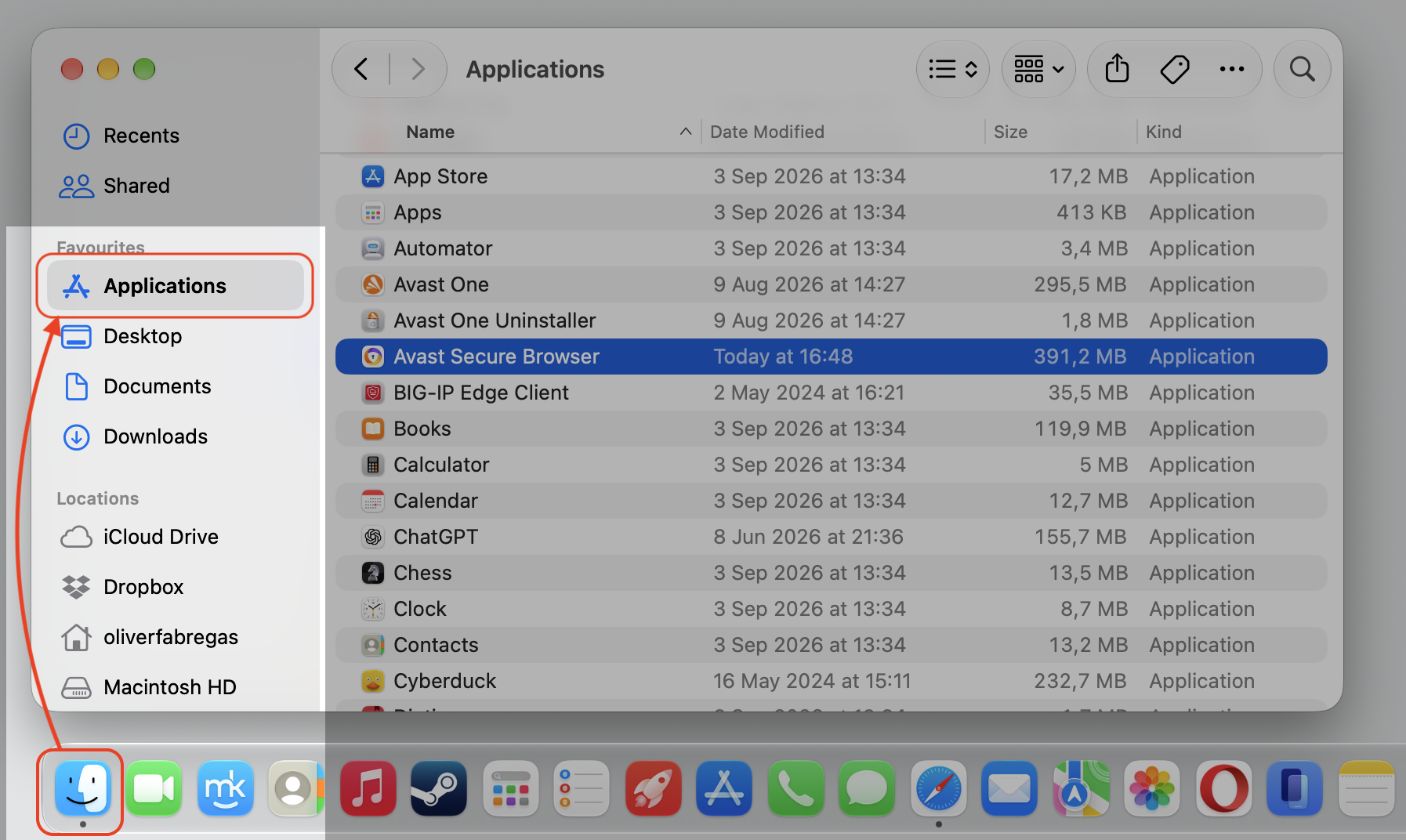
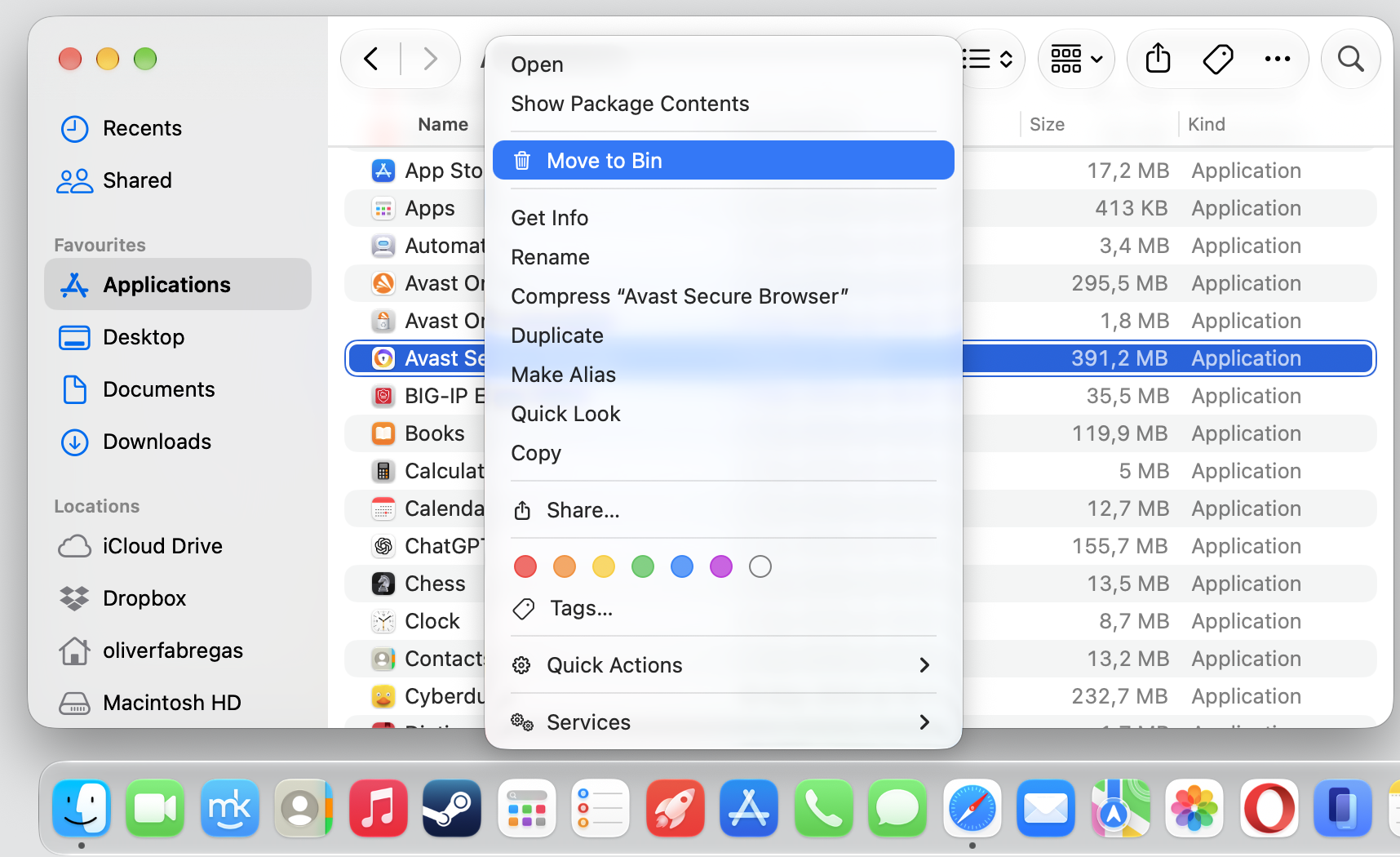
To uninstall Avast Secure Browser, open Finder, choose Applications, and move it to the Bin.
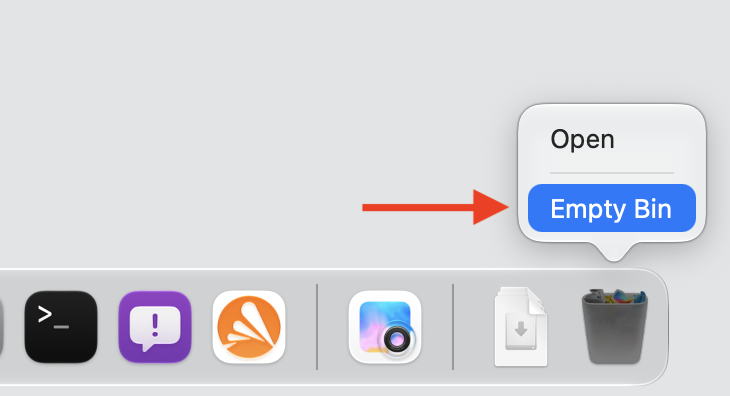
A hint from our team: Dragging the app to the Trash leaves a few support files behind, so empty the Trash afterward to clear them out.
Step 1. Go to Apple Logo > System SettingsStep 2. Click Desktop & Dock in the macOS sidebarStep 3. Go to Default web browser and pick your preferred oneStep 4. Go to Finder > Applications > Avast Secure BrowserStep 5. Move to the bin with the Control-clickStep 6. Empty the Bin
How to stop Avast bad search engine warning?
Still seeing the warning? A few safe checks usually settle it, and if the alert keeps returning, it can help to remove malware from Mac to rule out a deeper cause.
We suggest trying these in order:
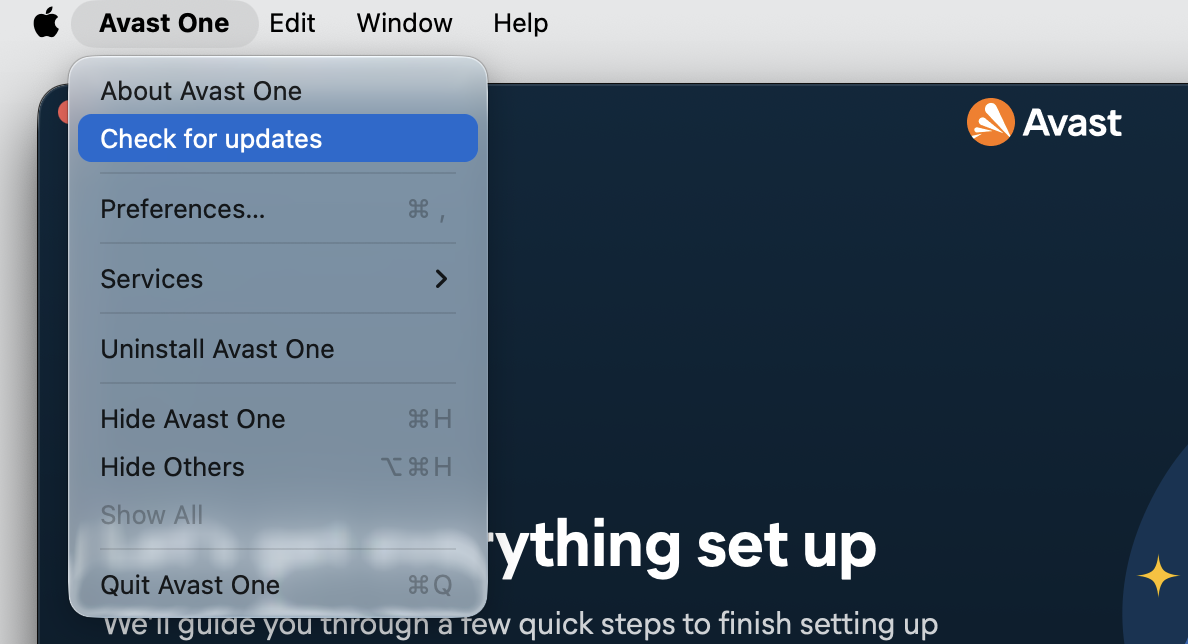
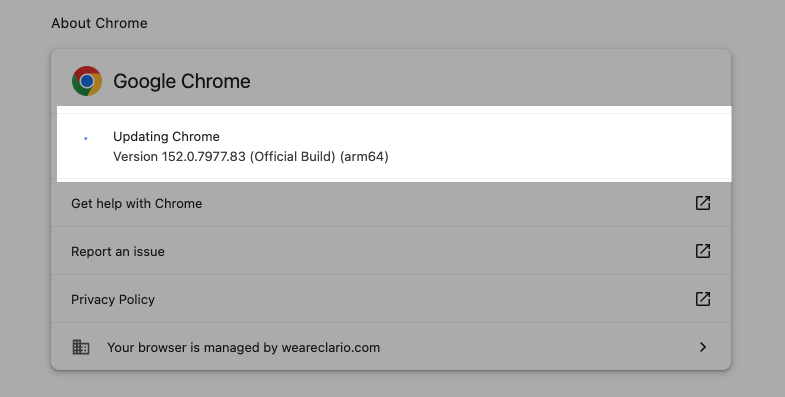
Update Avast and your browser to the latest secure versions.
Review your Safari or Chrome extensions and remove ones you don’t recognize.
Clear your browser cache and history to refresh stored data.
Test a different browser to see whether the warning follows you.
Check Avast’s web protection settings for a rule that’s too strict.
Temporarily turn off Avast browser protection only to diagnose, then turn it back on.
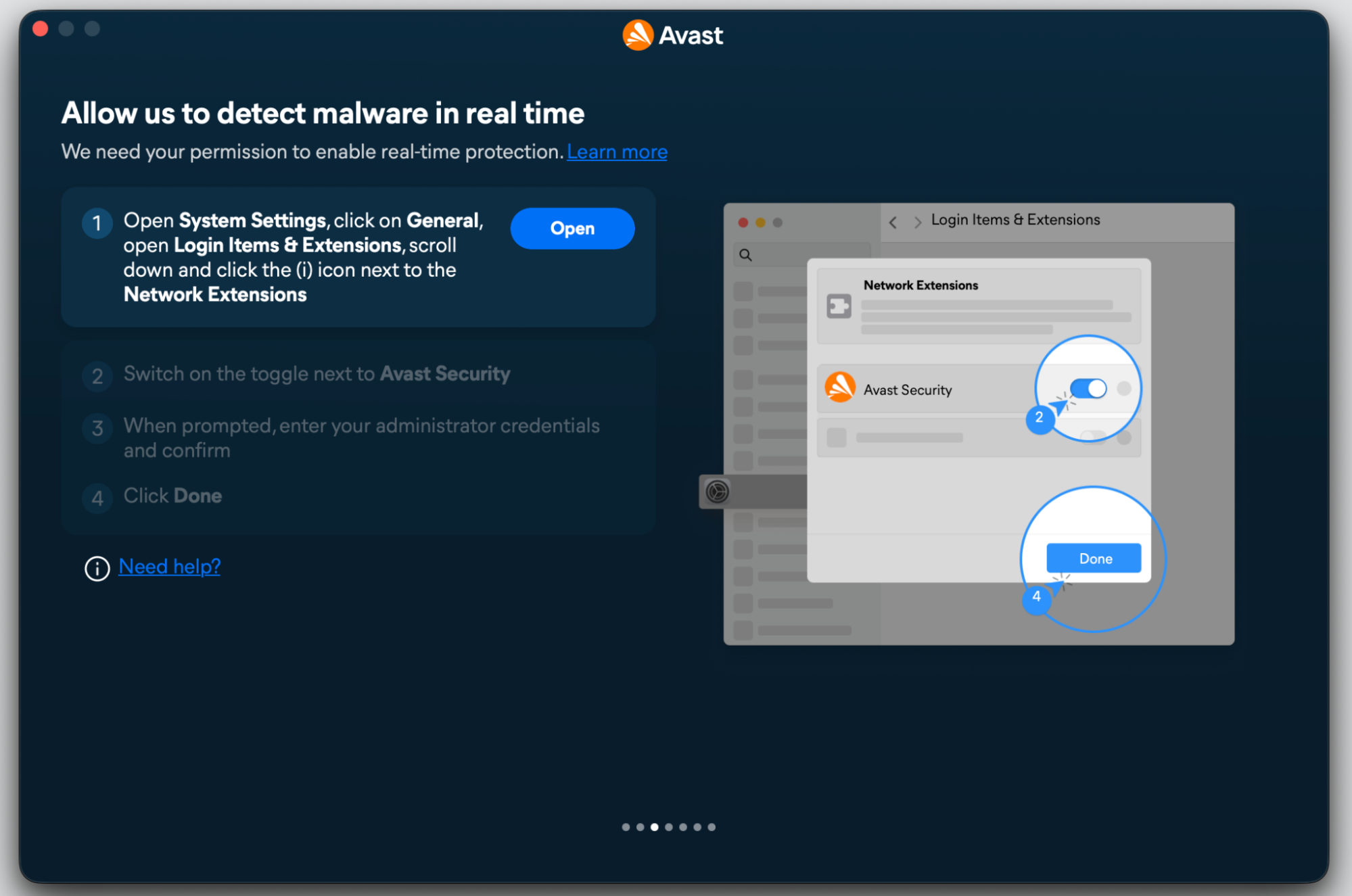
Step 1. Go to Avast Preferences and check for updatesStep 2. Check your browser for available updateStep 3. Remove unknown extensions from browsersStep 4. Check Avast’s web protection settings
If the warning disappears in another browser, the issue lives in your original browser, not your Mac.
Conclusion
An Avast remove bad search engine issue usually traces back to browser cleanup actions, unwanted extensions, Avast Secure Browser, or a hijacker. Review what Avast changed, restore your settings, and reset your browser only if the search engine keeps returning. MacKeeper’s Antivirus scans in real time and keeps your browsing secure—start a scan today.
We respect your privacy and
use cookies
for the best site experience.
Privacy Preferences Center
We use cookies along with other tools to give you the best possible experience while using the
MacKeeper website. Cookies are small text files that help the website load faster. The cookies we
use don’t contain any type of personal data meaning they never store information such as your
location, email address, or IP address.
Help us improve how you interact with our website by accepting the use of cookies. You can change
your privacy settings whenever you like.
Manage consent
All cookies
These cookies are strictly necessary for enabling basic website functionality (including page
navigation, form submission, language detection, post commenting), downloading and purchasing
software. The website might malfunction without these cookies.