Com.crowdstrike.falcon.Agent High CPU Usage on Mac
Have you noticed that com.crowdstrike.falcon.Agent uses high CPU, slowing everything down on your Mac? This background security process can run hot during scans and make your Mac feel sluggish. The solution is MacKeeper’s Memory Cleaner, which frees up memory by quitting useless processes, so your Mac stays responsive.
Com.crowdstrike.falcon.Agent is a background security process tied to CrowdStrike Falcon, an endpoint protection tool that many organizations install on work devices. It runs quietly on macOS, watching system activity and detecting threats in real time.
Think of it as a security guard who never takes a break. It keeps an eye on what your Mac is doing and steps in when something looks suspicious. That role makes it an important part of system security in enterprise environments, which is why it’s often managed by an IT team rather than the person using the device.
Why com.crowdstrike.falcon.Agent may cause high CPU usage?
Are your MacBook’s fans spinning up or apps taking longer to open? A security agent that watches everything in real time naturally uses processor power, and a few common situations can push that usage higher. Here are the usual reasons behind the spikes:
Intensive real-time scanning. The agent inspects files and activity as they happen.
Large data processing. It gathers and analyzes system data to recognize threat patterns.
Configuration issues. Scanning rules set too aggressively can demand more power than necessary.
Software conflicts. Another security tool or utility is competing for the same resources.
Heavy multitasking. Several resource-intensive processes are running simultaneously.
If your machine already feels stretched, that extra load is often what tips it into a MacBook lagging state, where everyday tasks slow to a crawl.
How to fix com.crowdstrike.falcon.Agent high CPU on Mac?
Solutions range from simple checks to configuration-level adjustments. It’s smart to start with the easy steps and move on only if needed, and to proceed carefully on managed work devices since some settings are controlled by IT. Also, we suggest you view CPU usage first, so you know what’s really happening before you change anything.
1. Verify system requirements and resources
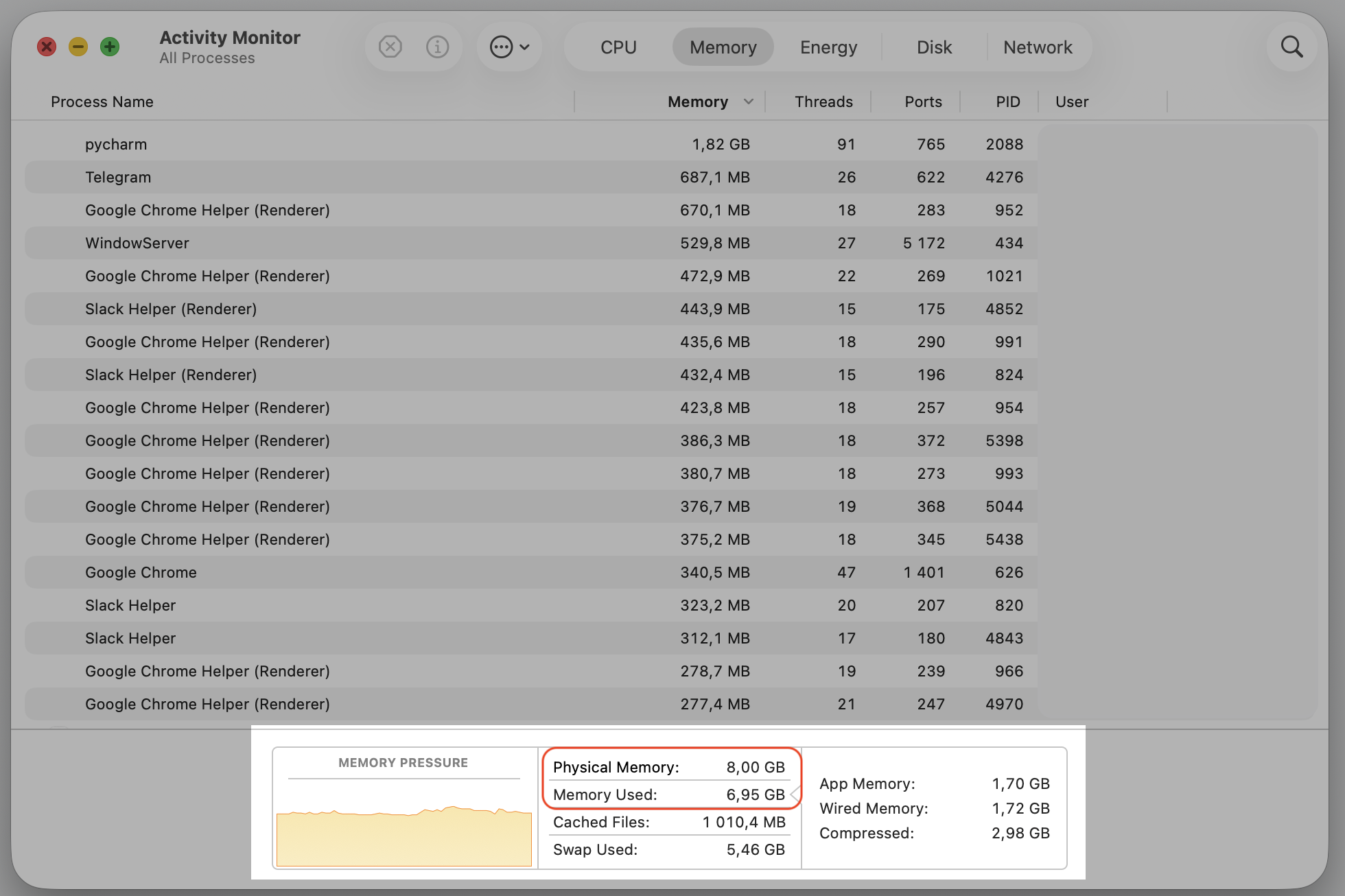
Security tools work hard, and an older Mac with limited memory or storage can struggle to keep up. When the hardware is already stretched thin, the agent’s real-time scanning shows up as a higher CPU load.
Here’s how to check what your Mac is working with:
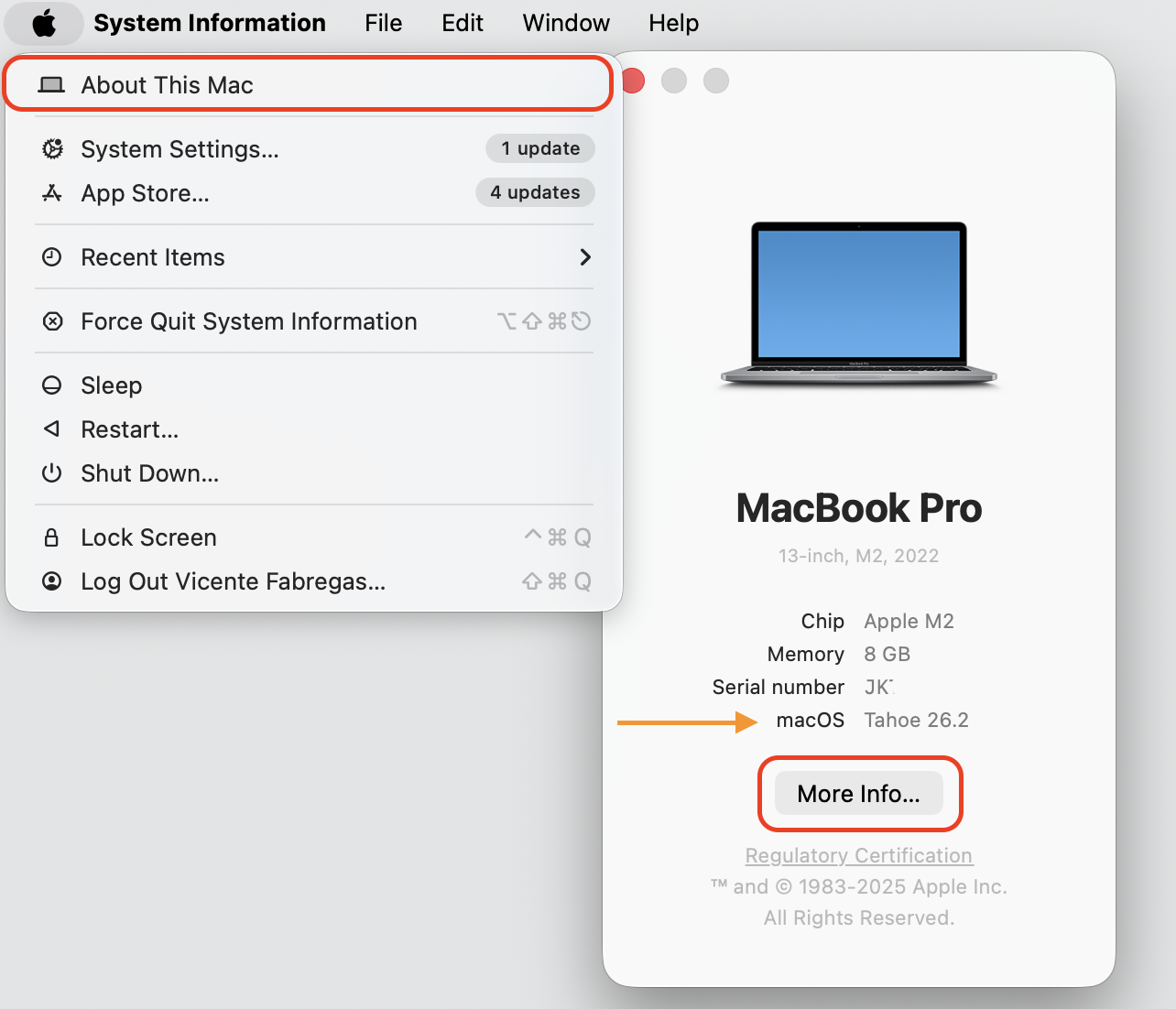
Click the Apple menu in the top-left corner, then choose About This Mac.
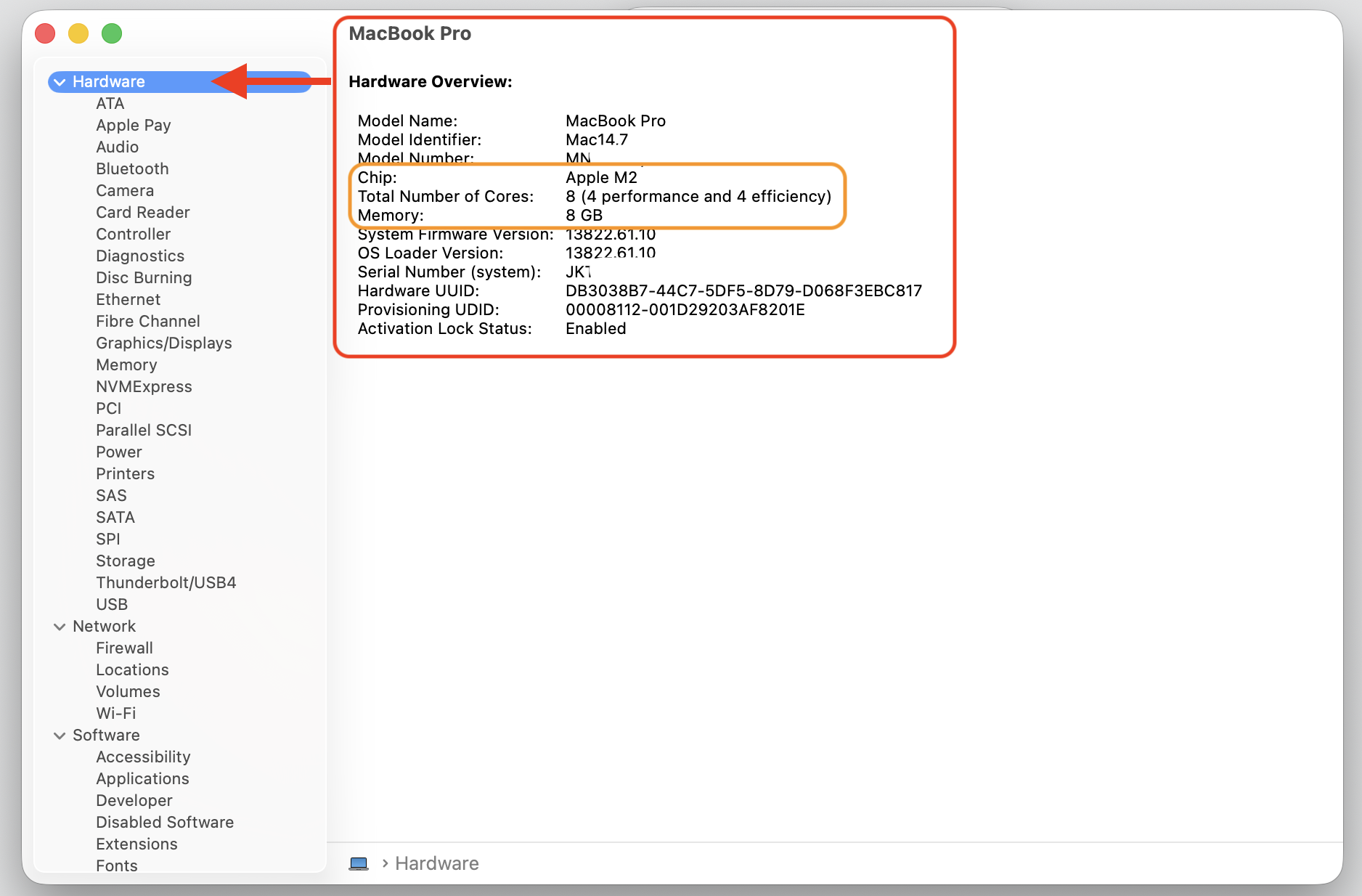
Note your macOS version, memory, and chip so you can compare them against your Falcon sensor’s requirements.
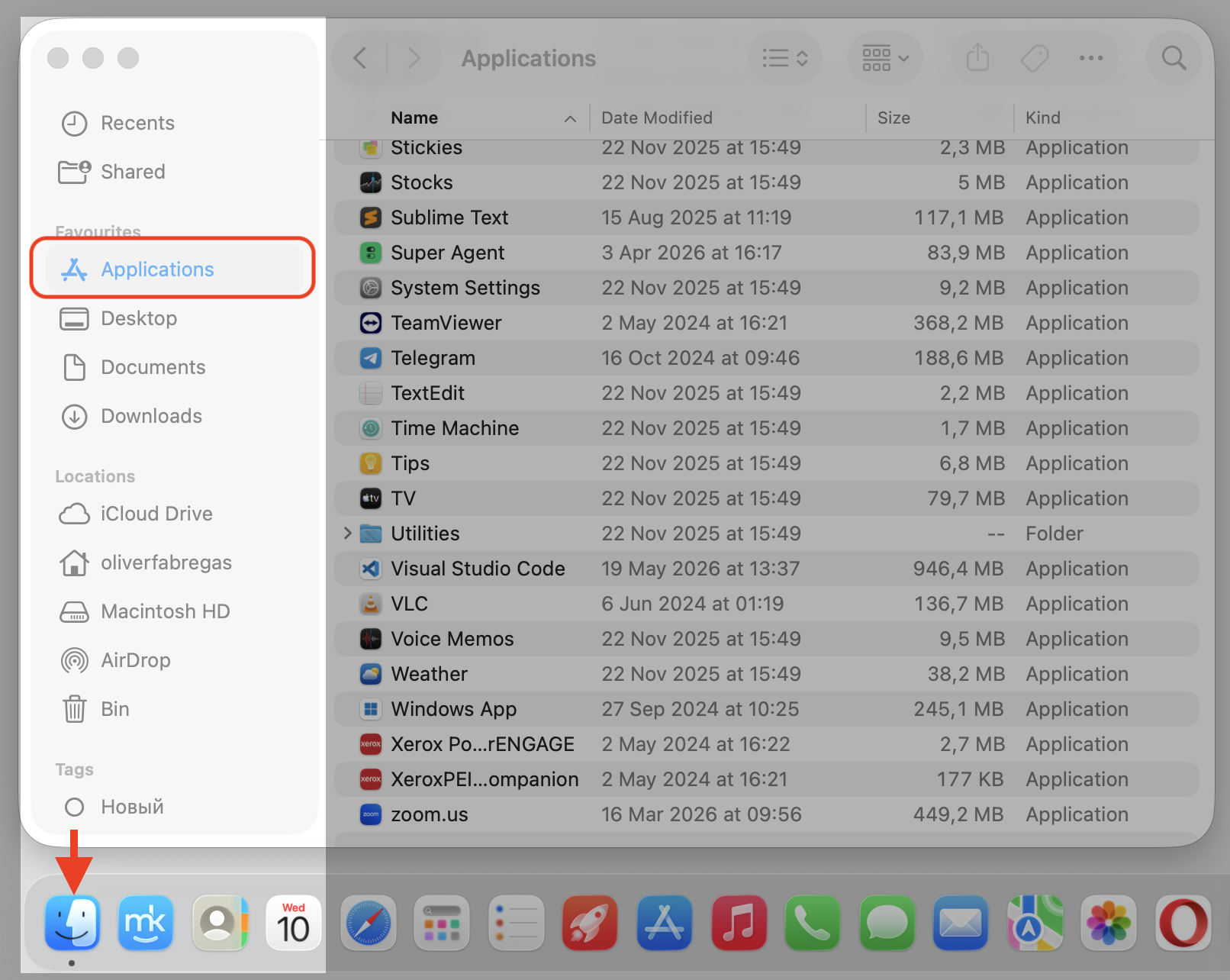
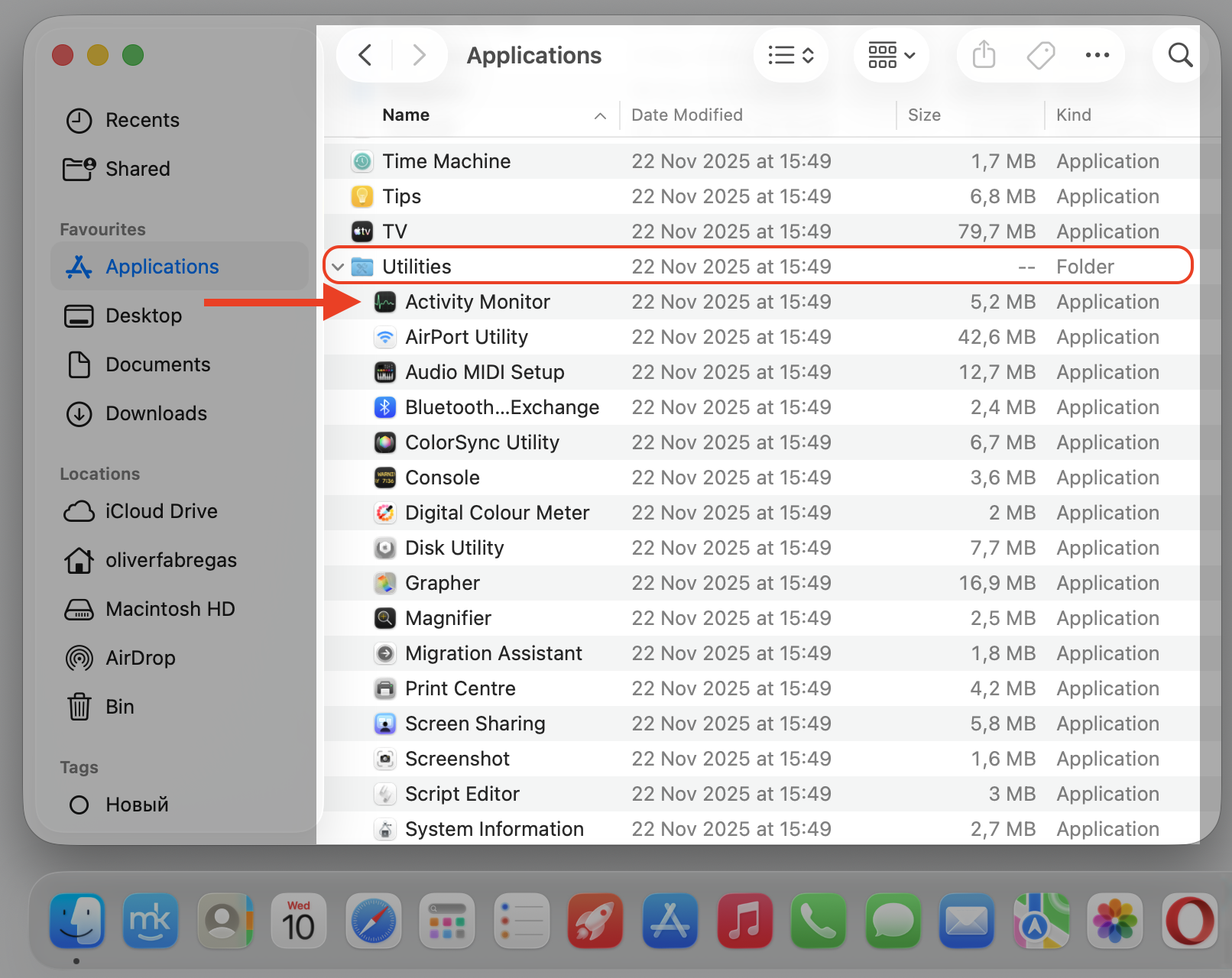
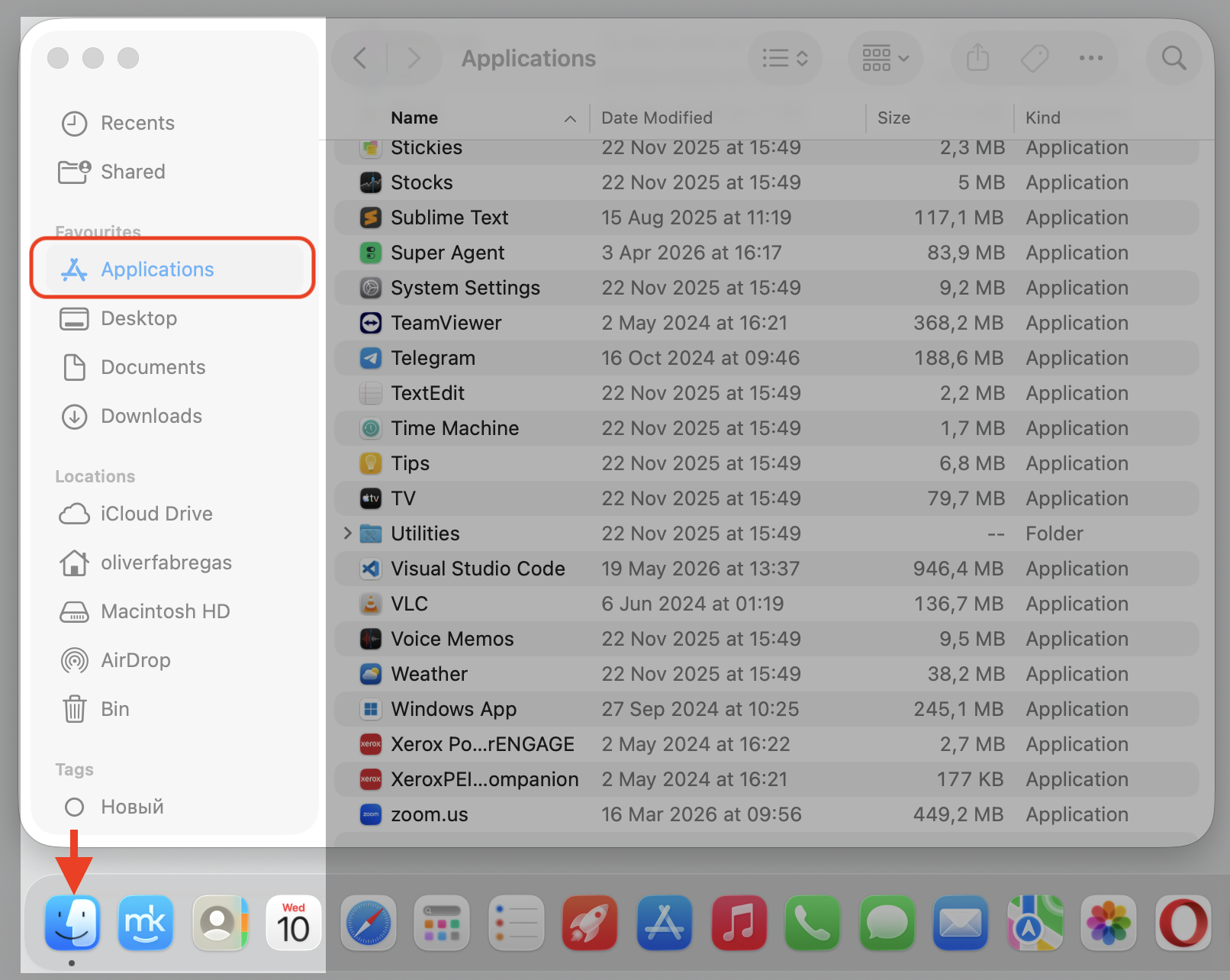
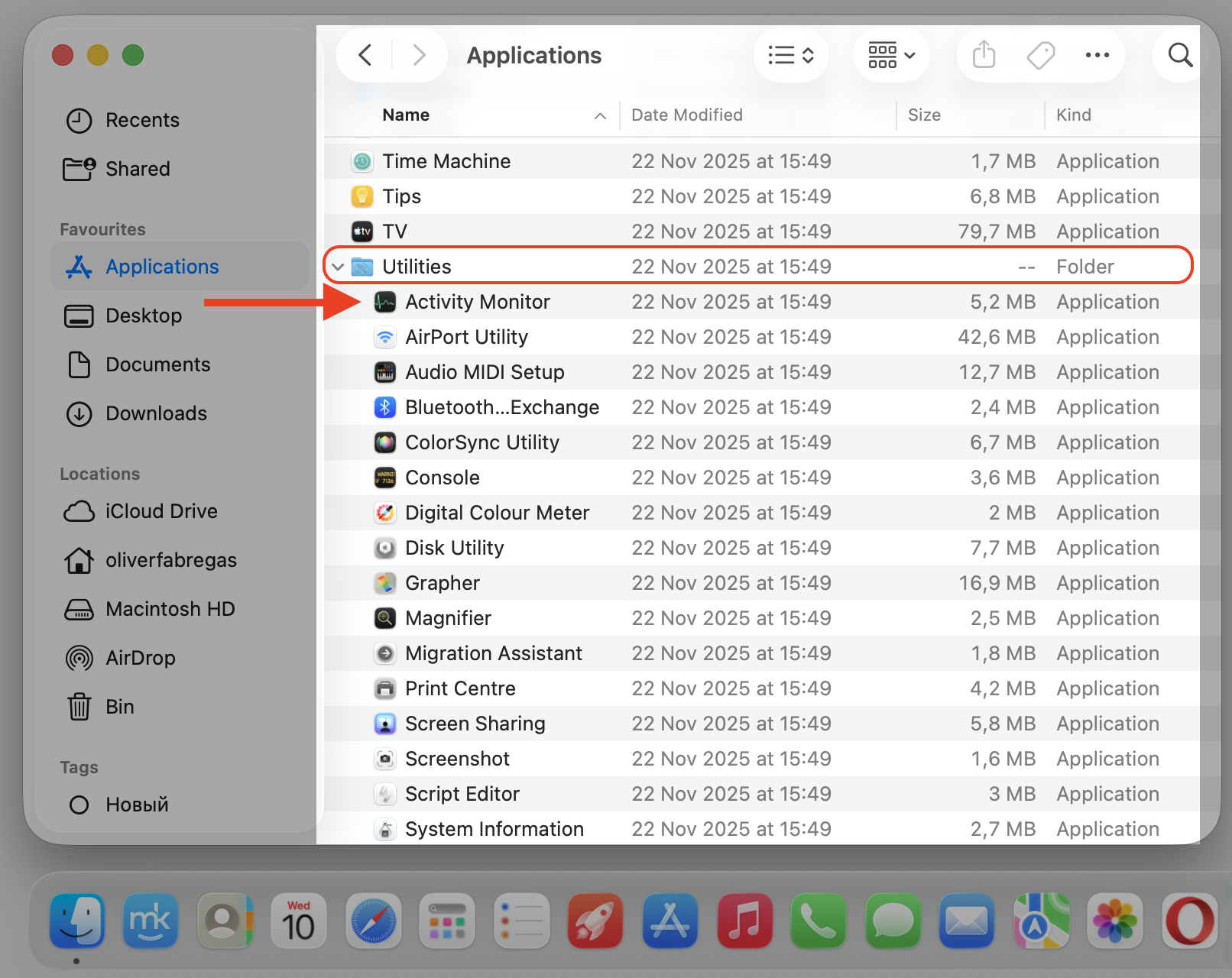
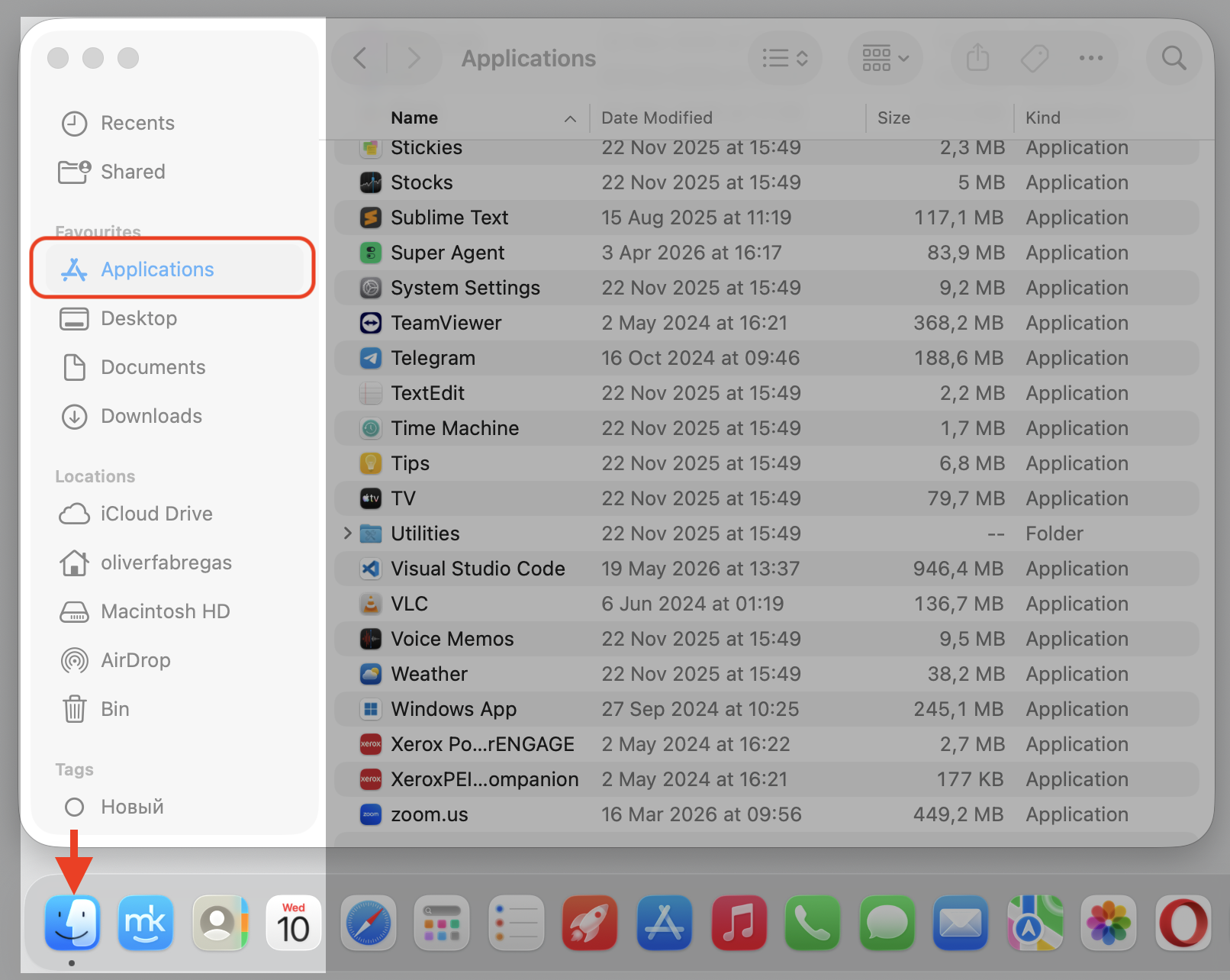
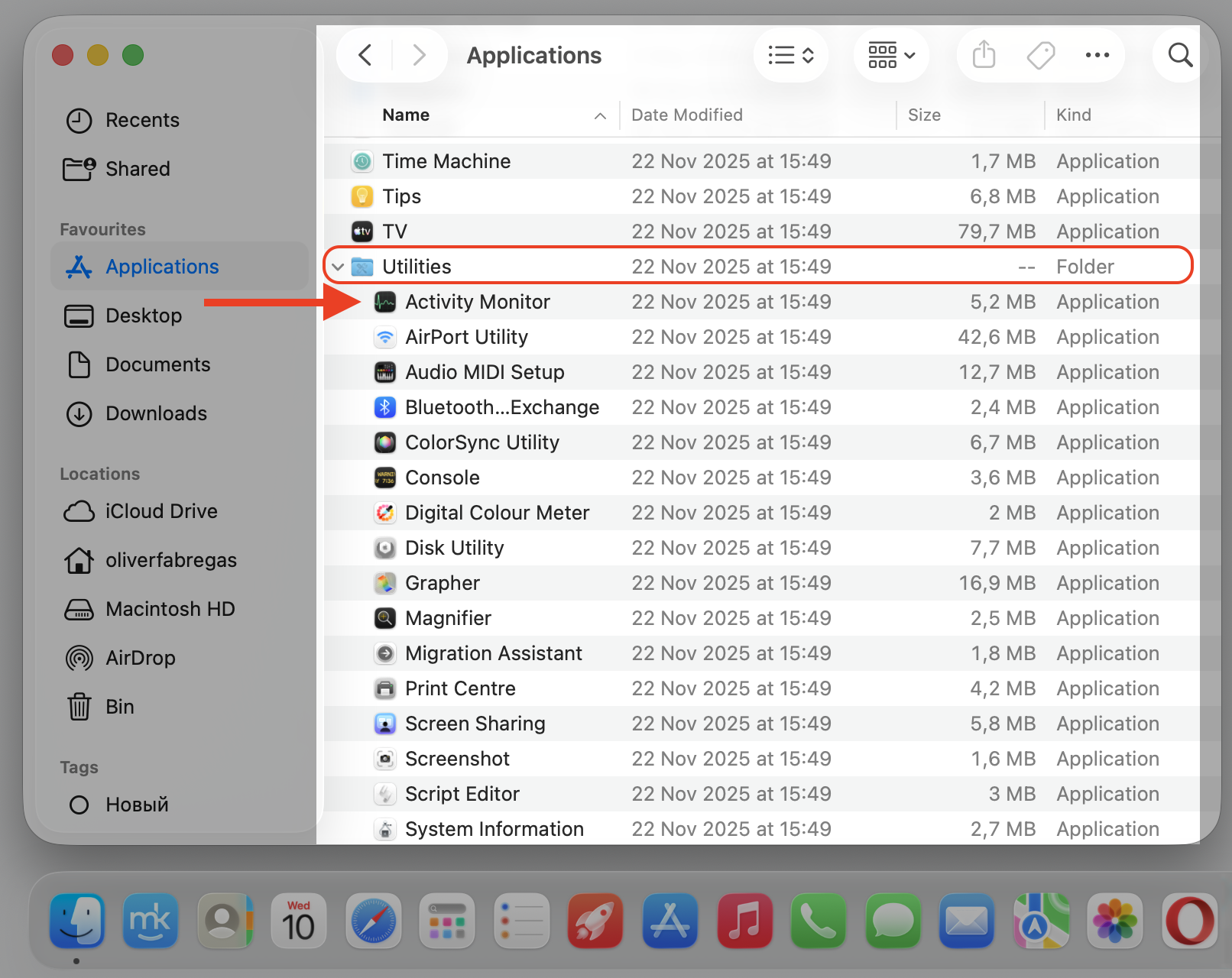
Open Finder > Applications > Utilities, then open Activity Monitor.
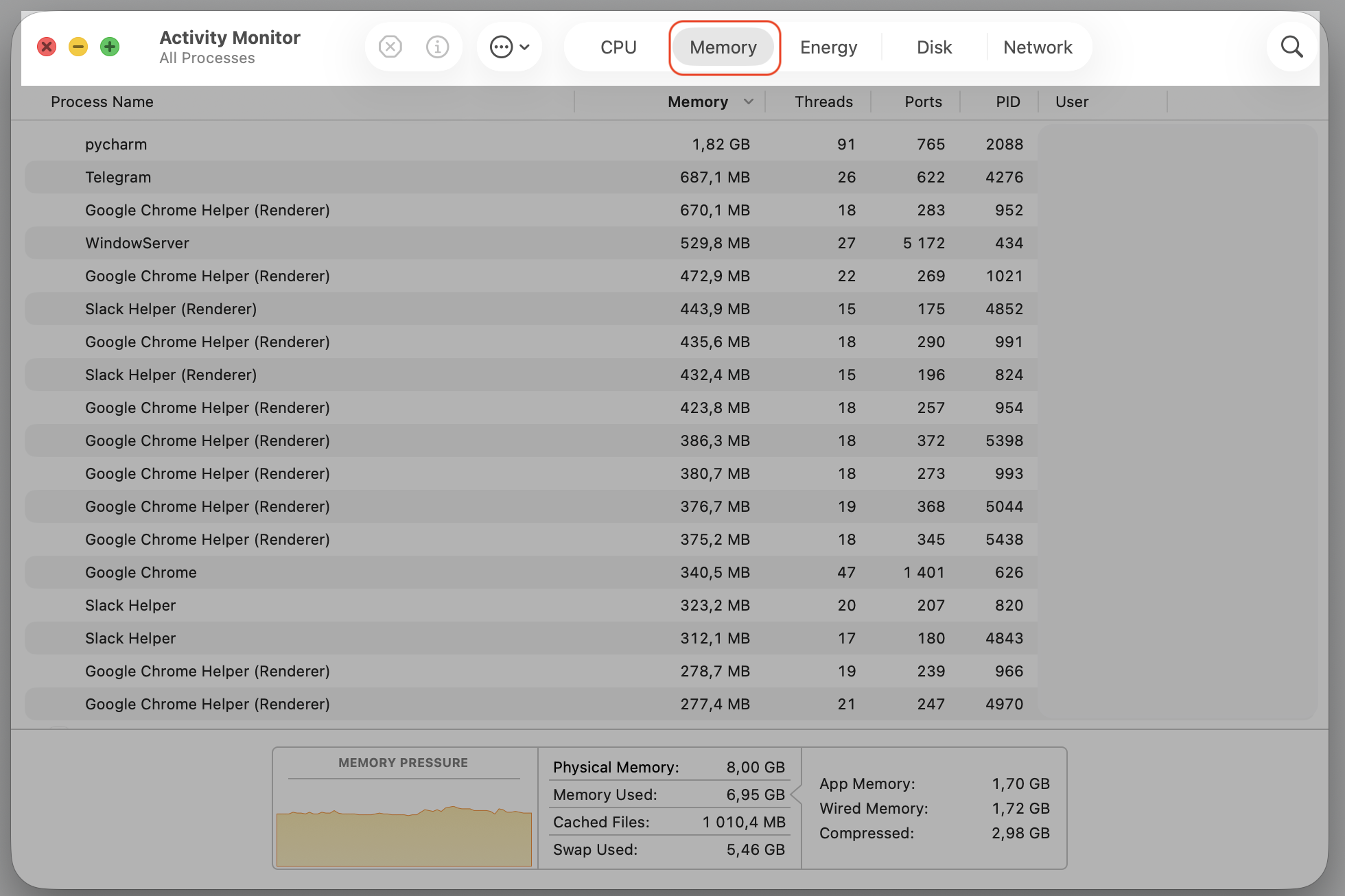
Select the Memory tab to see whether your Mac is running low.
Free up memory and storage so the agent has room to work.
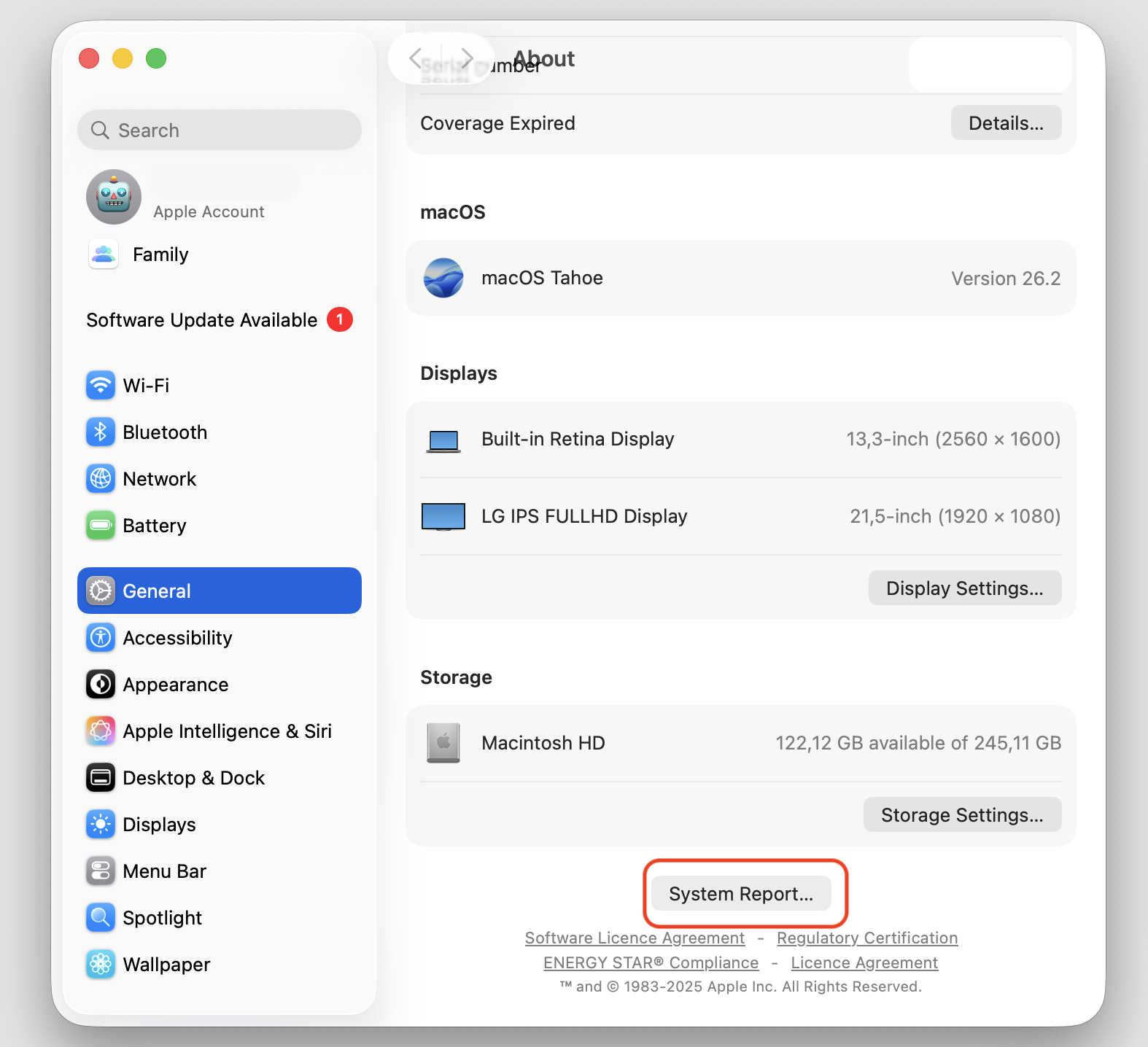
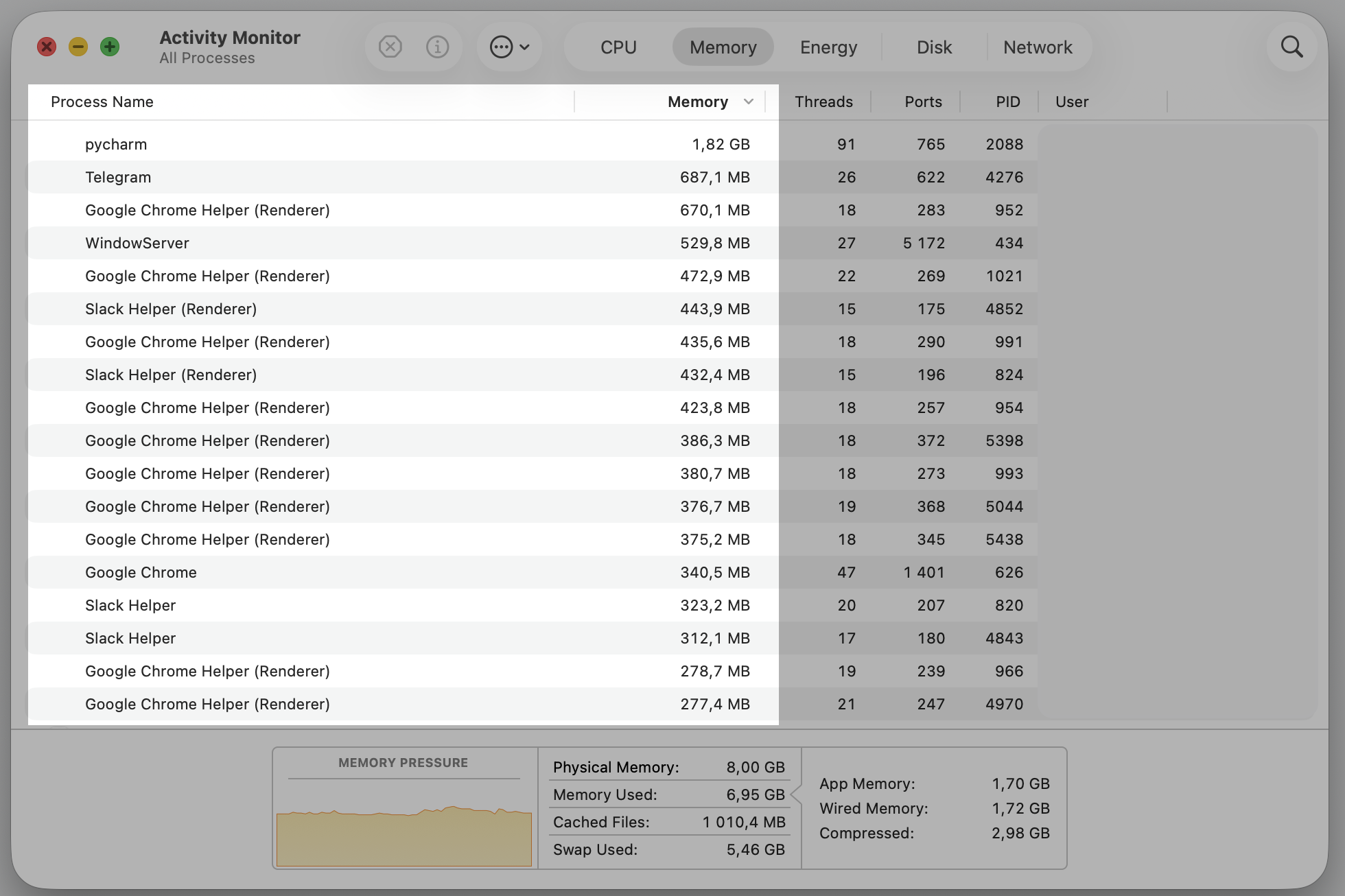
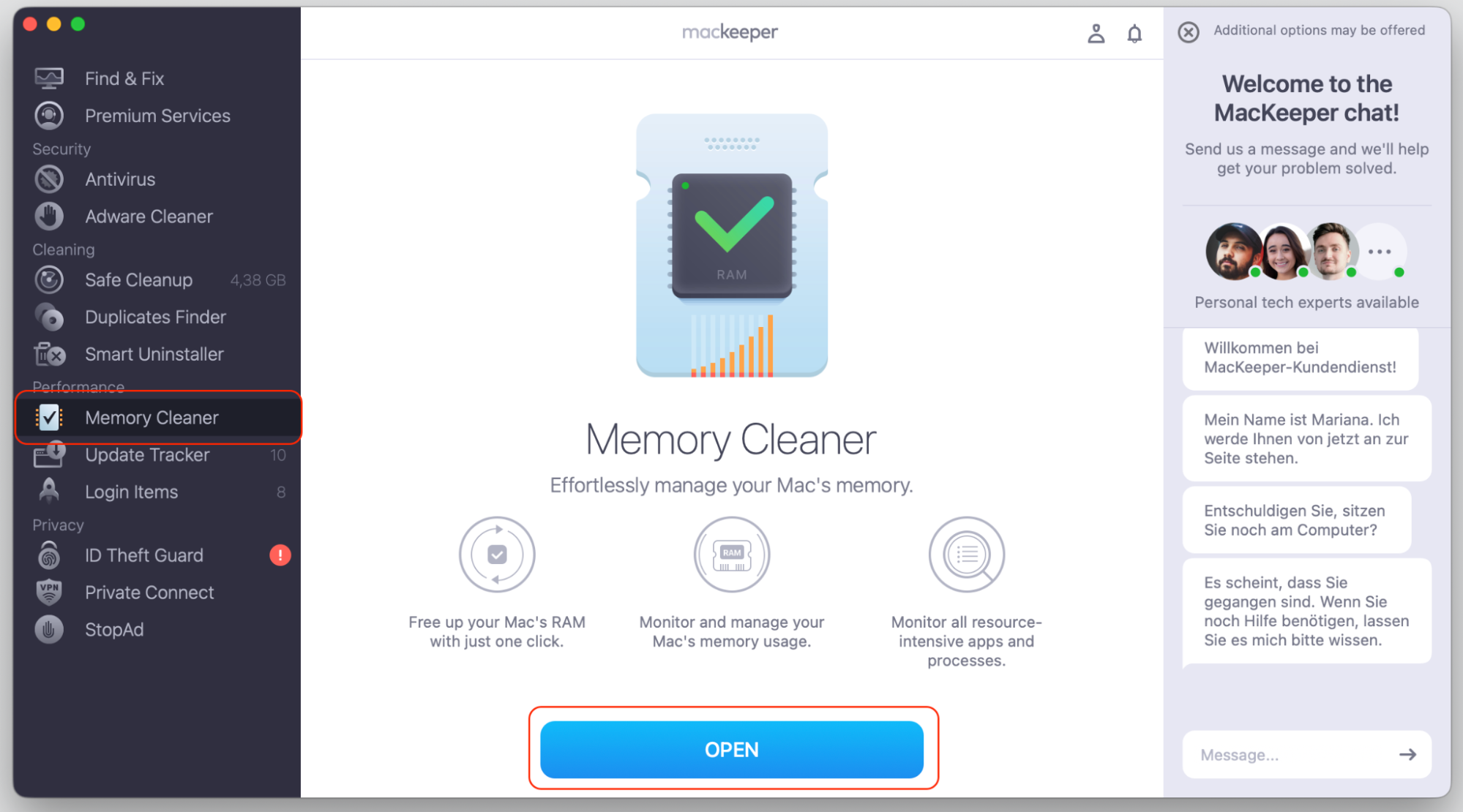
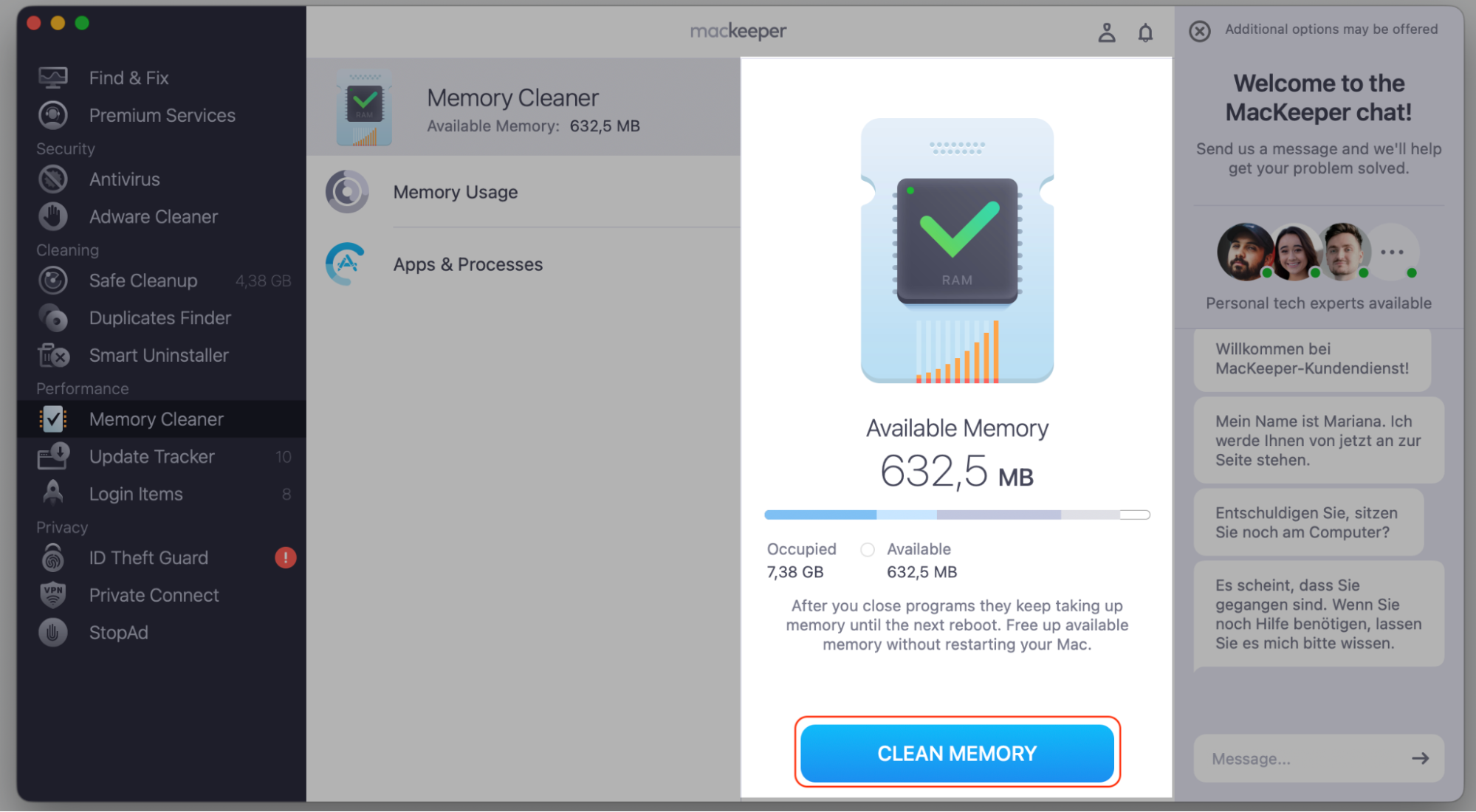
Step 1. Go to the Apple menu > About this Mac > More InfoStep 2. Go to General tab and select System ReportStep 3. Compare your Chip Type, Number of Cores, and RAM against Falcon sensor’s requirementsStep 4. Go to Finder > ApplicationsStep 5. Expand Utilities folder and select Activity MonitorStep 6. Go to the Memory tabStep 7. Check which processes are using too many resources on your MacStep 8. Close all applications before opening MacKeeper
A note from our experts:
Though referring to Activity Monitor to check the CPU usage on your computer is a traditional approach, as the app is pre-installed on Macs, it doesn’t mean that it’s the best one. Instead of going through the above-described steps, MacKeeper’s Memory Cleaner can do this job for you. We recommend to close all the applications first, then do the following:
A restart is the quickest thing to try, and, from our experience, it often does the trick. Why? Background scanning can leave a process stuck in a loop, and a fresh start clears those temporary spikes and resets the agent.
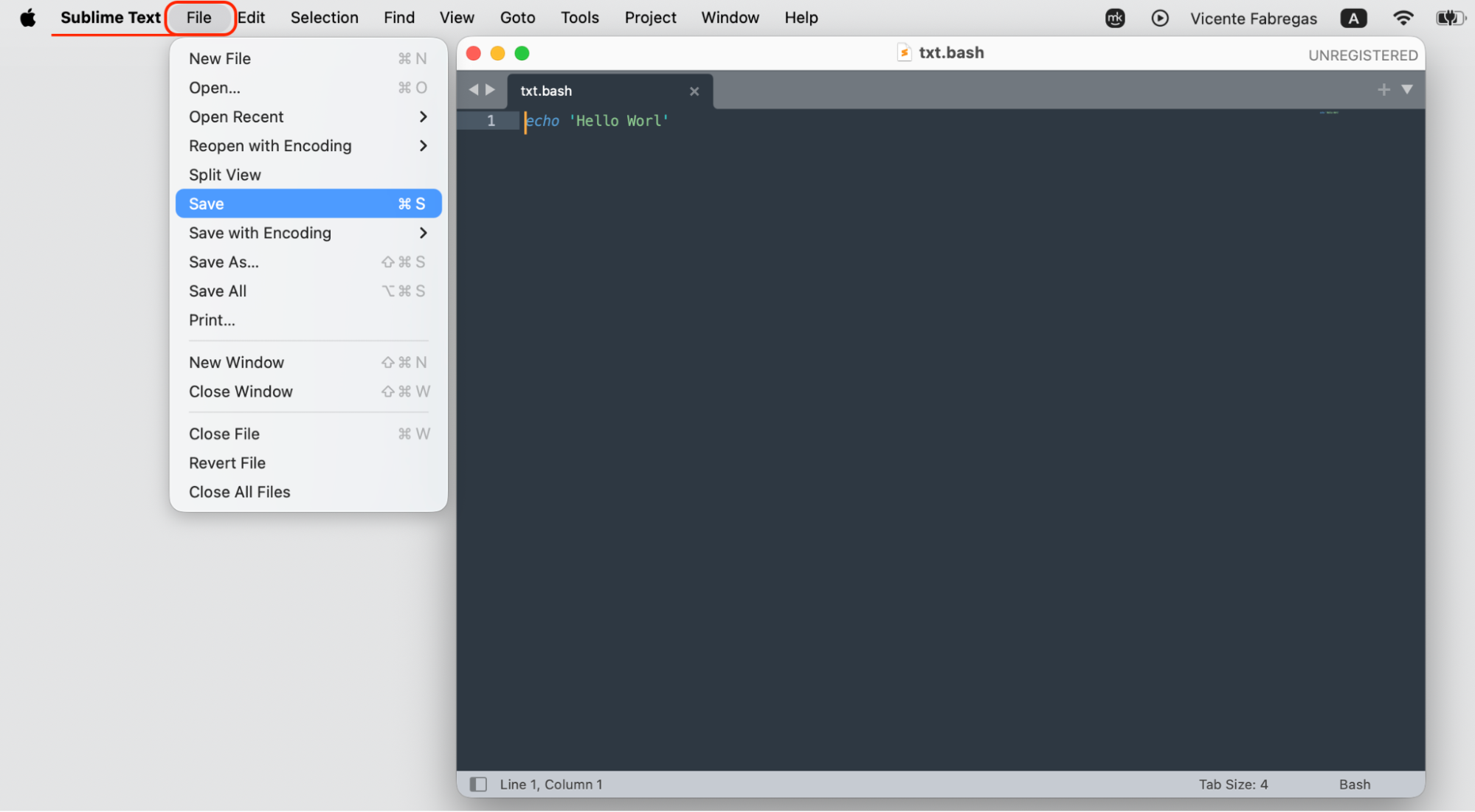
Save and quit any open apps so you don’t lose unsaved work.
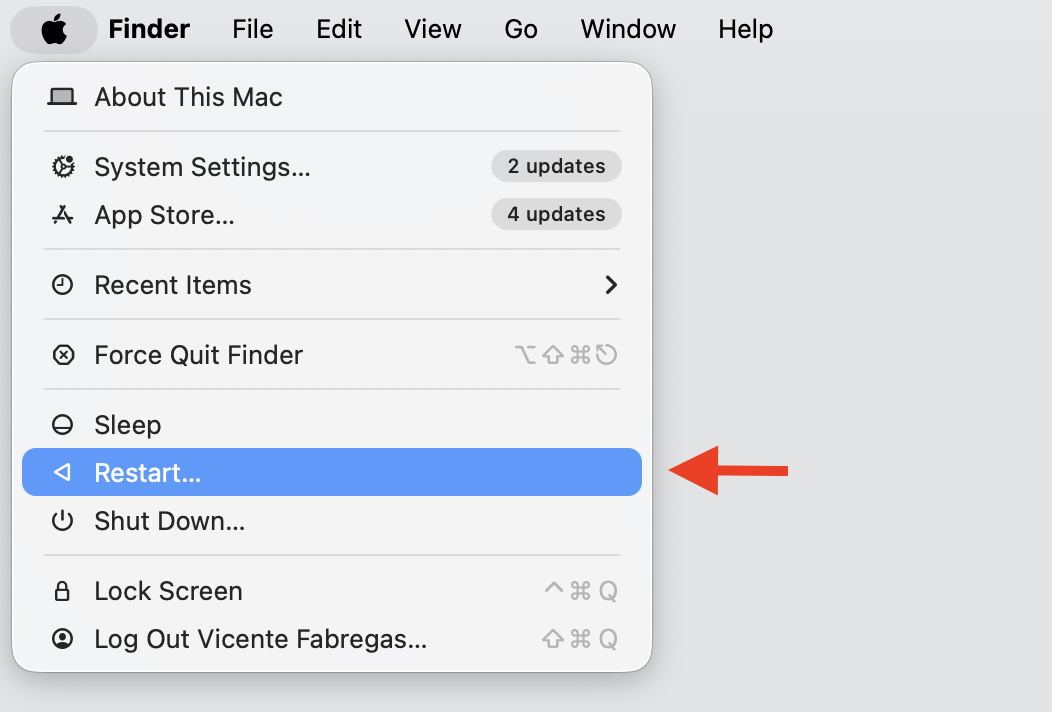
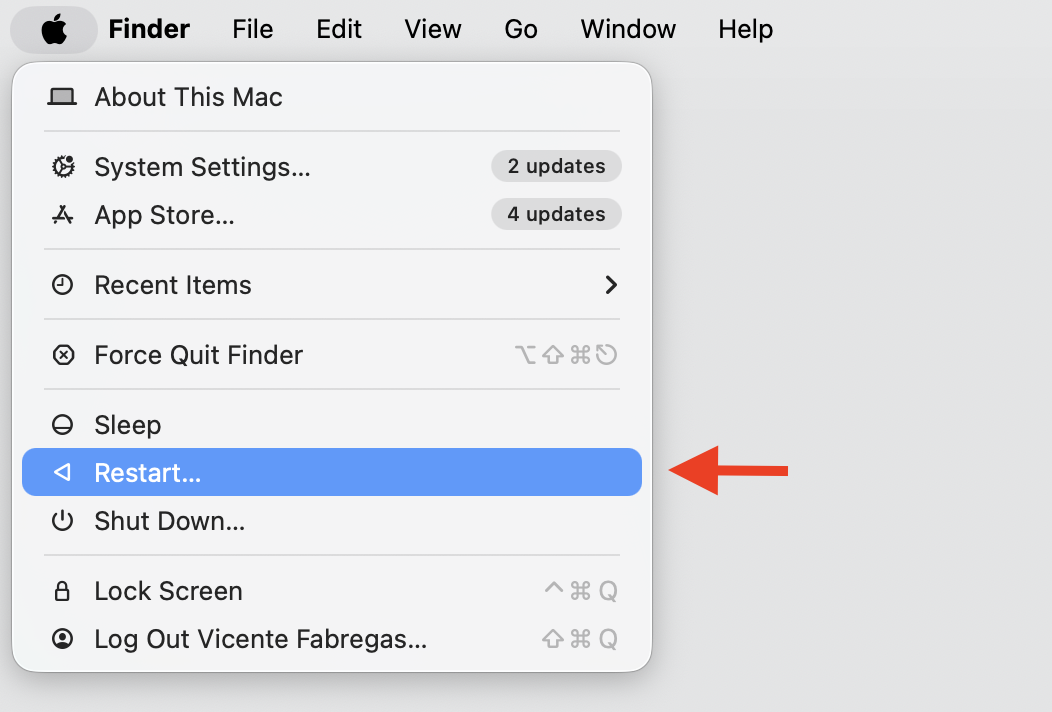
Click the Apple menu in the top-left corner.
Choose Restart.
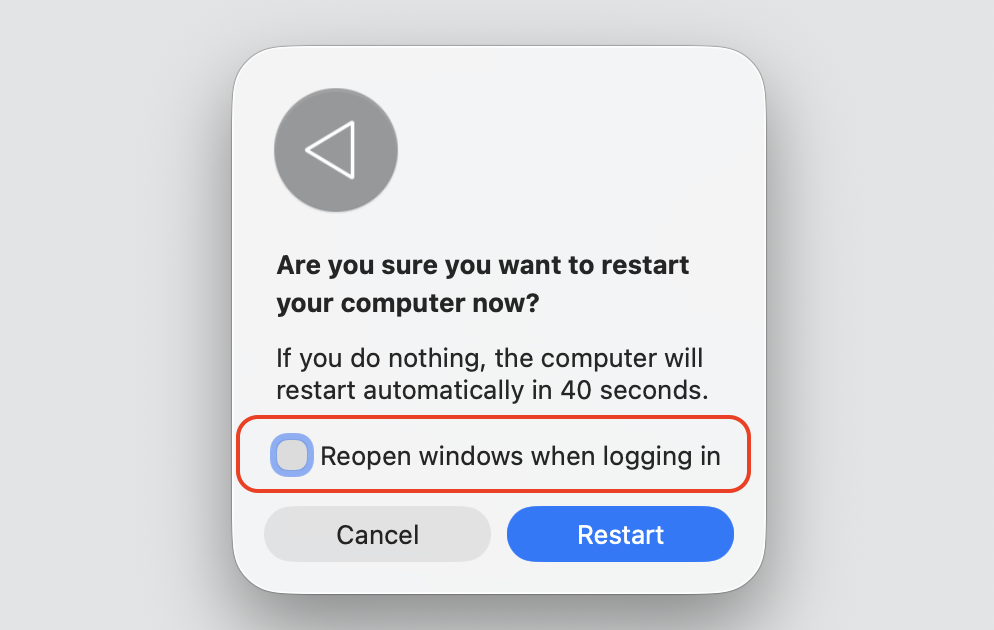
Leave the Reopen windows when logging back in option unselected for a cleaner start, then click Restart.
Once your Mac is back up, open Activity Monitor and check whether CPU usage has settled down—you already know how to do.
Step 1. Save and quit your workStep 2. Go to the Apple menu in the top-left corner and choose RestartStep 3. Unselect Reopen windows when logging back in
3. Update CrowdStrike Falcon agent
Running an older version is one of the more common reasons for unexpected CPU usage. We believe that updates often fix bugs and refine how the agent uses resources, so a newer build may quietly resolve the issue.
Here’s how to check your version and get current:
Open Finder > Applications and open the Falcon app to see its current status.
Make a note of the version number shown in the setup dialog.
On a managed work Mac, let your IT team push the update—they control which version you run.
If you manage the device yourself, install the supported version provided by CrowdStrike.
Restart your Mac after updating so the new version loads cleanly.
4. Review scanning and configuration settings
Aggressive scanning or a misconfigured policy can keep the processor busier than it needs to be. That’s why adjusting the scanning frequency or excluding certain files from scans can ease the load.
Since these settings are usually locked down, the safe path looks like this:
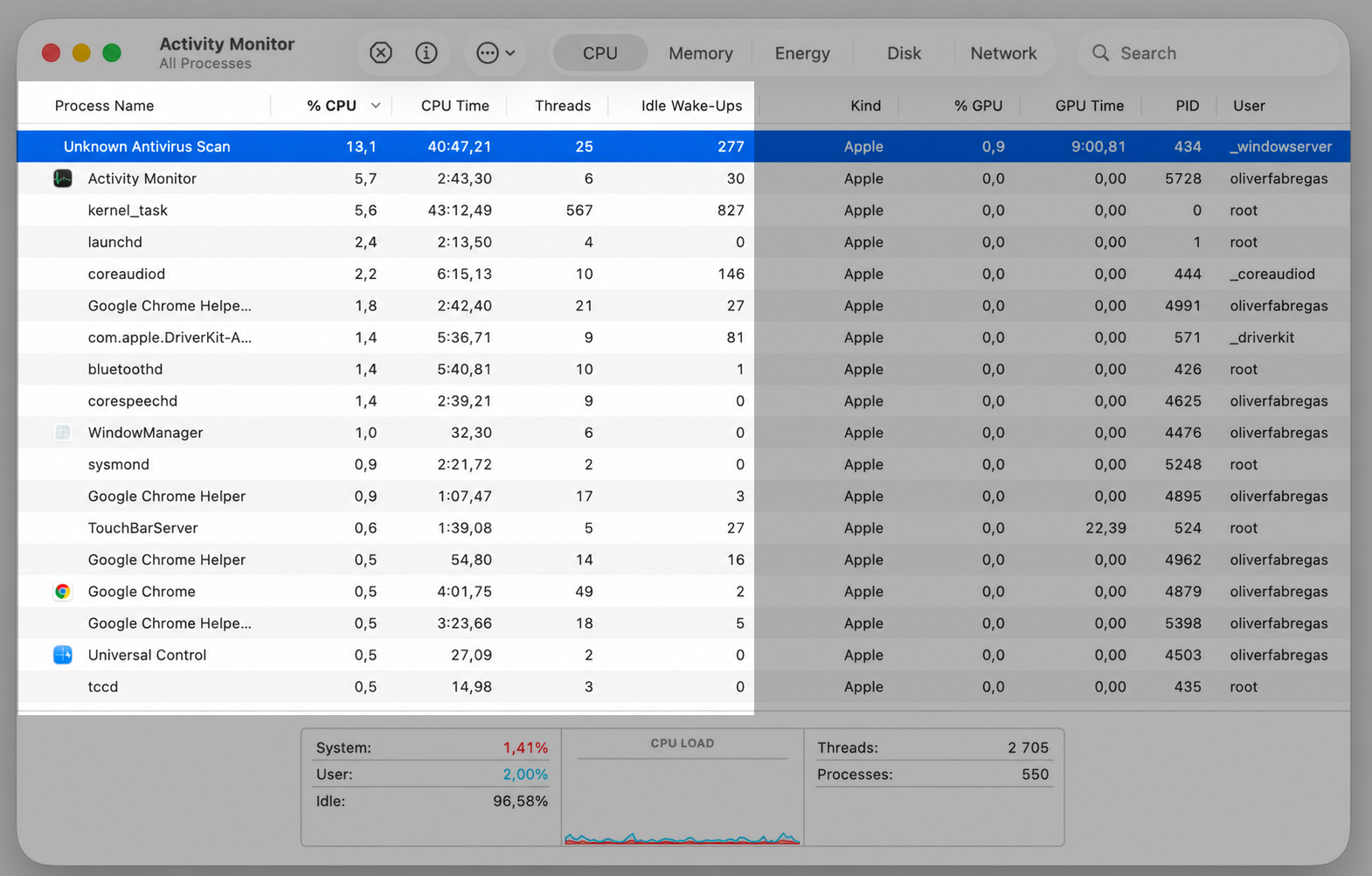
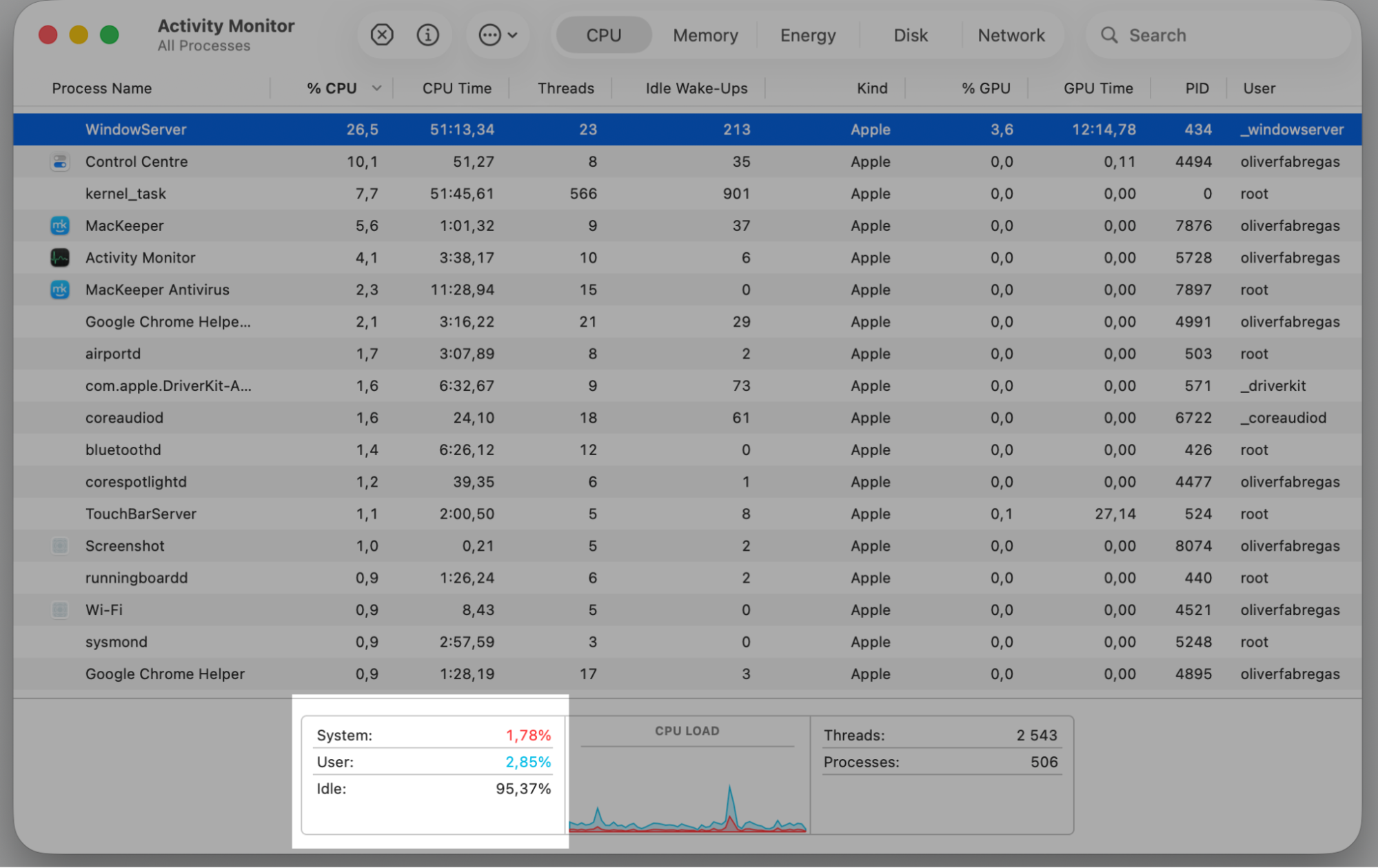
Open Activity Monitor and watch when the agent’s CPU usage spikes — note whether it lines up with scans or specific tasks.
Write down what you see, such as the time of day or the app you were using.
Share those details with your IT team, who can review the scanning policy.
Ask whether the scanning frequency can be eased or whether trusted files can be excluded from scans.
Avoid changing managed settings yourself, since that can weaken your protection or break company rules.
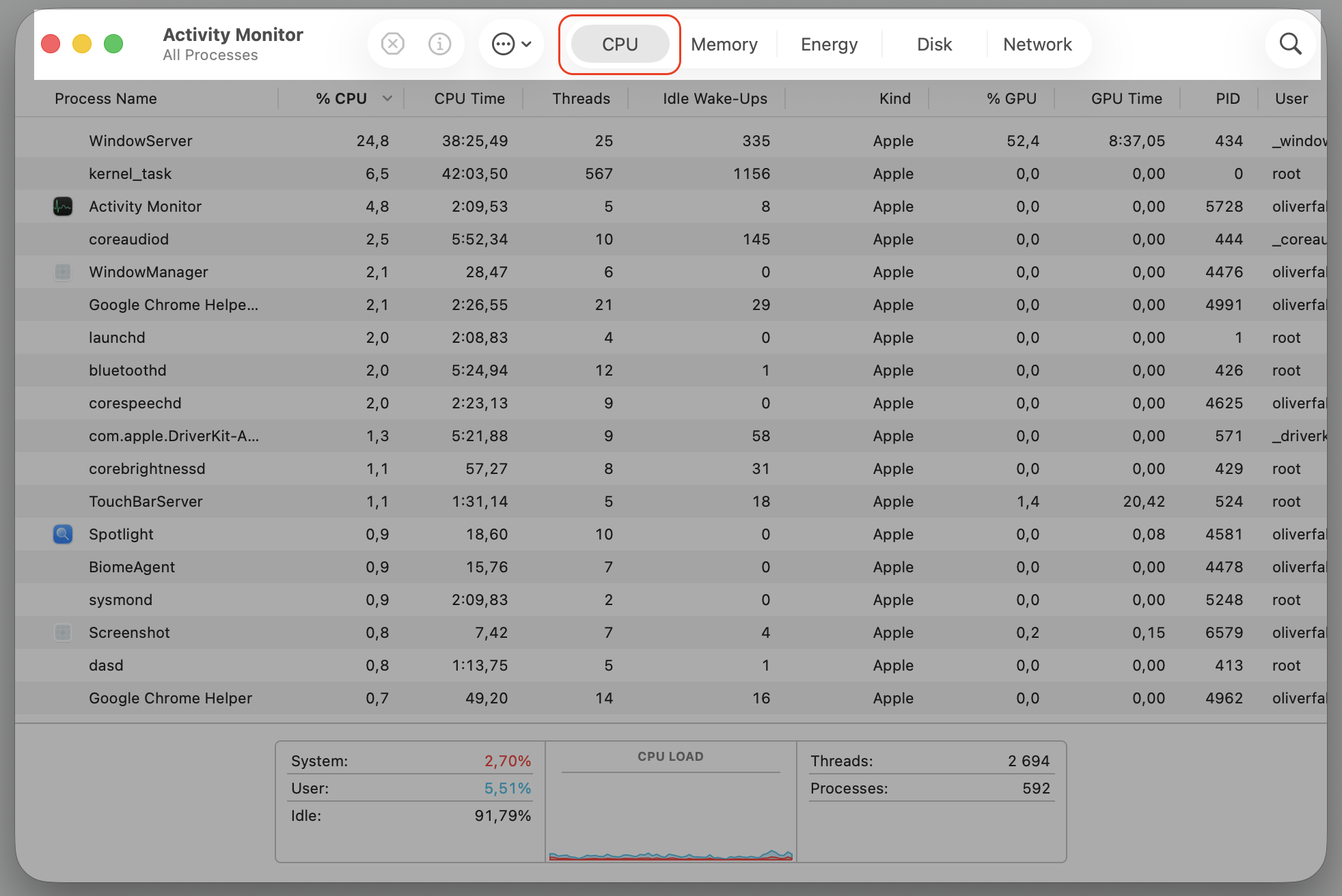
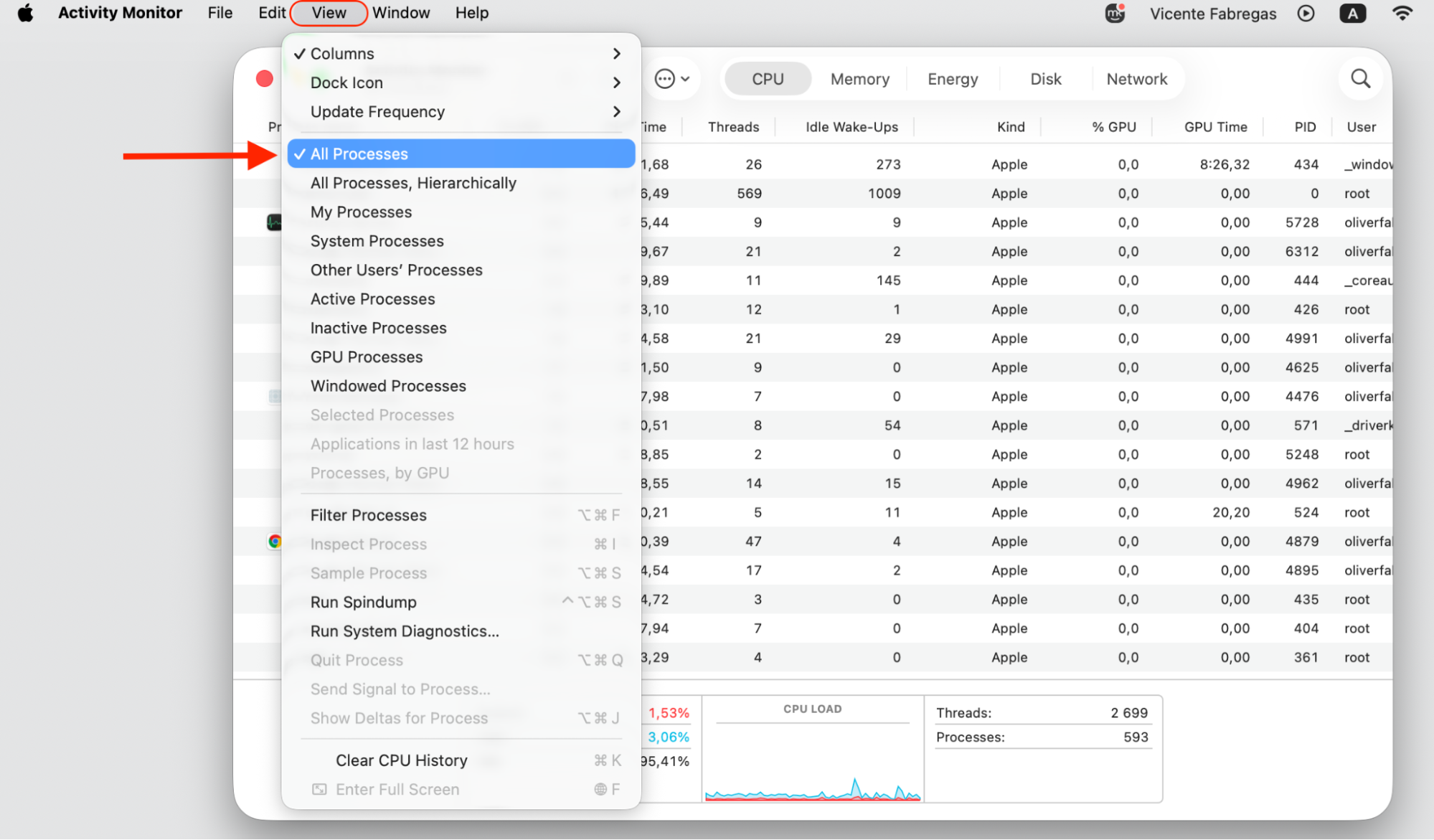
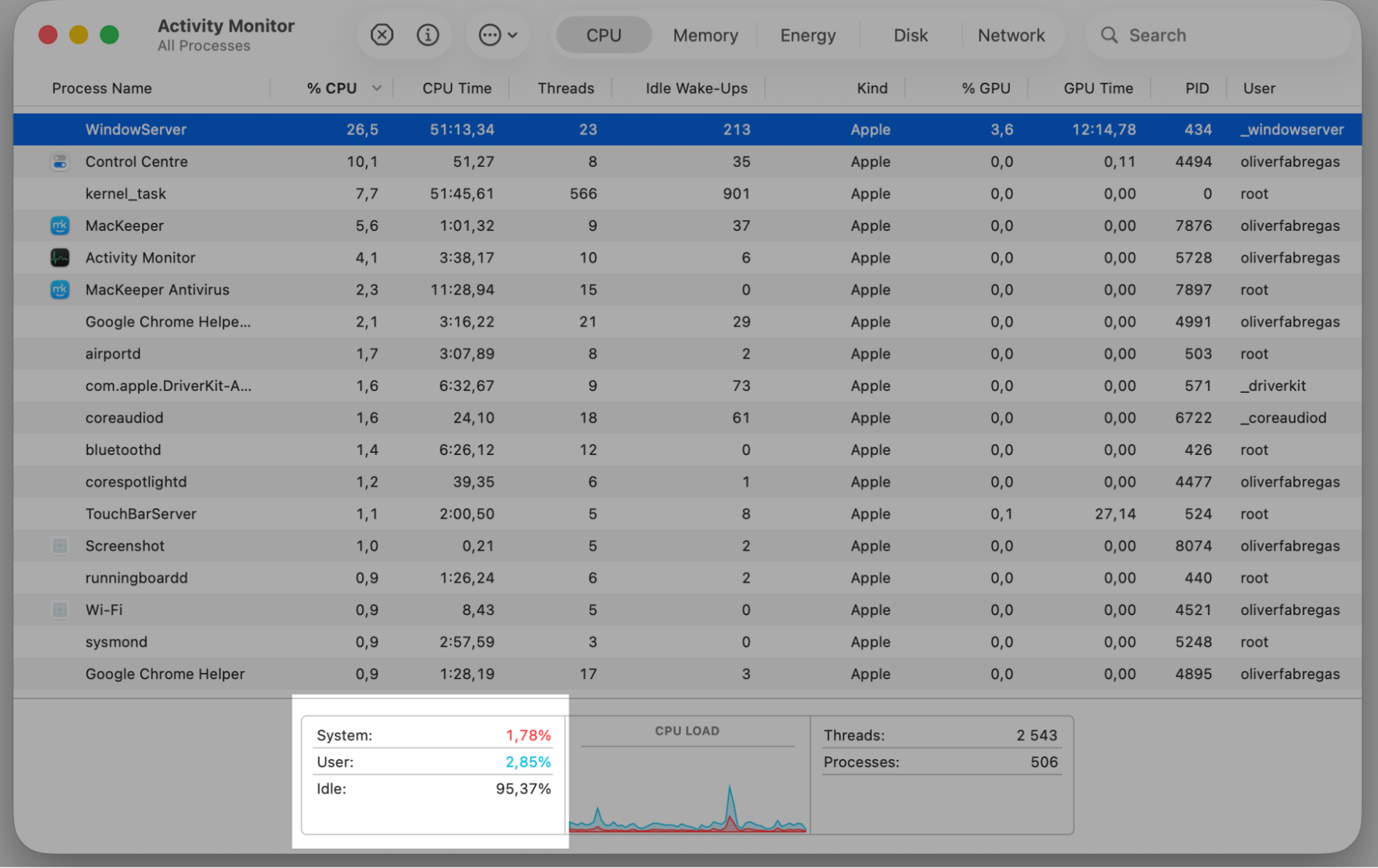
Step 1. Go to Finder > ApplicationsStep 2. Expand Utilities folder and select Activity MonitorStep 3. Select the CPU tabStep 4. Go to View and select All ProcessStep 5. Check IDLE usage Step 6. Note whether it lines up with scans or specific tasks
5. Check for software conflicts
Two security tools running at once is a recipe for trouble. Another antivirus app, a system utility, or a heavy background app can clash with the agent and drive CPU usage up as they compete for resources.
Here’s how to spot and clear a conflict:
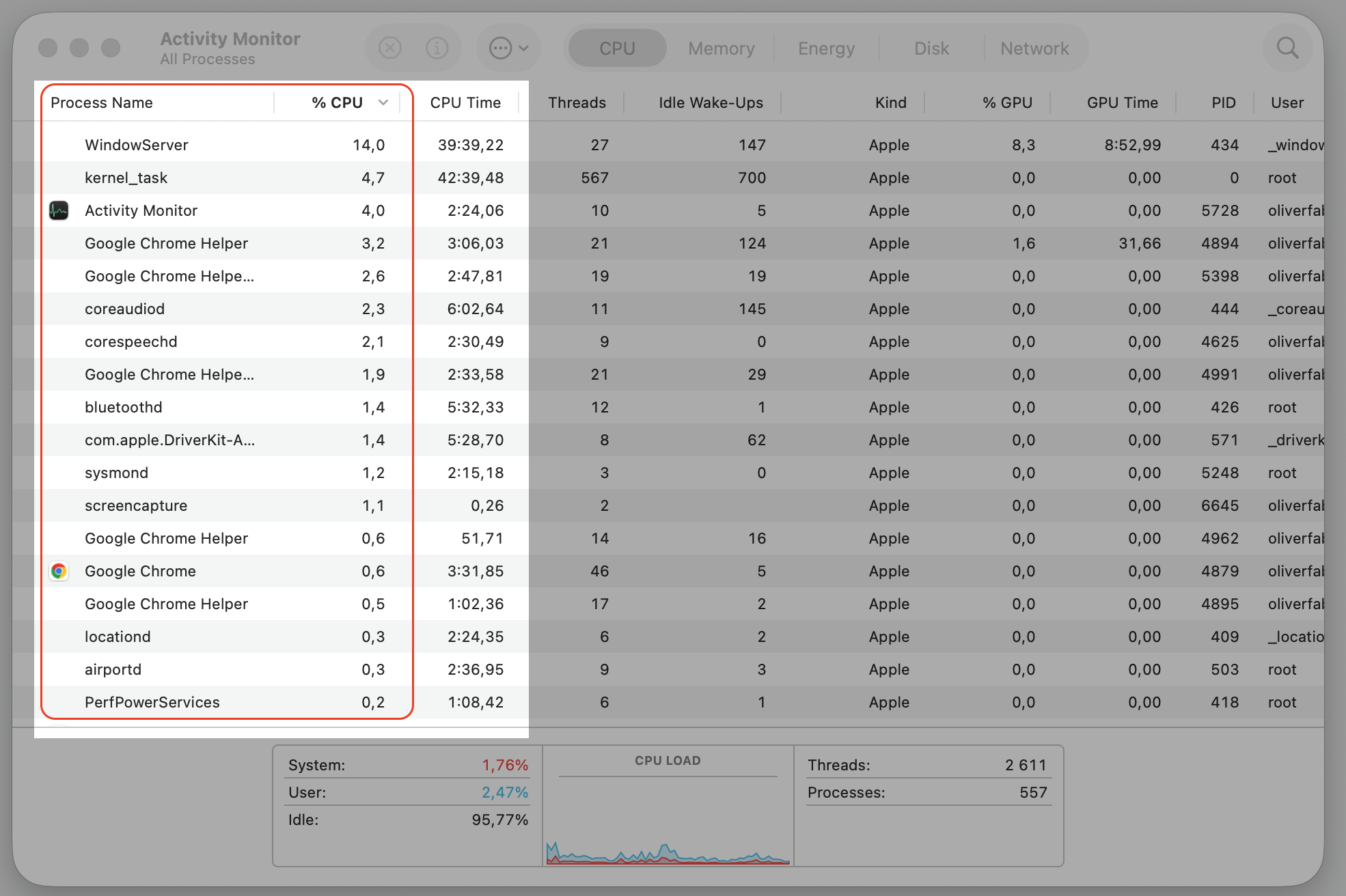
Open Activity Monitor and findt the CPU tab to see processes sorted out—from the heaviest first to the lowest in intensity.
Look for a second security tool or an unfamiliar app sitting high on the list alongside the agent.
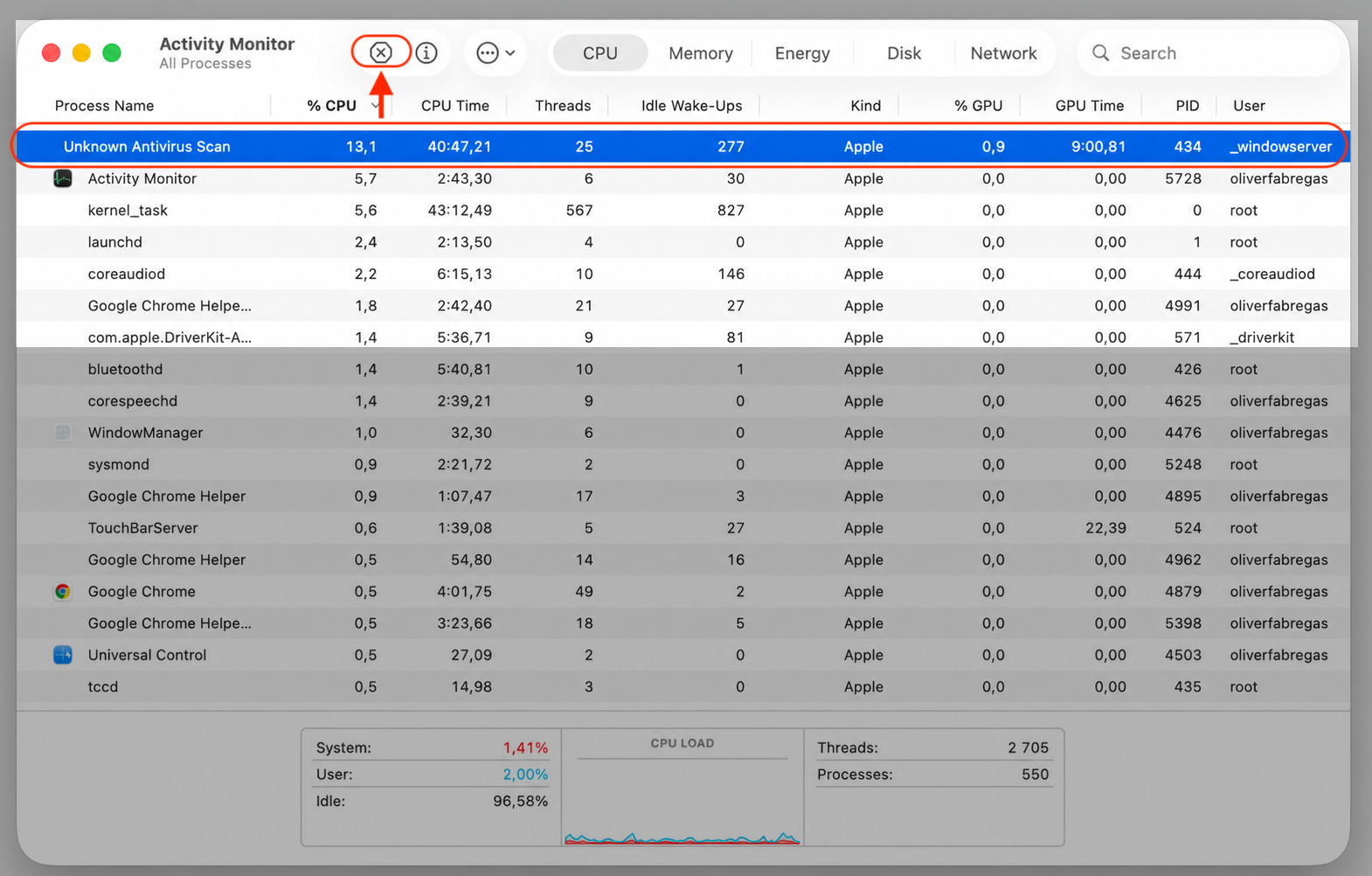
Quit anything you recognize as a duplicate or no longer use, then watch whether usage drops.
Remove a second antivirus app entirely if you find one — running just one keeps things calm.
Step 1. Go to Finder > ApplicationsStep 2. Expand Utilities folder and select Activity MonitorStep 3. Look for an unfamiliar app sitting high on the list alongside the agentStep 4. Quit anything you recognize as a duplicate or no longer use
6. Scan Mac for malware or abnormal activity
Sometimes the agent works overtime because it’s reacting to something genuinely suspicious. Unexpected CPU usage can be linked to hidden processes that trigger intensive monitoring.
Running solid Mac malware protection helps you rule that out—just follow our hints below:
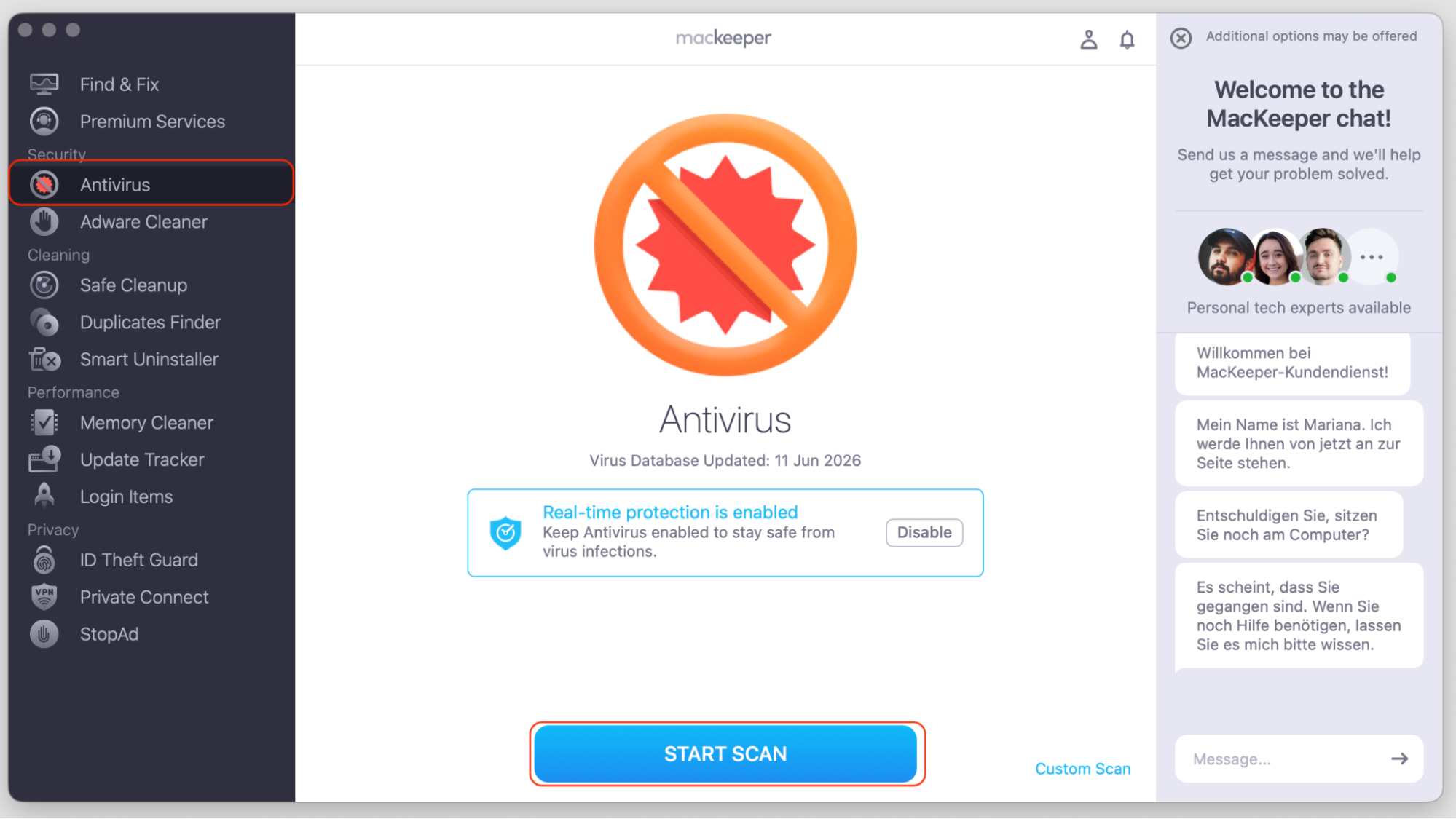
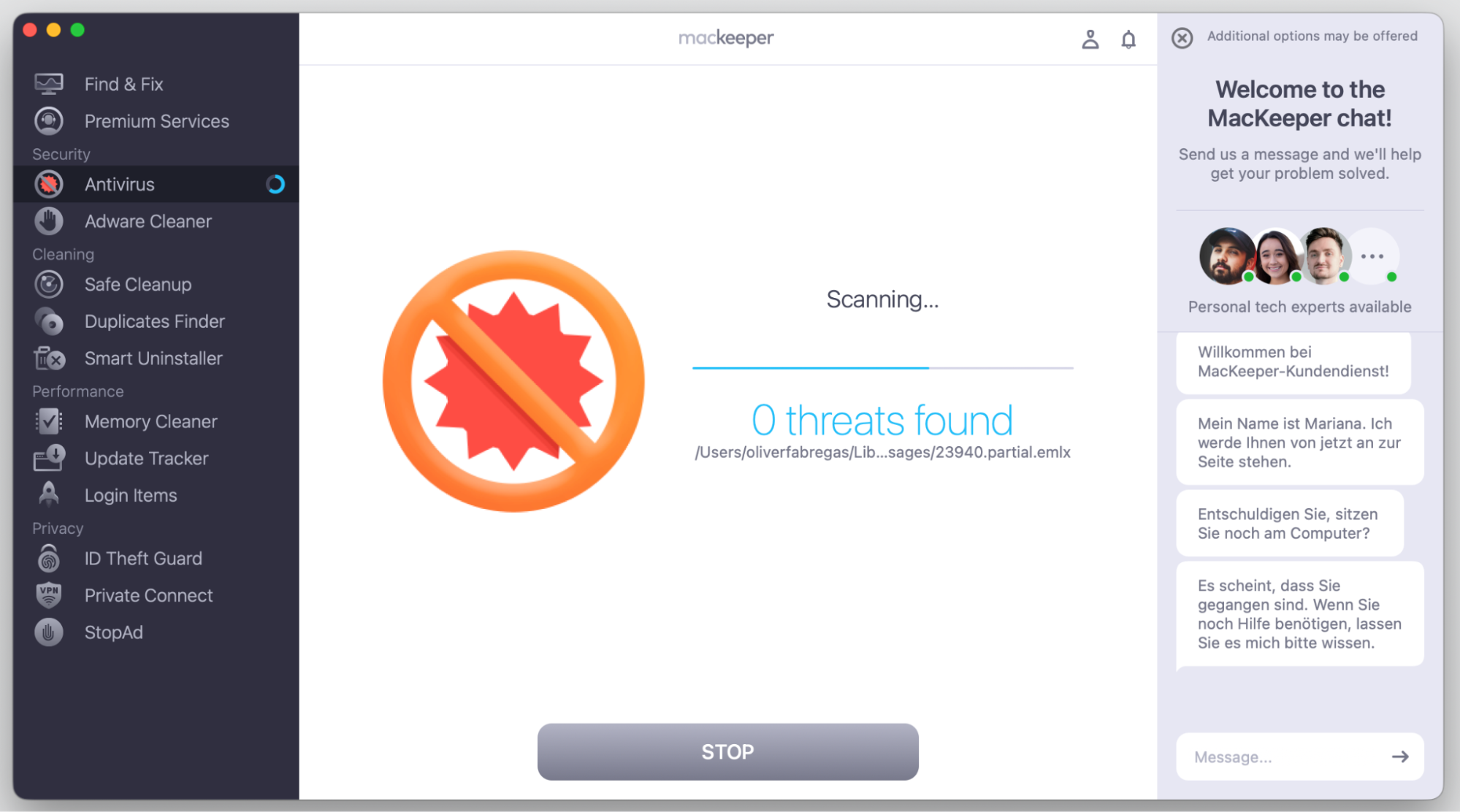
Click Start Scan so it checks every corner of your Mac.
Let the scan finish without interrupting it.
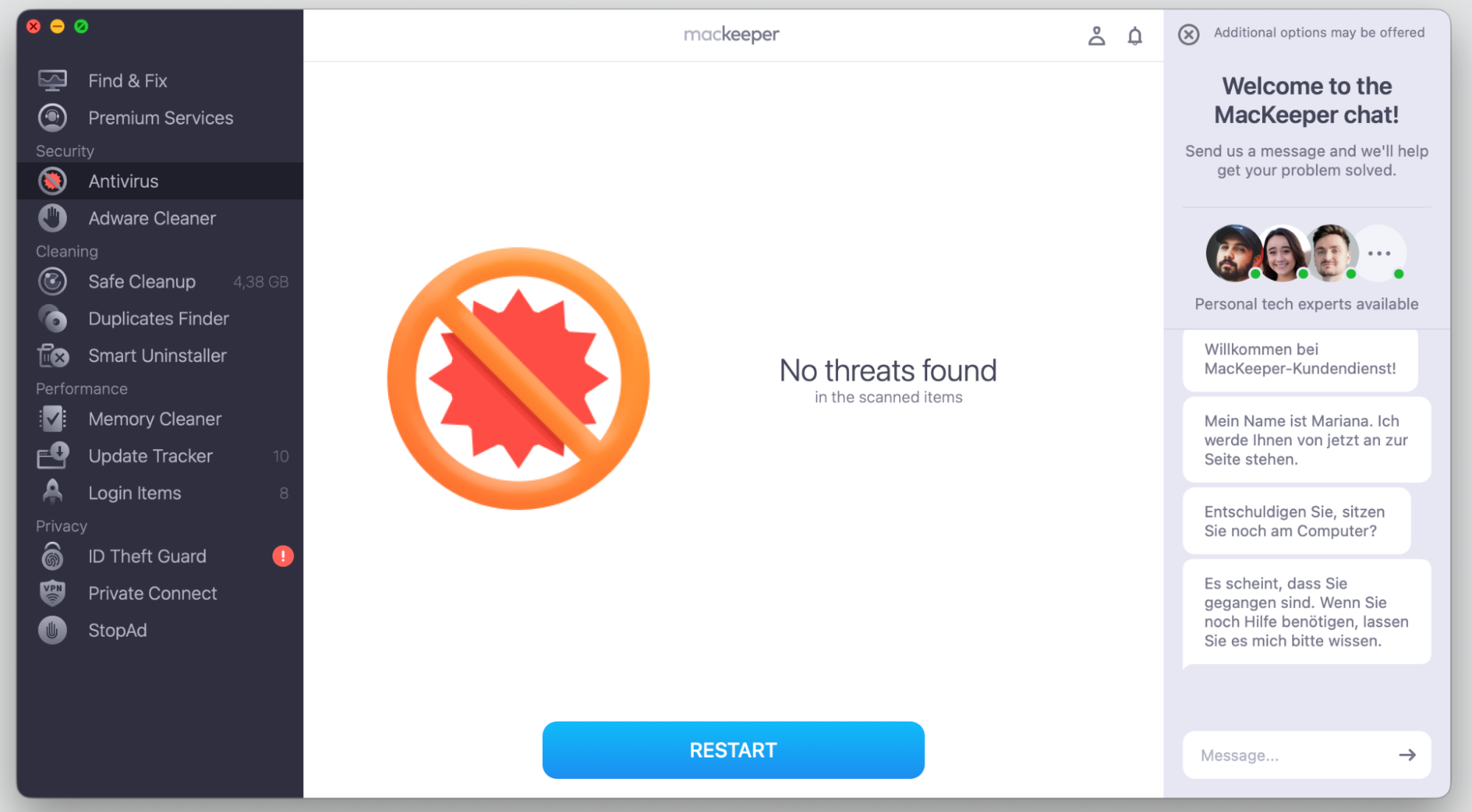
Review the results and remove anything the scan flags.
Restart your Mac, then check whether the agent’s CPU usage has returned to normal.
Step 1. Go to MacKeeper > Antivirus > Start ScanStep 2. Wait until the scan is completeStep 3. Review the resultsStep 4. Go to the Apple menu and click RestartStep 5. Open Activity Monitor and check your CPU load again
7. Contact IT administrator or CrowdStrike support
On a managed work Mac, the right move is often to reach out for help. Your IT team can adjust policies, push updates, and troubleshoot the agent properly without putting your device’s security at risk.
To make that conversation quick and useful:
Gather the details you noted earlier, such as your macOS version and the agent’s version number.
Take a screenshot of the agent’s CPU usage in Activity Monitor during a spike.
Contact your IT team or, if you manage the device yourself, CrowdStrike support.
Describe when the high usage happens and what you were doing at the time.
Follow the remediation steps they suggest for your specific setup.
Is it safe to disable CrowdStrike Falcon agent?
We understand that it’s tempting to switch off whatever’s using your CPU, but this one is best left running. The agent is a security-focused process, and turning it off without a clear understanding of the consequences isn’t a good idea.
Disabling it can leave your Mac with reduced protection and more exposed to threats. On a managed device, it may also break the rules your organization relies on to stay secure.
If you want to feel more confident about your defenses, learning the basics of macOS hardening is a far safer path than removing a security tool. The goal is a Mac that’s both responsive and well-protected.
How to prevent high CPU usage by CrowdStrike agent on Mac?
A little upkeep goes a long way toward keeping the agent calm and your Mac quick. These simple habits we recommend you will help stay ahead of the next spike:
Keep the Falcon agent on a supported, current version.
Quit background apps you’re not actively using.
Free up memory and storage so the agent has room to work.
Match the configuration to your actual workload, ideally with IT’s help.
Check resource usage now and then so you catch issues early.
Keep your Mac fast and protected
High CPU usage from the CrowdStrike agent is usually tied to scanning activity or a system conflict rather than anything broken. The good news is that most cases clear up with a restart, an update, the right configuration, and a bit of system cleanup.
Work through the simple checks first, loop in your IT team for managed devices, and keep your Mac tidy along the way. With MacKeeper’s Memory Cleaner freeing up memory in the background, your Mac has more room to handle everyday tasks while the agent keeps doing its job — quietly protecting you.
We respect your privacy and
use cookies
for the best site experience.
Privacy Preferences Center
We use cookies along with other tools to give you the best possible experience while using the
MacKeeper website. Cookies are small text files that help the website load faster. The cookies we
use don’t contain any type of personal data meaning they never store information such as your
location, email address, or IP address.
Help us improve how you interact with our website by accepting the use of cookies. You can change
your privacy settings whenever you like.
Manage consent
All cookies
These cookies are strictly necessary for enabling basic website functionality (including page
navigation, form submission, language detection, post commenting), downloading and purchasing
software. The website might malfunction without these cookies.