Have you noticed your MacBook’s fans spinning up while Chrome crawls to a halt? The culprit may be the Chrome Crashpad handler, which is consuming high CPU on your Mac. This background process can spike without warning, draining performance and battery life. MacKeeper’s Memory Cleaner helps you free up resources with a single click—try it now and feel the difference.
Chrome Crashpad Handler is a background process built into Google Chrome and other Chromium-based apps on macOS. Its job is straightforward—it monitors the browser for unexpected crashes. When Chrome runs into a problem, the crashpad handler captures a snapshot of what went wrong and writes a crash dump file.
From our understanding, Google’s developers use these crash reports to identify bugs and improve Chrome’s stability over time. The process launches automatically every time you open Chrome on your Mac (or any app built on the Chromium engine), and it stays active in the background until the browser quits.
Under normal conditions, it’s lightweight and barely touches your CPU. But when something goes wrong—a corrupted file, a misbehaving extension, or a stuck process—it can start consuming far more resources than it should.
Why Chrome Crashpad Handler may use high CPU on Mac?
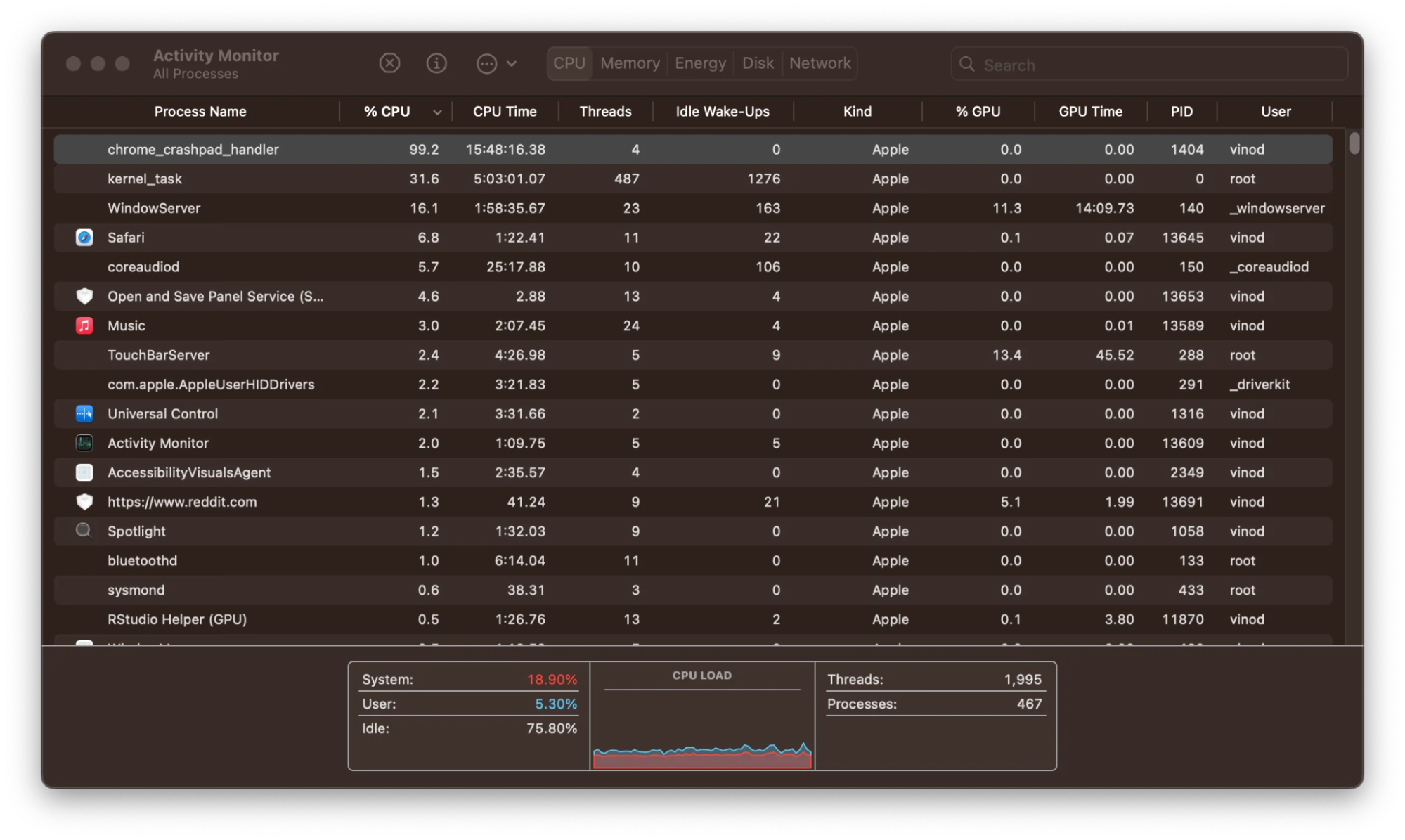
Several things can push this otherwise quiet process into overdrive. If you view CPU usage in Activity Monitor on your Mac, you might spot the crashpad handler eating 40%, 90%, or even 200% of your CPU. Below, we’ll explain why that happens.
1. Chrome or Chromium-based app is stuck
When Chrome itself freezes or a specific tab stops responding, the crashpad handler may repeatedly try to generate crash reports. A stuck browser process creates a loop in which the handler keeps running without resolution, spiking CPU usage on your Mac.
2. Extensions or browser add-ons are causing conflicts
Some browser extensions don’t play well with each other or with Chrome’s core systems. When an extension conflicts with the browser, it can trigger repeated micro-crashes that force the crashpad handler to intervene constantly, keeping your CPU high.
A note from our experts:
As Chrome Crashpad Handler can significantly slow down your Mac, we suggest a solution to regain performance speedily—MacKeeper’s Memory Cleaner. It’ll free up active memory by safely quitting heavy background processes.
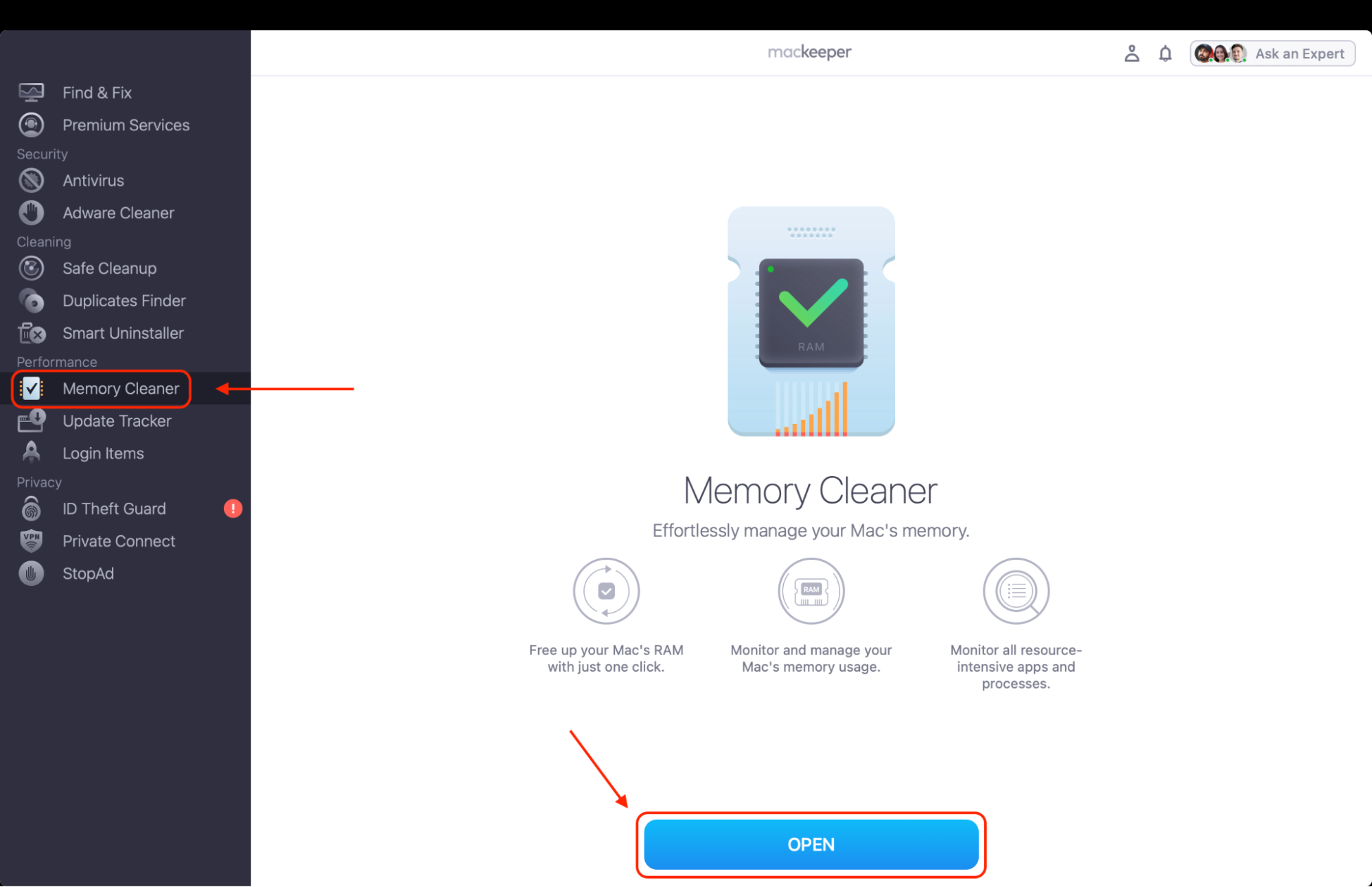
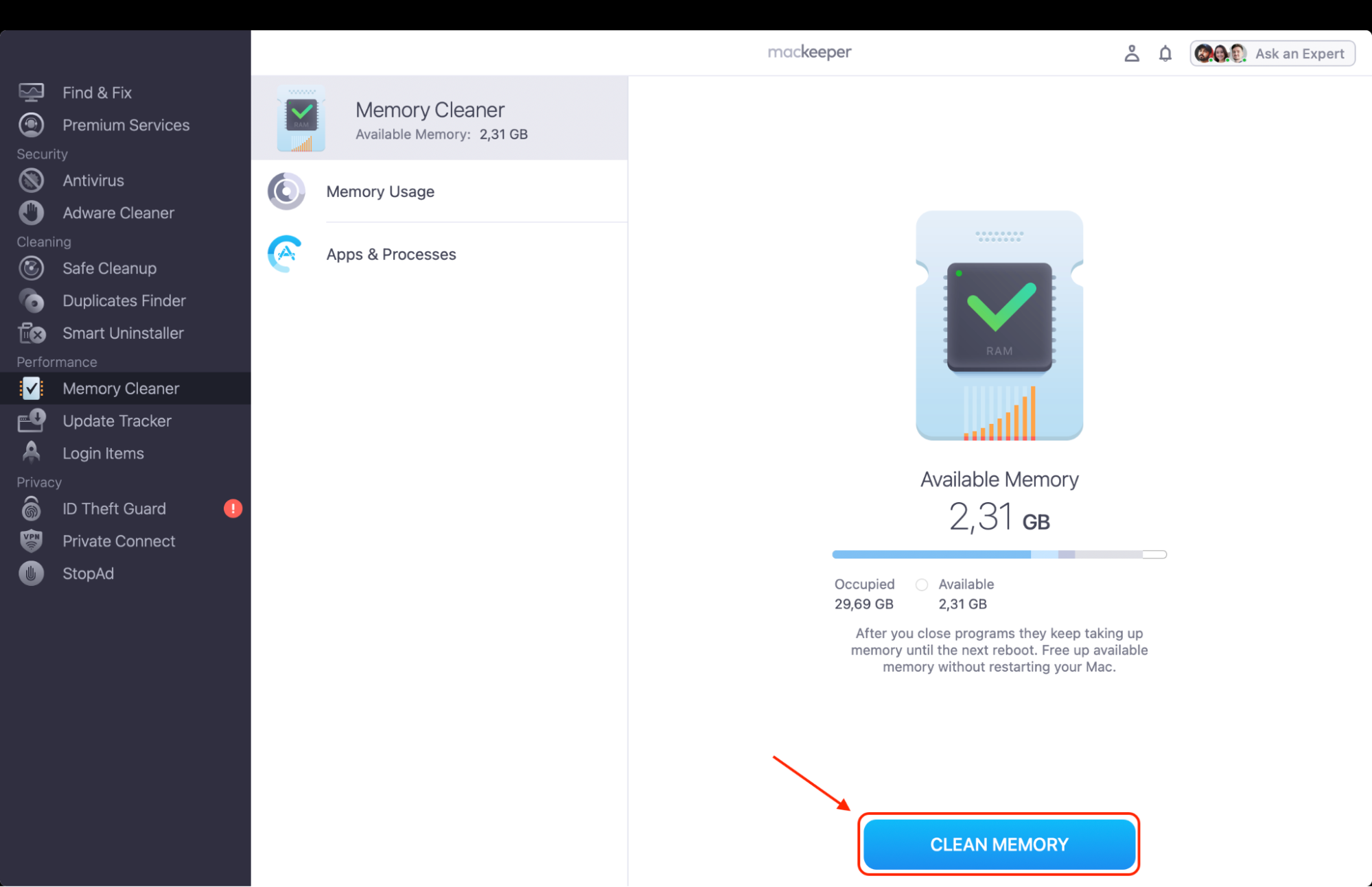
Here’s how to improve CPU usage with MacKeeper’s Memory Cleaner:
Choose Memory Cleaner from the left-hand sidebar and click Open.
Confirm with the Clean Memory button to free up RAM instantly.
Step 1. Launch MacKeeper > choose Memory Cleaner > click on OpenStep 2. See the memory usage report and press Clean Memory
3. Outdated browser or corrupted app files
Running an older version of Chrome means you’re missing bug fixes and performance patches. Corrupted app files cause similar issues—the browser can’t function properly, so the crash handler works overtime. If you suspect damaged data, learn how to uncorrupt files on your Mac.
4. Cache or background data issues
Over time, Chrome stores temporary data—cached pages, cookies, and session info. When this data becomes bloated or corrupted, it can cause the browser to misbehave and the crashpad process to spike. Regularly clearing cache on your Mac helps prevent this from happening.
5. Another Chromium-based app is triggering the process
Chrome isn’t the only app that uses crashpad. Microsoft Edge, Brave, Slack, VS Code, and Skype all rely on the Chromium engine—and each runs its own crashpad handler. If you see the process spiking even when Chrome is closed, another app might be responsible. Open Activity Monitor on your Mac and double-click the process to see which app it belongs to.
6. Malware or viruses
In some cases, unusually high CPU usage is a sign that malicious software has compromised your system. Certain types of malware disguise themselves as legitimate processes or interfere with background handlers. Understanding the difference between malware and virus can help you identify what you’re dealing with.
How to fix Chrome Crashpad Handler high CPU on Mac?
The right fix depends on what’s triggering the issue. We suggest you working through the well-prepared methods below—start with the quick ones and move to deeper solutions if the problem persists.
1. Force-quit the process in Activity Monitor
If your CPU spikes suddenly, you can stop the crashpad handler right away through Activity Monitor. This won’t fix the root cause, but it’ll give your Mac immediate relief. You can also explore other force quit commands on your Mac, but now let’s focus on force-quitting any process in Activity Monitor:
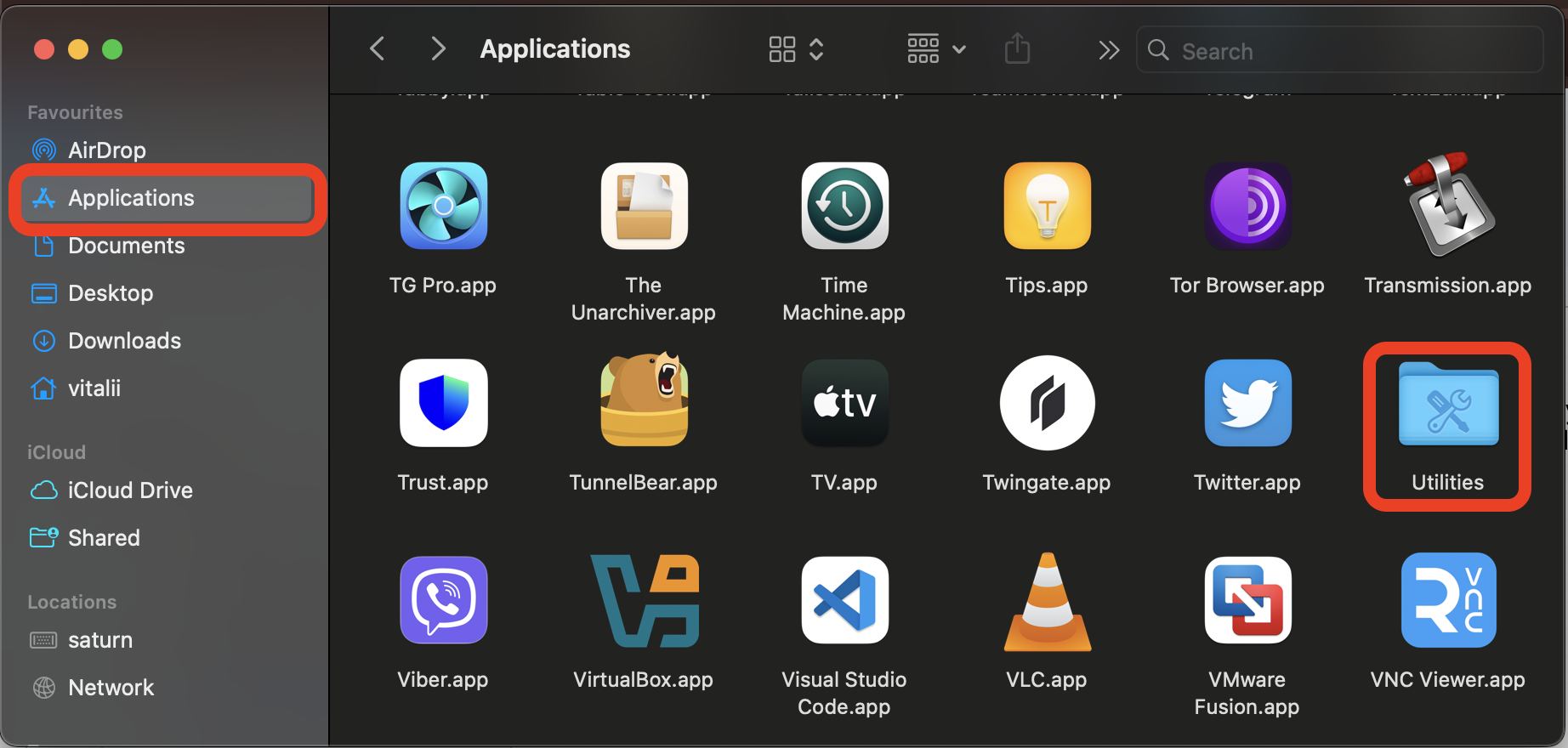
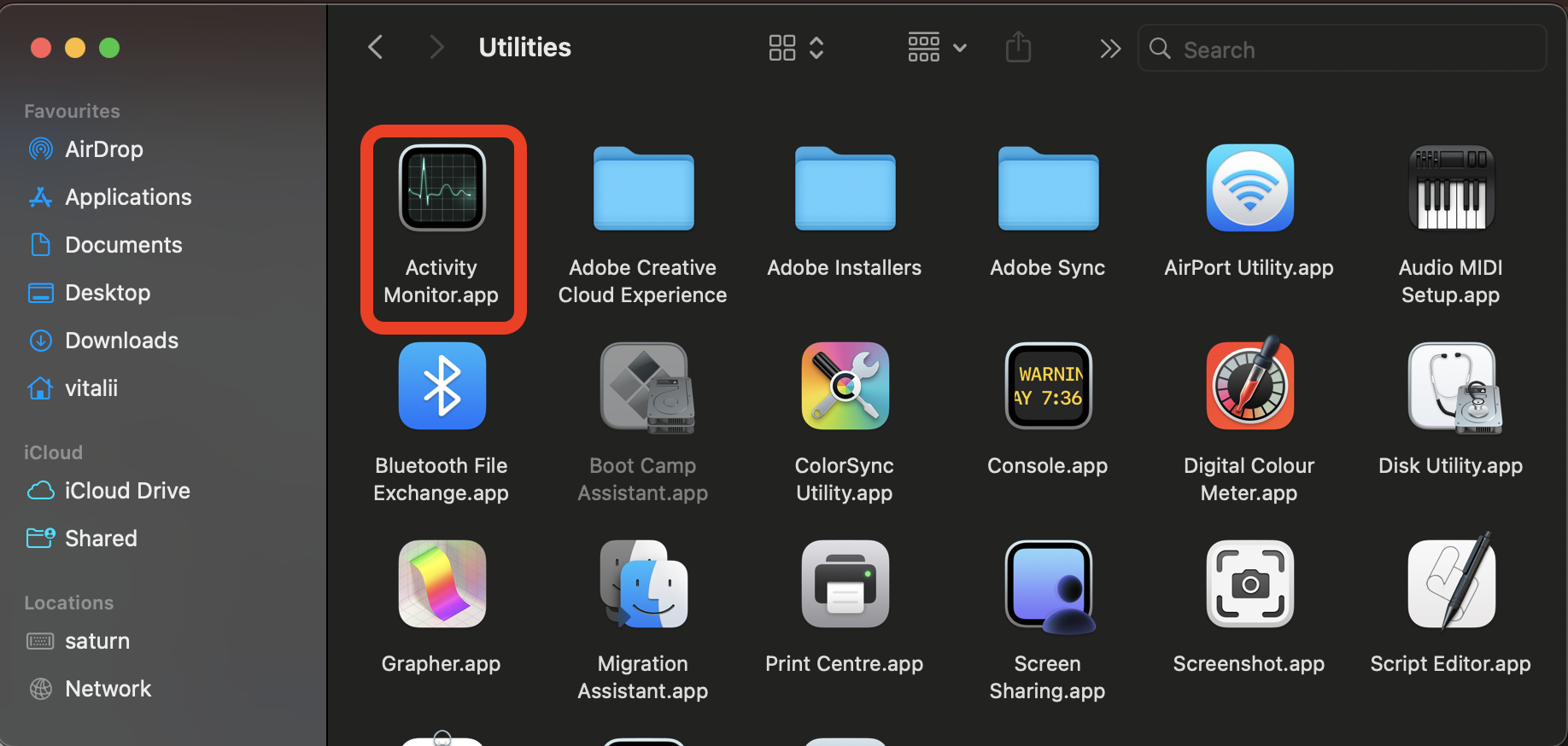
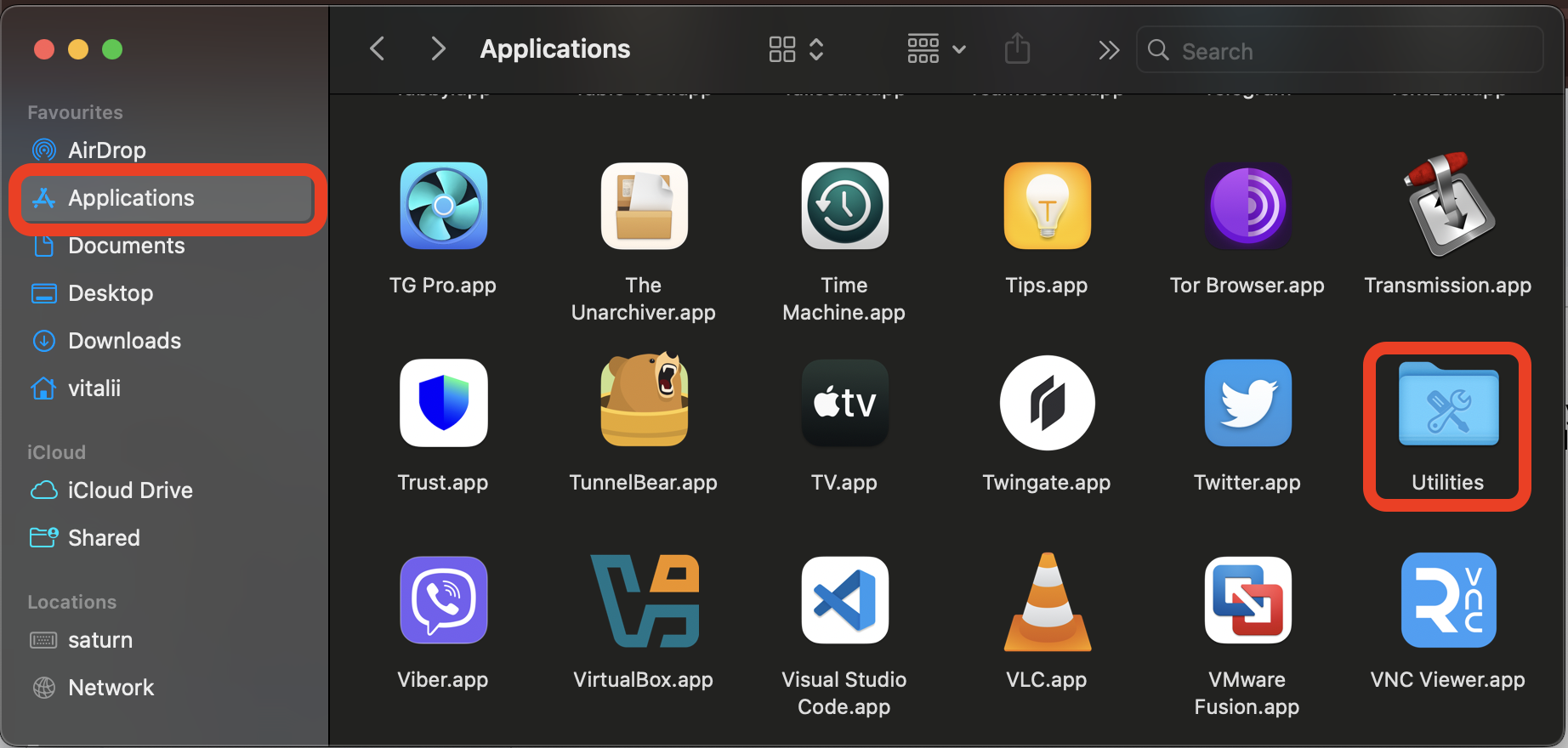
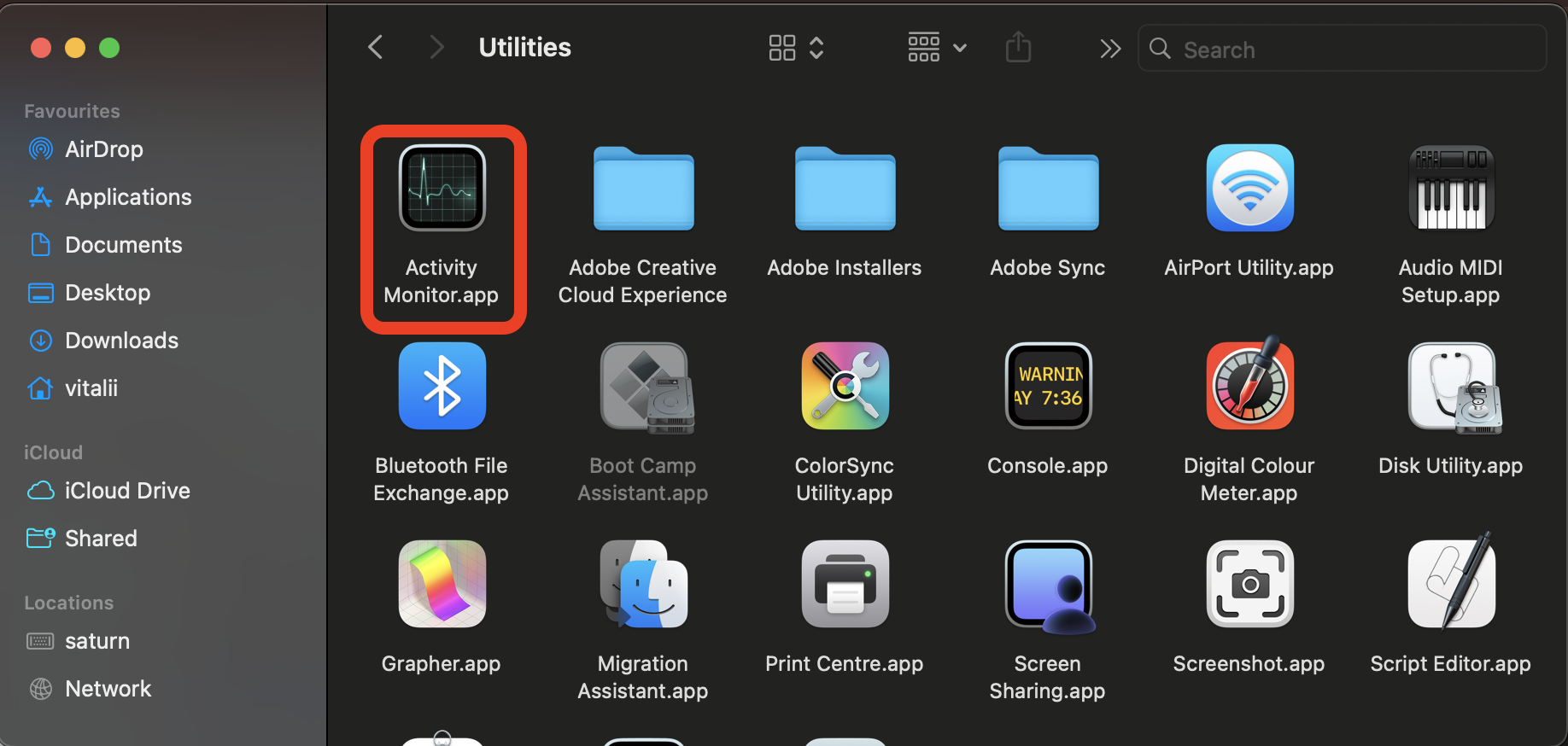
Open Activity Monitor from Applications > Utilities.
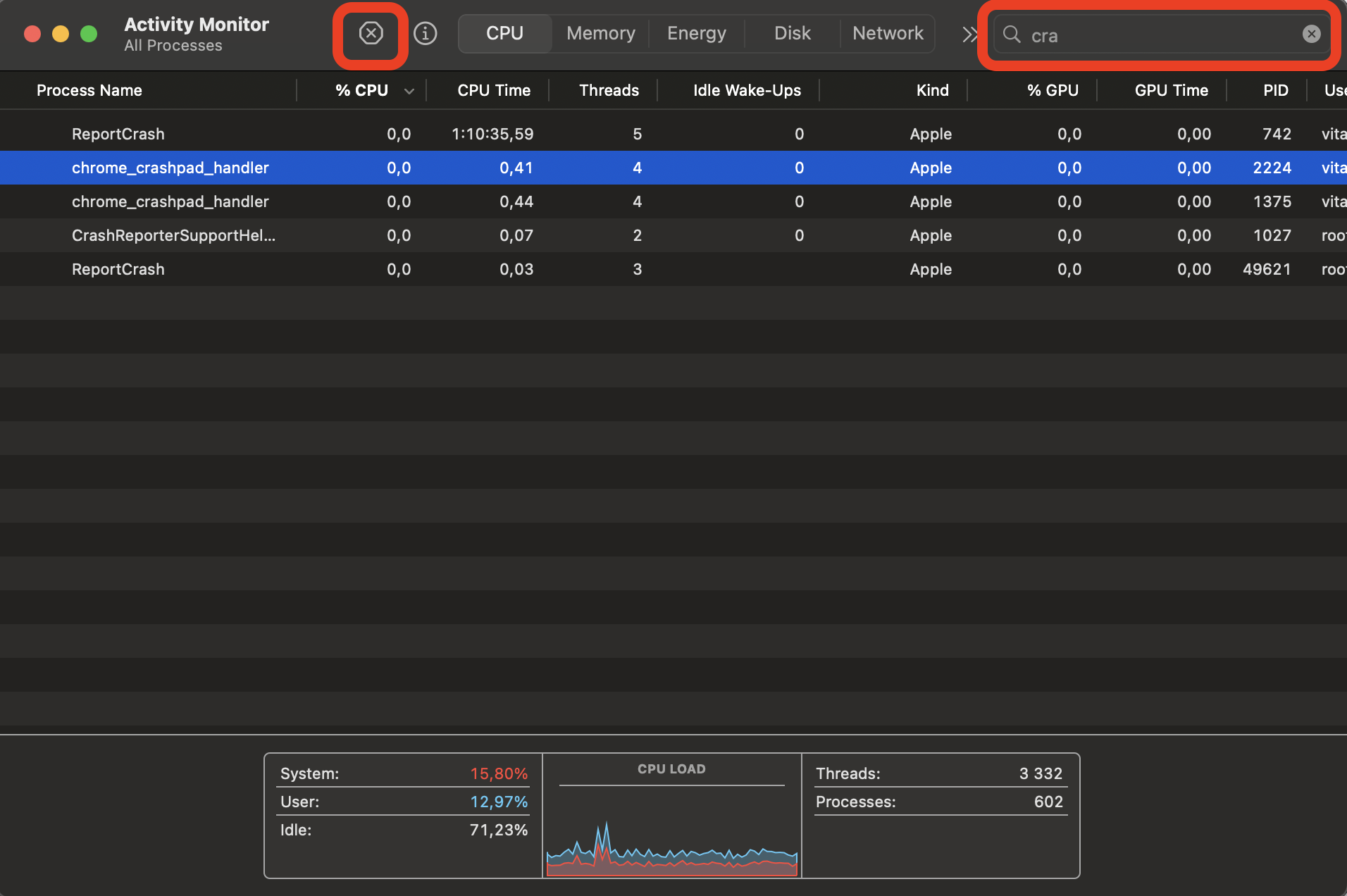
Type crashpad in the search bar to find the process.
Select chrome_crashpad_handler from the list.
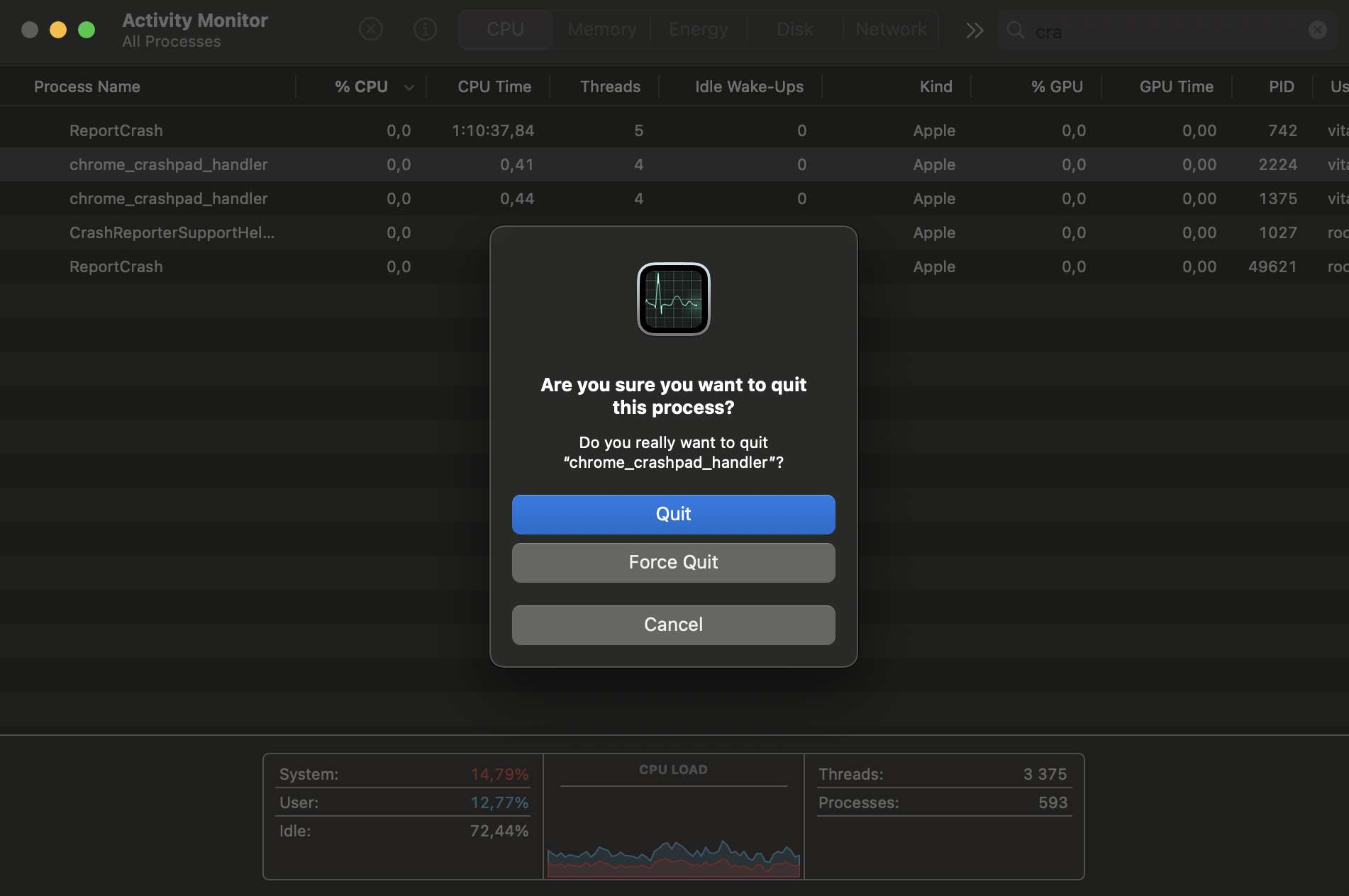
Click the X button in the toolbar and choose Force Quit.
Step 1. Open Applications and click Utilities to find Activity MonitorStep 2. Double-click Activity Monitor inside the Utilities folderStep 3. Type "crashpad" in Activity Monitor's search bar, select the process, and click the XStep 4. Choose Force Quit in the confirmation dialog to end the Crashpad process
2. Restart Chrome or restart Mac
A simple restart can clear stuck processes and reset the browser’s state. If quitting and reopening Chrome doesn’t help, try a full system restart. Here’s how to reboot MacBook properly:
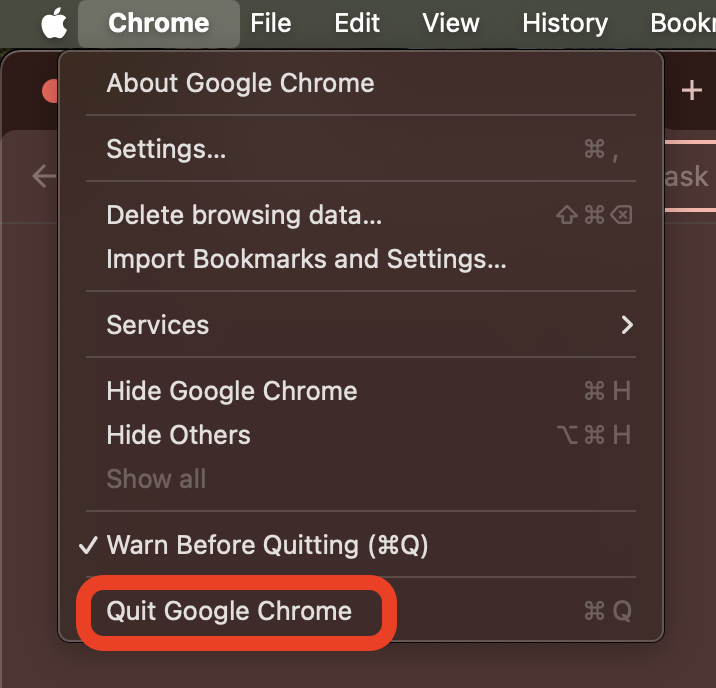
In Chrome, click Chrome in the menu bar, then choose Quit Google Chrome.
Wait a few seconds and reopen the browser.
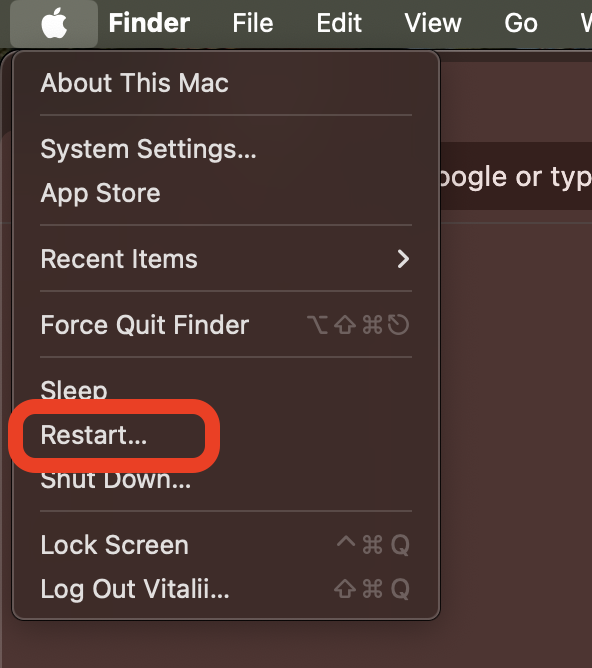
If the issue returns, click the Apple menu > Restart to reboot your Mac.
Step 1. Click Chrome in the menu bar and choose Quit Google Chrome > wait and reopen the browserStep 2. Open the Apple menu and click Restart to reboot your Mac
3. Update Chrome or affected app
Google regularly releases updates that address bugs and resource-management issues. We’re convinced that keeping Chrome up to date is one of the simplest ways to prevent the crashpad handler from misbehaving. Do the following:
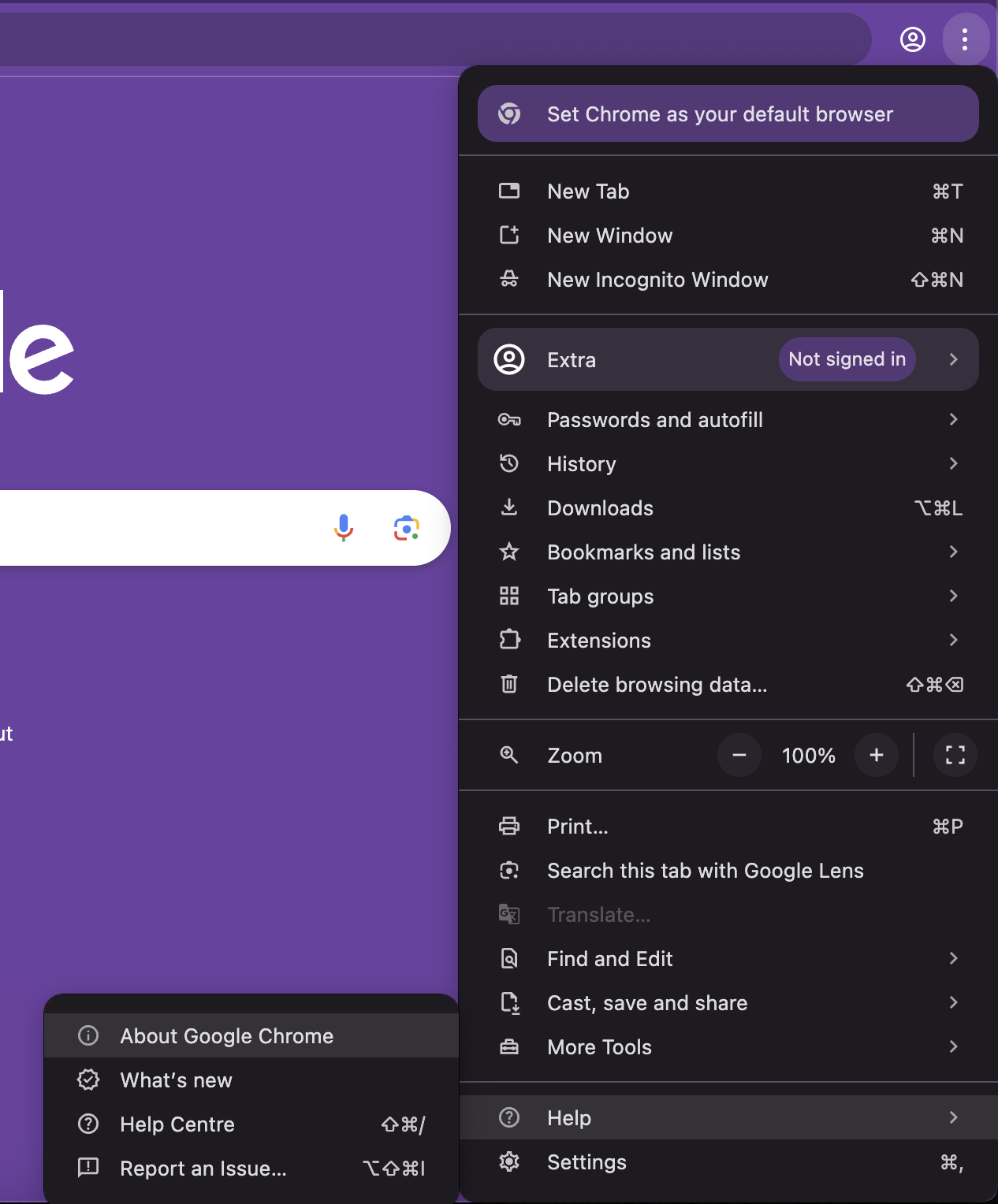
Open Chrome and click the three-dot menu in the top-right corner.
Go to Help > About Google Chrome.
Chrome will check for updates automatically. Click Relaunch if an update is available.
Repeat the same for other Chromium-based apps like Edge, Brave, or Slack.
4. Disable or remove problematic extensions
Extensions are one of the most common causes of high CPU usage in Chrome. If you’ve installed several, try disabling them one by one to identify the offender. For a thorough cleanup, learn how to uninstall extensions on your Mac:
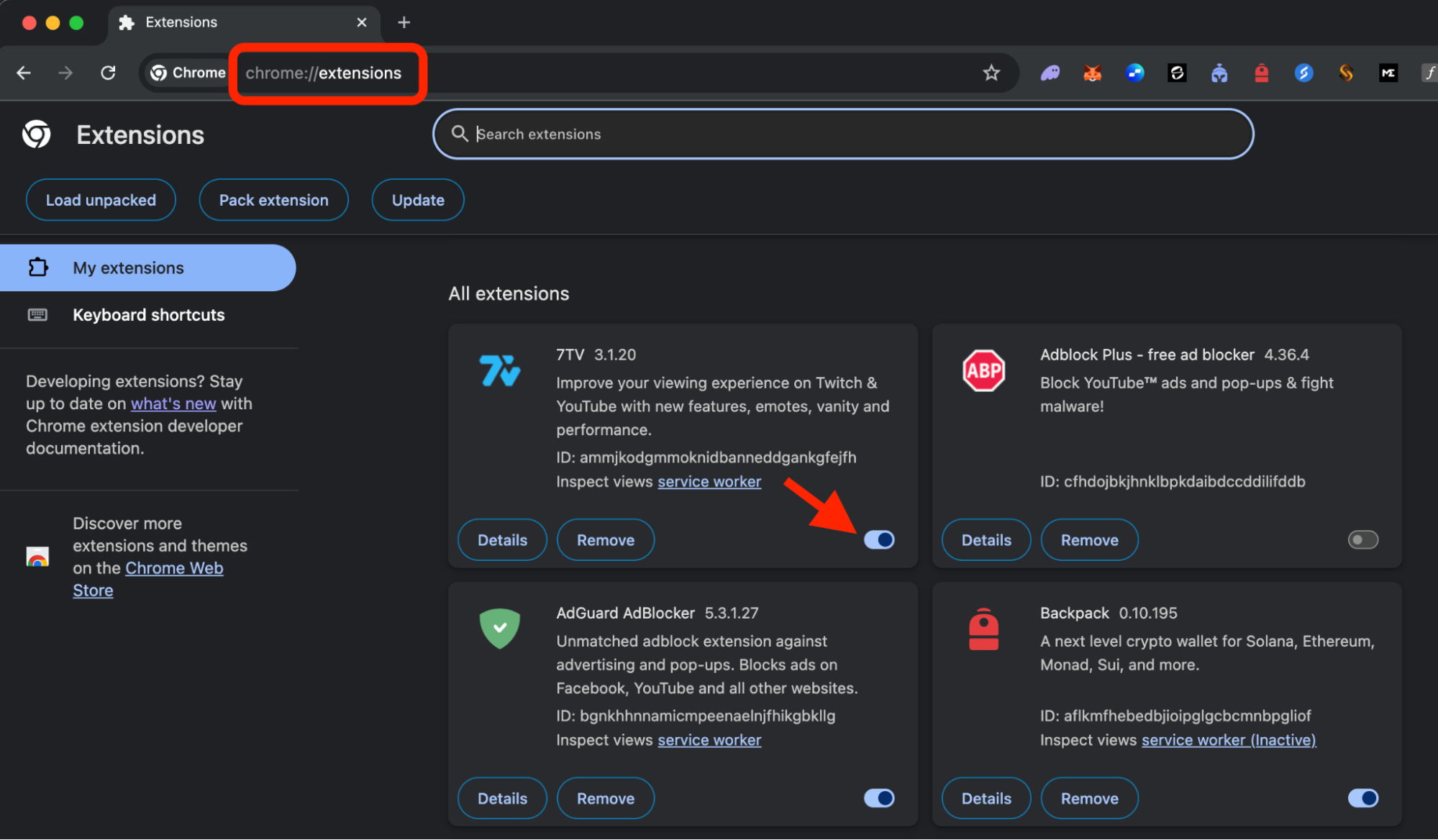
Open Chrome and type chrome://extensions in the address bar.
Toggle off each extension one at a time.
After disabling each one, check Activity Monitor to see if the CPU usage drops.
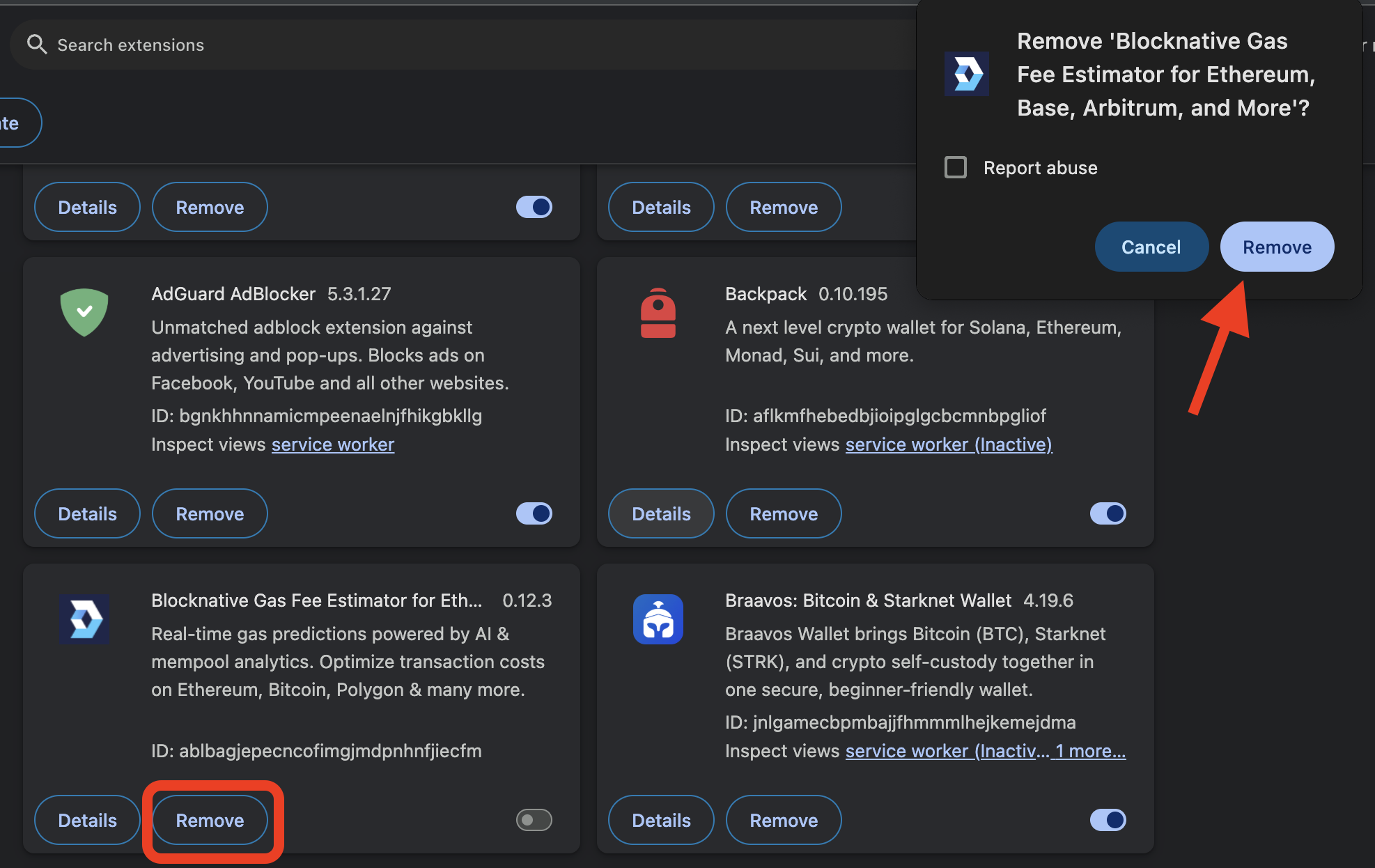
Remove the extension that’s causing the spike.
Step 1. Type chrome://extensions in Chrome's address bar and toggle each extension offStep 2. Click Remove and confirm to delete the problematic extension
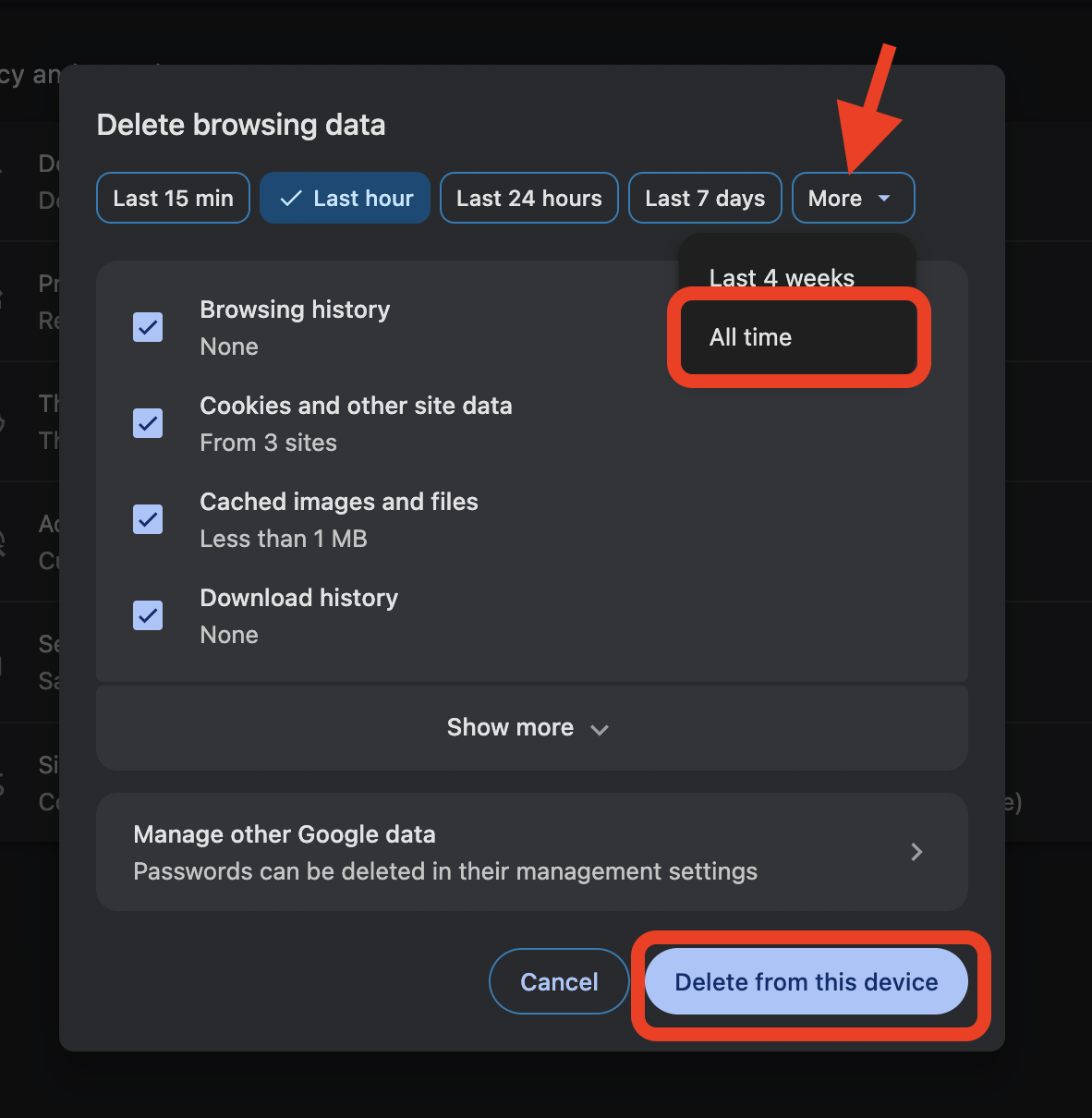
5. Clear browser cache and temporary data
Corrupted or overloaded cache files can push Chrome’s background processes into overdrive. Clearing stored data gives the browser a clean slate. Here’s how to clear cache on Mac Chrome:
Open Chrome and press Command + Shift + Delete.
In the Clear browsing data window, select All time as the time range.
Select Cached imagesand files and Cookies and other site data.
Click Clear data.
6. Reinstall Chrome
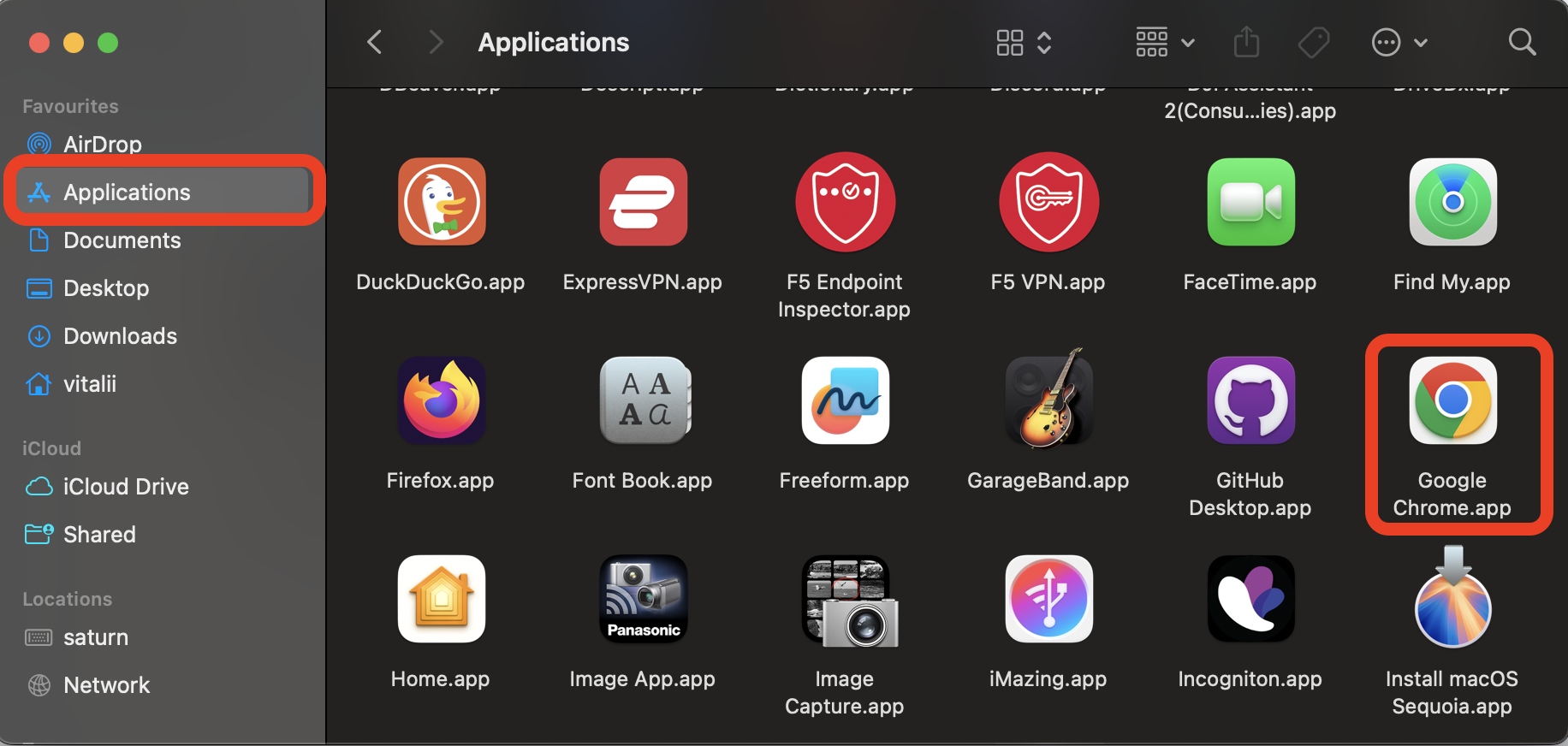
If the issue is tied to damaged app files or broken background components, reinstalling gives you a fresh start. Follow our guidelines to safely uninstall and reinstall Chrome on your Mac:
Quit Chrome.
Open Finder > Applications, then drag Google Chrome to the Trash.
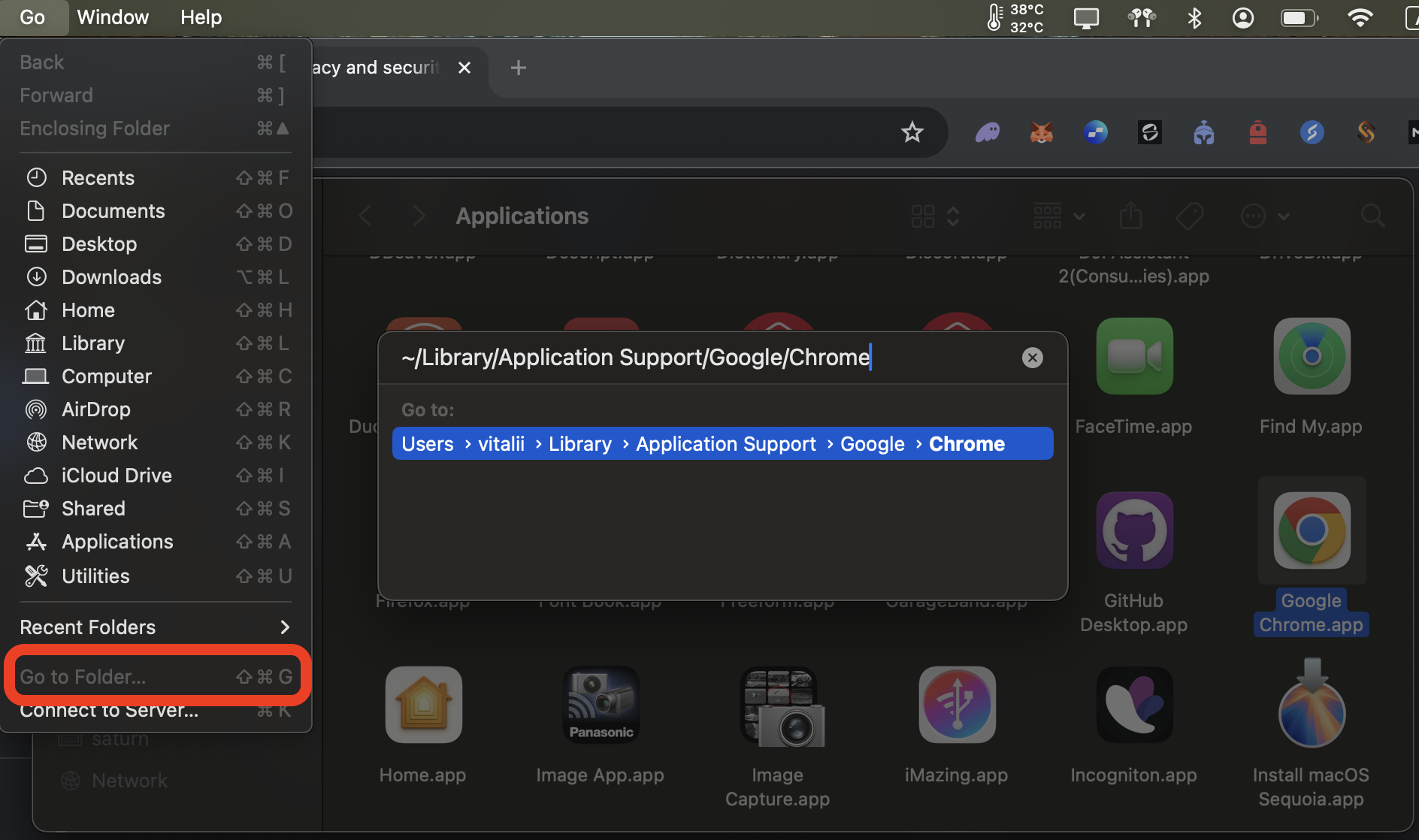
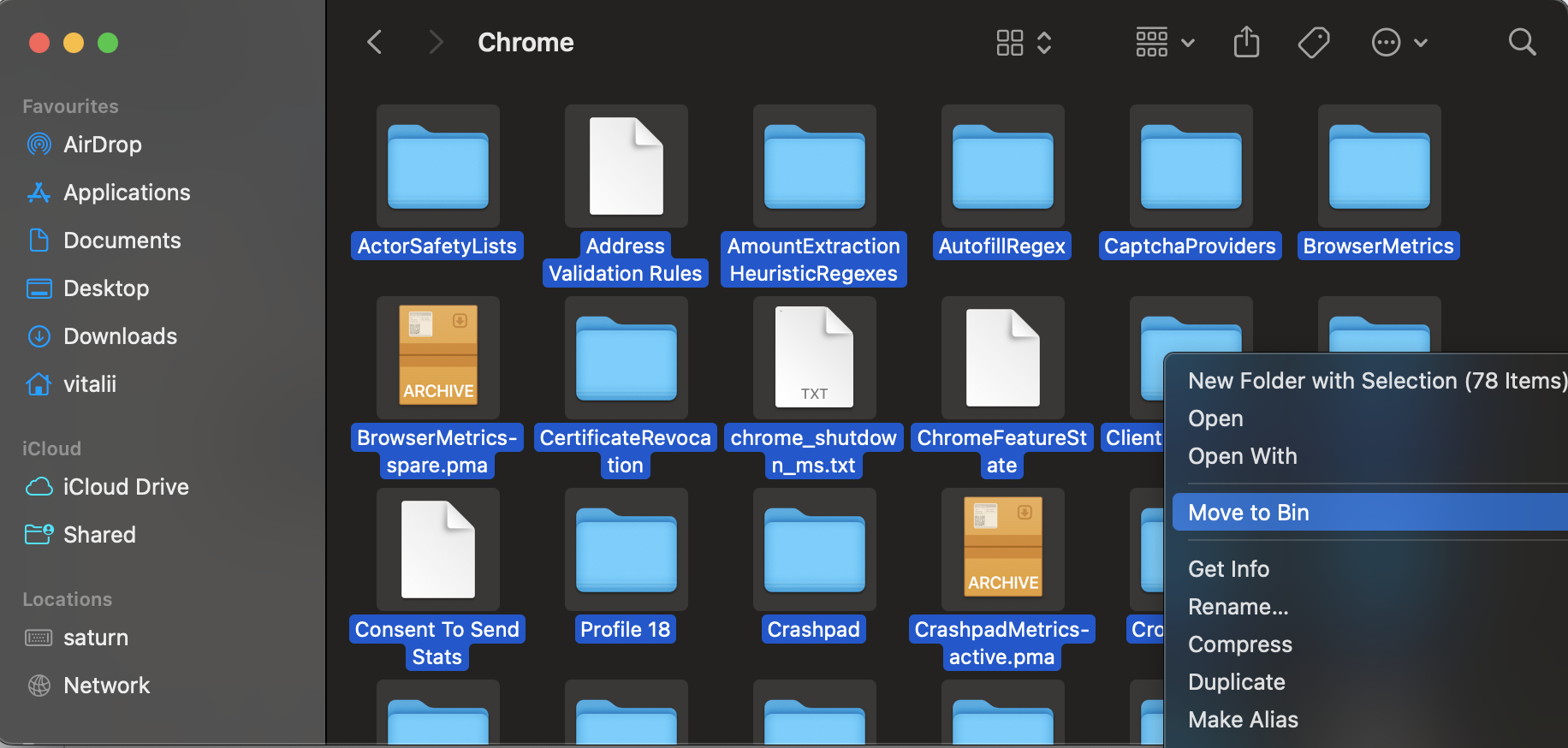
Delete leftover files in ~/Library/Application Support/Google/Chrome.
Empty the Trash, then download Chrome from the official Google website and install it.
Step 1. Open Finder > Applications and drag Google Chrome to the TrashStep 2. Use Go to Folder to open ~/Library/Application Support/Google/ChromeStep 3. Right-click the Chrome folder and choose Move to BinStep 4. Right-click the Trash in the Dock and choose Empty Bin
7. Check other Chromium-based apps
Remember, the crashpad handler isn’t exclusive to Chrome. If the process keeps running after you’ve quit Chrome, another app on your Mac may be responsible. Apps like Microsoft Edge, Brave, Slack, Discord, and VS Code all use the Chromium framework. Here’s how to check them and update or reinstall if necessary:
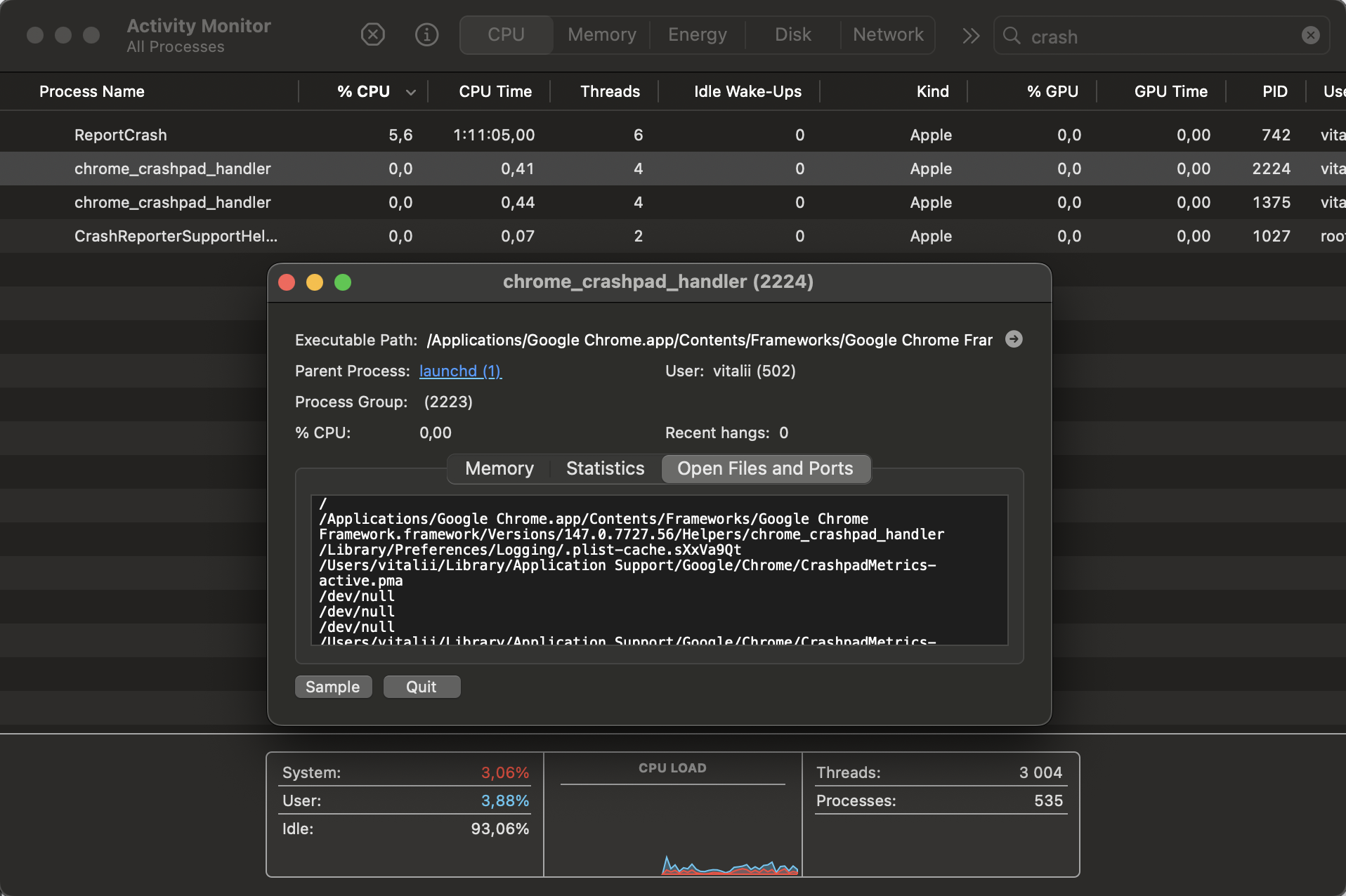
Open Activity Monitor and double-click the chrome_crashpad_handler process.
Check the Open Files and Ports tab to see which app launched the process.
Update or reinstall that app to resolve the issue.
Step 1. Open Applications > Utilities to launch Activity Monitor againStep 2. Double-click Activity Monitor.app to inspect Crashpad's parent processStep 3. Open the Files and Ports tab to see which Chromium app launched Crashpad
8. Remove Chrome from startup or login items
If Chrome launches every time you turn on your Mac, the crashpad handler starts up with it—which can cause repeated CPU spikes. Preventing Chrome from auto-launching is a quick fix, and adjusting how to change startup apps on your Mac is the first step—here’s how:
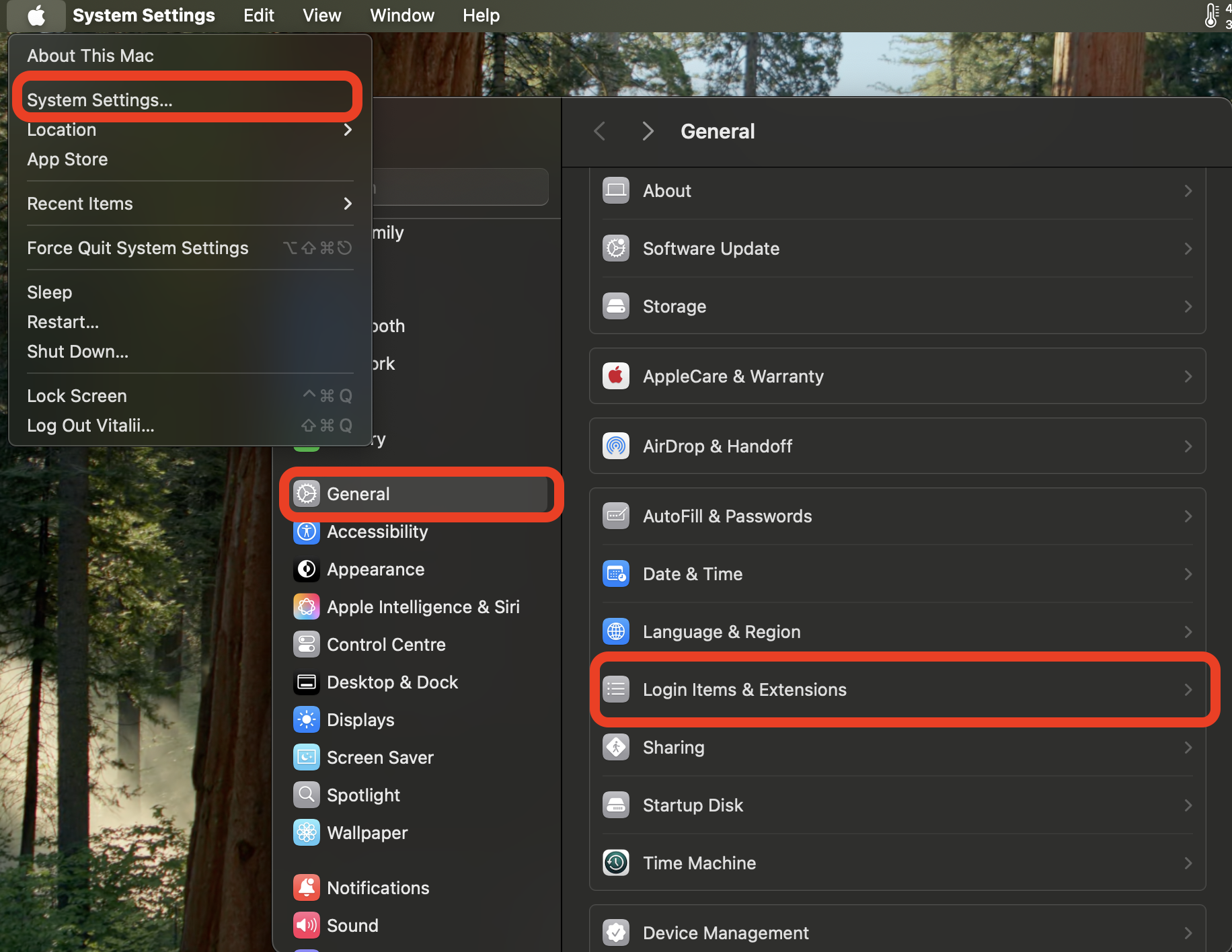
Open System Settings (or System Preferences on older macOS versions).
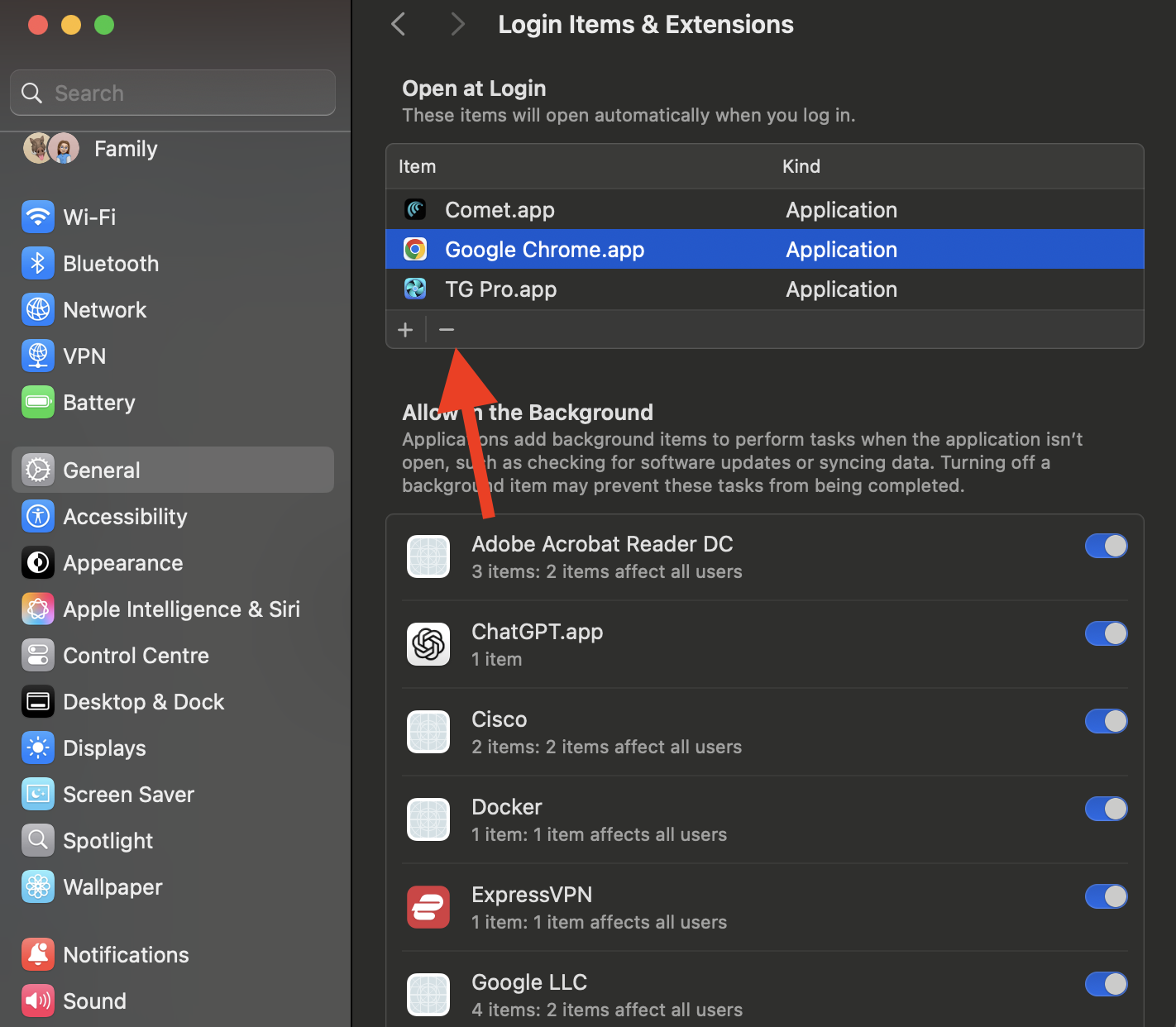
Go to General > Login Items.
Find Google Chrome in the list and click the – (minus) button to remove it.
Step 1. Open the Apple menu > System Settings and go to General > Login Items & ExtensionsStep 2. Select Google Chrome and click the minus (–) button to remove it from login items
9. Check Mac for malware and viruses
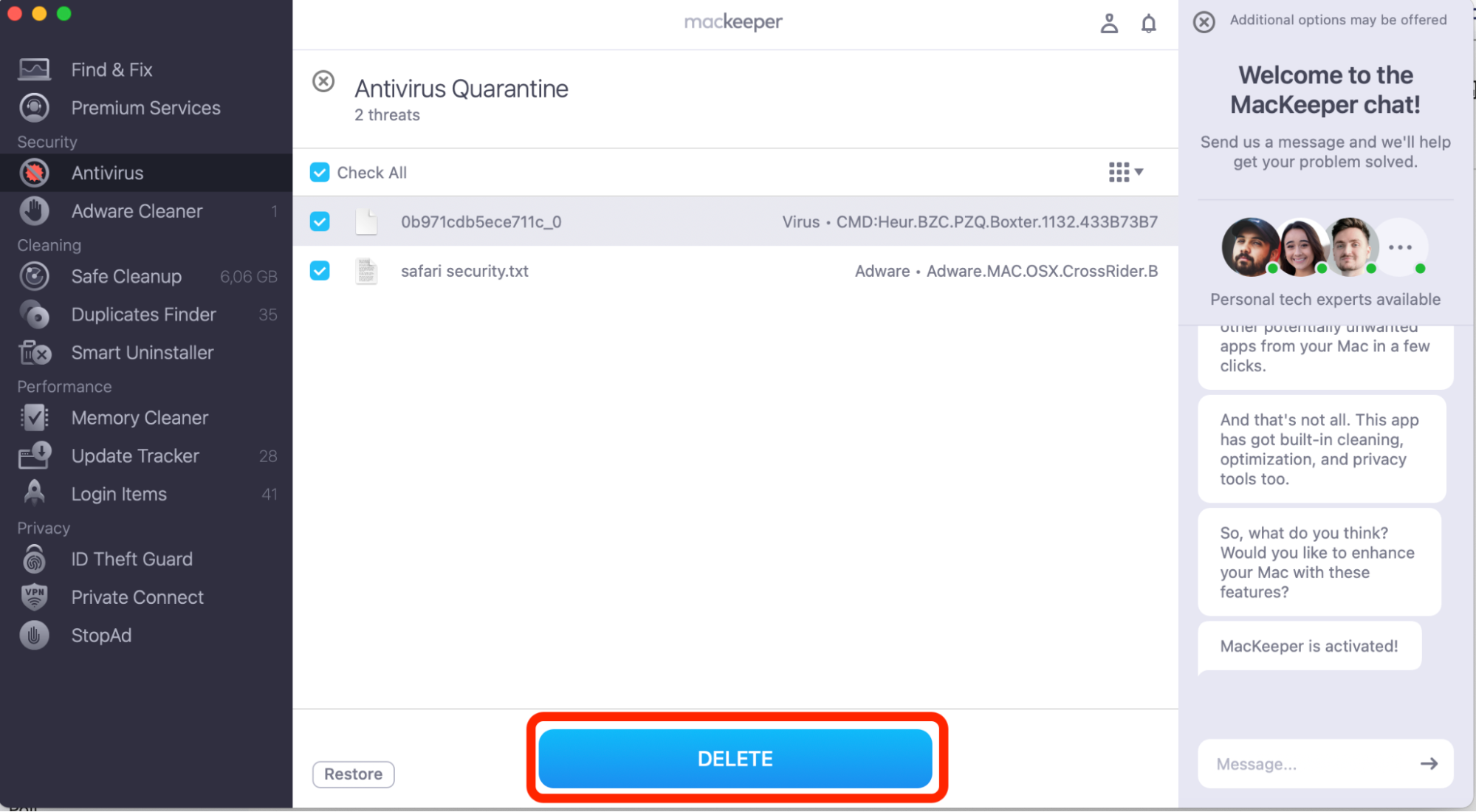
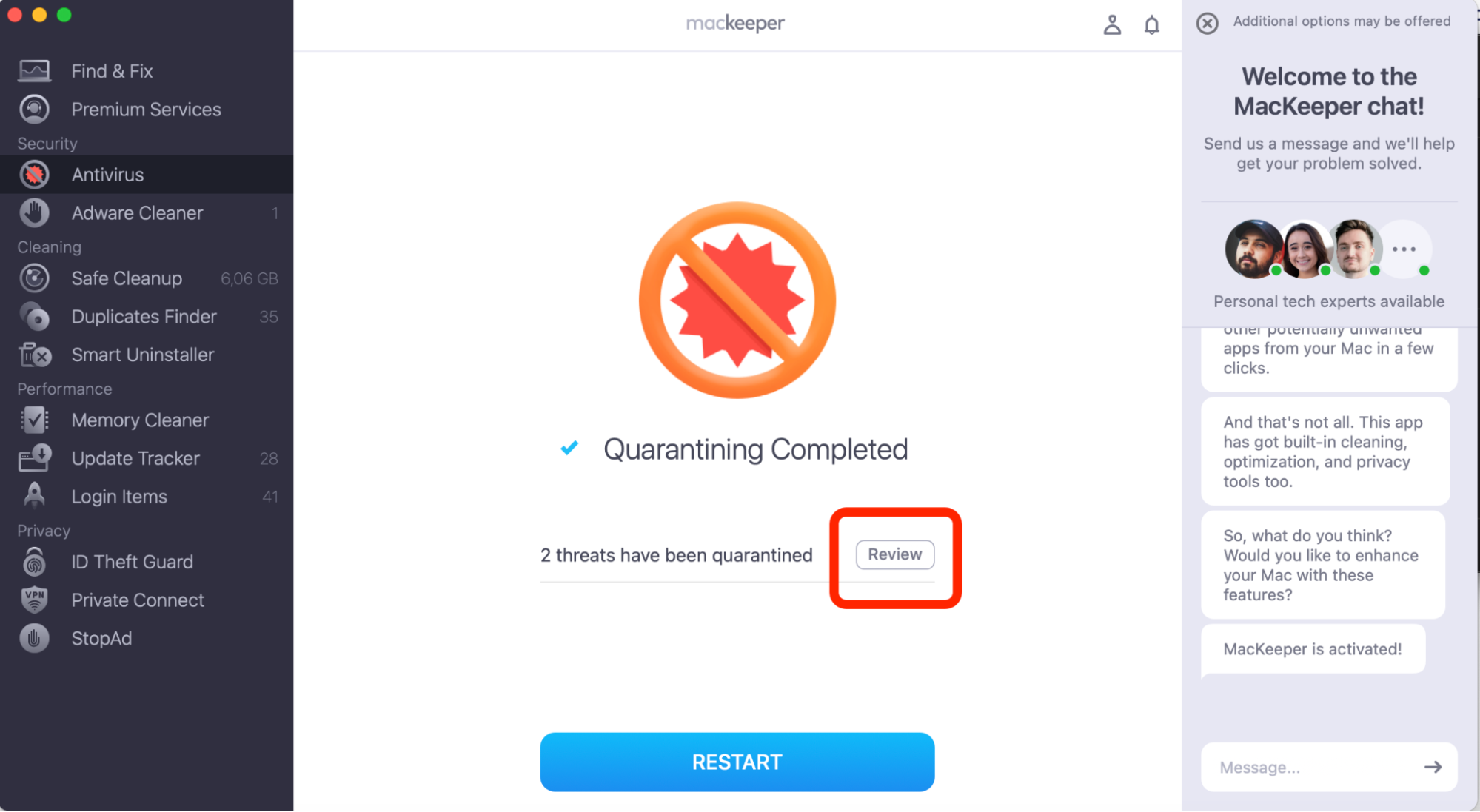
When none of the above methods solves the issue, malware could be the culprit. Malicious software sometimes hijacks legitimate processes or creates hidden background tasks that drive CPU usage up. Run a full scan to check for virus on your Mac this way:
Follow the on-screen instructions to remove any threats the scan finds.
Step 1. MacKeeper > Antivirus > Start ScanStep 2. Remove threats, if anyStep 3. Wait for the quarnatining completion message to appear
Can you disable Chrome Crashpad Handler?
Technically, you can force-quit the process or rename the handler file buried inside Chrome’s app bundle. But we don’t recommend this approach, as the crashpad handler is tied directly to Chrome’s crash reporting and background diagnostics, and disabling it means Google won’t receive crash data from your browser. It also cause possible delay bug fixes for issues you’re experiencing.
Plus, disabling also won’t truly solve the underlying problem. If the handler is consuming high CPU, something else is going wrong—a stuck tab, a rogue extension, corrupted files, or malware. Instead, focus on finding and fixing the root cause rather than silencing the symptom.
If you’d prefer Chrome not to send crash reports at all, you can turn off the reporting feature:
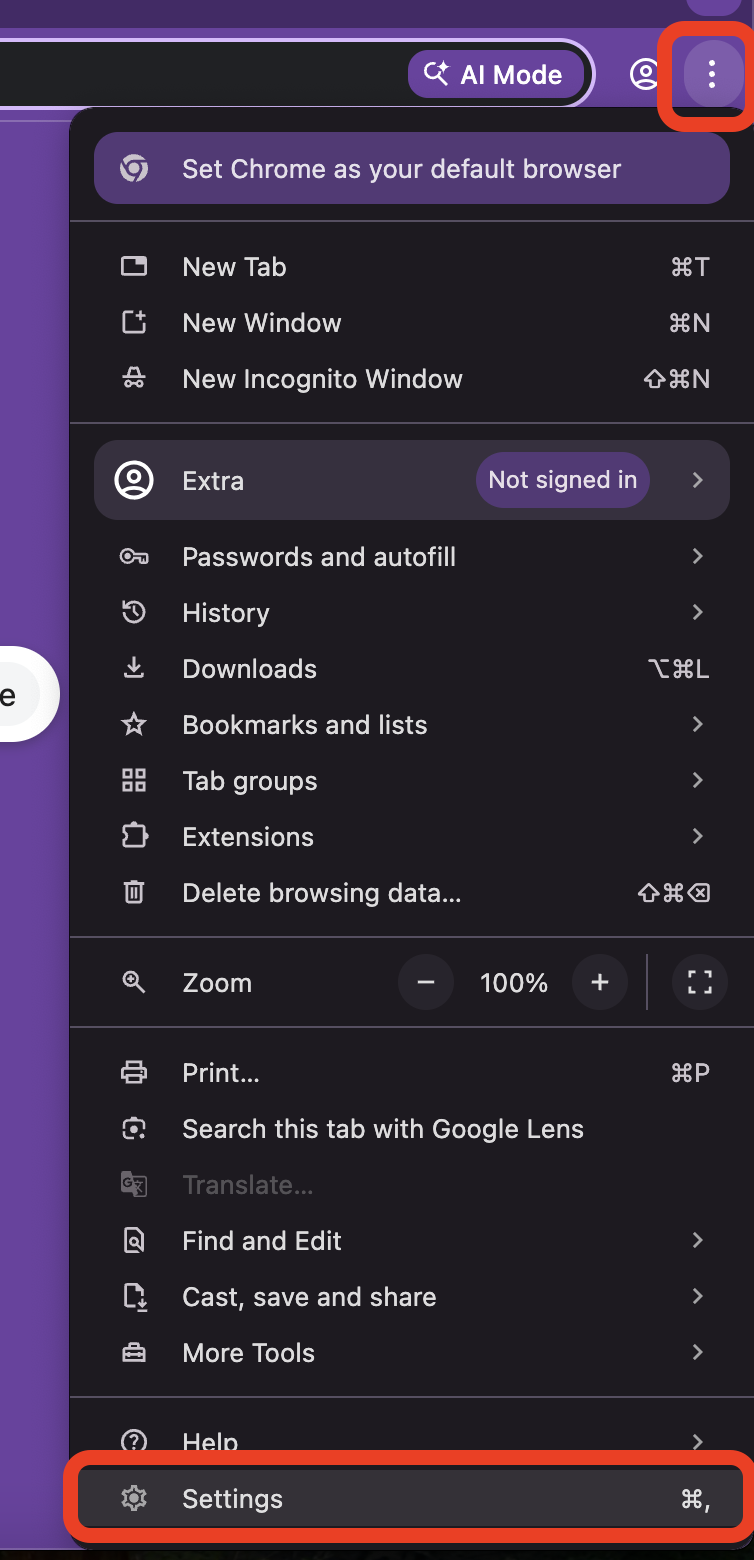
Open Chrome.
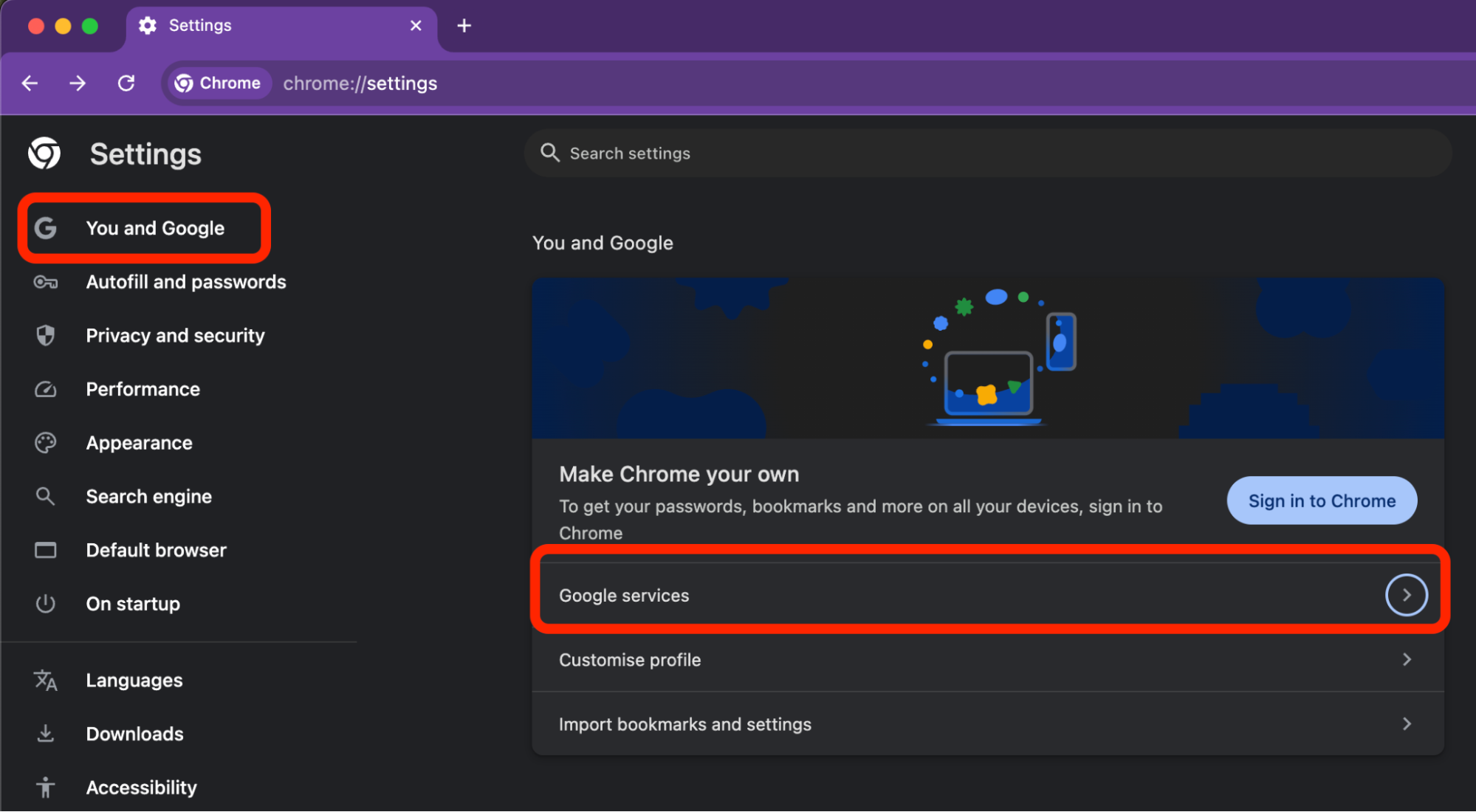
Go to Settings > You and Google > Sync and Google services.
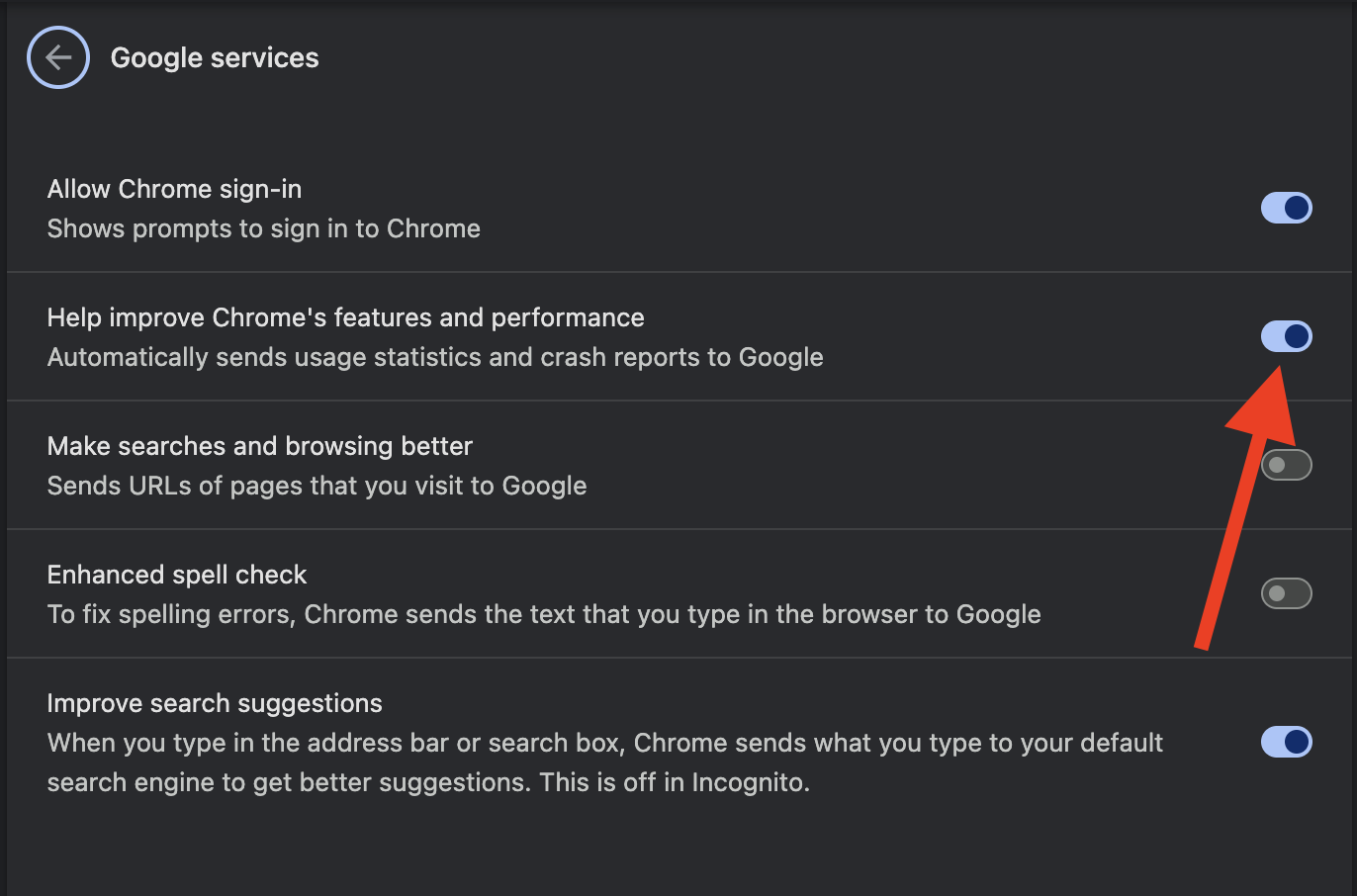
Toggle off Help improve Chrome’s features and performance.
Step 1. Click Chrome's three-dot menu and choose SettingsStep 2. Open You and Google and click Google servicesStep 3. Toggle off "Help improve Chrome's features and performance"
This action won’t stop the handler from running, but it’ll prevent data uploads.
How to prevent Chrome Crashpad Handler from high CPU usage in future?
Prevention is simpler than troubleshooting. A few habits can keep the crashpad handler quiet and your Mac running smoothly:
Keep Chrome and macOS updated. New versions patch bugs that can cause process spikes.
Limit extensions to the ones you actually use. Fewer add-ons mean fewer potential conflicts.
Clear your cache regularly. A monthly cleanup prevents bloated temporary files from slowing down Chrome.
Monitor Activity Monitor. Check it occasionally to catch CPU spikes early, before they become persistent.
Scan for malware periodically. Threats can sneak in at any time, as a regular scan keeps your Mac safe.
Remove unnecessary startup items. Don’t let Chrome or Chromium-based apps launch at login unless you need them.
Chrome Crashpad Handler high CPU on your Mac is a common issue, but it’s not something you have to live with. Whether the cause is a stuck browser, a rogue extension, or a corrupted cache, you’ve got our list of straightforward fixes above. Also, use MacKeeper’s Memory Cleaner to free up system resources and keep your Mac performing at its best.
We respect your privacy and
use cookies
for the best site experience.
Privacy Preferences Center
We use cookies along with other tools to give you the best possible experience while using the
MacKeeper website. Cookies are small text files that help the website load faster. The cookies we
use don’t contain any type of personal data meaning they never store information such as your
location, email address, or IP address.
Help us improve how you interact with our website by accepting the use of cookies. You can change
your privacy settings whenever you like.
Manage consent
All cookies
These cookies are strictly necessary for enabling basic website functionality (including page
navigation, form submission, language detection, post commenting), downloading and purchasing
software. The website might malfunction without these cookies.