Is your Mac running hot and sluggish, with the identityservicesd process eating up your CPU? You're not alone — this identityservicesd high CPU issue usually traces back to Apple ID syncing. MacKeeper's Memory Cleaner frees up memory by terminating unnecessary processes with a single click. We’ll tell you more about it later on—for now, continue reading.
Think of identityservicesd as the quiet doorkeeper for your Apple account. It's a built-in macOS service that handles Apple ID authentication and keeps iMessage, FaceTime, and iCloud talking to each other in the background.
Behind the scenes, the identityservicesd process on Mac runs identity validation, security tokens, and cross-device syncing. So when you send an iMessage from your MacBook, and it appears on your iPhone, it’s identityservicesd that helped make that happen.
Why identityservicesd may use high CPU and memory?
Here's the reassuring part—high CPU or RAM usage rarely means identityservicesd itself is broken. It usually means the process is stuck in a sync or authentication loop, repeating the same task over and over. If you want to confirm what's happening, you can check the CPU info on Mac in Activity Monitor and watch the numbers in real time.
We’ve prepared a quick way to match symptoms to likely causes—check it out.
1. Apple ID authentication loop
When your Mac can't refresh your login token or repeatedly fails to confirm your Apple ID, it keeps trying to refresh it. Each retry sends another background request, which stacks up and causes steady CPU usage.
2. iMessage or FaceTime sync is stuck
If iMessage or FaceTime can't finish syncing a conversation or a large attachment, the apps keep retrying. That constant looping is a frequent trigger of the high CPU usage you're seeing in identityservicesd. Often, this overlaps with iMessage not syncing across your devices.
3. Corrupted Messages or account data
Sometimes the local Messages data on your Macintosh gets damaged. When identityservicesd tries to read that broken data, it processes it repeatedly, and memory usage slowly grows.
4. Network or connection issues
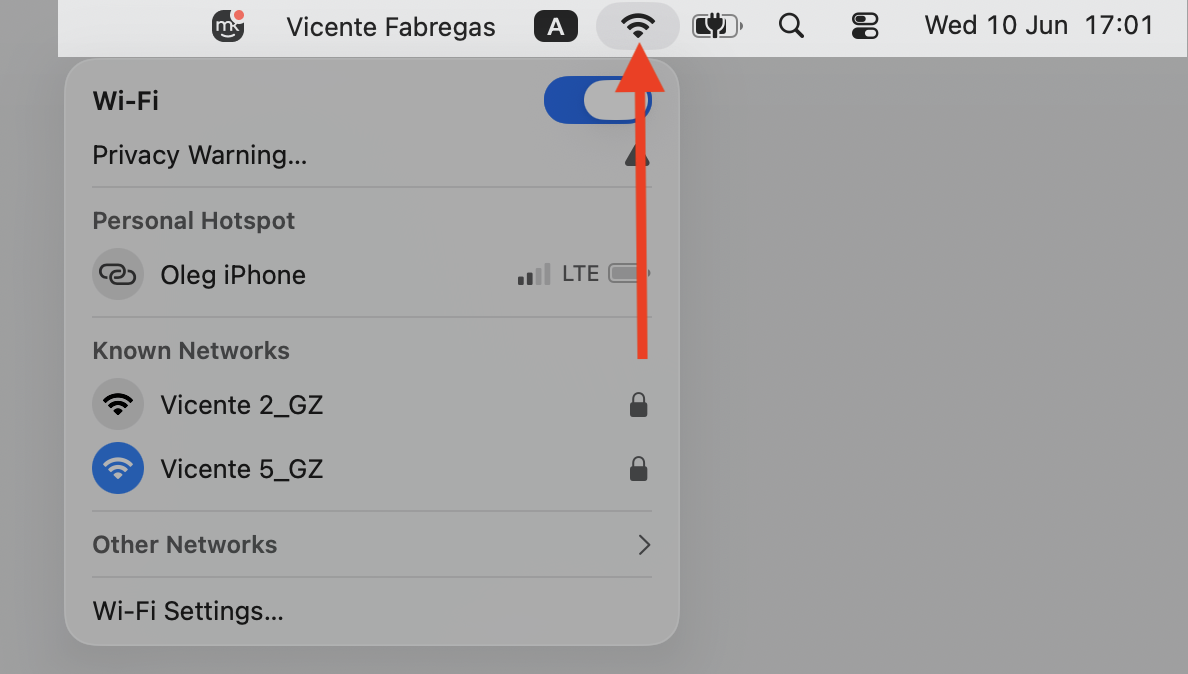
Apple's services need a steady connection. An unstable internet link, a VPN, or a strict firewall can interrupt them midway, which triggers retry after retry. If your MacBook keeps disconnecting from Wi-Fi, that's worth ruling out first.
5. macOS update or migration background sync
Just installed an update or moved to a new Mac? Right afterward, identityservicesd often re-syncs your data across devices, which briefly raises CPU and RAM. If your Mac is loading so slowly only since the update, this background sync is a likely culprit and usually settles on its own.
6. Conflicts with Apple services or accounts
Using more than one Apple ID, or having mismatched settings across your Apple devices, can confuse the process. It keeps running background checks to reconcile the differences, and that adds up.
How to fix identityservicesd high CPU on Mac?
The right identityservicesd high CPU fix depends on what's feeding the loop. Work through these methods from the top — the early ones are quick, safe, and effective in solving most cases.
A note from our experts:
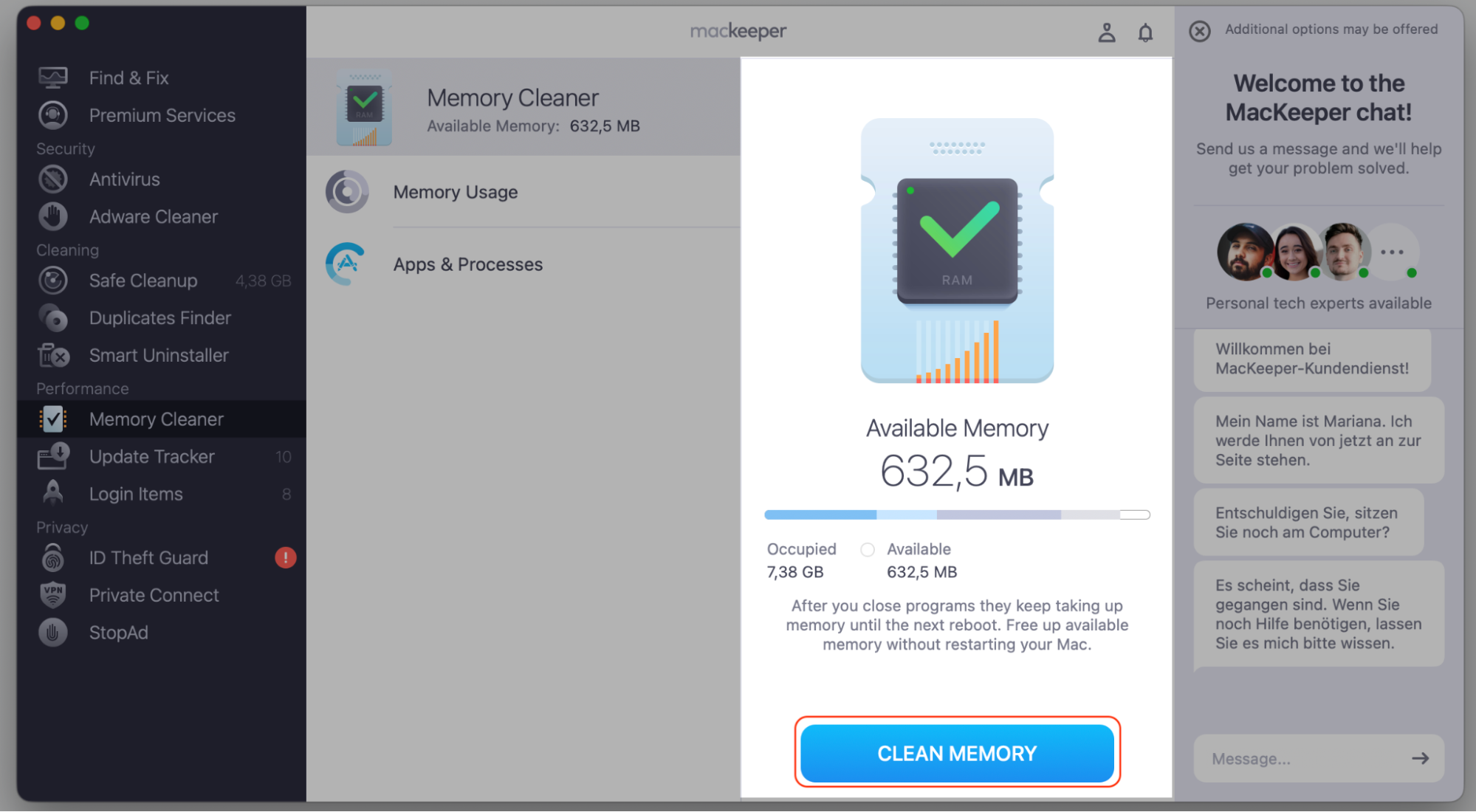
When you notice your computer being slow, you probably have a habit of checking the CPU usage through Activity Monitor on your Mac, right? The smarter solution is to use MacKeeper’s Memory Cleaner as our tool can do all the checkup & process termination job for you. Under your approval, of course.
A simple reboot of a MacBook clears temporary runtime issues, refreshes system services, and often stops the loop on its own. To proceed with this, follow our hints below:
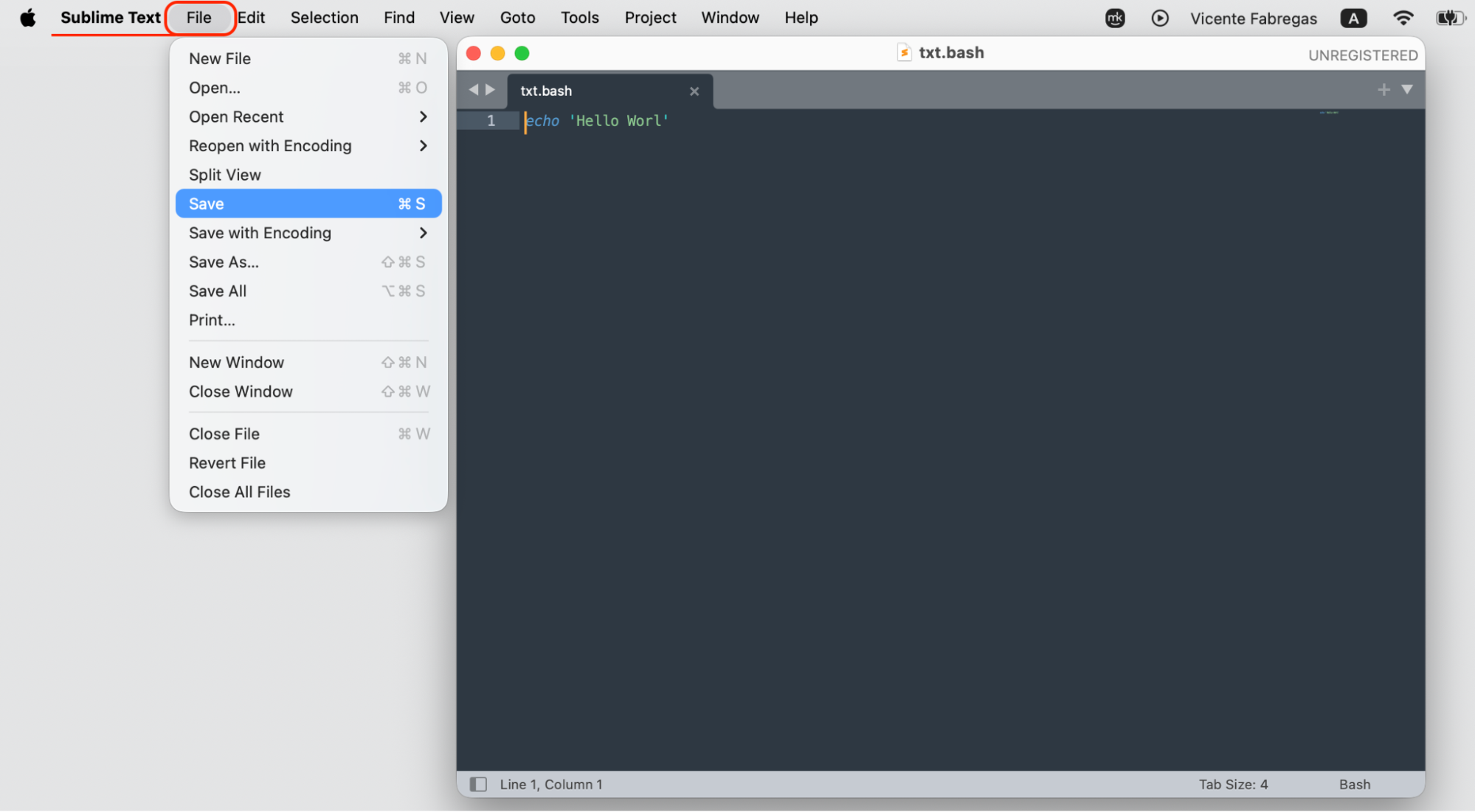
Save any open work first.
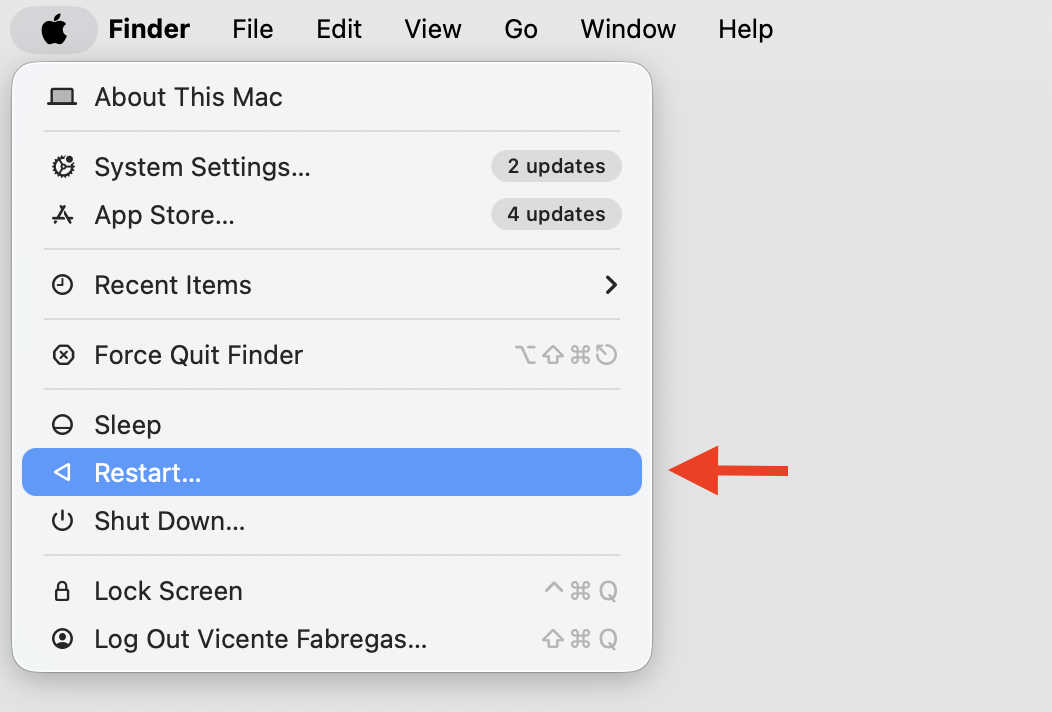
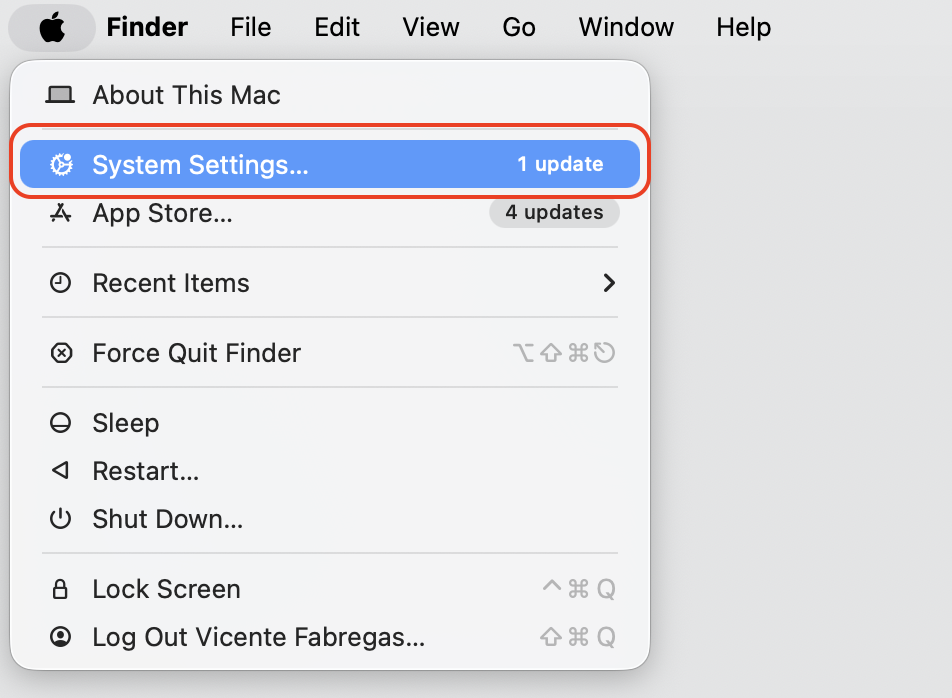
Click the Apple menu in the top-left corner.
Select Restart, then confirm.
Step 1. Click File next to your file editor name, then select SaveStep 2. Go to the Apple menu in the top-left corner and choose Restart
2. Force quit identityservicesd
You can stop the process temporarily to reset its background activity. macOS relaunches it automatically, so this is safe. If you're new to force quit commands, our steps below walk you through it:
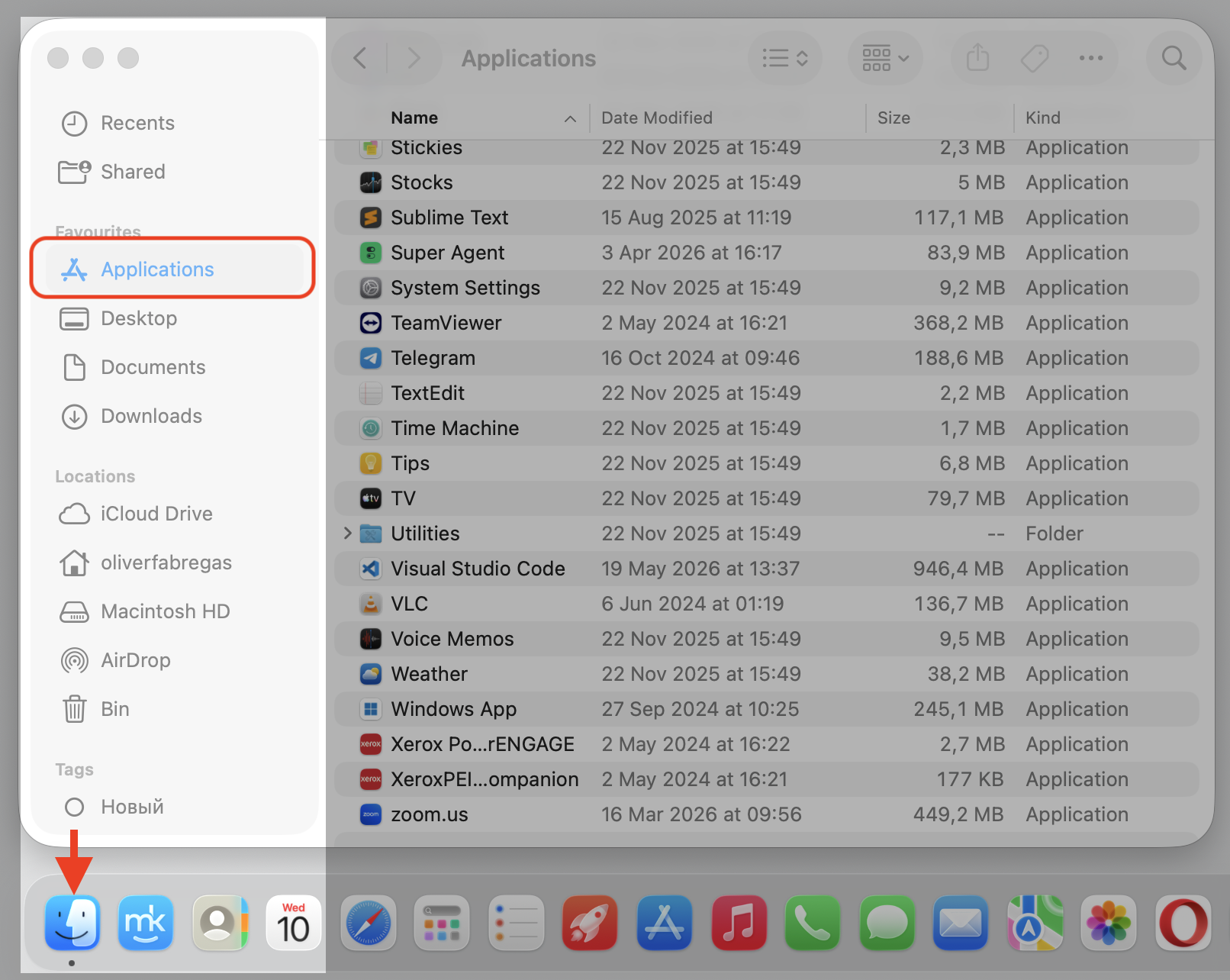
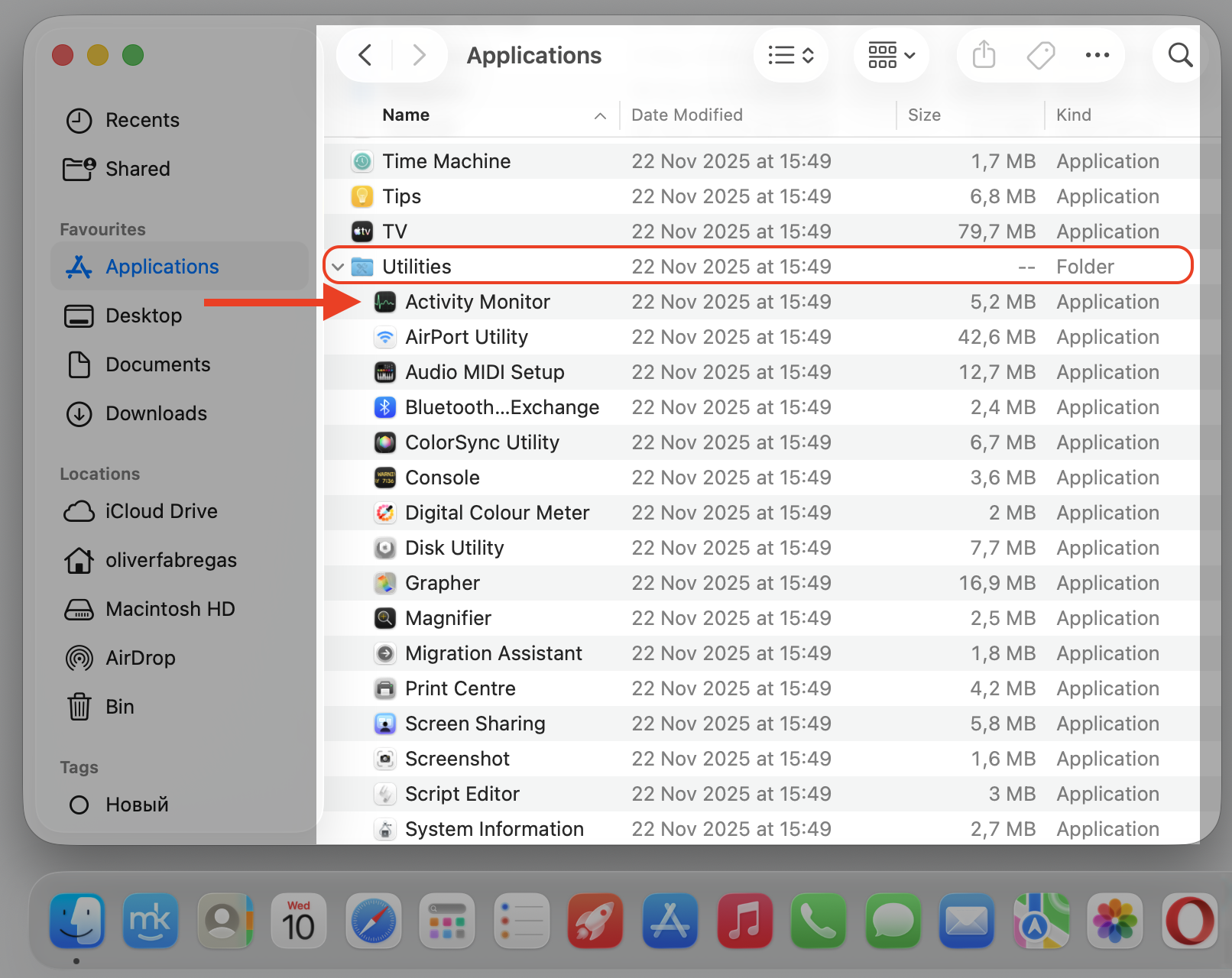
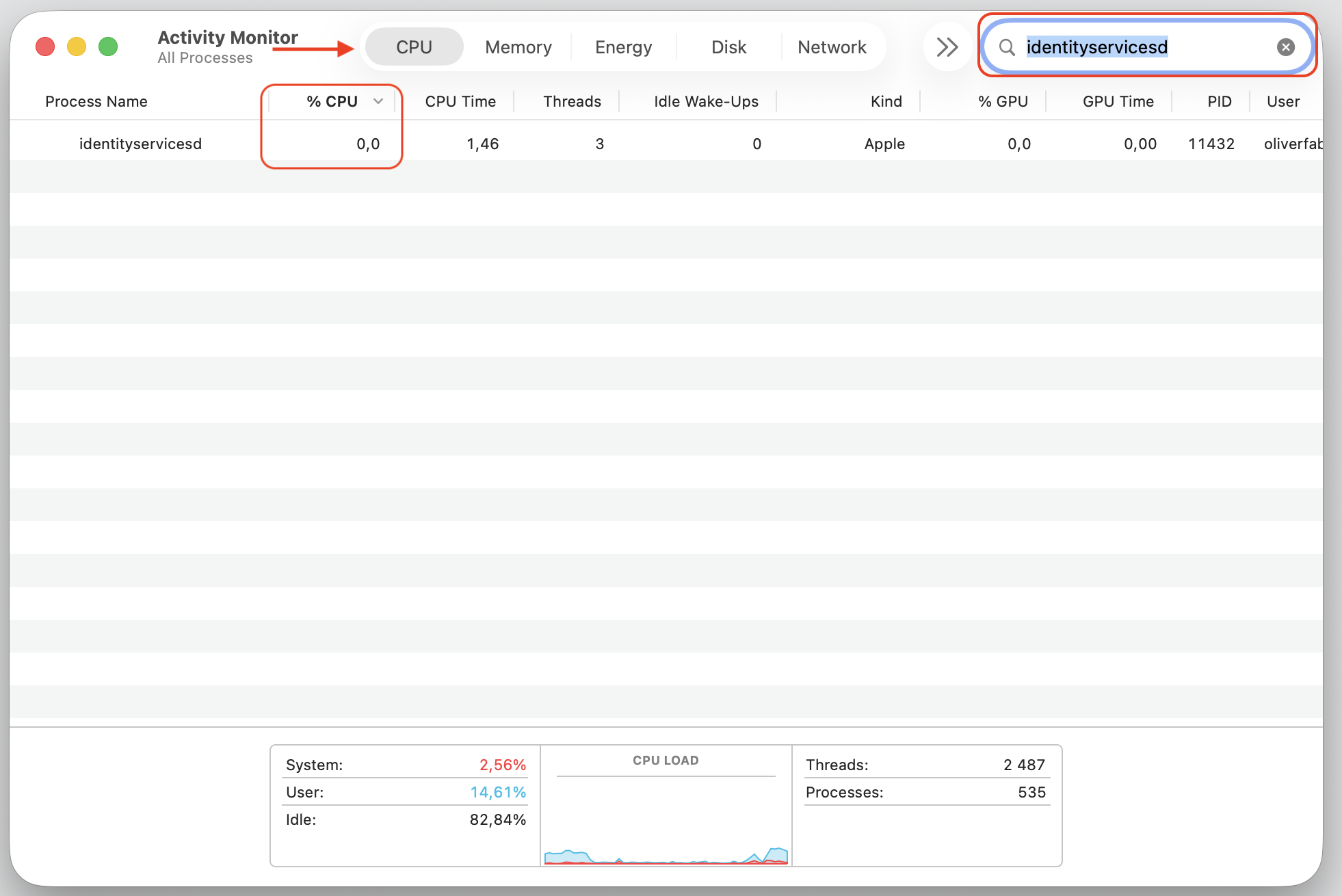
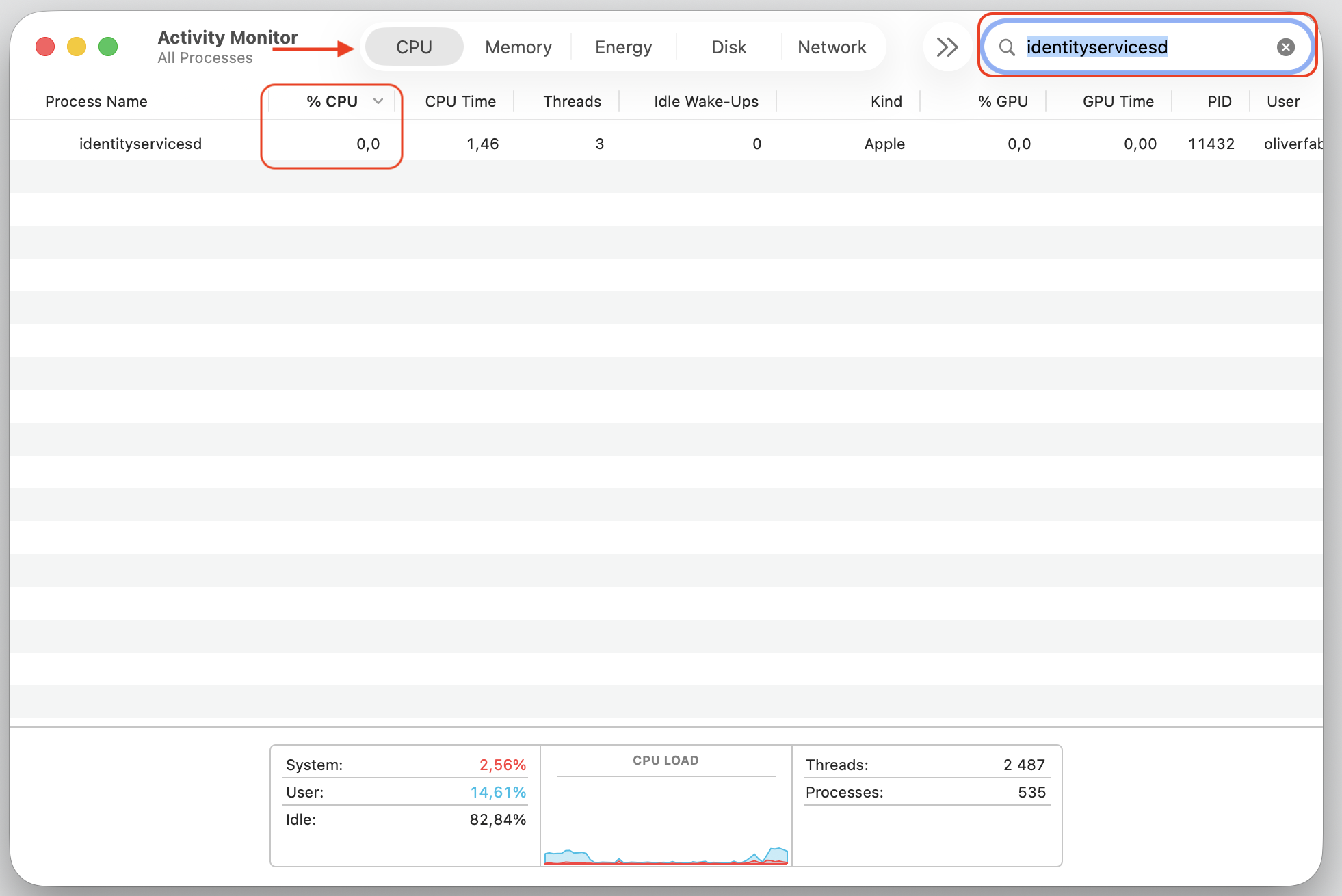
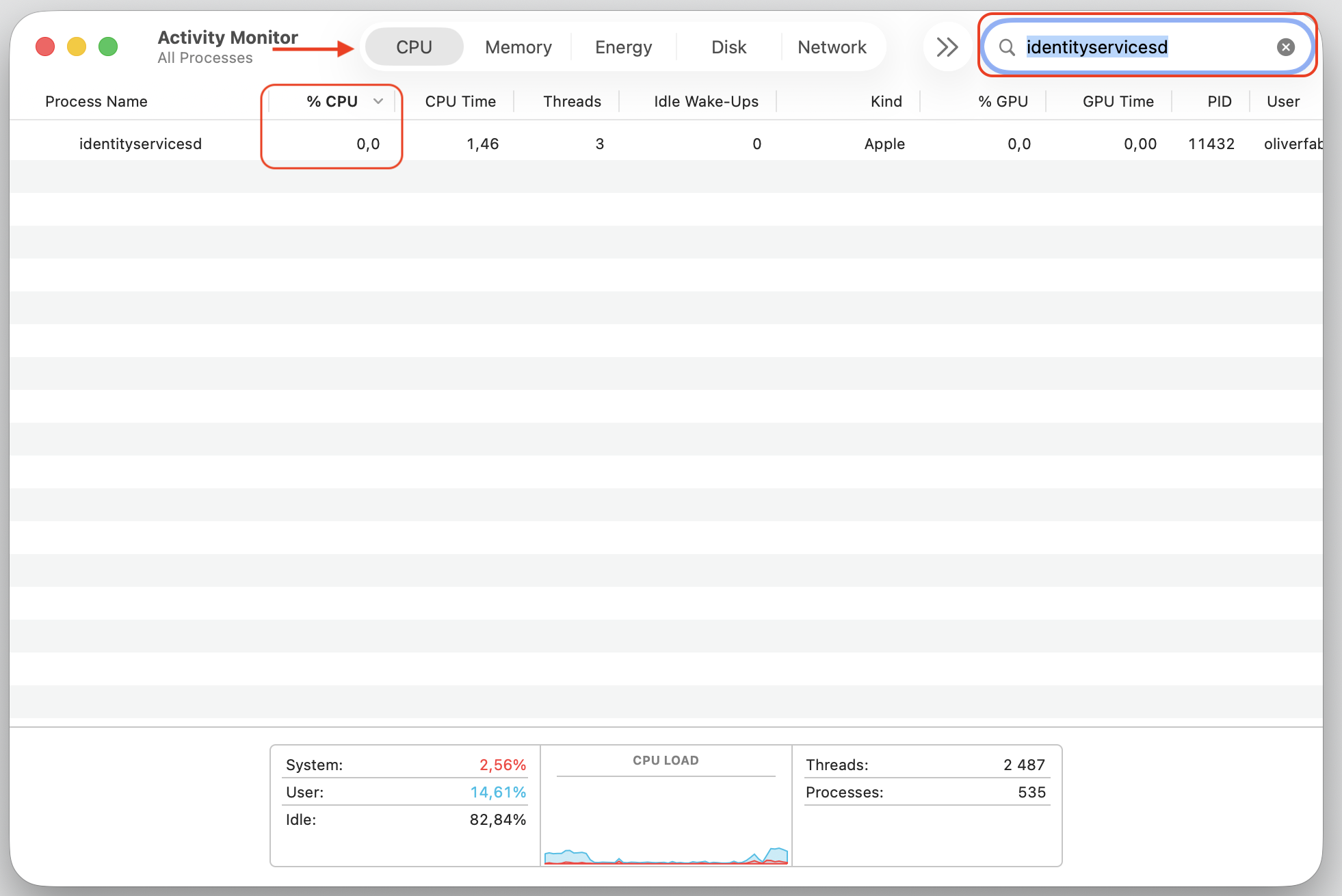
Open Activity Monitor from Applications ▸ Utilities.
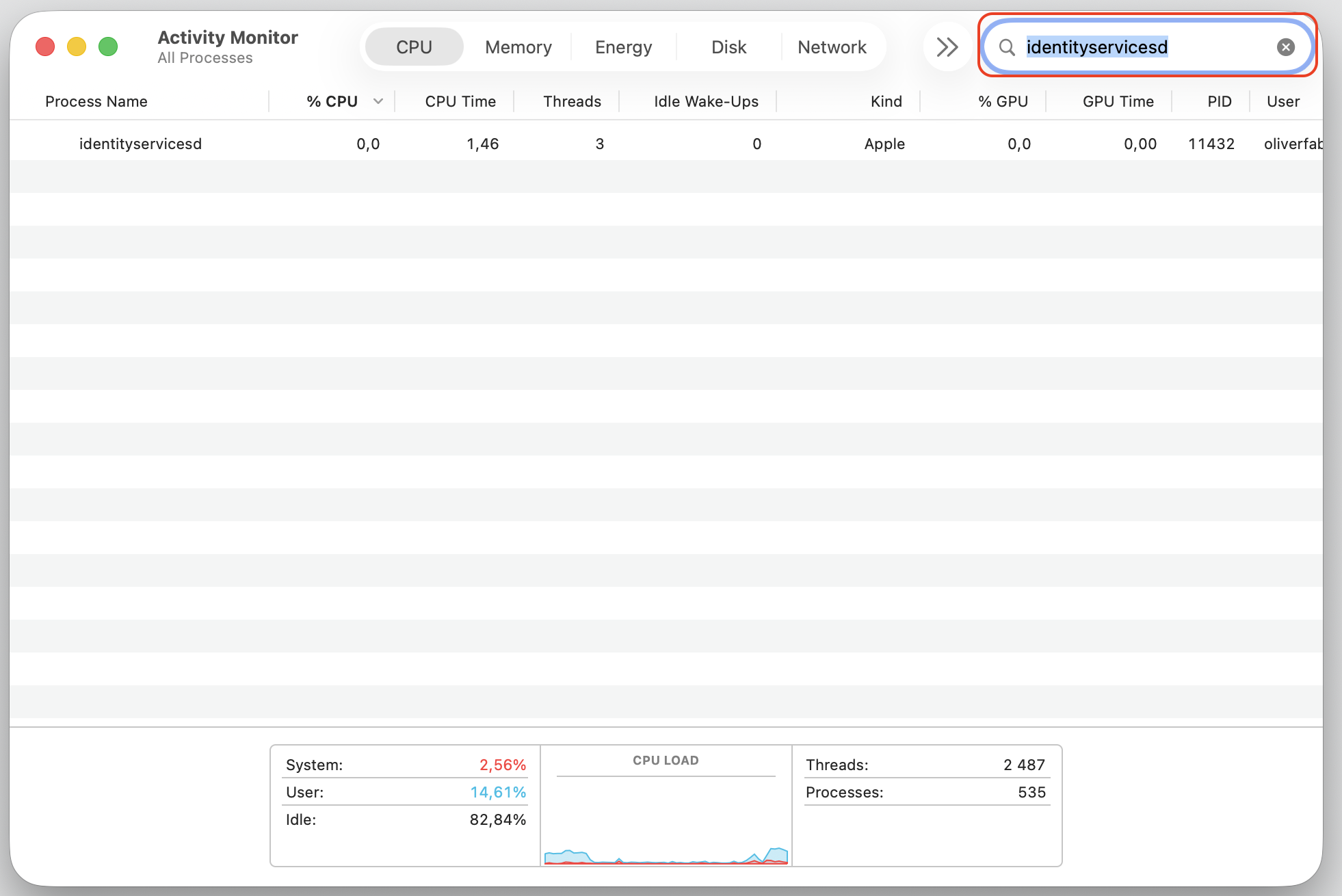
Type identityservicesd in the search field.
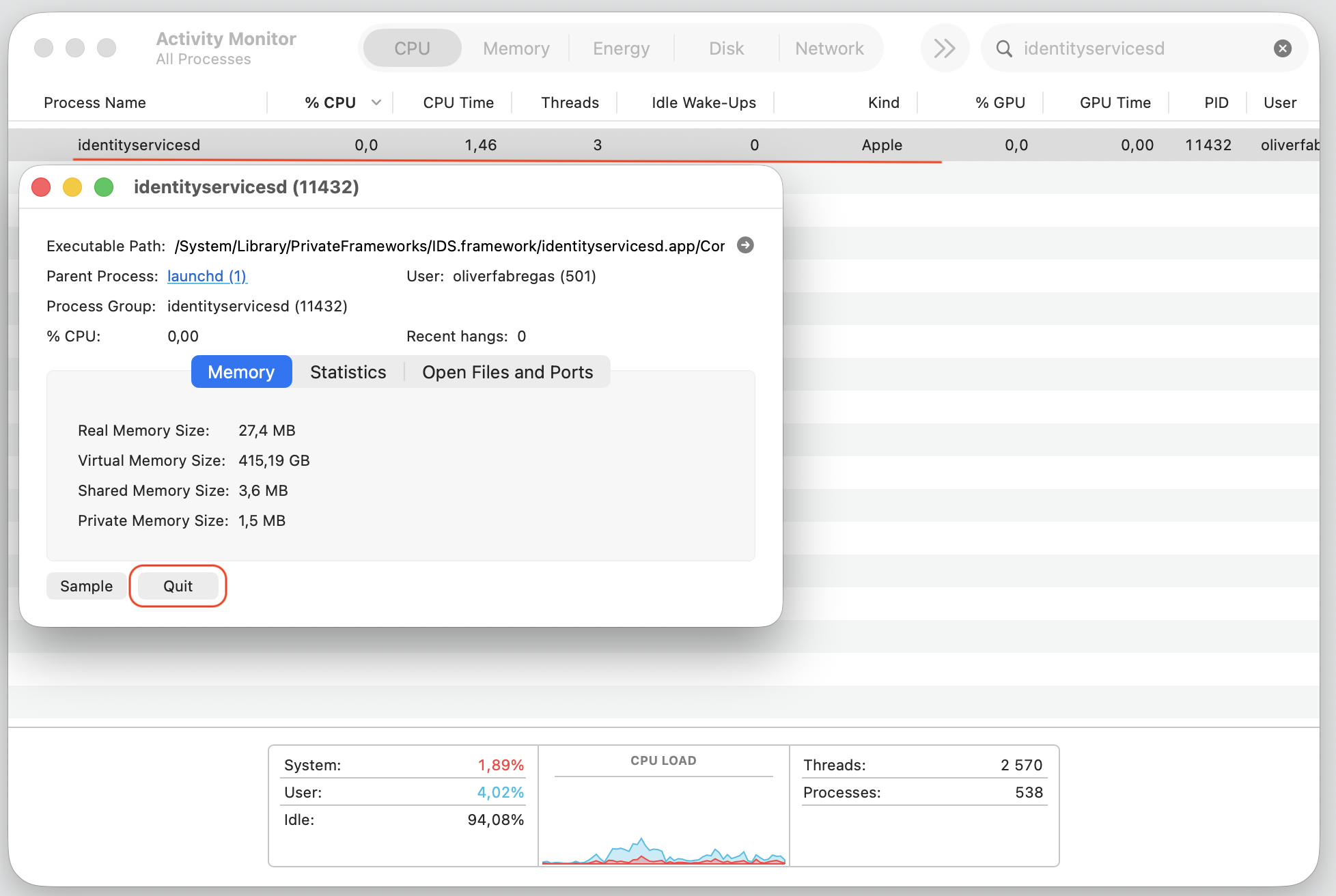
Select the process and double-click on it.
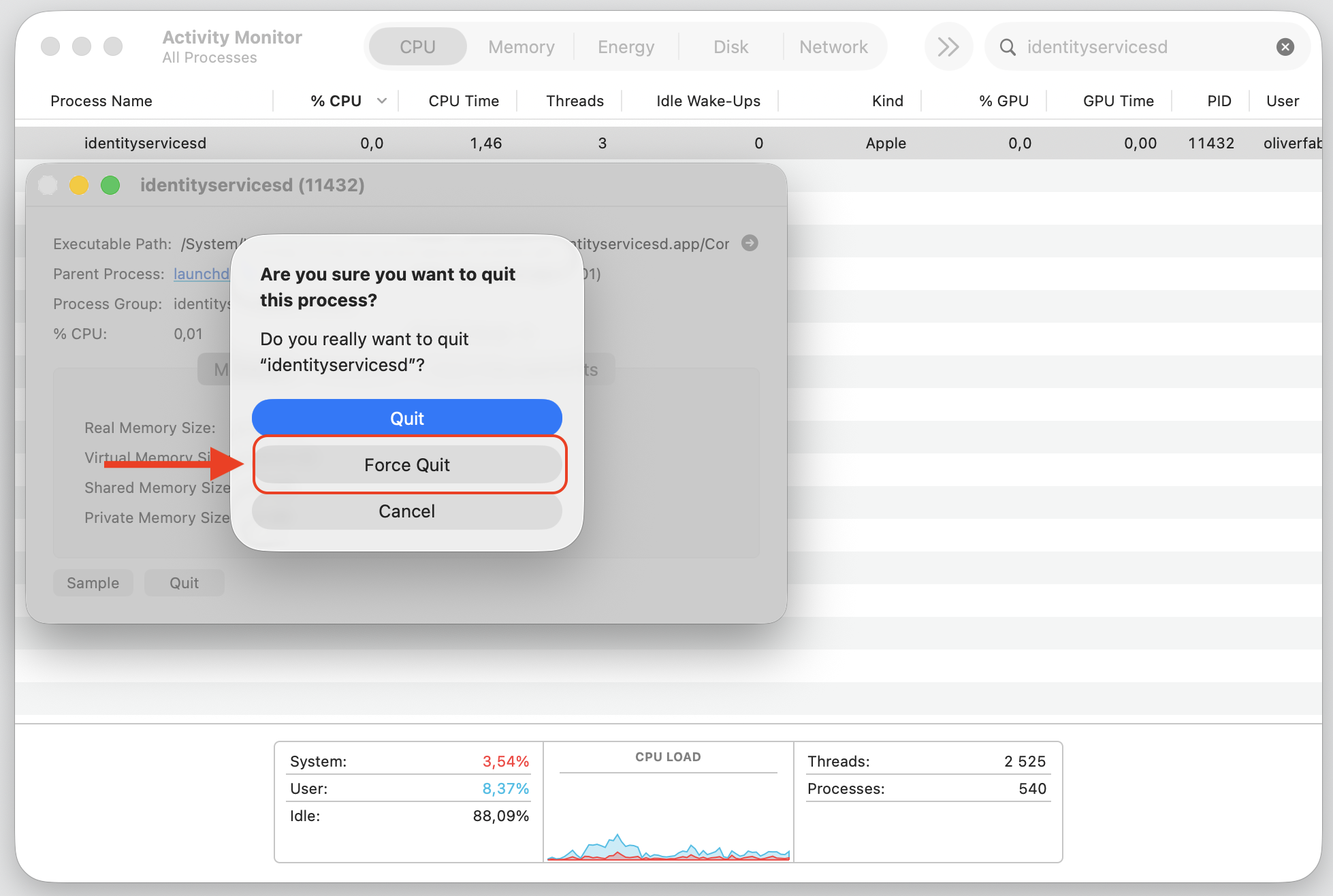
Use the Quit button, then click Force Quit to confirm.
Step 1. Go to Finder > ApplicationsStep 2. Expand the Utilities folder and select Activity MonitorStep 3. Type identityservicesd in the search fieldStep 4. Double-click on the process and then select the Quit buttonStep 5. Confirm an action by the Force Quit button
3. Sign out and back into Apple ID services
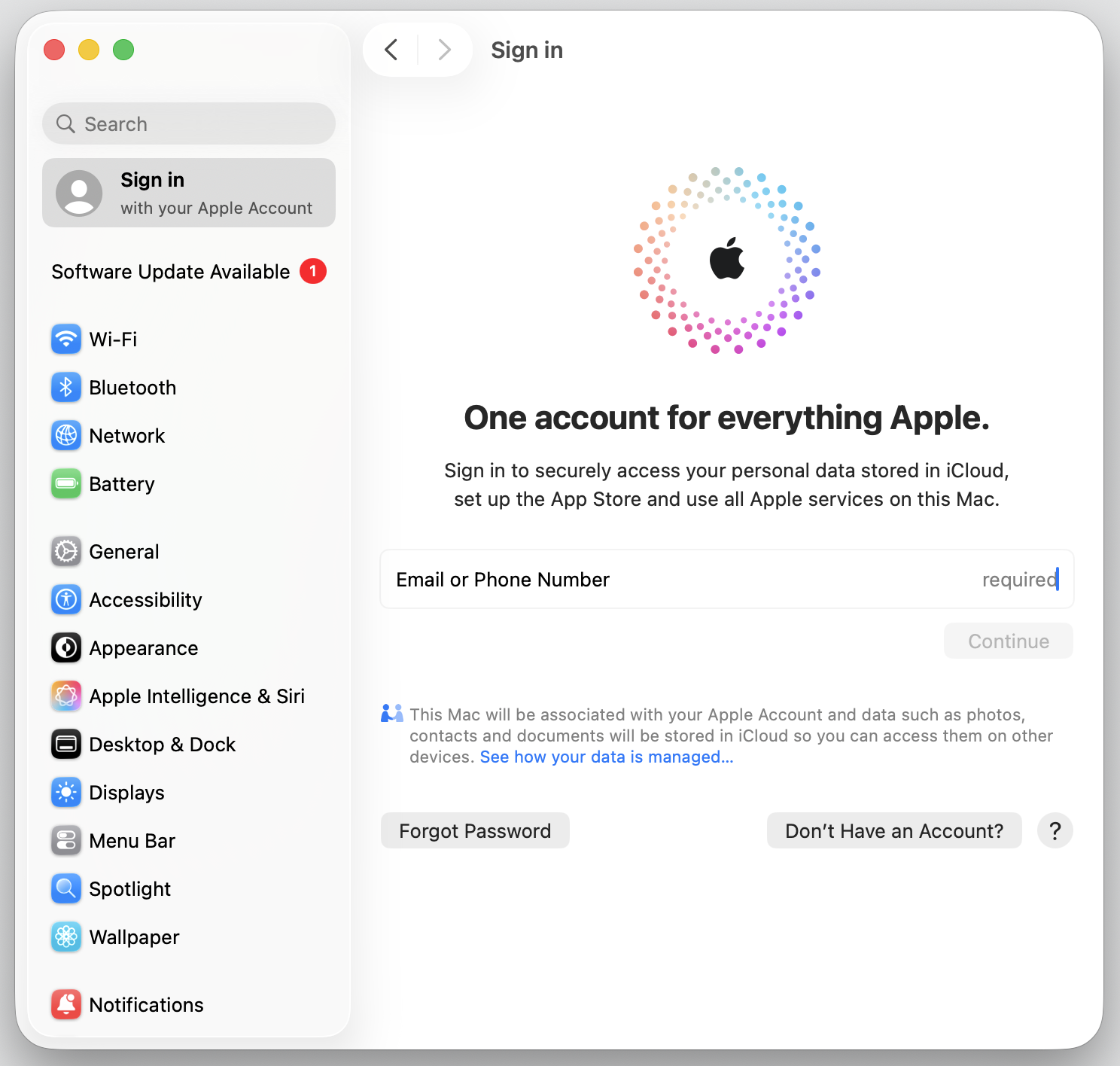
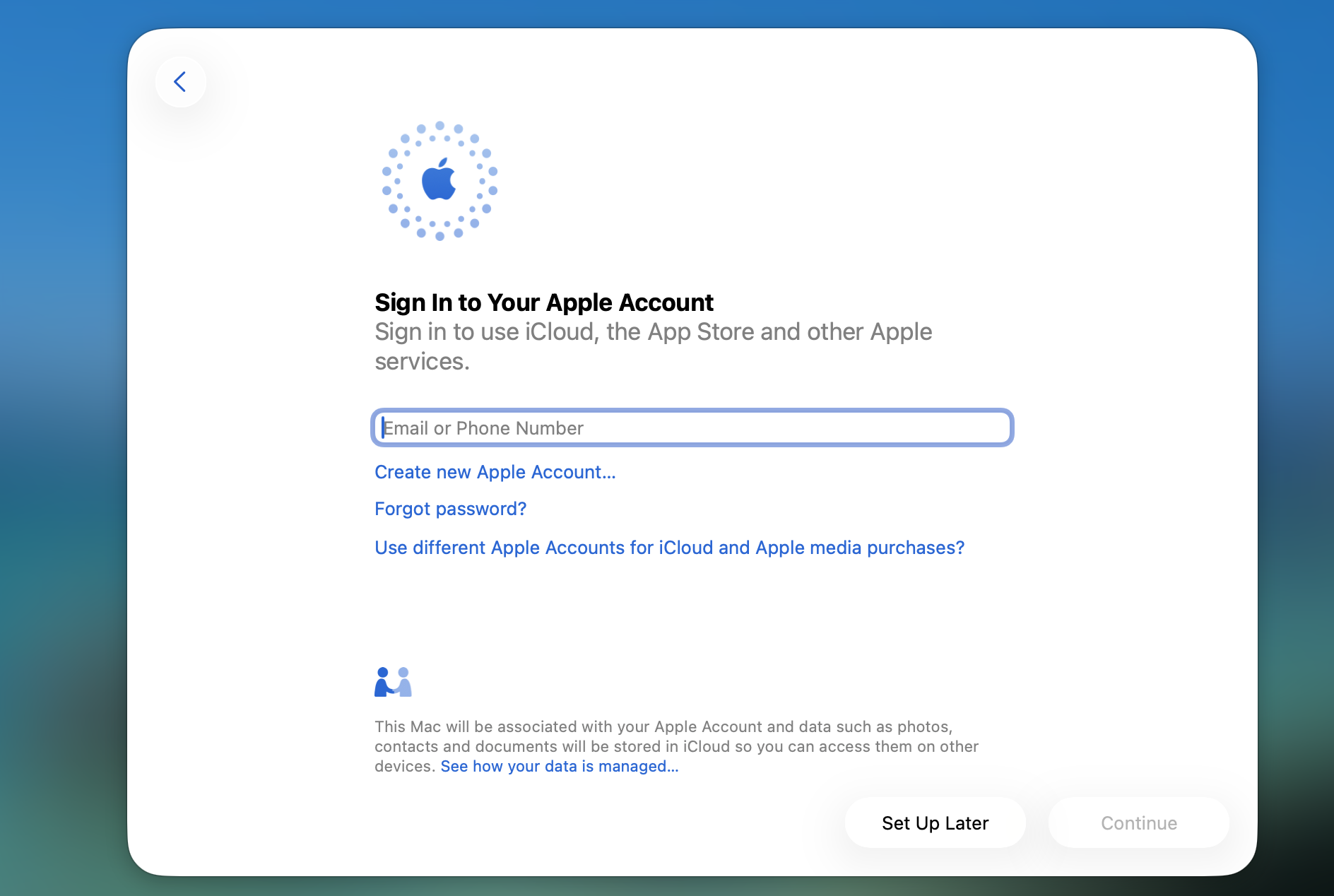
Signing out refreshes authentication for iMessage, FaceTime, and iCloud, which clears a stale login state. If you've forgotten it, here's how to find your Apple ID password before you start. Then, follow our guidelines:
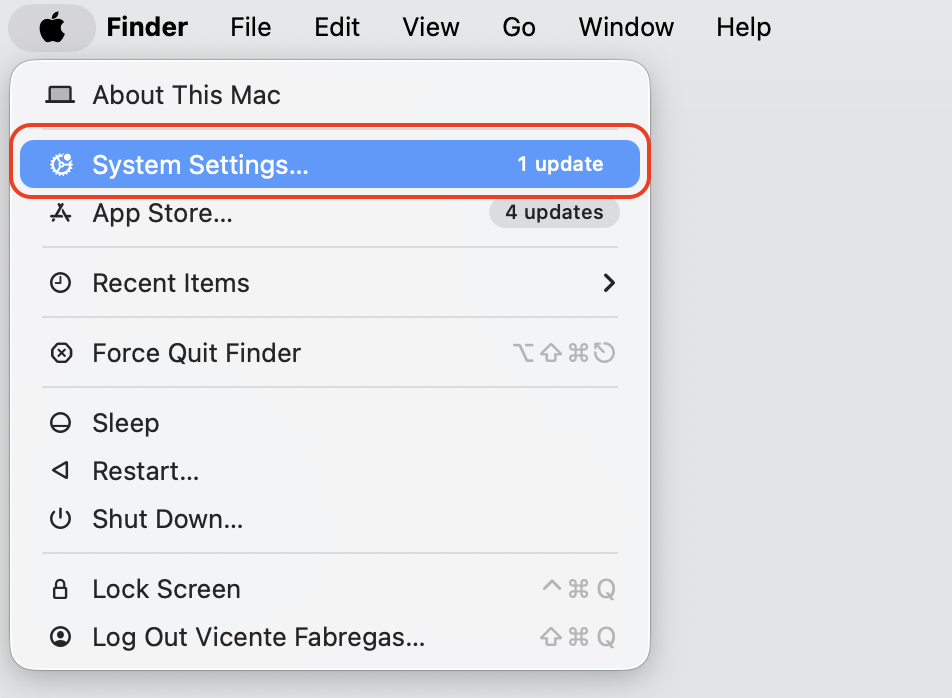
Open System Settings and click your name at the top.
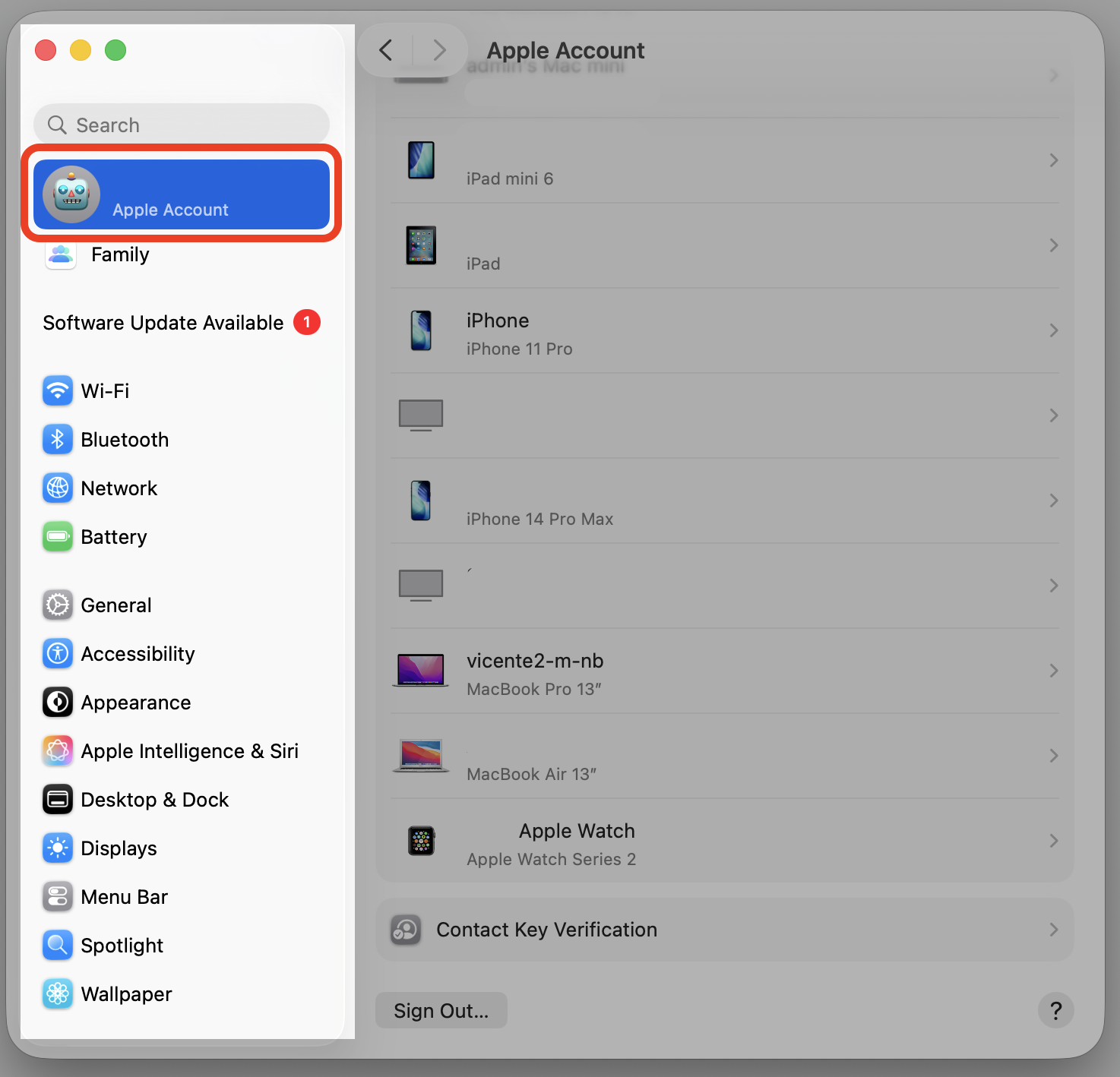
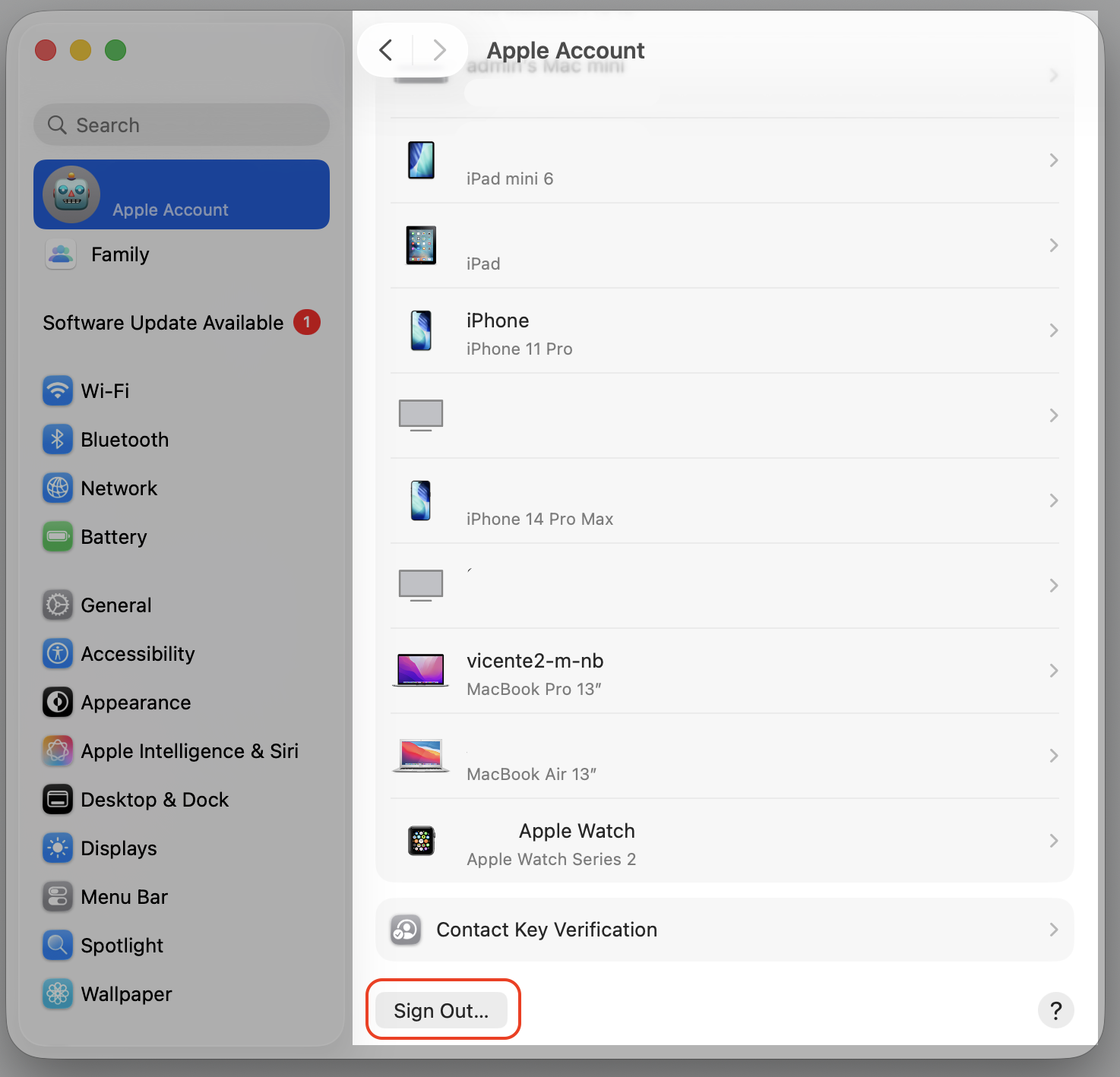
Scroll down and choose Sign Out.
Wait a moment, then sign back in with the same Apple ID.
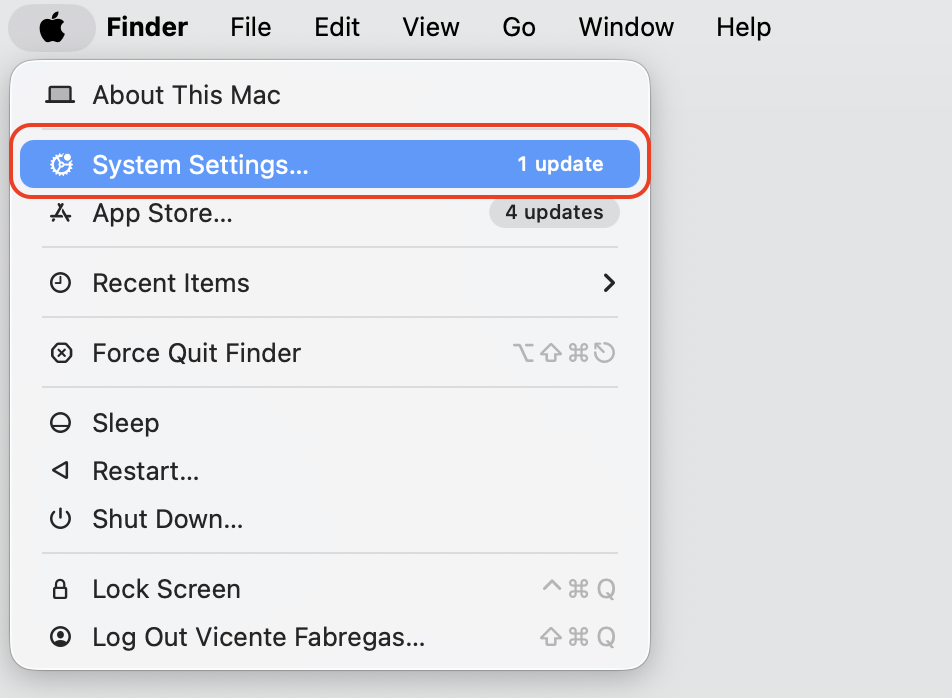
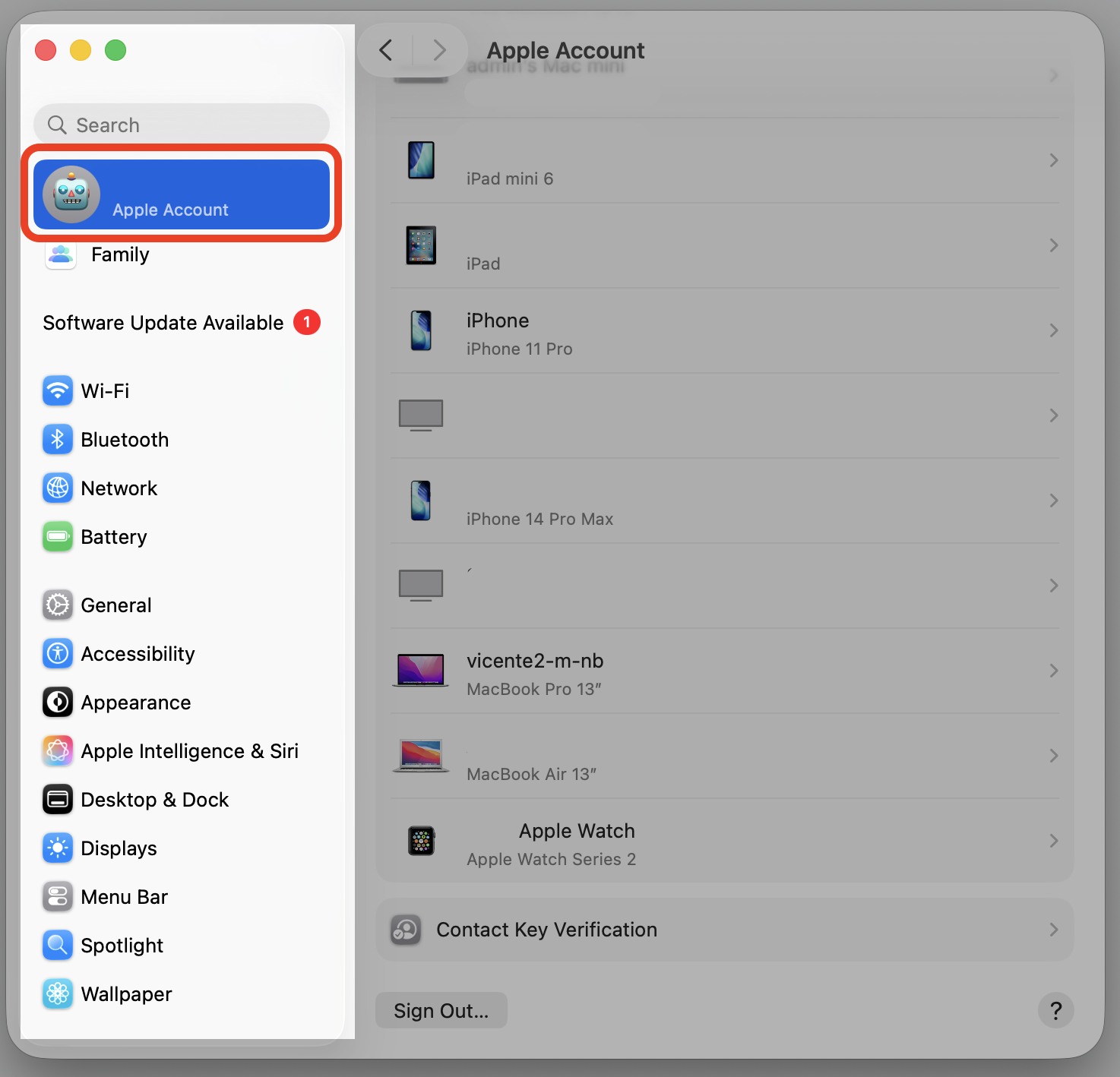
Step 1. Go to the Apple menu in the top-left corner and select System SettingsStep 2. In the top left corner of the sidebar, select your Apple AccountStep 3. Scroll down and choose Sign Out, then log back again
Important:
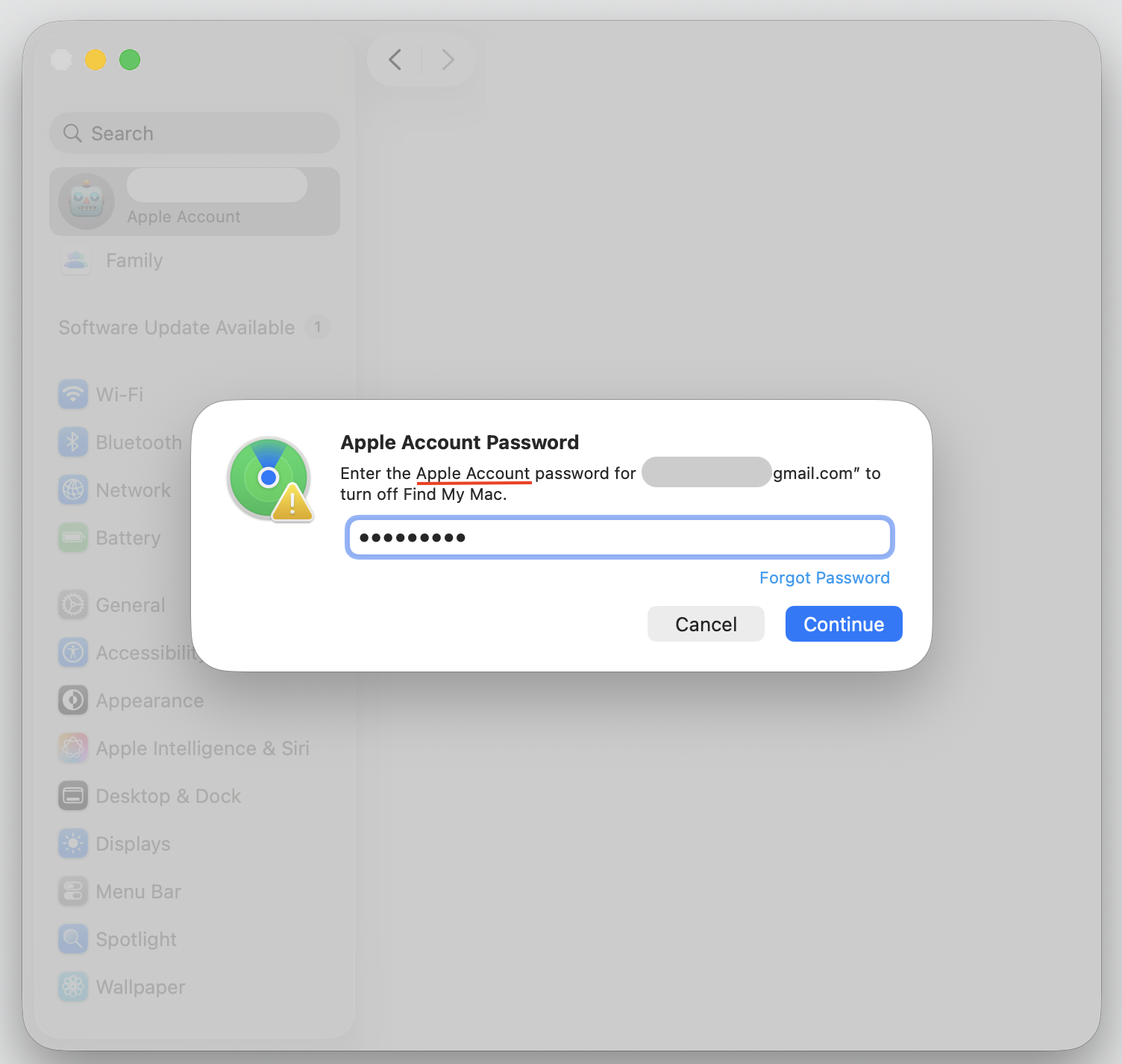
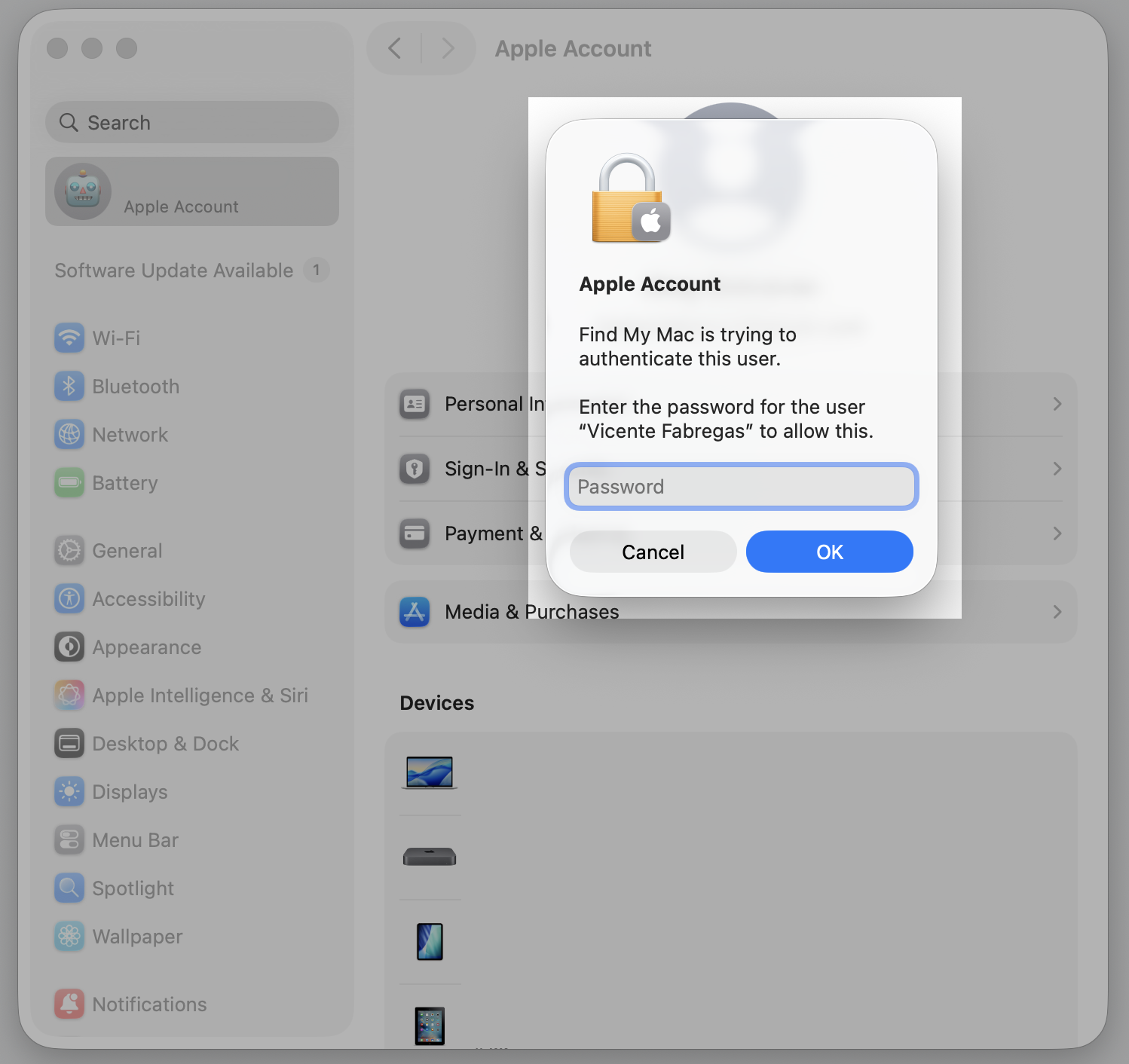
We should mention that if the Find my Mac feature is enabled, you’ll need to pass a bit longer way to sign out of your Apple ID services than the one described above. Find our visual hints to do it right below.
Step 1. Open System Settings, click on your account name, and enter the password Step 2. Confirm the action by your user password againStep 3. Once it's done, log back in to your account
4. Check your Apple ID and account settings
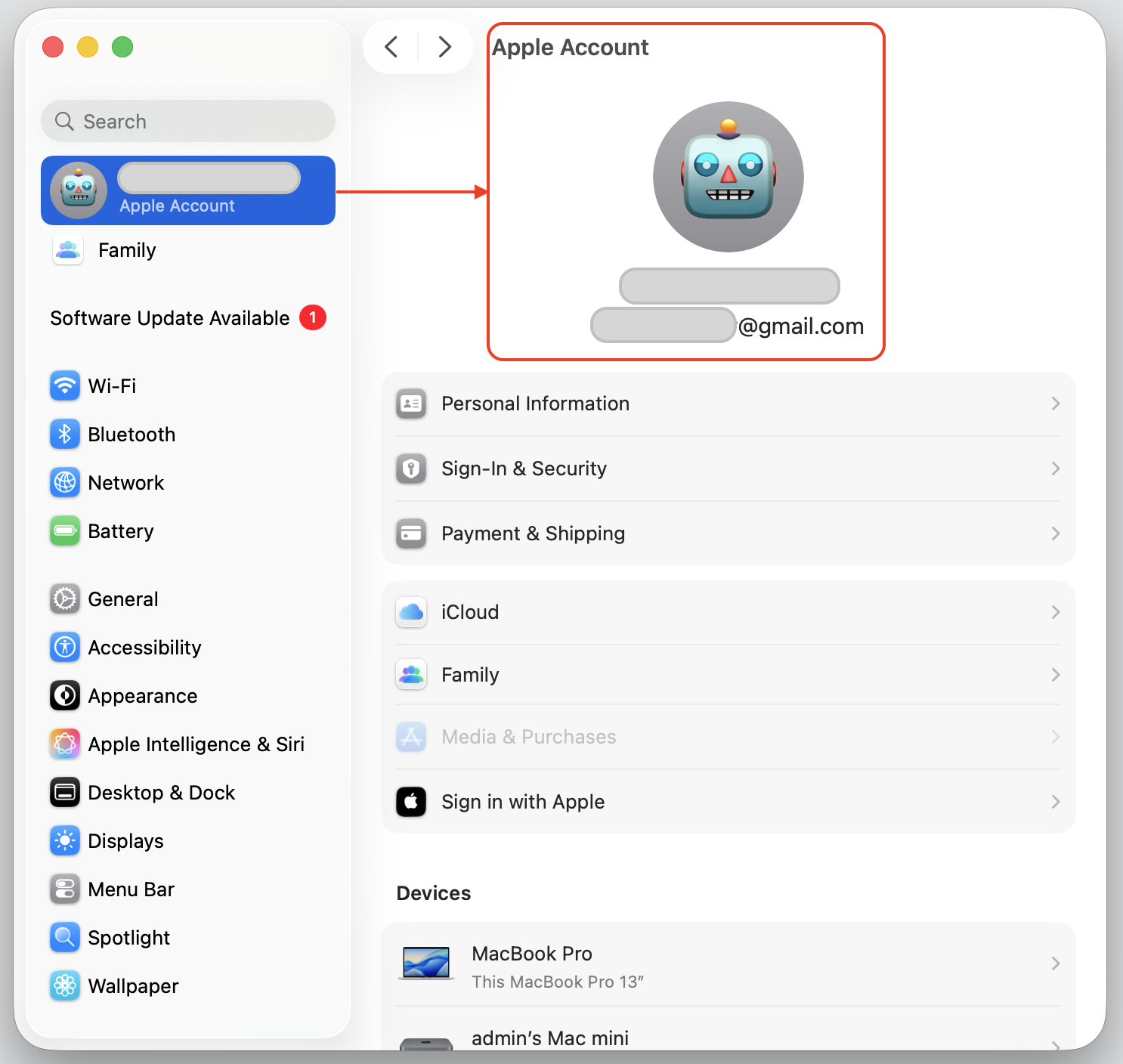
Make sure you're using the same Apple ID across your devices and that nothing looks off. A mismatch—or a message that your Apple account is not active—can keep the process checking in the background. Just follow our guide below:
Open System Settings and click on your account name.
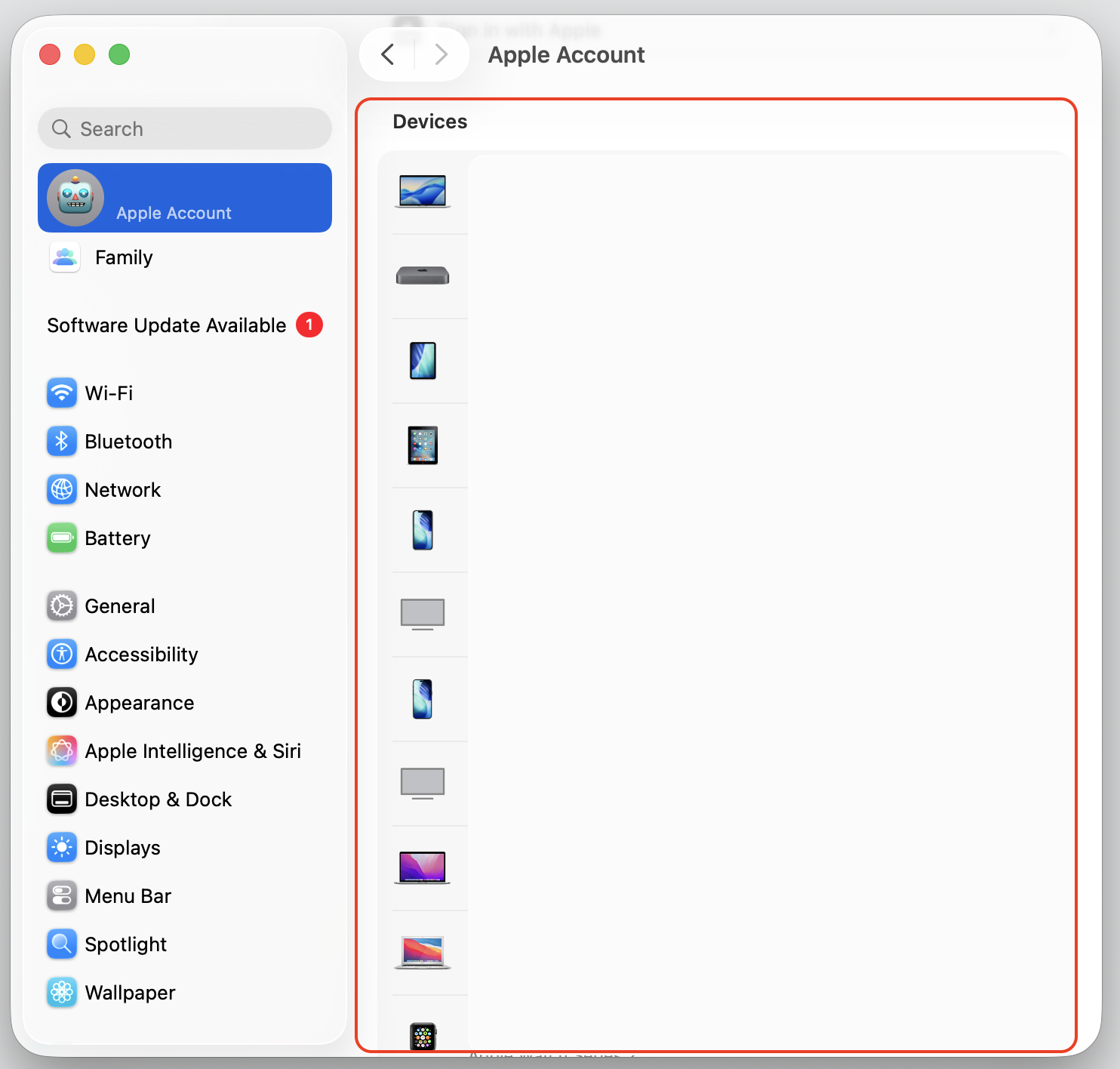
Check each device in the Deviceslist. If all your devices appear there, you’re using the same Apple ID across all of them.
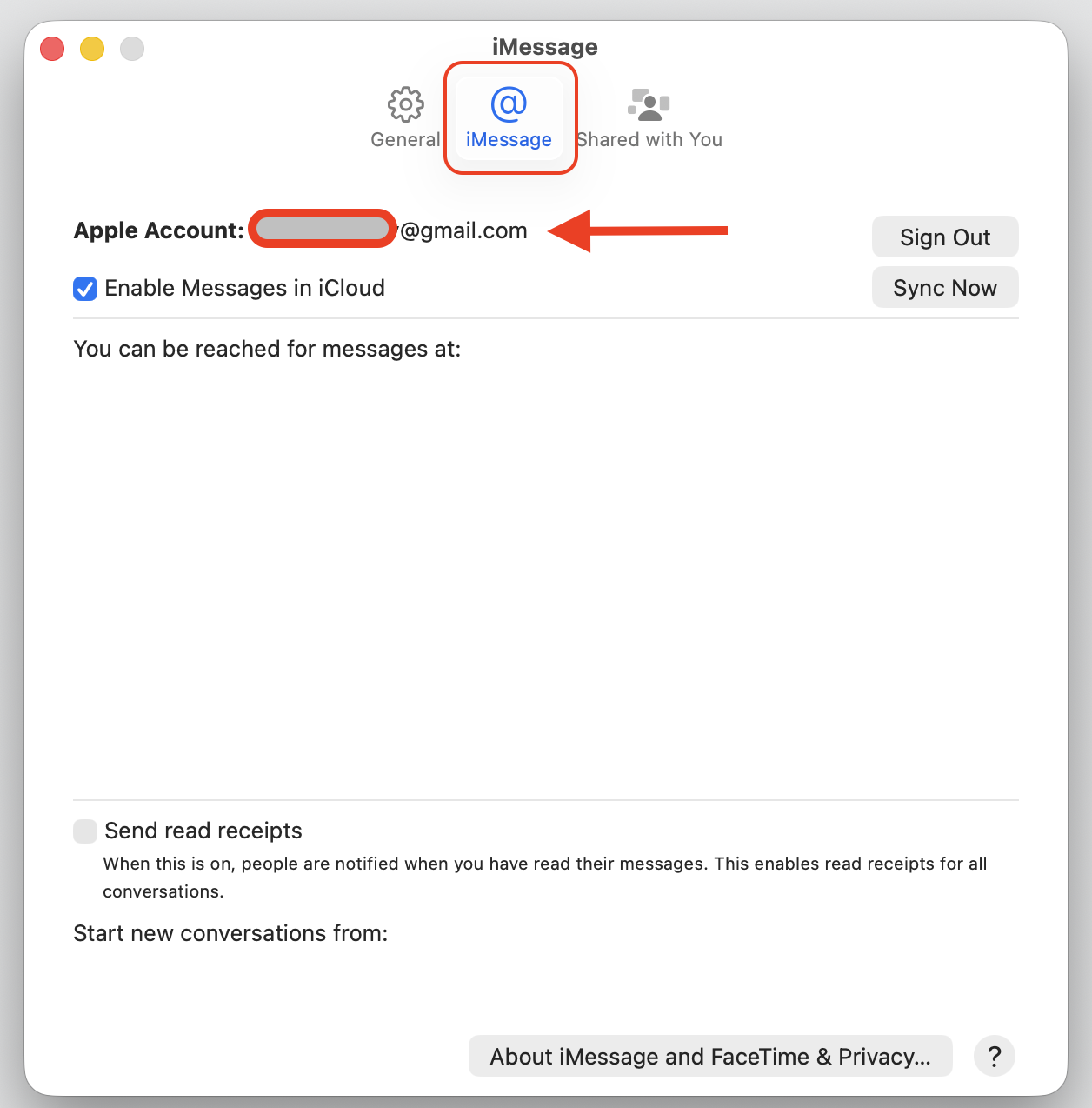
Review Apple Account, iMessage, and FaceTime settings to ensure nothing is switched off by mistake.
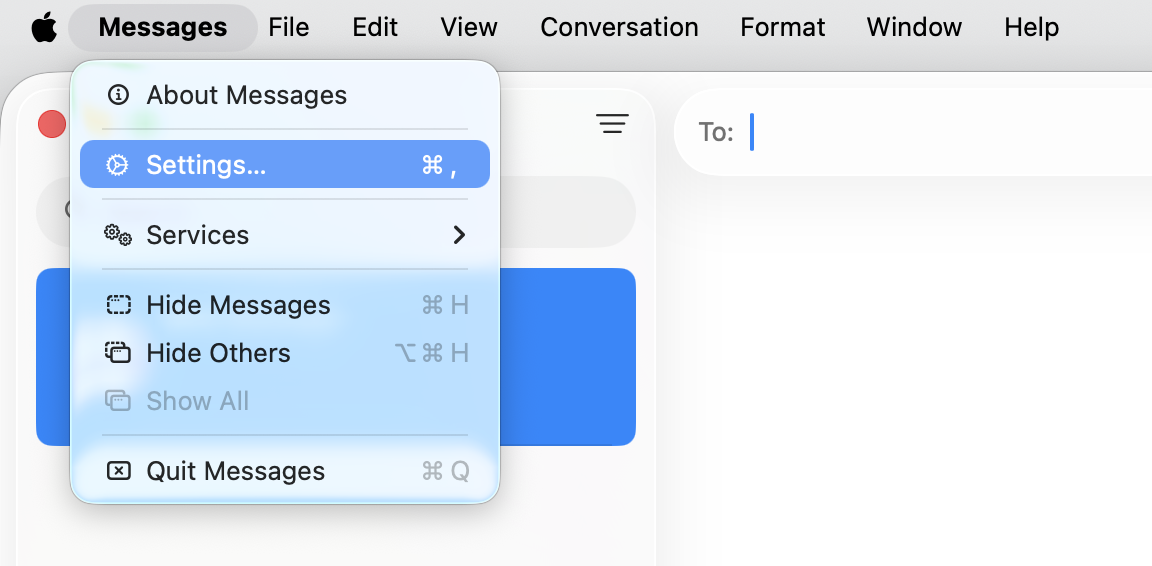
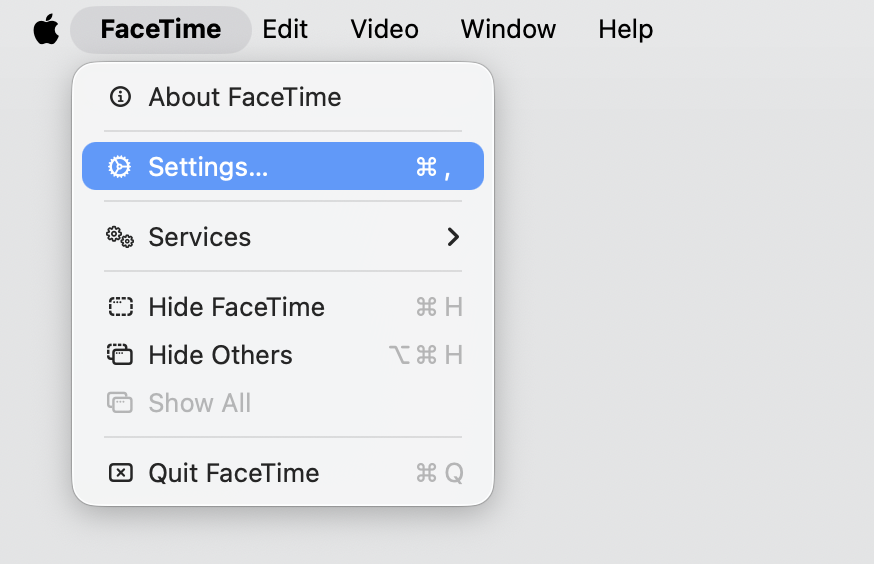
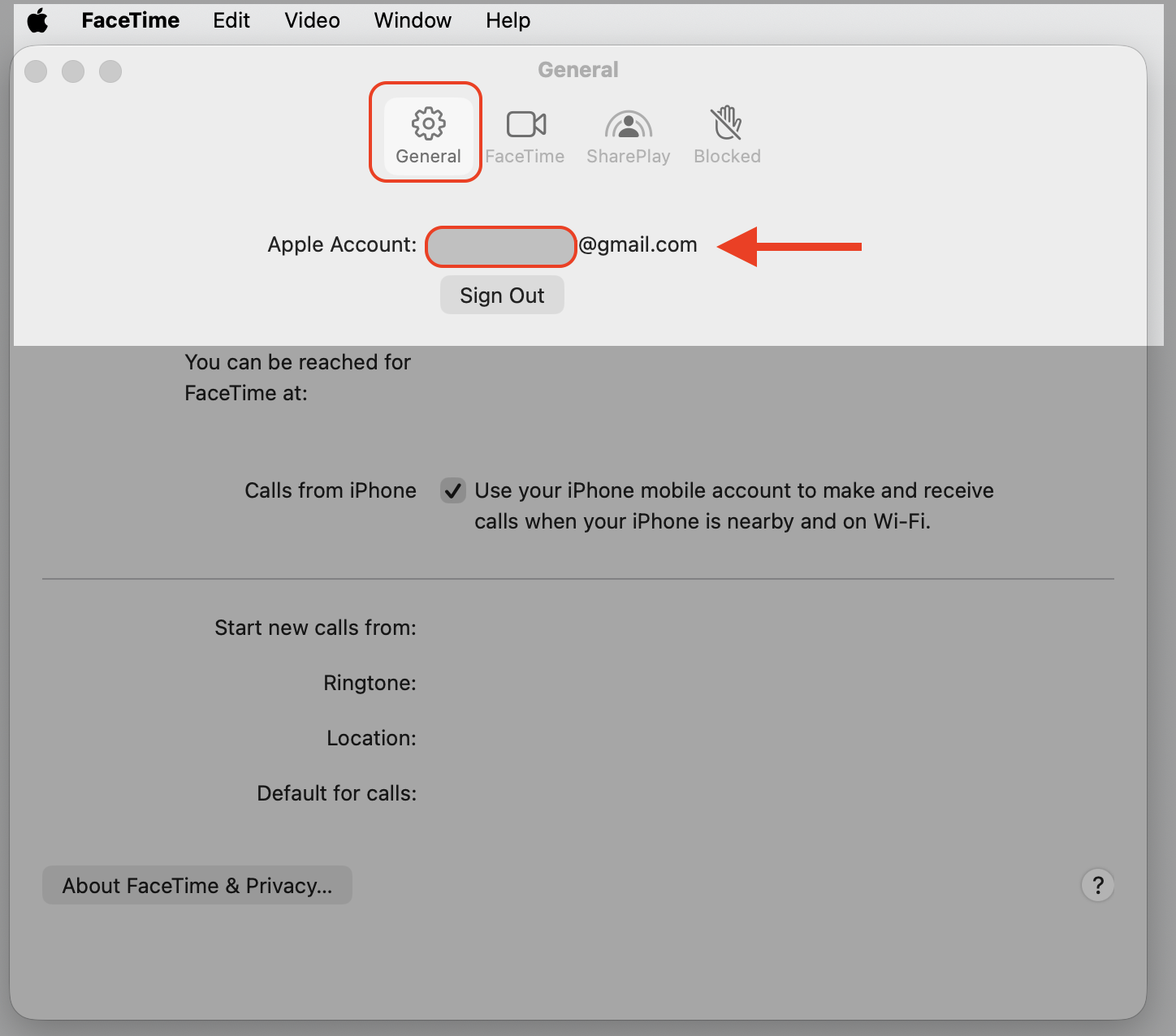
Step 1. Go to the Apple menu in the top-left corner and select System SettingsStep 2. In the top right corner of the sidebar, select your Apple AccountStep 3. Check your Apple Account dataStep 4. Check each device in the Devices listStep 5. Go to Messages App > SettingsStep 6. Select the iMessage tab and verify your Apple AccountStep 7. Go to FaceTime > SettingsStep 8. Select the General tab and verify your Apple Account
5. Restart Messages and FaceTime services
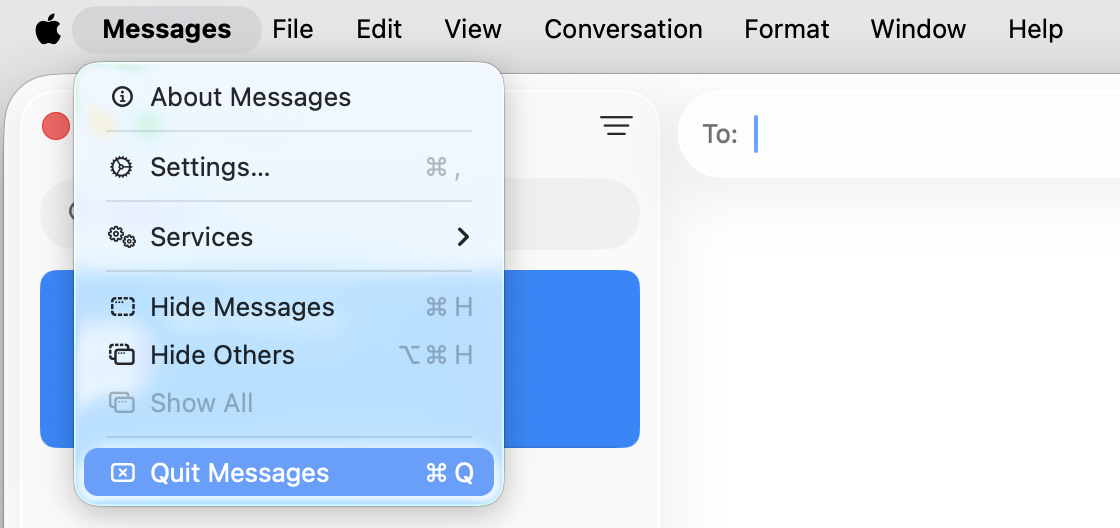
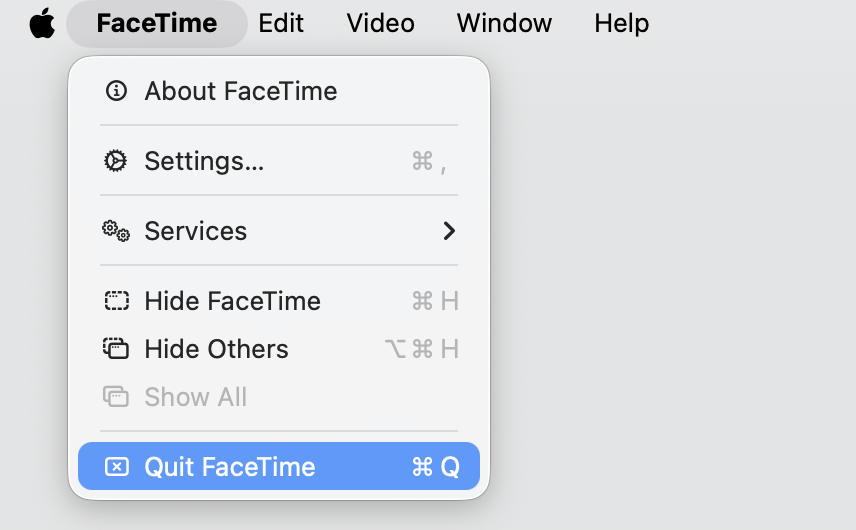
Since both apps lean on identityservicesd, quitting and reopening them resets the connection. Doing this also helps you sync iMessage cleanly afterward, so let’s start:
Quit Messages and FaceTime completely.
Wait about ten seconds.
Reopen them and let each app finish loading.
Step 1. Quit the Messages appStep 2. Quit the FaceTime app > reopen both after 10 seconds
6. Clear Messages or related data
If large or corrupted Messages data is dragging things down, reducing it eases the load. You can clear the iMessage cache to remove the leftover files that pile up over time. Do the following:
Quit the Messages app.
Back up any conversations you want to keep.
Remove old or oversized attachments.
Reopen Messages.
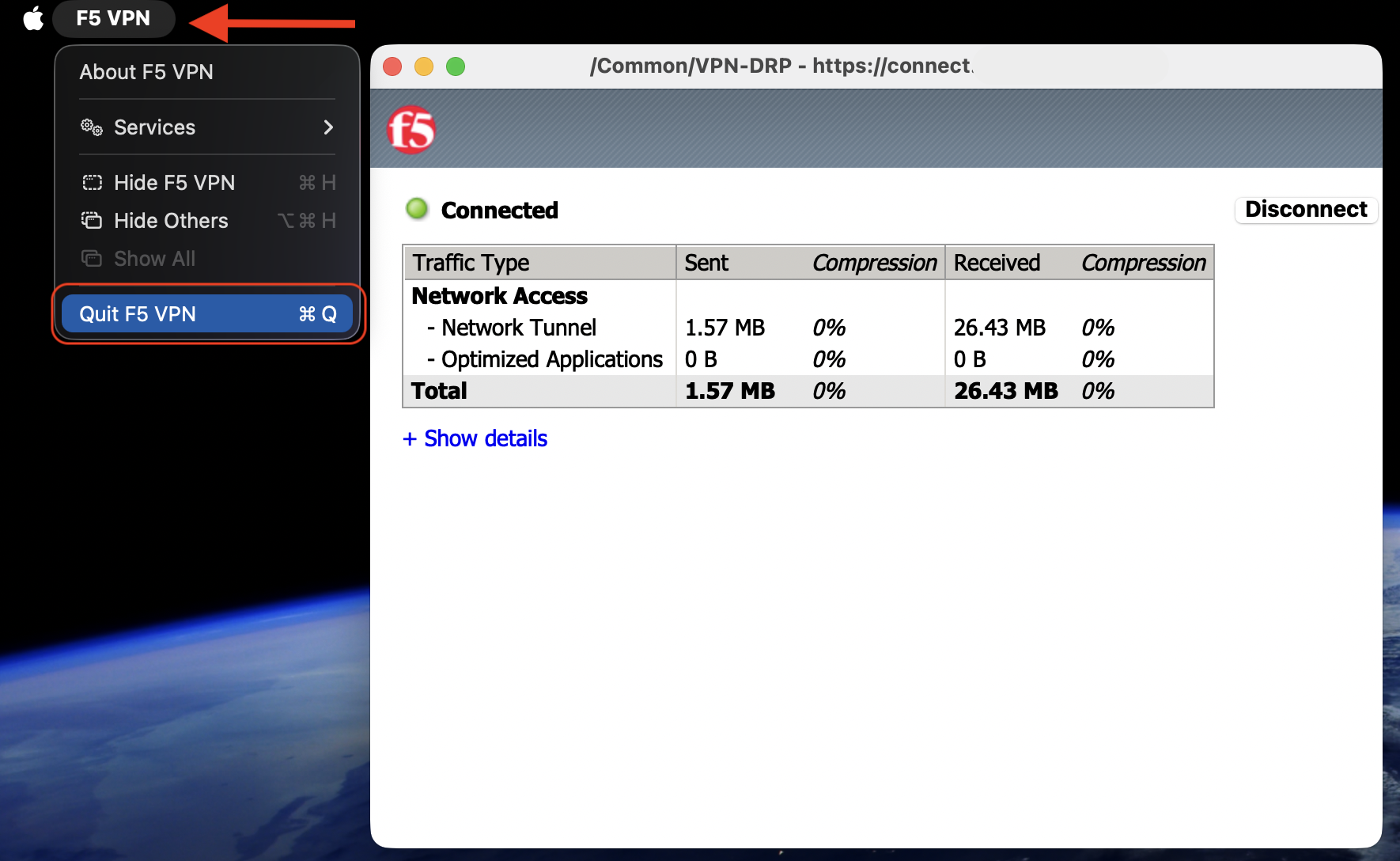
7. Check your network and disable VPN
Testing without network interference shows whether your connection is the trigger. Temporarily turning off a VPN is an easy place to start—and here's how to disable VPN on your Mac:
Switch off your VPN, then watch CPU usage in Activity Monitor.
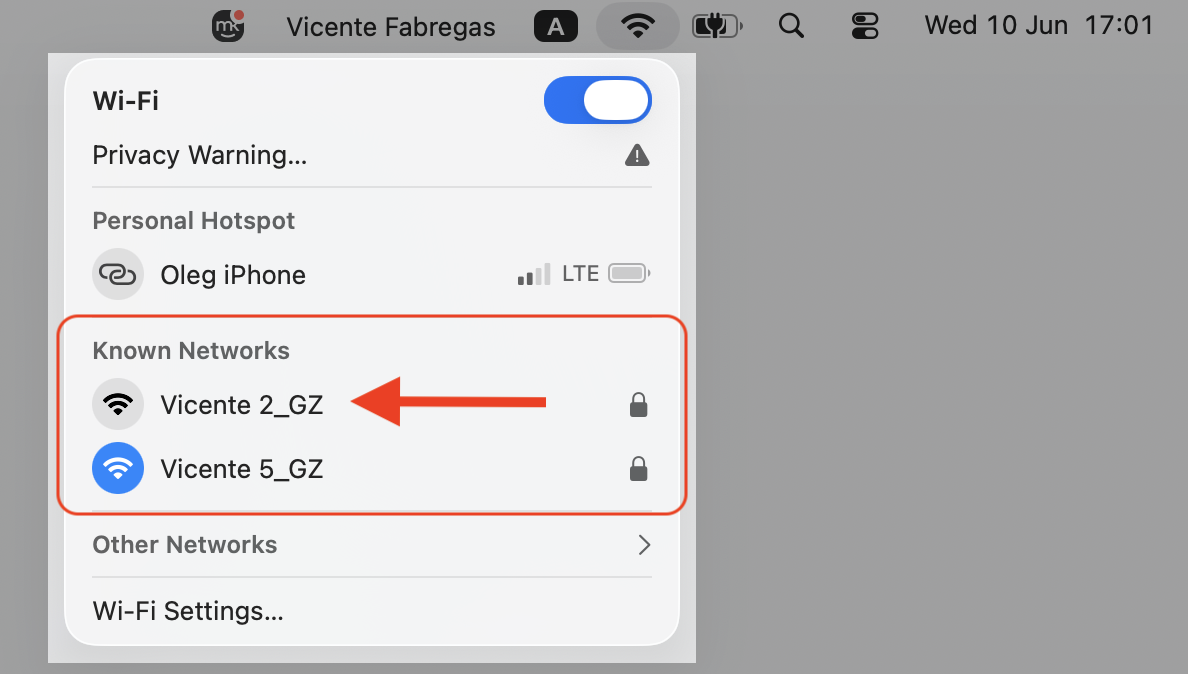
Try a different Wi-Fi network or restart your router.
Re-enable your VPN once things settle to confirm whether it was the cause.
Step 1. Go to VPN next to the Apple Logo and select Preferences > Quit VPNStep 2. Go to the top right corner and select Network SettingsStep 3. Try a different Wi-Fi networkStep 4. Check the CPU usage of identityservicesd in Activity Monitor
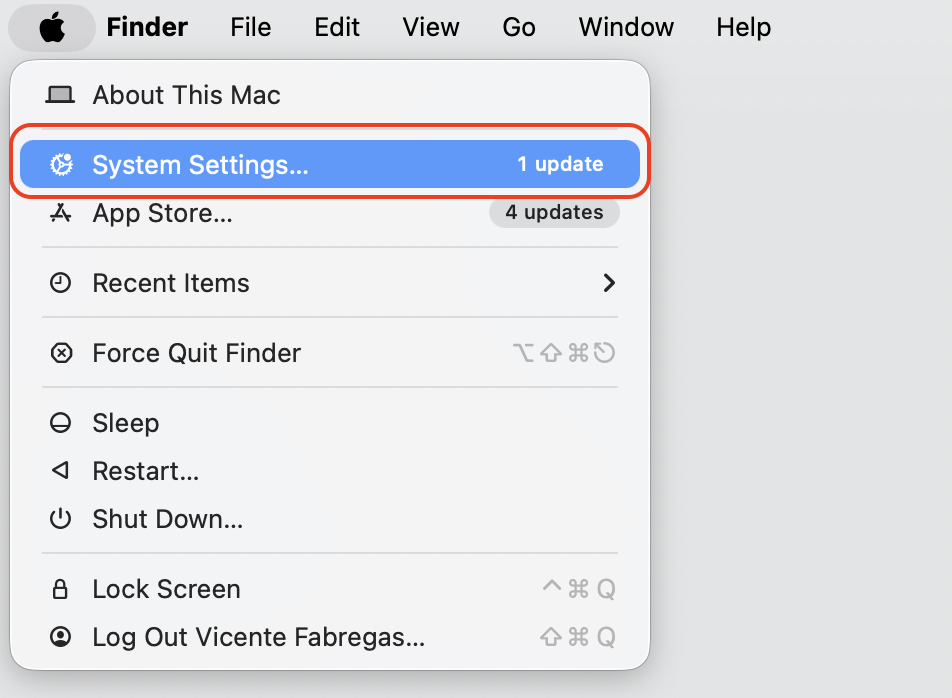
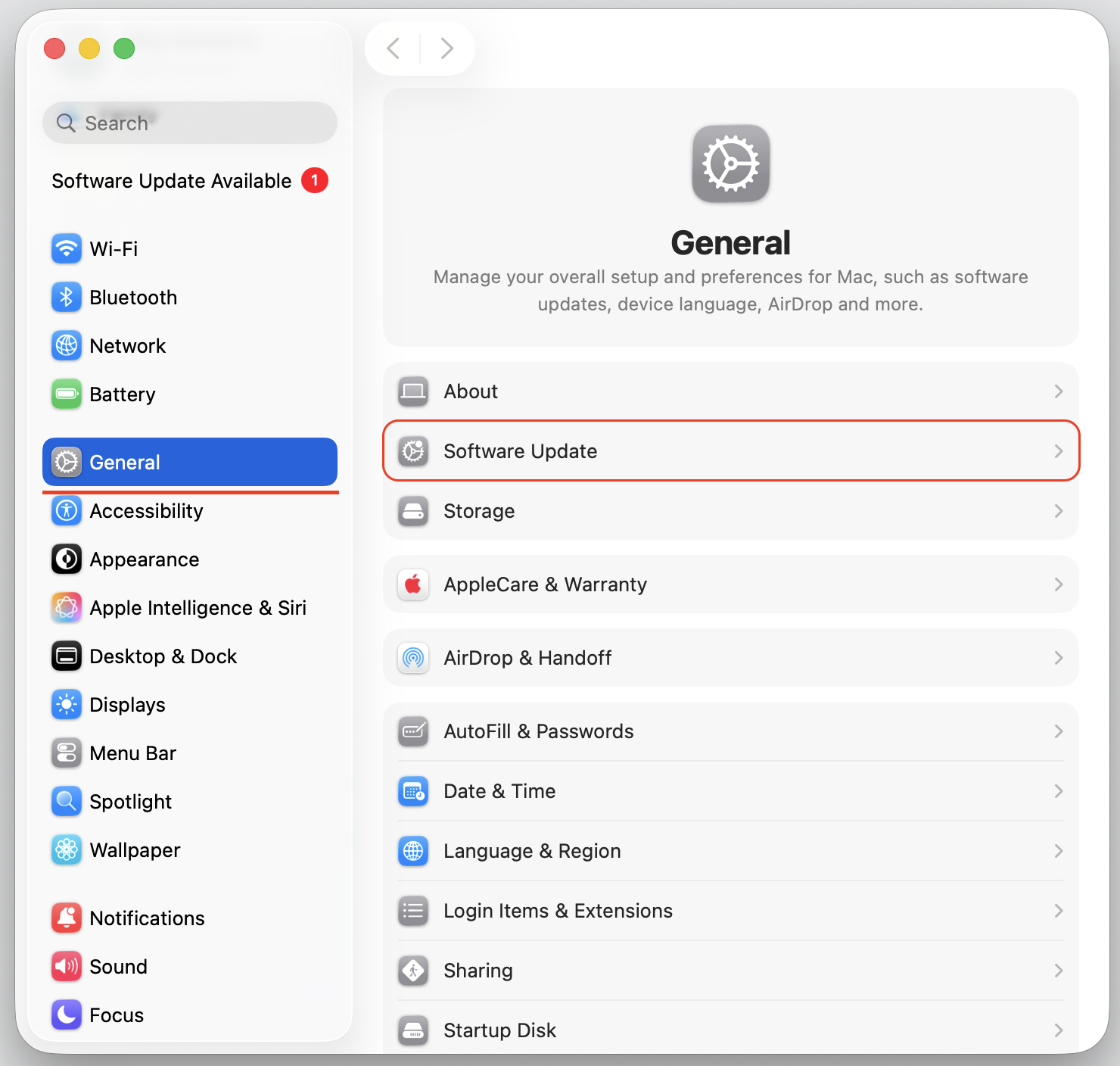
8. Update macOS
Apple regularly patches service bugs, so we suggest installing the latest macOS update to keep you on a more secure, stable version. Here’s how:
Open System Settings ▸ General ▸ Software Update.
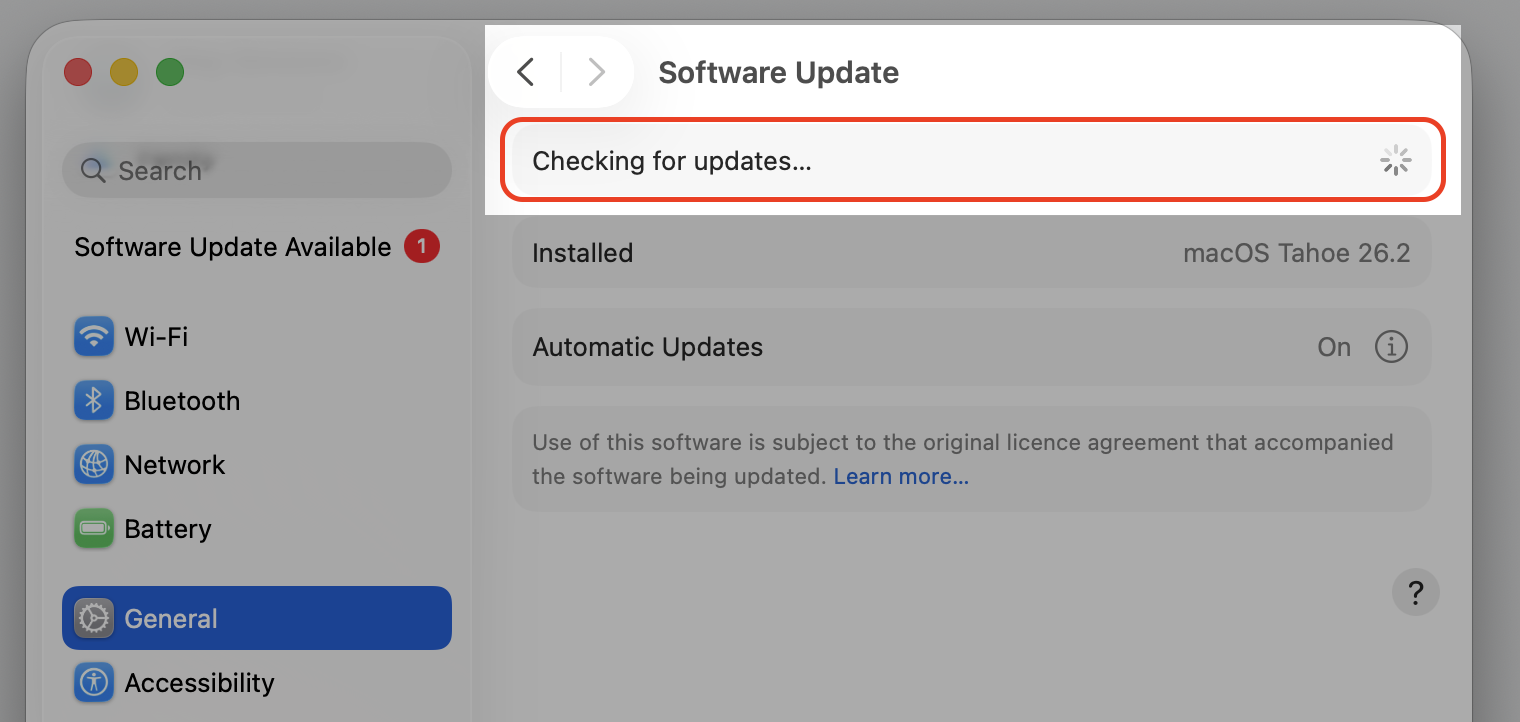
Let your Mac check for available updates.
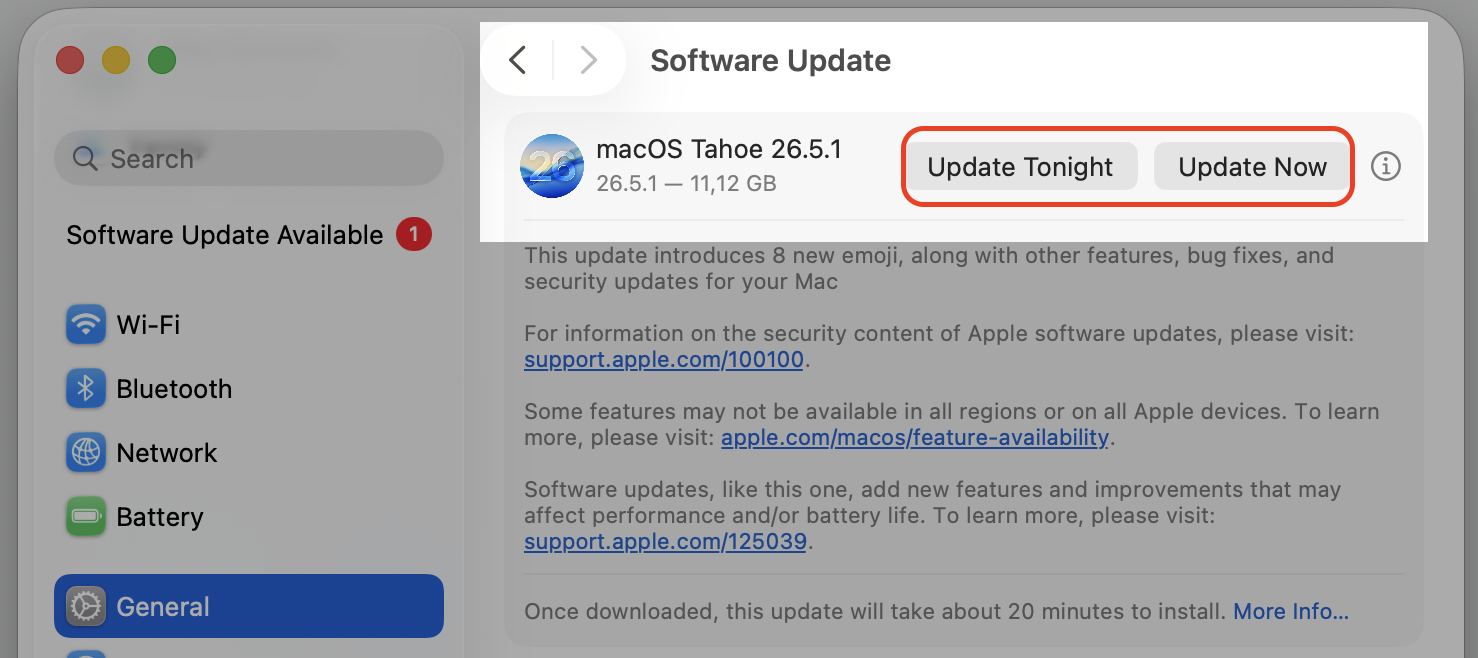
Click Update Now and follow the prompts.
Step 1. Go to the Apple menu in the top-left corner and select System SettingsStep 2. Go to General > Software UpdateStep 3. Let your Mac check for available updatesStep 4. Choose Update Now or schedule for update later
A better solution from us:
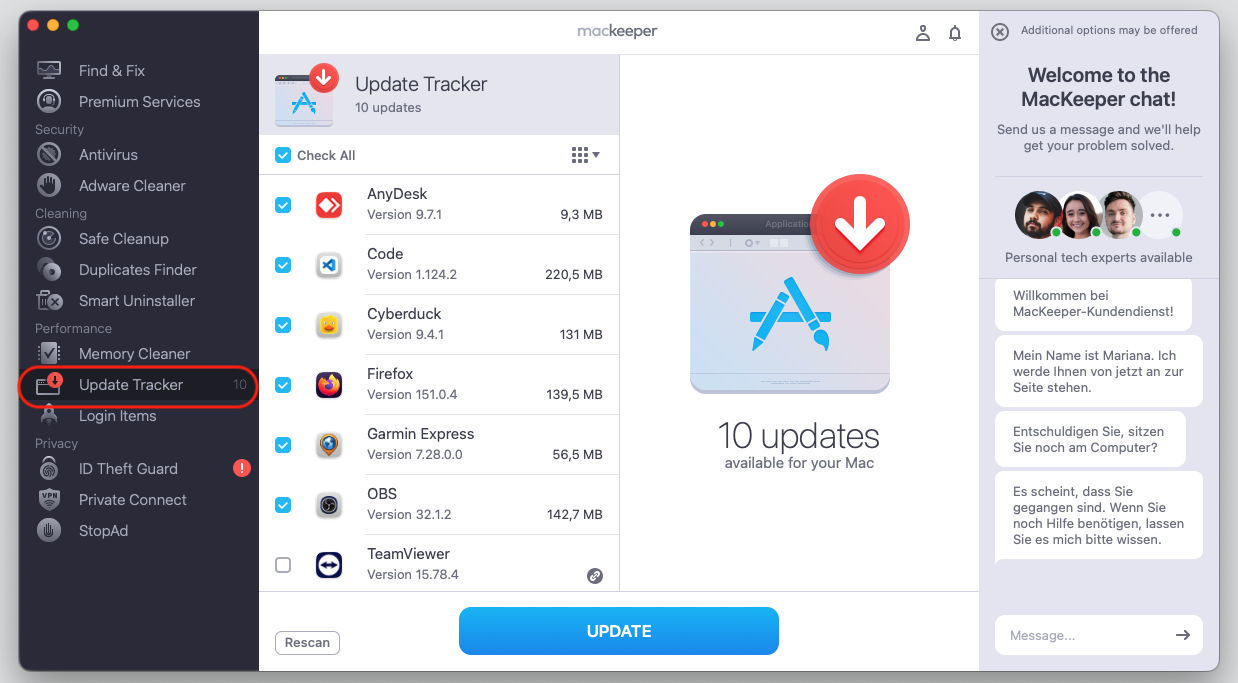
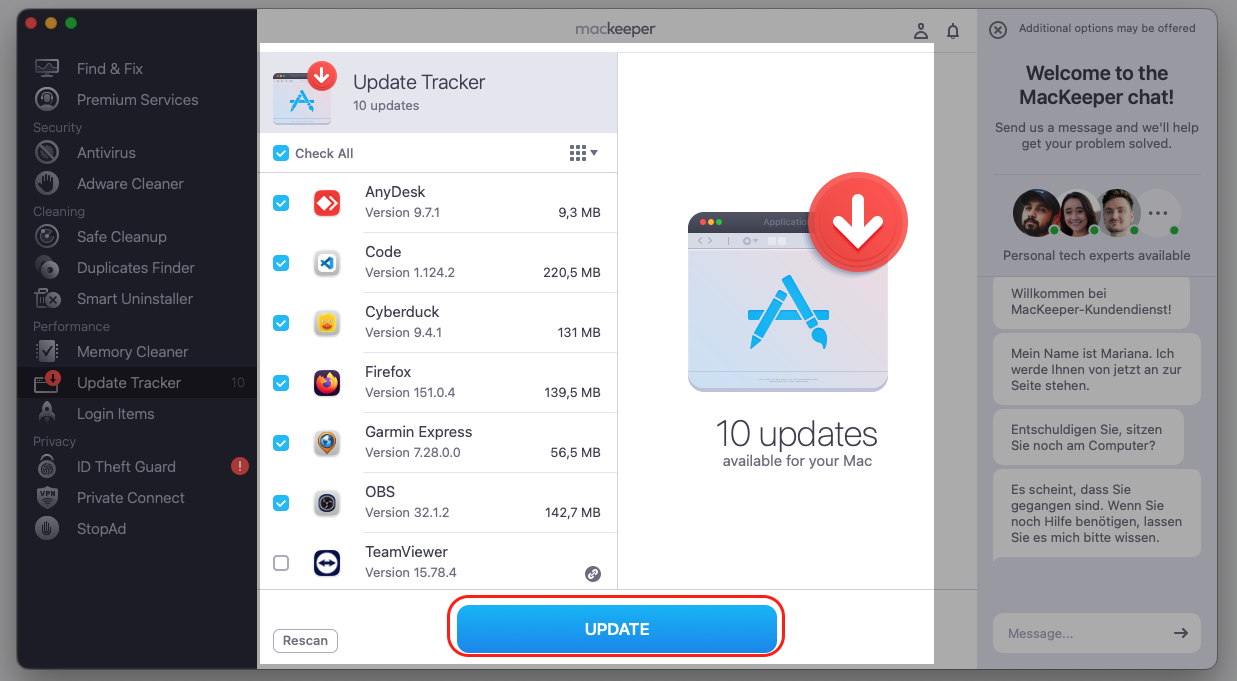
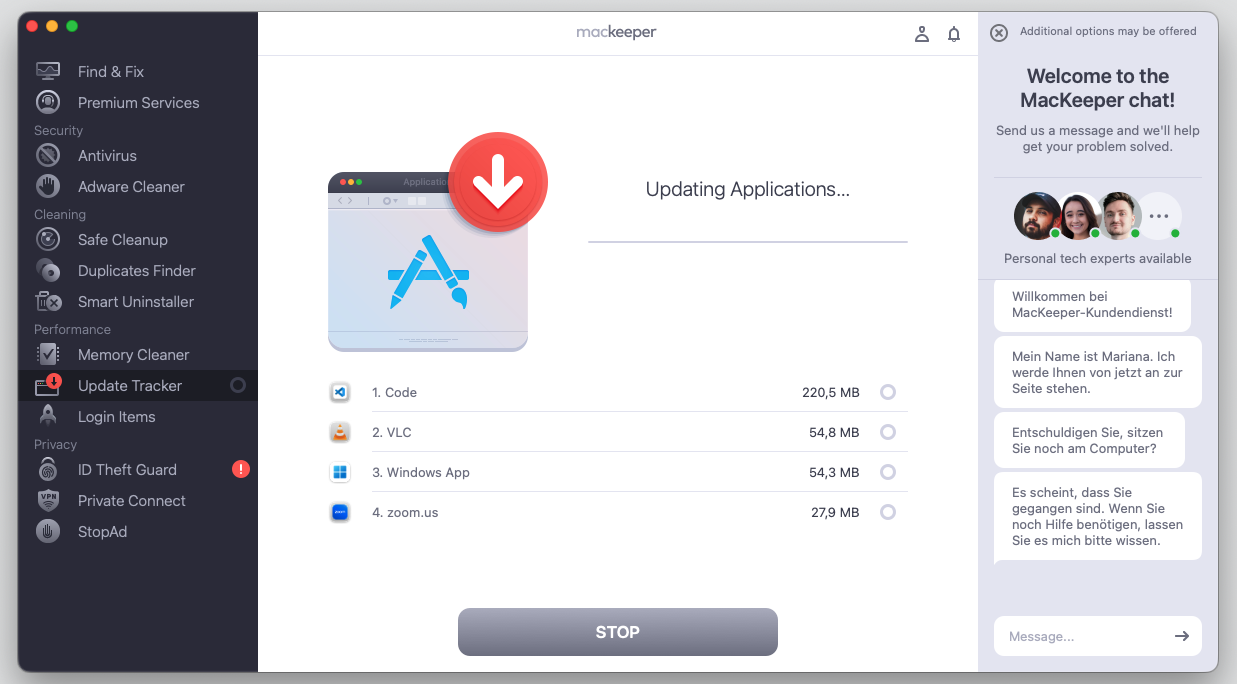
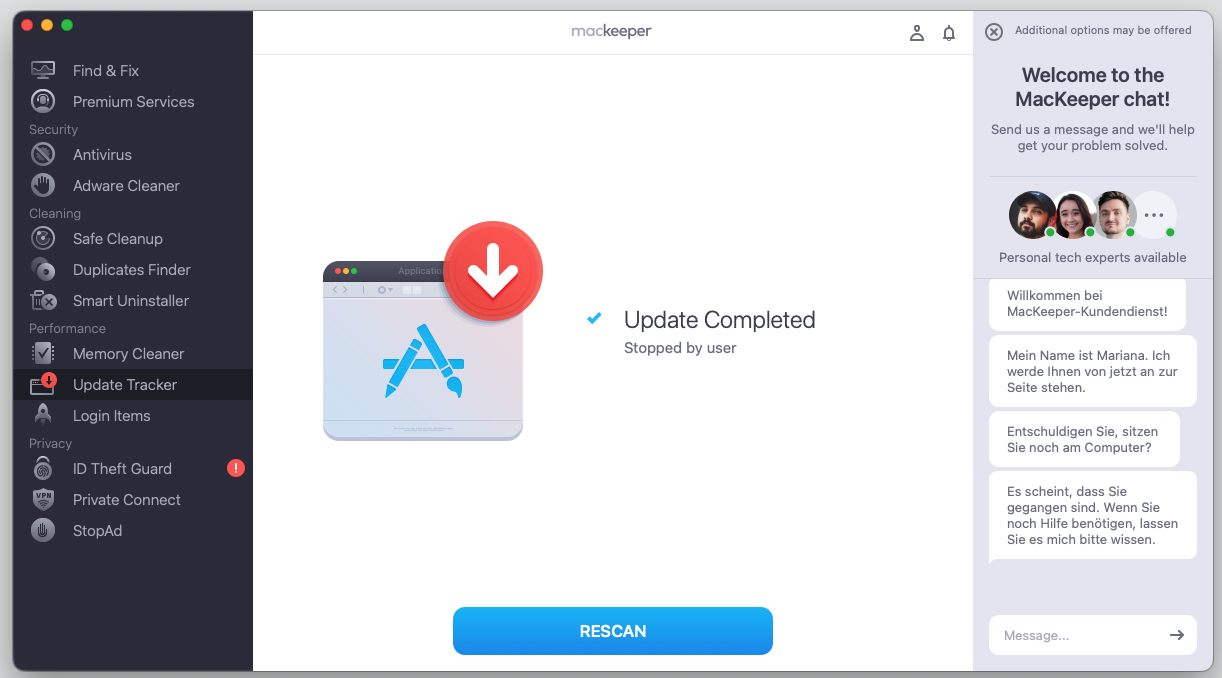
Instead of the traditional method, we recommend using MacKeeper's Update Tracker. It shows all your available app updates in one place and lets you choose which to install or skip, so staying current takes less effort. See how it goes below.
Step 1. Go to MacKeeper > Update TrackerStep 2. Select the app you want to update and press the Update buttonStep 3. Wait for the process to completeStep 4. Check the result
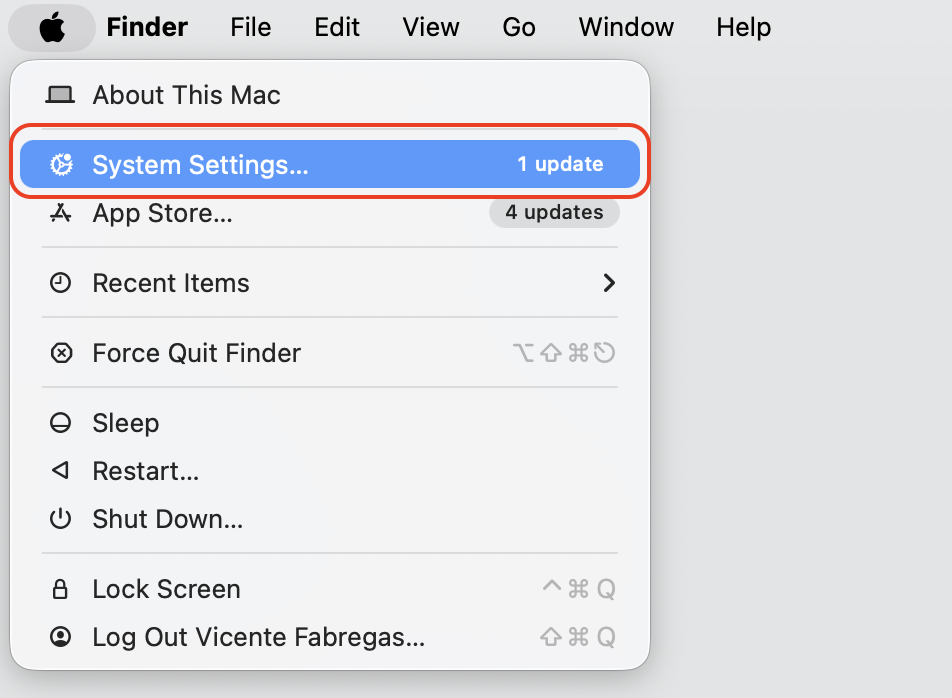
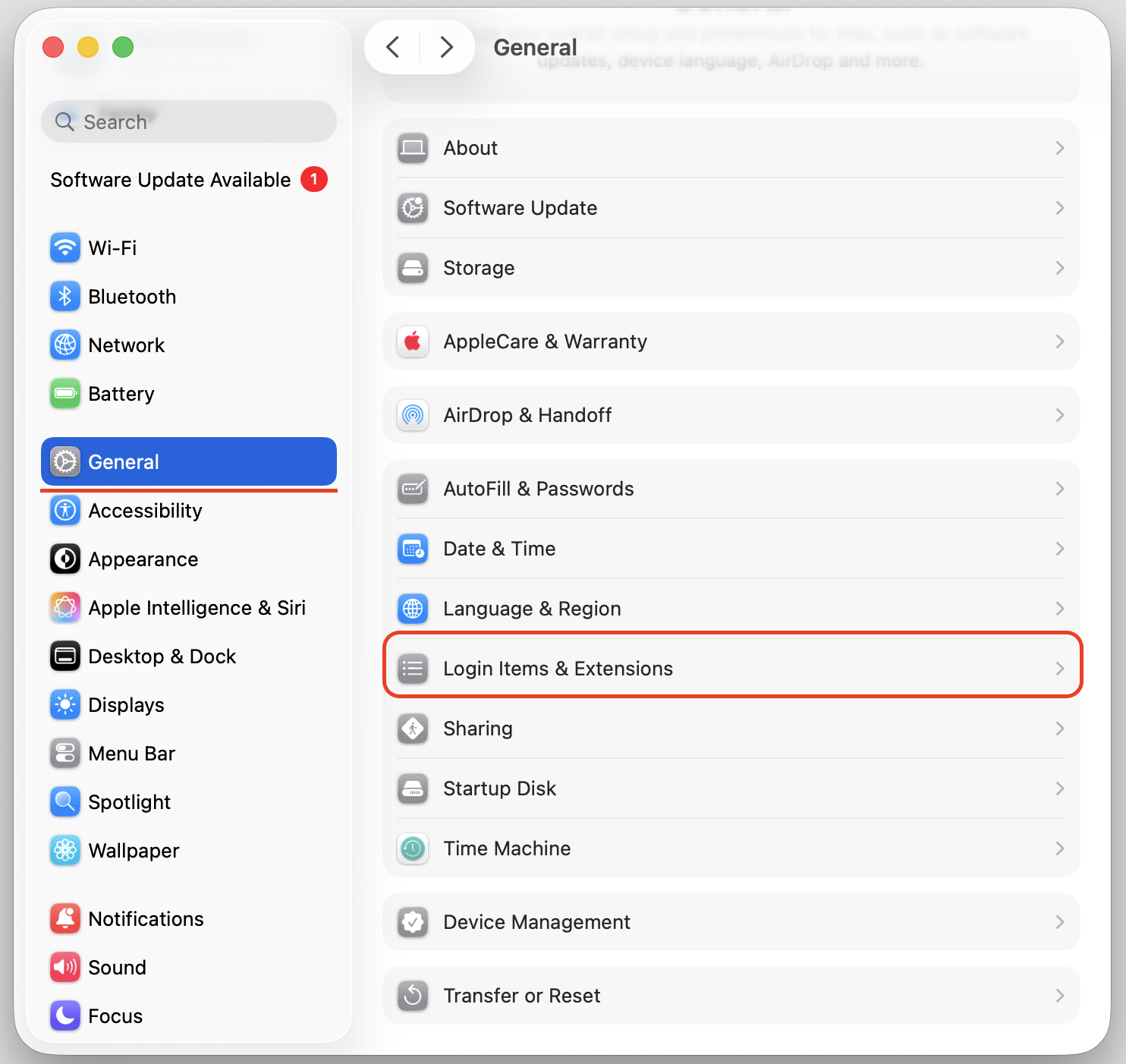
9. Remove problematic login items
Some background apps launch at startup and keep nudging Apple services, which can restart the loop. Trimming the list often quiets things down. Here’s what to do:
Open System Settings > General > Login Items and Extensions.
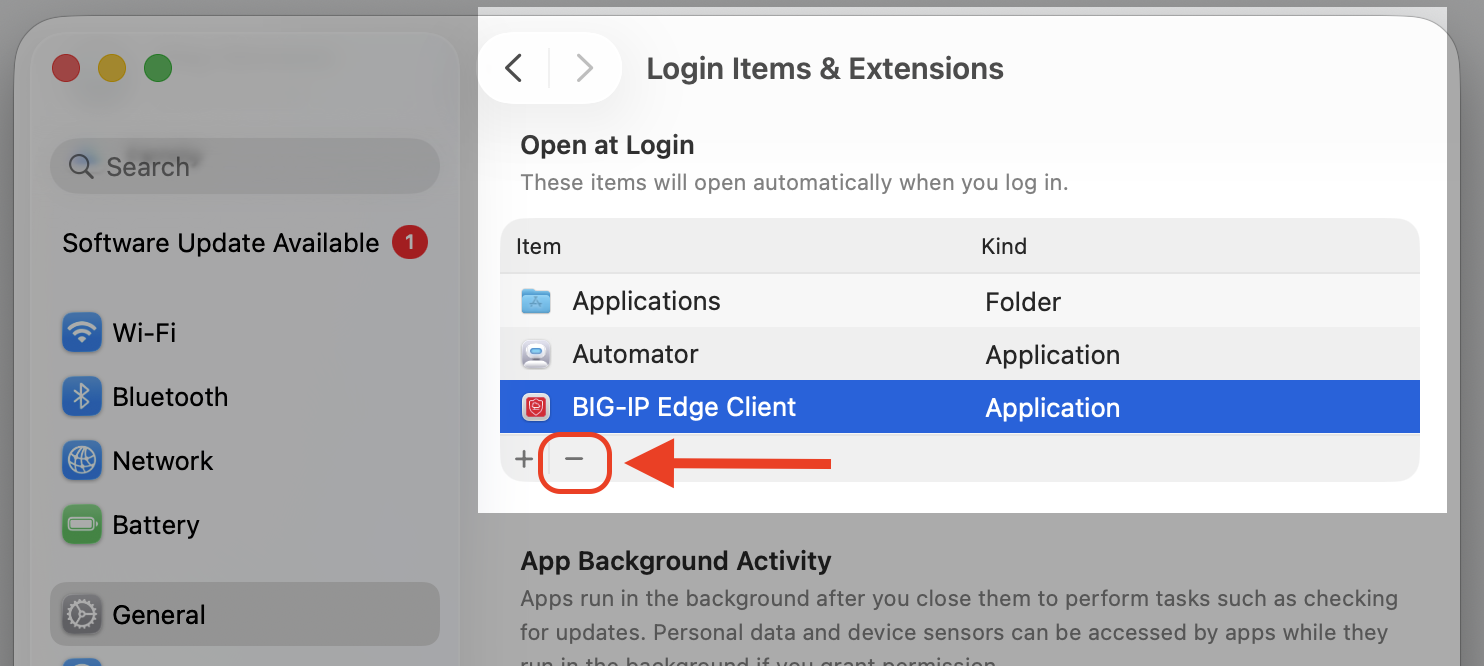
Review the apps set to open at login.
Remove anything you don't recognize or need.
Step 1. Navigate to Apple menu and select System SettingsStep 2. Go to General > Login Items and ExtensionsStep 3. Remove anything you don't recognize
An alternative to try:
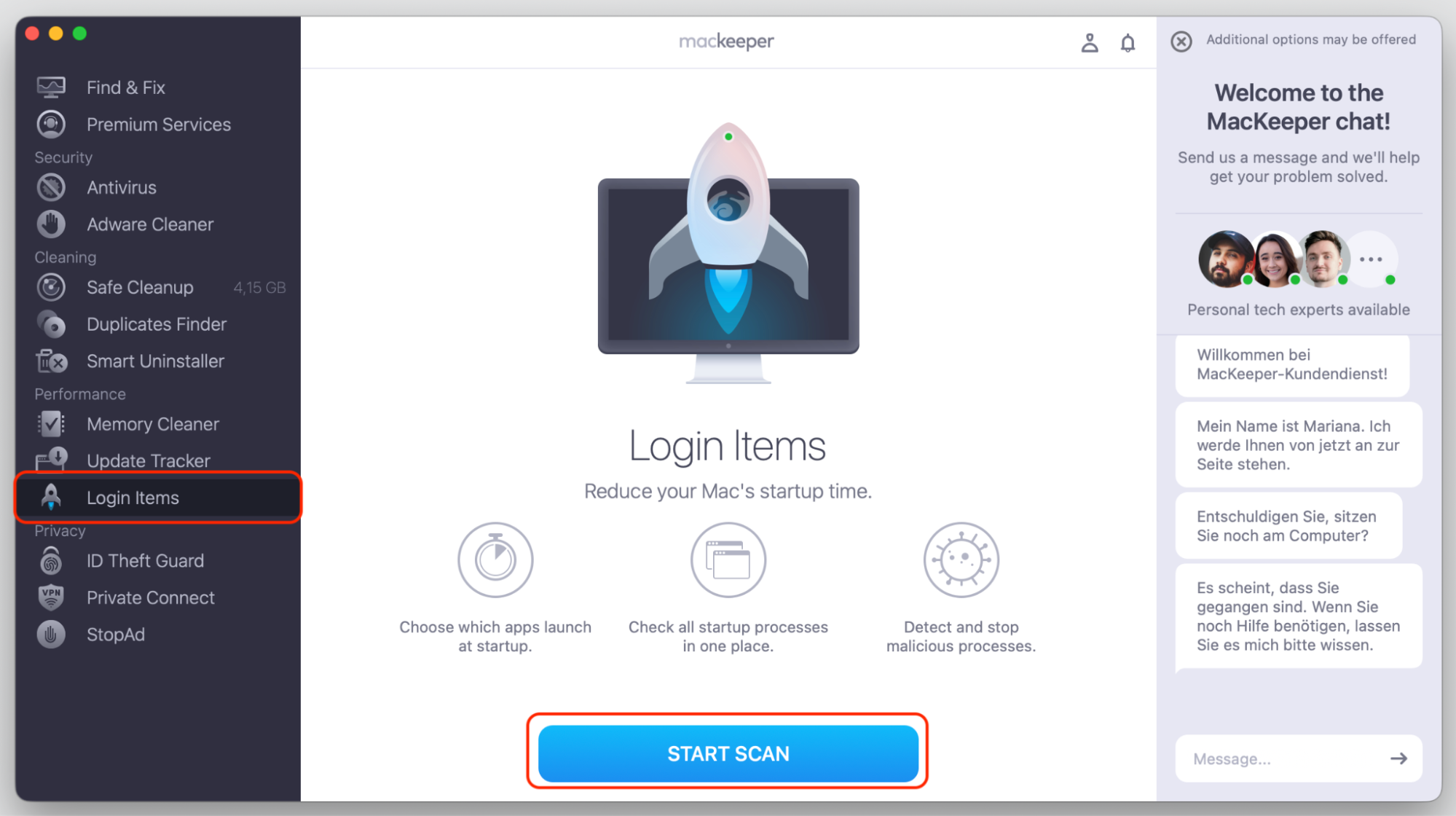
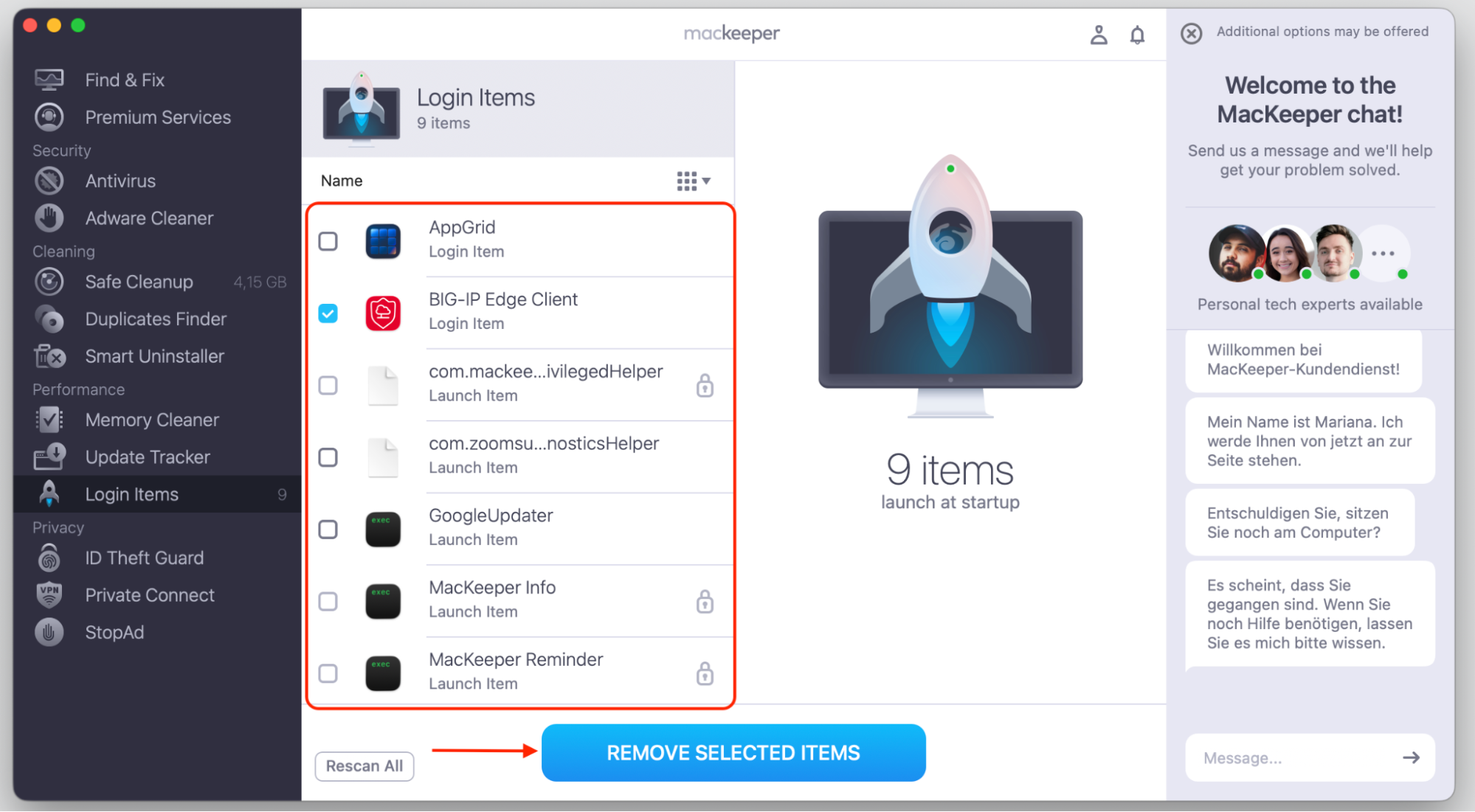
Compared to the traditional startup items management on your device, MacKeeper's Login Items can find hidden apps that launch automatically, making it simple to tidy your startup list. Just follow our hints below.
Step 1. Open MacKeeper > Login Items, then click Start ScanStep 2. Select the item you don't recognize and delete it or do it in one step with Remove Selected Items
10. Test in Safe Mode
This method helps you isolate whether a third-party app or a user-specific setting is to blame. Learning to start Mac in safe mode loads only the essentials, so you can see if the issue disappears. Here’s what to do:
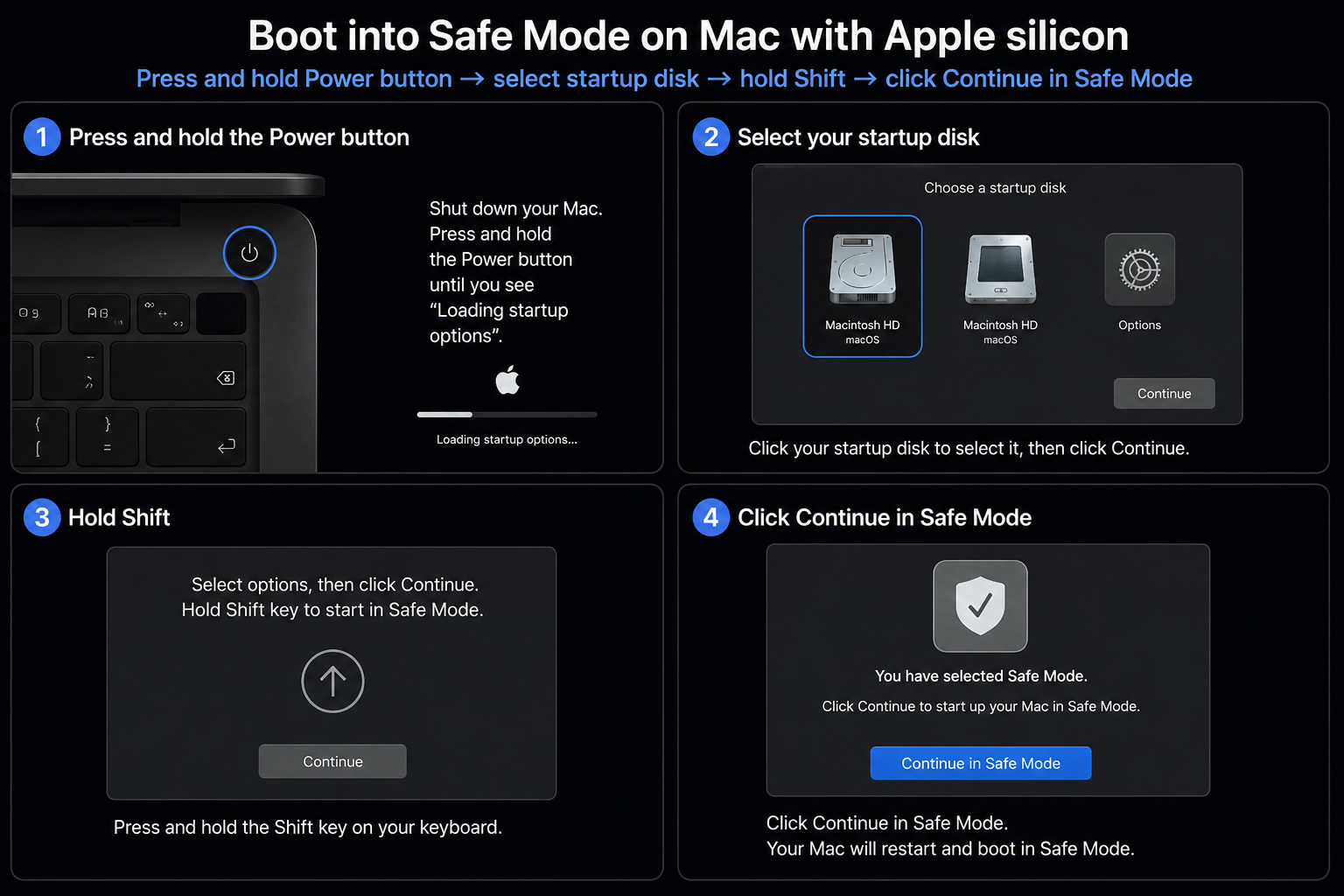
Boot into Safe Mode: press and hold Power button > select startup disk > hold Shift > click Continue in Safe Mode.
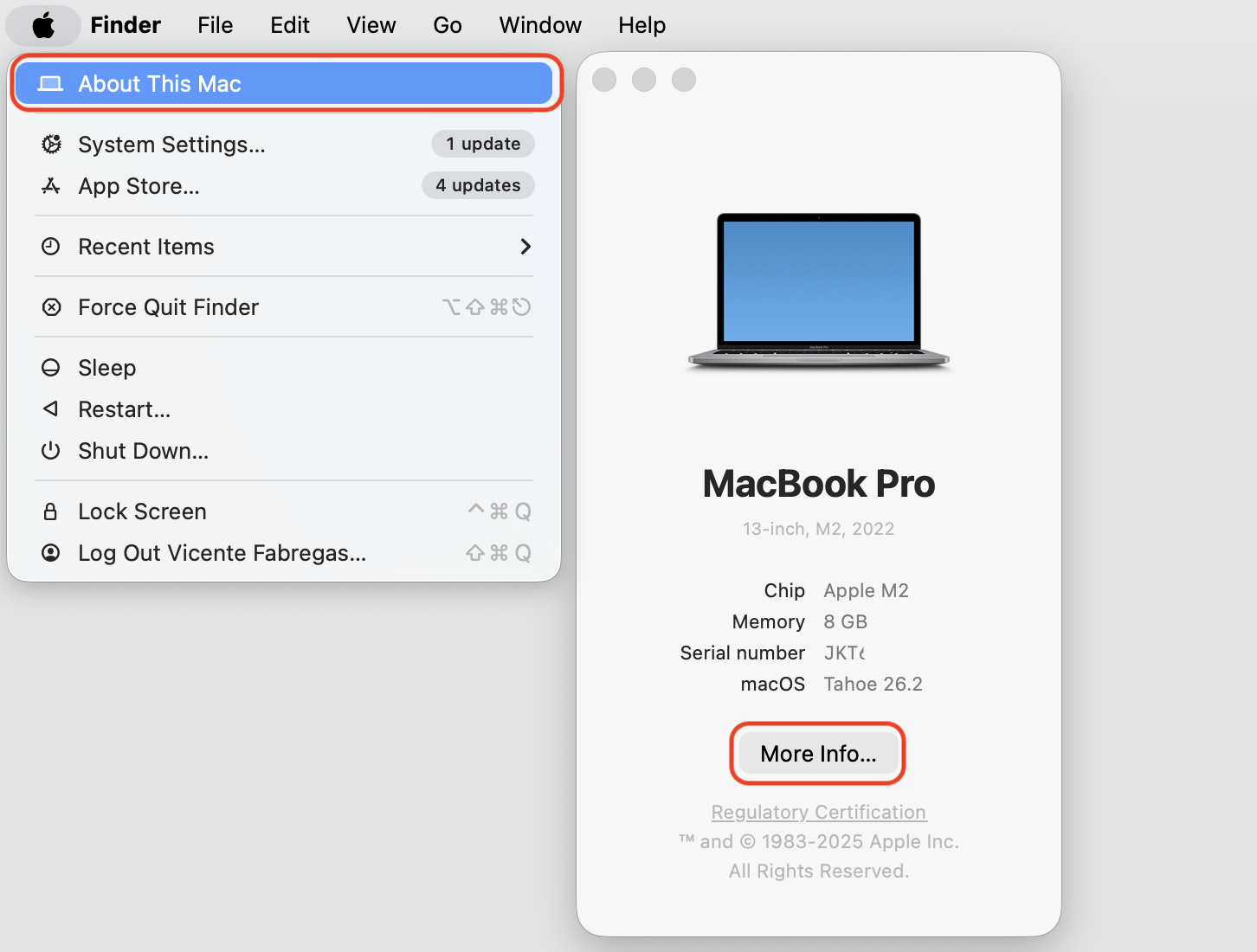
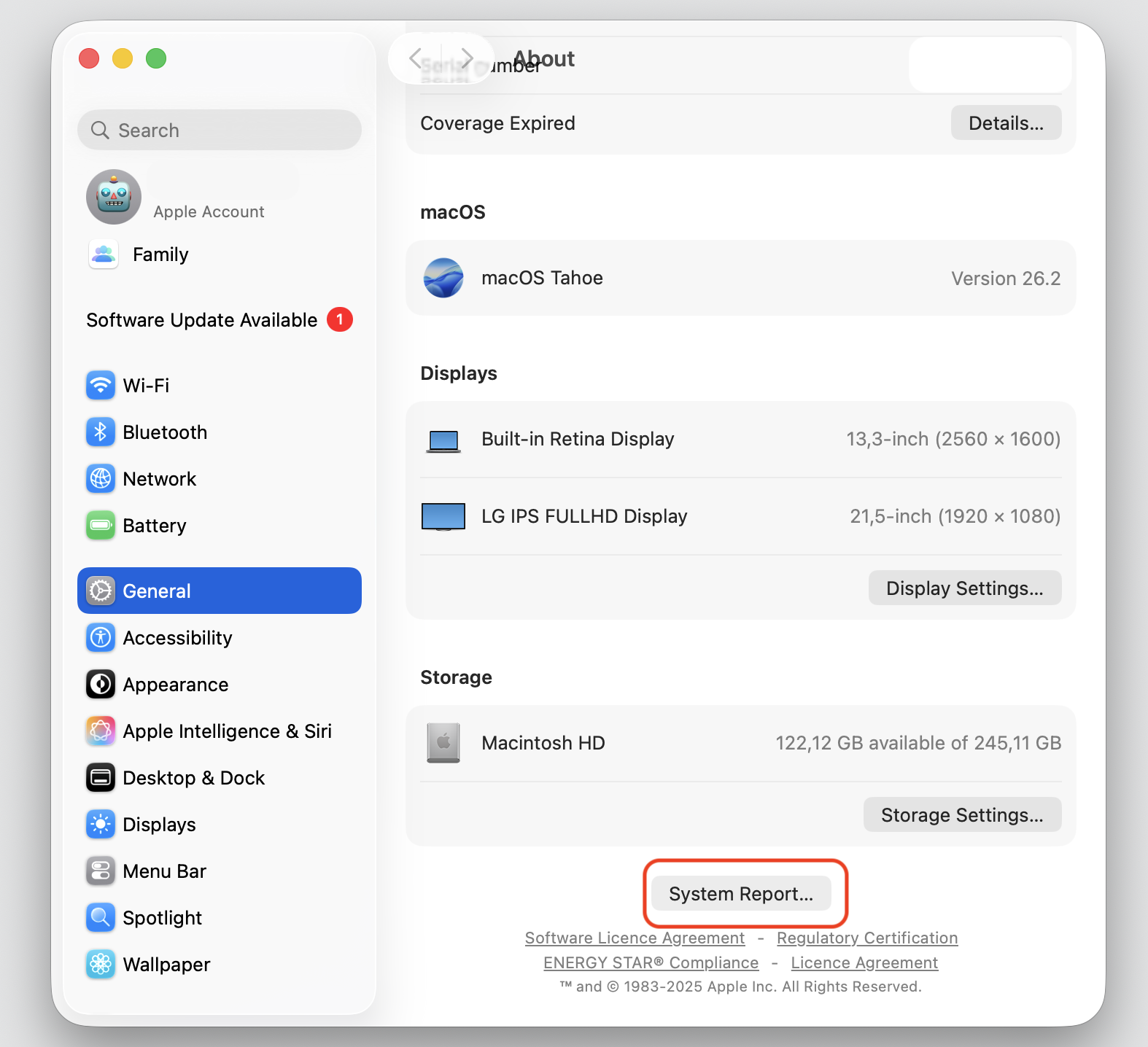
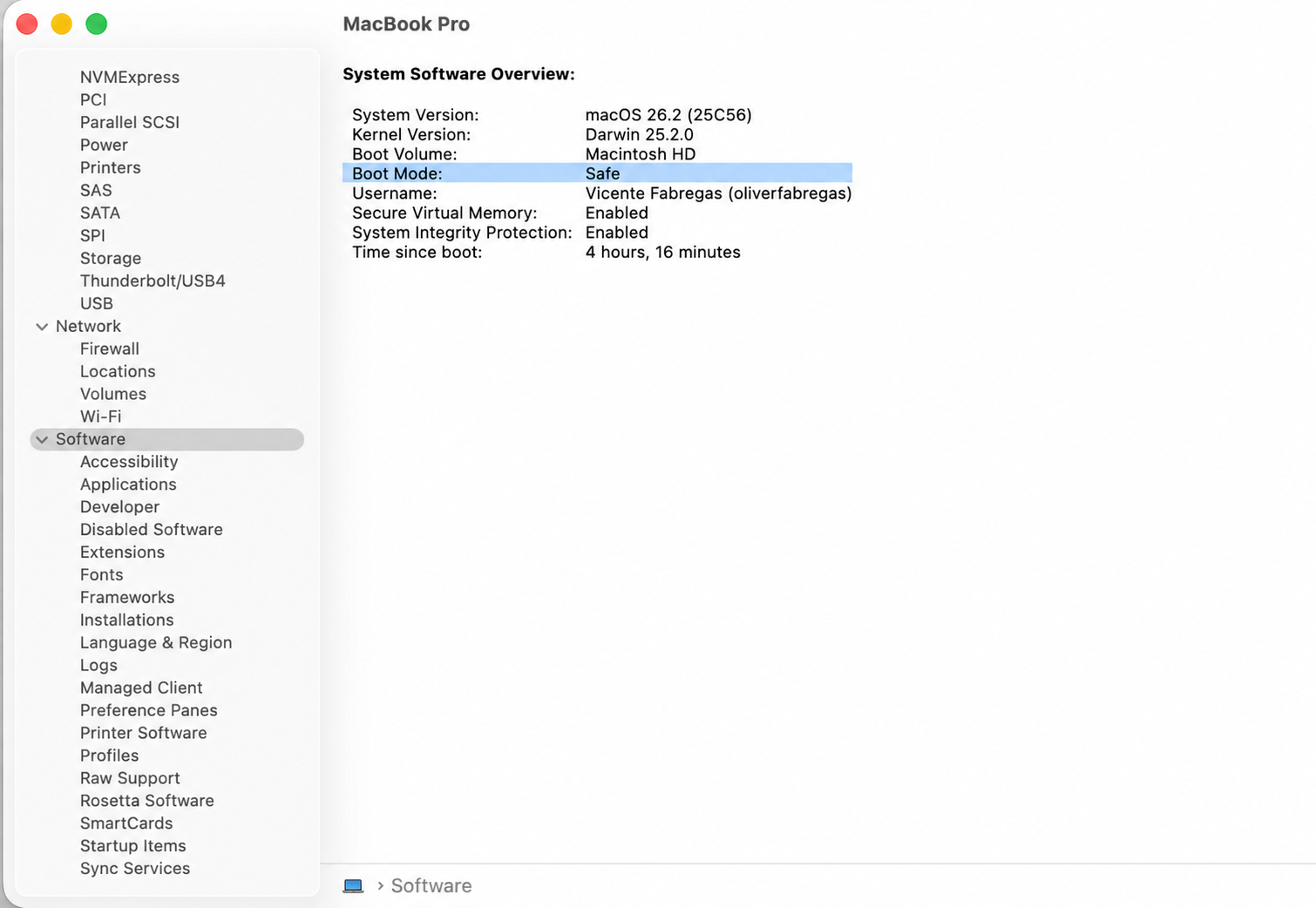
Check Boot Mode to make sure your Mac is in Safe Mode. For this, go to Apple menu > About this Mac > General > System Report > Software > Boot Mode.
Watch CPU usage in Activity Monitor. If usage is normal, a startup app or extension is likely the cause.
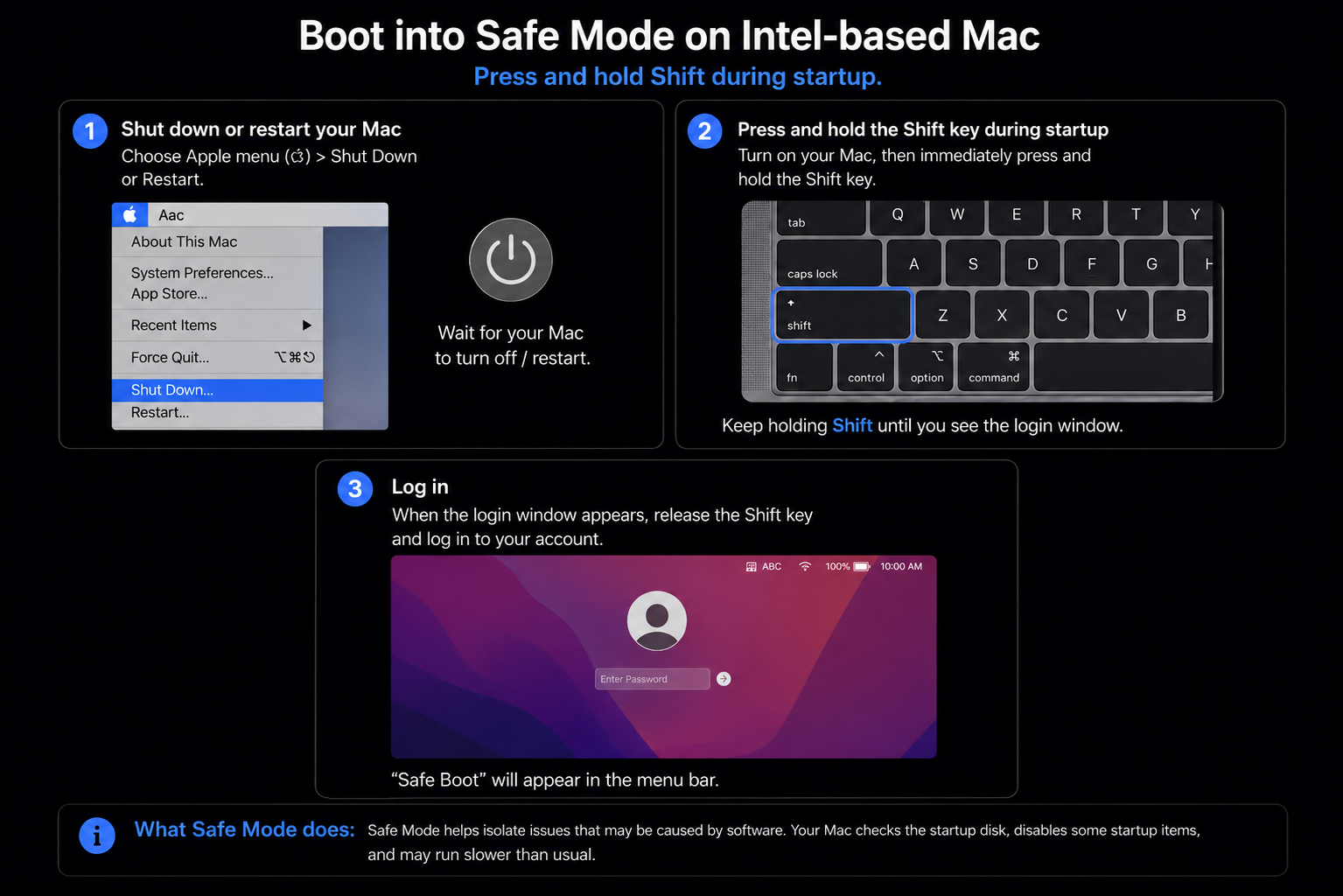
Step 1. Boot in Safe Mode on an Apple Silicon deviceor Press and hold Shift during startup for an Intel MacStep 2. Go to the Apple menu > About this Mac > More InfoStep 3. Go to the General tab and select System ReportStep 4. Go to the Software tab from the left sidebar and check your Boot ModeStep 5. Open Activity Monitor and check the CPU usage of identityservicesd
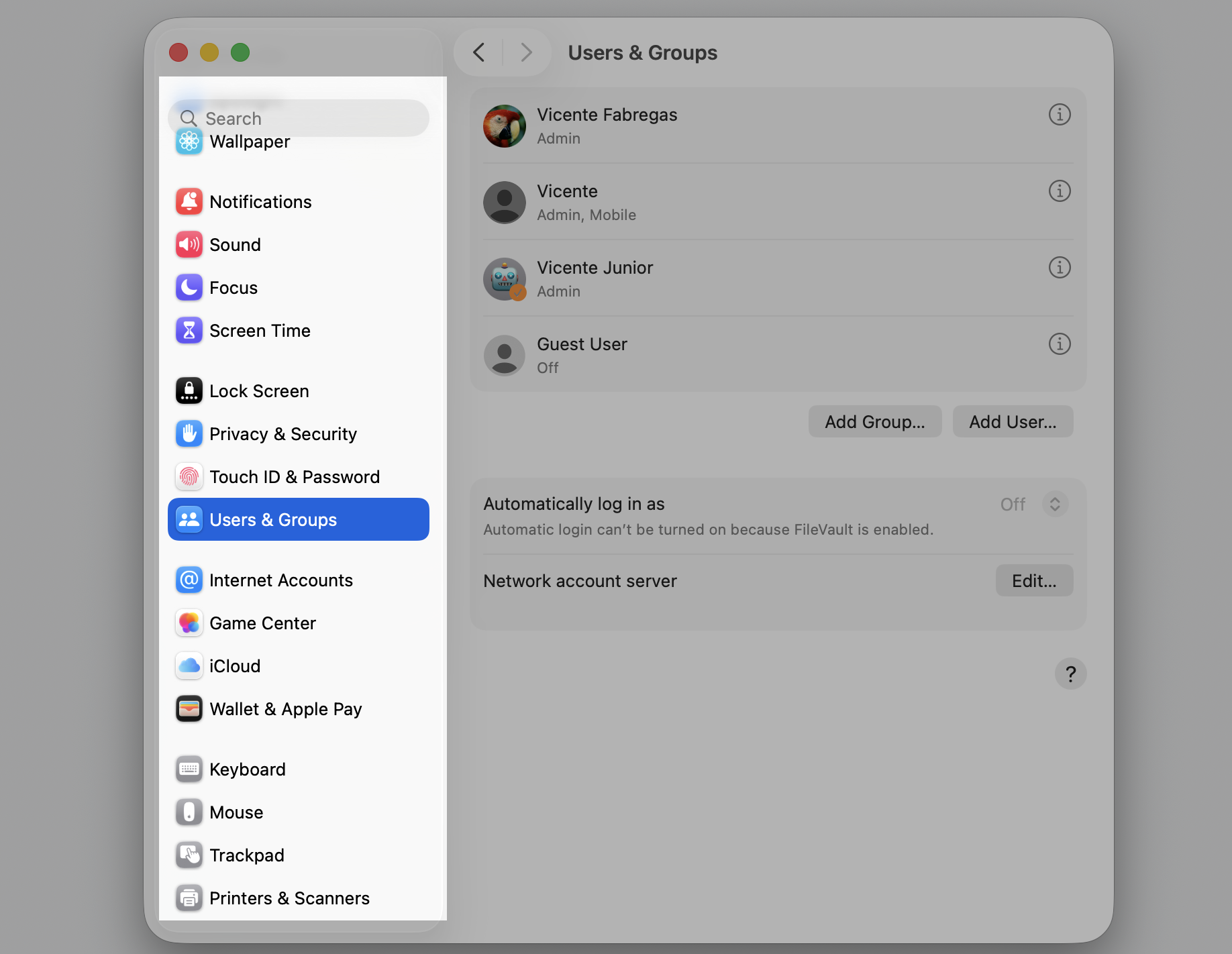
11. Create the other user test account
Creating a new user account helps you determine whether the issue is related to your main profile, settings, login items, or user-specific apps. So, it’s the final measure that you can try to solve the identityservicesd high CPU on Mac. Here’s what to do:
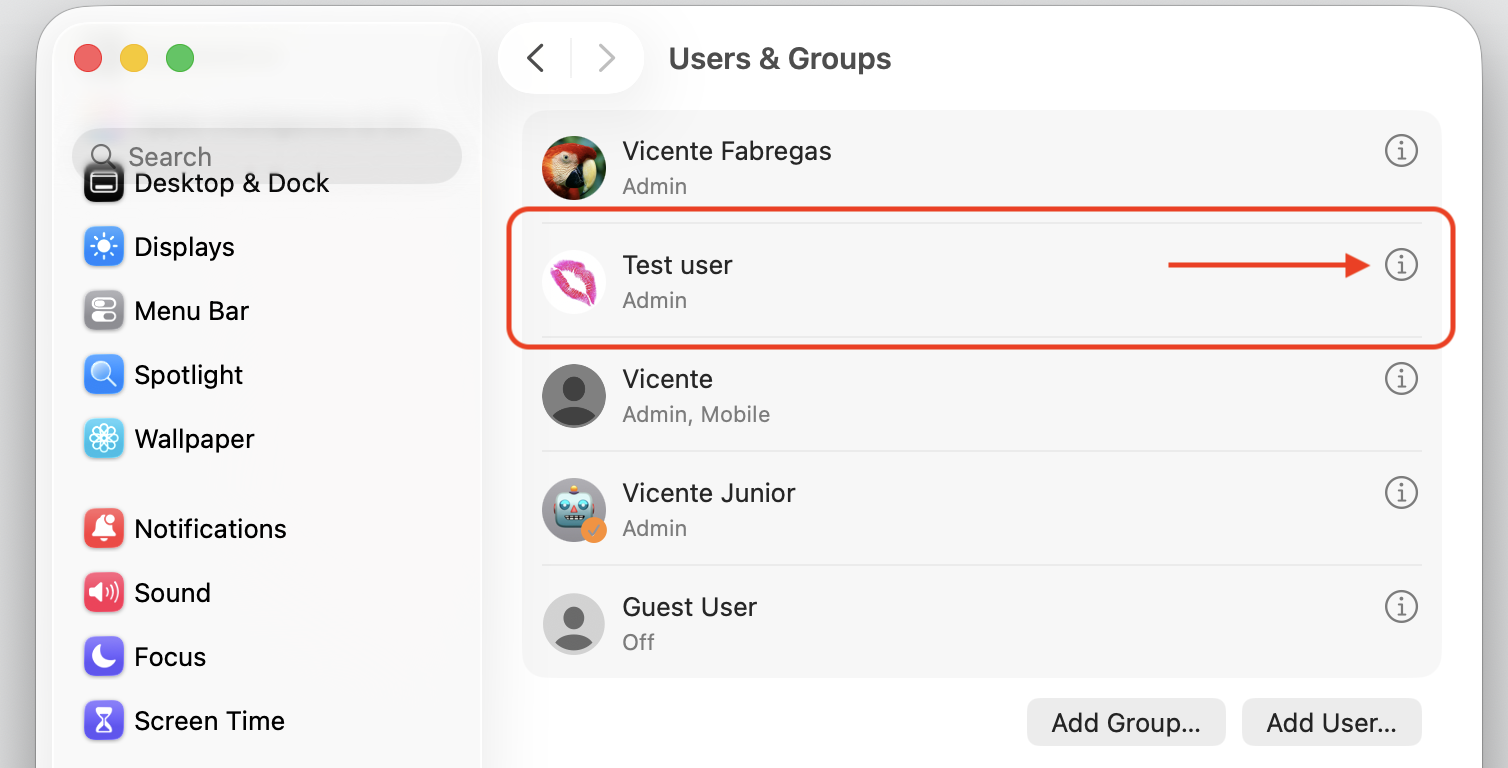
Go to Apple menu > System Settings > Users & Groups.
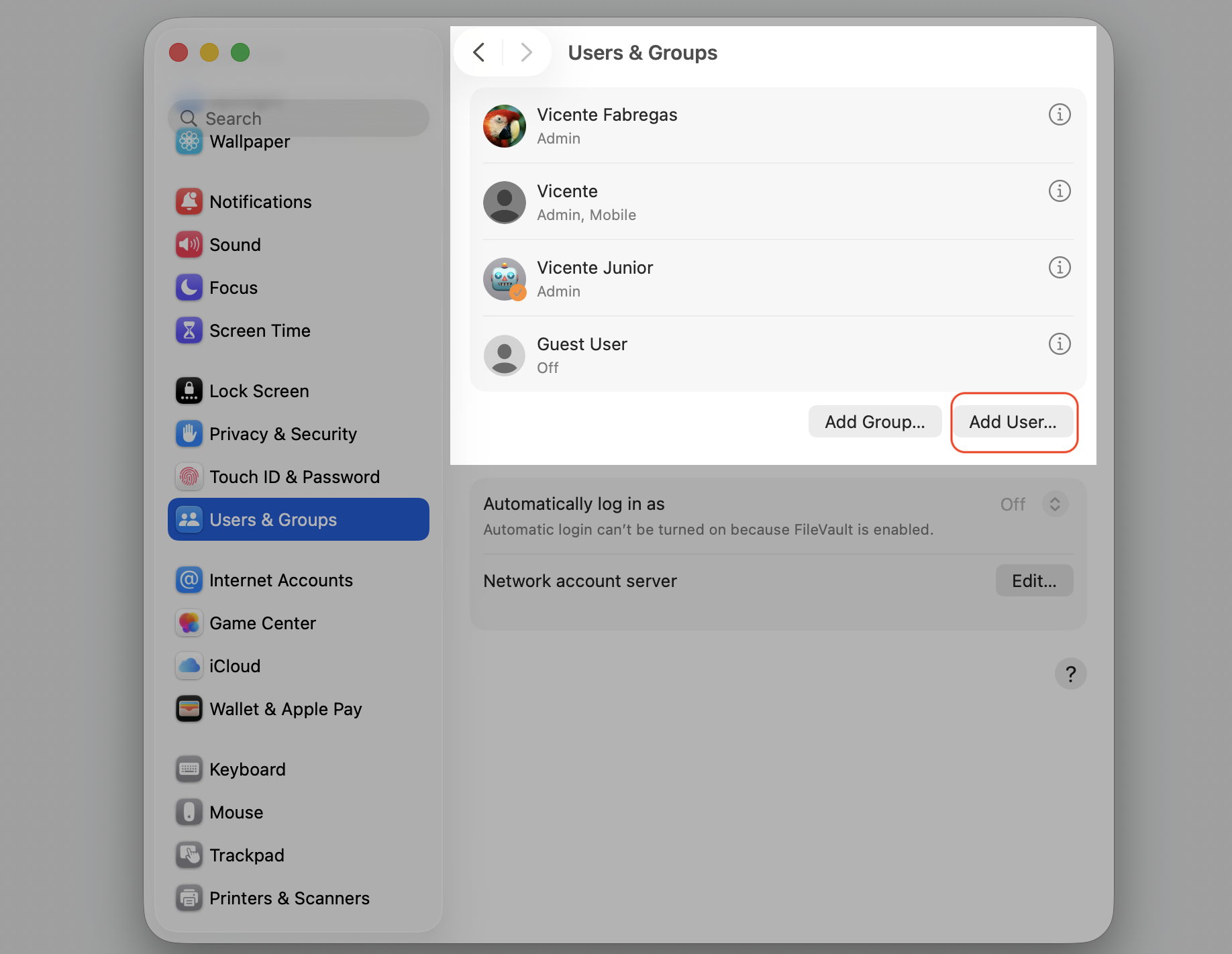
Click Add User and create a new test account.
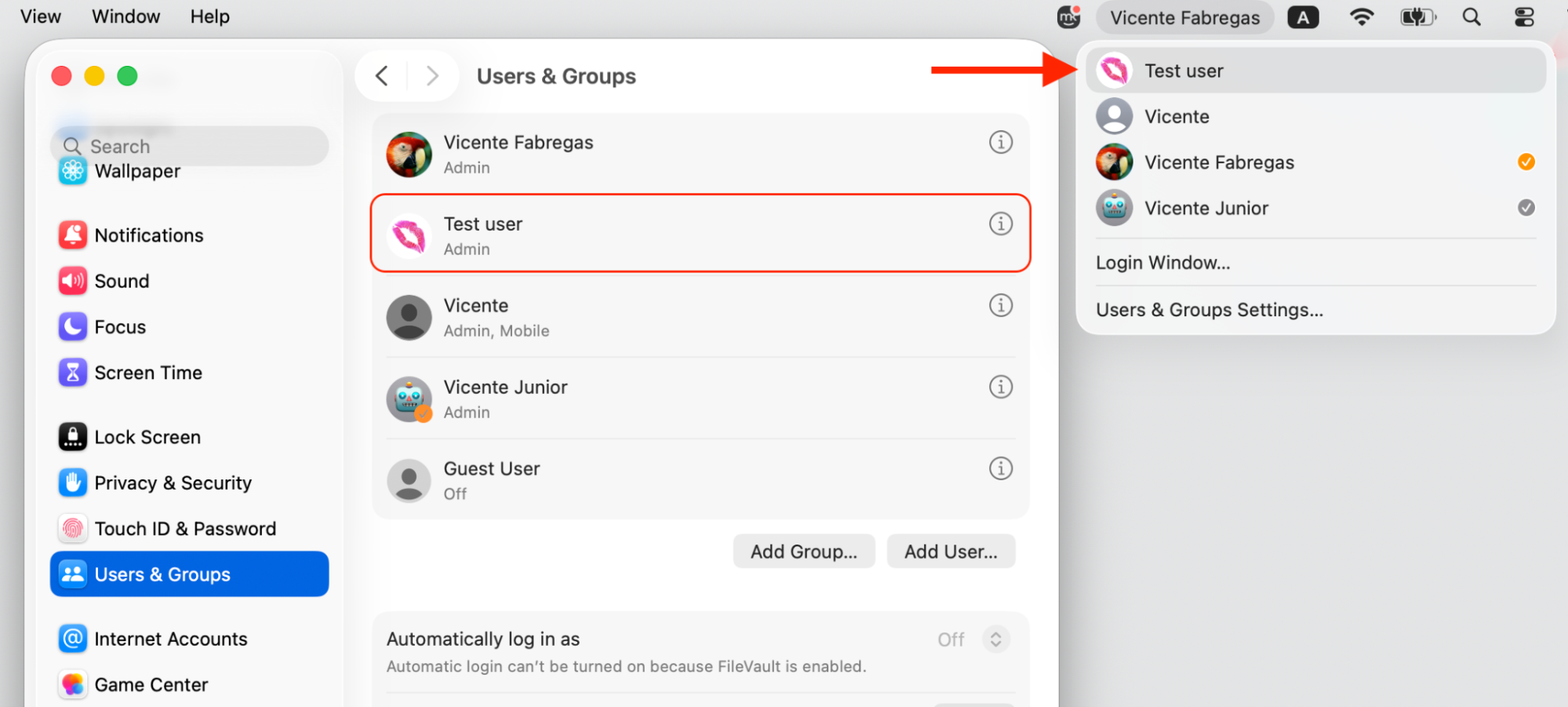
Log out of your current account, then log in to the new one.
Watch CPU usage in Activity Monitor. If usage is normal, a startup app or extension is likely the cause.
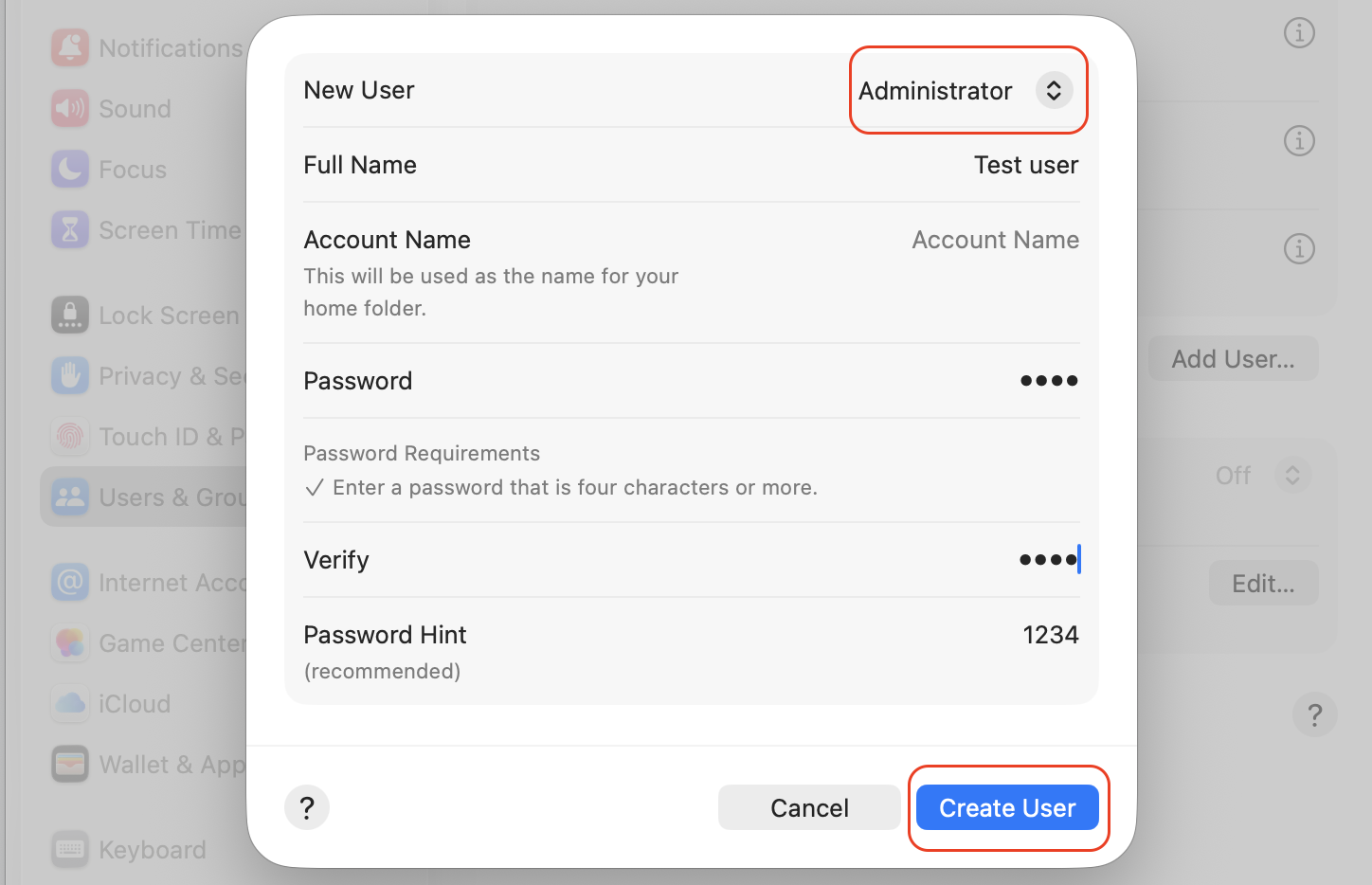
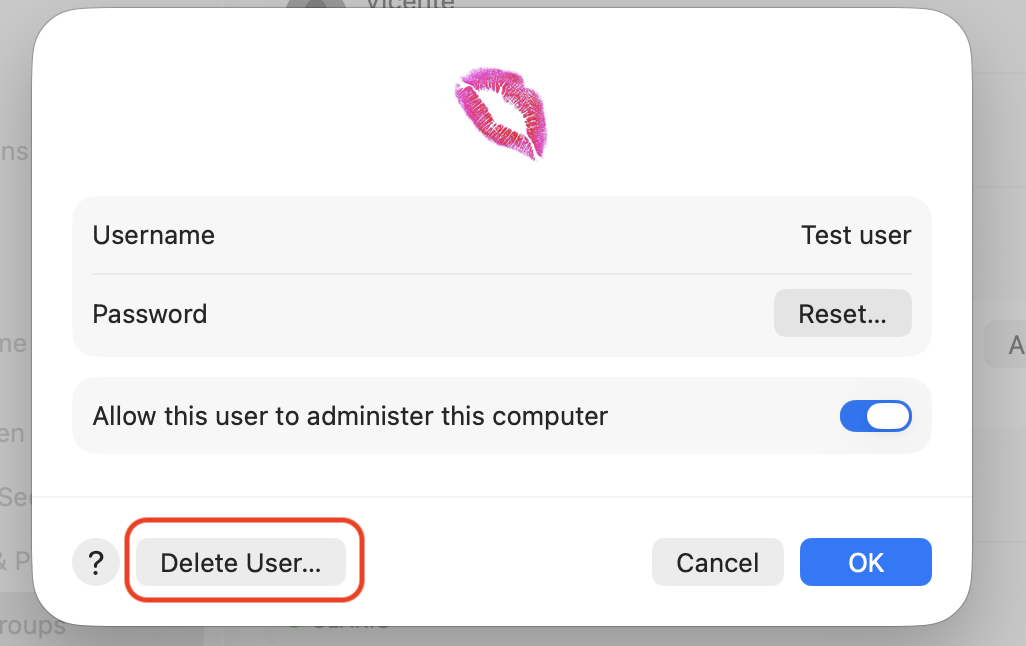
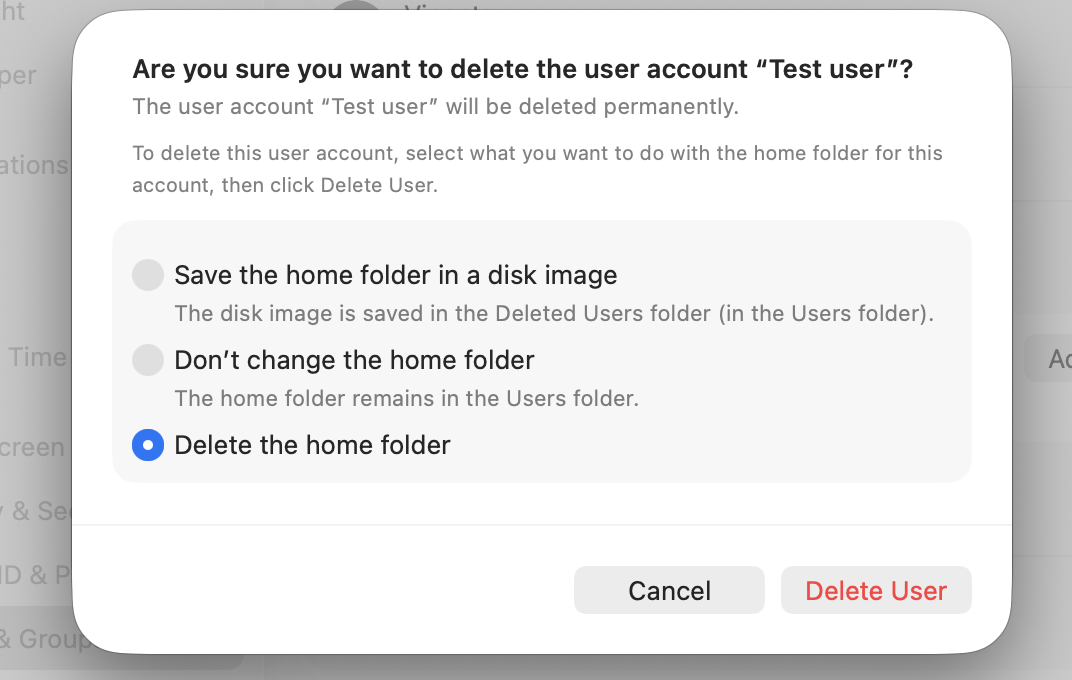
Step 1. Go to the Apple menu in the top-left corner and select System SettingsStep 2. Select User and Groups from the left sidebarStep 3. Go to Users window and choose the Add User buttonStep 4. Select New User as administrator, add a simple password, and click Create UserStep 5. Find Test User > click Test UserStep 6. Log in to your new test userStep 7. Log in to your Apple Account as a new user Step 8. Open Activity Monitor and check the CPU usage of identityservicesd in a new test userStep 9. Delete temporary test user if it’s not needed anymoreStep 10. Choose Delete User buttonStep 11. Select the Delete the home folder > Delete User (Test User)
What can break if identityservicesd is disabled?
It's tempting to switch identityservicesd off entirely, but it's better to leave it running. Disabling it can knock out the everyday features that depend on it:
Apple ID sync errors across your devices
iMessage and FaceTime failing to send or receive
Login glitches when you try to reach Apple services
Interrupted background syncing for iCloud and your keychain
The fixes we’ve mentioned above address the cause without taking away the features you rely on.
How to keep identityservicesd running smoothly?
A little upkeep goes a long way toward keeping this process calm. From our experience, these habits help your Apple services stay steady:
Keep macOS and your apps updated so known bugs get patched.
Use one consistent Apple ID and matching settings across devices.
Maintain a stable network and avoid switching connections too often.
Review your login items now and then to manage background services.
Restart your Mac regularly to clear short-lived glitches before they grow.
Conclusion
In most cases, identityservicesd high CPU on Mac comes from an Apple ID or syncing loop, not the process itself—and clearing that loop restores normal speed. For day-to-day memory, MacKeeper's Memory Cleaner quietly frees up RAM by quitting useless processes, which keeps your remaining apps responsive. Try it yourself!
We respect your privacy and
use cookies
for the best site experience.
Privacy Preferences Center
We use cookies along with other tools to give you the best possible experience while using the
MacKeeper website. Cookies are small text files that help the website load faster. The cookies we
use don’t contain any type of personal data meaning they never store information such as your
location, email address, or IP address.
Help us improve how you interact with our website by accepting the use of cookies. You can change
your privacy settings whenever you like.
Manage consent
All cookies
These cookies are strictly necessary for enabling basic website functionality (including page
navigation, form submission, language detection, post commenting), downloading and purchasing
software. The website might malfunction without these cookies.