When diskimagesiod uses excessive CPU resources, your Mac’s performance can be negatively impacted. Closing the process or restarting your device may resolve these issues. However, for ongoing macOS optimization, consider using MacKeeper’s Memory Cleaner.
The Mac diskimagesiod process is part of the DiskImages2 framework and manages disk images. Occasionally, it can consume excessive CPU resources. To address this, try deleting any corrupt disk images that may be causing errors or use Activity Monitor to quit the process. Alternatively, you can restart your Mac or, as a last resort, reinstall macOS.
You might be interested in knowing how to check CPU usage on Mac. Read on for expert tips on dealing with high diskimagesiod activity.
What is diskimagesiod on Mac?
diskimagesiod is a background macOS system process introduced in the DiskImages2 private framework in 2020. To tell in a nutshell, its main role is to manage the input and output operations of mounted and attached disk images, ensuring they function smoothly and efficiently.
Because diskimagesiod operates silently in the background, it’s not always immediately clear when it’s active. For guidance on how to see what’s running on Mac, refer to our expert guide.
What can cause the diskimagesiod CPU problems on your Mac?
We understand it can be frustrating when the diskimagesiod process consumes excessive CPU on your Mac. While identifying the root cause can be challenging, we list below several possible reasons for this issue:
In most cases, this happens when you’re backing up with Time Machine, especially on older Macs.
Corrupted disk images may cause the process to work harder than usual.
A system glitch or software bug could cause the process to enter an infinite loop, leading to excessive CPU usage.
Some third-party apps might interfere with diskimagesiod and prevent it from functioning properly.
How to fix diskimagesiod high CPU usage on Mac?
There are several effective steps you can take when diskimagesiod is causing your Mac to use excessive CPU. We recommend restarting your Mac or quitting the process in Activity Monitor. If the issue persists, boot your Mac into Safe Mode to troubleshoot software issues and, as a final step, back up your Mac and reinstall macOS.
If you think high CPU usage from diskimagesiod is causing your Mac to overheat, learn how to check MacBook temperature and keep it cool.
A note from our experts:
Quitting the diskimagesiod process can help resolve issues with excessive CPU usage. For a more comprehensive and long-term solution, consider using MacKeeper’s Memory Cleaner. Trusted by millions, this tool from Clario Tech helps free up RAM, accelerate start-up times, and optimize your Mac’s overall performance.
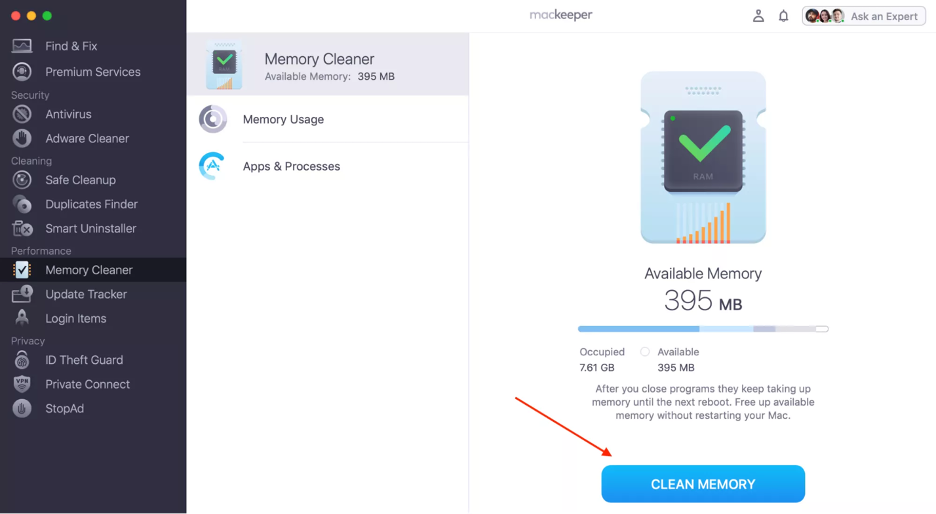
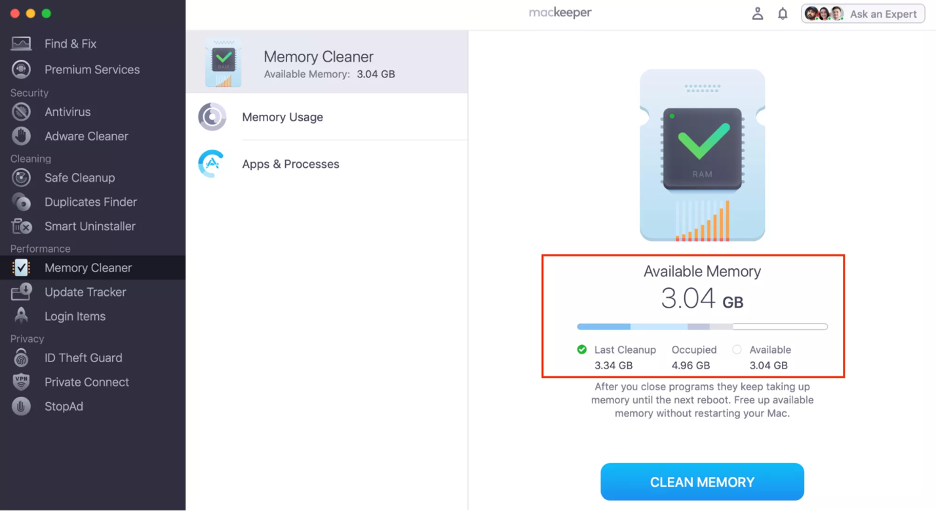
Here’s how to use MacKeeper’s Memory Cleaner on your Mac:
Step 1. Launch MacKeeper’s Memory CleanerStep 2. Click Clean MemoryStep 3. Check the memory you’ve released
1. Restart your Mac
Based on our experience, an out-of-control diskimagesiod process can lead to Mac malfunctions, overheating, or excessive noise. To resolve these issues, our experts recommend restarting your Mac, which is a straightforward fix that often restores performance. Regular restarts are also a proactive way to prevent several operating system bugs and keep your device running smoothly.
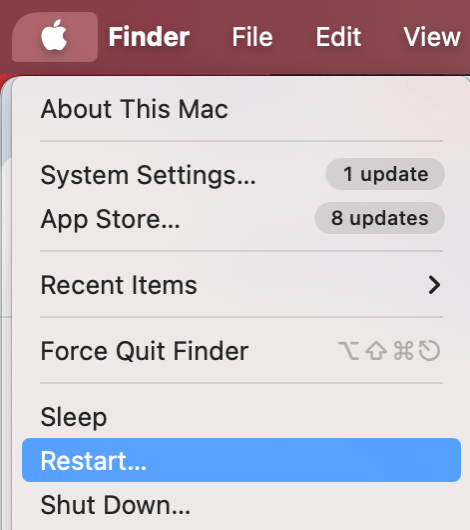
Here’s how to restart your Mac:
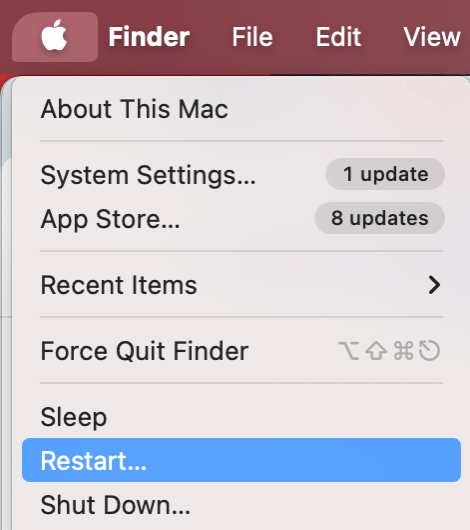
Click the Apple logo in the menu bar.
Select Restart from the dropdown menu.
In the new window, choose Restart again to confirm.
Step 1. Apple logo > RestartStep 2. Click Restart again to confirm
2. Kill diskimagesiod in Activity Monitor
Wondering how to kill a process in Mac? Below, we explain how to quit the diskimagesiod process in Activity Monitor. This is a built-in utility on every macOS device that allows you to view all active tasks and monitor their resource consumption. If you notice that diskimagesiod is consuming excessive CPU, it’s important to quit the process in Activity Monitor to reset it and resolve any related glitches.
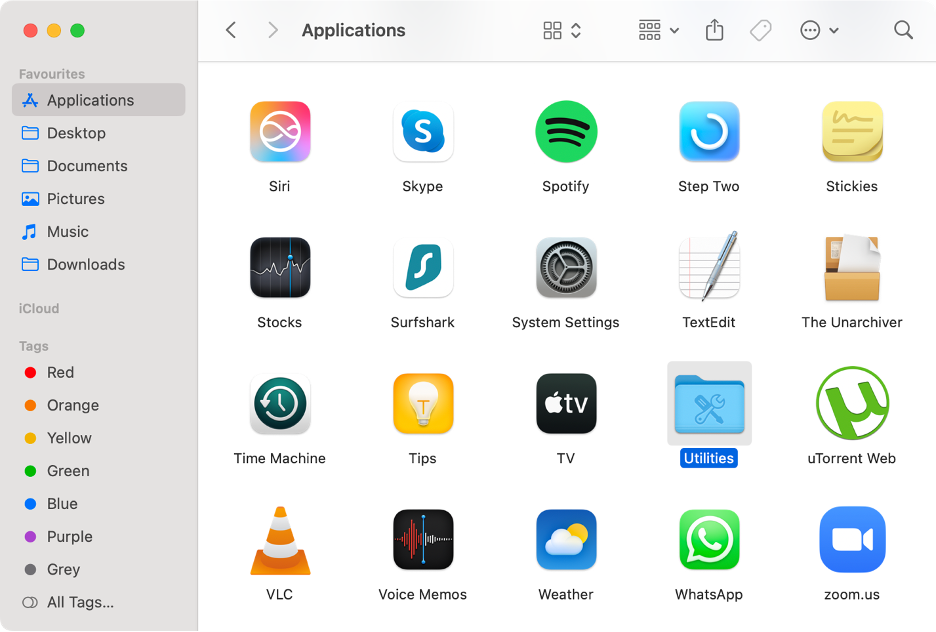
Follow the steps below to quit the diskimagesiod process via Activity Monitor:
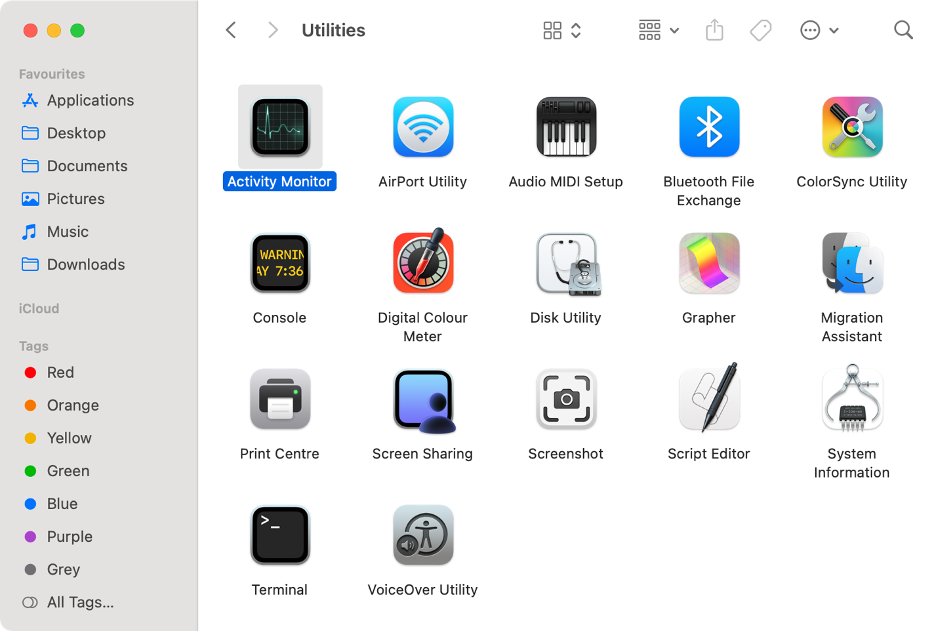
Launch Finder, then select Applications in the sidebar.
Access the Utilities folder.
Double-click on Activity Monitor to launch it.
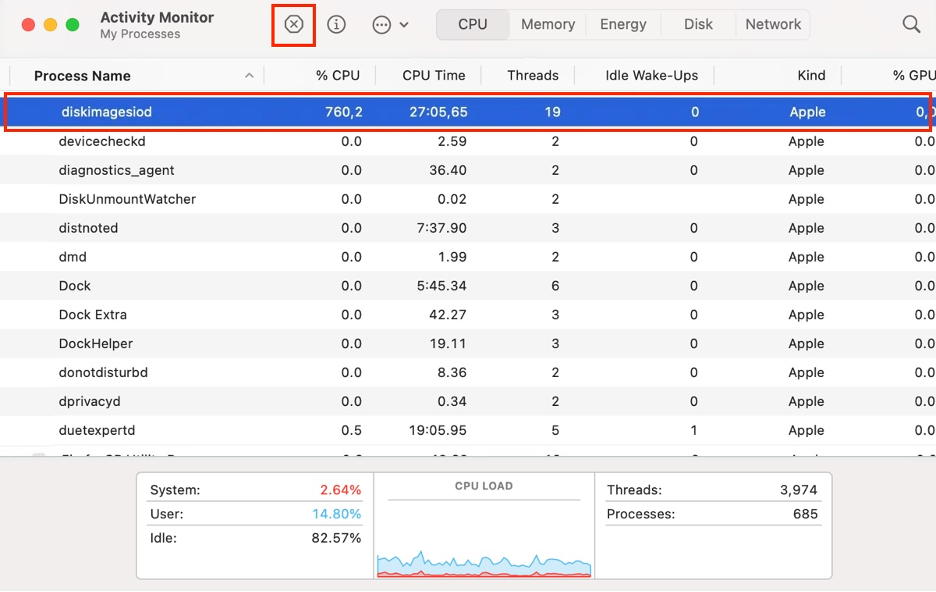
Find and select the diskimagesiod process.
Click the X icon, then click Quit to close it.
Step 1. Finder > Applications > UtilitiesStep 2. Launch Activity MonitorStep 3. Select the diskimagesiod process and click the X icon
3. Back up macOS with Time Machine
Our next advice serves two important purposes: protecting your valuable documents and data before proceeding with methods 4 and 5, and potentially resolving issues caused by diskimagesiod. Creating a fresh backup not only safeguards your files but can also pause and reset the erratic process, helping to eliminate errors and ensure smooth operation.
To perform a backup using Time Machine, follow this step-by-step guide:
Connect an external drive to your Mac.
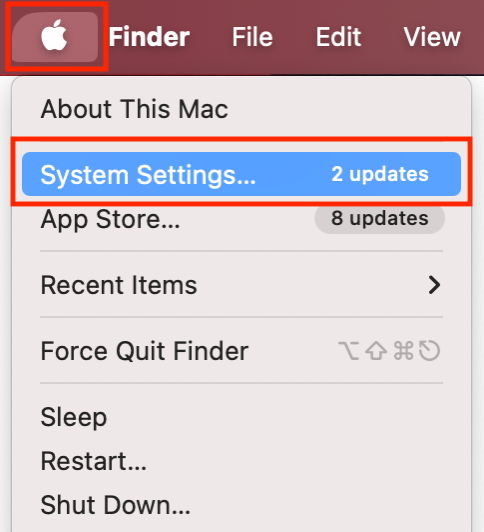
Click the Apple icon in the menu bar.
Choose System Settings from the dropdown menu.
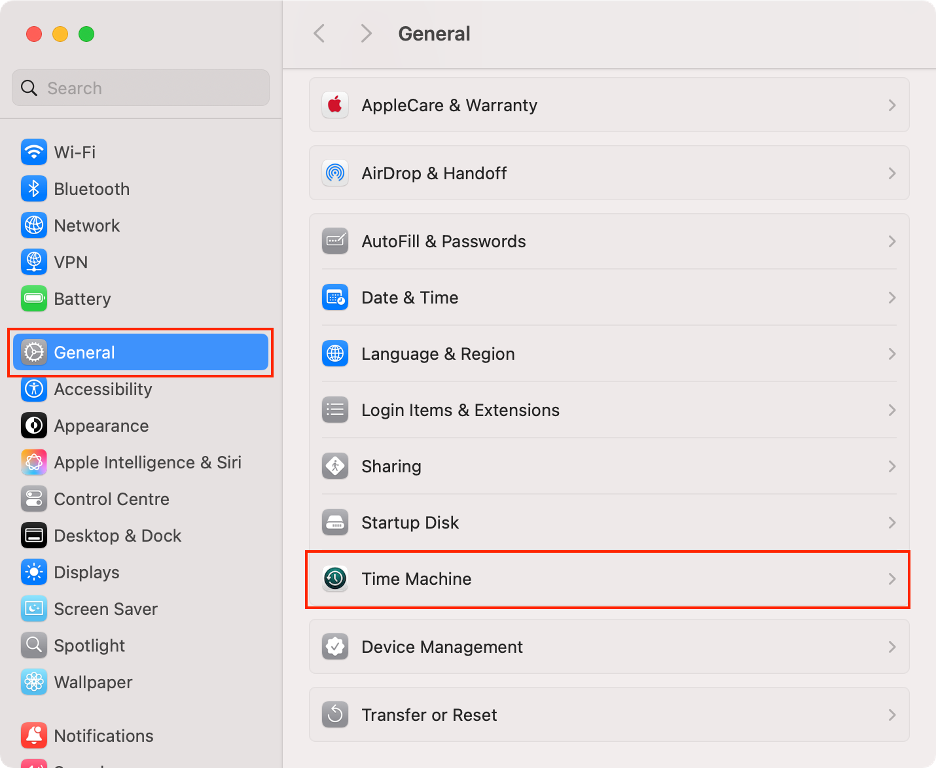
Click General in the sidebar, then select Time Machine.
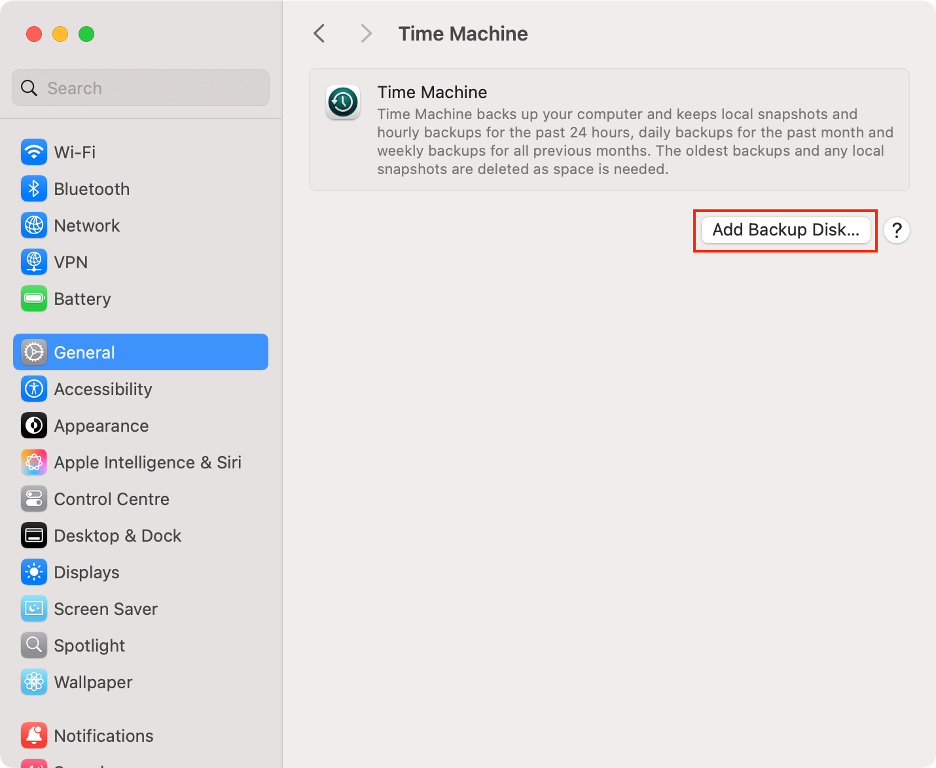
Click Add Backup Disk.
Select where you want to save your backup, then click Set Up Disk.
Wait until the Time Machine backup is finished.
Step 1. Apple icon > System SettingsStep 2. General > Time MachineStep 3. Click Add Backup DiskStep 4. Click Set Up Disk
4. Use macOS Safe Mode
The following tip involves using macOS Safe Mode, a built-in startup option available on all Macs. Based on our years of experience, Safe Mode is highly effective for troubleshooting and resolving software-related issues. If a system component like diskimagesiod is impacting your Mac’s performance, booting into Safe Mode can help get your device back to normal.
If you own an Apple Silicon-based Mac, see how to start your device in Safe Mode below:
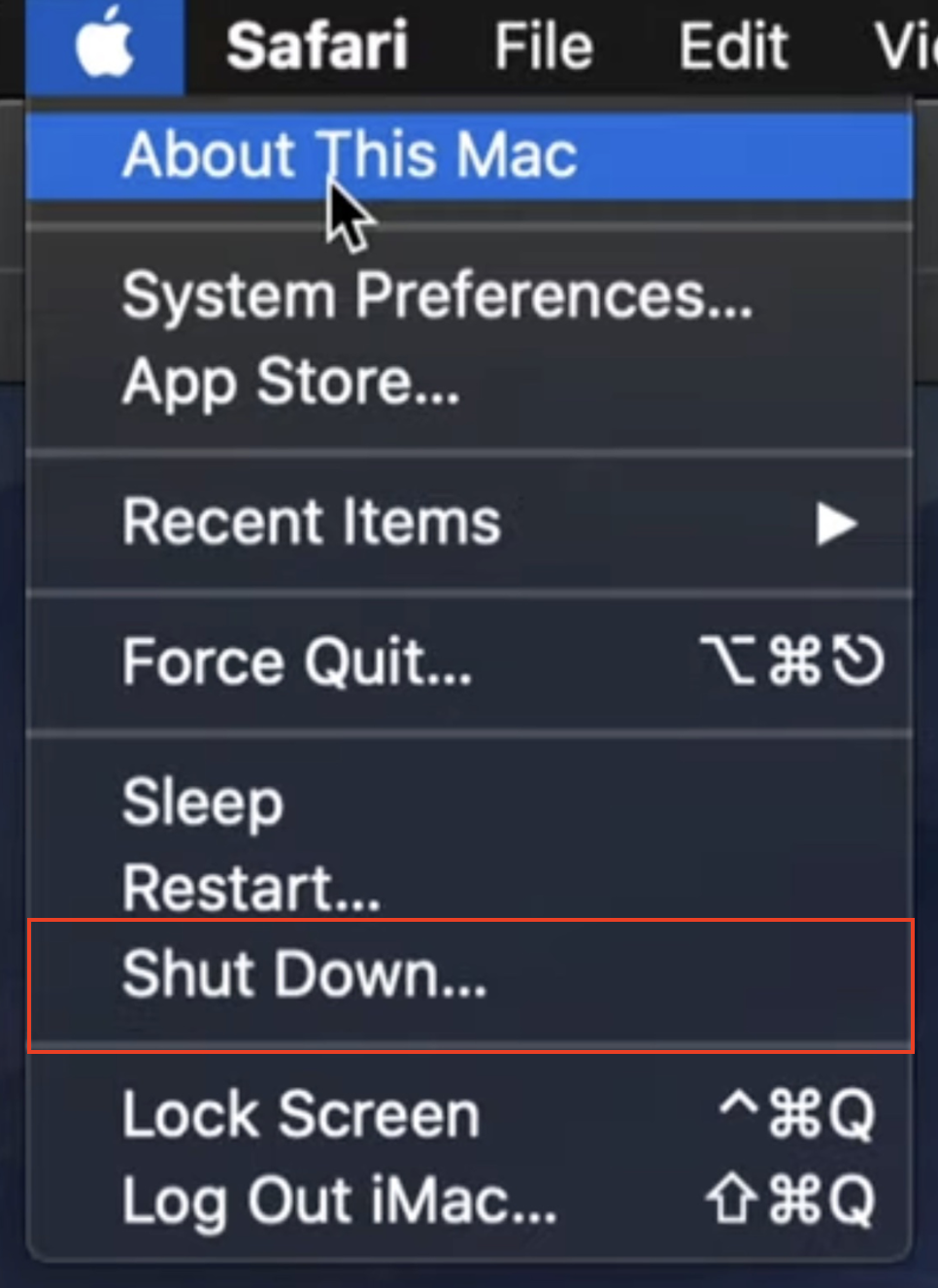
Go to the Apple icon in the menu bar.
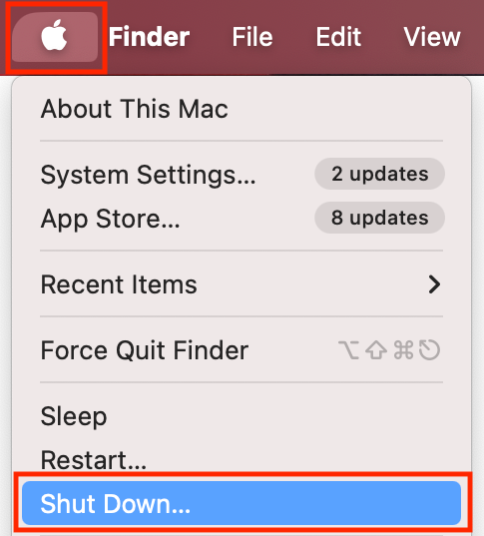
Click Shut Down from the dropdown menu.
Wait for about 10 seconds.
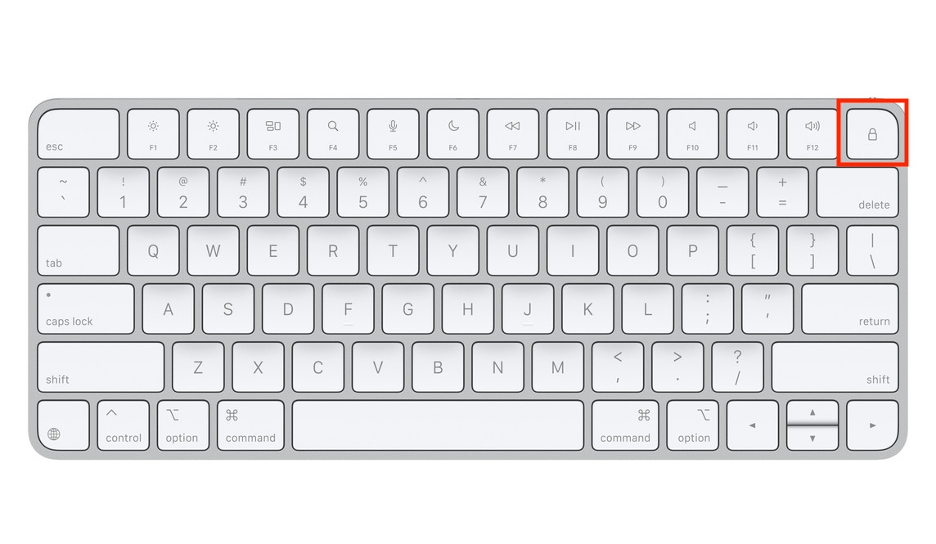
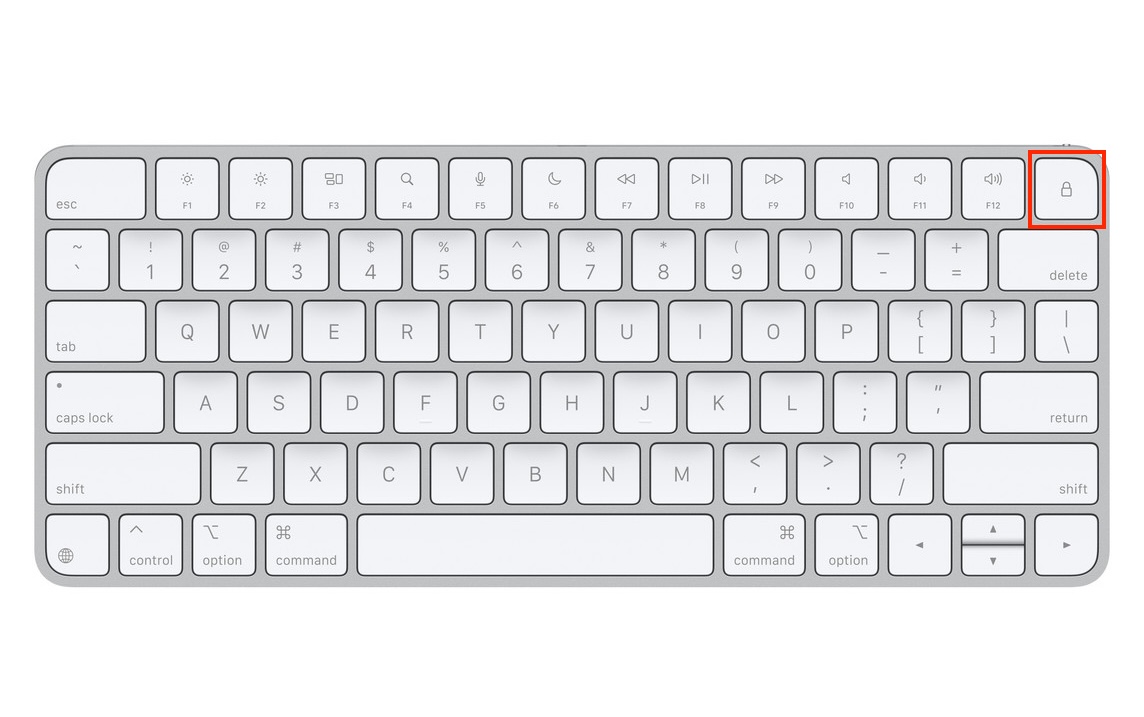
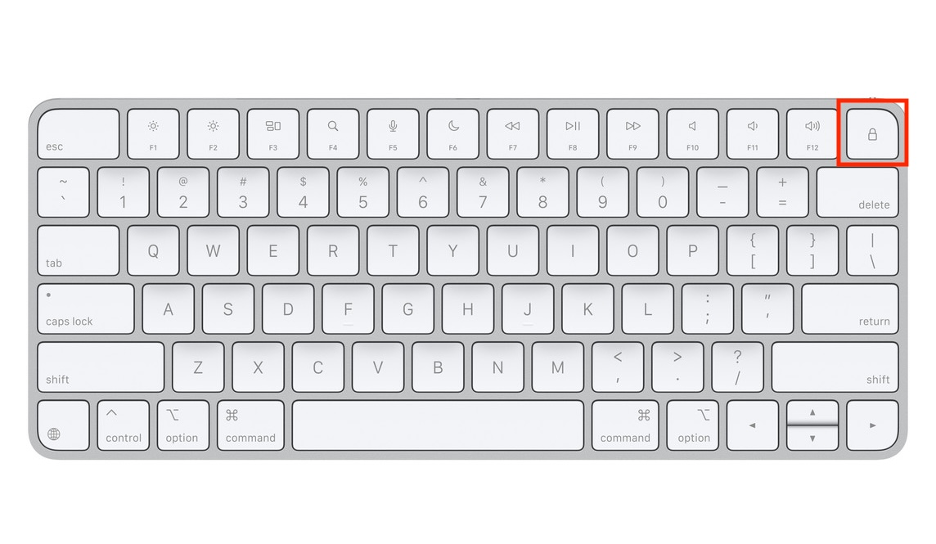
Press and hold the power button.
Release it when the startup options appear on your screen.
Choose your startup disk.
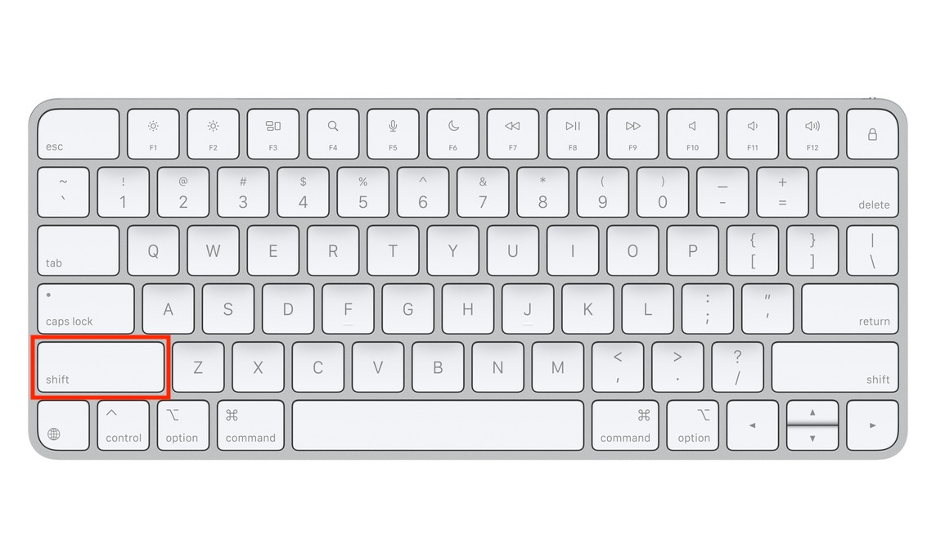
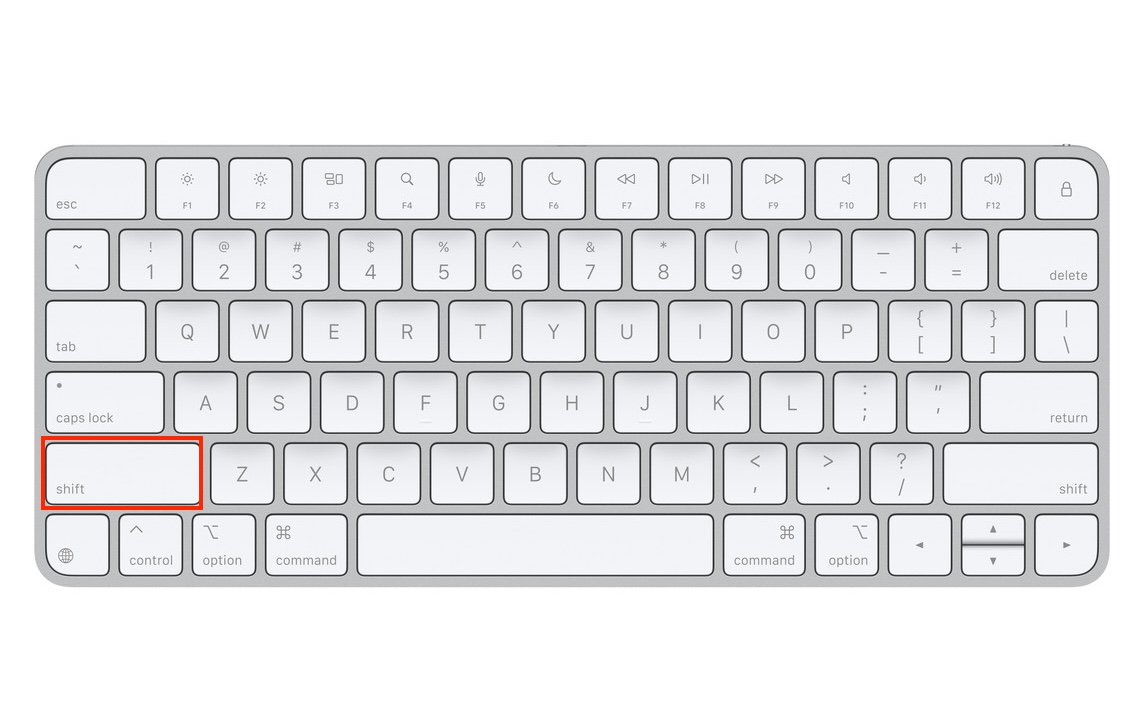
Press and hold the Shift key.
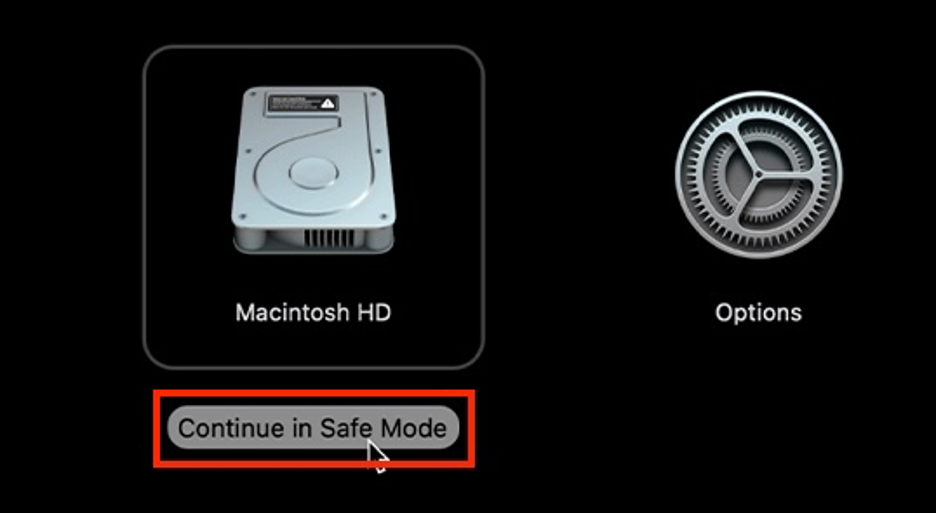
Click Continue in Safe Mode.
Step 1. Apple logo > Shut DownStep 2. Press and hold the power buttonStep 3. Press and hold the Shift keyStep 4. Click Continue in Safe Mode
For users working on an Intel-based Mac, we’ve prepared a separate list of steps to boot into Safe Mode:
Go to the Apple icon in the menu bar.
Click Shut Down from the dropdown menu.
Turn on your Mac again.
Immediately after, press and hold the Shift key.
Release it when you see the login screen.
You should see Safe Boot at the top right corner of your screen.
Log in to your Mac.
Step 1. Apple logo > Shut DownStep 2. Turn your Mac back onStep 3. Press and hold the key shiftStep 4. See “Safe Boot” at the top right corner of your screen
5. Reinstall macOS
As a final recommendation, our team of experts suggests reinstalling macOS. macOS reinstallation can effectively refresh your operating system and eliminate persistent issues that are hindering your Mac’s performance. This should be done only as a last resort, since unforeseen complications may occur. As such, make sure you’ve followed the backup steps in point 3 to protect your files beforehand.
Reinstalling the operating system is a widely recommended troubleshooting step for stubborn computer issues. Additionally, we encourage you to learn how to check performance on a Mac, which can help you pinpoint the root cause of any problems.
See the steps to reinstall macOS below:
Select the Apple icon in the menu bar.
Choose Restart from the dropdown menu.
To enter Recovery Mode, press and hold down the Powerbutton.
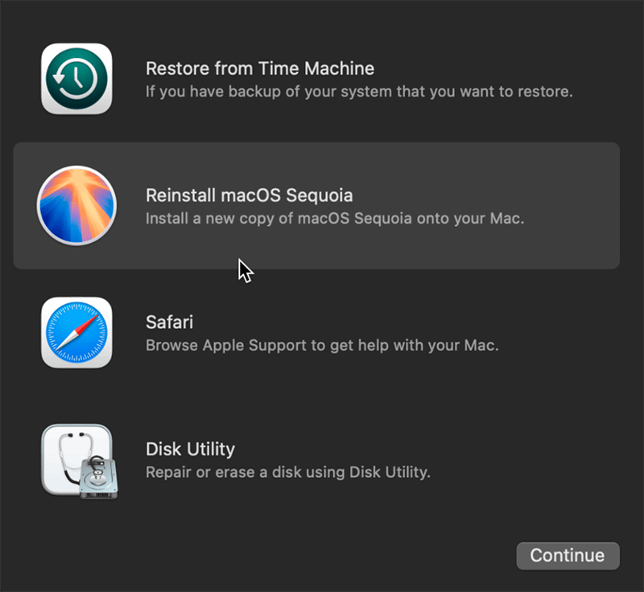
Next, select Reinstall macOS in the new screen.
Follow the instructions on your screen.
Wait until the installation is done.
Step 1. Apple logo > RestartStep 2. Press and hold the power buttonStep 3. Select Reinstall macOS
Take control of macOS diskimagesiod!
High CPU usage can significantly impact your Mac’s performance, and the diskimagesiod background process is frequently to blame. Fortunately, there are effective solutions: try quitting the process in Activity Monitor to reset it, or boot into Safe Mode to resolve software issues. If these steps don’t resolve the problem, consider reinstalling macOS as a final measure.
For a more robust solution beyond addressing a corrupt disk image, our experts recommend MacKeeper’s Memory Cleaner. This Apple-notarized, industry-leading tool not only optimizes your Mac’s performance by freeing up memory but also prevents overheating and keeps your computer from getting stuck on the dreaded spinning wheel.
We respect your privacy and
use cookies
for the best site experience.
Privacy Preferences Center
We use cookies along with other tools to give you the best possible experience while using the
MacKeeper website. Cookies are small text files that help the website load faster. The cookies we
use don’t contain any type of personal data meaning they never store information such as your
location, email address, or IP address.
Help us improve how you interact with our website by accepting the use of cookies. You can change
your privacy settings whenever you like.
Manage consent
All cookies
These cookies are strictly necessary for enabling basic website functionality (including page
navigation, form submission, language detection, post commenting), downloading and purchasing
software. The website might malfunction without these cookies.