When running into the “Exchange password required” on Mac error, I’ve found there are many potential fixes, such as restarting the Mail app, ensuring a stable internet connection, eliminating issues with the Exchange account, and installing macOS updates. When you can’t stop “Exchange password required” on Mac, I recommend reaching out to our team of Mac experts via MacKeeper’s Premium Services, which is available 24/7 and can help you overcome almost any issue with your Apple computer.
The “Exchange password required” notifications on macOS means that the Microsoft Exchange server is unable to authenticate your account, which prevents your Mac from sending and retrieving new emails. There can be many reasons why this error occurs, including Exchange server outages.
In my experience, until you fix the “Exchange password required” on Mac error, you may also encounter other issues with Exchange services. In addition to Mac Mail not working, you’re likely to find you’re unable to create or modify Exchange calendar events, sync notes, or save changes to contacts.
Common causes of “Exchange password required” notification on Mac
There are many reasons why you might see “Exchange password required” on Mac. It usually happens when your computer is unable to connect to Microsoft’s Exchange servers for authentication, which could be because of glitches with the Apple Mail app, an unstable internet connection, or corrupt system files.
A note from our experts:
If you’ve tried troubleshooting this issue and you’re unable to get “Exchange password required” on Mac to turn off, I recommend you contact MacKeeper’s Premium Services from Clario Tech. Our experts can diagnose and fix almost any macOS issue using the best possible solution, and they can help you immediately, so you’re not stuck for days without email.
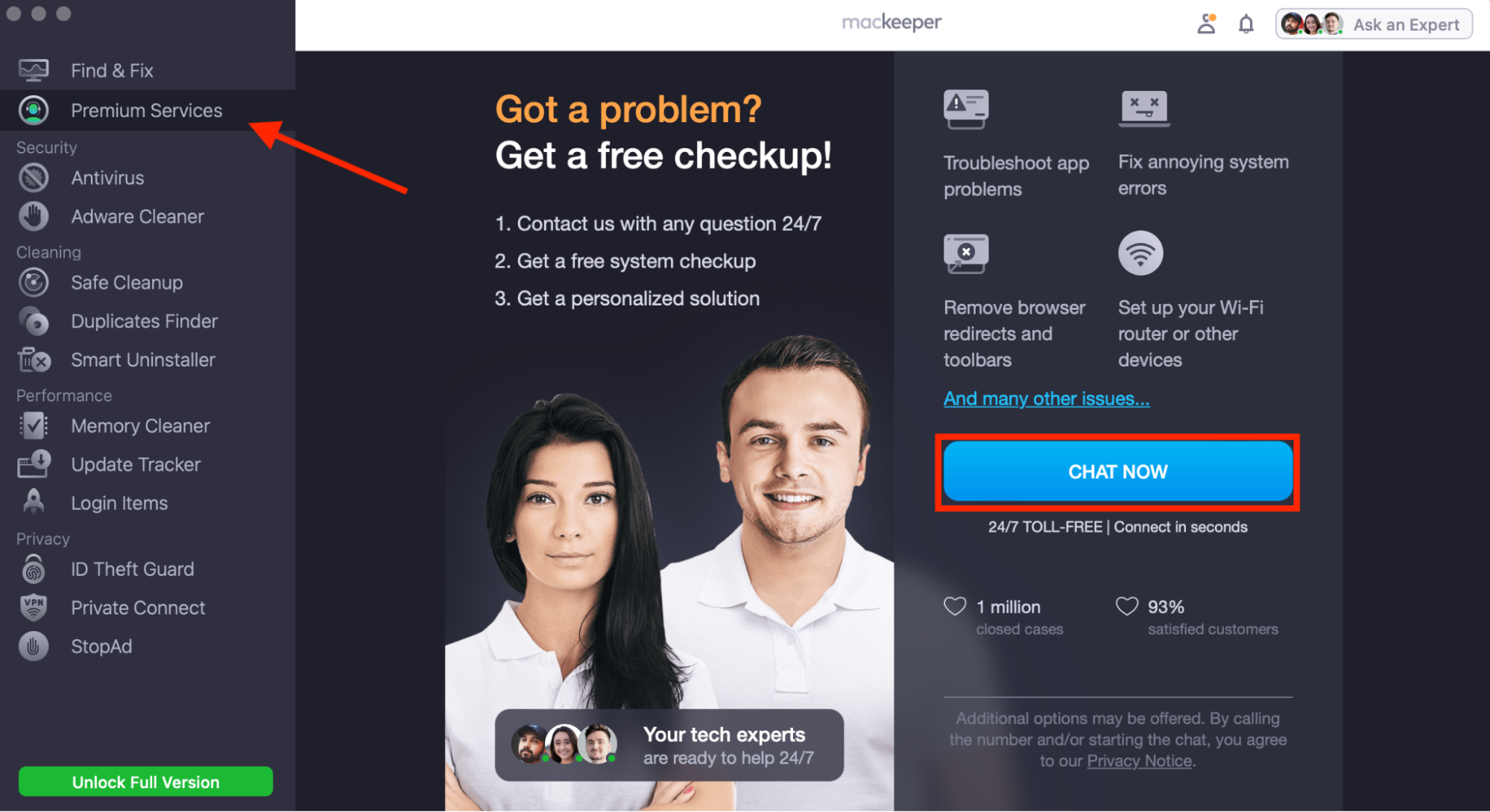
Select Premium Services in the MacKeeper sidebar, then choose Chat Now.
Tell us what kind of issue you’re facing for fast, effective help 24/7.
Step 1. Select Premium Services and click Chat NowStep 2. Explain your issue to get fast help
How to fix “Exchange password required” on Mac?
One of the first steps I take to get rid of “Exchange password required” on Mac is to close the Mail app and restart my Mac. If this doesn’t solve the problem, I’ll check if my internet connection is stable, confirm my Exchange credentials in my browser, and then try removing and re-adding my Exchange account.
Here’s the complete list of solutions I would normally go through to stop “Exchange password required” on Mac:
Restart Mac and Mail app
Check your internet connection
Verify your credentials via webmail
Remove and re-add Exchange account in Internet Accounts
Adjust server settings manually (internal/external URLs)
Check for macOS and Mail / Outlook updates
Update your Exchange password in Internet Accounts
1. Restart Mac and Mail app
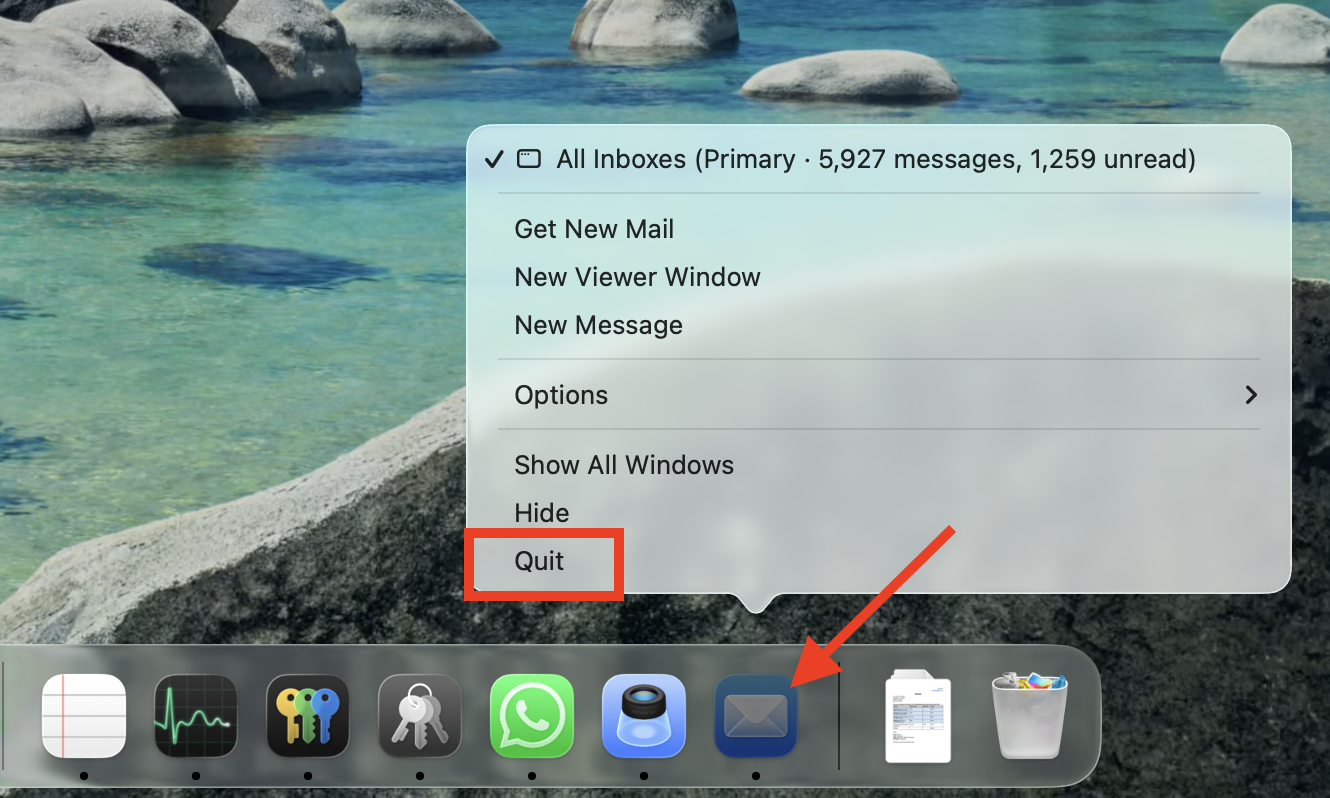
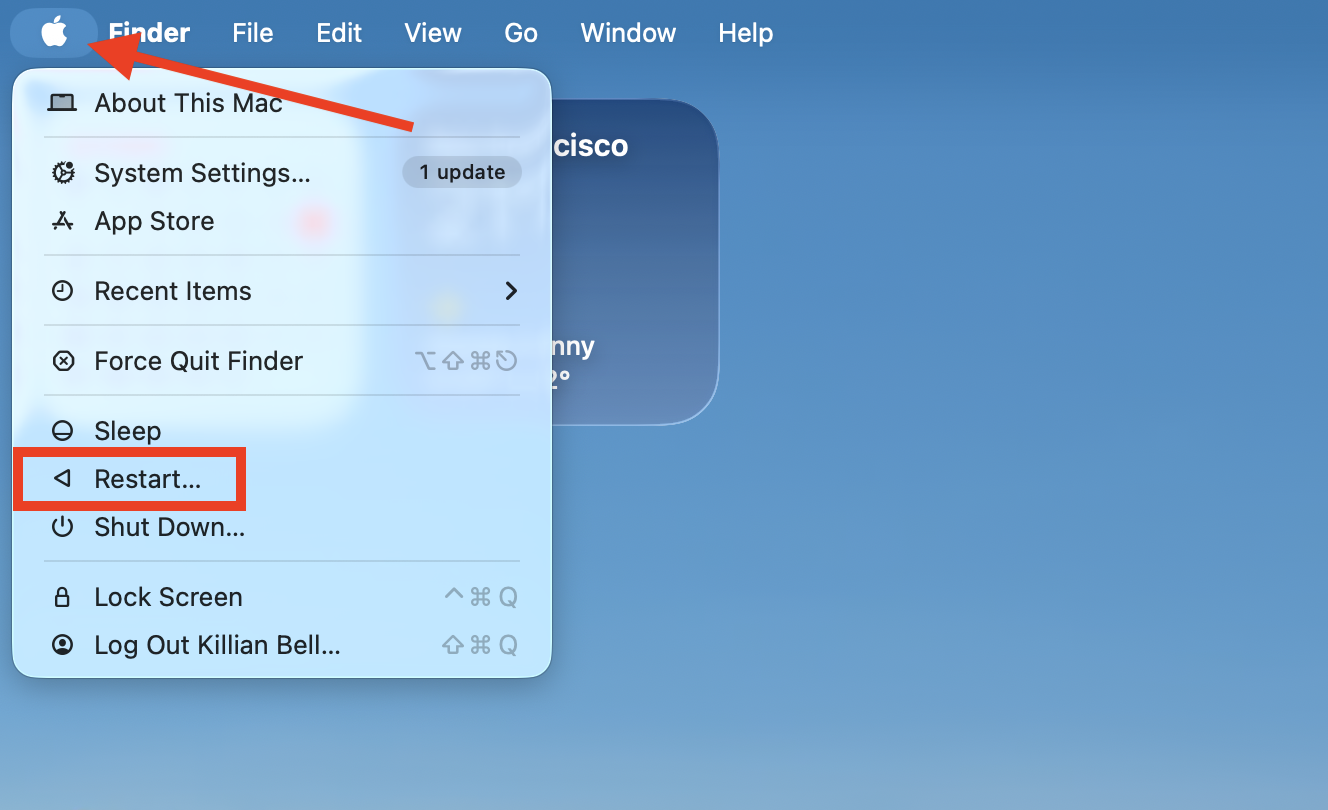
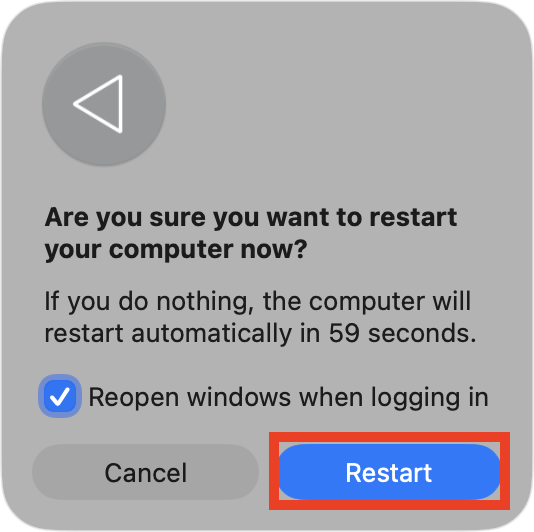
To restart your MacBook and the Mail app, which usually fixes most app glitches, I follow these steps:
Right-click the Mail icon in your Dock, then choose Quit.
Open the Apple menu and select Restart.
Click Restart again to confirm.
Step 1. Right-click Mail and select QuitStep 2. Restart your MacStep 3. Click Restart to confirm
When Mail won’t quit, which sometimes happens when it crashes, I force close it using Activity Monitor in the Utilities folder. If you want to know how to find Utilities on Mac, open the Applications folder in Finder.
2. Check your internet connection
Exchange issues are often caused by internet outages and unstable connections. Here’s how I check my internet is working properly:
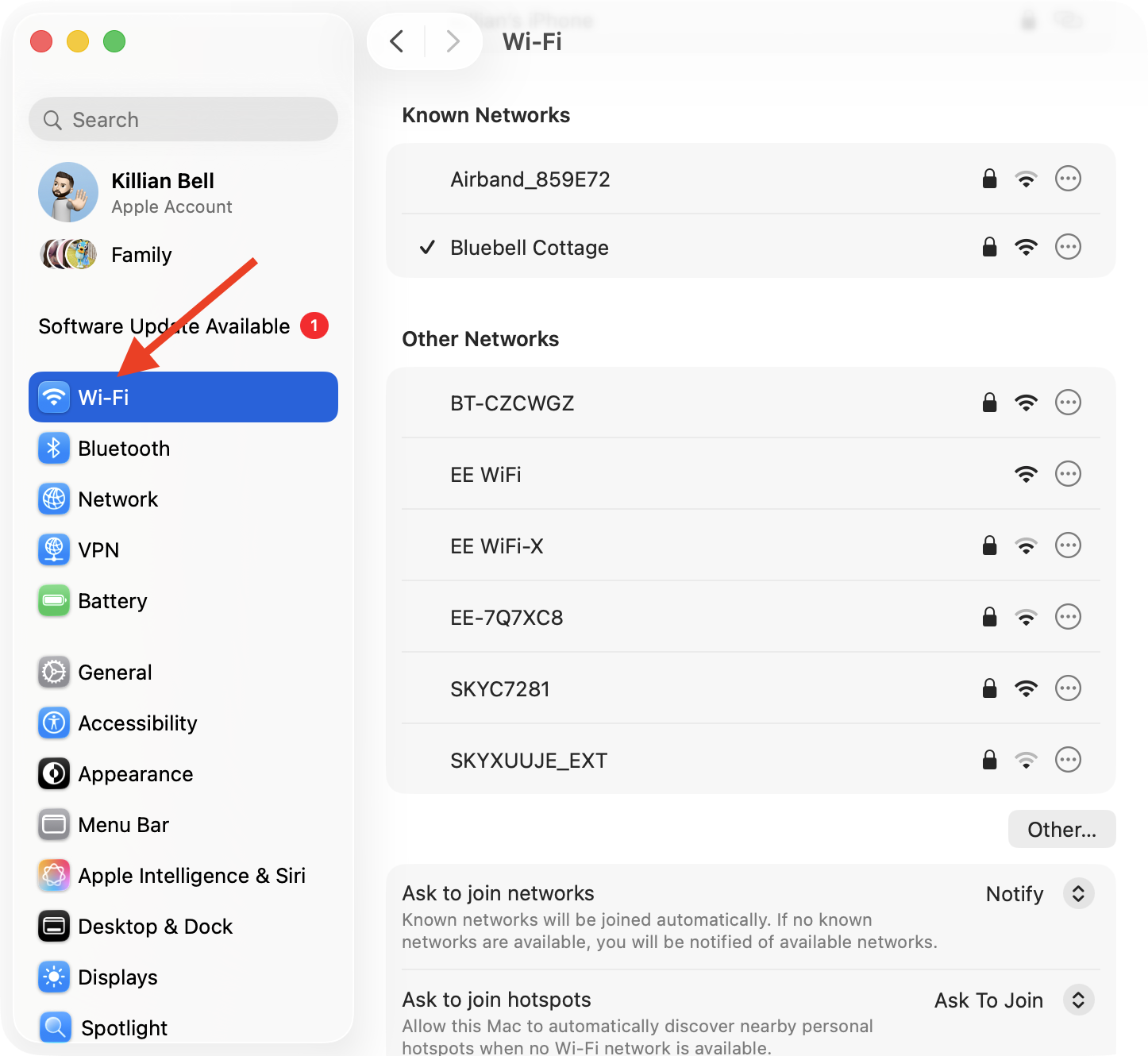
Open System Settings > Wi-Fi.
Check that you’re connected to the right Wi-Fi network and that there are no error messages.
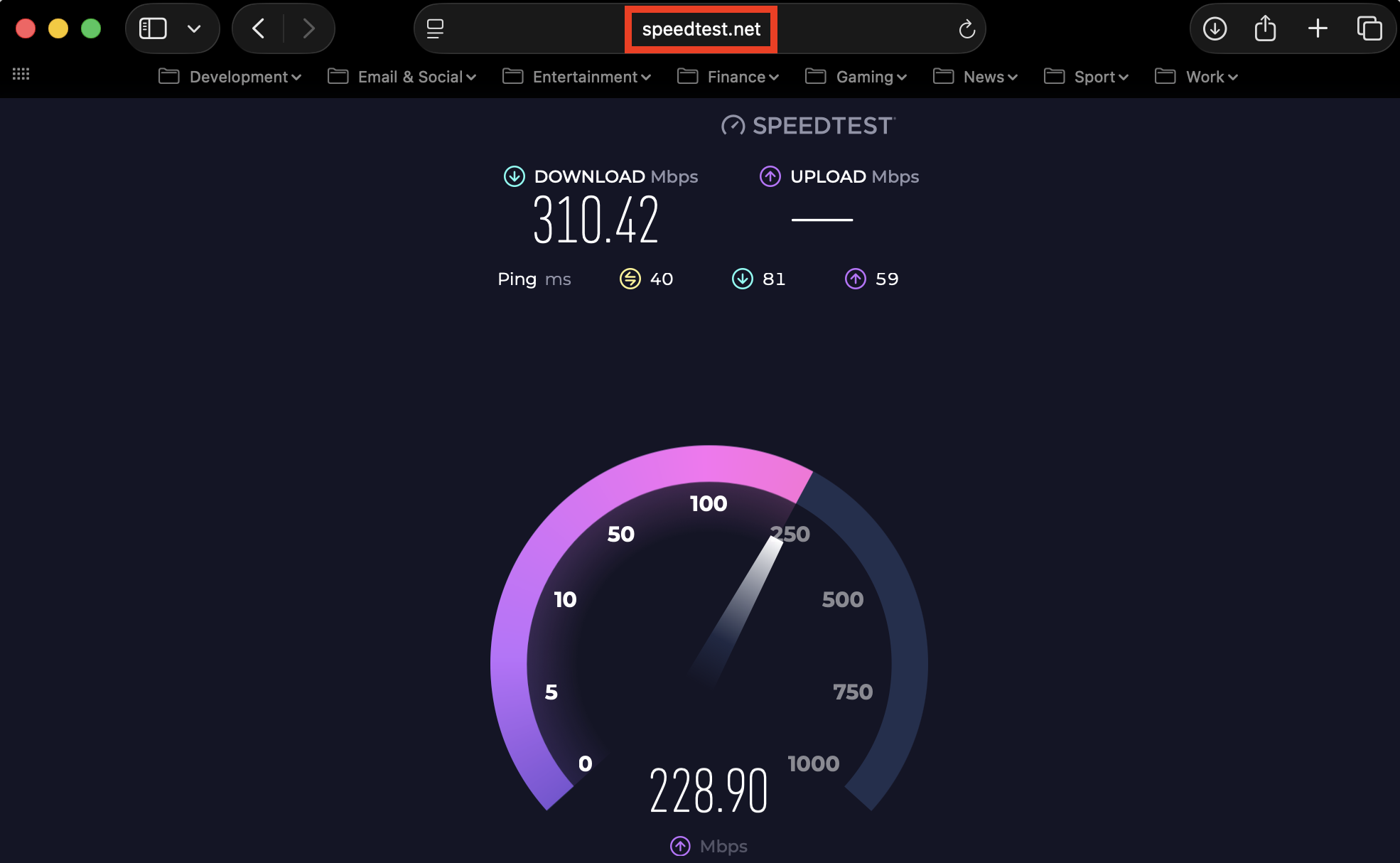
Go to speedtest.net in your browser and run a test to confirm your internet is working and stable.
If you detect internet issues, you’ll need to fix your connection or use another network.
Step 1. Go into Wi-Fi setting and check your connectionStep 2. Test your internet connection
3. Verify your credentials via webmail
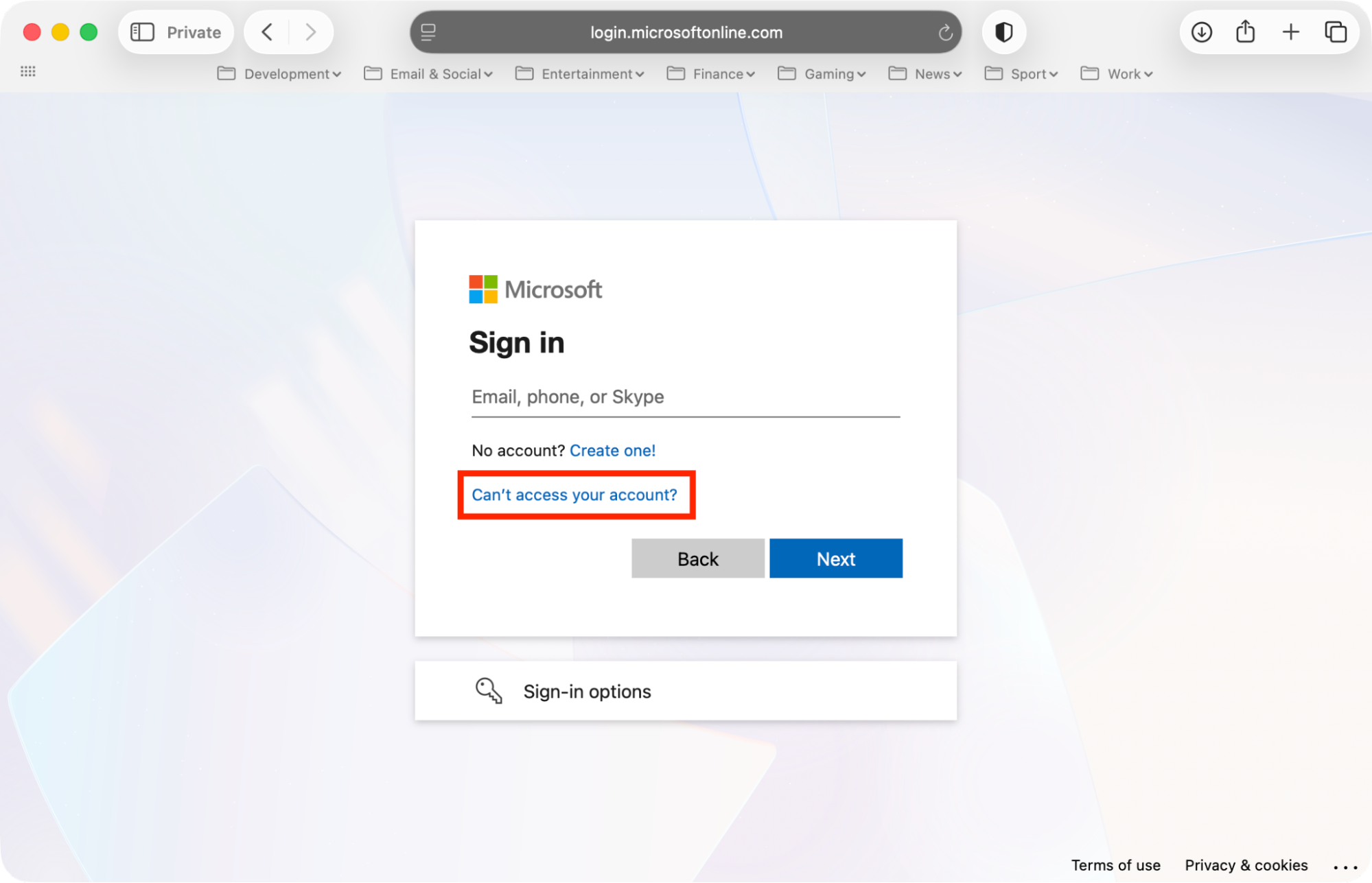
I’ve previously encountered Exchange issues on MacBook after changing my password and then forgetting to update it within macOS. To verify your credentials, try this:
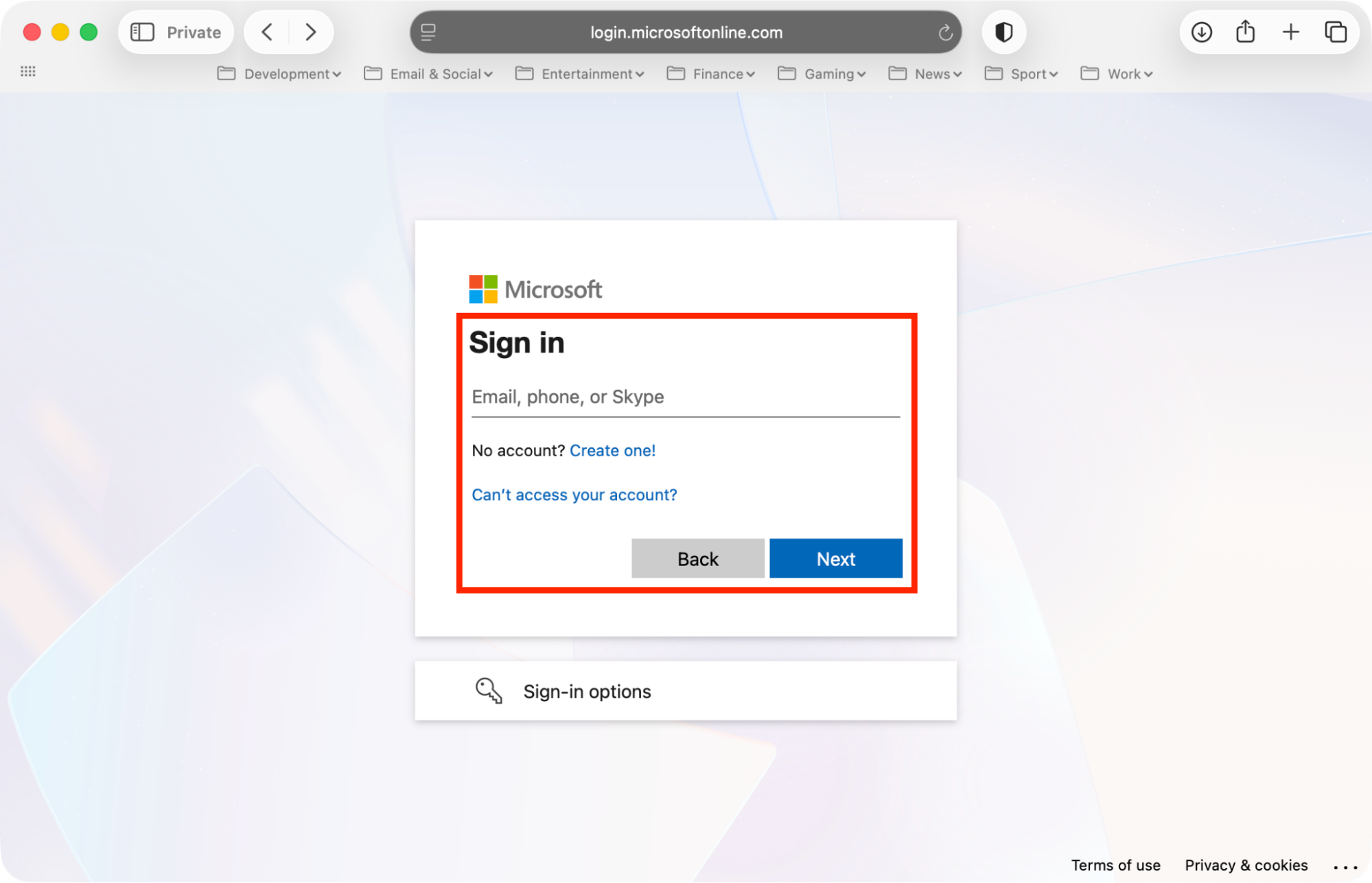
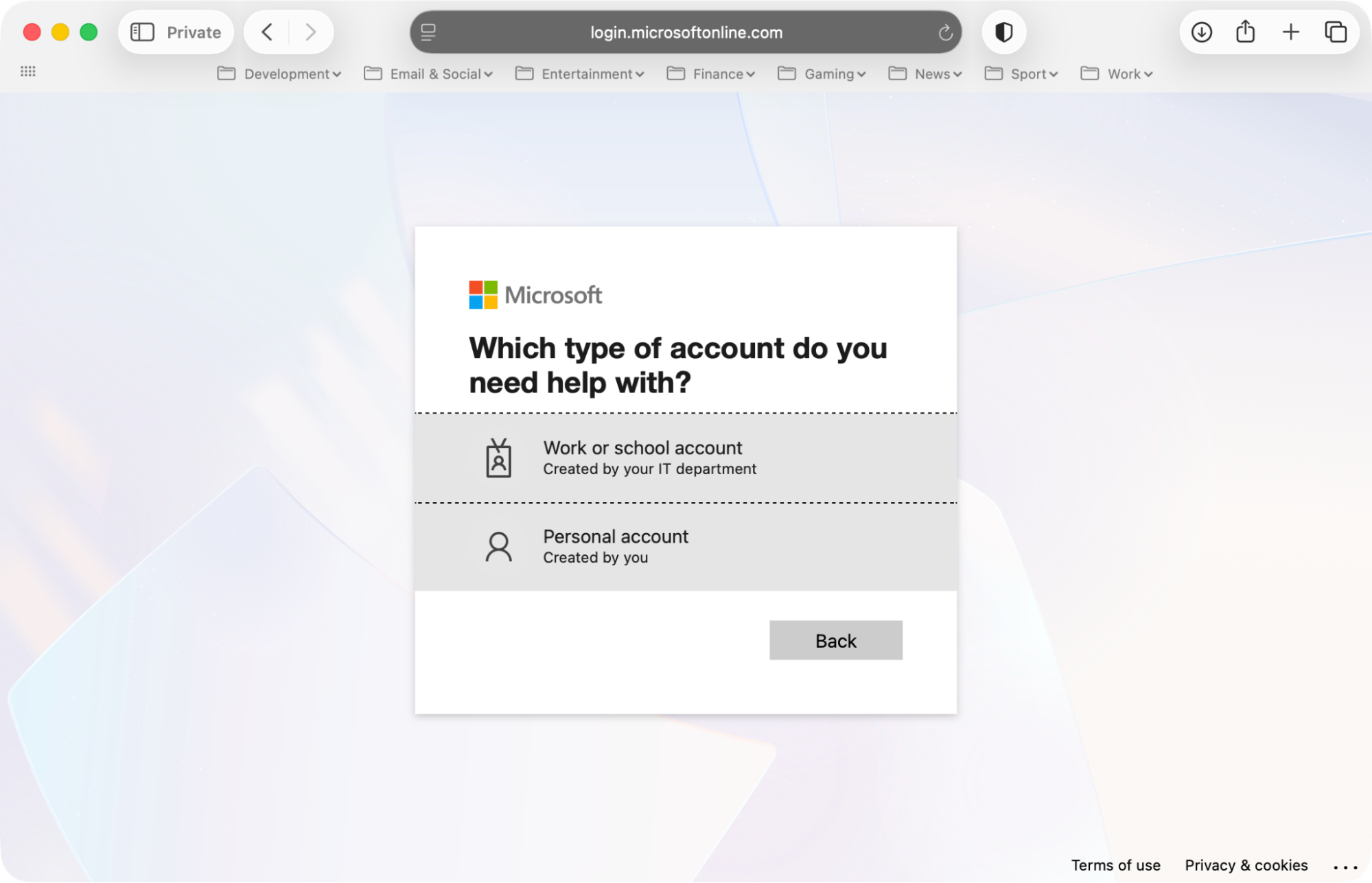
Follow the steps to reset your password and regain access to your Exchange account.
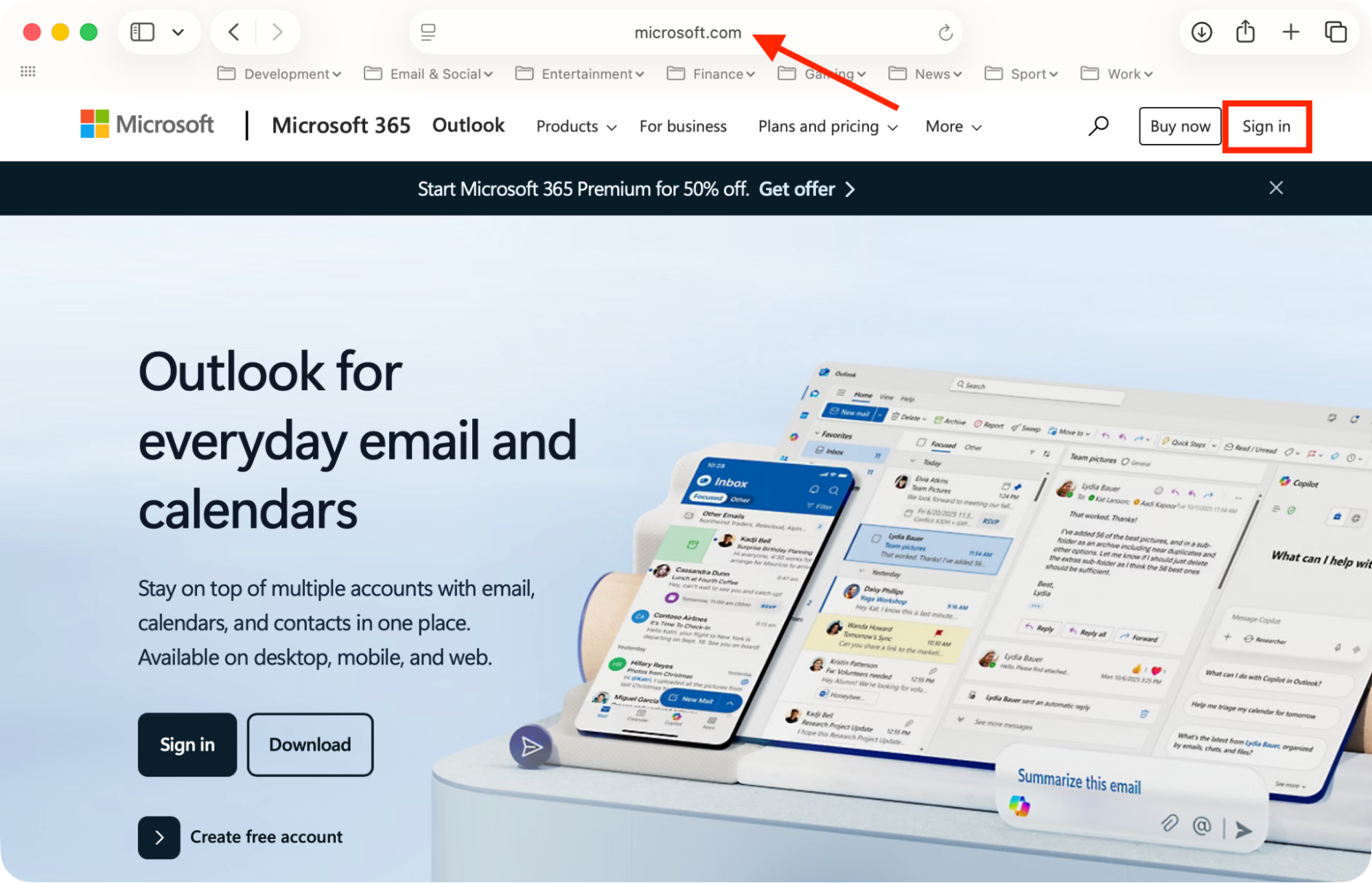
Step 1. Go to Outlook.comStep 2. Log into your Exchange accountStep 3. If you can't log in, click Can't access your account?Step 4. Follow the steps to reset your password
4. Remove and re‑add Exchange account in Internet Accounts
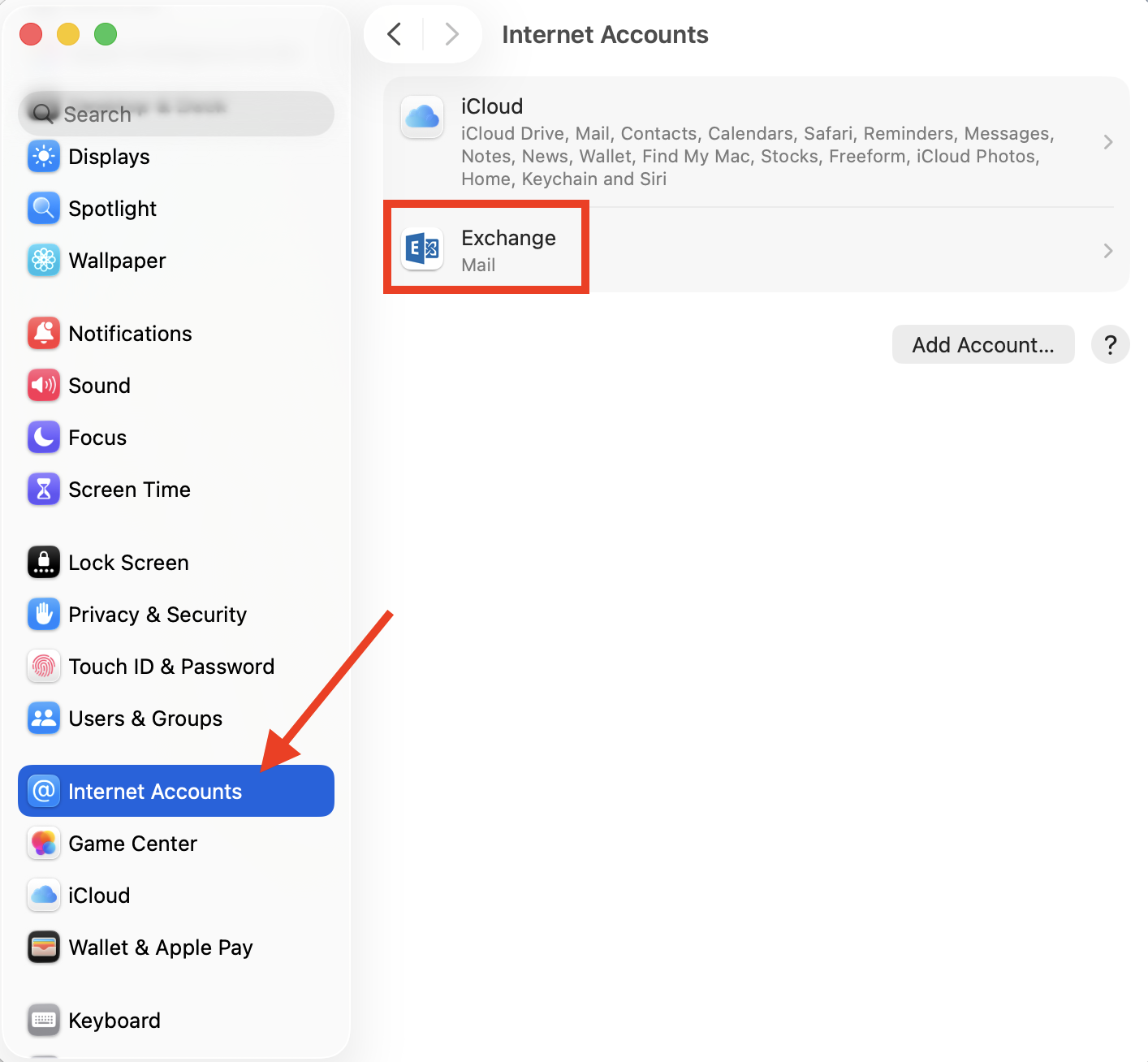
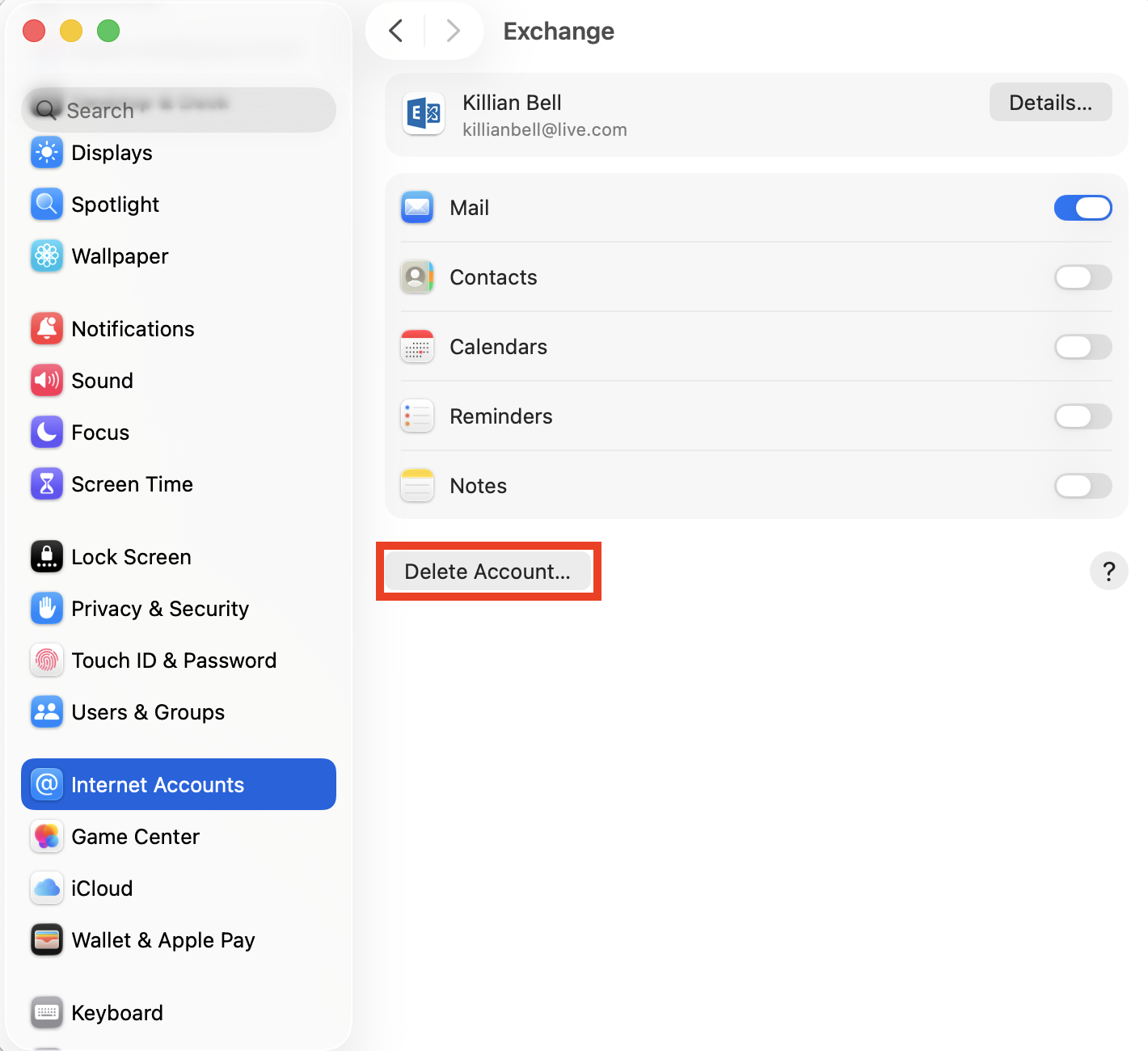
You may need to remove and re-add your Exchange account on Mac, especially if you recently changed or reset your account password. Here’s how you can do that in the Internet Accounts menu:
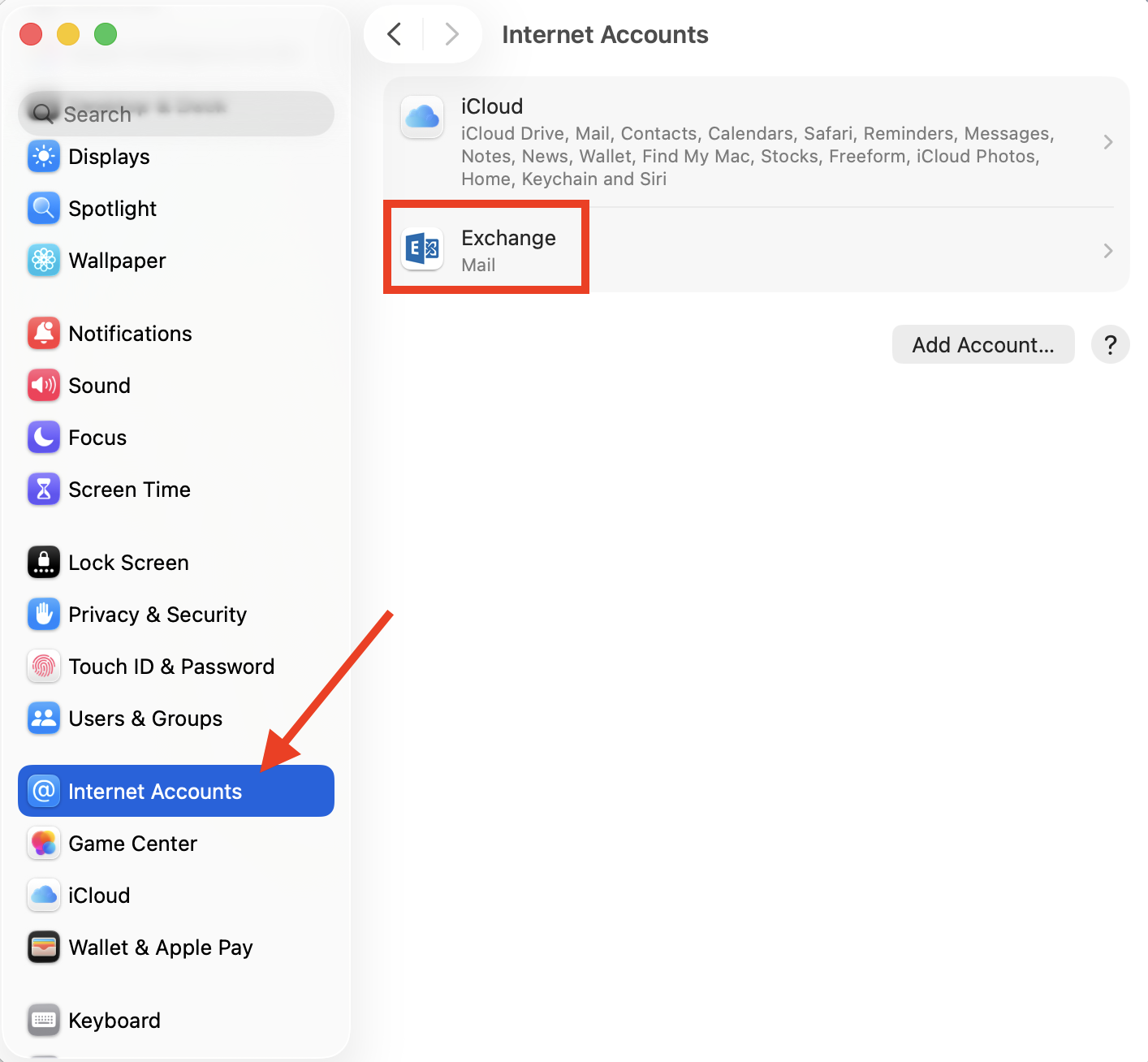
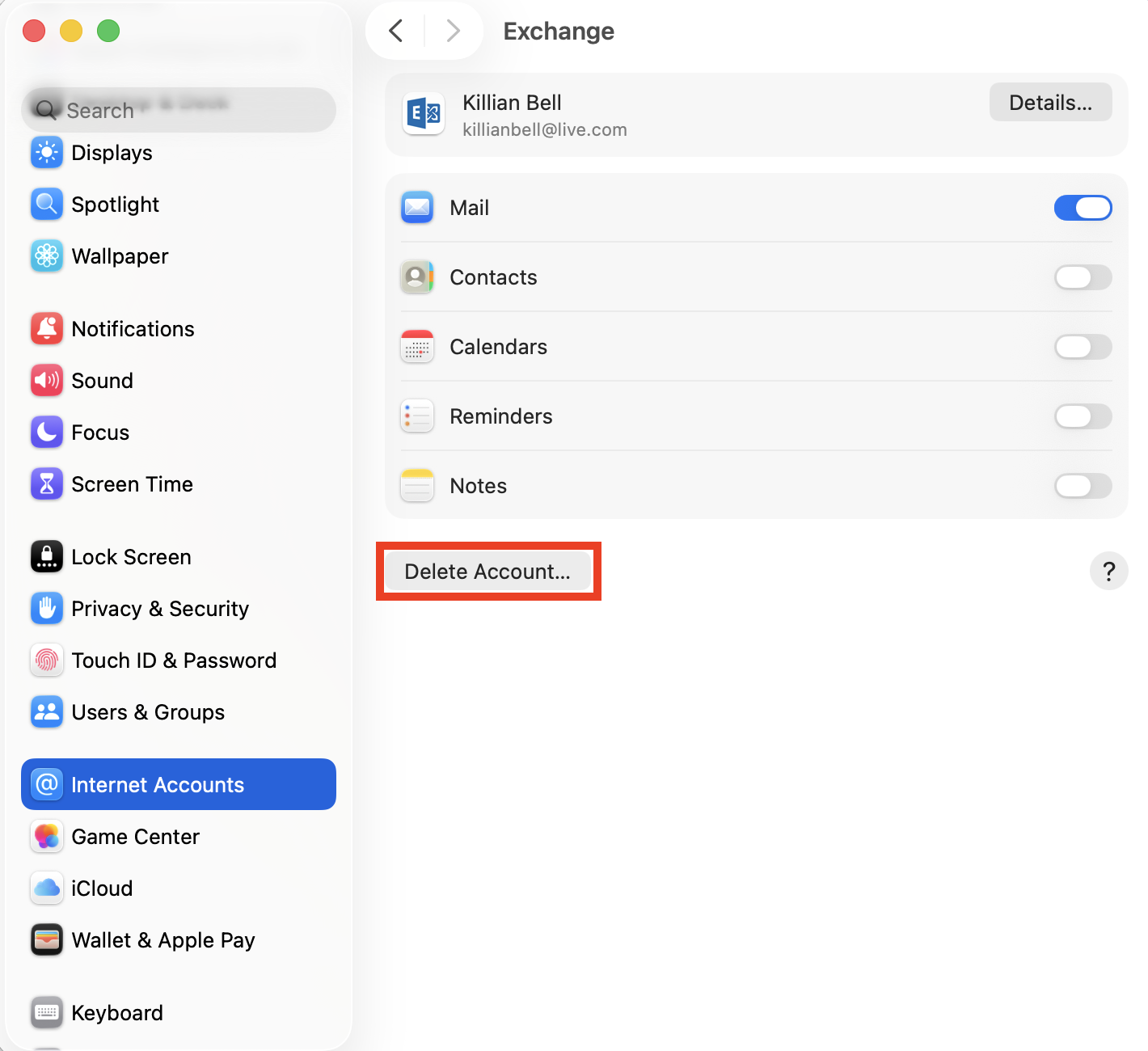
Open System Settings > Internet Accounts and select your Exchange account.
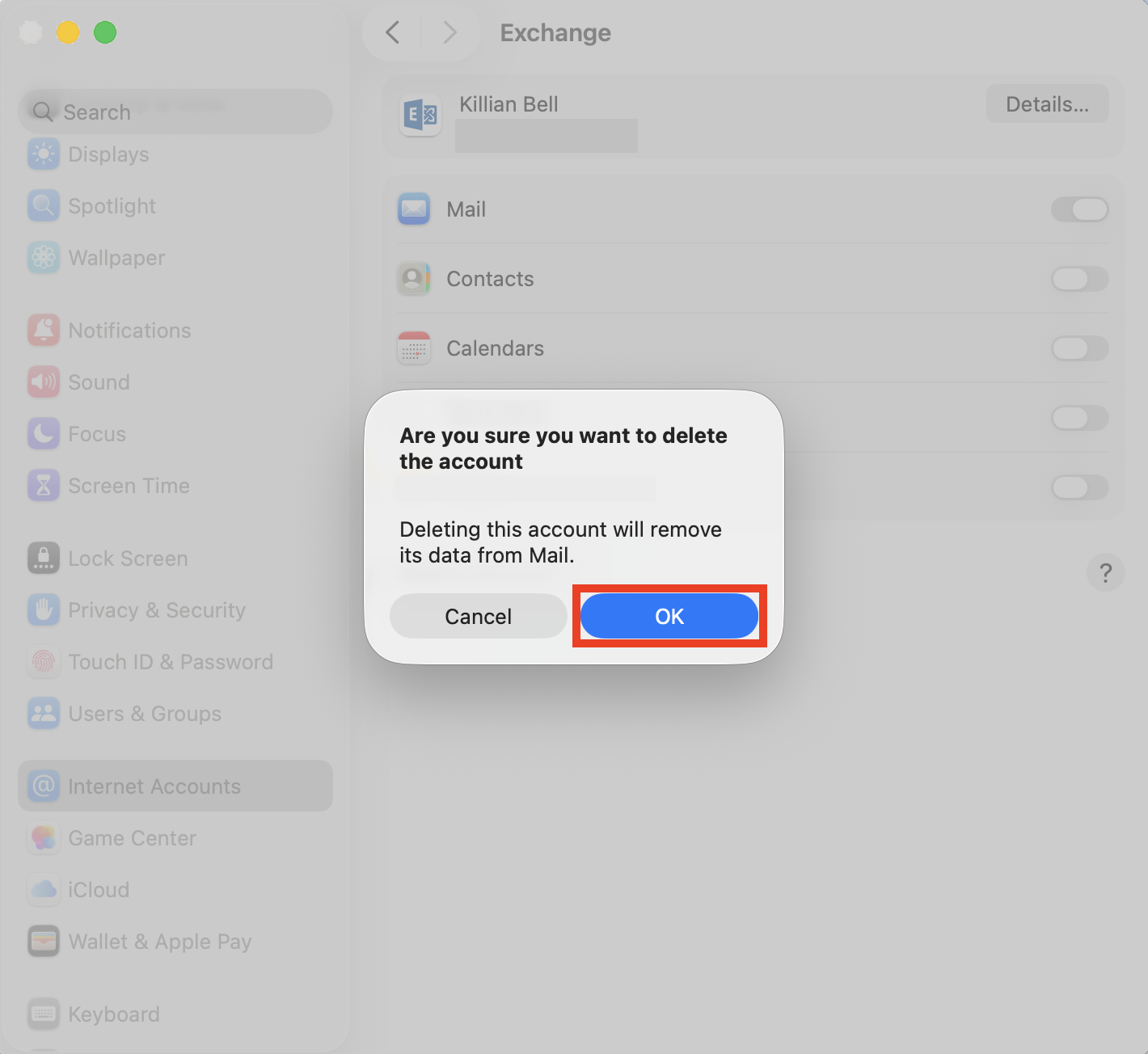
Click Delete Account.
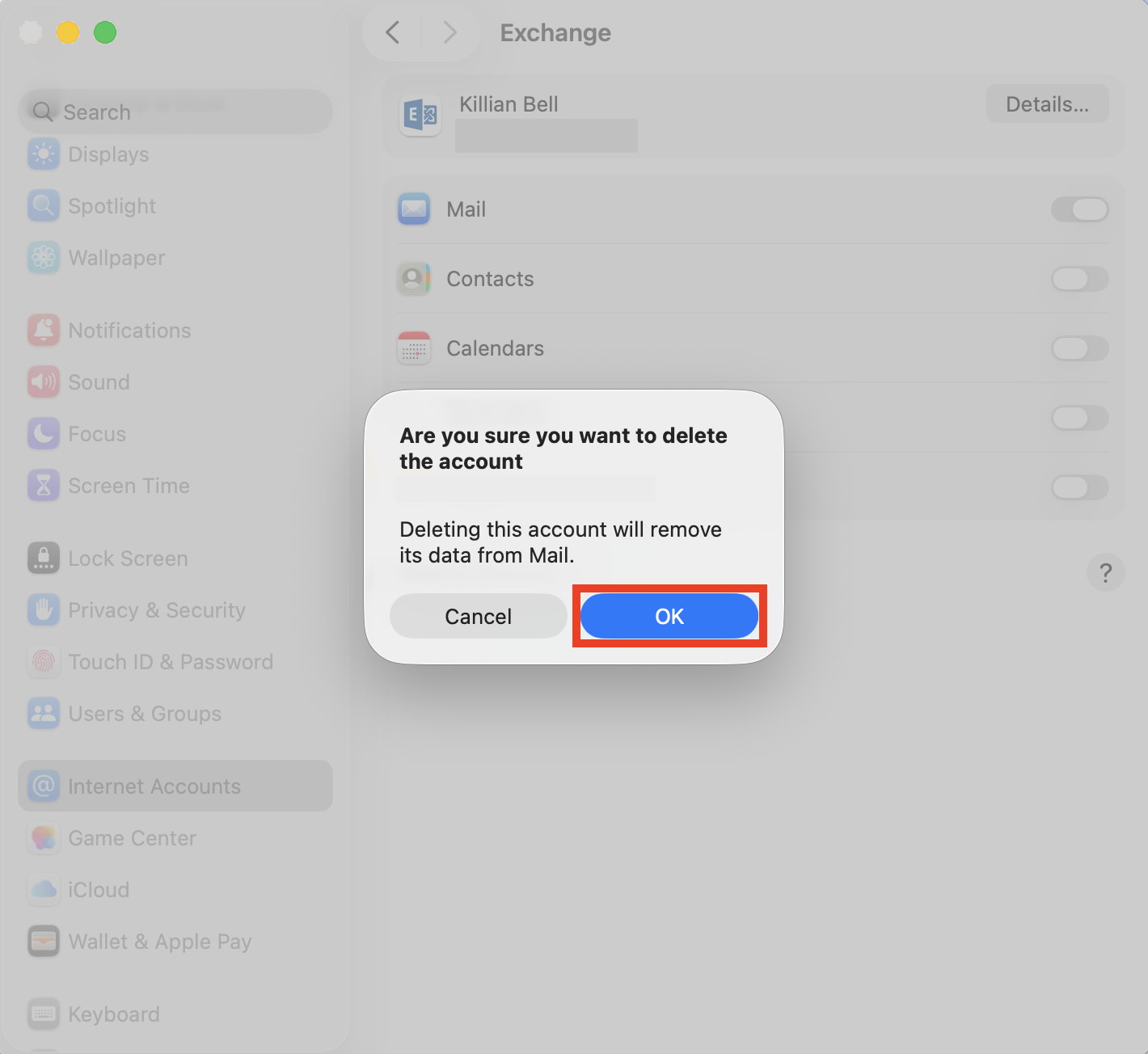
Choose OK to confirm.
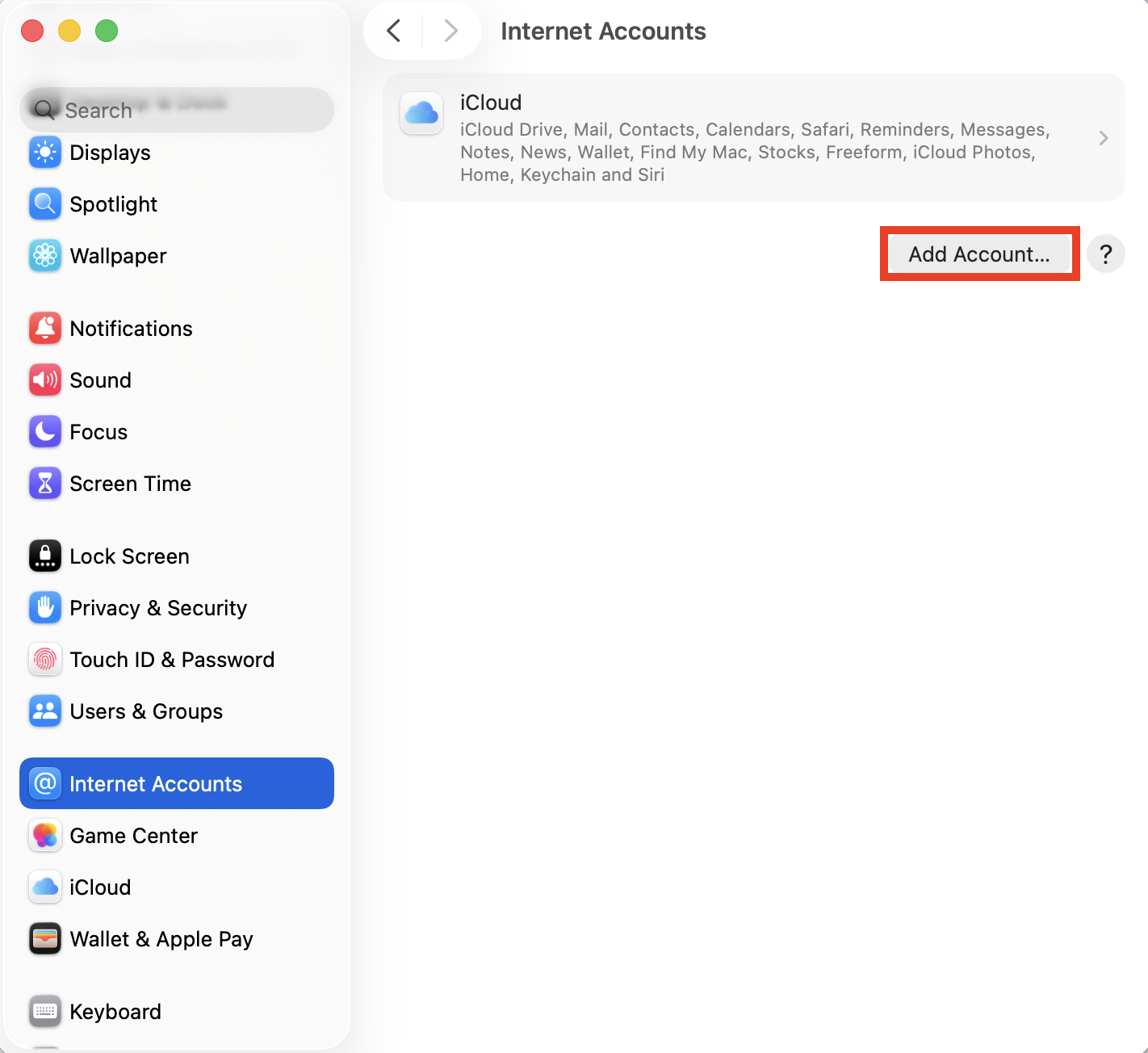
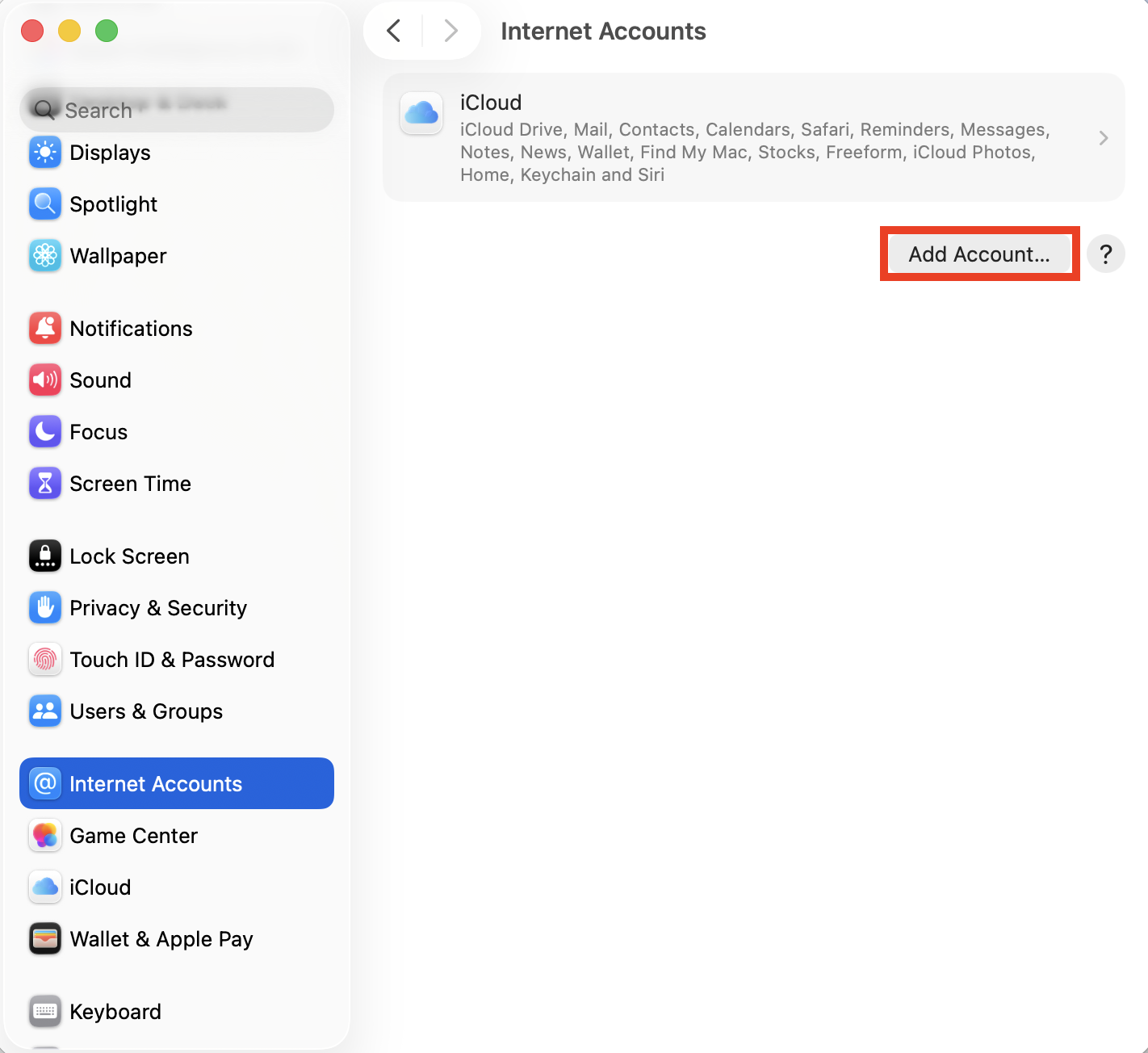
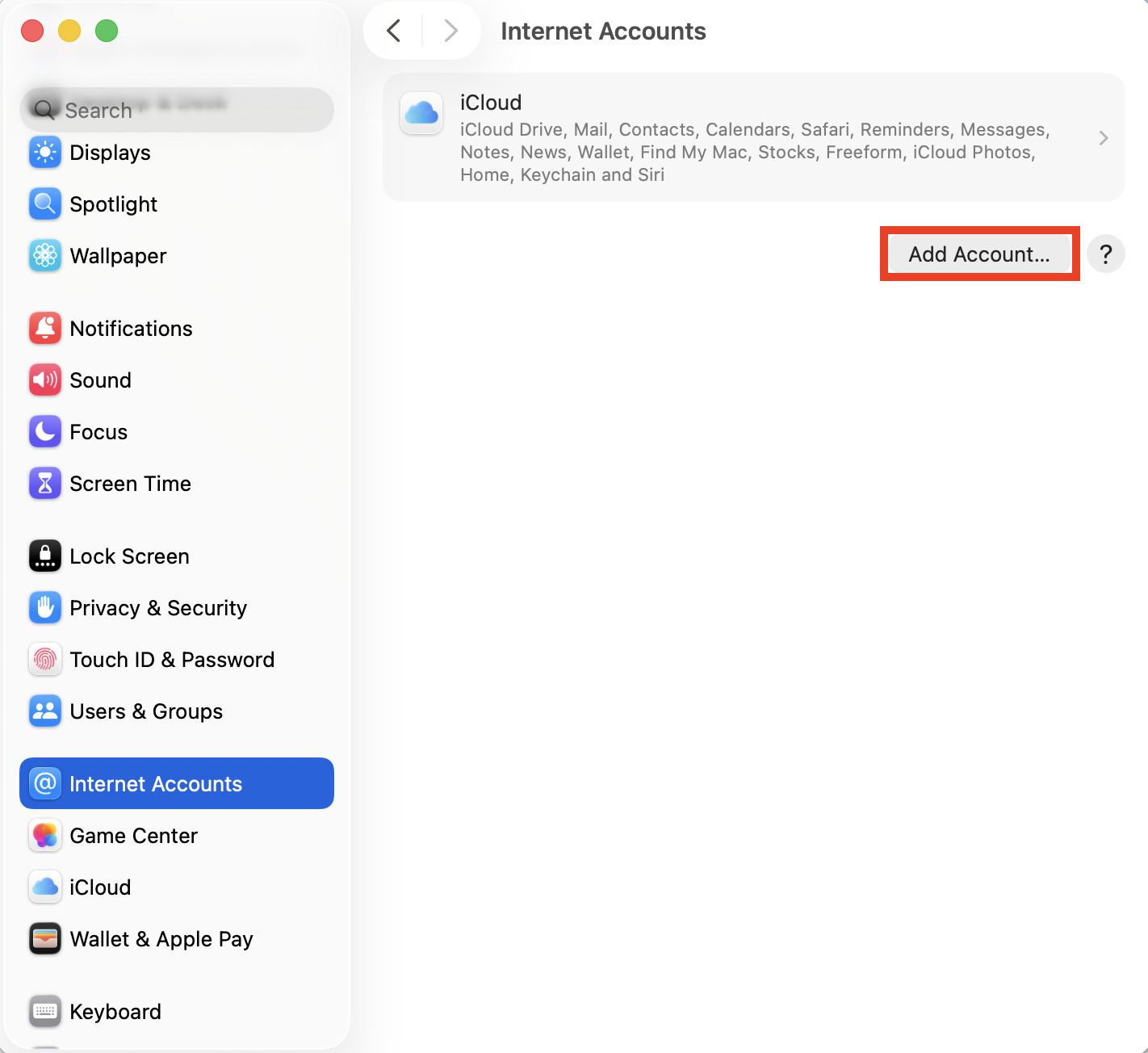
Select Add Account, then enter your Exchange email address and click Continue.
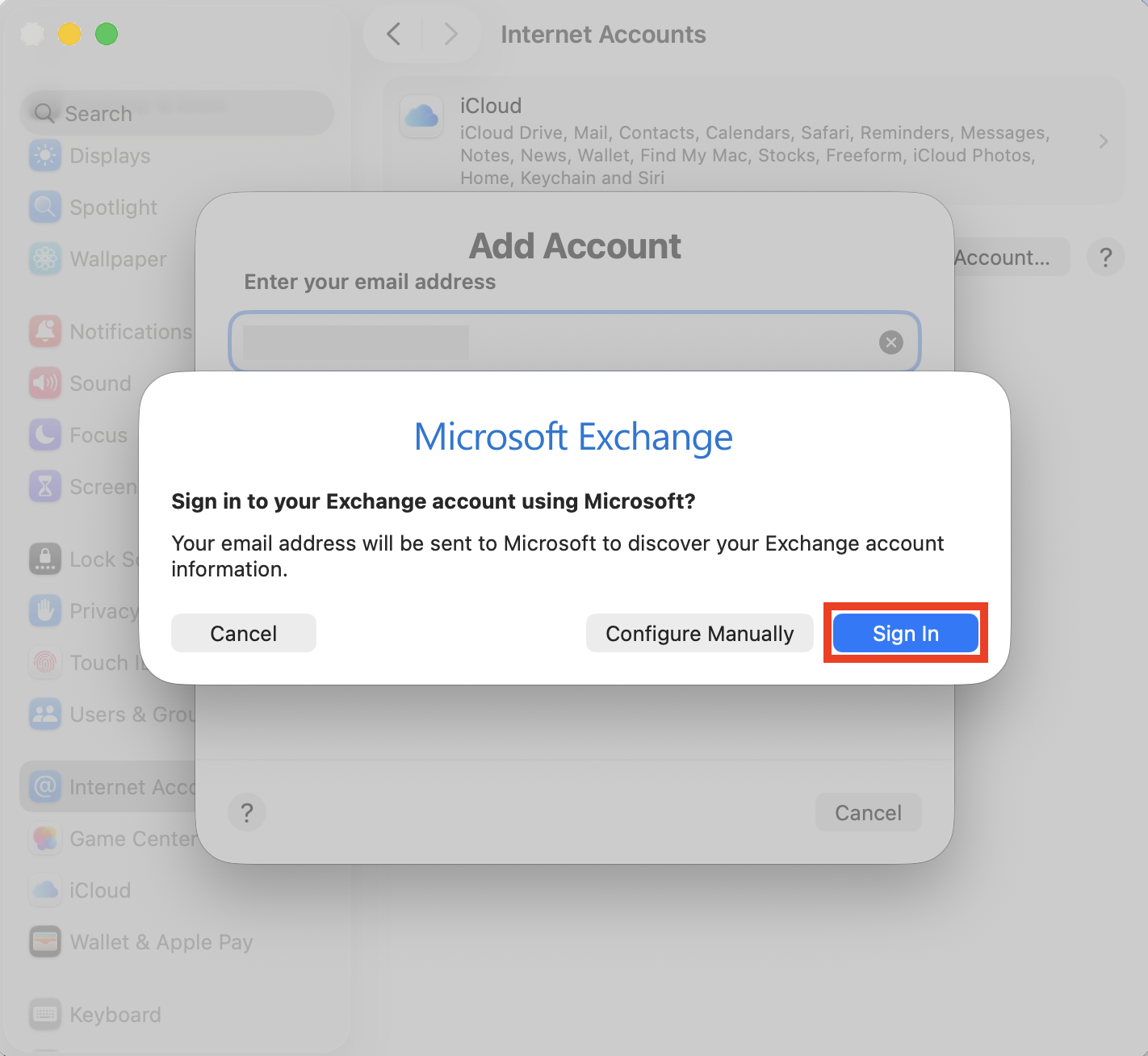
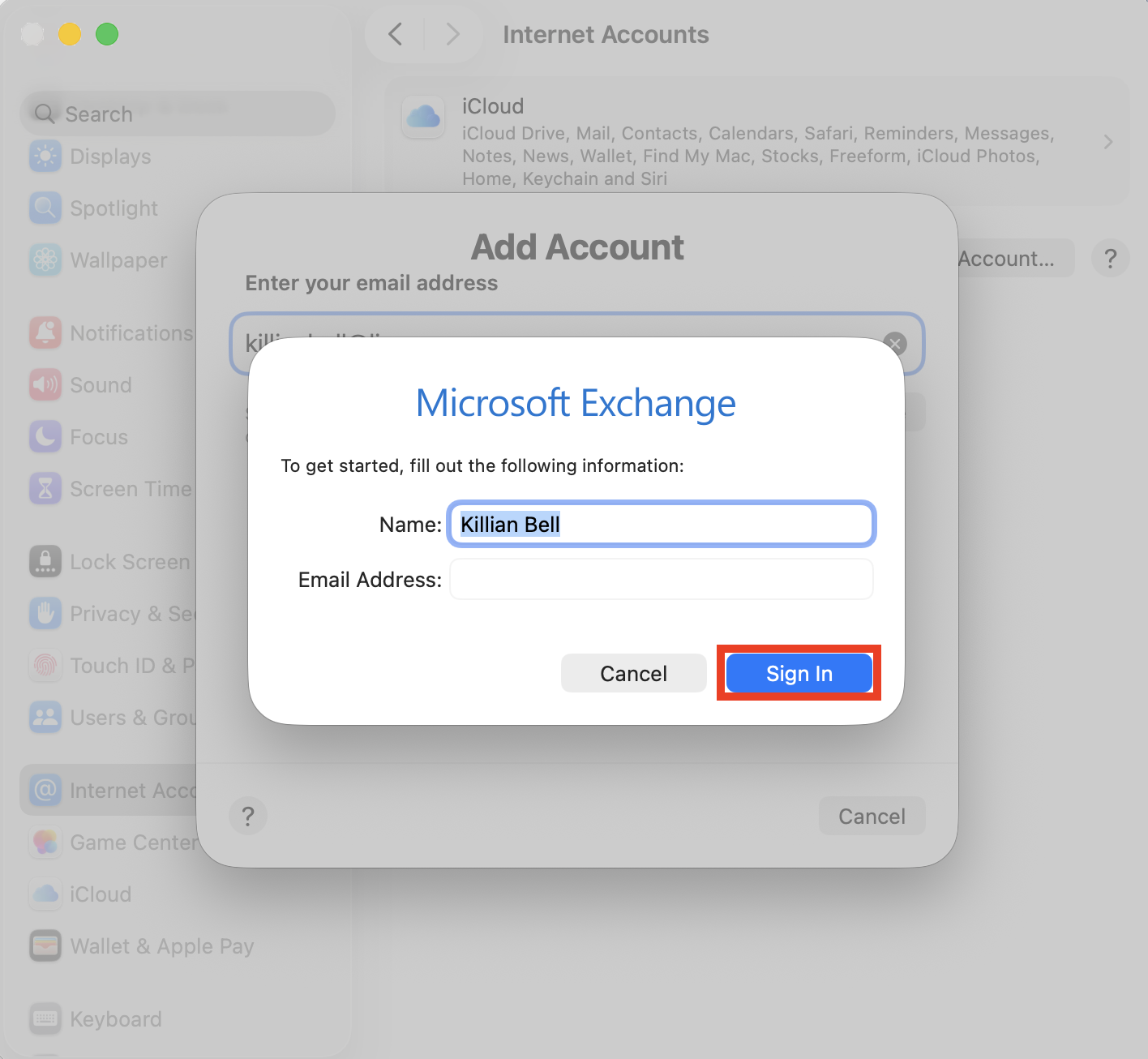
When prompted, confirm your name and select Sign In.
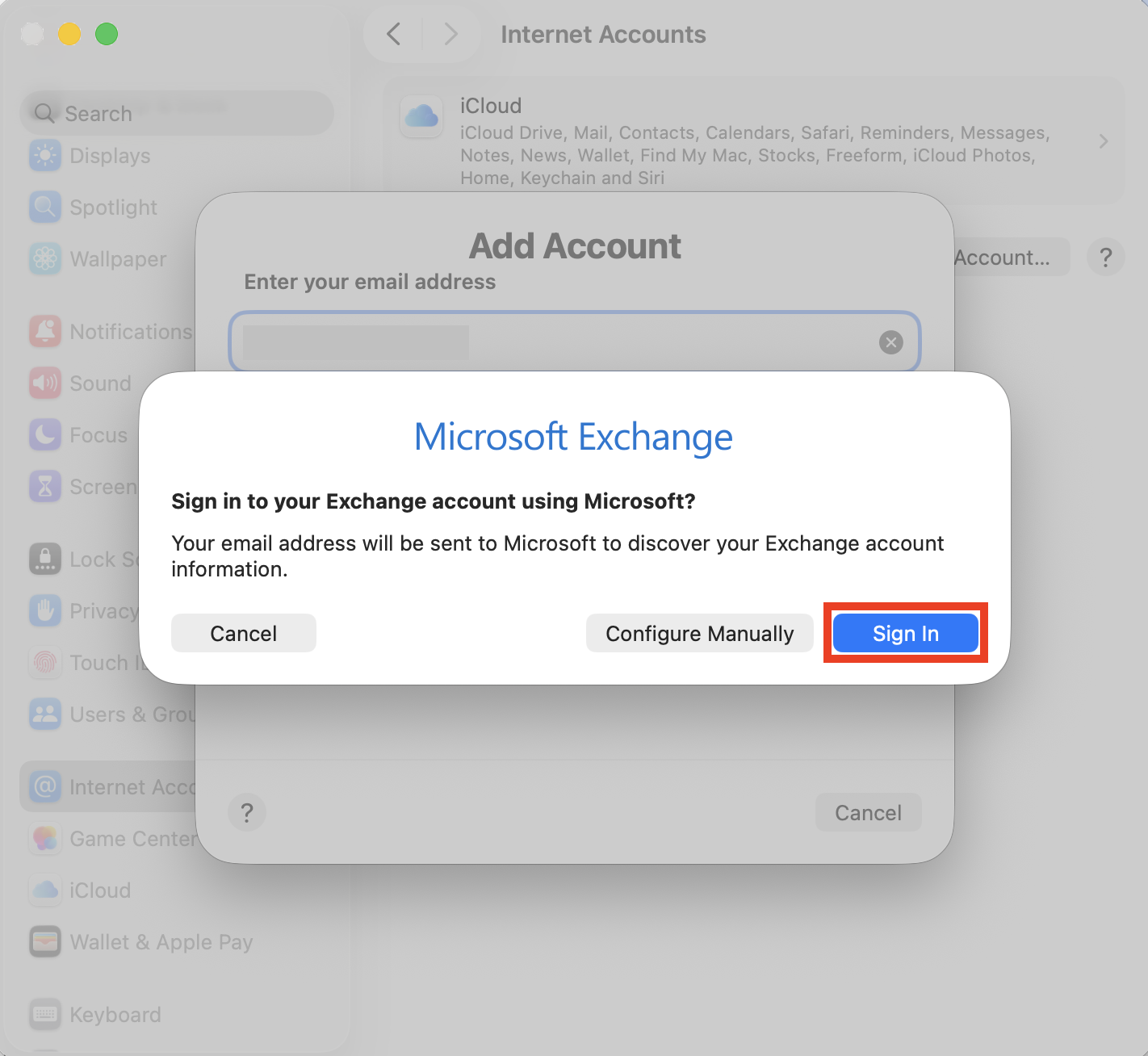
Click Sign In again, then follow the steps to log into your Exchange account.
Step 1. In Internet Accounts, select your Exchange accountStep 2. Select Delete AccountStep 3. Click OKStep 4. Click Add AccountStep 5. Sign into your Exchange accountStep 6. Sign into your Exchange account again
You’ll notice you have the option when signing in again to choose which features you want to sync—email, contacts, calendars, etc. OneDrive isn’t built into Mac, so if you want to know how to transfer files from one Mac to another, you’ll need to install the separate OneDrive app.
5. Create & use an app‑specific password
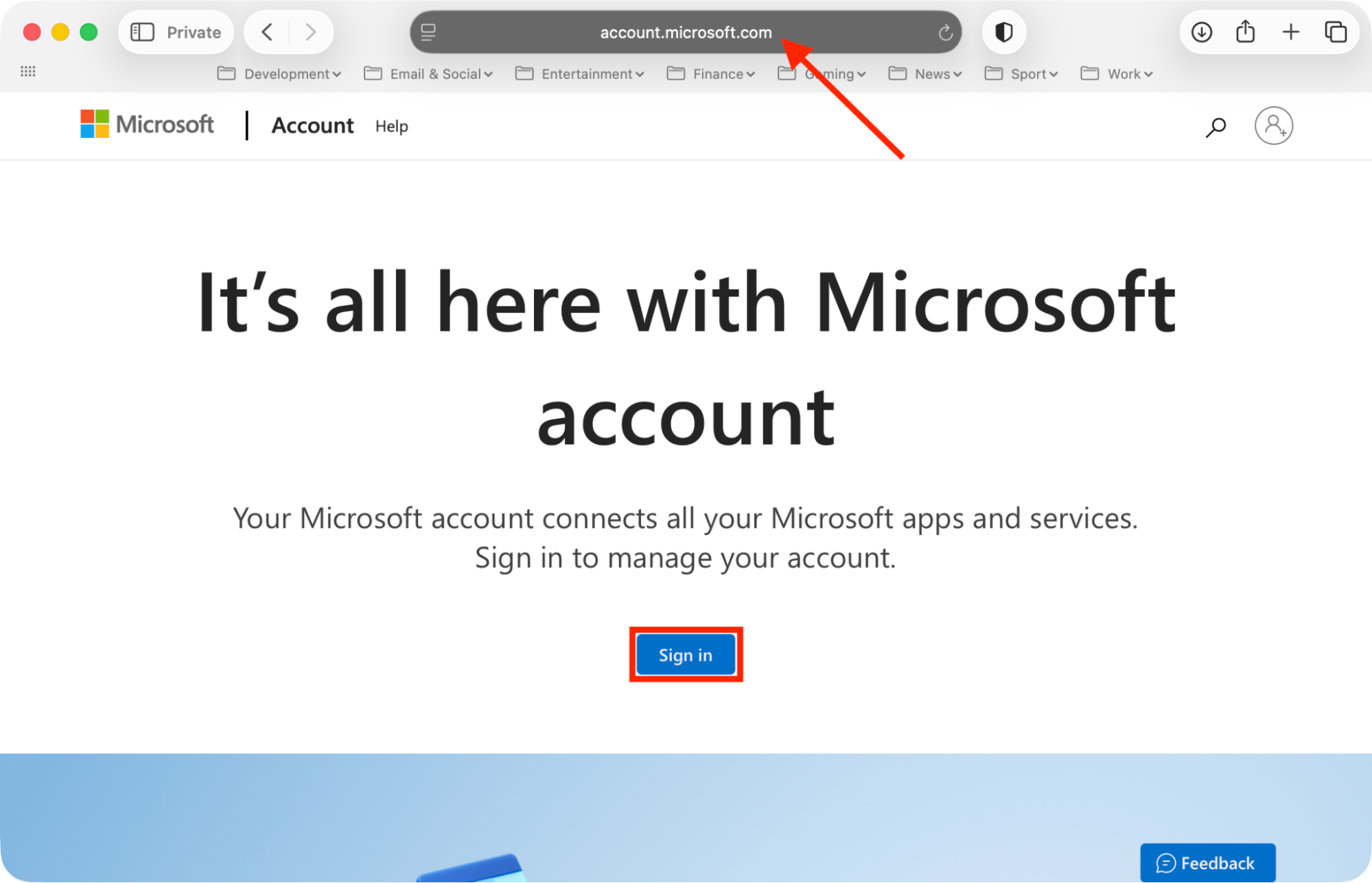
If you know you’re entering the correct Exchange credentials and you still can’t log in, you can try creating an app-specific password that’s exclusively for your Mac. First, remove your Exchange account from Mac using the steps above, then do this:
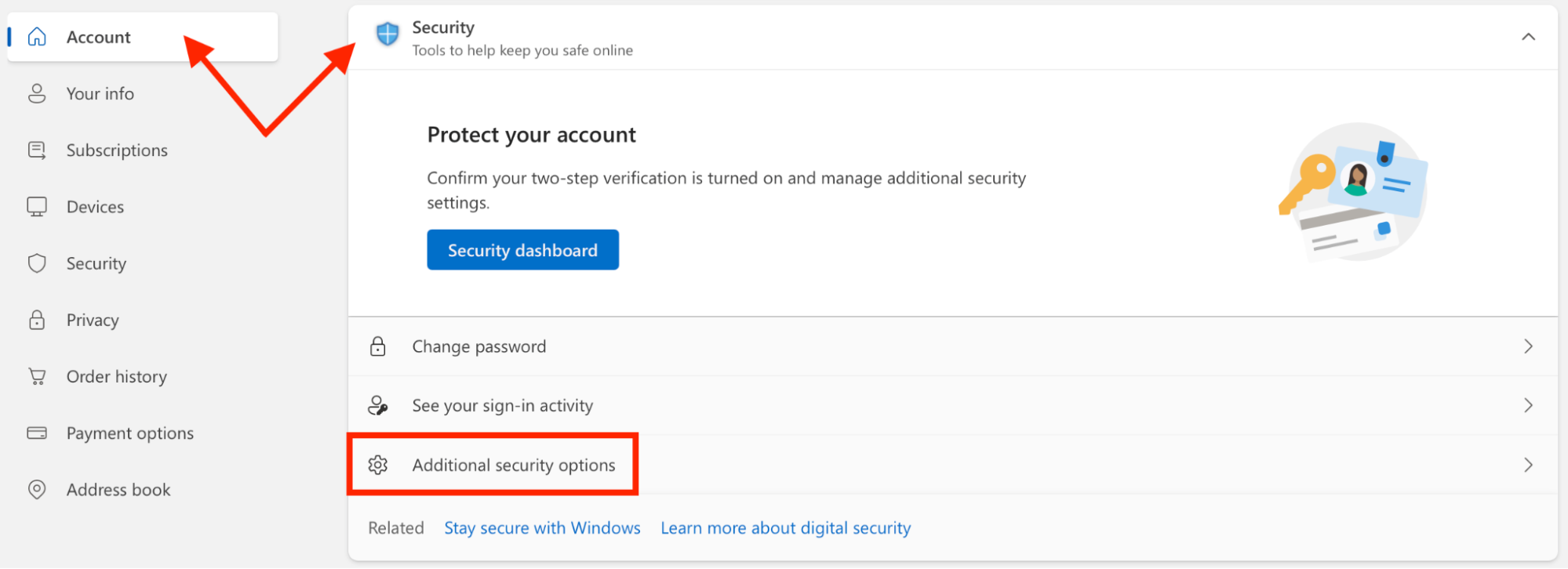
Go to Account > Security, then select Additional security options.
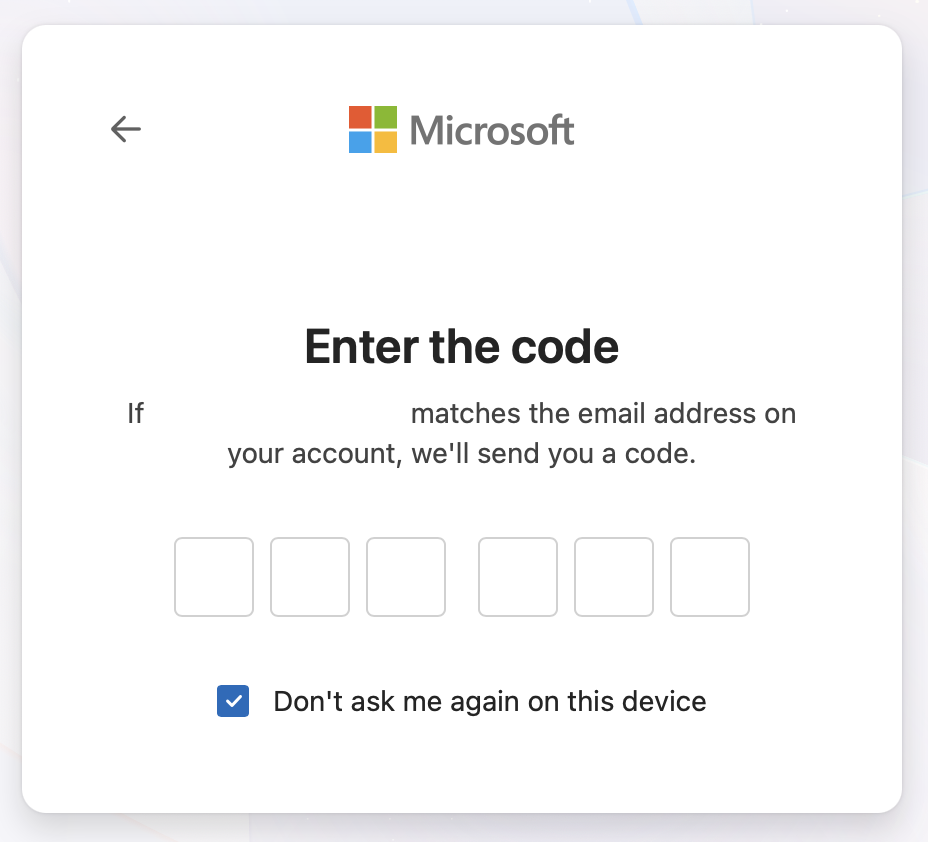
Follow the steps to confirm your account details.
Scroll down to App passwords, then click Create a new app password.
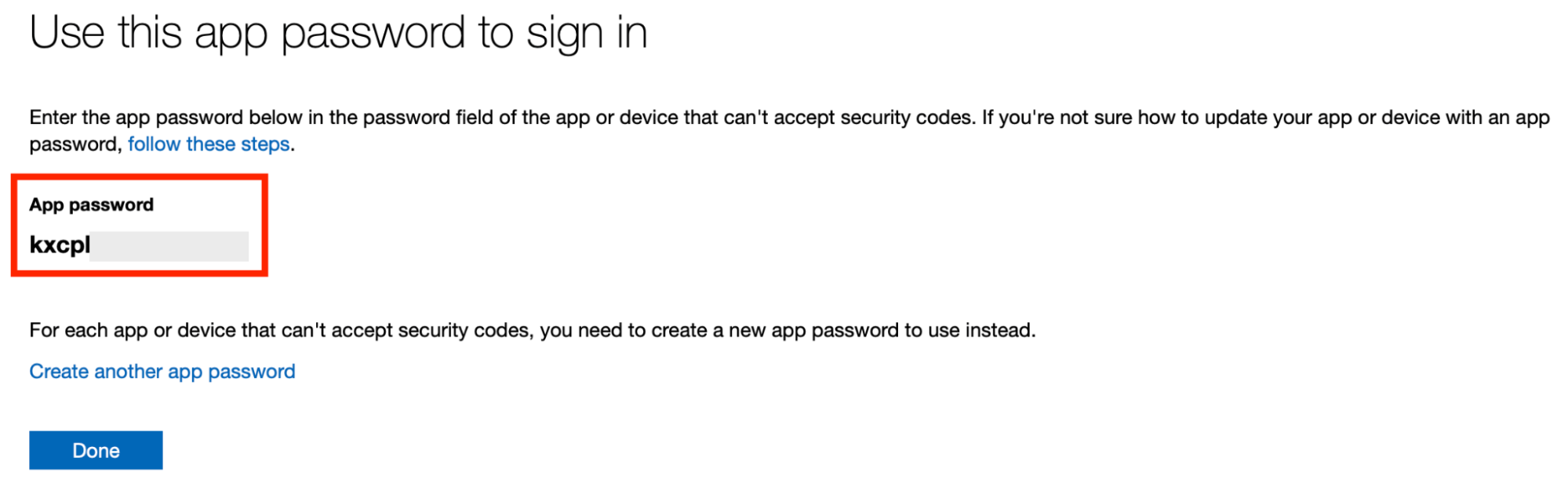
Your new password will be displayed on the screen. Follow the steps above to re-add your Exchange account onto Mac and use this password to sign in.
Step 1. Sign into your Exchange account in your browserStep 2. In Account > Security, click Additional security optionsStep 3. Confirm your account detailsStep 4. Click Create new app passwordStep 5. Use the app-specific password to sign into Exchange
I’ve noticed that some Exchange login errors can be caused by problematic Keychain entries or duplicate tokens. Here’s how you can remove them:
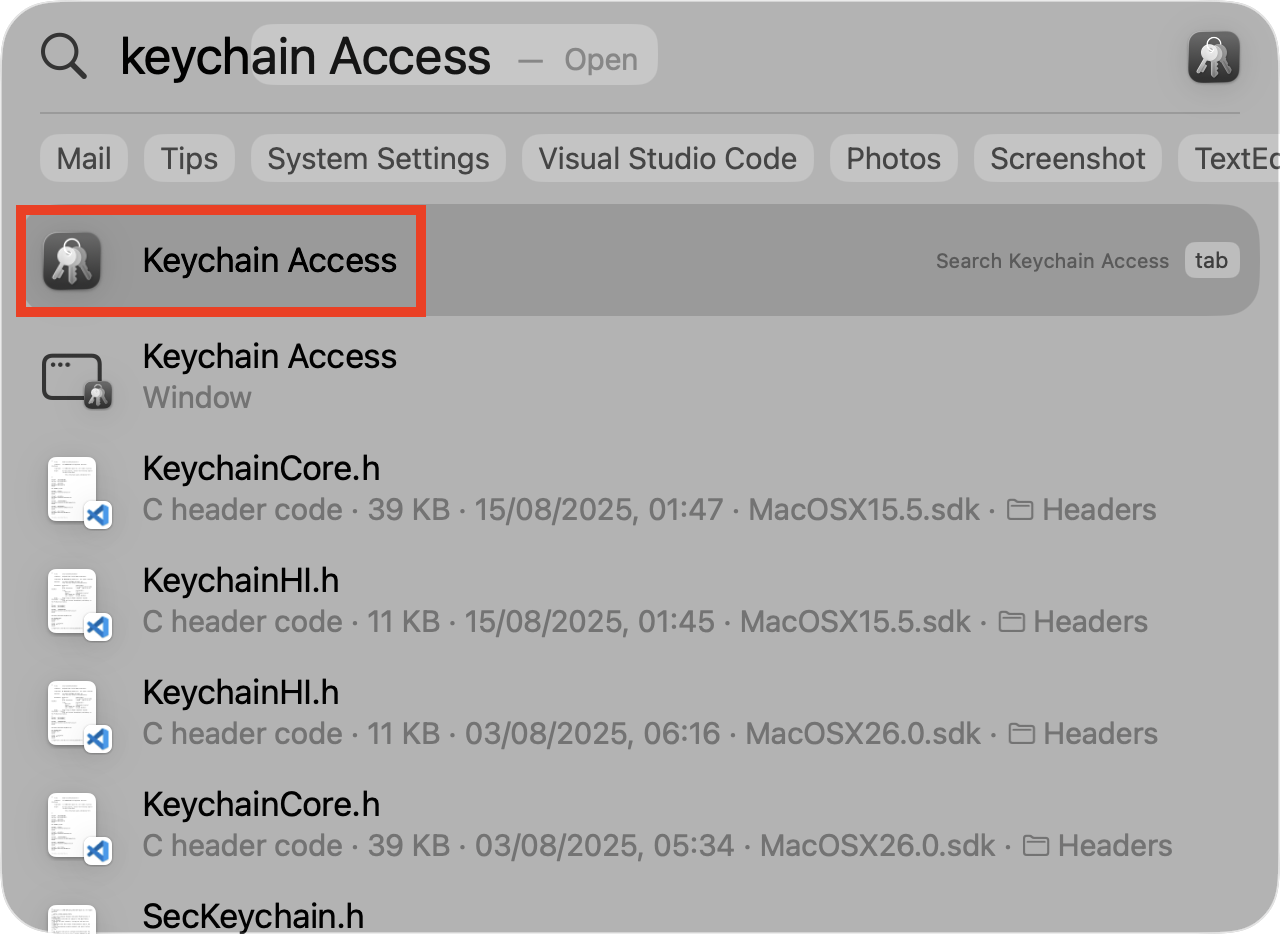
Use Spotlight on your Mac to search for and open Keychain Access.
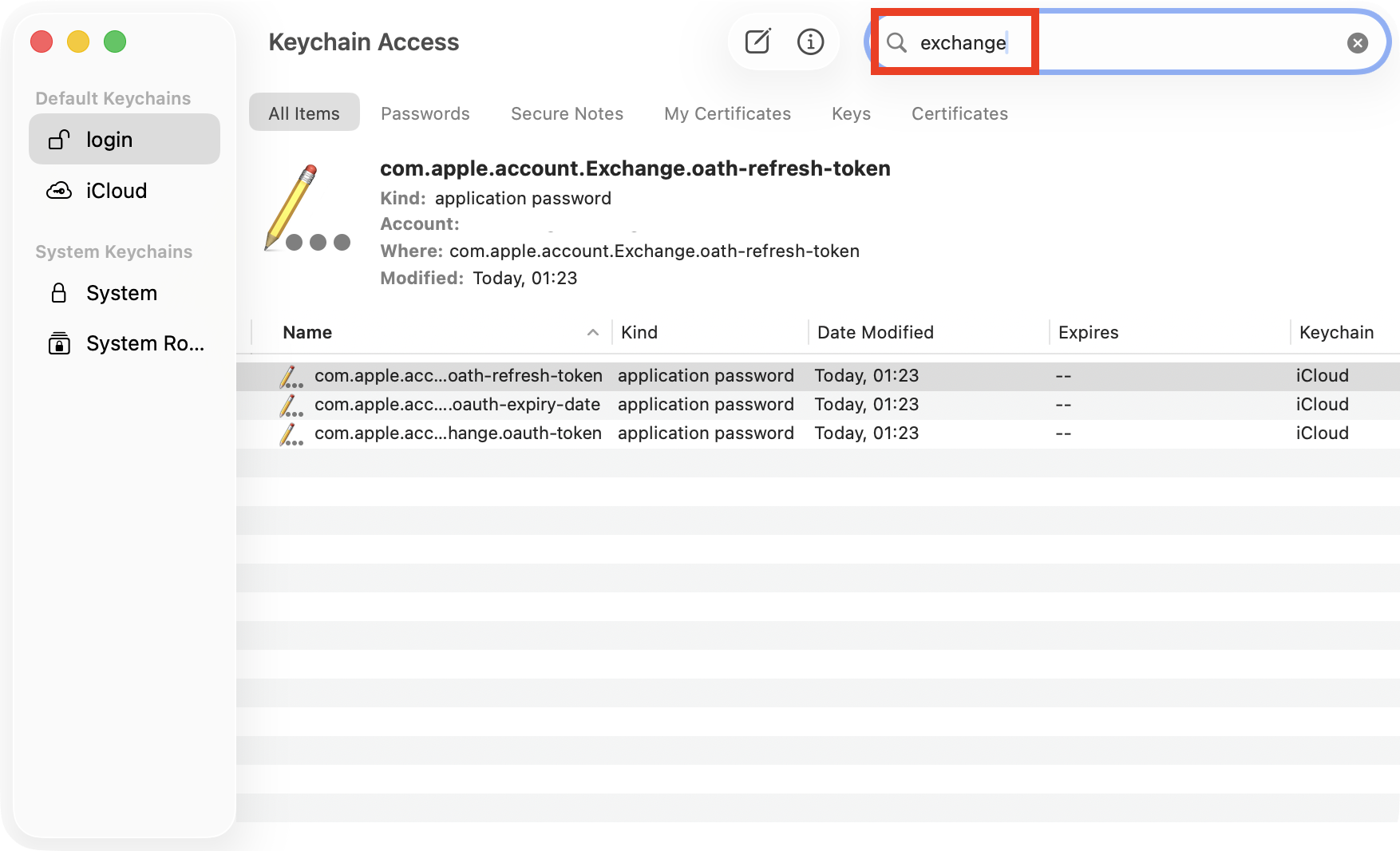
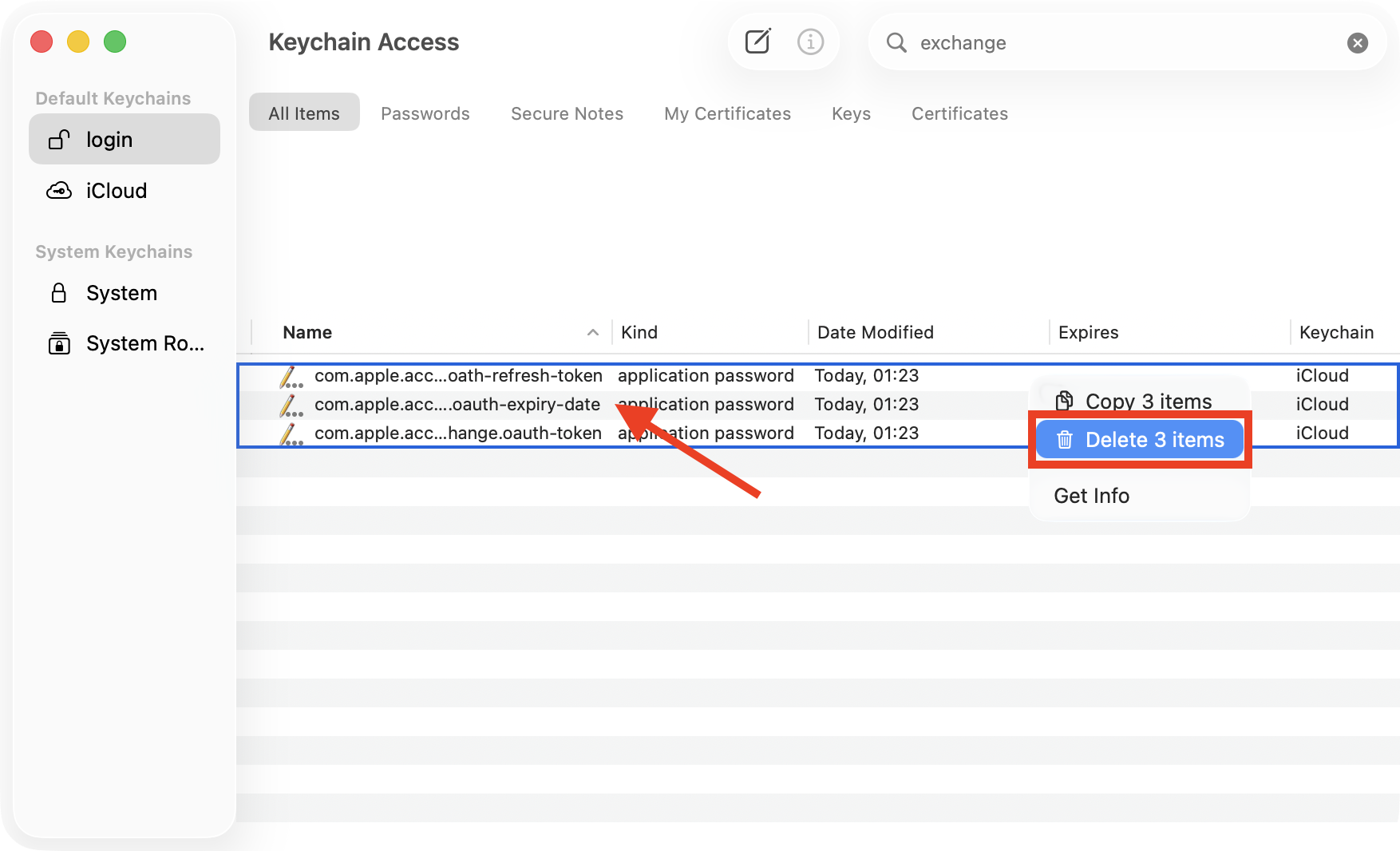
Search for “Exchange” then select and delete each item that’s tied to the account having issues.
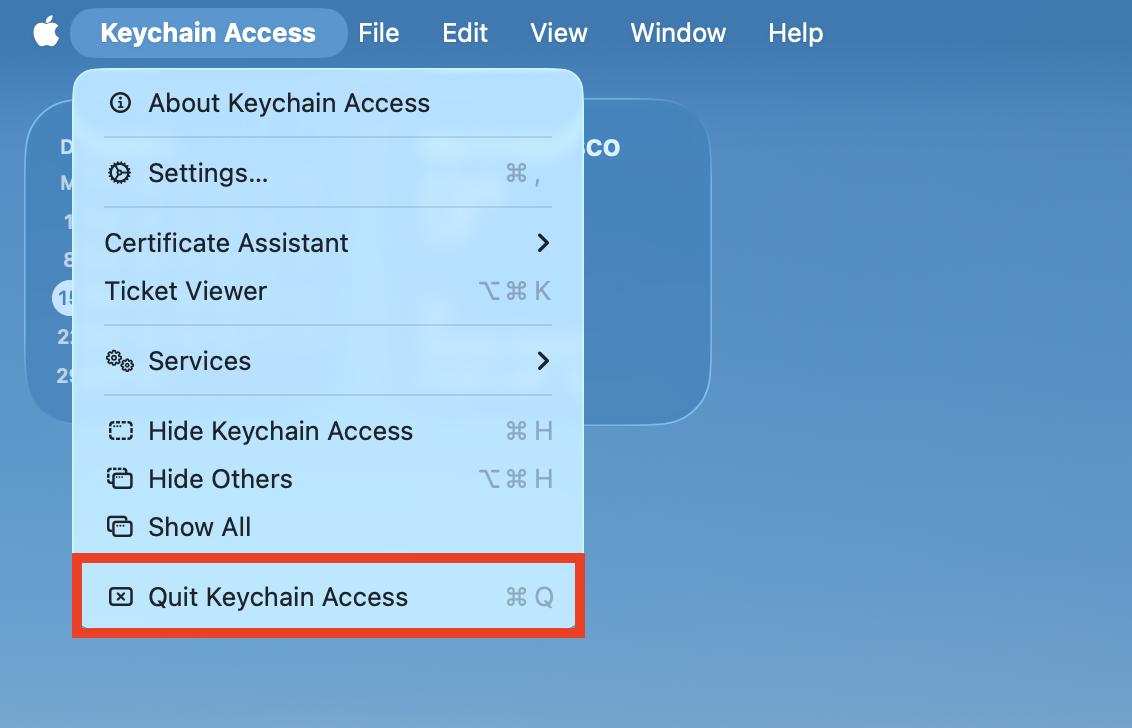
Quit Keychain Access and then try signing into your Exchange account again.
Step 1. Find and open Keychain AccessStep 2. Find Exchange account detailsStep 4. Select and delete Exchange accountsStep 5. Quit Keychain Access, then sign into Exchange again
7. Adjust server settings manually (internal/external URLs)
In some cases, I’ve encountered “Exchange password required” on Mac because automatic setup isn’t working as intended. To see if you have this issue, you can adjust your Exchange server settings manually, like so:
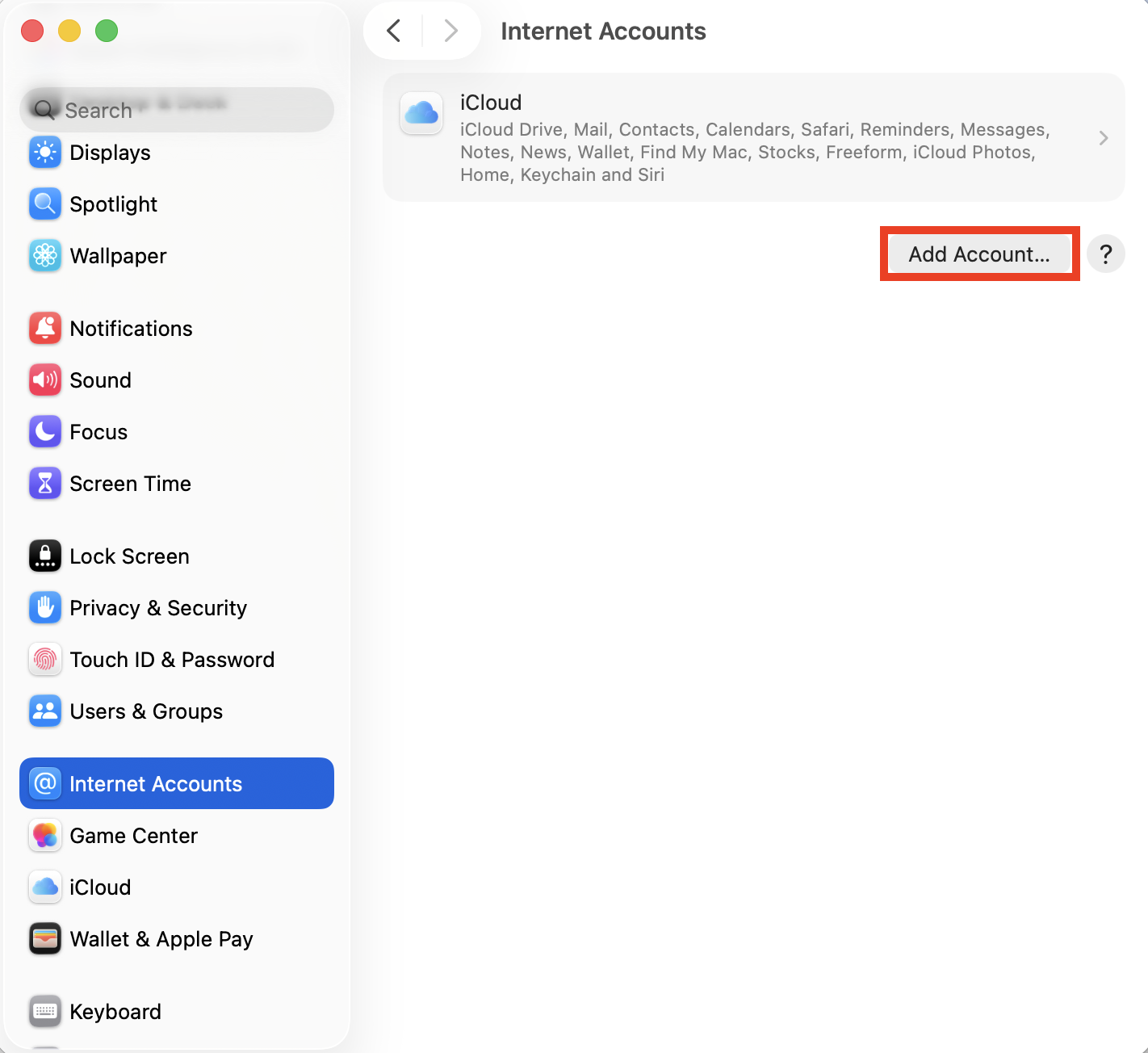
Go to System Settings > Internet Accounts and click Add Account.
Enter your Exchange email address and select Continue.
Confirm your name, then click Sign In.
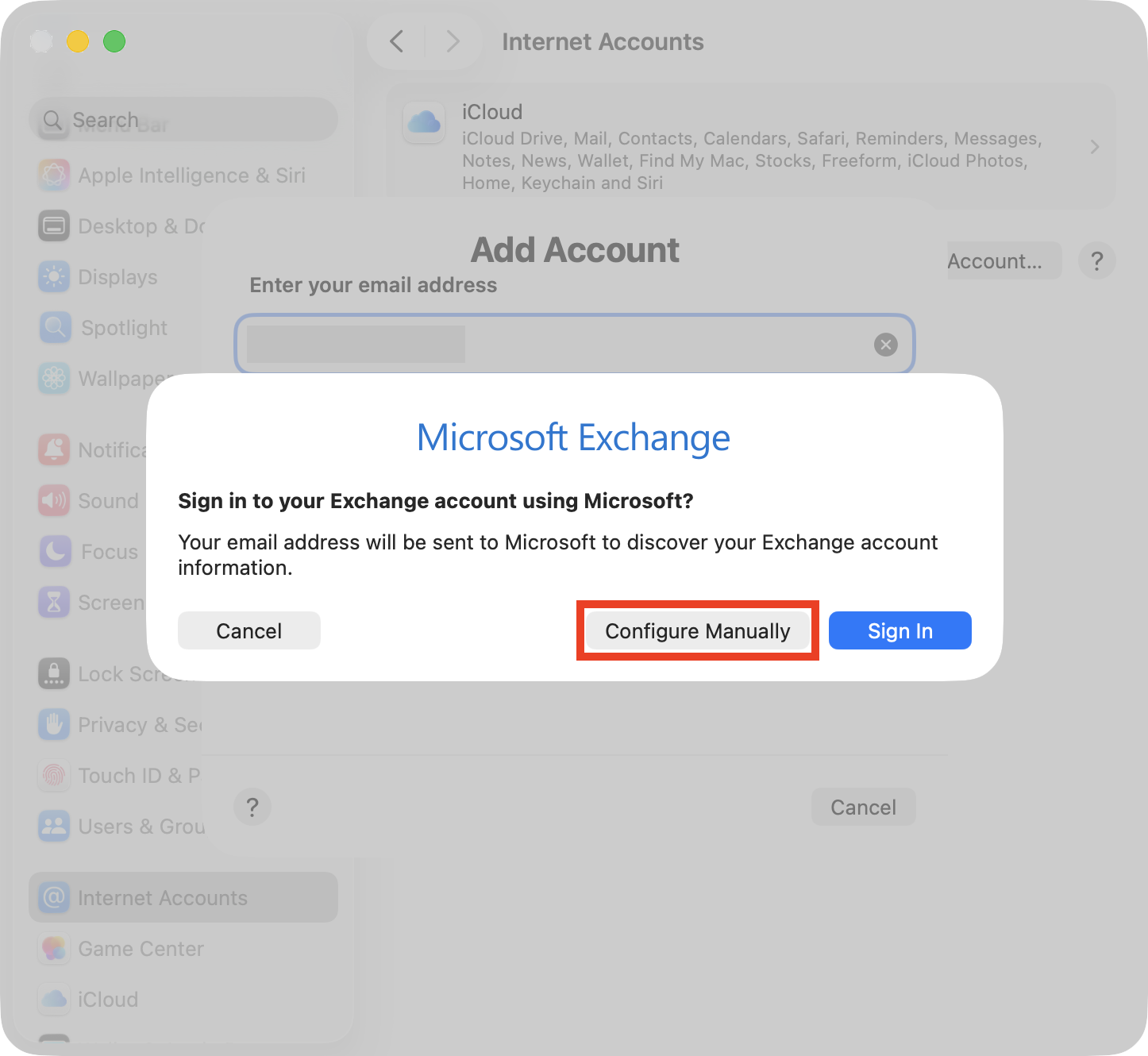
Select Configure Manually.
When prompted, enter the server details. You can obtain these from the manager of your Exchange account.
Continue the setup process to sign in.
Step 1. In Internet Accounts, click Add AccountStep 2. Sign in to your accountStep 3. Click Configure Manually
8. Check for macOS and Mail/Outlook updates
Another way I’ve had success when trying to fix “Exchange password required” on Mac is to update macOS and Mail (or Outlook if you use that instead), which can eliminate any bugs. Try this:
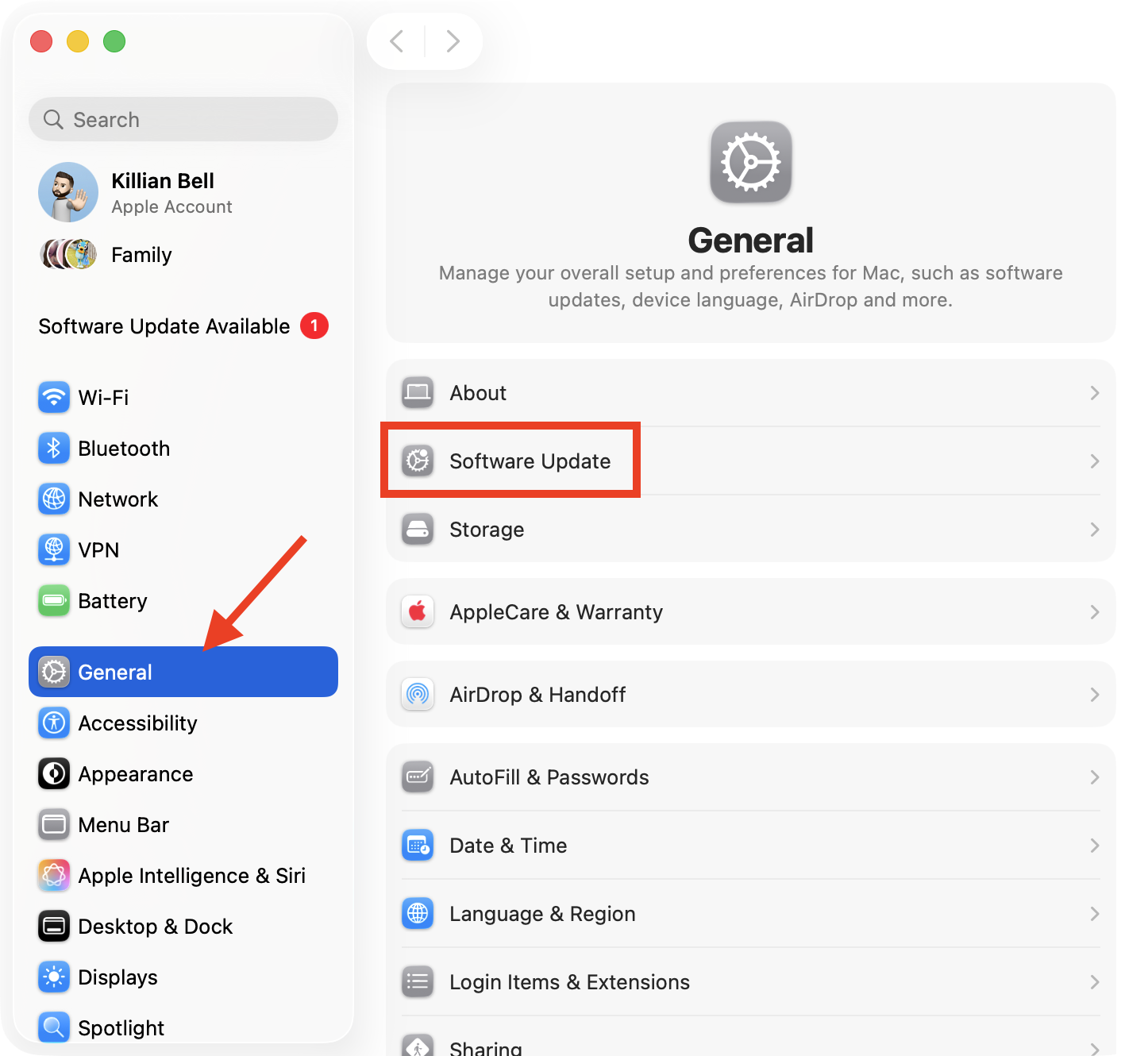
In System Settings, select General > Software Update.
If an update is available, click Update Now. Mail is baked into macOS, so this will automatically update as well.
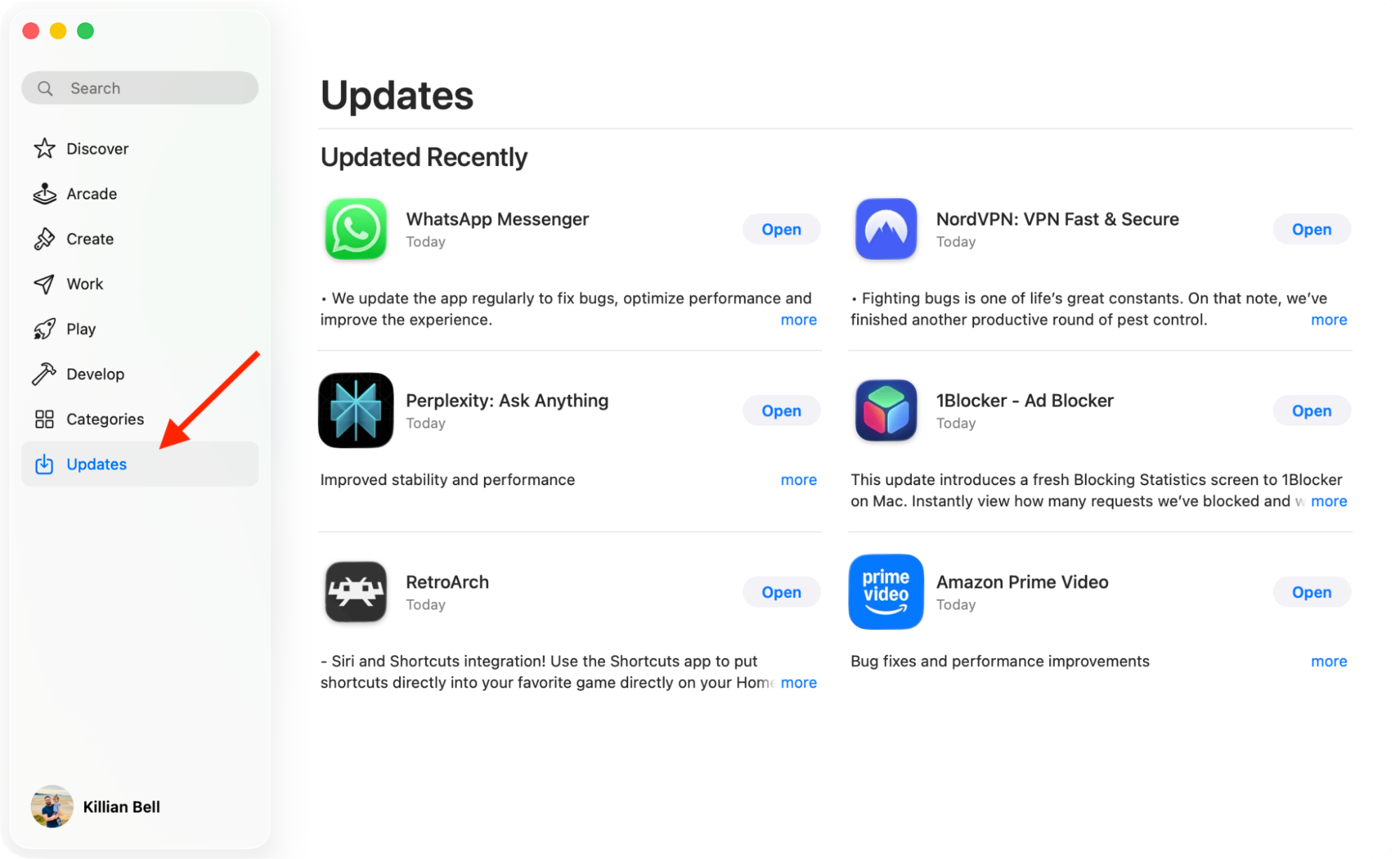
To update Outlook, open the App Store, select Updates, then install the latest Outlook release if you don’t already have it.
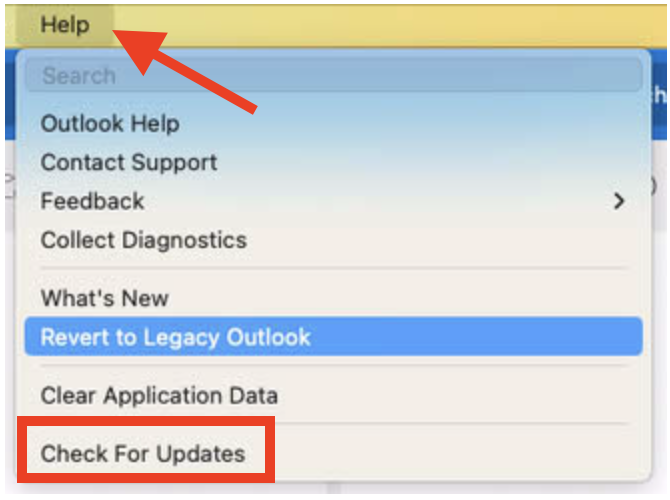
If you downloaded Outlook directly from Microsoft, open the Outlook app, then click Help > Check for Updates in the menu bar to update it.
Step 1. In System Settings, go to General > Software UpdateStep 2. If an update is available, click Update NowStep 2. Install Outlook updatesStep 3. Go to Help > Check for Updates to update Outlook
9. Update your Exchange password in Internet Accounts
Whenever you need to fix “Exchange password required” on Mac, you should be prompted to re-enter your password. However, I’ve found this doesn’t always happen, so here’s how to update it yourself:
Go to Internet Accounts in System Settings.
Select your Exchange profile, then click Delete Account.
Click OK to confirm.
Click the Add Account button, then sign into your Exchange account again.
Step 1. Go to Internet Accounts and select your Exchange accountStep 2. Choose Delete AccountStep 3. Click OK to confirmStep 4. Click Add Account to sign in again
Although some accounts on Mac allow you to update or re-enter your password without removing them, I’ve found that Exchange doesn’t—at least not in modern versions of macOS—so removing and then re-adding them is the only solution.
Conclusion
When you’re looking to stop “Exchange password required” on Mac notifications, I’ve found that there are several effective solutions you can explore, like restarting the system, updating macOS and the Mail app, removing and re-adding the account in System Preferences, and more.
If you’ve tried all of the methods we’ve outlined above and you can’t get “Exchange password required” on Mac to turn off, use MacKeeper’s Premium Services from Clario Tech to get in touch with a trained professional who can help you fix the issue. They’re quick to respond and great at solving Mac issues.
We respect your privacy and
use cookies
for the best site experience.
Privacy Preferences Center
We use cookies along with other tools to give you the best possible experience while using the
MacKeeper website. Cookies are small text files that help the website load faster. The cookies we
use don’t contain any type of personal data meaning they never store information such as your
location, email address, or IP address.
Help us improve how you interact with our website by accepting the use of cookies. You can change
your privacy settings whenever you like.
Manage consent
All cookies
These cookies are strictly necessary for enabling basic website functionality (including page
navigation, form submission, language detection, post commenting), downloading and purchasing
software. The website might malfunction without these cookies.