When Google Chrome suddenly shows a screen-capture alert, it can be confusing - especially if you don’t remember granting any website such permissions, your privacy may be at risk. Fortunately, MacKeeper’s StopAd helps detect and remove suspicious extensions and associated malware, keeping your Mac environment clean and efficient.
The Google Chrome is capturing your screen message means a website or app is using Chrome’s screen-sharing feature. As a rule, this occurs in apps or websites that allow video meetings, recordings, or presentations to share or record your screen. However, this notification may be caused by a temporary bug or amalicious extension. You can resolve this issue by ending the sharing session and allowing your browser to perform smoothly.
Why is Google Chrome recording your screen?
Google Chrome records your screen when a website or app requests permission to share your screen for video calls, screen presentations, or remote access. Sometimes this feature may be triggered by a browser bug or faulty extensions, making it seem like you’re being watched. Check your active permissions to remove Google Chrome from capturing your screen when you don’t need it.
How to check if Chrome is recording your screen?
You can check if Chrome is recording your screen currently by looking for a screen-sharing indicator in the browser tab or toolbar. You may also see an icon in the address bar, review the OS settings to confirm which apps are allowed to record your screen, and remove potentially unsafe extensions. By default, Google Chrome displays a notification about a recording session.
If Chrome suddenly stops responding, perhaps you’re dealing with Chrome frozen on Mac, which presupposes some other fixing solutions.
How to stop Google Chrome from capturing screen?
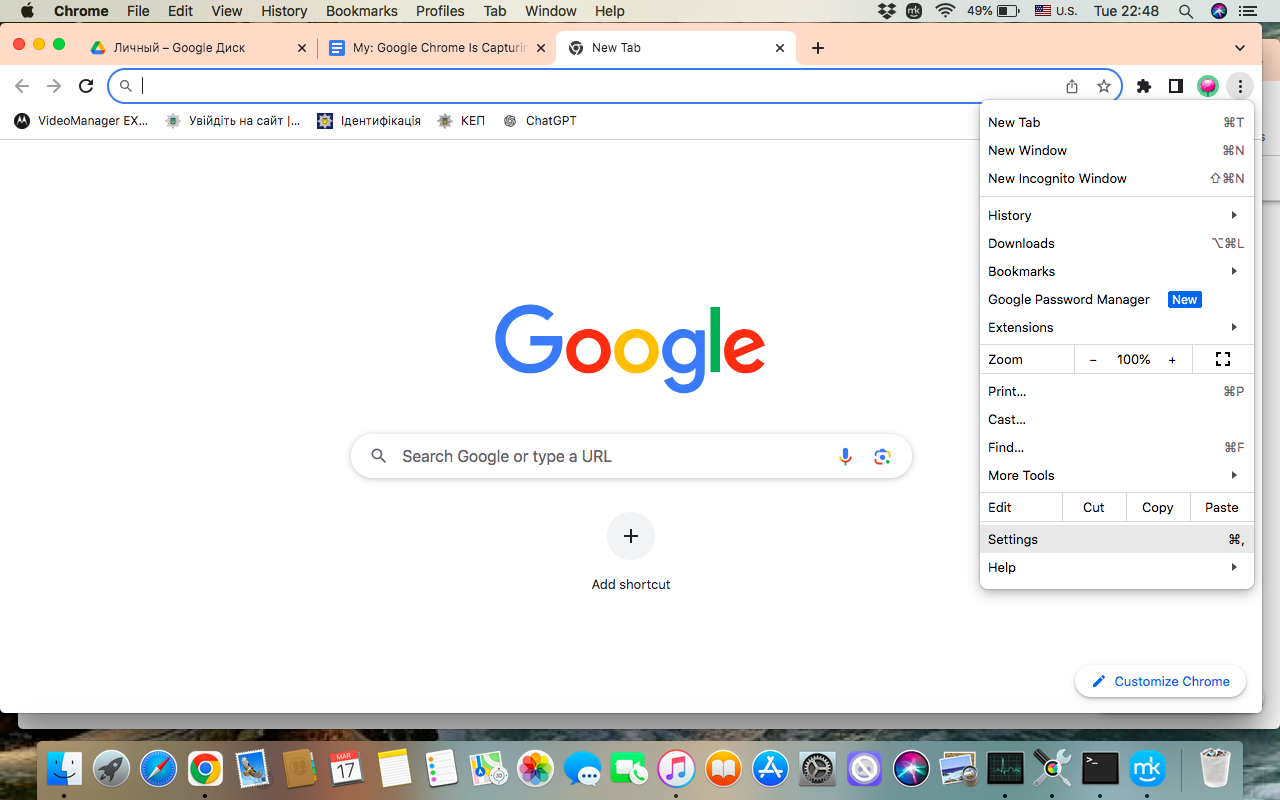
You can stop Google Chrome from capturing your screen by closing screen-sharing sessions, changing browser permissions in Settings ➙ Privacy ➙ Site Settings to cancel access, and turning off suspicious extensions. Also, try to close the website allowed to record your screen. If Google Chrome is sharing your screen still, stop all processes and restart the browser.
If you notice the unusual Chrome behavior, first of all, recall how to remove a virus from Google Chrome on Mac to enhance your online safety.
1. Check open and active browser tabs
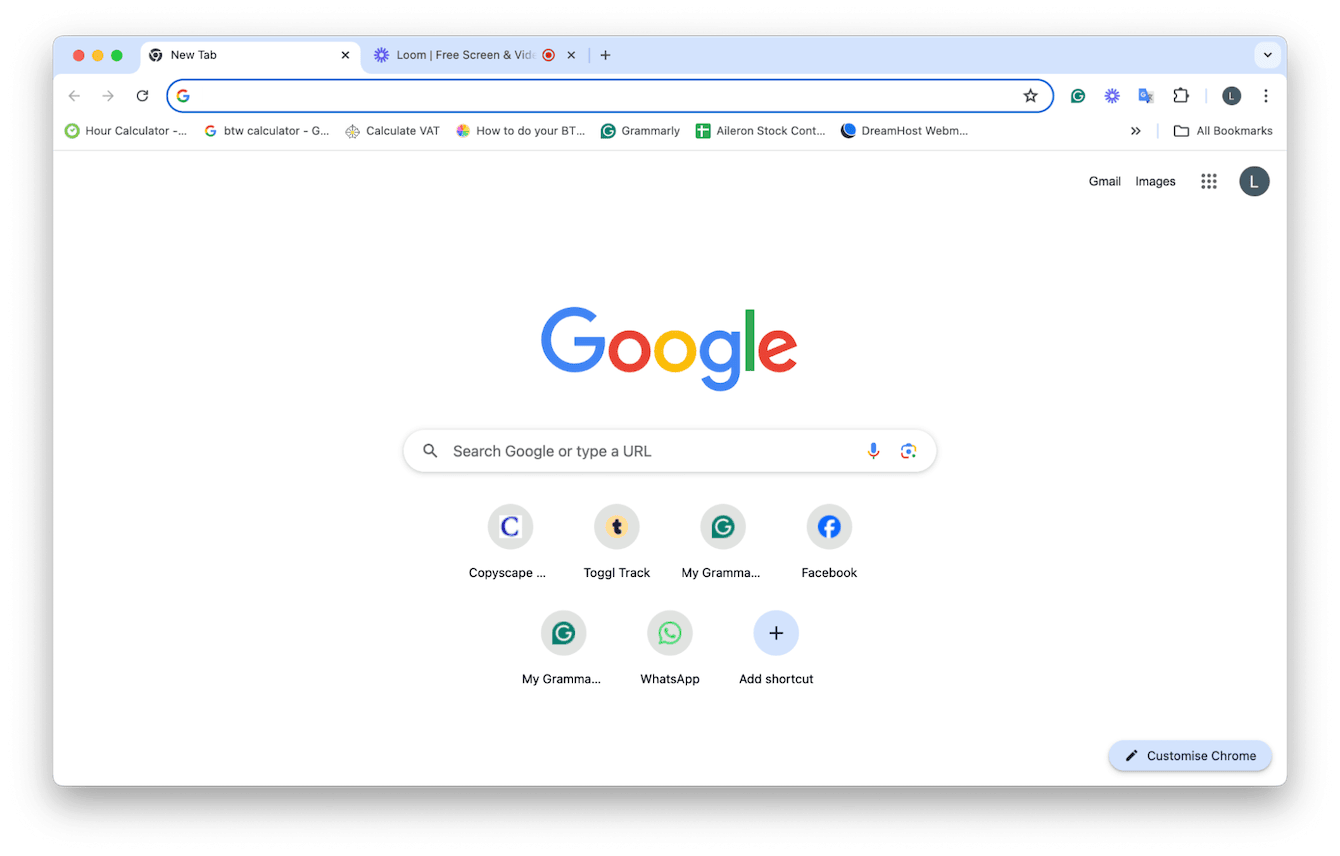
When investigating why Google Chrome is accessing your screen, first try to check the active tabs in the browser. Often, the screen-sharing request comes from a website running in the background. You can identify this site easily by a red indicator light. As an example, you may allow some video meeting platforms or remote support tools to share your screen, and then forget to turn it off.
Remember that closing this window stops capturing your screen at the moment, but it doesn’t disable screen sharing for the site forever. I’ll tell you how to do it below. While managing your Chrome browser, don’t hesitate to learn how to add Chrome to security and privacy on Mac to prevent possible risks.
Find the red indicator light to identify the site that is capturing your screen
2. Manage Chrome permissions
Another way to handle Chrome capturing your screen is to review the browser’s permissions. Over time, we can allow numerous websites to get access to our microphone, camera, or screen-sharing feature and then simply forget that permissions are still active. If you want to control the settings of a particular website, click the lock icon next to its address, then open Site settings and remove unnecessary permissions.
However, instead of managing the permissions for one website, spending time, and leaving the risk of forgetting about other webpages with this sensitive access, I suggest you check the general settings:
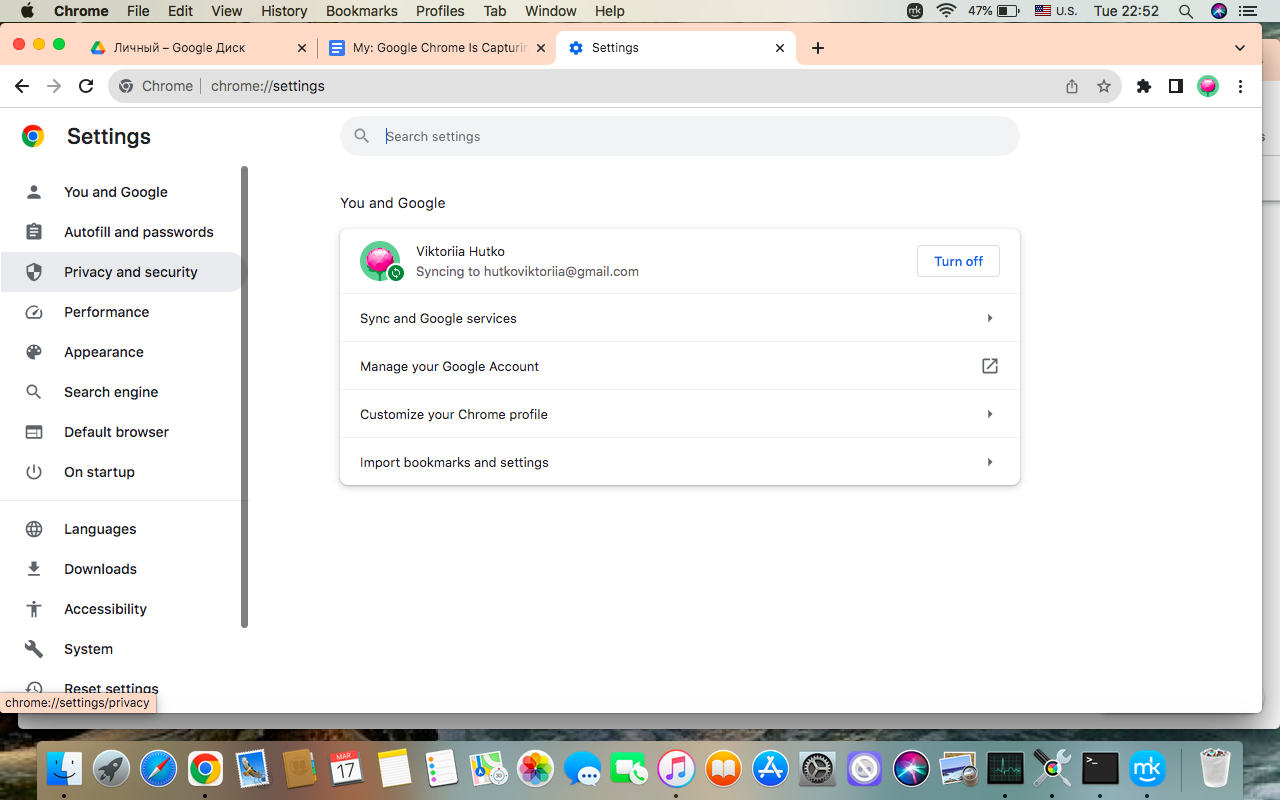
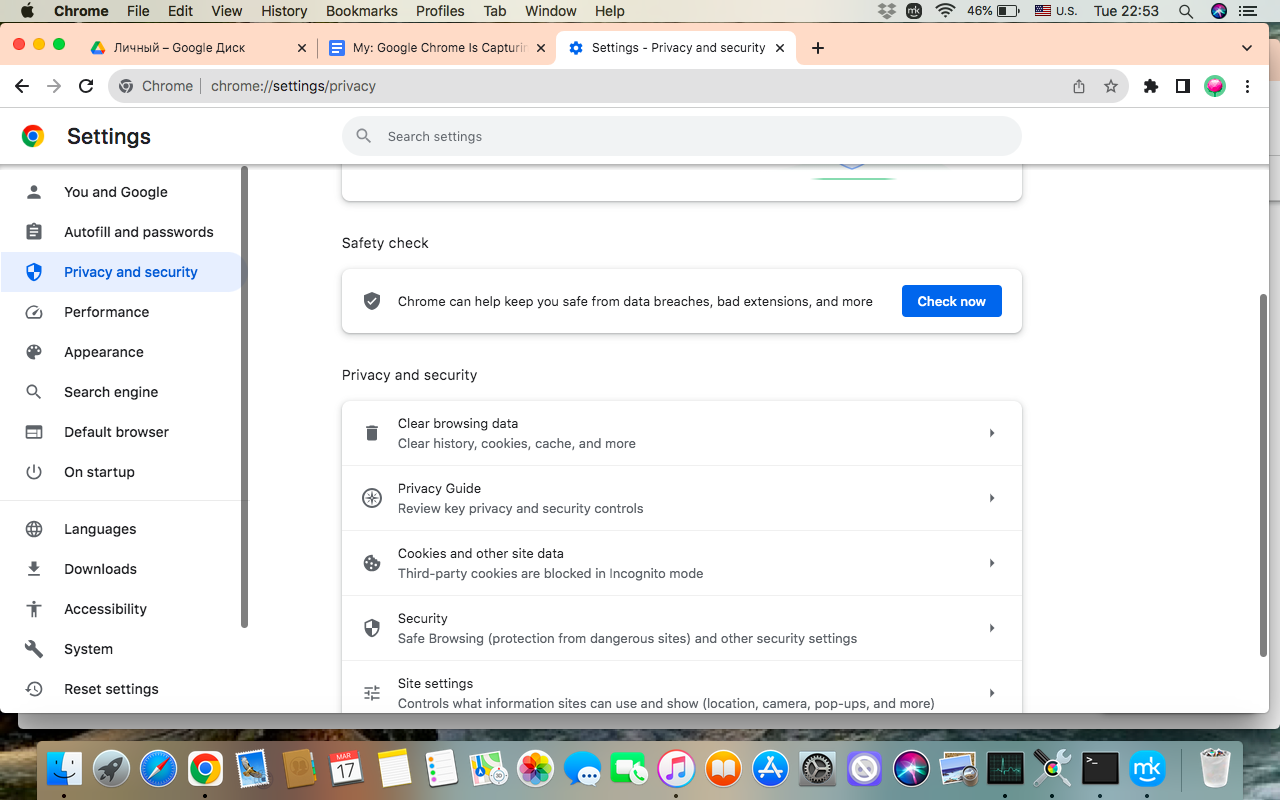
Open Chrome Settings and select the Privacy and Security option.
Go to Site Settings ➙ disable permissions that frustrate you.
Step 1. Google Chrome > Chrome SettingsStep 2. Privacy and SecurityStep 3. Site Settings > disable permissions
When your Mac suddenly freezes and doesn’t respond to your tasks, remember how to force quit Chrome on Mac to help your browser run normally again.
A note from our experts:
When Chrome unexpectedly shows you a screen-capturing alert, you definitely feel frustrated and irritated, just like by annoying pop-ups. Actually, these two concepts are related, as a real issue of Chrome capturing your screen isn’t the browser itself, but some outdated permissions and suspicious extensions. MacKeeper’s StopAd is a professional, reliable solution in this regard, which gives you full control over the notifications you see, protects your privacy, and helps to get rid of harmful elements on your laptop.
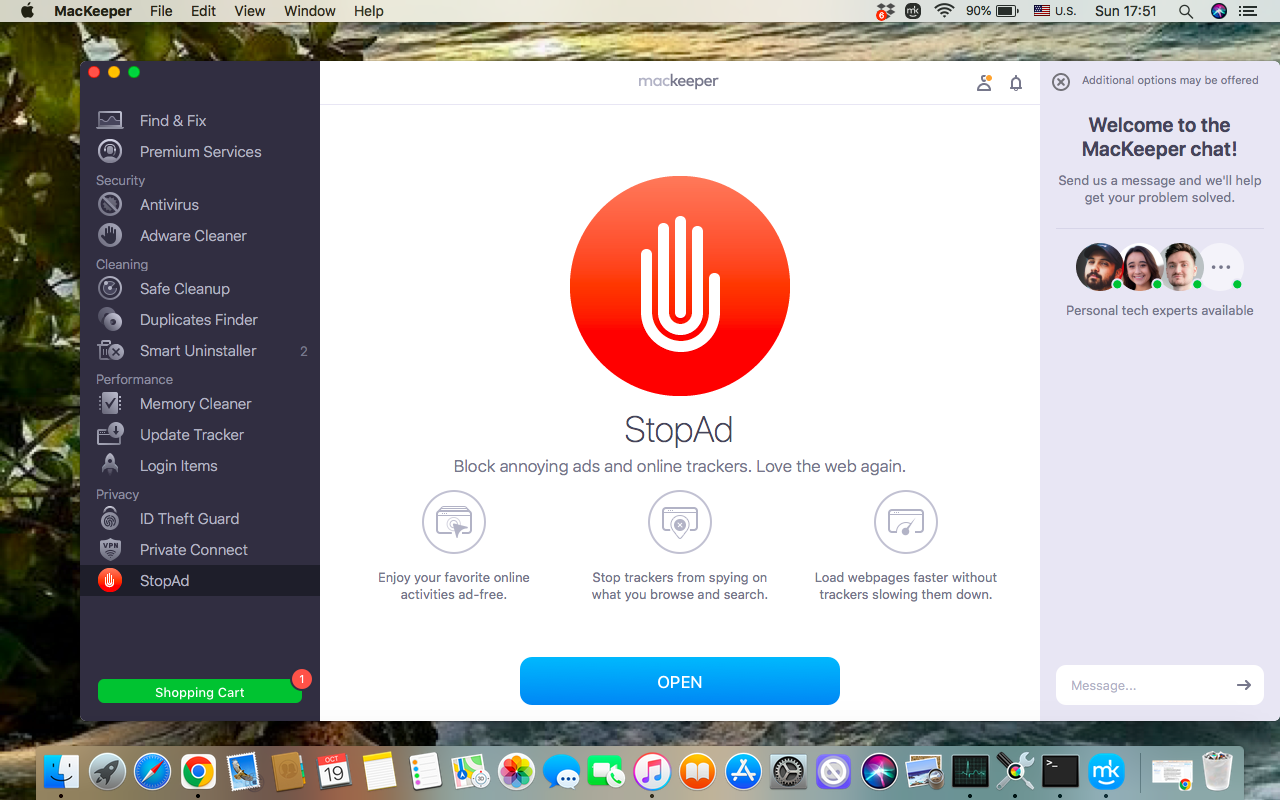
Follow these instructions to restrict annoying notifications on your browser with MacKeeper’s StopAd:
Find the MacKeeper’s StopAd tool in the left sidebar.
Click the Open button at the bottom of the window.
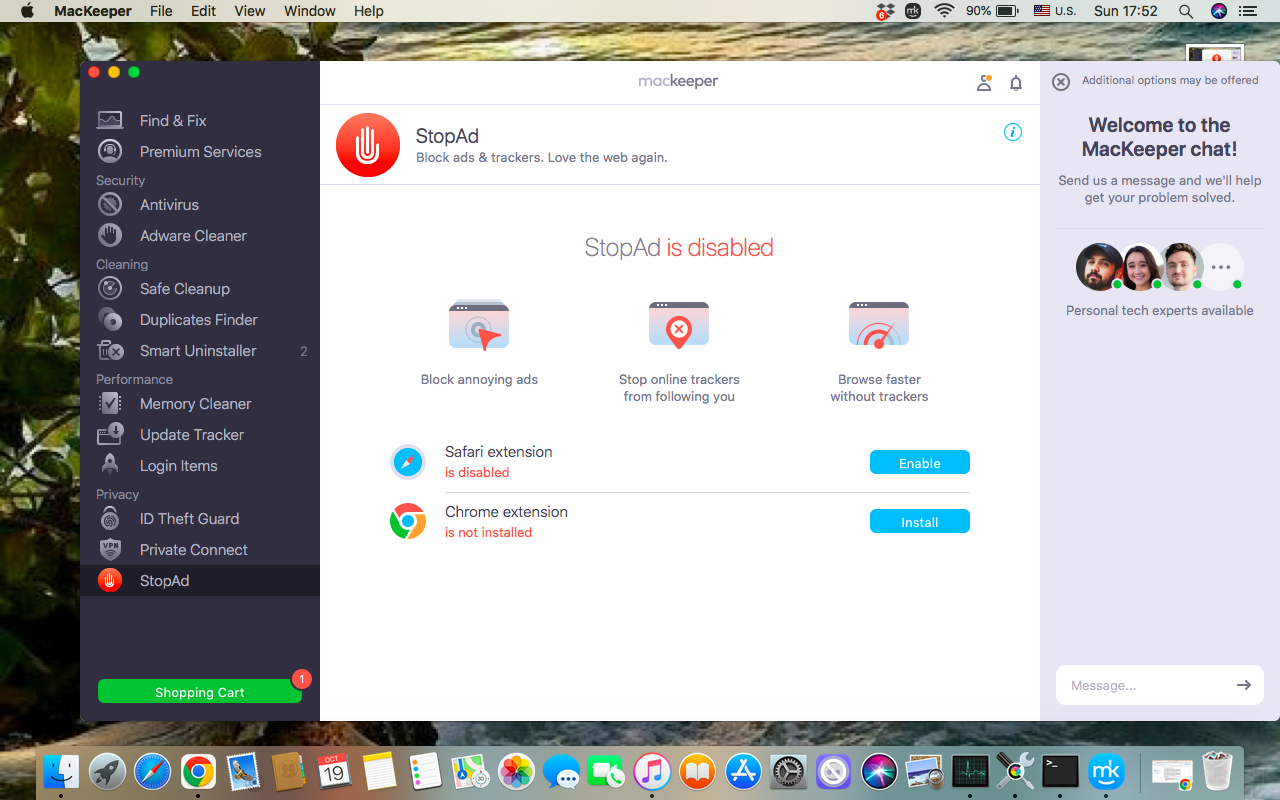
Enable the extension in your browser.
Step 1. MacKeeper’s app > StopAd > OpenStep 2. Enable the extension in your browser
3. Disable all browser extensions
I guess you know that some malware may disguise itself as extensions, and remember how to remove extensions on Mac to fix it. Dealing with Chrome, sometimes it’s not the browser itself that's to blame for capturing your screen, but one of its installed extensions. If you’ve been using meeting tools, productivity tracking, or AI assistance, consider this fixing method, as these tools often request screen-sharing permission, and some of them can glitch and remain active, capturing your screen when you don’t ask for it. A simple and practical way to solve the problem is to disable extensions and check if the irritating issue disappears.
Let’s distinguish how to disable all Chrome extensions:
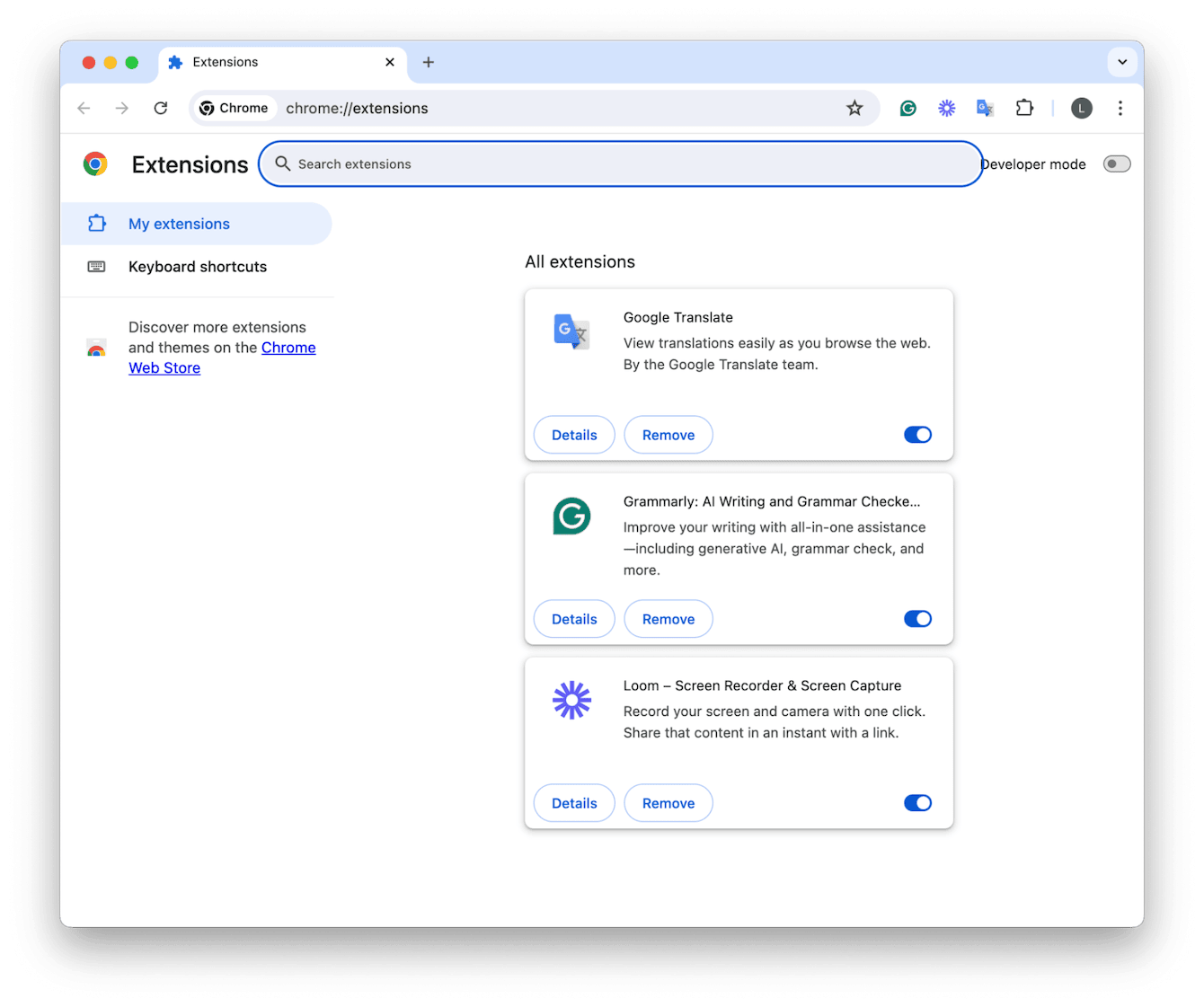
Open Chrome ➙ click the three-dot menu in the top-right corner.
Choose the My Extensions option ➙ check your installed extensions and remove the ones you don’t trust.
Google Chrome > three-dot menu > My Extensions
4. Remove permissions from Chrome
One more reliable and fast way to protect your Mac from unauthorized screen-capturing is to eliminate Chrome’s permissions completely. When you approve some tools’ requests for screen-sharing, Chrome remembers it, which can eventually activate suspicious software, ending up doing something you aren’t willing to, like capturing the screen without your approval. Besides, don’t forget how to delete history on MacBook Google Chrome to avoid online trackers, which will bombard you with targeted ads.
Review my guide on how to remove permissions from Chrome on your Apple laptop:
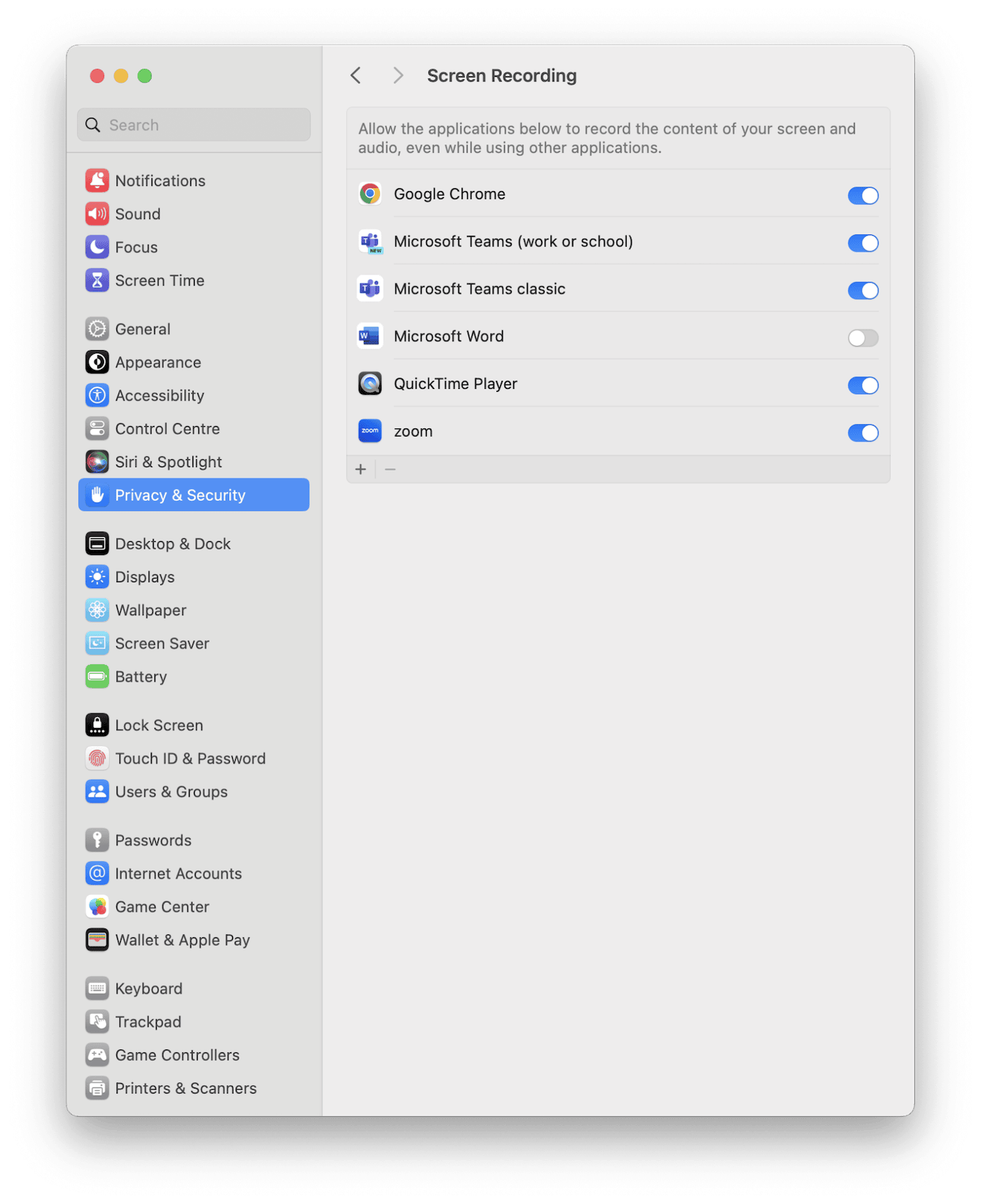
Open Apple menu ➙ choose System Settings ➙ select Privacy and Security option.
Find Screen Recordings ➙ disable Google Chrome to make sure it can’t capture your screen.
Go to Privacy and Security in System Settings > Screen Recordings ➙ disable Google Chrome
5. Update macOS
As a conscious Mac user, you know the need to update Mac to optimize its smooth performance. If you notice your laptop behaving suddenly like it’s capturing your screen, it may also be due to an outdated operating system. In this case, update your macOS to remove all the potentially suspicious issues and feel confident again.
Follow the instructions if you need some prompts on how to update your macOS:
Open Apple Menu ➙ choose System Settings.
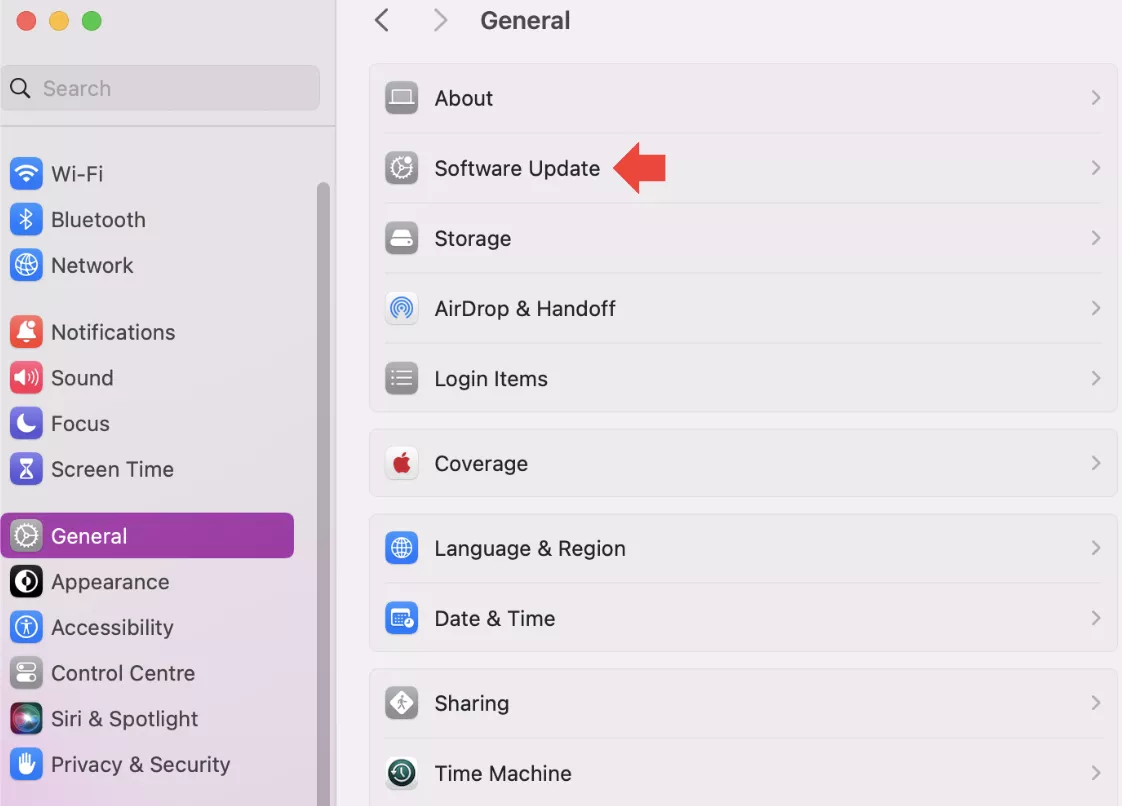
Select General ➙ find Software Update.
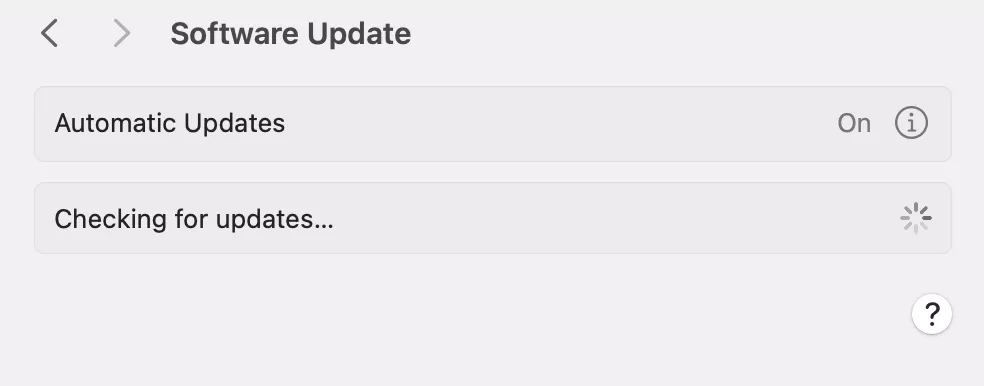
Click Check for Updates to find available ones.
Step 1. Go to General in System Settings > Software UpdateStep 2. Check for Updates
6. Check for malware
Refreshing how to check for malware on Mac is always a great idea to cut the risk of malware beforehand. This harmful software can interfere with browser settings, asking for unusual permissions like capturing your screen. The browser itself doesn’t capture your screen secretly, but it can install hidden extensions that use sensitive features like screen-sharing. That’s why it’s extremely important to remove malware from your Mac as quickly as possible.
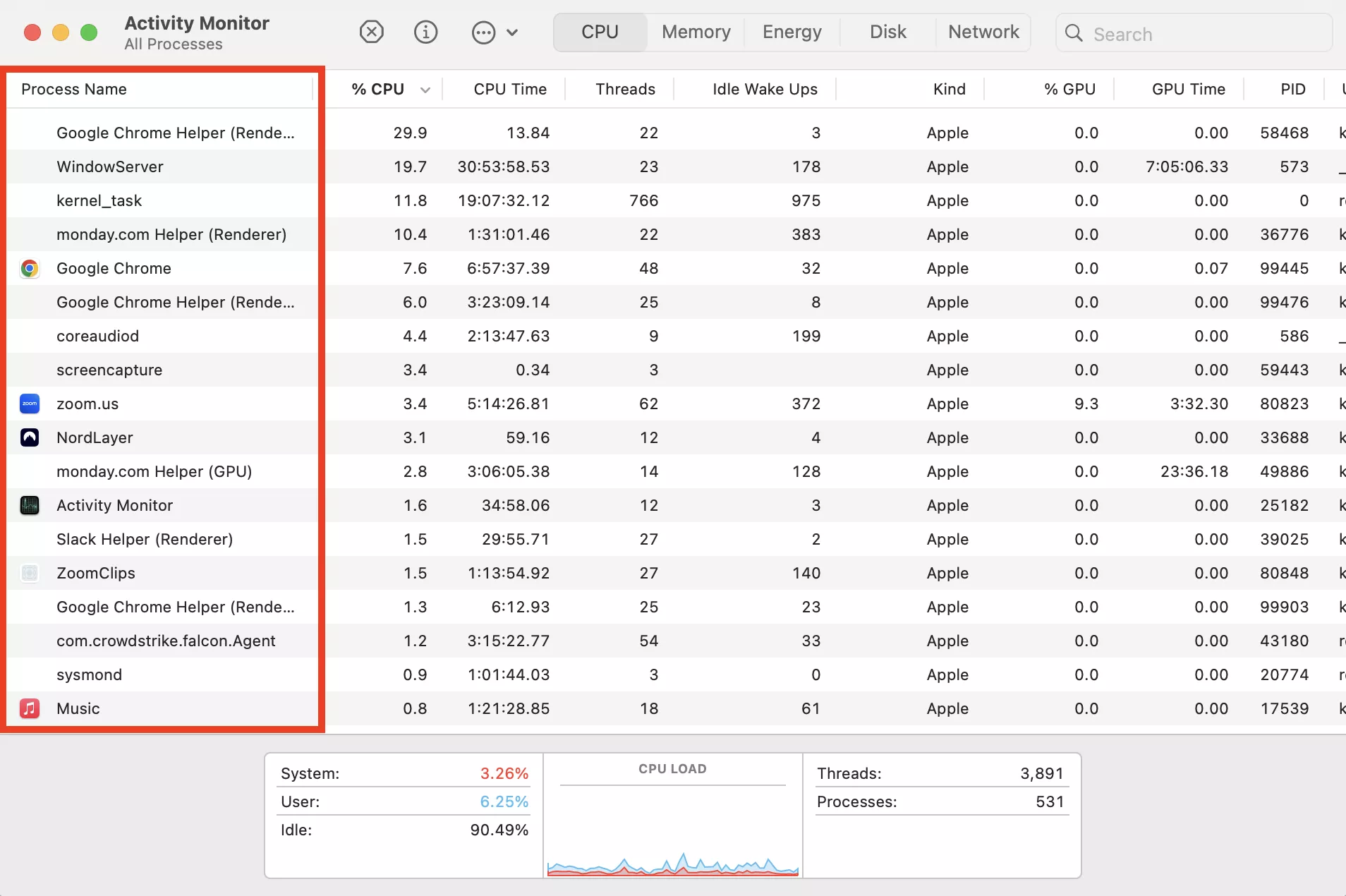
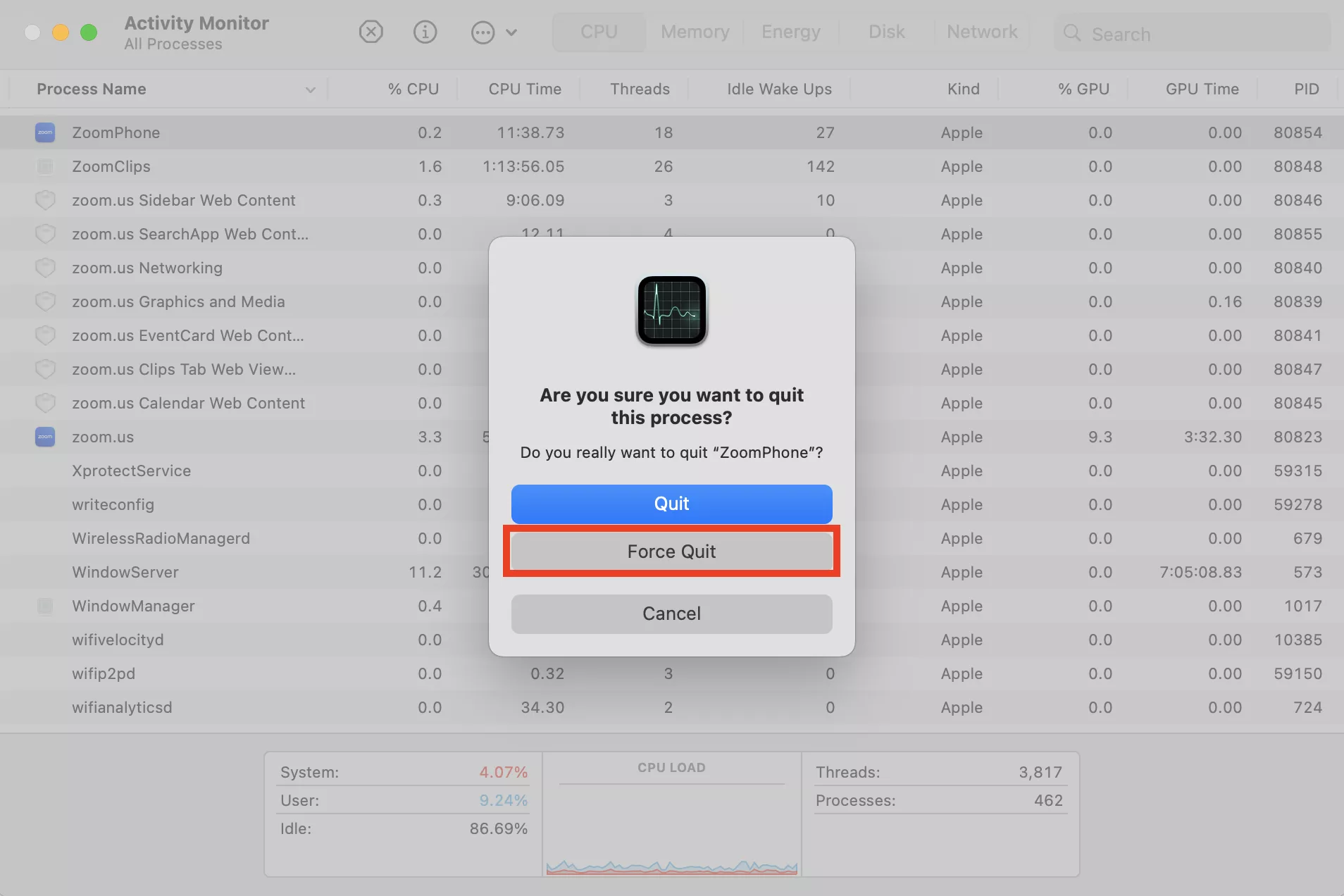
Do the following to find malware on your Mac with Activity Monitor:
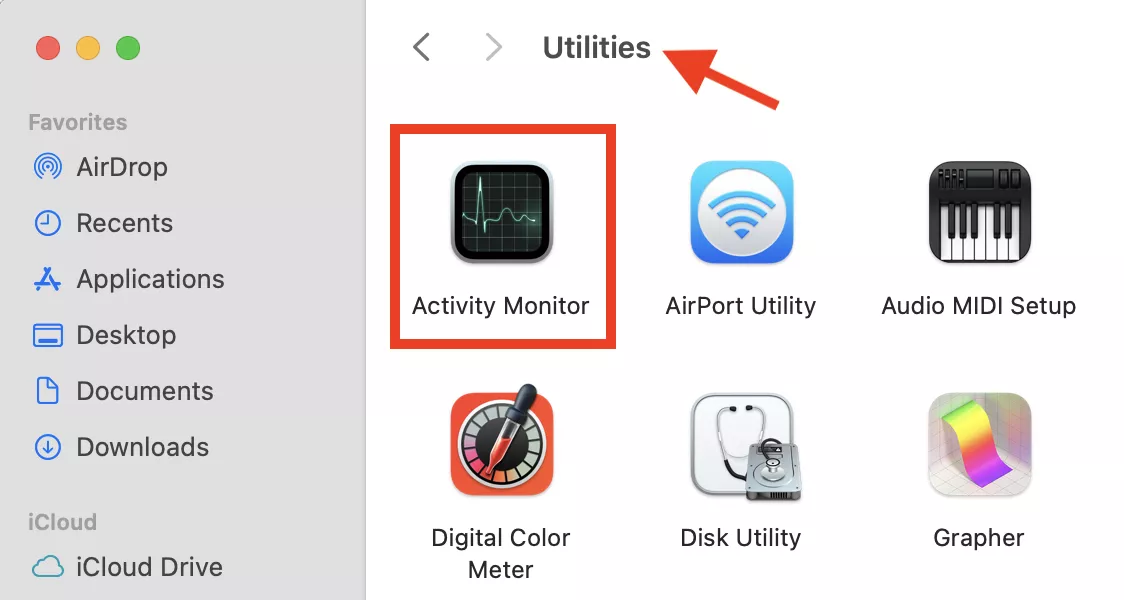
Go to Finder ➙ open Applications ➙ Utilities ➙ Activity Monitor.
Check the active processes for something suspicious.
Select the process you don’t trust ➙ Force Quit.
Step 1. Go to Utilities in Applications Menu > Activity MonitorStep 2. Check active processesStep 3. Select suspicious process > Force Quit
Conclusion
If Chrome suddenly shows you a screen-capturing alert, calm down, as it isn’t a sign of spying, but rather the result of your permissions granted previously, active screen-sharing sessions, or even temporary bugs. Don’t forget to review your settings and Chrome permissions regularly to avoid potential privacy risks.
If you want full control over your privacy without digging through settings, MacKeeper’s StopAd gives you a simple and reliable way to block suspicious browser activity in seconds. This tool is a leading solution in Mac optimization and cybersecurity. It scans your laptop for hidden threats and removes them safely, helping your Mac to perform smoothly and efficiently.
We respect your privacy and
use cookies
for the best site experience.
Privacy Preferences Center
We use cookies along with other tools to give you the best possible experience while using the
MacKeeper website. Cookies are small text files that help the website load faster. The cookies we
use don’t contain any type of personal data meaning they never store information such as your
location, email address, or IP address.
Help us improve how you interact with our website by accepting the use of cookies. You can change
your privacy settings whenever you like.
Manage consent
All cookies
These cookies are strictly necessary for enabling basic website functionality (including page
navigation, form submission, language detection, post commenting), downloading and purchasing
software. The website might malfunction without these cookies.