If you’re trying to connect to an external display and you find that your Mac HDMI is not working, there are several reasons why this might occur—and several ways to fix it. When you’ve tried everything yourself and you still can’t resolve an issue with your Mac, we recommend reaching out to our team through MacKeeper’s Premium Services for fast, professional help at any time.
When we find our Mac not connecting to HDMI, it’s usually due to an issue with the connection. After confirming the HDMI cable is plugged in securely at both ends, we suggest trying a different cable to rule out potential failures. We should also confirm the right input is selected on the external display.
If these steps don’t solve the issue, it could be that there’s a problem with the MacBook itself. We can check System Settings to see if the display is detected, and if not, perform a system restart that will help fix any glitches within macOS. We can also reset the Mac’s NVRAM and SMC if necessary.
How to use HDMI connection on Mac?
Using an HDMI connection on Mac is usually as simple as connecting one end of the HDMI cable to your Mac, then plugging the other end into an external monitor. We should find that macOS detects the second screen and will automatically mirror or extend the display. To adjust display resolution, refresh rate, and other settings, we can go to System Settings > Displays, while audio options can be found in Sound > Output. On MacBook Air, you’ll need a USB-C to HDMI cable or an adapter since there’s no built-in HDMI port.
If you’re using HDMI on your Mac for the first time, there are some useful things to be aware of:
Types of HDMI ports on Mac
Compatibility with HDMI devices
Advantages of using HDMI
1. Types of HDMI ports on Mac
It’s important to note that depending on what kind of desktop Mac or MacBook you have, the HDMI connector may be technically different. For instance, while some more recent (2021+) Mac models have high-speed HDMI 2.1 that supports 8K displays, older models use HDMI 1.4, which can do up to 4K. But both are great for HD video editing.
2. Compatibility with HDMI devices
While the type of HDMI port your Mac determines the video output specifications it is capable of, as we outlined above, there are also device compatibility limitations to take into account. If you have a new MacBook Pro with an M5 chip, for example, you can connect to two external displays with resolutions up to 6K simultaneously, while older M1 chips support only one.
To confirm the HDMI capabilities of a Mac, we can search for its model number online. If HDMI is not showing on Mac or you can’t find the port, like on the MacBook Air and older 12-inch MacBook, you can use a USB-C to HDMI cable, or an adapter.
3. Advantages of using HDMI
We consider that using HDMI over some other output options has notable advantages for programming, productivity, and other common tasks on Mac. These are the biggest pros:
A single cable supports audio and video output
HDMI is a widely supported standard across monitors, TVs, and most Mac models
The latest HDMI standard supports 8K displays at 60Hz, or 4K displays at up to 240Hz
HDMI has become so ubiquitous that accessories like cables and HDMI splitters are very affordable, which makes it an ideal choice for businesses, schools, and for students.
Common problems with HDMI on Mac
Although HDMI has its advantages, there are some common problems we face when using it with Mac, most of which can be attributed to faulty cables or adapters, incorrect display settings, incompatible monitor types, and other hardware issues. Bugs or glitches in macOS can also lead to problems.
When users report HDMI is not working on Mac, we usually find these are the most probable causes:
Cable failure
Software and hardware issues
Incompatible resolutions
1. Cable failure
HDMI cables tend to fail over time if they’re regularly unplugged, moved around, or wound up. When users tell us their Mac is not connecting to HDMI, we always suggest checking that the cable hasn’t failed first.
2. Software and hardware issues
Random bugs in macOS can prevent external displays from working properly over HDMI, while hardware issues inside a Mac, such as broken ports, can prevent it from outputting video over HDMI.
3. Incompatible resolutions
In many cases, if your Mac is not recognizing HDMI, it’s likely because its HDMI port or the cable you’re using isn’t compatible with your external display. We’ve found some older Macs don’t support 5K, 6K, and 8K resolutions, while cheaper cables won’t allow more than 60Hz. In addition, some Mac models, such as those with a base M1 chip, can’t output to more than one external display.
How to fix HDMI not working on Mac?
When you find your Mac isn’t connecting to HDMI, we suggest that you first check that the cable is working and properly connected at both ends. If something isn’t working as it should, try a different cable to rule out potential failures if necessary. Next, restart your Mac and make sure the correct input option is selected on the external display.
A note from our experts:
If you’re unable to troubleshoot your Mac’s HDMI issues yourself, we have a team of experts that can help. MacKeeper’s Premium Services from Clario Tech gives you fast and easy access to trained professionals who can help you fix almost any issue—and they’re available 24 hours a day, 7 days a week.
Select Premium Services in the MacKeeper sidebar, then click Chat Now.
Describe your problem in the chat box, and a Mac expert will get back to you quickly.
Step 1. Select Premium Services, then click Chat NowStep 2. Describe your problem in the chat box
If you’re determined to get HDMI working on your Mac yourself, these are the troubleshooting steps that we’ve found are most successful:
Check HDMI cable and adapter
Manually identify displays
Restart your Mac and display
Check for macOS updates
Reset NVRAM and SMC
Try a different HDMI port or monitor
1. Check HDMI cable and adapter
When a Mac is not recognizing HDMI, it’s usually the cable or adapter that is to blame. Try this:
Confirm the connection is secure at both ends of the cable.
Try a different HDMI cable or adapter to rule out potential hardware failures.
Check that your HDMI cable is compatible with your external monitor.
2. Manually identify displays
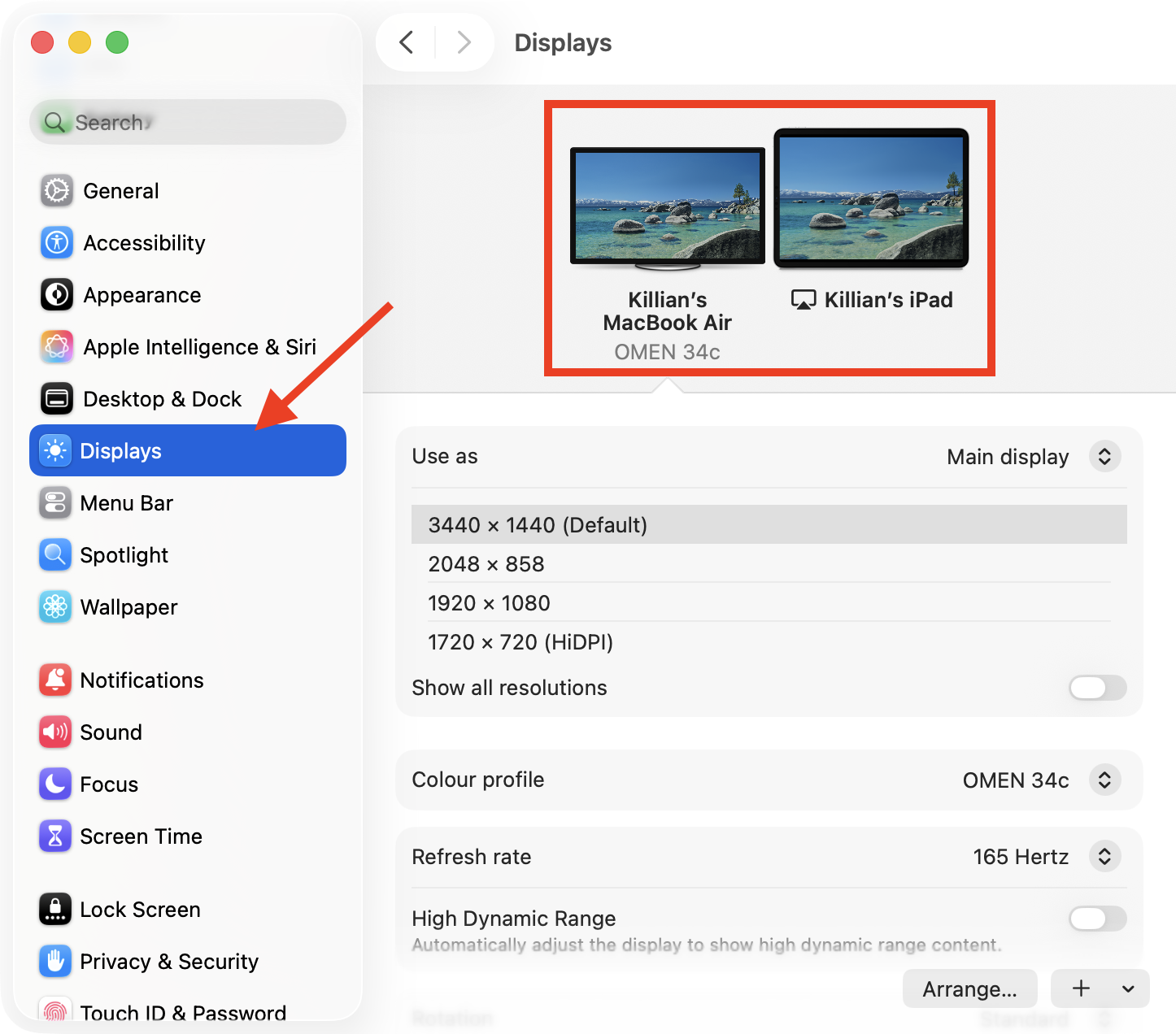
Sometimes a Mac detects an external display but doesn’t show a picture on it. To see if that’s the case, we can manually identify all displays recognized by macOS like so:
Open System Settings and choose Displays.
Check the options shown at the top of the window to see which screens macOS sees.
Go to System Settings > Displays to see all detected screens
3. Restart your Mac and display
We sometimes see a Mac not connecting to HDMI because of random glitches within macOS or the display itself. Restart both like so:
Disconnect the HDMI cable from your Mac.
Unplug your display’s power cord for at least 30 seconds, then plug it back in.
Restart your Mac.
When your MacBook has booted up, log into macOS, then reconnect the HDMI cable.
4. Check for macOS updates
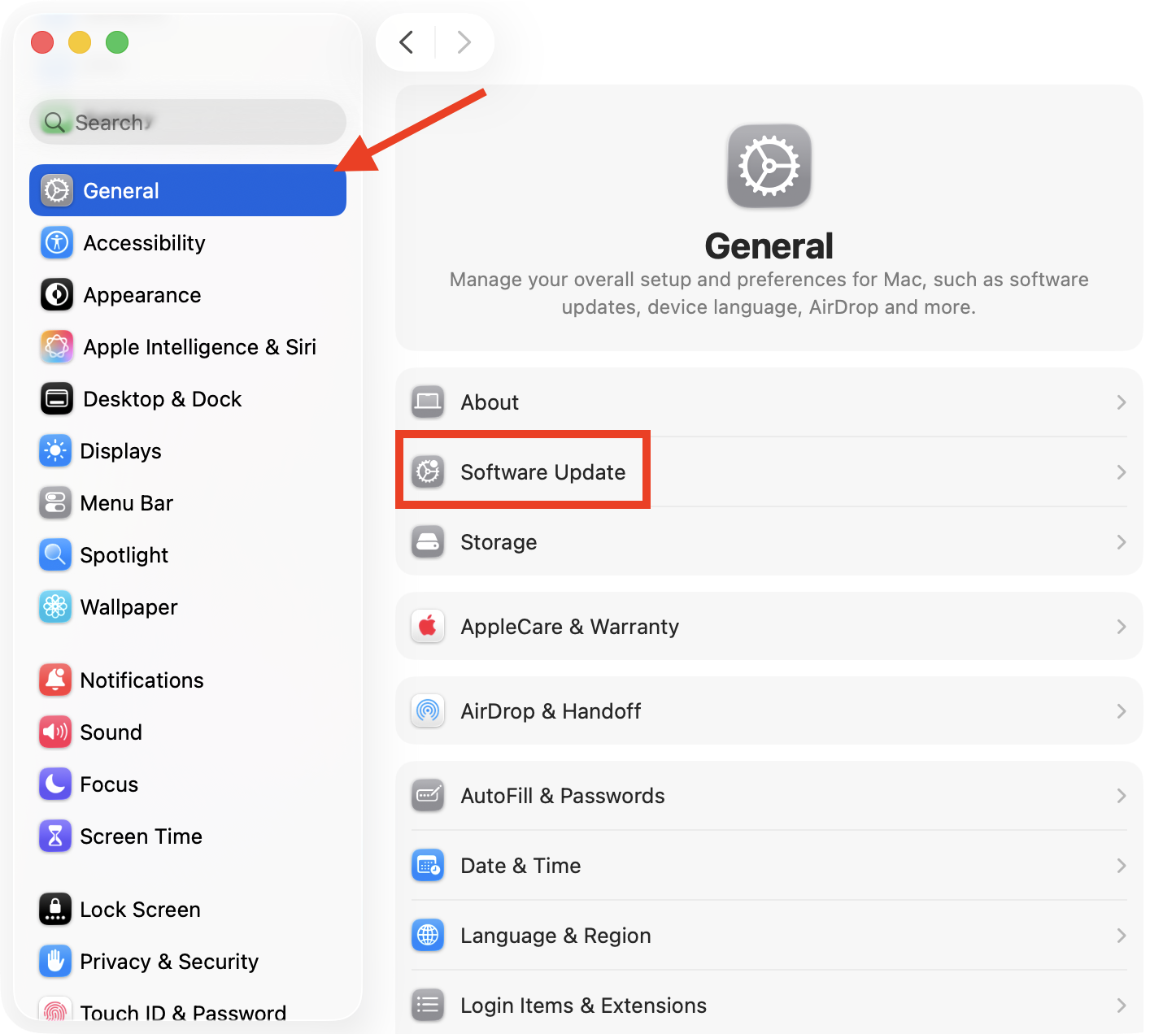
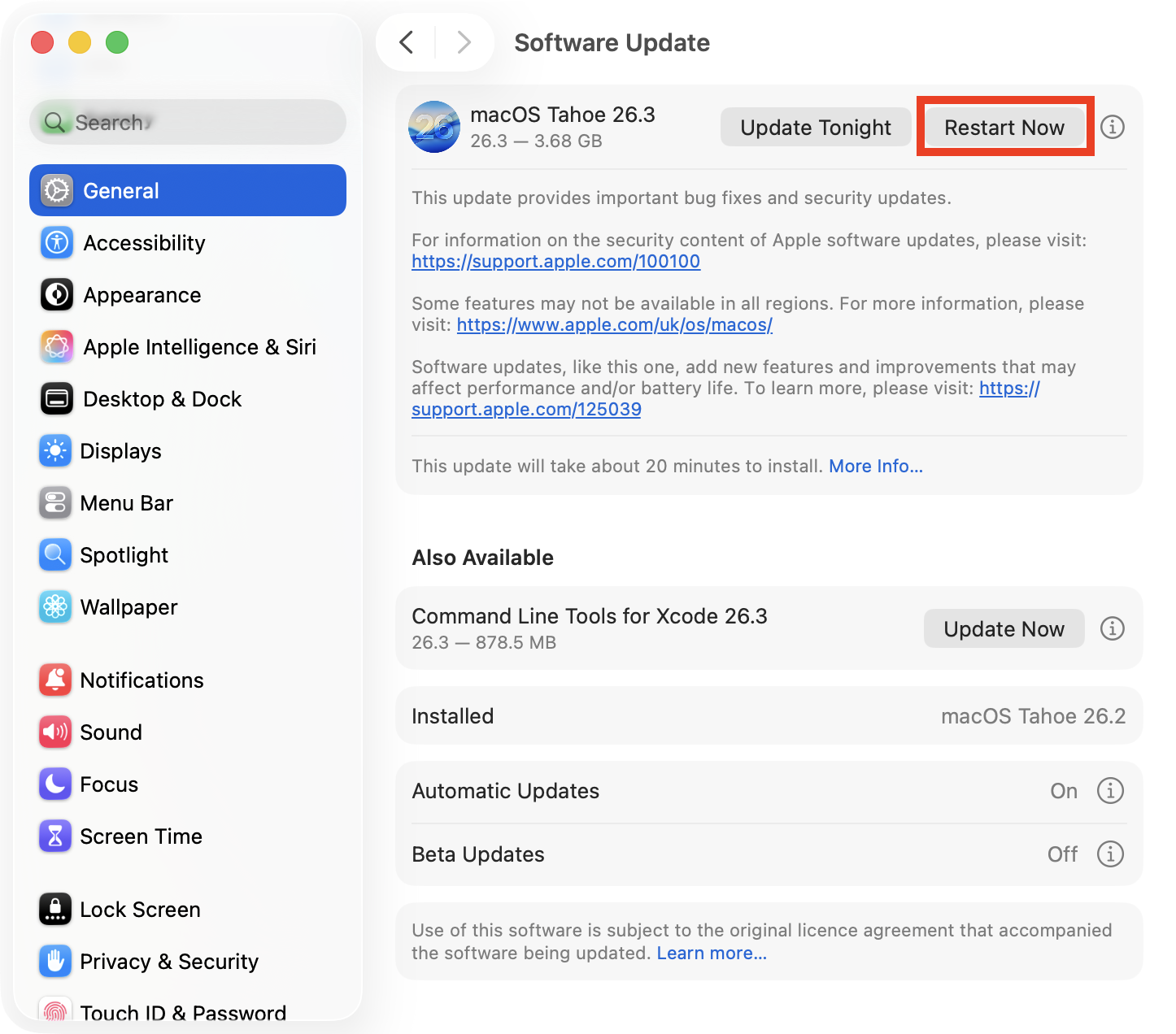
Keeping your Mac up to date helps eliminate bugs that can cause display issues. Here’s how to check for and install the latest macOS updates:
Open System Settings and go to General > Software Update.
Your Mac will automatically check for new updates; if a new macOS release is found, click Update Now or Restart Now to install it.
Step 1. Go to General > Software UpdateStep 2. Install any available updates
5. Reset NVRAM and SMC
We suggest resetting your MacBook’s NVRAM and SMC as a last resort, since this will discard certain hardware settings, but it can help eliminate display issues. Here’s how to do it:
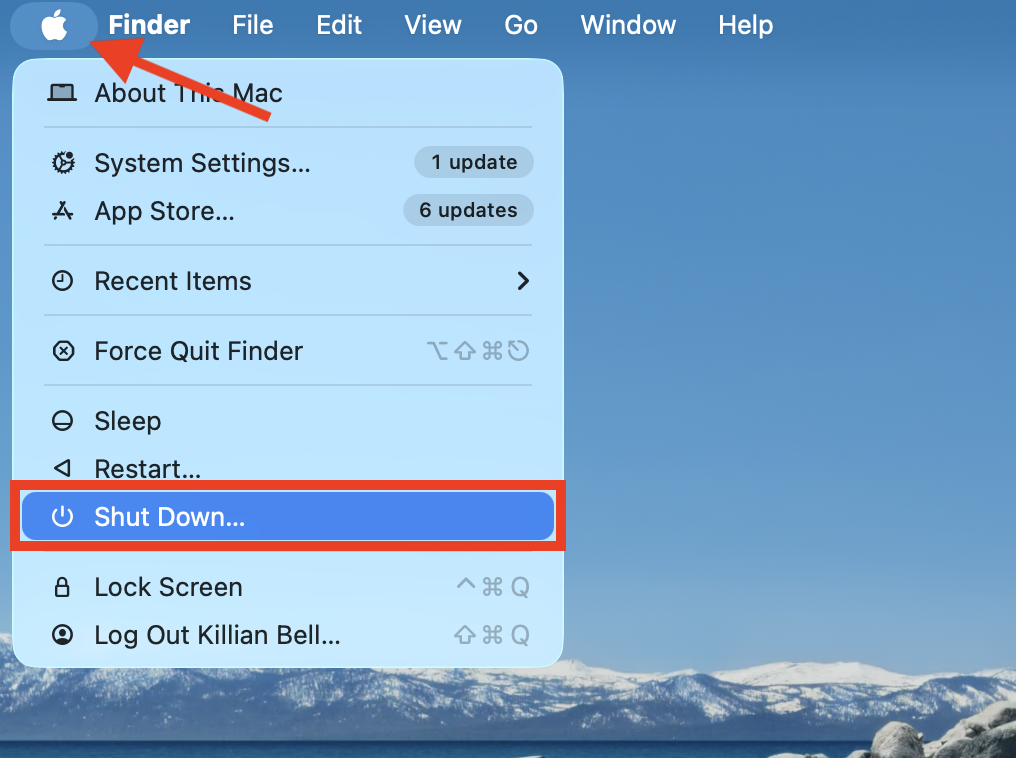
To reset NVRAM:
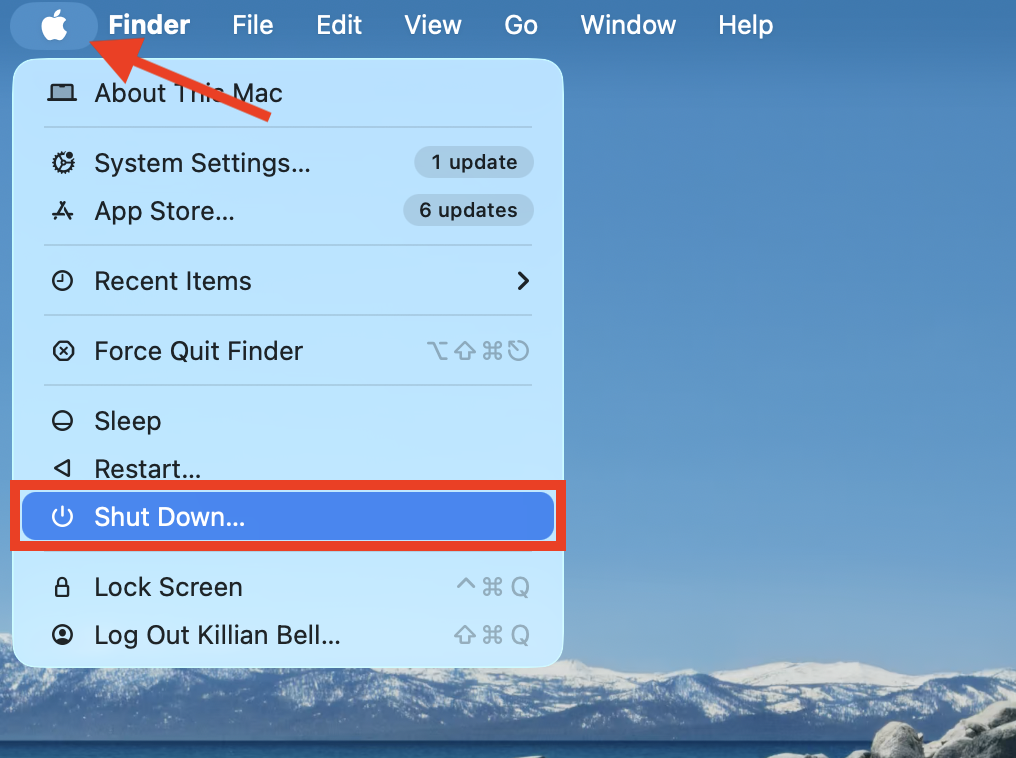
Shut down your Mac.
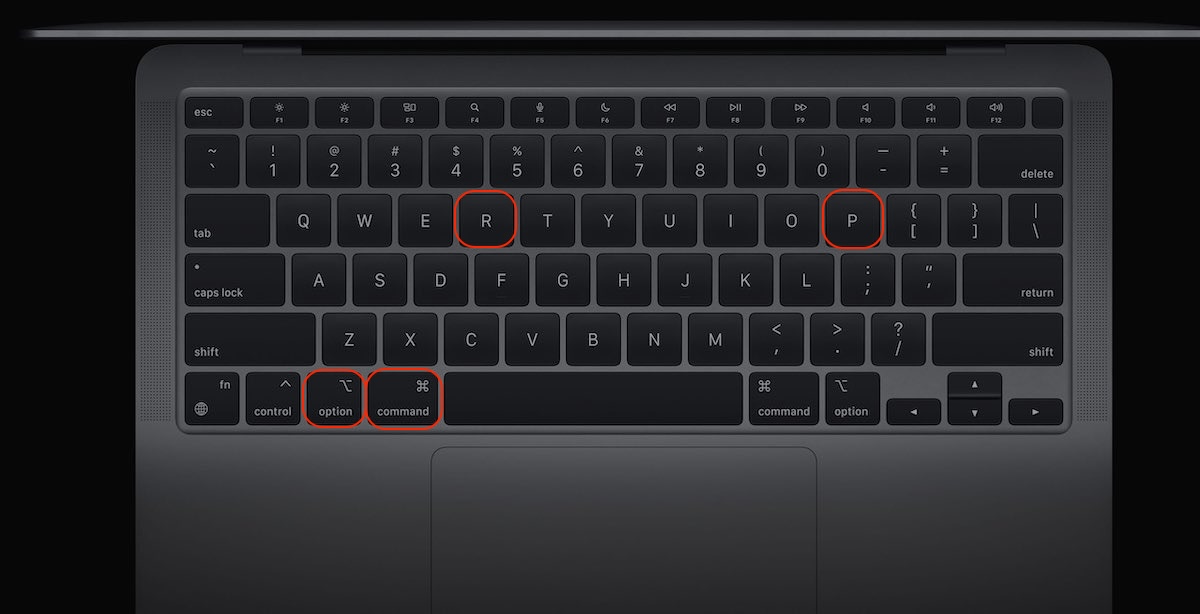
Turn on your Mac and immediately press and hold Command + Option + P + R.
Keep holding the keys for 20 seconds while your Mac restarts; release them when you see the Apple logo for the second time.
Step 1. Shut down your MacStep 2. Turn on your Mac and hold the keys shown
To reset the SMC:
Shut down your Mac.
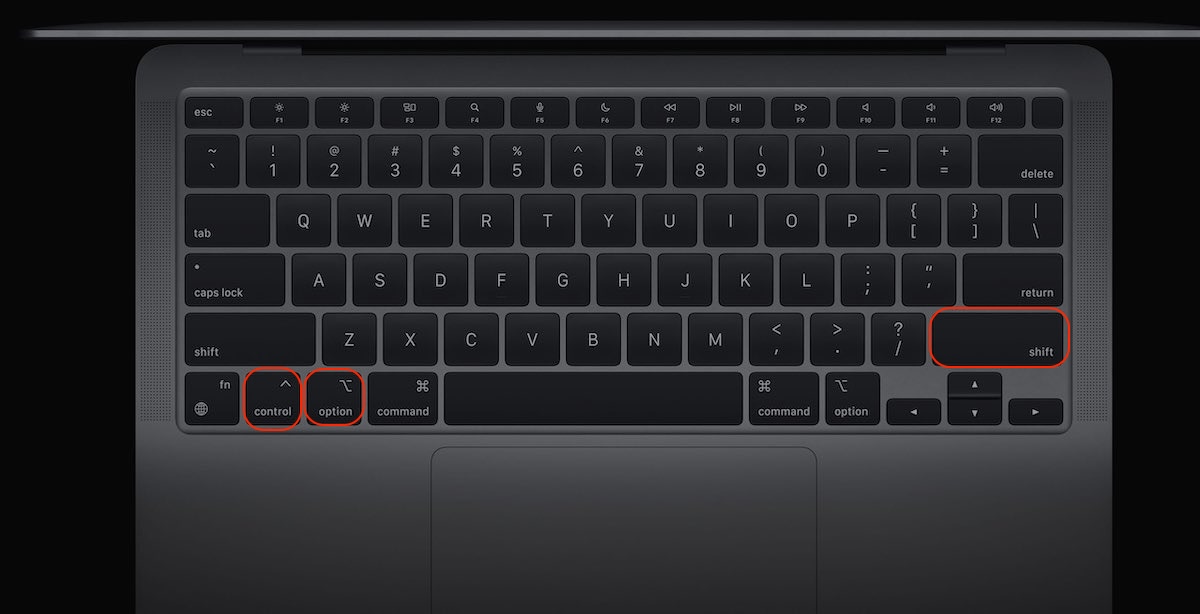
Hold Control + Option on the left side of the keyboard, plus Shift on the right side.
Keep holding all keys for about 7 seconds, then press and hold the power button simultaneously.
Wait another 7 seconds, then release all keys.
Wait a few more seconds, then turn on your Mac.
Step 1. Shut down your MacStep 2. Turn on your Mac and hold the keys shown
Note that if you have a MacBook with an Apple silicon chip, resetting the NVRAM or SMC is as easy as restarting your Mac.
6. Try a different HDMI port or monitor
If you’ve tried all of the steps above and your Mac still won’t connect to your external display, this indicates a bigger hardware issue is the cause. Try a different HDMI port on your Mac if it has more than one, or consider using other connectivity options like USB-C to mini DisplayPort instead. Alternatively, try using a different monitor because it may be that your current one is faulty or isn’t compatible with your Mac.
Conclusion
It’s not uncommon to encounter a Mac not recognizing HDMI. This problem can be caused by various issues, such as incompatible setups or hardware failures, and there’s usually a simple fix. In most cases, you can get your Mac to connect to a display by confirming the HDMI cable is properly connected, or by resetting the MacBook and external screen.
If you’d like expert help to fix display issues on Mac, reach out to our team of macOS gurus through MacKeeper’s Premium Services from Clario Tech. Our trained technicians can diagnose and fix most Mac problems quickly, and they’re available 24/7.
We respect your privacy and
use cookies
for the best site experience.
Privacy Preferences Center
We use cookies along with other tools to give you the best possible experience while using the
MacKeeper website. Cookies are small text files that help the website load faster. The cookies we
use don’t contain any type of personal data meaning they never store information such as your
location, email address, or IP address.
Help us improve how you interact with our website by accepting the use of cookies. You can change
your privacy settings whenever you like.
Manage consent
All cookies
These cookies are strictly necessary for enabling basic website functionality (including page
navigation, form submission, language detection, post commenting), downloading and purchasing
software. The website might malfunction without these cookies.