Over time, your Mac can collect a long list of public Wi-Fi networks you’ve connected to. Regularly deleting saved networks helps protect the privacy and security of your macOS device. For even greater protection, use MacKeeper’s VPN Private Connect.
A “preferred network” is any Wi-Fi network your Mac has connected to before—such as your home, a coffee shop, or a hotel—where your login credentials have been stored. When you're within range of that network again, your Mac will attempt to reconnect automatically. That means that if you want to prevent this, you’ll need to follow the steps to forget a Wi-Fi network on Mac.
A note from our experts:
Regularly removing unused preferred networks is an effective way to safeguard your Mac. For an added layer of security, consider using MacKeeper’s VPN Private Connect to ensure your Internet browsing remains private on any Apple device. Developed by Clario Tech, MacKeeper is a trusted cybersecurity solution chosen by many macOS users.
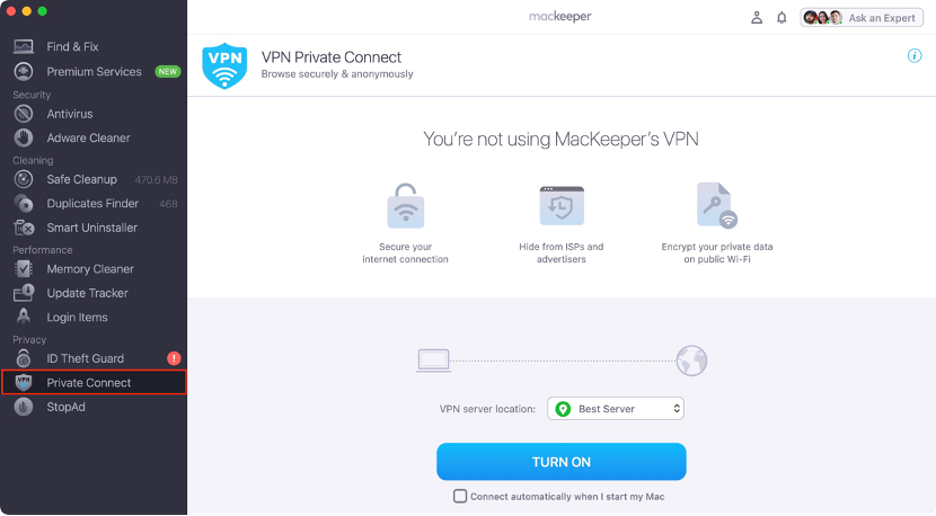
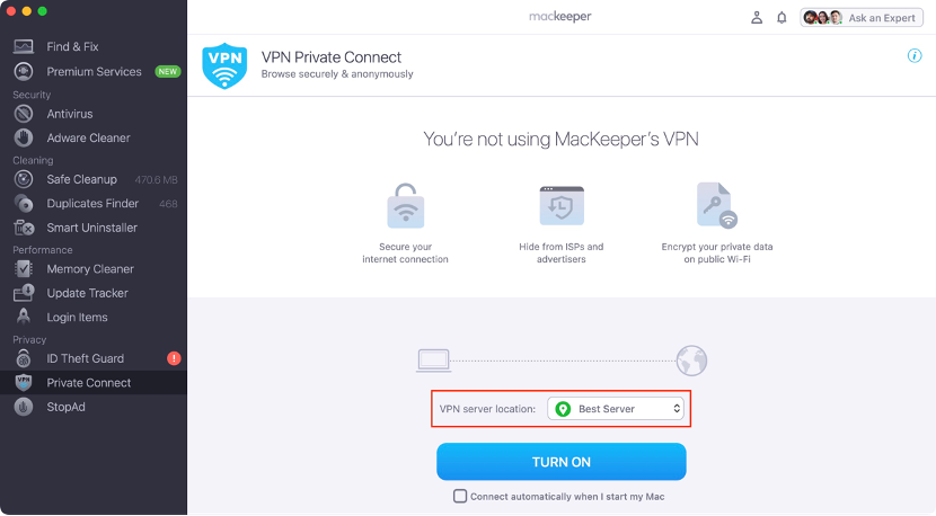
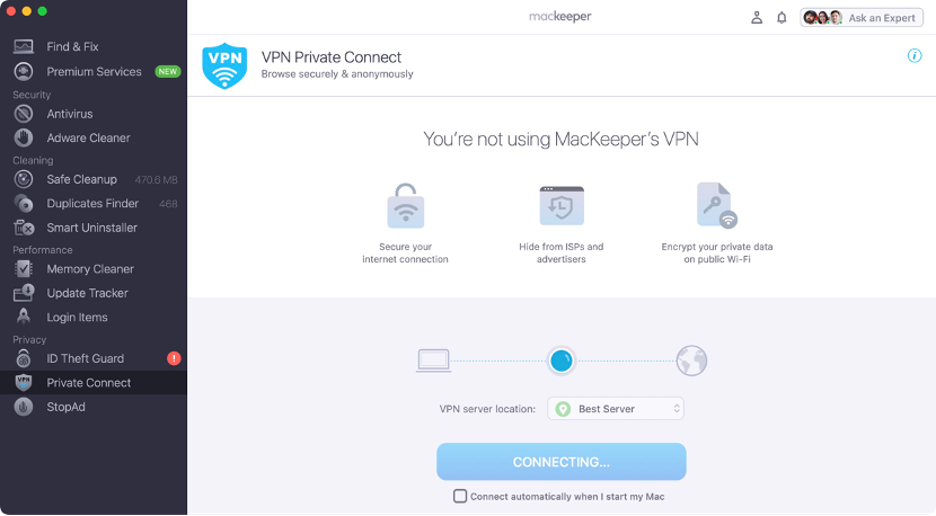
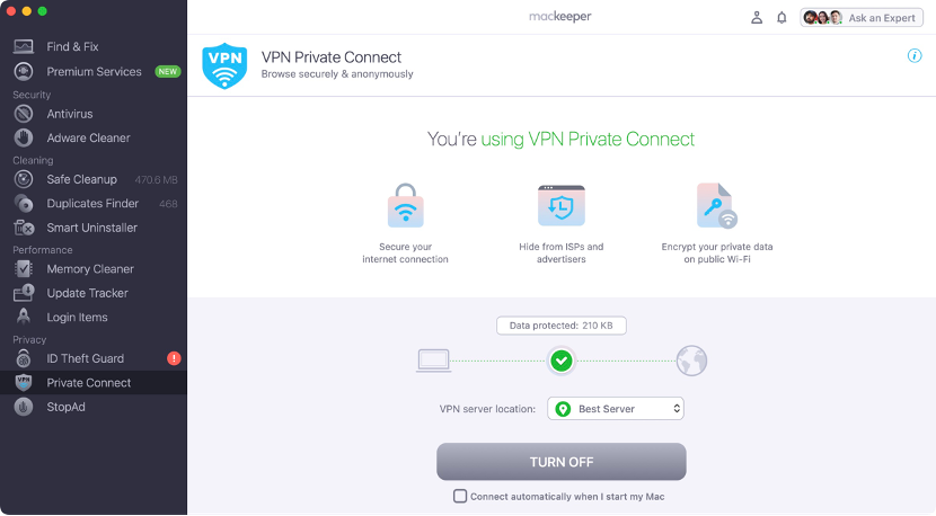
Here’s how to use MacKeeper’s VPN Private Connect:
Step 1. MacKeeper > VPN Private ConnectStep 2. Unfold the VPN server location dropdown menuStep 3. Choose a VPN server locationStep 4. Wait until the VPN is connectedStep 5. MacKeeper’s VPN Private Connect is running on your Mac
What happens when you remove a preferred network?
When you remove a preferred network, your Mac deletes the stored login credentials for that Wi-Fi connection. As a result, your Mac will no longer connect to that network automatically when it’s in range. If you want to reconnect in the future, you’ll need to manually select the network and re-enter the password, just as you did initially.
MacBook won't connect to Wi-Fi? Whether it’s a preferred or a new network, we recommend referring to our separate guide to fix this issue.
How to delete a preferred network on Mac?
Deleting a preferred network on your Mac is effortless once you know which steps to follow based on your device’s settings. Below, we’ll guide you through the main methods, considering your macOS version, your user access level, and whether you prefer simple settings or advanced tools.
One of the easiest and most highly recommended ways to forget a network on Mac is by using the built-in Wi-Fi settings in macOS. According to our experts, this method lets you quickly access a complete list of your saved networks and conveniently remove those you no longer want your device to connect to automatically.
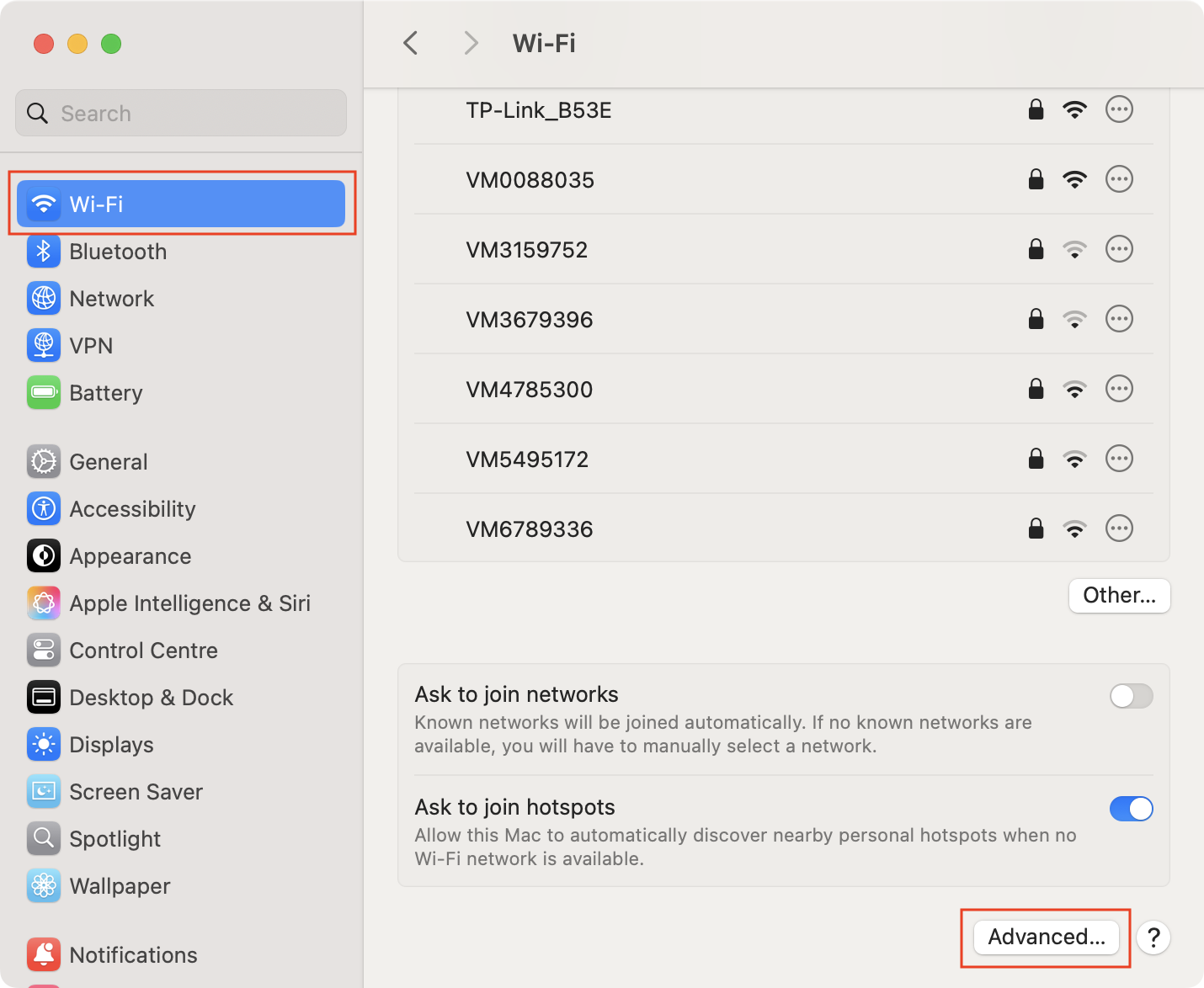
Follow these steps to delete a preferred network via the Wi-Fi settings:
Open System Settings.
Select Wi-Fi in the sidebar.
Scroll down and click Advanced.
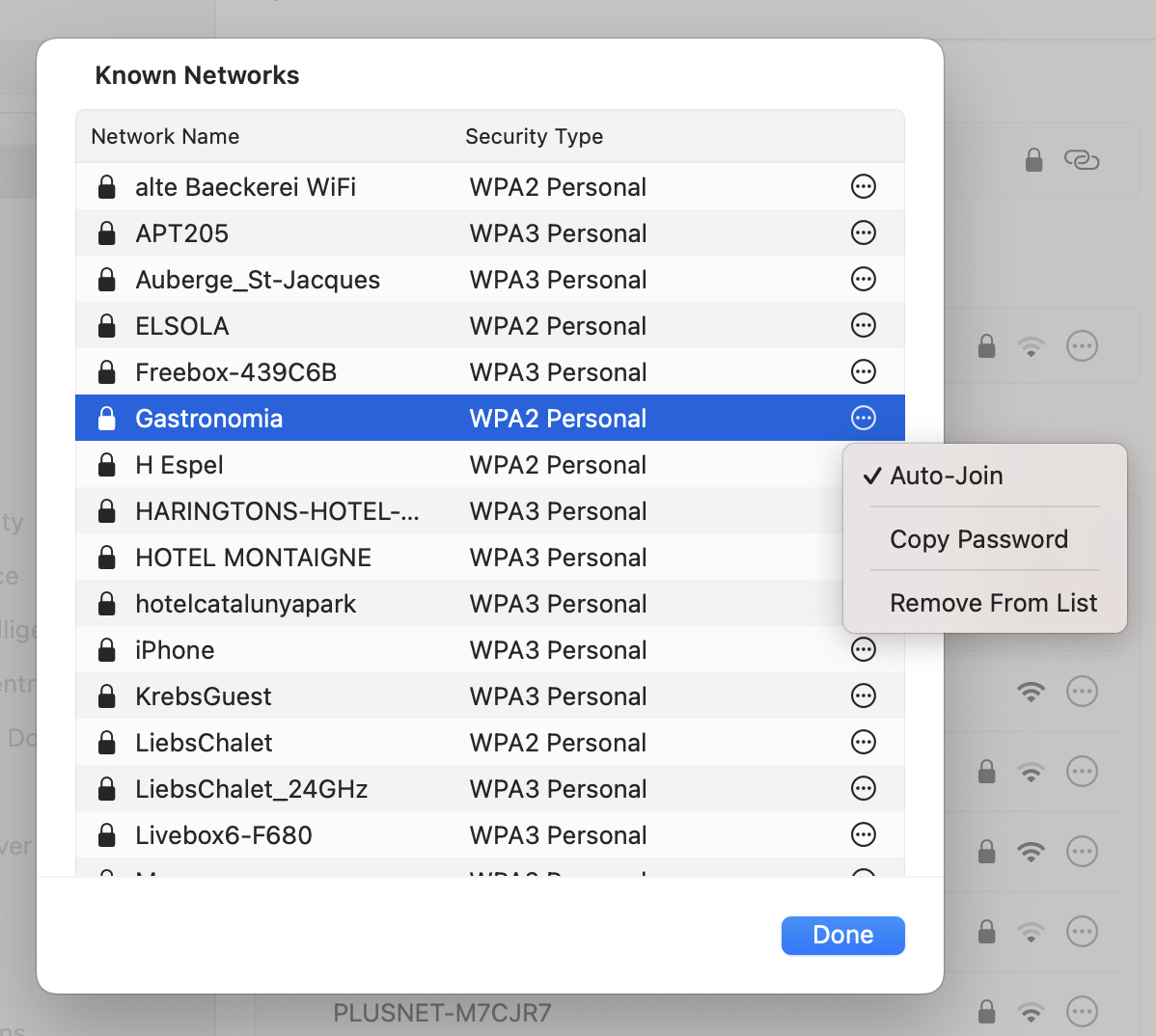
Select all networks you want to remove.
Click the three dots icon.
Unselect Auto-Join or choose Remove From List to completely delete them.
Step 1. System Settings > Wi-Fi > AdvancedStep 2. Select network > Click the three dots icon > Choose Remove From List
2. Get rid of saved Wi-Fi credentials in Keychain Access
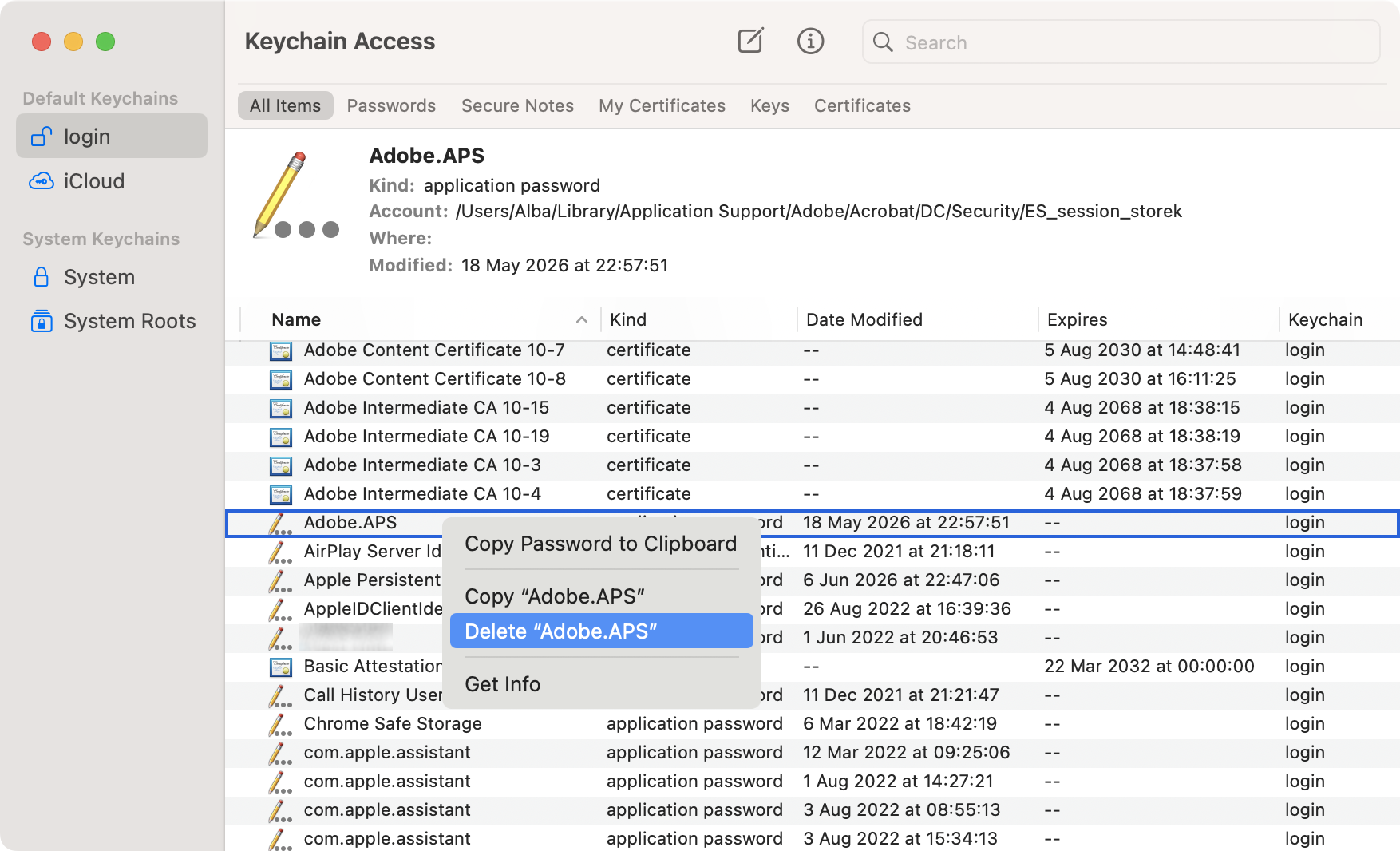
Another effective method to get rid of a preferred network on Mac is through Keychain Access. This built-in macOS utility securely stores your passwords, keys, and digital certificates, making it a powerful tool for managing Wi-Fi networks. Based on our experience, Keychain Access is especially helpful if you’re experiencing issues with saved credentials.
Find below a guide to get rid of saved Wi-Fi credentials in your Mac’s Keychain Access:
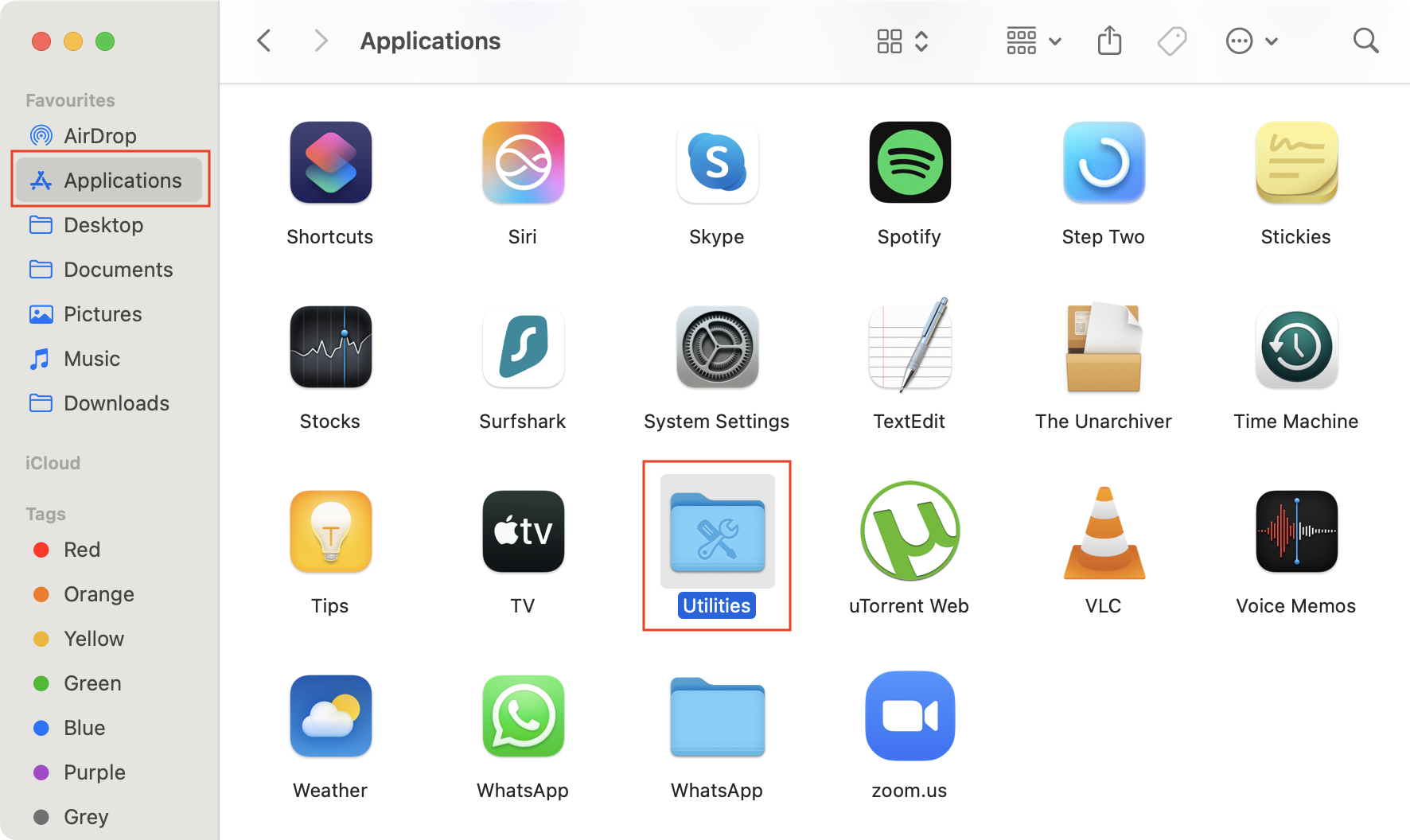
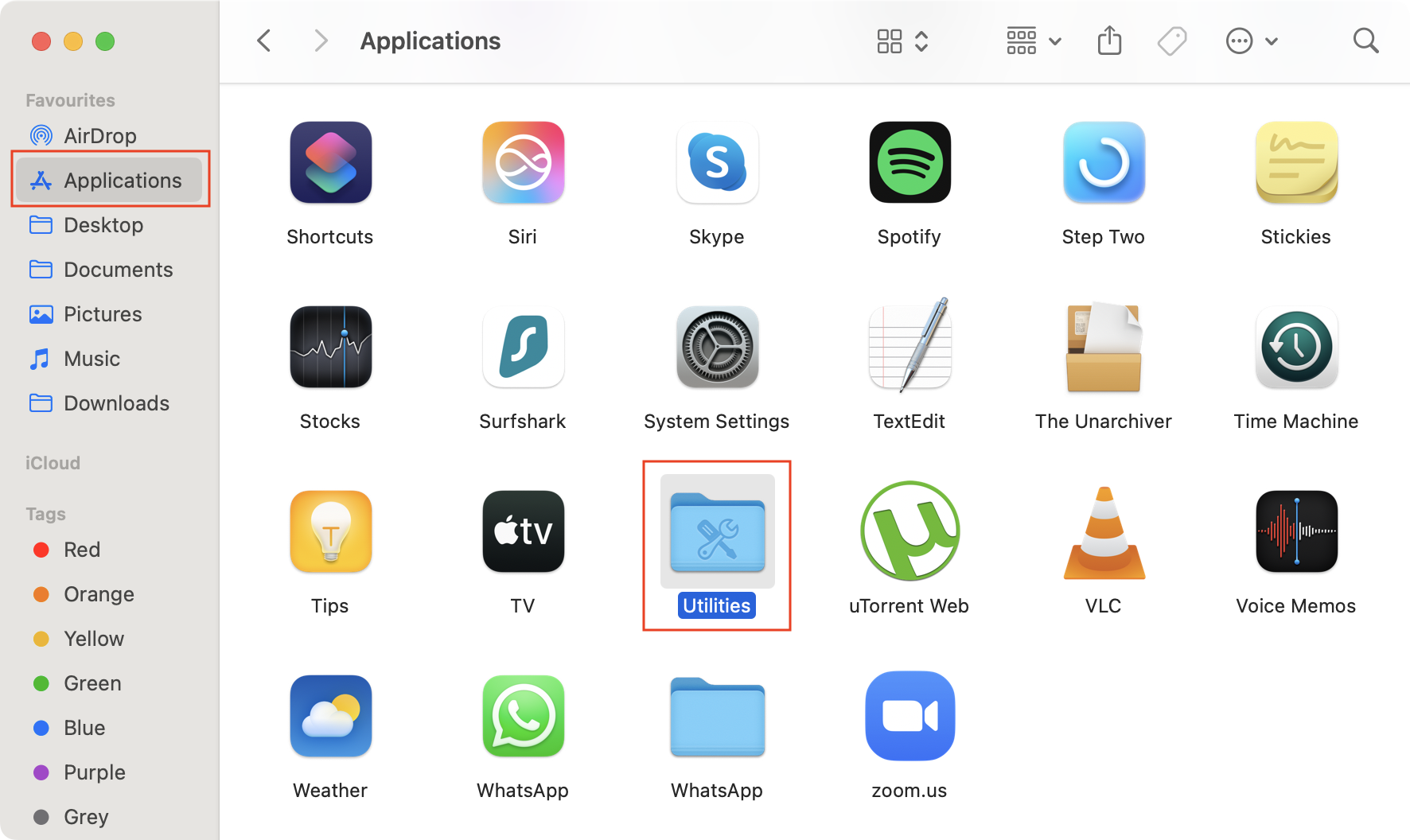
Go to Finder.
Select Applications, then double-click on the Utilities folder.
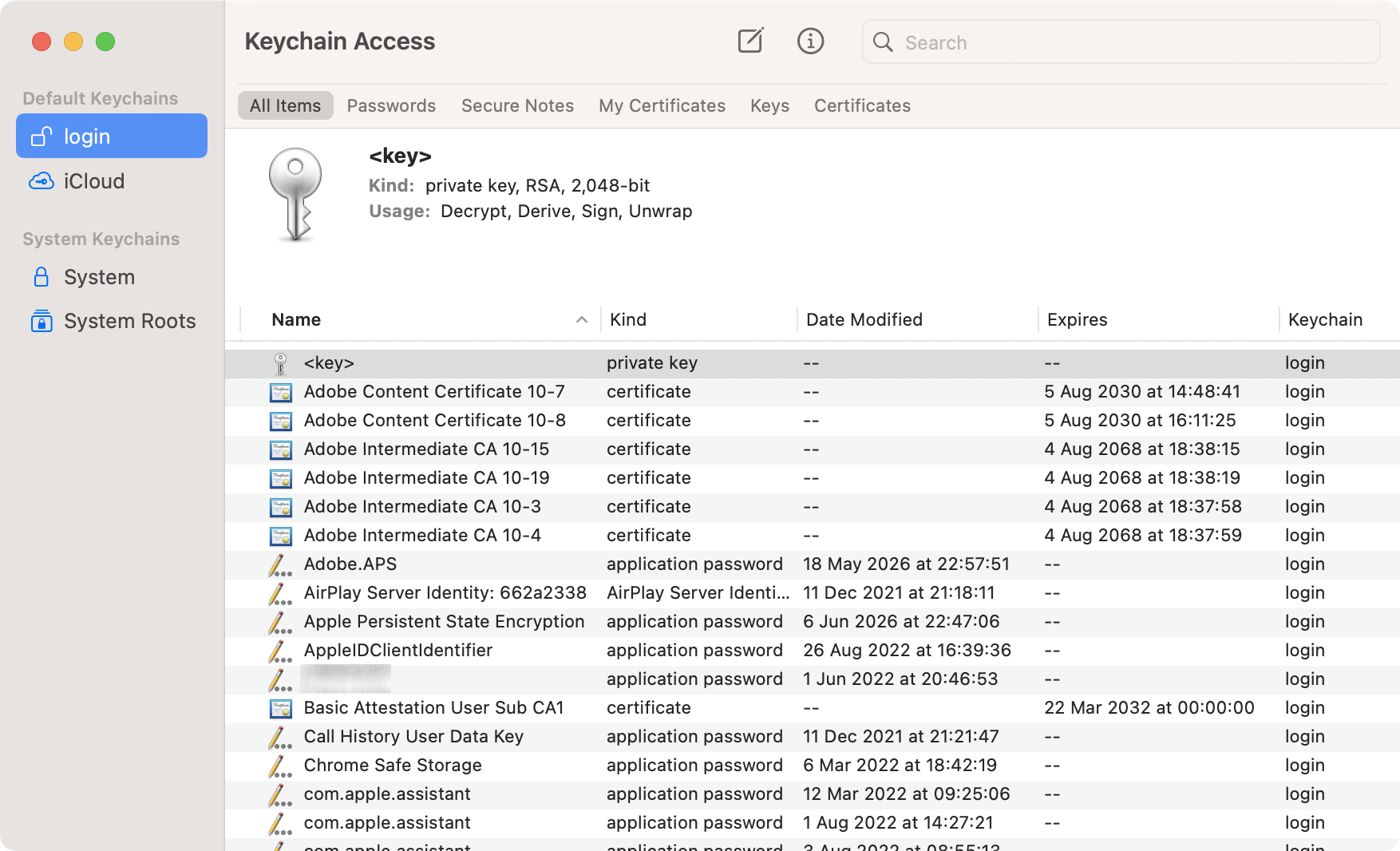
Launch Keychain Access.
Use the top search bar to find the Wi-Fi network.
Select it, then right-click and choose Delete.
Confirm to delete.
Step 1. Finder > Applications > UtilitiesStep 2. Search Wi-Fi network in Keychain AccessStep 3. Right-click on the network > Choose Delete
Keychain Access is also an excellent tool to see Wi-Fi password on Mac. For a detailed walkthrough, check out our separate guide.
3. Using Terminal
For advanced users, our top recommendation is using Terminal, which offers a powerful way to remove saved Wi-Fi networks directly from your favorites list. We believe this approach is ideal for those comfortable with command-line operations and looking for a quicker option than the standard methods.
Here’s how to use Terminal to remove unwanted Wi-Fi networks:
Go to Finder.
Select Applications, then open the Utilities folder.
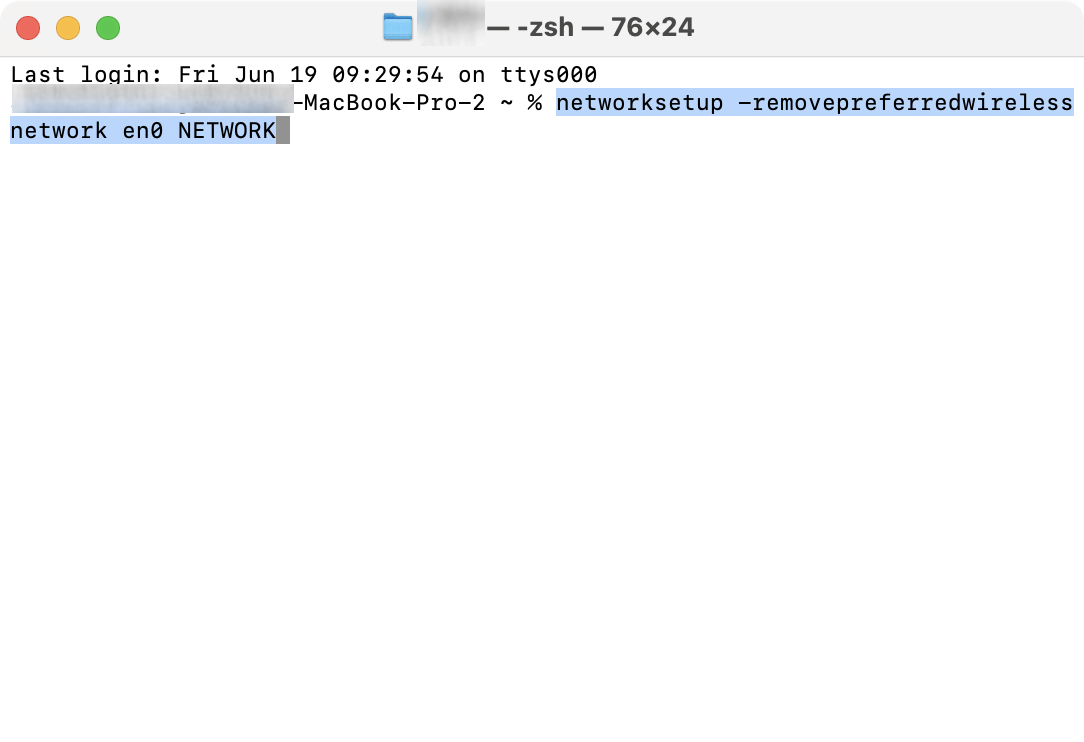
Launch Terminal.
Type the following command: networksetup -removepreferredwirelessnetwork en0 NETWORK (replace “NETWORK” with the exact name of your Wi-Fi network).
Press Enter.
Step 1. Finder > Applications > UtilitiesStep 2. Use this command in Terminal
4. Change Wi-Fi priority instead of removing network
Alternatively, we suggest adjusting your Wi-Fi network priorities without deleting any saved networks from your Mac. If security isn’t your primary concern and you simply want your Mac to favor a different network, this method is ideal. However, please this note that this is only possible on macOS Monterey or earlier versions.
We’ll walk you through how to reorder your Wi-Fi networks to suit your preferences:
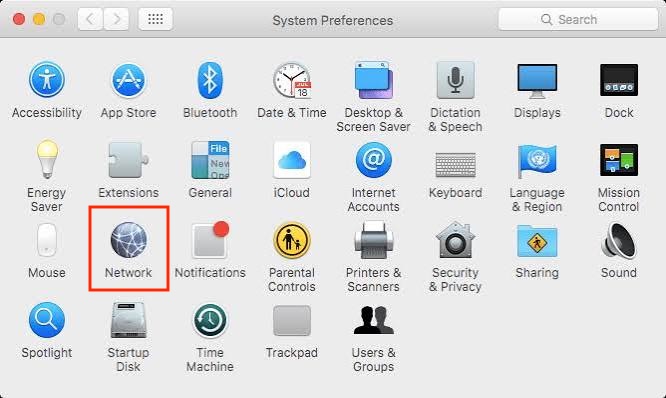
Open System Preferences.
Select Network.
Click Wi-Fi, then click Advanced.
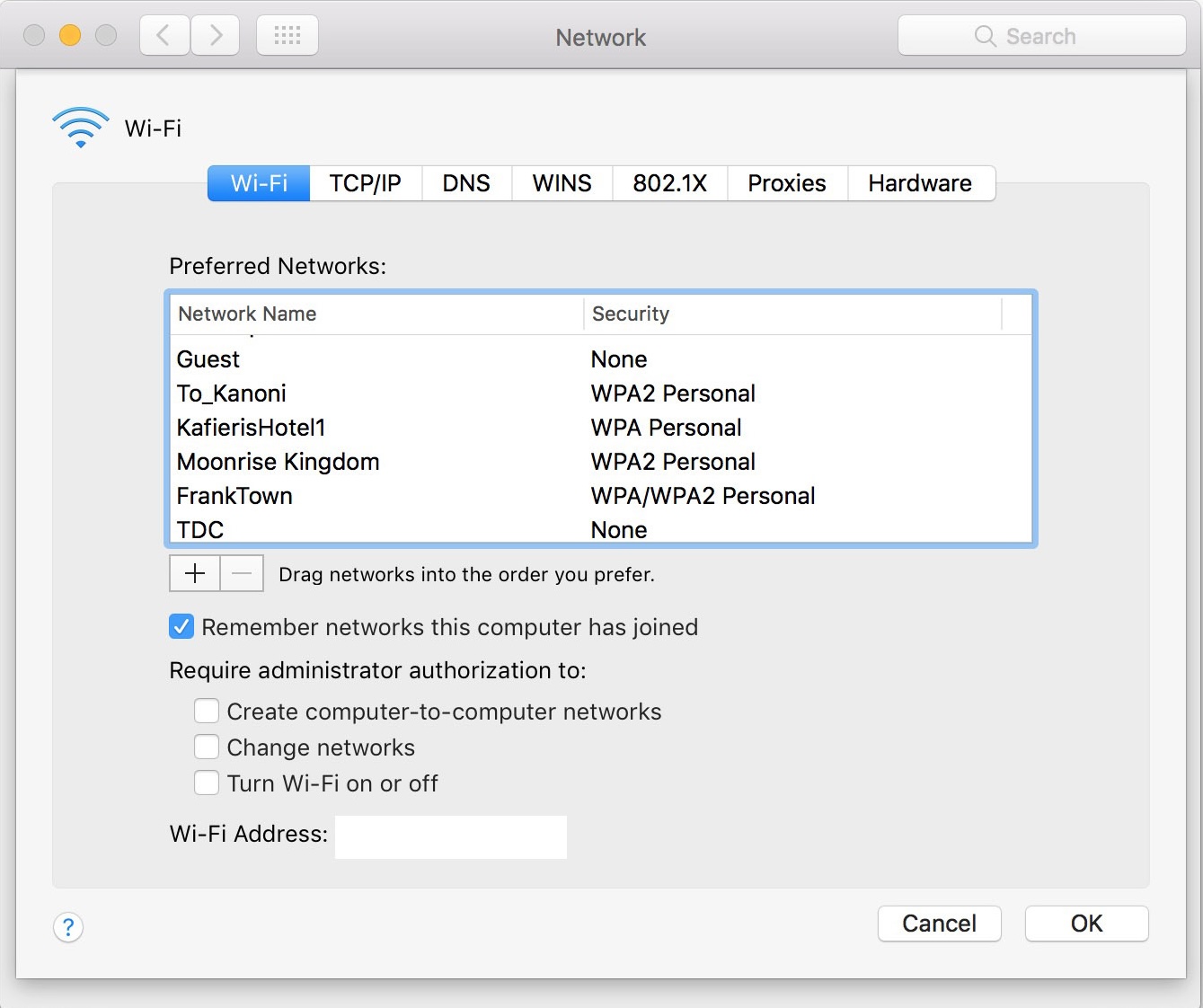
Under the Wi-Fi tab, drag the networks to list them in your preferred order.
Step 1. System Preferences > NetworkStep 2. Drag the networks in your preferred order
To prioritize Wi-Fi networks in macOS Ventura or later, we recommend removing all networks that aren’t in your order of preference and then reconnecting to them one by one in your desired order. While we understand this method may not be ideal, it’s the only workaround available today, as Apple now sorts networks automatically based on the date you first joined them.
Additionally, we suggest learning how to make Wi-Fi automatically connect on Mac to connect automatically to your preferred network.
How to remove a preferred network on older macOS versions?
The process for removing preferred networks on a Mac has evolved over time. Before the release of macOS Ventura in 2022, the System Settings menu was known as System Preferences. Additionally, the current Known Networks interface replaced the previous Preferred Networks list, which allowed users to reorder, add, or remove networks using the familiar “+” and “-” icons.
All you need to remove a preferred network on MacBook
Removing preferred networks on your Mac is both quick and straightforward. Doing so allows you to manage which Wi-Fi networks connect automatically, keep your settings organized, and most importantly, maintain control over your computer’s security and privacy.
If this is important to you, we also recommend installing MacKeeper, an industry-leading cybersecurity app notarized by Apple. MacKeeper’s VPN Private Connect feature is particularly valuable, enabling you to browse the Internet securely on public networks and prevent websites or Internet providers from tracking your activity.
We respect your privacy and
use cookies
for the best site experience.
Privacy Preferences Center
We use cookies along with other tools to give you the best possible experience while using the
MacKeeper website. Cookies are small text files that help the website load faster. The cookies we
use don’t contain any type of personal data meaning they never store information such as your
location, email address, or IP address.
Help us improve how you interact with our website by accepting the use of cookies. You can change
your privacy settings whenever you like.
Manage consent
All cookies
These cookies are strictly necessary for enabling basic website functionality (including page
navigation, form submission, language detection, post commenting), downloading and purchasing
software. The website might malfunction without these cookies.