Spotted a mysterious opt folder on Mac, and you’re not sure what it does? You’re not alone. This hidden directory usually appears after you install developer tools, and it’s typically harmless. With MacKeeper’s Premium Services, real experts can walk you through it anytime. Download MacKeeper and get personal Mac help today.
The opt folder is a directory for optional software packages that aren’t part of the core macOS system. The name “opt” is short for “optional”—a long-standing Unix habit that Apple’s Macintosh systems inherited. In other words, it’s a storage spot for extras, not for anything your Mac needs to start up.
From our observations, developers and advanced users tend to see it most often, but the opt folder macOS creates can appear on any Mac once the right software is installed. Common sources include:
Homebrew—a popular package manager for developers
MacPorts—another tool for installing command-line software
Other third-party apps—ones that tuck their components away neatly
Where is opt folder on Mac?
The opt folder doesn’t live in one fixed location. Depending on the software you’ve installed and how your MacBook is set up, it might sit at /opt, /usr/local/opt, or a related path near the root of your drive. On plenty of Macs, it won’t exist at all.
If you’re used to the way you find Applications folder on Mac, the opt folder works a little differently—it stays out of sight by default. Below, we’ll share with you the most common path routes to find the opt folder on your MacBook.
Path
Usually created by
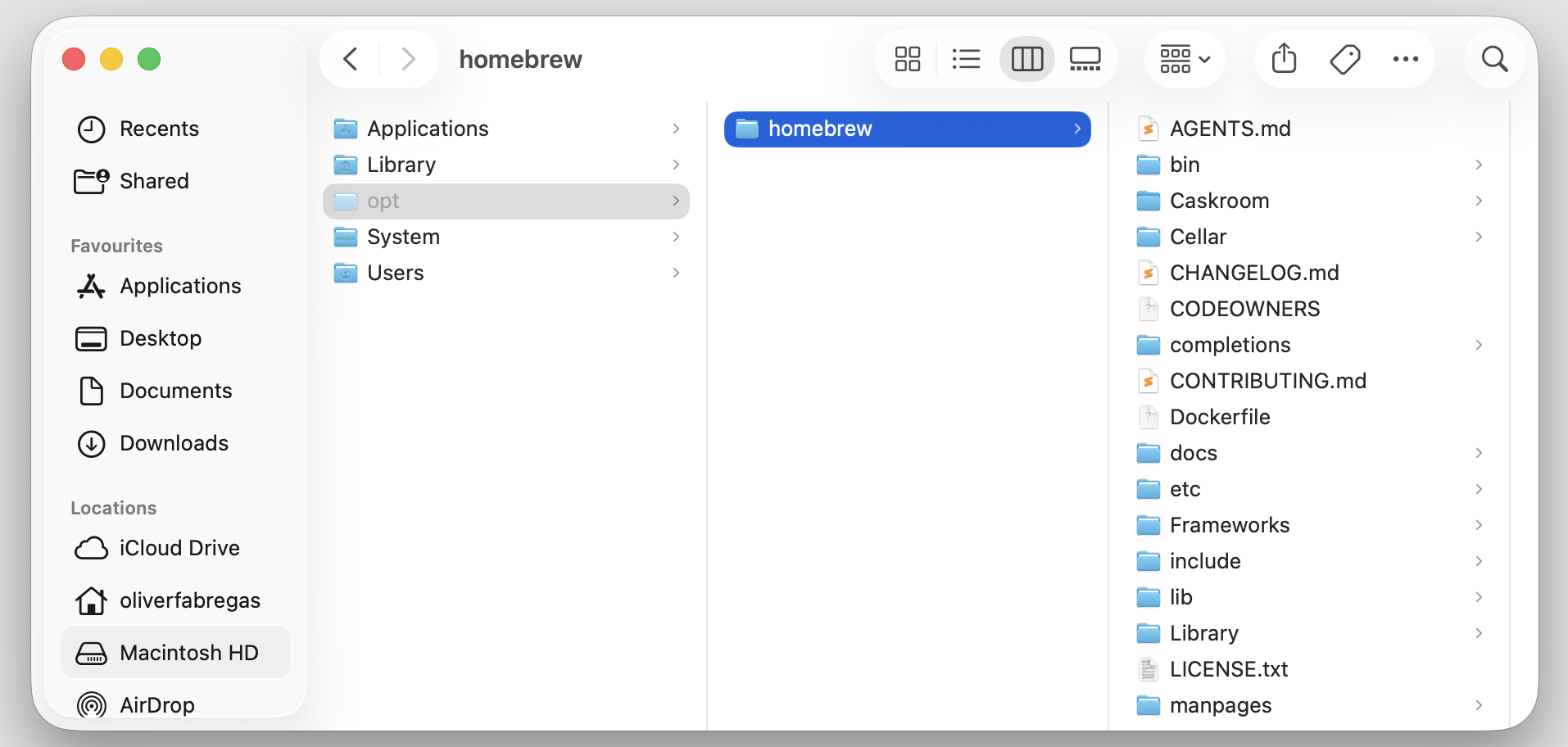
/opt/homebrew
Homebrew on Apple Silicon Macs
/usr/local/opt
Homebrew on Intel Macs
/opt/local
MacPorts
/opt
Other optional third-party software
Why is opt folder hidden on Mac?
macOS keeps many system-related directories out of view so you don’t accidentally change them. Hidden doesn’t always mean suspicious or unsafe—it’s simply Apple’s way of protecting the parts of the system most people never need to touch.
Think of it like a utility closet behind a wall panel—it’s there when you need it, yet kept out of everyday view so nothing gets bumped or deleted by mistake.
When you want to take a look, you can unhide files on Mac with a quick keyboard shortcut. The opt folder reappears the moment you toggle hidden items back on.
What is stored in opt folder?
The opt folder holds the optional pieces that package managers and developer tools rely on. Nothing here is part of the standard macOS install, which is why it’s tucked away. Here, you might find the following:
Optional packages and command-line tools
App components and configuration files
Symlinks that point to software stored elsewhere
Items installed by Homebrew or MacPorts
Most of the above-mentioned components are small text-based files and shortcuts rather than large media, so the folder rarely takes up much space. However, if your storage is filling up, learning to clear system data on Mac can help, though the opt folder is rarely the cause.
A note from our experts:
Meanwhile, for automated, safer computer cleaning, we recommend using MacKeeper. If cleaning, however, isn’t sufficient in your case, you can contact our dedicated support team to resolve the issue quickly and efficiently. We’ll help you find both the why & how for every Mac-related question.
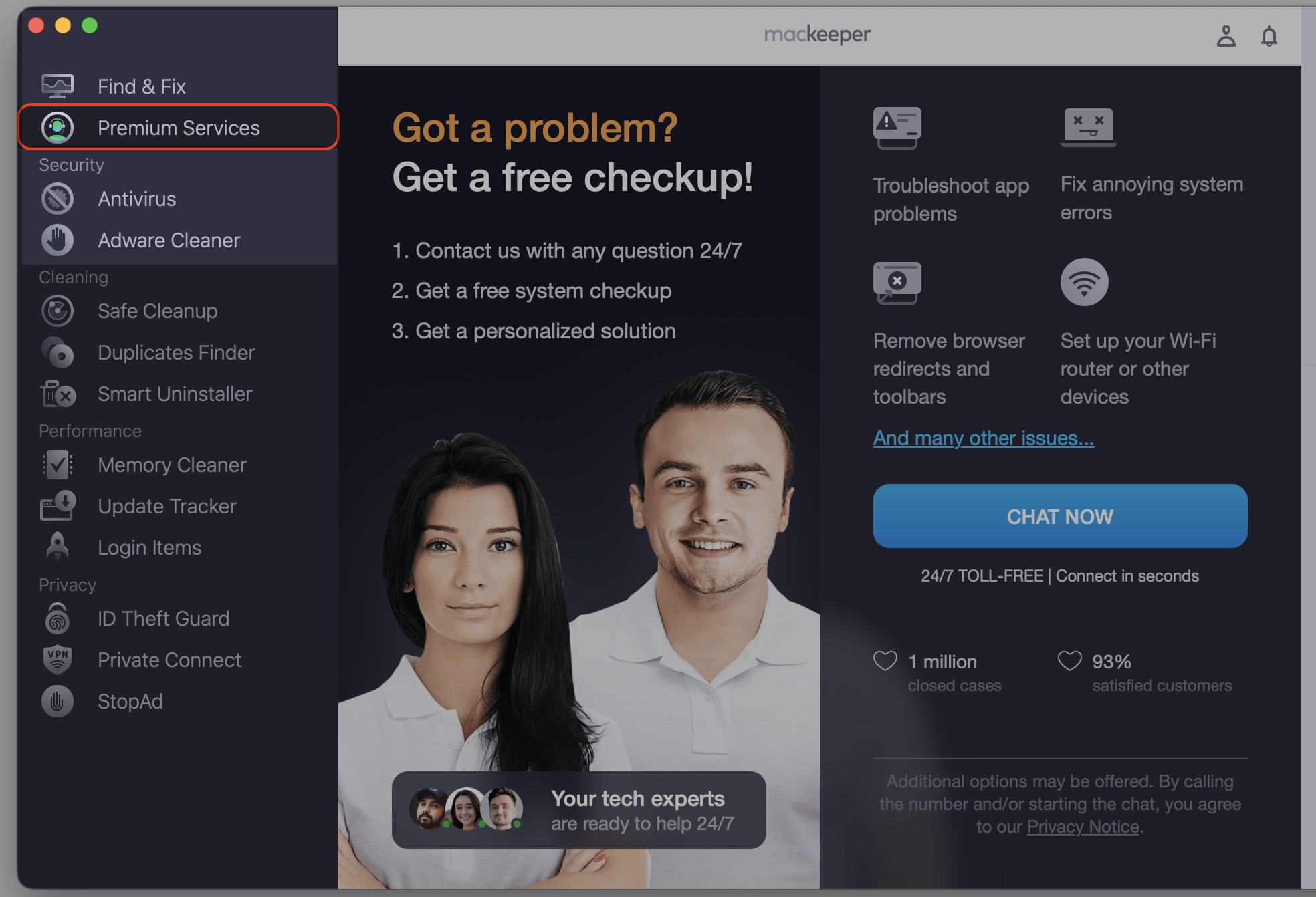
Find and select Premium Services in the left-side menu.
Click the Chat Now button to initiate the conversation.
Type your question and get for the specialist to join the chat.
Try our advice.
Step 1. Go to MacKeeper and Choose Premium Services Step 2. Click Chat NowStep 3. Type in your message to reach our support team
How to find opt folder on Mac?
You can access the opt folder on Mac through Finder or Terminal, depending on your comfort level. Finder feels familiar and visual, while Terminal gives you a quick, direct route. Both are simple once you know the steps.
1. Find the opt folder with Go to Folder
Finder’s Go to Folder option opens a specific location directly when you already know the path. Try this:
Open Finder.
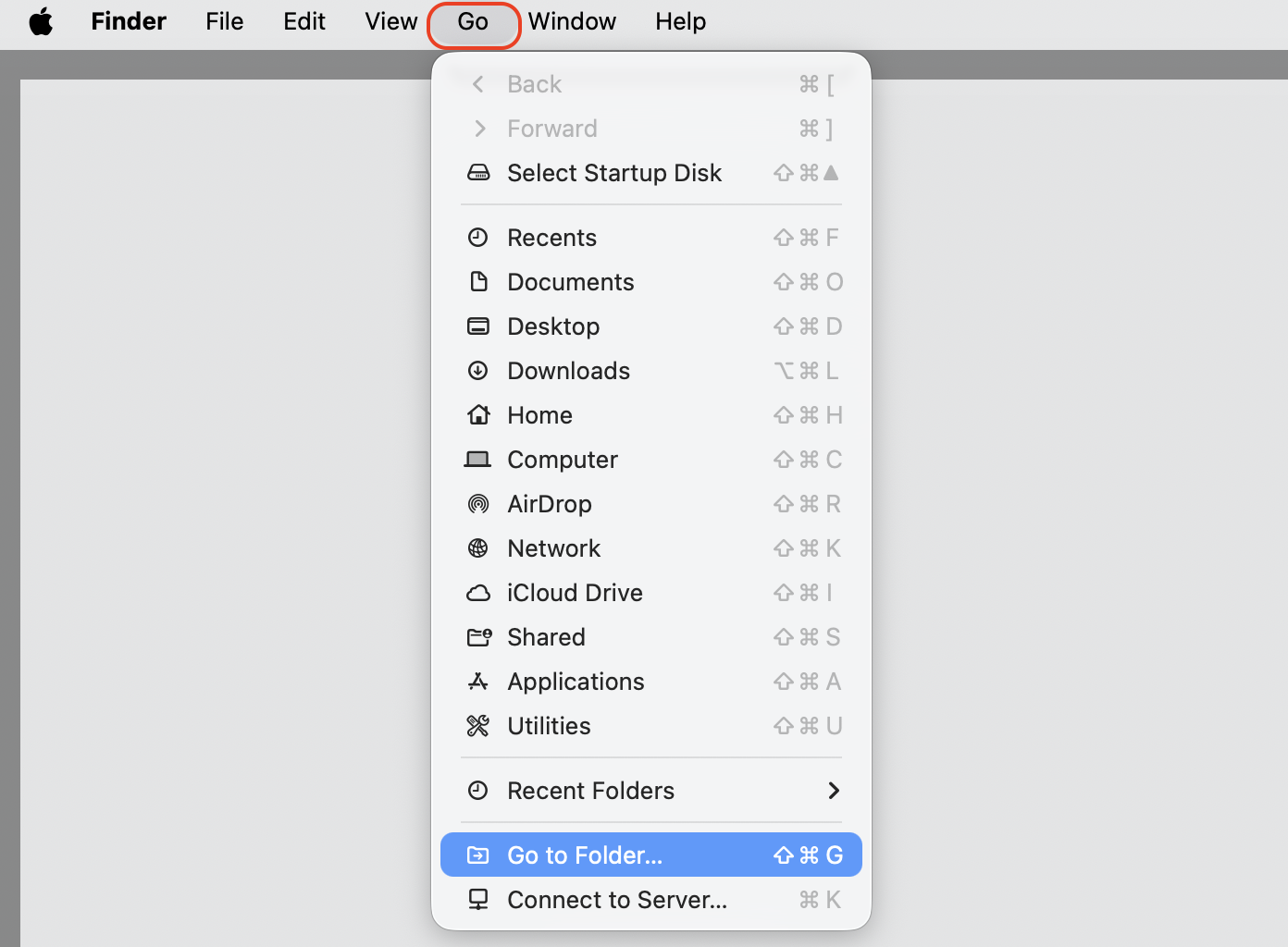
Select Go in the menu bar, then Go to Folder.
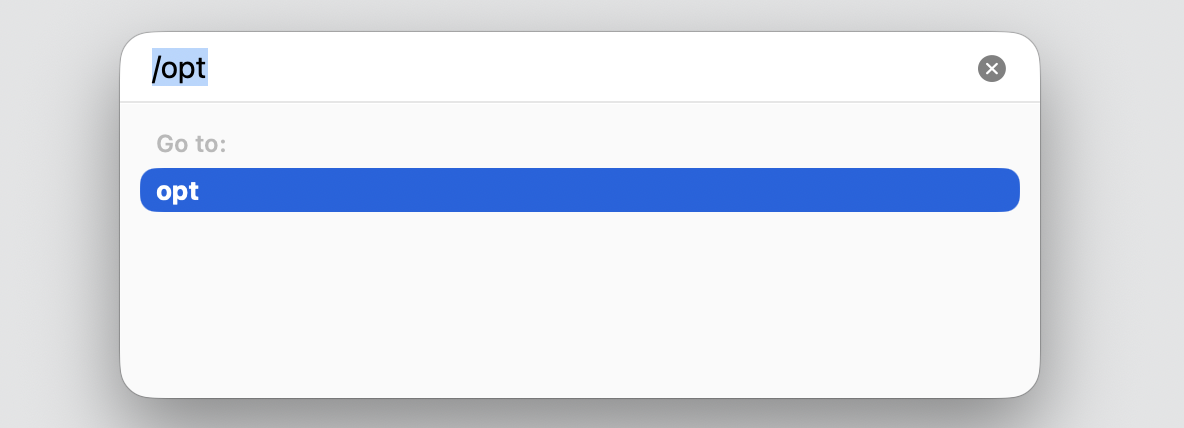
Type /opt into the box.
Press Return to open the location.
Step 1. Select Go in the menu bar, then Go to FolderStep 2. Type the path /optStep 3. Check the result
2. Show hidden folders in Finder
If you’d rather browse your Mac’s directory structure visually, you can reveal hidden folders for a moment. Do this:
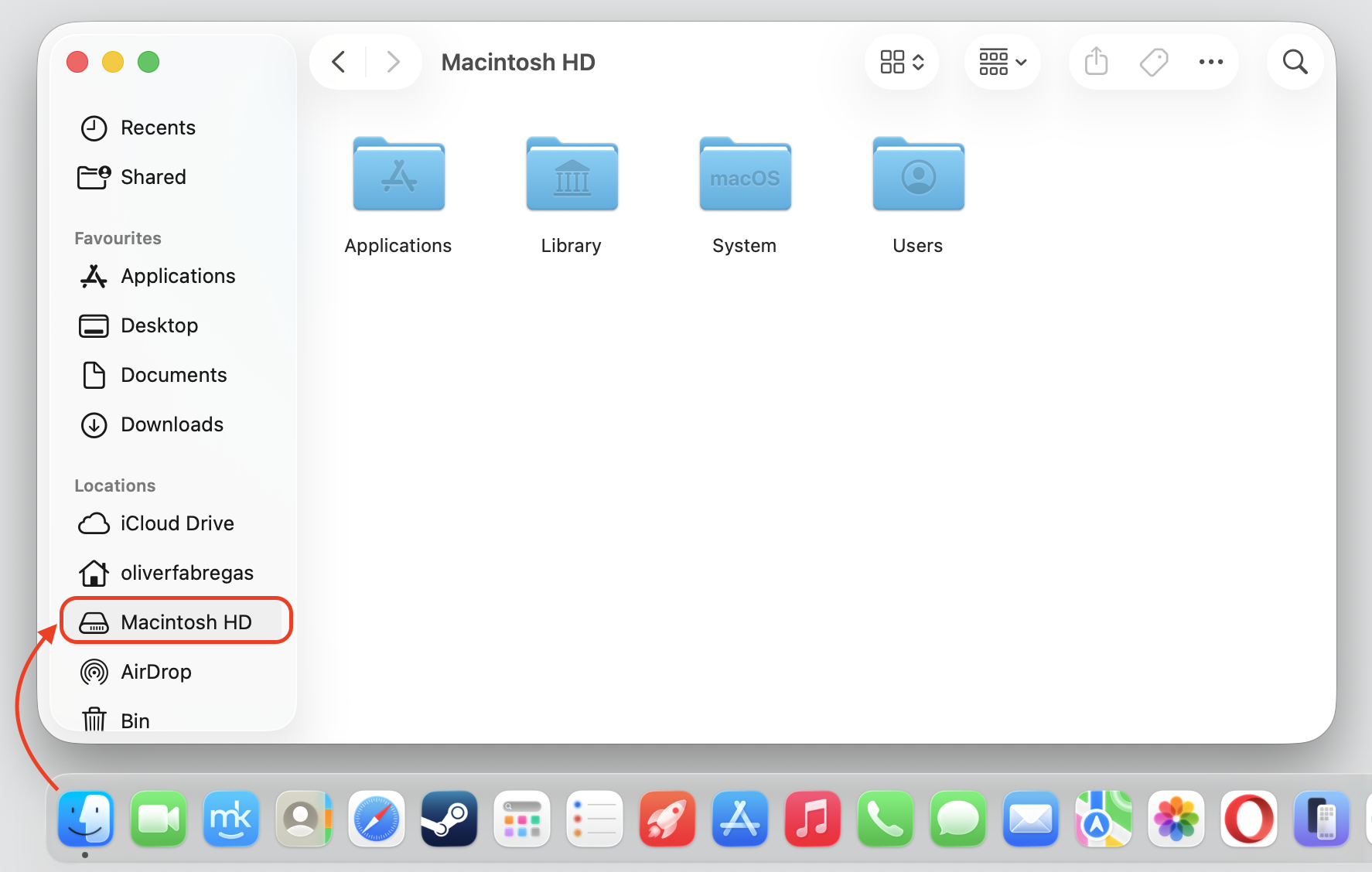
Open Finder and select your Macintosh HD under Locations.
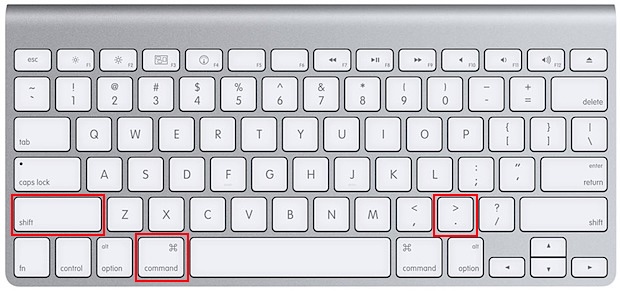
Press Command + Shift + Period to show hidden items.
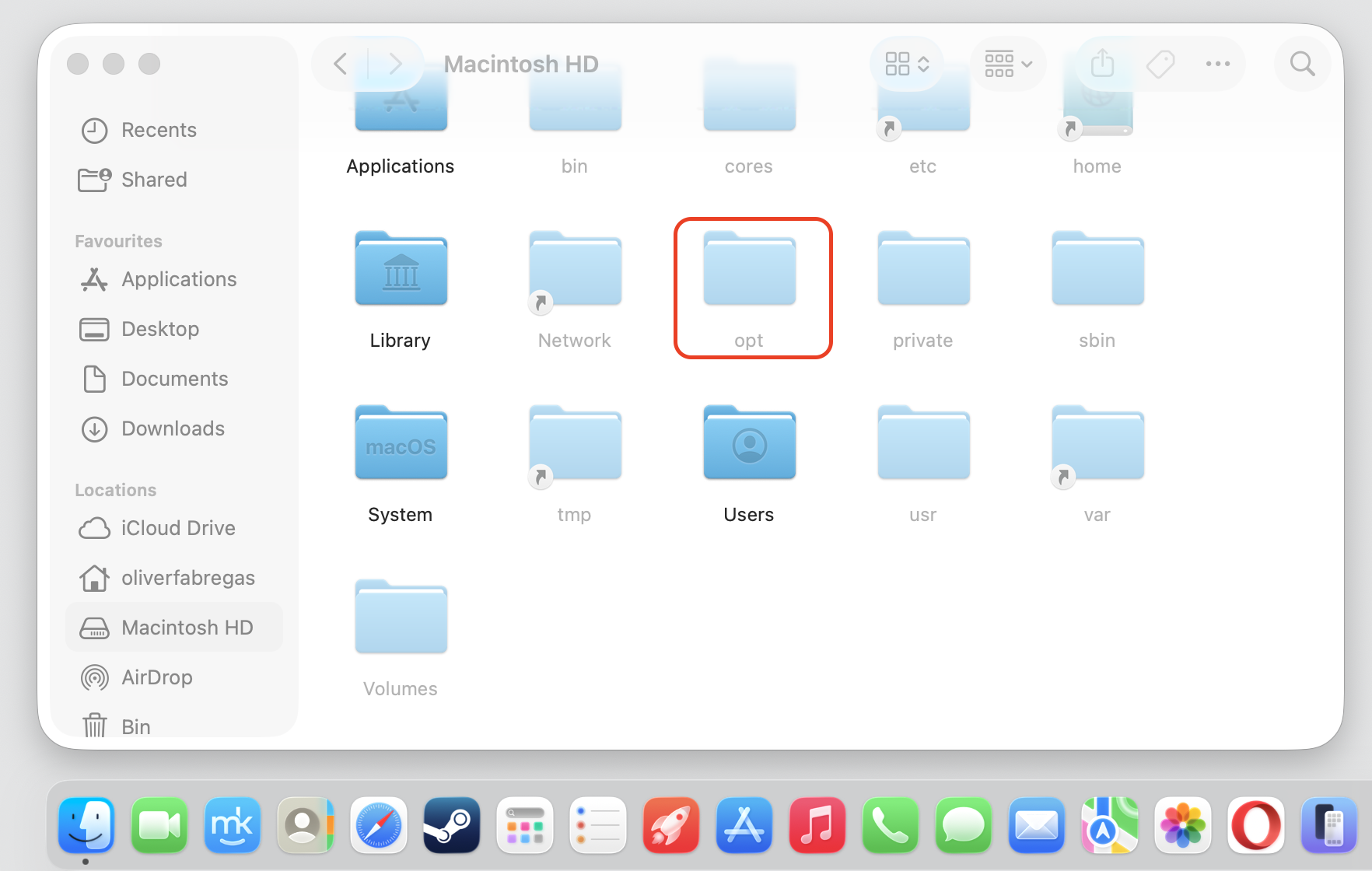
Look for the opt folder and open it if it’s there.
Press the same keys again to hide everything once you’re done.
Step 1. Go to Finder and select your Macintosh HDStep 2. Press Command + Shift + PeriodStep 3. Look for the opt folder
3. Access the opt folder through Terminal
Terminal lets you navigate to the opt folder or check whether it exists. If you’re not sure how to run something in Terminal on Mac, our instructions below keep it clear.
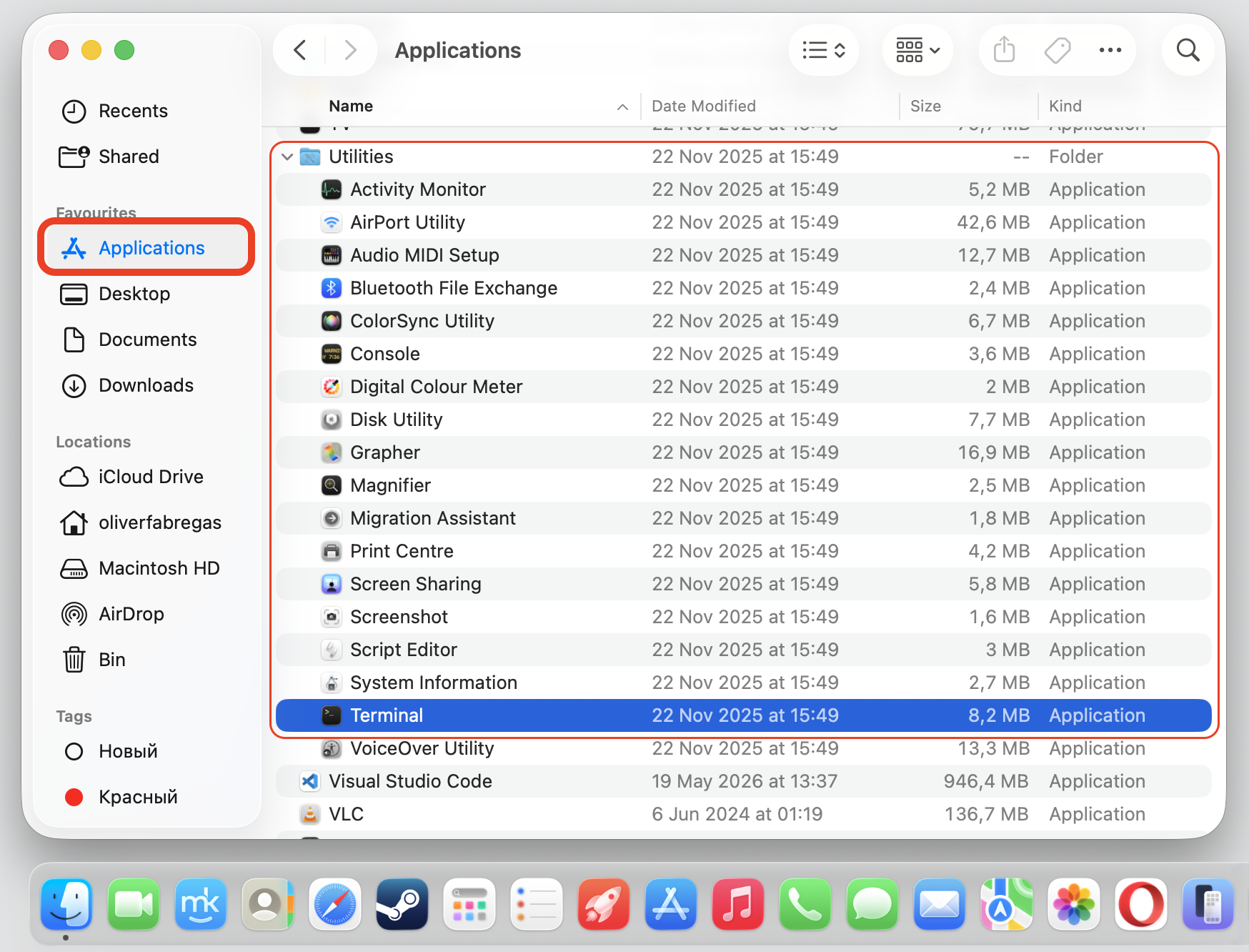
Open Terminal from Applications > Utilities.
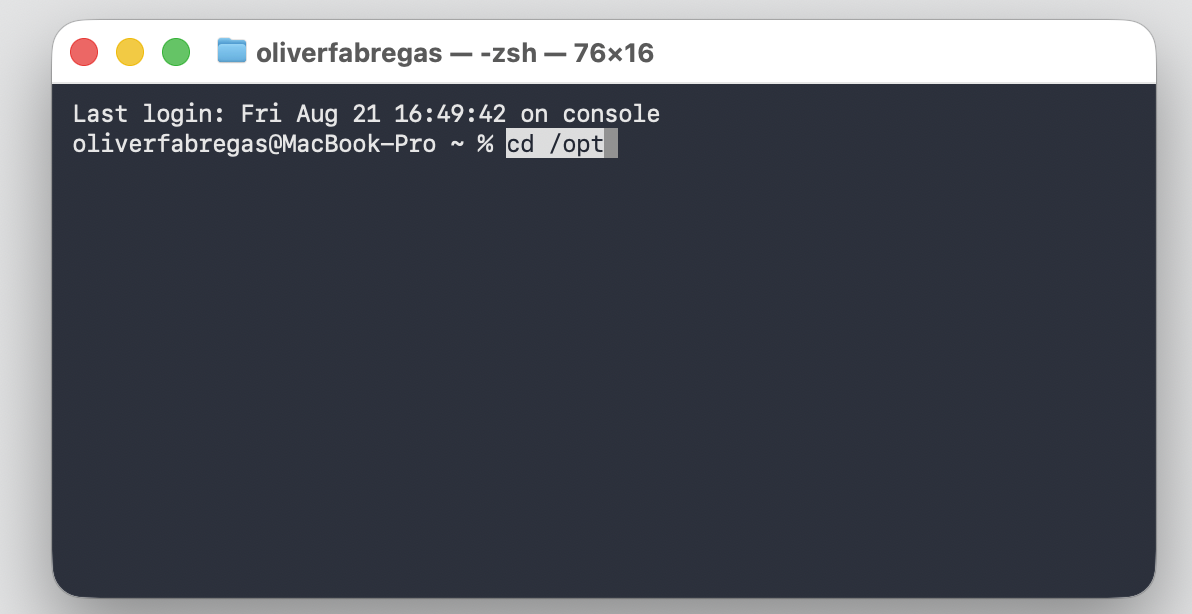
Type cd /opt and press Return to change the directory.
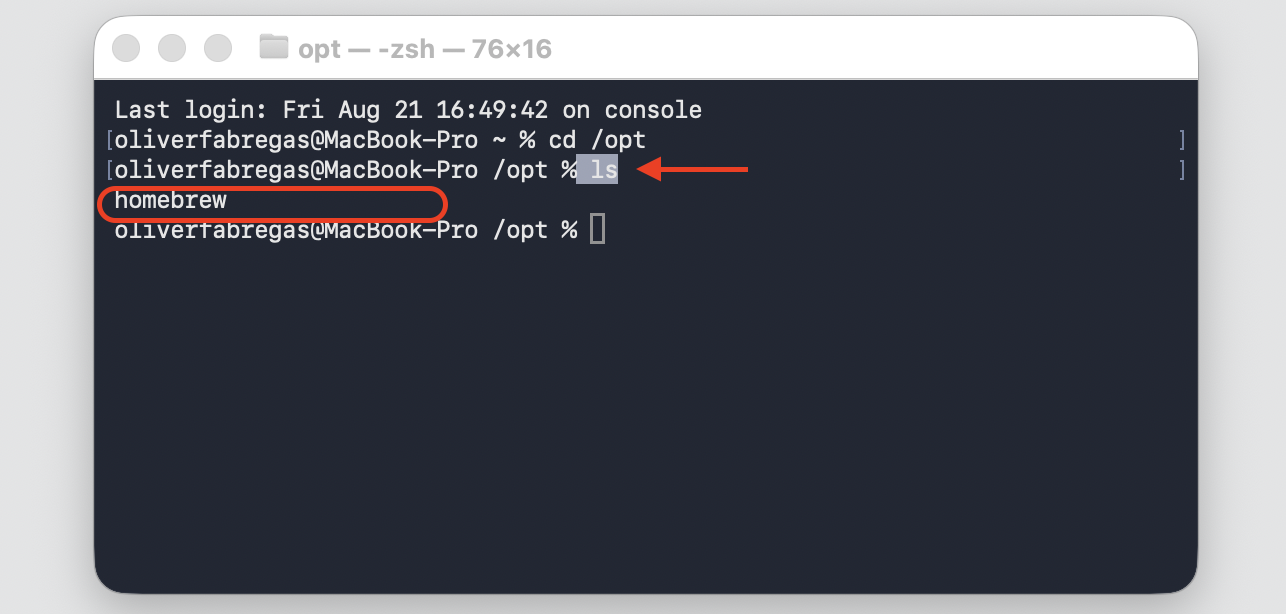
Type ls and press Return to list what’s inside.
Step 1. Open Terminal from Applications > UtilitiesStep 2. Type cd /opt and hit EnterStep 3. Type ls command to list files and folders in the opt directory
What to do if there is no opt folder on Mac?
If no software has created it, the folder simply won’t show up—and that’s perfectly normal. You usually don’t need to make one by hand. Some Macs go their whole life without one, particularly if you stick to apps from the App Store.
A warning from us: Only build it yourself if a specific tool asks you to during setup.
How to manage hidden folders safely on Mac?
Hidden folders are easy to handle once you follow a few sensible habits:
Avoid deleting files at random, especially ones you don’t recognize.
Check which app or tool is installed before you remove it.
Back up important data so you can restore it if needed.
Use trusted, user-friendly cleanup tools rather than guessing.
We genuinely believe that these small steps keep your Mac clean and your files safe, so we're offering them as friendly advice.
Conclusion
The opt folder on Mac is simply a hidden home for optional third-party software, so open it only when you’re setting up, troubleshooting, or managing developer tools. If poking around the system feels tricky, MacKeeper’s Premium Services bridge you with real experts anytime. Let our specialist guide you and give you the comfort of knowing you can solve your Mac problem without a headache.
We respect your privacy and
use cookies
for the best site experience.
Privacy Preferences Center
We use cookies along with other tools to give you the best possible experience while using the
MacKeeper website. Cookies are small text files that help the website load faster. The cookies we
use don’t contain any type of personal data meaning they never store information such as your
location, email address, or IP address.
Help us improve how you interact with our website by accepting the use of cookies. You can change
your privacy settings whenever you like.
Manage consent
All cookies
These cookies are strictly necessary for enabling basic website functionality (including page
navigation, form submission, language detection, post commenting), downloading and purchasing
software. The website might malfunction without these cookies.