Preparing for an online meeting or interview, and realizing you don’t know how to open your Mac’s camera? It’s normal—most users use their iPhone camera for taking pictures and videos, but rarely, if ever, use their laptop camera. After you’ve familiarized yourself with it, ensure you get rid of duplicate photos using MacKeeper’s Duplicates Finder. It helps you manage your Mac’s storage by quickly and safely deleting duplicate files and photos.
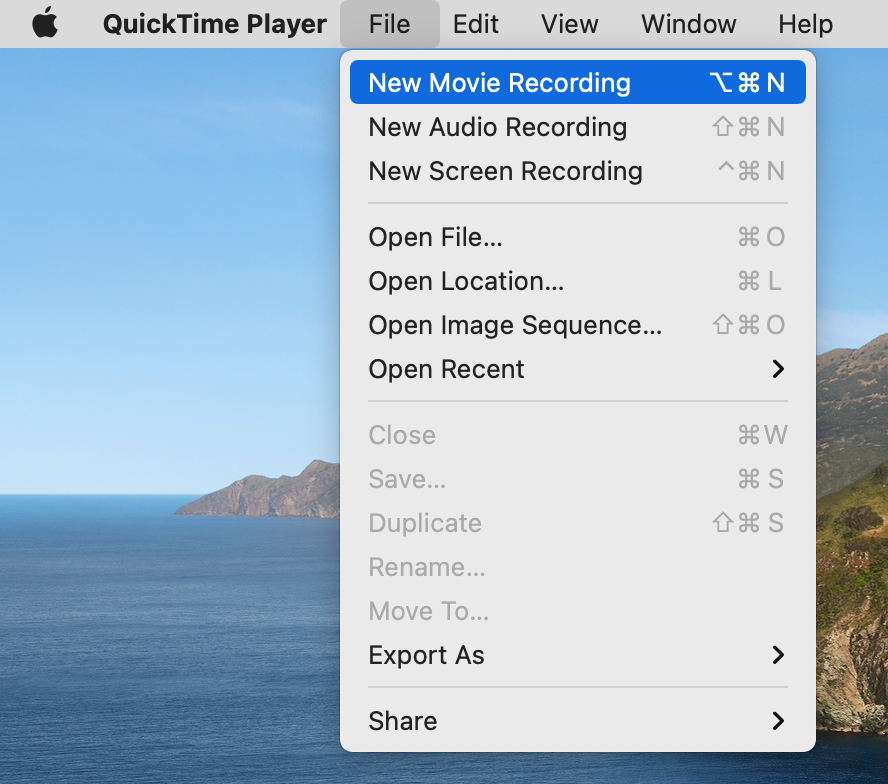
MacBook devices, unlike iPhone devices, don’t have a dedicated camera app to access the camera directly. But that doesn’t mean you can’t use the camera. To access your Mac’s camera, use the built-in apps that come with it, such as FaceTime or Photo Booth. Opening these apps instantly launches the camera, which appears on the screen. Another option is activating the camera in Mac’s QuickTime Player and choosing the option to record a new movie.
Where is the camera on a Mac?
The Mac camera is discreetly displayed at the top of your device’s screen. Unless you’ve been a Mac owner for some time, you won’t immediately notice the camera. However, it displays a small green dot when you launch an application that uses the camera, indicating that it is on. You can manage camera permissions in privacy settings in System Preferences.
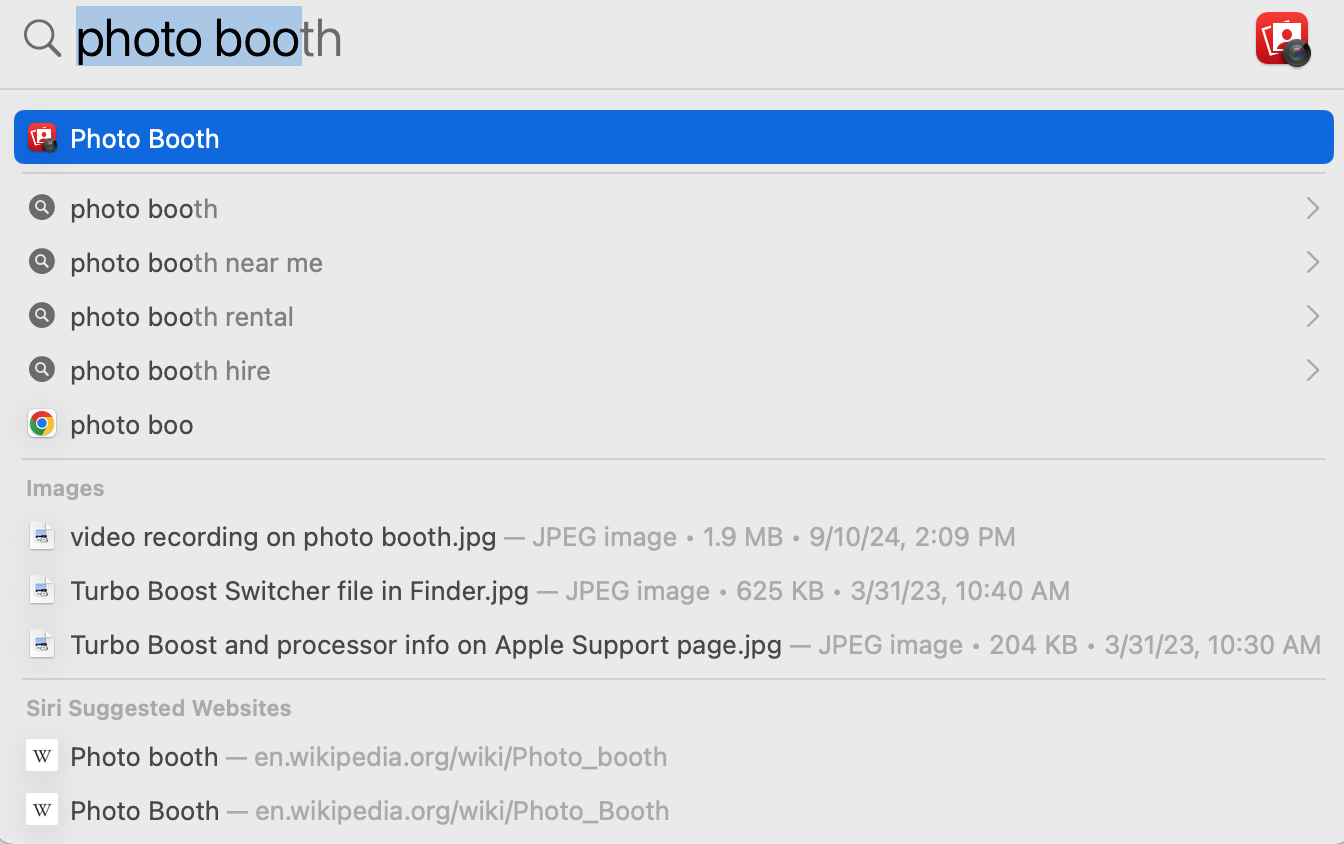
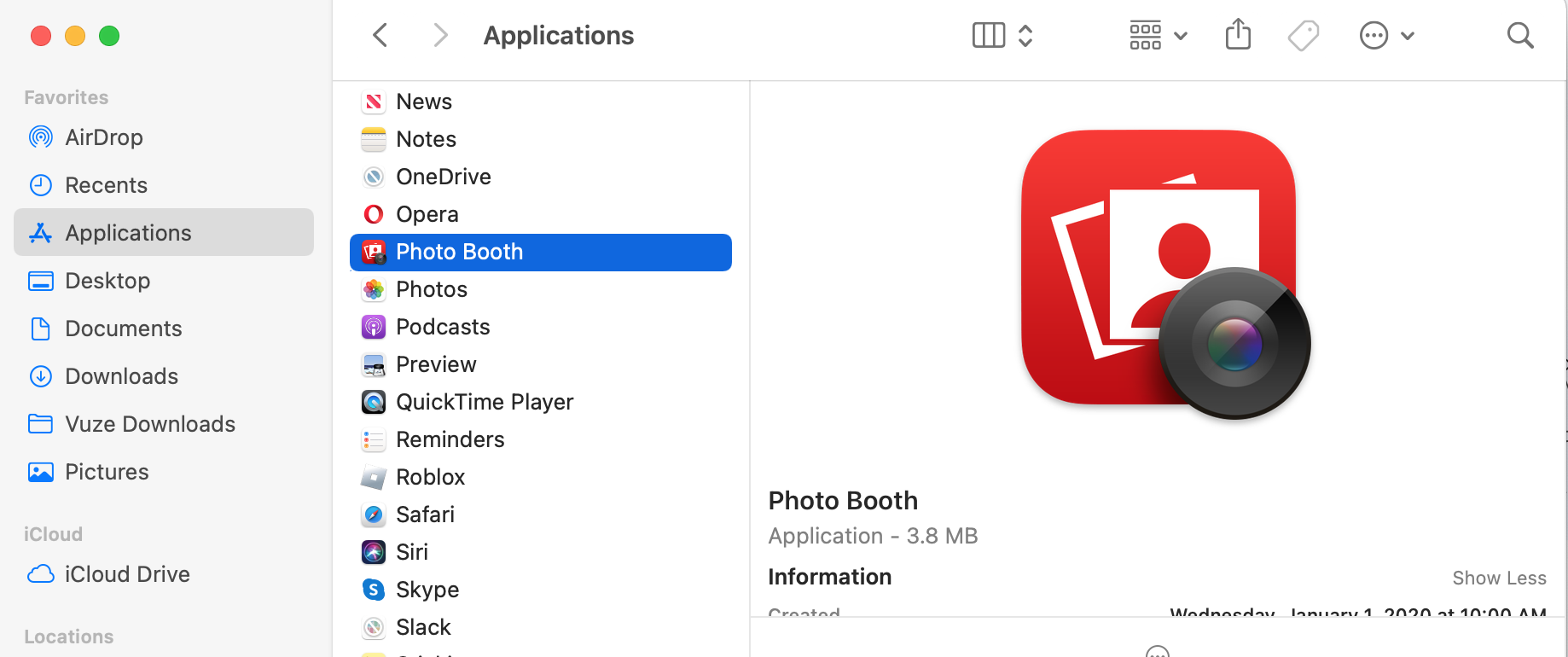
There are three ways to enable the camera on your MacBook device. You can open the camera using Spotlight, your Mac’s search function. This entails searching for the Photo Booth app in Spotlight’s search bar and opening it to take photos or record videos. Another method includes enabling Photo Booth or FaceTime directly from the Applications folder via Mac’s Finder app. Finally, you can use QuickTime Player, Apple’s media player.
Find our instructions to bring up the camera using any one of the methods mentioned above in the appropriate sections below.
1. Open the camera using Spotlight
Photo Booth is Mac’s built-in app that uses the webcam or an external camera to take photos directly on your computer. We use it for snapping quick, fun photos that don’t require much editing, since the Mac camera doesn’t always produce the best pictures.
Here’s how you can open the camera in MacBook via Spotlight:
Press the Command + space bar keys to bring up Mac’s Spotlight search tool.
Type Photo Booth in the search bar and select it.
Is your camera malfunctioning? There’s always a quick fix or two you can try when the MacBook camera is not working.
2. Enable Photo Booth or FaceTime from Applications
Spotlight is the quickest way to bring up any app, including Photo Booth. But you can also open it via the Applications folder. We sometimes do this by default as a matter of preference.
Follow this quick guide to launch Photo Booth from Applications:
Click the Finder icon in the lower-left corner of the screen.
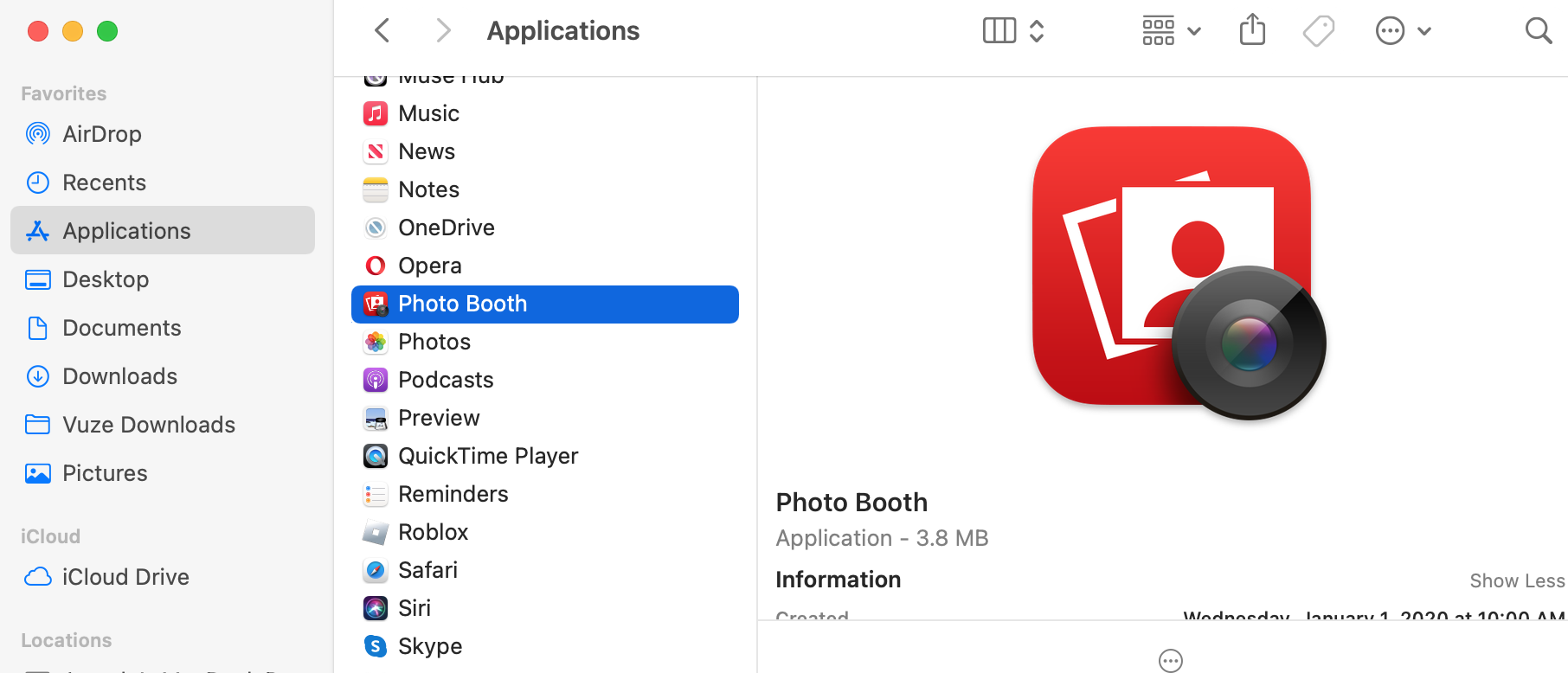
Select Applications > Photo Booth.
3. Use QuickTime Player
We lean on Mac’s built-in multimedia tool, QuickTime player, for simple video playback and editing. But we also use it to record video content on occasion.
Follow this simple guide to record yourself using Mac’s QuickTime Player:
Open QuickTime Player from the Applications folder in Finder.
Click on File > New Movie Recording to enable the camera.
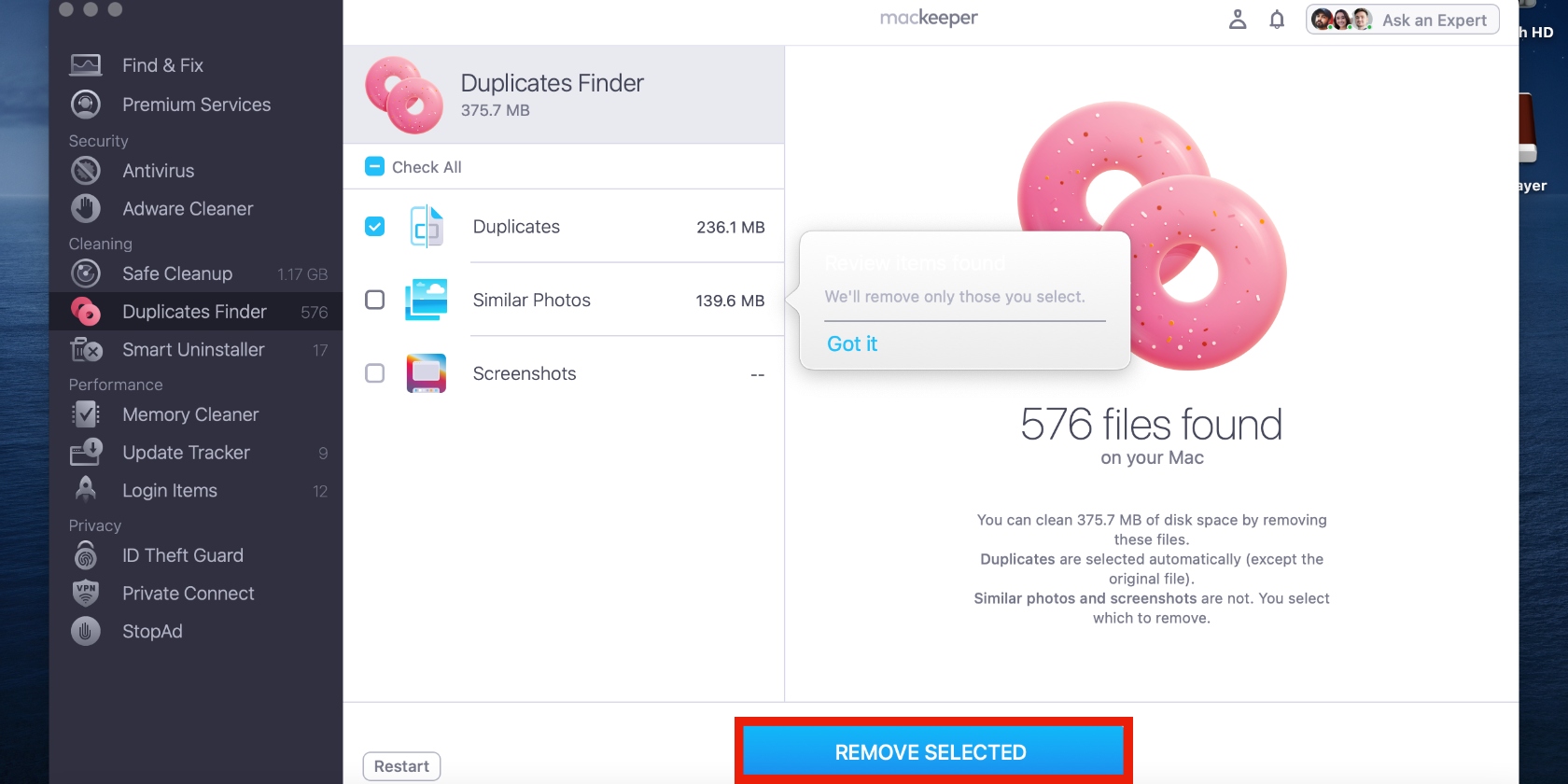
If you regularly take or download pictures on your Mac, chances are it’s filled with duplicate photos you’ve probably long forgotten about, and the thought of deleting them one by one has likely made you put it off for a long time. But you don’t have to spend all day manually removing duplicates from your Mac laptop. That’s what MacKeeper’s Duplicates Finder is here for—it automatically detects and helps you remove duplicate photos and other files, saving you valuable time and optimizing your device. We’re proud to say that MacKeeper received an AV‑TEST certification and scored 6.0/6.0 in all three categories in 2025, making it a reputable solution for your Mac’s needs.
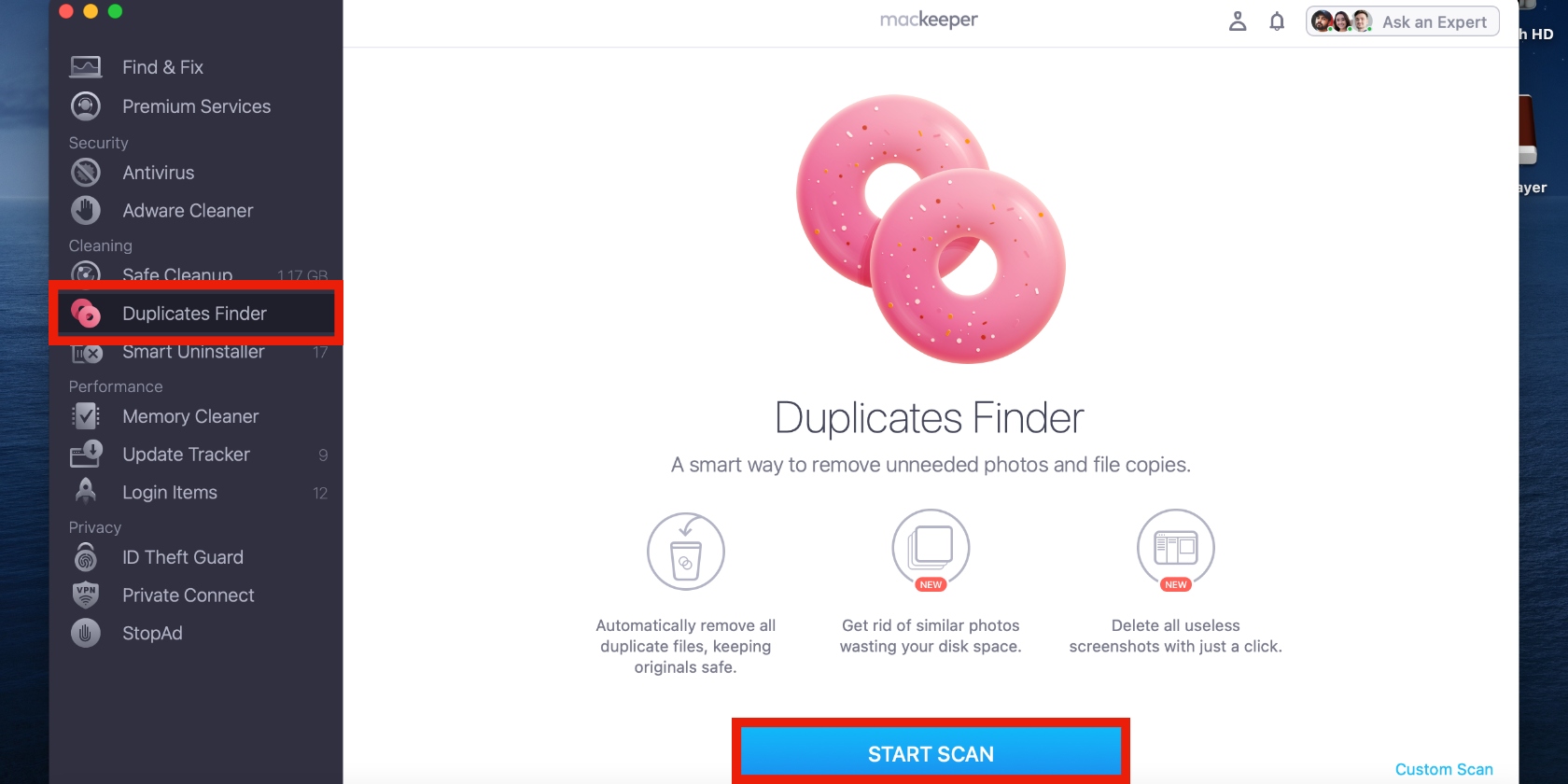
Ready to join the hundreds of thousands of Mac owners who trust MacKeeper? Follow these steps to use MacKeeper’s Duplicates Finder:
Select Similar Photos and hit the Remove Selected button.
Step 1. Click on Duplicates Finder > Start ScanStep 2. Select Similar Photos and hit the Remove Selected button
How to use the Mac camera with third-party apps?
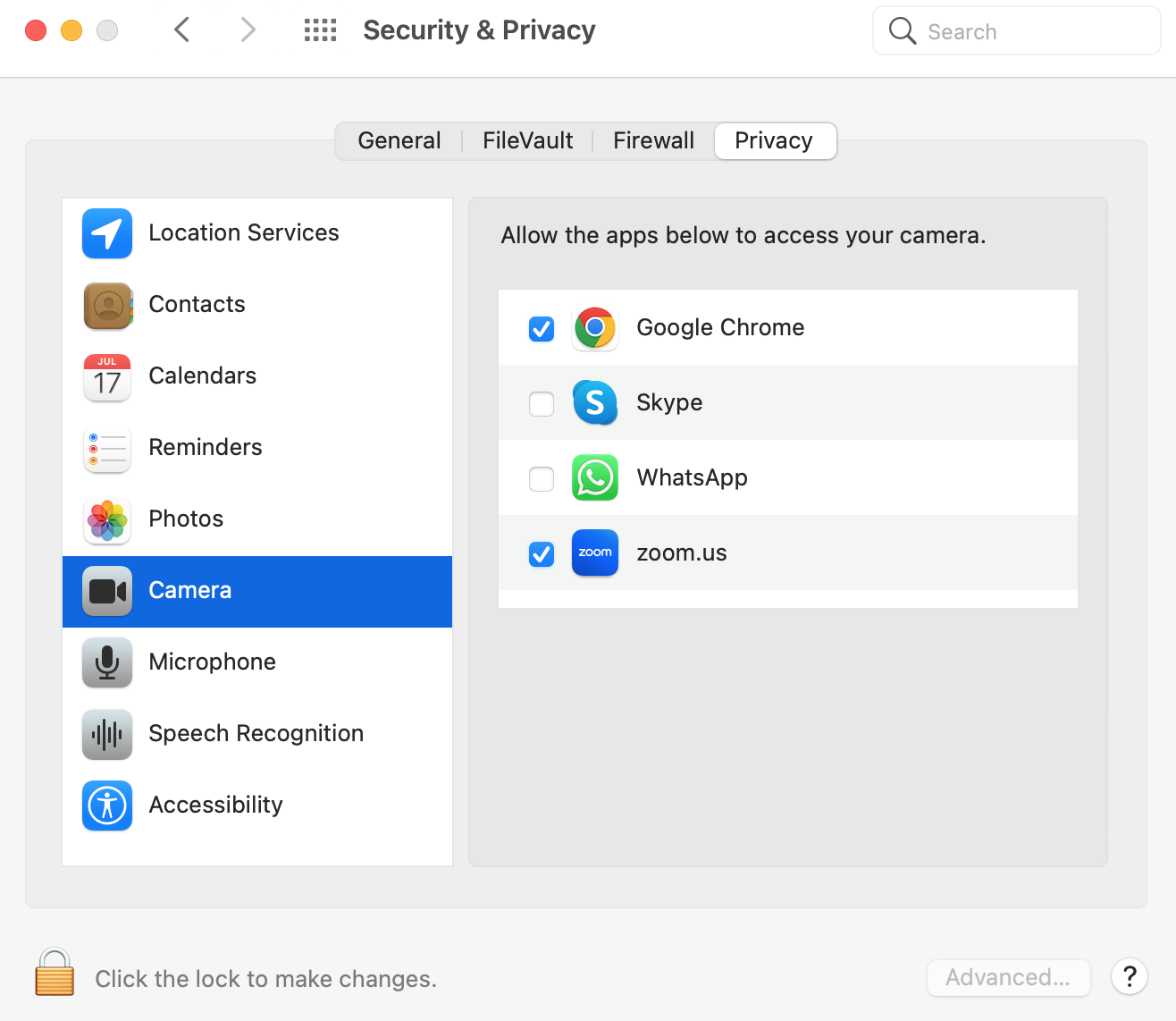
Many common third-party apps, such as social media apps, require camera access for a smooth experience, or offer the option to use your camera to get the full experience. For these reasons, we grant camera access to those apps. To do this, open the Apple menu, select System Settings or System Preferences, and click on the Security & Privacy and Camera options. Now, choose the app you want to grant access to your Mac’s camera.
Use Photo Booth to take a picture with your Mac’s camera. Open Photo Booth via Finder or Spotlight. The green light will appear shortly next to the camera at the top of your machine. This lets you know that the camera is active. Once it appears, your reflection will appear in the Photo Booth window. Make sure you appear in the frame proportionately. Find the red-and-white camera icon at the bottom of the window and click on it when you’re ready to take a photo.
Step 1. Open Photo Booth via the Applications FolderStep 2. Click on the camera icon
How to turn off the Mac camera?
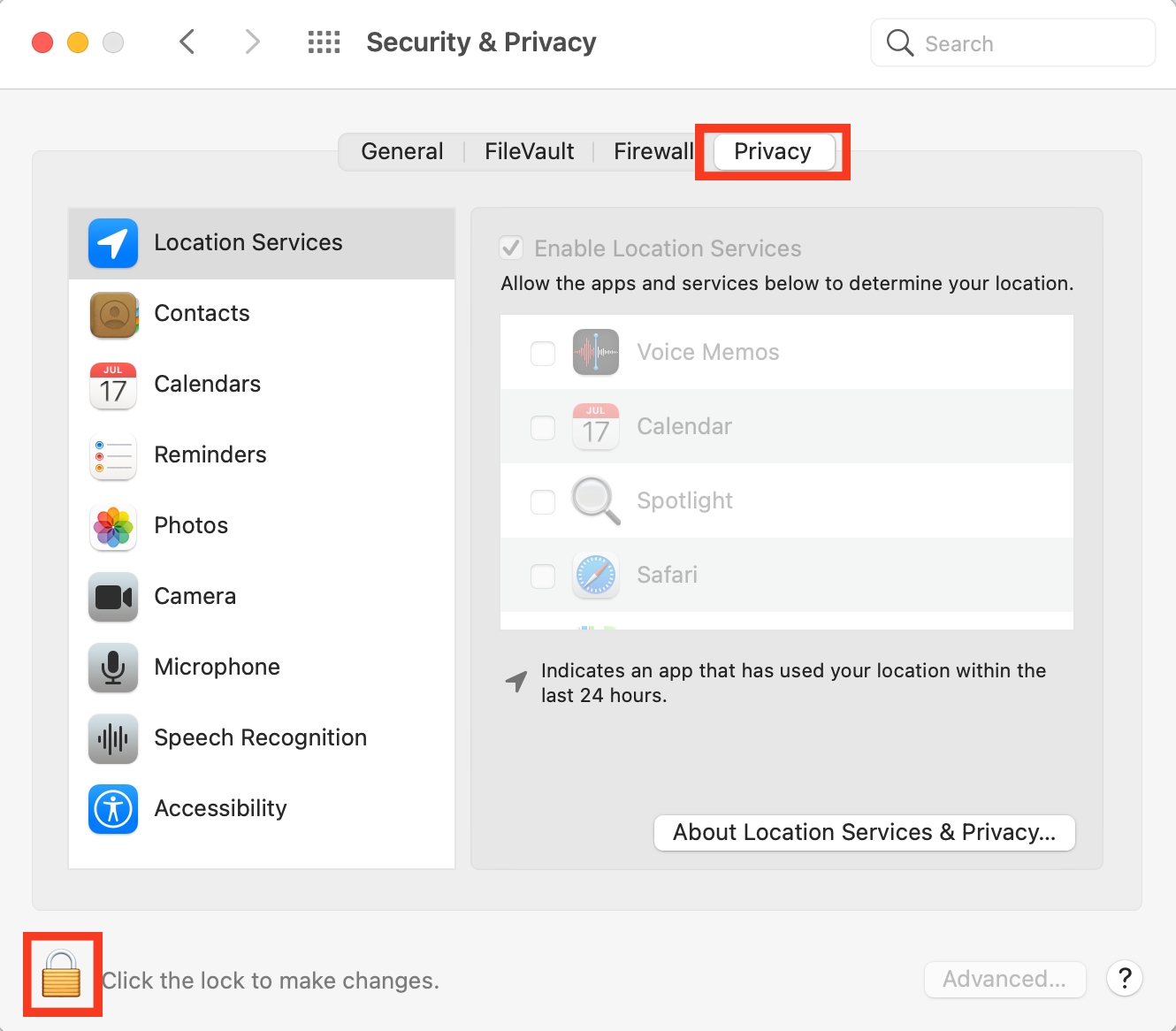
Are you concerned about protecting your data and privacy? You can turn off camera access for specific apps on your Mac. Start by clicking on the Apple menu and selecting System Preferences or System Settings. Select the Security & Privacy option and choose the Camera feature. Now, go through the list of apps and revoke camera access from the apps you no longer want to use the Mac camera for.
Step 1. Open System Preferences and select the Security & PrivacyStep 2. Click on Camera in the sidebar and uncheck the boxes next to each app
Easily find and open the camera on your Mac
Getting to the camera on your MacBook is easy if you understand which apps to use. You can do it using Photo Booth, QuickTime Player, and Mac’s Spotlight tool. Using your Mac’s camera increases the likelihood of accumulating duplicate photos. Manage it with ease using MacKeeper’s Duplicates Finder. It quickly detects duplicate photos and other files and helps you get rid of them with a few clicks.
We respect your privacy and
use cookies
for the best site experience.
Privacy Preferences Center
We use cookies along with other tools to give you the best possible experience while using the
MacKeeper website. Cookies are small text files that help the website load faster. The cookies we
use don’t contain any type of personal data meaning they never store information such as your
location, email address, or IP address.
Help us improve how you interact with our website by accepting the use of cookies. You can change
your privacy settings whenever you like.
Manage consent
All cookies
These cookies are strictly necessary for enabling basic website functionality (including page
navigation, form submission, language detection, post commenting), downloading and purchasing
software. The website might malfunction without these cookies.