Opening Terminal on a Mac allows you to interact with your operating system like a pro. But remember that smooth interaction requires strong security to keep your OS free from malicious attacks. MacKeeper’s Antivirus can help here—it can keep your Mac protected from 99.7% of the currently existing malware.
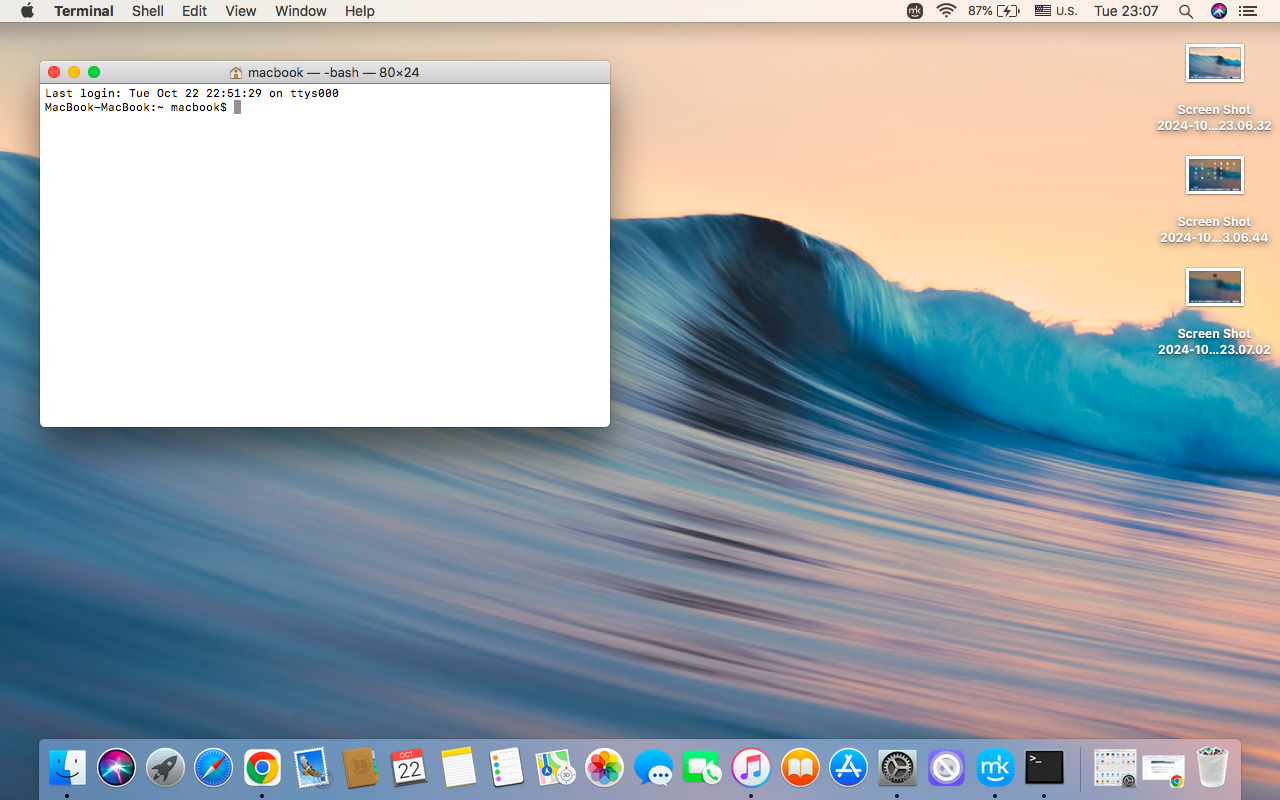
Terminal is a powerful built-in command-line interface that allows Mac users to interact with their device’s operating system at a deeper level. With its help, you can communicate with macOS directly by typing commands without additional operations. On launching Terminal, you’ll see a window with a command line where you have to enter commands to run specific tools.
Terminal provides access to system services that can fulfill various functions—from basic software installations to more complicated issues like network troubleshooting. By entering orders directly into Terminal, you can ask your device to rapidly and efficiently perform specific actions, skipping the need to refer to apps.
Here are Terminal’s main advantages from our experience of using it:
Direct access to macOS functions
Fast performance
Advanced troubleshooting
Low resource consumption
Meanwhile, to enjoy all the above benefits, you need to know how to use Terminal on Mac, as its commands are case-sensitive and require the correct input to function properly. Unfortunately, a typo in the Terminal command line won’t lead to the result you're looking for.
A note from our experts:
Terminal on a Mac is a bridge between the user and the operating system. However, if your Mac is infected with a virus, the operating system won’t behave properly. MacKeeper’s Antivirus protects your Mac from viruses, malware, and trojans in real time. Try it out today.
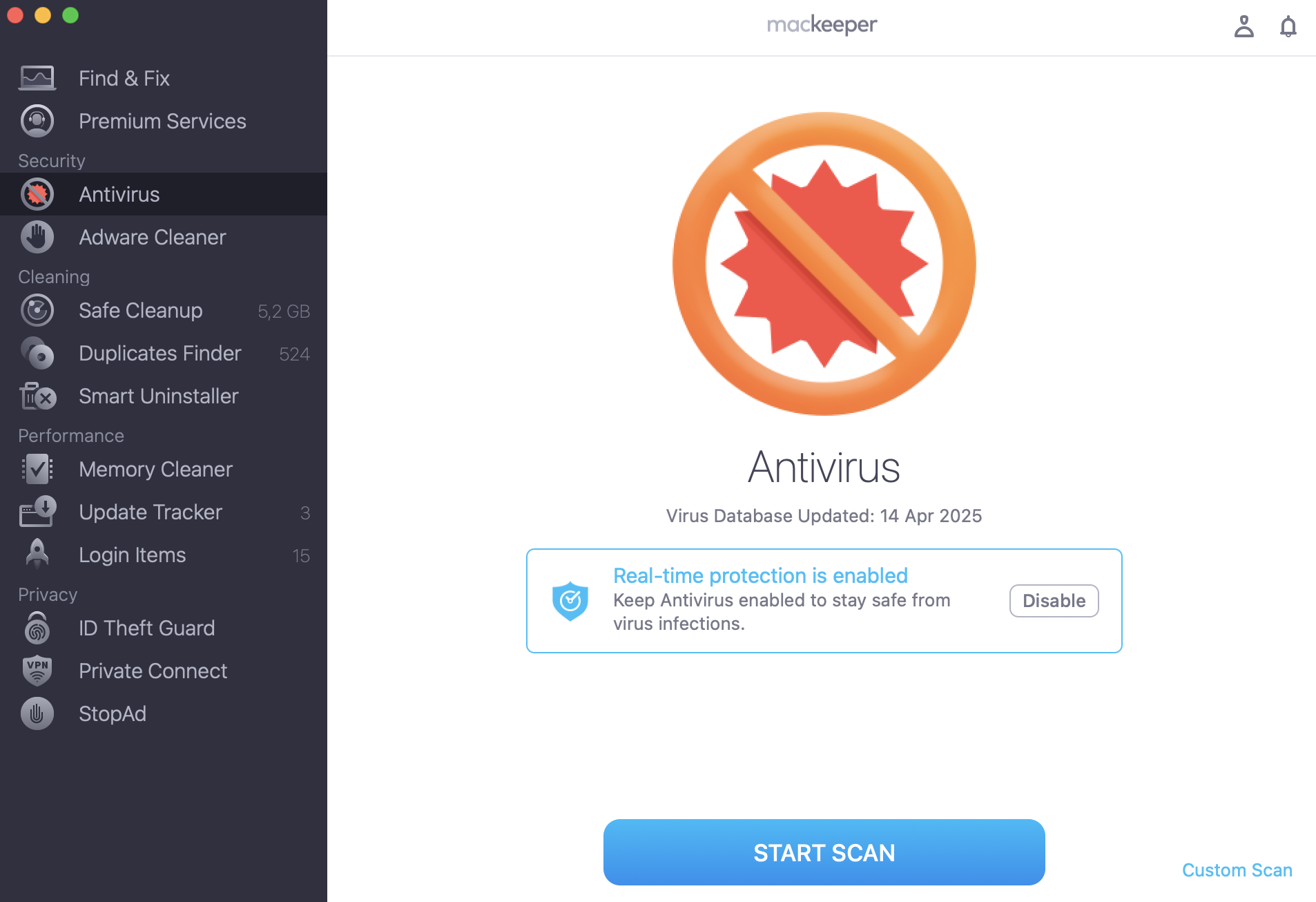
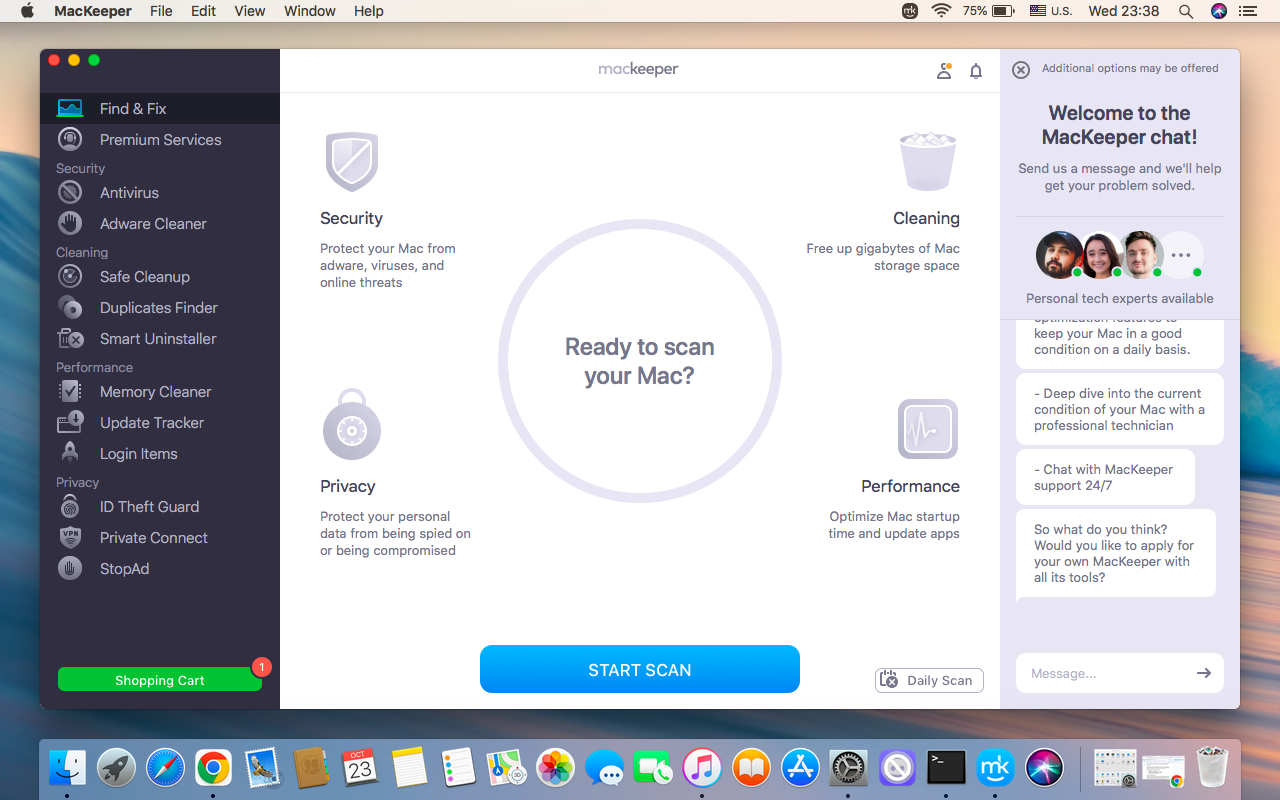
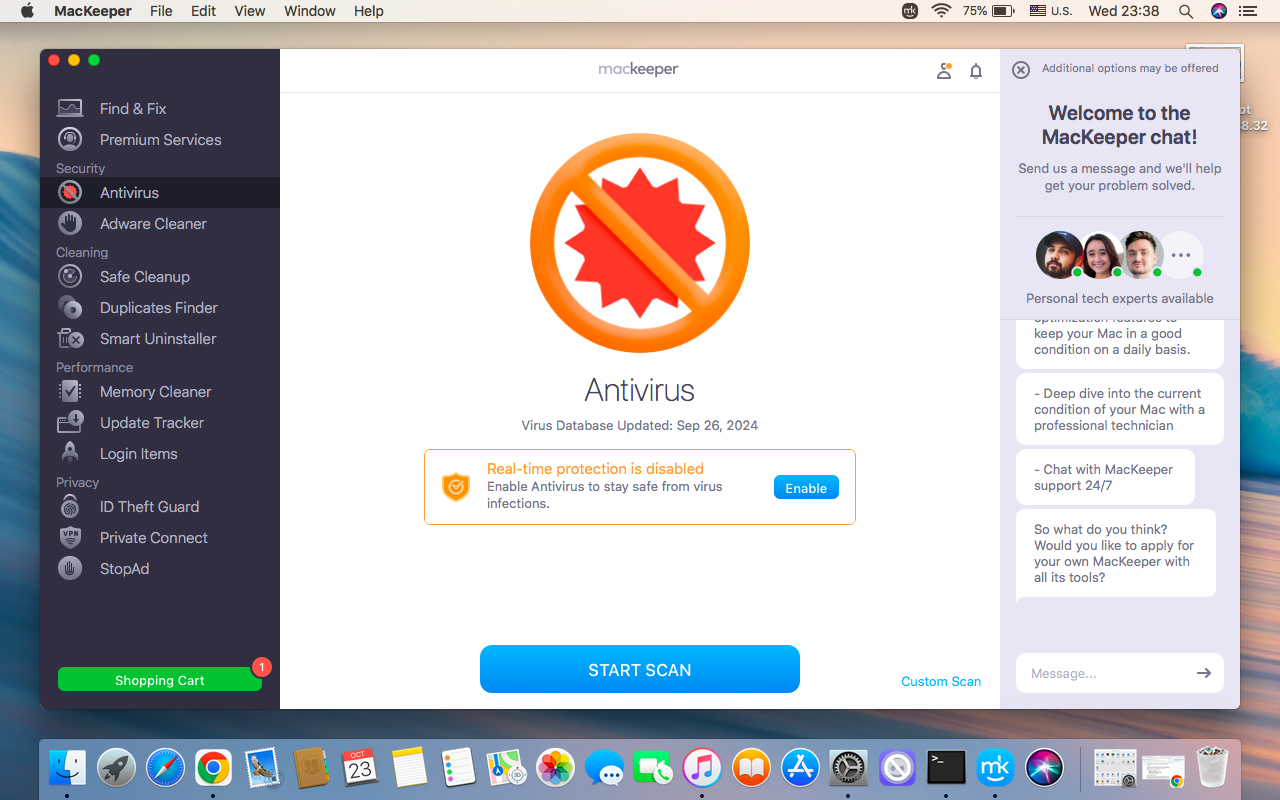
Choose Antivirus from the sidebar and click Start Scan.
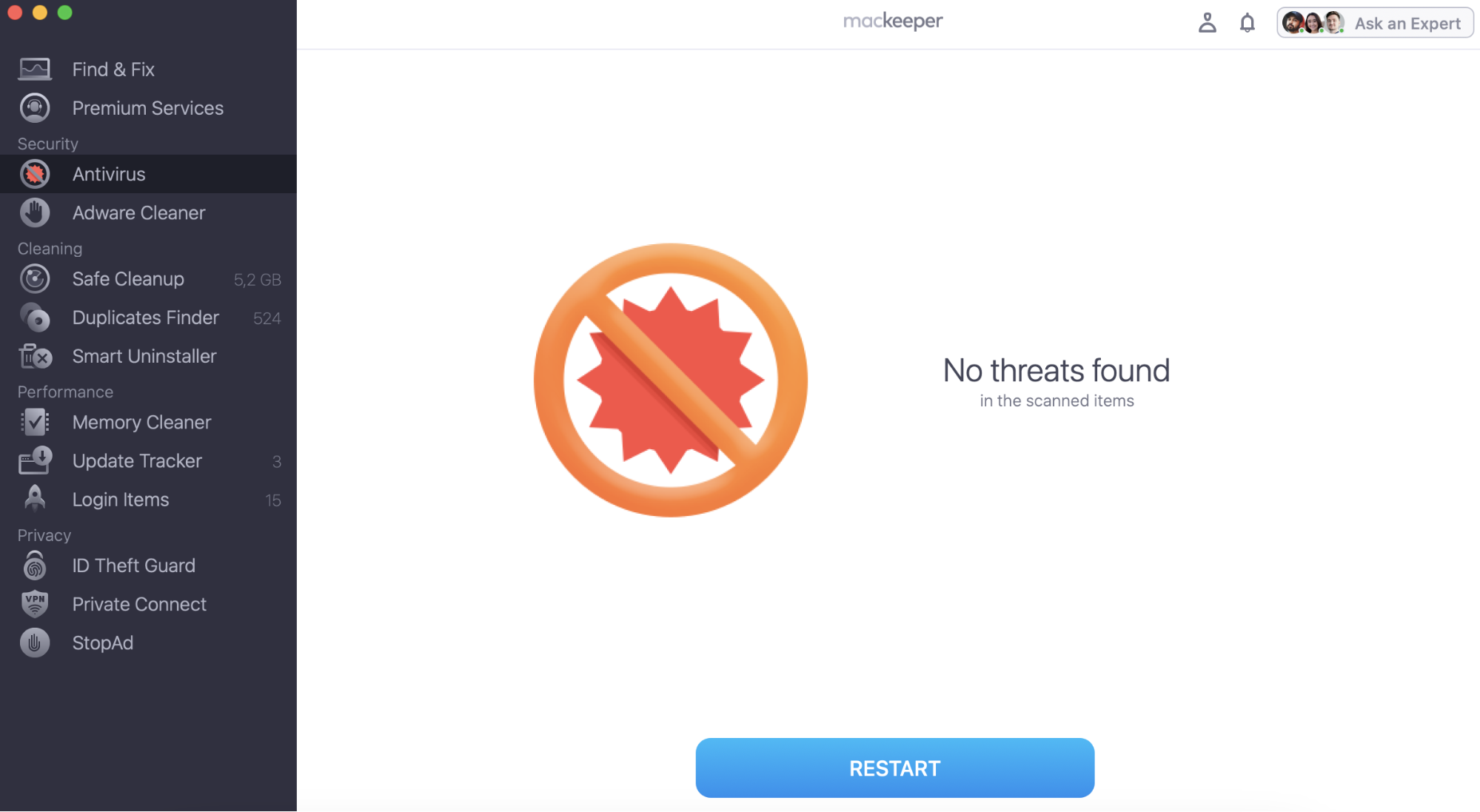
If MacKeeper finds malware, select it and click Delete.
In the pop-up window, click Delete again.
Step 1. MacKeeper > Antivirus > Start ScanStep 2. Click Delete to remove a virus
How to run Terminal on Mac
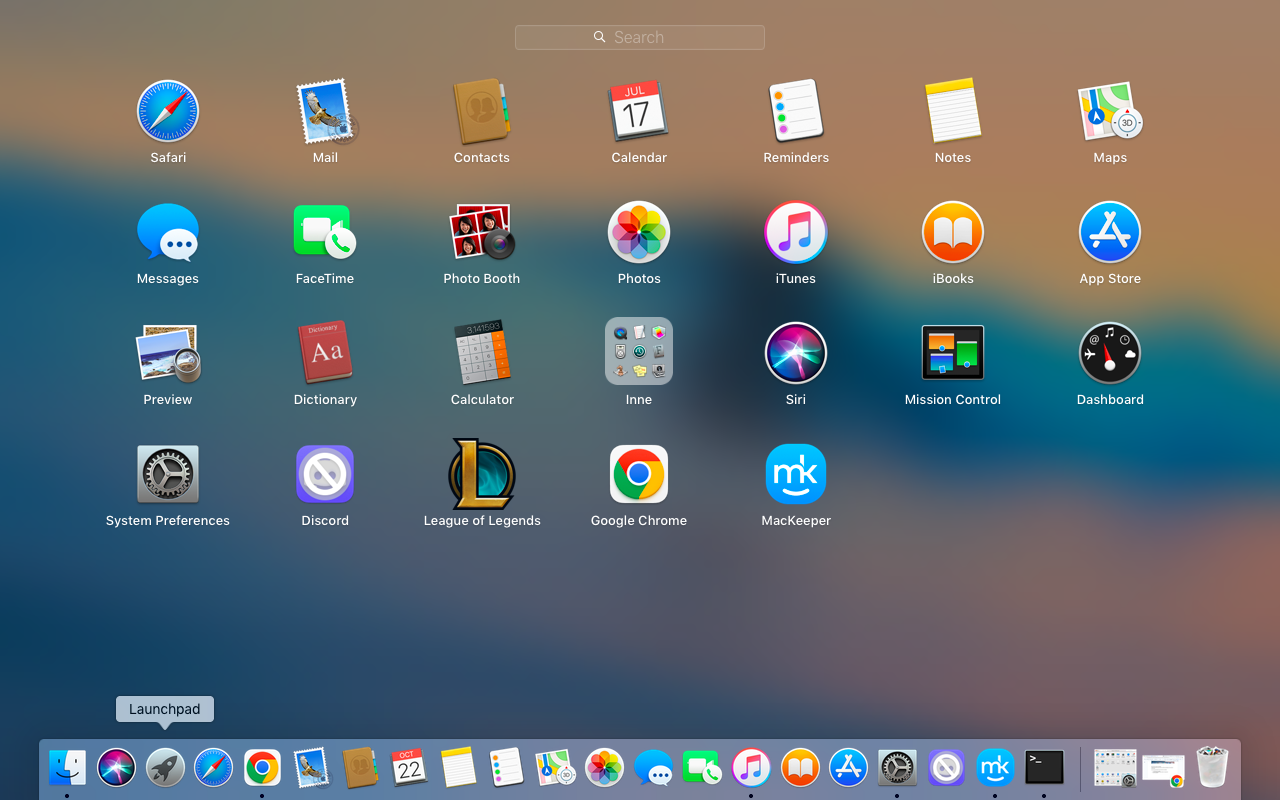
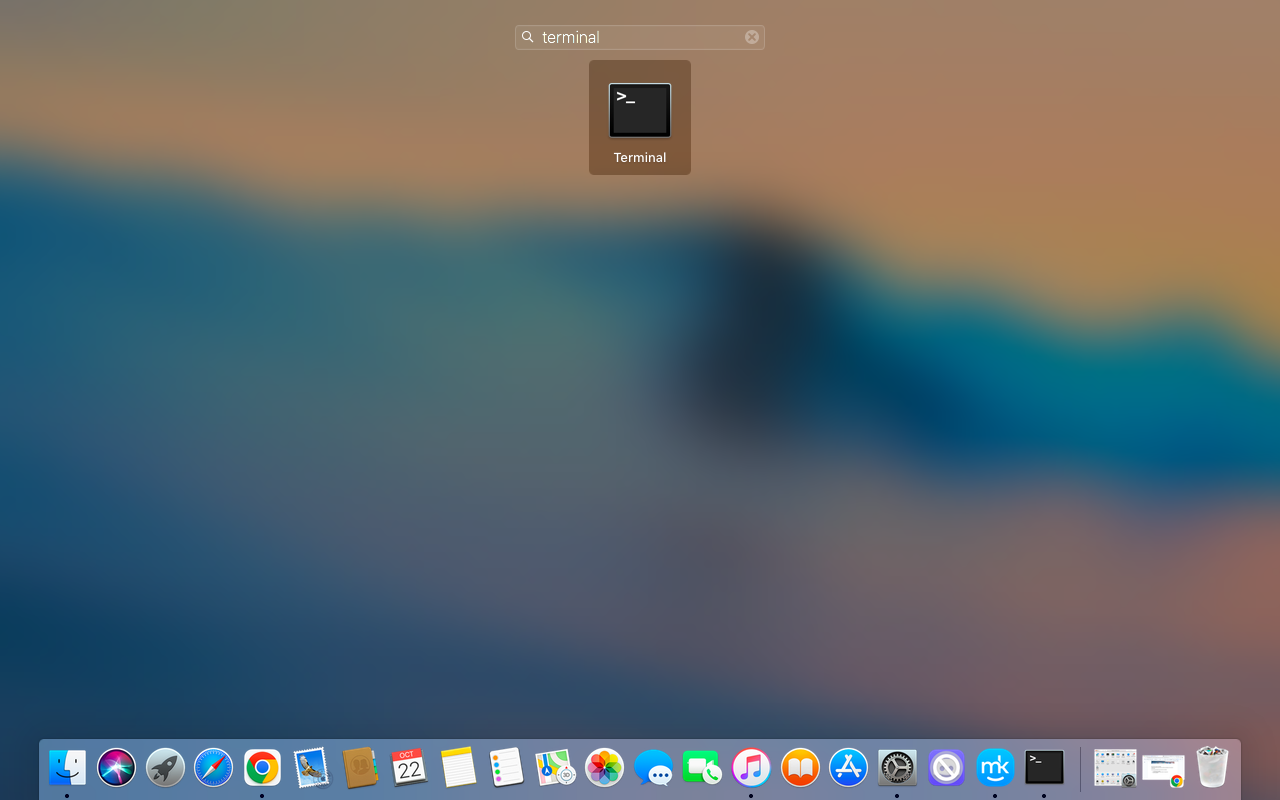
The common way to open Terminal on your Mac is to click Launchpad in the Dock folder, type Terminal in the search bar, and launch it from there. An alternative is to go to the Finder, open Applications, click Utilities, and select Terminal from the list.
There are additional ways to run Terminal on MacBook if you prefer to have a wide range of options:
Open Terminal on Mac with keyboard
Access Terminal with Finder
Get Terminal using Launchpad
Open Terminal via Spotlight Search
Run Terminal on Mac from the Applications folder
Open Terminal using Siri
1. Open Terminal on Mac with keyboard
Advanced users and developers often choose to run Terminal on Mac with a hotkeys combination, as it’s the quickest way. Though macOS doesn’t have a default keyboard shortcut, you can create your own using the built-in Shortcuts app.
Here are our instructions on how to open Terminal on Mac using a keyboard shortcut:
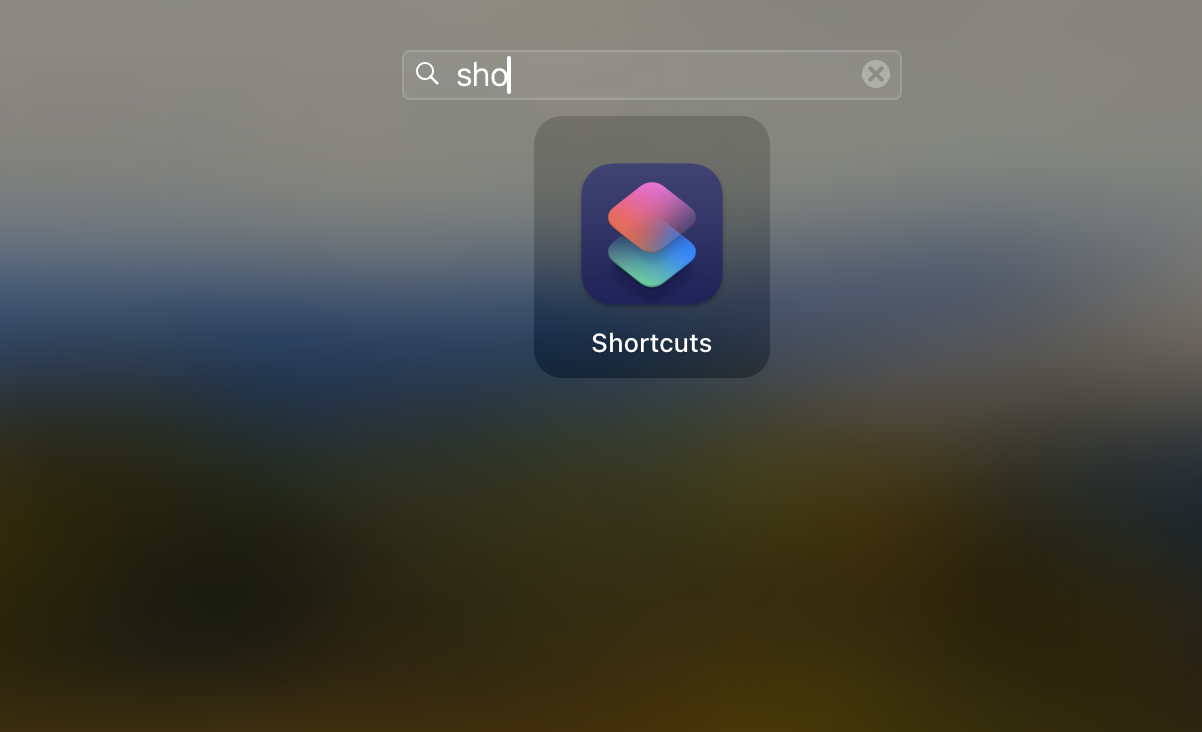
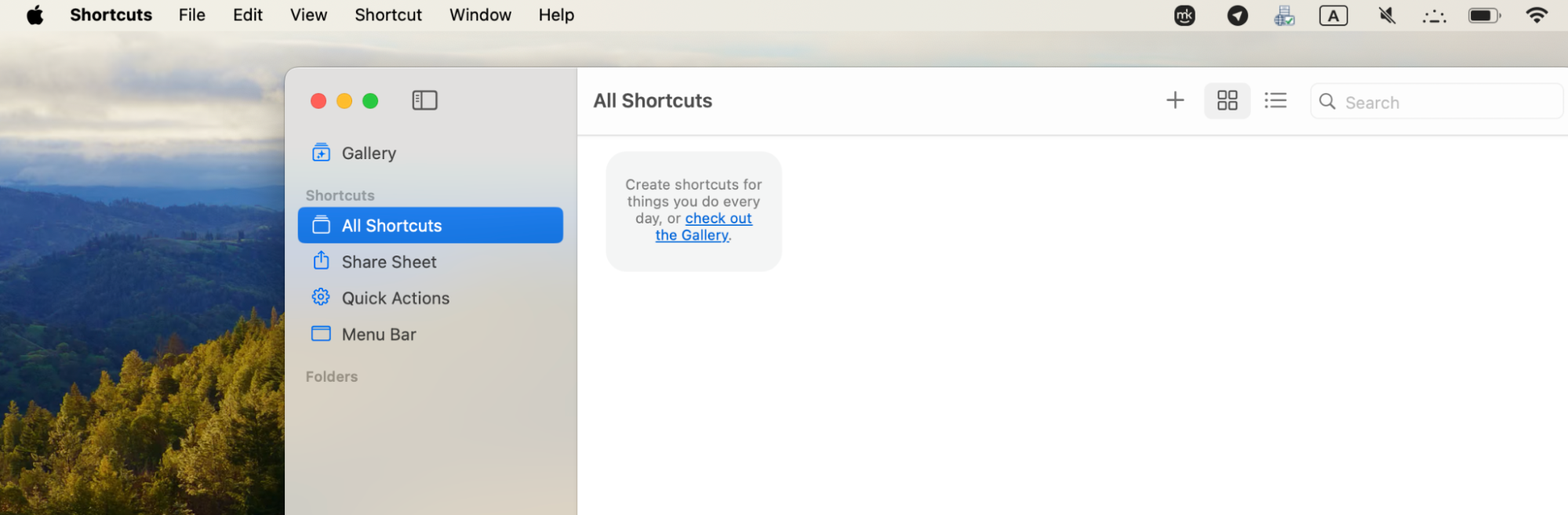
Open the Shortcuts app.
In the top menu of the app, find the Plus sign.
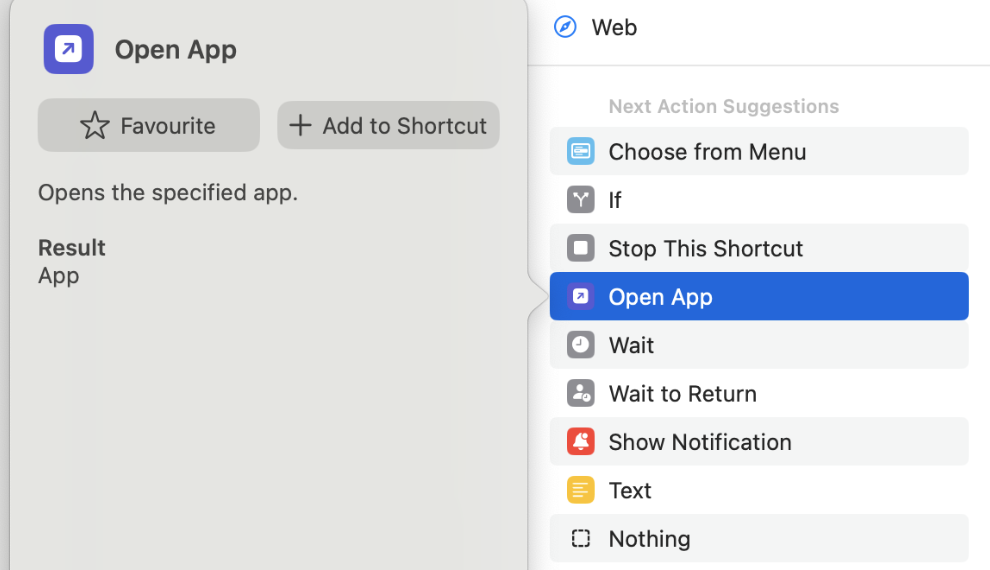
In the pop-up menu, choose Open App ➙ click Add to Shortcut.
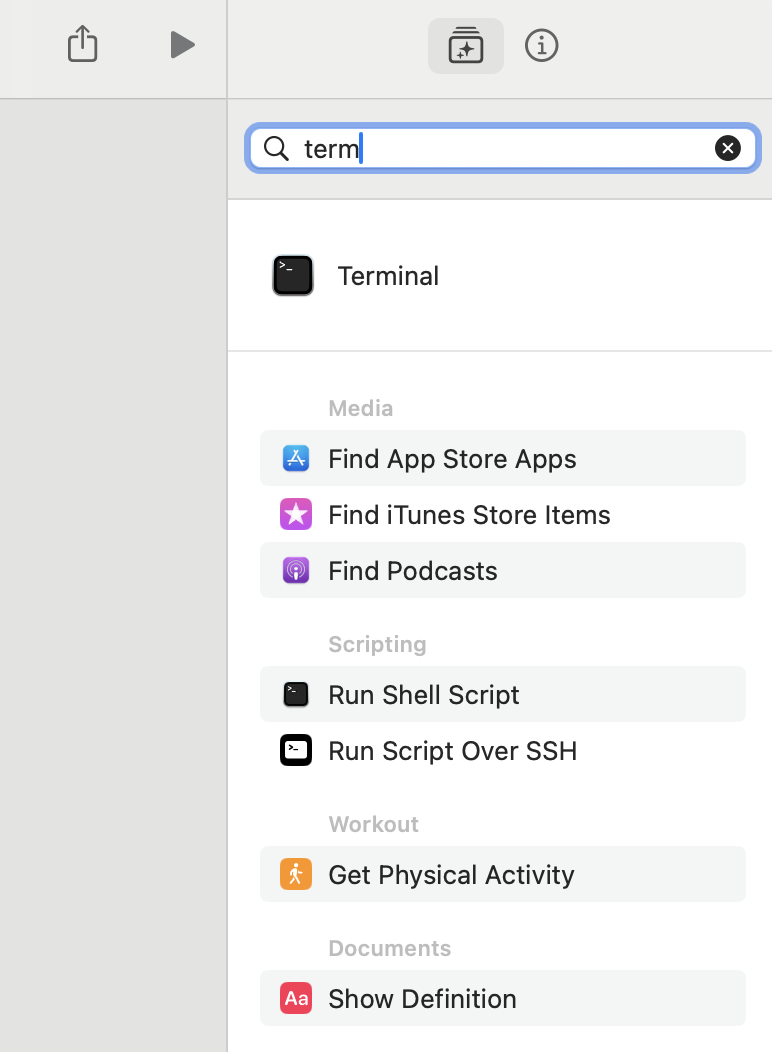
Find the Terminal App in the main field.
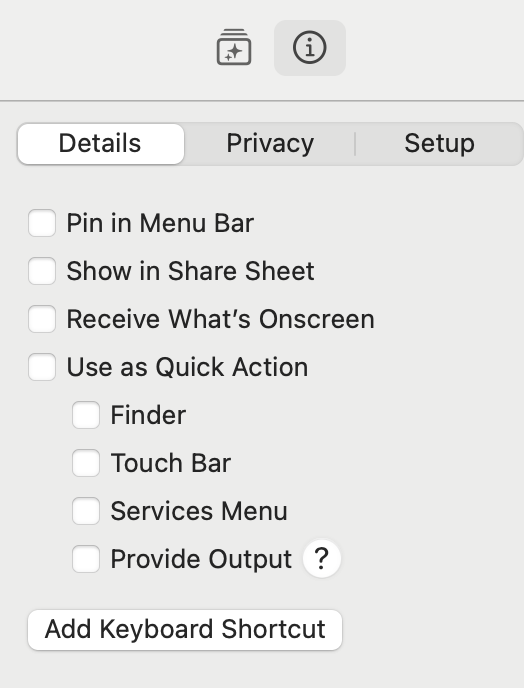
Click Shortcut Details ➙ Add Keyboard Shortcut.
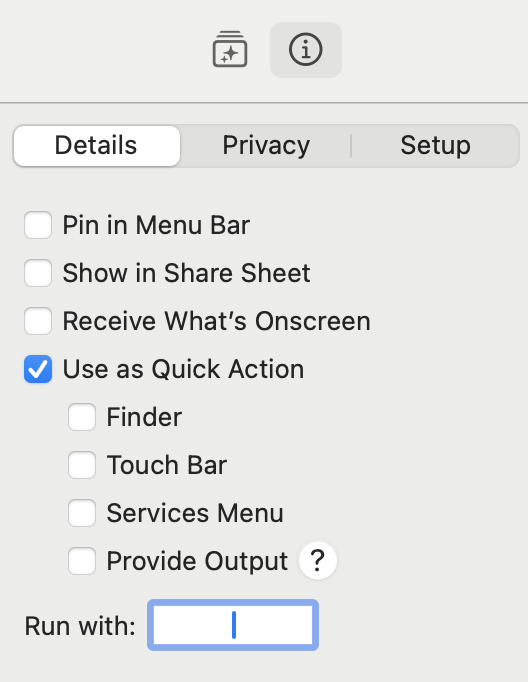
Find the box next to the Run With option ➙ enter the Shortcut you’d like to use for opening Terminal.
Try out your new shortcut.
Step 1. Launch the Shortcuts appStep 2. Choose All Shortcuts in the left menuStep 3. Choose Open App ➙ click Add to ShortcutsStep 4. Type “Terminal” in the main fieldStep 5. Choose DetailsStep 6. Enter the Shortcut into the box next to the Run With option
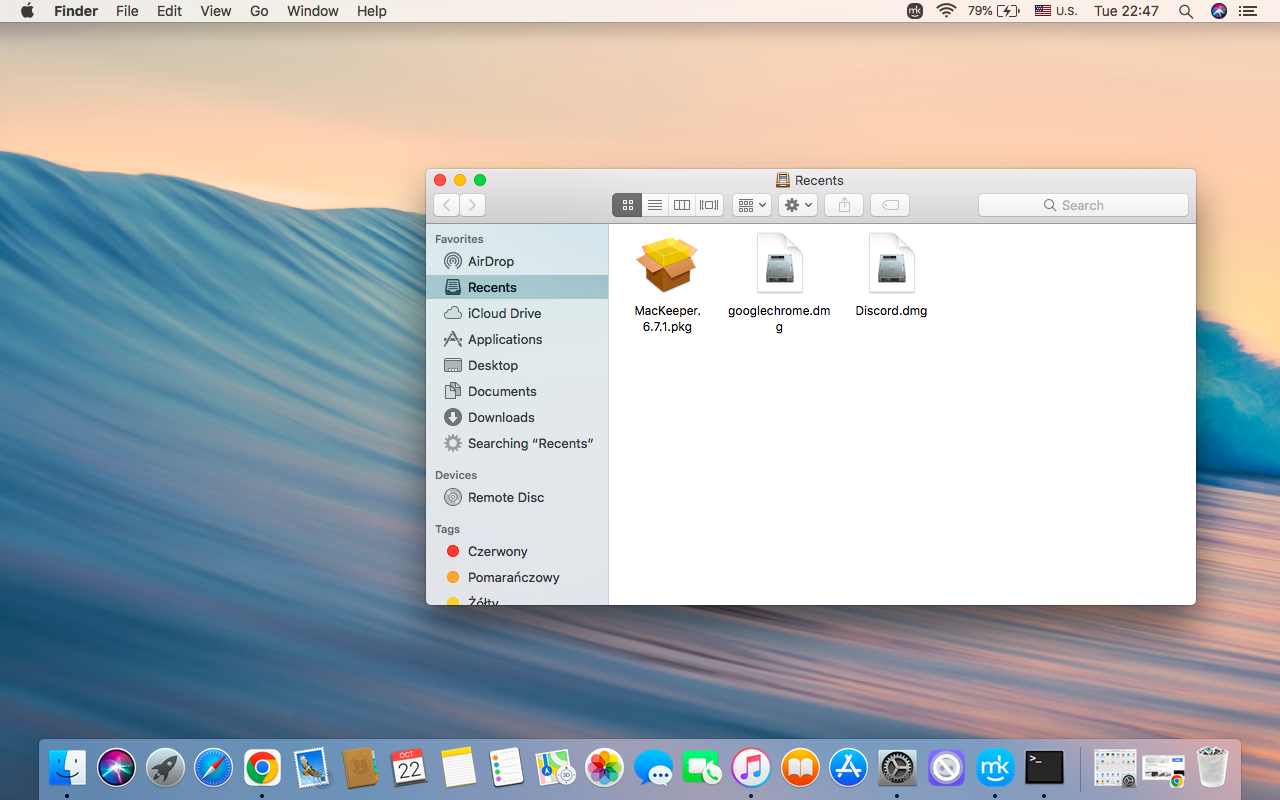
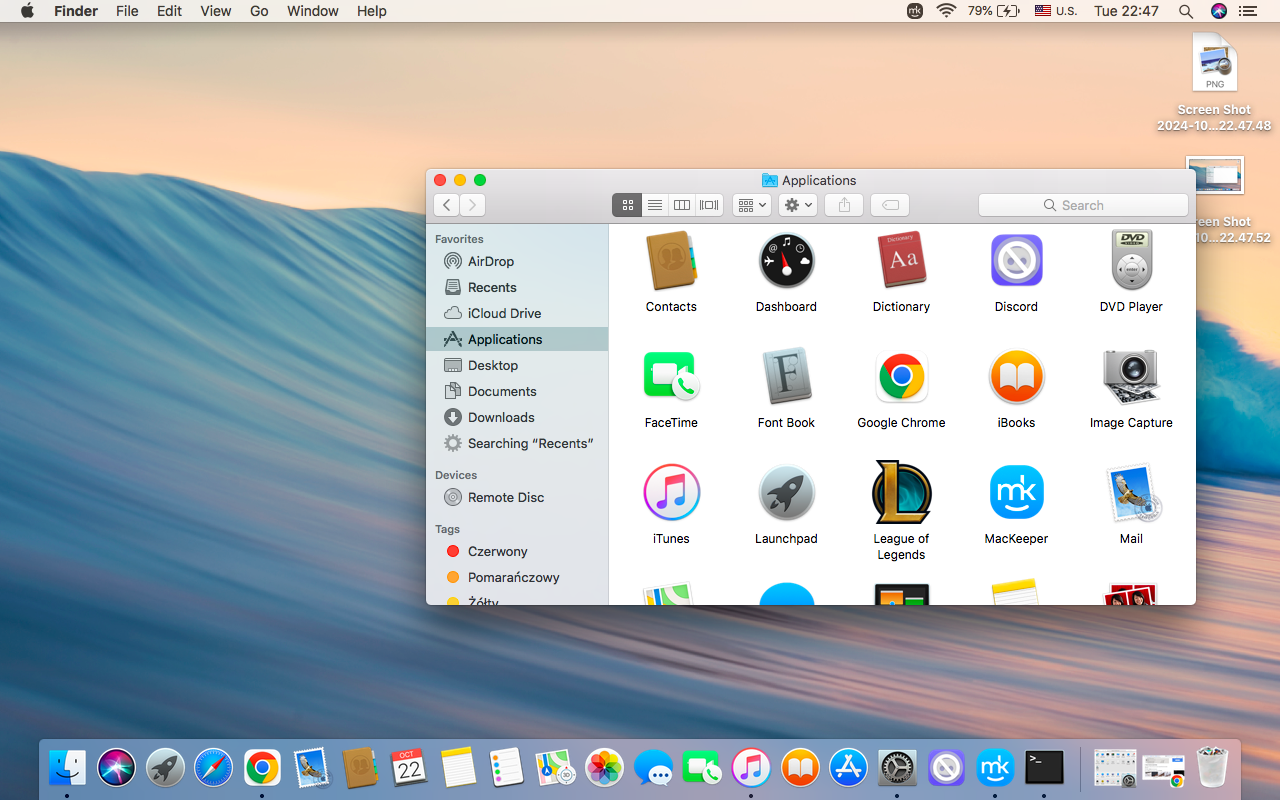
2. Access Terminal via Finder
One more simple way to open Terminal on Mac is to use the default file manager of macOS—Finder. It’s represented by the nice blue and white smile icon on your Dock.
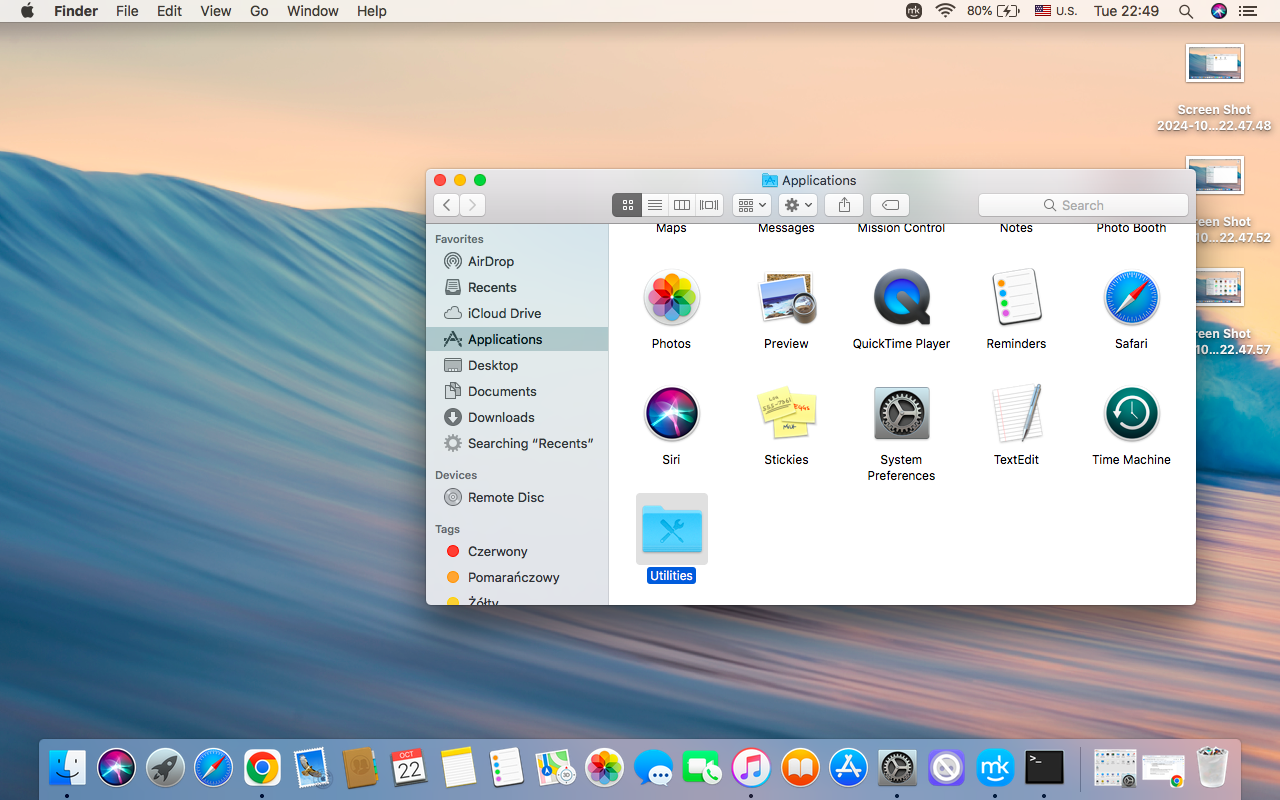
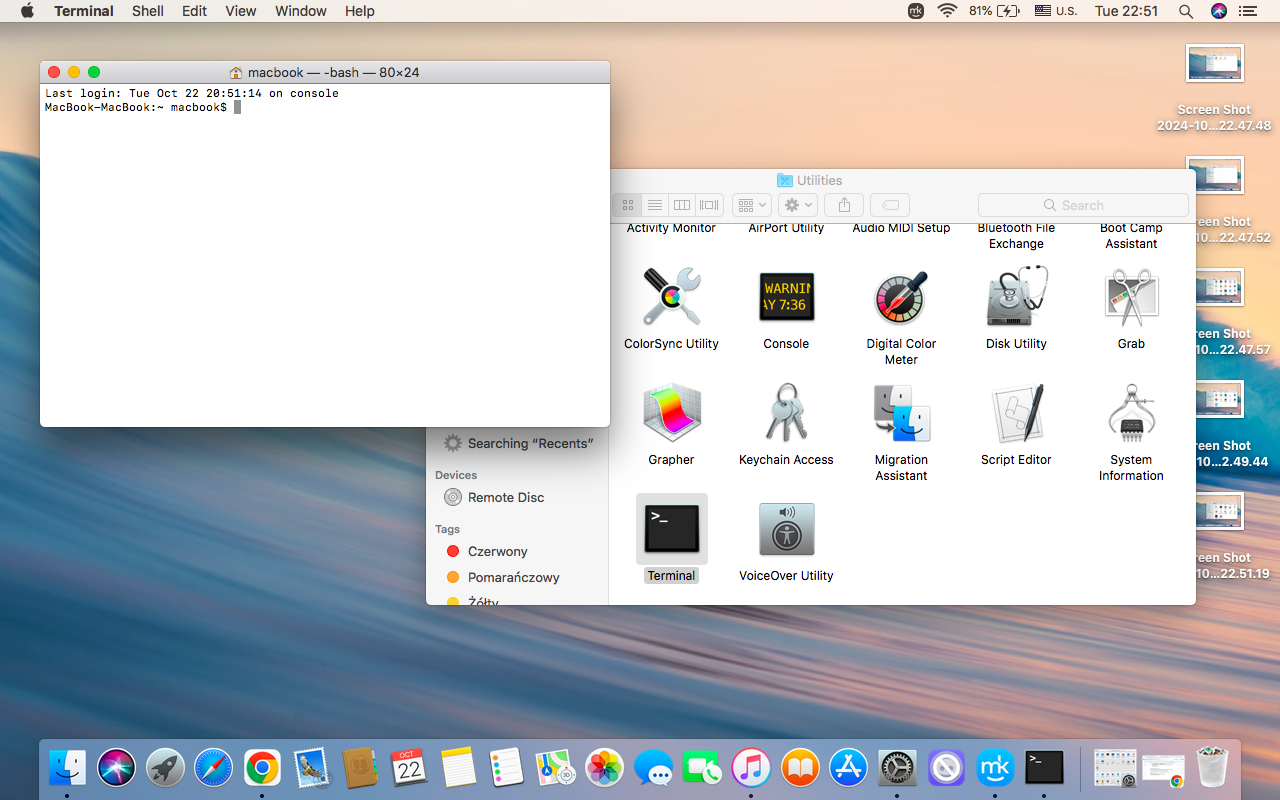
Here’s our step-by-step guide on how to access Terminal using Finder:
Open the Finder window.
In the top bar menu, choose Applications.
In the Applications folder, select Utilities.
In the Utilities folder, find the Terminal icon, then double click to open it.
Step 1. Click on Finder to open itStep 2. Choose Applications in the bar menuStep 3. Select Utilities in the Applications folderStep 4. Choose Terminal in the Utilities folder
3. Activate Terminal using Launchpad
It’s always a good idea to open Terminal on your Mac via Launchpad, as it’s a quick and simple method.
Take the following steps to open Terminal via Launchpad:
In the Dock, open Launchpad.
Find the Terminal app by typing “Terminal” in the search bar.
Open the application.
Step 1. Open Launchpad in the DockStep 2. Type “Terminal” in the Search barStep 3. Open Terminal
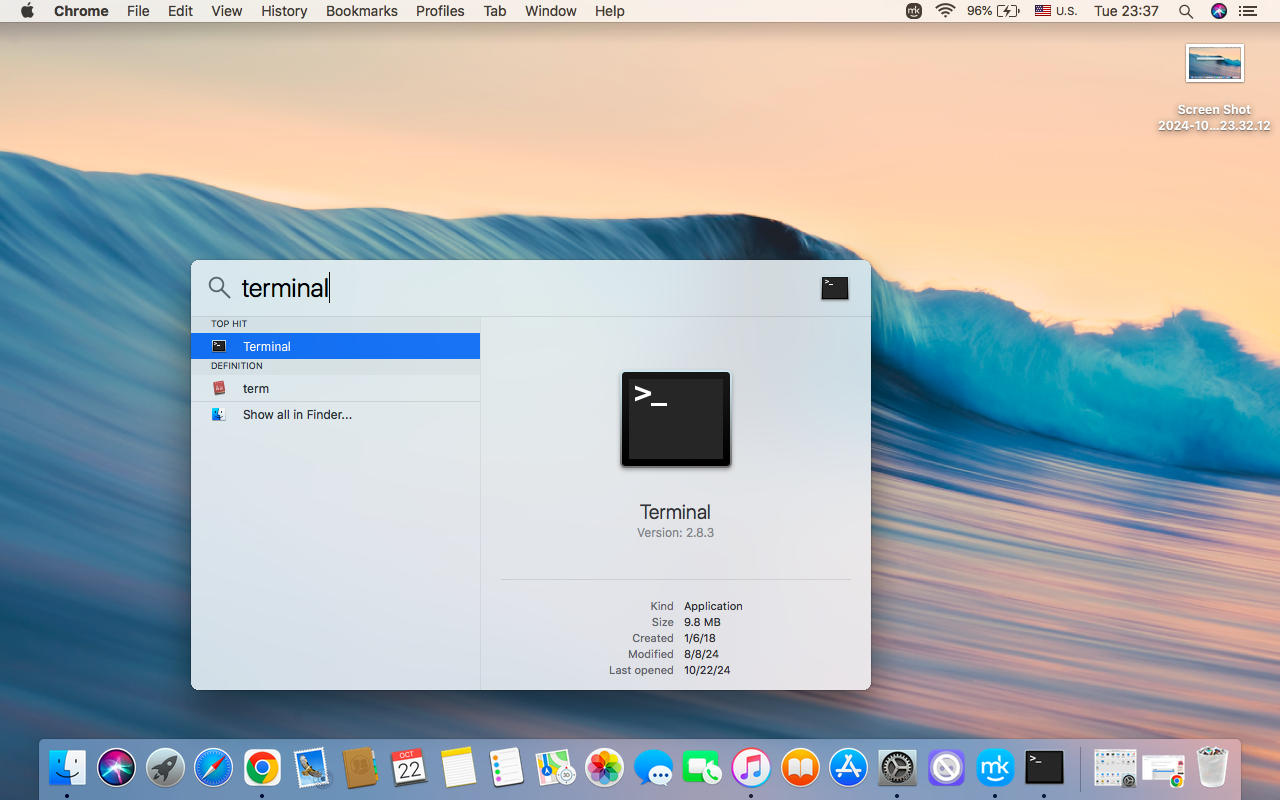
4. Open Terminal via Spotlight Search
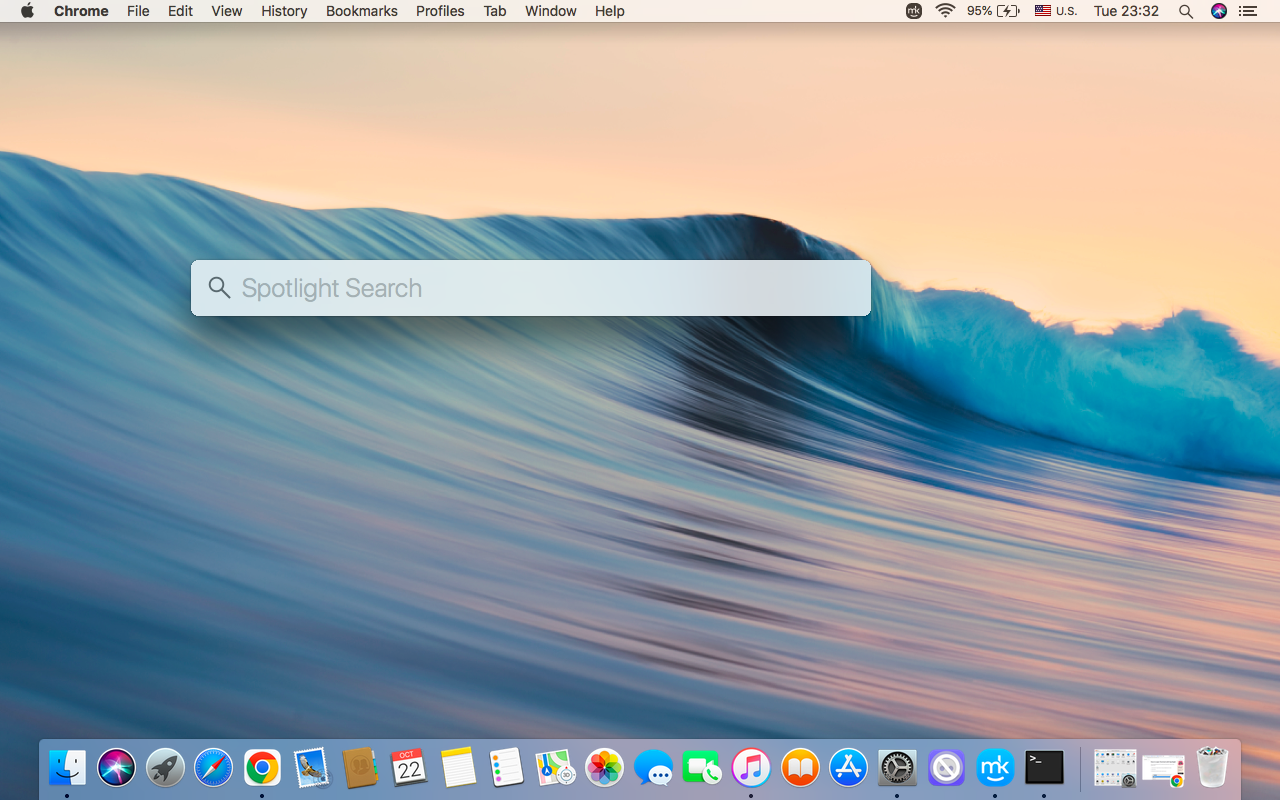
Another built-in feature on macOS you can refer to when opening Terminal is the Spotlight Search. Follow our instructions below on the best way to do this:
Open Spotlight Search by pressing Command + Spacebar.
In the search bar, type “Terminal” to find it.
Press enter to open the Terminal.
Step 1. Press Command + Spacebar to open Spotlight SearchStep 2. Type “Terminal” in the Search bar and press Enter
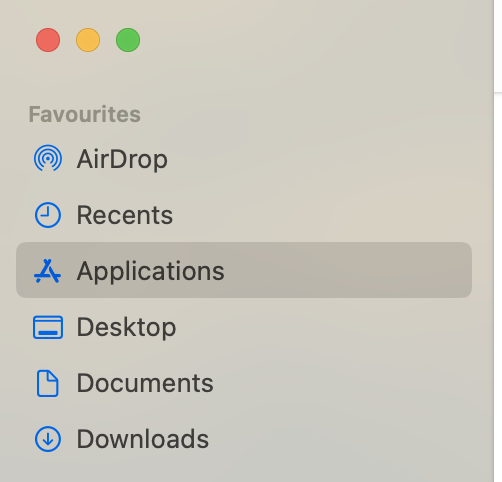
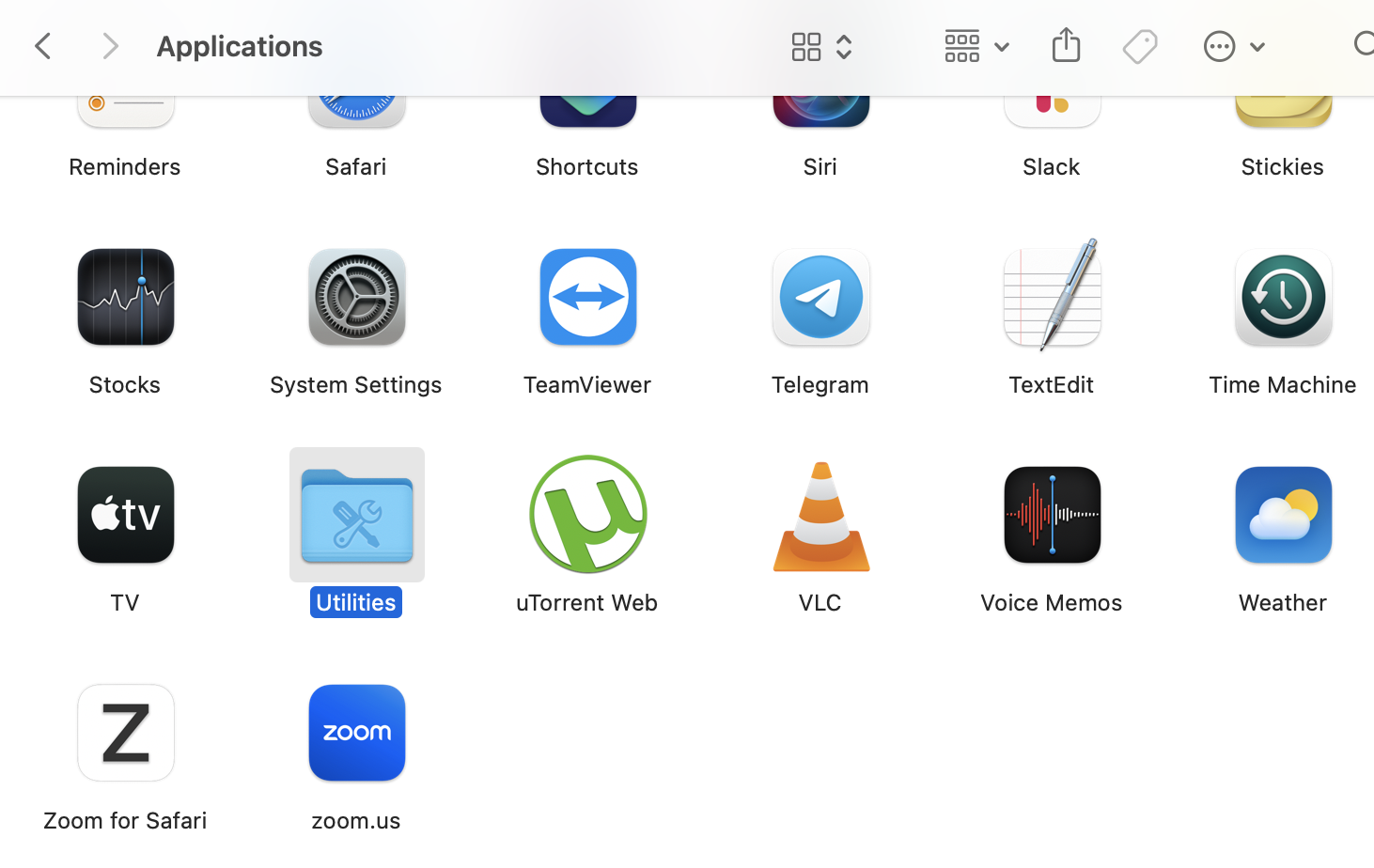
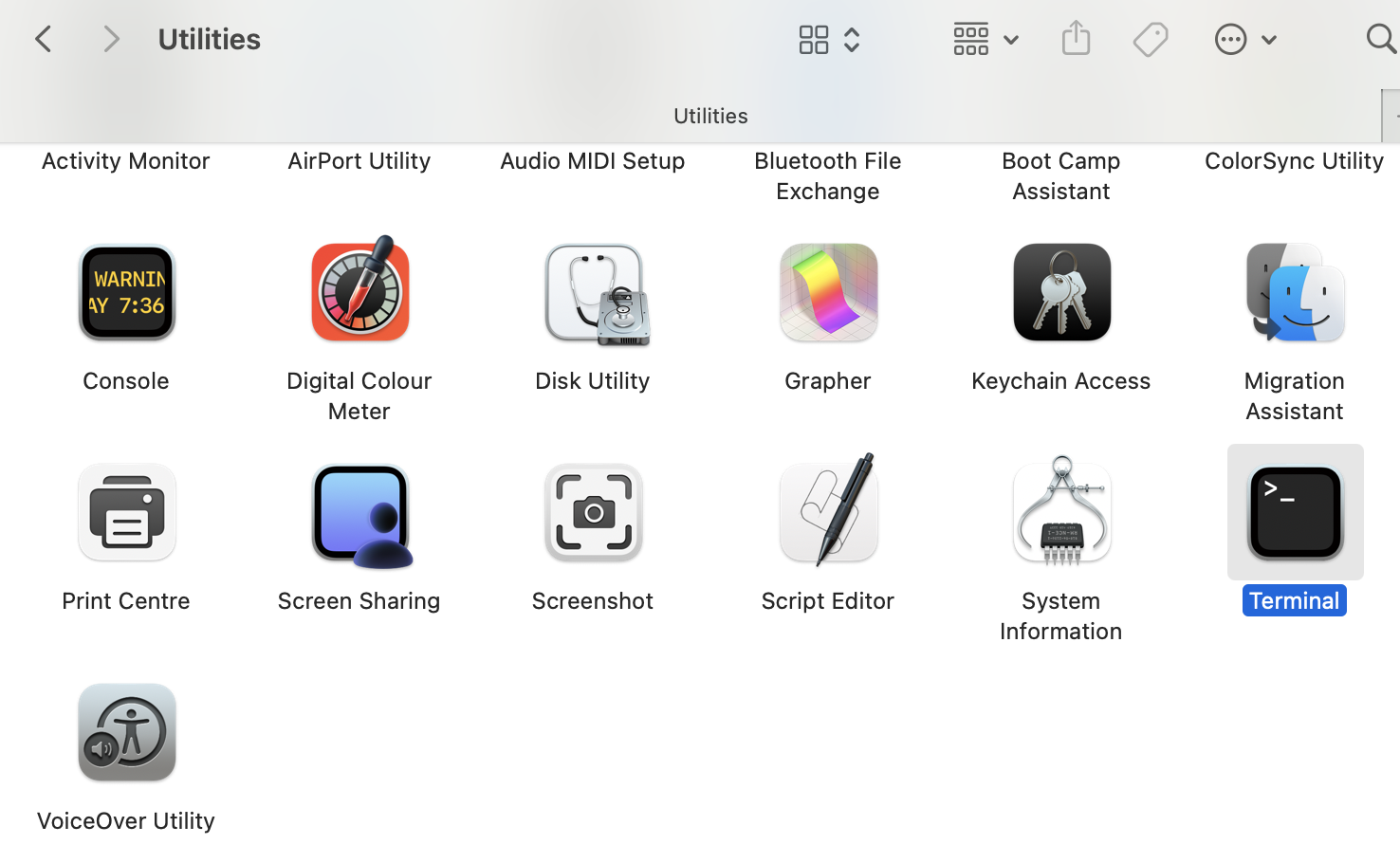
5. Run Terminal on Mac from the Applications folder
You can also run Terminal from the Applications folder. Follow these simple steps to do so:
Launch Finder.
In the left sidebar in Finder, choose Applications.
Within Applications, scroll down to find and open Utilities.
Click on Terminal inside Utilities to open it.
Step 1. Launch ApplicationsStep 2. Find and open UtilitiesStep 3. Find and launch Terminal
A hint from us:
Do you feel like some apps behave too slowly on your computer? Remember that regular cleaning provides a smooth performance for your Apple device, so you definitely need to know how to clean up Mac when dealing with any app.
6. Open Terminal using Siri
Don’t forget about Apple’s intelligent virtual assistant Siri. It usually answers your questions and finds your favorite track, but it can also help you quickly open apps, too.
Catch our instructions on how to open Terminal on macOS using Siri:
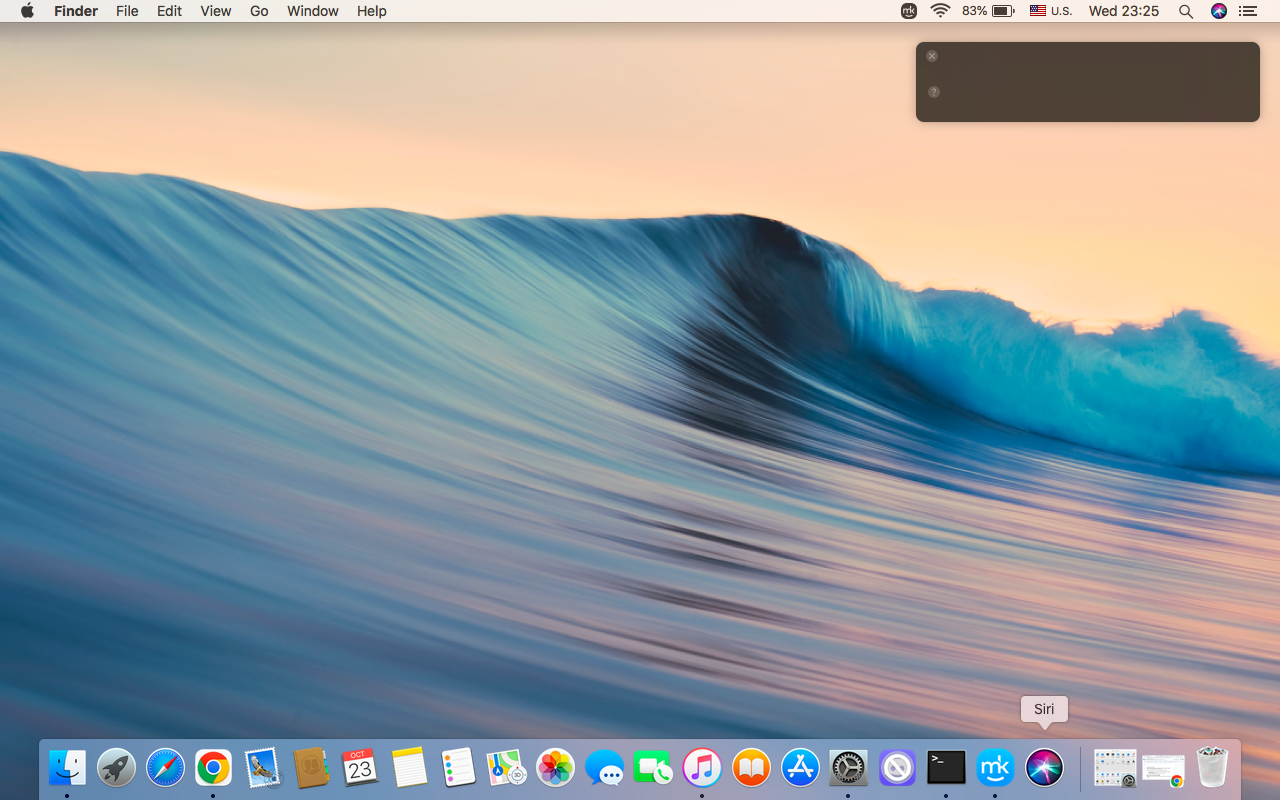
In the top-right corner of the menu bar or in the Dock, find Siri and activate it by clicking the Siri icon.
Give Siri the command “Open Terminal” using your microphone.
Activate Siri Assistant by double-clicking, then giving Siri the “Open Terminal” command by using your microphone
Basic macOS commands in Terminal
As Terminal allows us to control the operating system using text-based combinations, here’s our list of basic commands to learn:
pwd
ls
cd
mkdir
touch
rm
cp
mv
cat
man
Let's decode these basic Terminal commands to make the most of this high-powered tool:
pwd — Print Working Directory. This shows the folder you're currently working in so you can use it to learn your system location.
ls — List Files and Directories. This command shows the details, including sizes and permissions, of all files in the folder you're working in.
cd — Change Directory. It’s a command for navigation between folders. Type cd and where you want to move to.
mkdir — Make Directory. This command is responsible for creating new folders. Type mkdir and the name of a new folder to perform this task.
touch -— Create a New File. It helps to create a new empty file. Similarly to the previous instructions, type touch and the name of the file you want to create.
rm — Remove Files. Use this command to delete a file. Type rm and the name of a file you want to remove. We should inform you that this command doesn’t move content to the Trash but deletes it permanently.
cp — Copy Files. This command copies files from one place to another. Type cp, the name of the file you want to copy, and the location you want to copy it to.
mv — Move or Rename Files. This command is responsible for two functions: moving and renaming files. For moving files, type mv, the name of the file you need to move, and the folder you want to move it to. For renaming, type mv, the old name, and the file’s new name.
cat — Display File Contents. This command shows the file contents in Terminal. Type cat and the name of the file you want to see.
man — Manual Pages. This is a support command that helps if you don’t remember how one of the macOS commands in Terminal works. Type man and the name of a command you need to understand.
An extra tip from our experts:
While referring to basic macOS commands in Terminal, explore how to fix Mac Terminal command not found error, to avoid becoming frustrated by small issues.
Conclusion
Terminal is a powerful and multi-functional command-line interface that opens almost unlimited opportunities for new Mac users or even seasoned pros. It empowers all to interact with macOS on a deeper level, meaning mastering Terminal is a key step to unlocking your device's full potential.
As with any other app, Terminal on Mac should perform smoothly. We recommend getting rid of malware using reliable tools, like MacKeeper’s Antivirus.
Here’s a quick reminder of how to use it:
Step 1. Launch MacKeeper > choose the Antivirus optionStep 2. Click Start Scan to find malware > select files you need to remove > delete them
Let our experts take care of your Apple laptop’s security to make it work smoothly and efficiently.
We respect your privacy and
use cookies
for the best site experience.
Privacy Preferences Center
We use cookies along with other tools to give you the best possible experience while using the
MacKeeper website. Cookies are small text files that help the website load faster. The cookies we
use don’t contain any type of personal data meaning they never store information such as your
location, email address, or IP address.
Help us improve how you interact with our website by accepting the use of cookies. You can change
your privacy settings whenever you like.
Manage consent
All cookies
These cookies are strictly necessary for enabling basic website functionality (including page
navigation, form submission, language detection, post commenting), downloading and purchasing
software. The website might malfunction without these cookies.