You open your Mac’s browser, only to be met with a suspicious default start page. What is it, what causes it to appear, and is it malicious? We’ll address these concerns and more. For now though, use MacKeeper’s Antivirus tool to eliminate any viruses and malware on your Mac and prevent new ones from accessing your files.
An Accessible Search Engine malware is a browser hijacker and a form of adware that fills macOS browsers with unwanted, obtrusive ads, popups and redirects, making it virtually impossible to use your browser. This browser hijacker can modify your browser settings, making it a huge nuisance and threat to your privacy and security.
What does Accessible Search Engine malware do?
The Accessible Search Engine browser hijacker infects your Mac, alters your system, delivers ads and popups, and harvests data. Here’s how it works:
Core search hijacking: Intercepts your search queries, routes your traffic through intermediary domains like operativeeng.com, and injects affiliate links and ads into final search pages. Prevents you from changing the homepage back to Google and controls Chrome via “Managed by your organization” profiles.
System infiltration: Drops hidden .plist files into system folders to boot automatically and injects malicious MDM profiles into Mac System Settings. Runs continuous, CPU-intensive background scripts. Attempts to block native browser security updates and creates ongoing background tasks that restart if killed.
Ad infiltration: Covers legitimate website content with stubborn pop-ups and turns random words on normal websites into ad links. Automatically opens new, unwanted tabs selling fake software, and displays fake alerts or spoofed "Virus Detected" warnings to alarm you.
Spyware tracking: Monitors your log history and collects your IP address, ISP, and geographic location. Steals your specific Mac model and OS version details and may capture form data, search terms, and shopping habits.
A note from our experts:
Viruses and malware are a huge privacy and security risk, even if they seem harmless at first. It’s best to remove the browser hijacker from your Mac as soon as possible to minimize any damage it may cause. MacKeeper’s Antivirus not only detects and removes viruses, malware, Trojans, and more from your Mac, but it also prevents new infections.
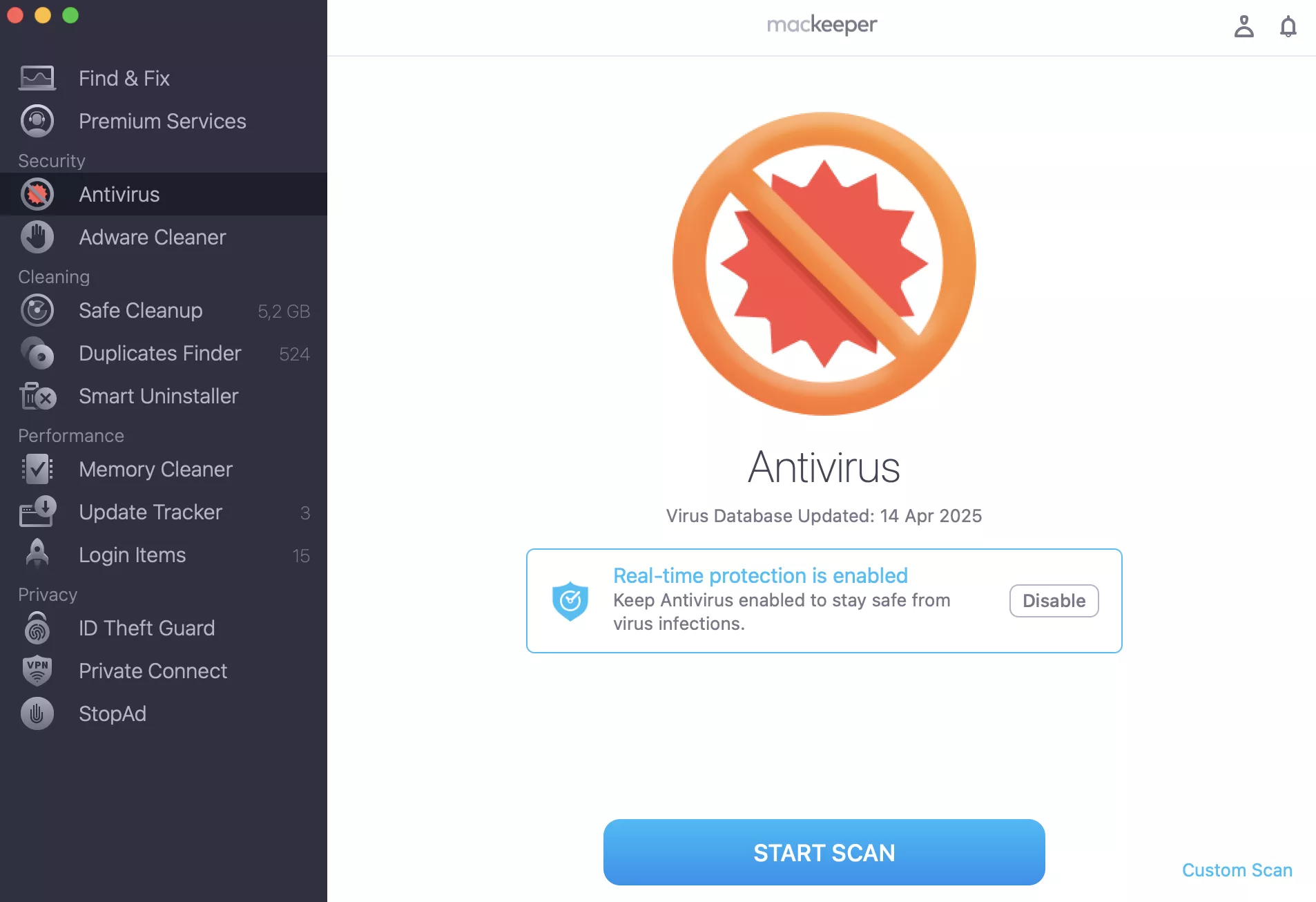
Follow these steps to remove the Accessible Search Engine browser hijacker virus using MacKeeper's Antivirus:
Press the Enable button and click the Start Scan button.
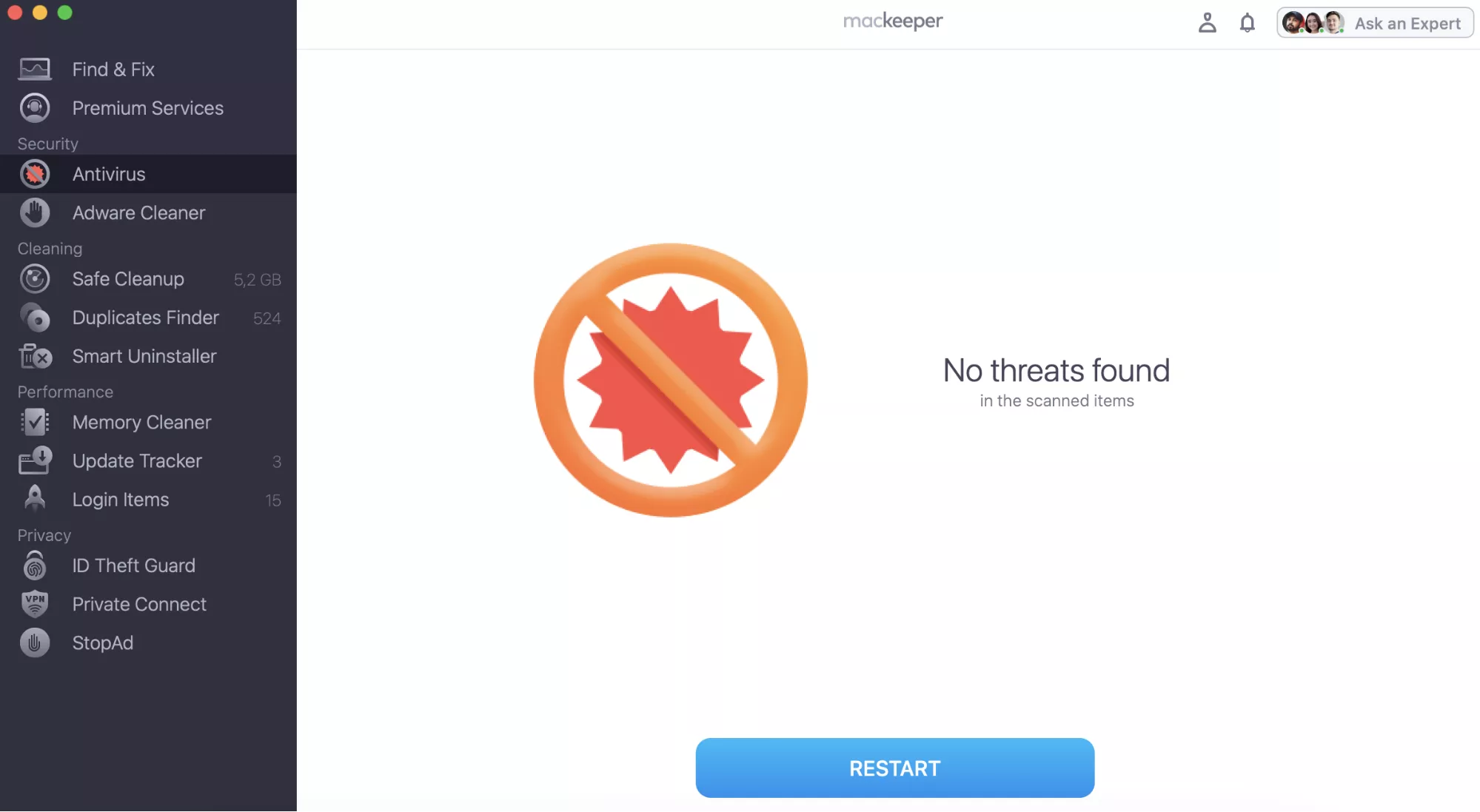
Now click on Delete to remove any detected threats.
Step 1. Click Enable and Start ScanStep 2. Remove the virus
Common signs of Accessible Search Engine
Determining if your Mac is infected with Accessible Search Engine malware is the first step toward eliminating it. Use these signs to determine if you need to check for malware on your Mac, especially Accessible Search Engine malware:
Your browser searches are redirected to sponsored websites, sales platforms, and unfamiliar domains
Your computer screen is covered with hard-to-remove pop-ups, banner ads, and other commercial messages.
Your browser’s homepage or main search engine suddenly changes (this is to reroute your searches to predetermined pages)
If any of these symptoms sound familiar, you may be looking for a way to remove malware from the browser on your Mac—namely, the Accessible Search Engine from your Safari, Chrome, or Firefox browser. Don’t worry, we’ll show you how in the upcoming sections.
How is an Accessible Search Engine typically installed?
The Accessible Engine search virus is commonly installed unknowingly on MacBook computers through software bundling, fake Adobe Flash Player update alerts on malicious websites, or via deceptive search engine ads. These ads typically impersonate popular, legitimate software to distribute malicious installers, forcing users to manually bypass native macOS Gatekeeper security warnings by selecting the option to “Open Anyway”.
How to remove Accessible Search Engine malware?
To remove Accessible Search Engine malware from browsers, check for suspicious configuration profiles. Uninstall untrustworthy apps from your MacBook. Check startup and background items. Look for leftover launch items and support folders. Finally, remove AccessibleSearchEngine from your browser—whether you use Safari, Chrome, or Firefox.
Follow the in-depth steps below to get started.
1. Check for suspicious configuration profiles
Suspicious Mac profiles can configure a Mac to do things that may not otherwise be possible, such as preventing users from removing malicious software. For this reason, when removing malware from our Mac, we always start by finding any suspicious configuration profiles.
Here’s how to check if your MacBook has any configuration profiles installed:
Open System Settings, search for the Profiles icon, and click it (if you can’t find it, it means you don’t have any profiles installed, and you may proceed with the next steps).
Select any unknown profile and remove it by hitting the minus (-) button and clicking Remove.
2. Uninstall suspicious apps
Chances are, we installed Accessible Search Engine on our laptop via a software bundle. So, we also look for any suspicious or unknown apps and get rid of them. This process is as simple as uninstalling an app on Mac.
To identify suspicious apps, do this:
Check the top-right corner of the Apple menu bar. If you spot the AccessibleSearchEngine icon, click on it and hit Quit.
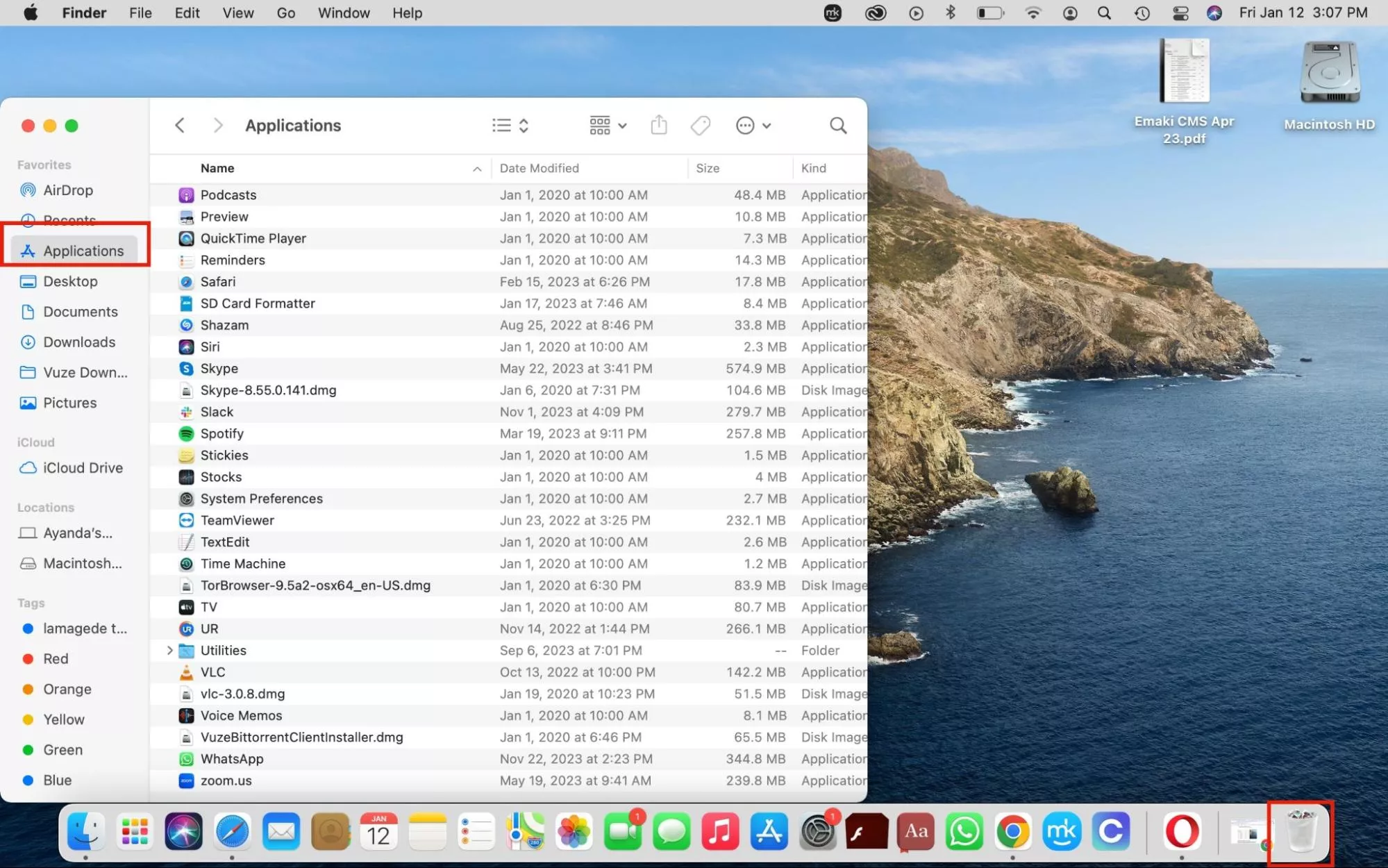
Now, click on Finder > Applications and drag AccessibleSearchEngine to the Trash can in the Dock where applicable (don’t forget to empty the Trash).
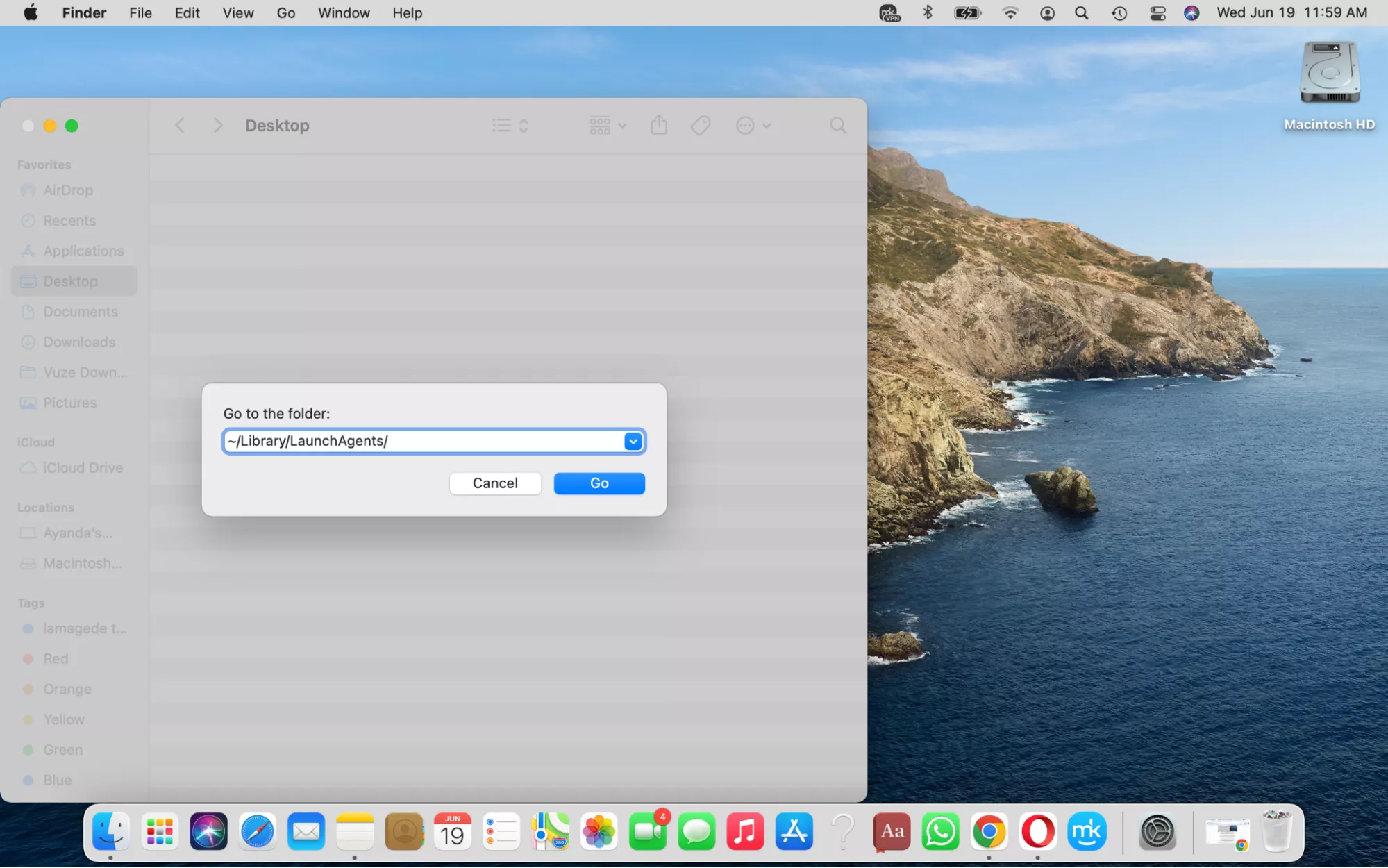
Go back to Finder and click on Go > Go to Folder.
Copy and paste each of these paths into the text box and click Go:
/Library/LaunchAgents
~/Library/LaunchAgents
/Library/Application Support
/Library/LaunchDaemons
Carefully browse the list and send all suspicious files to the Trash. Here are common ones to look out for:
AccessibleSearchEngine
com.AdditionalChannelSearchDaemon
com.AccessibleSearchEngine
com.AccessibleSearchEngine.plist
com.adobe.fpsaud.plist
installmac.AppRemoval.plist
myppes.download.plist
mykotlerino.ltvbit.plist
com.myppes.net-preferences.plist
Step 1. Click on Finder > Applications and drag the app to the TrashStep 2. Type /Library/LaunchAgents/ in Go to Folder
A hint from us:
As a bonus, you might also be interested in steps to clean app leftovers from macOS, as the best way of uninstalling the app is removing it with all the associated files. In this case, you have our guide attached.
3. Check startup and background items
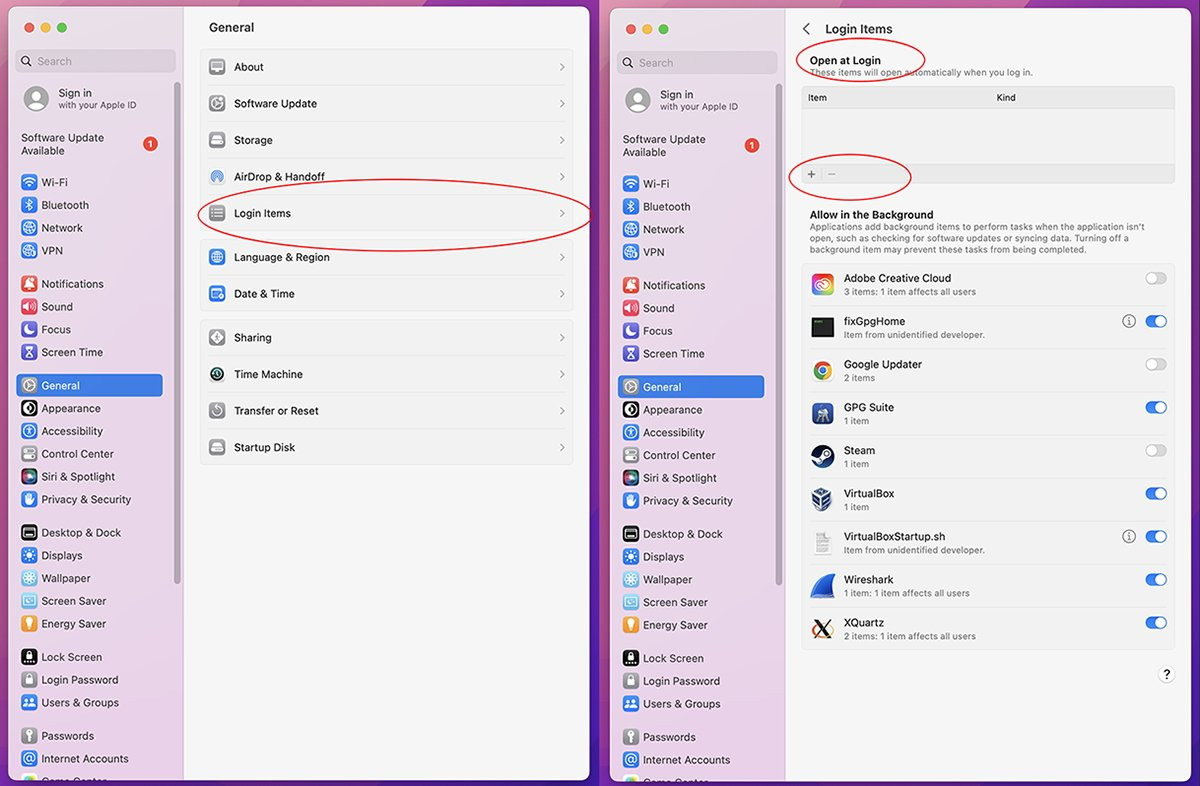
Startup and background items can be a good indicator that you may have a malware infection. We like to check the list, just in case we may have to remove apps from startup on our Macs. To achieve this, we’ll focus on Login Items.
Follow the steps below to find Login Items:
Open System Settings and click on General > Login Items.
Found any suspicious items on the list? Just click the minus (-) button to remove them.
Note that you can also check CPU usage in Mac’s Activity Monitor.
4. Remove AccessibleSearchEngine from browser
Our next step is to remove AccessibleSearchEngine from our browser of choice. Skip to the relevant browser section and follow the steps.
4.1 Safari
To delete Accessible Search Engine malware from Safari:
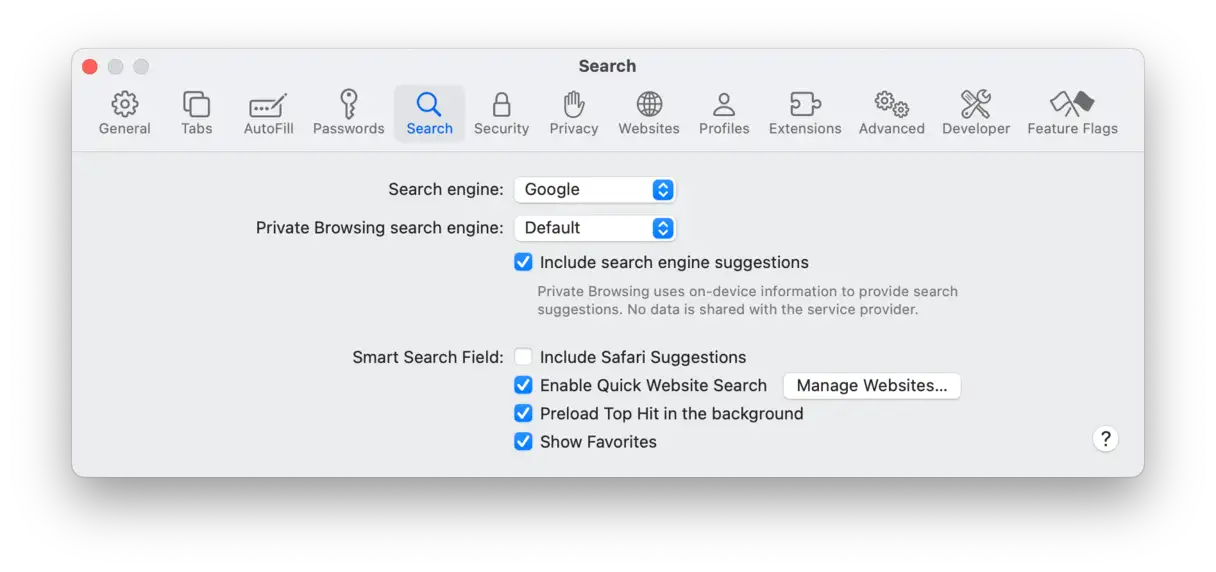
Open Safari > Safari menu > Settings.
Hit the Search tab and choose the search engine you prefer.
Now, click on the General tab, set the Homepage to your preferred one, and customize the options above it.
4.2 Google Chrome
Removing Accessible Search Engine malware from Google Chrome happens this way:
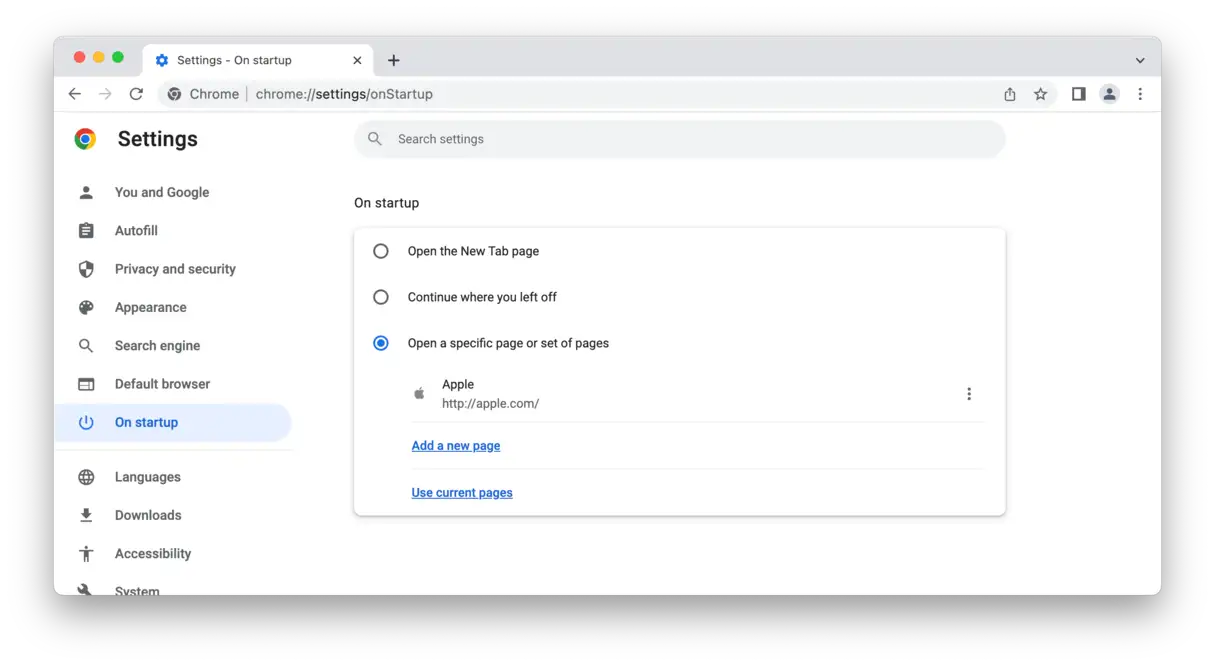
In Chrome, open the Settings menu > On startup > Open a specific page or set of pages.
Click Add a new page, paste your preferred browser’s URL into the text box, and click Save.
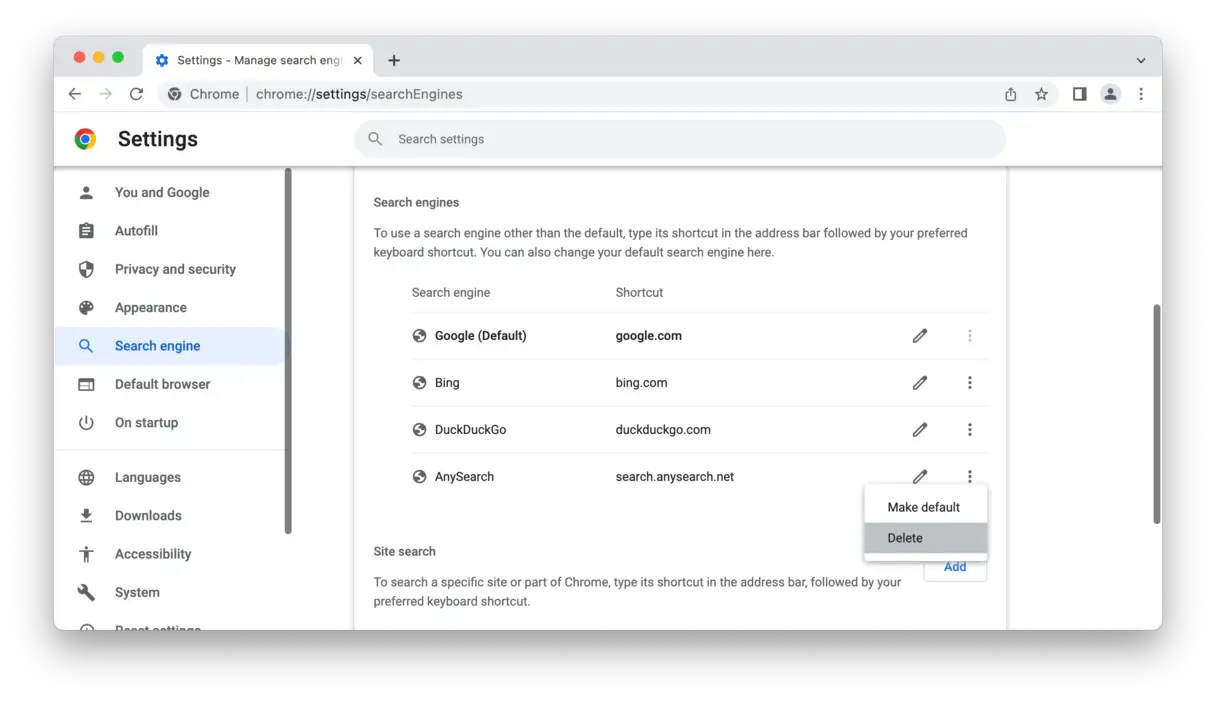
Select Settings > Search Engine.
Click Manage search engines > More > Delete.
Click the drop-down menu next to the Search engine used in the address bar and choose the search engine you prefer.
Step 1. Click on the Settings menu > On startup > Open a specific page or set of pagesStep 2. Choose your preferred search engine
4.3 Mozilla Firefox
To delete Accessible Search Engine malware in Mozilla, do the following:
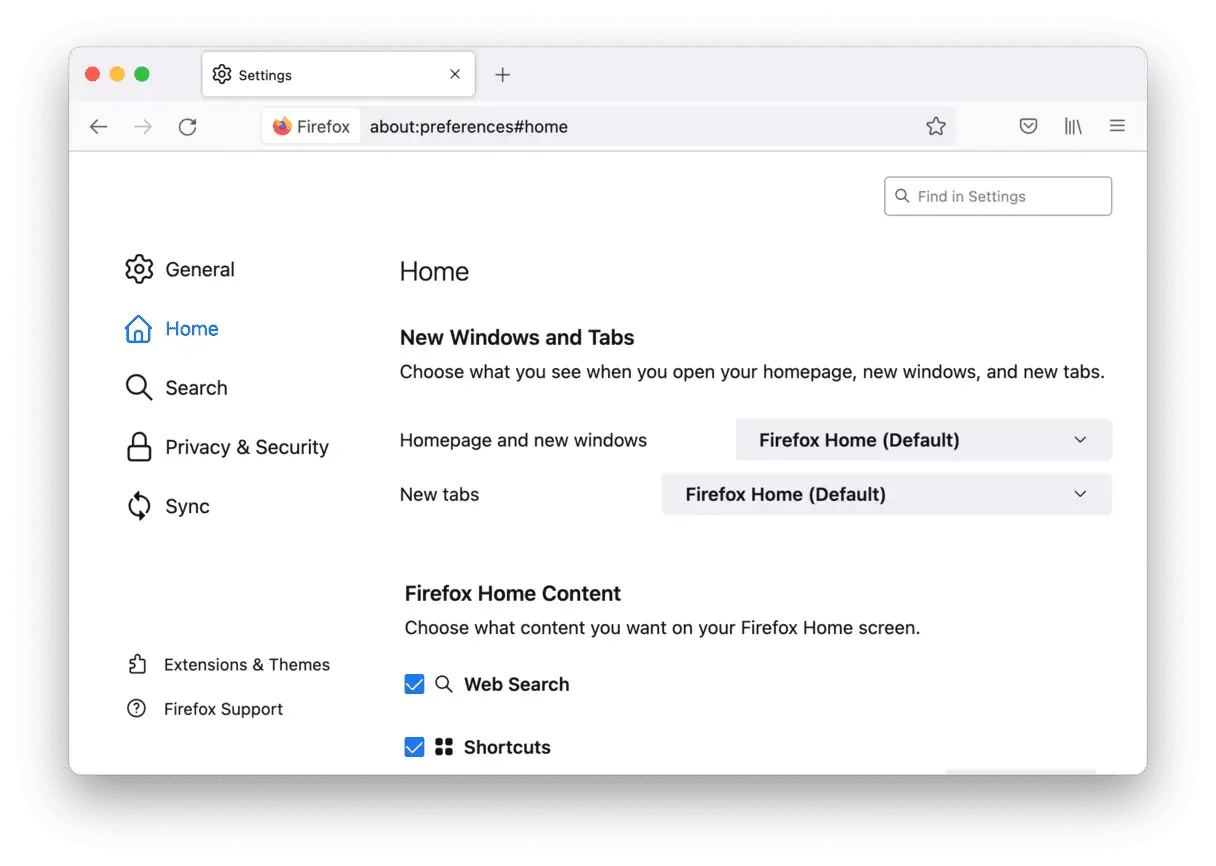
In Firefox, click Settings > Home.
Click the drop-down arrow next to Homepage and new windows > Firefox Home.
Click Search in the sidebar > Search Shortcuts > Accessible Search Engine > Remove.
Scroll back up, select the menu under the Default Search engine, and choose the one of your liking.
5. Run a reputable malware scan to catch remnants
Manual malware removal methods leave room for error. Always use a trusted malware scanner, like MacKeeper’s Antivirus tool, to ensure you’ve caught all malware remnants that can be easily missed by the naked eye.
How to prevent Accessible Search Engine malware infections in the future?
Check extension permissions before installing any apps, ensuring you deny requests to ‘manage your apps’ or ‘read and change all your data on all websites’ unless necessary. Check browser extensions regularly. Always block intrusive ads. And finally, avoid accessing unknown sites from your administrator account.
Remove Accessible Search Engine malware easily
Accessible Search Engine malware can make your browser feel like a prison. Fortunately, you can remove and reclaim your browser. Use the helpful tips in this guide to achieve this, including removing unknown apps and Login Items, and more. More importantly, use MacKeeper’s Antivirus software to safely and thoroughly get rid of malware infections and prevent future infections on your Mac.
We respect your privacy and
use cookies
for the best site experience.
Privacy Preferences Center
We use cookies along with other tools to give you the best possible experience while using the
MacKeeper website. Cookies are small text files that help the website load faster. The cookies we
use don’t contain any type of personal data meaning they never store information such as your
location, email address, or IP address.
Help us improve how you interact with our website by accepting the use of cookies. You can change
your privacy settings whenever you like.
Manage consent
All cookies
These cookies are strictly necessary for enabling basic website functionality (including page
navigation, form submission, language detection, post commenting), downloading and purchasing
software. The website might malfunction without these cookies.