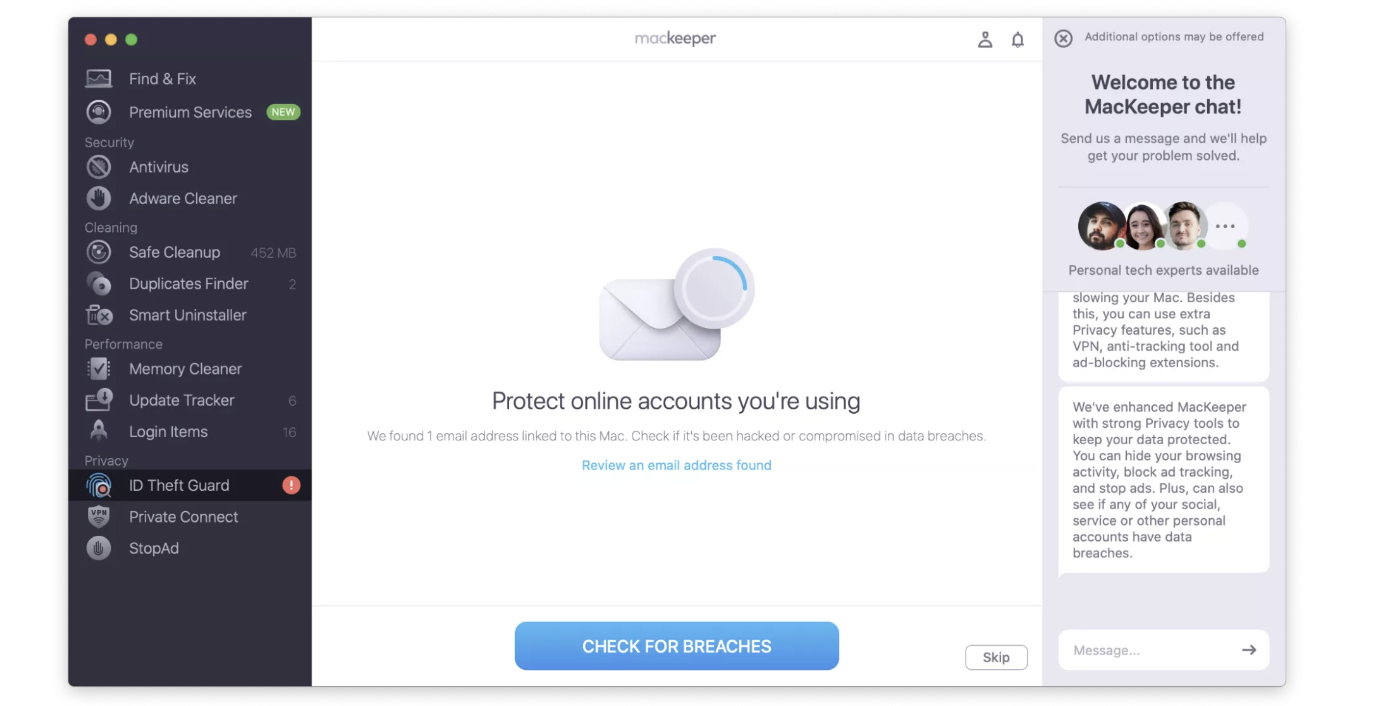
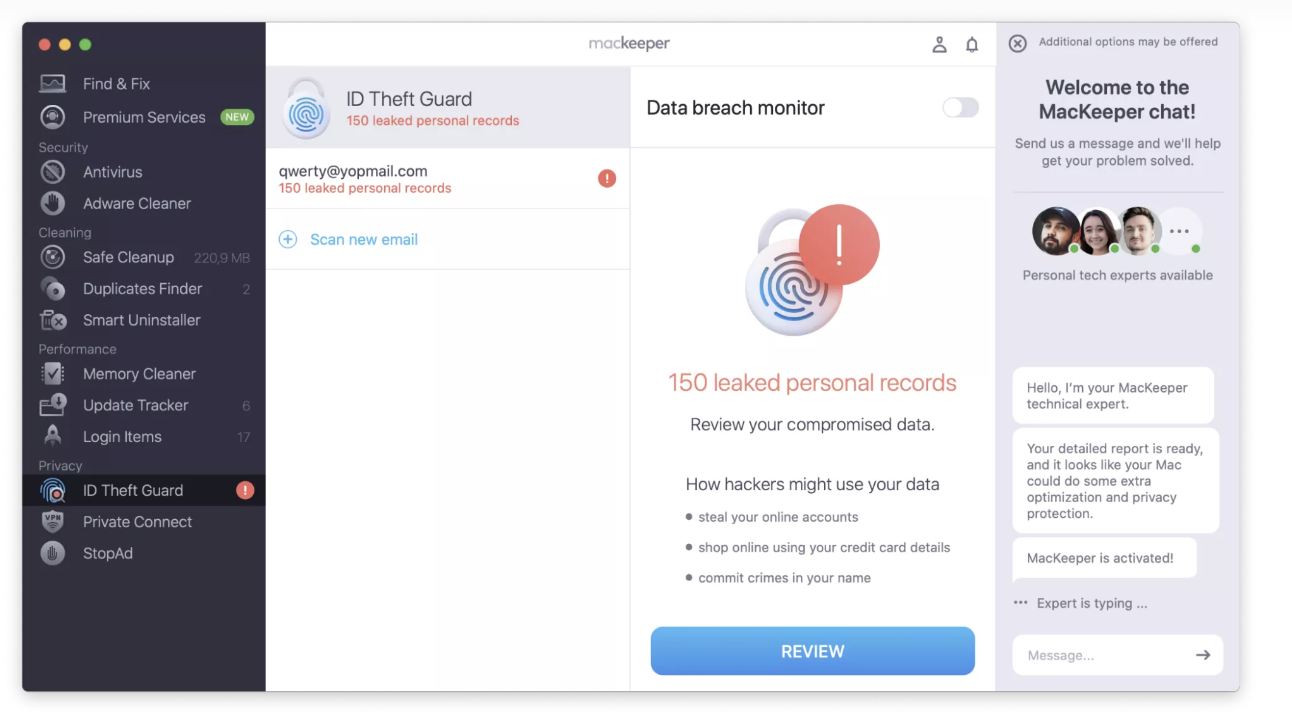
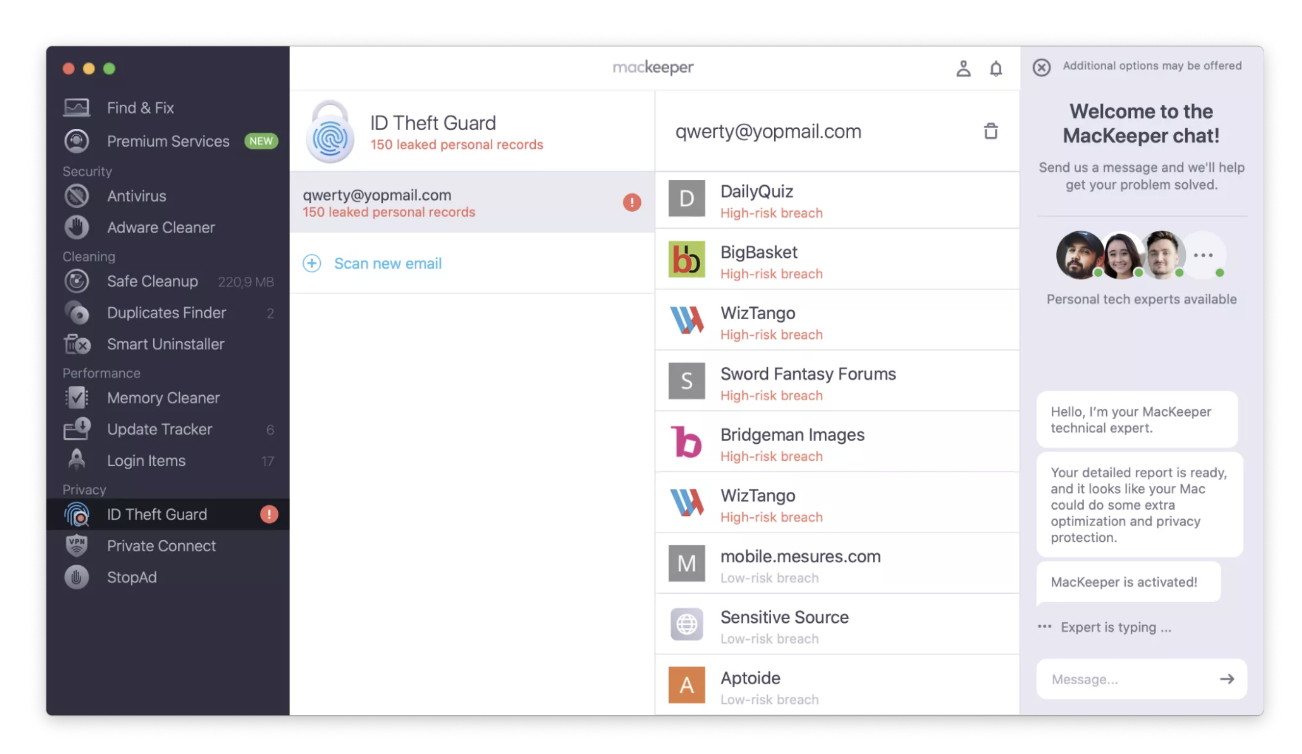
Even with a turned-off firmware password on your Mac, you still need to protect yourself properly. Criminals love having easy access to sensitive information, such as emails, and not having any barriers could put you in danger. MacKeeper’s ID Theft Guard notifies you each time a breach occurs, enabling you to take swift action and limit the damage.
Your firmware password is a code on your computer that is separate from the password you enter at login. Note that firmware passwords were replaced with FileVault on Apple Silicon Macs (all devices with an M1 chip or later).
What is the purpose of the firmware password on a Mac
Firmware passwords are supposed to stop unauthorized users from choosing different startup disks. This relates to those already on your device, but it can also include external hard drives. Using firmware passwords should make it easier to protect sensitive information.
A note from our experts:
A firmware password adds your Mac one more layer of protection. But if you need to turn it off, think of using MacKeeper’s ID Theft Guard. Our tool safeguards your personal data and monitors data breaches.
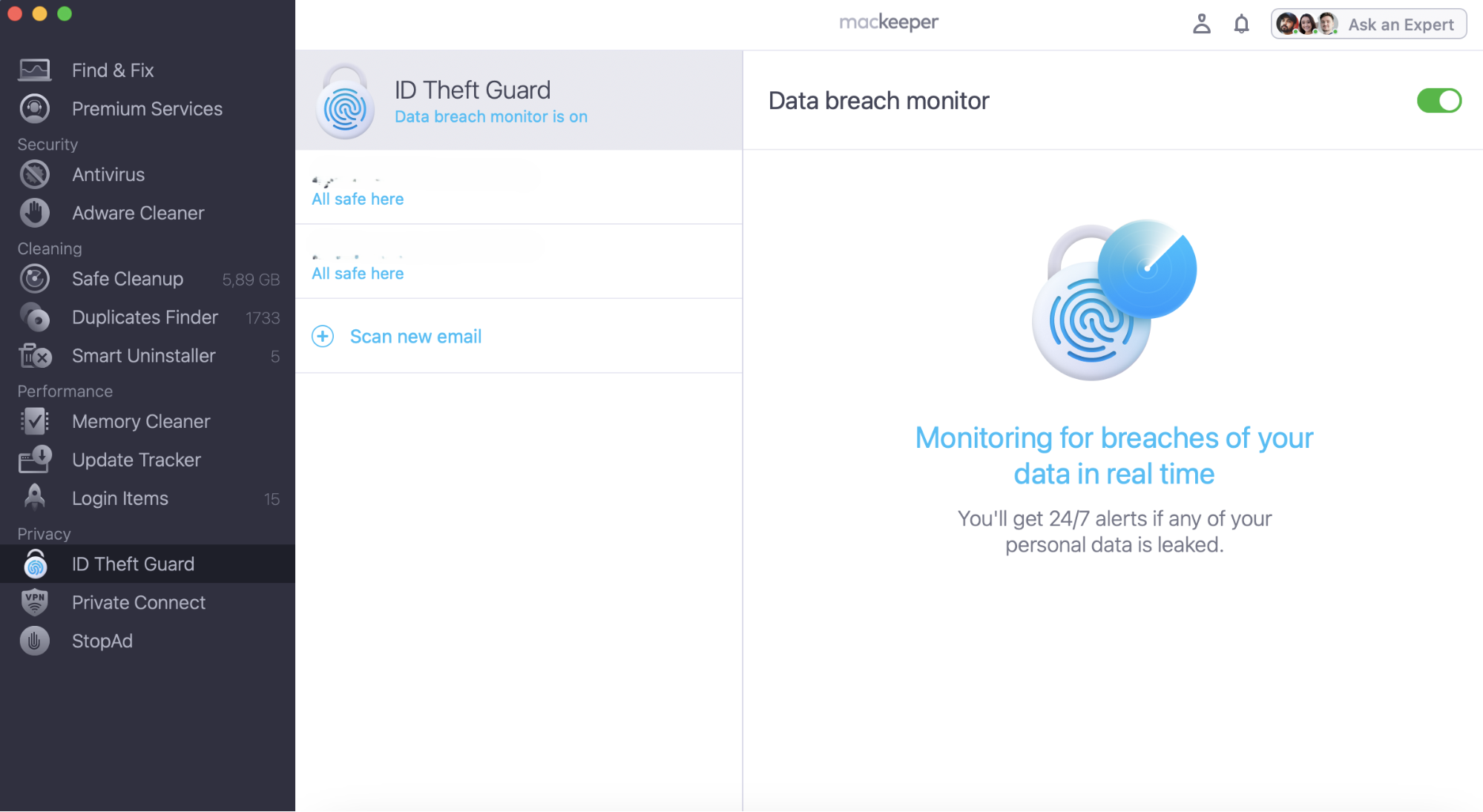
Here’s how to use MacKeeper’s ID Theft Guard feature:
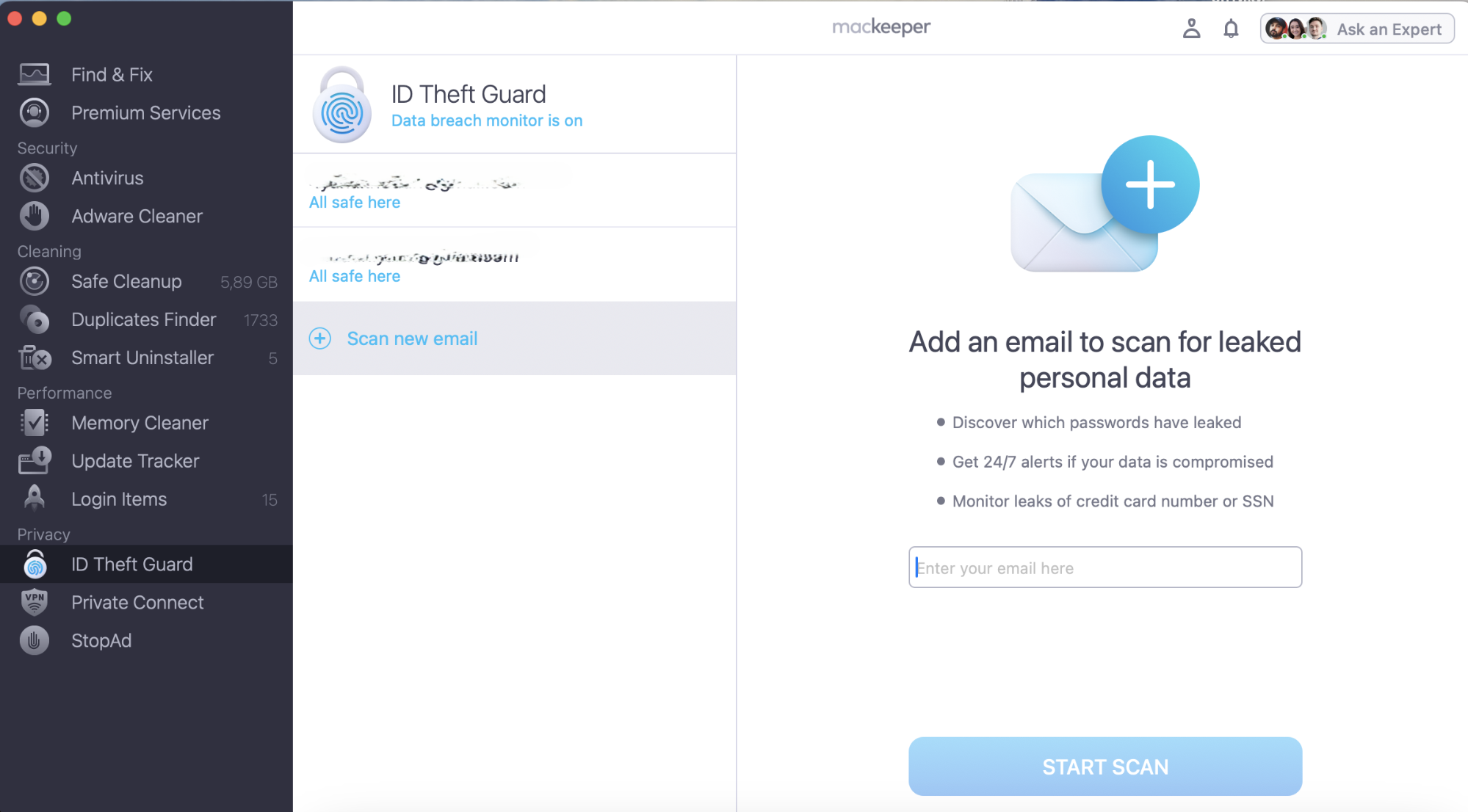
Select Open > Check for Breaches. You’ll need to verify your email address before using the software; select Send Code and enter it in MacKeeper.
Hit the Enter key.
Scan for breaches, and tap Review if any are found.
Step 1. MacKeeper > ID Theft Guard > Scan new emailStep 2. Enter your email address and click Start Scan
How to remove firmware password on Mac
You’ll first need to turn off your computer if deleting a firmware code is something that you want to do. After doing that, you should start your Mac in Recovery Mode by pressing Command and R.
Turning off your device’s firmware password involves switching off your computer and then entering Recovery Mode. The process, while time-consuming, is straightforward. We’ll guide you with the steps you should follow:
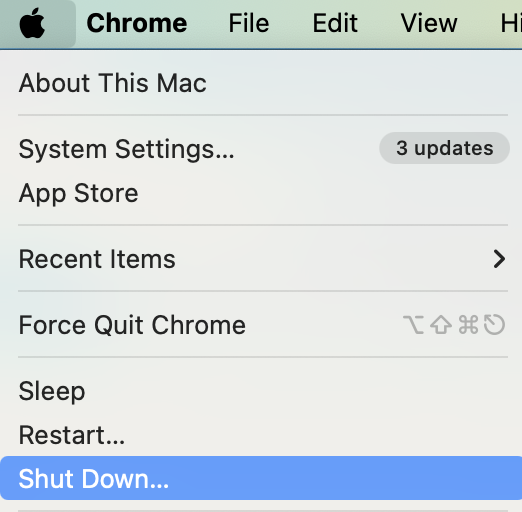
Turn off your Mac normally by going to the Apple logo > Shut Down and confirming your choice when the pop-up window appears.
Switch your Mac back on. Immediately press the Command and R keys to enter Recovery Mode.
Your computer will ask you to type your firmware password. Do this when you’re asked.
Choose a user and enter your Mac login password, then go to Utilities > Startup Security Utility/Firmware Password Utility.
Select Turn Off Firmware Password. Type it in again and hit the Enter key to switch it off.
Quit Startup Security Utility or Firmware Password Utility.
Restart your Mac—you don’t need to re-enter Recovery Mode.
Step 1. Apple menu > Shut DownStep 2. Enter Recovery Mode > enter your password > turn off the firmware password via Startup Security Utility or Firmware Password Utility
In case you need to revert changes and turn on your firmware password again, do the following:
Turn your Mac off again.
When you’re ready to switch your Mac back on, press the Command and R keys simultaneously.
Your device should then enter Recovery Mode again. When it does, navigate to Startup Security Utility or Firmware Password Utility.
Enter a new firmware password and keep a note of it before restarting your device.
Important:
While even enabling a few tools will significantly improve your device's safety, you should go above and beyond to protect it. You’ll be able to get acquainted with other ways to strengthen your Mac security in our attached guide below.
We’d like to stress that firmware passwords and FileVault are just two of many Mac security features. Others worth knowing how to use include Find My Mac and two-factor authentication for your Apple ID. Knowing the different security tools will ensure that you maximize your device usage and limit threads.
What to do if you forget your firmware password on MacBook
Unfortunately, you can’t easily change your firmware password on an Apple computer. Instead, you’ll need to contact Apple’s support team and schedule an appointment at the Genius Bar. If that isn’t possible in your local area, going to a certified Apple reseller is another alternative.
When you go to your appointment, you’ll need to prove that you’re the device owner. Such a measure is one of the security steps to prevent the bypass of firmware password on Mac. This is why it’s so important to know what to check for when buying a used MacBook. It might be more difficult to book these appointments with a used device because you’ll typically need to register everything, and if someone else has owned your computer before, it’s hard to show that you purchased it. While second-hand stores might provide a payment invoice, this won’t always be the case if you’ve bought it directly from a friend or family member.
Besides, running a MacBook diagnostics tool to confirm whether you need to go to a Genius Bar is also a good idea. Your diagnostics should confirm the problem you’re experiencing and, as a result, help you accurately define your next steps.
All the essential information about your Mac firmware password
Removing the firmware password on your MacBook is very straightforward, even though the initial steps seem daunting. Keeping track of your firmware password is crucial. If you forget it, you’ll have to go to a Genius Bar or Apple reseller.
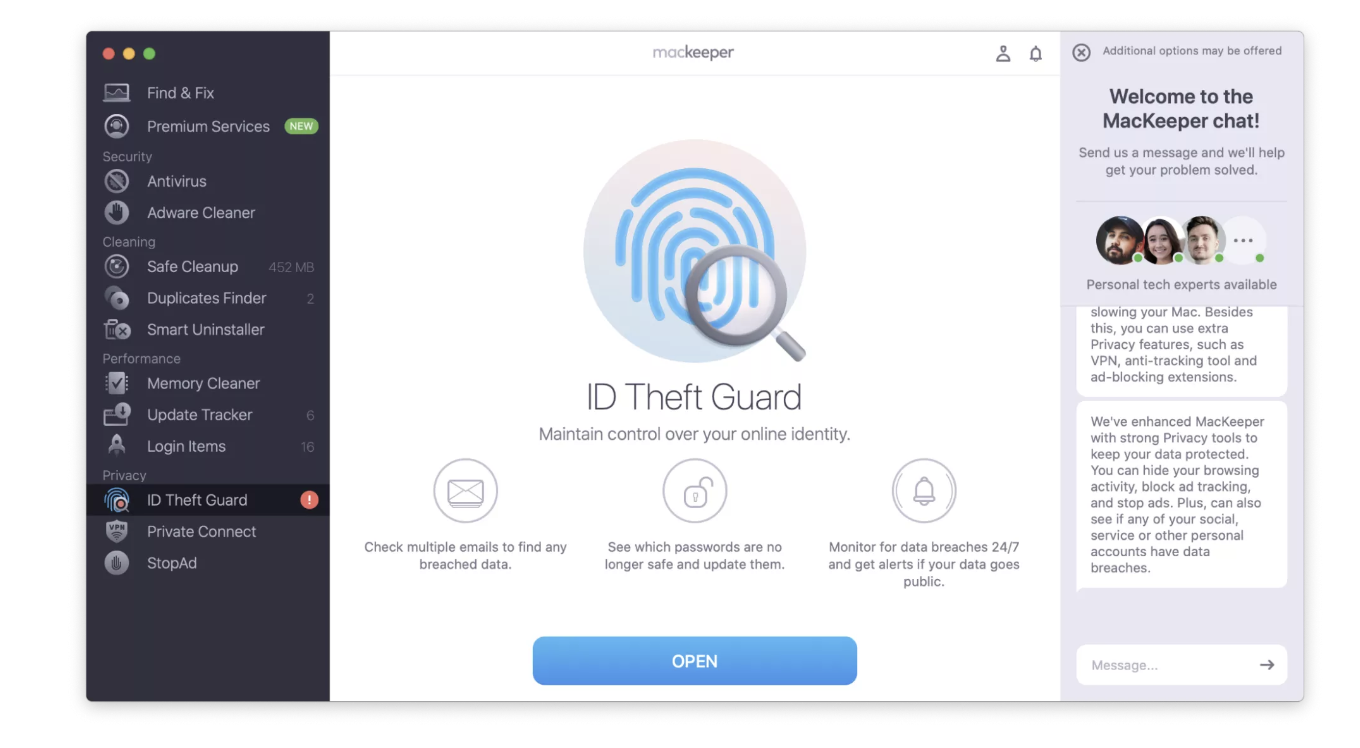
Even if you switch off your password, you’ll need an alternative way to keep your details secure. MacKeeper’s ID Theft Guard will warn you when a breach occurs, enabling you to take action. Here’s how to use it:
Select Open > Check for Breaches. Verify your email address if needed.
Tap Review if breaches are detected and take the required action.
Step 1. Privacy > ID Theft Guard > OpenStep 2. Select Check for Breaches (verify your email if needed)Step 3. Select Review if breaches are detectedStep 4. Review your data breaches and take action where needed
Remember that if you have a computer with a Silicon chip, you won’t have this option because FileVault replaced it. You can read more in our separate guide about what FileVault is, along with an explanation of why you should use it. In short, the tool runs in the background to keep your computer safe with minimal effort.
We respect your privacy and
use cookies
for the best site experience.
Privacy Preferences Center
We use cookies along with other tools to give you the best possible experience while using the
MacKeeper website. Cookies are small text files that help the website load faster. The cookies we
use don’t contain any type of personal data meaning they never store information such as your
location, email address, or IP address.
Help us improve how you interact with our website by accepting the use of cookies. You can change
your privacy settings whenever you like.
Manage consent
All cookies
These cookies are strictly necessary for enabling basic website functionality (including page
navigation, form submission, language detection, post commenting), downloading and purchasing
software. The website might malfunction without these cookies.