
In this article you will find the following:
What is WhatsApp on Mac?
WhatsApp for Mac is the official desktop app designed specifically for macOS devices. This free app allows users to send messages, make voice and video calls, and share photos, videos, and documents as long as they’re online. Just like its iOS counterpart, WhatsApp for Mac also supports real-time notifications.
Can WhatsApp be hacked? If you’re concerned that your chats could be compromised, check out our guide to learn how to protect your conversations.
Reasons to uninstall WhatsApp on Mac
There are several reasons to uninstall WhatsApp from your Mac. Freeing up storage space, boosting your computer’s performance, and resolving persistent app glitches are among the most common motivations. Additionally, you may want to remove WhatsApp to delete leftover files, eliminate distractions when using your Mac for work, or address concerns about Meta’s data collection practices.
If WhatsApp isn’t working properly on your device, you might not need to uninstall the app. Instead, check this article to learn how to clear WhatsApp cache on Mac.
A note from our experts:
If manually uninstalling WhatsApp from your Mac feels inconvenient, consider using MacKeeper’s Smart Uninstaller instead. MacKeeper is an all-in-one macOS utility from Clario Tech that not only offers 24/7 antivirus protection but also efficiently removes plugins, browser extensions, leftover files, and memory-draining apps with ease.
How to delete WhatsApp from MacBook?
To remove WhatsApp from MacBook or Mac, start by quitting the app, then drag the app icon to the Trash and empty it. For a more thorough clean-up, we recommend deleting all related files from your Library folders as well. To ensure the complete removal of leftover files and settings, consider using a third-party uninstaller such as MacKeeper’s Smart Uninstaller.
If you want to remove several apps at once, we also suggest checking out our guide on how to uninstall programs on Mac for useful tips.
1. Quit WhatsApp
To guarantee a seamless WhatsApp uninstallation on your Mac, we recommend always quitting the app completely before proceeding. Simply closing the window by clicking the red dot in the upper-left corner isn’t enough. If the app remains open, you might not be able to remove it successfully.
There are several ways we recommend you uninstall WhatsApp on a Mac:
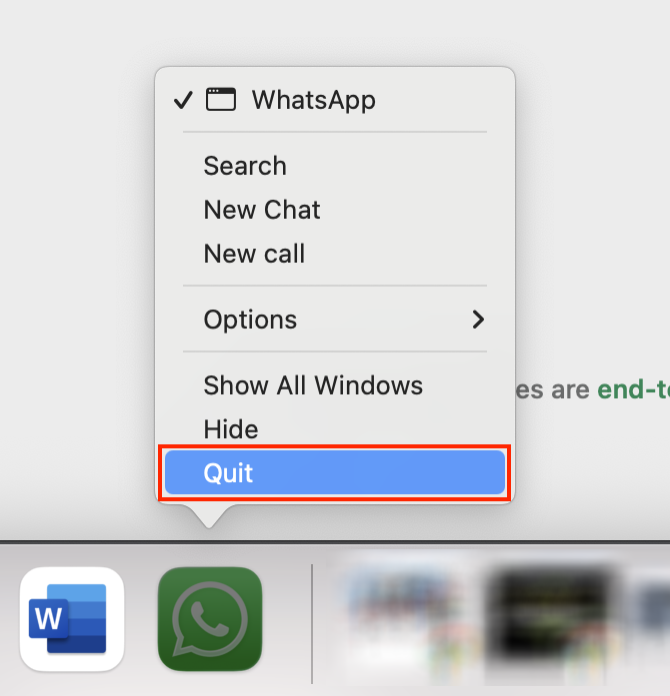
- Find the WhatsApp icon in your Dock.
- Right-click the icon and choose Quit, or Force Quit if the app is unresponsive.
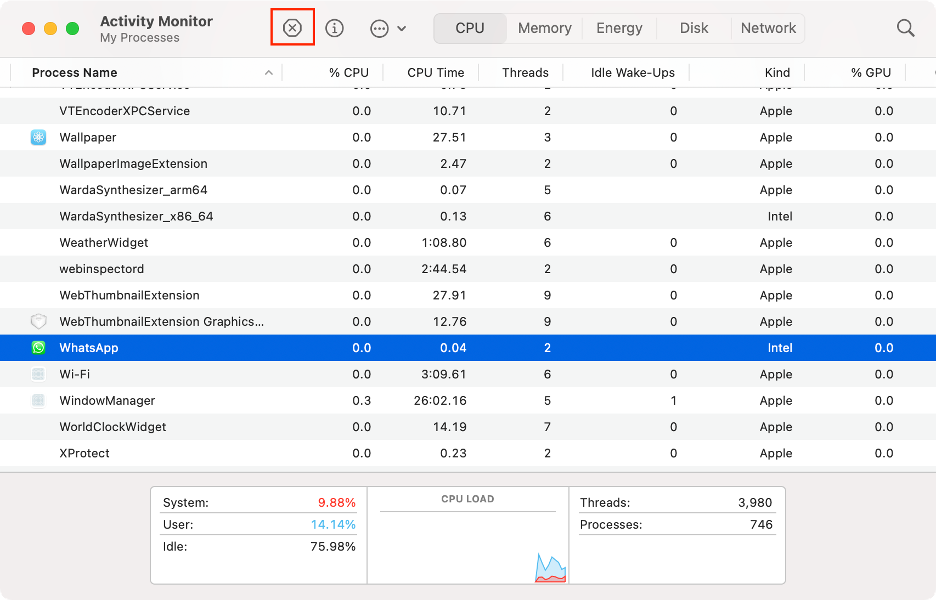
- If this doesn’t work, launch Activity Monitor (Finder > Utilities > Activity Monitor).
- Select WhatsApp in the process list.
- Click the X icon at the top of the window.
- Choose Quit or Force Quit to close the app completely.

2. Remove WhatsApp from MacBook
The next step is to uninstall WhatsApp from your Mac. Fortunately, based on our experience, this process is straightforward and typically trouble-free. Our expert team would like to remind you that none of the steps outlined here will erase your WhatsApp chats. They’ll remain accessible on your phone.
Here’s a step-by-step guide to uninstalling WhatsApp from your Mac:
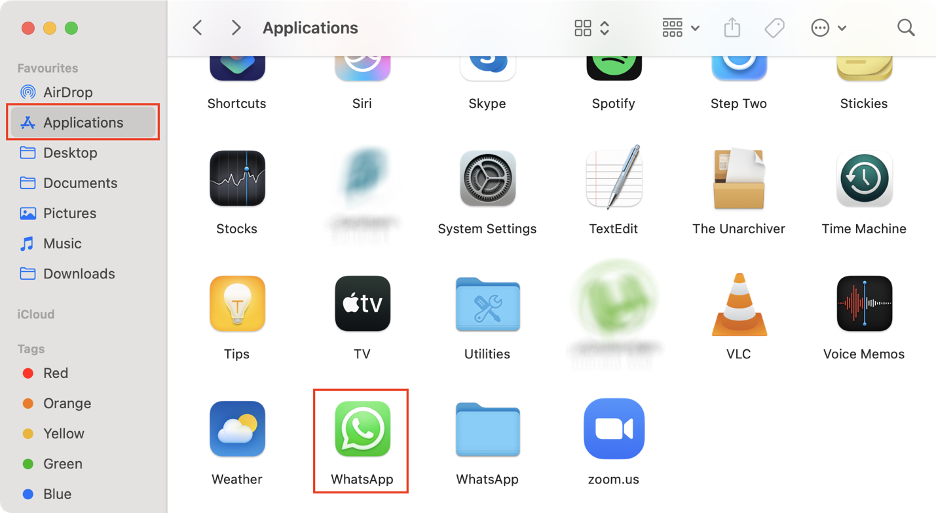
- Open Finder.
- Go to Applications.
- Find the WhatsApp app.
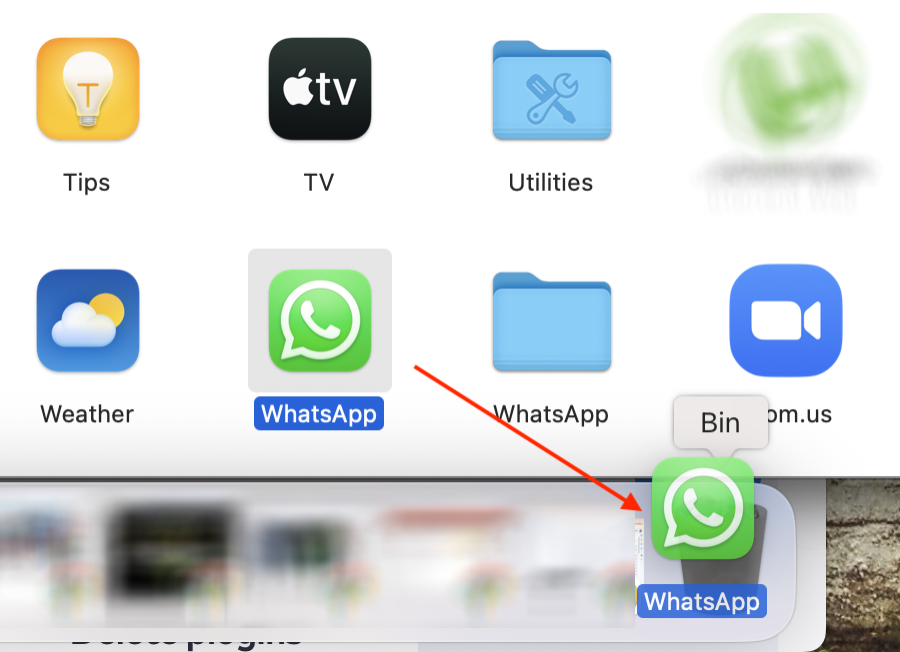
- Drag the icon to the Trash.
- Alternatively, right-click the icon and select Move to Trash.
- Enter your password.
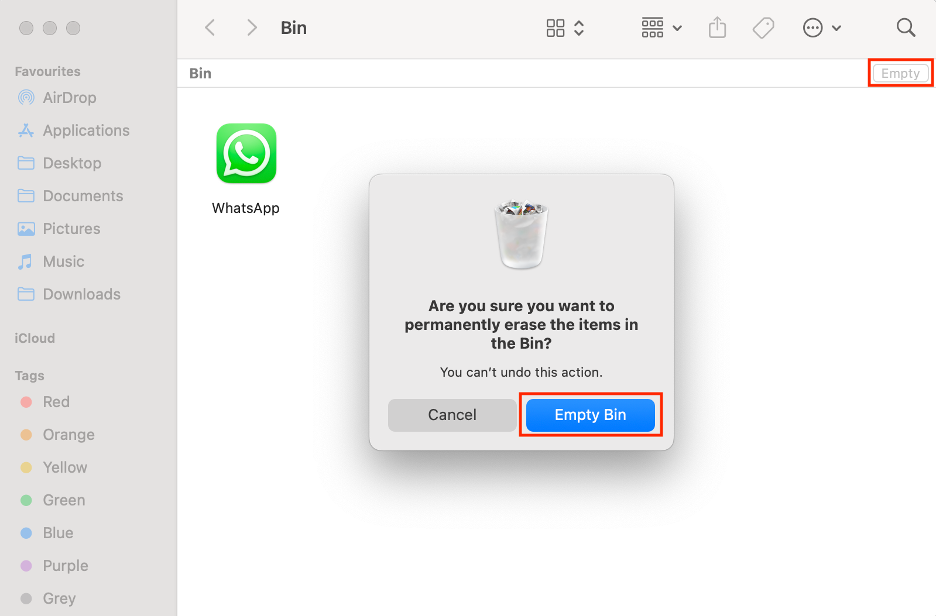
- Open the Trash.
- Click Empty, then click Empty Trash to confirm.
An extra hint from us:
If you encounter any issues while uninstalling WhatsApp, read our dedicated guide on how to delete apps that won’t delete.
Use a third-party app to completely remove WhatsApp from Mac
To ensure your WhatsApp uninstallation goes smoothly and to remove any files that could cause problems or consume valuable disk space, we recommend using a third-party tool such as MacKeeper’s Smart Uninstaller. This utility can also help clean junk files on your Mac.
Here’s how to use our Smart Uninstaller to fully remove WhatsApp leftovers:
- Download MacKeeper on your Mac.
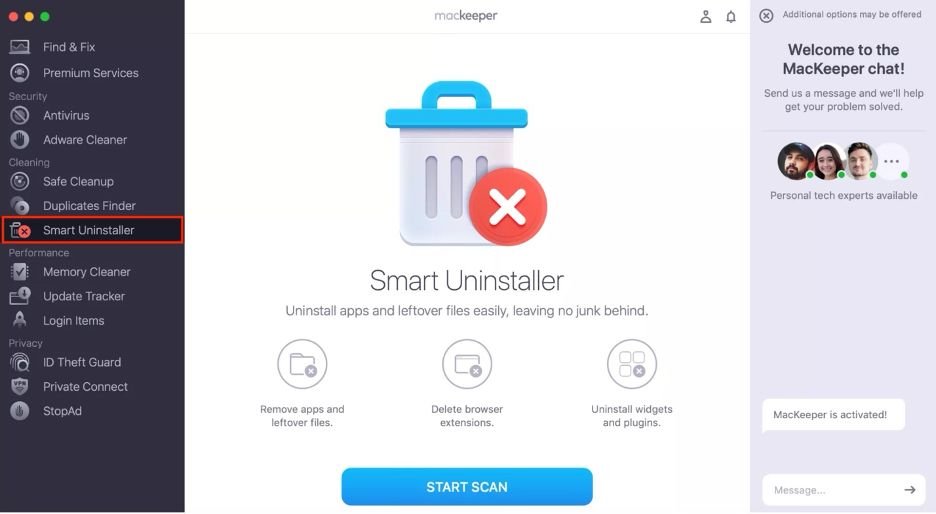
- Select Smart Uninstaller under Cleaning.
- Click Start Scan.
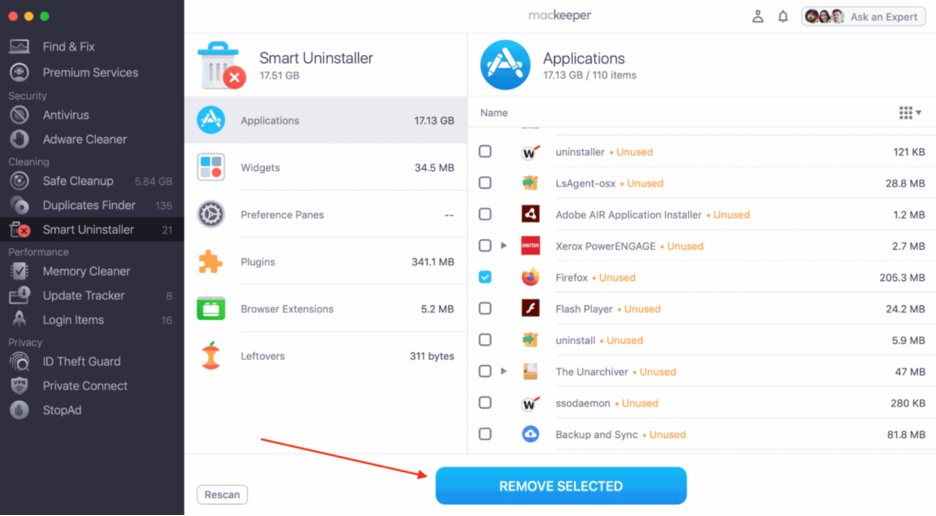
- Select all relevant categories from the list.
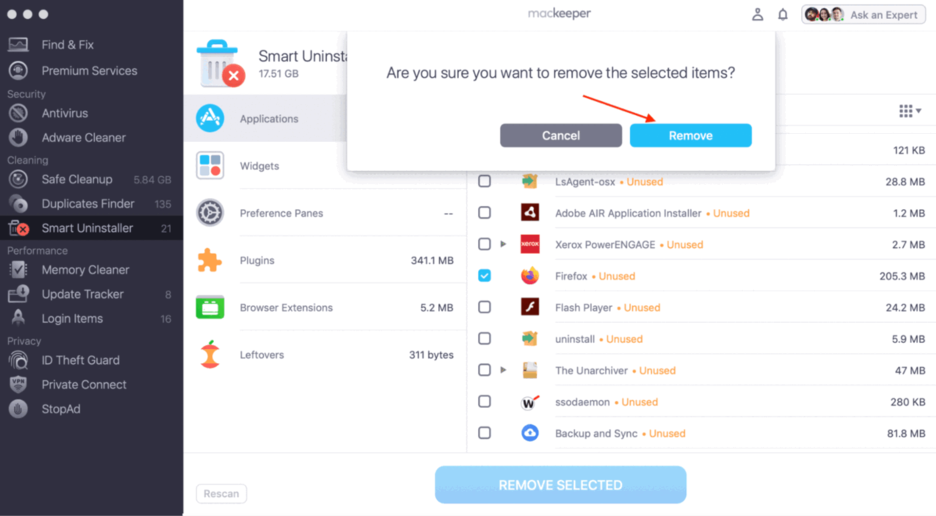
- Click Removed Selected, then click Remove to confirm.
3. Get rid of WhatsApp additional files
Our experts recommend completing the uninstallation process by removing any remaining WhatsApp files from your Mac. While this extra step might seem tedious and time-consuming, we believe it’s the best way to ensure no traces of the messaging app are left behind.
Just follow our steps below to thoroughly delete all additional WhatsApp files:
- Open Finder.
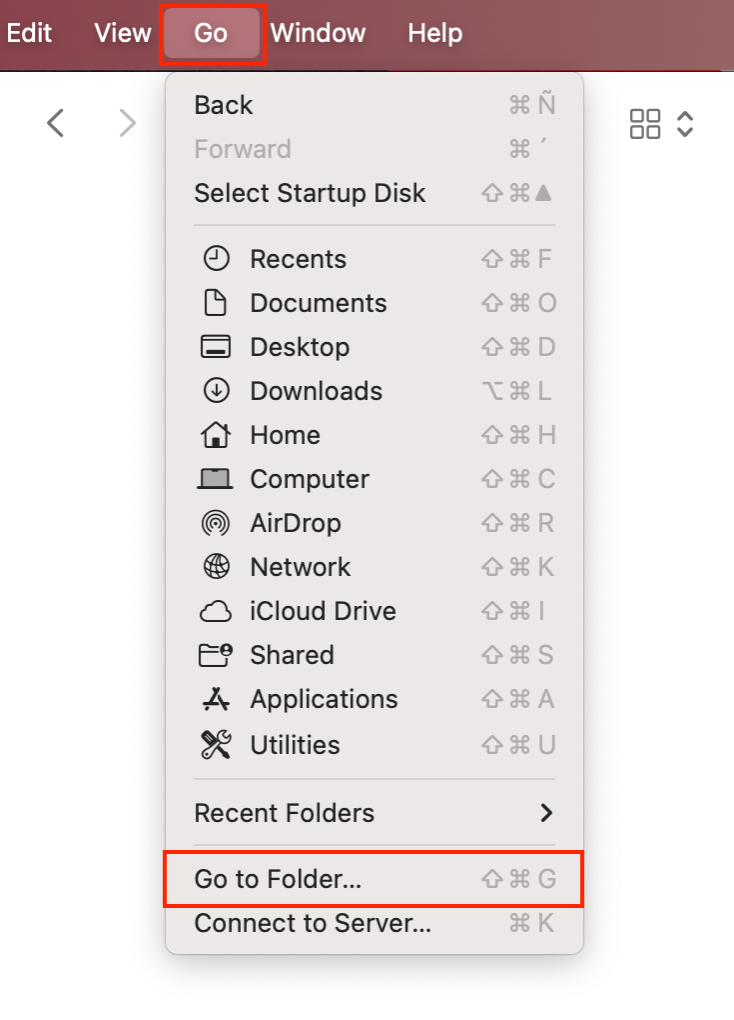
- Click Go in the menu bar, then select Go to Folder.
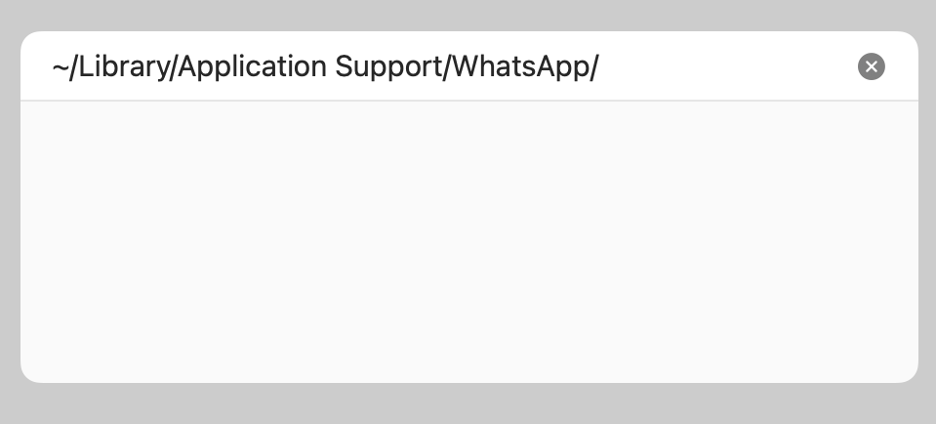
- Search the following path: ~/Library/Application Support/WhatsApp/.
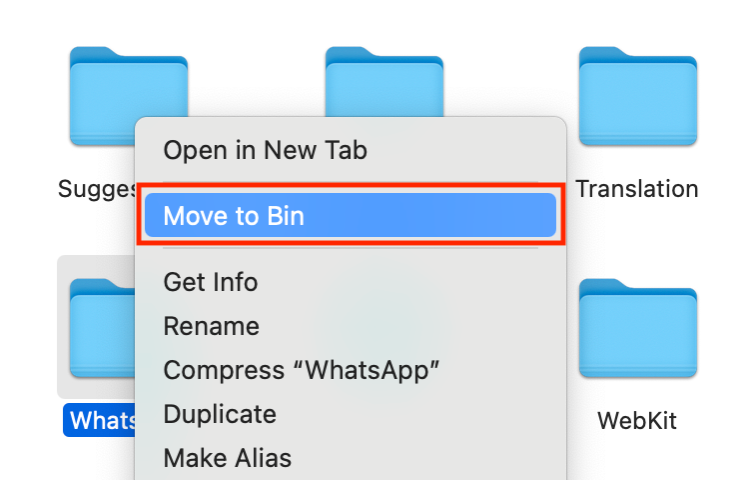
- Locate the files and drag them to the Trash.
- Repeat steps 3-4 for the following paths:
- ~/Library/Caches/WhatsApp/
- ~/Library/Saved Application State/WhatsApp.savedState/
- ~/Library/Preferences/WhatsApp.plist/
- ~/Library/Preferences/WhatsApp.Helper.plist/
- and ~/Library/Logs/WhatsApp/.
- Go to the Trash, click Empty, then Empty Trash to confirm.
Get rid of WhatsApp on Mac for good!
WhatsApp for Mac is a convenient app that lets you chat with your contacts for free, as long as you have an Internet connection. However, if the app becomes problematic or you need to free up storage space on your Apple device, uninstalling WhatsApp is a smart choice. The process is simple: just drag the app to the Trash and empty it to remove it from your system.
For a thorough uninstallation, consider using a tool like MacKeeper’s Smart Uninstaller to eliminate any leftover files. MacKeeper, which is notarized by Apple and trusted by millions, offers robust solutions for Mac optimization and cybersecurity. MacKeeper helps you reclaim valuable storage space and ensures that any suspicious or corrupted files are thoroughly removed for optimal system performance.