If you’re running an old version of Microsoft Excel on Mac, there are several ways you can get the latest release, such as using the App Store or Microsoft’s AutoUpdate tool. To ensure Excel is always up to date on Mac, use MacKeeper’s Update Tracker, developed by Clario Tech, to quickly find and download new versions of all your applications.
To easily update Excel on Mac, open the app, go to Help > Check for Updates in the menu bar, then select Update within the Microsoft AutoUpdate tool if a new release is available. Alternatively, open the App Store and choose Updates if you installed Excel from there.
Why you should keep Excel up to date on Mac?
We’re often asked whether it’s necessary to keep Excel and other Microsoft Office apps up to date, and we always recommend installing new releases as soon as possible. Updates can fix bugs and patch security flaws, as well as add new features and improve performance.
So when we find that Excel is slow on Mac or it becomes unstable and keeps crashing, installing the latest update is the best way to fix it. And if you’re a Microsoft 365 subscriber, updates are free, so there’s no reason not to enjoy them.
How to check your current Excel version on Mac?
We can check which version of Microsoft Excel we have installed on Mac by launching the app, then opening the About Excel window from within the Excel menu. This tells us the program’s build number, license status, and other information.
Try this:
Open Excel on your Mac.
Click Excel in the macOS menu bar, then select About Microsoft Excel.
Step 1. Open ExcelStep 2. Go to Excel > About Microsoft Excel in the menu bar
We must point out that although this tip is handy for figuring out which version of Excel is installed—which can be useful when troubleshooting issues—it doesn’t tell us if a newer version is available to install.
A note from our experts:
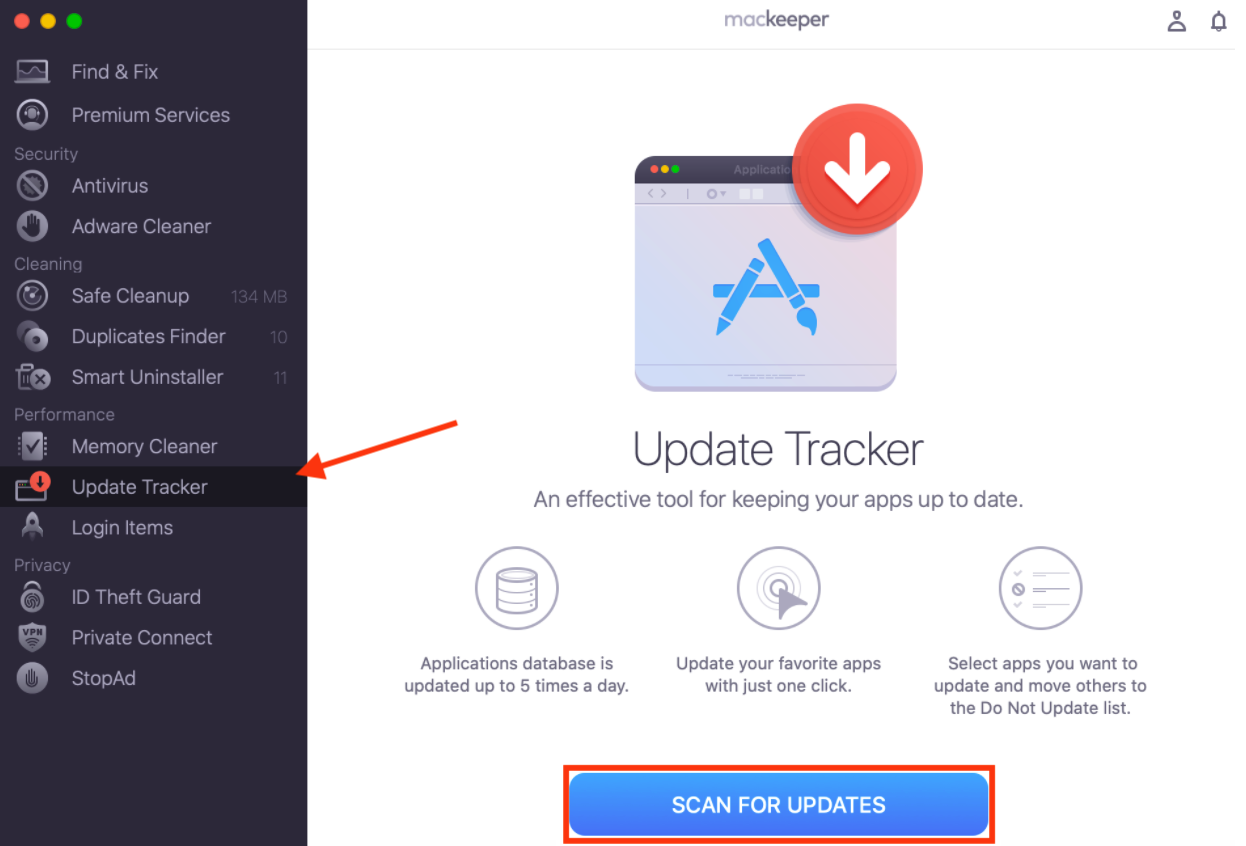
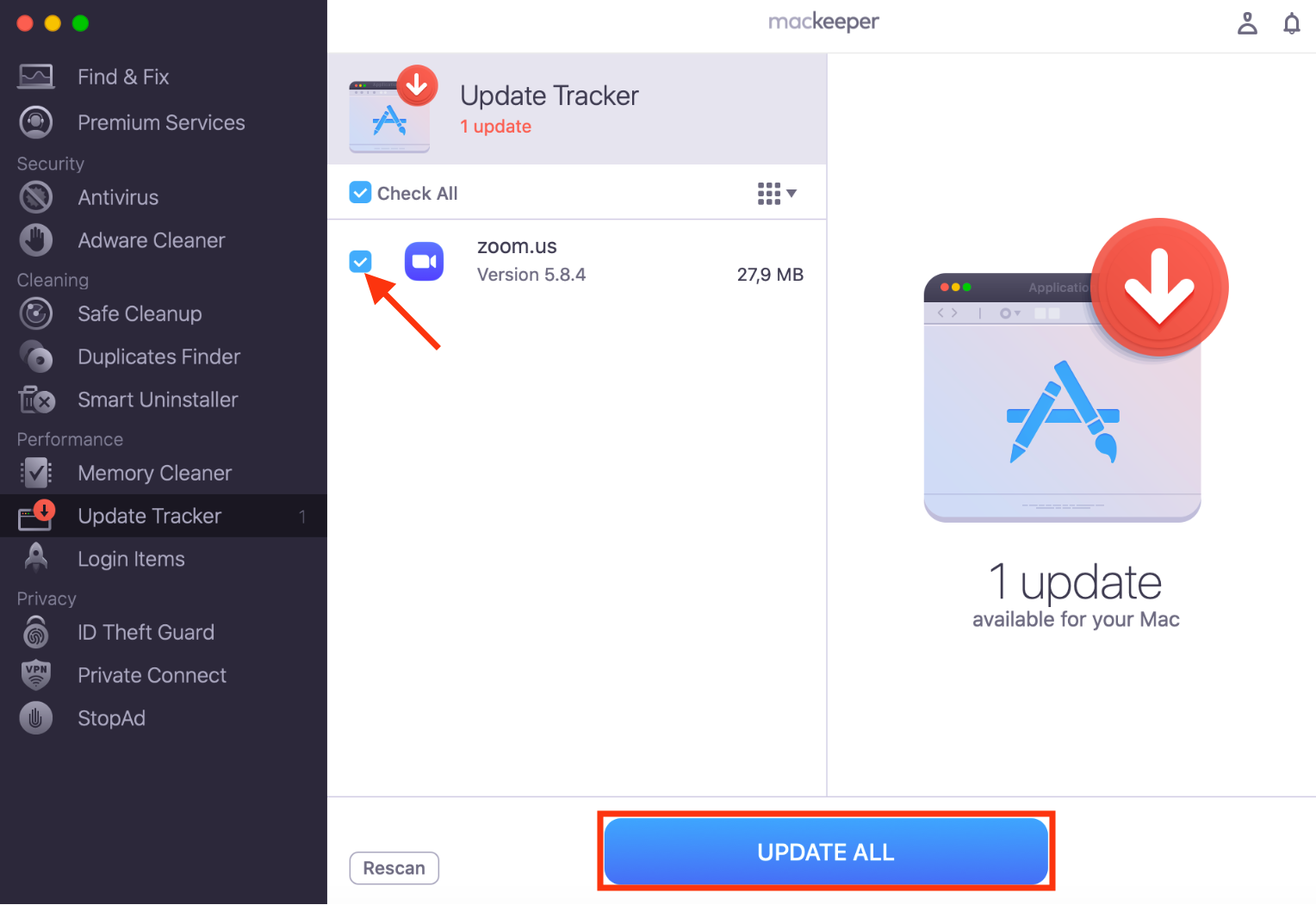
A super simple way to find out if updates are available for Microsoft Excel and all your other applications on Mac is to use MacKeeper’s Update Tracker from Clario Tech. It not only finds new releases for you, but also allows you to install them in just a few clicks.
Click Update Tracker in the MacKeeper sidebar, then choose Scan for Updates.
Select the new releases you want to install, then click Update All.
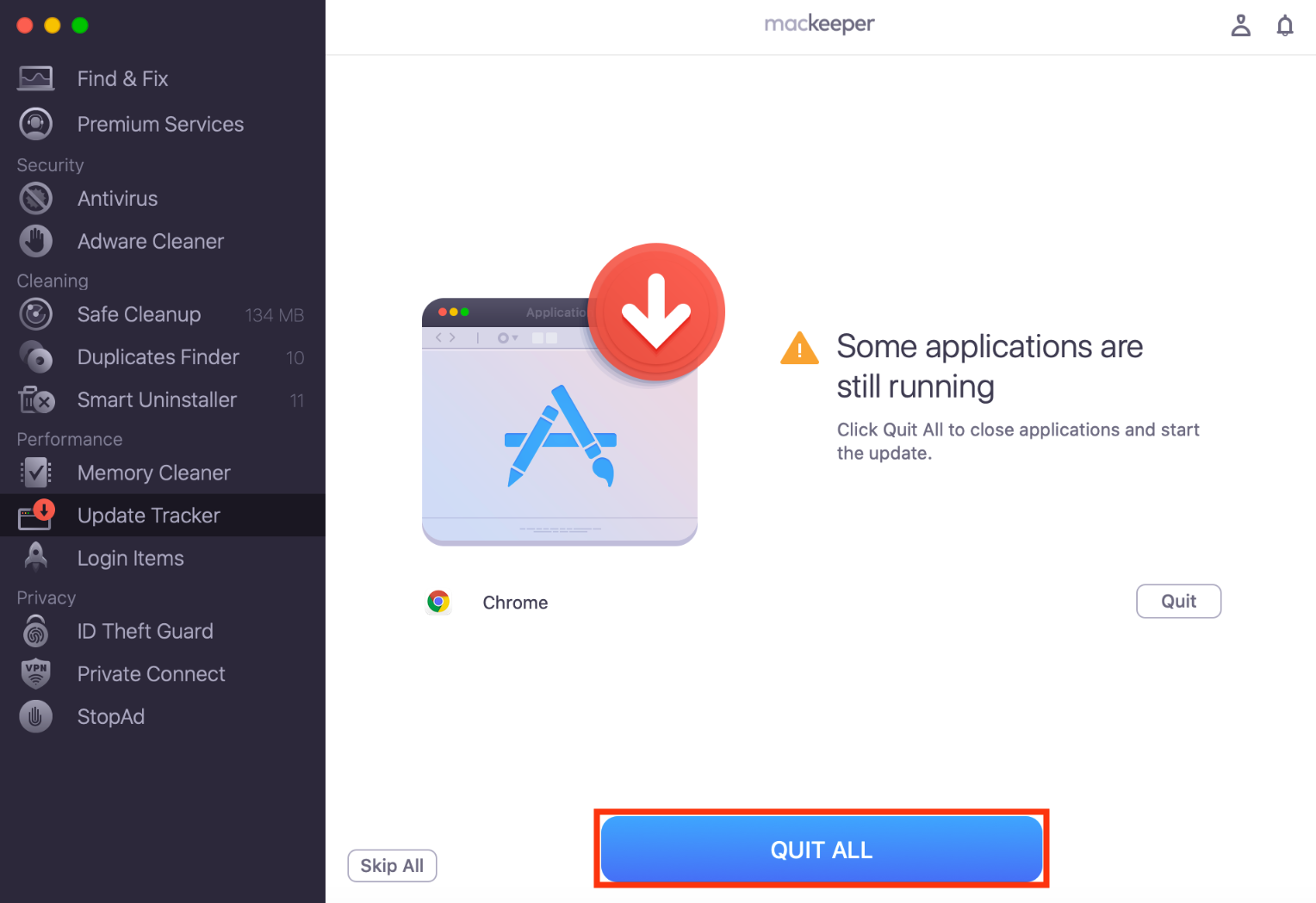
If any of your chosen apps are running, click Quit All when prompted to continue.
Step 1. Go to Update Tracker, then click Scan for UpdatesStep 2. Select the apps you want to update, then select Update AllStep 3. If prompted, click Quit All
Update methods based on installation type on Mac
The best way to upgrade Excel on Mac is dependent on how the software was originally installed. If you downloaded Excel or Microsoft 365 directly from the Microsoft website, for example, it’s usually best to use the Microsoft AutoUpdate tool that comes with the company’s Office apps to install new releases. However, if you downloaded Excel from the App Store for macOS, it’s best to get new versions from there.
Here’s how we recommend you update Excel on Mac:
If installed via Mac App Store
If part of Microsoft 365/Office subscription
If standalone Office/one‑time purchase
Using Microsoft AutoUpdate
1. If installed via Mac App Store
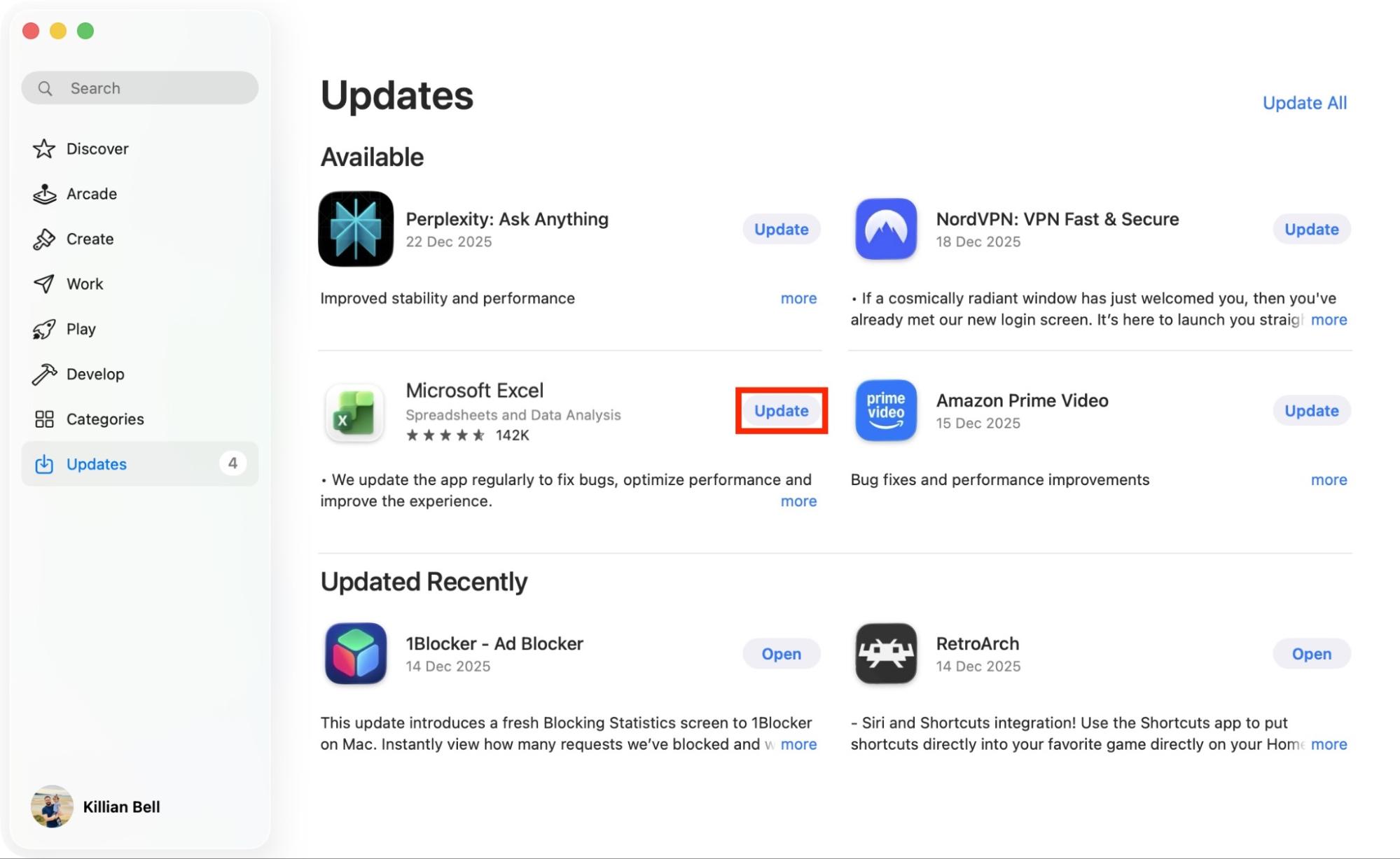
If you originally installed Excel from the Mac App Store, it’s best to update it that way, too. Here’s how:
Open the App Store on your Mac, then select Updates in the sidebar.
Click the Update button next to Microsoft Excel.
Step 1. In the App Store, go to UpdatesStep 2. Click Update next to Excel
It’s as simple as that—the newest version of Excel will not install. Whenever you encounter issues with other Office apps, like if you notice Microsoft Word is slow on Mac, we recommend installing any available updates for those, too.
2. If part of Microsoft 365/Office subscription
If you installed Excel as part of a Microsoft 365 or Office subscription and downloaded it directly from the Microsoft website, we suggest using Microsoft’s official AutoUpdate tool to update it. Try this:
Open Excel on your MacBook Air or Pro.
Select Help in the macOS menu bar, then choose Check for Updates.
This will display the Microsoft AutoUpdate tool, which searches for new Office releases. Click Update to install those that are available.
Step 1. In Excel, go to Help > Check for UpdatesStep 2. Click Update to install the latest Excel release
Have an older Mac? You may find that older versions of Excel run faster and are more stable. If you’re using a version of Excel that you’re happy with, look into how to disable Microsoft AutoUpdate on Mac to prevent the app from being updated automatically.
3. If standalone Office/one-time purchase
The process for updating Excel if you purchased Microsoft Office as a standalone package is the same as if you’d acquired it through a Microsoft 365 subscription. That means you can follow the steps above to launch the Microsoft AutoUpdate tool and install any Office updates that are available.
4. Using Microsoft AutoUpdate
Some users have told us that they have issues launching Microsoft AutoUpdate or checking for new app releases. If you’re running into this problem, reinstall the tool before you update your Office apps by following these steps:
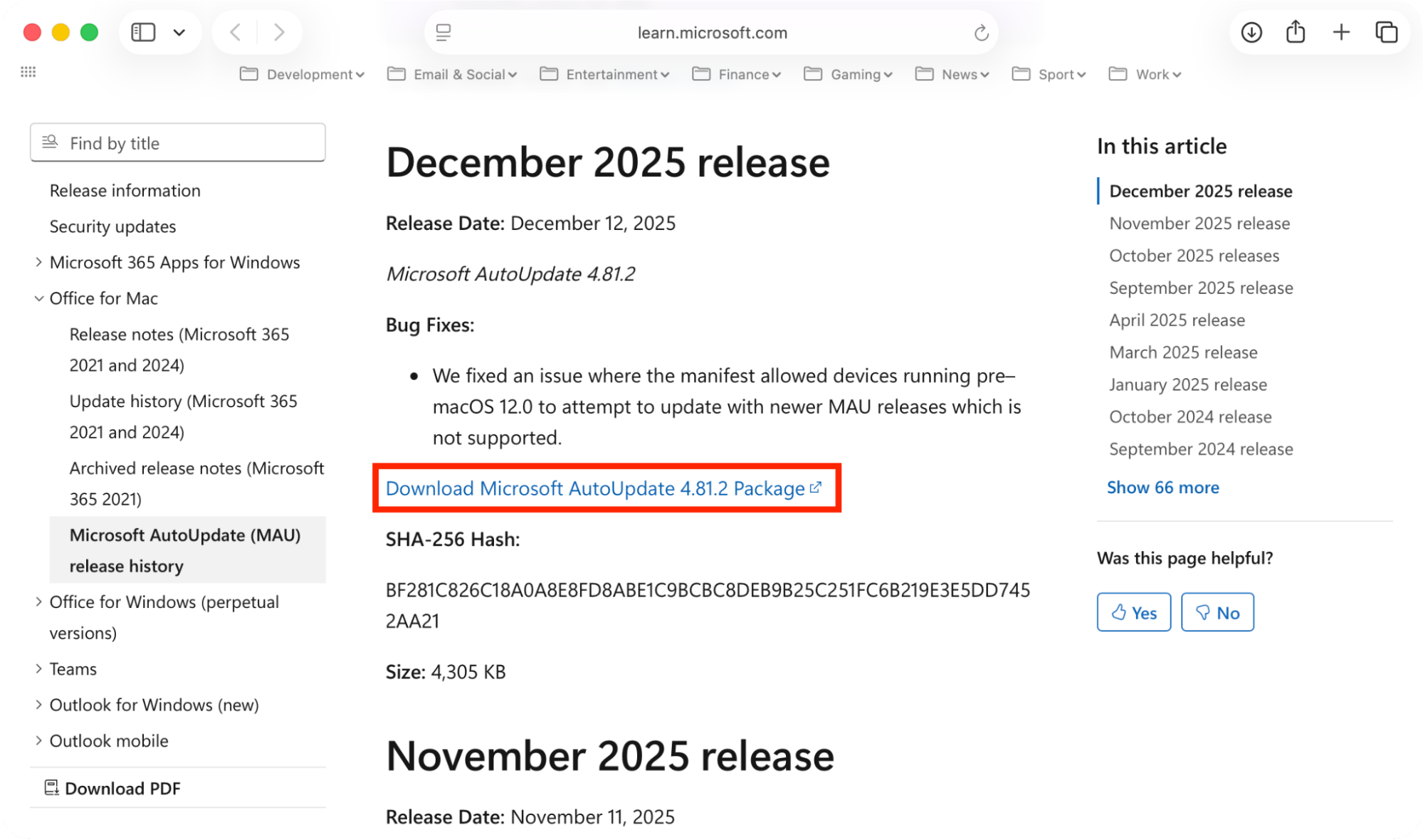
Scroll down to the most recent release, then click the Download link.
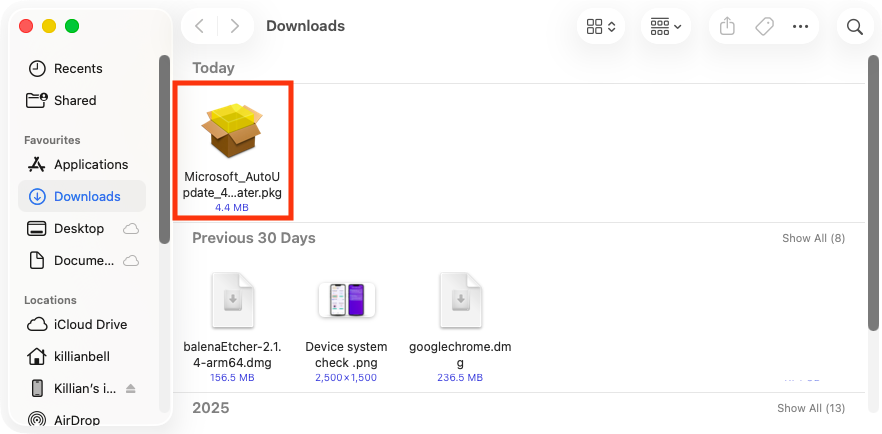
Launch the AutoUpdate installer from your Downloads folder and follow the steps to install it.
Open any Office app, then go to Help > Check for Updates to use the AutoUpdate tool.
Step 1. Download AutoUpdate from the Microsoft websiteStep 2. Open the AutoUpdate package and install itStep 3. Go to Help > Check for Updates to open AutoUpdate
By installing Microsoft AutoUpdate manually, you can use it to update all Office apps regardless of where they were first installed from—including App Store versions. If, however, the tool doesn’t work correctly or you have trouble updating, we suggest that you uninstall Office 365 for Mac and then reinstall it.
Conclusion
When you need to upgrade Excel on Mac, there are several methods you can use, such as Microsoft’s official AutoUpdate tool or the Mac App Store if you originally downloaded Excel from there.
Alternatively, a quick and easy way to keep all your macOS software up to date is to use MacKeeper’s Update Tracker. Built by Clario Tech, this useful feature identifies which applications you have installed, finds any new releases that are available, and then allows you to install them all in just a few clicks.
We respect your privacy and
use cookies
for the best site experience.
Privacy Preferences Center
We use cookies along with other tools to give you the best possible experience while using the
MacKeeper website. Cookies are small text files that help the website load faster. The cookies we
use don’t contain any type of personal data meaning they never store information such as your
location, email address, or IP address.
Help us improve how you interact with our website by accepting the use of cookies. You can change
your privacy settings whenever you like.
Manage consent
All cookies
These cookies are strictly necessary for enabling basic website functionality (including page
navigation, form submission, language detection, post commenting), downloading and purchasing
software. The website might malfunction without these cookies.