I’m sure you know how it feels to be interrupted by annoying ads while trying to zoom out on Safari Mac to fulfill an essential task. MacKeeper’s StopAd offers a professional solution to block these distractions, providing a smooth browsing experience and maintaining your Mac’s performance.
If you’re feeling completely frustrated by issues with zooming out in Safari on your Mac, don’t go to extremes like searching for how to uninstall Safari on Mac. Keep reading our article, and you’ll find simple solutions to fix the problem together with MacKeeper.
What is zooming out on Safari?
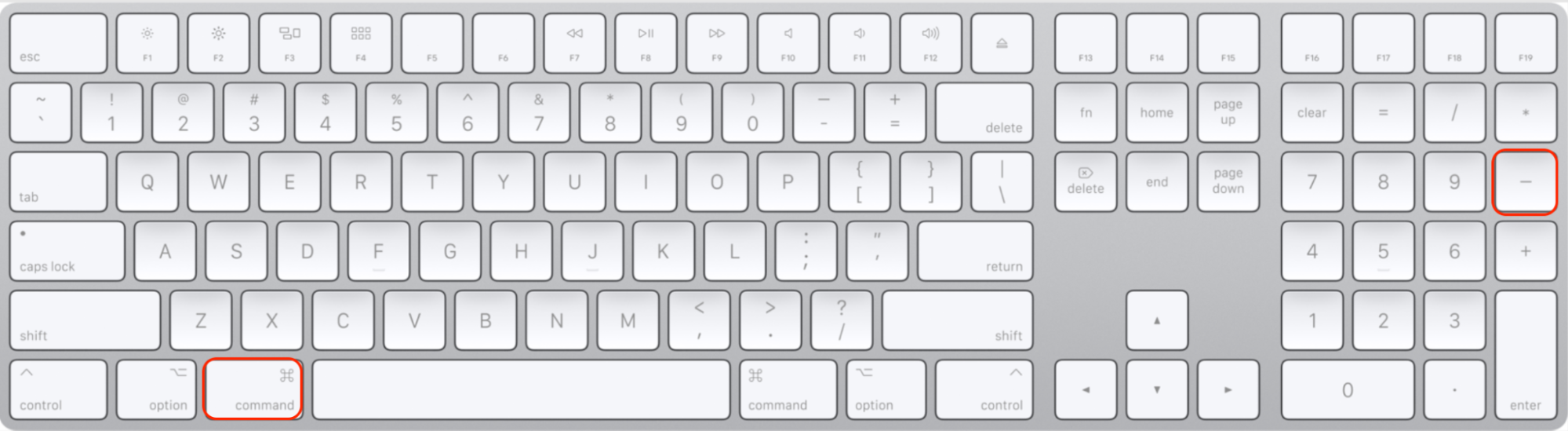
Zooming out in Safari decreases the particular part of the webpage’s content to see all the details at once. This feature makes texts, pictures, or other elements smaller without changing the site’s overall structure. You can do it on your Mac by pressing Command + Minus (-) combination, or adjusting the website’s size with a trackpad gesture. Zooming out on Safari Mac is useful when the site’s content doesn’t fit within the browser window.
How to decrease zoom on Safari Mac?
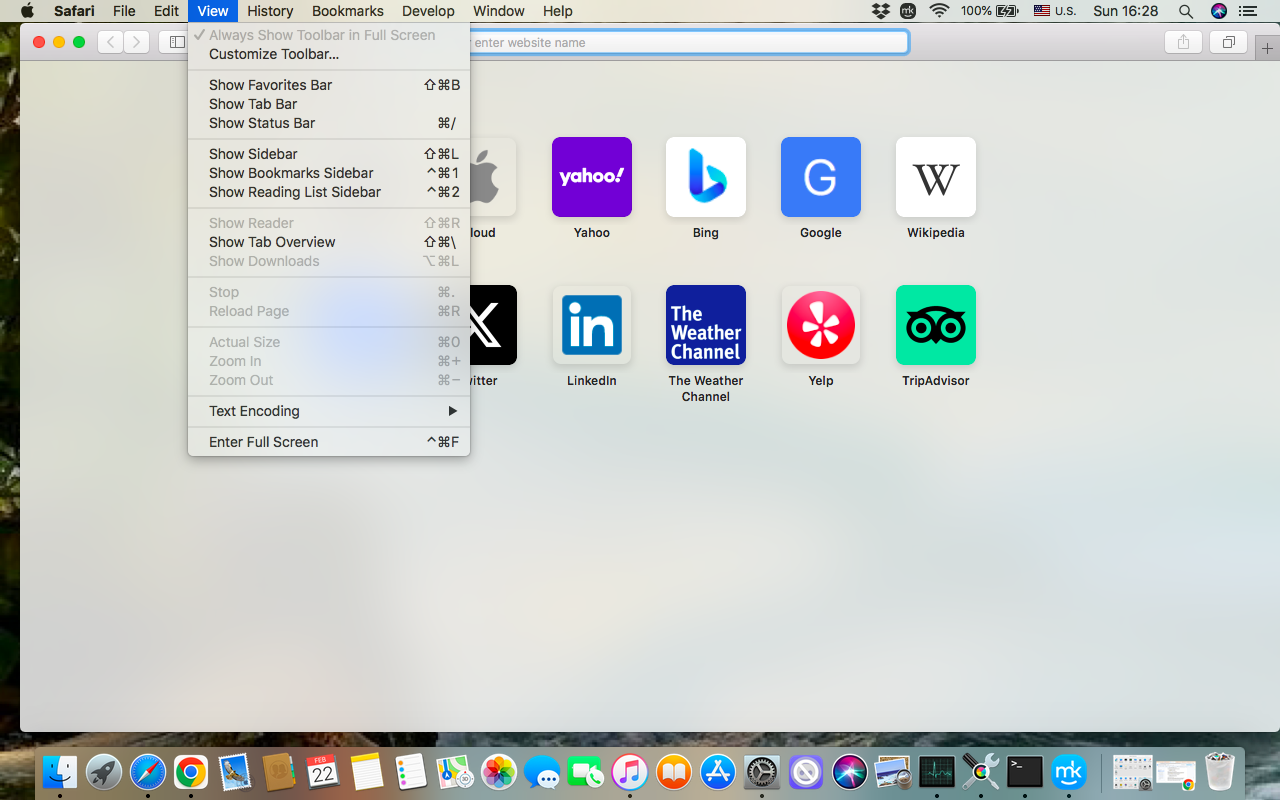
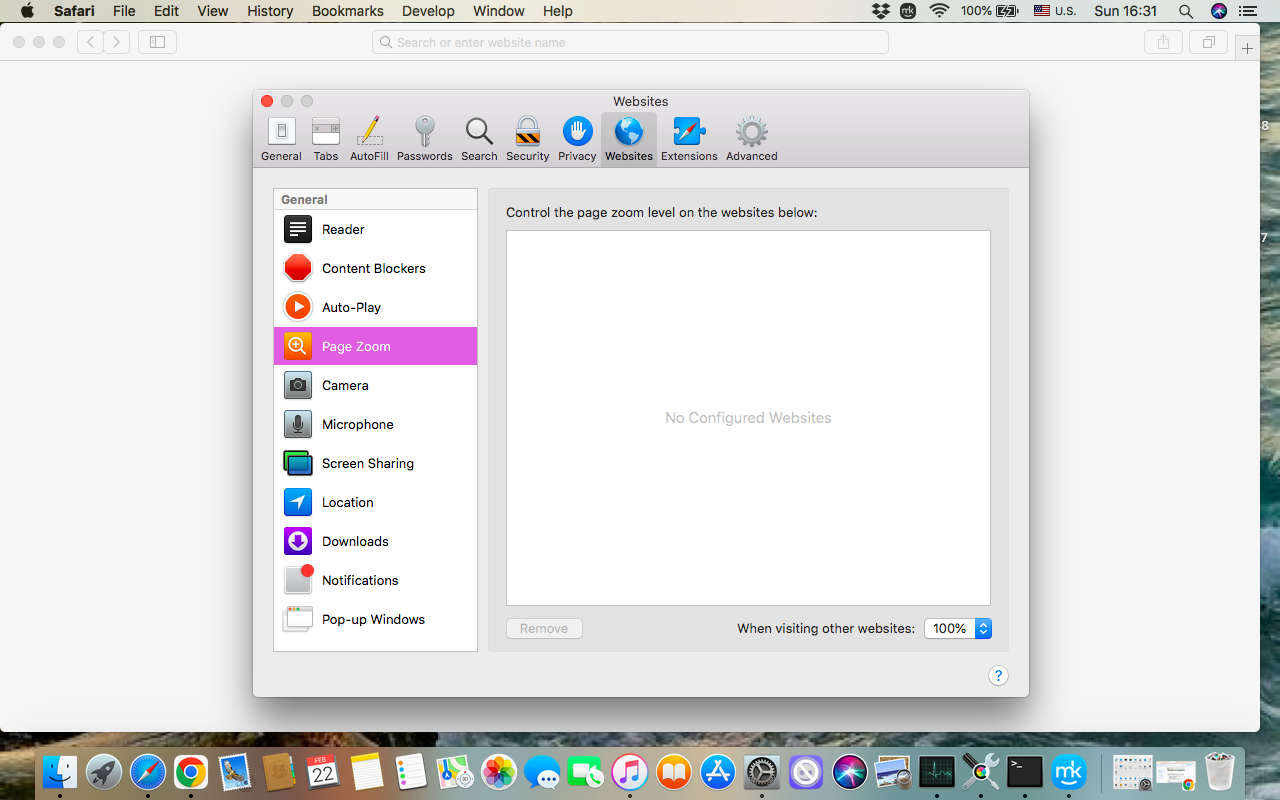
You can decrease the zoom on Safari Mac with the keyboard shortcuts, just press the Command + Minus (-) combination. If you prefer using a trackpad, pinch two fingers together to decrease zoom. Also, you can click the View option in the menu bar and choose Zoom Out. If you want permanent settings for all websites, change the default zoom level in Safari’s Preferences ➙ Websites ➙ Page Zoom.
In rare cases, the above methods can fail because of some browser issues. If Safari not working on Mac, take some easy steps, and make your laptop run fast and efficiently.
A note from our experts:
Zooming out is quite a simple action, but it can be easily disrupted by intrusive browser notifications. Even though I’m aware of these pop-ups, they always catch me at the worst possible moment, preventing me from the result I’ve been expecting. Honestly, these notifications become especially frustrating when I’m trying to perform precise actions like adjusting zoom. If you don’t want to deal with the same kind of distraction, don’t hesitate to use MacKeeper’s StopAd, which quickly disables those unwanted browser notifications and makes your overall Mac experience smoother and more enjoyable.
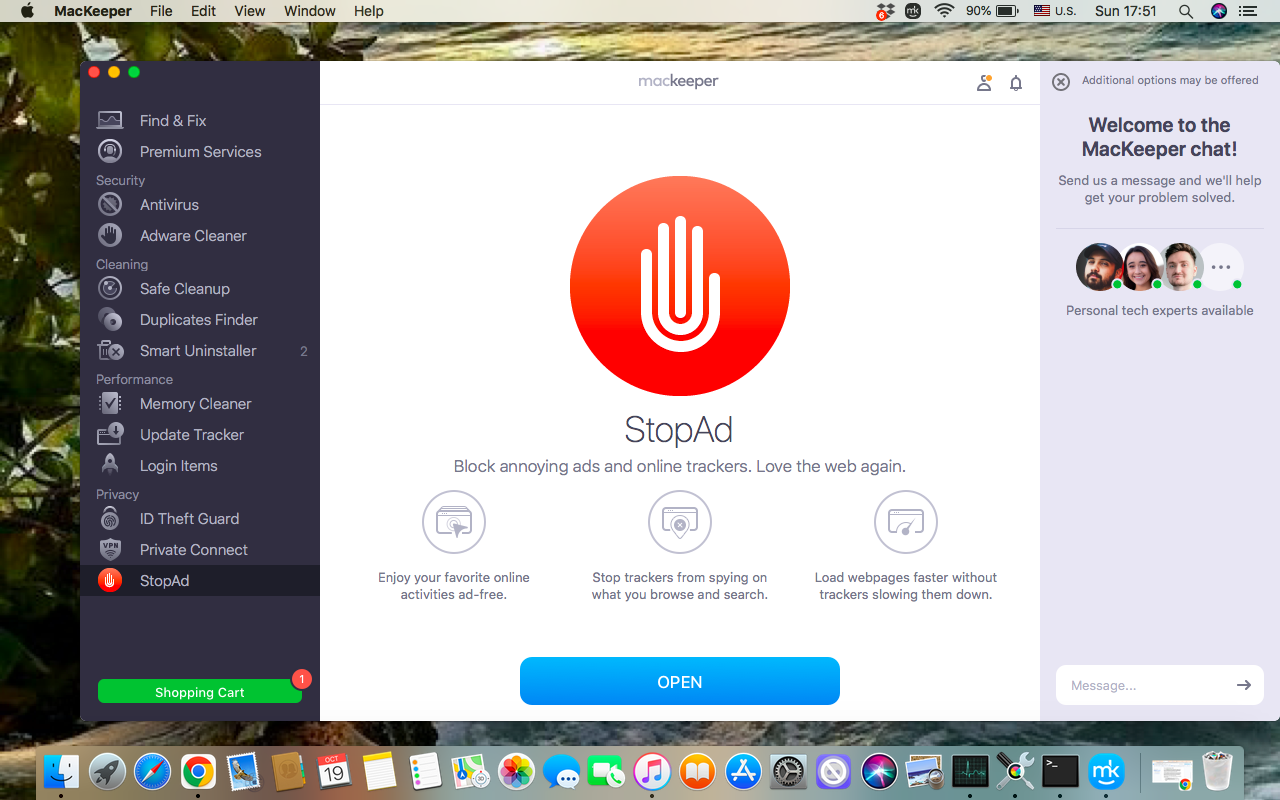
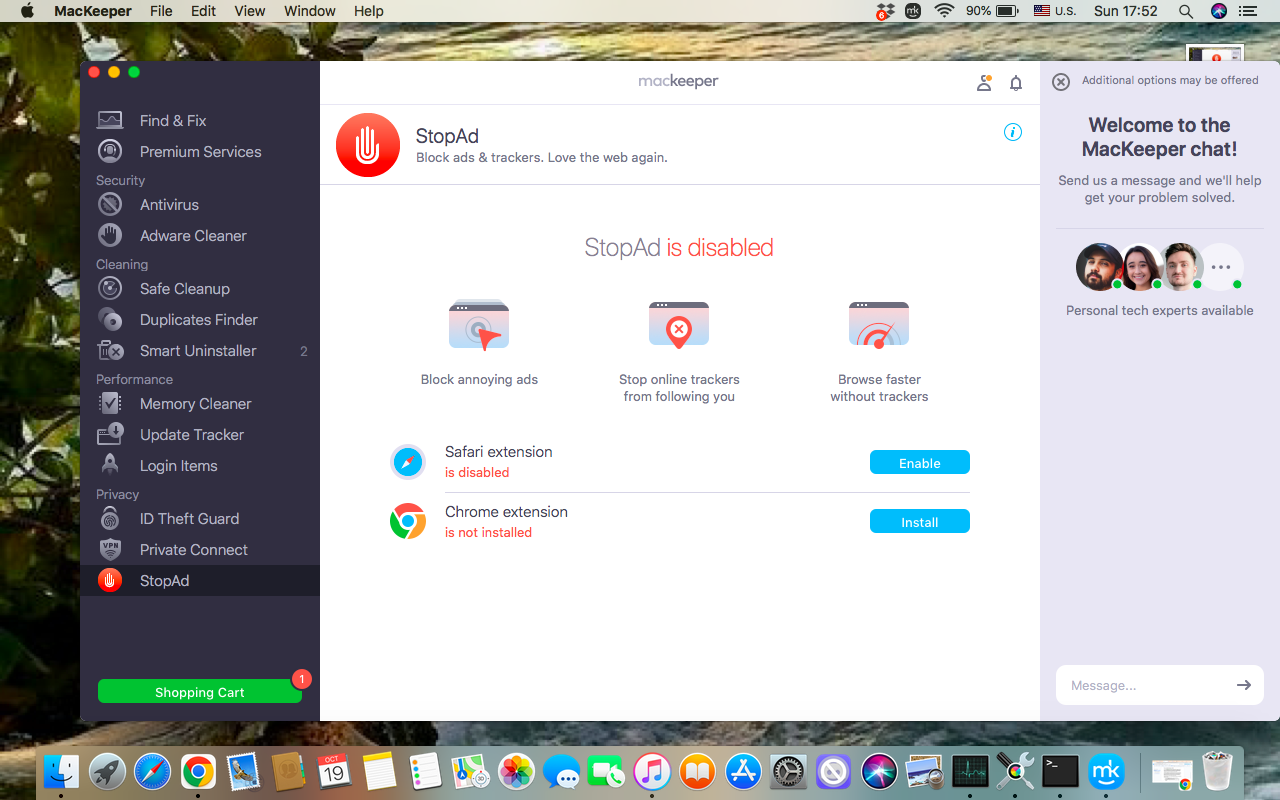
Follow these step-by-step instructions to disable annoying browser notifications with MacKeeper’s StopAd:
Choose the MacKeeper’s StopAd feature in the left sidebar.
Click the Open button at the bottom of the window.
Enable the extension in your browser.
Step 1. MacKeeper’s app > StopAd > OpenStep 2. Enable the extension in your browser
Besides, don’t forget that sometimes you just need to clear cache in Safari on Mac to help your device run better.
1. Use keyboard shortcuts
If you’re looking for the fastest way to zoom out in Safari on your Mac, I suggest you try the keyboard shortcuts first. Besides, this method is extremely useful if you deal with detailed content and tiny details, instead of navigating through menus.
Do the following to adjust the zoom in Safari Mac with keyboard shortcuts:
Open the webpage you need to zoom out.
Press the Command + Minus (-) combination.
If you need to restore the default size, press the Command + 0 (zero) combination. Nothing can be easier.
2. Zooming out with trackpad and mouse
If you prefer more ordinary gestures, choose zooming out with the trackpad or mouse. This method is simple, and what’s more precious it gives you unlimited opportunities, as you can modify the view as much as you want manually. It’s especially useful when you work with layouts, pictures, or articles.
Zoom out in Safari on your MacBook using the trackpad:
Place two fingers together on the trackpad.
Move your fingers together to zoom out.
Do the following to zoom out on Safari Mac using the mouse:
Press Command on the keyboard.
Scroll down with the mouse wheel.
3. Decrease zoom on Safari via Menu bar
If the webpage doesn’t fit on your screen, you can also reduce the zoom level directly from the Menu bar. Perhaps this method is useful for new Mac users, as it presupposes a clear, standard approach instead of more advanced ways, described above.
Use this guide to decrease zoom on Safari via the Menu Bar:
Open Safari ➙ click View in the menu bar.
Select Zoom Out from the drop-down menu.
Safari > View > Zoom Out
4. Change default Zoom level
If you’re an advanced Mac user who knows how to customize Safari on Mac and regularly uses the zooming out feature every day, I suggest you set a default zoom level in the browser. Just imagine how much time you can save. Instead of adjusting the zoom manually on every website, you can make Safari display pages at the same size.
Follow our instructions to change the default zoom level in Safari:
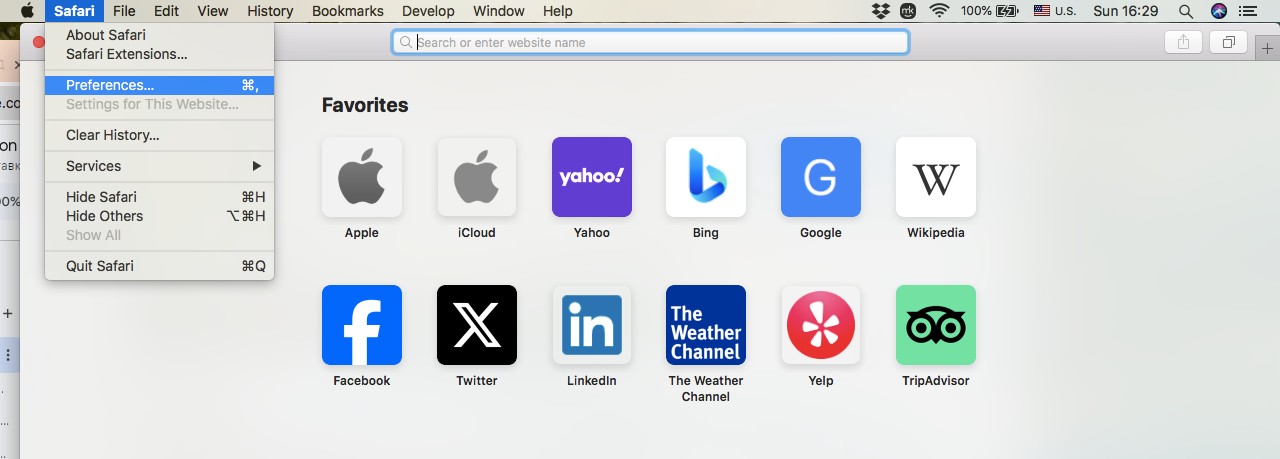
Open Safari browser ➙ click the Safari sign in the top menu bar ➙ choose Preferences from the pop-down menu.
Choose the Websites tab in the Preferences window.
Click Page zoom in the left sidebar.
Choose the preferred zoom percentage for each site from the list of your last visits or select the same percentage When visiting other websites.
Step 1. Safari > PreferencesStep 2. Page Zoom > When Visiting Other Websites
Conclusion
Zooming out is a simple but powerful feature to customize how the webpage content appears on your screen, maintaining important details. Whether you choose keyboard shortcuts, trackpad gestures, the View menu, or changing the default zoom level, all these methods are straightforward and effective.
The only problematic issue about zooming out on Safari Mac is the interference of intrusive ads that can disrupt your browsing session. I suggest you block all the potentially harmful content with MacKeeper’s Stop Ad and enjoy a smooth, ad-free experience on your Mac.
We respect your privacy and
use cookies
for the best site experience.
Privacy Preferences Center
We use cookies along with other tools to give you the best possible experience while using the
MacKeeper website. Cookies are small text files that help the website load faster. The cookies we
use don’t contain any type of personal data meaning they never store information such as your
location, email address, or IP address.
Help us improve how you interact with our website by accepting the use of cookies. You can change
your privacy settings whenever you like.
Manage consent
All cookies
These cookies are strictly necessary for enabling basic website functionality (including page
navigation, form submission, language detection, post commenting), downloading and purchasing
software. The website might malfunction without these cookies.