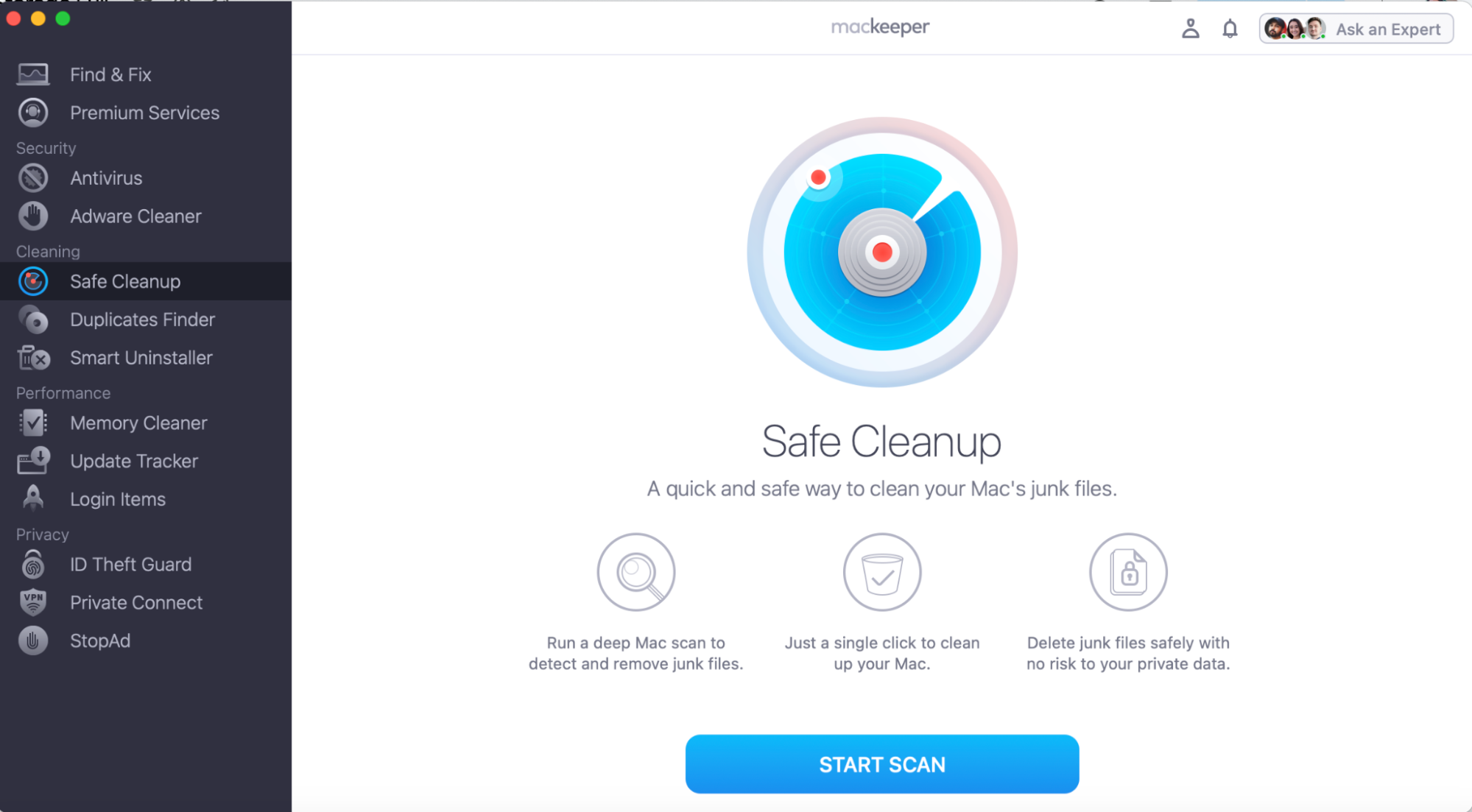
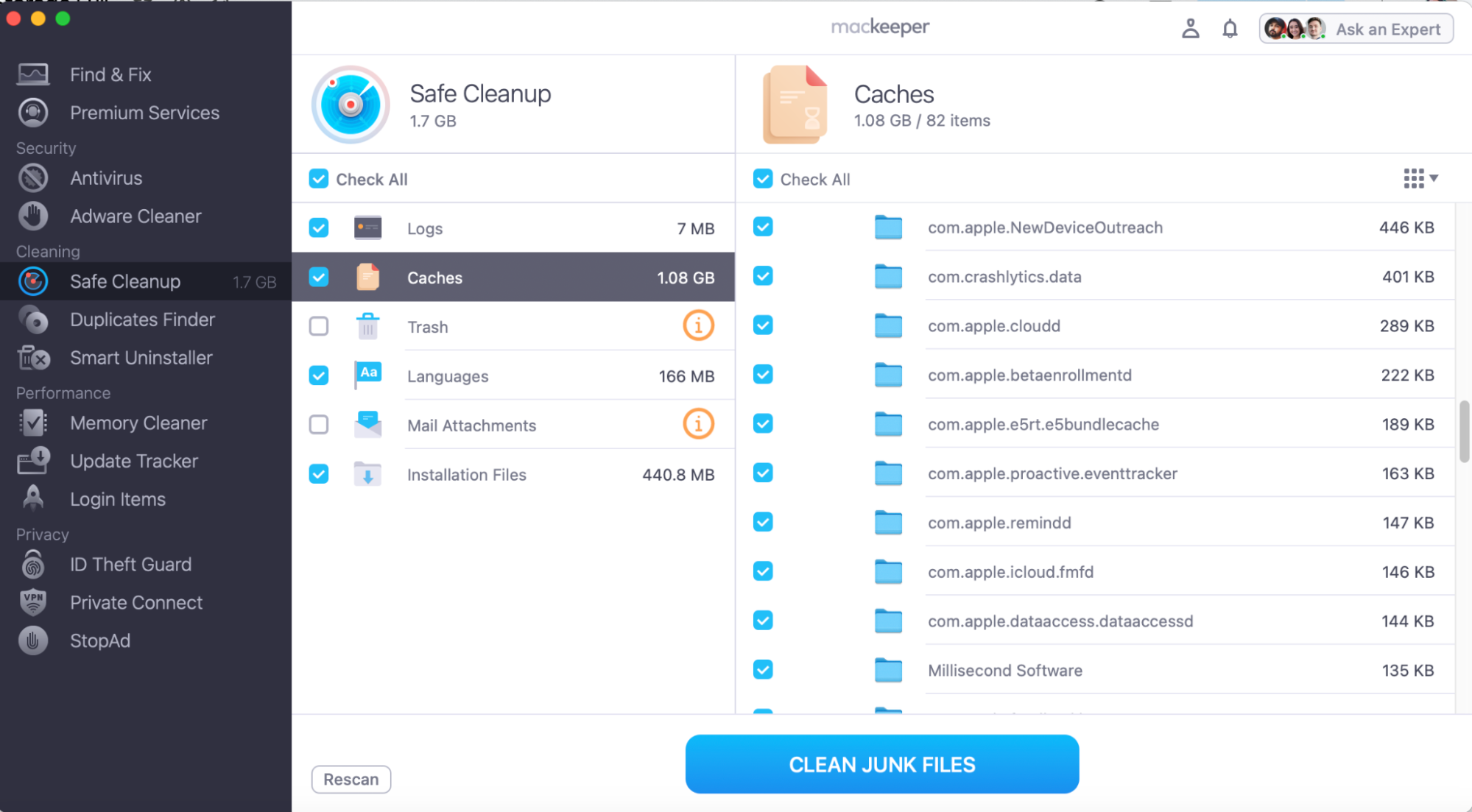
If your iCloud storage is full, then your Mac’s storage probably needs some cleaning too. To avoid wasting time doing all this manually, better try some professional cleaning tool like MacKeeper’s Safe Cleanup. It helps quickly organize your files and free some storage by removing junk, unnecessary screenshots, logs, and so on.
If your iCloud storage is full, your device won’t back up to iCloud, and any new photos or videos won’t get uploaded. It also means that your iCloud Drive and other cloud apps won’t sync up, and you’ll also likely face issues sending or receiving emails from your cloud account.
A note from our experts:
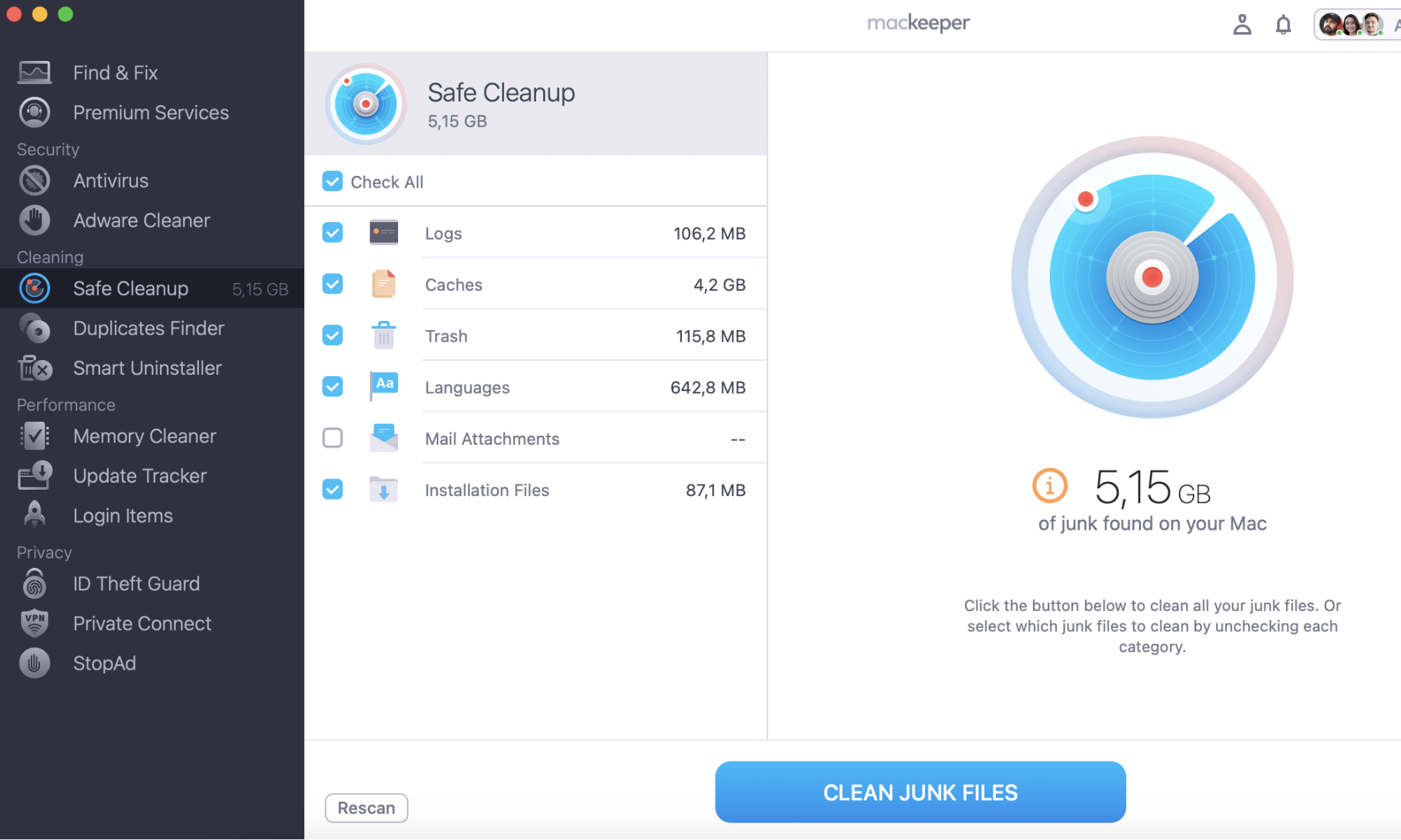
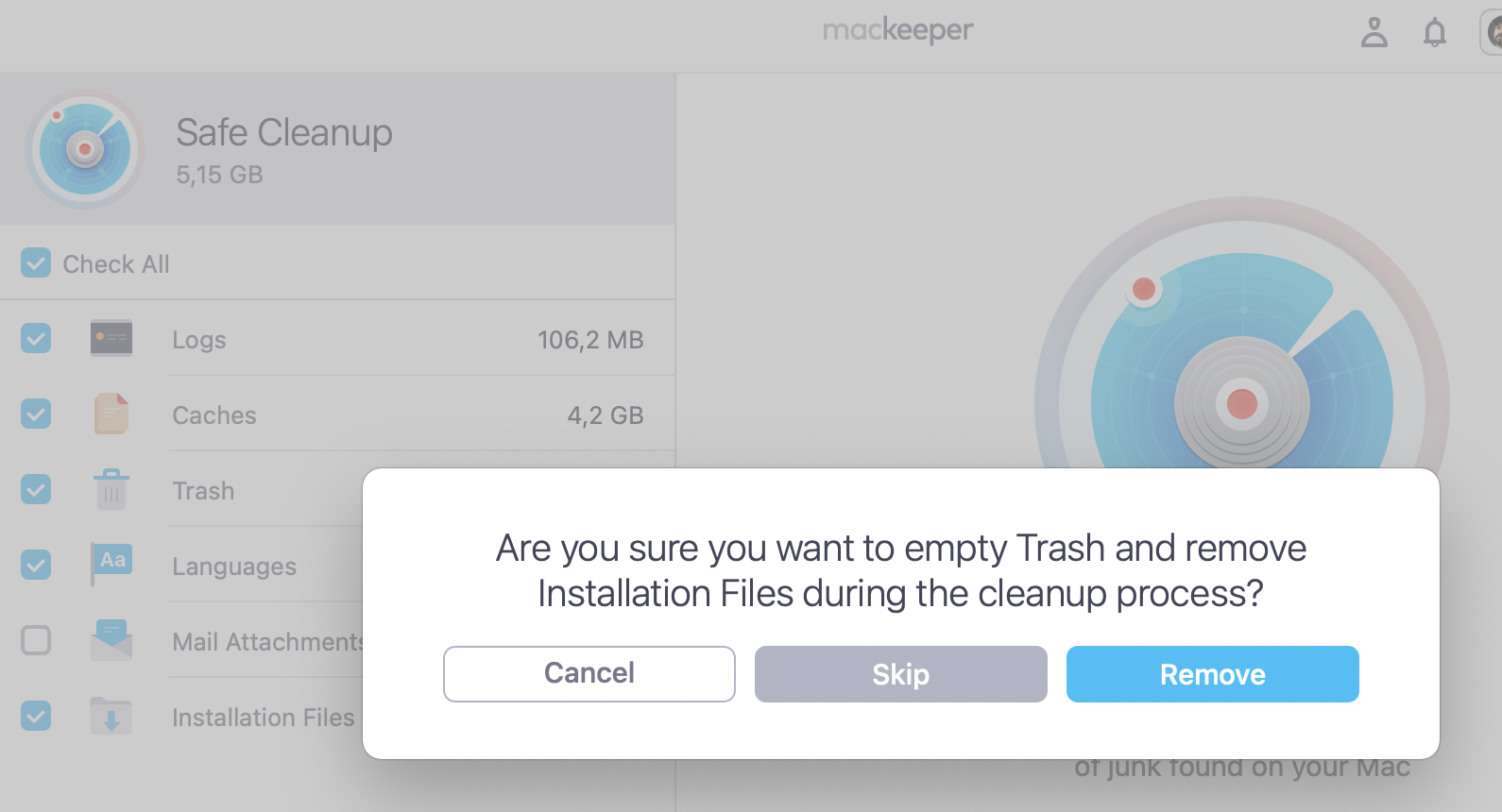
Keeping your Mac organized and free from digital junk means its smoother performance and longer lifespan. To remove all unnecessary files from your Mac automatically, use MacKeeper’s Safe Cleanup tool. It removes caches, unneeded language files, leftovers, and more in just a few clicks.
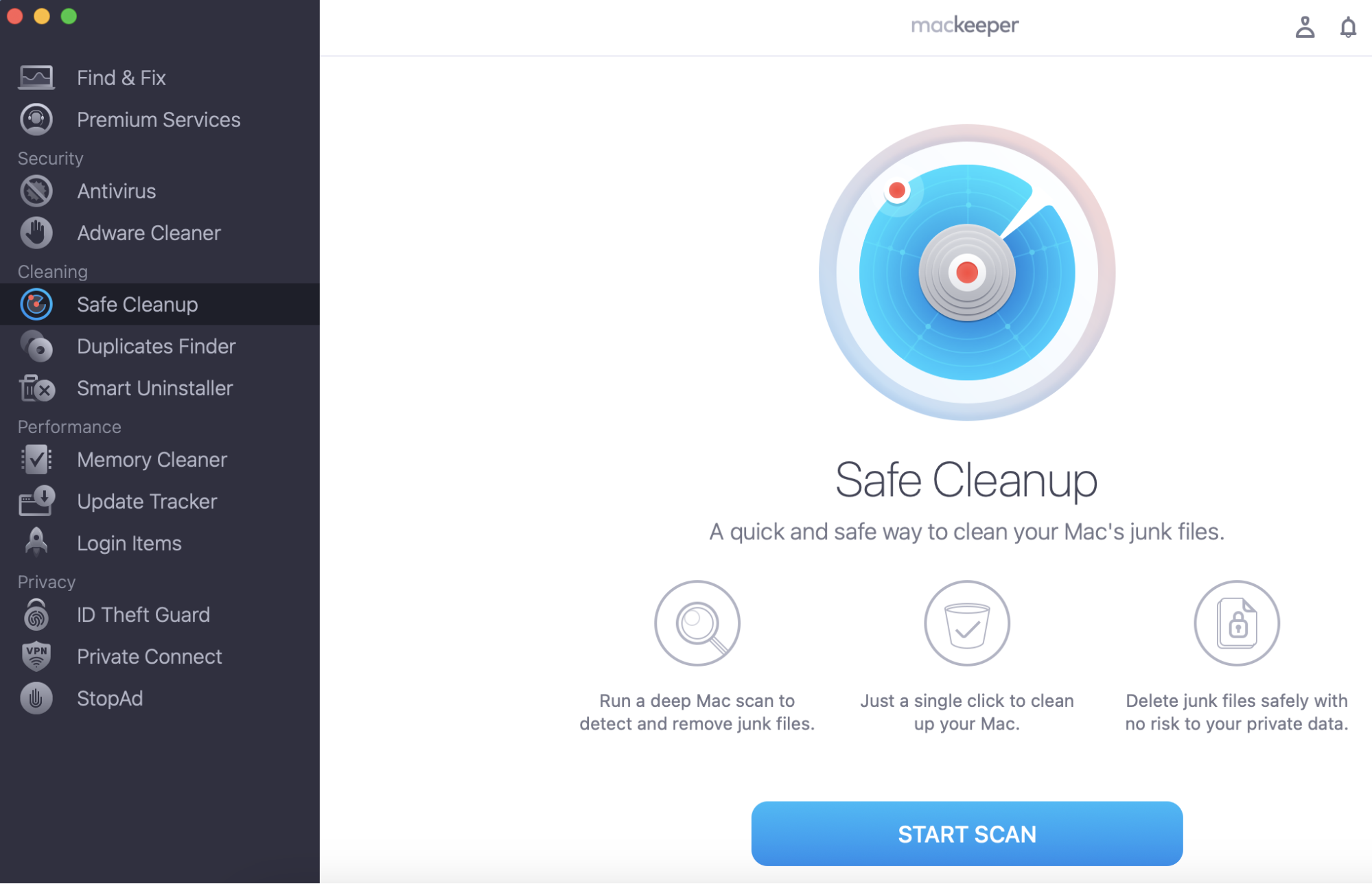
Here’s how to use MacKeeper’s Safe Cleanup to free up storage:
Backups from your devices are often the main cause of iCloud storage being full. If your old iPhone automatically uploaded backups, and you never removed them, they’ll quickly take up space. To remove old files, go to Settings, click on Apple ID, then iCloud > Manage Storage.
Advice from our experts:
If iCloud Drive is taking up space on Mac and your Mac is struggling to keep up, you might want to check out our guide—it's packed with useful tips to optimize your account.
How to сheck iCloud storage usage
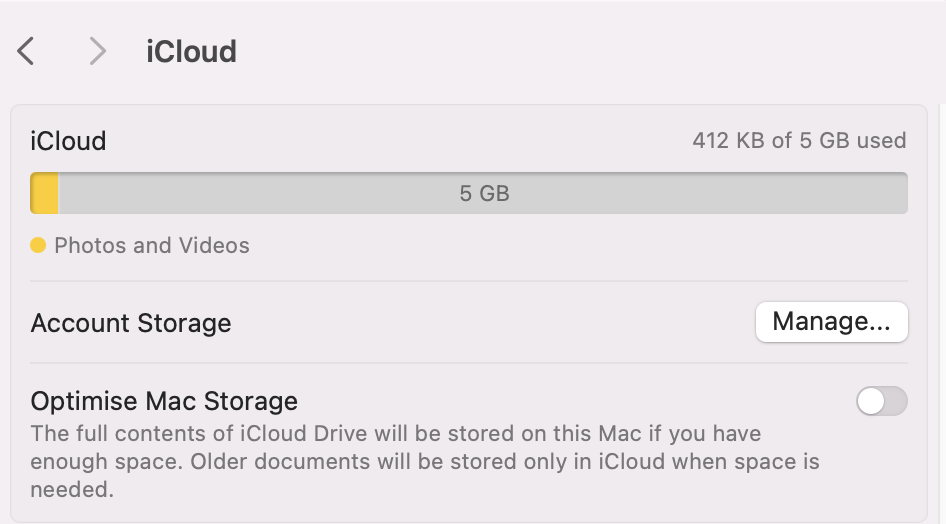
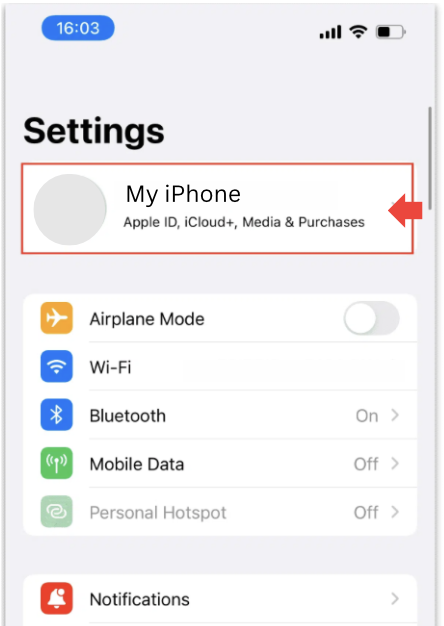
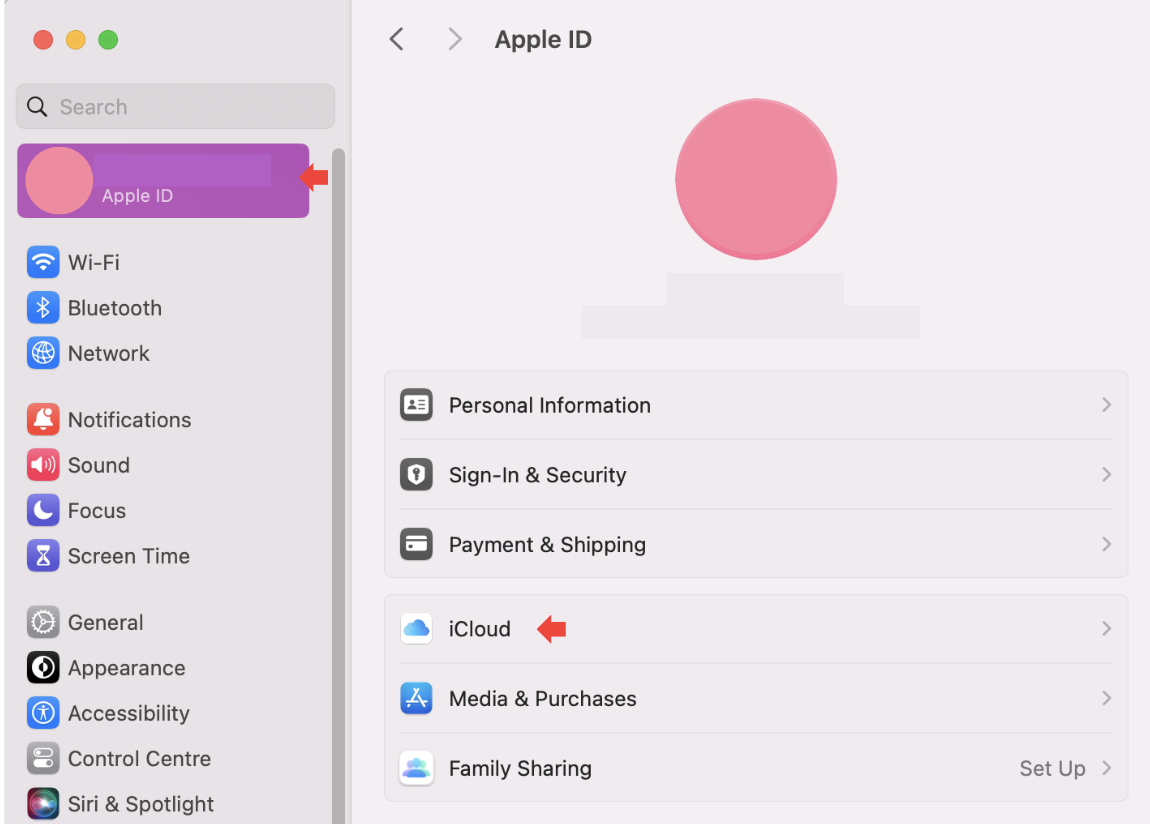
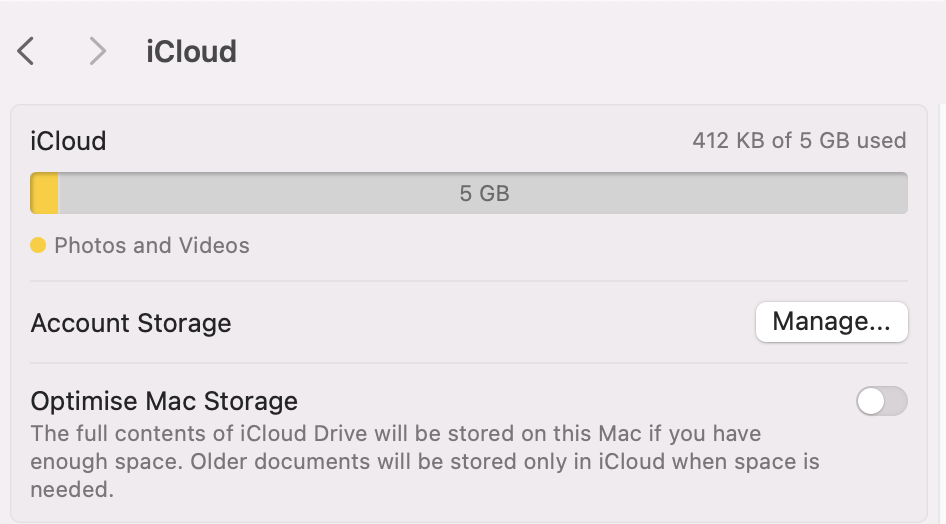
Unsure how much iCloud storage you have? In your device Settings click on Apple ID > iCloud. The chart represents available space.
Step 1. Open your device Settings and click on Apple IDStep 2. Navigate to iCloud and look at the bar chart to see available space
1. How to check iCloud storage usage on iPhone or iPad
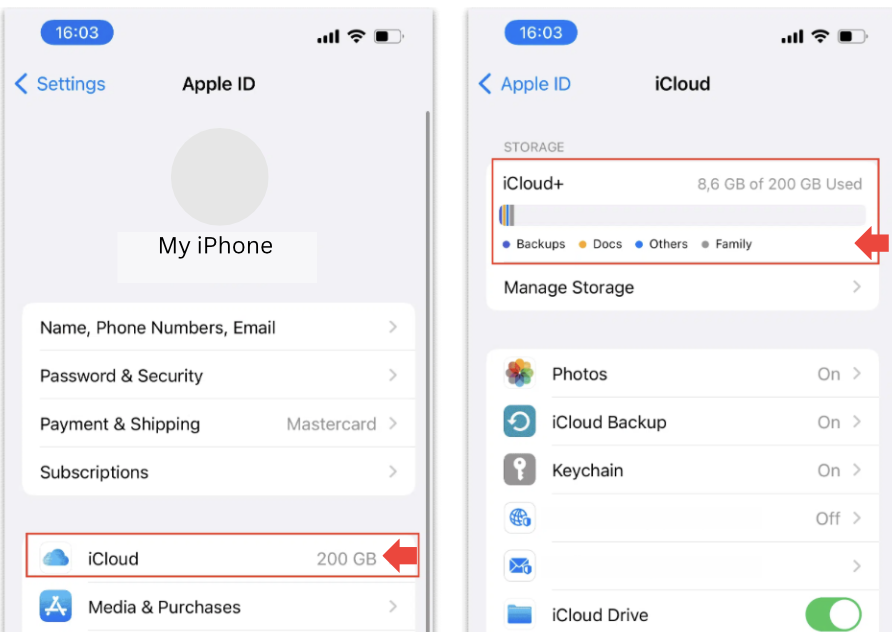
To check available iCloud storage on your iPhone or iPad, we recommend the following: open Settings and click on your Apple ID > iCloud. The bar graph shows your storage usage. Tap Manage Storage for a list of apps taking up the most space.
Step 1. Open your iPhone or iPad Settings and click on your Name/ Apple ID ProfileStep 2. Then click on iCloud and look at the bar chart at the top of the screen
2. How to check iCloud storage usage on Mac
Across most Apple devices, the steps to check if your iCloud storage is full are similar:
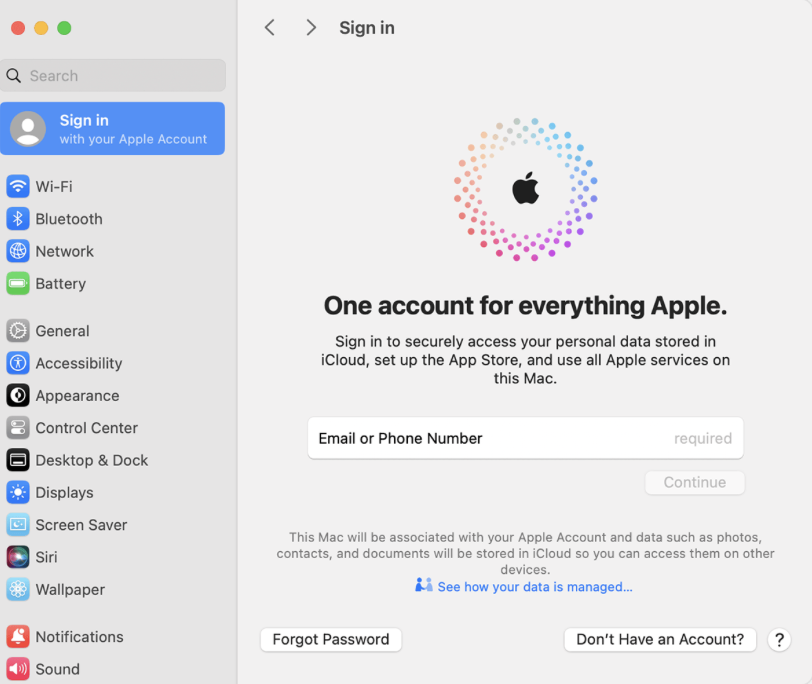
Begin by opening Settings, and press your Name (Apple ID) at the top of the sidebar.
If needed, Sign Into your account to proceed.
Then click iCloud to view your usage.
In Settings, click on your Apple ID or Sign In if necessary to access your iCloud account
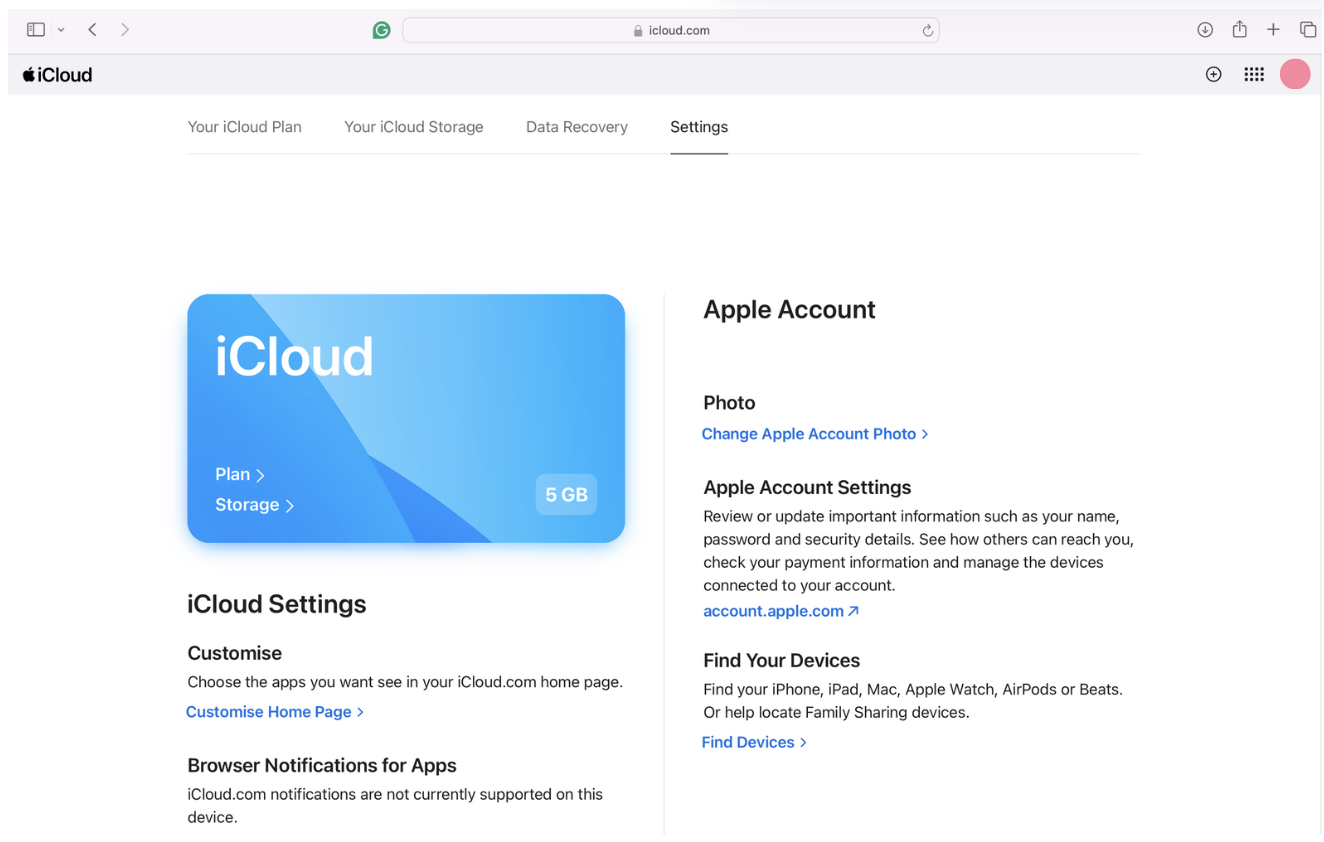
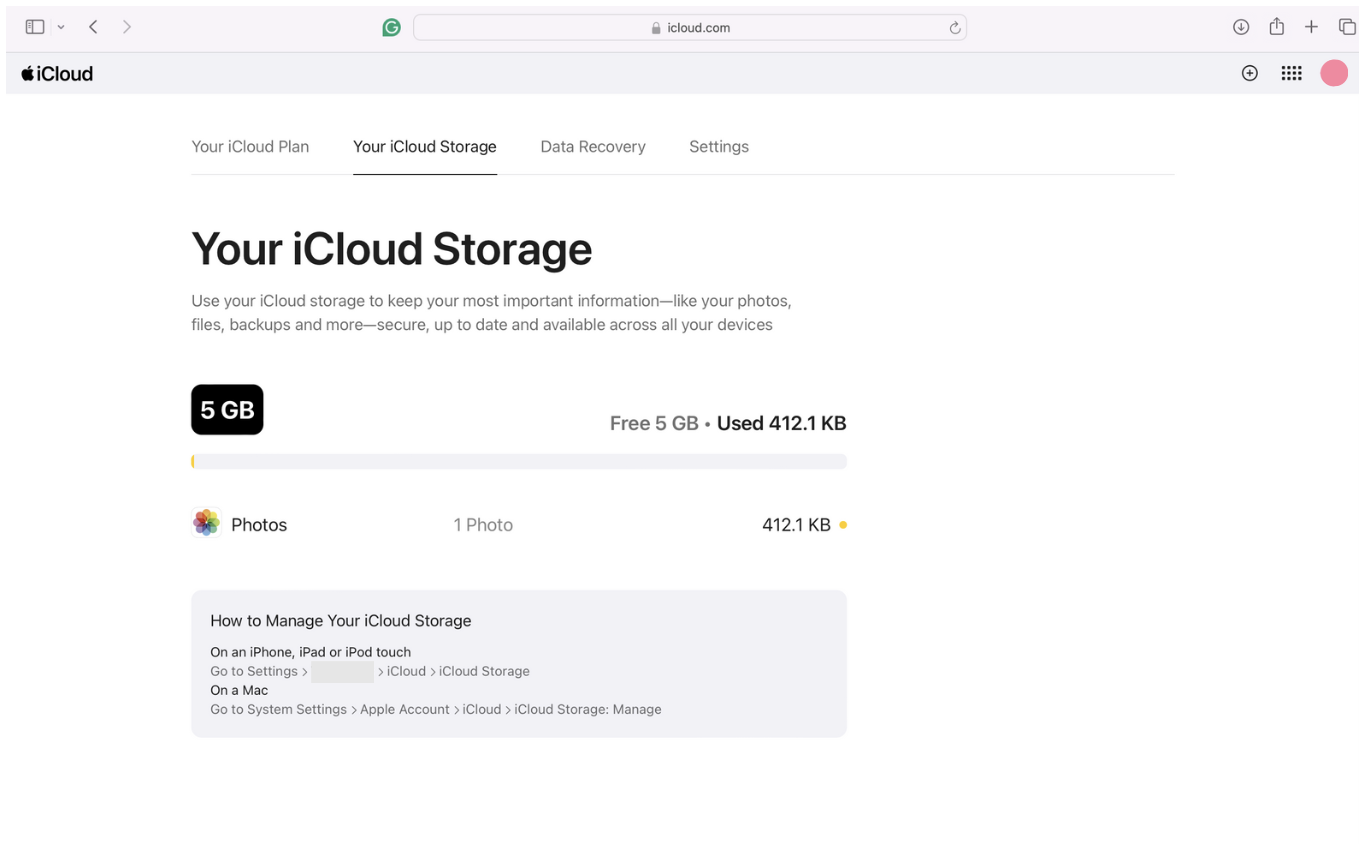
3. Viewing storage details in iCloud.com
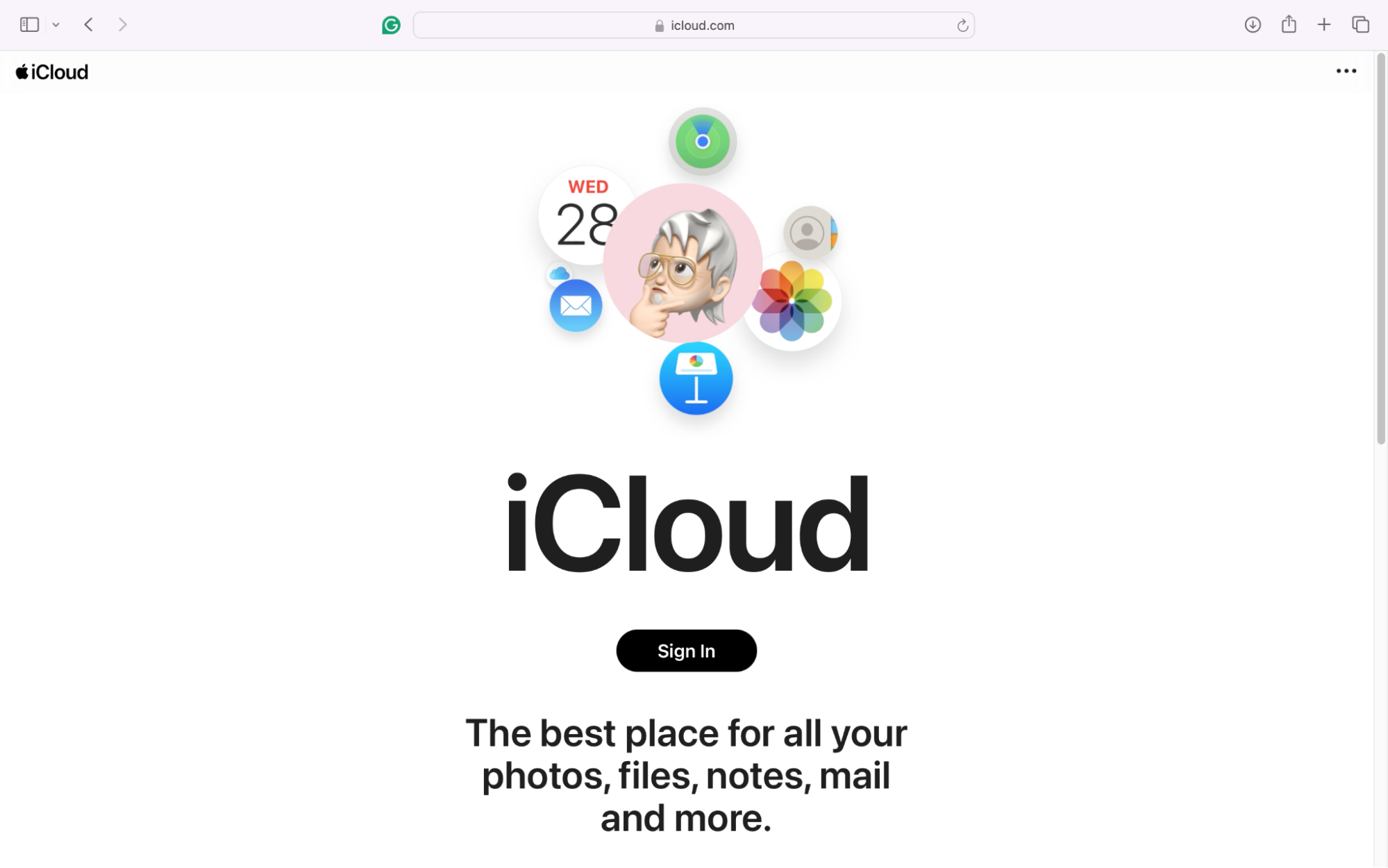
Looking for a quicker way to check if your iCloud storage is full? We recommend accessing your account via the iCloud.com website—giving you a detailed breakdown of your content.
Step 1. Go to iCloud.com and click Sign InStep 2. Once you’ve opened your iCloud account, look for the Manage buttonStep 3. You’ll then be able to see a full breakdown of used and available storage space
How to free up iCloud storage if it's full
To free up your iCloud storage, we advise optimizing your device’s storage. Here’s what we recommend moving forward:
Delete Unnecessary iCloud backups
Manage and optimize iCloud photos
Remove unused apps and their data
Clear iCloud drive and old documents
Delete old messages and attachments
Upgrade your iCloud storage plan
1. Delete unnecessary iCloud backups
Old or unnecessary iCloud backups often go unnoticed, taking up valuable storage. To start optimizing your account, we saw an improvement by removing unwanted backups.
Here’s how you can delete unnecessary iCloud backups:
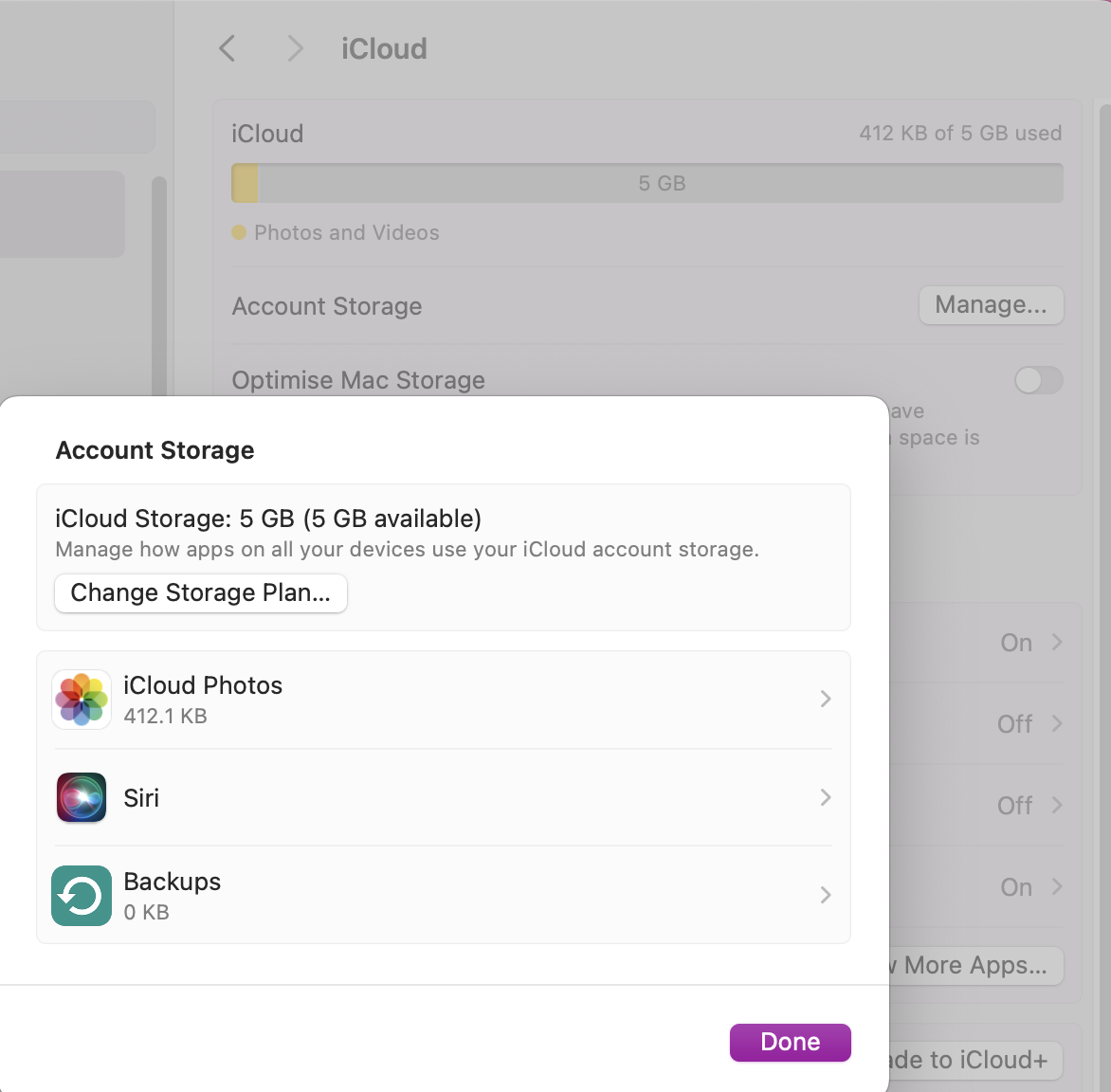
On your Mac, open System Settings.
Click on Apple ID > iCloud.
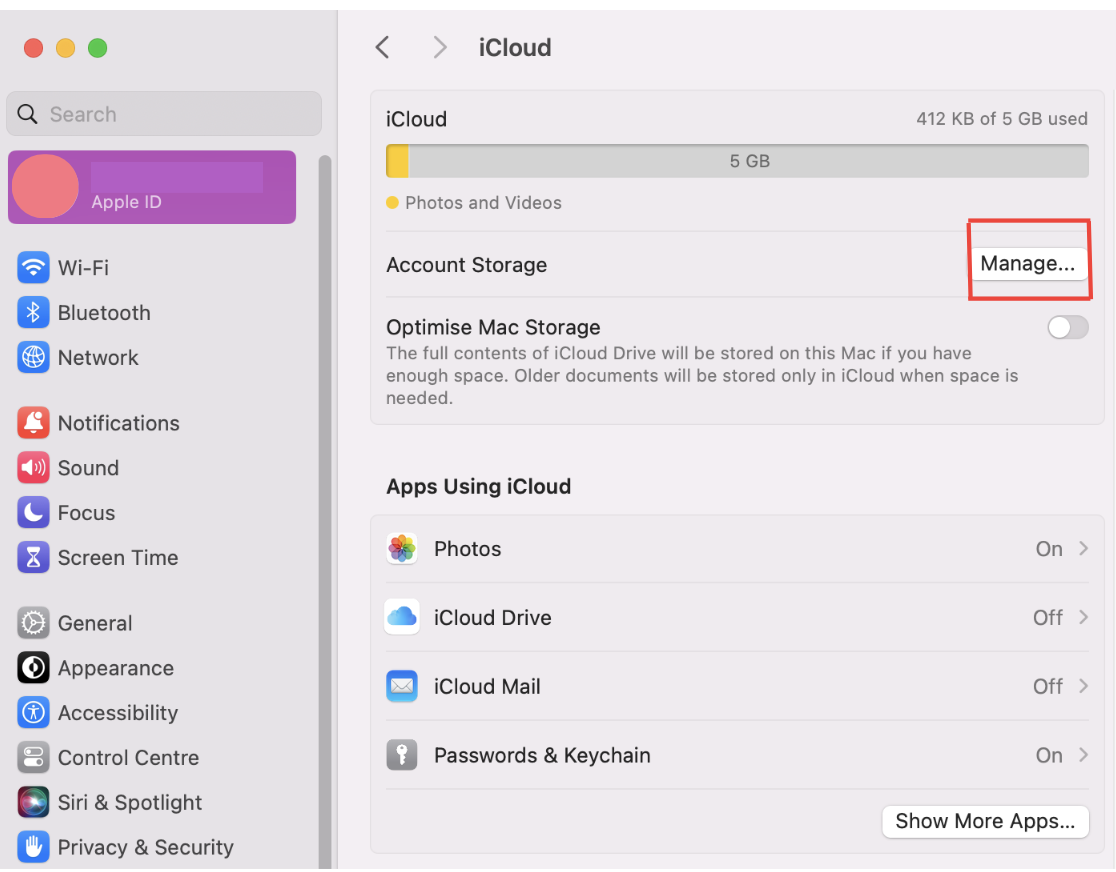
Press the Manage button to bring up backups.
Select the backups you want to remove and click minus (-).
In Settings, navigate to your iCloud account and press Manage to delete unnecessary Backups
An extra hand from us:
Do you need more help with how to back up Mac to iCloud? Our detailed guide can help with step-by-step solutions to increase any available space.
2. Manage and optimize iCloud photos
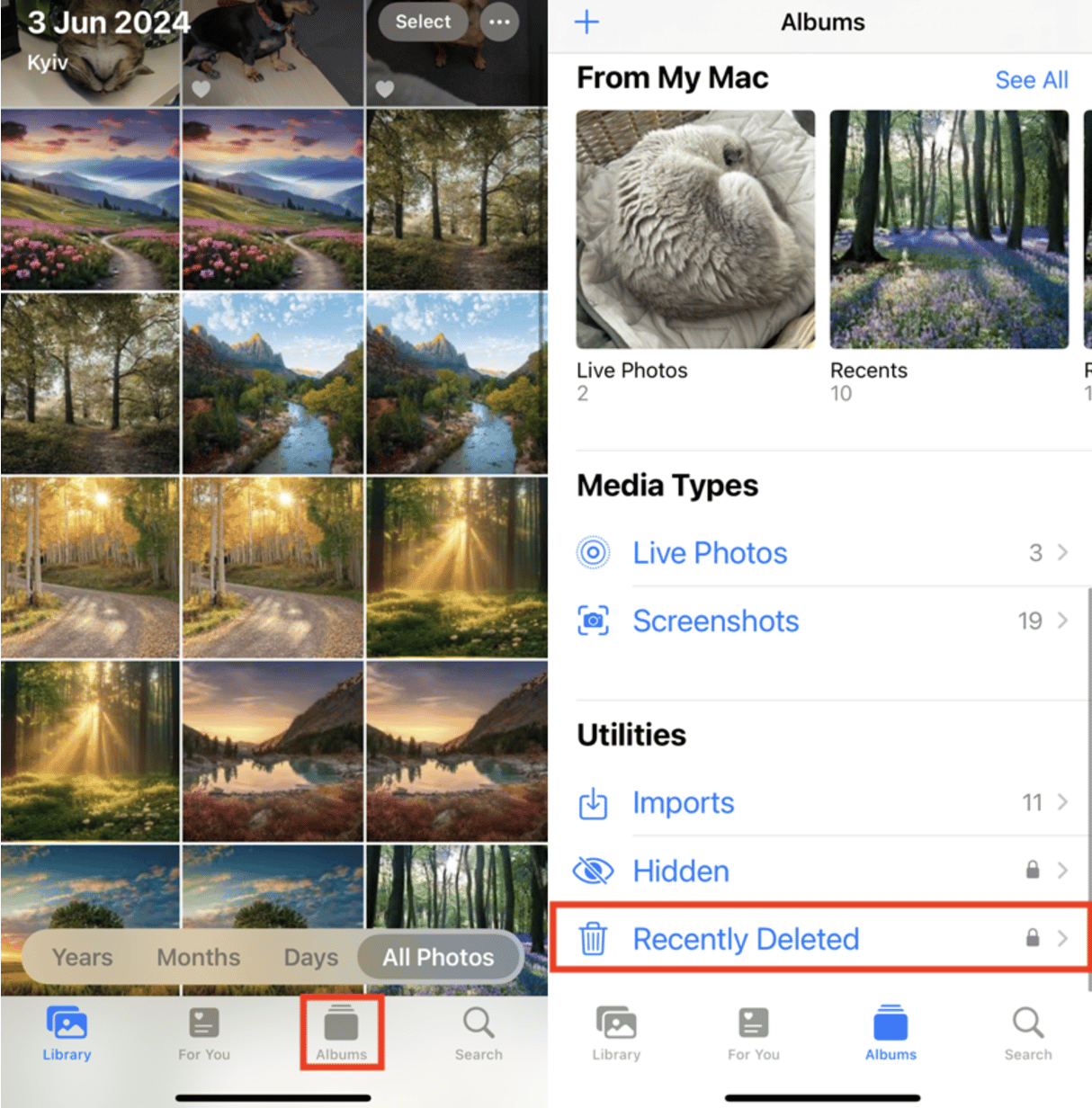
Your iCloud Photos can quickly fill up with unnecessary files, taking up valuable space. We recommend removing the Recently Deleted album to free up more space.
Here’s how to optimize iCloud photos:
Open the Photos app on your Apple device.
Search through and remove any unwanted files.
Then go to your Recently Deleted album and tap Delete All.
In the Photos app, delete all old photos and go to the Recently Deleted album to remove all
3. Remove unused apps and their data
Unused apps are likely the hidden culprit behind stealing your valuable storage. But don’t worry—we’ve got a simple solution to help you reclaim your space.
Here’s how to safely remove your unused apps and their data:
Open Settings, Apple ID >iCloud.
Tap Manage Storage to see a list of apps.
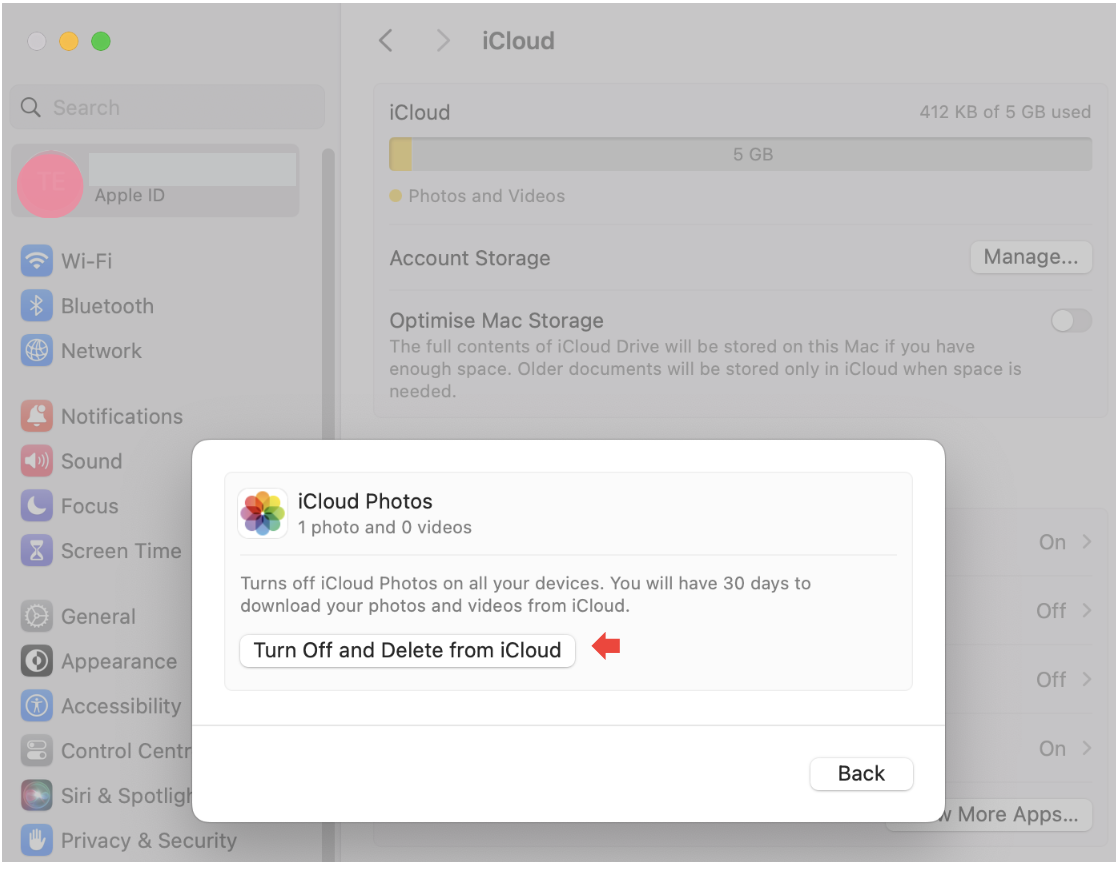
Press Turn Off and Delete from iCloud for your unused apps.
Step 1. In your iCloud settings, click on Manage Storage and look through installed appsStep 2. Delete any app and its stored data that you no longer need
4. Clear iCloud drive and old documents
Let’s face it—your iCloud drive is likely packed with old or unnecessary files, quietly eating up your precious storage. The good news? We can help you clean it up to avoid the nuisance affecting your daily activities any longer.
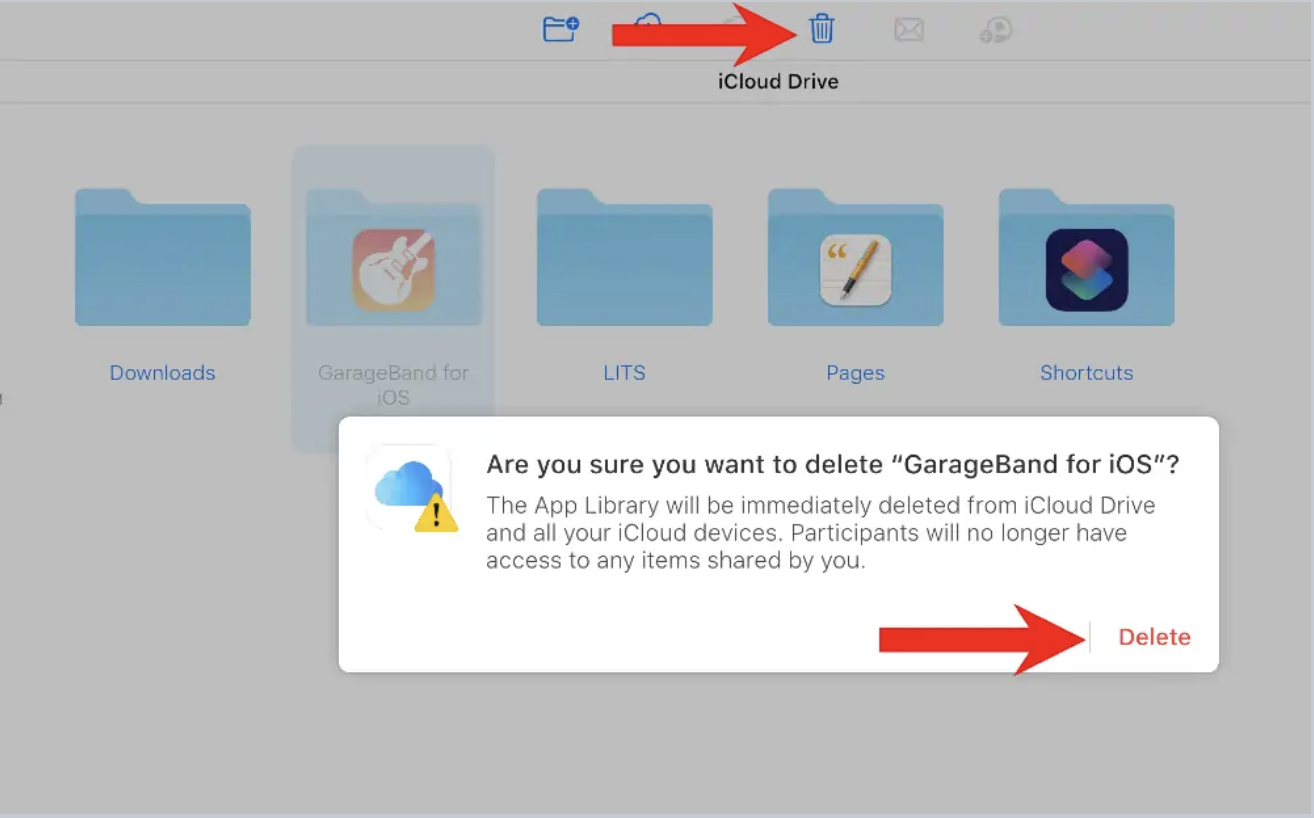
Browse through your folders and pick the ones you want to remove.
Press Delete.
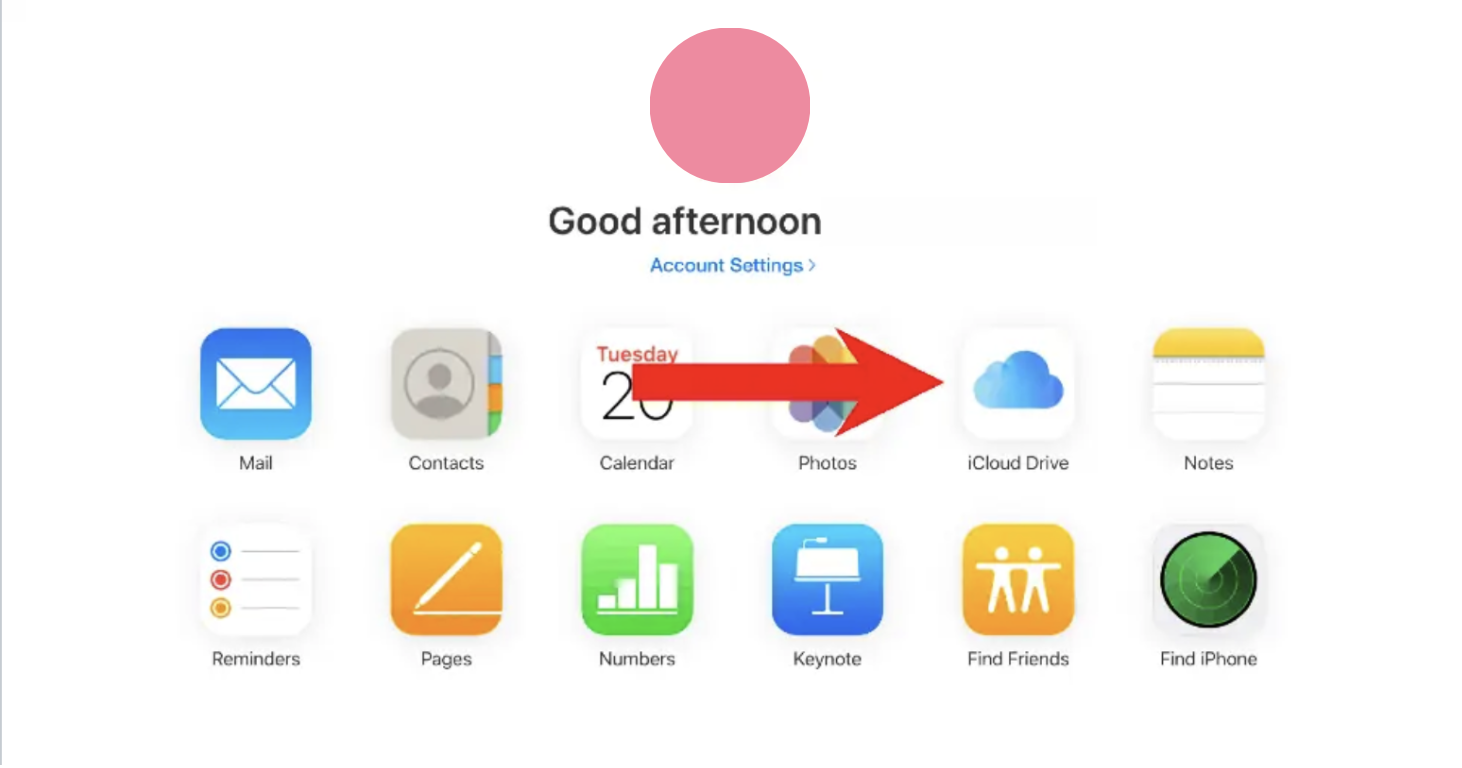
Step 1. Log in to your iCloud account online and access your iCloud DriveStep 2. Look through your folders and delete any that contain files you no longer need
5. Delete old messages and attachments
Still not seeing an improvement in your iCloud storage? It might be time to sort through your old messages and attachments, as they can steal a lot of resources when left unmanaged.
Here’s a quick way to manage messages and attachments to optimize your device:
Open the Messages app.
Sort through messages and Delete any you don’t need.
Then head to Attachments and delete unnecessary files.
Step 1. In your Messages app, delete any old conversations or chats you don’t need to keepStep 2. Then sort through your Attachments for anything you can purge from your device
6. Upgrade your iCloud storage plan
Sometimes, no amount of cleanup is enough when your cloud storage is still full. If you’re low on space we think it could be time you look into upgrading your iCloud storage plan. In addition, check our detailed guide for more ways to get more storage on Mac.
Here’s how you can check alternative storage plans for your iCloud content:
Open your Settings.
Go to iCloud.
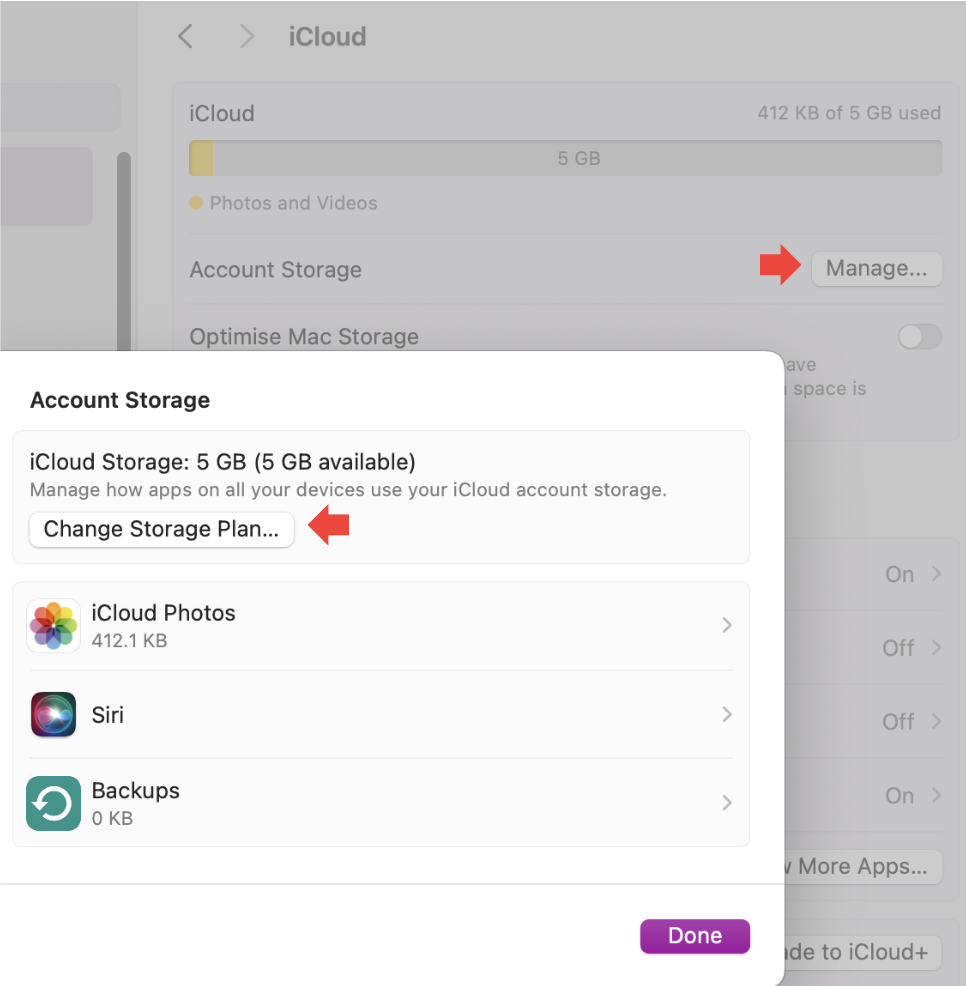
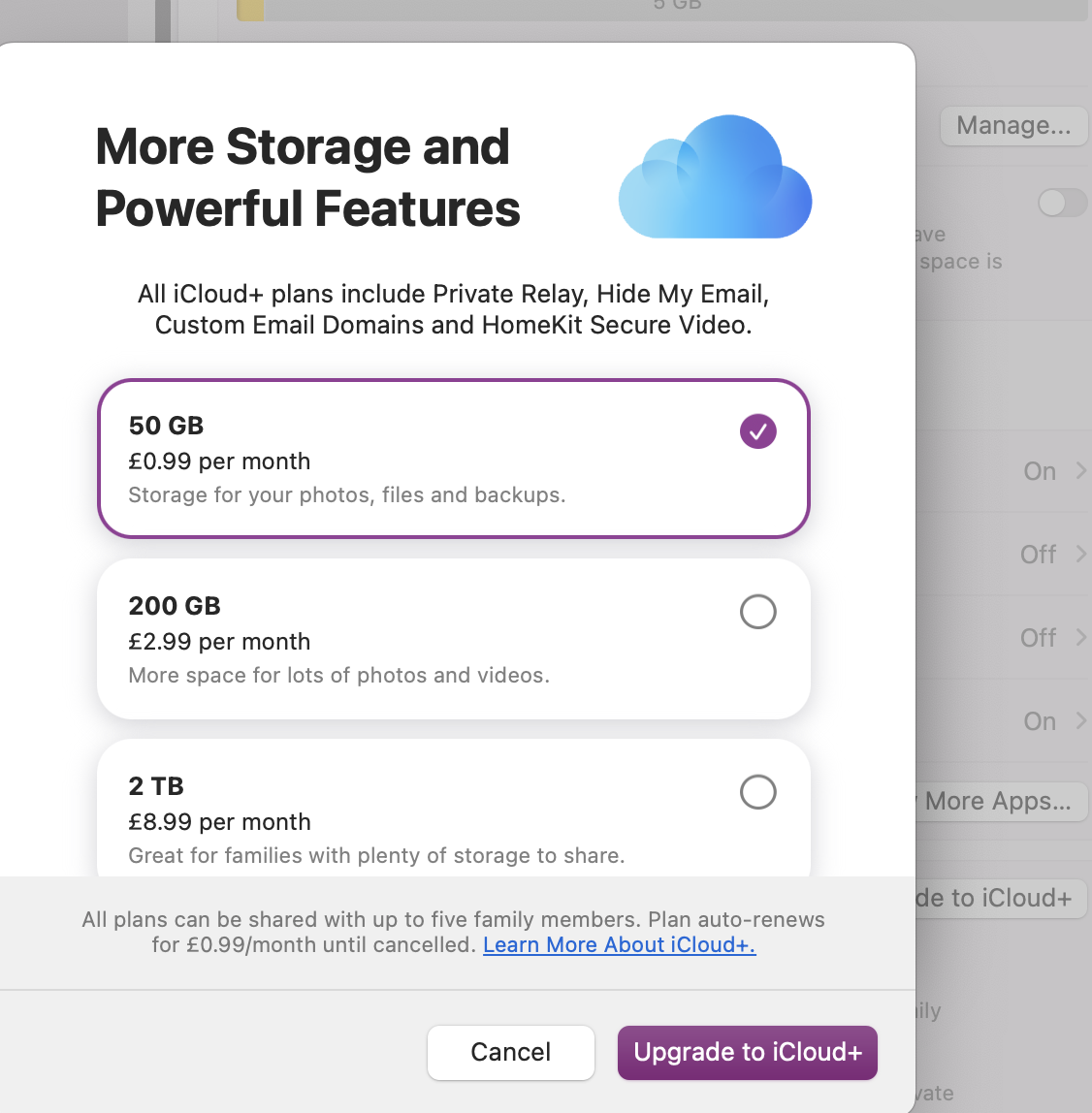
Click Manage Storage > Change Storage Plan.
Step 1. In your device Settings, open your iCloud account and click on Manage StorageStep 2. Then press Change Storage Plan and look through the upgrade options
How to prevent iCloud storage from filling up again
Preventing your iCloud storage from filling up can be simple when you adopt smart habits. Below, we’ll guide you through how to:
Optimize iCloud settings to save space
Regularly clean and monitor your iCloud storage
Use alternative storage options
1. Optimize iCloud settings to save space
It’s important to stay on top of your storage to stop future clutter. We recommend adjusting your iCloud settings to help optimize space. Here’s how:
Open your iCloud Settings.
Turn On Optimize Mac Storage for your Cloud content to be sorted automatically.
Step 1. Open your iCloud account SettingsStep 2. Turn On Optimize Mac Storage to keep your iCloud content on your device organized
2. Regularly clean and monitor your iCloud storage
Keeping an eye on your iCloud storage is crucial to avoid clutter. As a reminder, we showed you earlier how to check your storage for Mac, iPhone, iPad and via your online account—feel free to go back to this as a reminder to ensure your iCloud storage isn’t full.
An extra hand from us:
If you’re looking for more details, check out our full guide on how to manage iCloud storage on Mac for more tips and tricks to optimize your storage.
3. Use alternative storage options
If you’re still struggling to manage or free up iCloud storage, you might want to consider using alternative storage solutions. Here are some of our top recommendations:
Third-party storage app
External storage devices
Google Drive
DropBox
OneDrive
External SSD drive
Plug-in USB
Whilst these solutions can help increase storage, keep in mind they may come with additional costs and limitations.
A hint from the MacKeeper team:
Don’t want multiple apps cluttering your device? We get it! Check out our guide on how to free up space on Mac. It’s packed with methods to reclaim space, declutter efficiently, and boost your Mac performance.
Keeping your iCloud storage organized with MacKeeper
When your iCloud storage is full it can lead to frustrating issues. Luckily, apps like MacKeeper’s Safe Cleanup can help clear up space by removing unnecessary files and backups.
Step 1. Open the MacKeeper app, head to the Safe Cleanup tool, and click Start ScanStep 2. After the scan is complete, tick anything you want to remove, and choose Clean Junk Files
You can come back and follow our steps anytime you need a reminder of how to regain control of your storage. This will keep your Apple device running smoothly.
We respect your privacy and
use cookies
for the best site experience.
Privacy Preferences Center
We use cookies along with other tools to give you the best possible experience while using the
MacKeeper website. Cookies are small text files that help the website load faster. The cookies we
use don’t contain any type of personal data meaning they never store information such as your
location, email address, or IP address.
Help us improve how you interact with our website by accepting the use of cookies. You can change
your privacy settings whenever you like.
Manage consent
All cookies
These cookies are strictly necessary for enabling basic website functionality (including page
navigation, form submission, language detection, post commenting), downloading and purchasing
software. The website might malfunction without these cookies.