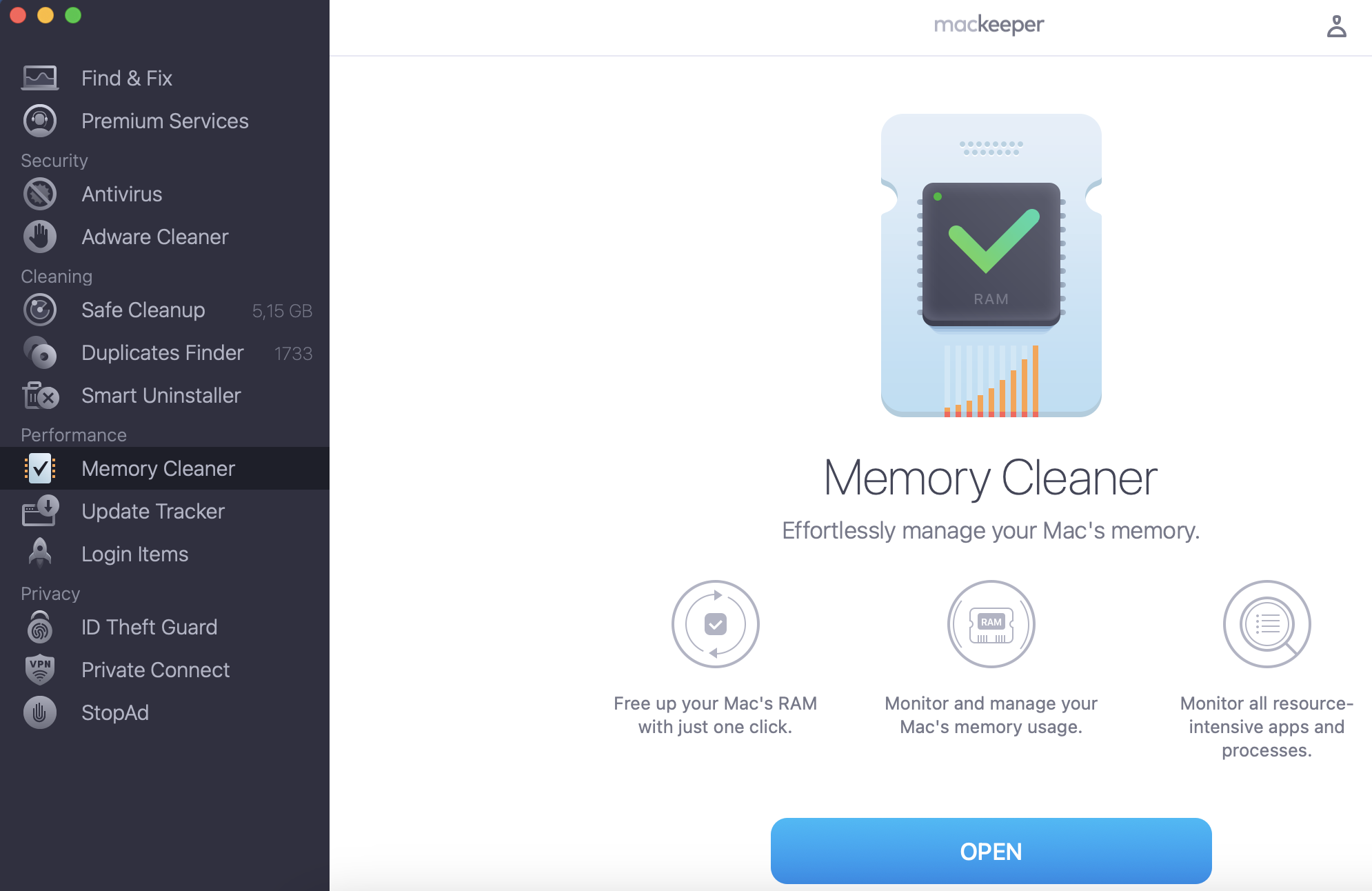
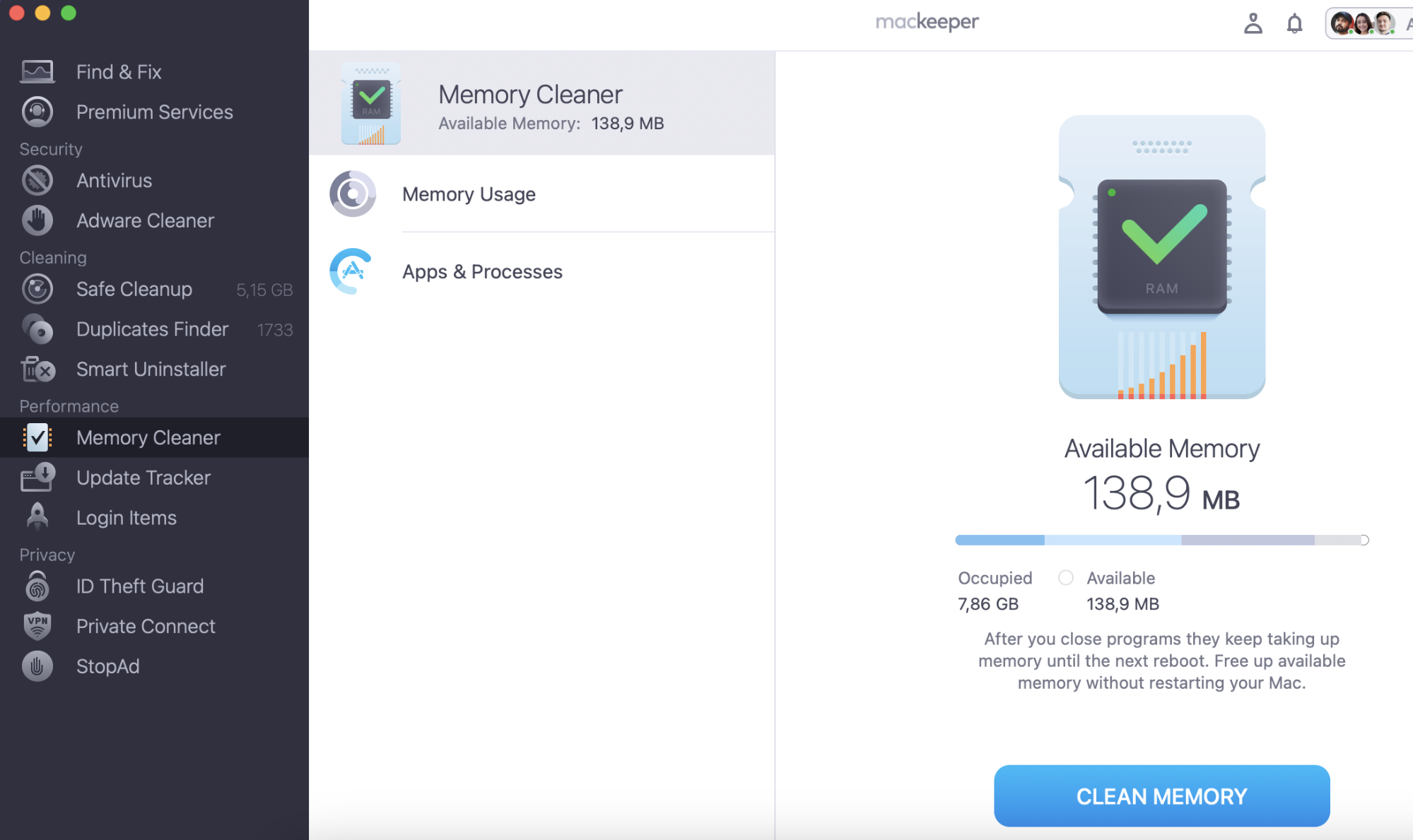
Installing Pip on your Mac isn’t the only way to ensure a smooth and trouble-free Mac experience. You can also improve the performance of your installed apps by downloading MacKeeper’s Memory Cleaner. It can help you close unneeded resource-intensive apps and save your RAM for the processes you really need.
If you use your Mac for programming, you may encounter problems if pip isn’t installed, as it’s required to work with apps that use the Python language. Although pip is usually installed automatically when you install Python, if programs aren’t working normally, it may be because you don’t have it downloaded on your computer, or because it’s not installed correctly.
So, how do you install pip on your Mac? Read on to find out.
What is pip on Mac
Pip, also known as pip3, stands for preferred installer program or pip installs packages. This package management system, as the name suggests, is used to install and manage software and libraries, particularly for Python apps. Usually, pip comes pre-installed with Python version 3.4 and later.
Additionally, the packages for pip can be found in the Python Package Index, or PyPI, which is the software repository for the Python programming language.
A note from our experts:
Pip is an essential app for working with Python on your Mac. However, if your Mac is overloaded with various applications and tasks, it can slow down your device. To optimise your Mac's performance and stop unnecessary processes, use MacKeeper's Memory Cleaner.
How to use MacKeeper’s Memory Cleaner on your device:
Download MacKeeper and install it on your Mac.
Go to the Performance section and select Memory Cleaner.
To install pip on a Mac, you’ll need a running macOS system (take a look at the full list of macOS and OS X versions), Python installed on it, and a user account with admin privileges.
Before installing pip on macOS, you should:
View your Python version
Check if pip is installed on your Mac
1. View your Python version
To check the version of Python installed on your Mac:
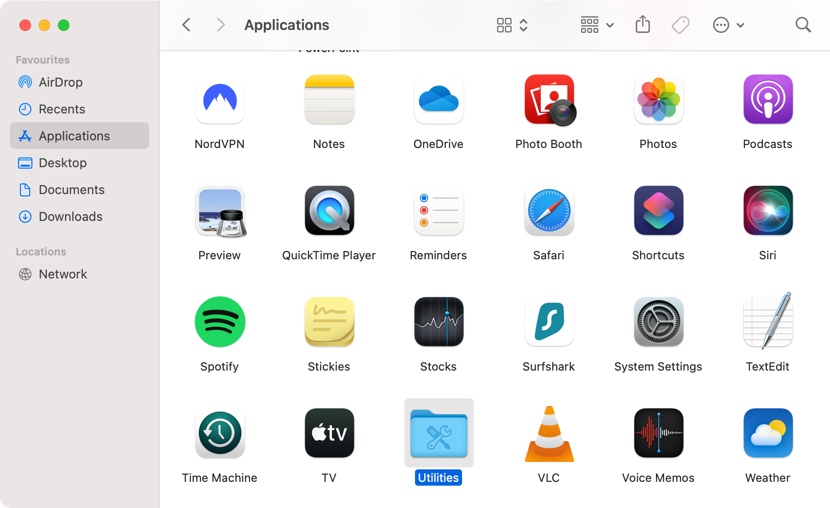
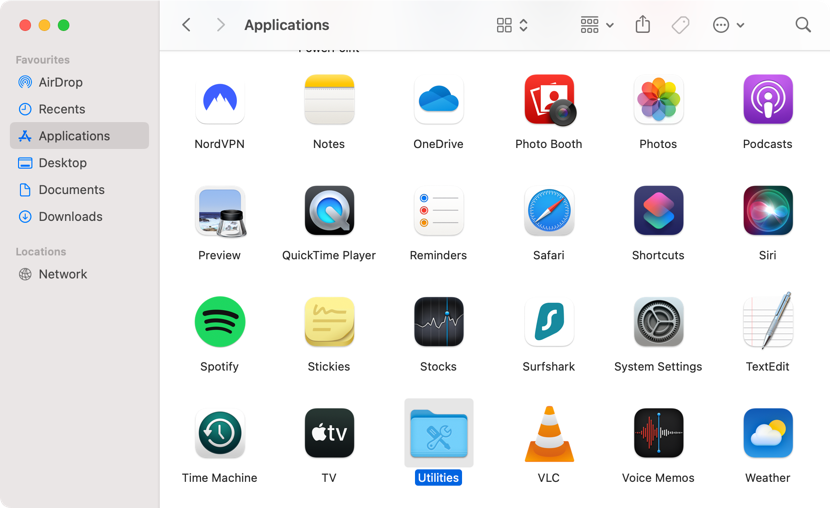
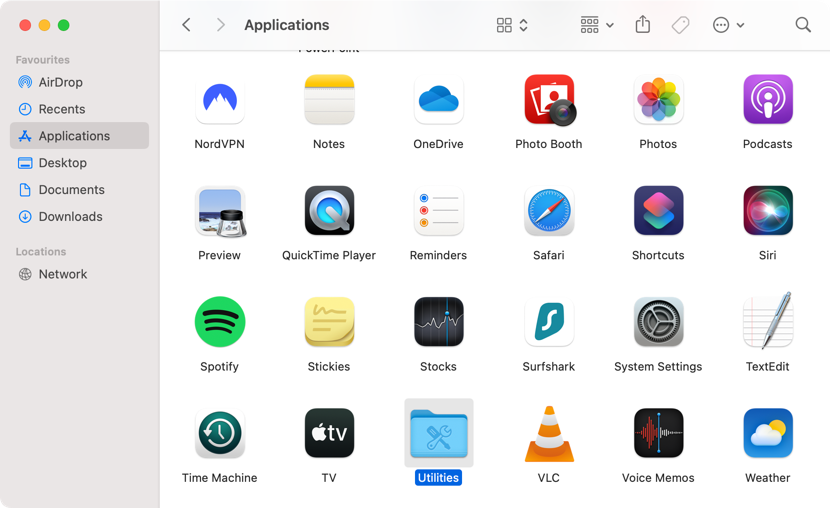
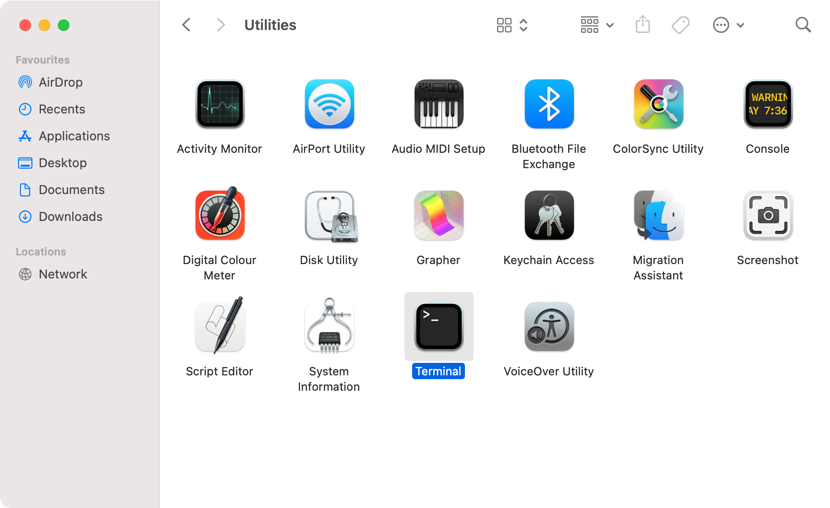
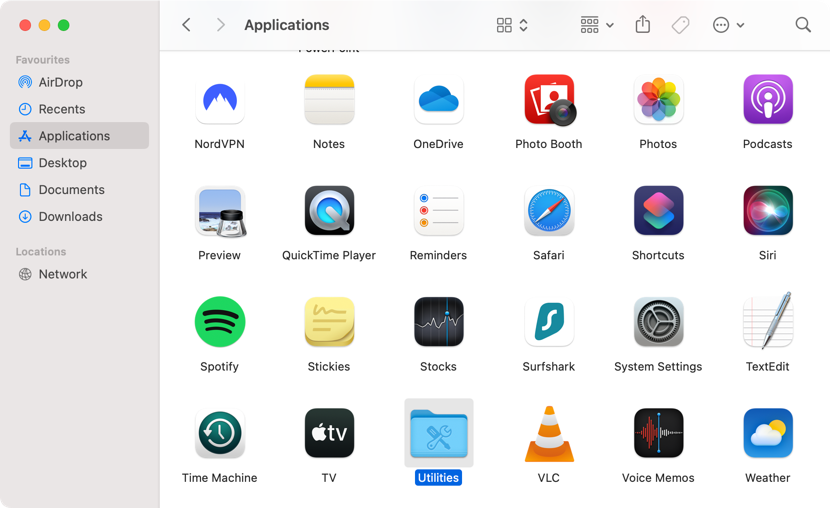
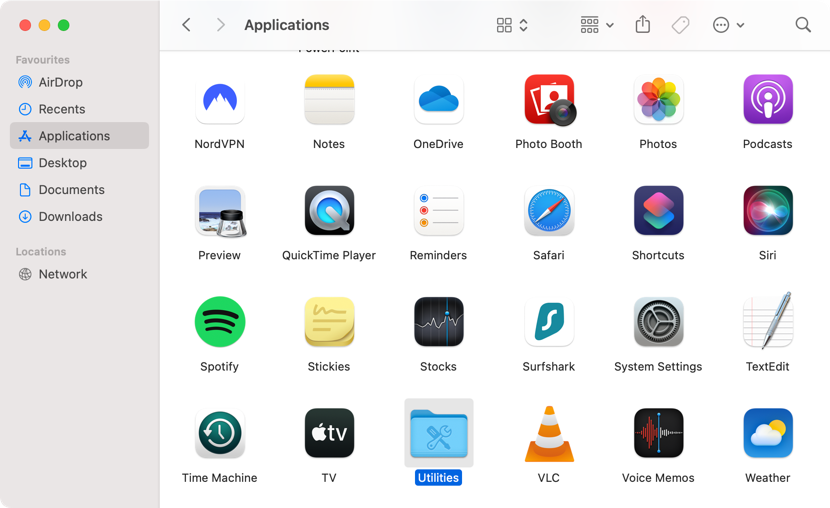
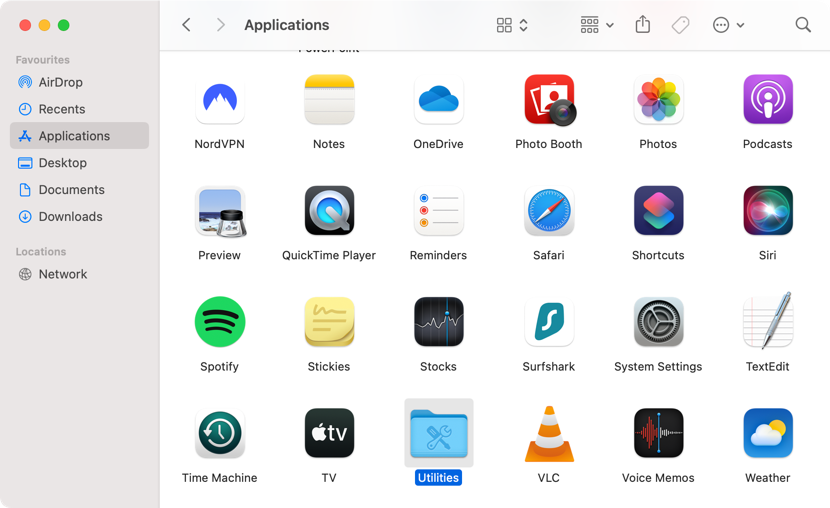
Go to Finder, then click Applications from the left-side bar.
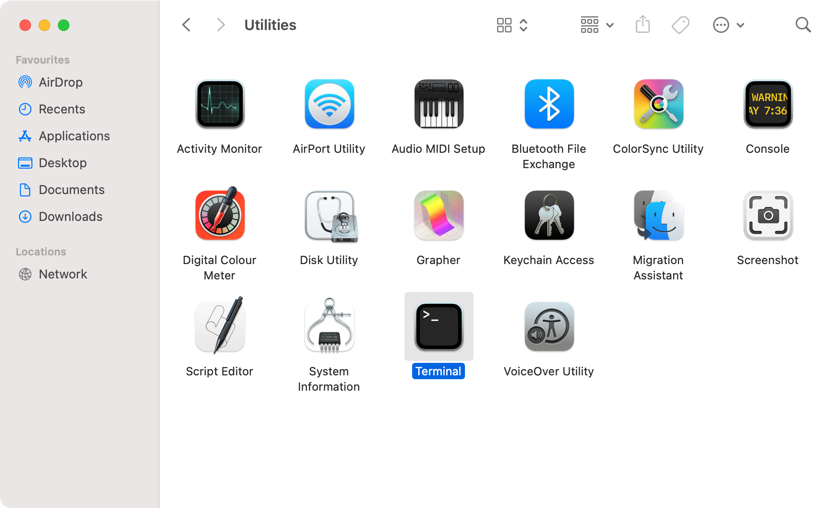
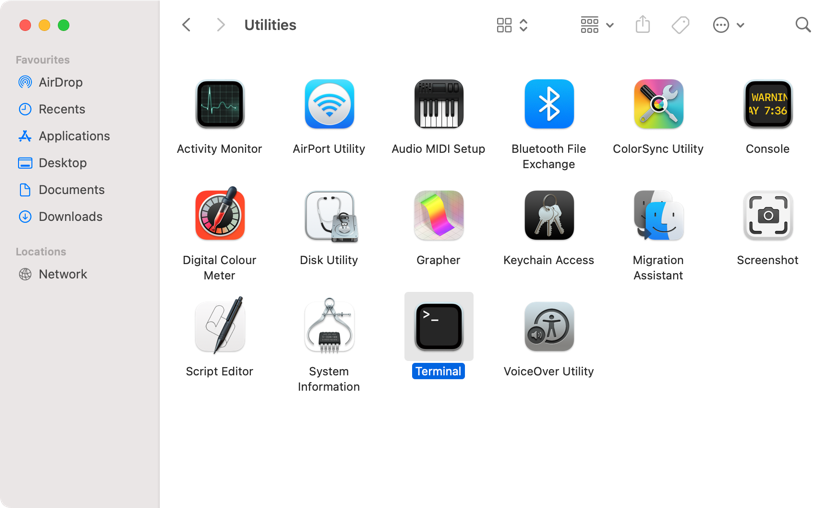
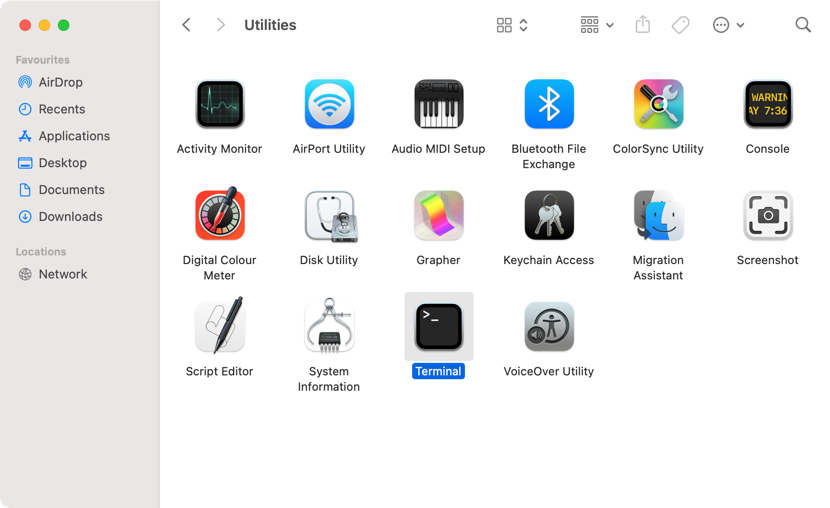
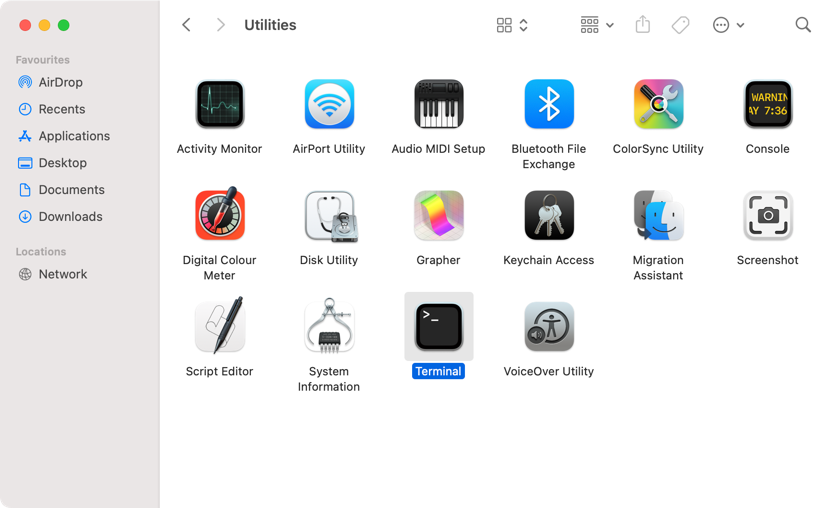
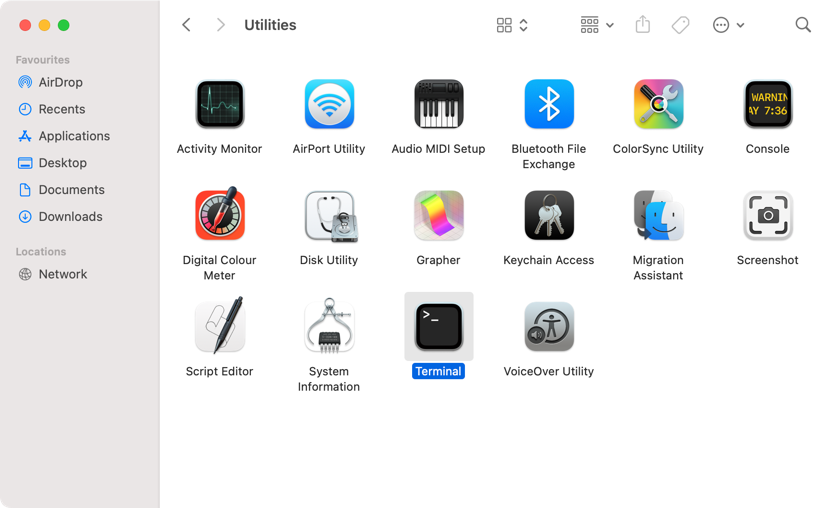
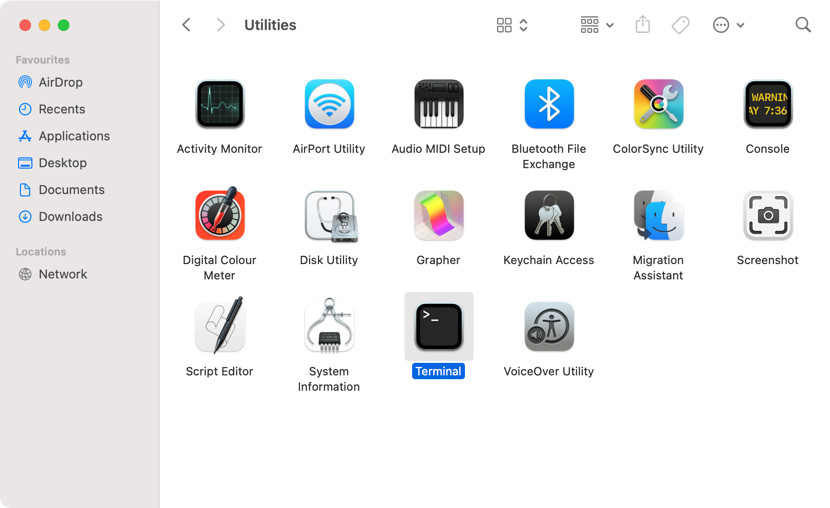
Open the Utilities folder and launch Terminal.
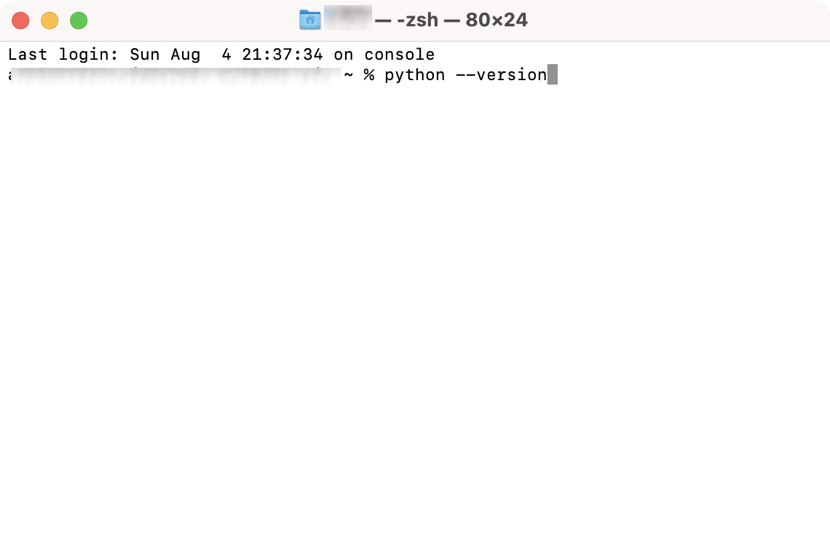
Type the following command (!without the full stop): python --version.
Press the Return key.
If you have Python installed, you’ll see the version there.
Step 1. Opening the Utilities folder from ApplicationsStep 2. Launching TerminalStep 3. Using Terminal to find the Python version installed
2. Check if pip is installed on your Mac
To verify if pip is already installed on your Mac:
Go to Finder and select the Applications folder on your left.
Double-click on the Utilities folder, then launch Terminal.
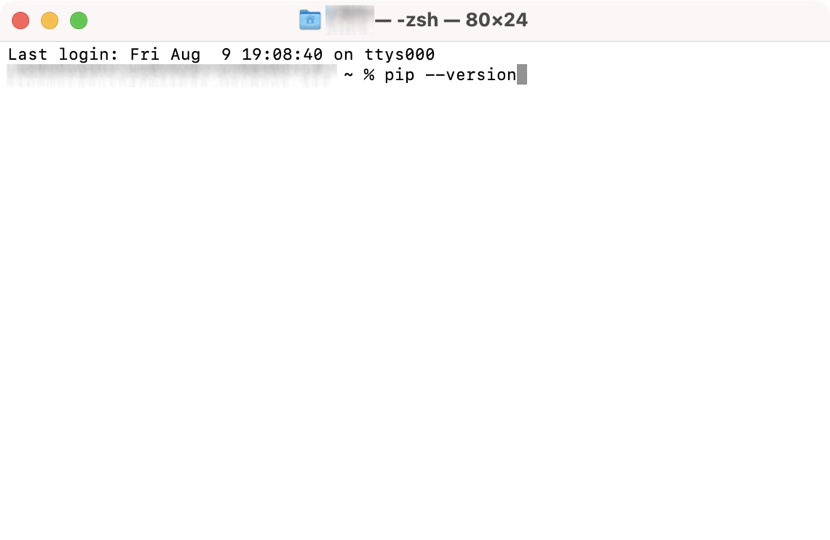
Type the following command (!without the full stop): pip --version.
Press the Return key.
If you get a positive result, it means pip is installed.
Step 1. Opening the Utilities folder from ApplicationsStep 2. Launching TerminalStep 3. Using Terminal to find if pip is installed
How to install pip on Mac
Once all the checks are complete, and if you’ve confirmed that pip is actually not installed on your computer, the next step is to download pip on Mac. You have several options at your fingertips to do this:
Via ensurepip
Using Homebrew
With get-pip.py
1. Via ensurepip
Although we believe it’s the best way to download pip on a Mac, we recommend that you check the following pros and cons before you decide on this method:
Pros
Cons
Simple and straightforward method to install pip on Mac
You don’t need external commands
No need of an Internet connection either
Only available for Python 3.4. or later
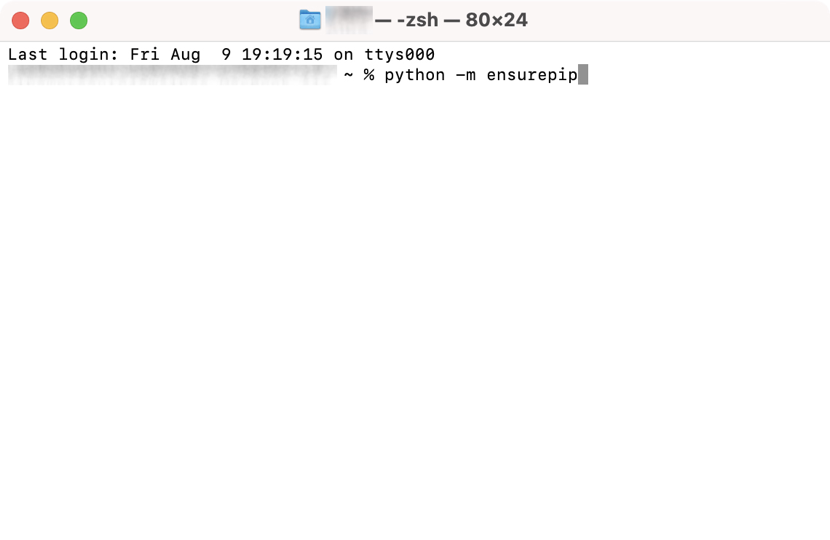
If you end up choosing the ensurepip route to install pip on Mac, follow these steps:
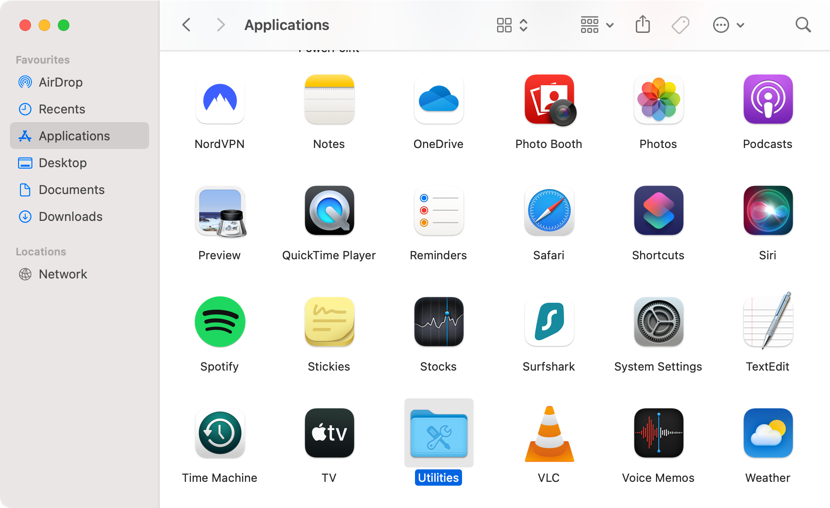
Open Finder on your Mac and select Applications.
Open Utilities, then launch Terminal.
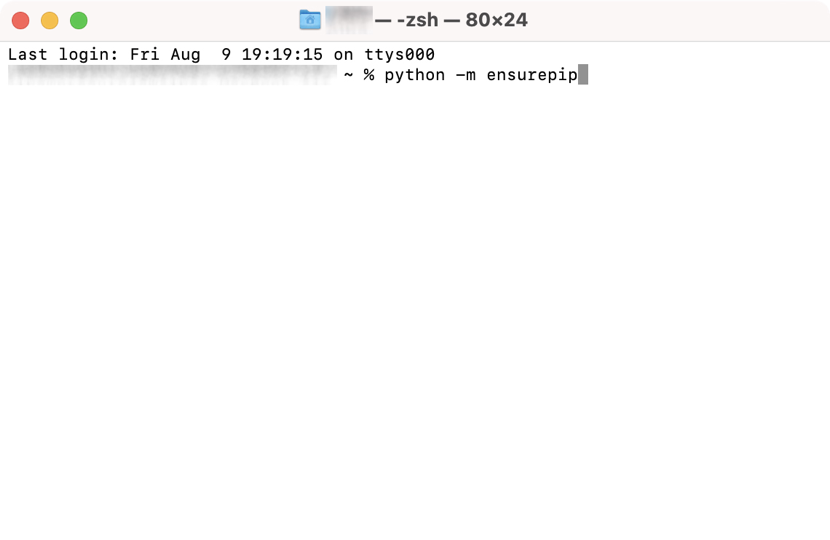
Type the following command (!without the full stop): python -m ensurepip.
Press the Return key.
Step 1. Opening Utilities from the Applications folderStep 2. Launching TerminalStep 3. Using Terminal to install ensurepip on Mac
2. Using Homebrew
Alternatively, you can opt for the Homebrew package manager, which also has its own advantages and disadvantages:
Pros
Cons
Very popular and reliable package manager
Also used to install apps that don’t include their own installer
Supports other programming languages other than Python
Not as straightforward and quick as ensurepip
Do you like what Homebrew has to offer? First, you’ll need to install Homebrew on your Mac:
Launch Finder and choose the Applications folder on your left.
Launch the Utilities folders, then double-click on Terminal.
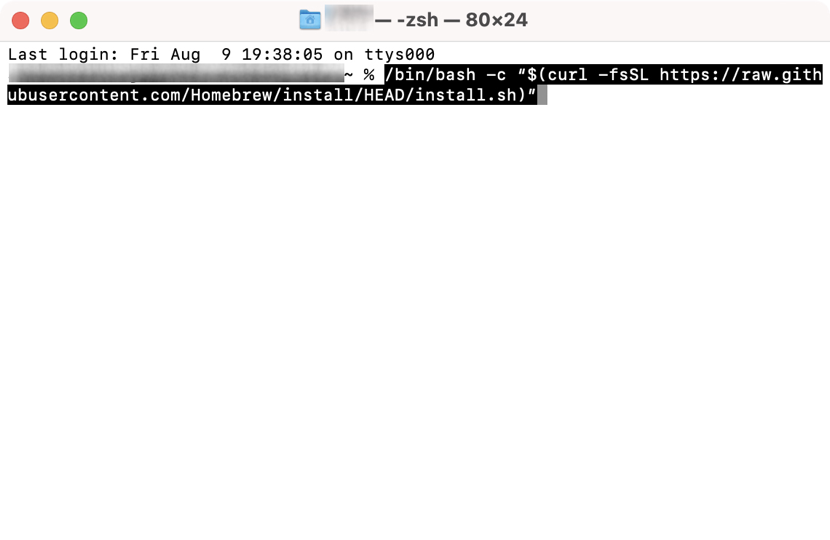
Copy and paste the following command: /bin/bash -c “$(curl -fsSL https://raw.githubusercontent.com/Homebrew/install/HEAD/install.sh)”
Press Return, and press Return again after a list of folders appears.
If prompted, type in your admin password.
You should see a message stating the installation’s been successful.
Step 1. Launching Utilities from the Applications folder in FinderStep 2. Launching TerminalStep 3. Typing the right command and pressing Return
Now, it’s time to install pip:
Go to Terminal again.
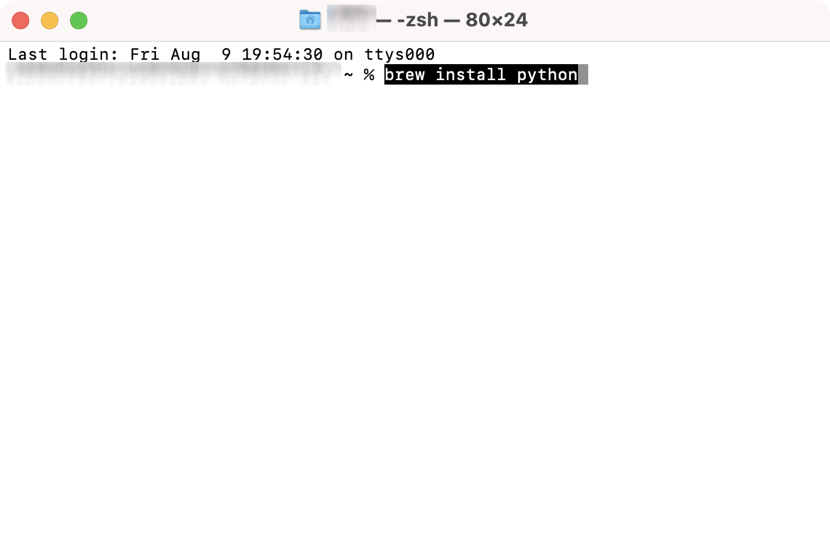
Type the following command (!without the full stop): brew install python.
Press Return.
Once the installation is complete, type (!without the full stop): brew unlink python && brew link python.
Press Return.
Step 1. Typing “brew install python” in Terminal and pressing ReturnStep 2. Typing “brew unlink python && brew link python” in Terminal and pressing Return
3. With get-pip.py
If none of the methods above are right for you, we suggest you trying a third option, get-pip.py, although you might want to check the pros and cons first as it’s not the most recommended method.
Pros
Cons
Automatically downloads and installs the latest pip package for Python
Easy installation process
Only compatible with Python3 or later versions
A risky method as it uses an online script
If you opt for this online script, follow these simple instructions:
Launch Finder on your Apple computer.
Select Applications from the left-side bar.
Open the Utilities folder, find Terminal, and launch it.
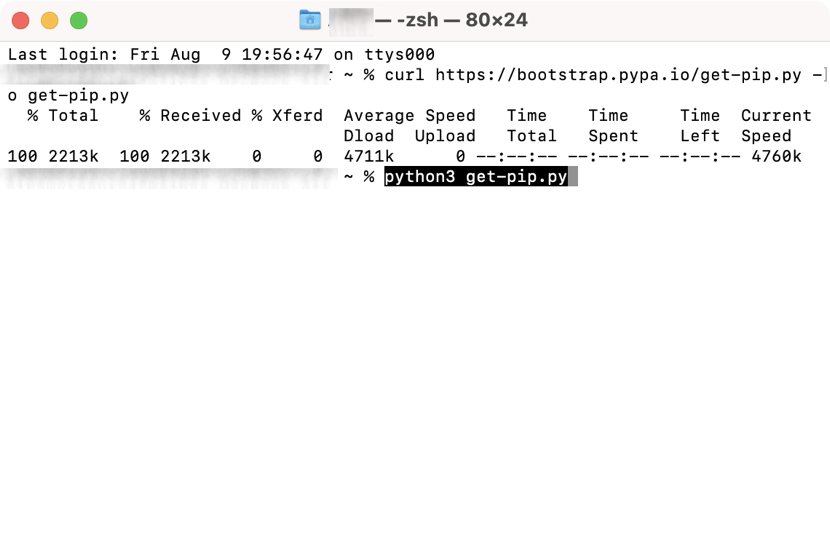
Type the following command (!without the full stop): curl https://bootstrap.pypa.io/get-pip.py -o get-pip.py.
Press the Return key.
Once the script has loaded, type this (!without the full stop): python3 get-pip.py.
Press Return.
Step 1. Launching Applications and opening the Utilities folderStep 2. Launching TerminalStep 3. Using Terminal to install get-pip.py on Mac with the “curl https://bootstrap.pypa.io/get-pip.py -o get-pip.py” commandStep 4. Typing the “python3 get-pip.py” command and pressing Return
How to verify pip installation on MacBook
Verifying if the pip installation on your MacBook was done correctly goes like this:
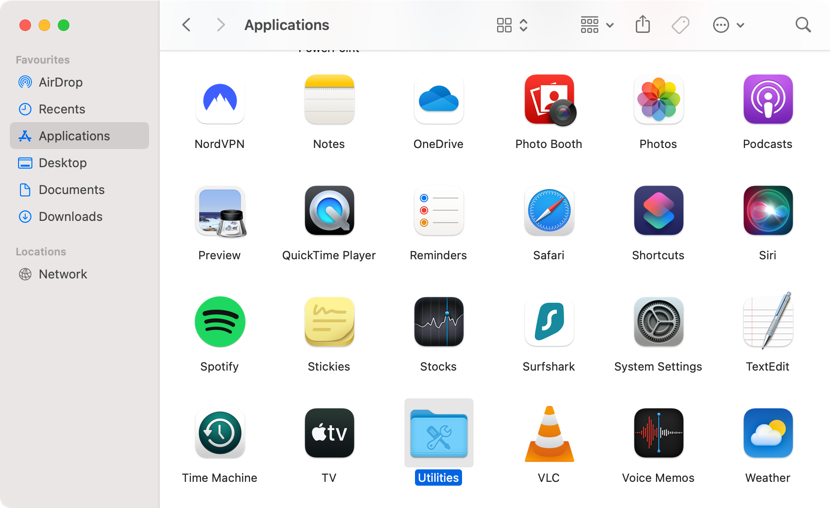
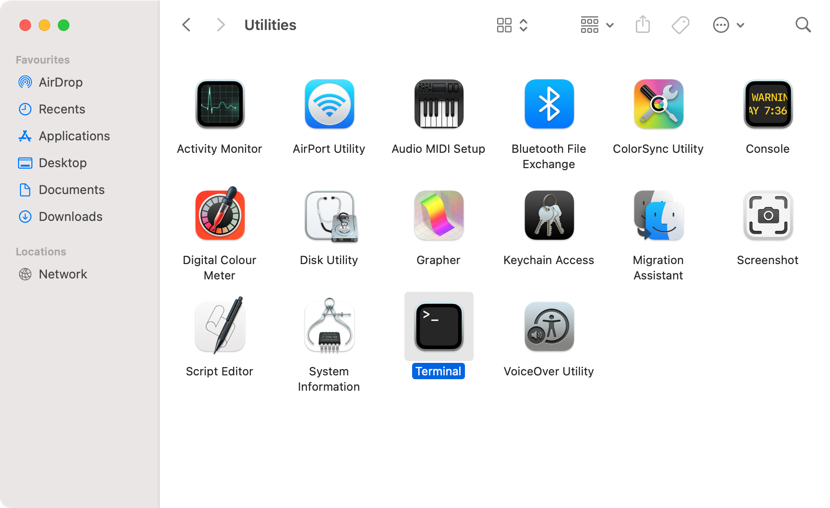
Launch Terminal by going to Finder > Applications > Utilities.
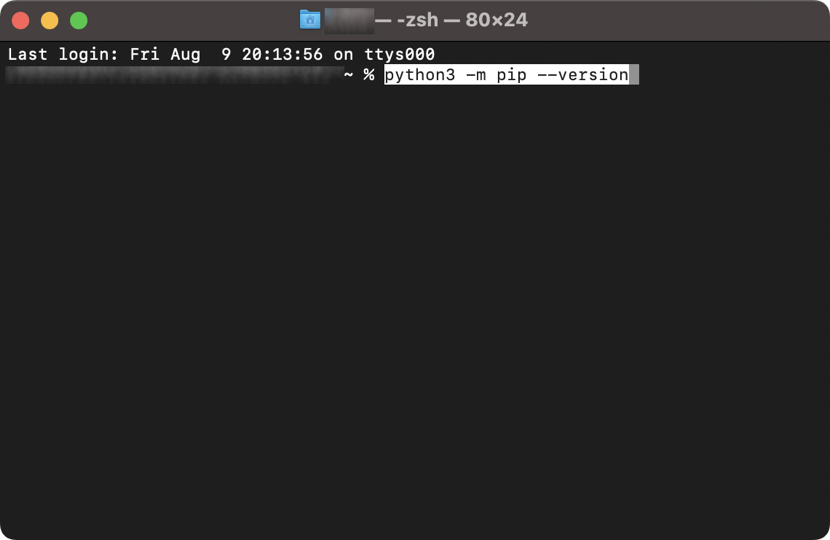
Type this command (!without the full stop): python3 -m pip --version.
Press Return.
Step 1. Launching Finder, clicking on Applications and opening UtilitiesStep 2. Launching TerminalStep 3. Typing the “python3 -m pip --version” command in Terminal
Hint from our team:
If you encounter any issues when executing a command on your Mac, follow our team of experts’ advice on permissions denied in Zsh.
How to upgrade pip on Mac via Terminal
Follow these steps to update pip on macOS:
Open Terminal by going to Finder > Applications > Utilities.
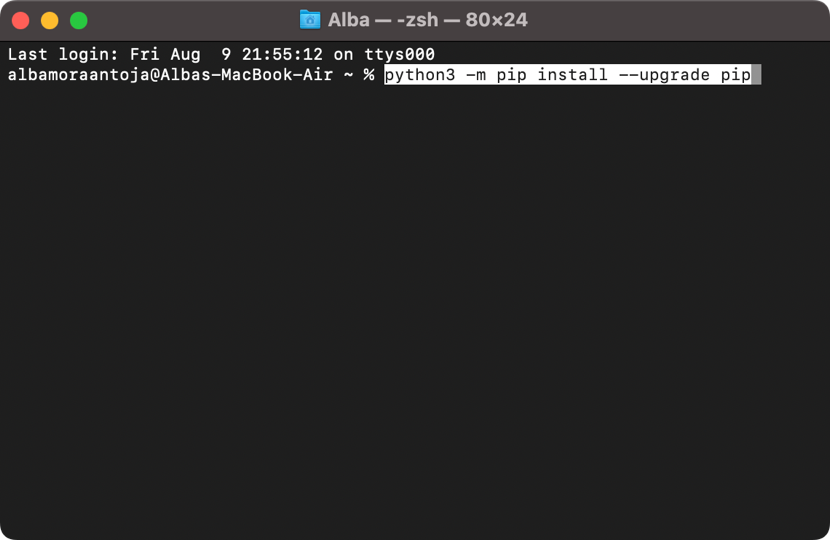
Type this command (!without the full stop): python3 -m pip install --upgrade pip.
Press Return.
Step 1. Opening Finder, selecting Applications, and clicking on UtilitiesStep 2. Launching TerminalStep 3. Typing the “python3 -m pip install --upgrade pip” command in Terminal
How to remove any previous installation of pip (if necessary)
If you wish to remove Python from Mac, use another pip installation method or fix any errors. Do the following to uninstall pip:
Launch Finder on your Mac or MacBook.
Choose Applications from the left-side bar, then open the Utilities folder.
Find Terminal in the Utilities folder and launch it.
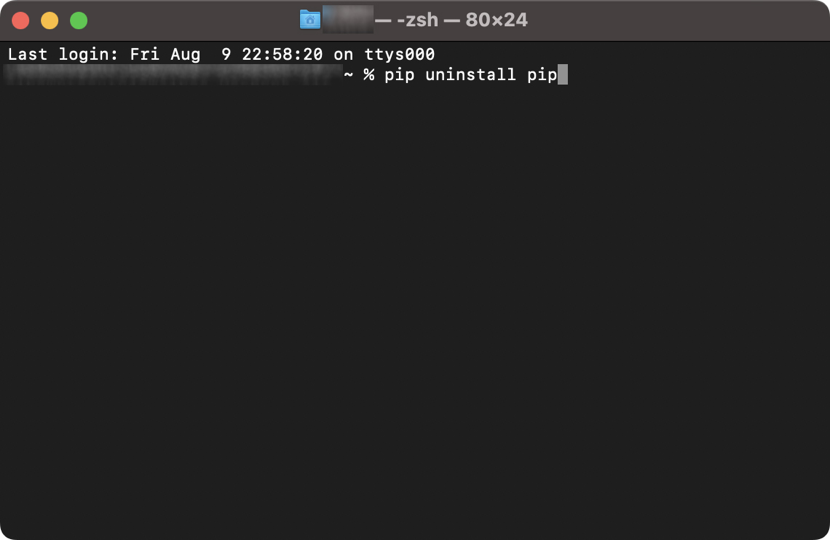
Type the following command (!without the full stop): pip uninstall pip.
Press Return.
Confirm by typing Y.
Press Return.
Step 1. Opening Finder, selecting Applications and clicking on UtilitiesStep 2. Launching TerminalStep 3. Using the “pip uninstall pip” command to uninstall pip
Important:
Meanwhile, to gain even more valuable space on your MacBook, check our other relevant article to uninstall Anaconda from Mac if you have any issues with its performance.
Best way to install pip on macOS
Are you looking to use pip install on Mac? There are various methods to install pip on macOS, each with its own advantages and disadvantages. However, our team of experts recommends using ensurepip, as it’s a simple and easy method that doesn’t require an Internet connection and is compatible with many Python versions.
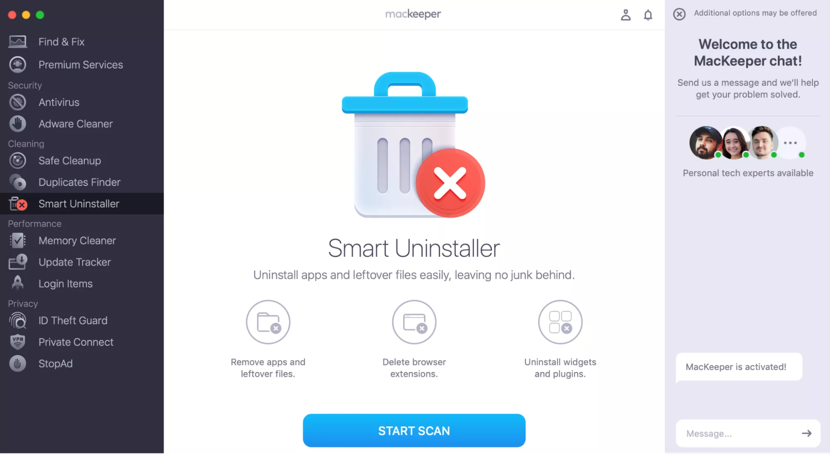
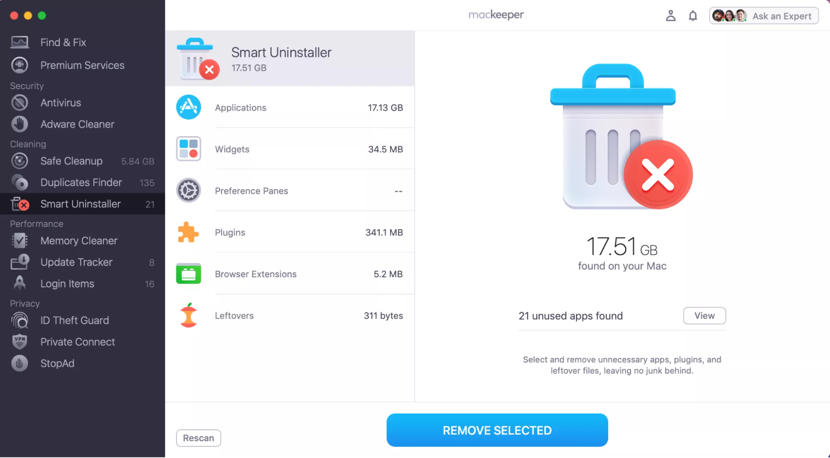
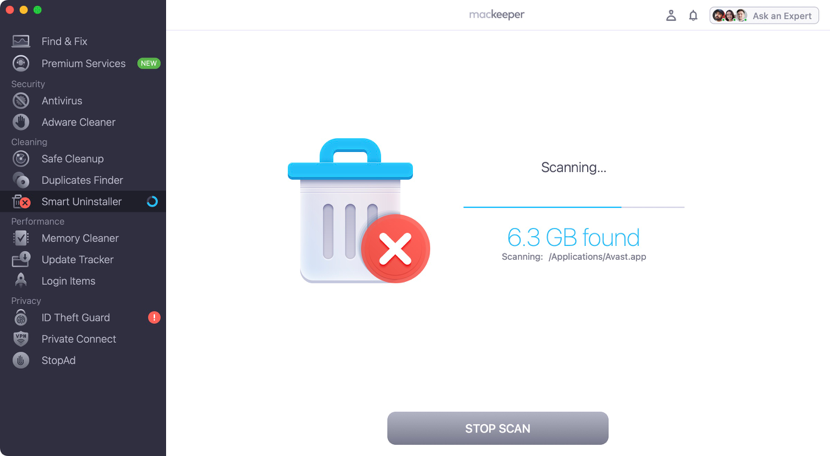
Regardless of the method you choose, you should always prepare your computer before downloading and installing a new program on Mac. You can use a tool like MacKeeper’s SmartUninstaller to ensure that the installation process doesn’t negatively impact your Mac’s performance. Try this:
Choose the SmartUninstaller tab under the Cleaning section on the left-side menu.
Click the Start Scan button.
Then, select the categories you want to do a smart cleaning and click Remove Selected.
Wait until the scan is complete.
Click Remove to confirm.
Step 1. Launching MacKeeper, selecting Smart Uninstaller and clicking Start ScanStart 2. Selecting the categories and clicking Remove SelectedStart 3. Waiting until the scan is complete
We respect your privacy and
use cookies
for the best site experience.
Privacy Preferences Center
We use cookies along with other tools to give you the best possible experience while using the
MacKeeper website. Cookies are small text files that help the website load faster. The cookies we
use don’t contain any type of personal data meaning they never store information such as your
location, email address, or IP address.
Help us improve how you interact with our website by accepting the use of cookies. You can change
your privacy settings whenever you like.
Manage consent
All cookies
These cookies are strictly necessary for enabling basic website functionality (including page
navigation, form submission, language detection, post commenting), downloading and purchasing
software. The website might malfunction without these cookies.