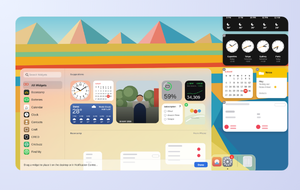
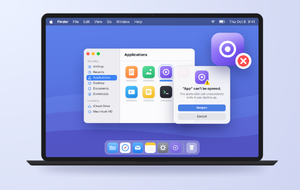
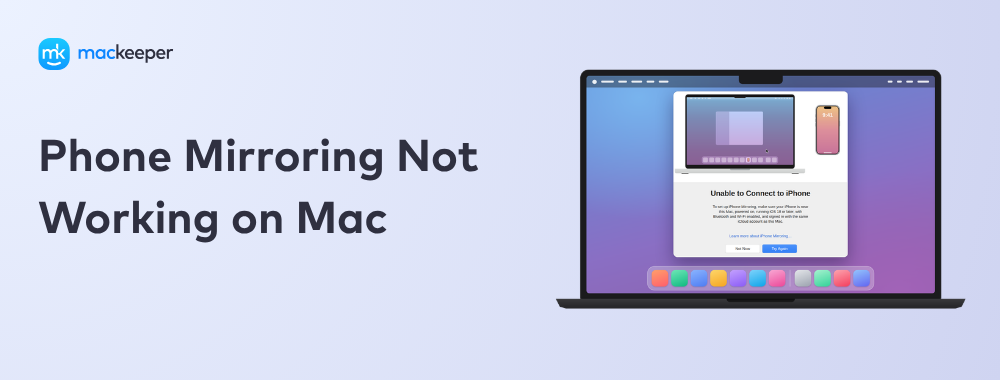
iPhone Mirroring not working on Mac? Don’t stress. We’ve got a simple solution to get your devices talking again, so you can control your iPhone from your Mac without any hassle. And if you’d rather get hands-on help, our MacKeeper’s Premium Services team is here for you 24/7.
When iPhone Mirroring on Mac isn’t working, there are several potential causes you can look into. It’s usually due to one or both devices not meeting the necessary system requirements for this feature. Sometimes, network or Bluetooth connectivity issues, software bugs in macOS or iOS, and conflicting active connections can also be the culprit. Or it could be as simple as your iPhone being unlocked.
To effortlessly use iPhone Mirroring on macOS Sequoia or any other supported version, our experts recommend making sure your hardware and software check all the boxes. If you run into problems, we suggest tweaking your connectivity settings or, if needed, resetting your access permissions.
A note from our experts:
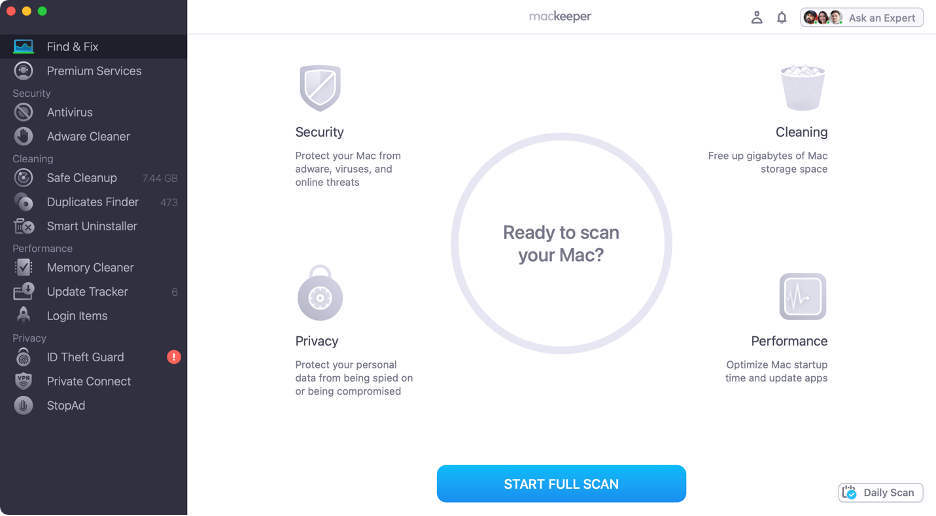
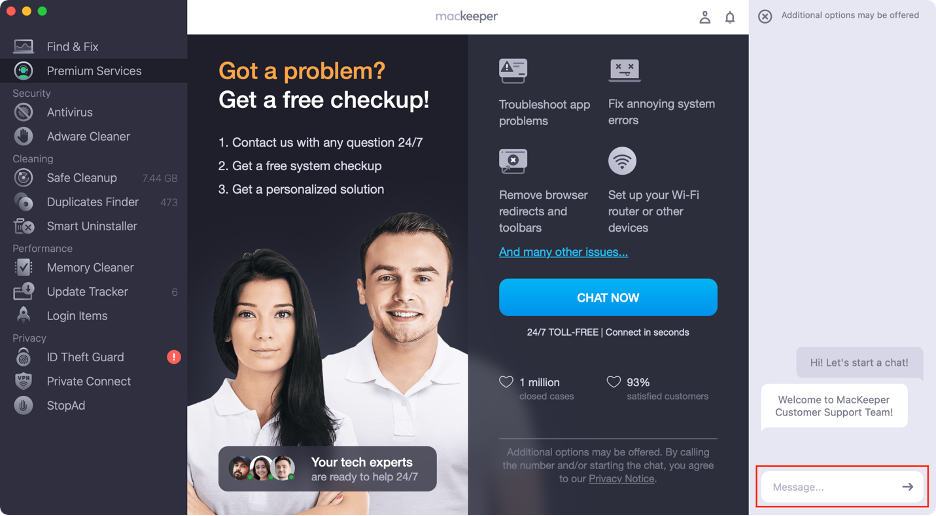
In today’s fast-paced world, who has time for every little tech hiccup, like iPhone Mirroring not working? Instead, why not let the MacKeeper’s Premium Services team take care of it for you? With over 150 experts available 24/7 and more than a million cases solved, we’re ready to handle any Apple problem, big or small, whenever you need a hand.
Here’s how to get in touch with our Premium Services team:
Type in your message and let our team know what you need.
Step 1. Launch MacKeeperStep 2. Select Premium ServicesStep 3. Click Chat NowStep 4. Type in your message
1. Check system and device compatibility
To begin, we suggest verifying that both your Mac and iPhone are compatible with iPhone Mirroring. If they’re not, skip ahead to our section on alternative options. Also, you should note that this feature is unavailable in the EU due to regulatory restrictions.
iPhone Mirroring only works with iOS 18 or later and macOS Sequoia or later, so you’ll need one of the following iPhones and Intel or Apple Silicon Macs:
IPHONE
MAC
iPhone 18 Pro series
iPhone Air
iPhone 17 series
iPhone 16 series
iPhone 15 series
iPhone 14 series
iPhone 13 series
iPhone 12 series
iPhone 11 series
iPhone XS series
iPhone XR
iPhone SE (2020) or later
MacBook Pro (2018 or later)
MacBook Air (2020 or later)
MacBook Neo (2026)
iMac (2019 or later)
iMac Pro (2017)
Mac mini (2018 or later)
Mac Studio (2022 or later)
Mac Pro (2019 or later)
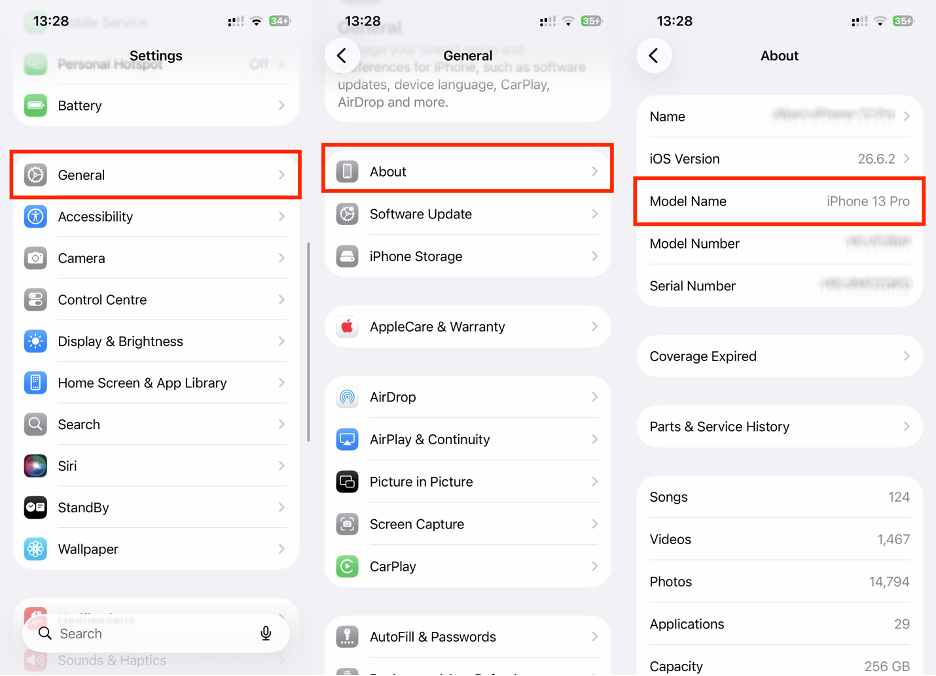
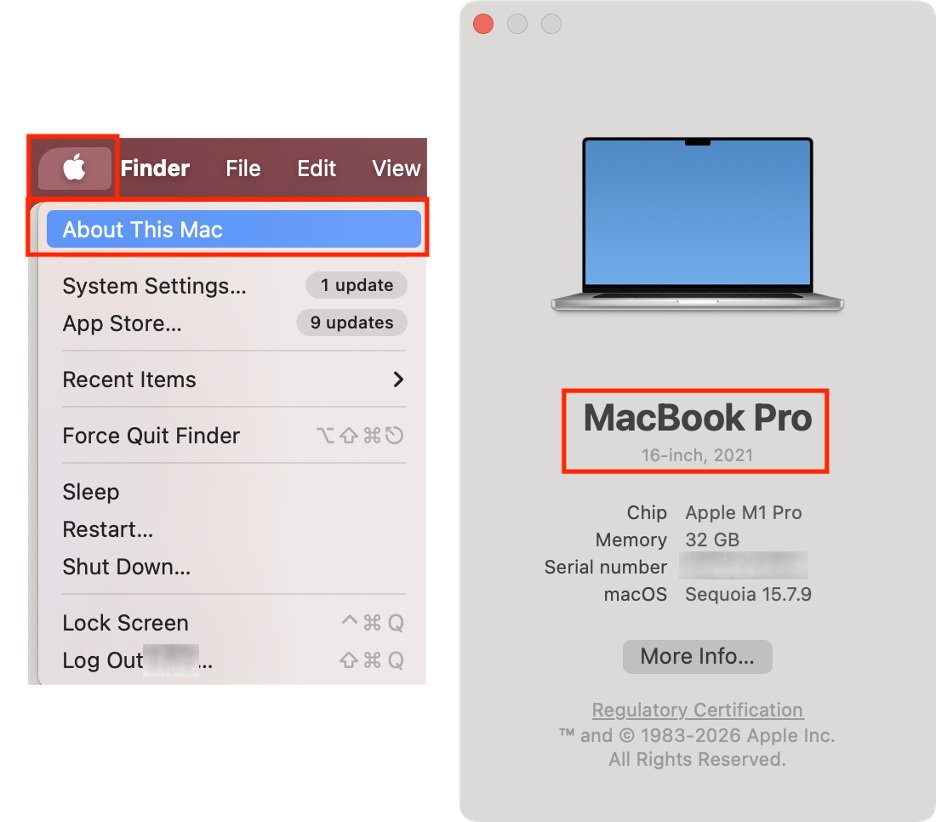
If you’re unsure which iPhone or Mac model you own, here’s how to find out:
Go to your iPhone and tap Settings.
Select General, then tap About.
Check the Model Name box.
Now, go to your Mac and click the Apple logo in the menu bar.
Select About This Mac.
Check your Mac model.
Step 1. iPhone > Settings > General > About > Model NameStep 2. Mac > Apple logo > About This Mac
2. Ensure both devices use the same Apple account
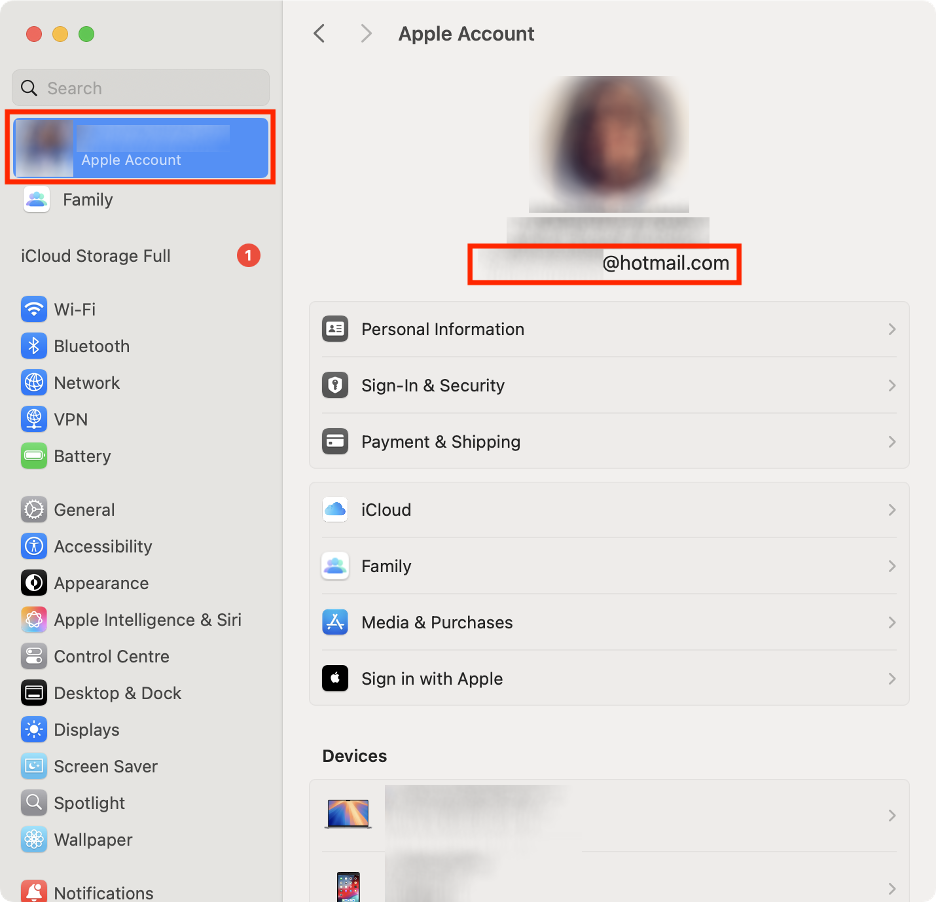
Next, we suggest double-checking that you’re signed in to the same Apple ID on both your Mac and your iPhone. That’s the key to getting them to work together. For extra security, make sure two-factor authentication is turned on, too.
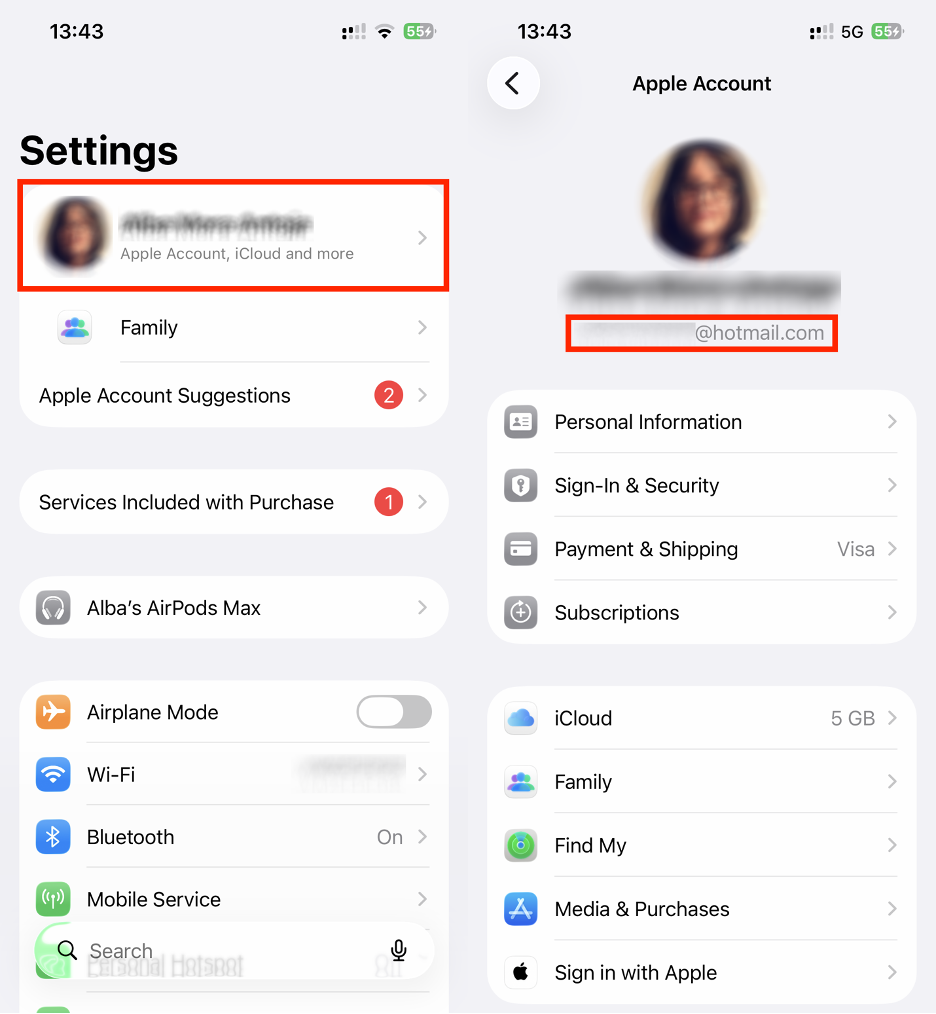
Here’s how to navigate through these quick checks:
Go to your iPhone and tap Settings.
Select your name.
Check the email address or phone number under your name.
Now, go to your Mac’s System Settings.
Select your name.
Again, check the email address or phone number under your account’s name.
Step 1. iPhone > Settings > [Your name]Step 2. Mac > System Settings > [Your name]
3. Enable Bluetooth and connect to same Wi-Fi network
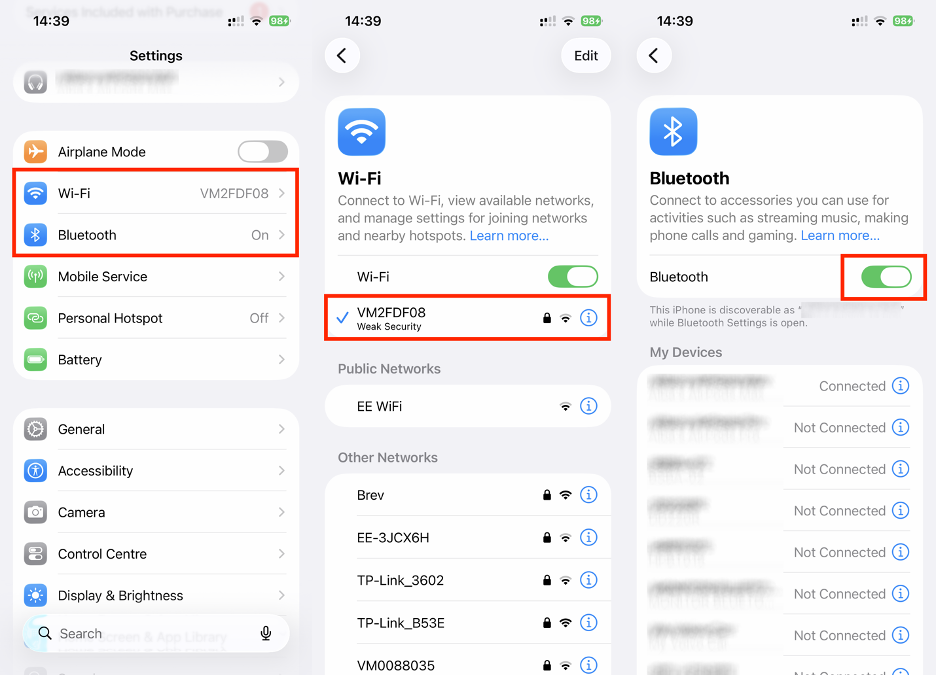
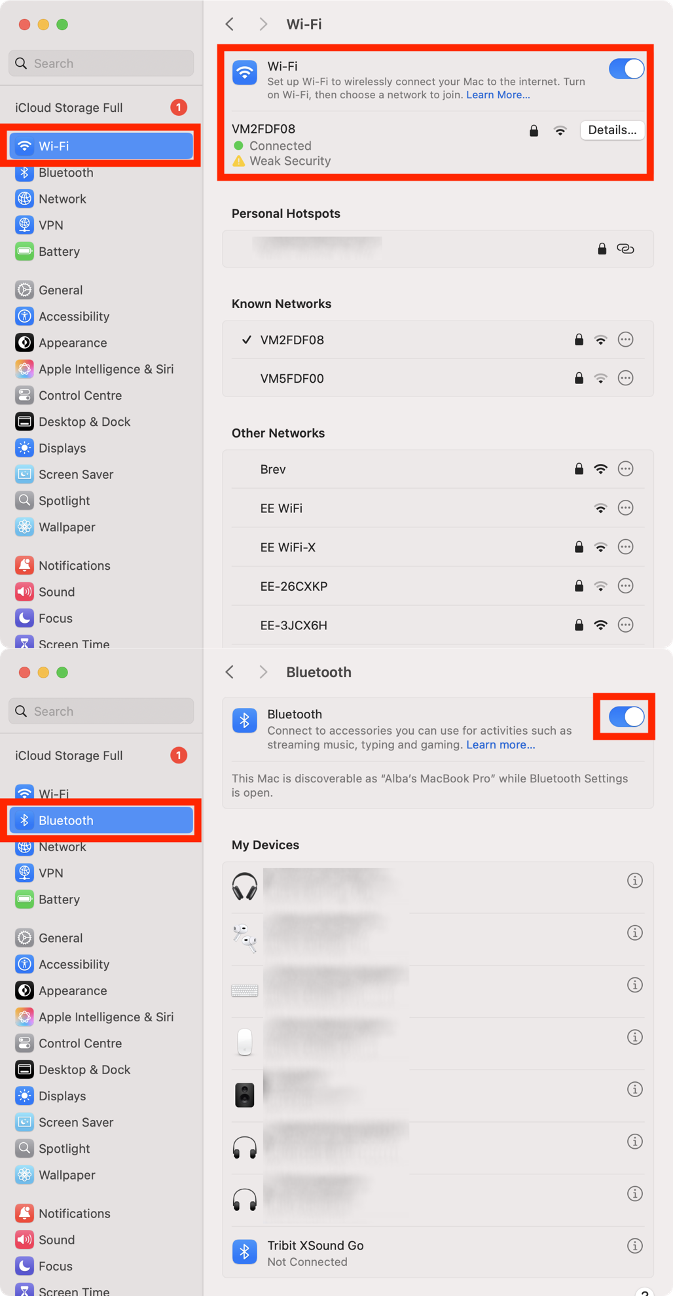
iPhone Mirroring relies on Bluetooth, so you’ll want to keep your iPhone and Mac close together. It might seem obvious, but we also suggest double-checking that Bluetooth is enabled on both devices. You’ll also need Wi-Fi switched on, and both devices should be connected to the same network so they can find each other easily.
Follow our tips below:
Go to your iPhone and tap Settings.
Tap Wi-Fi and choose your preferred network.
Go back, click Bluetooth, and make sure it’s enabled.
Now, go to your Mac’s System Settings.
Click Wi-Fi and select the same network.
Next, click Bluetooth and confirm it’s turned on.
Step 1. iPhone > Settings > Wi-Fi / BluetoothStep 2. Mac > System Settings > Wi-Fi / Bluetooth
4. Lock your iPhone during connection
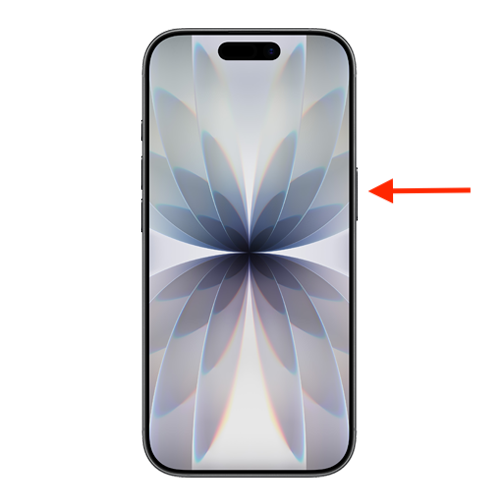
Here’s an interesting quirk: iPhone Mirroring only works when your iPhone is locked. It actually makes sense. At the end of the day, you’re trying to control your phone from your Mac, so doing so with no mixed signals or conflicting commands is essential. Usually, the feature will prompt you to lock your iPhone, but just in case, this is your reminder.
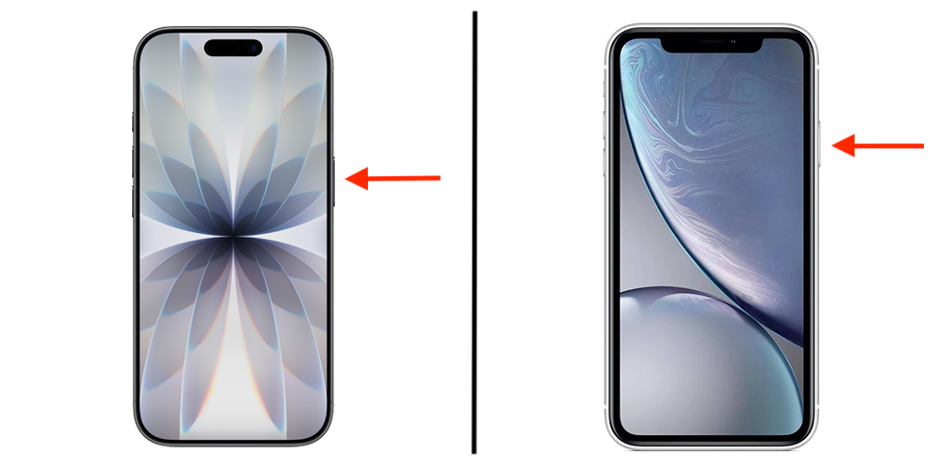
Locking your iPhone’s screen is super easy: simply press the side button on your device.
Press the side button to lock your iPhone
5. Disable conflicting connections
As previously mentioned, both Bluetooth and Wi-Fi need to be enabled to use iPhone Mirroring. In our experience, just as important is checking that you don’t have any conflicting connections running in the background.
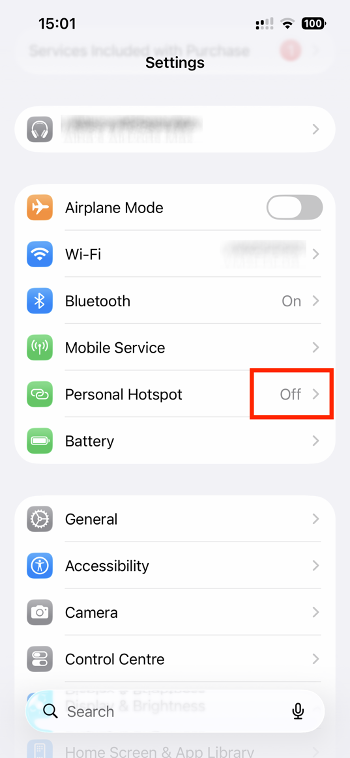
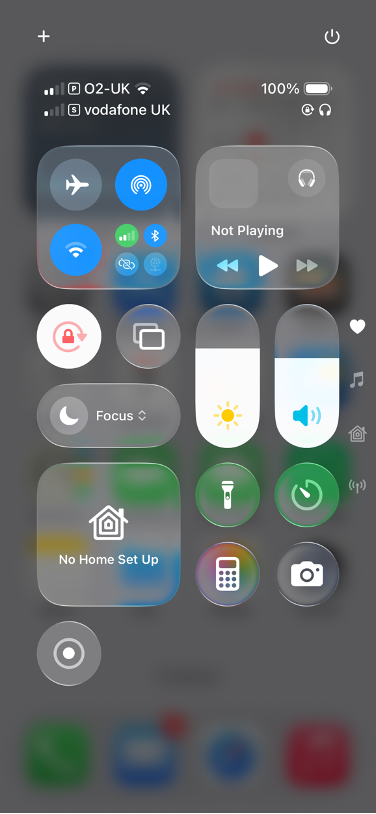
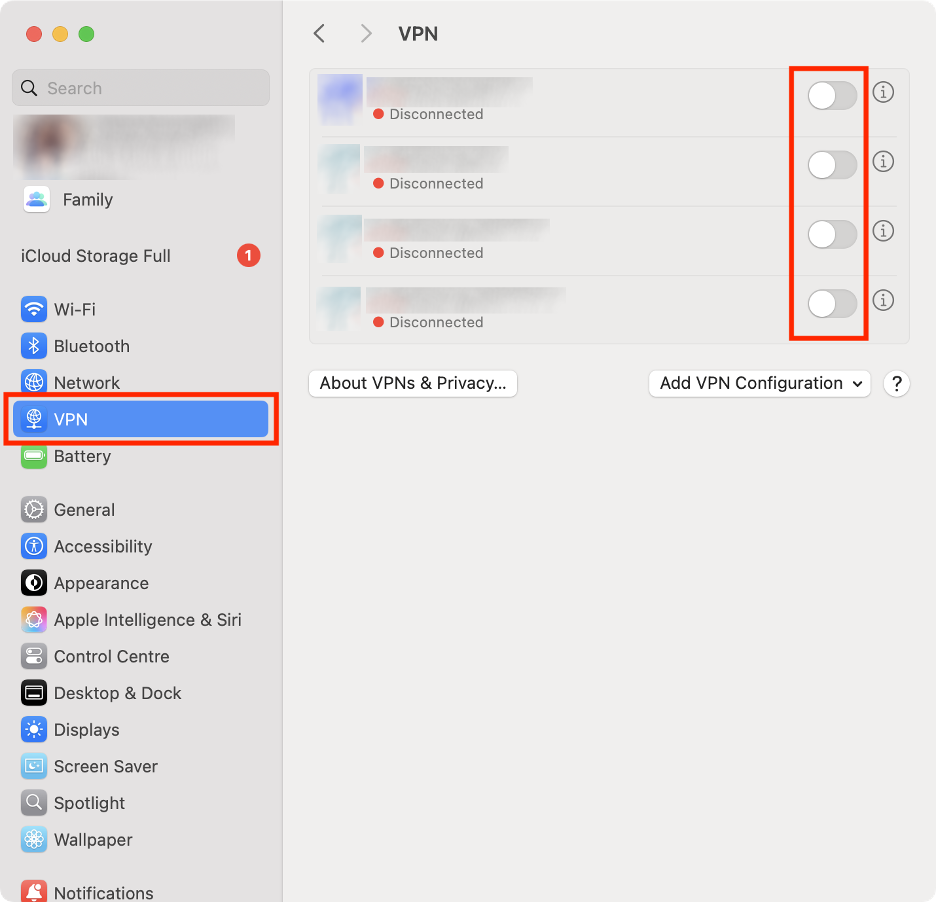
We suggest double-checking that Personal Hotspot is off and that you’re not using AirPlay or Sidecar at the same time. You might also want to turn off VPN on your MacBook.
See below how to check these settings:
Go to your iPhone and tap Settings.
Make sure Personal Hotspot is turned off.
Next, swipe down from the top-right corner of your screen to access Control Center.
Make sure no conflicting AirPlay or Sidecar connections are on.
Now, go to your Mac’s System Settings.
Click VPN and switch it off.
Step 1. iPhone > Settings > Personal HotspotStep 2. iPhone > Control CenterStep 3. Mac > System Settings > VPN
6. Select correct iPhone for mirroring
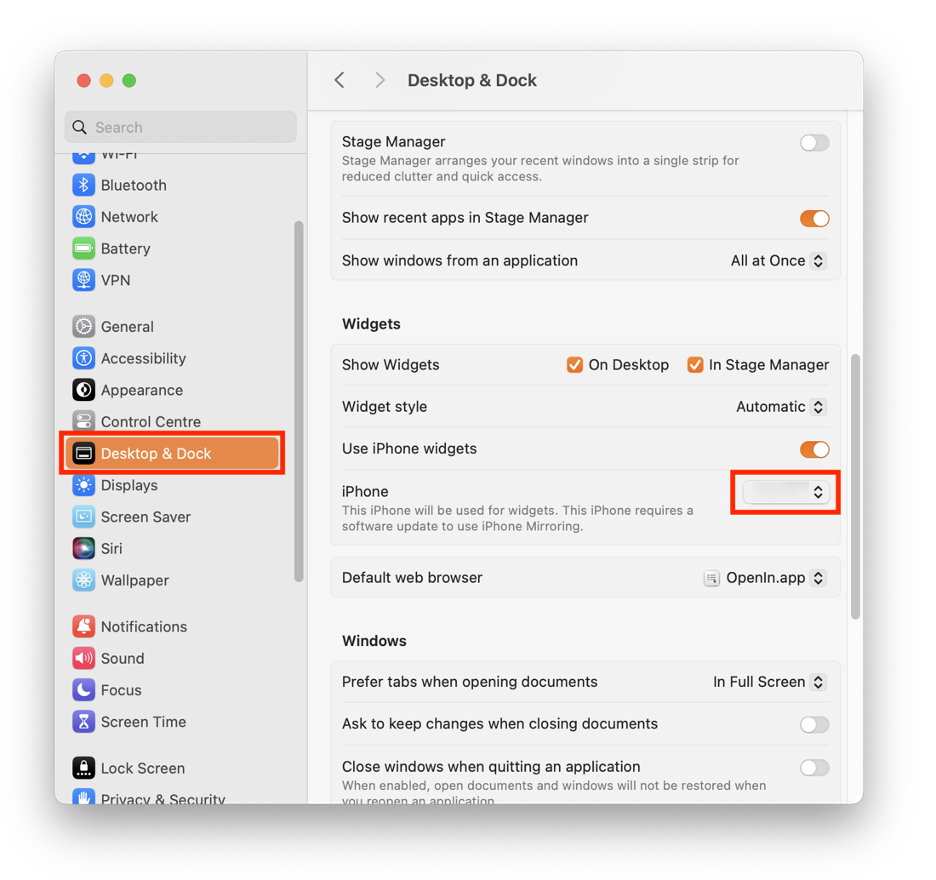
Have more than one iPhone linked to your Apple ID? Whether it’s your current device or an older one, we believe it’s a good idea to double-check that you’re trying to connect to the right iPhone. If not, iPhone Mirroring won’t work as expected.
The good news? It’s a simple fix:
On your Mac, go to System Settings.
Select Desktop & Dock from the sidebar.
Scroll down to Widgets.
Select your preferred iPhone.
Mac > System Settings > Desktop & Dock > Widgets
iPhone screen mirroring not showing devices? Keep reading to find more practical fixes.
7. Reset iPhone Mirroring settings and reconnect
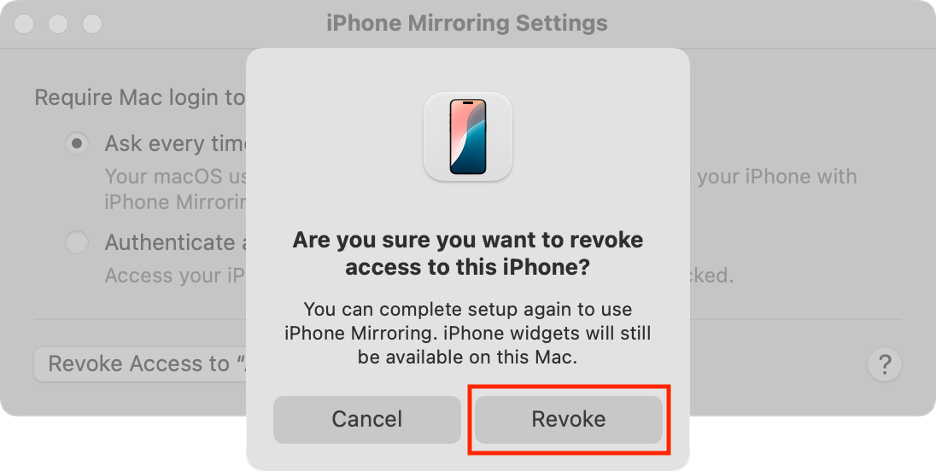
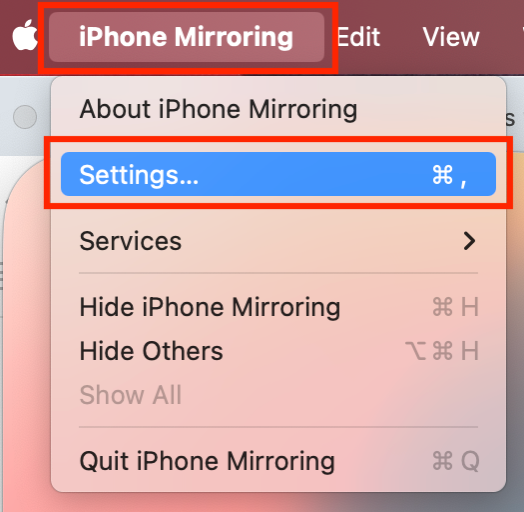
If you think there might be a network glitch between your iPhone and Mac, the best move is to start fresh. We suggest you disconnect your iPhone from the iPhone Mirroring app on your Mac, then reconnect it.
We explain how to set up a new connection below:
Relaunch iPhone Mirroring on your Mac.
Click iPhone Mirroring in the menu bar.
Select Settings.
Click Revoke Access to [your iPhone] in the new window.
Hit Revoke to confirm.
Step 1. iPhone Mirroring > SettingsStep 2. Click Revoke Access to [your iPhone]Step 3. Hit Revoke
8. Restart both Mac and iPhone
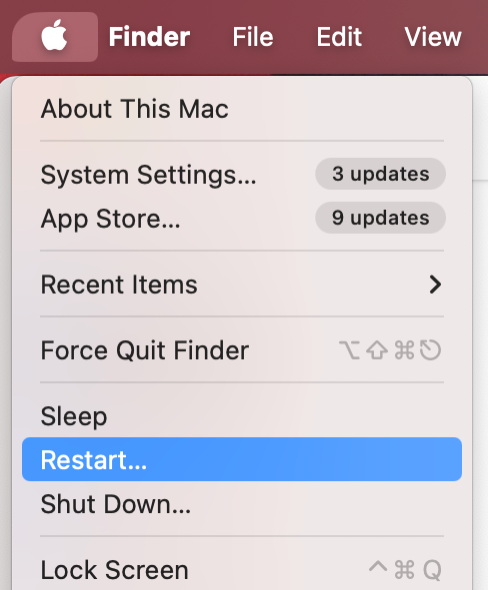
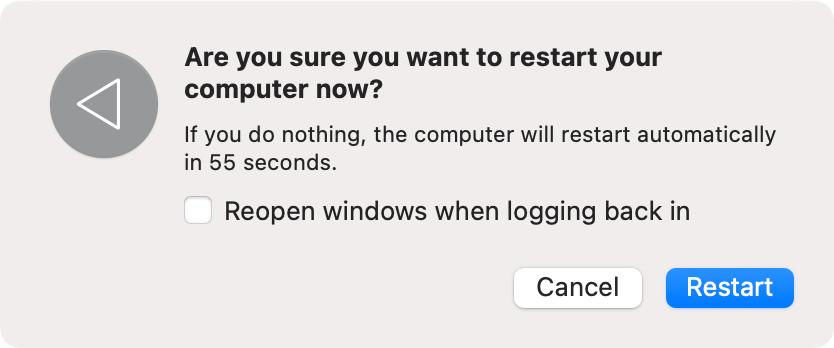
When you’re dealing with tech problems, sometimes the easiest fix is just a quick reset. Powering both your iPhone and your Mac off and back on gives all their processes a fresh start, including the one that might have been causing trouble in the first place.
Step 1. Apple logo > RestartStep 2. Click Restart again
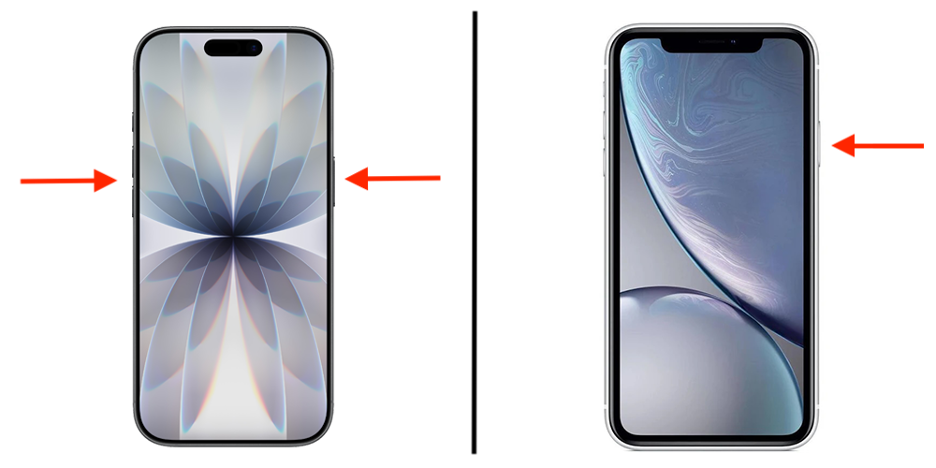
And here’s how to restart your iPhone:
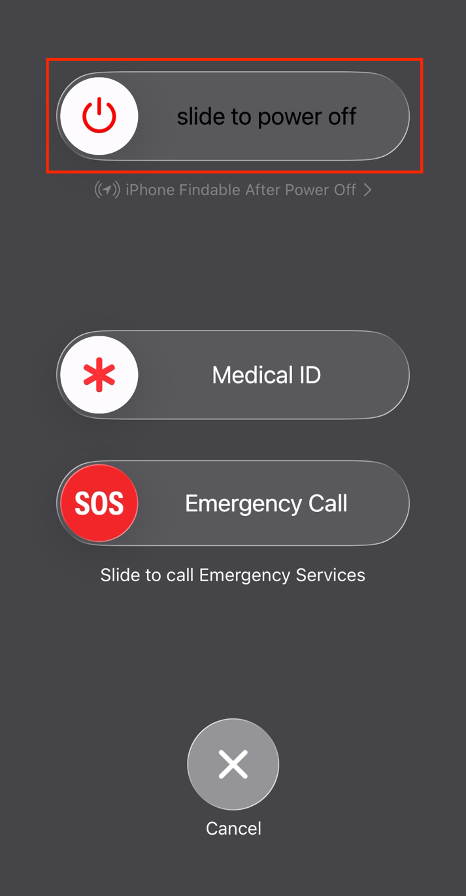
On an iPhone X or newer, hold down the side button and either volume button. On an iPhone SE or older, press and hold the side button.
When the power-off slide appears, drag it and wait until your device turns off.
Turn it back on by holding down the side button.
Step 1. Hold down the side button (plus either volume button on iPhone X or newer)Step 2. Drag the slider until the deviceStep 3. Press and hold the side button to turn it back on
9. Update iOS and macOS to latest versions
Finally, another quick fix we suggest when iPhone screen mirroring isn’t showing up is making sure your Mac and iPhone are both running the latest software. This will clear up any compatibility issues if your devices are out of date. Plus, when you update Apple devices, you also fix bugs that might sort out whatever’s tripping up iPhone Mirroring.
Follow these steps to update iOs and macOS:
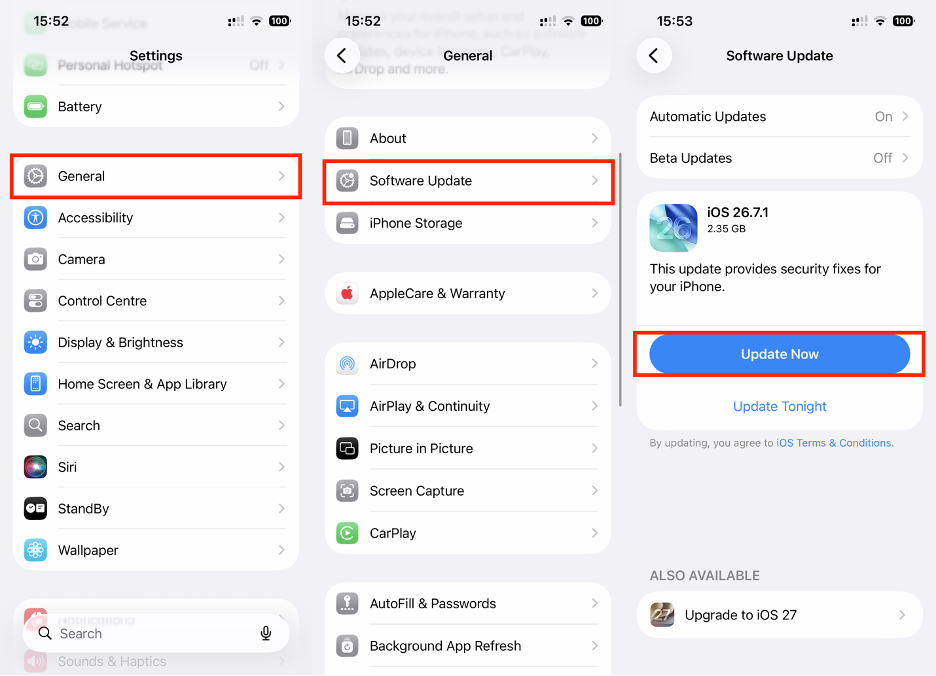
Go to the Settings app.
Tap General, then select Software Update.
Click Update Now.
Settings > General > Software Update > Update Now
See below how to upgrade your Mac to the latest macOS version:
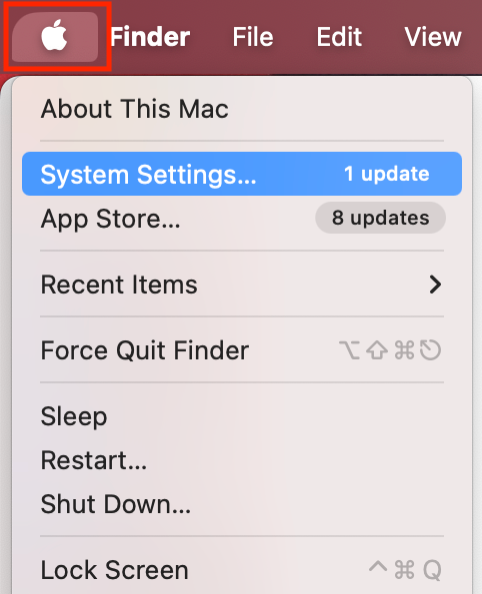
Click the Apple logo in the menu bar.
Choose System Settings from the dropdown menu.
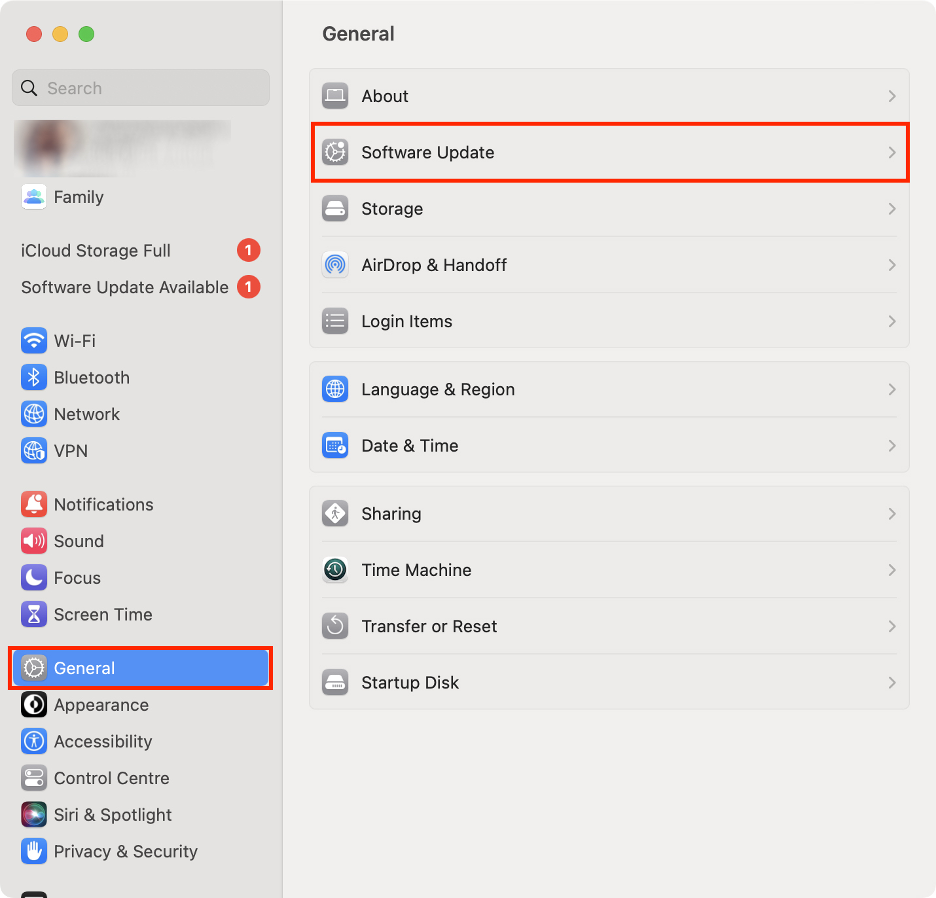
Select General in the left sidebar.
Click Software Update.
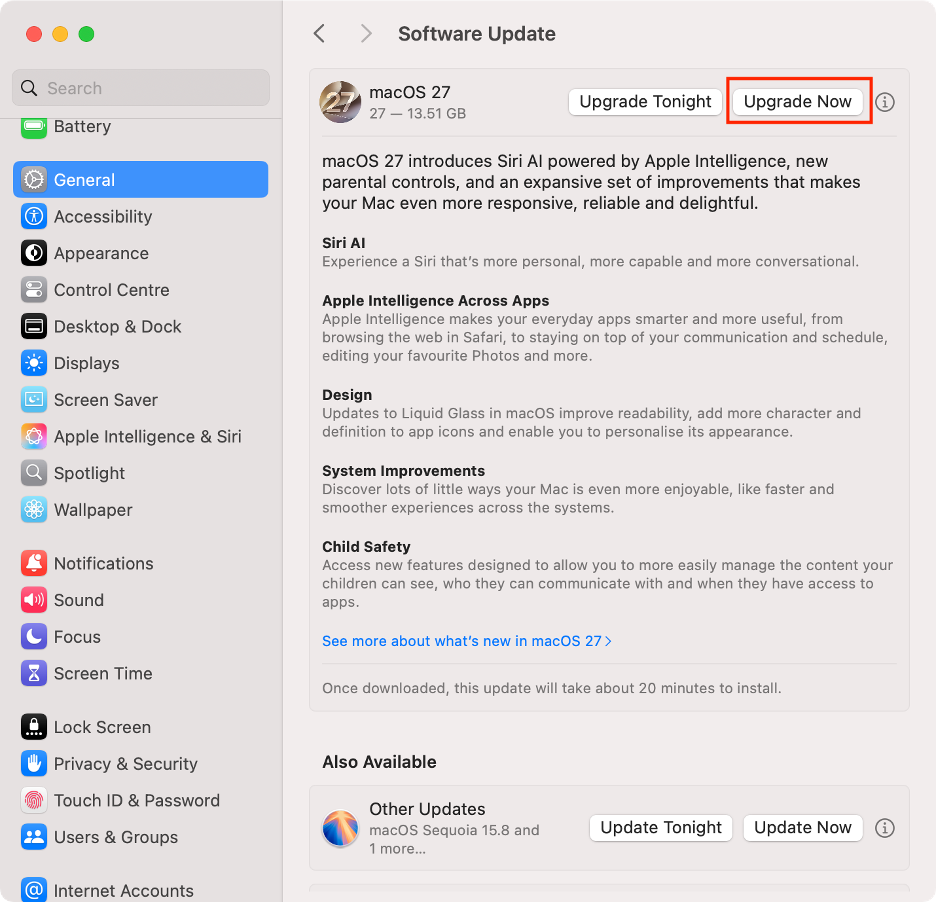
Then, click the Upgrade Now button.
Step 1. Apple logo > System SettingsStep 2. General > Software UpdateStep 3. Click Upgrade Now
Alternative ways to mirror iPhone to Mac
If you’re running into compatibility issues or can’t quite figure out which connectivity setting is blocking iPhone Mirroring on your Mac, don’t worry—we’ve got a couple of other options so you can still make the most of this feature.
1. Use QuickTime Player via USB cable
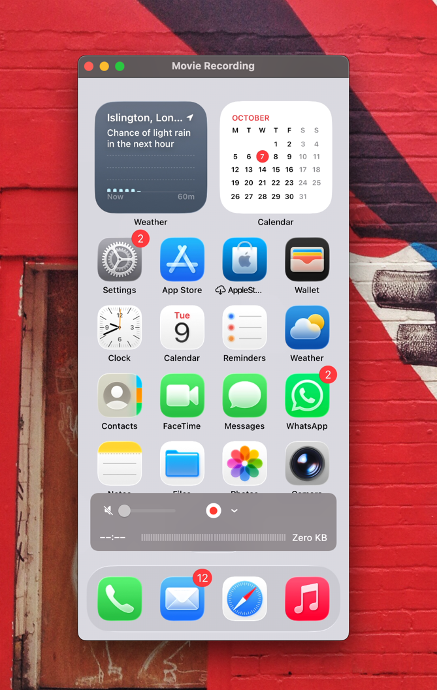
Connection problems are often the main reason iPhone Mirroring doesn’t work smoothly on your Mac. An easy fix? Our favorite solution is to use a USB cable for a rock-solid connection. This method uses QuickTime Player and works on most versions of macOS.
Here’s how you can use QuickTime Player to mirror your iPhone on your Mac:
Connect your iPhone to your Mac using a USB cable.
Launch QuickTime Player on your Mac.
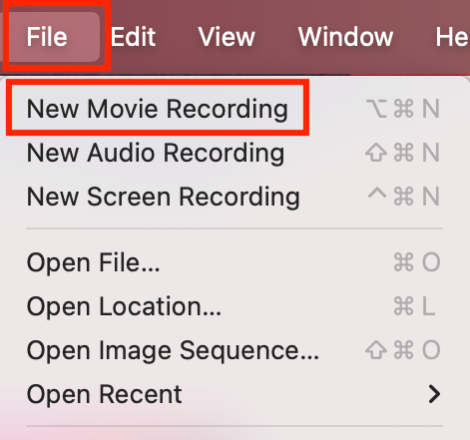
Click File in the menu bar.
Select New Movie Recording.
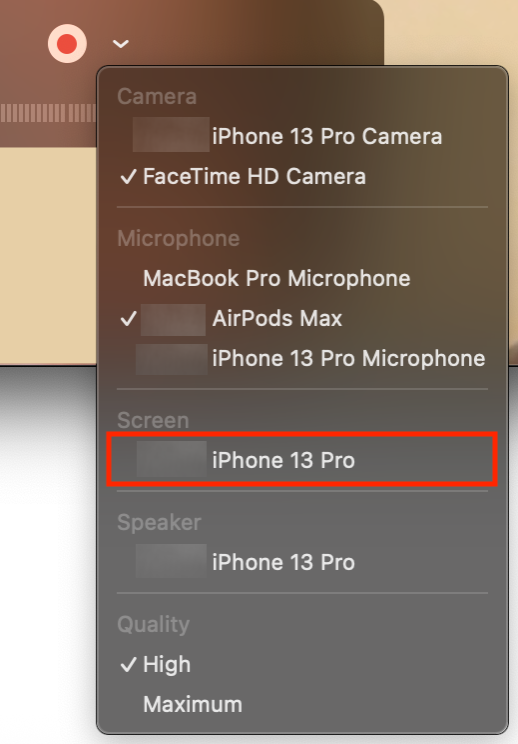
Click the small arrow next to the record button.
Select your iPhone under Screen.
Step 1. QuickTime Player > File > New Movie RecordingStep 2. Select your iPhone under ScreenStep 3. See your iPhone screen on your Mac
2. Use third-party screen mirroring software
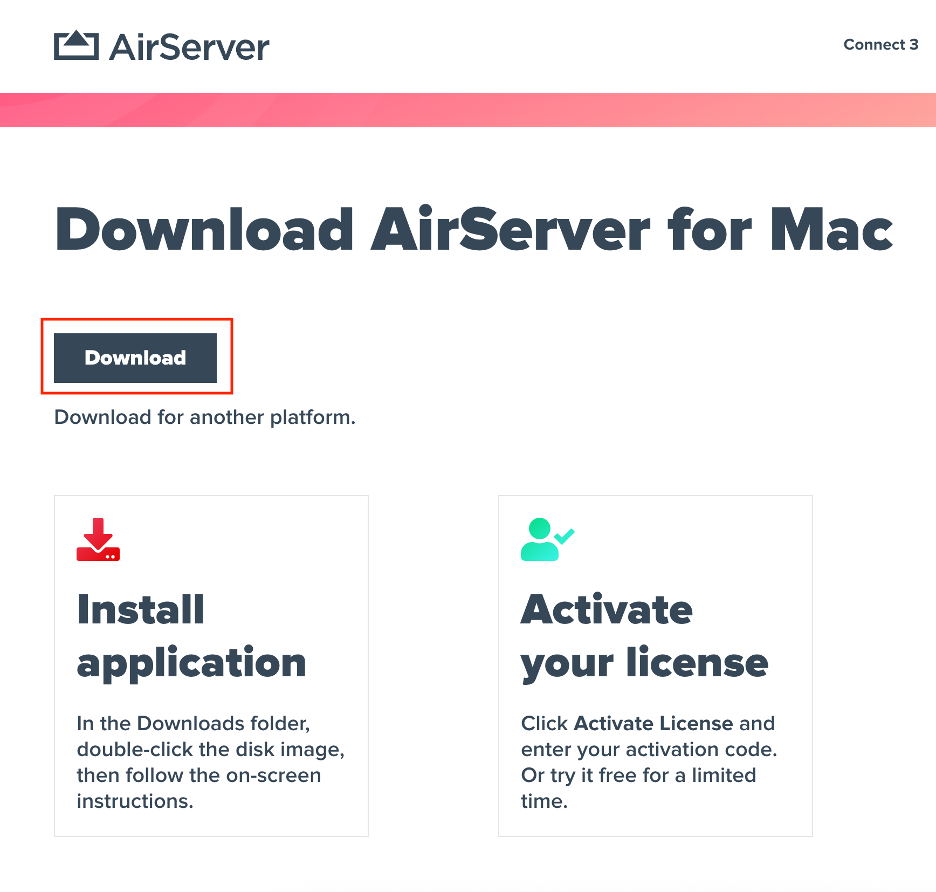
There are plenty of reliable third-party apps that can help, too. For example, SkyMirrorTo is built specifically for mirroring your iPhone screen to your Mac. Reflector is another great option that transforms your Mac into an AirPlay-compatible device. We also recommend AirServer or similar apps that turn your Mac into an AirPlay receiver.
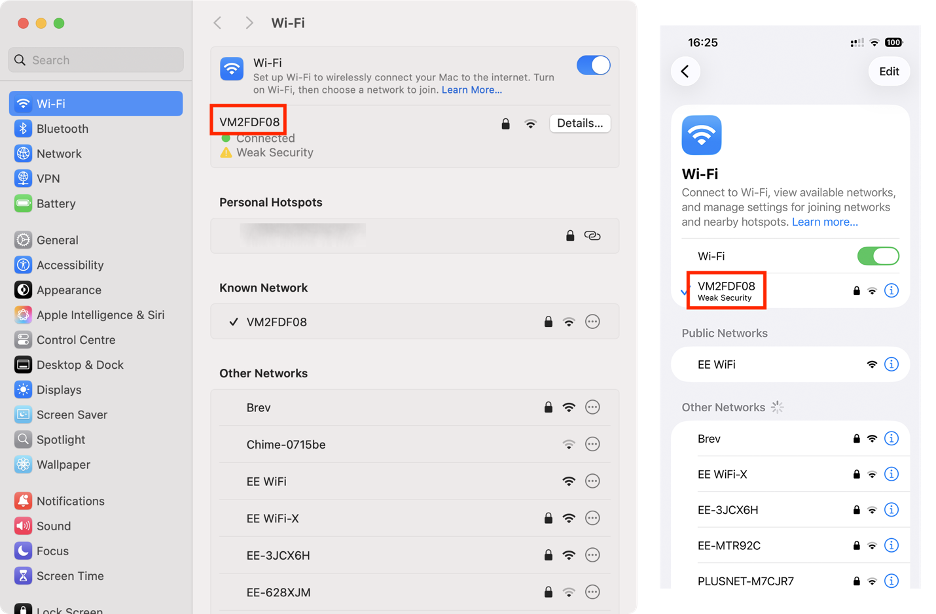
Connect both your Mac and iPhone to the same Wi-Fi network.
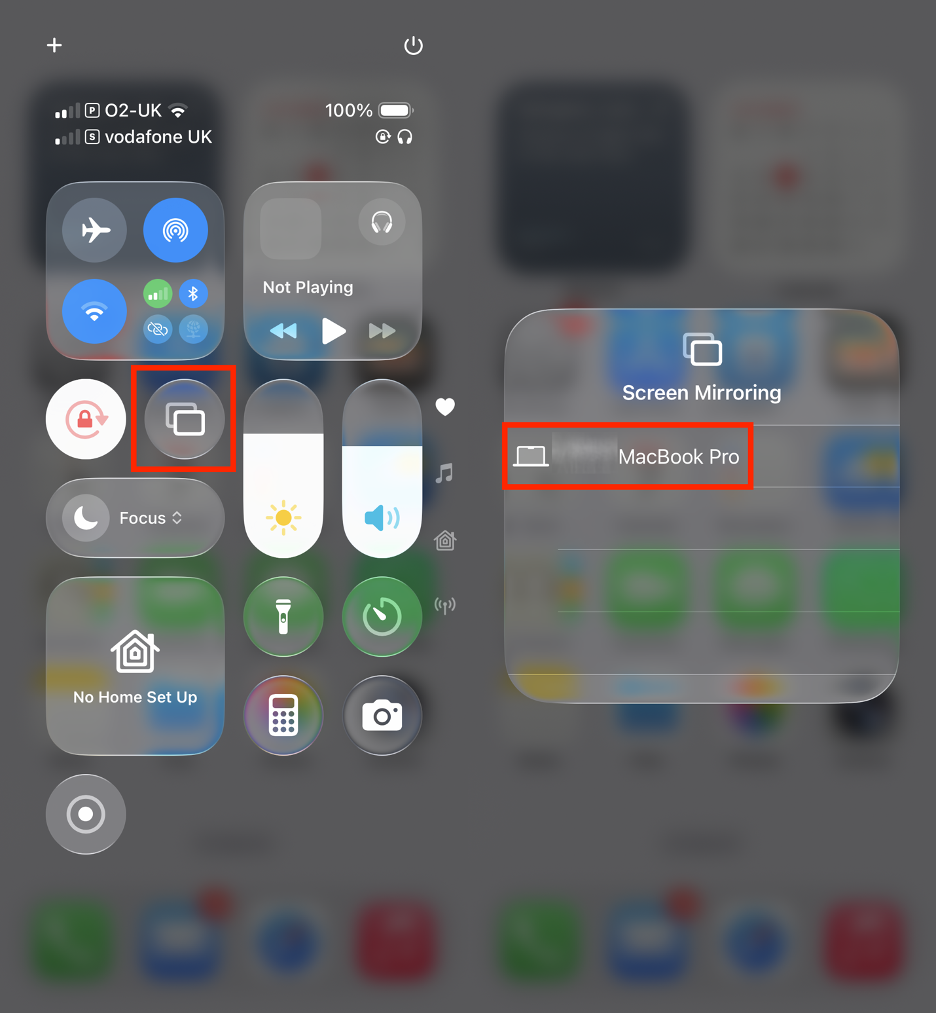
On your iPhone, swipe down to open Control Center.
Tap Screen Mirroring and select your Mac.
Step 1. Download and install AirServerStep 2. Connect to the same Wi-Fi networkStep 3. iPhone > Control Center > Screen Mirroring > [your Mac]
iPhone won’t screen mirror: The ultimate solution
The iPhone Mirroring feature is super handy—as long as it works. If you're running into problems, start by making sure you’re using compatible hardware, and that your iPhone and Mac are properly connected. Also, make sure your smartphone is locked. iPhone Mirroring not working on Mac yet? You can also try updating the software or resetting both devices.
And when nothing seems to work—or if you’d rather skip the hassle—you can always reach out to the MacKeeper’s Premium Services team. With tons of experience fixing tech headaches just like this, they’re ready to jump in and help. Plus, MacKeeper has more to offer for you, keeping your devices safe from malware and speeding up your Mac when it’s running slow.
We respect your privacy and
use cookies
for the best site experience.
Privacy Preferences Center
We use cookies along with other tools to give you the best possible experience while using the
MacKeeper website. Cookies are small text files that help the website load faster. The cookies we
use don’t contain any type of personal data meaning they never store information such as your
location, email address, or IP address.
Help us improve how you interact with our website by accepting the use of cookies. You can change
your privacy settings whenever you like.
Manage consent
All cookies
These cookies are strictly necessary for enabling basic website functionality (including page
navigation, form submission, language detection, post commenting), downloading and purchasing
software. The website might malfunction without these cookies.


![To reconfigure your iPhone Mirroring settings on your Mac, click Revoke Access to [your iPhone] to see if this fixes the problem.](https://static-cdn.mackeeper.com/mk-blog-upload/images/new_5NhoQuoXWy.png "To reconfigure your iPhone Mirroring settings on your Mac, click Revoke Access to [your iPhone] to see if this fixes the problem.")