Is an app not opening on Mac, bouncing endlessly in the Dock, or freezing before it loads? It’s frustrating, and you’re not alone. MacKeeper’s Premium Services bring expert support help to keep your Mac steady by solving any Mac issues professionally. Let MacKeeper lend a hand to you today.
When apps aren’t opening on Mac, the cause is rarely as dramatic as it feels. Usually it’s a small, fixable hiccup rather than a broken machine. Here are the reasons we see most often:
Temporary system glitches that leave an app stuck mid-loading
Background processes that froze and won’t stop
Outdated apps that no longer match your macOS version
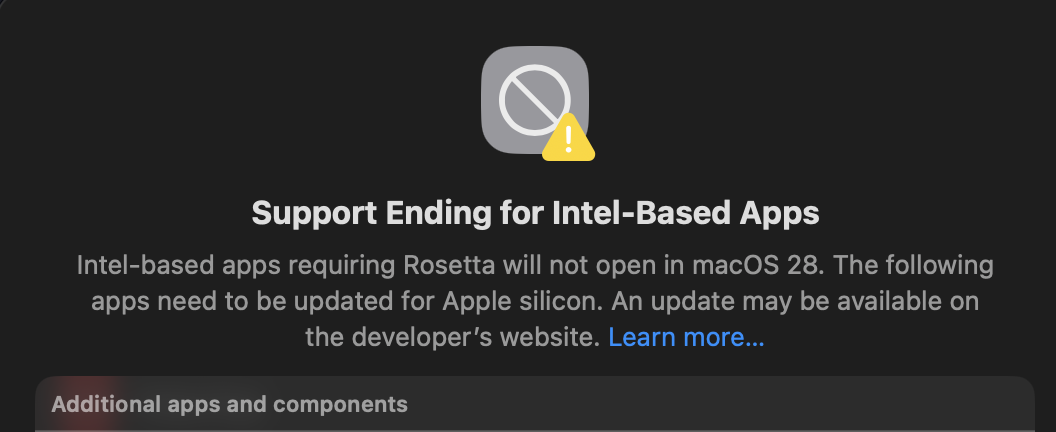
macOS compatibility issues after a recent update
Security settings that block apps from unidentified developers
Damaged or incomplete app files
Permission problems that keep the app from running
Low memory or limited free space on the disk
Disk errors on your startup drive
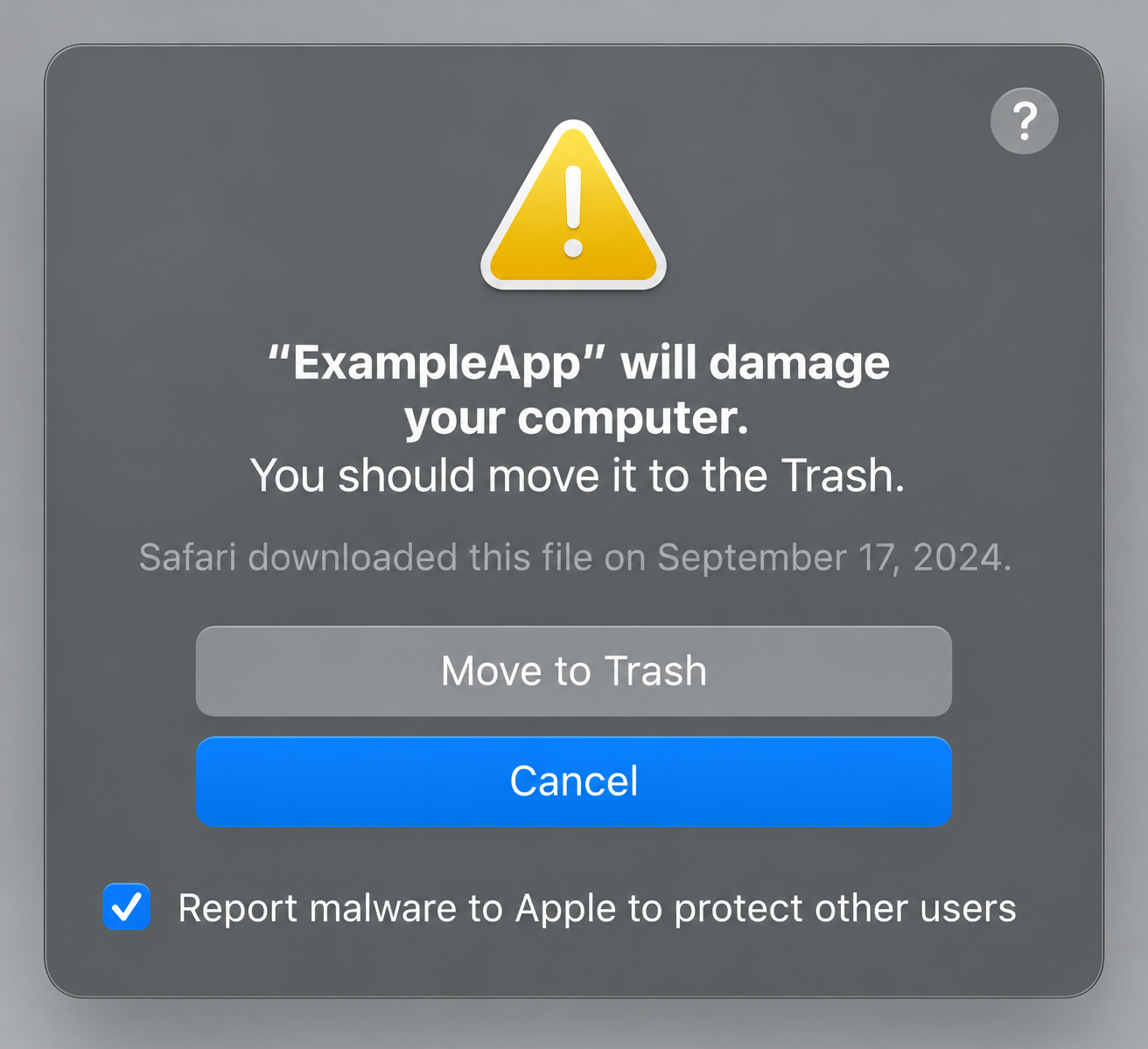
Malware or a malicious app flagged by macOS
The message you see is a helpful clue. An “unidentified developer” warning points to security settings, while a note saying the application is not open anymore usually means the app quit unexpectedly in the background. Different messages point to different causes, from an outdated app to a damaged file or a security warning.
First things to try when Mac app won’t open
When an app won’t open on Mac, a few quick checks can point you toward the cause. Before diving into fixes, we like to look at these details and advise the same to you:
Is the app already running in the background or the Dock?
Does your Mac have enough free memory and space?
Are other apps freezing or slow to launch, too?
Is it one app, or are many apps affected?
A note from our experts:
If just one app doesn’t open on Mac, the issue is usually app-specific. When many apps fail at once, it often points to a wider macOS storage, memory, or disk issue that’s worth checking first. But to get to the root of why the apps aren't opening on your computer more quickly and easily, we suggest you contact our 24/7 tech support in the MacKeeper app.
Follow our instructions below to reach MacKeeper’s Premium Services assistance through the chat:
Install and run the MacKeeper app on your MacBook.
Find and click Premium Services in the list of the app’s features.
Choose Chat Now to start a chat with our support team member.
Explain your problem.
Follow our tips to troubleshoot your Mac-related issue.
Step 1. Go to MacKeeper and choose Premium Services Step 2. Click Chat NowStep 3. Type in your message to get our help
How to fix apps not opening on Mac?
If you’re dealing with an application not opening on Mac, start with the simplest fixes and move to deeper troubleshooting only if the app still won’t launch. Below, we’ll walk through what to do when apps won’t open on your Mac, from quick resets to more thorough steps.
1. Force quit app and open it again
If the icon keeps bouncing in the Dock or the app is stuck in the background, a quick force quit app on macOS often clears it. In our experience, learning to force quit app takes seconds and stops the frozen process safely.
Follow these steps to force quit and relaunch:
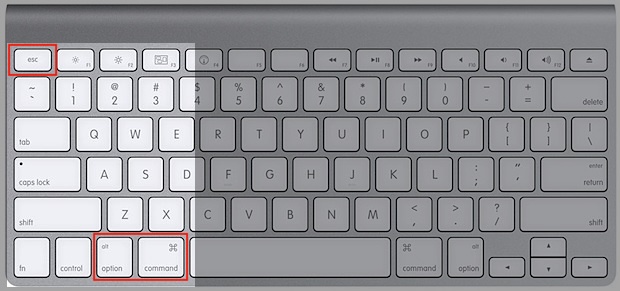
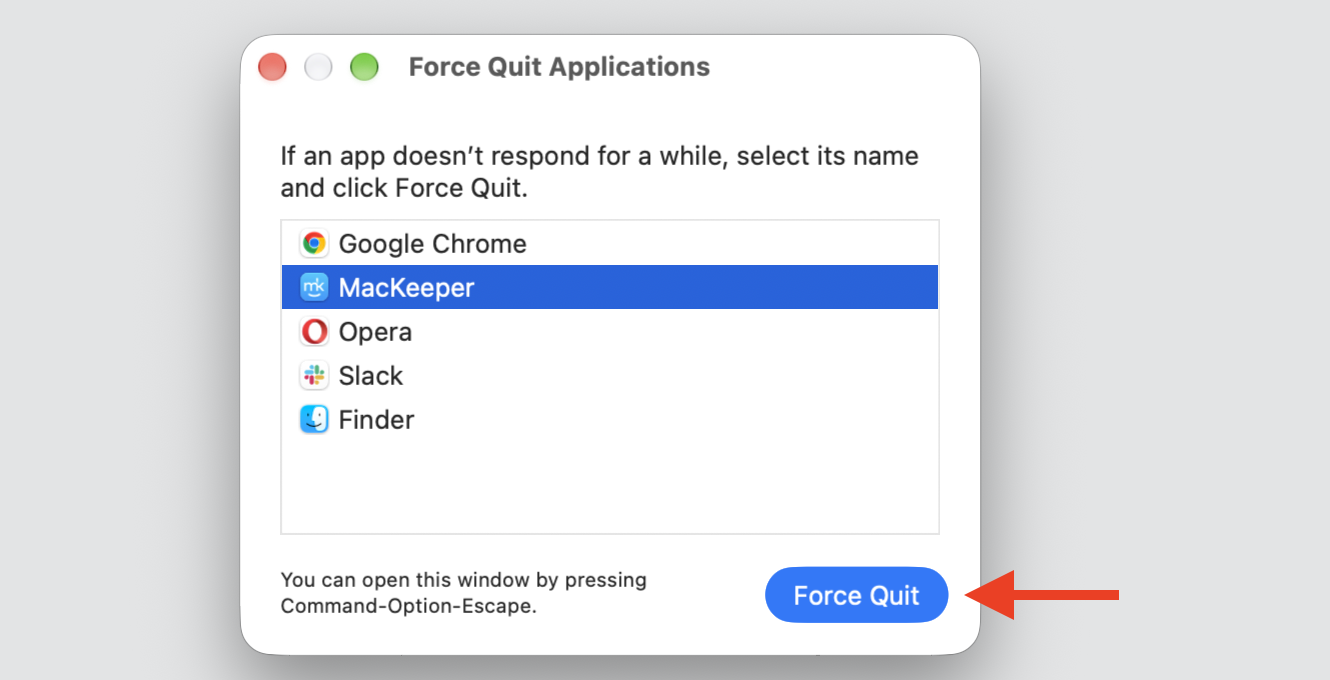
Press Option + Command + Esc to open the Force Quit Applications window.
Select the app that won’t respond.
Click Force Quit, then confirm.
Wait a few seconds, then open the app again—most apps launch normally once the stuck process has stopped.
Step 1. Press Option + Command + Esc to open the Force Quit applicationStep 2. Select the app and click Force Quit
2. Quit other apps and check memory usage
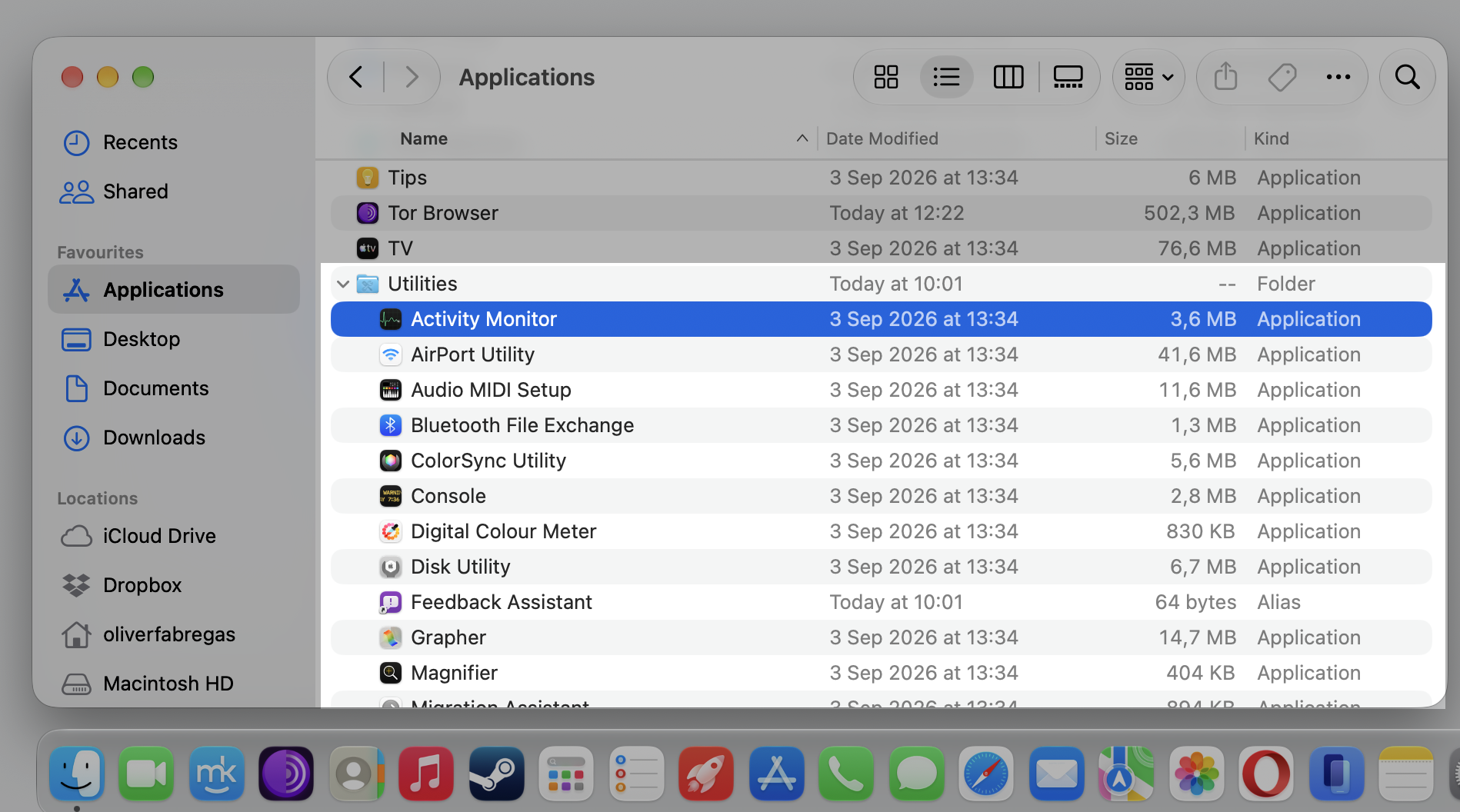
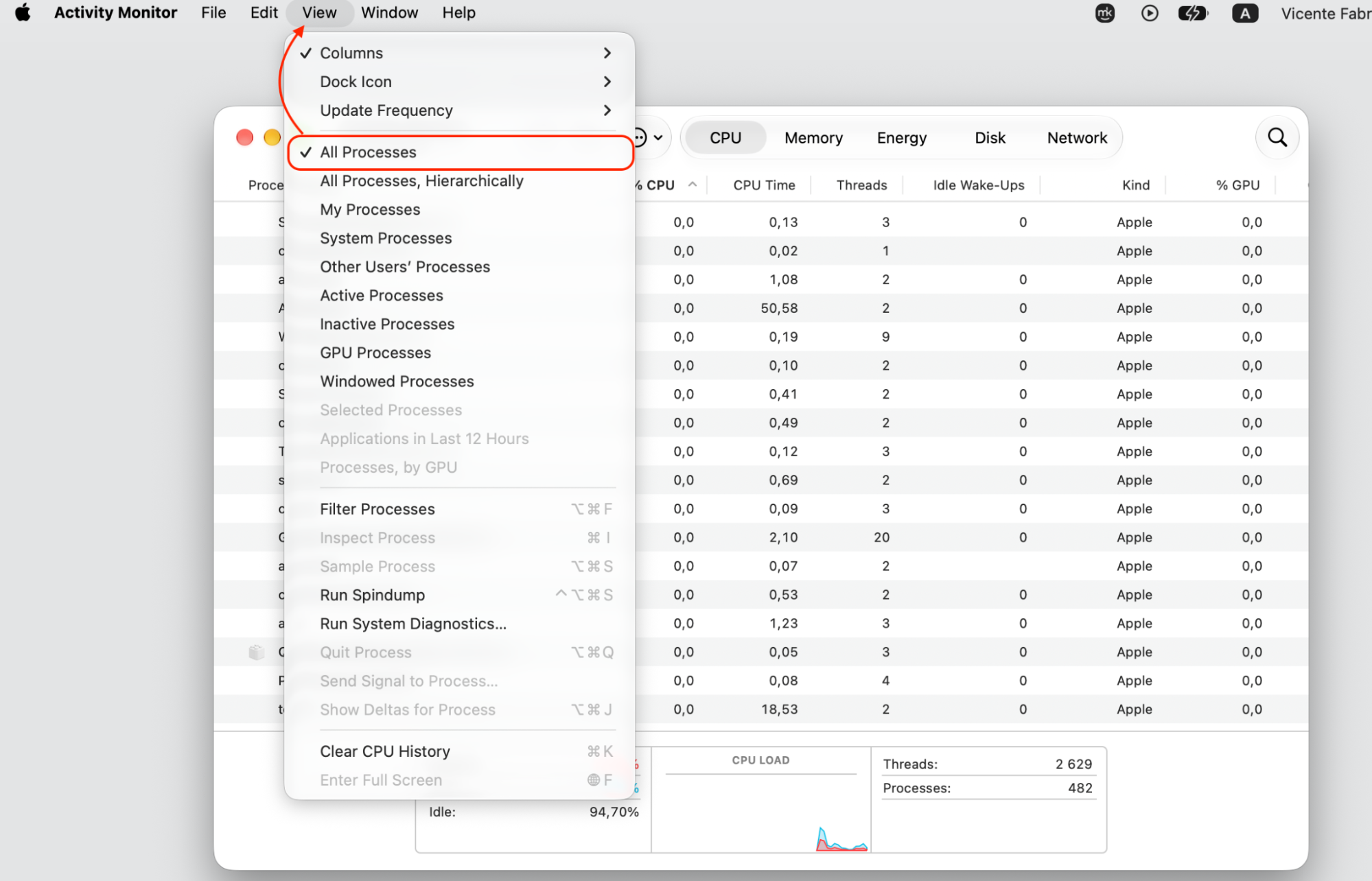
Too many open apps can overload memory, especially on Macs with less RAM. We’d start by quitting anything you’re not using, then check memory usage to see what’s eating resources. You can do it on a Mac in Activity Monitor and spot any app with unusually high CPU or memory.
To free up memory, do this:
Quit the apps you don’t need right now.
Open Activity Monitor from Applications > Utilities.
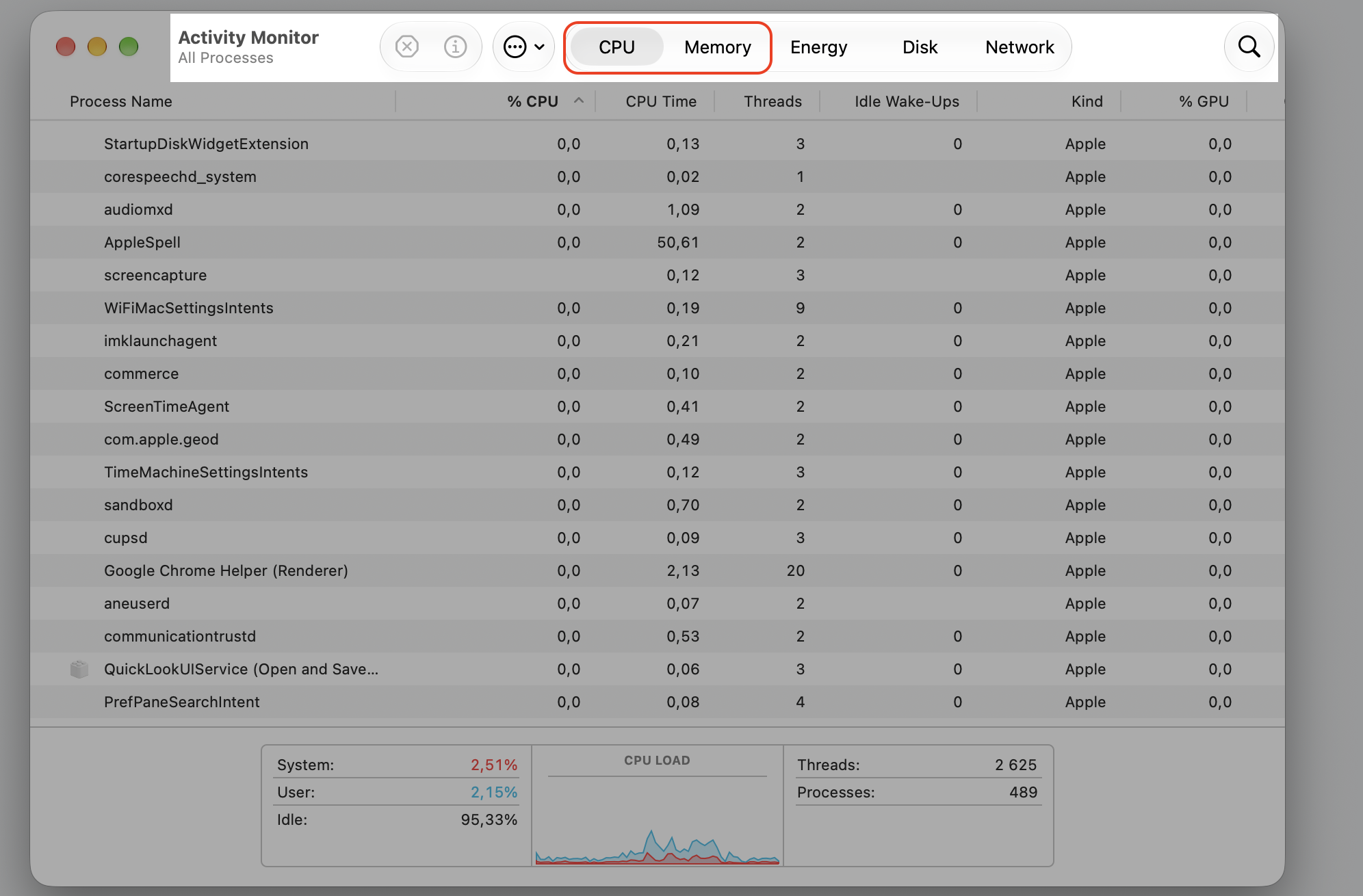
Click the Memory and CPU tabs to see the heavy users.
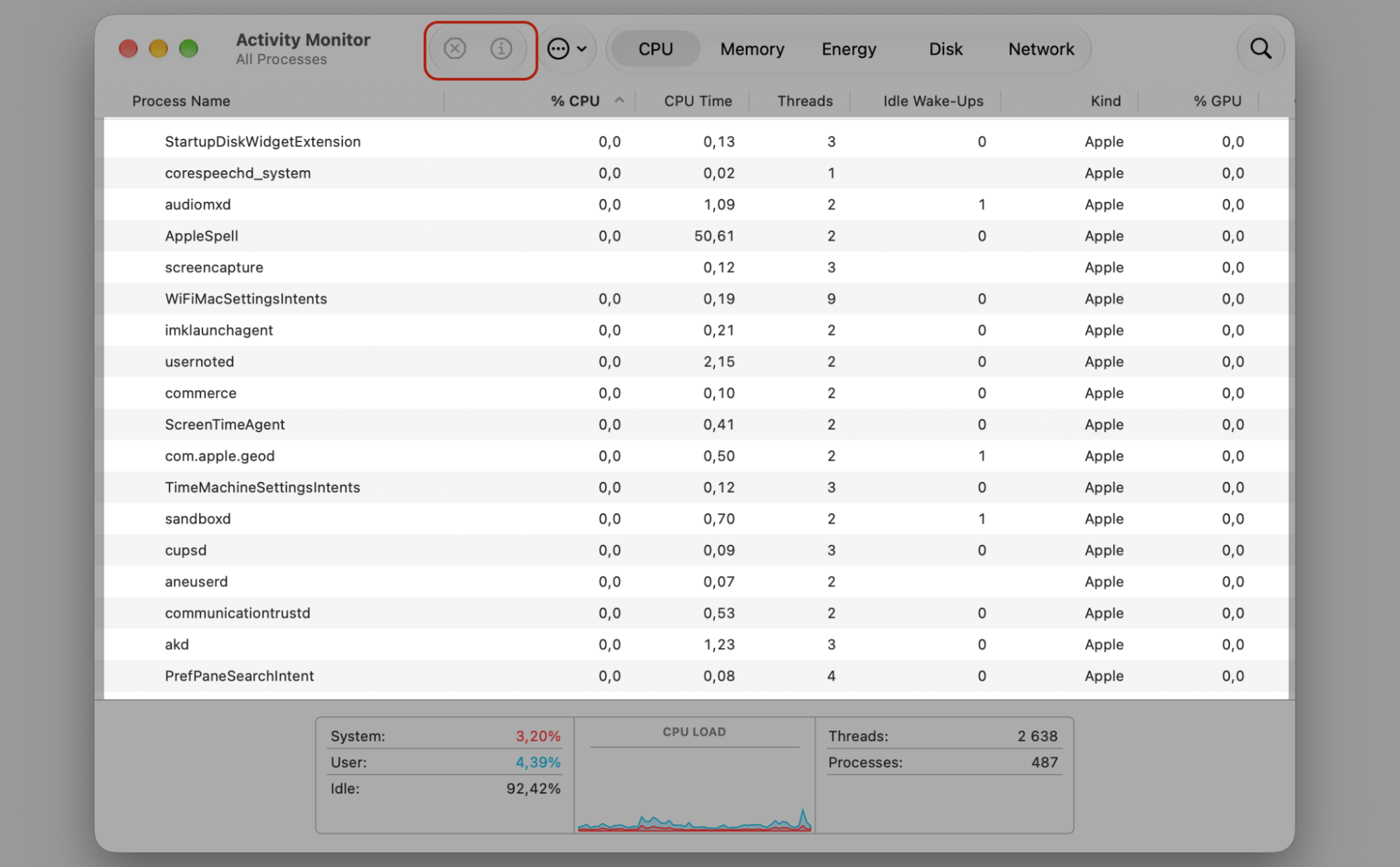
Select a demanding app and quit it if it’s safe to do so.
Step 1. Go to Finder > ApplicationsStep 2. Select Activity Monitor from Utilities folderStep 3. When Activity Monitor opens, go to View and select All ProcessesStep 4. Check the CPU and Memory sectionsStep 5. Review all high-resource processes and quit them using the X button
3. Restart your Mac
A restart clears temporary glitches, resets stuck processes, and resolves many launch issues at once—whenever we hit a stubborn app, it’s one of our first moves. If a single reboot of your MacBook fixes things, the cause was likely a minor system hiccup.
Restarting takes only a moment:
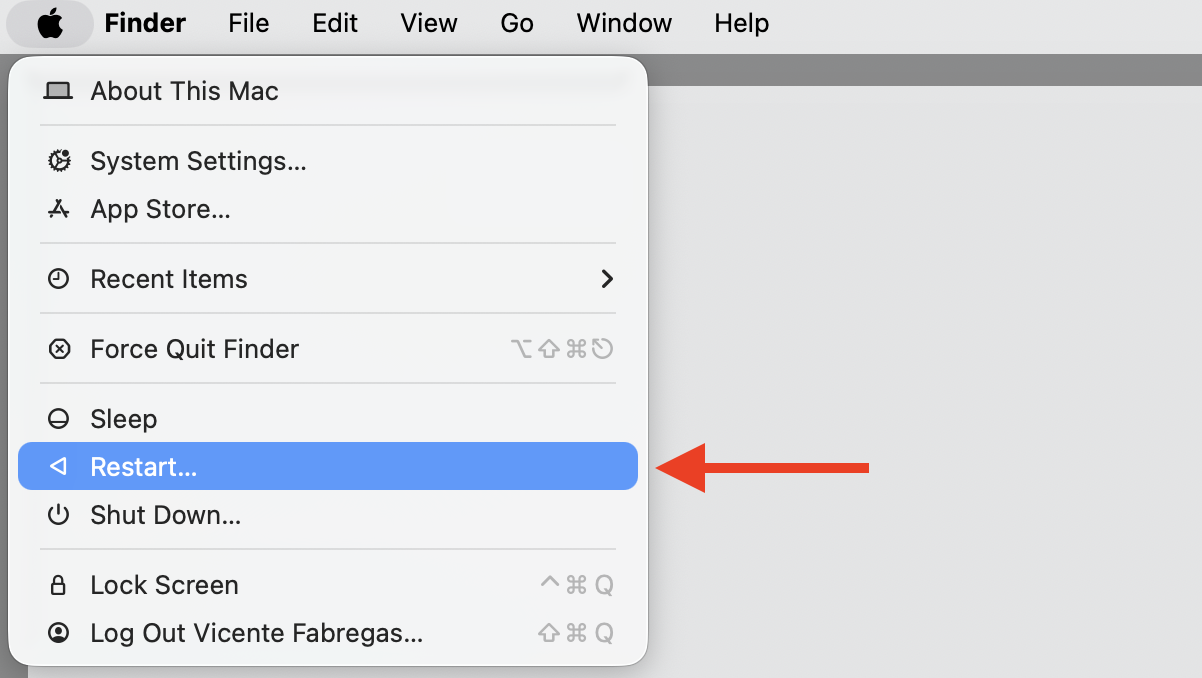
Click the Apple menu in the top-left corner.
Choose Restart.
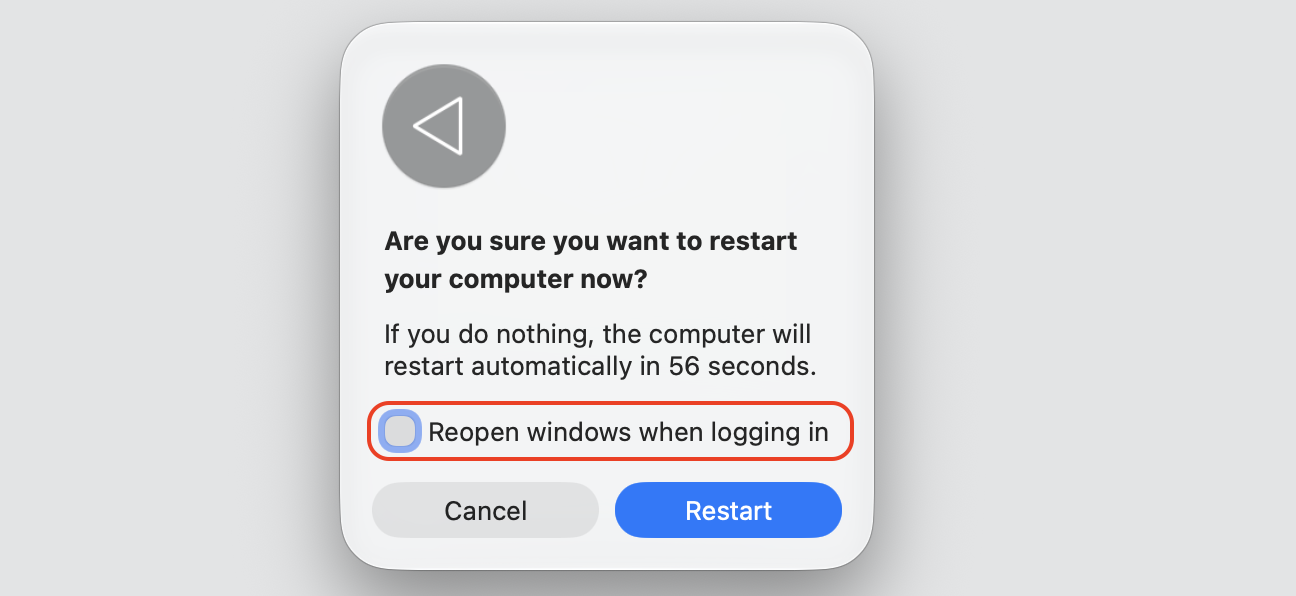
Deselect Reopen windows when logging back in for a clean start.
Click Restart and wait for your Mac to load.
Step 1. Go to Apple Logo > RestartStep 2. Deselect Reopen windows and proceed with Restart
4. Try opening the app from another place
Sometimes the app is fine, but the shortcut you’re using isn’t. If one launch point is broken, the app may still open from another spot on your Mac.
Try each of these until the app launches:
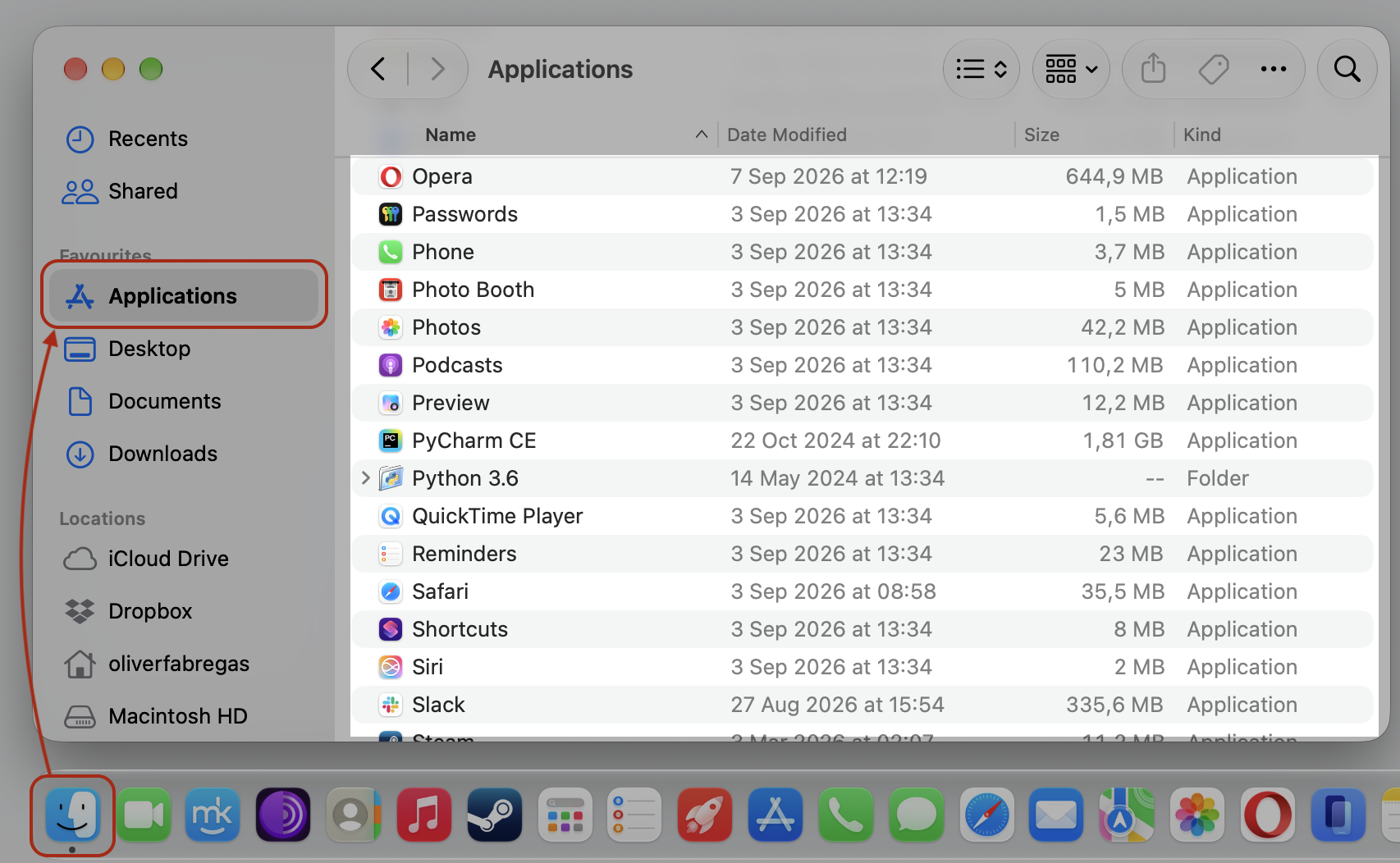
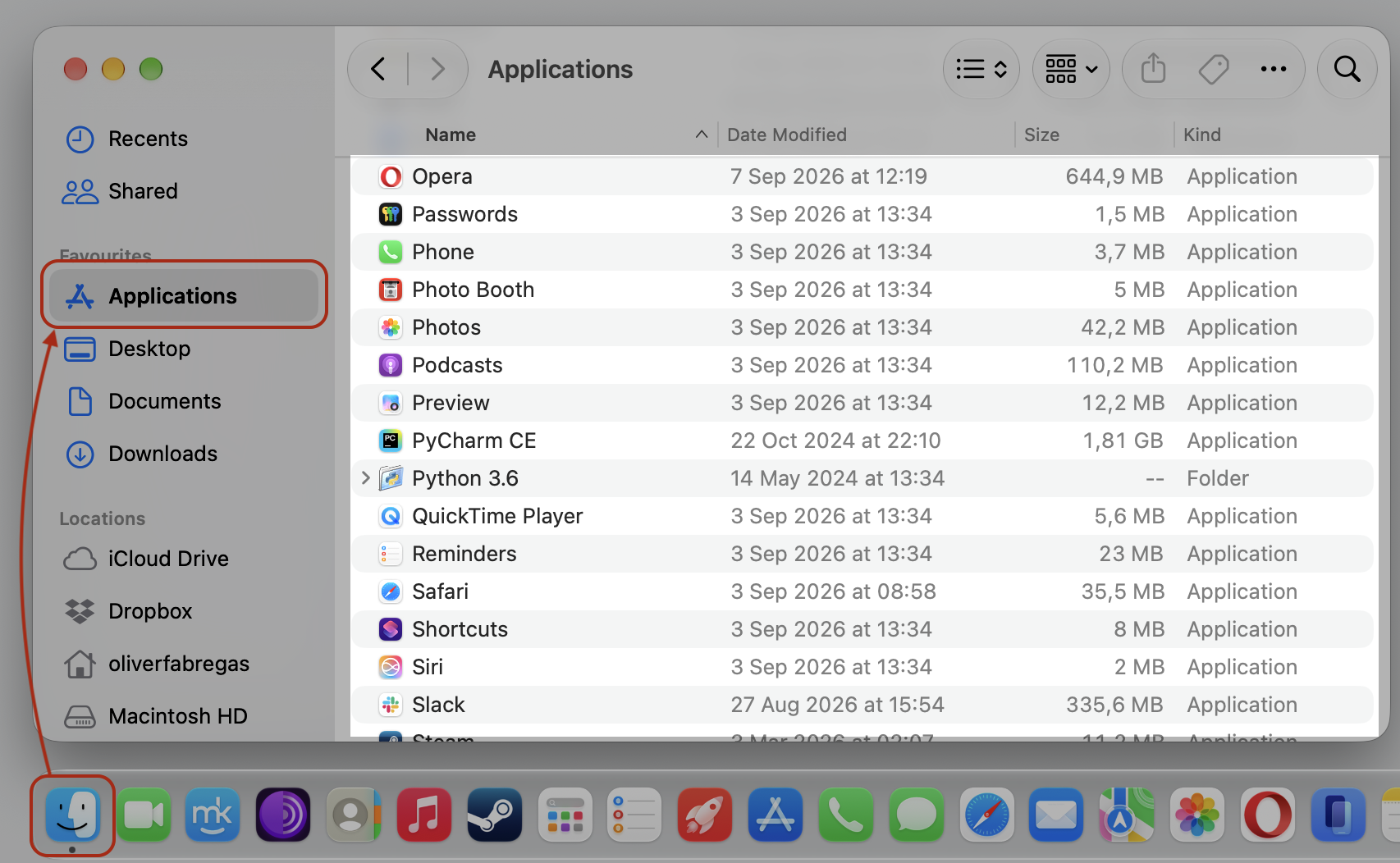
Open Finder, click Applications, and double-click the app.
Open Launchpad and click the app icon.
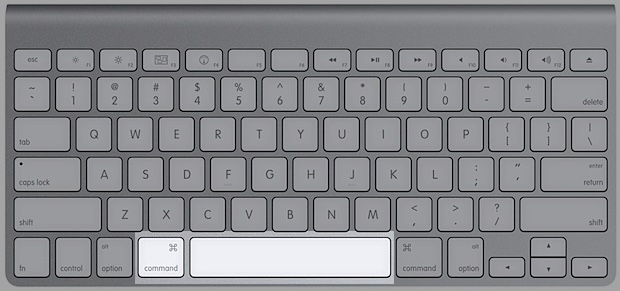
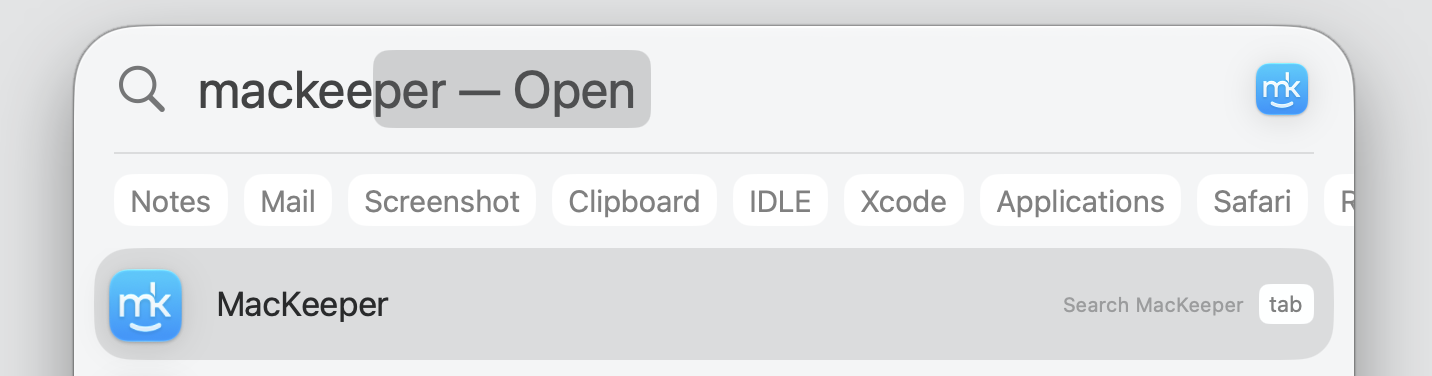
Press Command + Space to open Spotlight, then type the app name.
Click the app’s icon in the Dock. If it opened from Applications but not the Dock, the shortcut was the culprit.
Step 1. Open Finder > Applications, then double-click the app to launch itStep 2. Or Press Command + Space to open Spotlight SearchStep 3. Type the app name and hit Enter to open it
5. Update app
Outdated apps sometimes fail to open after macOS updates. In most cases we’ve seen, installing the latest version restores compatibility and gets things working again.
Here’s the quickest way to bring your app up to date:
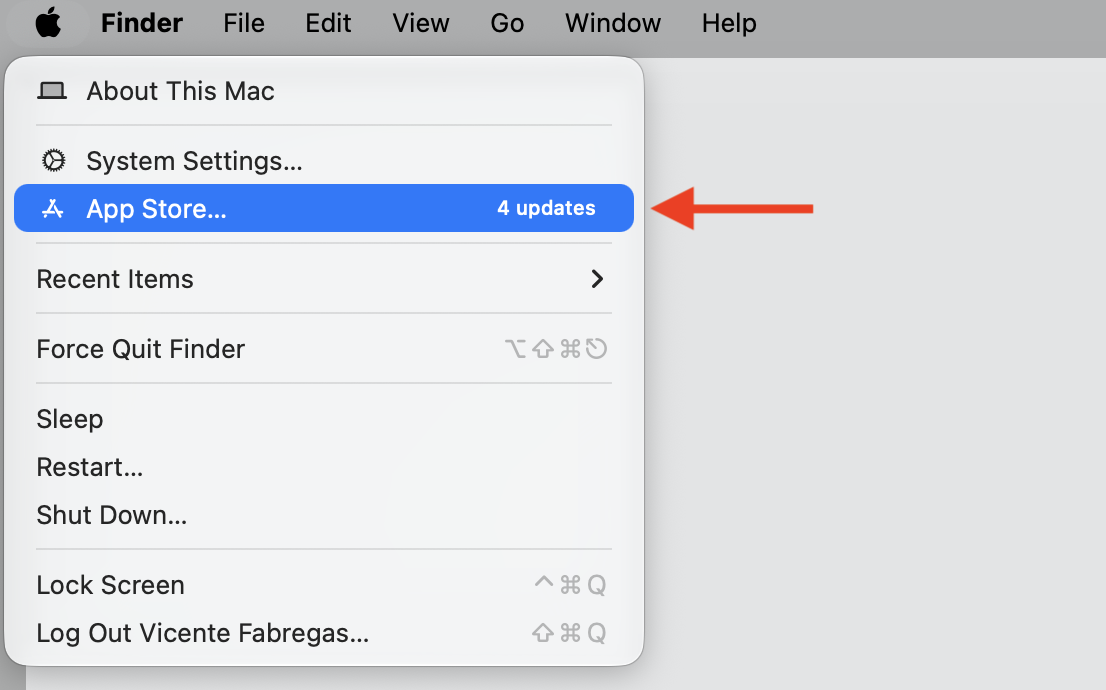
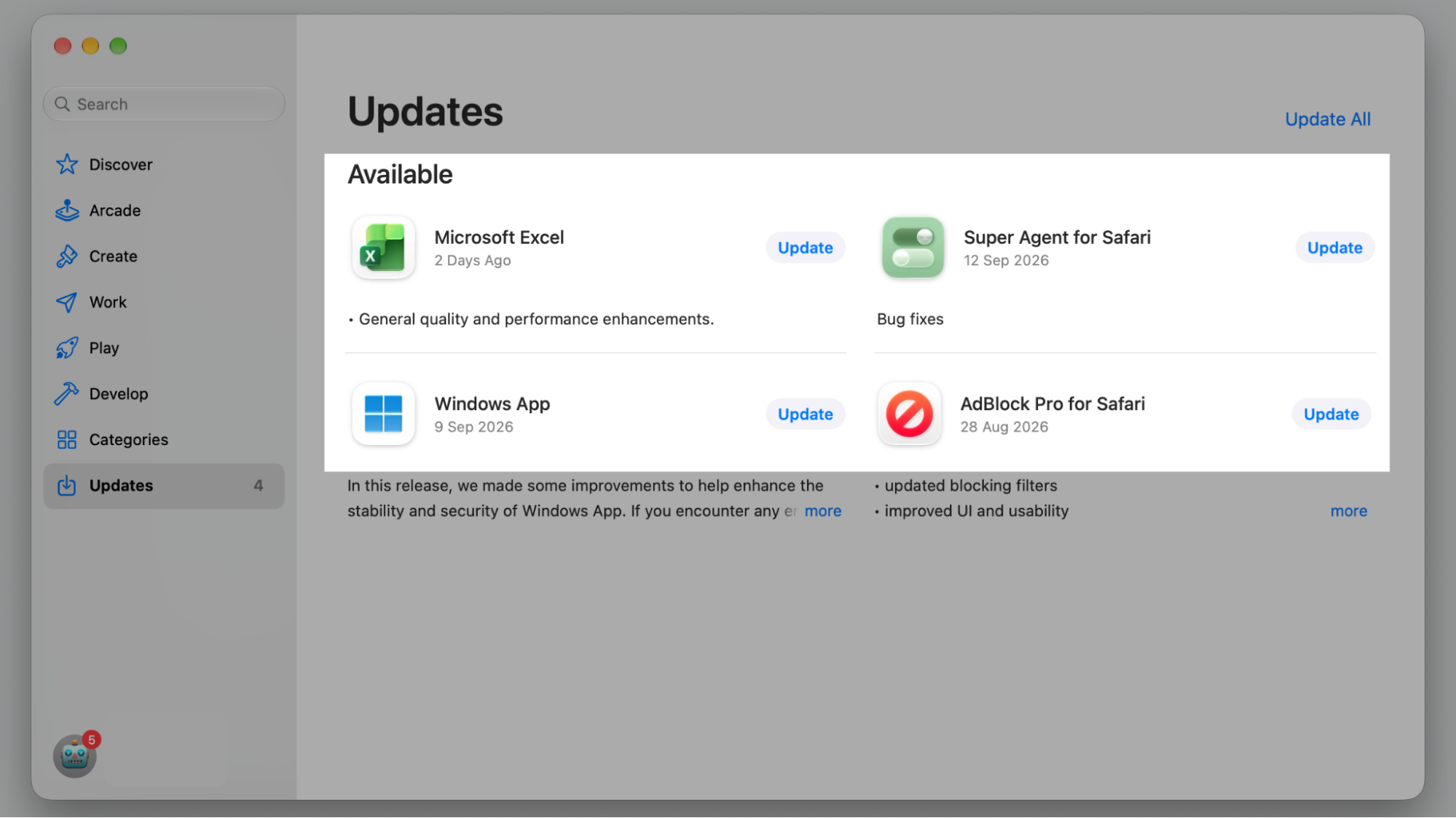
Open the App Store and click Updates in the sidebar.
Update the app if it appears in the list.
For apps from outside the App Store, visit the developer’s official website.
Download and install the newest version, then reopen the app.
Step 1. Go to Apple Logo > App StoreStep 2. Upstate the app if this option is availableStep 3. Visit the developer’s official website and download the app
6. Update macOS
macOS updates fix compatibility bugs and close security gaps, so it’s worth staying current. We’d suggest taking a moment to install newest macOS and see whether the app opens afterward.
Updating macOS is straightforward:
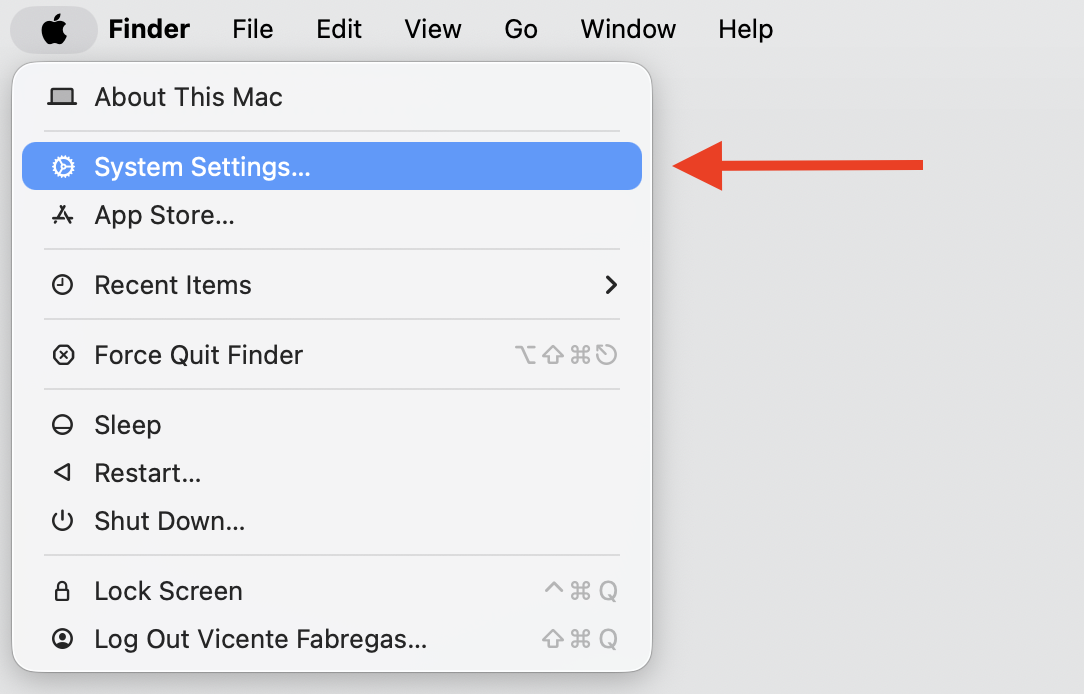
Open the Apple menu and choose System Settings.
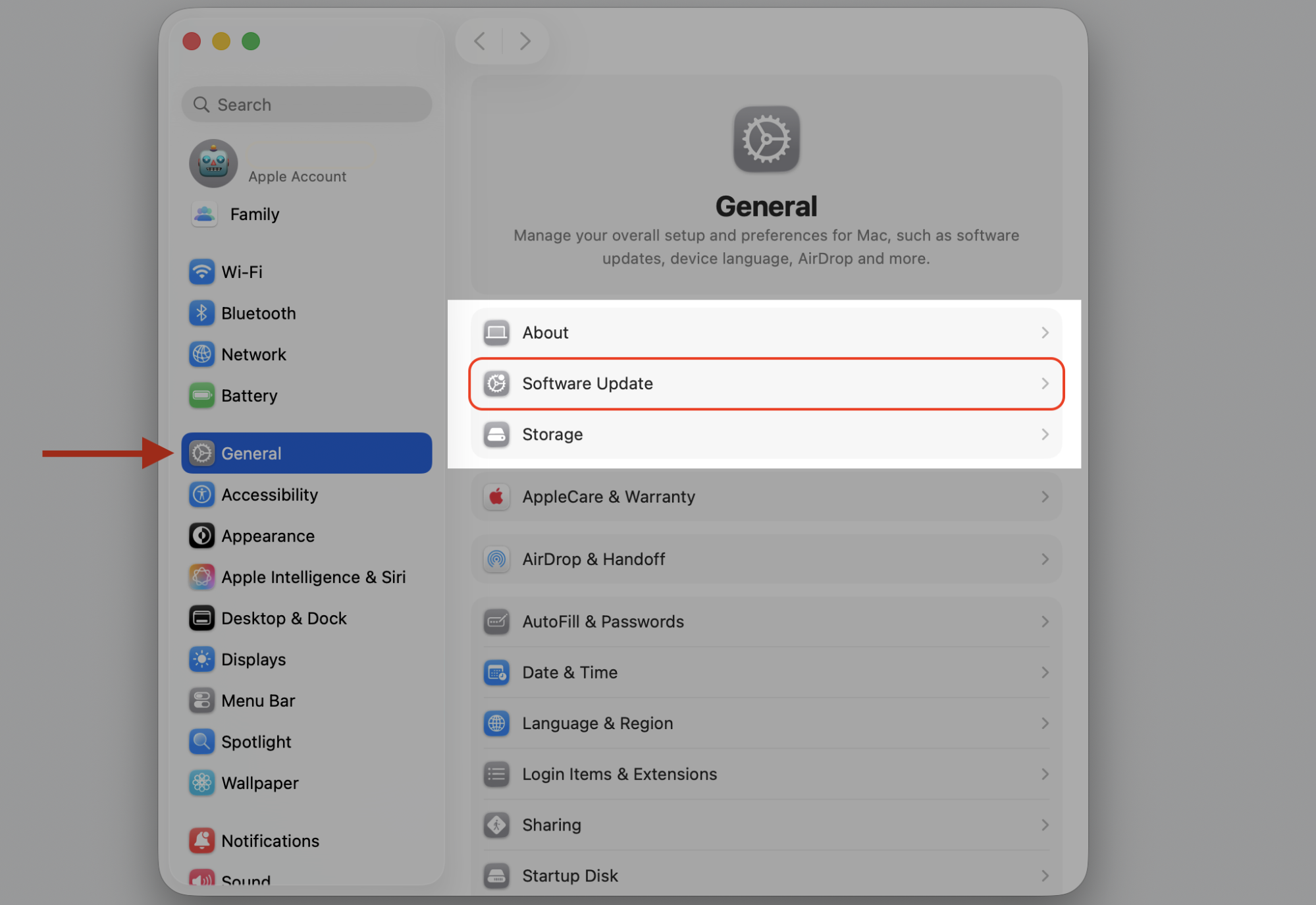
Click General, then Software Update.
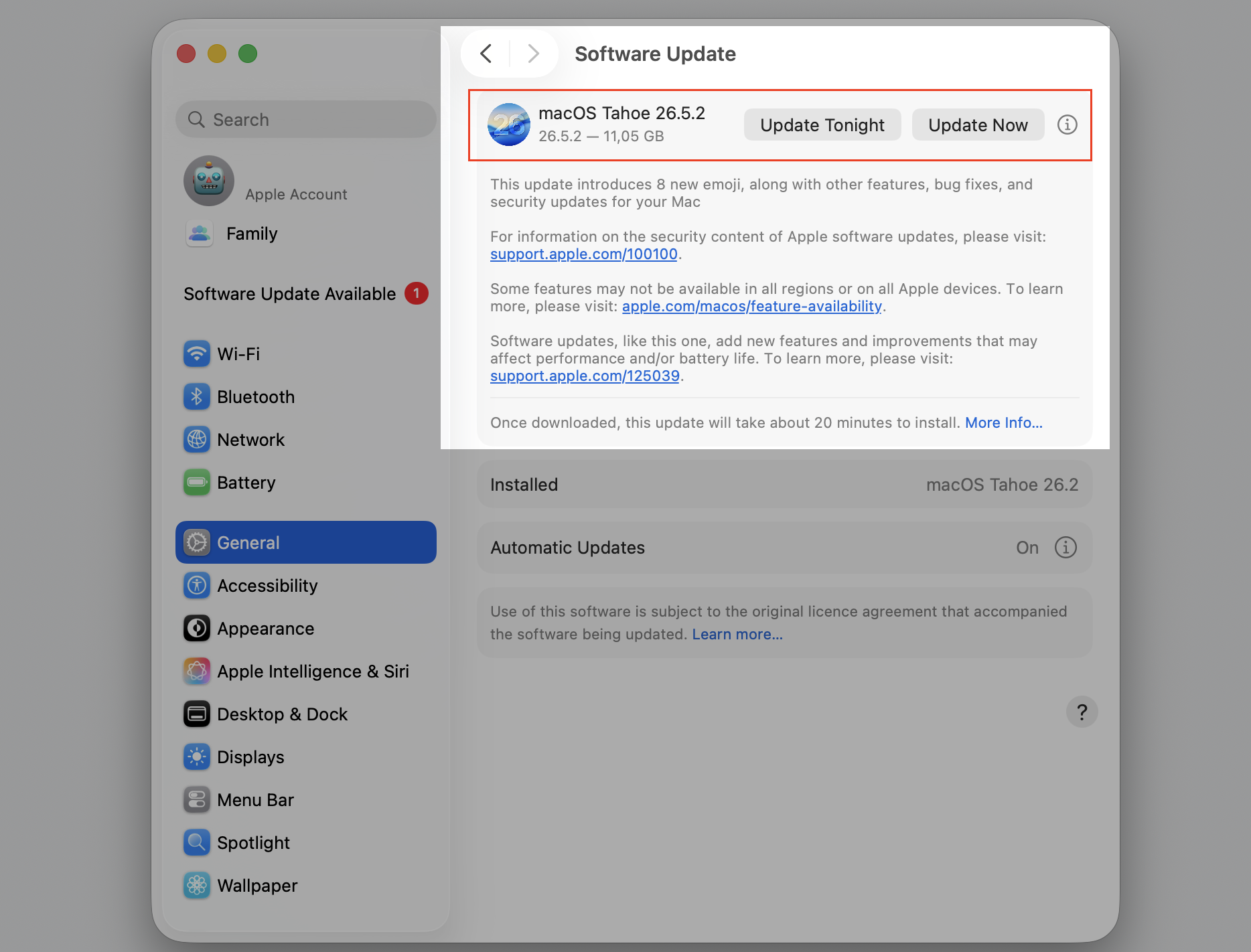
Wait for your Mac to check for available updates.
Click Update Now and follow the prompts.
Step 1. Go to Apple Logo > System SettingsStep 2. Select Software Update from General sectionStep 3. Select the Update Now option
7. Check Mac security settings
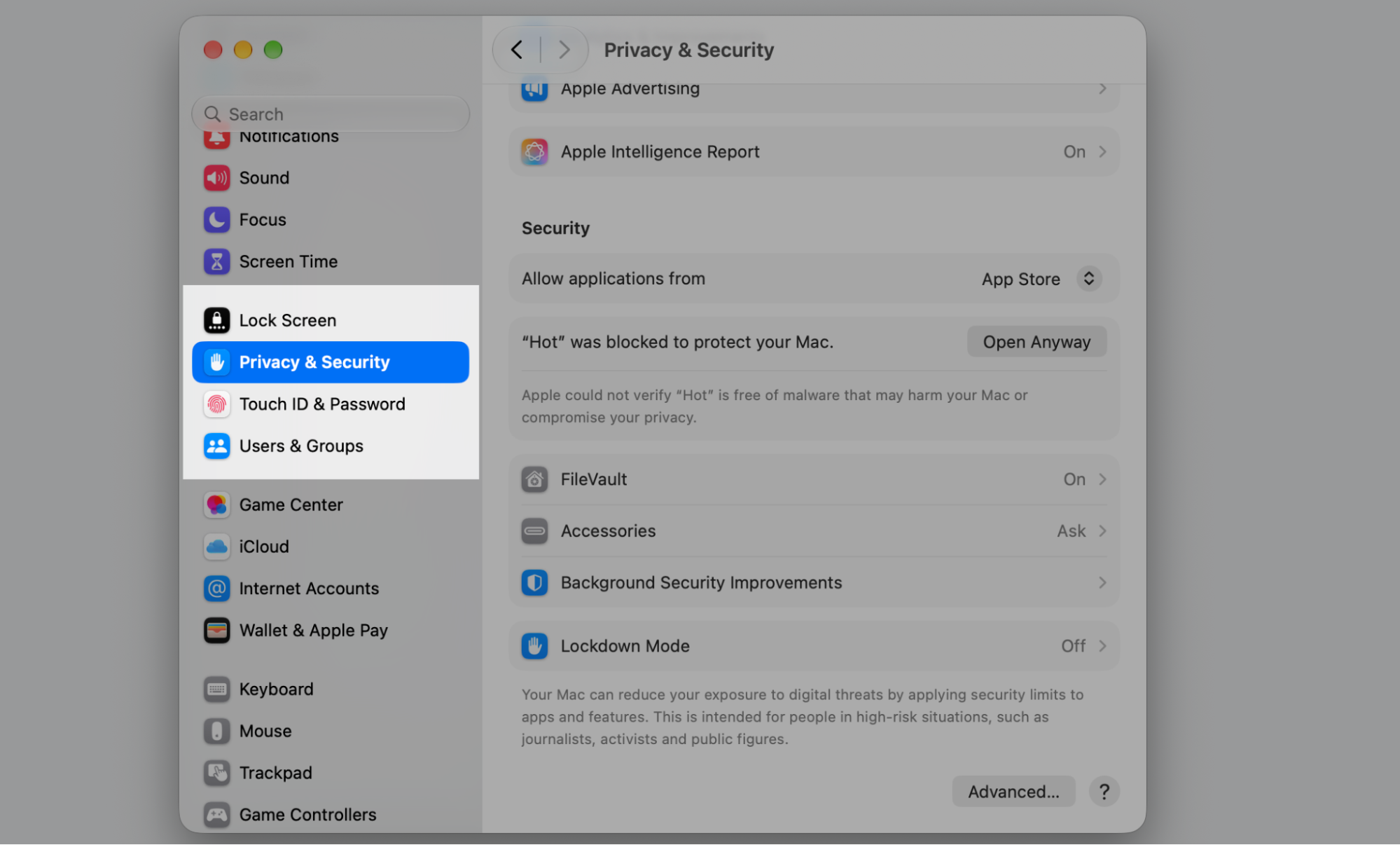
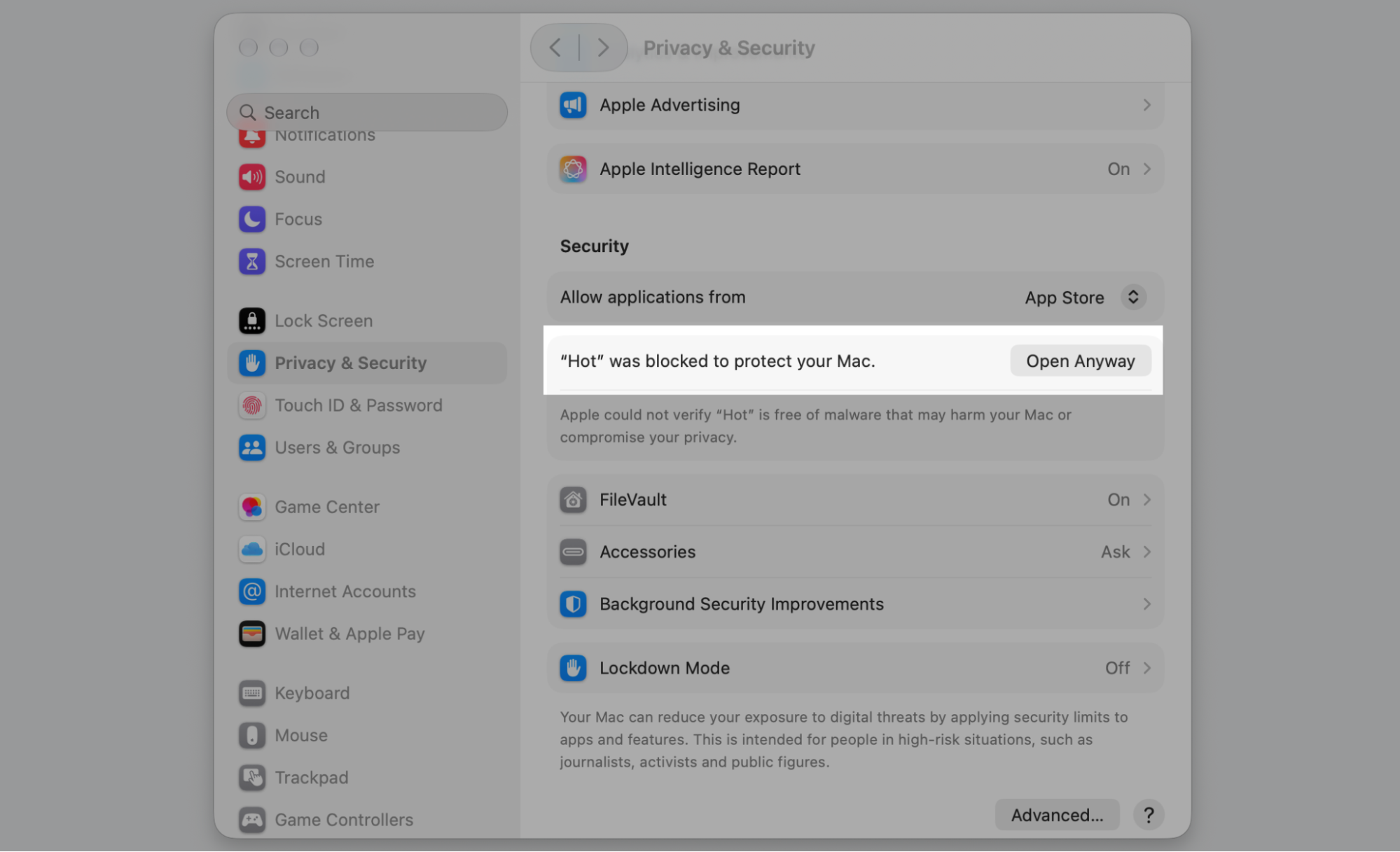
macOS may block an app from an unidentified developer to keep you safe. If you trust the source, you can change security preferences and allow it. Only change security preferences on Mac for apps you recognize, and never bypass a warning for software you don’t trust.
When you’re sure the app is safe, follow these steps:
Open System Settings > Privacy & Security.
Scroll to the Security section.
Click Open Anyway next to the blocked app.
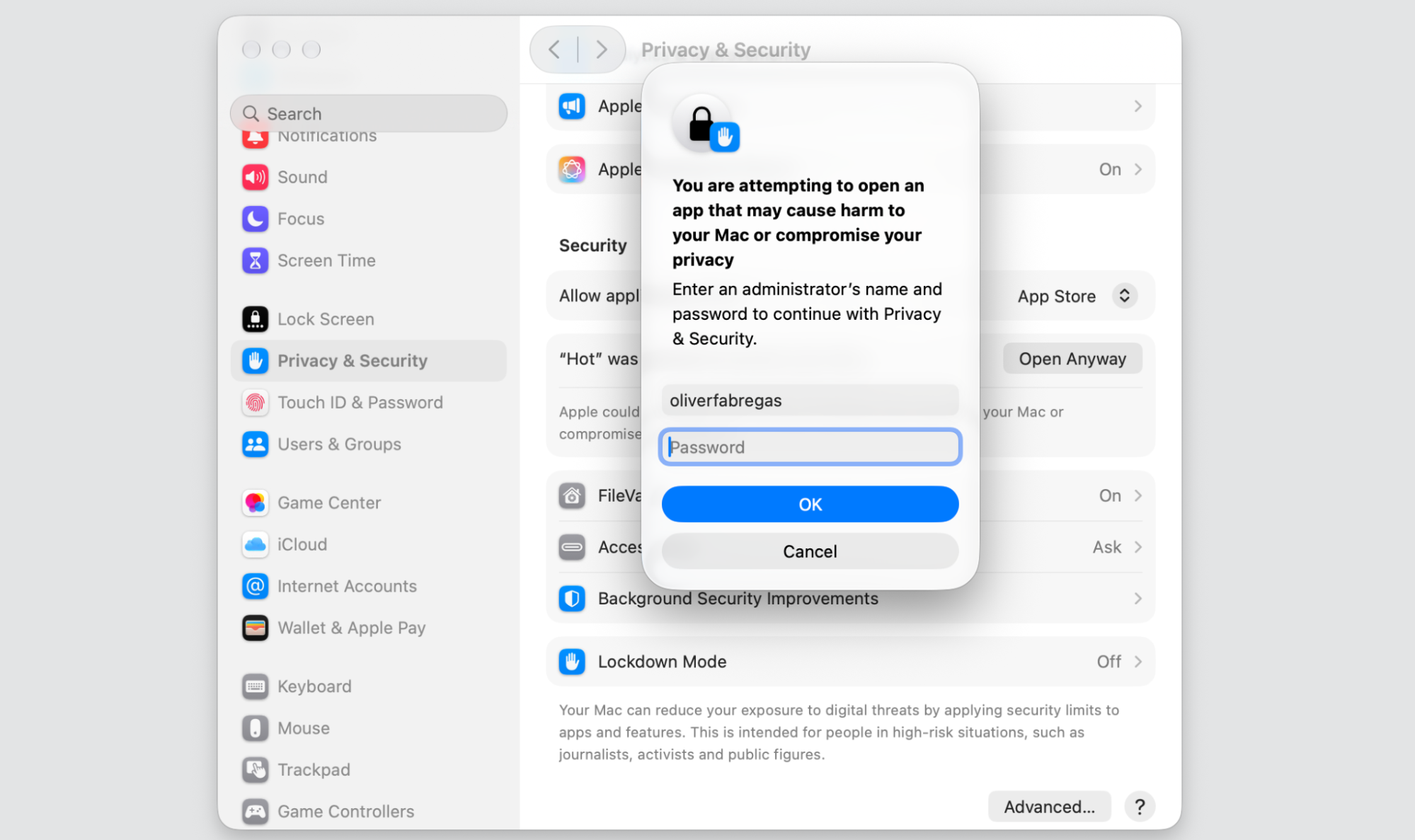
Enter your password to confirm you trust the app.
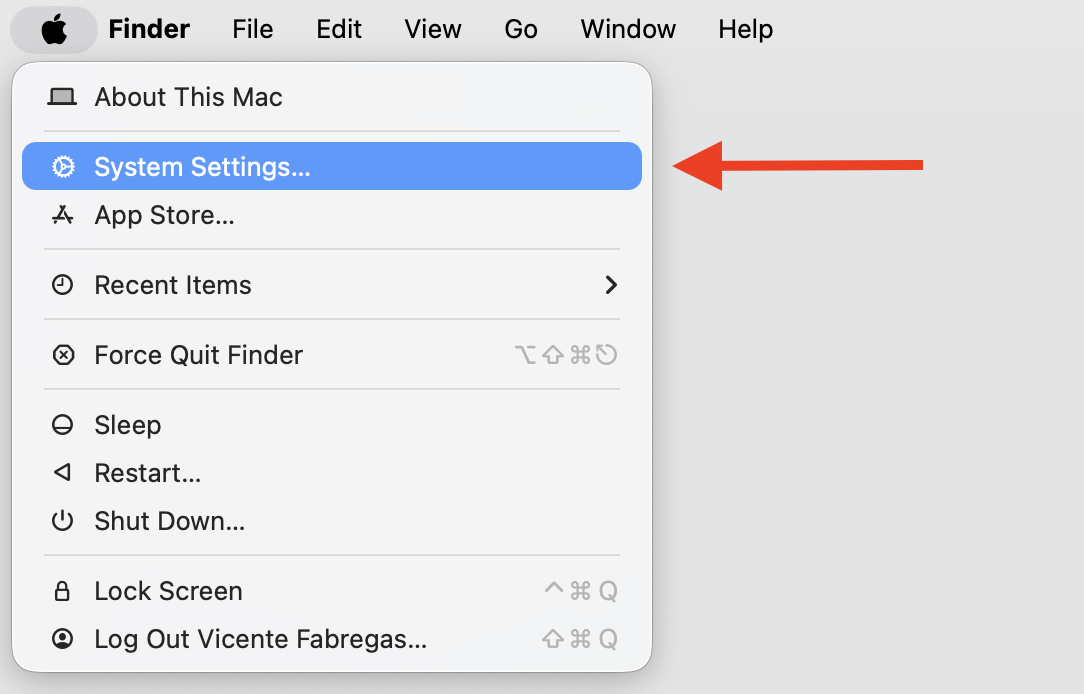
Step 1. Go to Apple Logo > System SettingsStep 2. Go to Privacy & Security sectionStep 3. Scroll down to the Security section and click Open AnywayStep 4. Enter your password to confirm you trust the app
Download future apps only from trusted, verified sources.
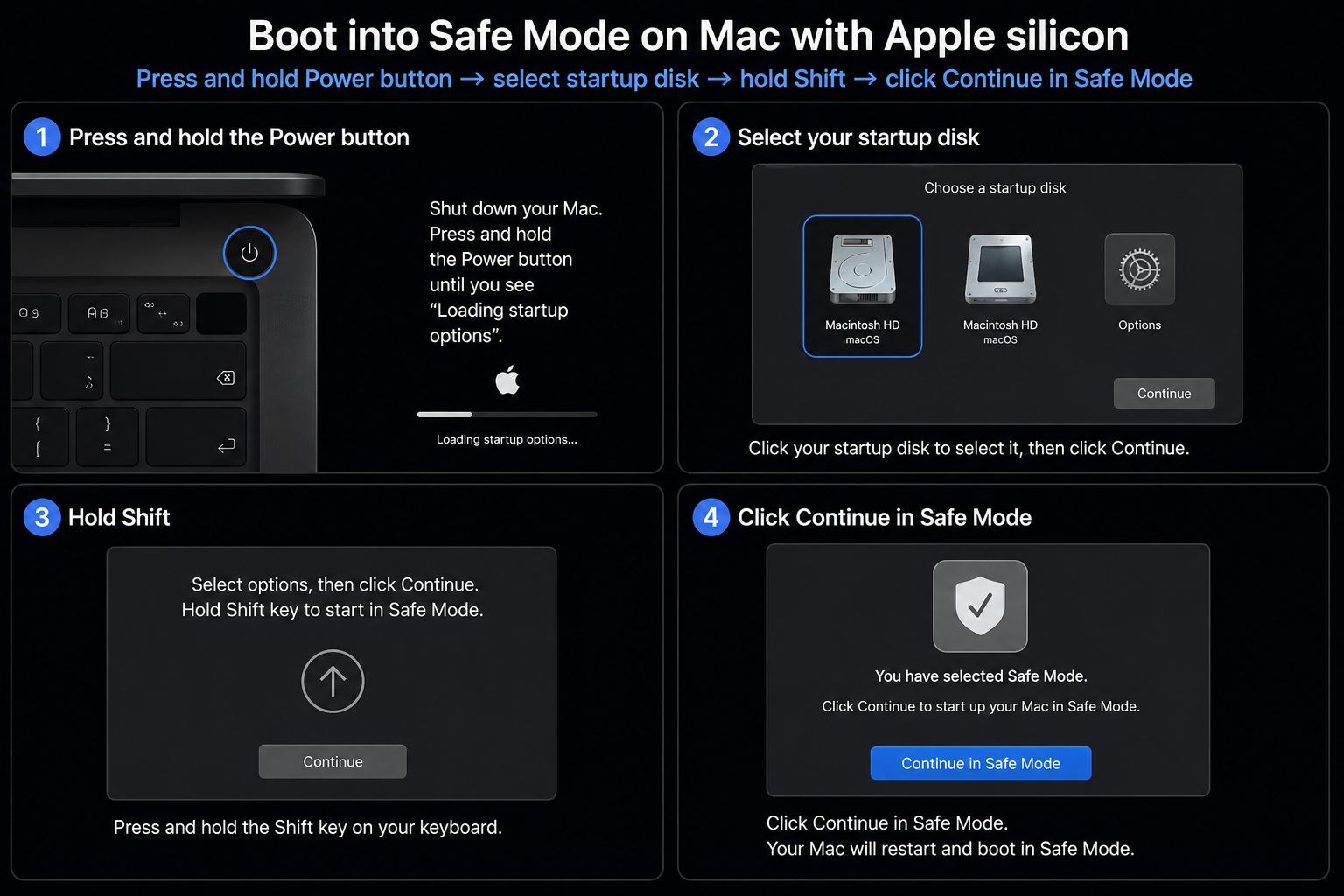
9. Start Mac in Safe Mode
Safe Mode loads only the essentials, which helps you see whether login items, extensions, or third-party software are blocking the app. When you start Mac in safe mode, macOS also runs a quick check on your startup disk.
Booting into Safe Mode is easy:
Shut down your Mac completely.
On Apple Silicon, hold the power button until startup options appear, then hold Shift and click Continue in Safe Mode.
On an Intel Mac, turn it on and hold Shift until the login screen appears.
Log in, then try opening the app.
10. Clear app cache or preference files
Corrupted cache or preference files can quietly stop an app from launching. You can delete application cache to clear it out, but we recommend removing only files clearly tied to the app in question. If you’re not sure which cache files are safe to remove, the steps below keep you on track.
To clear the app’s cache safely, do the following:
Quit the app first.
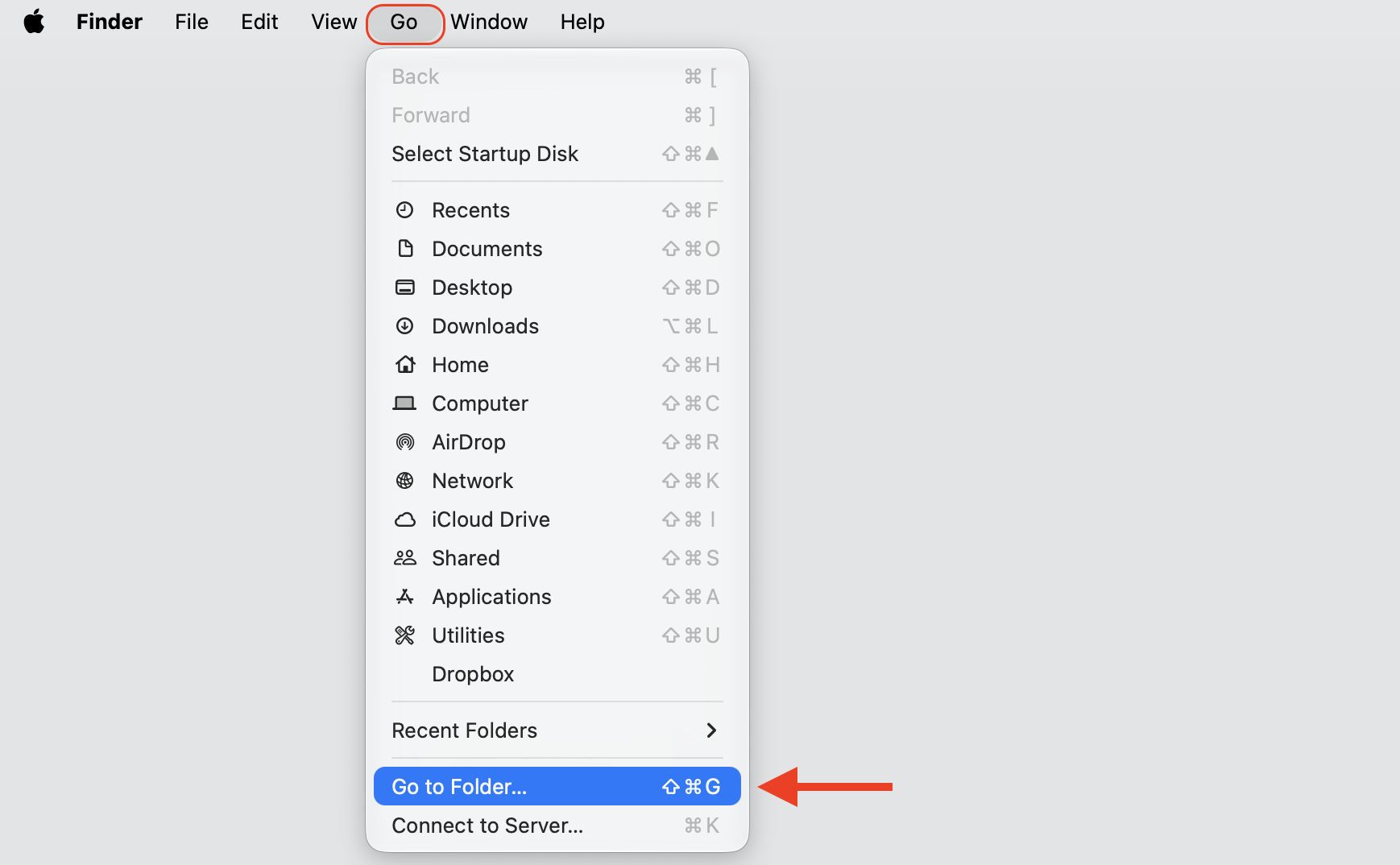
In Finder, choose Go > Go to Folder.
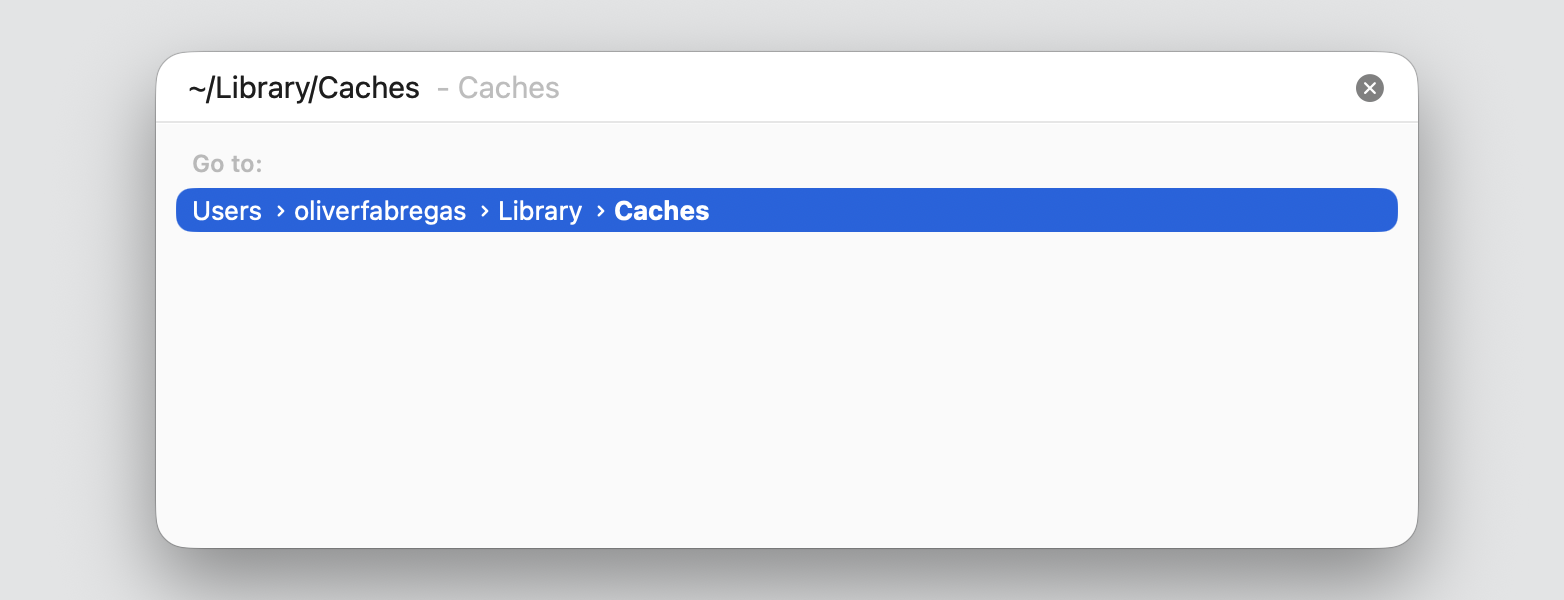
Type ~/Library/Caches and press Return.
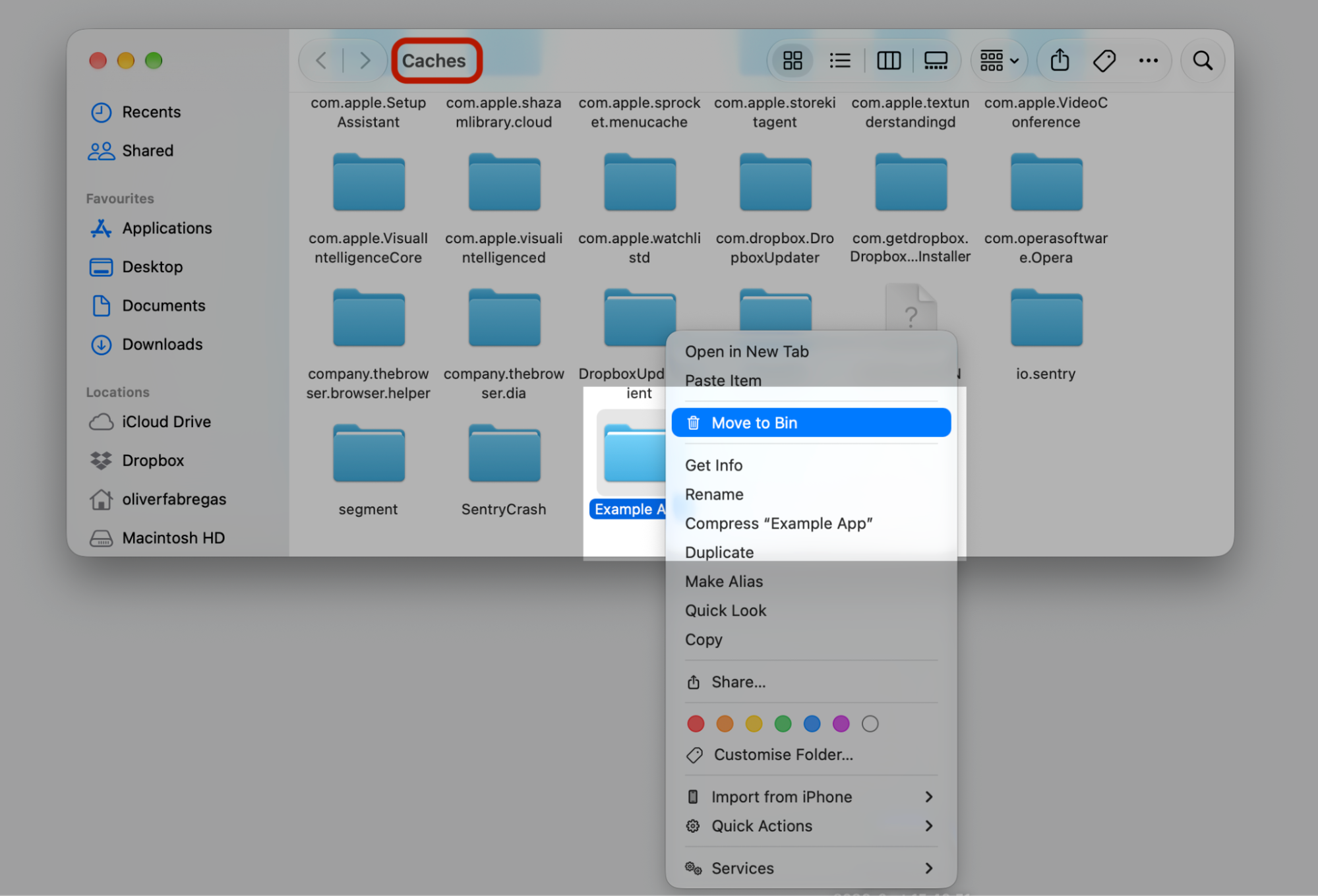
Move only the folder named after the app to the Bin, then reopen the app. Leave unrelated Library files alone—deleting the wrong ones can cause new issues.
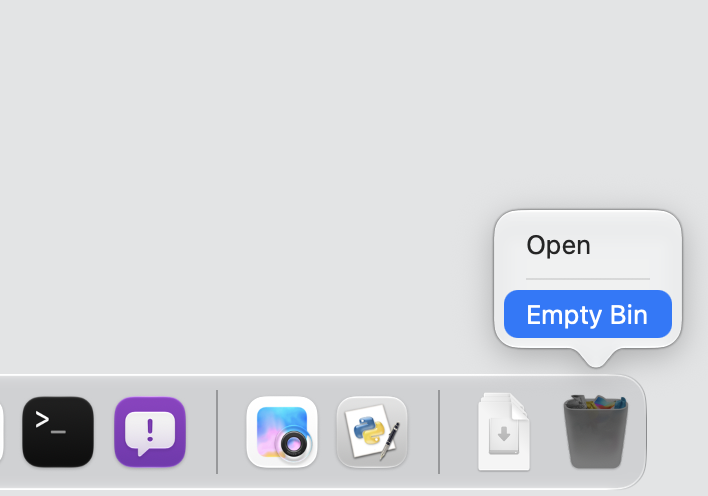
Step 1. Go to Finder > Go > Go to the Folder (or press Shift + Command + G)Step 2. Type ~/Library/Caches and hit ReturnStep 3. Select the app and move it to Bin using the Control-clickStep 4. Empty Bin with the Control-click
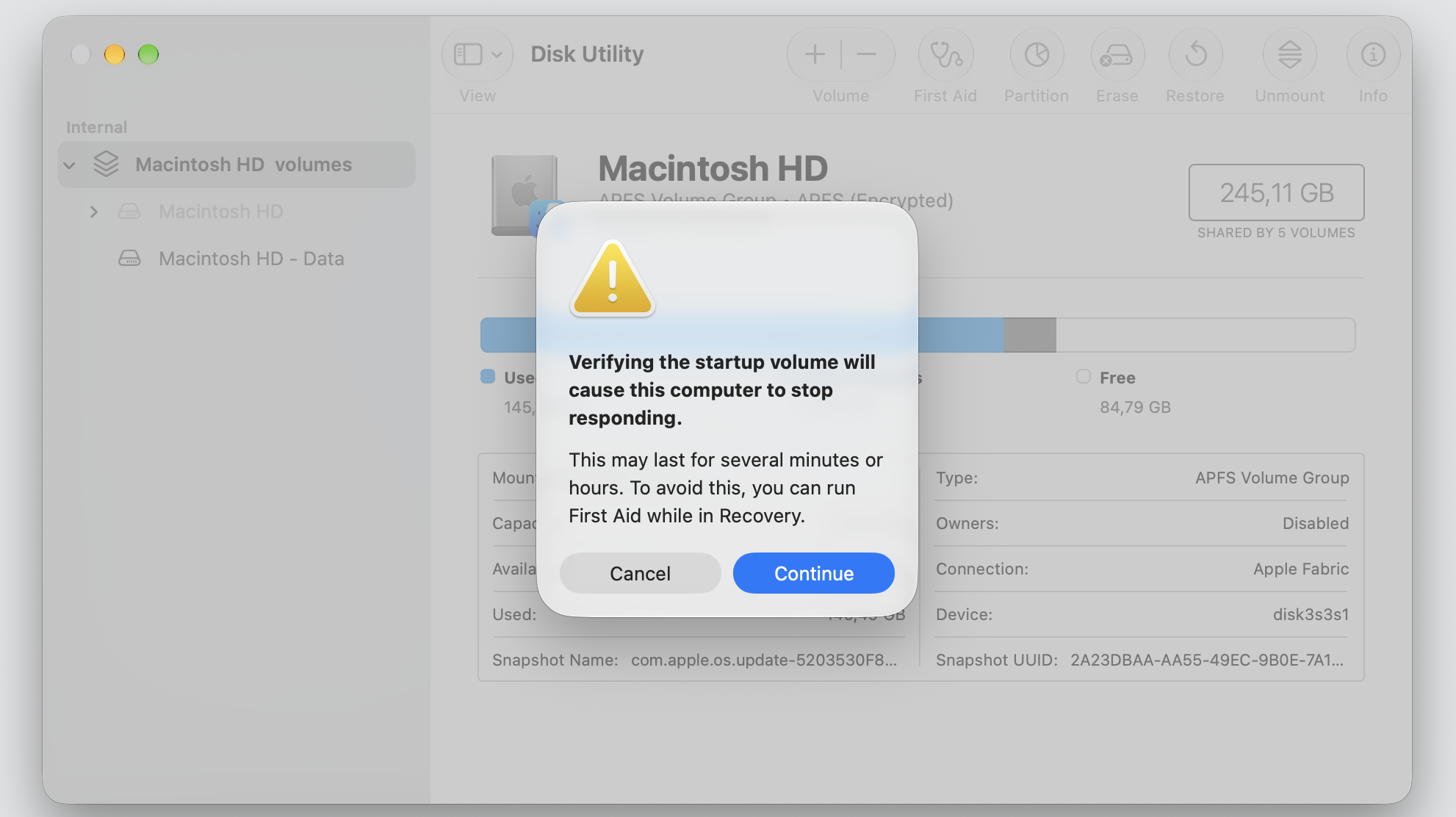
11. Run First Aid in Disk Utility
Disk errors can interfere with how apps load. You can use Disk Utility to run First Aid, which checks and repairs basic disk issues.
Running First Aid takes just a few clicks:
Open Disk Utility from Applications > Utilities.
Select your startup disk in the sidebar.
Click First Aid, then Run.
Let the check finish, then restart and open the app.
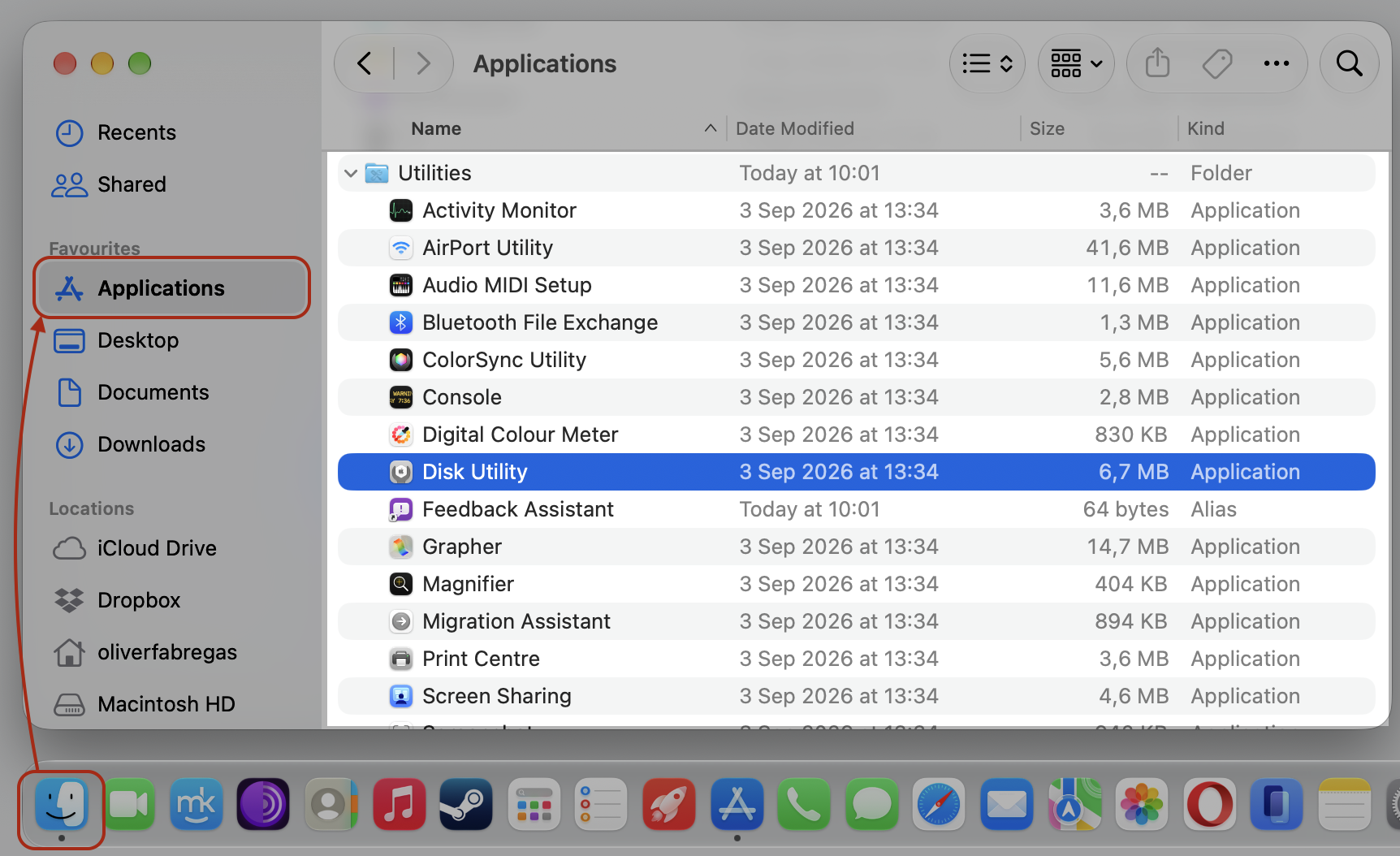
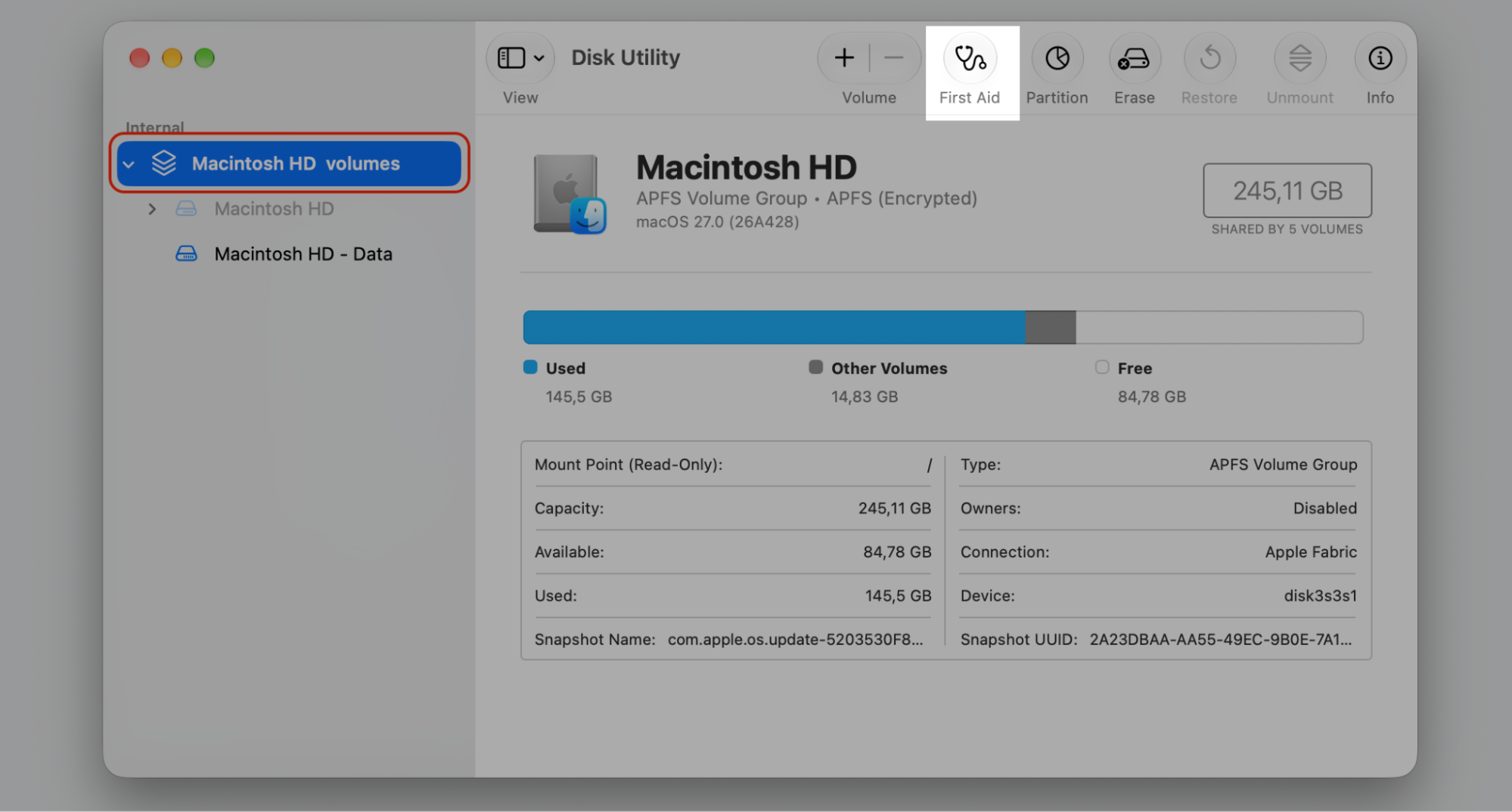
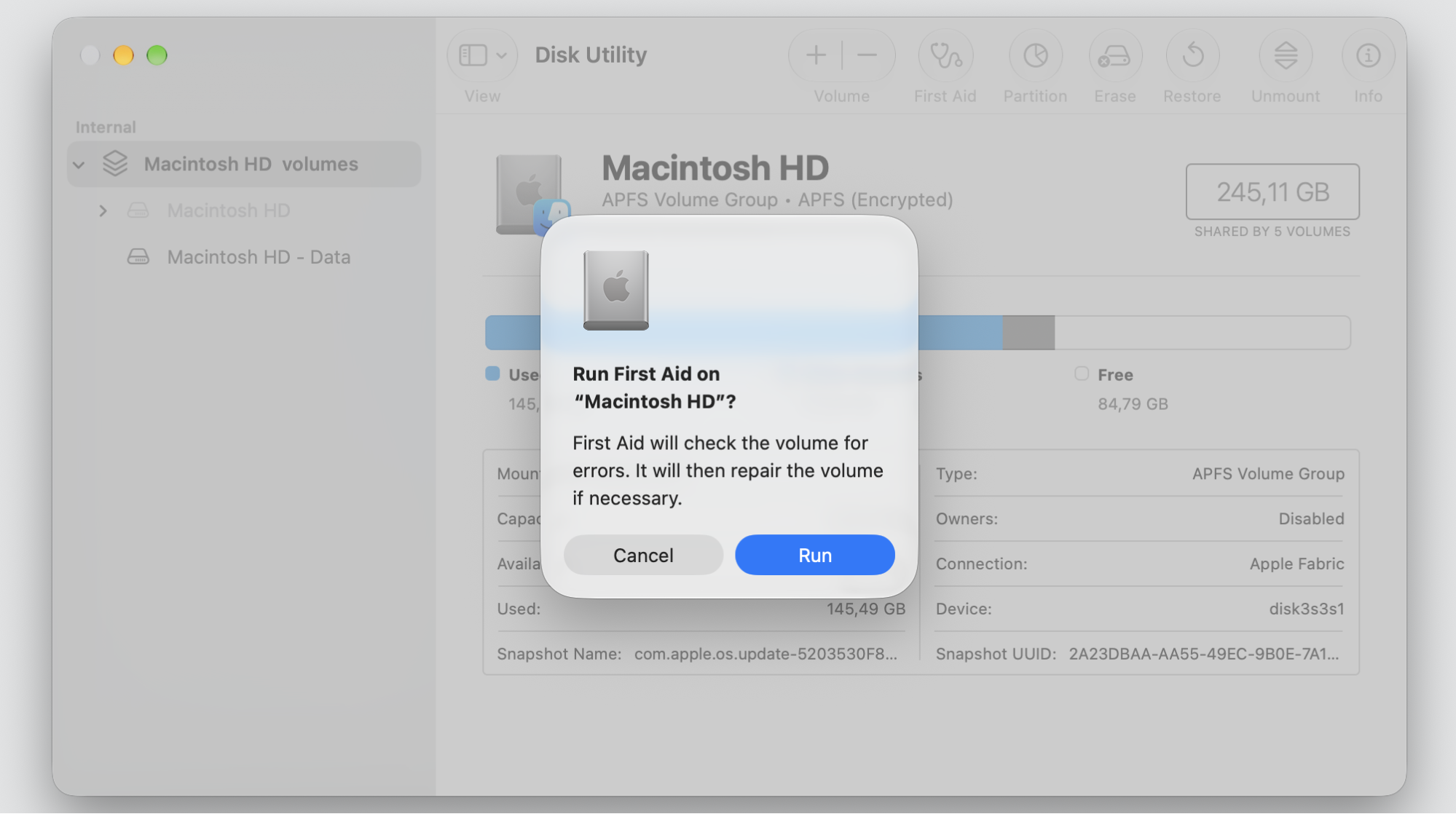
Step 1. Go to Finder > Applications > Utilities > Open Disk UtilityStep 2. Select Macintosh HD and run First AidStep 3. Review the information and click Run to proceedStep 4. Select Continue to launch the process of First Aid
12. Reinstall app
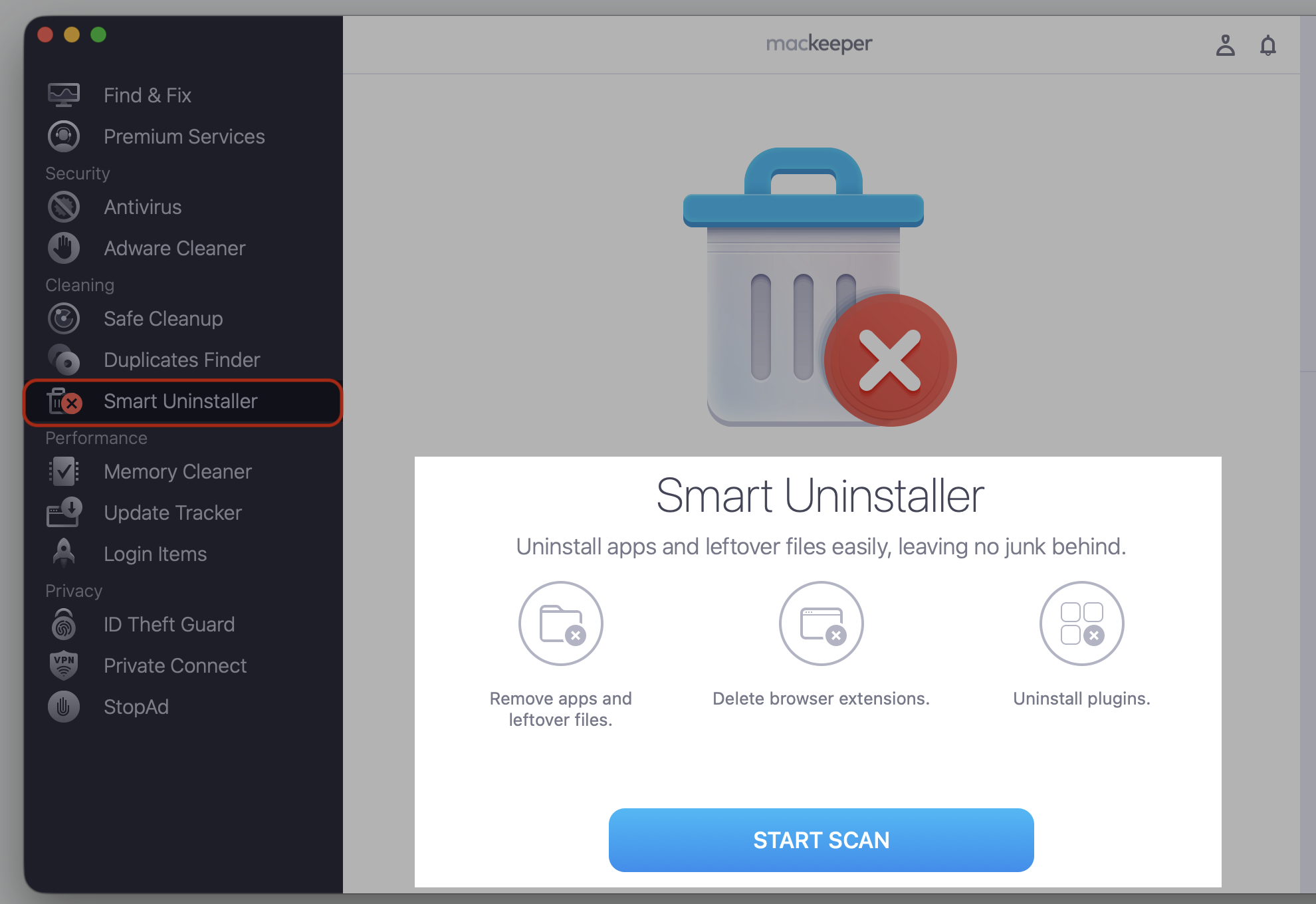
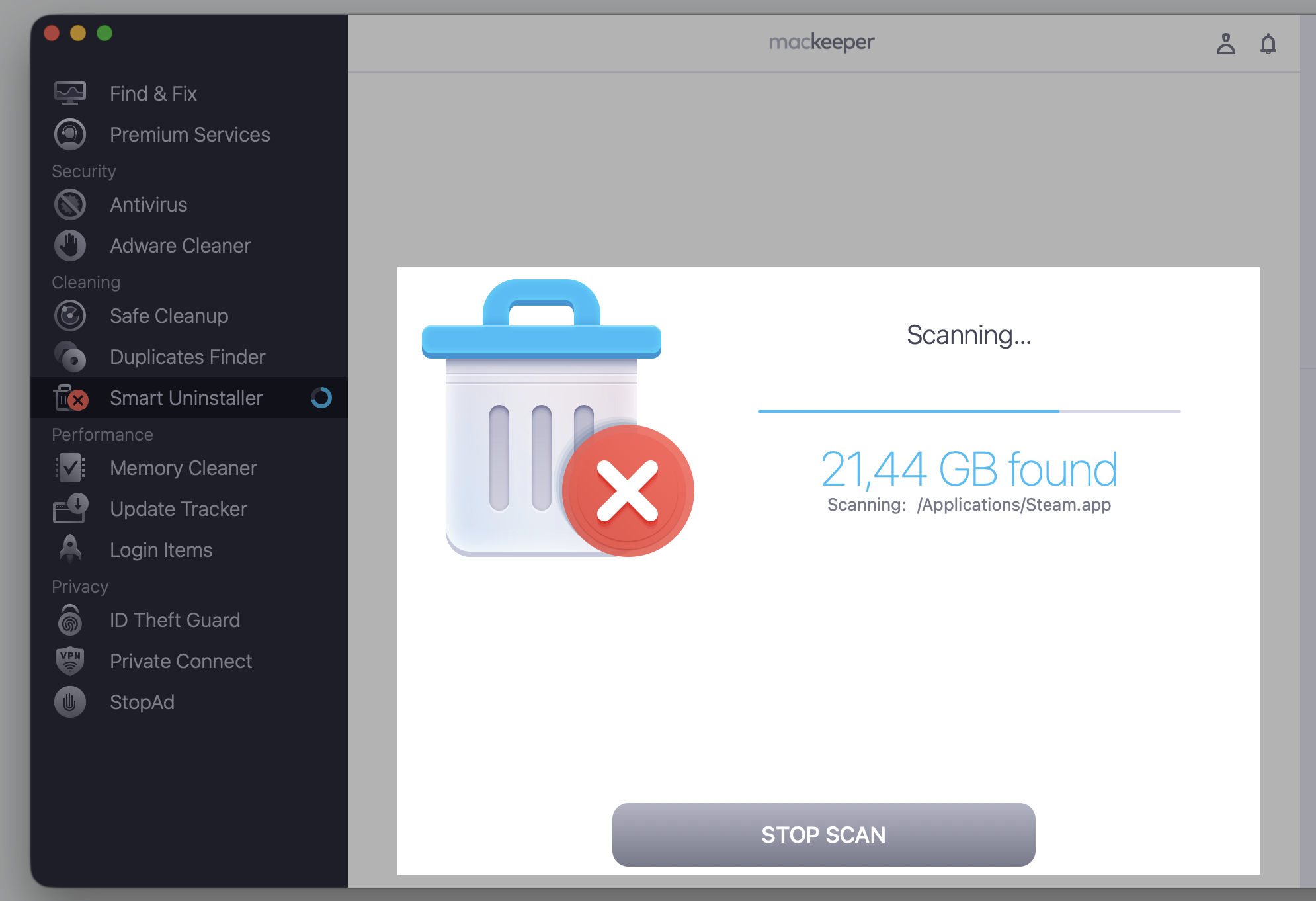
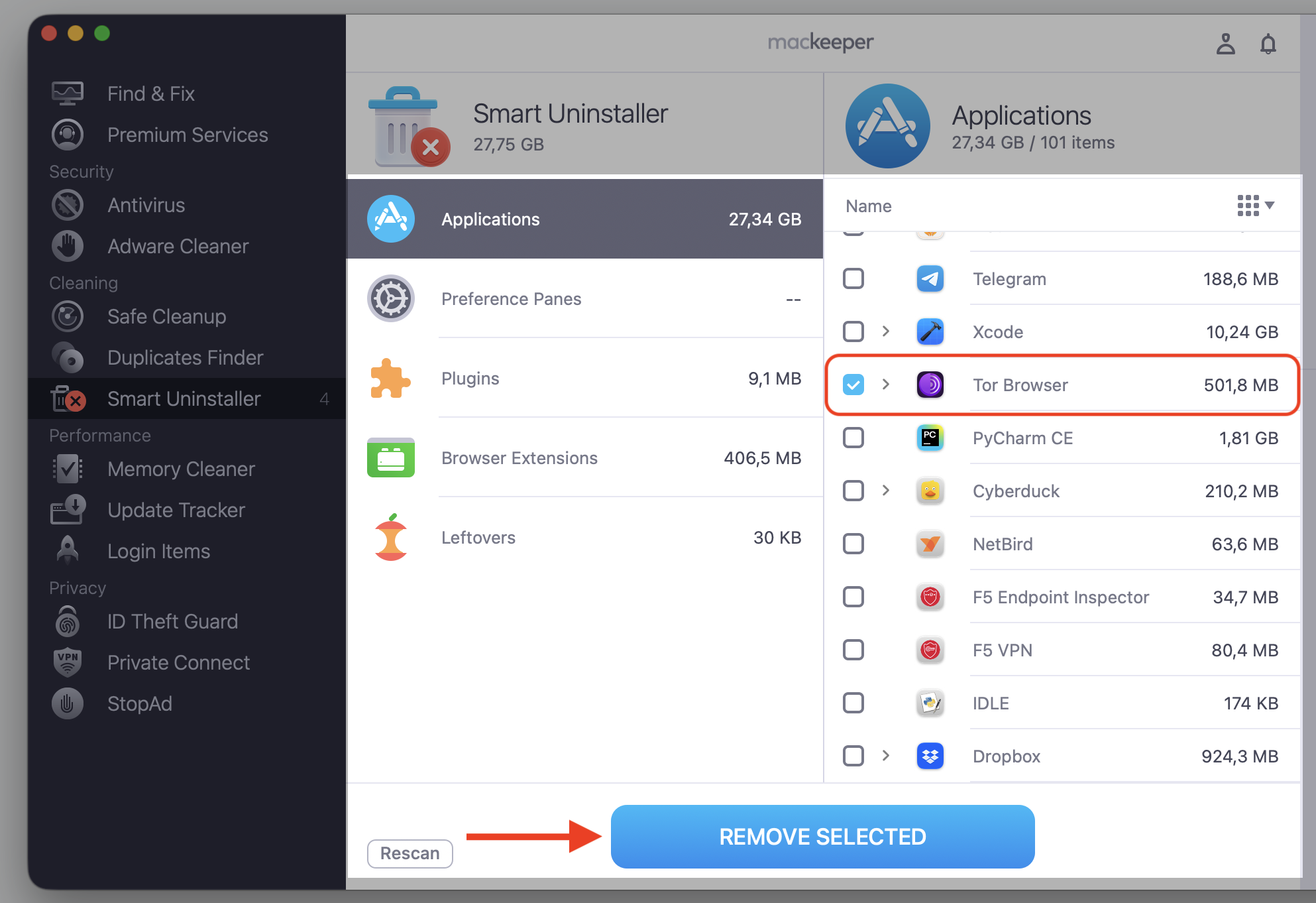
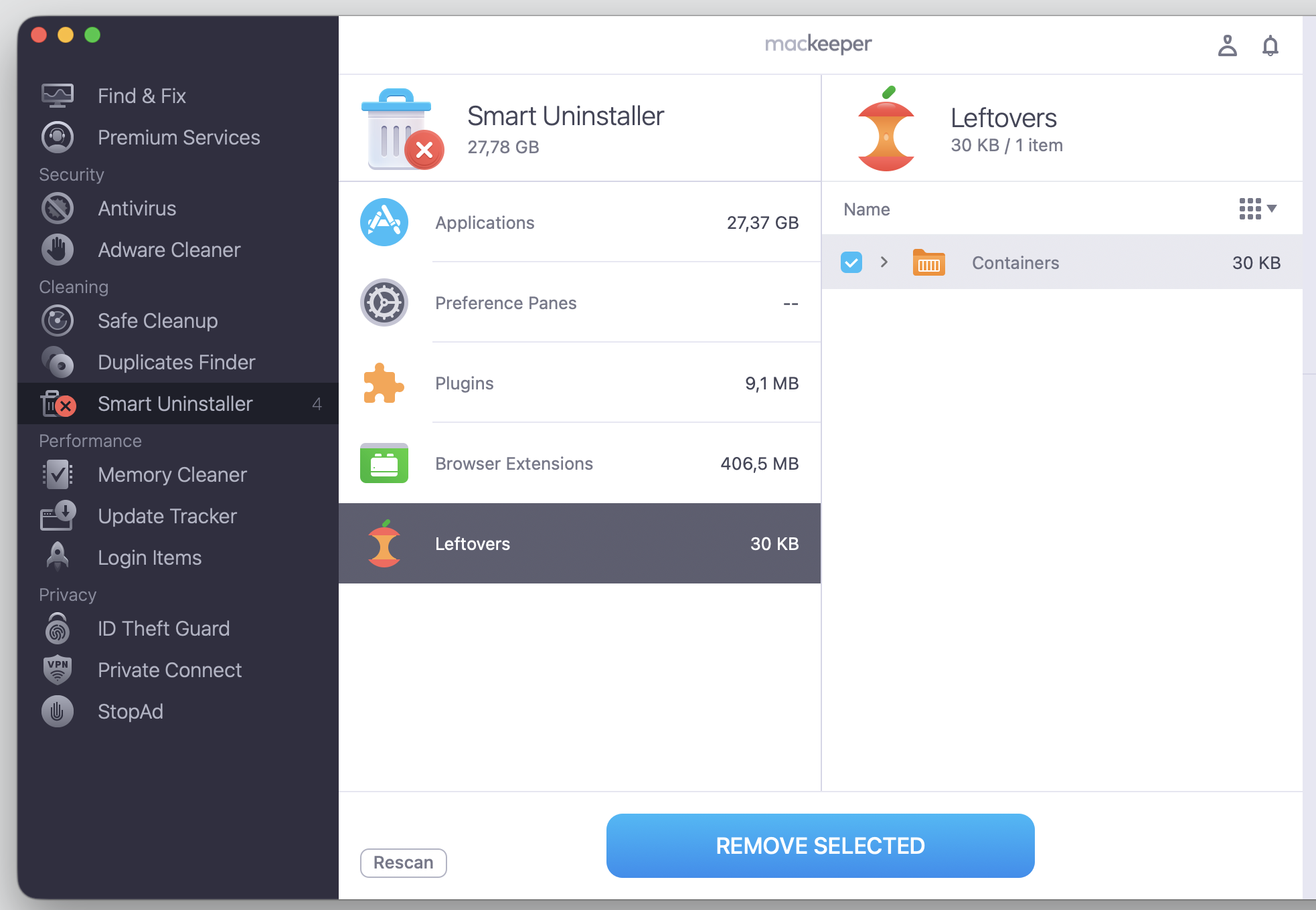
When app files are damaged or incomplete, a fresh install often does the trick in our experience. First, completely uninstall application files—including leftovers—so nothing broken remains. MacKeeper’s Smart Uninstaller can remove the app along with its plugins and leftover files, so your reinstall starts clean.
Ready to reinstall? Here’s the process:
Quit the app and drag it from Applications to Bin.
Remove leftover files manually or let MacKeeper’s Smart Uninstaller clear them for you. We’ll give you the full instructions with screenshots below.
Download a fresh copy from a trusted source.
Install the app and open it.
Step 1. Go to MacKeeper > Smart Uninstaller > Start ScanStep 2. Wait until scan is finishedStep 3. Go to Applications Section > Select the app > Remove SelectedStep 4. Check leftovers with MacKeeper
13. Contact app developer or Mac administrator
If the app still won’t open, it may need admin rights, be unsupported, or have known compatibility issues with your macOS version. That’s the moment to reach out for help.
When you reach this point, here’s who we’d reach out to:
Contact the app developer about compatibility with your macOS version.
Ask your Mac administrator to grant the permission the app needs.
Check the developer’s site for a supported version or an alternative.
Can old apps stop opening after macOS update?
Yes. Older apps can stop opening after a macOS update if they’re no longer maintained or built for your current system. An app made for an earlier Macintosh setup may simply fall behind macOS and quit working.
In that case, you’ll usually need a newer version of the app or a similar alternative that supports your Mac. Checking the developer’s website is the quickest way to find that information.
How to prevent apps from failing to open again?
We’ve found that a little upkeep keeps most launch issues from coming back. In our opinion, these simple habits go a long way:
Keep your apps updated so they stay compatible with macOS.
Install macOS updates when they’re available.
Download apps only from the App Store or trusted developer sites.
Avoid deleting random Library files you’re unsure about.
Keep enough free space on your disk for apps to run smoothly.
Remove apps properly when you no longer need them.
Conclusion
An app not opening on Mac usually comes down to a temporary glitch, outdated software, a compatibility gap, a security block, or a damaged file. The good news is that most of these fixes take only a few minutes, and you rarely need the Terminal or advanced utilities to sort them out.
When you’d rather not troubleshoot alone, MacKeeper’s Premium Services provide the round-the-clock support to keep your apps and your Mac running smoothly. Let MacKeeper handle the heavy lifting so your apps open the moment you need them.
We respect your privacy and
use cookies
for the best site experience.
Privacy Preferences Center
We use cookies along with other tools to give you the best possible experience while using the
MacKeeper website. Cookies are small text files that help the website load faster. The cookies we
use don’t contain any type of personal data meaning they never store information such as your
location, email address, or IP address.
Help us improve how you interact with our website by accepting the use of cookies. You can change
your privacy settings whenever you like.
Manage consent
All cookies
These cookies are strictly necessary for enabling basic website functionality (including page
navigation, form submission, language detection, post commenting), downloading and purchasing
software. The website might malfunction without these cookies.