Imagine clicking to check your weather or calendar, only to find blank, frozen squares staring back at you. If you’re struggling with macOS widgets not working, MacKeeper’s Premium Services feature gives you 24/7 access to certified tech experts who can safely diagnose the issue, clear system errors, and get your dashboard running smoothly again.
There are several reasons why widgets are not showing up on Mac. Here are the most common causes behind malfunctioning macOS widgets:
Disabled settings: You might need to manually put widgets on the MacBook screen through your desktop settings, or they may have been accidentally turned off.
Permission blocks: A lack of Location Services permissions can leave weather or map widgets completely blank.
Battery savers: Low Power Mode restrictions often pause background data updates to save battery.
System clutter: A corrupted Notification Center cache can cause widgets to freeze or lag.
Pending updates: Outdated apps or macOS can cause compatibility issues that break widget functionality.
Sync issues: Connectivity glitches with synced iPhone widgets can stop cross-device widgets from loading properly.
How to fix widgets not working on Mac?
To fix Mac desktop widgets not working, restart your Mac. Check desktop and dock widget settings. Remove and re-add the malfunctioning widget. Grant Location Services permissions. Turn off Low Power Mode. Configure permissions for iPhone widgets. Force quit widget processes in Activity Monitor. Reset Notification Center via Terminal. Update macOS and relevant widget apps.
A note from our experts:
Instead of wasting time on lengthy guides and stressful DIY fixes, let MacKeeper’s Premium Services fix your broken widgets instantly. Certified tech experts handle complex backend tweaks, safely clearing system errors and permission conflicts. Since Apple officially notarizes MacKeeper, you know the software is free of malicious code and entirely safe for your system, guaranteeing a quick, risk-free resolution.
Here’s how to use MacKeeper’s Premium Services to solve the problem of Mac widgets not loading:
Click Premium Services in the left-hand sidebar menu.
Open the chat window to instantly connect with a certified Apple tech expert.
Explain your widget issue to the technician (e.g., "My widgets are frozen and blank"). Grant secure remote access if requested, so the expert can safely clear your widget cache and reset system permissions for you, and you’re good to go!
Let's dive into the nitty-gritty of getting your widgets back to life. Before we look at advanced tools, we can try several built-in macOS troubleshooting steps together. To kick things off, we should always reboot your Mac to give the system a clean slate. If that doesn't work, we might need to manually remove widgets from Mac desktop screens and re-add them to clear out deep-seated glitches. Let's walk through these solutions side-by-side to find exactly what fits your situation.
1. Restart your Mac
Performing a clean system restart, also known as rebooting your Mac, helps us flushes temporary memory caches and restores stuck background services that might be freezing our UI.
Follow these steps to reboot your Mac:
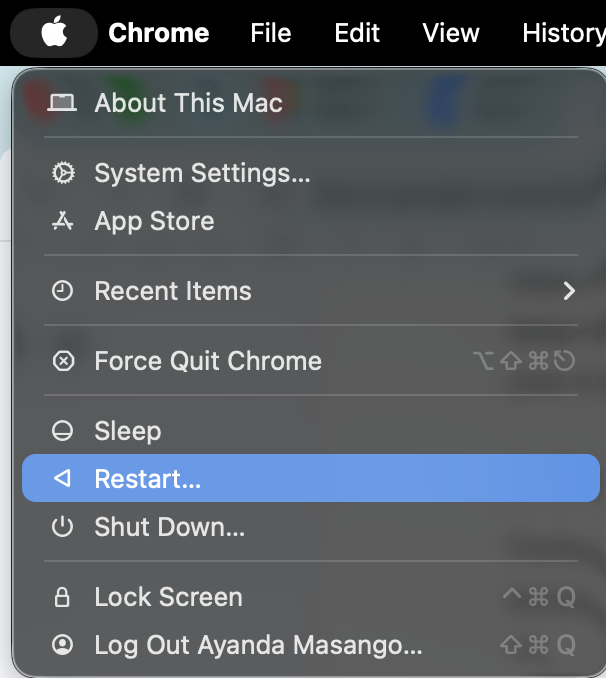
Click the Apple menu in the top-left corner and select the Restart option.
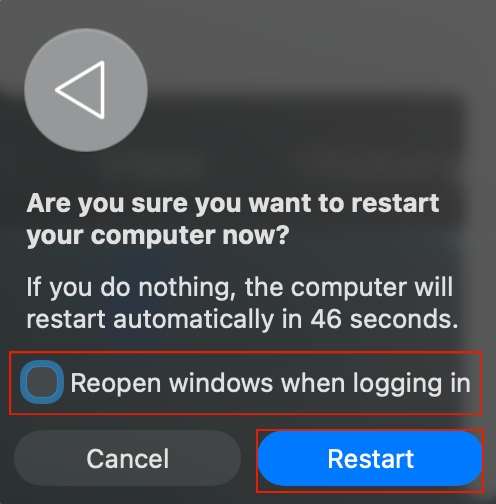
Make sure you uncheck the box next to Reopen windows when logging backin to ensure a completely fresh launch.
Step 1. Click on the Apple menu and select RestartStep 2. Uncheck the box next to Reopen windows when logging back in
2. Check Desktop & Dock widget settings
When our widgets disappear or change appearance unexpectedly, we need to make sure our system preferences are configured correctly.
How to check your widget visibility settings:
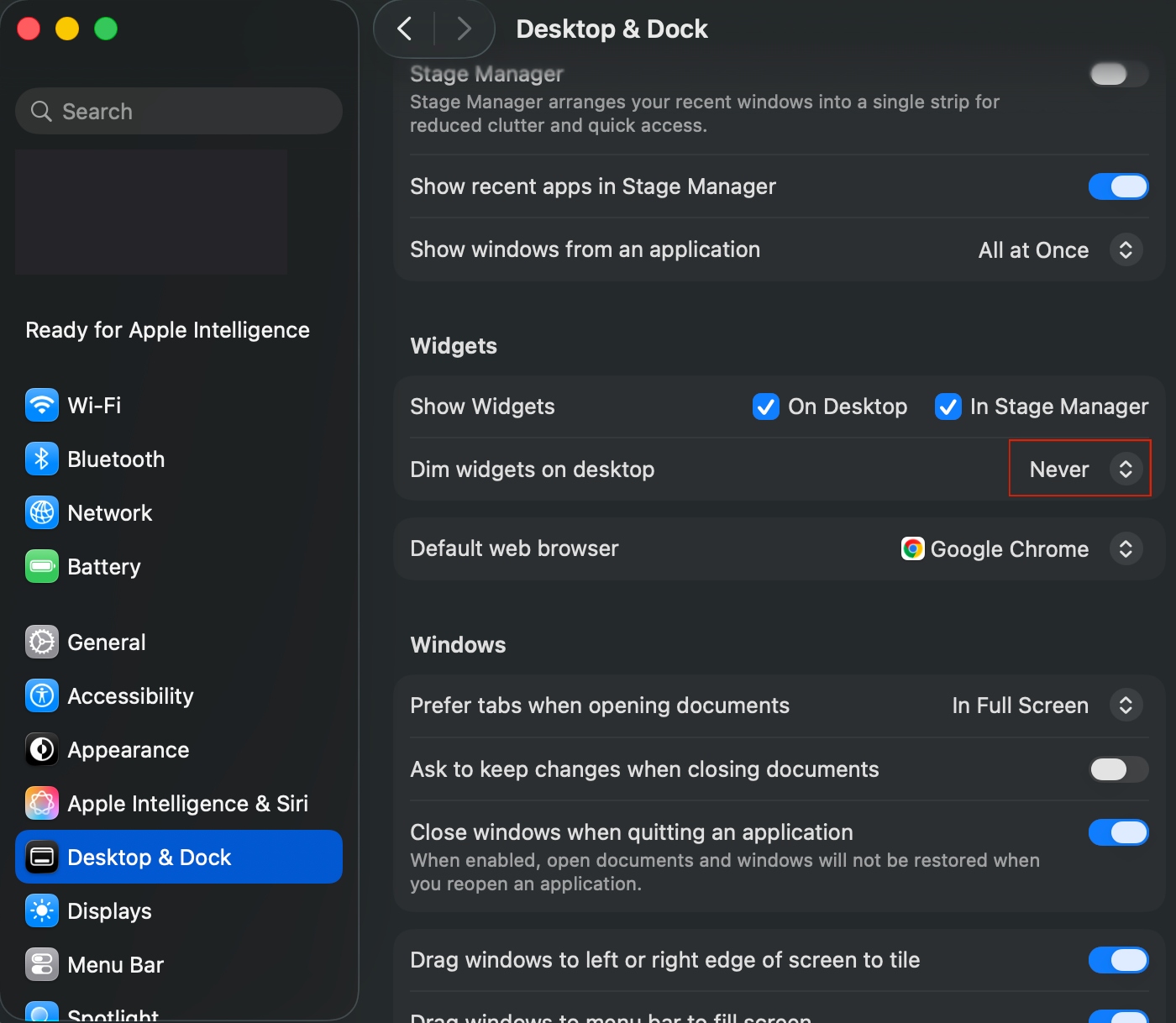
Open System Settings from your Apple menu and click on Desktop & Dock in the sidebar.
Scroll down to the Widgets section, find the Dim widgets on desktop setting, and set it to Never. This should prevent macOS from dimming or graying out your widgets in the background, keeping them fully active and clearly visible at all times.
How to replace troublesome widgets on your desktop:
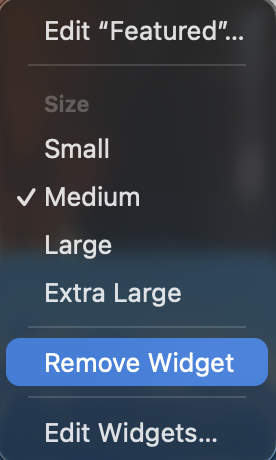
Right-click (or control-click) the broken widget on your screen and click Remove Widget.
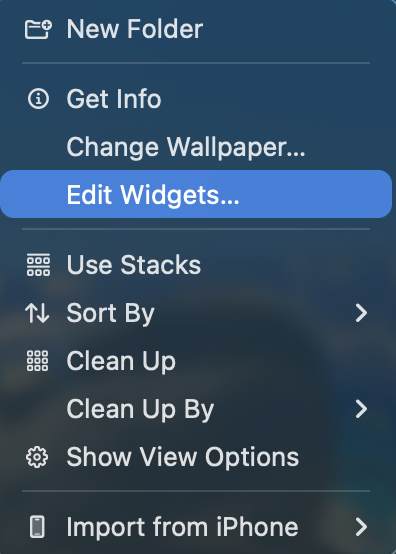
Now, right-click an empty space on your desktop, select Edit Widgets, and then drag a fresh instance of the widget back onto your desktop or Notification Center.
When widgets like Weather, Maps, or Clock display blank data, it usually means we haven't given them permission to see where we are.
How to manage your Location Services permissions:
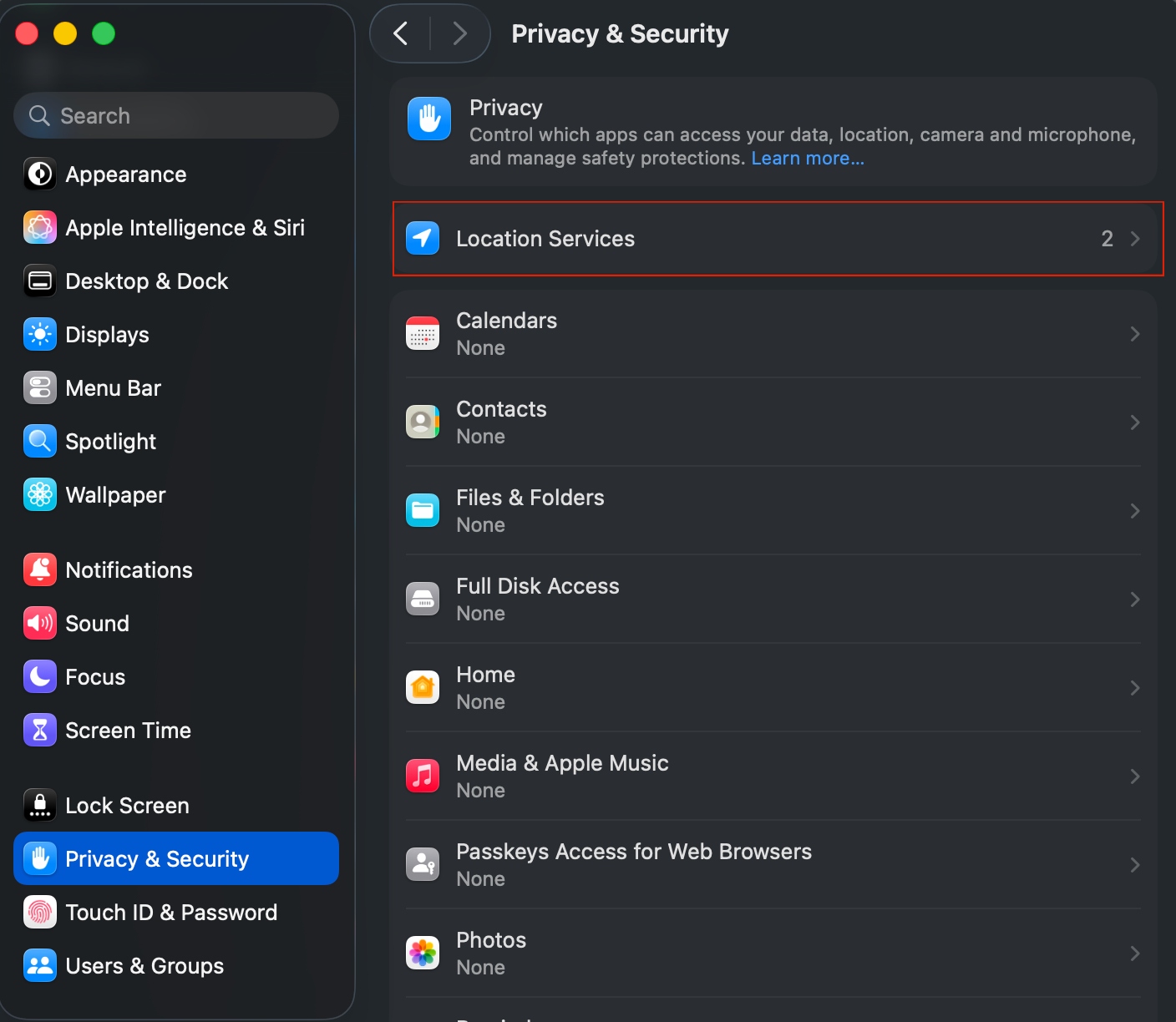
In System Settings, click Privacy & Security and select Location Services at the top.
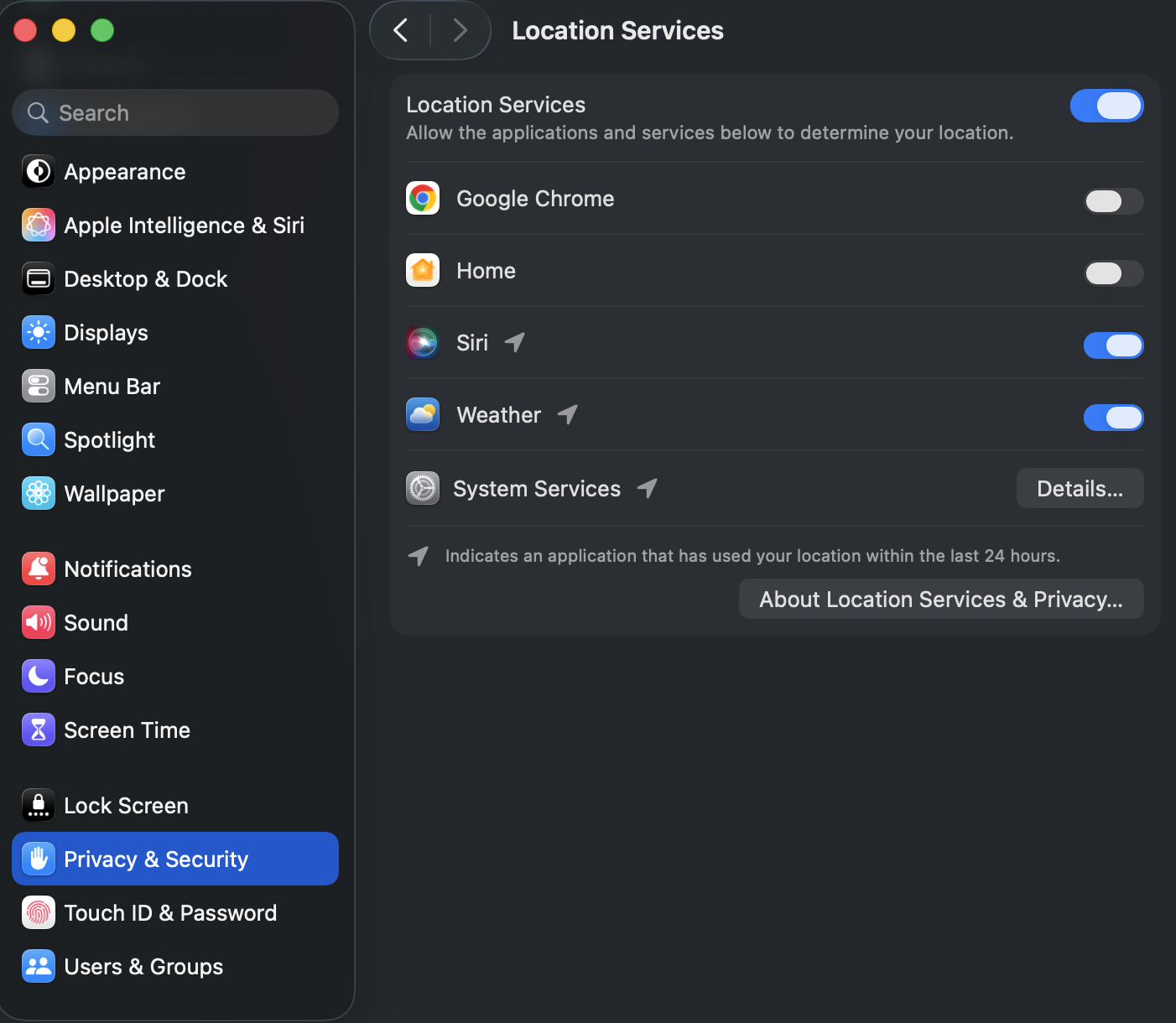
Ensure the main toggle is turned on, then scroll down to allow access for your specific widget apps.
Step 1. Click Privacy & Security and select Location Services at the topStep 2. Ensure the main toggle is turned on, then scroll down to allow access for your specific widget apps
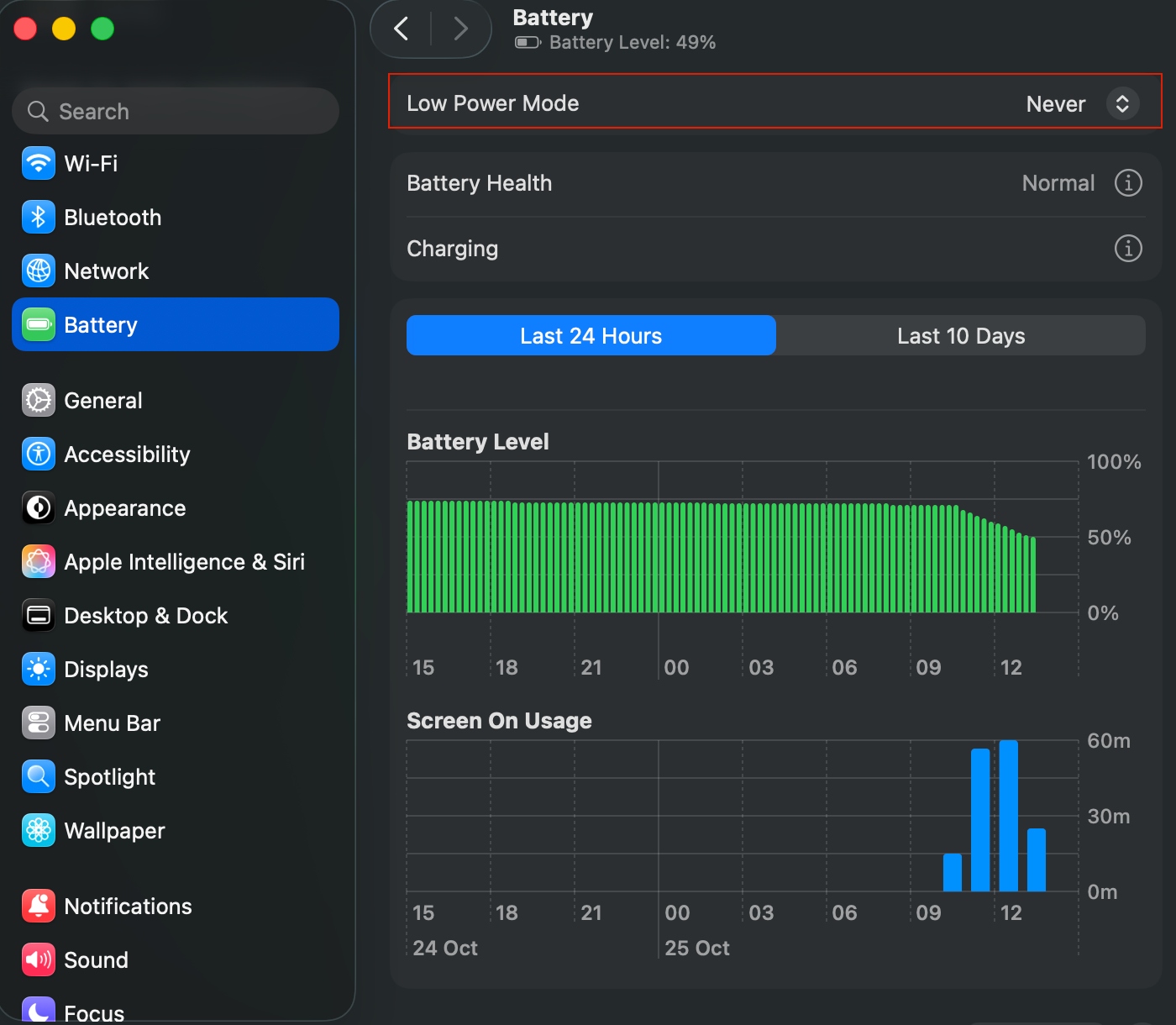
5. Turn off Low Power Mode
We must remember that when it comes to MacBook power options, Low Power Mode intentionally restricts background refresh rates for live data to preserve our battery life, which often pauses our updates.
How to disable Low Power Mode on a Mac:
In System Settings, select Battery and locate the MacBook power options under the Low Power Mode drop-down menu.
Set it to Never so your widgets can stream live data continuously.
6. Configure permissions for iPhone widgets
If we’re running into macOS Sonoma problems with cross-device syncing, we need to ensure our iPhone and Macintosh are properly linked.
To sync your iOS widgets to macOS:
Ensure both devices are on the same Wi-Fi network with Bluetooth turned on.
Verify that both devices use the exact same Apple ID.
7. Force quit widget processes in Activity Monitor
When background tasks freeze up, we don't have to restart our whole computer—we can selectively force quit Mac background processes instead.
How to terminate stuck background processes:
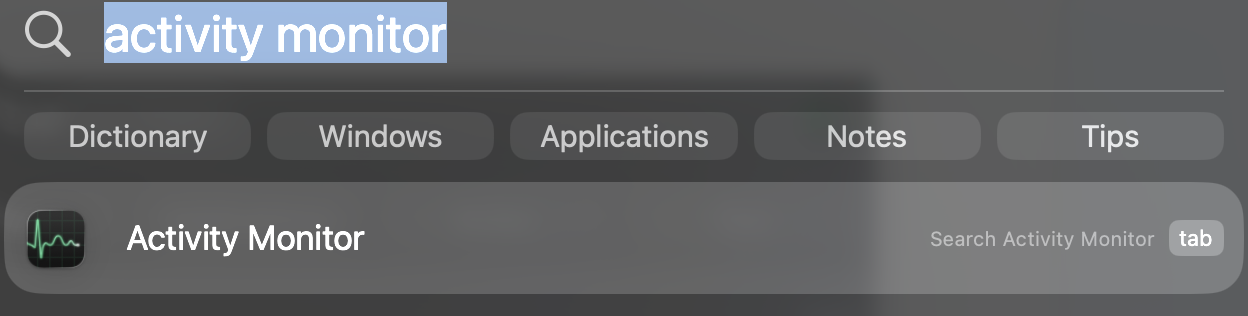
Press the Command + Space keys to open Spotlight, type Activity Monitor, and press Enter.
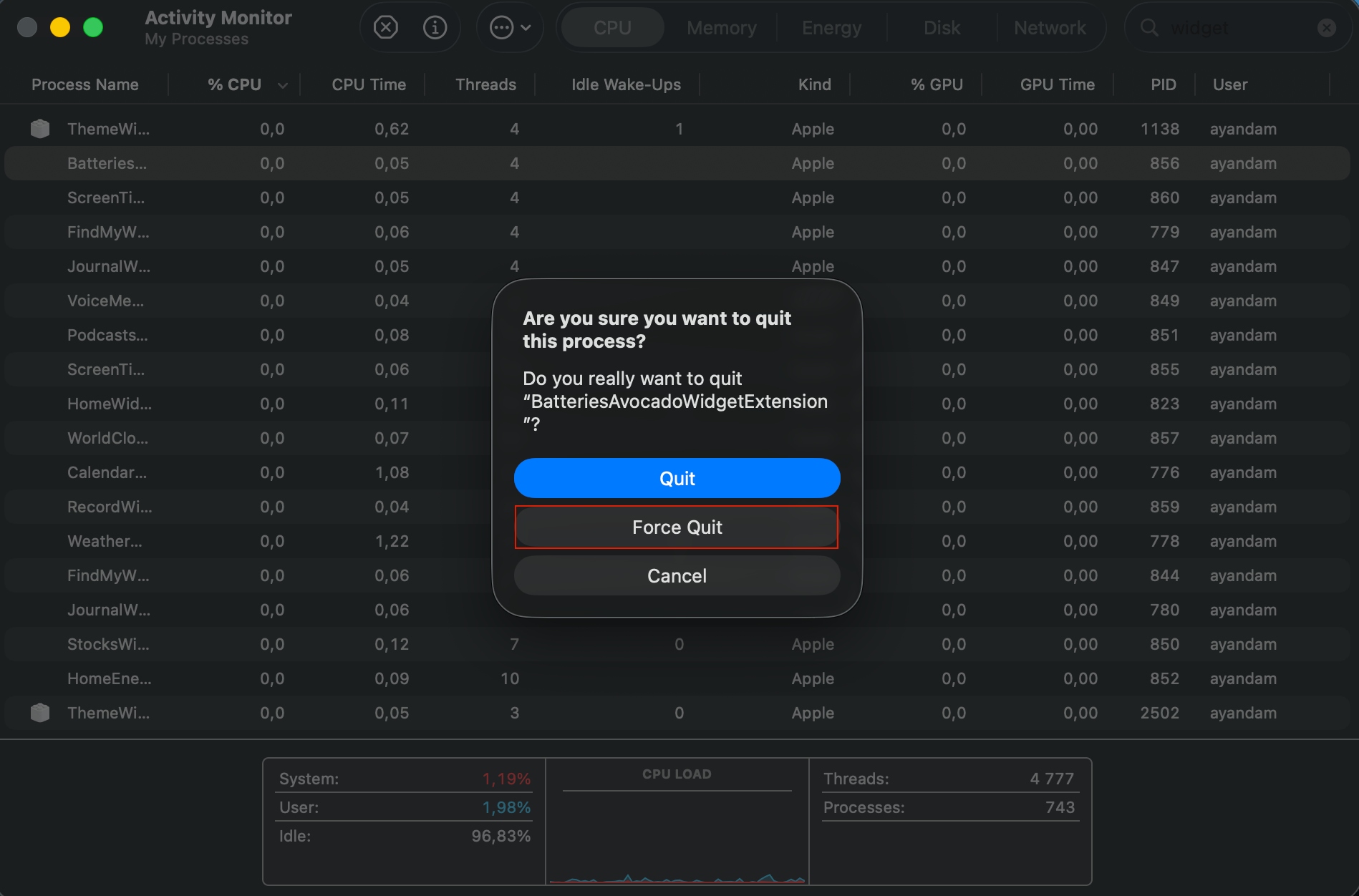
Type Widget into the search bar in the top-right corner, select the unresponsive widget processes, click the X button at the top of the window, and choose Force Quit.
Step 1. Press the Command + Space keys, type Activity Monitor, and press EnterStep 2. Search widget > click the X button at the top of the window > Force Quit
8. Reset Notification Center via Terminal
If a corrupted widget cache is causing system-wide layout issues, we can run something in Terminal to force our entire widget dashboard to reload.
How to reset the Notification Center via a Terminal command line:
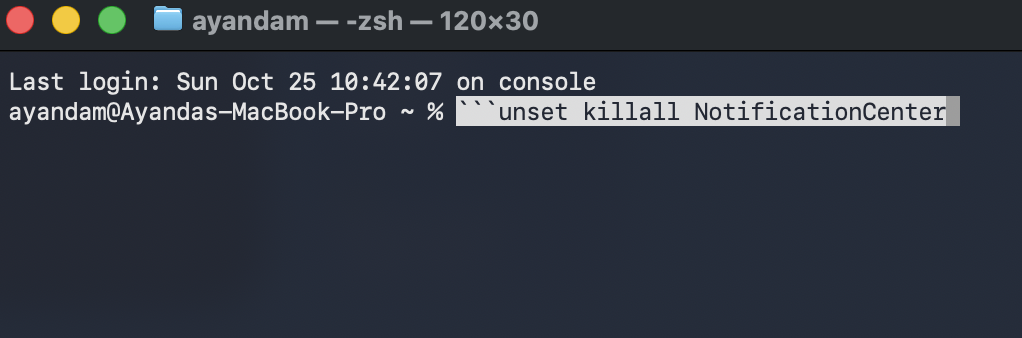
Open Terminal via Spotlight search.
Copy and paste the ```unset killall NotificationCenter command exactly.
9. Update macOS and relevant widget apps
Outdated software creates frustrating compatibility bugs, so we always want to make sure we are running the latest macOS update on our machines to keep our ecosystem stable.
How to check for system and software updates:
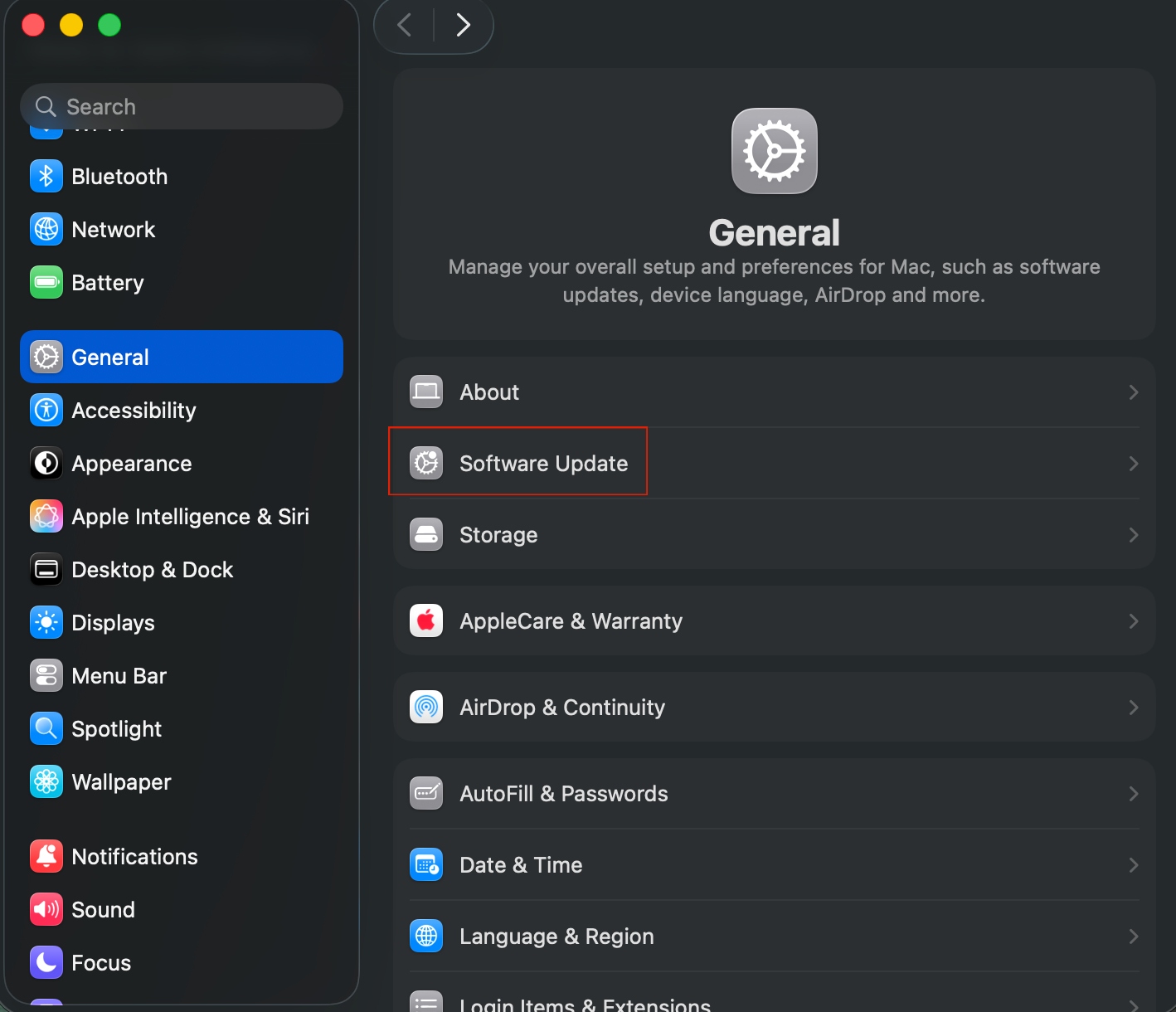
In System Settings, go to General > Software Update to install any pending system patches. Click Upgrade Now where applicable.
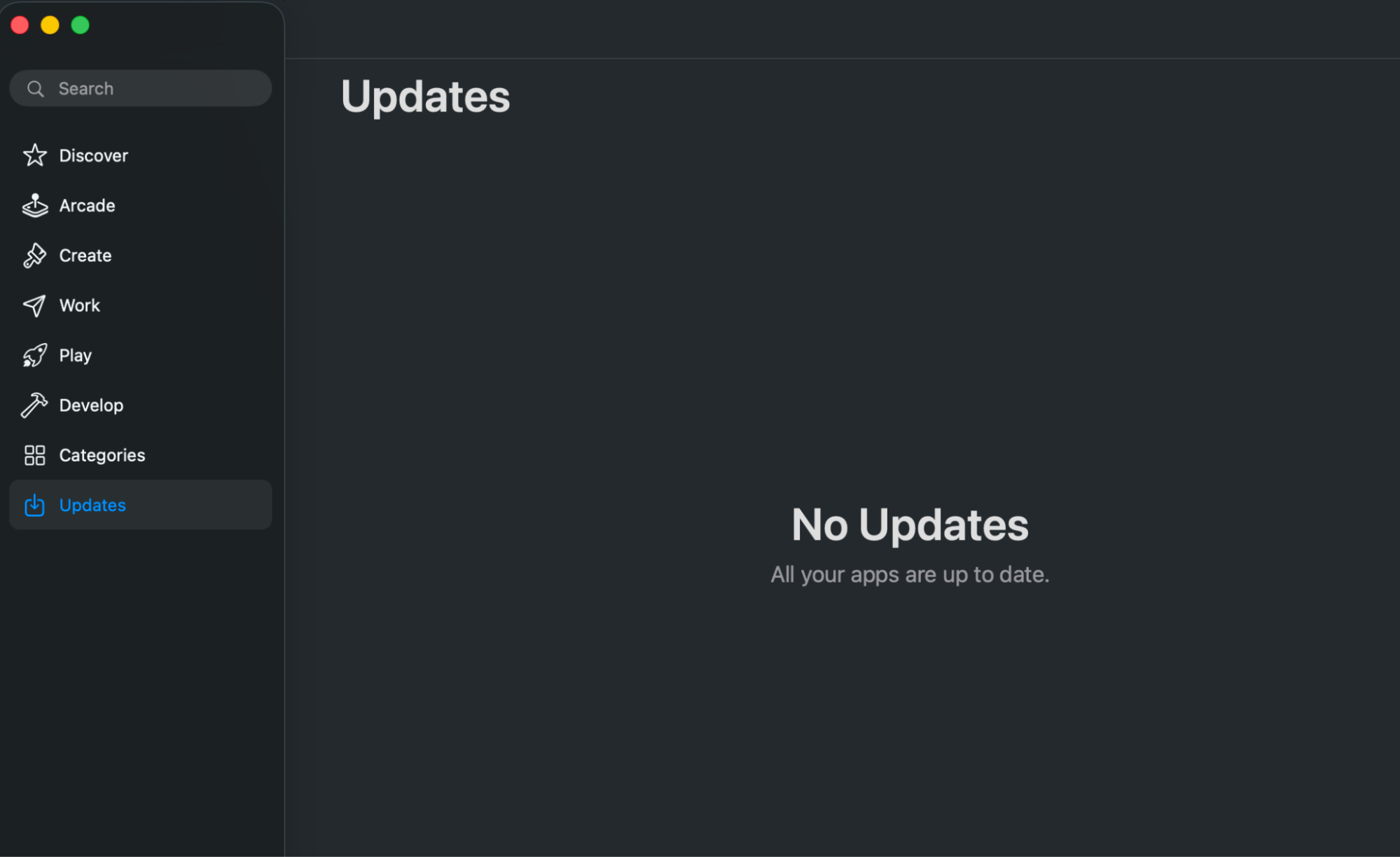
Open the App Store and click Updates in the sidebar to refresh any third-party apps powering your widgets.
Step 1. In System Settings, go to General > Software Update > Upgrade Now where applicableStep 2. Open the App Store and click Updates
Real solutions for a Mac widget not working
When you’re facing a Mac widget not working, dealing with blank squares or frozen data feeds can quickly disrupt your daily workflow. Thankfully, verifying system permissions, checking battery settings, and refreshing the Notification Center will keep widgets updated and fully functional.
If you want to bypass the stress of manual troubleshooting altogether, MacKeeper’s Premium Services feature offers instant access to 24/7 certified tech experts who can safely diagnose and resolve these deep system glitches for you. Download MacKeeper today to chat with an expert and fix your widgets in minutes!
We respect your privacy and
use cookies
for the best site experience.
Privacy Preferences Center
We use cookies along with other tools to give you the best possible experience while using the
MacKeeper website. Cookies are small text files that help the website load faster. The cookies we
use don’t contain any type of personal data meaning they never store information such as your
location, email address, or IP address.
Help us improve how you interact with our website by accepting the use of cookies. You can change
your privacy settings whenever you like.
Manage consent
All cookies
These cookies are strictly necessary for enabling basic website functionality (including page
navigation, form submission, language detection, post commenting), downloading and purchasing
software. The website might malfunction without these cookies.