It can be extremely frustrating when the left click stops working a Mac as it can make even the easiest of activities a slog. While there are ways to remedy this, diagnosing the root cause can be equally as painstaking, but the easiest is to use MacKeeper’s Premium Services—our online team of Apple experts can help you find and fix your MacBook issues so you can get back to your Mac activities uninterrupted.
In case your left click isn’t working Mac, there are many solutions to remedy this issue and get back to your work uninterrupted. From our experience, a device restart can fix an unresponsive clicker, as well as cleaning your trackpad in case dirt is affecting the clicker function. You might also want to check for a macOS update, as that could be affecting your flow.
What does left click mean on macOS?
A macOS left click refers to the process of selecting an app or performing actions on your computer that require you to click as the cursor moves along your screen. Most MacBook Air and Pro users just use their integrated trackpad to activate the left-click function, which can be an issue if a frozen cursor on Mac is a persistent problem. Although we’ve recently noticed more Apple users opting for an external mouse for advanced control over, as well as for better wrist support.
Our advice before you start:
Before we start, you’ll want to make sure your keyboard is working properly. If your MacBook keyboard isn’t responding, you won’t be able to try several of our solutions below. We recommend checking our supporting guide and following the suggested steps—like updating macOS —so you can easily troubleshoot left click with fewer interruptions.
Possible causes of left click not working on Mac
Not sure why your left click stopped working on Mac? There are many causes for Mac mouse not working, and they’re not always linked to internal software conflicts. Issues with hardware or incorrect permissions can also halt your actions.
Here are the common causes that can stop the left click from working:
Software glitches: We often see bugs in macOS, outdated software, or conflicting apps cause the left click to stop working.
Hardware problems: Physical damage, dirt, or wear can affect the mouse or trackpad, preventing the left click from responding
Incorrect settings: In some cases, the left click may be disabled or reassigned to another function without you realizing it.
A note from our experts:
We know all too well that when the left click is not working on Mac, trying multiple fixes on your own can be time-consuming and frustrating. With MacKeeper’s Premium Services, we can help speed this up. We can help you identify whether the problem is caused by software, settings, or conflicting hardware and virtually walk you through the right troubleshooting solution.
Here’s how MacKeeper’s Premium Services can help you fix left-click:
In the chat, tell our advisor about your mouse or trackpad problems, and they’ll walk you through personalized steps to get you back on track.
Step 1. For MacBook support, open the MacKeeper app and go to Premium ServicesStep 2. Use the chat function to get advice to help you fix left-click or similar issues
How to fix the left click not working on a MacBook?
If you want to fix left click not working on Macbook, we’ll walk you through the best methods:
Try another mouse or disconnect conflicting devices
1. Try another mouse or disconnect conflicting devices
It’s common for your external mouse to become disconnected or conflict with other devices. If that’s the case, try using a different mouse or disconnecting other plugins before proceeding with our more advanced steps.
2. Clean your trackpad or mouse surface
Dirt build-up can also affect your left click, and it’s more common than you might think. We recommend cleaning your trackpad and mouse regularly to avoid the clicker from sticking and not working.
If your trackpad isn’t working on Mac or your mouse is unresponsive, then it might be time to check that you have enabled the click function in settings.
Here’s how to review your trackpad or mouse settings:
Trackpad:
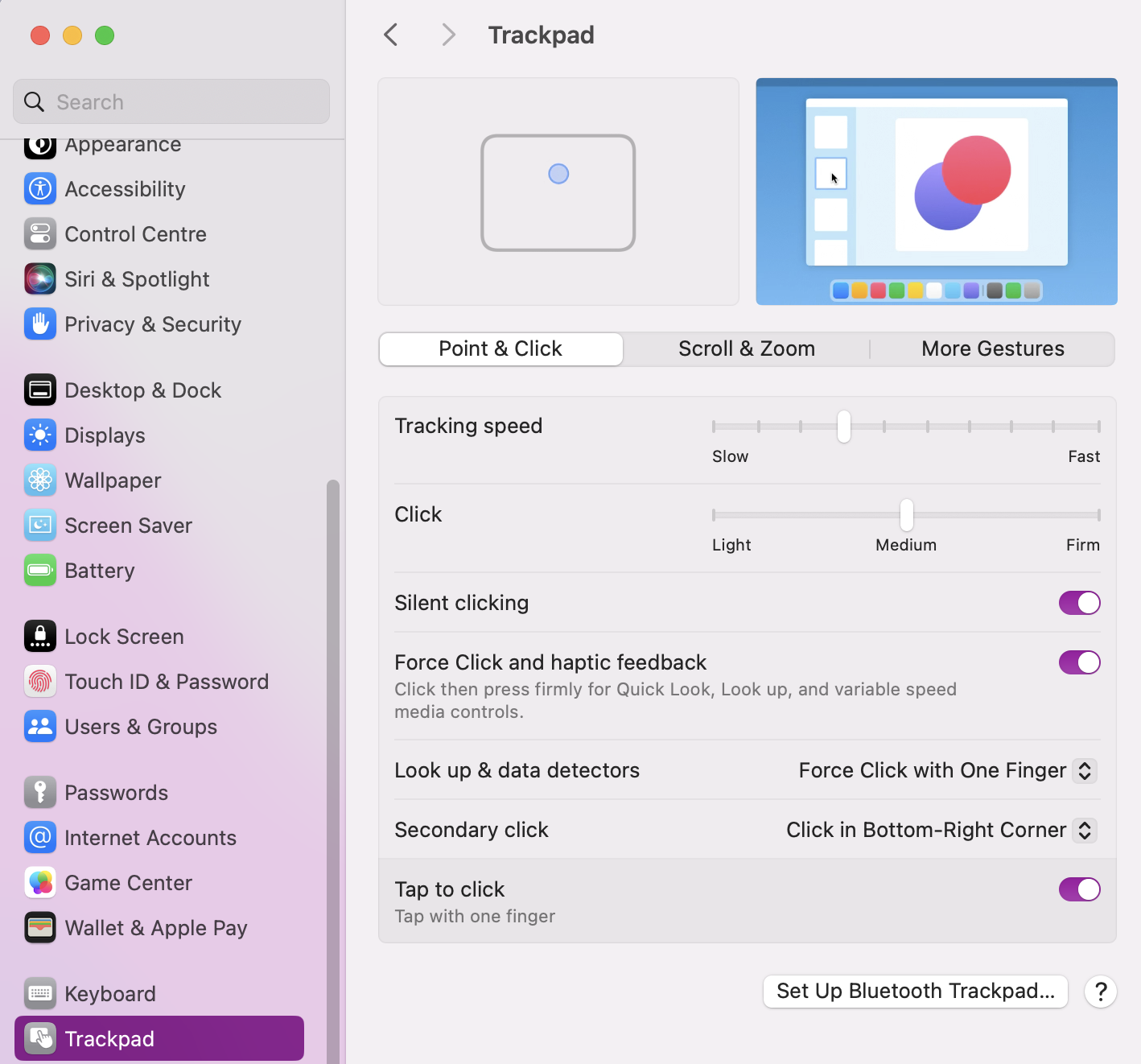
In System Settings, scroll down to the Trackpad tab.
Review your Point & Click settings.
In System Settings, go to Trackpad and review your Point & Click settings
Mouse:
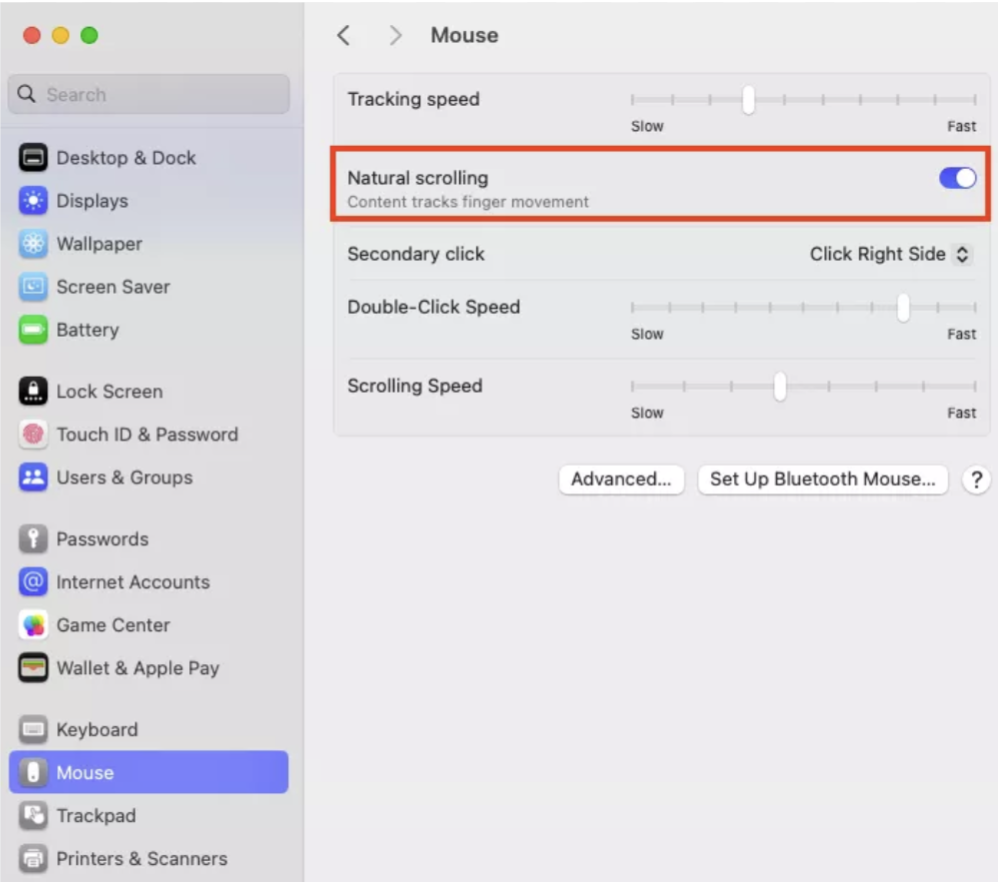
In System Settings, scroll down to the Mouse tab.
Review your Mouse clicker options.
In System Settings, scroll down to Mouse and review click settings
4. Turn off “Force click and haptic feedback”
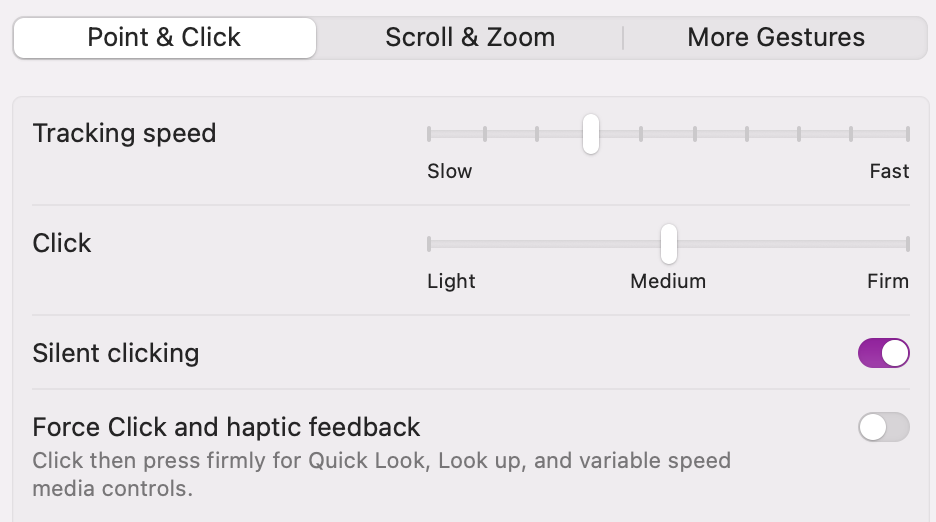
Next, you can try turning off Force click and haptic feedback, as they might be conflicting with left click.
Here’s how to turn them off:
In your Trackpad settings, go to Point & Click.
Turn off unwanted functions.
In your Trackpad settings, under Point & Click, turn off Force Click and haptic feedback
5. Re-pair/reset Bluetooth & remove and add device
If you use a Bluetooth mouse, it could be a pairing issue–so we suggest checking your connection and re-pairing your mouse.
Here’s how:
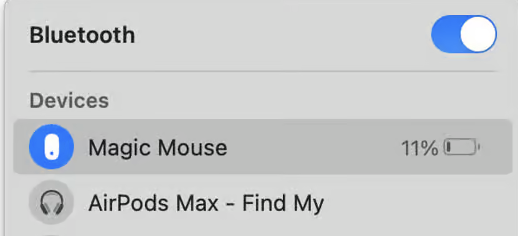
In Bluetooth, check to see if your mouse is connected.
If not, disconnect and repair it.
Go to your Bluetooth settings and look for your mouse to see if it’s connected
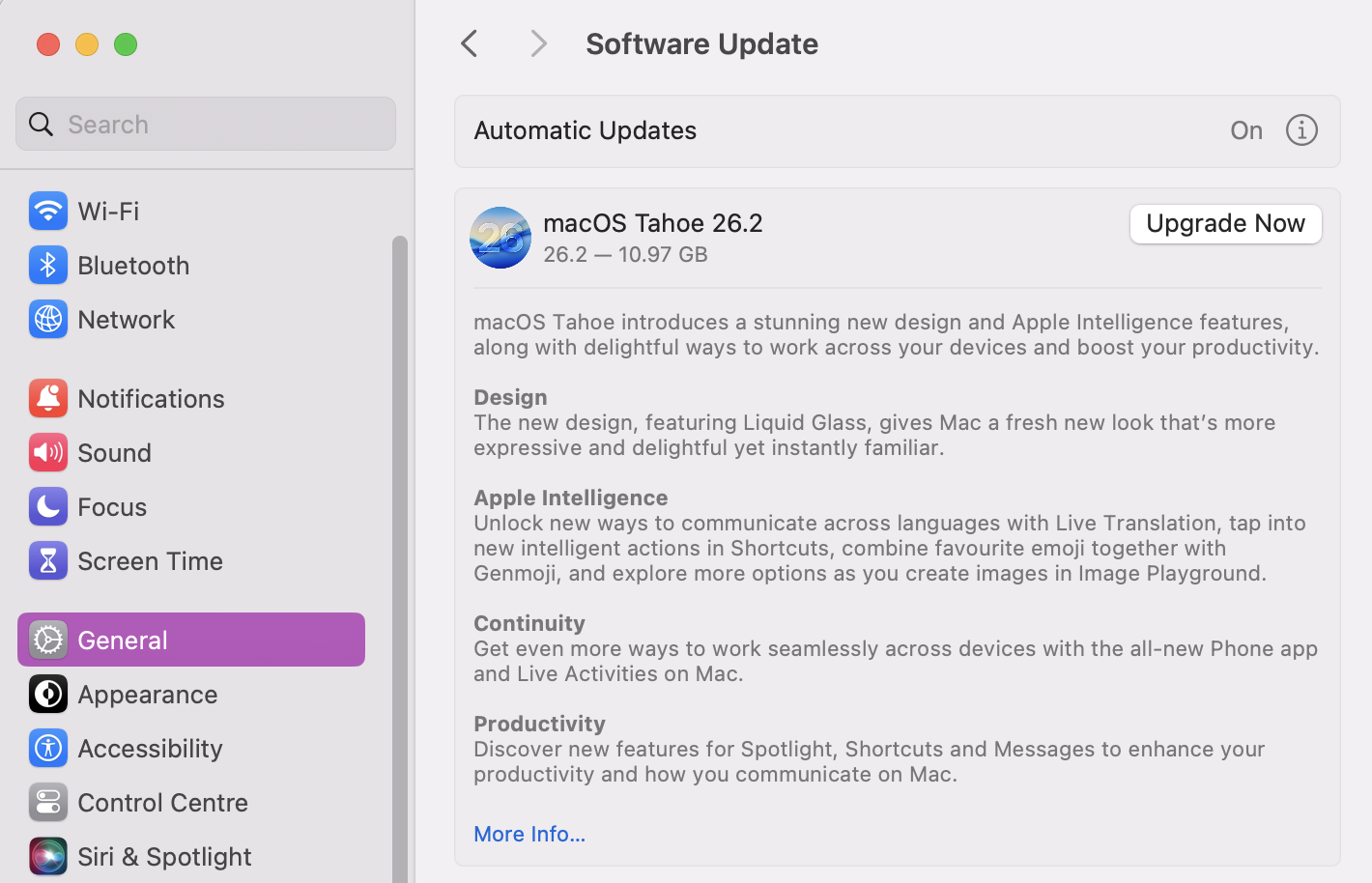
6. Check and update macOS
It’s common for outdated software, including macOS, to stop simple actions from working, like left click not working on Mac.
Here’s how to check and update macOS:
In System Settings, click on General > Software Updates.
If there’s a macOS update, click on Upgrade Now.
In System Settings, go to General > Software Update and look for outstanding updates
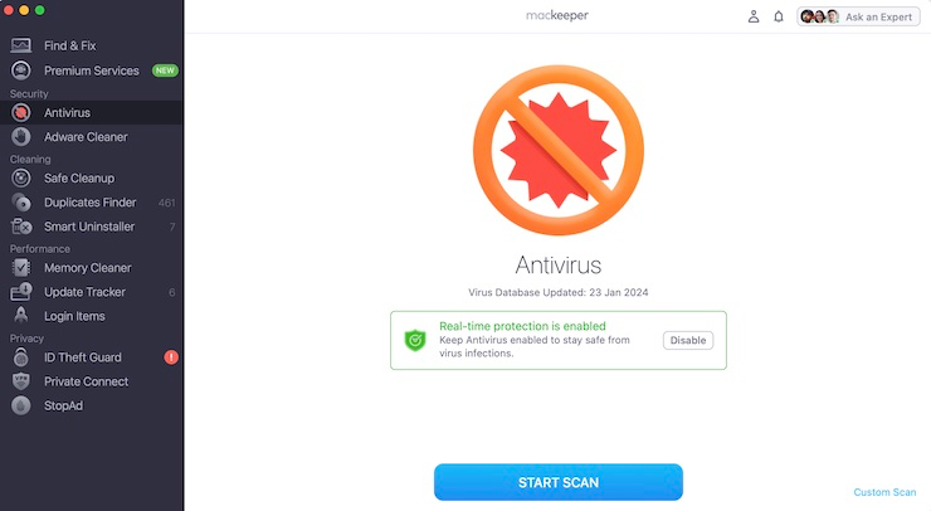
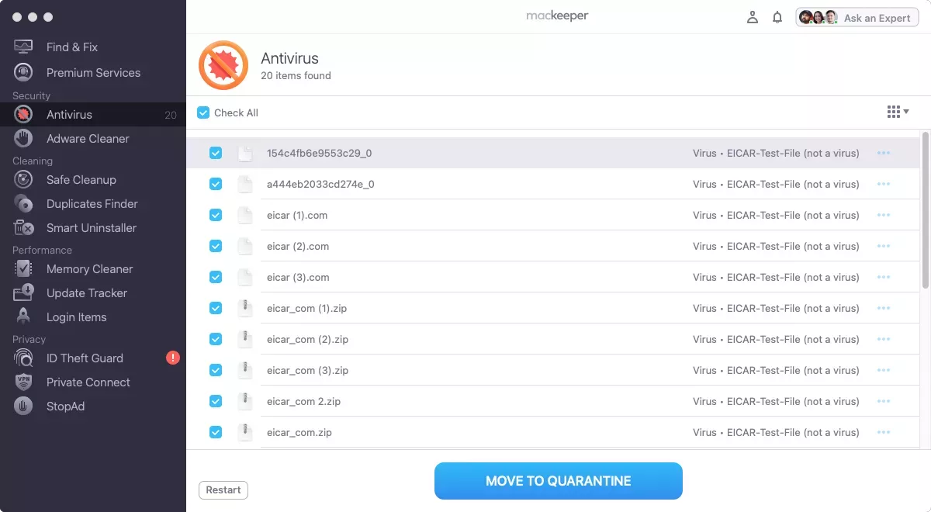
7. Run antivirus scan
Another reason that could be behind your left-clicker issues could be if your Mac has been infected with malware. To check your device, we recommend running an antivirus scan.
Step 1. Open the MacKeeper app, go to Antivirus, and press Start ScanStep 2. If you find anything suspicious, highlight it and press Move to Quarantine
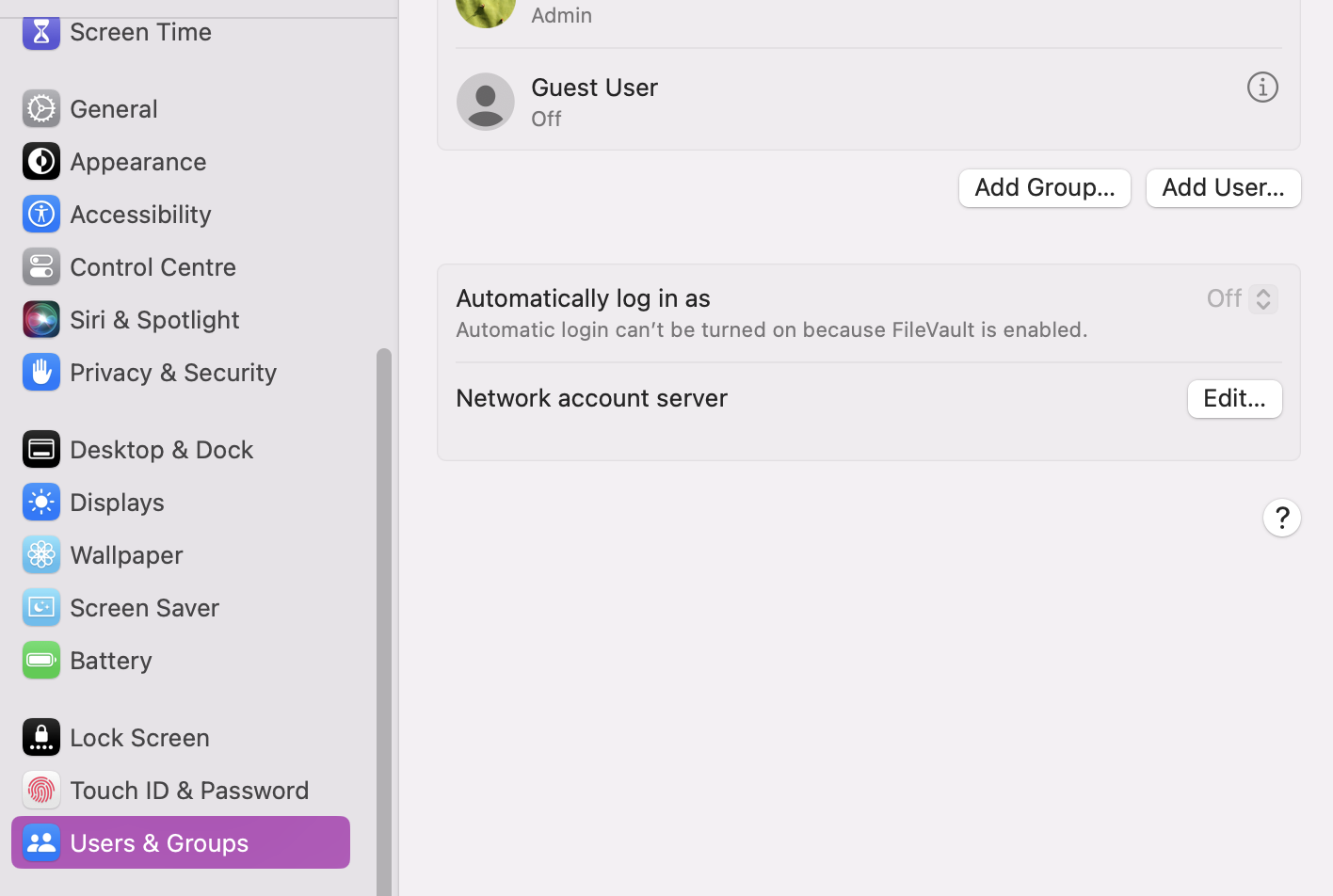
8. Create a new user account
Another solution you can try to help fix a non-functioning left click is to create a new user account.
Here’s how:
In Settings, go to Users & groups.
Click Add User.
In Settings, go to Users & Groups and click the Add User button
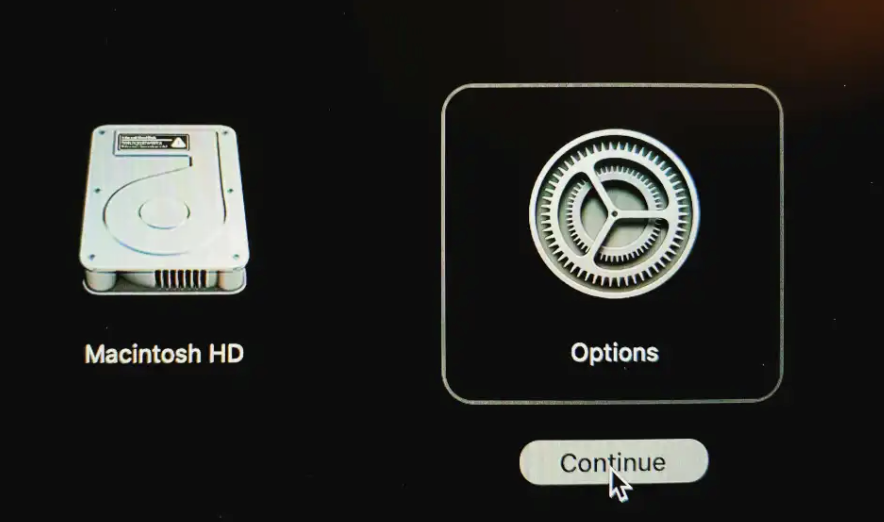
9. Booting into Safe mode or Recovery
Should you wish to try any advanced settings to fix left click not working Macbook, it’s handy to know how to boot your device into Recovery Mode.
Here’s how:
Turn off your Mac.
Turn it back on while holding Command + R to enter Recovery Mode.
Turn off your Mac, then turn it back on while holding Command + R to enter Recovery Mode
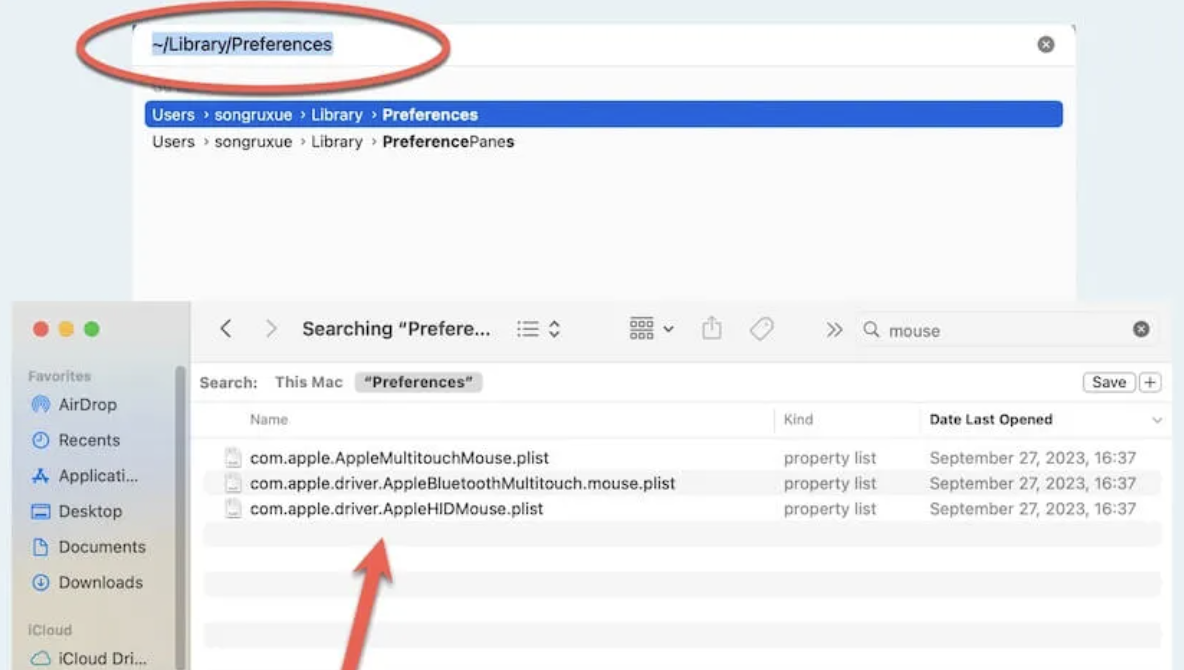
10. Delete or reset preference/plist files
You could also try deleting or resetting your preference/plist files in case they are interfering with your mouse or trackpad.
Here’s how to check your preferences:
In Finder, click on Go > Go to Folder.
Type in ~/Library/Preferences and press Go.
Look for the following files and move them to your Bin:
Restart your Mac to check if your clicker is working.
In Finder’s Go to Folder, type in ~/Library/Preferences to look for preference files to move to your bin
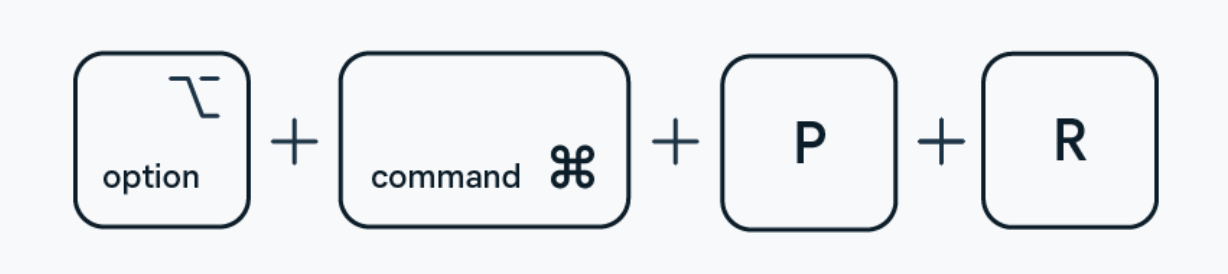
11. Reset NVRAM / PRAM
Your left-click issues might be caused by deep system glitches; if so, we recommend resetting NVRAM.
Here’s how to reset NVRAM:
Turn off your device.
Restart immediately and hold down Option + Command + P + R for 20 seconds.
Release keys to let your Mac boot normally.
To reset NVRAM, turn off Mac and power it back on while holding Option + Command + P + R for 20 seconds
12. Reset SMC or relevant system controller
In case you’re still having clicker issues, it might be time to try resetting SMC on Mac–here’s how:
Turn off Mac.
Power it back up while holding Shift + Control + Option + Touch ID for 10 seconds.
Restart your Mac and hold down Shift + Control + Option + Touch ID for 10 seconds to reset SMC
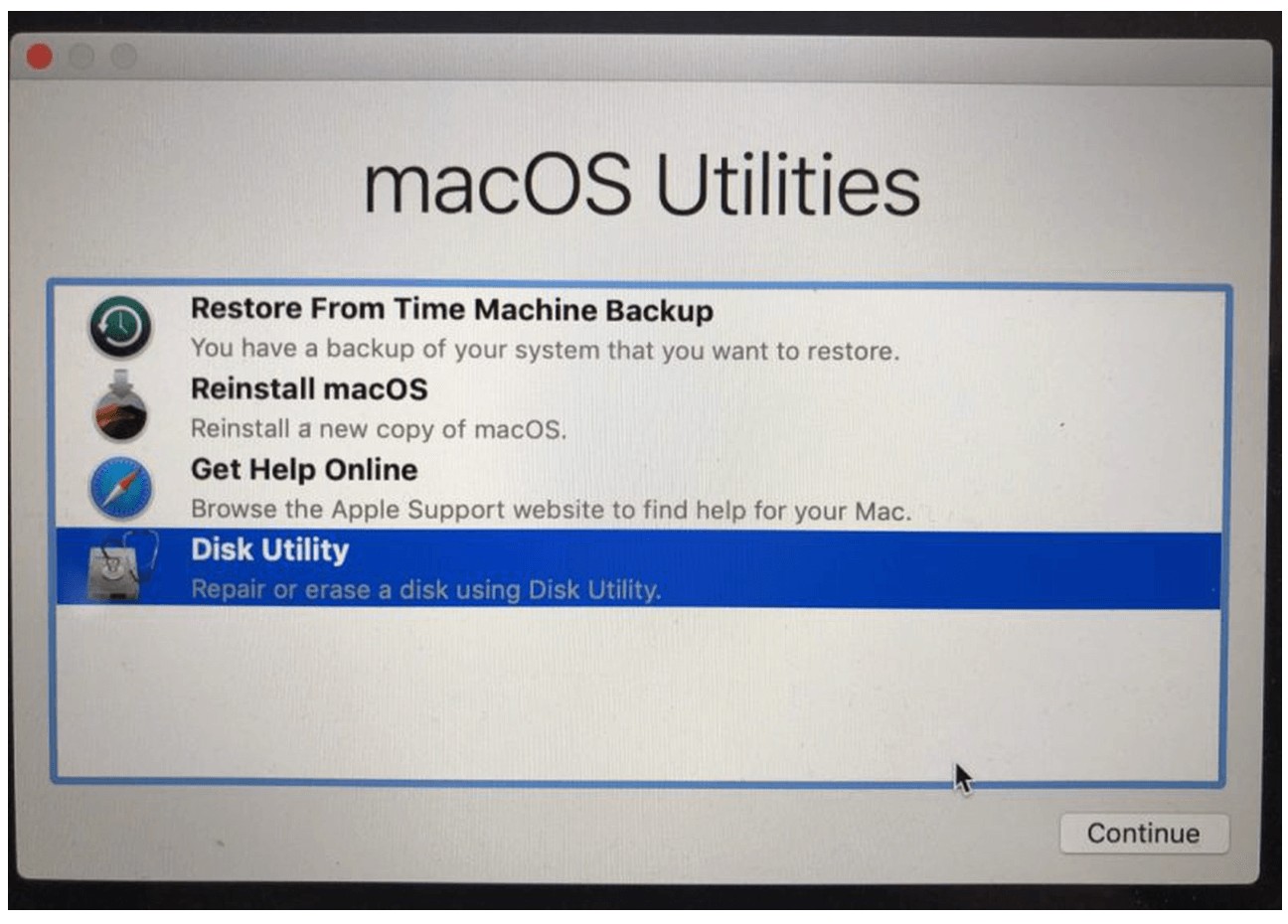
13. Reinstall macOS
Sometimes the left click not working on Mac glitch can also be down to an outdated macOS–just in case, we recommend reinstalling your version of OS to see if this fixes your problem.
Here’s how to reinstall macOS:
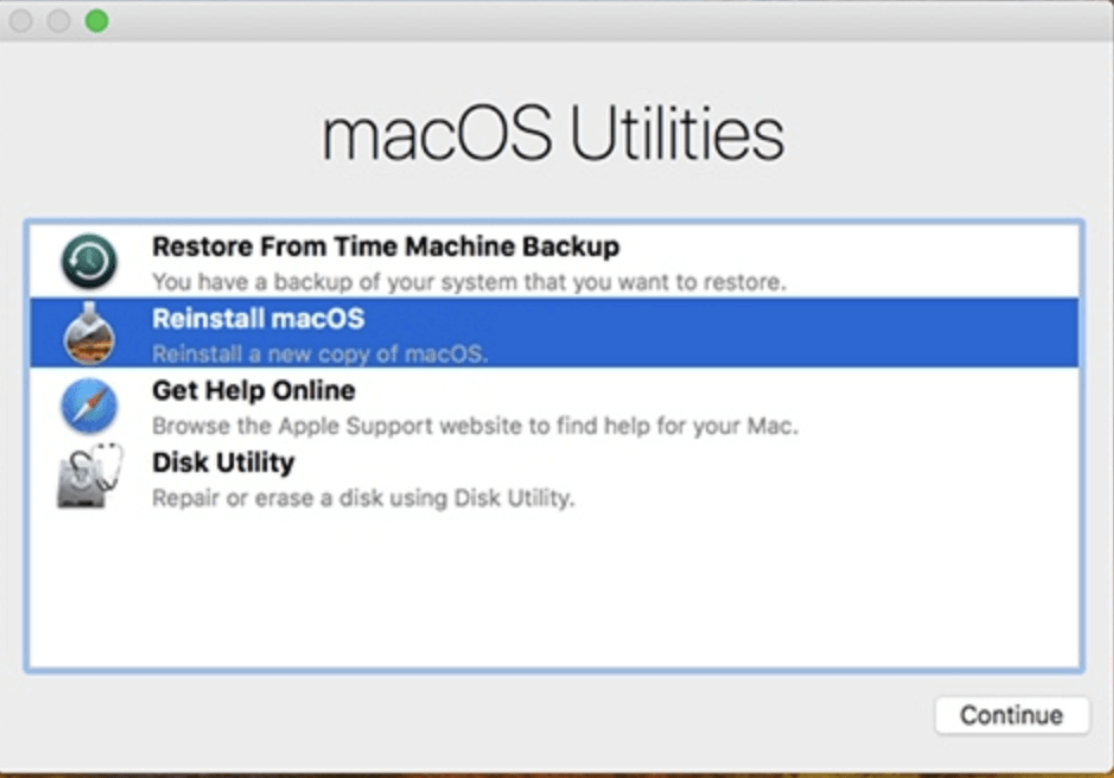
Boot your device into Recovery Mode.
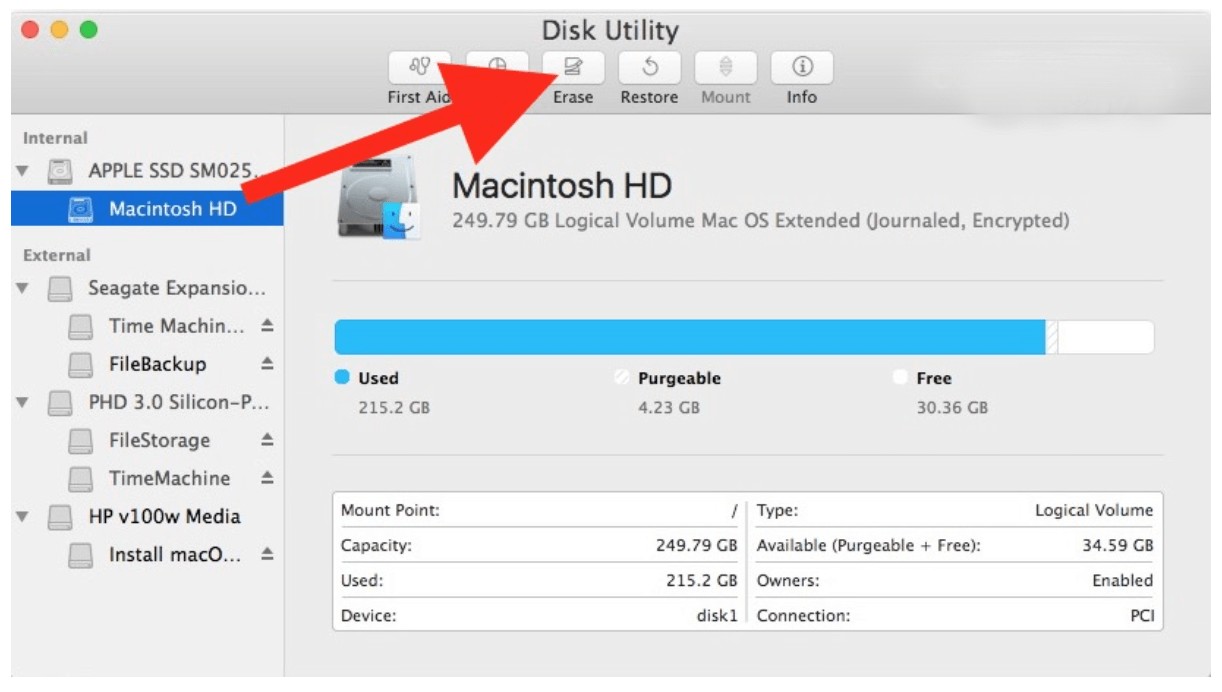
Once in Recovery Mode, click on Disk Utility and then Continue.
Select Macintosh HD and press Erase.
Click Complete.
Close Disk Utility and return to macOS Utilities.
Then select Reinstall macOS and follow the on-screen instructions.
Step 1. In macOS Utilities, click on Disk Utility, and press ContinueStep 2. Click on Macintosh HD and press EraseStep 3. Then go back to macOS Utilities and select Reinstall macOS
14. Hardware repair/replacement
Still no luck? If none of our steps helped to fix your left click, it might be a sign that your hardware is the problem. You may need to get your trackpad repaired or buy a new mouse.
Fixing your left click on Mac with MacKeeper
When your left click stops working on Mac, it can quickly turn into an annoying obstacle, whether you’re using an external mouse or your trackpad. We strongly recommend keeping macOS updated, regularly cleaning your trackpad, and checking your device permissions.
For extra help, MacKeeper’s Premium Services can offer professional support tailored to your concerns. Our team of Clario Tech experts can share actionable steps online and walk you through the best solution. With us, you’ll be back to your regular Mac activities in no time.
We respect your privacy and
use cookies
for the best site experience.
Privacy Preferences Center
We use cookies along with other tools to give you the best possible experience while using the
MacKeeper website. Cookies are small text files that help the website load faster. The cookies we
use don’t contain any type of personal data meaning they never store information such as your
location, email address, or IP address.
Help us improve how you interact with our website by accepting the use of cookies. You can change
your privacy settings whenever you like.
Manage consent
All cookies
These cookies are strictly necessary for enabling basic website functionality (including page
navigation, form submission, language detection, post commenting), downloading and purchasing
software. The website might malfunction without these cookies.