Is your Mac freezing the second you try to save? macOS Tahoe freezing when saving files is a frequent complaint after a fresh update, and it’s more annoying than serious. MacKeeper’s Premium Services bring cleanup, antivirus, and optimization tools together to help your Mac feel responsive again. Let’s sort out what’s happening.
Why file saving may trigger freezes on macOS Tahoe?
When you choose Save As or pick a destination folder, your Mac quietly checks permissions, refreshes Finder, and talks to iCloud all at the same time. If one of those steps stalls, you see the pause on screen—that’s what macOS Tahoe save dialog freezing looks like in practice.
A few usual suspects tend to sit behind macOS Tahoe save files freezing issue reports:
Spotlight indexing. After an update, Spotlight rebuilds its index of your disk, which slows the response of any file dialog.
iCloud sync conflicts. Desktop and Documents syncing in the background compete for the very files you’re trying to save.
Incompatible apps or extensions. An outdated app or plugin can hang the moment a save window opens.
Post-update system bugs. A fresh macOS release sometimes ships small glitches that Apple patches shortly after.
A Mac that drags well beyond the save window usually signals a broader Mac running slow after update, which is worth ruling out before you dig deeper.
How to fix macOS Tahoe freezing when saving files?
There’s rarely a single culprit, so we’ll combine small system tweaks, updates, and troubleshooting until we land on what works for you. Most steps take a minute or two, and you don’t need any technical background to follow along—together they make up a practical macOS Tahoe slow Save As dialog fix.
If the trouble reaches past saving and your Mac keeps freezing in other apps too, the same steps still help. Read through our methods below, work through them in order, and stop once your saves feel normal again.
A note from our experts:
Mac Tahoe freezing can occur for multiple reasons, and before going deeper into our troubleshooting guide, we suggest you start with the easier solution. Try the following steps to let our MacKeeper’s Premium Services tech assistants find out the reason behind your macOS Tahoe problem and suggest a workable solution for you:
Choose the Premium Services feature, then click the Chat Now button.
Use the text box to describe your issue and try our advice given.
1. Restart your MacBook
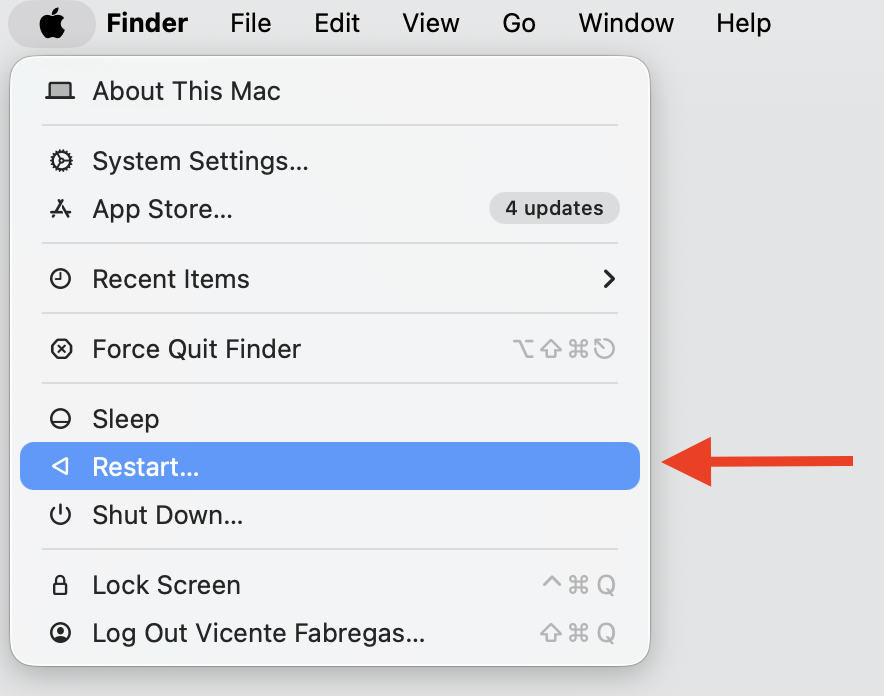
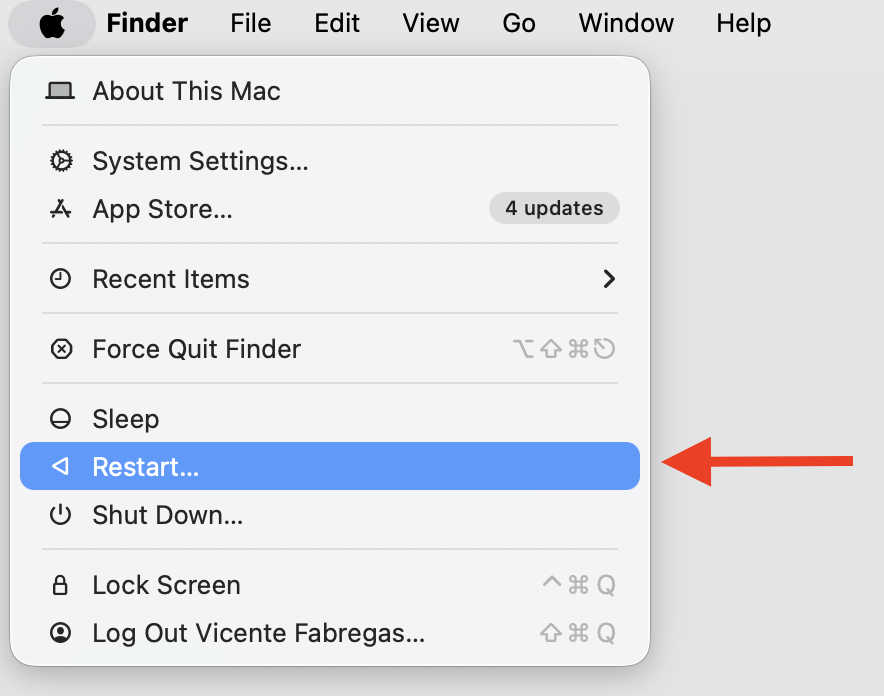
A restart clears temporary files and resets the background processes that quietly pile up between sessions. In our experience, it’s a quick way to reboot a Mac and often settles minor freezes on its own.
Restart in a few clicks:
Save any open work and quit your apps.
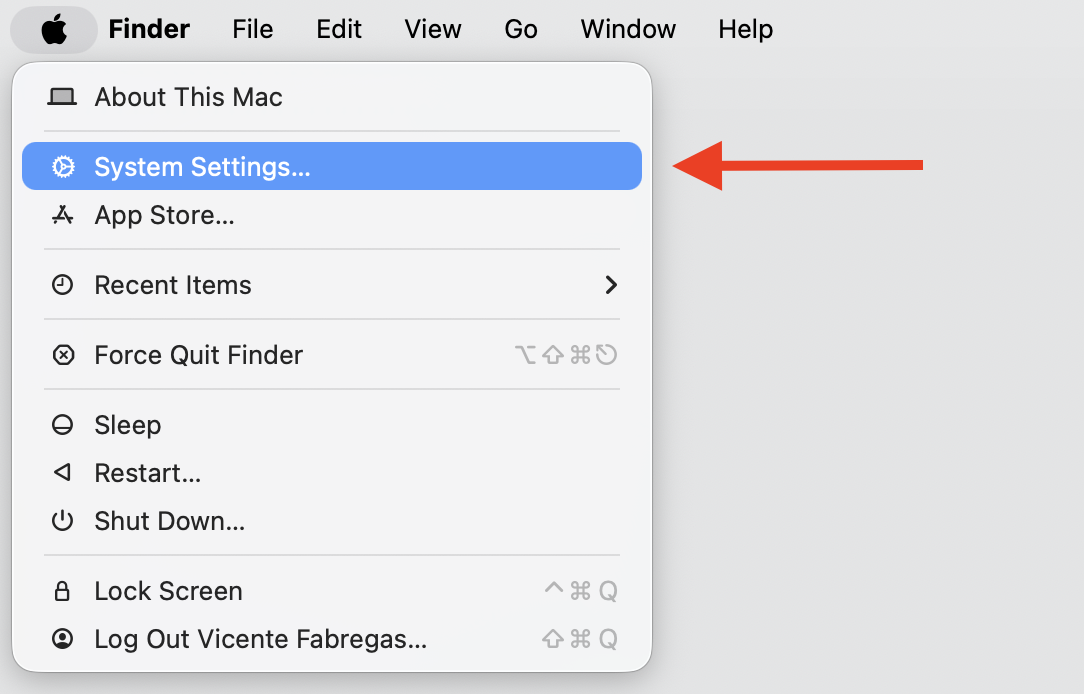
Click the Apple menu in the top-left corner.
Select Restart.
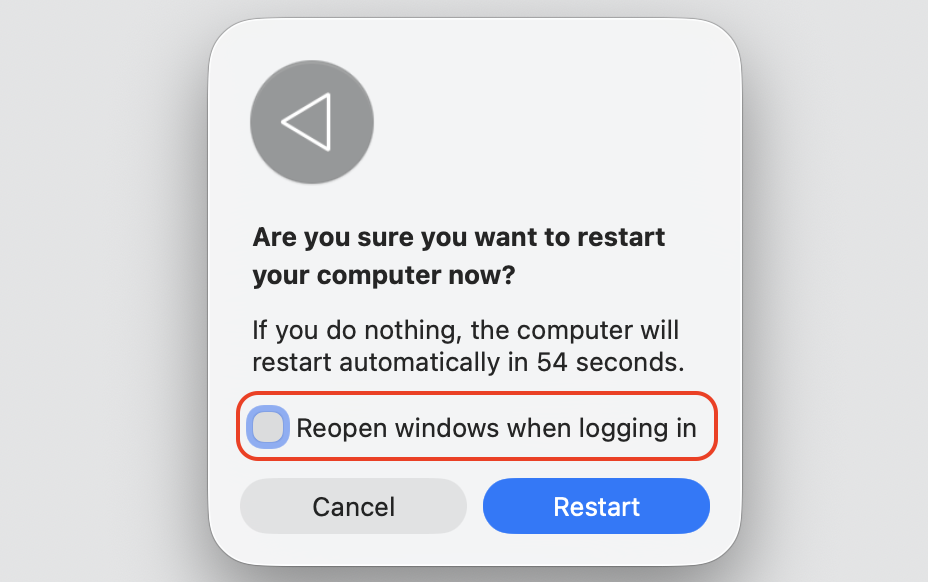
Leave the Reopen windows when logging back in box unselected for a cleaner start.
Step 1. Go to Apple Logo > Restart…Step 2. Leave the Reopen windows when logging back in box unselected
2. Update macOS Tahoe to newer version
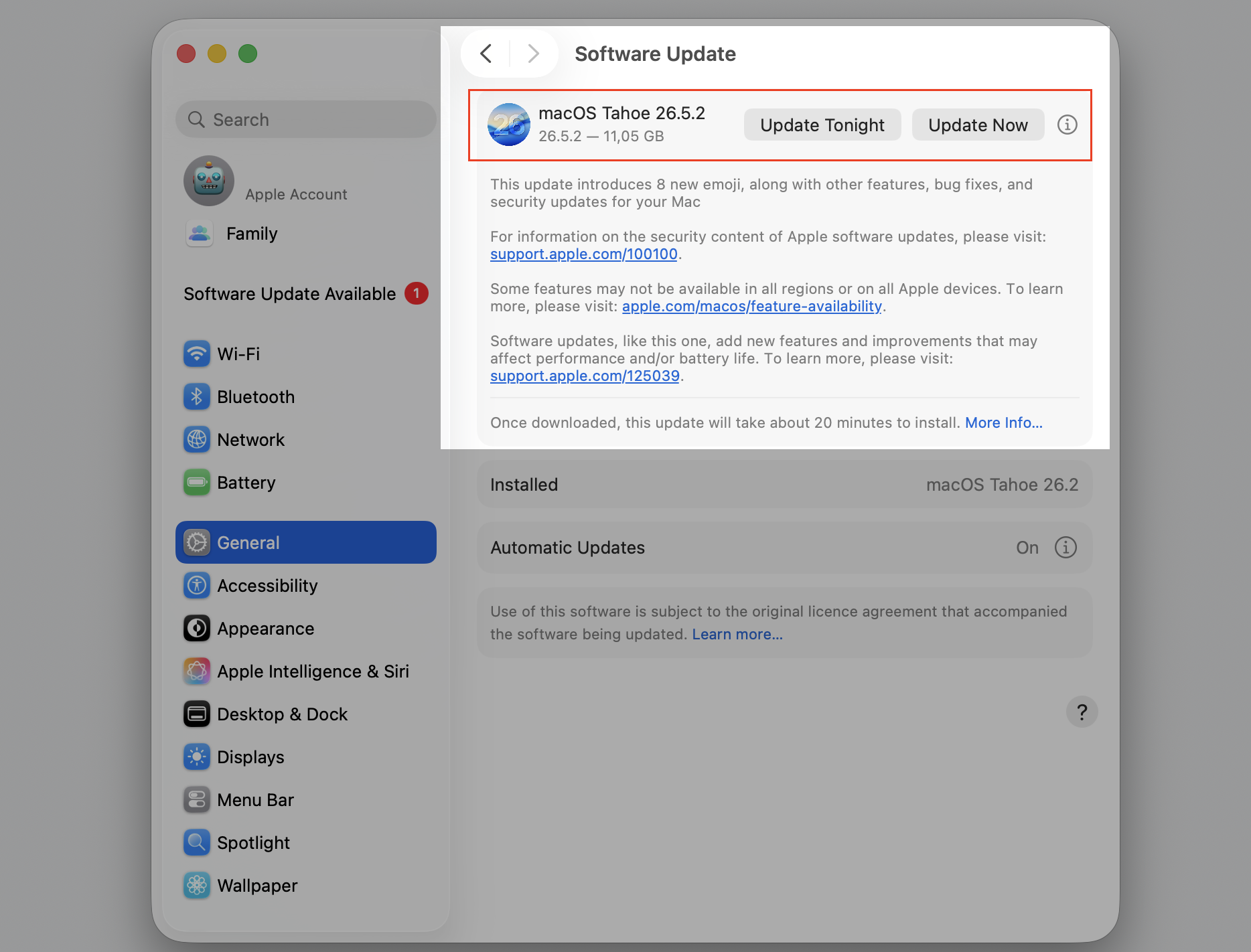
Apple ships regular patches, and a newer build often clears the small bugs that appear right after a macOS upgrade. We’d keep macOS Tahoe current, since it’s a simple safeguard for stability.
Follow our steps to check for a new version:
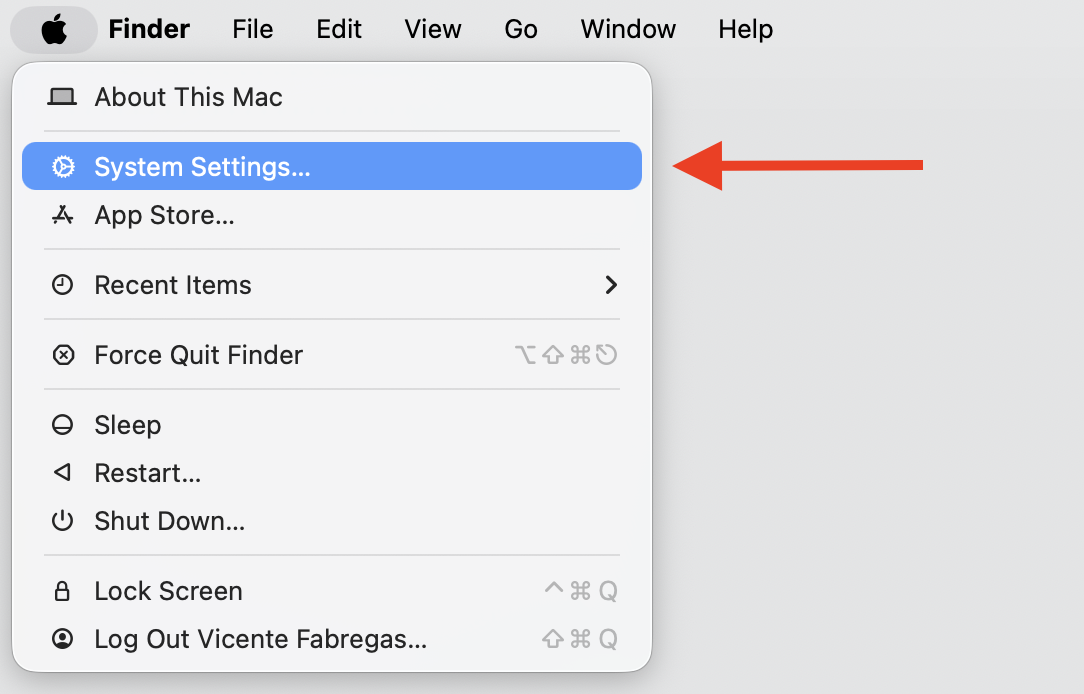
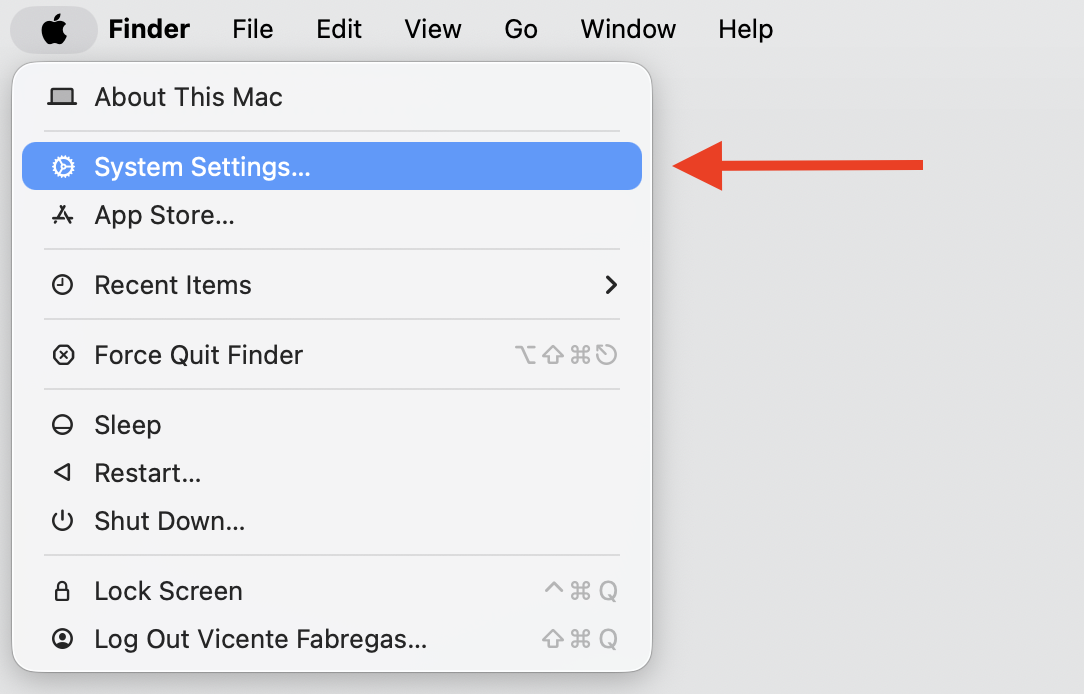
Open the Apple menu and choose System Settings.
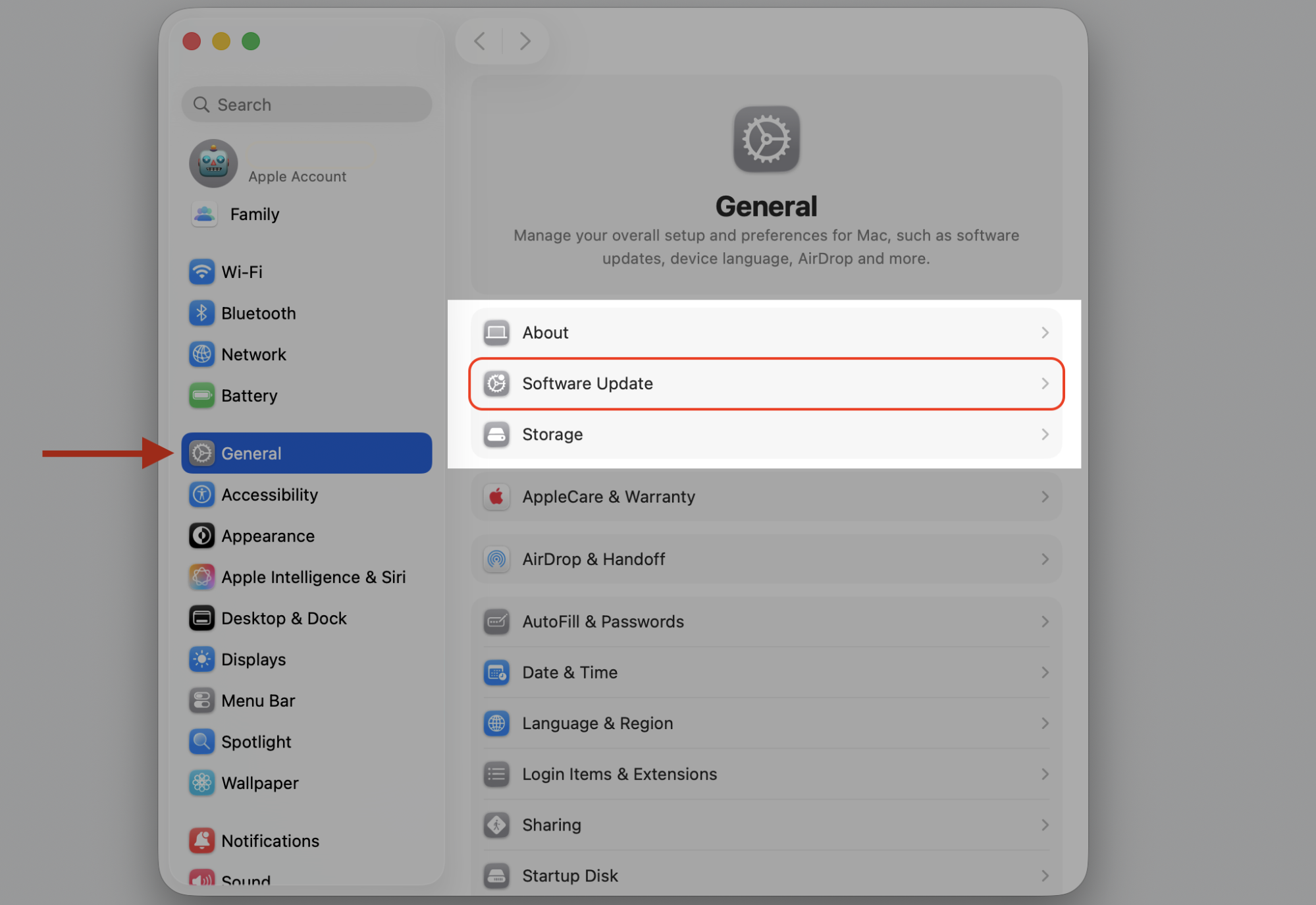
Click General, then Software Update.
Wait for your Mac to check with Apple’s servers.
Select Update Now if a newer version is available.
Step 1. Go to Apple Logo > System SettingsStep 2. Select Software Update from General sectionStep 3. Select the Update Now option
3. Update apps
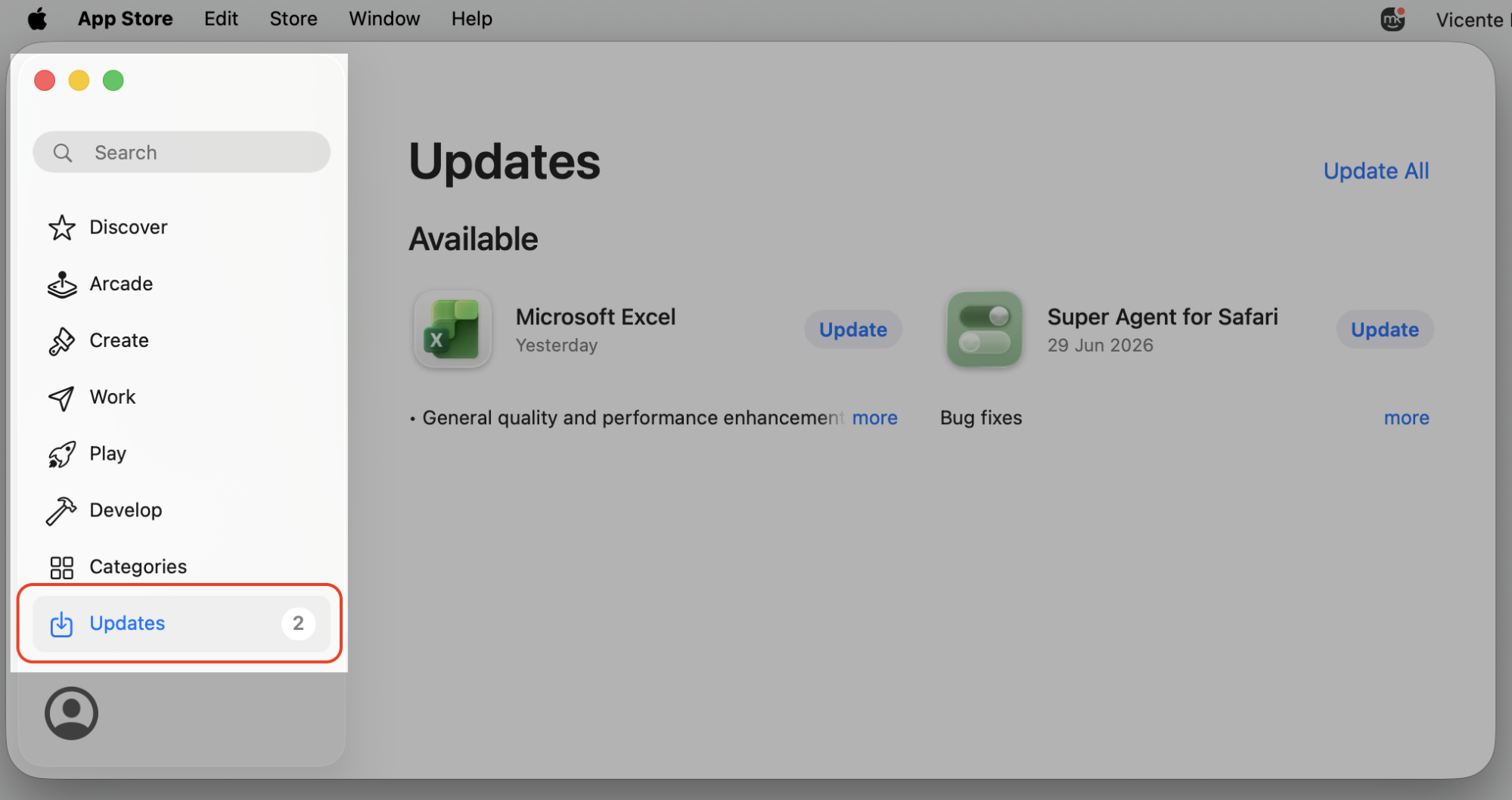
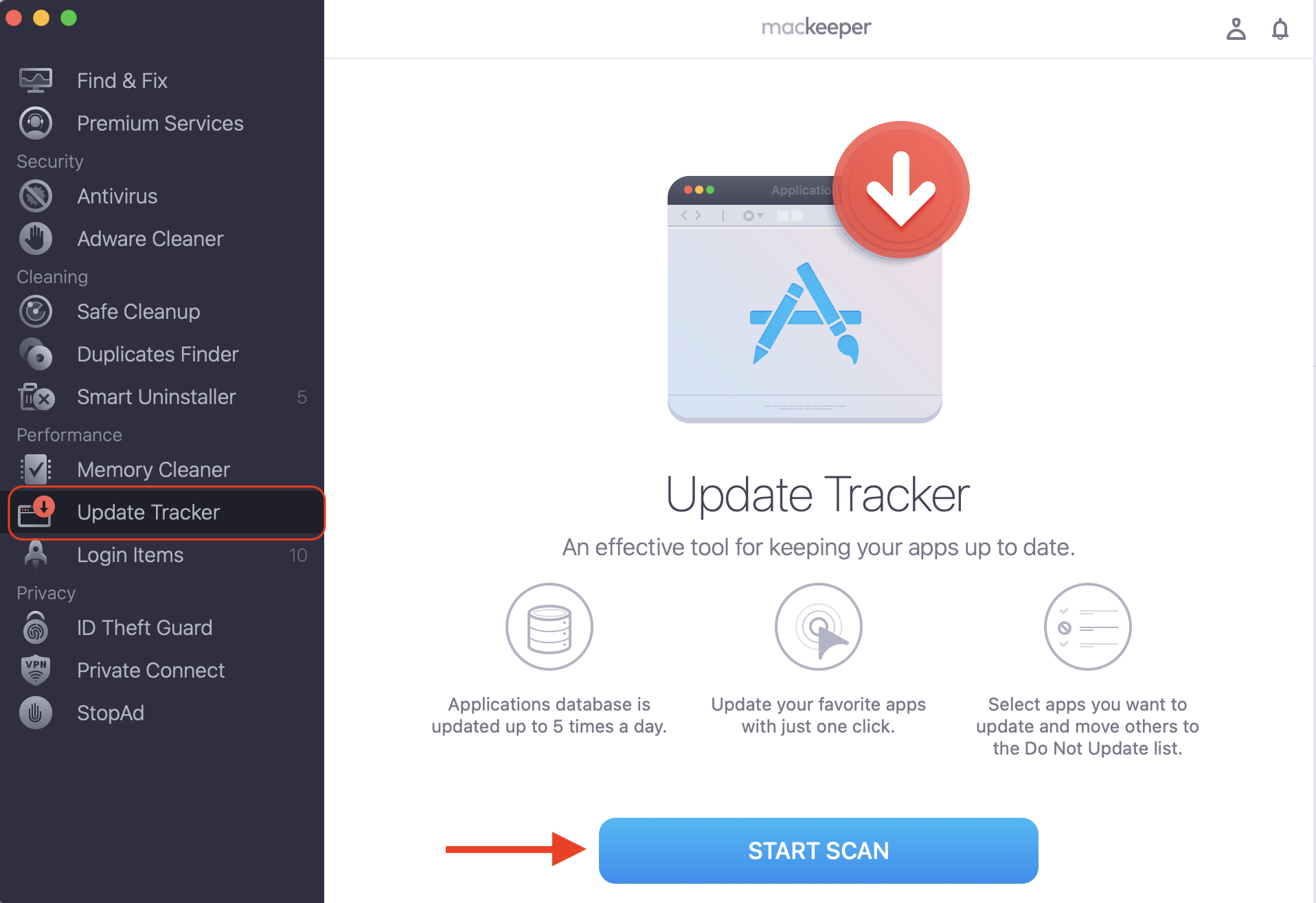
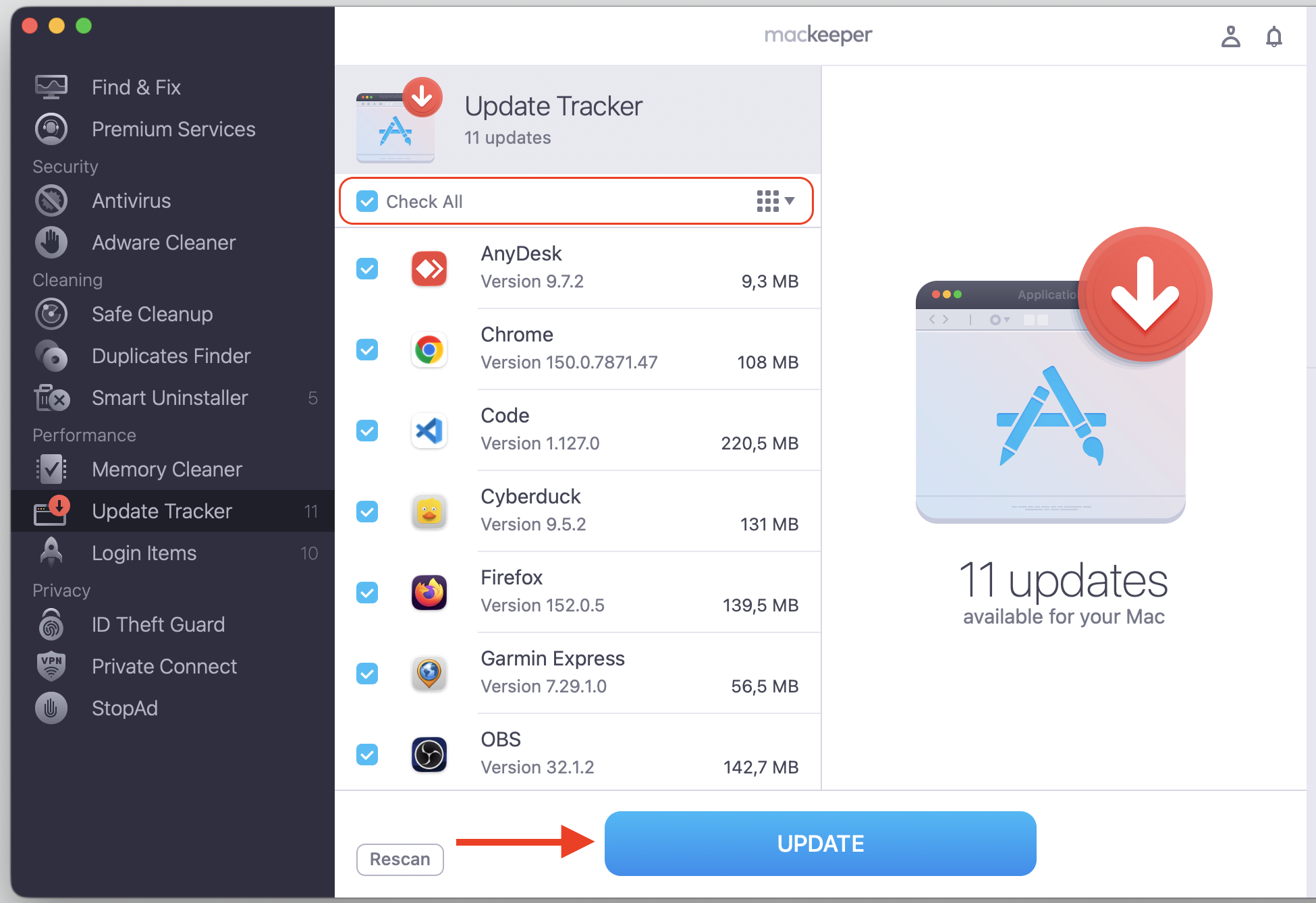
Outdated or incompatible apps are a common trigger, especially when they open a file dialog the current macOS Tahoe no longer expects. Keeping everything current removes a lot of guesswork for us—MacKeeper’s Update Tracker, part of Mac Optimizer, gathers every available app update in one place, so we can stay on secure versions without hunting through each app ourselves.
To stay on top of updates:
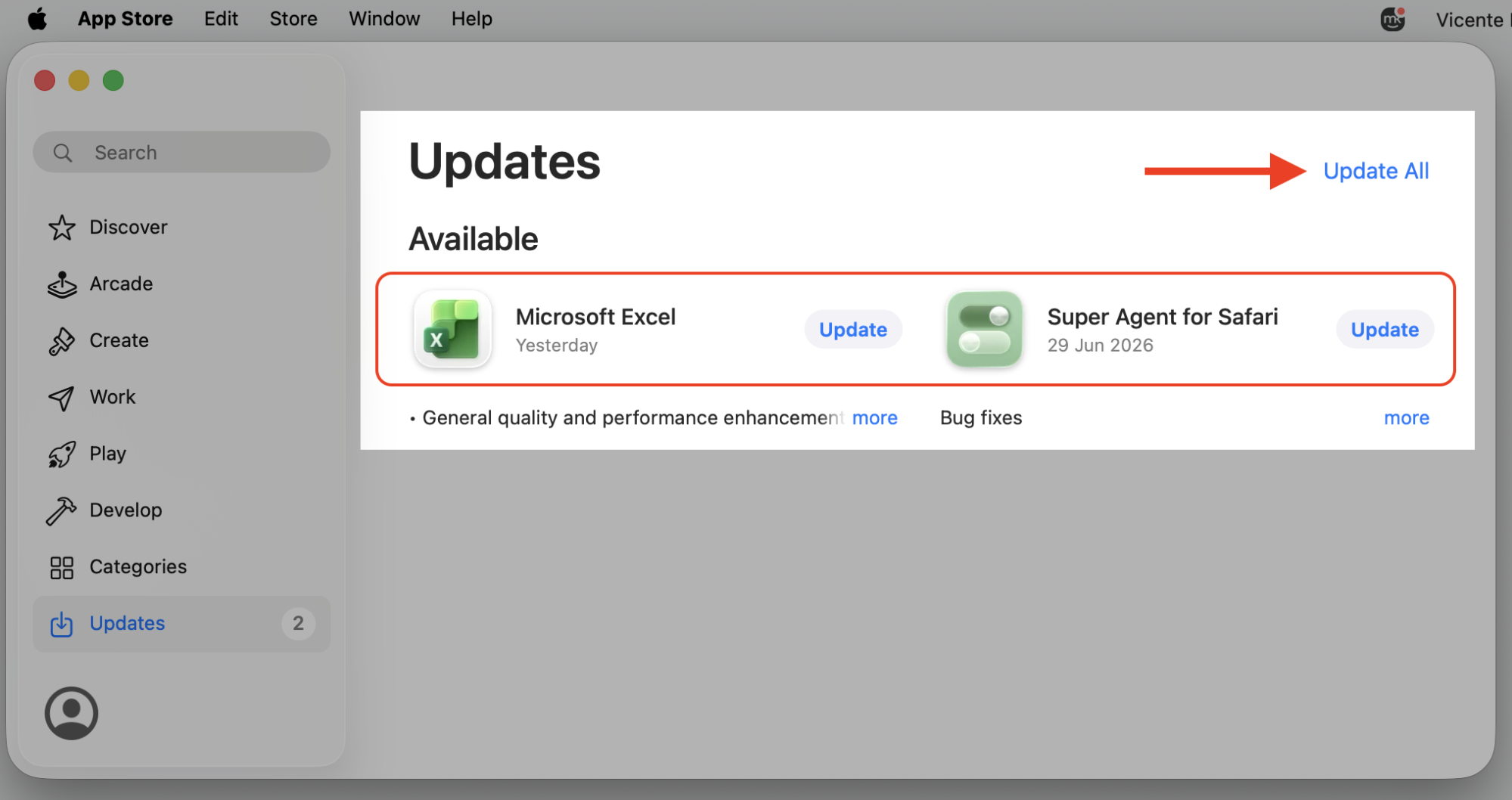
Open the App Store and click Updates in the sidebar.
Update any apps that show a pending version with MacKeeper’s Update Tracker: in the app find Start Scan > make a choice > click on Update.
For apps installed outside the App Store, open each one and look under its menu for Check for Updates.
Restart any app after updating so the changes take effect.
Step 1. Go to App Store > UpdatesStep 2. Update available appsStep 3. Click on the App Name (Next to the Apple Logo) > Check for Updates..Step 4. Open MacKeeper > Update Tracker > Start ScanStep 5. Select Check All and Update
4. Check Spotlight indexing
After an update, Spotlight re-indexes your entire disk, and that heavy background work can slow the response of any save window—a frequent source of macOS Tahoe Save As dialog freeze lag. We’d either wait for indexing to finish or turn off Spotlight for the folders that don’t need it.
To review what Spotlight is indexing:
Open the Apple menu and go to System Settings.
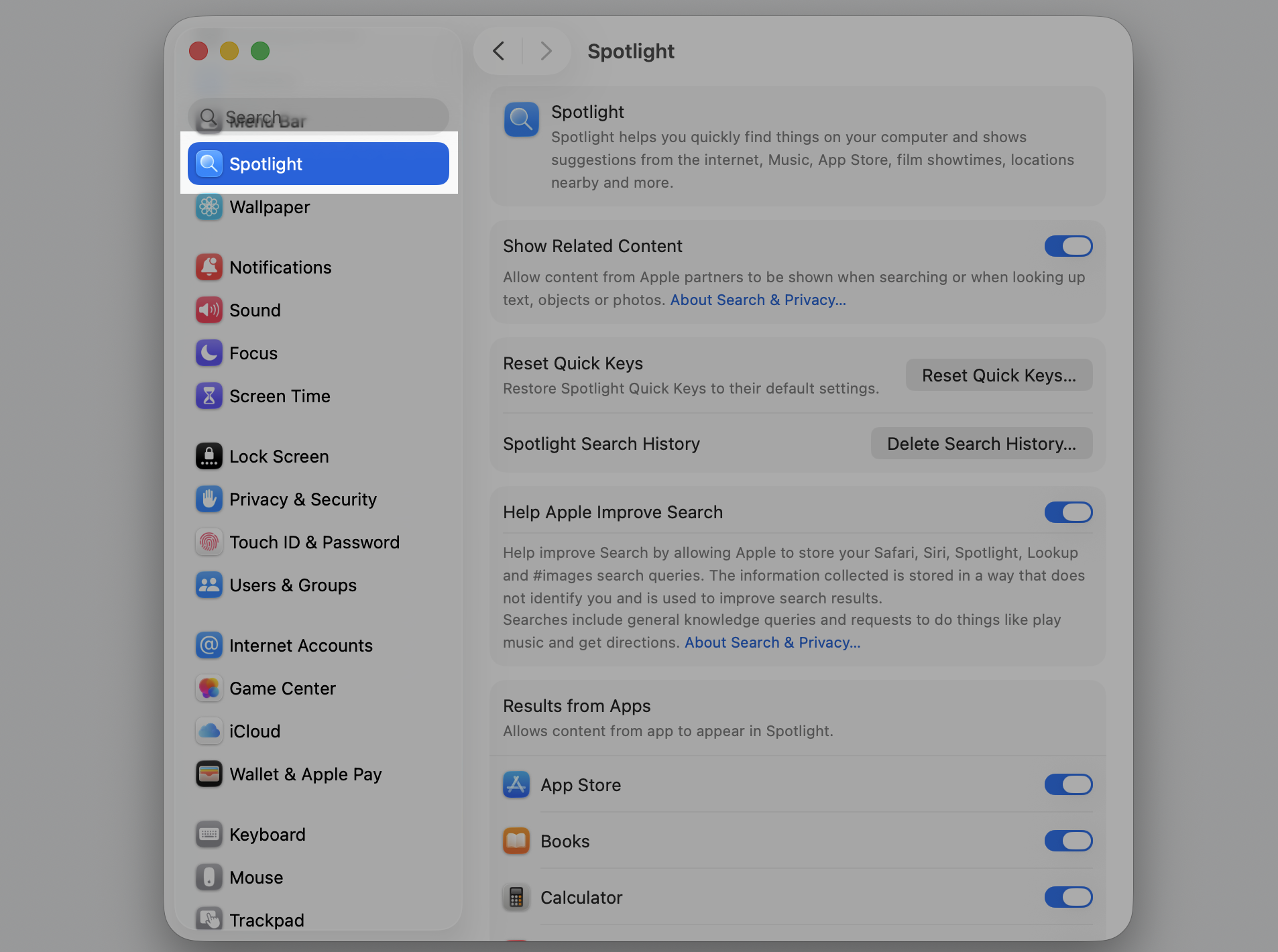
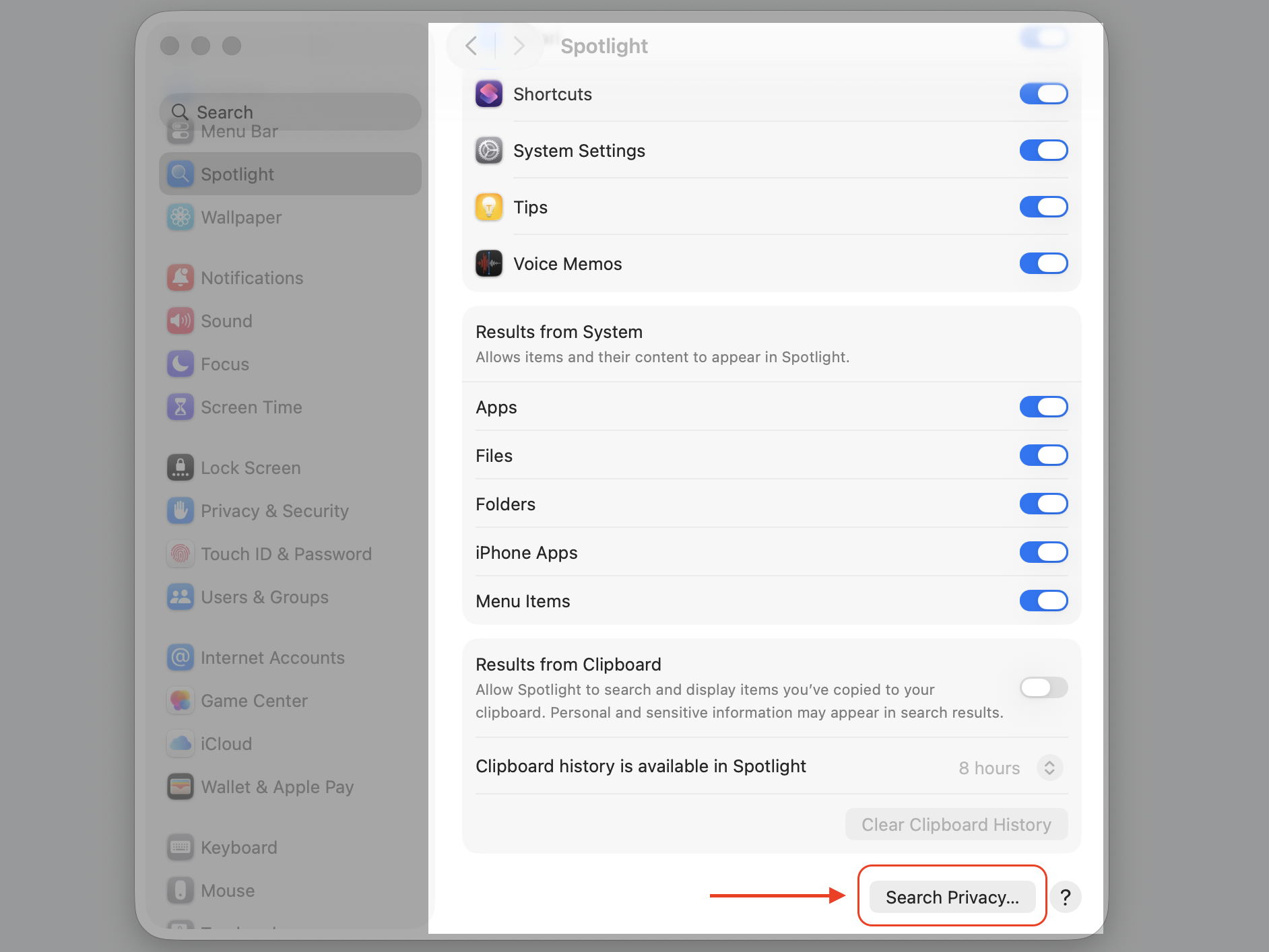
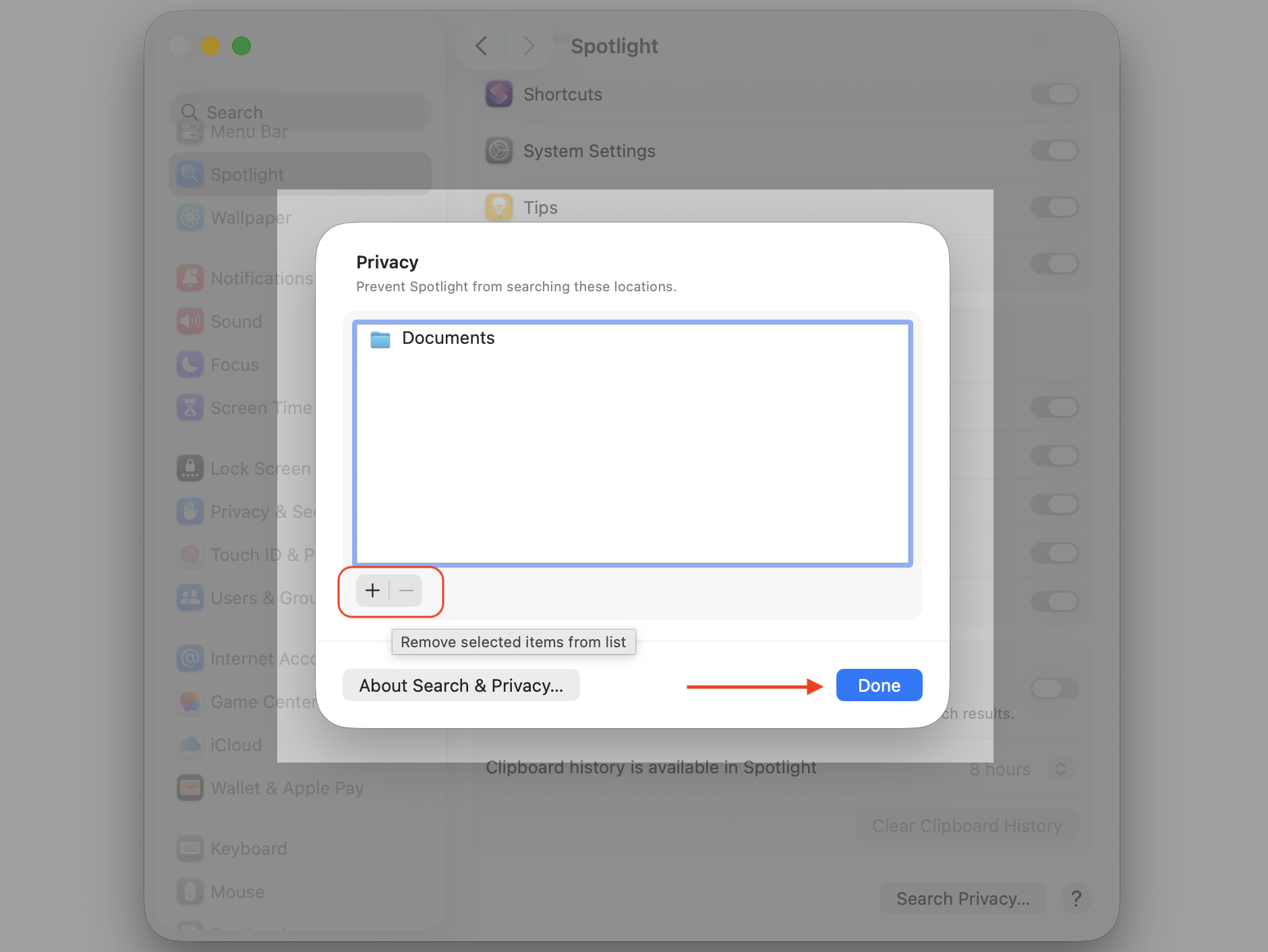
Click Spotlight, then Search Privacy.
Click the plus (+) button and add any large folders you’d rather skip.
Remove them from the same list once your saves feel smooth again.
Step 1. Go to Apple Logo > System Settings…Step 2. Select Spotlight from the sidebar menuStep 3. Scroll down the Spotlight window till the Search Privacy optionStep 4. Exclude specific files and folders from Spotlight by clicking the plus (+) button
5. Disable or adjust iCloud sync
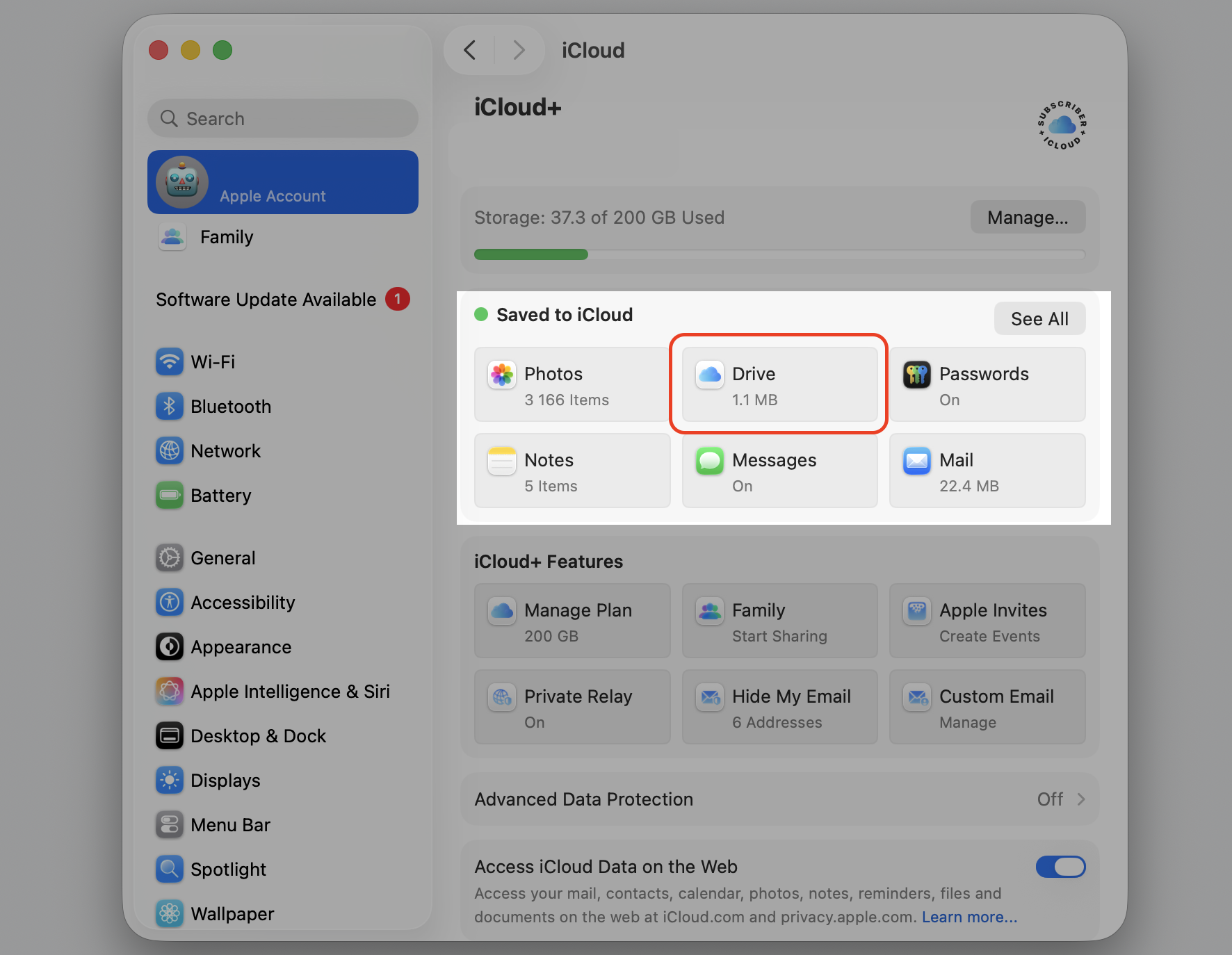
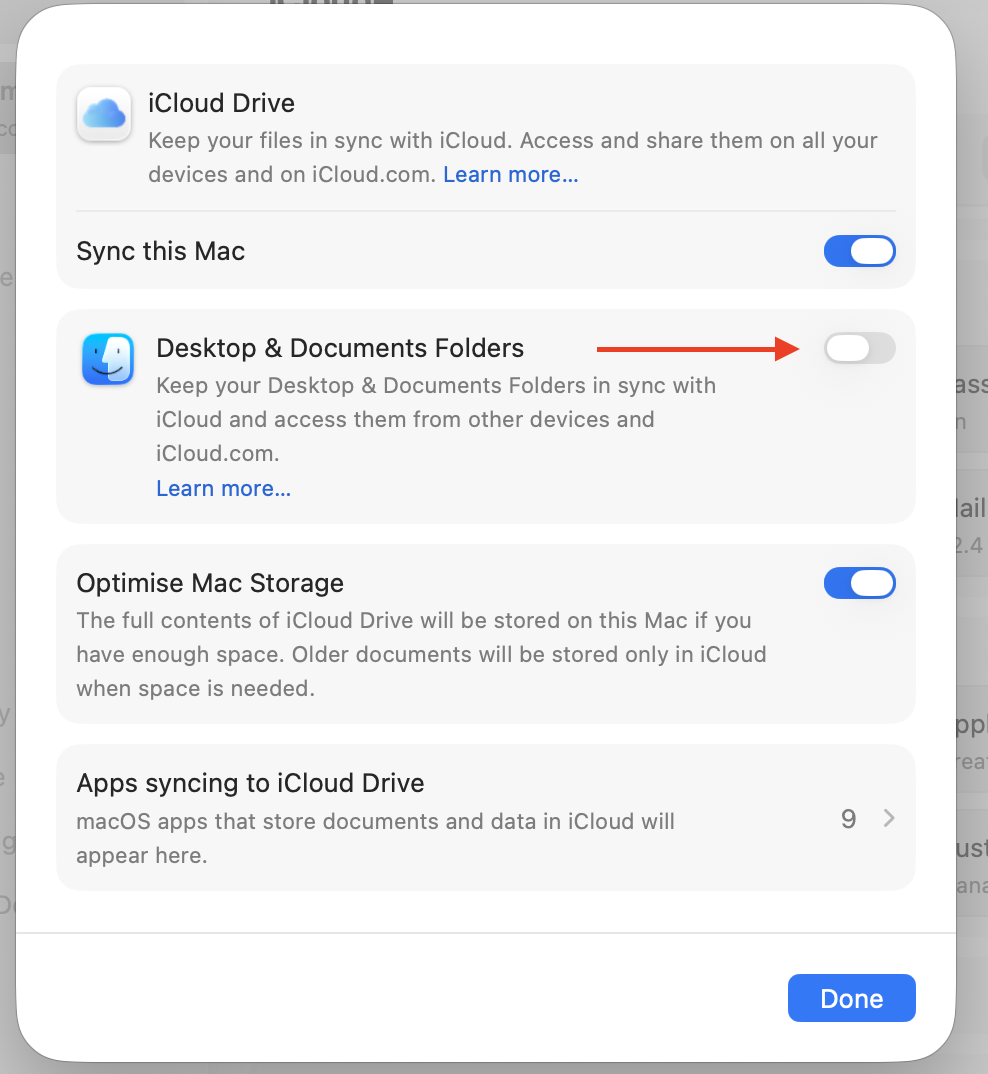
When Desktop and Documents sync to iCloud, every save can wait on the cloud before it finishes locally. In our tests, pausing that sync—or choosing to sign out of iCloud on Mac briefly—often smooths out the delay.
To adjust iCloud sync:
Open the Apple menu and select System Settings.
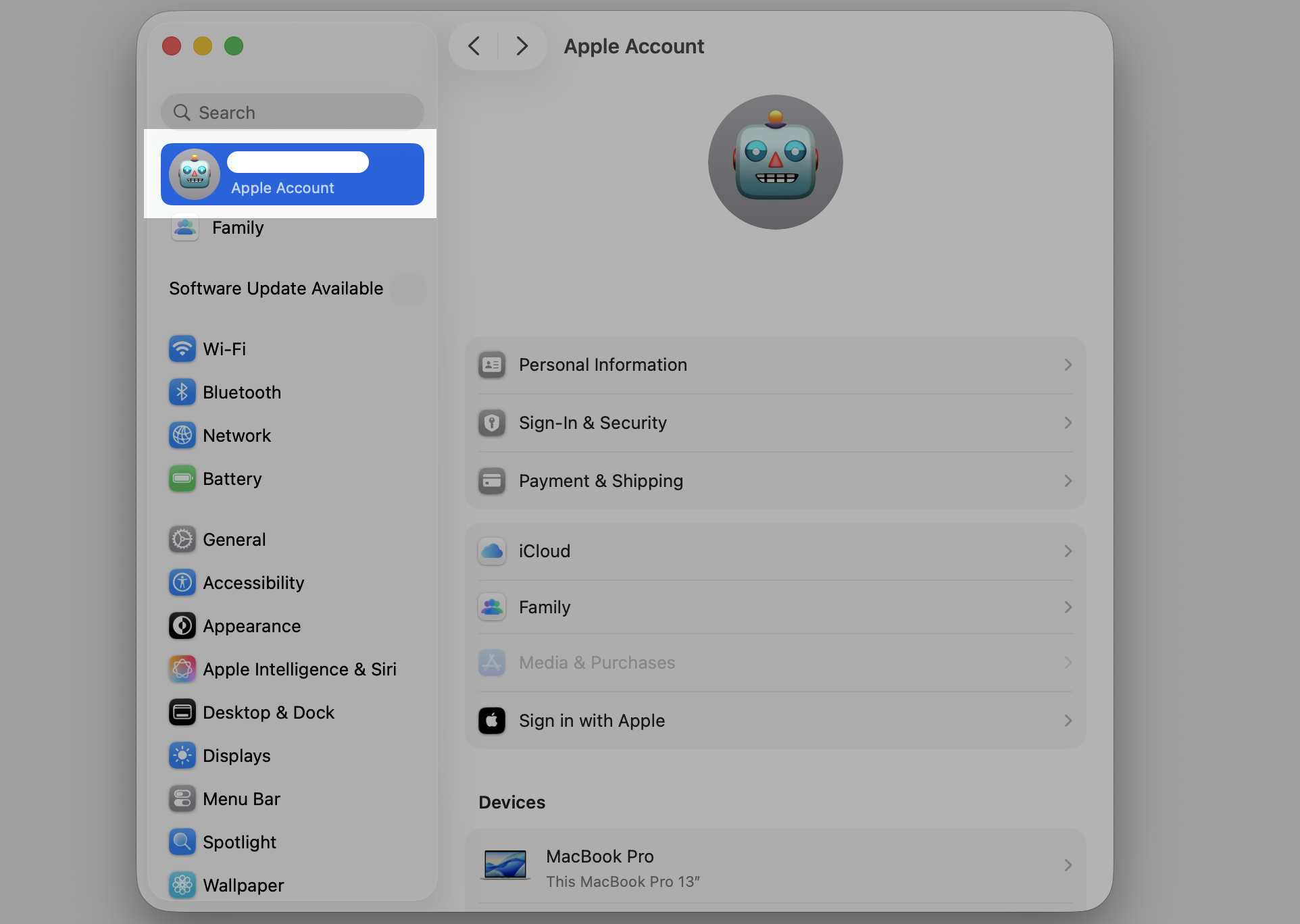
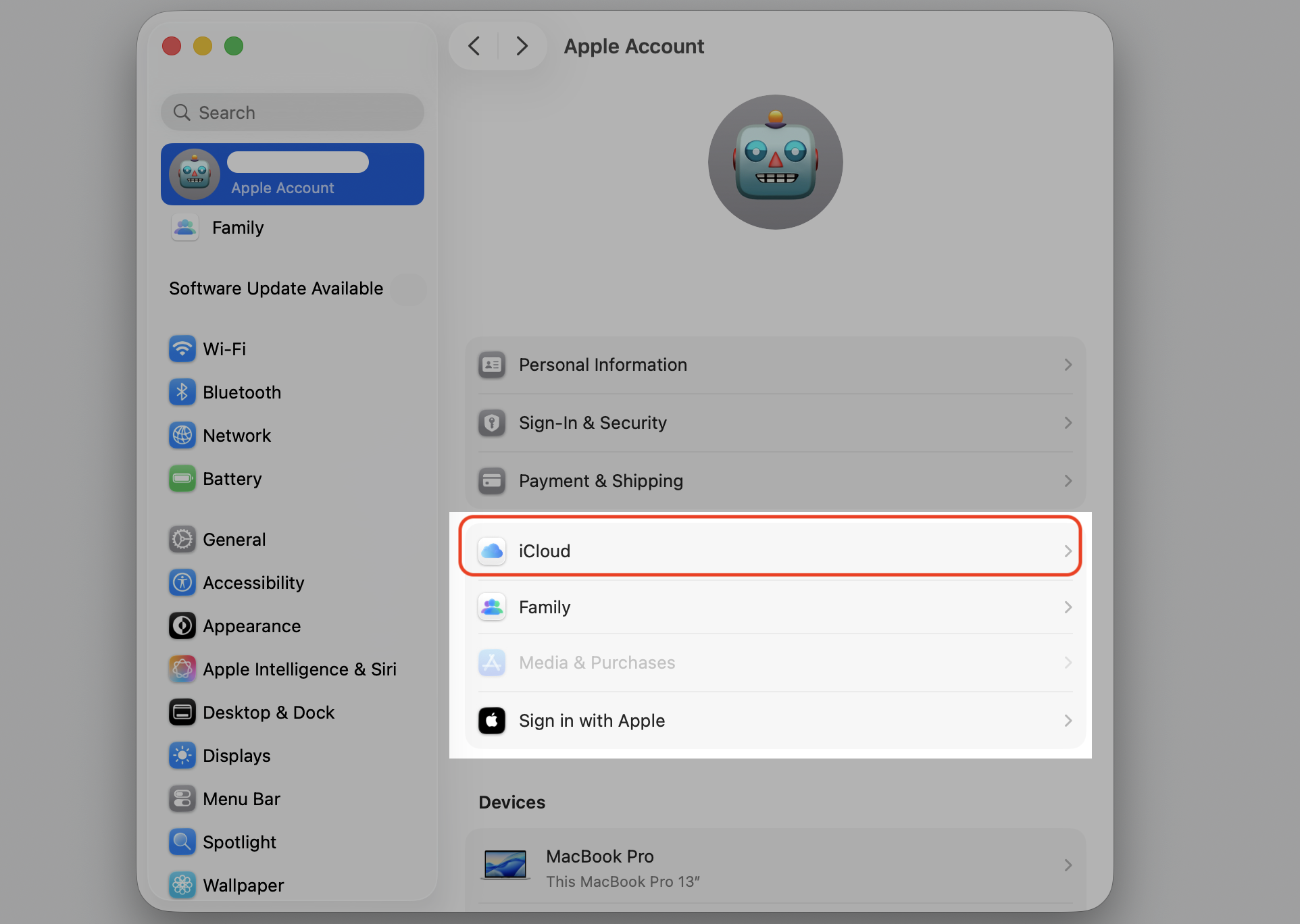
Click your name at the top, then iCloud.
Choose Drive, then Desktop & Documents Folders.
Toggle it off to pause syncing while you test your saves.
Step 1. Go to Apple Logo > System Settings…Step 2. Click your name at the top left corner of the sidebar menuStep 3. Select iCloud optionStep 4. Select DriveStep 5. Toggle off Desktop & Documents Folders to pause syncing while you test your saves
6. Boot in Safe Mode
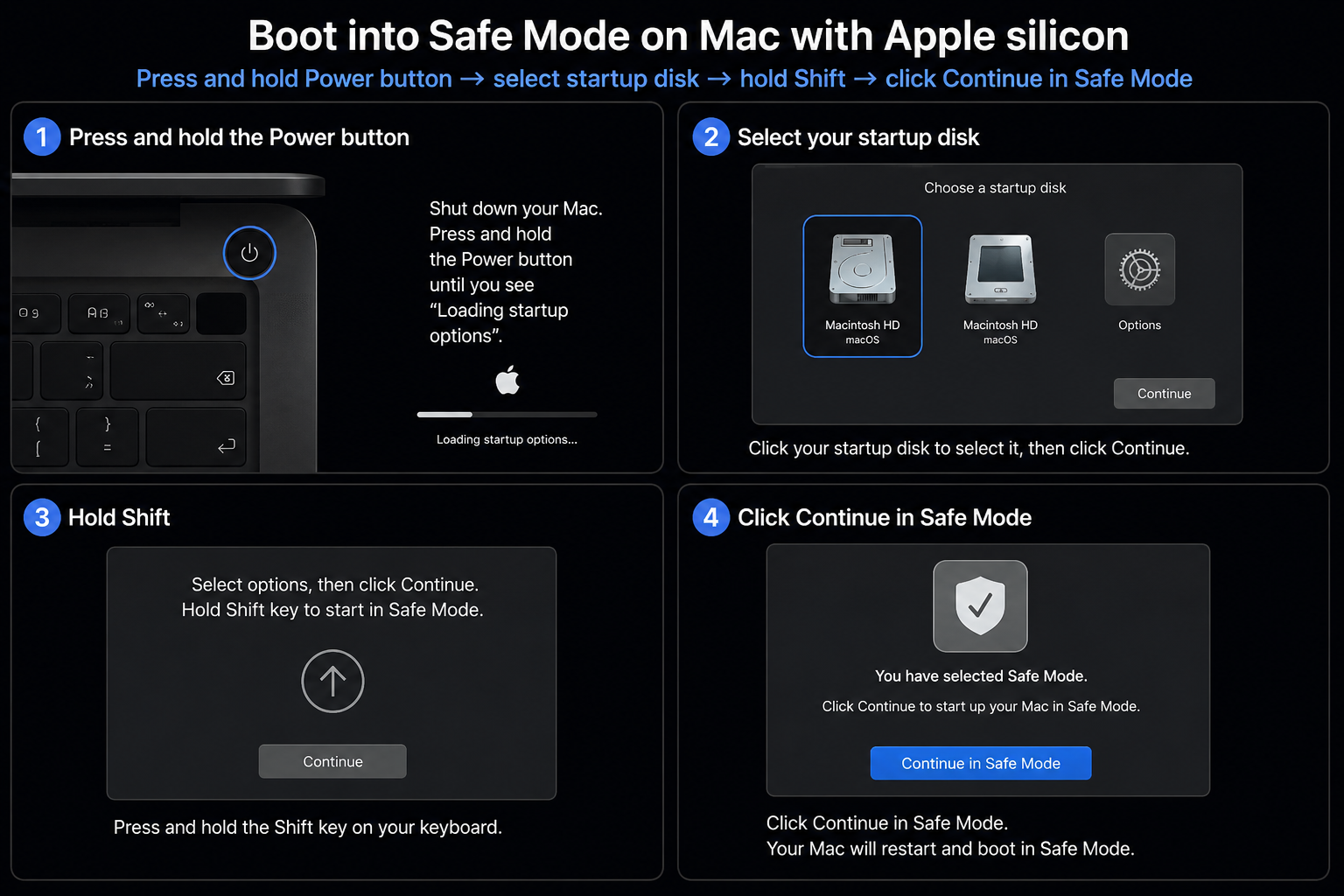
Safe Mode loads only the essentials, which tells us whether a third-party app or extension is behind the freezing. If saves work fine here, we’ve found the answer. The steps to boot Mac in safe mode differ slightly between Apple silicon and Intel machines.
On an Apple Silicon Mac, do the following:
Choose Shut Down from the Apple menu and wait for the Mac to power off.
Press and hold the power button until Loading startup options appears.
Select your startup disk, then hold Shift and click Continue in Safe Mode.
Try saving a file to see whether the freeze returns.
Important: On an Intel Mac, hold Shift during startup instead, then release it at the login screen.
Safe Mode for Apple Silicon Mac
7. Quit resource-heavy processes
High CPU or GPU use from background apps can cause short freezes right when you save. Clearing out those resource-heavy processes frees up memory for the task at hand, and we let MacKeeper’s Memory Cleaner, part of Mac Optimizer, quit the memory-draining apps and idle processes so the system has room to respond.
Here’s a quick way to spot the culprits:
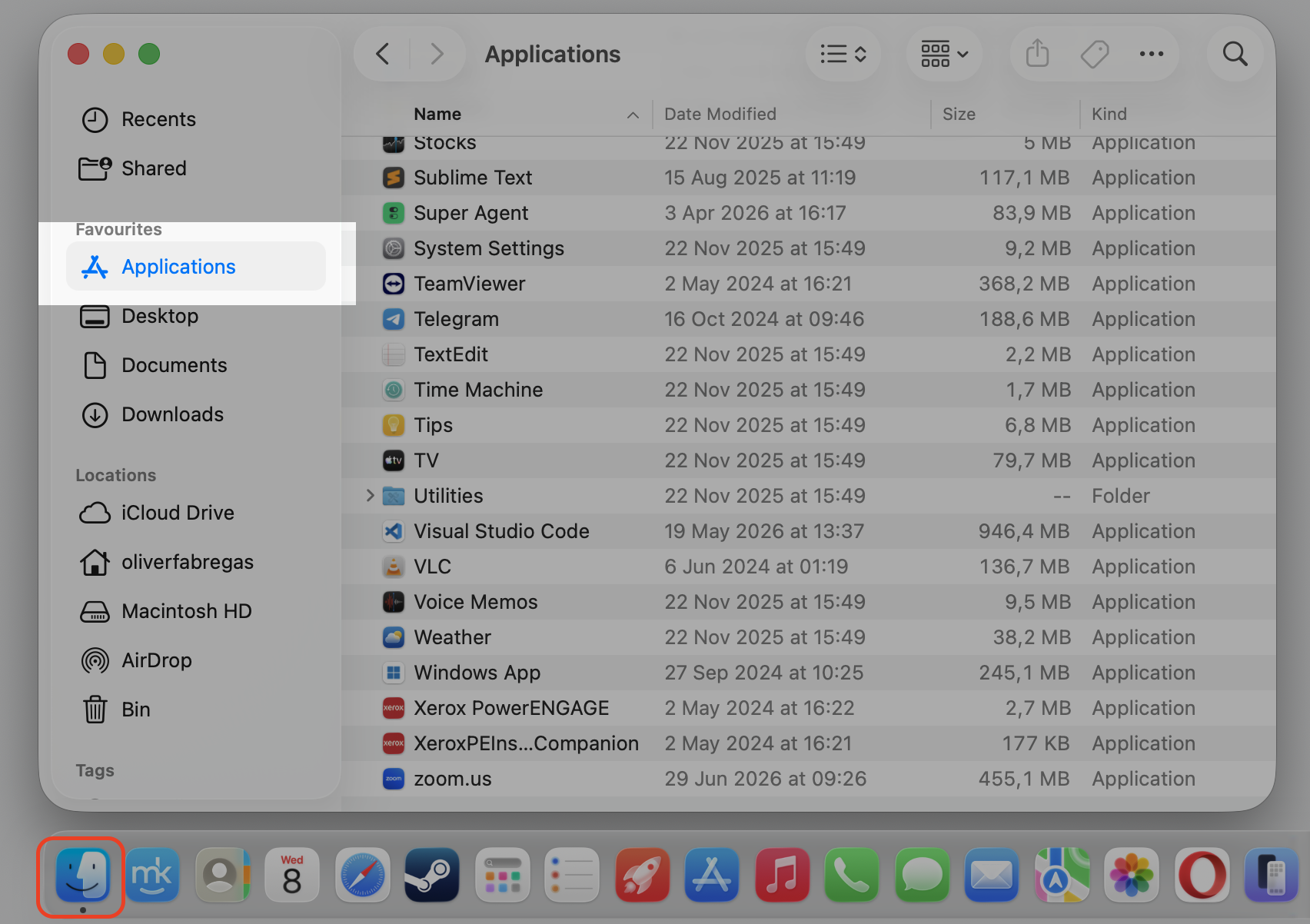
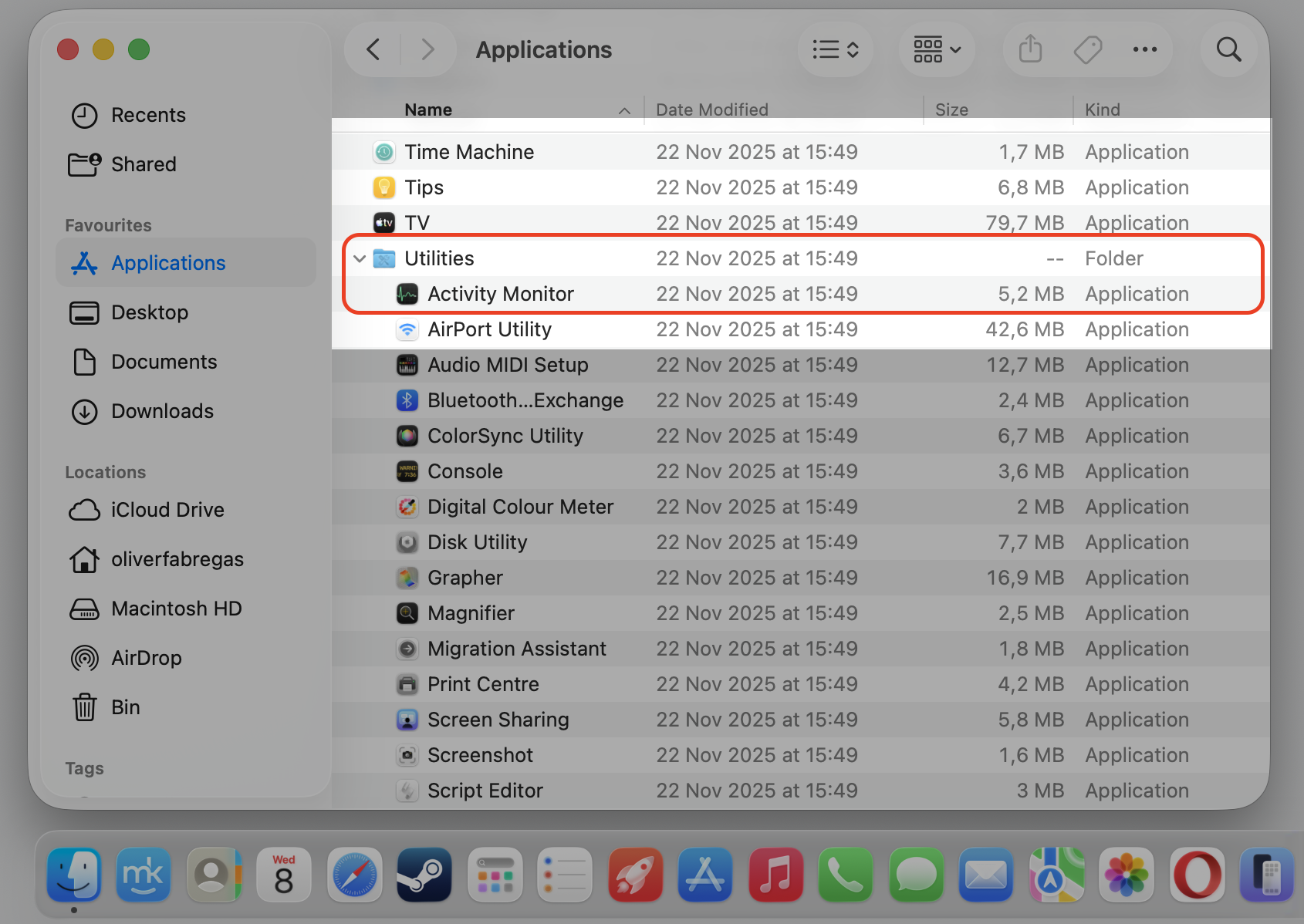
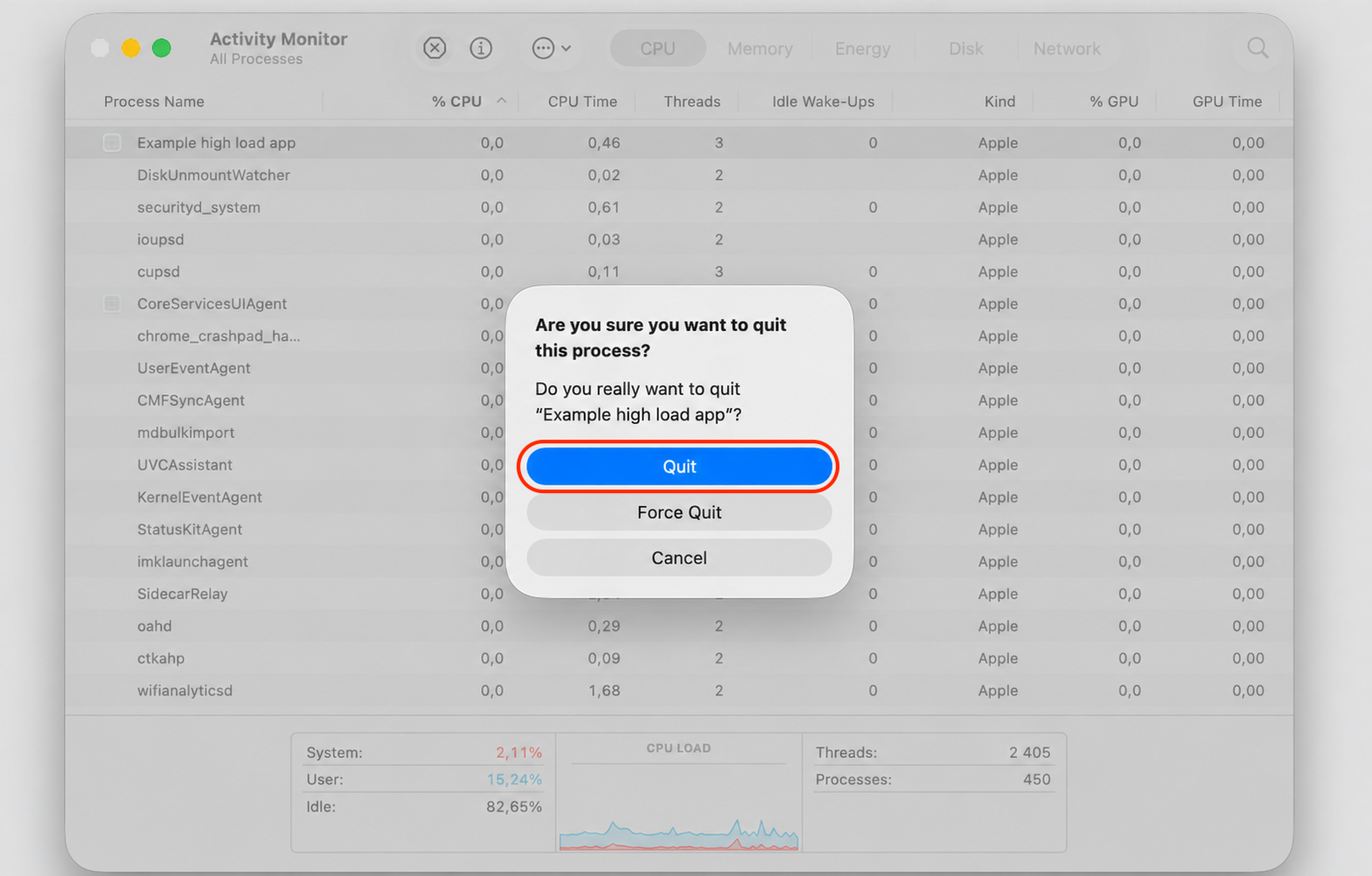
Open Activity Monitor from Applications › Utilities.
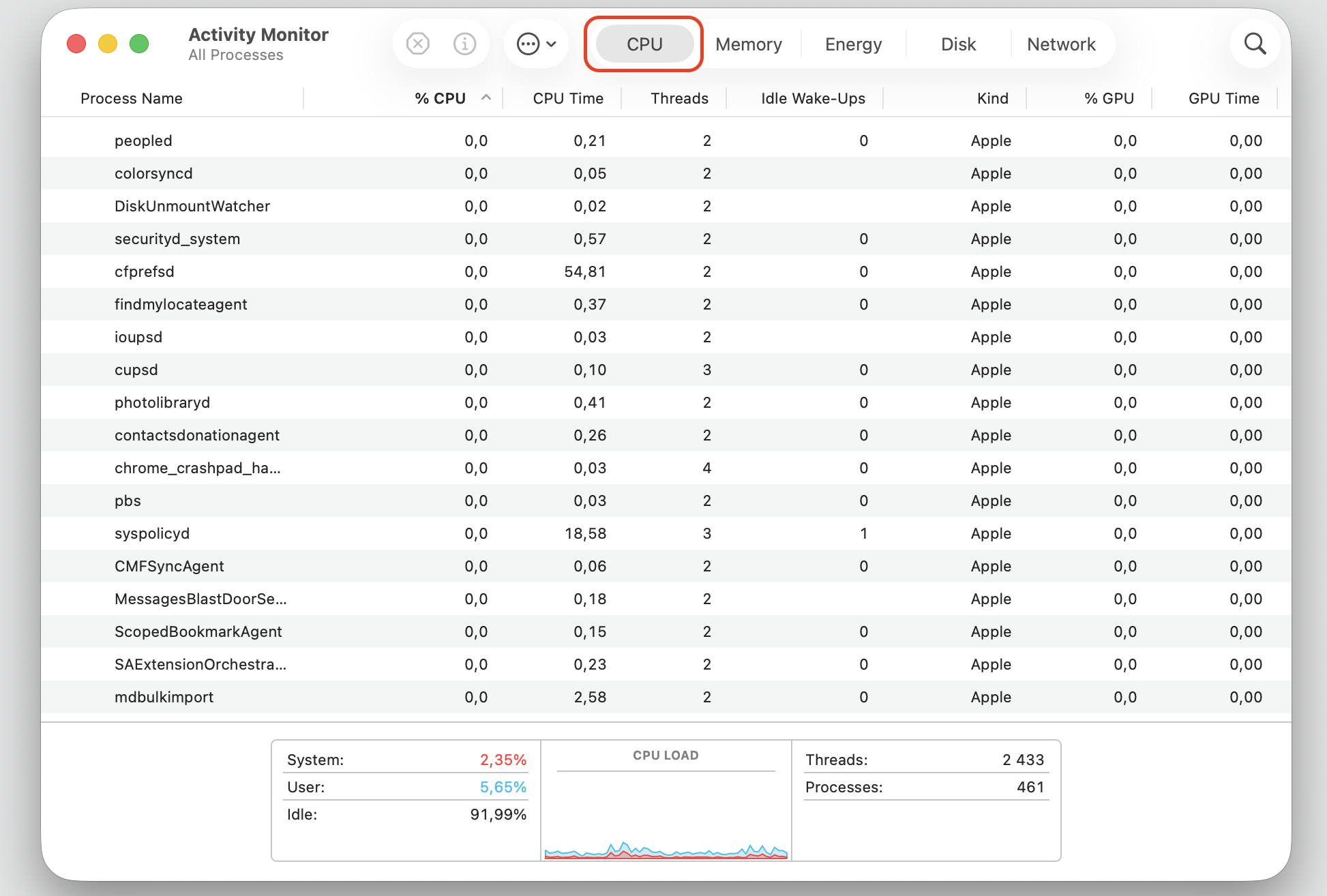
Click the CPU tab to sort by usage.
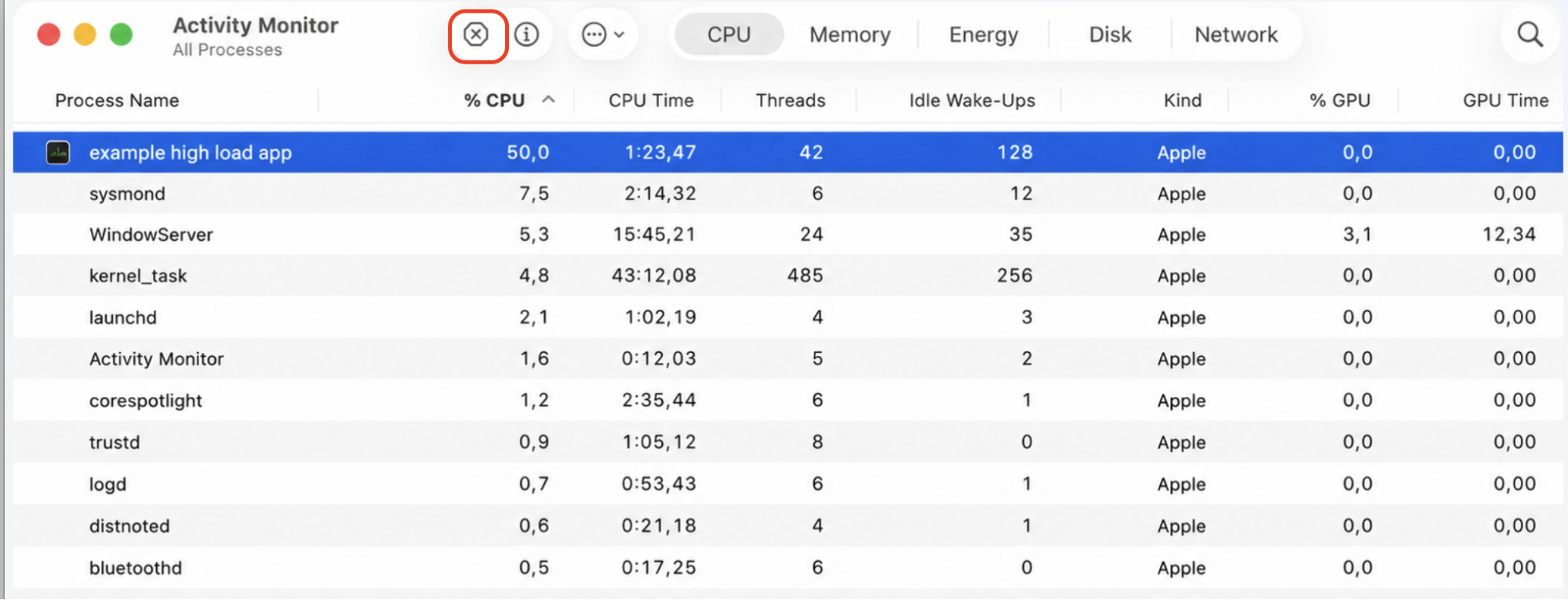
Select any app using an unusually high share, then click the Stop (✕) button.
Confirm with Quit to end the process.
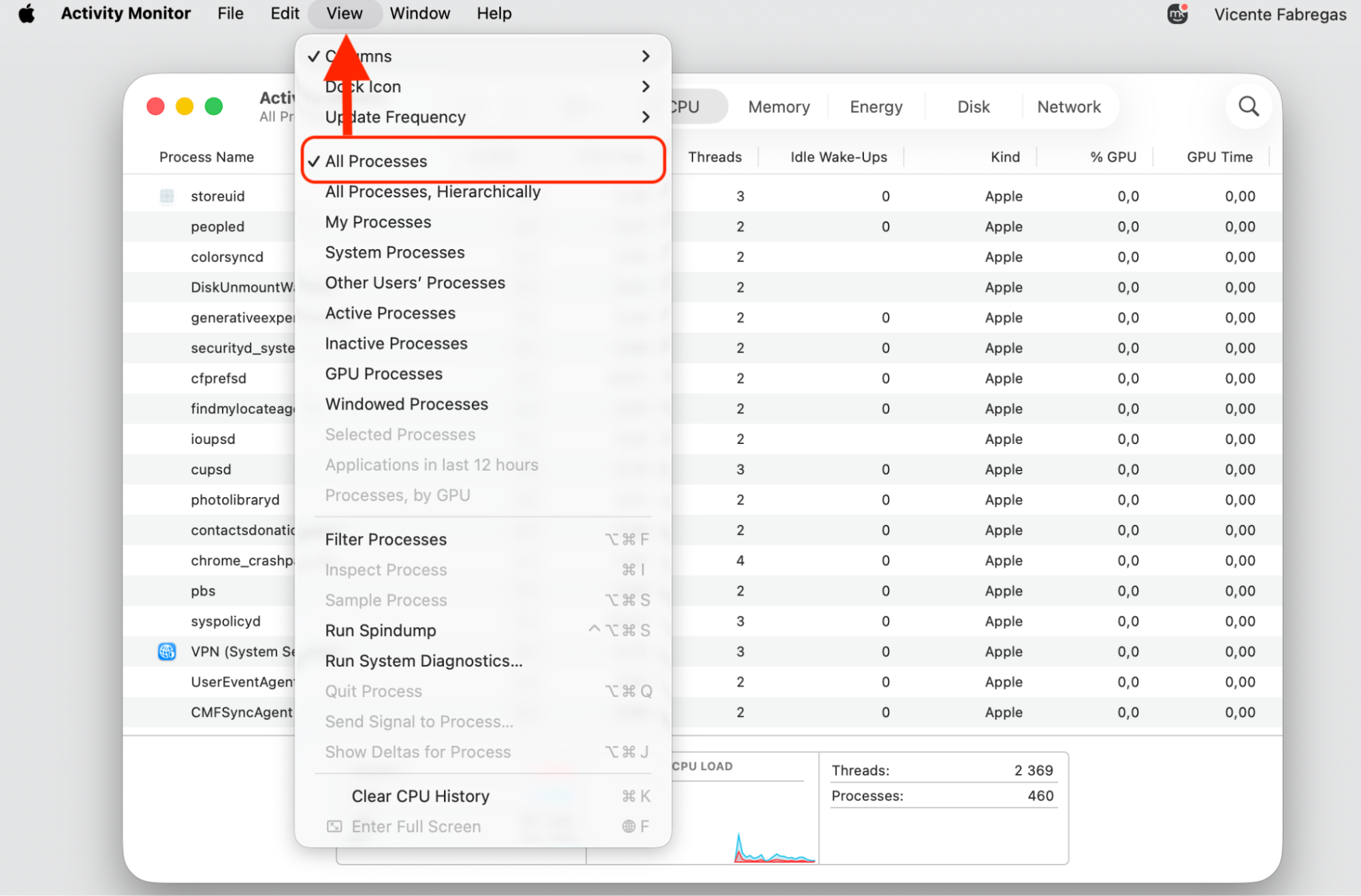
Step 1. Go to Finder > ApplicationsStep 2. Expand the Utility folder and select Activity Monitor AppStep 3. Select CPU TabStep 4. Select View > All ProcessesStep 5. Select any app using an unusually high CPU, then click the Stop (✕) buttonStep 6. Confirm by the Quit option
8. Reduce visual load in macOS Tahoe
macOS Tahoe leans on transparency and motion effects that ask a lot of older graphics. When we dial them back, it can ease lag in file dialogs on machines that are a few years old.
Try these adjustments:
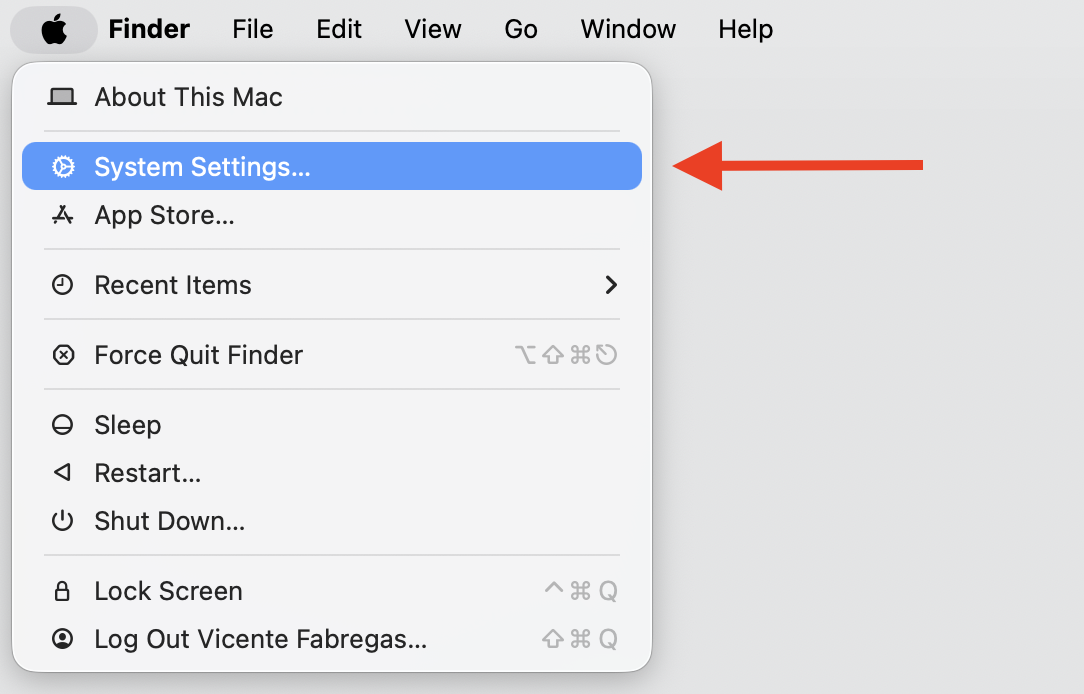
Open the Apple menu and select System Settings.
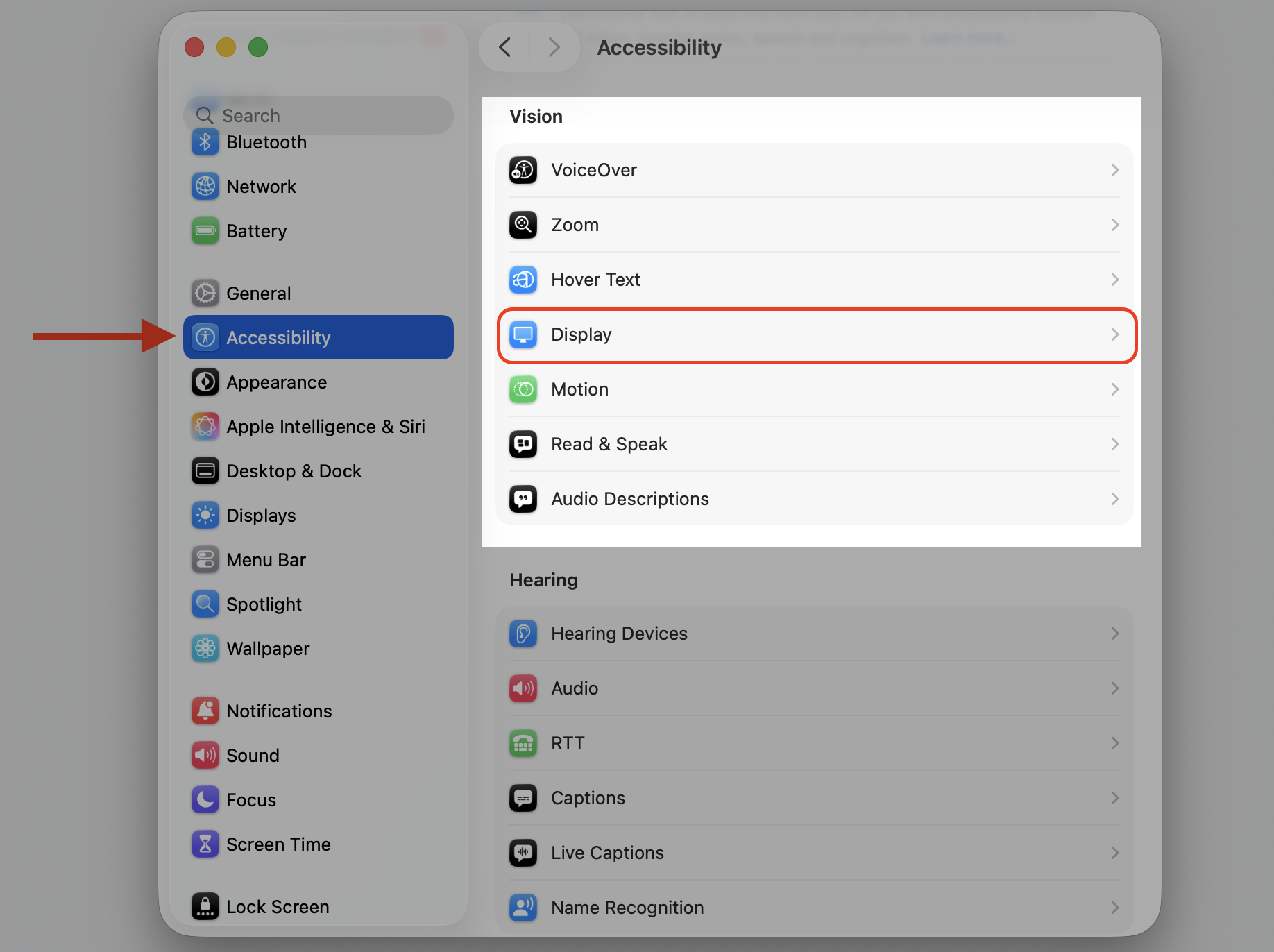
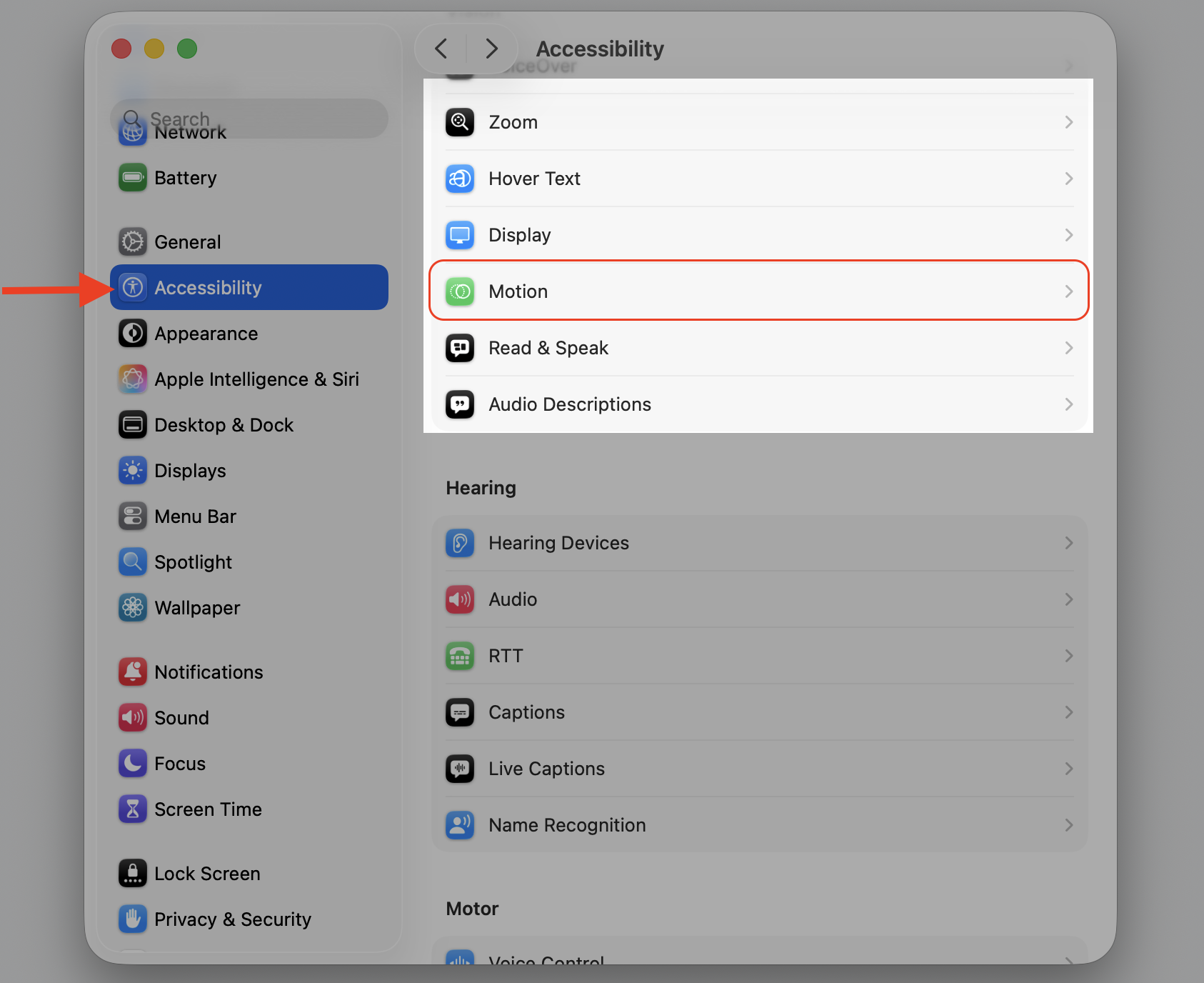
Click Accessibility, then Motion.
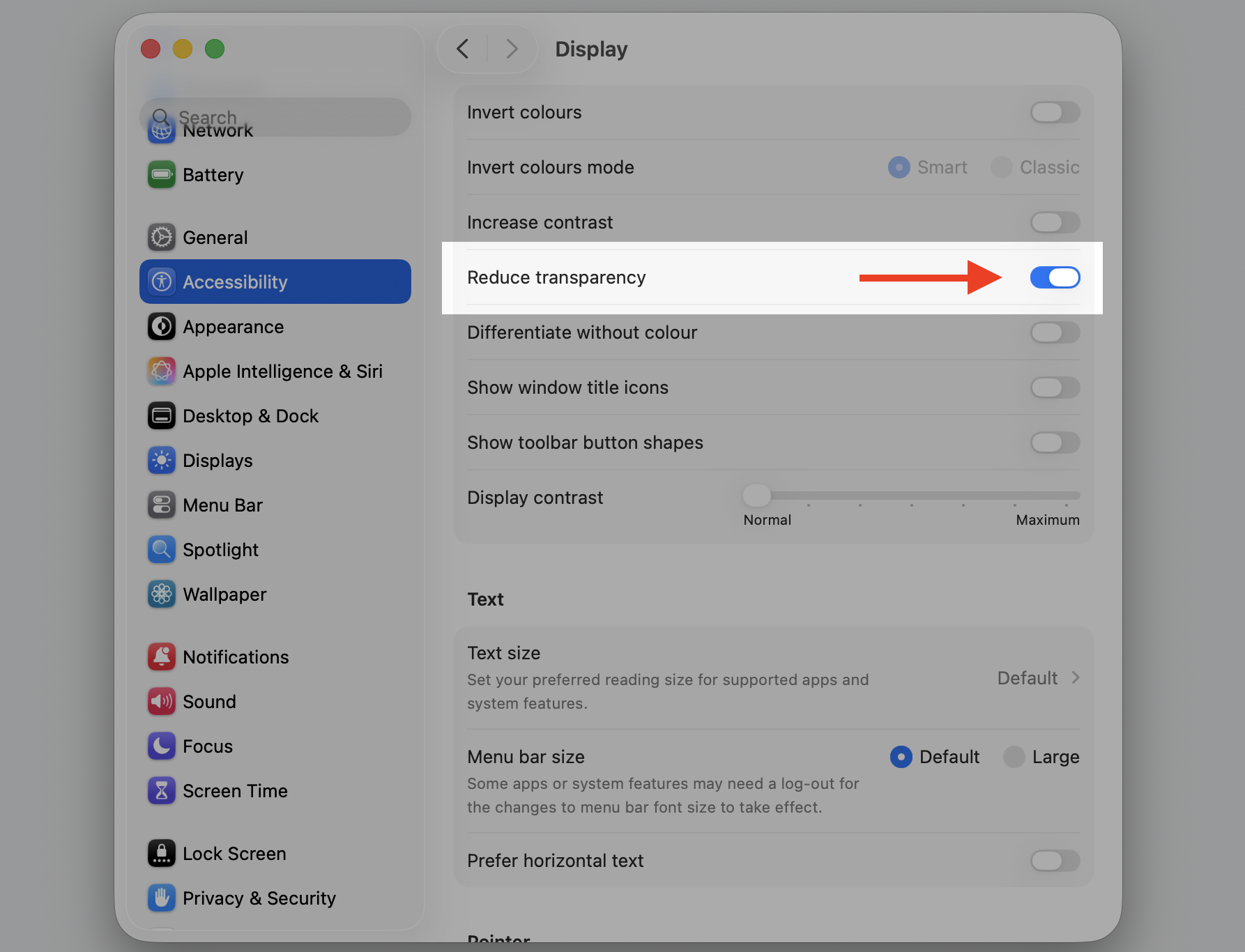
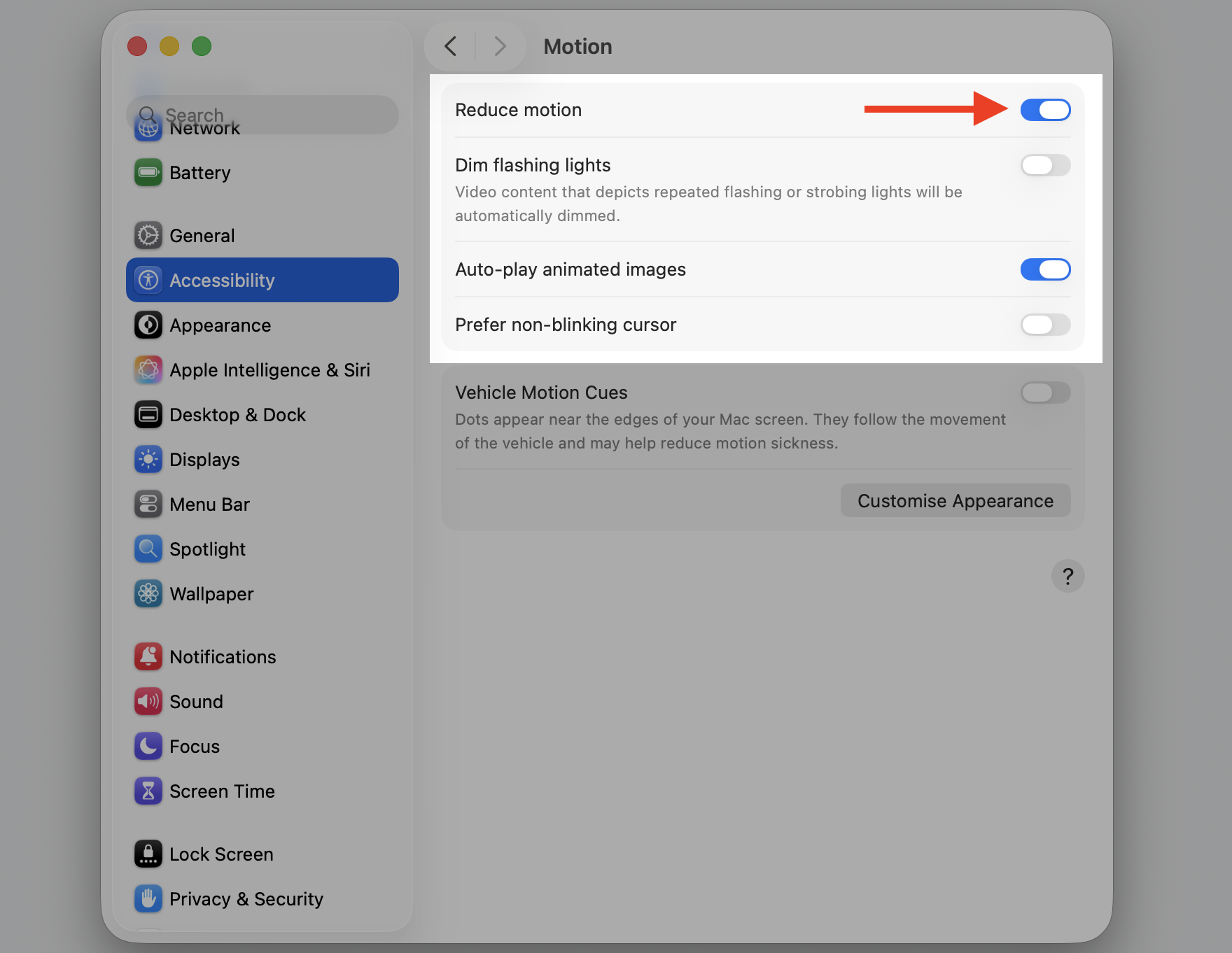
Turn on Reduce transparency and Reduce motion.
Test a save to see whether the dialog feels lighter.
Step 1. Go to Apple Logo > System Settings…Step 2. Select Display from Accessibility sectionStep 3. Turn on Reduce transparencyStep 4. Go back to the Accessibility and select MotionStep 5. Turn on Reduce motion
9. Check Mac for malware or conflicting software
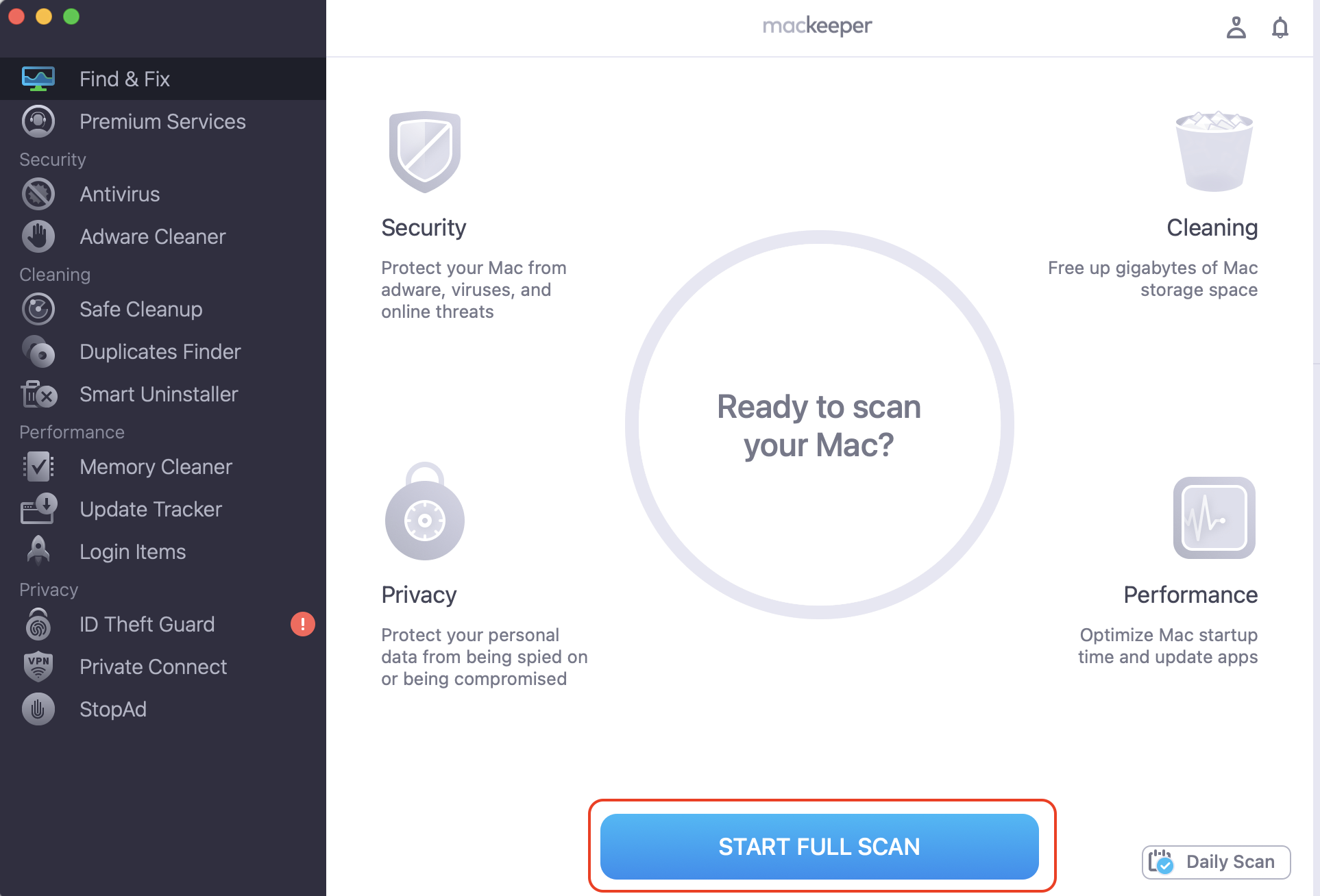
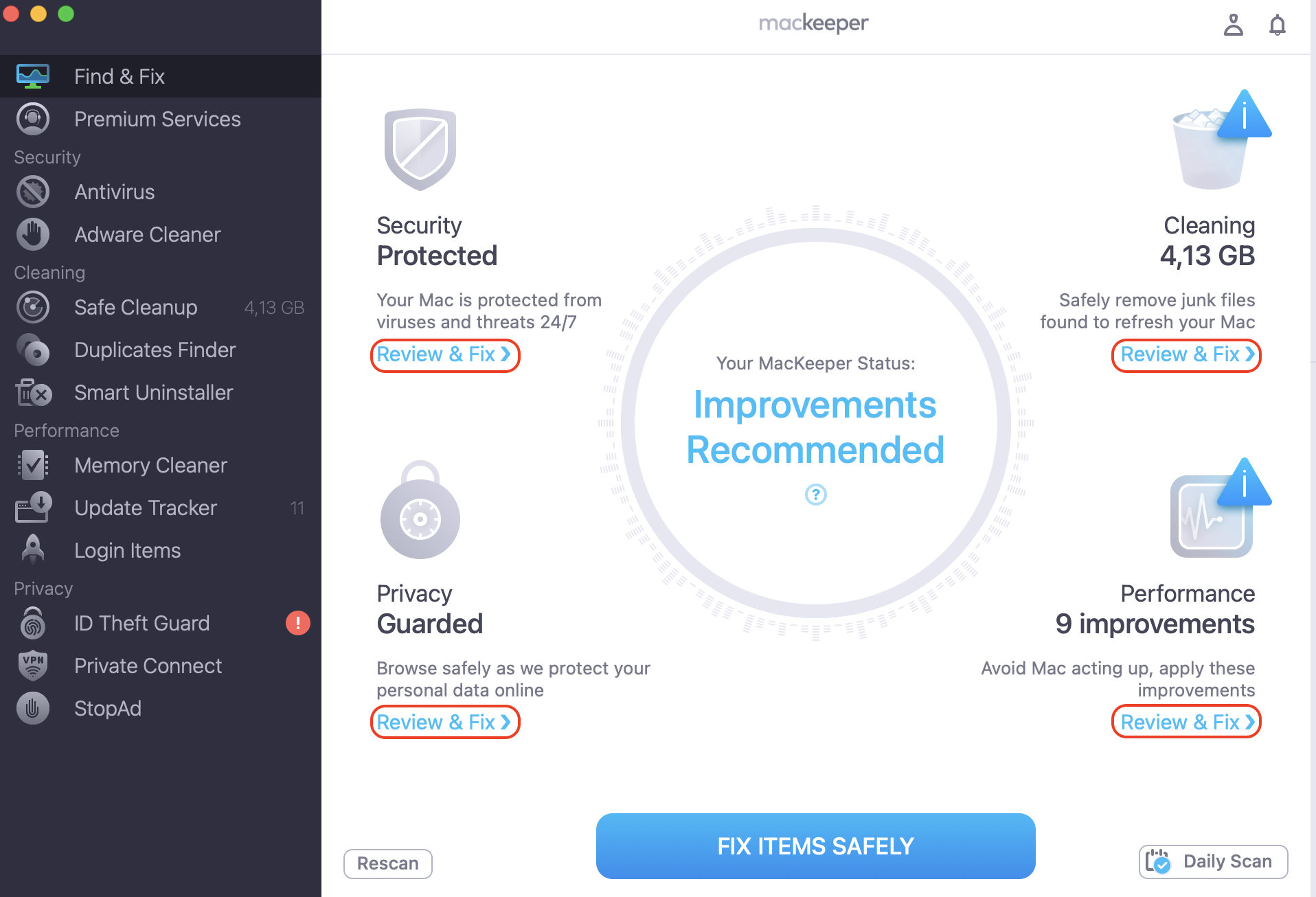
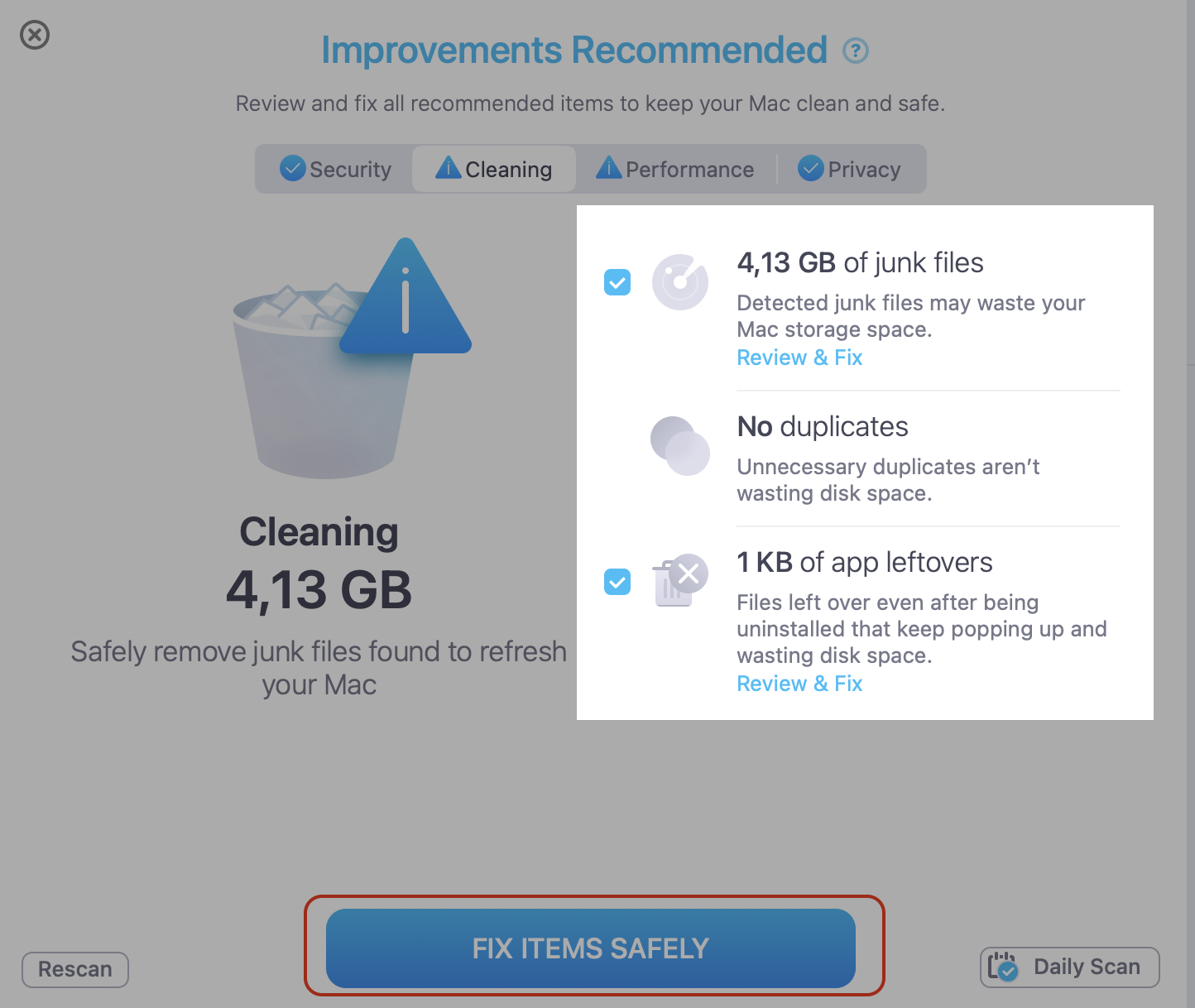
Unwanted software and leftover files from old apps can quietly interfere with normal file operations. We’d run a quick scan to rule this out and keep your Mac clean. MacKeeper’s Antivirus runs full or custom scans in real time and flags anything worth your attention, while MacKeeper’s Smart Uninstaller, part of the MacCleaner suite, removes leftover files and browser extensions that older uninstallers leave behind, freeing up disk space in the process.
Let it review your apps, extensions, and system files.
Review anything it flags before you remove it.
Restart your Mac and test a save once the scan finishes.
Step 1. Open your security app and choose a Full ScanStep 2. Review anything it flags before you fix and remove itStep 3. Once it's done > run Fix Items SafelyStep 4. Restart your computer from Apple logo
Can unsupported Macs cause macOS Tahoe freezing when saving files?
Yes, they can. Running Tahoe on an older or unsupported Mac puts pressure on hardware that wasn’t built for it, and freezing during saves is one way that strain shows up. Before you spend time on tweaks, it’s worth confirming your model sits on Apple’s supported list—our rundown on macOS Tahoe compatibility shows which Macs make the cut. On a machine below the requirements, even a clean install can feel slow, and no amount of tuning removes the lag entirely.
Conclusion
macOS Tahoe freezing when saving files usually comes down to system load, background indexing, or a compatibility mismatch—rarely anything alarming. Working through the steps above clears most cases, and a little routine housekeeping keeps them from coming back. Every Macintosh gathers clutter over time, and that’s where MacKeeper’s Premium Services help—cleanup, antivirus, and optimization tools that keep your Mac tidy, secure, and responsive. Give your Mac the maintenance it deserves and get back to saving without the wait.
We respect your privacy and
use cookies
for the best site experience.
Privacy Preferences Center
We use cookies along with other tools to give you the best possible experience while using the
MacKeeper website. Cookies are small text files that help the website load faster. The cookies we
use don’t contain any type of personal data meaning they never store information such as your
location, email address, or IP address.
Help us improve how you interact with our website by accepting the use of cookies. You can change
your privacy settings whenever you like.
Manage consent
All cookies
These cookies are strictly necessary for enabling basic website functionality (including page
navigation, form submission, language detection, post commenting), downloading and purchasing
software. The website might malfunction without these cookies.