Function keys not recognized on your Mac? Fix it by checking function key settings, looking for keyboard issues, and updating macOS. If you’re not sure how to go about it or don’t have the time to do it manually, rope in a tech expert using MacKeeper’s Premium Services feature, and they’ll do the heavy lifting while you wait.
Function keys are special keys that control certain settings on your Mac. These include audio volume, brightness, and even media playback. Mac’s function keys can be used to control system features or as shortcuts if you press and hold the Fn or Globe key (depending on your Mac model or whether you’re using a Magic Keyboard). You can find them at the top of your Mac’s keyboard.
Why do my function keys not work on my Mac?
If your Mac’s function keys aren’t working, it’s either due to a software or hardware problem, regardless of your Mac model.
Software problem
Software glitches are the most common reason function keys stop working. They happen when macOS settings get mixed up, background apps hijack commands, or internal system controllers freeze. Read our explanations below:
Inverted function key settings. macOS has a built-in setting that switches the behavior of the top row. If this toggle gets changed (often after a macOS update), your Mac expects you to hold down the Fn or Globe key just to use basic actions like volume or brightness.
Conflicting app shortcuts. Third-party apps, like gaming software, custom window managers, or keyboard remappers, can hijack specific keys. If an app maps a custom shortcut to F11, your Mac will prioritize that app's command over your default volume or brightness controls.
Corrupted NVRAM/PRAM on Intel Macs. Intel-based Macs rely on a small amount of isolated memory called NVRAM/PRAM to remember core keyboard and display layout settings. If this data becomes corrupted due to a system crash, your hardware keys stop communicating properly with the OS.
Frozen Touch Bar software. If your MacBook Pro has a digital Touch Bar instead of physical keys, the keys are entirely software-driven. If the background processes (TouchBarServer or ControlStrip) crash, the touch strip will freeze or go black.
Hardware problem
If your settings are correct but the keys still won't respond, the issue is physical. This is usually caused by debris blocking the switches or internal component failure. Over time, the physical circuits inside the keyboard can wear out, or minor liquid spills can permanently damage the connections for specific keys.
How to fix function keys not working?
There are several ways to fix troublesome function keys on a Mac. Check function key settings. Look for external keyboard issues. Update macOS. Run maintenance tasks. Boot your Mac into safe mode. Reset NVRAM/PRAM. Check the modifier key.
A note from our experts:
Your Mac’s function keys failing to work can slow you down and affect your productivity. To fix this, you can either follow the guides below or skip the manual option and let a tech expert from MacKeeper do it for you. They’ll troubleshoot the issue and fix it remotely while you wait. MacKeeper is owned by Clario Tech and trusted by thousands of Mac users worldwide. If you’re looking for an easy, convenient fix, try it out.
How to use MacKeeper’s Premium Services feature to fix Mac’s f keys not working:
To open the Premium Services feature, click on it on the left, then hit the Chat Now button.
You will be connected to a tech expert from MacKeeper. Use the text box to explain what you’re experiencing and follow their instructions to let them assist you.
1. Check function key settings
In case we changed any function key settings and forgot, it’s always worth checking them out first. This helps us determine what settings are enabled.
To check function key settings, do this:
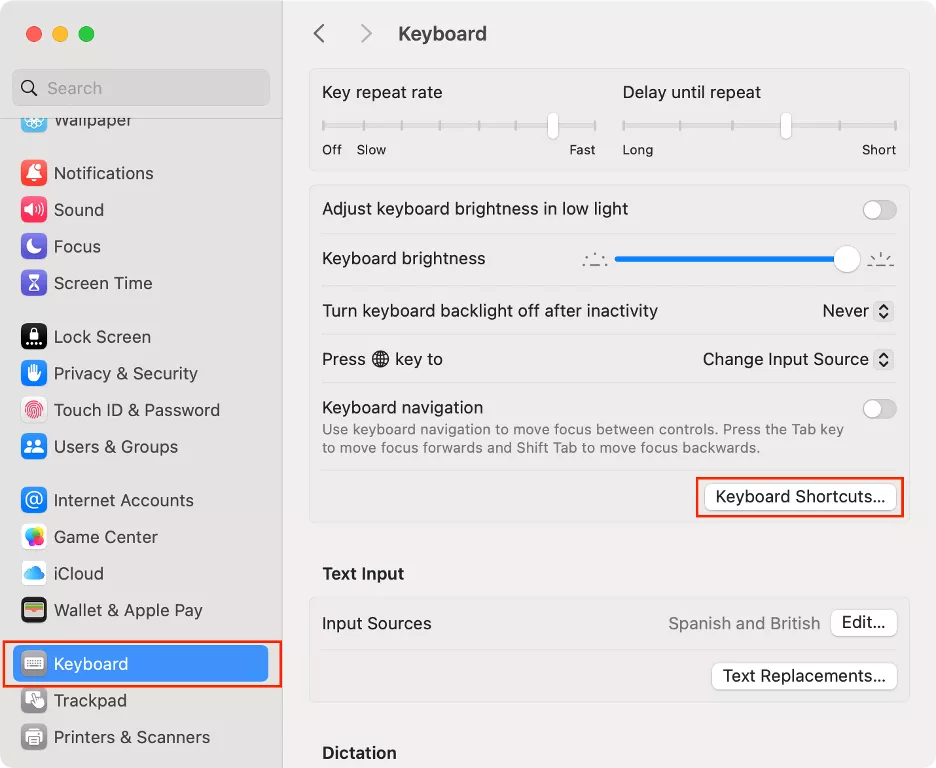
Open System Settings (or System Preferences for older macOS versions) and select Keyboard > Keyboard Shortcuts.
Navigate to the sidebar, select Function Keys, and then view or enable Use F1, F2,etc. keys as standard function keys.
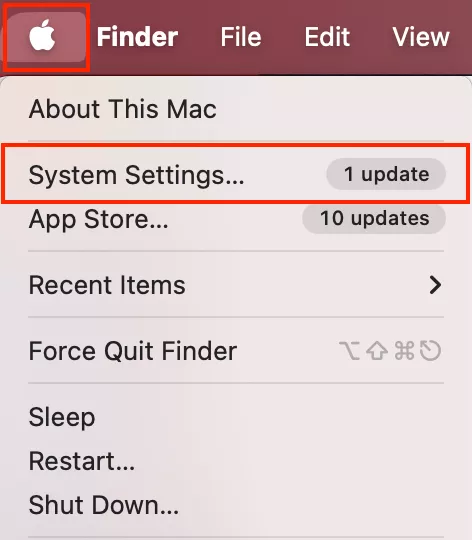
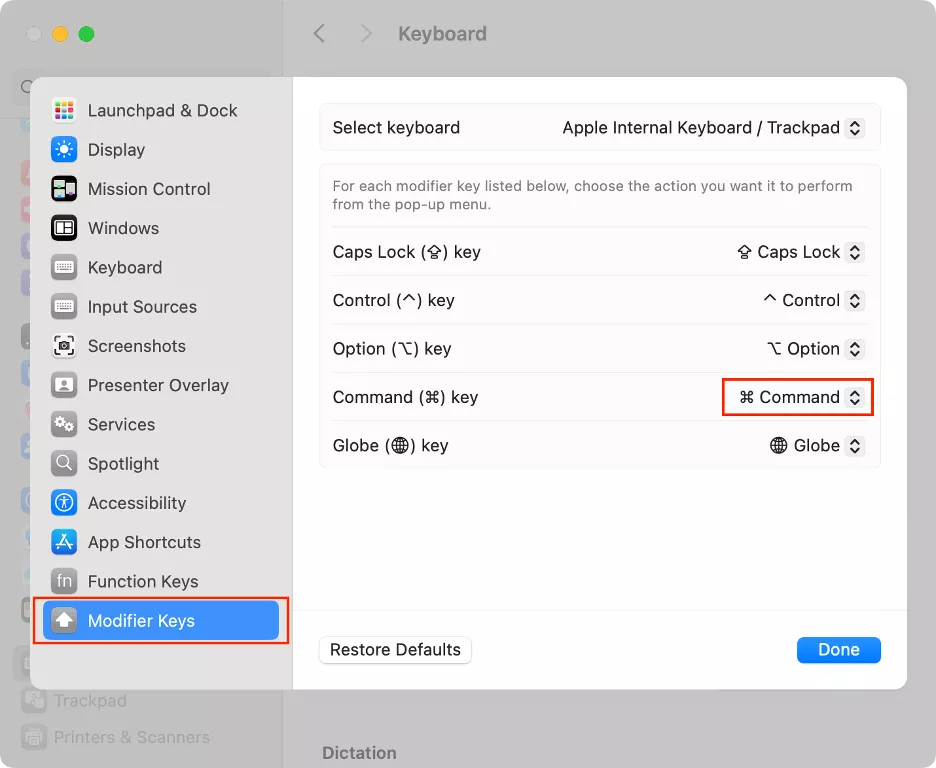
Step 1. Select the Apple menu > System SettingsStep 2. Select Keyboard > Keyboard ShortcutsStep 3. Select Modifier Keys > Command key > Command
2. Look for external keyboard issues
When the keyboard isn’t working on a Mac, we never neglect to check it for external issues. Chances are that dust buildup or debris are the culprits behind the fn keys not being recognized by your Mac.
3. Update macOS
Since system-related issues can be caused by bugs, updating OS on Mac helps by downloading and installing the latest software, which includes bug fixes.
To update macOS, follow our instructions below:
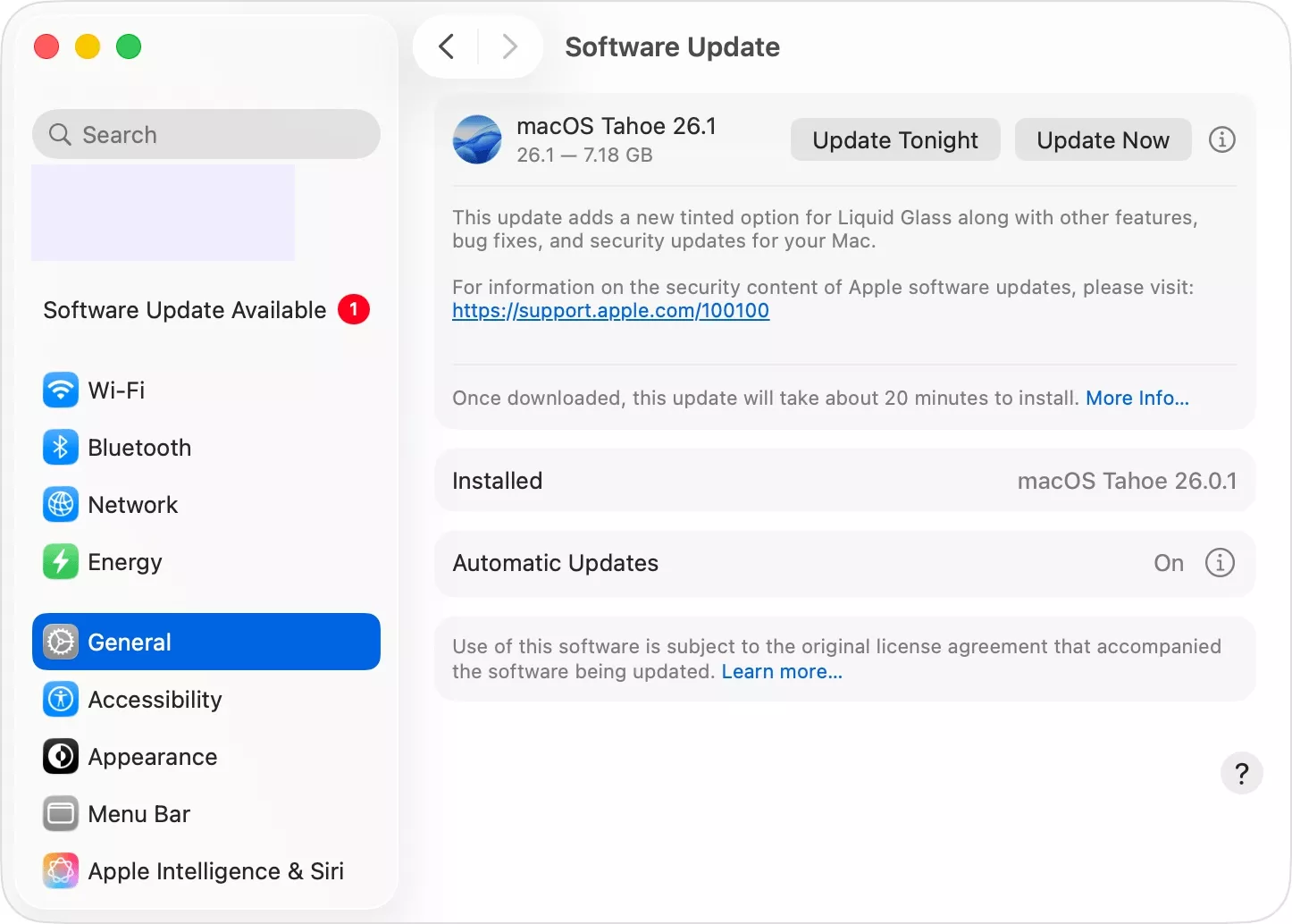
Launch System Settings and select General > Software Update.
Your Mac will search for updates. If it finds any, click Update Now to start the installation process.
4. Run maintenance tasks
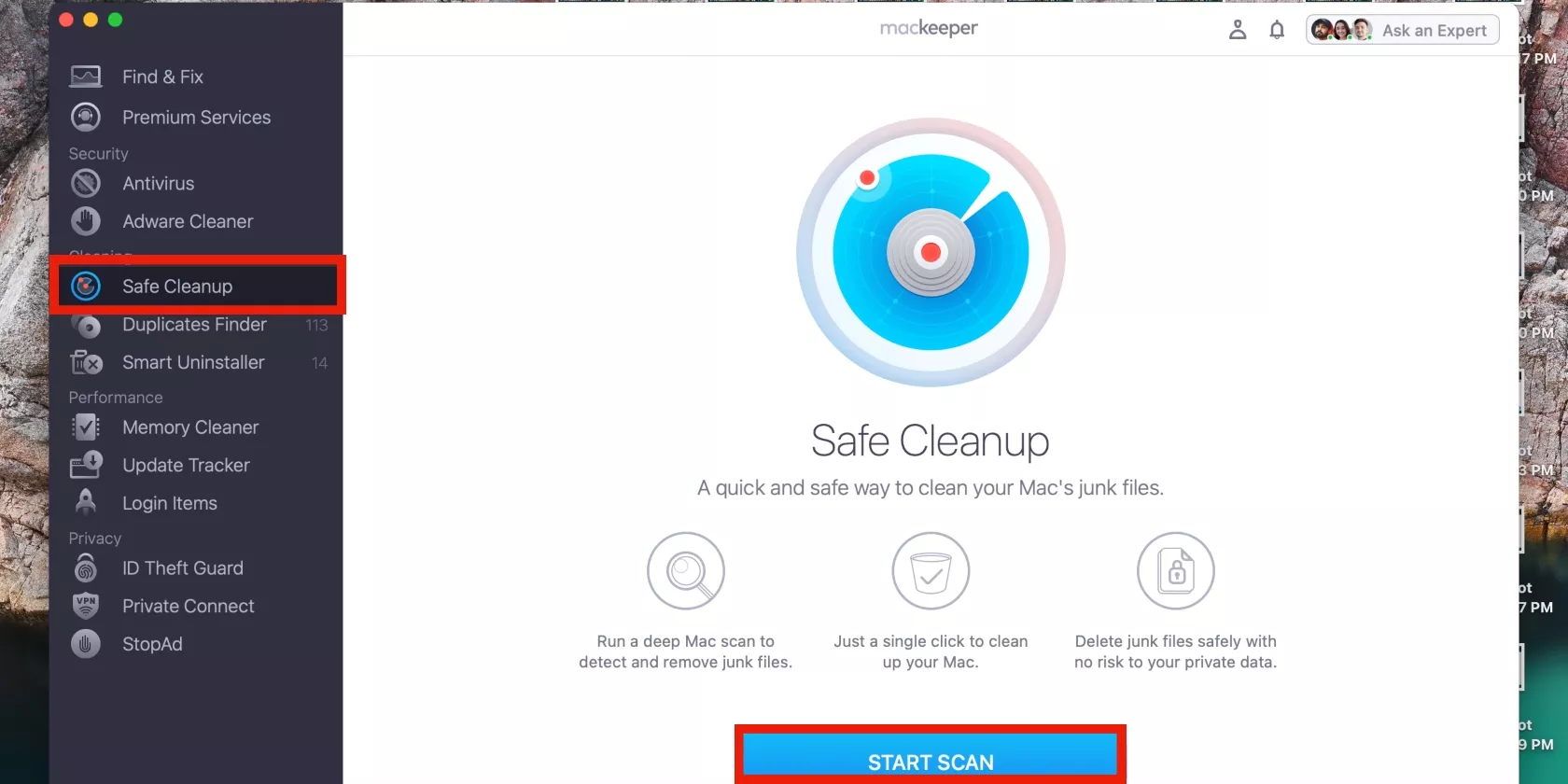
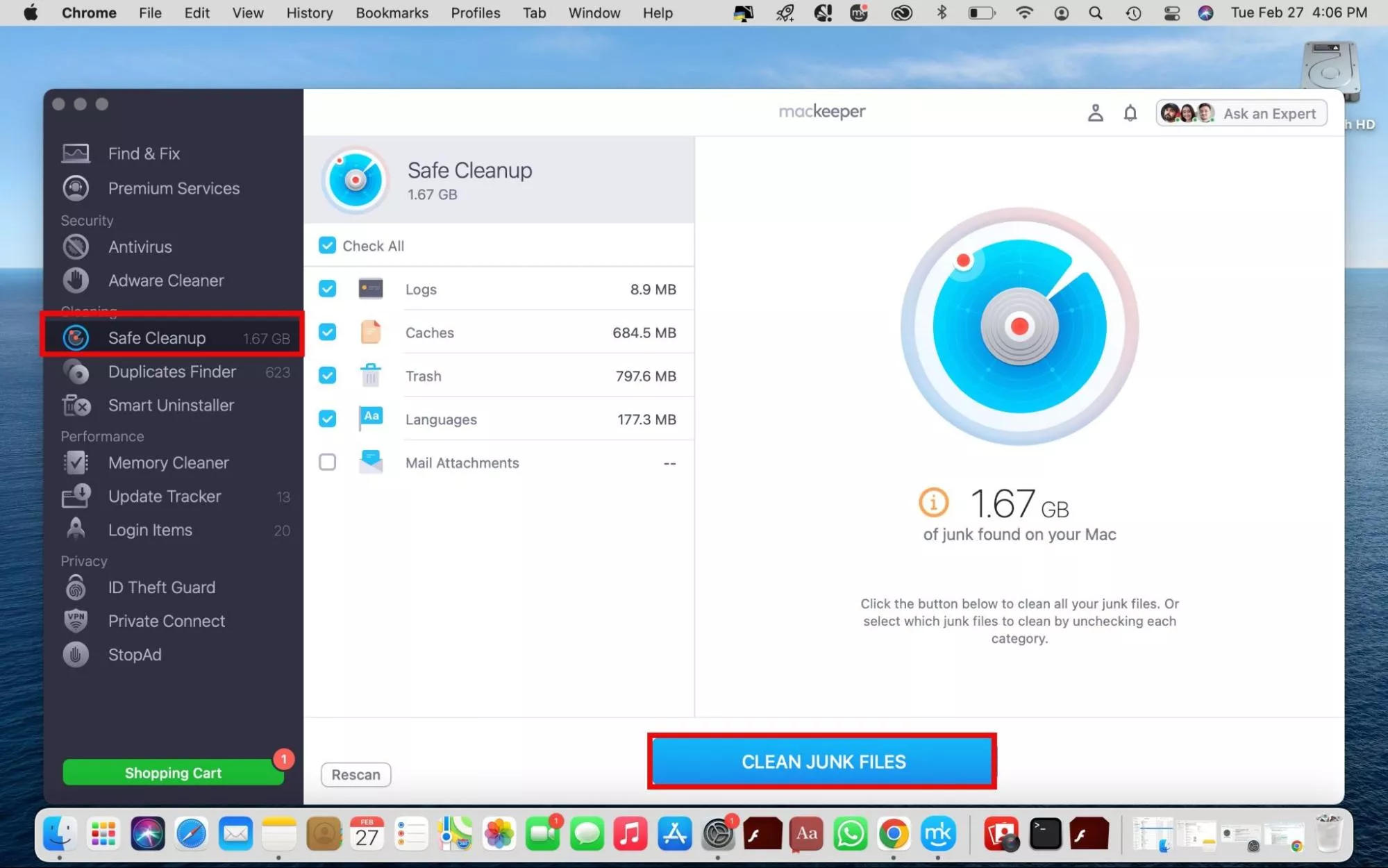
Regular Mac maintenance is a key step in keeping Mac devices running smoothly. However, it’s easy to fall behind on it from time to time. So, when our function keys malfunction, we run maintenance software to improve our Mac’s performance. For this task, we trust MacKeeper’s Safe Cleanup tool.
Here are the steps to use MacKeeper’s Safe Cleanup software:
In the MacKeeper app, select Safe Cleanup from the sidebar.
Click the Start Scan button and wait a few minutes while the tool looks for junk on your Mac.
Third-party software can sometimes block system processes, such as function key functionality. To fix this, we boot Mac in safe mode.
To boot your Intel Mac in safe mode:
Shut down your Mac.
Power it back on and quickly hold down the Shift key, releasing it when you see the login screen.
To boot your Apple Silicon Mac in safe mode:
Turn off your Mac.
Hold down the power button until you see Startup options.
Select your startup disk, hold down the Shift key, and click Continue in safe mode.
Let go of the Shift key when you see the Login screen.
6. Reset NVRAM/PRAM
If your Mac encounters software update errors, resetting NVRAM helps by fixing corrupt startup disk settings. For this reason, we always include this step in fixing troublesome function keys.
How to NVRAM/PRAM on a Mac:
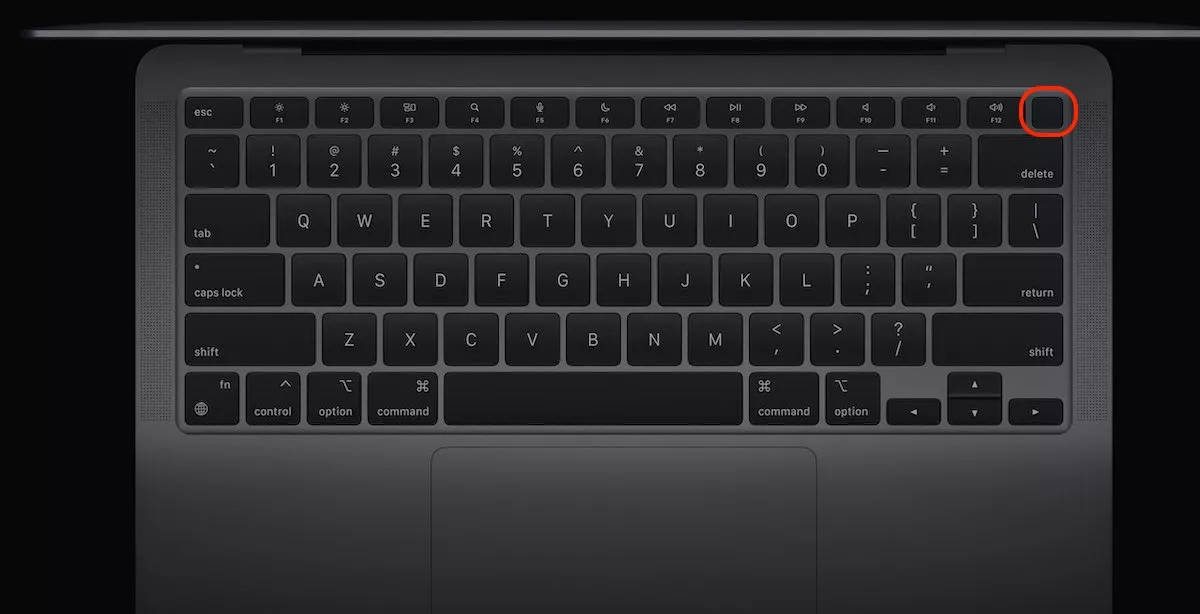
Shut down your Mac using the Apple menu and immediately hold down the power button.
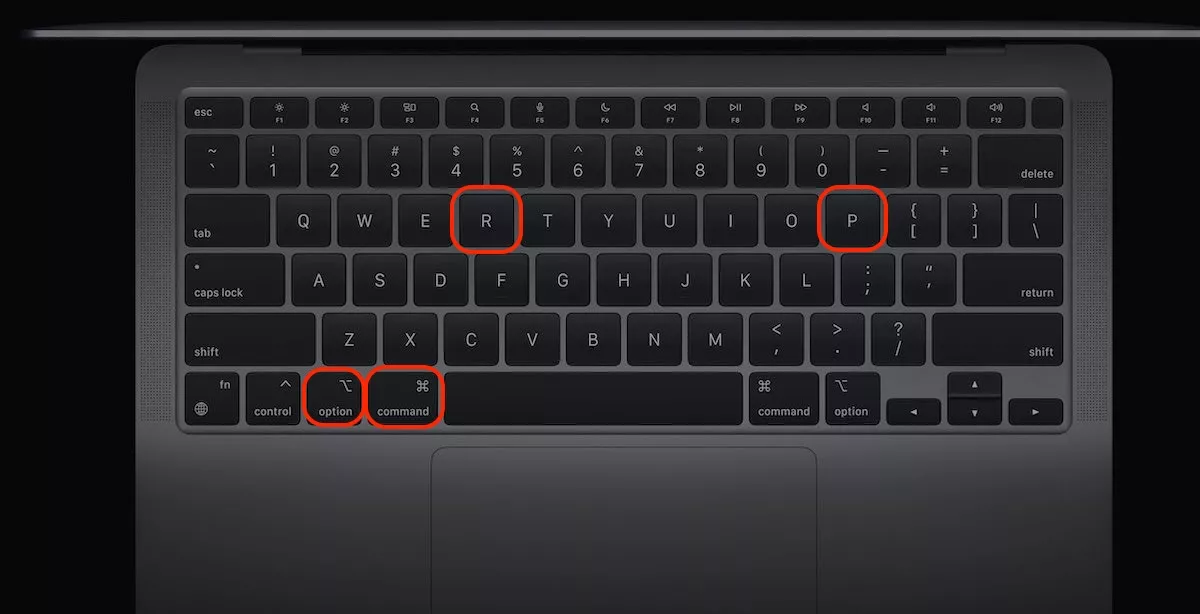
Turn your Mac back on, hold down the Command + Option + P + R keys, and let go after 20 seconds.
Step 1. Switch off your Mac and immediately hold down the power buttonStep 2. Hold down the Command + Option + P + R keys
7. Check a modifier key
Since function keys primarily operate system functions and playback controls in Apple Music, you can only use them as function keys by pressing the Fn or Globe key. However, you’ll encounter issues if you remapped keys, thereby changing the modifier configuration. To rule this out, we check the modifier key.
Follow this approach to check the modifier key:
In System Settings, select Keyboard > Keyboard Shortcuts > Modifier Keys.
Choose your keyboard next to Select Keyboard.
The Function key or Globe key option should be set to fn Function. If not, select it from the menu. Note that Apple removed this option from Sequoia, but if you choose Globe, it should work as Fn.
Fix function keys not working on Mac
When your Mac's function keys stop working, it can completely disrupt your workflow—whether you're trying to adjust the volume, change screen brightness, or use app-specific shortcuts. Fortunately, the fix is usually simple. To solve the issue, it helps to understand that function key failures generally come down to software issues or hardware issues.
Nevertheless, it’s easy to rectify troublesome function keys on Mac. In this guide, we’ve provided a handful of fixes to help simplify the task. From checking function key settings to scrutinizing your physical keyboard for dirt and debris to more complex solutions like resetting NVRAM/PRAM, you have plenty of options.
Don’t feel like doing it yourself? Use MacKeeper’s Premium Services to get the job done. It connects you to expert assistance through one of more than 150 tech experts who can troubleshoot the problem while you wait.
We respect your privacy and
use cookies
for the best site experience.
Privacy Preferences Center
We use cookies along with other tools to give you the best possible experience while using the
MacKeeper website. Cookies are small text files that help the website load faster. The cookies we
use don’t contain any type of personal data meaning they never store information such as your
location, email address, or IP address.
Help us improve how you interact with our website by accepting the use of cookies. You can change
your privacy settings whenever you like.
Manage consent
All cookies
These cookies are strictly necessary for enabling basic website functionality (including page
navigation, form submission, language detection, post commenting), downloading and purchasing
software. The website might malfunction without these cookies.