Tired of digging through folders to open the same file over and over? The make alias Mac meaning is simple—an alias is a lightweight shortcut to any item. And if duplicate copies are crowding your storage, let MacKeeper’s Duplicates Finder spot the extras and clear them out, with your originals kept safe.
An alias is a small file that points to an original item, like a file, folder, or application. It isn’t a copy—it’s a reference that opens the original wherever it lives. Think of it as a doorway to your stuff.
Aliases have been part of the Macintosh experience for years, and Apple keeps them in every version of macOS—on every MacBook and iMac alike. So the alias meaning Mac users rely on is simple: you reach an item from a handy spot without having to move files on Mac or create extra duplicates.
How does an alias work on Mac?
When you open an alias, macOS follows the link straight to the original item. You can keep that alias on your desktop, drop it into another folder, or place it anywhere that’s convenient. Once you set alias in Mac, the link stays connected to the original.
Here’s the part users often miss from our experience—any change you make through the alias affects the original. If you edit a document opened from its alias, you’re editing the real file. That’s the Mac make alias meaning in action.
So what does making an alias do on a Mac? It gives you a flexible way in without scattering copies everywhere. Some people manage these links with a Finder alternative for Mac—a third-party app that adds extra ways to view and organize items.
A note from experts:
Having too many duplicate files on your Mac is never a good idea if you really care about storage and the optimized work of your computer. You can reach both goals together with MacKeeper. Using our Duplicates Finder, you’ll safely and quickly delete all the redundant copies, as well as help your Mac run smoothly.
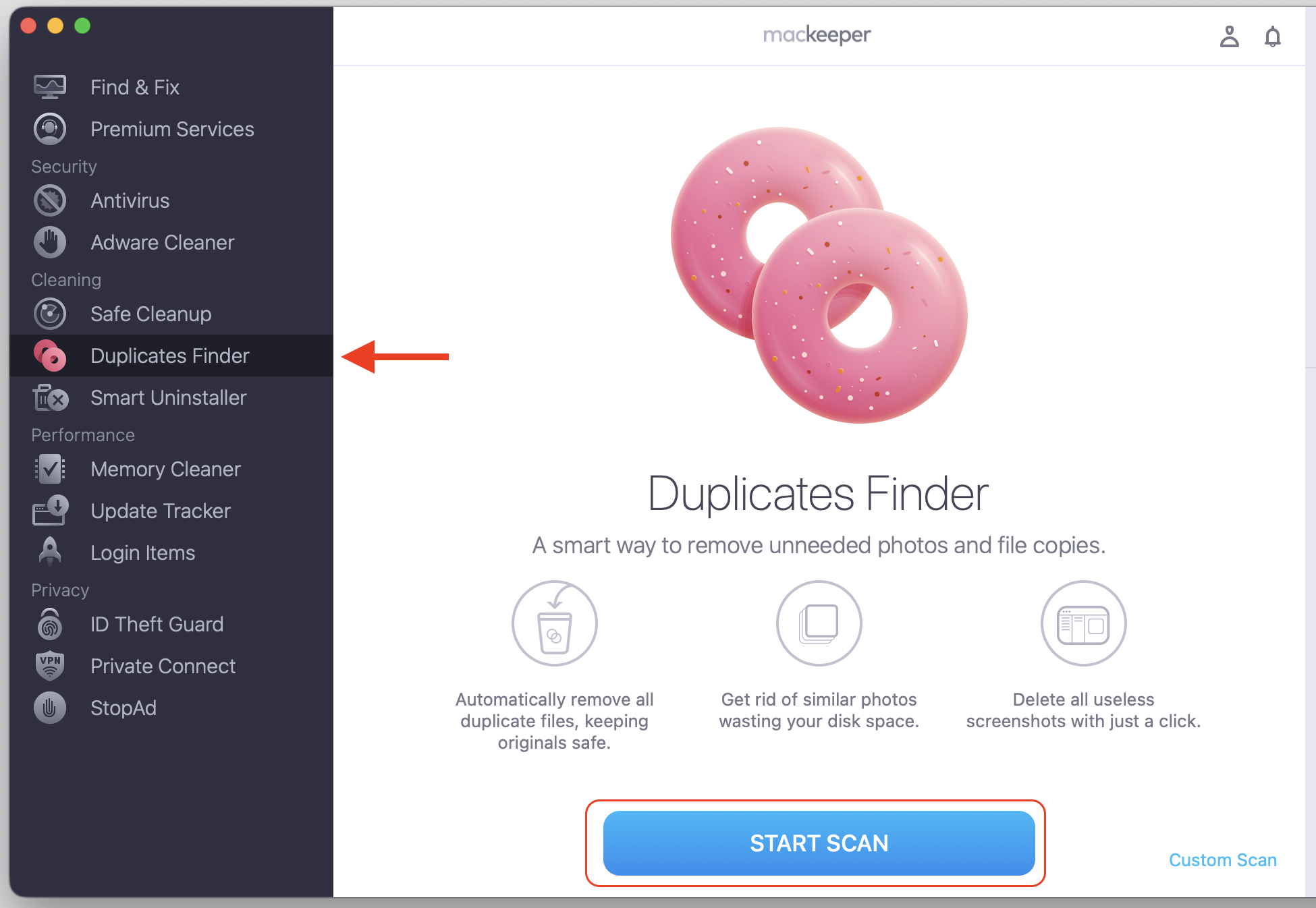
Find and choose Duplicates Finder from the side menu.
Click Start Scan.
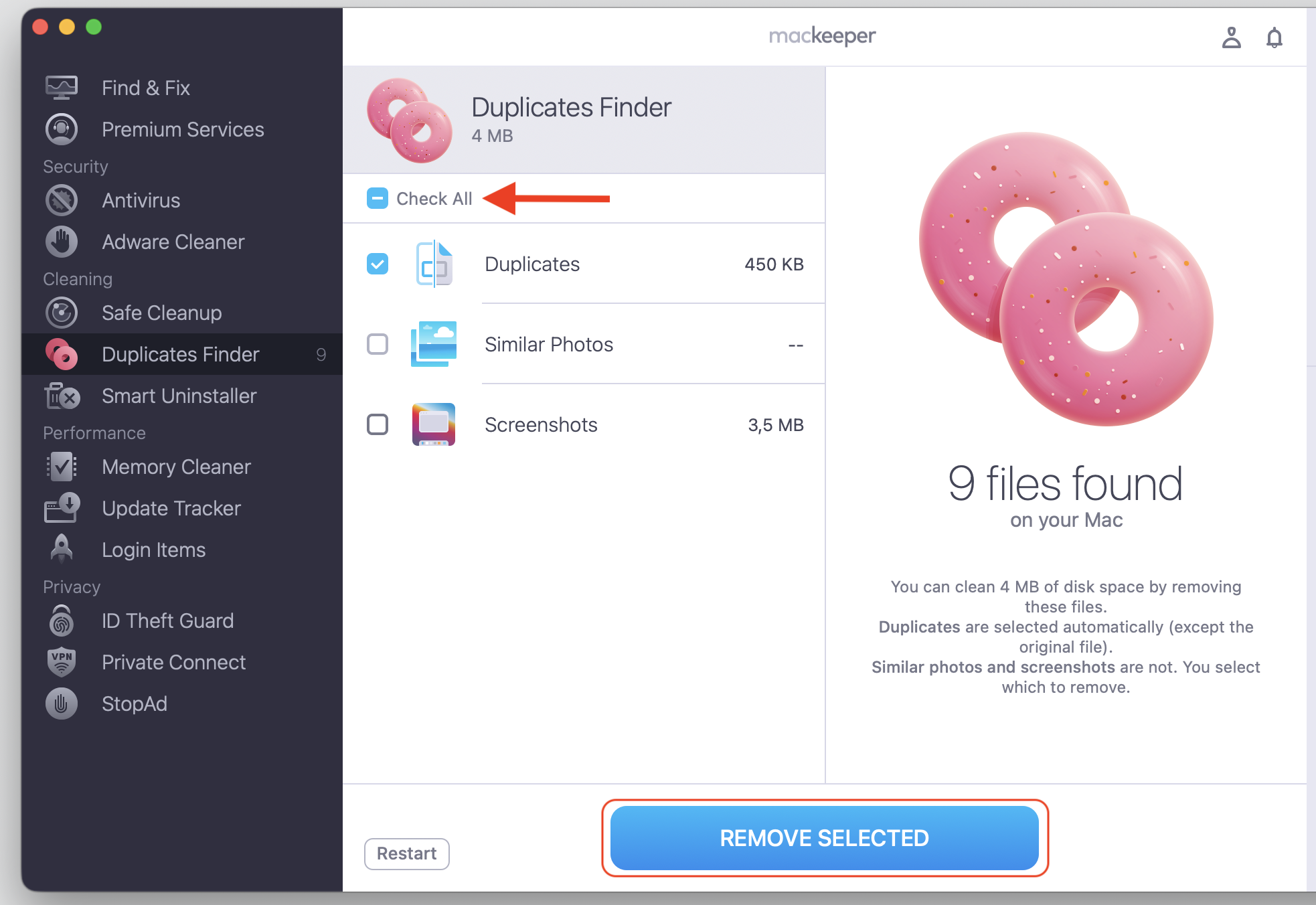
When it’s finished, select files to remove and confirm with Remove Selected.
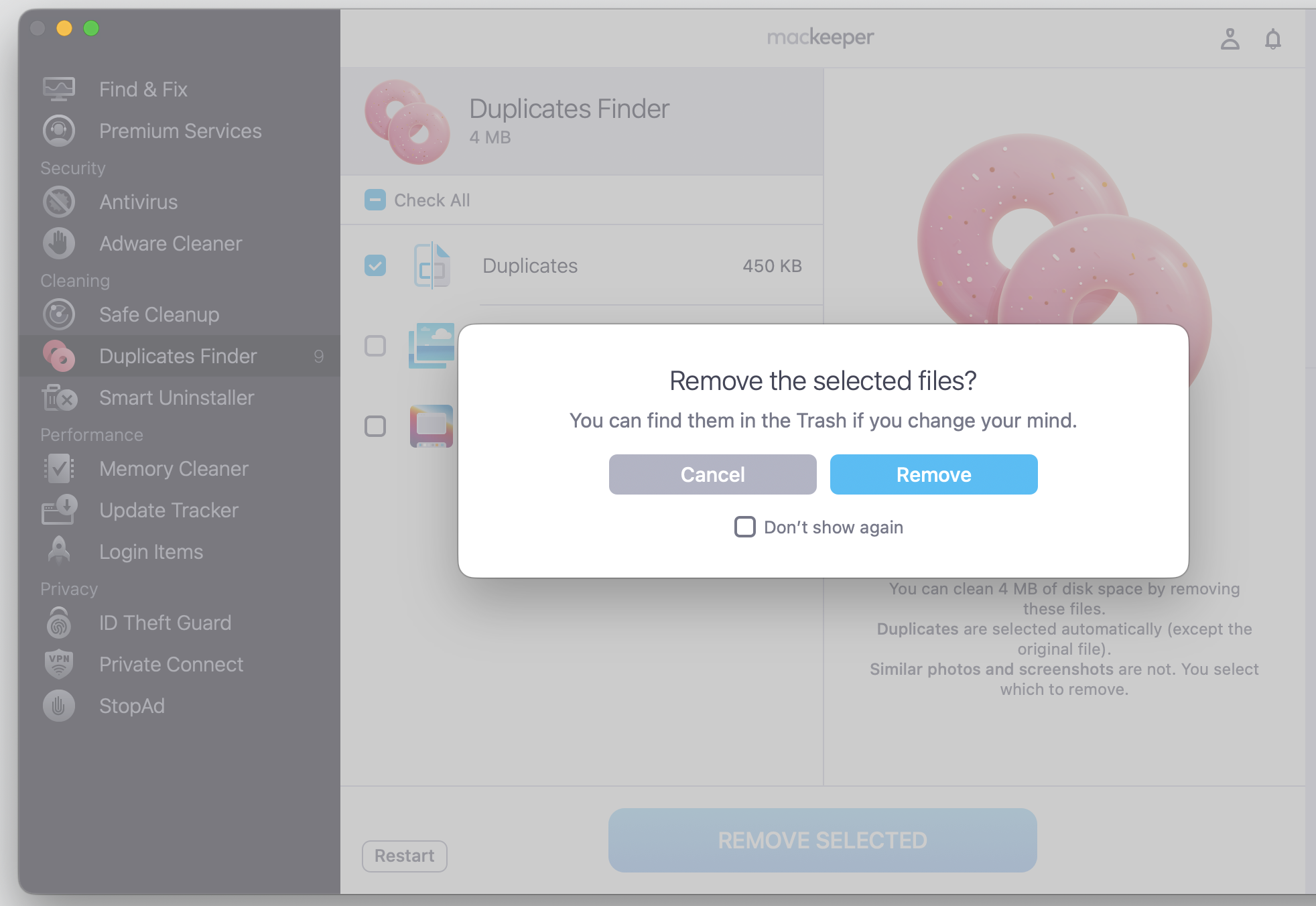
Click Remove.
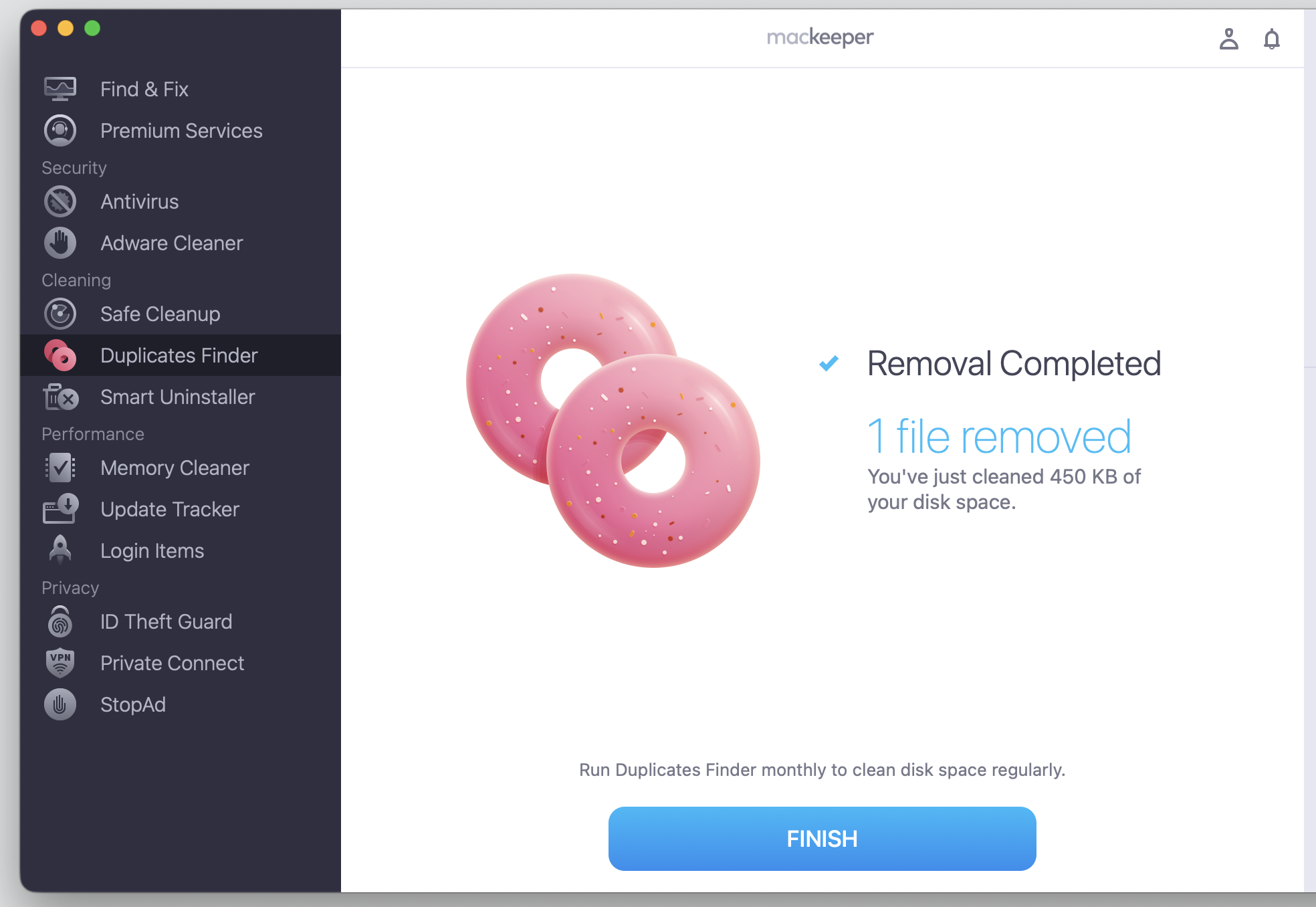
Step 1. Open MacKeeper > Duplicates Finder > Start ScanStep 2. Mark the Check All box and press the Remove Selected buttonStep 3. Confirm your action with the Remove buttonStep 4. Check the result
How is an alias different from copying file or folder?
When you copy and paste file on Mac, you create a full, separate duplicate that uses the same amount of space as the original. An alias works differently—it stores only a tiny link, so it takes up very little room.
And here’s a reassuring detail: if you delete an alias, the original file stays right where it is.
Here’s a quick comparison prepared by our team:
Detail
Alias
Copy
What it is
A link to the original
A separate duplicate
Space used
Very small
Same size as the original
Edits you make
Change the original item
Stay separate from the original
If you delete it
The original stays safe
Only that copy is removed
How to make an alias on Mac?
As you’ve probably understood, aliases are a simple way to organize files on Mac and optimize how you reach your most-used items. Creating an alias is quick, and you can do it right inside Finder—no Terminal or special Mac alias command needed. There are a few ways to create alias on Mac, and each one is easy to pick up.
Now, let’s walk you through three options below.
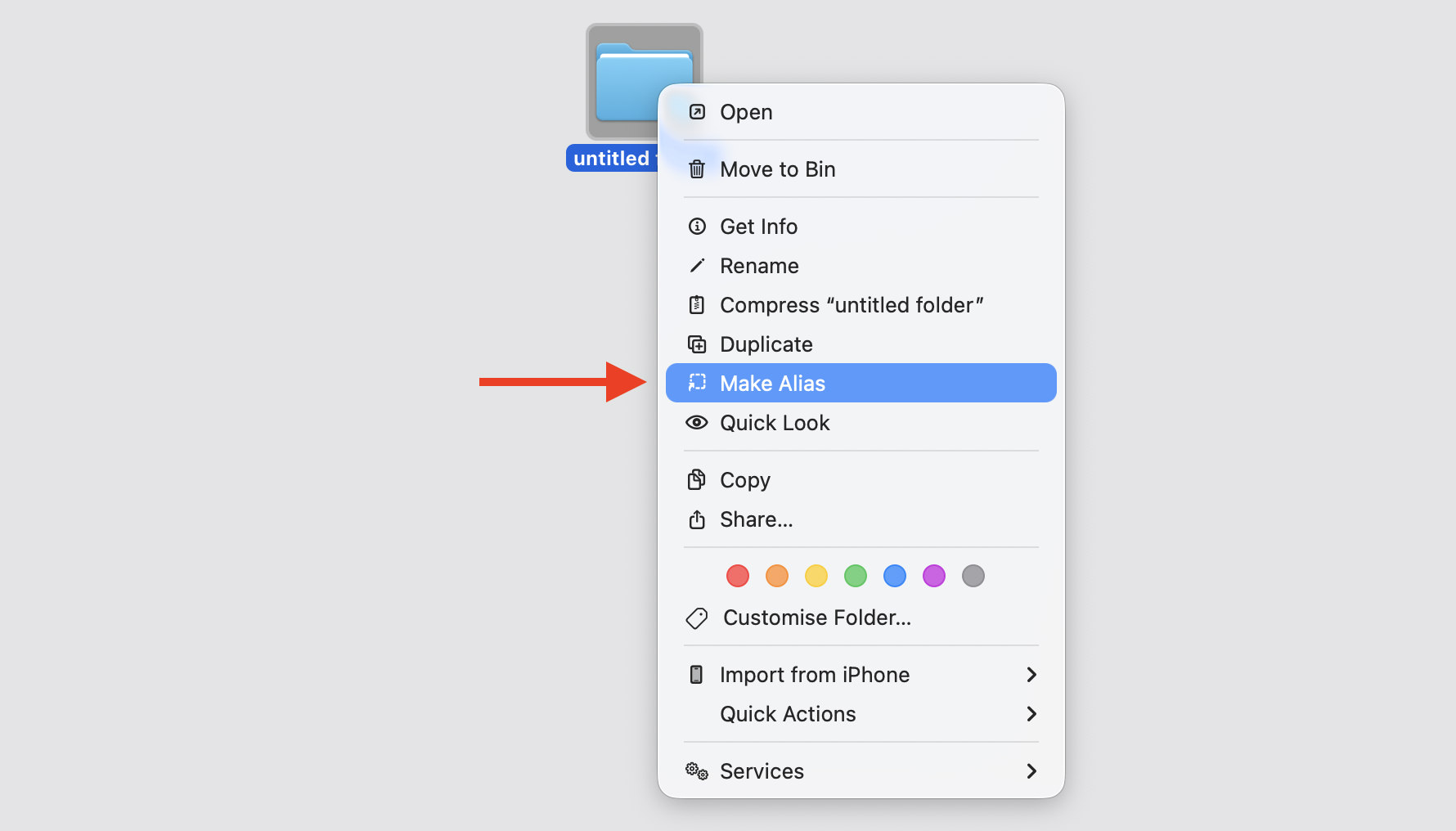
1. Create an alias from the right-click menu
I usually reach for the right-click/control-click menu first—it’s the quickest route for most people. If your mouse or trackpad isn’t set up for it yet, you can activate right click on Mac in your System Settings first.
Here’s how to create one:
Select the file or folder you want.
Right-click (or Control-click) the item to open the context menu.
Choose Make Alias from the options.
Find the new alias next to the original, ready for you to move wherever you like.
Control-click and select Make Alias
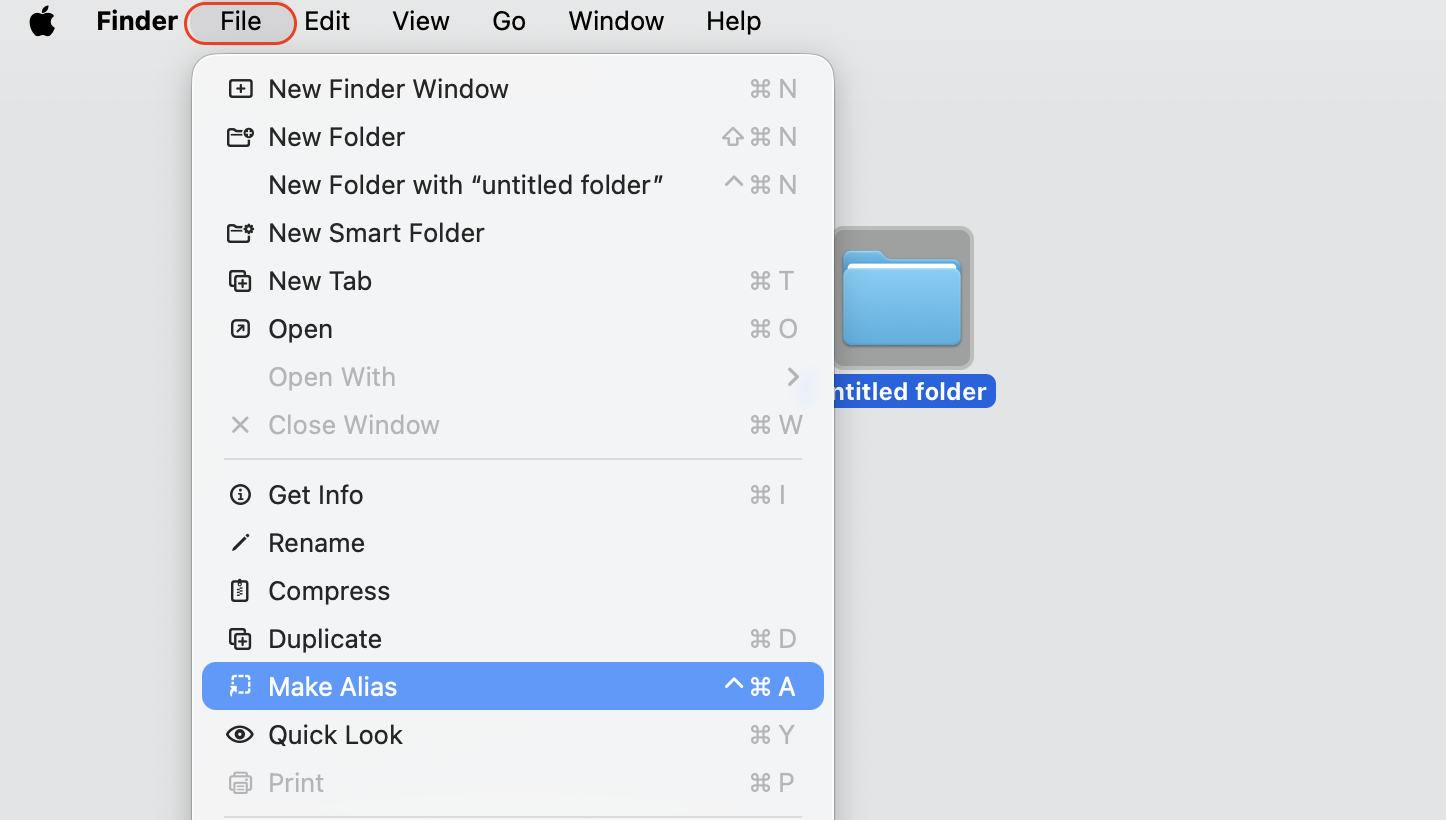
2. Create alias from Finder File menu
Prefer the menu bar? We can use the same option from Finder’s File menu, which is handy once you’re done selecting the item.
Try these steps:
Click the file or folder once to select it.
Open the File menu at the top of your screen.
Choose Make Alias from the list.
Your new alias appears in the same folder as the original.
Go to File and select Make Alias
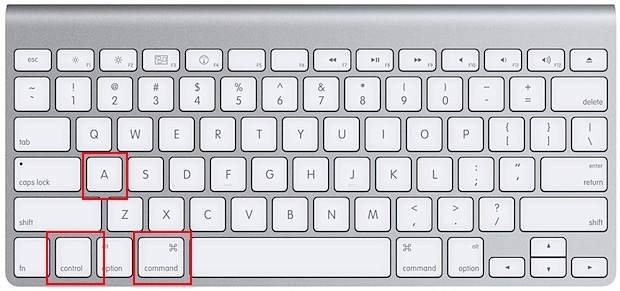
3. Create alias with keyboard shortcut
Like keeping your hands on the keyboard? macOS has you covered, and in my experience, learning a few Mac shortcut keys can speed up everyday tasks like this one.
Just press the right combination:
Select the file or folder you want to link.
Press Control + Command + A to create the alias instantly.
Look for the new alias beside the original item.
Rename it if you’d like a clearer name.
Select File and press Control + Command + A to create the alias instantly
Good news from us: These commands work the same across recent versions of macOS, so you don’t have to relearn them after an update.
How to recognize alias on Mac?
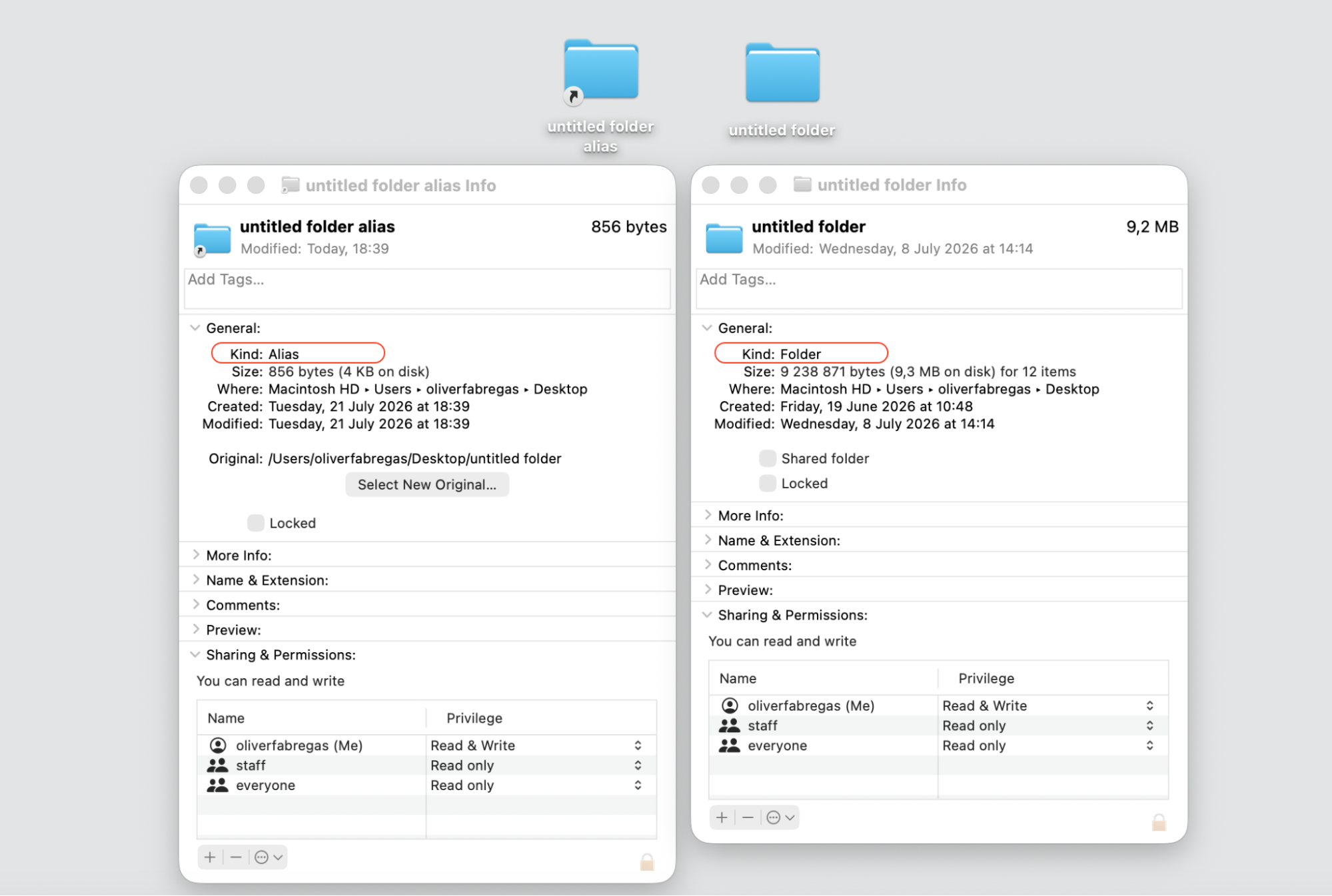
Spotting an alias is easy once you know the signs. Each alias carries a small curved arrow in the bottom-left corner of its icon, much like the arrow on a shortcut.
When you first create one, macOS may add the word “alias” to the end of its name. You’re free to rename it to anything that helps you remember the original. These small cues make it simple to tell an alias apart from the item it points to.
Conclusion
So, the make alias Mac meaning comes down to this—an alias is a lightweight link that opens an original file or folder from wherever suits you. It helps you reach frequently used items in fewer clicks, without moving or copying a thing.
If your Mac feels sluggish because stray duplicate files are eating up your storage, we suggest a cleanup. MacKeeper’s Duplicates Finder finds similar-looking copies and removes the extras while keeping your originals safe—great for tidying up your Downloads folder and Photo Library. Try it today and enjoy a cleaner Mac with more free space.
We respect your privacy and
use cookies
for the best site experience.
Privacy Preferences Center
We use cookies along with other tools to give you the best possible experience while using the
MacKeeper website. Cookies are small text files that help the website load faster. The cookies we
use don’t contain any type of personal data meaning they never store information such as your
location, email address, or IP address.
Help us improve how you interact with our website by accepting the use of cookies. You can change
your privacy settings whenever you like.
Manage consent
All cookies
These cookies are strictly necessary for enabling basic website functionality (including page
navigation, form submission, language detection, post commenting), downloading and purchasing
software. The website might malfunction without these cookies.