We know how frustrating it is when Safari can't establish a secure connection on your Mac, as it can stop you from accessing the website you might need for work or studies–disrupting your flow entirely. For help, we recommend reaching out to MacKeeper’s Premium Services team, who are ready to help you locate the cause of your connection issues and resolve them to get you back to browsing securely.
When Safari can’t secure a connection to a server, it usually signals an SSL or certificate problem. Without a secure connection, your browser can’t load websites properly. To restore access, we recommend checking your preferences, clearing cache, and disabling any extensions that might be blocking or interfering with the connection.
Common causes of “Safari can’t establish a secure connection to the server” error
Are you having trouble with the Safari can’t open page secure connection error? From our experience, this error is usually caused by any one of the following system issues:
If you’re having issues with Safari not working on Mac or having problems establishing a secure connection, the culprit is often an SSL/TLS certificate issue. From our experience, an expired, invalid, or misconfigured certificate will immediately block Safari and stop you from browsing a website on your MacBook, even if it’s usually trusted. The reason this happens is that Safari relies on trusted certificates to be able to verify that your connection to the server is safe.
2. Incorrect System Date & Time
Our team of Clario Tech experts has spoken to many Apple users who’ve said they experienced Safari issues when their Macs’ Date and Time were incorrect. Your MacBook relies on accurate clock settings to be able to verify a website’s certificate and legitimacy. Therefore, if the time or data is wrong, the browser may treat it as invalid and therefore cause Safari can’t establish a secure connection error. When this error is triggered, you will not be able to browse the website until your data and time are corrected.
3. Network configuration & DNS problems
Another common cause of network errors can be linked to configuration issues and DNS problems, both of which can prevent Safari from establishing a secure link. Without a safe connection, you won’t be able to browse websites normally, and your Mac is likely to struggle. When the server’s IP address can’t be resolved, you’ll get warnings like this connection isn’t private on Safari Mac until it's re-secured.
Sometimes, the tools we think will help improve our browsing can cause more problems. For instance, we’ve noticed that too many extensions and third-party security software can actually interfere with how Safari communicates with a website’s server. If you’re asking yourself why, it's because running too many extensions at once can block scripts, affect traffic, and alter requests–which can stop your iPhone, iPad, and even your MacBook from creating a secure browsing session with Safari.
5. Outdated browser or operating system
Another common reason you might see the Safari can’t establish a secure connection error is when your browser or macOS is out of date. Older versions of Safari and macOS may not support the latest encryption standards used by modern websites. As a result, your Apple device may struggle to verify security certificates, thus preventing you from accessing websites until the software is updated.
6. Proxy, VPN, or Firewall blocks
Network tools like proxies, VPNs, and even firewall settings are known to cause unexpected interruptions with how your browser reaches a website. We’ve found that these services sometimes reroute or filter traffic in ways that prevent Safari from verifying a website’s security certificate–leading to blocked requests or failed secure sessions with the server.
A note from our experts:
Before we show you how to fix the Safari can’t establish a secure connection to the server error, we’d like to introduce you to MacKeeper’s Premium Services. In the app, you can open a live chat with one of our virtual macOS experts. They’ll help you to identify what’s blocking the connection on your Mac and guide you through the right solutions to get you browsing safely and quickly.
Here’s how MacKeeper’s Premium Services can help you fix stuck macOS updates:
In the chat, tell our helpers about the server issue you're dealing with, and they’ll walk you through personalized steps to re-establish a secure browser connection.
Step 1. For Safari connection support, open the MacKeeper app and choose Premium ServicesStep 2. You can use the chat function to get advice to help re-establish a secure network connection
How to fix “Safari can’t establish a secure connection to the server” error?
It’s frustrating when Safari doesn’t connect properly. To fix this, we suggest 10 troubleshooting methods you can use:
Clear Safari cache and cookies
Verify and sync System Date & Time
Update Safari and the operating system
Disable or remove problematic extensions
Try Private Browsing Mode
Change DNS settings
Disable IPv6
Reset network settings
Check Proxy, VPN, and Firewall settings
Temporarily disable antivirus web protection
1. Clear Safari cache and cookies
One of our favorite quick fixes is removing as much browser cache and cookie logs from Safari as possible; this optimizes your Mac’s space and responsiveness. If you’re unsure how to clear Safari cache on Mac, we recommend using an automatic MacBook cleaner. But you can manually remove browser cache and cookies in Safari Settings.
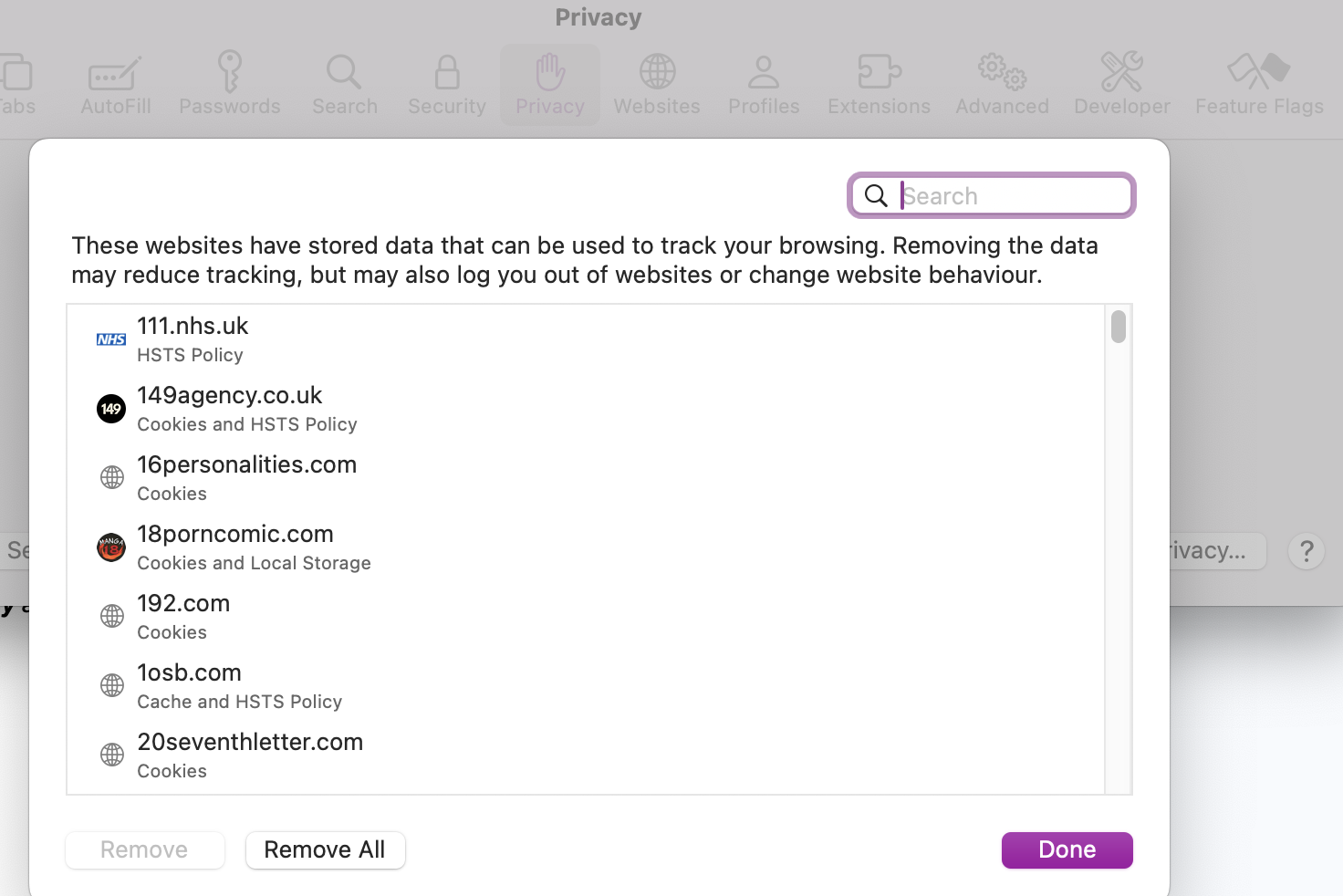
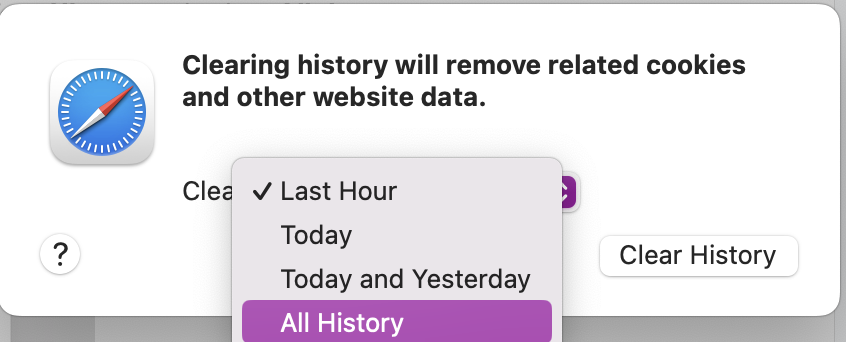
Here’s how to manually clear Safari of unwanted cache and cookies:
Open Safari and click on Settings.
Go to Privacy > Manage Website Data and press Remove All.
Go back to Safari, click on History > Clear History, and select All History.
Step 1. Open Safari Settings, go to Privacy> Manage Website Data, and press Remove AllStep 2. Go back to Safari, click on History > Clear History, and select All History
2. Verify and sync System Date & Time
We mentioned earlier the importance of enuring that your Apple device has the correct date and time to avoid the Safari can't secure connection to server error. This is a simple mishap, but equally easy to rectify.
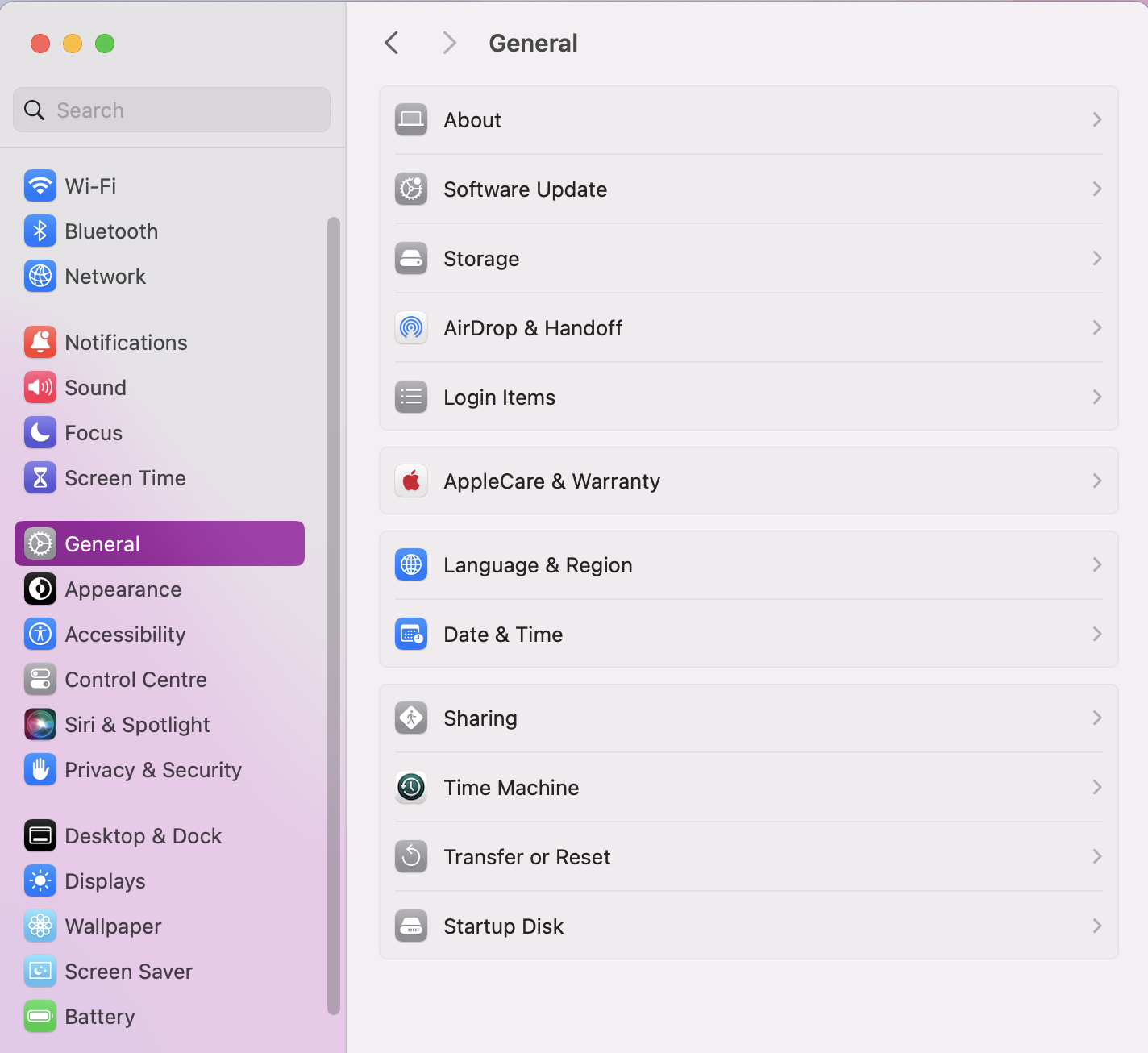
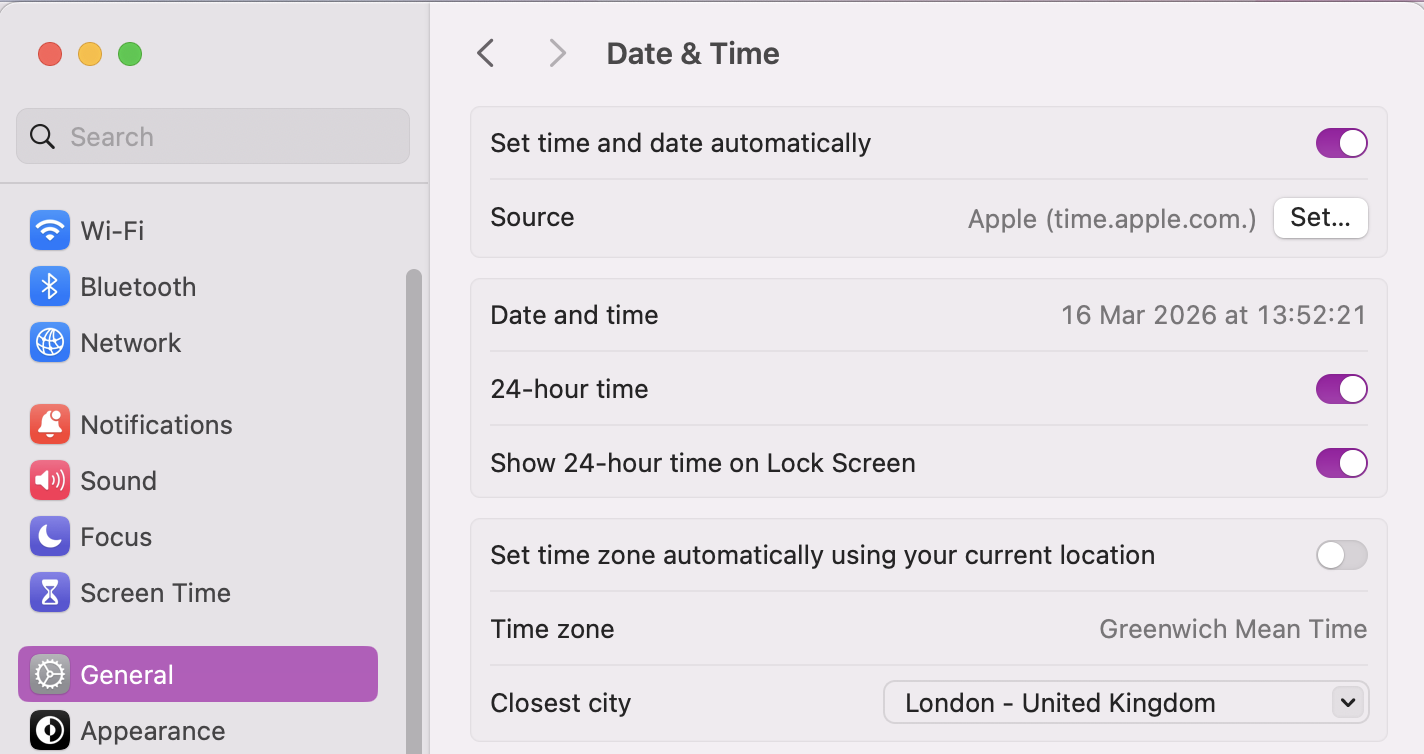
Here’s how to check and change your device’s Date and Time:
Open System Settings.
Go to General and click on Date and Time.
Tick Set Dateand Time automatically to keep it synced.
Step 1. In Settings, go to the General Tab and then click on Date & TimeStep 2. Tick Set time and date automatically to keep it synced
3. Update Safari and the operating system
Looking for another quick fix to get back to browsing with fewer interruptions? Check for system updates, as new Safari improvements will be included in the latest macOS because it’s an integrated Apple application. If you’re unsure how to update macOS, we’ll walk you through step by step.
Here’s how to check for macOS and Safari updates:
Open System Settings.
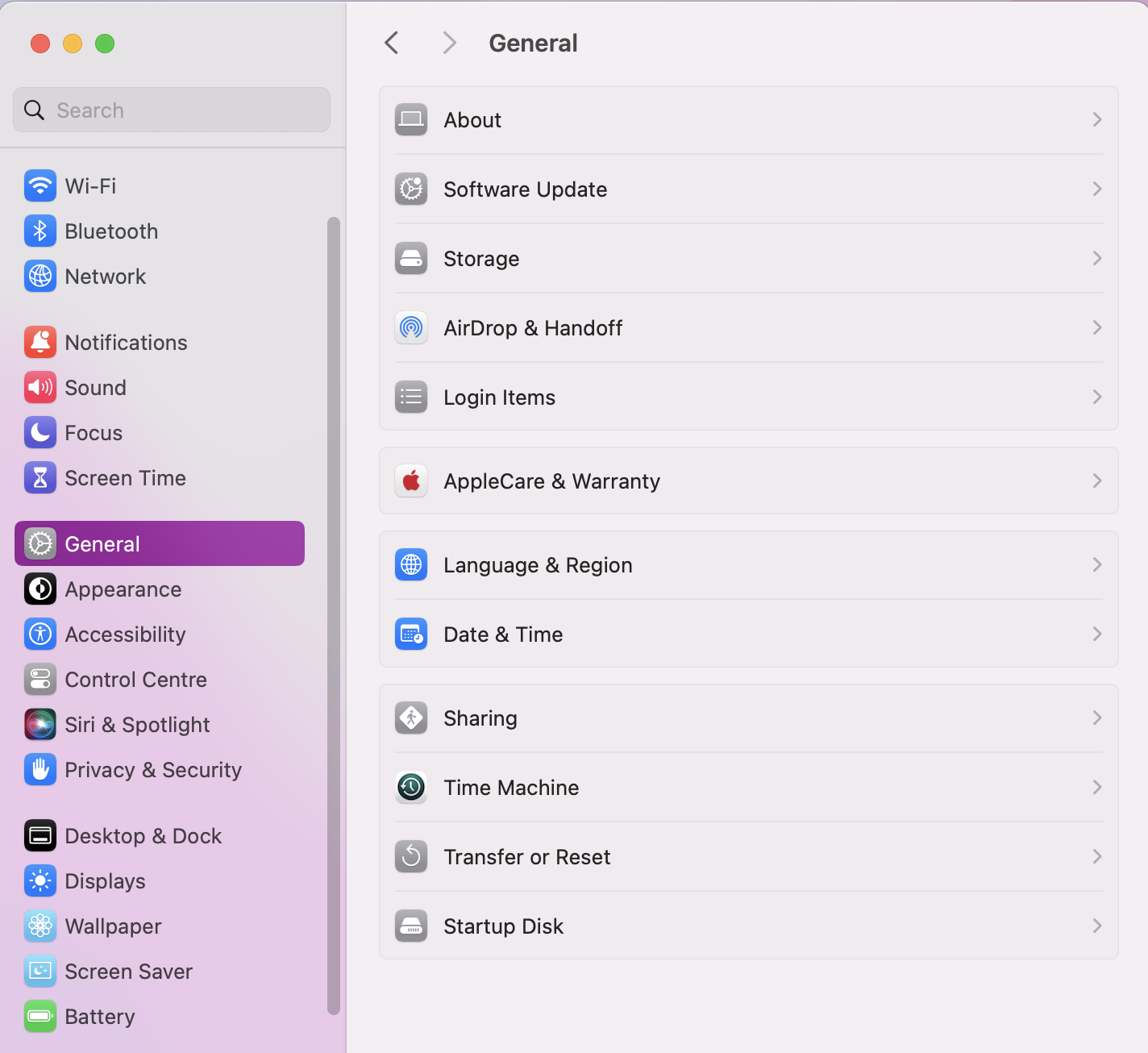
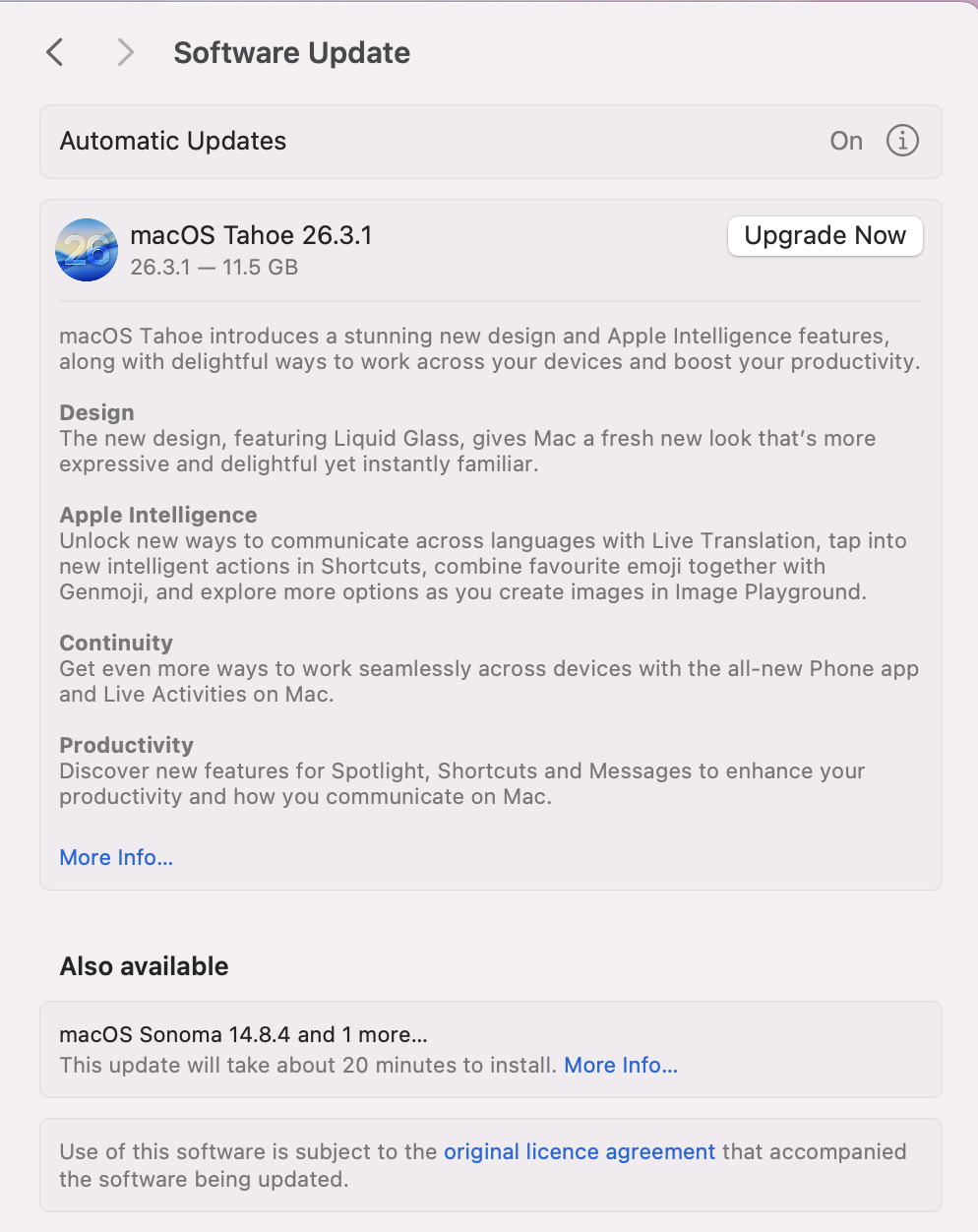
Click on General > Software Updates.
If any updates are available, press Update Now.
Step 1. In system settings, go to General > Software UpdatesStep 2. Press Update Now to install the latest version of OS and a Safari patch if available
4. Disable or remove problematic extensions
If Safari doesn’t need updating, you’ve removed unnecessary cache, and your devices’ date & time are both accurate, then we recommend disabling unwanted extensions in case they’re the cause of the Safari can't establish a secure connection issues. Not sure how to delete extensions on Mac? Let us walk you through it, step by step.
Here’s how to disable extensions on Safari:
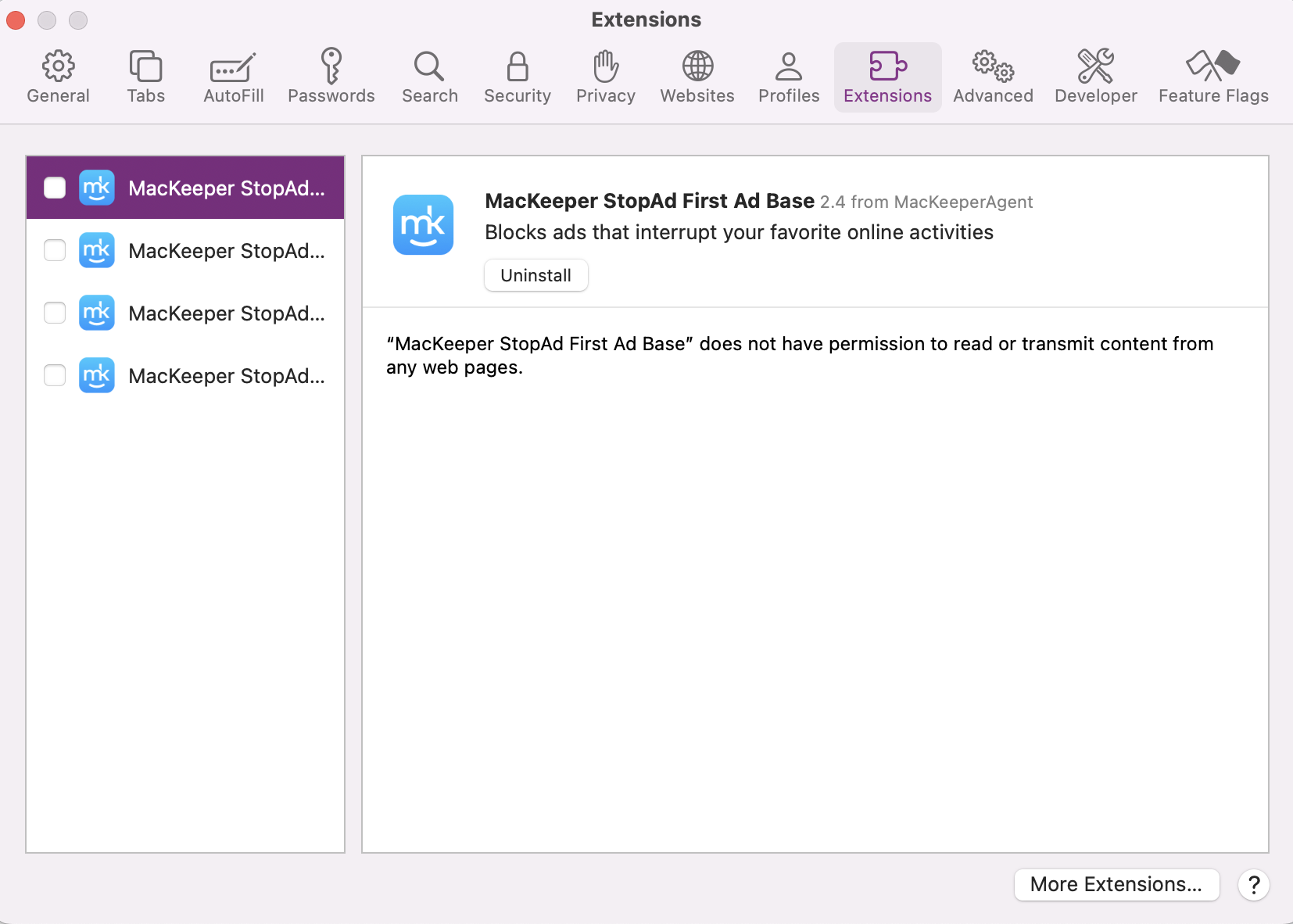
Open Safari settings and click on Extensions.
Untick to disable the extension or press Uninstall to remove it.
In Safari Settings, click on Extensions and either untick or Uninstall
5. Try Private Browsing mode
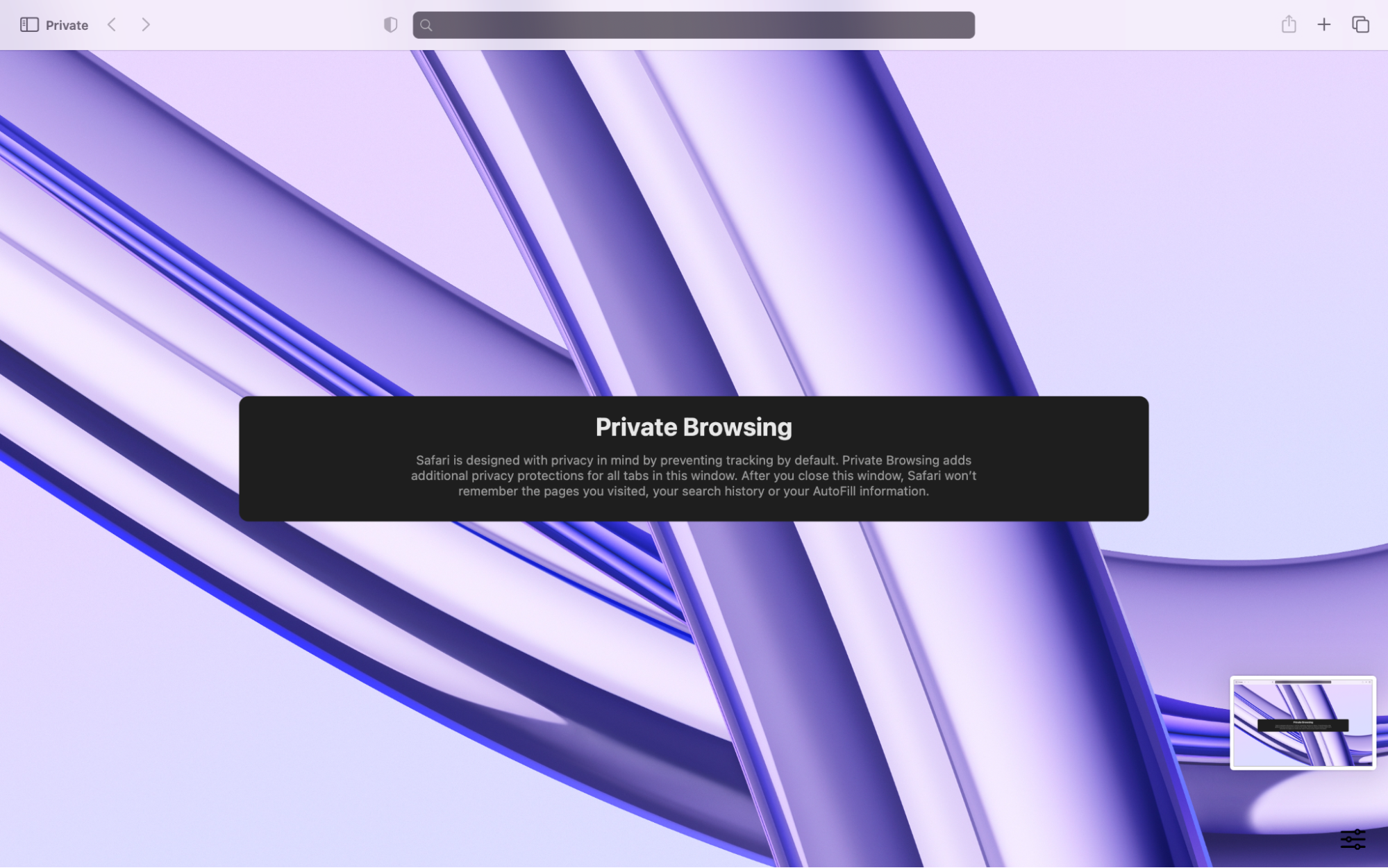
Next, you can try the Private Browsing mode in Safari if you suspect cached data, cookies, or extensions are preventing your Mac from establishing a secure connection to a website or server. We find this works well when you keep seeing the same certificate or connection error messages. However, keep in mind that Private Browsing won’t save your history, and frequented websites will need you to log in again.
Here’s how to try Private Browsing mode in Safari:
Open Safari.
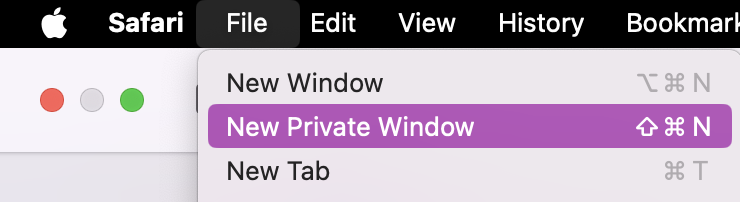
Select File > New Private Window.
Browse as normal to see if your connection error continues.
Step 1. Open Safari, click on File, and scroll to New Private WindowStep 2. New Private Window and browse in private mode
6. Change DNS settings
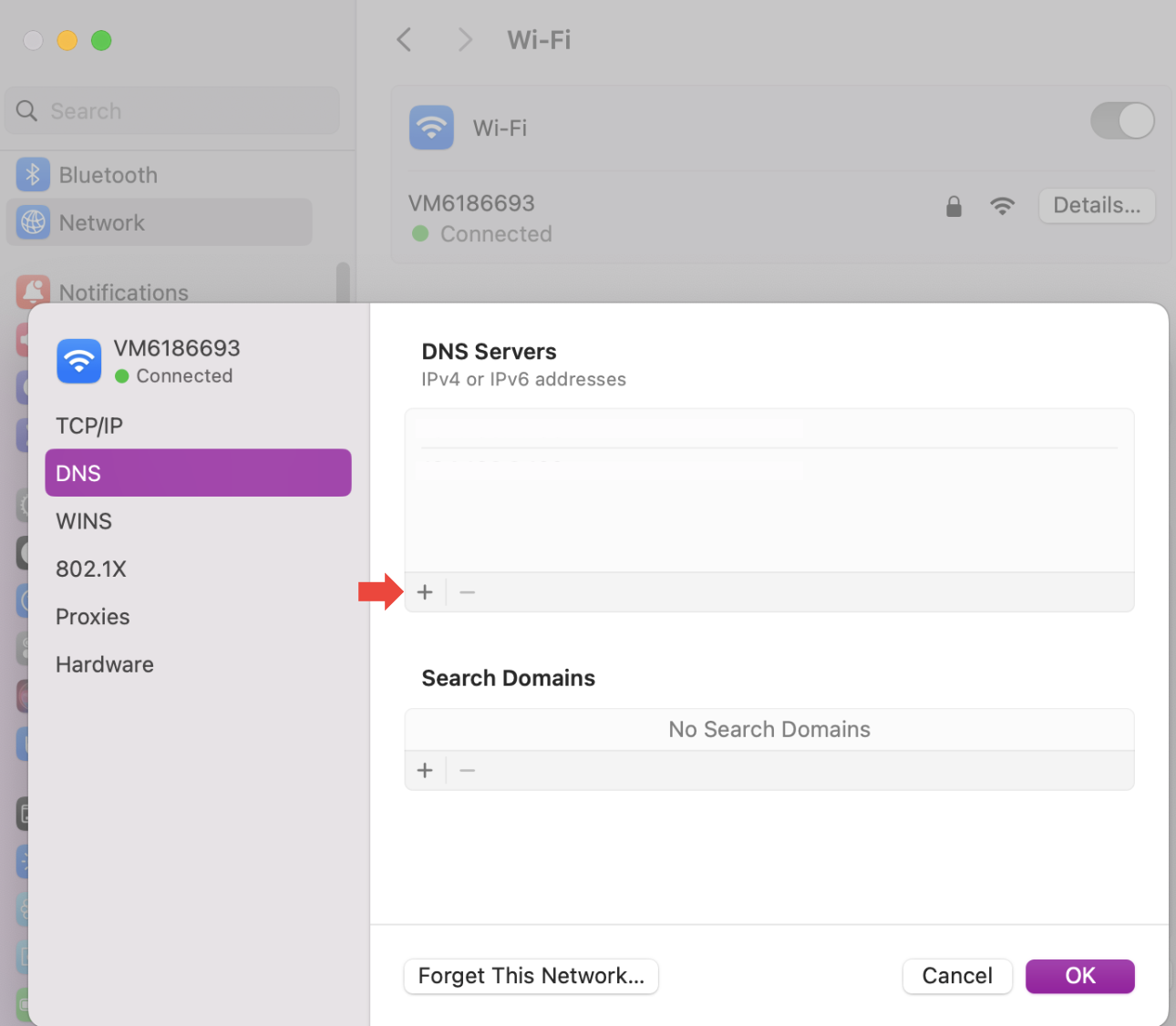
Sometimes Safari can’t connect to a server properly due to IP routing or DNS issues– changing your DNS settings should help, but you’ll want to be careful, as entering incorrect DNS addresses can temporarily prevent websites from loading at all. So always double-check the IPs you input.
Here’s how to change your DNS settings:
Open System Settings > Network.
Click Advanced > DNS.
Delete old IP addresses and add new DNS servers.
Click OK.
In System Settings, go to Nextwork > DNS and press + to add a new IP
7. Disable IPv6
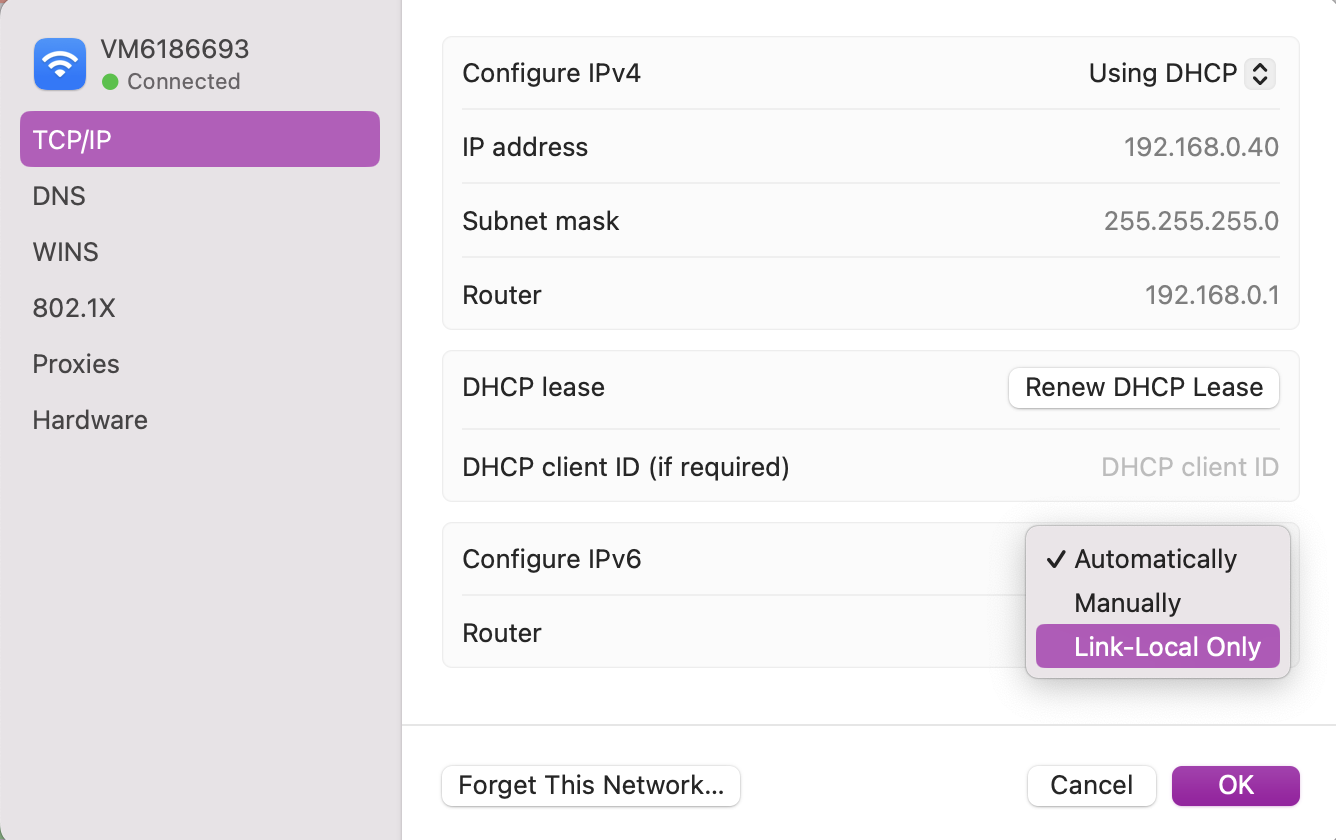
Still no luck? Sometimes IPv6 can interfere with Safari’s ability to establish a secure connection, especially on networks that don’t fully support it. If you think this is the reason for your problems, try disabling IPv6 on your Mac– but keep in mind some websites do rely on IPv6, so disabling it should only be considered as a temporary fix.
Here’s how you disable IPv6 on Mac:
Open System Settings > Network.
Select your network and click Advanced > TCP/IP.
Set Configure IPv6 to Link-local only.
Press OK.
In Network settings, click on TCP/IP and next to Configure IPv6, select Link-Local Only
8. Reset network settings
Safari is known to have trouble sometimes with finding a secure connection if your device's network settings are misconfigured, leading to IP conflicts and blocked servers, as well as certificate errors. Our experts recommend performing a full network reset to fix these issues, but we do advise caution, as this will remove all your saved networks and VPN configurations.
Attention:
Make sure you have your network passwords handy before you follow our steps on how to reset network settings on Mac.
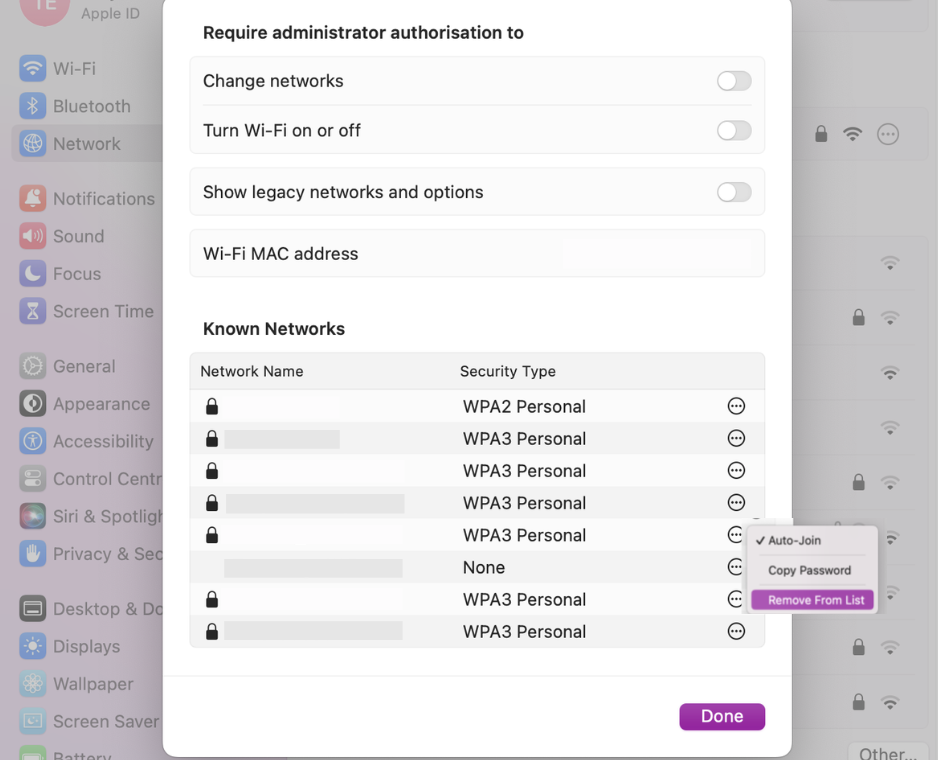
Here’s how to reset your network settings:
In System Settings, go to Network.
Select your current connection.
Scroll down and click on Advanced…
Under Known Network, click the three dots (...) and choose Remove from List to forget.
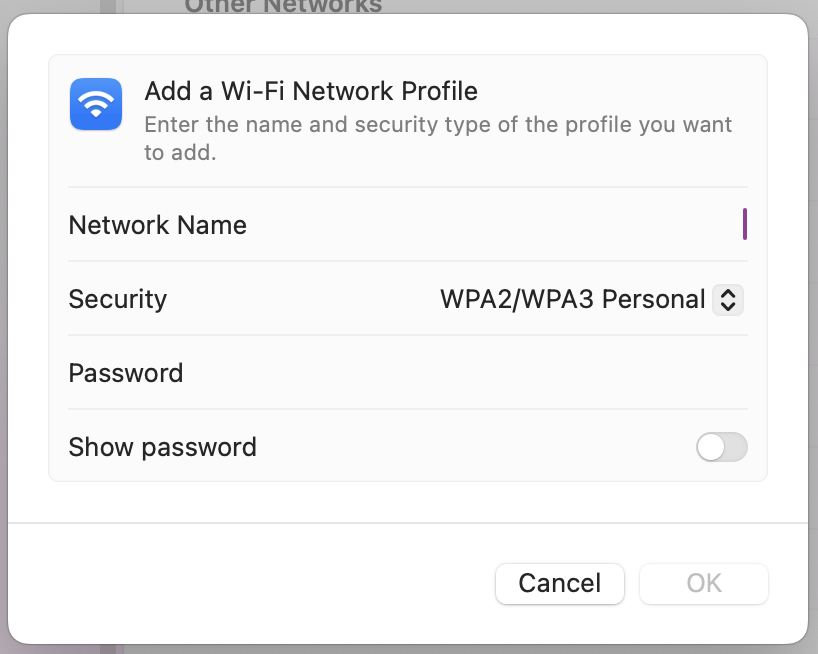
Re-add your network by clicking on Other.
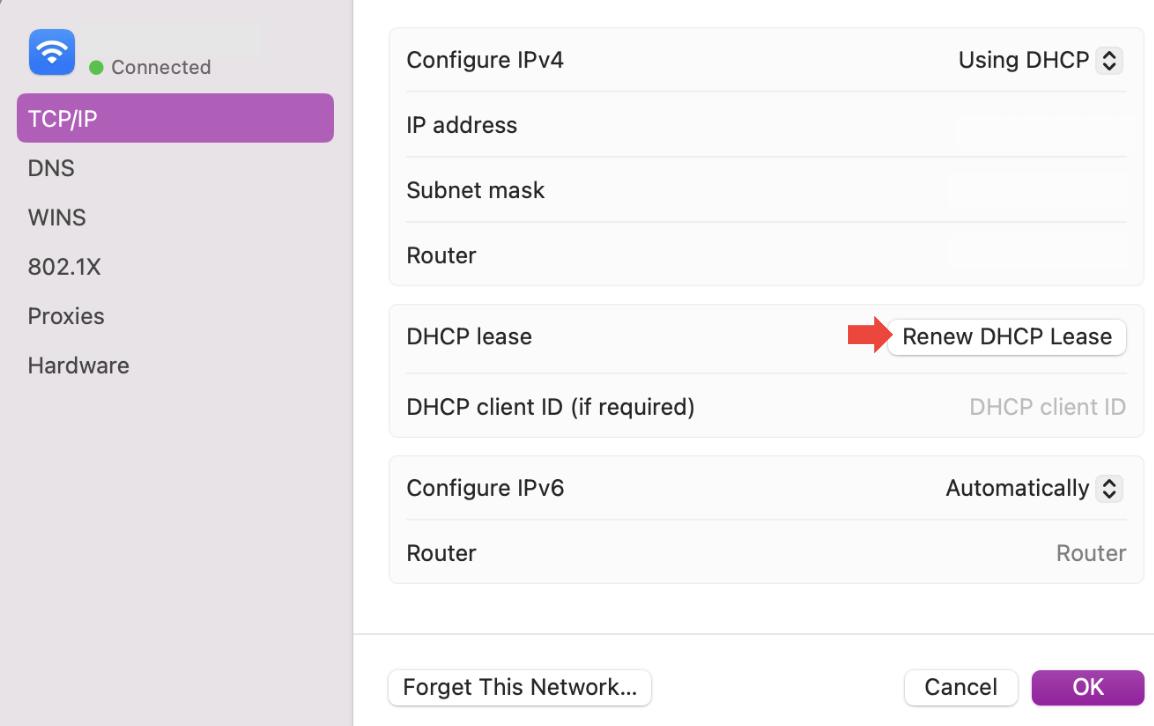
Click Advanced > TCP/IP, then select Renew DHCP Lease to refresh your IP settings.
Step 1. In Network Settings, go to Advanced and Remove all Known Networks from the listStep 2. Re add you NetworkStep 3. Go to Advanced > TCP/IP, click on Renew DHCP Lease, and click OK
9. Check Proxy, VPN, and Firewall settings
The next thing you can try is looking at your Proxy, VPN, and Firewall settings, just in case they are causing conflicts with Safai, as they can get in the way when trying to load websites. When Safari can't work around them, that leads to connection errors. You can temporarily disable your VPN and firewall by altering the Settings within the app itself. Once you’ve changed those permissions, reopen Safari to see if your websites are now accessible.
10. Temporarily disable antivirus web protection
Do you have sophisticated antivirus software installed on your Mac to ensure you’re safe while on the internet? Believe it or not, antivirus software can accidentally block and restrict your access to websites, even if they’re secure, common for basic websites with minimal security certificates. Just open up your Antivirus, temporarily disable Real-time protection, and check if your website loads.
Getting Safari back online with MacKeeper
Hopefully, you’re no longer experiencing the safari can't establish a secure connection issue on your MacBook. In case the problem ever does pop up again, you can always refer back to our troubleshooting guide above. We recommend clearing your browser cache and cookies, as well as regularly checking for system updates, before moving into more technical fixes. Sometimes, the simple fixes often resolve the problem, helping you get back to browsing securely in no time.
And if you ever need extra support, MacKeeper’s Premium Services are here for you. Our team of experts is just a chat away, ready to guide you as you optimize your device and system apps. We’ll help make it easier for you to keep your Mac running smoothly and securely when connected to the internet.
We respect your privacy and
use cookies
for the best site experience.
Privacy Preferences Center
We use cookies along with other tools to give you the best possible experience while using the
MacKeeper website. Cookies are small text files that help the website load faster. The cookies we
use don’t contain any type of personal data meaning they never store information such as your
location, email address, or IP address.
Help us improve how you interact with our website by accepting the use of cookies. You can change
your privacy settings whenever you like.
Manage consent
All cookies
These cookies are strictly necessary for enabling basic website functionality (including page
navigation, form submission, language detection, post commenting), downloading and purchasing
software. The website might malfunction without these cookies.