Encountered the Search Alpha Mac virus? Keep calm and install MacKeeper’s Antivirus—it can help quarantine or remove almost any malware and virus as well as protect your device in real time.
Like all computers, your Mac can be affected by viruses and other malware. Among the potential threats you could face, browser hijackers like Search Alpha can be particularly annoying, taking control of your online sessions against your will.
If your web browser starts automatically redirecting you to search-alpha.com, then you’ve been hijacked. You need to take action, but there's no need to panic. Keep reading, and we’ll show you how to remove Search Alpha from your Mac—and stop it from returning.
What is Search Alpha on Mac?
Search Alpha is a variant of the Search Marquis browser hijacker. It’ll take over the web browsers on your Mac, redirecting searches through a website that makes money for the people who created Search Alpha, before sending you to Bing. It may also change other browser settings.
Why does Mac keep going to Search Alpha?
If your Mac’s web browsers keep sending you to Bing via search-alpha.com, you’ve been infected with the Search Alpha malware. Until you delete Search Alpha on your Mac, it’ll continue to control your web traffic, generating income for its creators while putting you and your Mac at risk.
How did the Search Alpha virus get on your Mac?
Usually, Search Alpha gets into Macs through infected software bundles. That’s why it’s a good idea to install apps only from the App Store and other reliable web sources.
A note from our experts:
Removing the Search Alpha virus or other threats from your Mac can be a difficult task. We recommend using the MacKeeper Antivirus to prevent your Mac from becoming infected with viruses, as well as to scan for and get rid of any viruses that are already on your Mac.
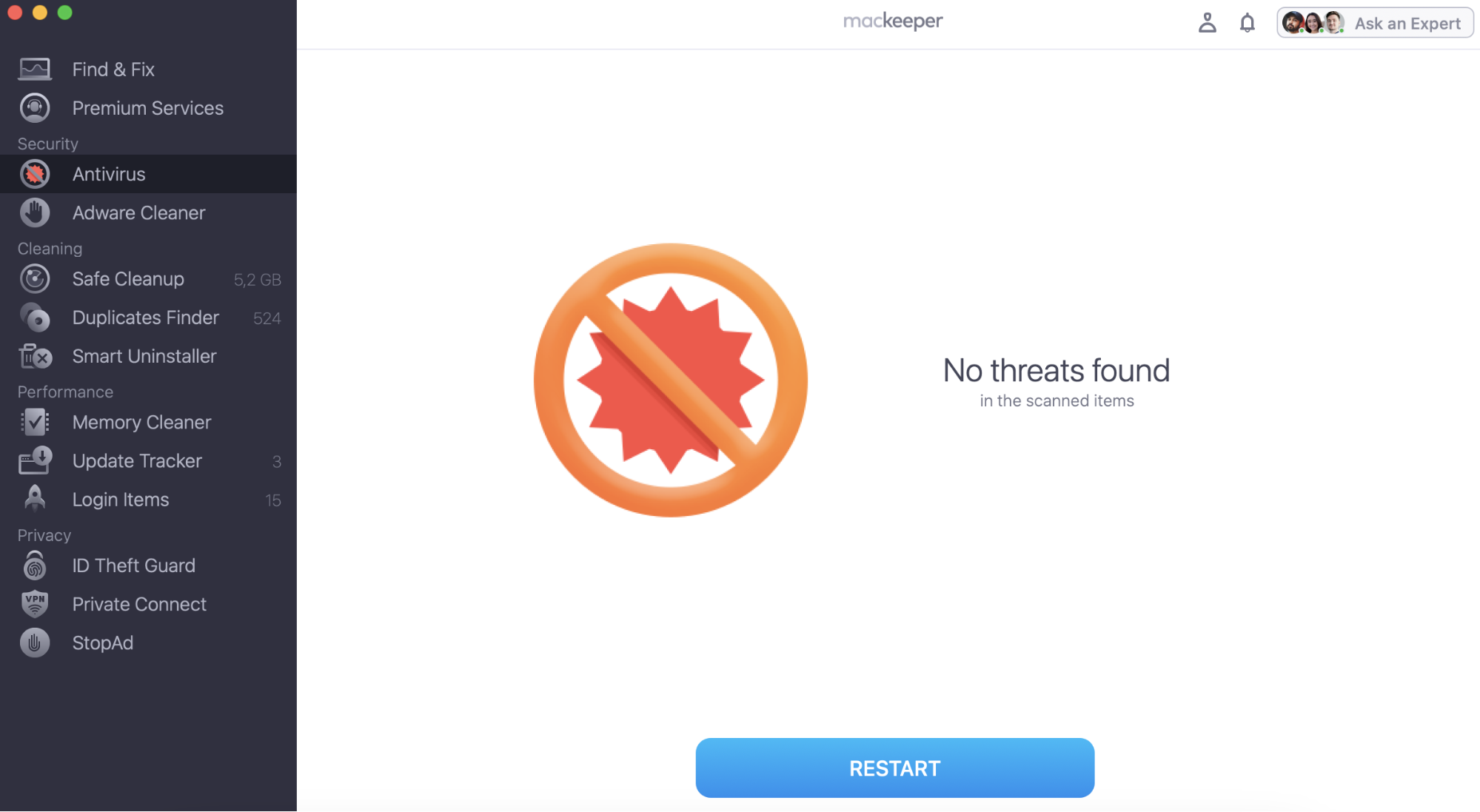
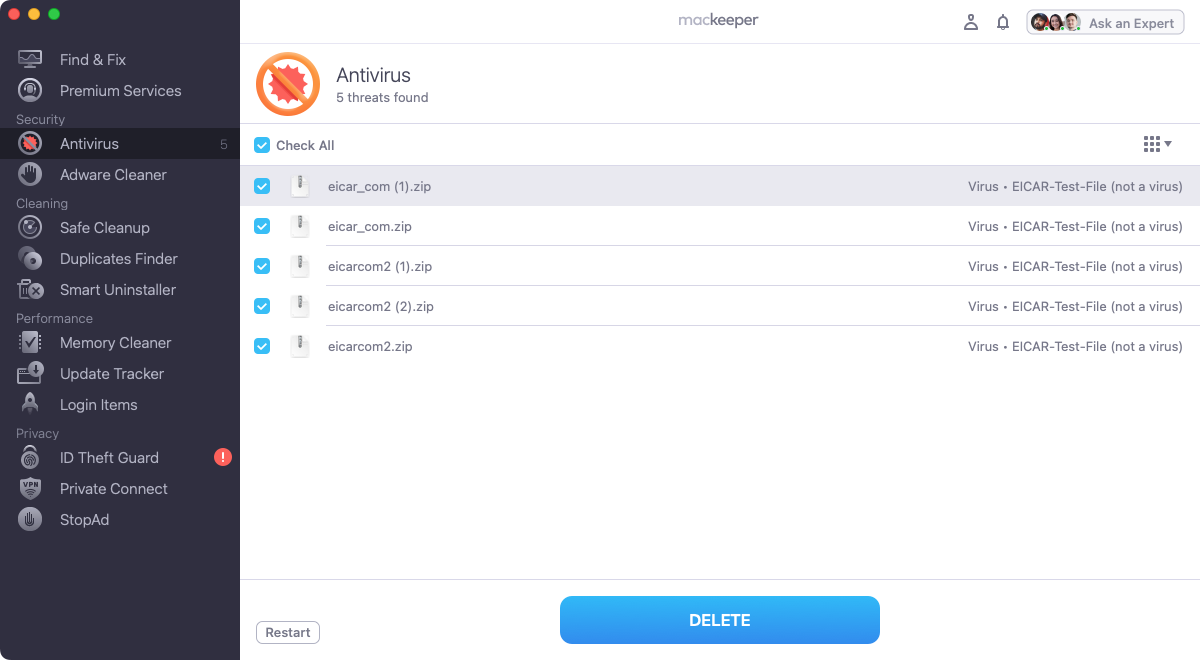
When the scan is finished, select any malware that MacKeeper has found.
Click Delete.
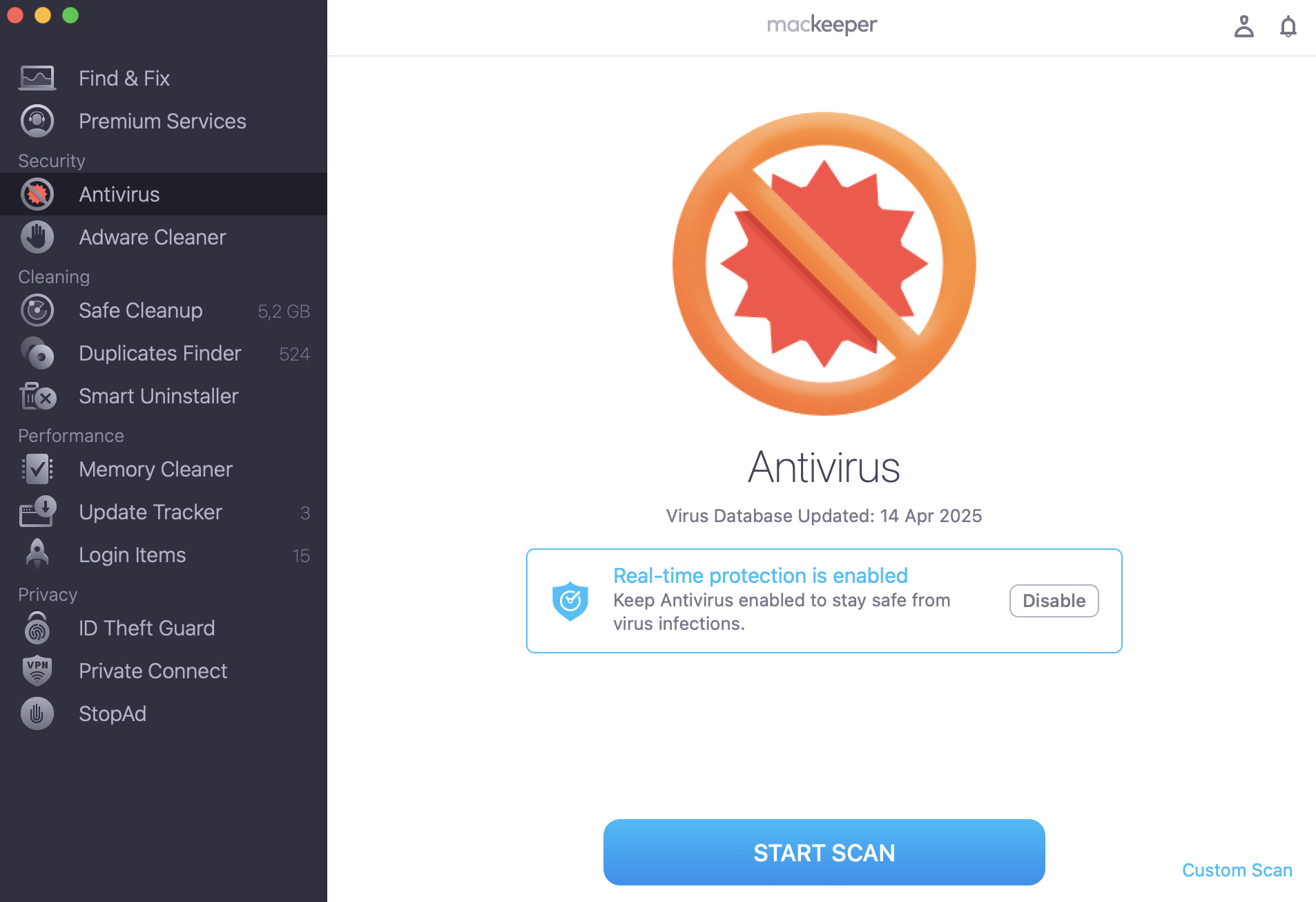
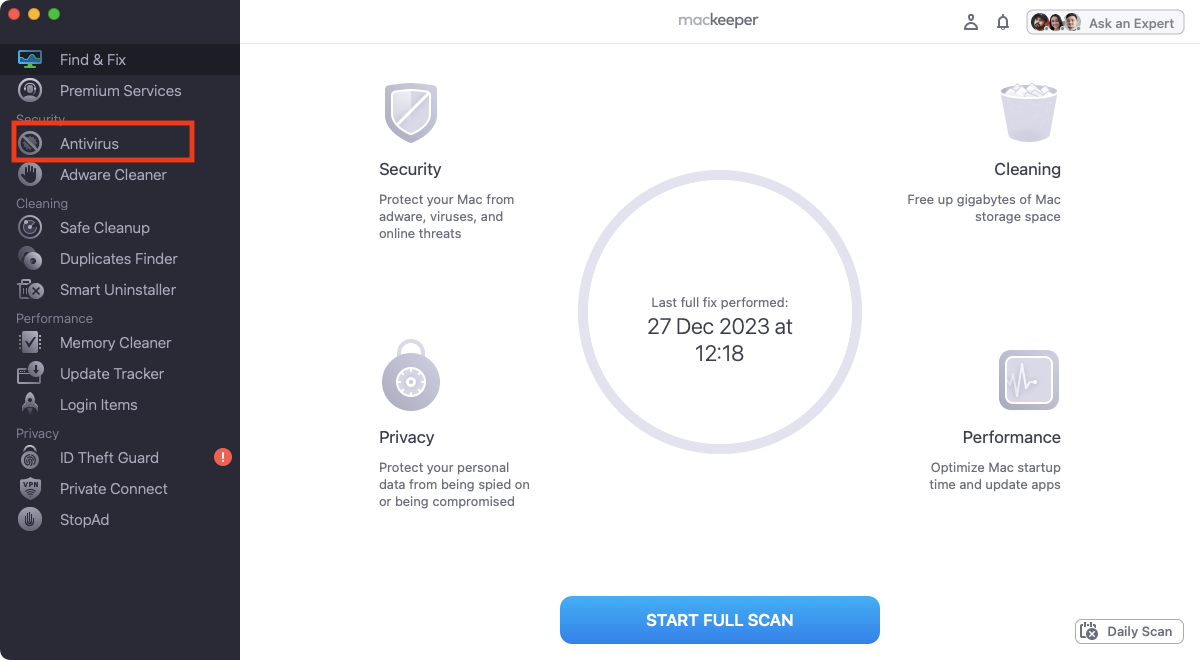
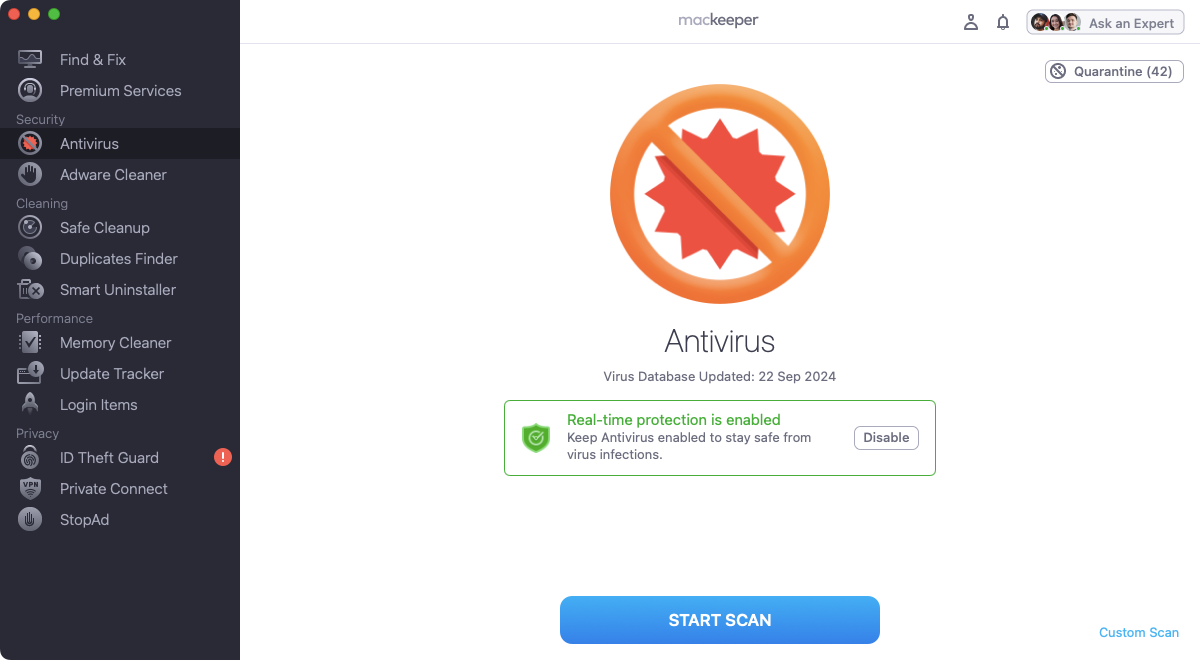
Step 1. MacKeeper > Antivirus > Start ScanStep 2. Remove any threats that are listed
That’s it—adios malware! Plus, MacKeeper is packed with cleaning and optimization tools that will keep your Mac in prime condition. Check it out today.
How to remove Search Alpha from MacBook
If you think your Mac is infected with the Search Alpha browser hijacker, this is what you need to start with:
Use antivirus software to automatically remove the infection
Find and delete malicious profile configurations
Delete any suspicious login items
Uninstall the Search Alpha app, if you can find it
Remove search-alpha.com from your web browsers
1. Get rid of the Search Alpha virus with antivirus
A good antivirus application is the easiest way to get rid of Search Alpha and other viruses for Mac. Here’s how to search and remove viruses with MacKeeper’s Antivirus tool:
Download, install, and run MacKeeper. Select Antivirus in the sidebar.
Click the Start Scan button.
Wait for the scan to finish.
If MacKeeper finds anything malicious, select it, and click Delete.
Malware like Search Alpha may install malicious configuration profiles on your Mac, enabling it to gain more control of your computer. Follow our hints to remove those profiles:
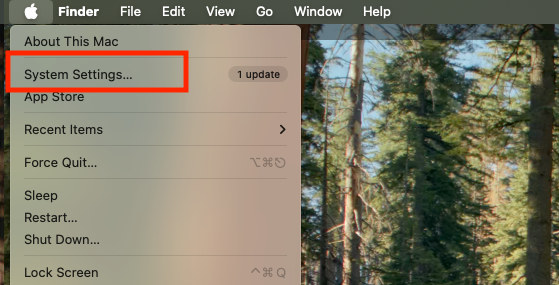
Click the Apple icon in your menu bar, and select System Settings.
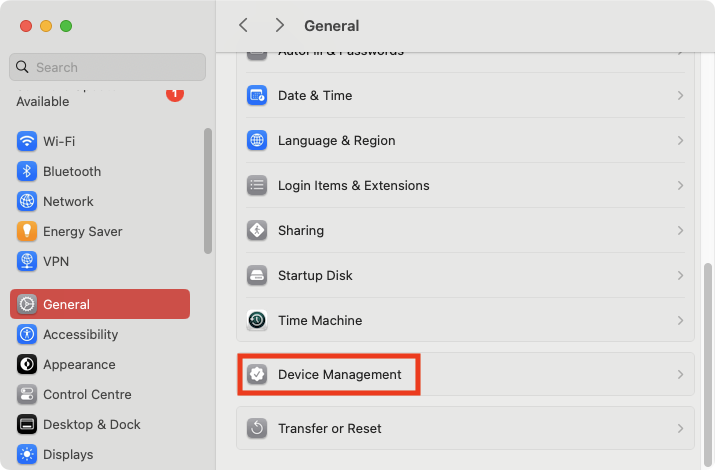
Select General > Device Management.
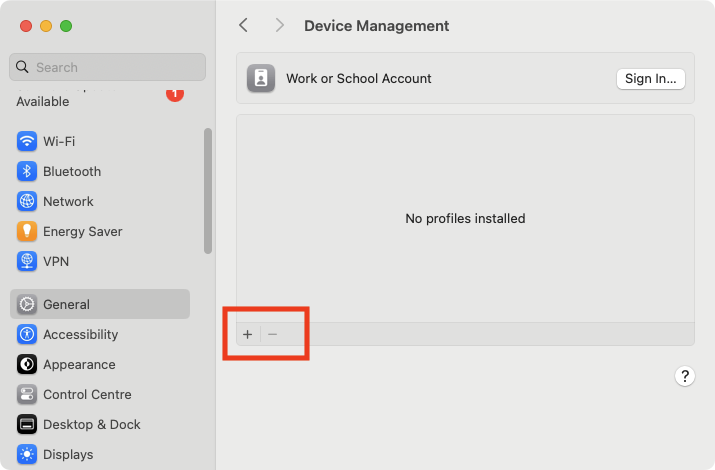
If you see any suspicious profiles here, select them and click the minus button.
Step 1. Open System SettingsStep 2. Select Device ManagementStep 3. Remove profiles, if you find any
3. Delete unknown login or startup items
Malware often installs login items on your Mac. These are apps that load up automatically, as soon as macOS starts. Below are our guidelines to help you find and remove suspicious login items:
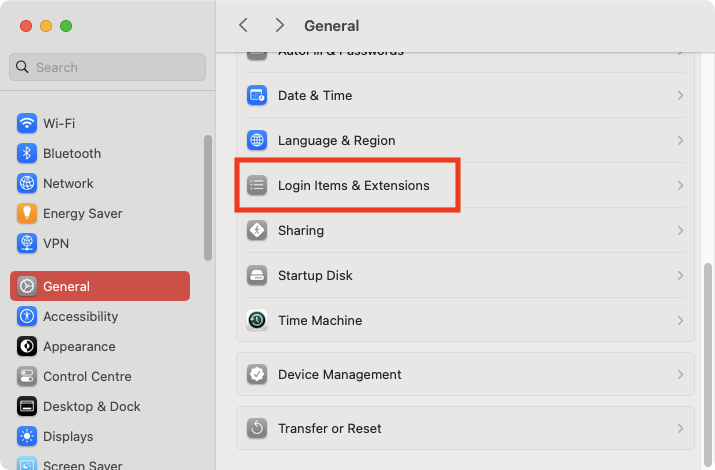
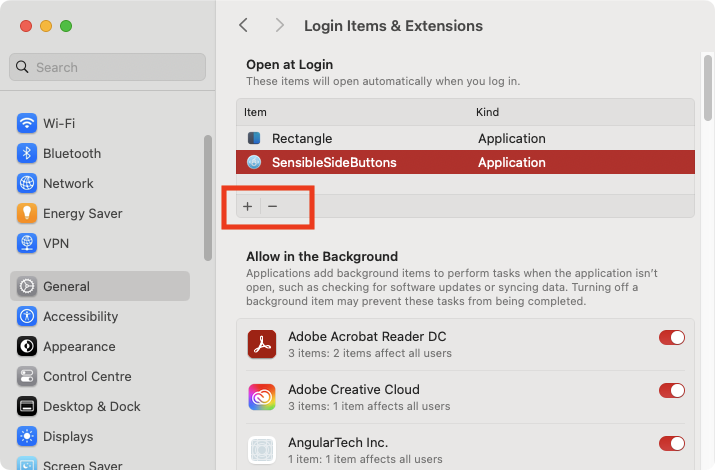
Open System Settings, and select General > Login Items & Extensions.
Look under Open at Login. To remove a login item, select it, then click the minus button.
If Search Alpha installs any apps on your Mac, it’s important to identify and remove them. There are a couple of ways to do this, which we’ll cover below for you.
4.1. Remove virus via Finder
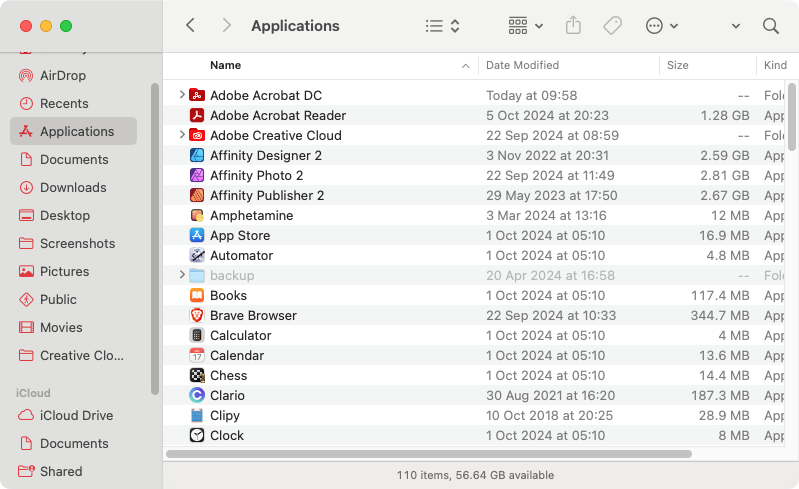
First, you should delete suspicious apps using Finder. Just do as follows:
In Finder, select Applications from the sidebar.
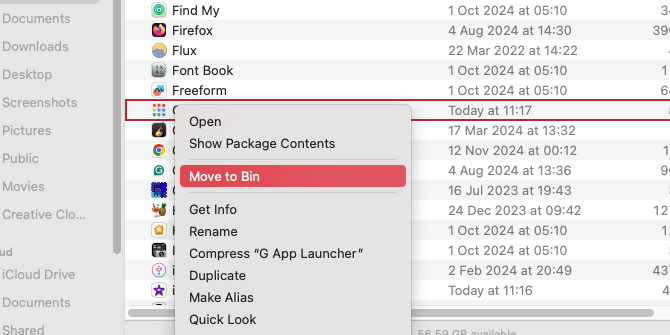
Right-click something you want to remove, and select Send to Trash (or Send to Bin).
Right-click the trash icon in your Dock, and select Empty Trash (or Empty Bin).
Step 1. Open your Applications folderStep 2. Send unwanted apps to TrashStep 3. Empty your Trash to fully delete the apps
4.2. Delete virus using Launchpad
You can also secure your Mac by deleting suspicious apps through Launchpad. Follow our instructions:
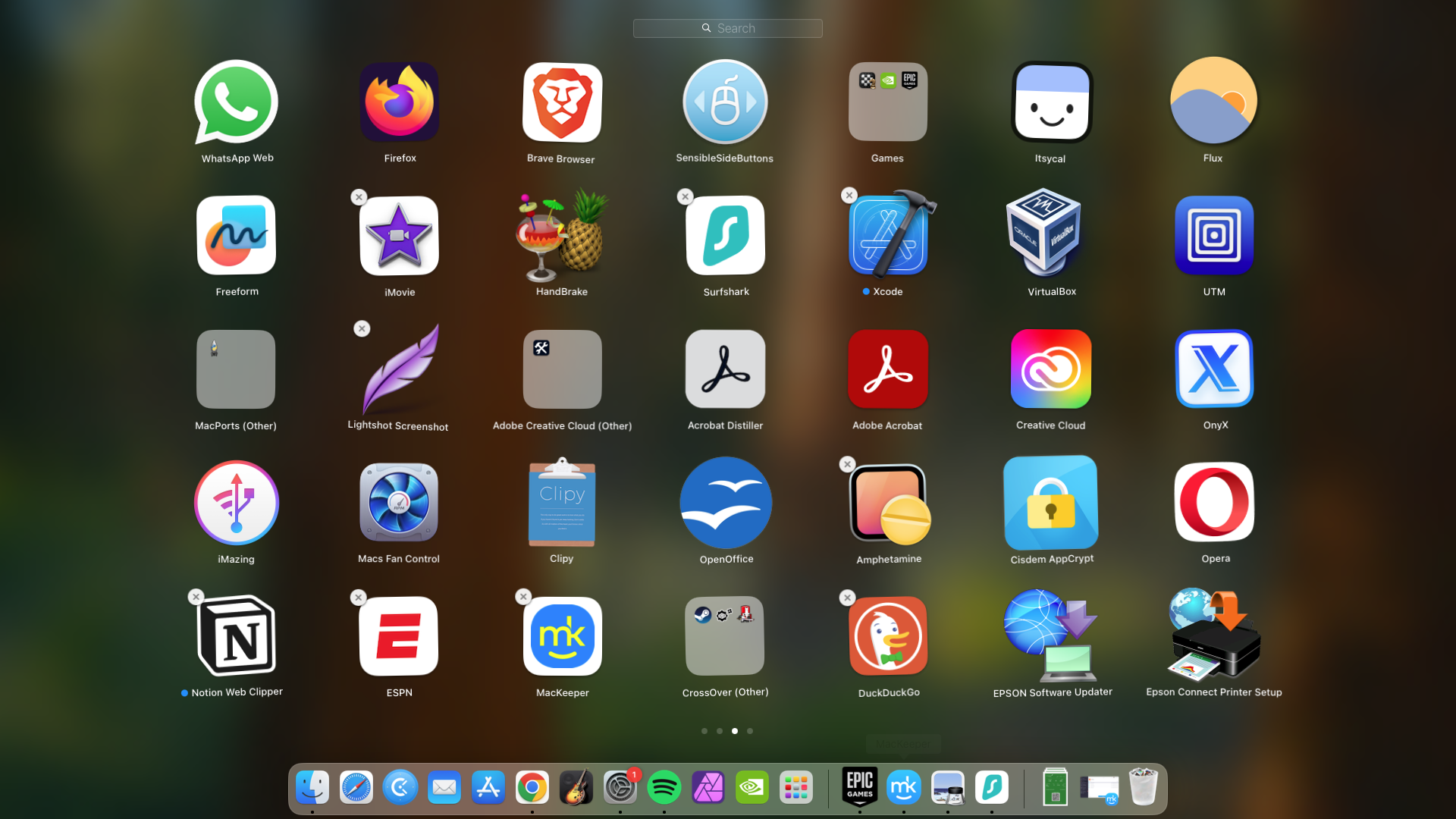
Click the Launchpad icon in your Dock.
Press and hold the Opt key. The app icons should start to jiggle.
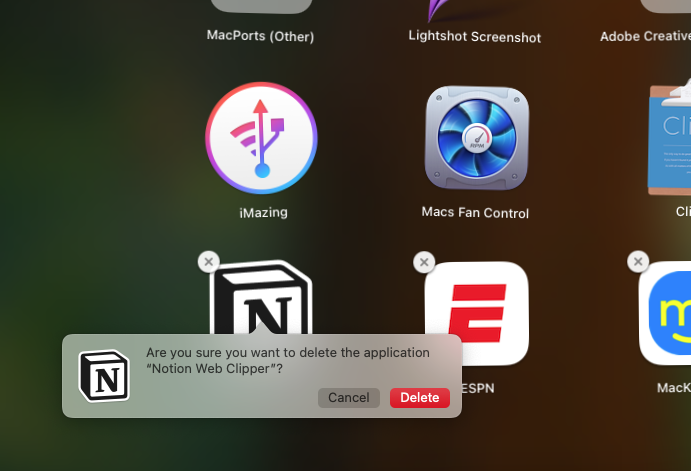
If an app has an X on it, it can be removed through Launchpad. Click the X, then select Delete.
Step 1. Open LaunchpadStep 2. Hold down Opt and click the X on appStep 3. Confirm removal of the Launchpad app
5. Get rid of search-alpha.com from web browsers
Our team urges you to remove browser viruses for protecting your privacy and your personal data. How you do that depends on which browser you use, but it usually involves deleting unwanted browser extensions. Let’s look at how to do this for some of the most popular web browsers for Mac.
5.1. Remove browser hijackers from Safari
Can Safari get viruses? Yes, including browser hijackers like Search Alpha. This is what you need to do to remove them:
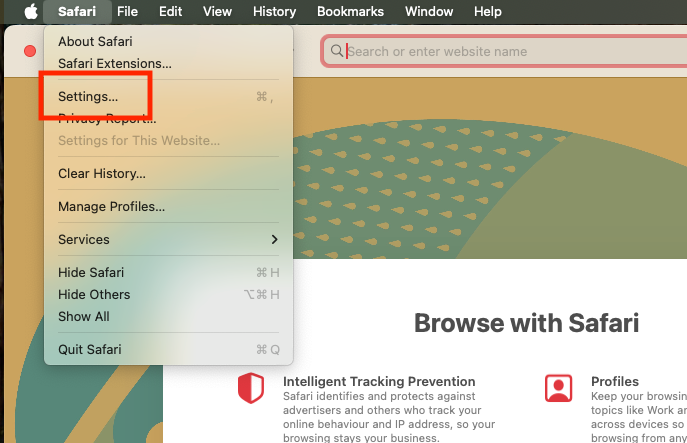
In your menu bar, select Safari > Settings.
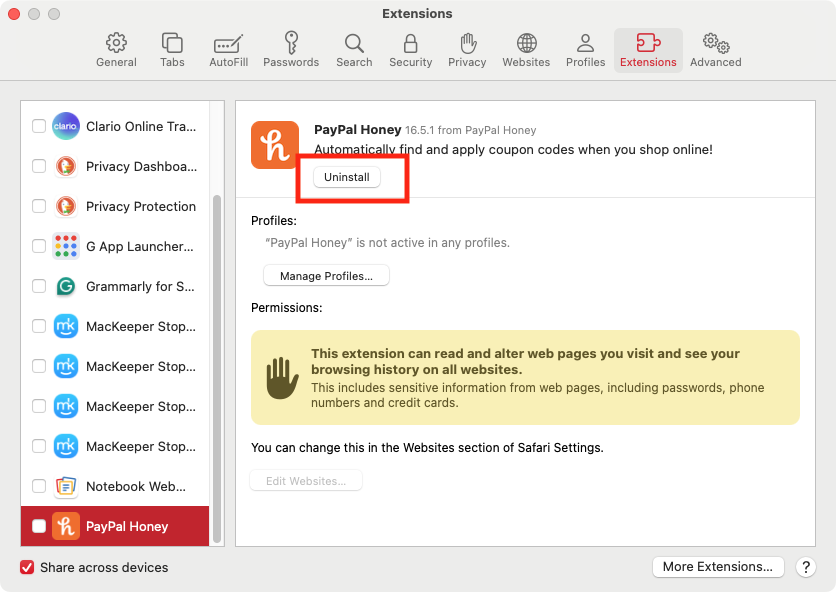
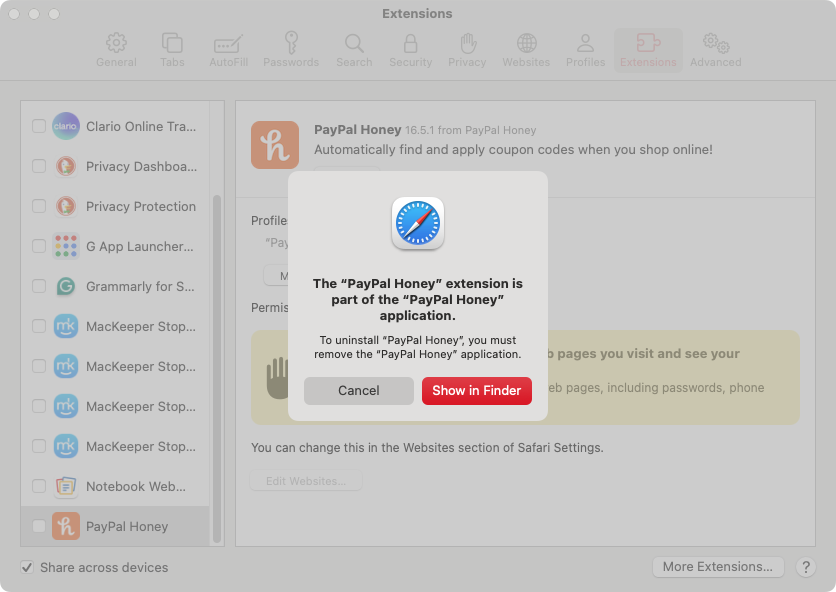
Select Extensions, then pick an extension and click Uninstall.
Click Show in Finder.
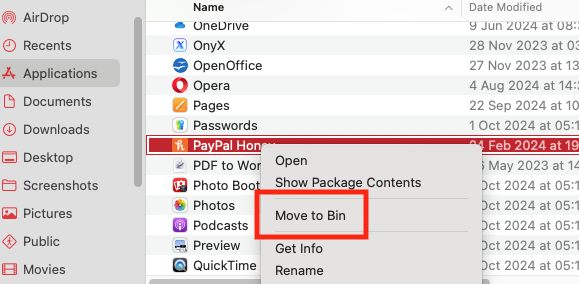
Send the extension to your Trash, then empty it.
Step 1. Open Safari settingsStep 2. Click the uninstall button on an extensionStep 3. Click Show in FinderStep 4. Delete the Safari extension
5.2. Delete Search Alpha from Google Chrome
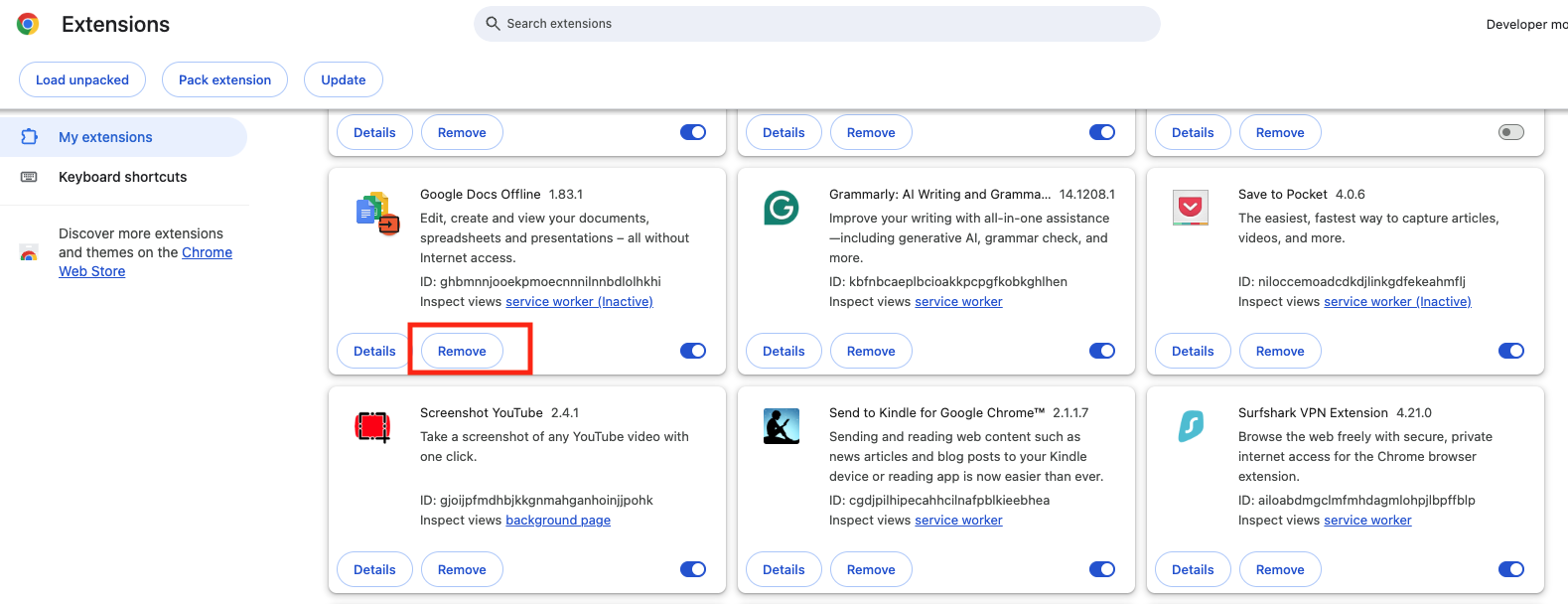
Making Google Chrome safe from malware is easy. Do as follows to get rid of any Search Alpha add-on in Chrome for Mac:
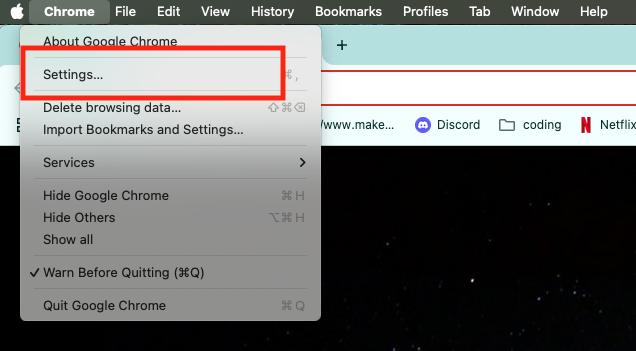
In the Chrome menu bar, select Chrome > Settings.
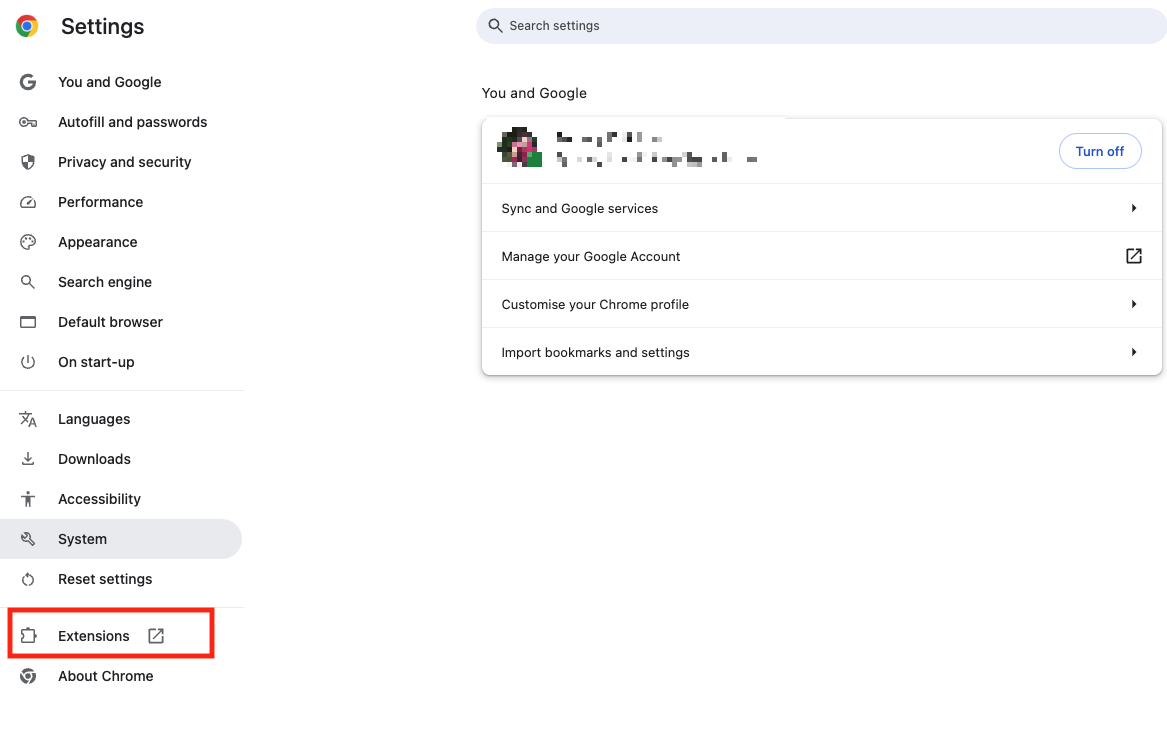
Click Extensions from in the sidebar.
To delete an extension, click its Remove button.
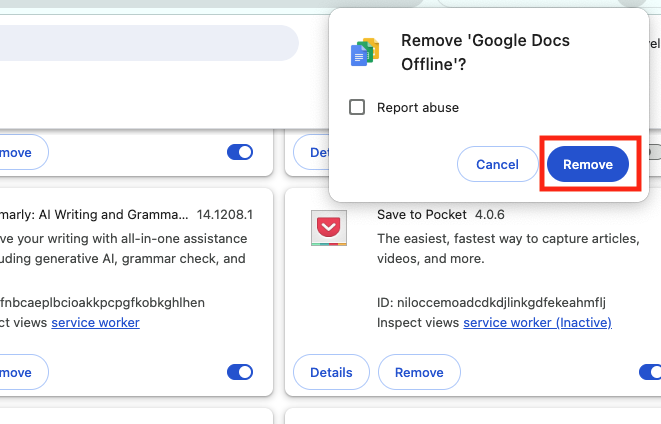
Click Remove again to confirm the removal.
Step 1. Open Chrome settingsStep 2. Select Extensions in the sidebarStep 3. Click the Remove buttonStep 4. Click Remove again to confirm
5.3. Get rid of the Search Alpha virus from Mozilla Firefox
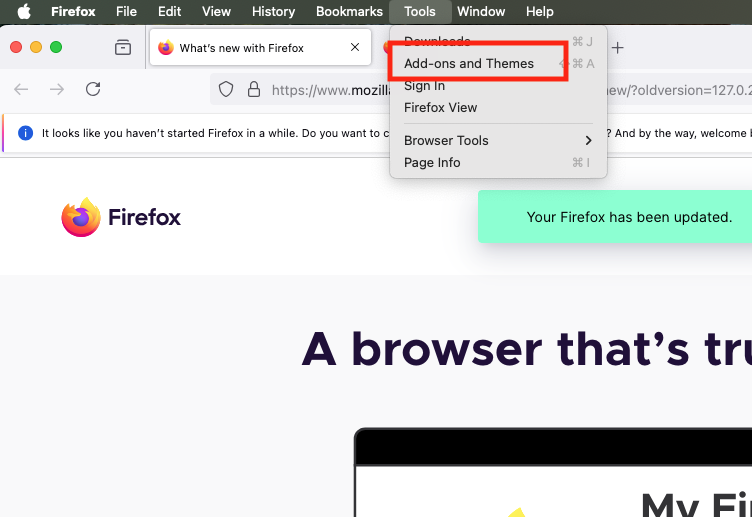
Select Tools > Add-onsand themes from the Firefox menu bar.
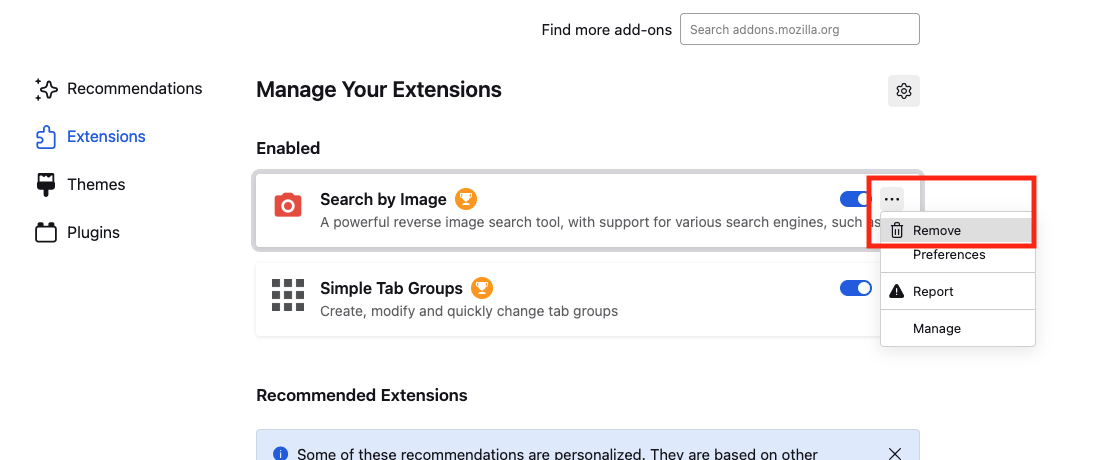
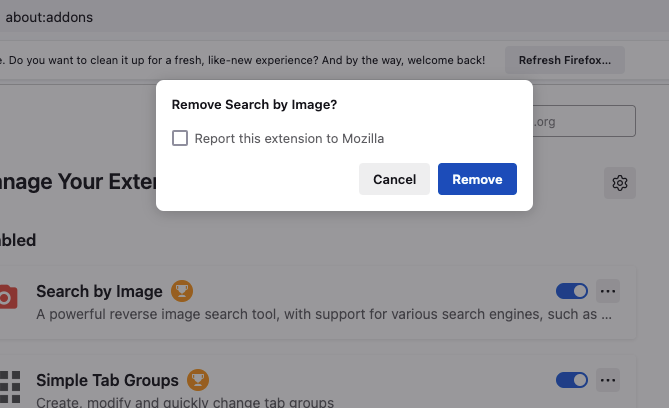
If you see an add-on that you want to remove, click the three dots next to its name. Select Remove.
In the pop-up window, click Remove.
Step 1. Select Add-ons and ThemesStep 2. Click the three dots and click RemoveStep 3. Click the Remove button to delete the add-on
5.4. Remove the search-alpha.com virus from Opera
As with other browsers for Mac, it’s easy to remove unwanted extensions from Opera. Here’s what you need to do:
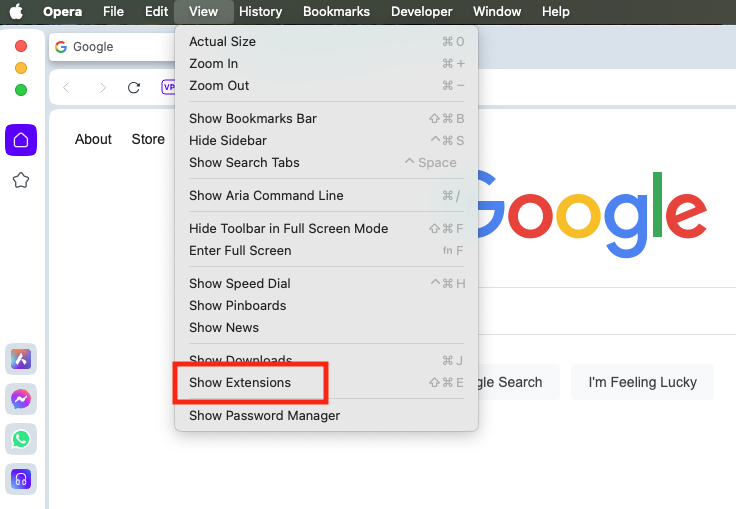
In Opera, select View > Show Extensions from the menu bar.
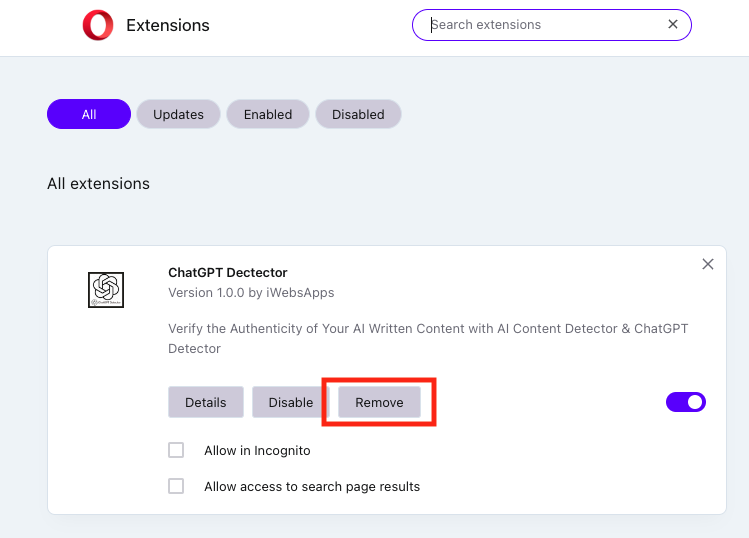
Find an extension you want to remove, and click its Remove button.
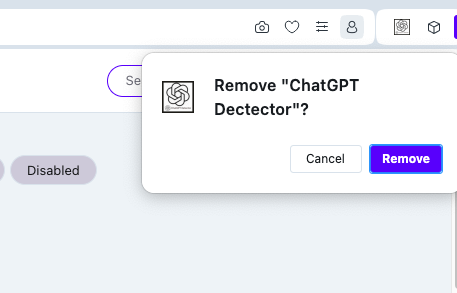
Click Remove to confirm the removal.
Step 1. Select View > Show ExtensionsStep 2. Select an app and click RemoveStep 3. Confirm removal of the extension
How to prevent Mac against Search Alpha virus
It is, of course, useful to know how to detect malware on Mac and remove it. But you know what’s even better? Avoiding malware in the first place.
So how do you stop the Search Alpha virus from ever getting on your Mac? While there’s no foolproof way to prevent malware infections, we’ve gathered some practical steps you can take to significantly improve your defenses.
Install antivirus: Preferably, you should use an app like MacKeeper, which offers real-time protection. This always-on support works quietly in the background, stopping viruses from ever getting a foothold on your Mac.
Avoid unsavory websites: Websites that offer pirated or adult content are renowned for hosting malware. Steer clear of them if you want a virus-free Mac. Under no circumstances should you click the ads, because they too can be loaded with malware.
Keep everything updated: Hackers often look for flaws in other people’s apps, which they can exploit. That’s why Apple and other companies often release security patches for their products, to plug such holes. Make sure macOS and all your third-party apps have the latest updates installed to avoid any issues in the future.
Don’t install software bundles: Browser hijackers are often hidden in software bundles. Avoid them, and you’ll minimize your chances of installing this irritating malware. To be safe, we insist on only installing apps from the Mac App Store or from the official websites of trusted companies.
Watch out for email attachments: If you get an email from someone you don’t know, don’t download or open any attachments in it. This is a common way hackers get malware onto people’s computers. The same applies to any instant messaging apps you use on your Mac. In other words, we don’t recommend opening anything that comes from strangers.
Recognize and deal with the threat
Browser hijackers like Search Alpha are more than just an annoyance. As well as redirecting your web traffic to make money for their developers, they can potentially do a lot more damage—and that’s why it’s so crucial to delete this malware from your Mac. Today, they might just change your search settings, but at any point, they could also steal your data or install additional malware.
While you can and should take some manual steps to remove all traces of Search Alpha, you’ll also need the support of an antivirus app. MacKeeper’s Antivirus tool is an excellent choice. This malware cleaner offers both on-demand scans and real-time protection, so your Mac is always defended against viruses and other unwelcome guests.
We respect your privacy and
use cookies
for the best site experience.
Privacy Preferences Center
We use cookies along with other tools to give you the best possible experience while using the
MacKeeper website. Cookies are small text files that help the website load faster. The cookies we
use don’t contain any type of personal data meaning they never store information such as your
location, email address, or IP address.
Help us improve how you interact with our website by accepting the use of cookies. You can change
your privacy settings whenever you like.
Manage consent
All cookies
These cookies are strictly necessary for enabling basic website functionality (including page
navigation, form submission, language detection, post commenting), downloading and purchasing
software. The website might malfunction without these cookies.