Before setting up Thunderbolt Bridge on Macs, we recommend checking that both are free from viruses. Malicious software on one device can easily infect the other. Use MacKeeper’s Antivirus to detect and remove any threats if necessary.
Introduced in OS X Mavericks, Thunderbolt Bridge allows two supported Mac computers to communicate at ultra-fast speeds. It uses the versatile Thunderbolt interface designed by Intel in collaboration with Apple. As a result of using Thunderbolt Bridge, you can quickly transfer files from Mac to Mac, create a network between multiple computers, and more.
I’ve found this feature particularly handy for migrating data from an old MacBook Air to a new one, and it’s significantly quicker than using Wi-Fi or Ethernet.
How to enable Thunderbolt port on Mac
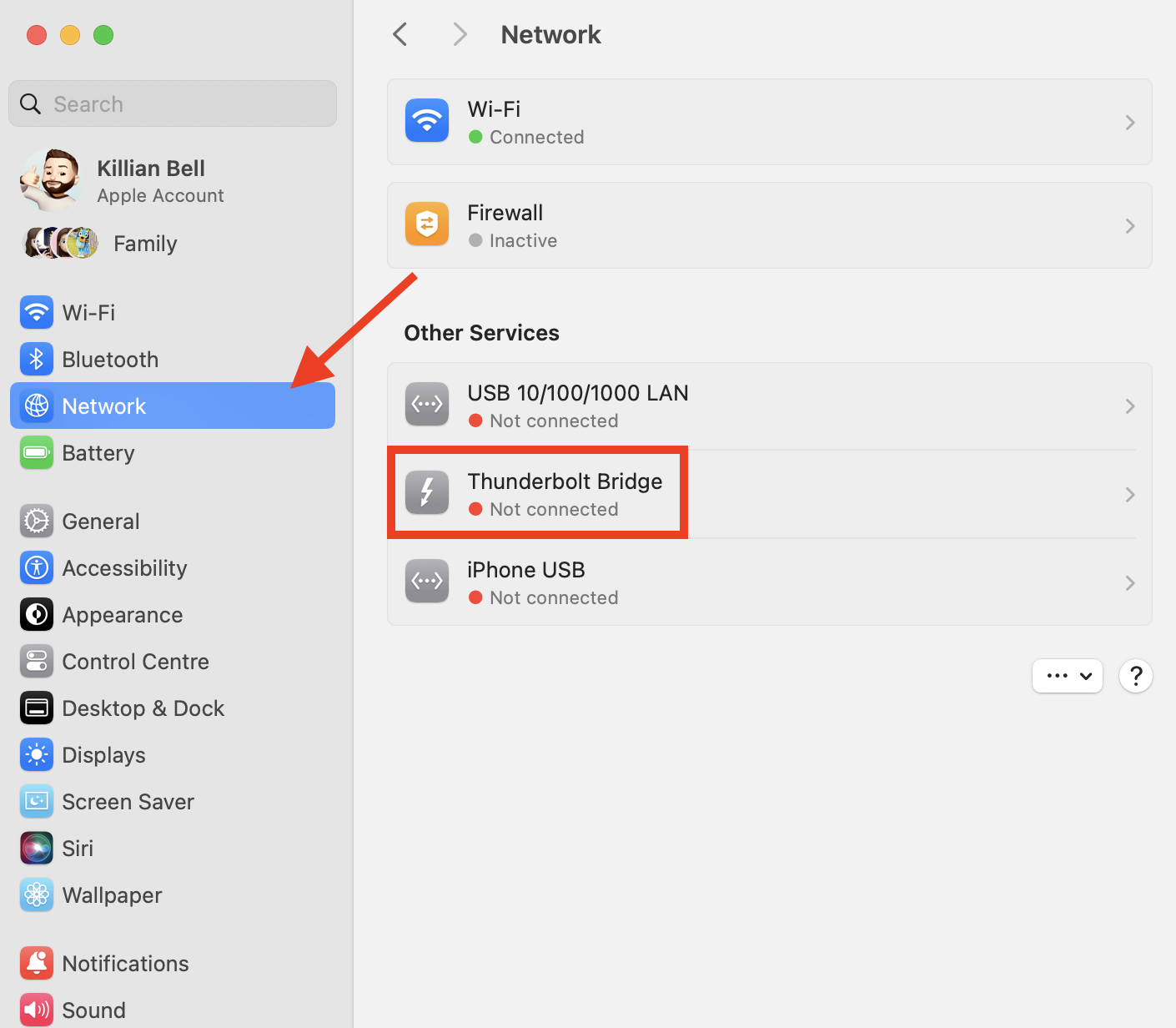
Our team of Mac experts has agreed that the easiest way to activate Thunderbolt port on Mac is through the Network menu in System Settings. Select the feature under Other Services, then if you see a popup that says “New Interface Detected,” click OK and then Apply to activate Thunderbolt Bridge.
Meanwhile, you can also configure your Thunderbolt Bridge preferences within this menu. You’ll find TCP/IP, DNS, and proxy settings here, as well as the option to re-enable the feature if you accidentally removed it from your Mac in the past. Or if you’re looking to set up Target Disk Mode, which lets you connect to a Mac over Thunderbolt Bridge as if it’s an external hard disk and access all its contents, go to General > Startup Disk.
A note from our experts:
Using Thunderbolt Bridge between Mac computers has many advantages over using Wi-Fi. However, there is also a possibility of viruses being transmitted between connected devices. Before transferring items via Thunderbolt Bridge, make sure that there are no malicious files on your Mac computers by using MacKeeper’s Antivirus.
Here’s how to find and remove any harmful software that may be on your Mac with MacKeeper’s Antivirus:
Click Start Scan to uncover all malware and viruses on your Mac.
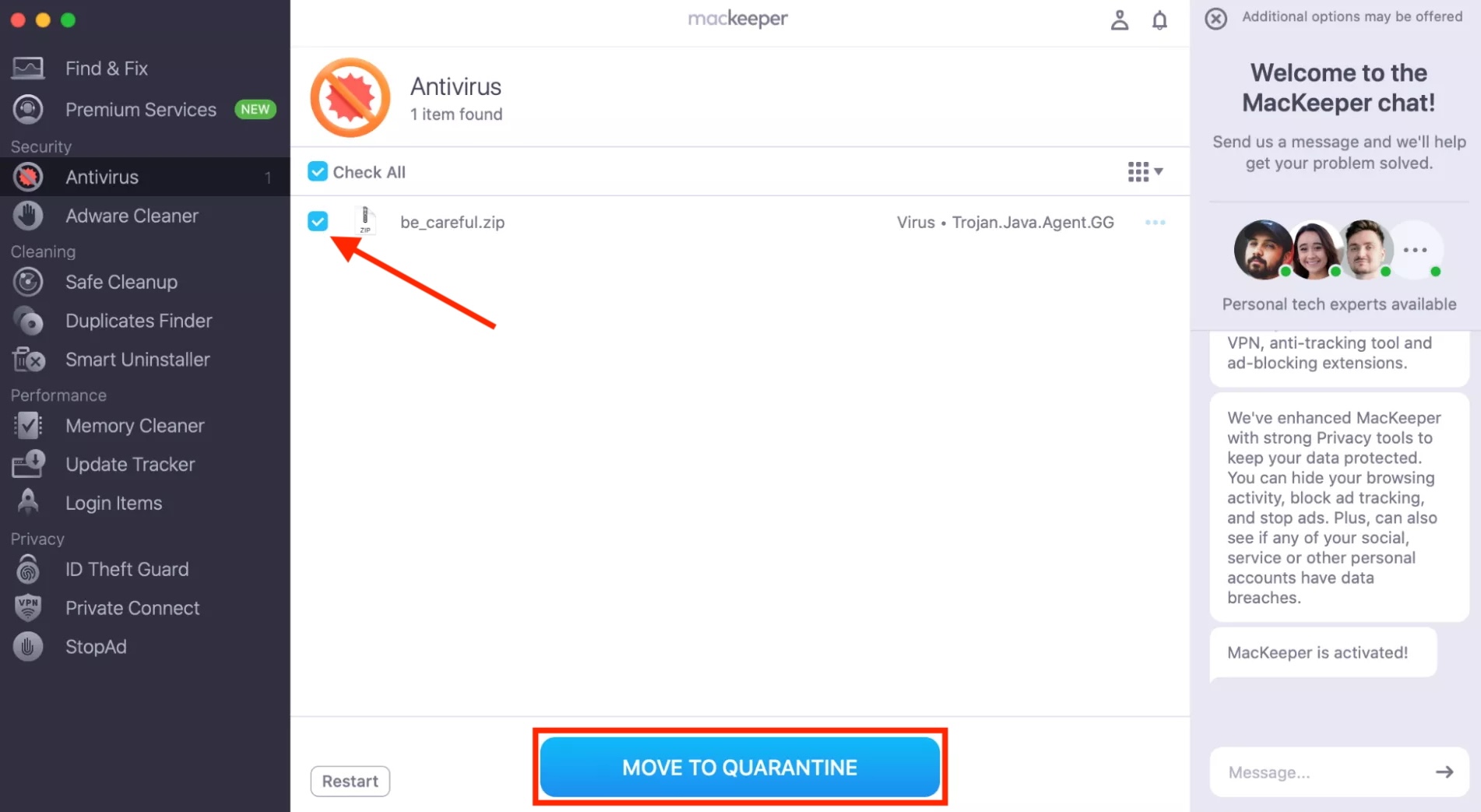
If any threats are found, select them, then click Move to Quarantine.
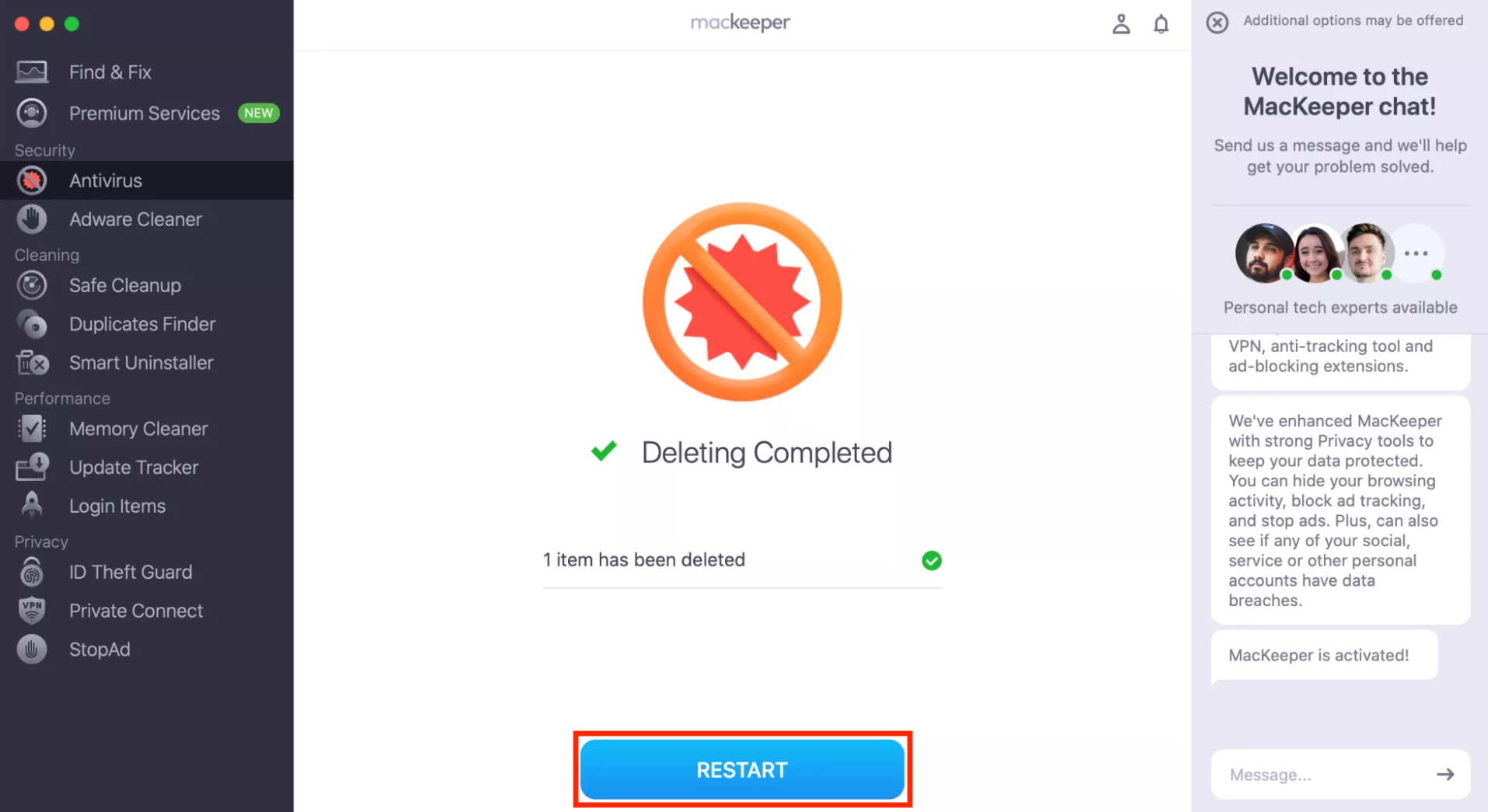
Restart the app when prompted.
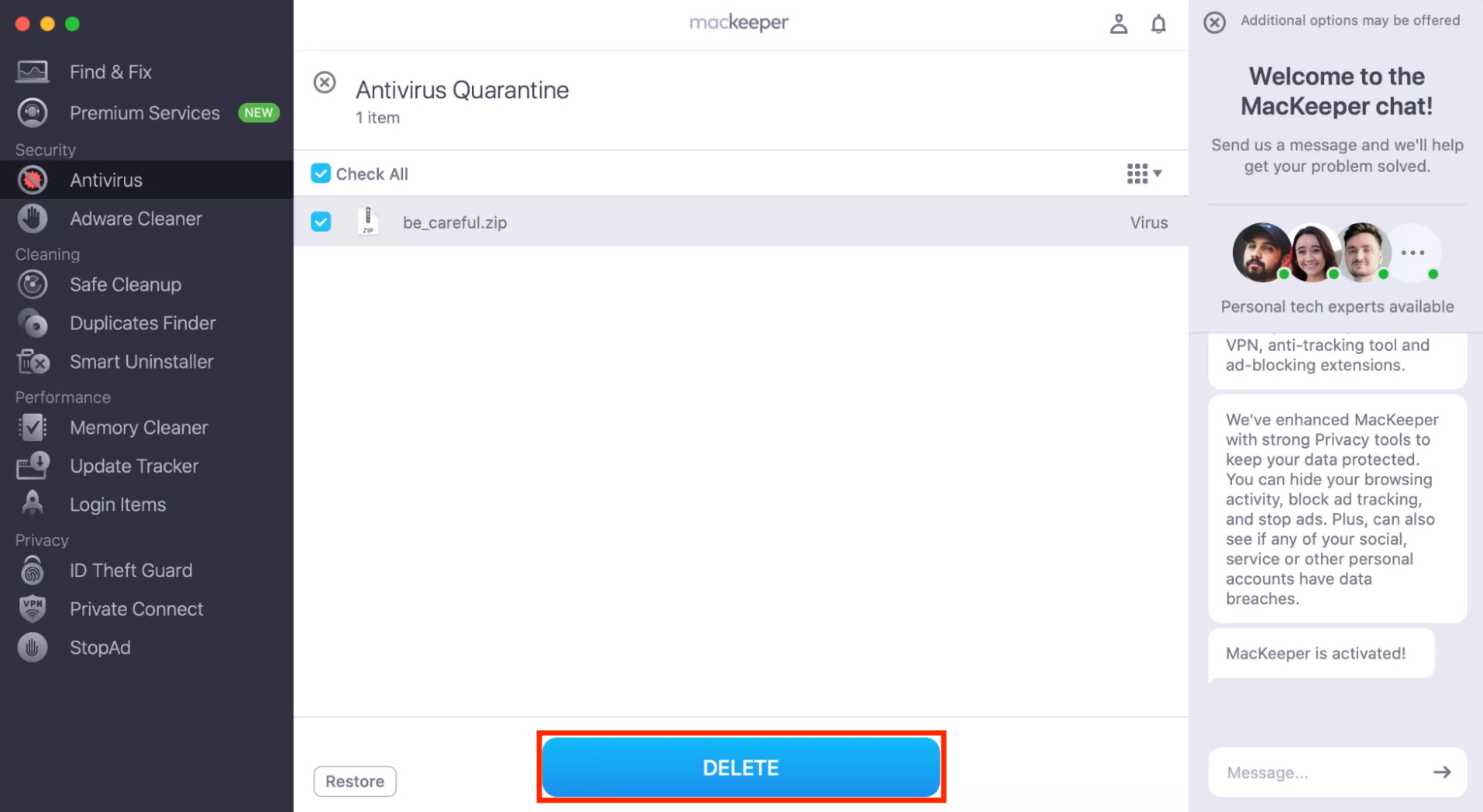
When MacKeeper reopens, click Delete to remove all threats from your computer.
Step 1. Open MacKeeper Antivirus and click Start ScanStep 2. Select any threats, then click Move to QuarantineStep 3. Click RestartStep 4. Select Delete to remove all viruses
How to check that Thunderbolt Bridge is connected to Mac
Would you like to check that Thunderbolt Bridge is connected and configured correctly on Mac? Is it your first try? Do the following:
Ensure your cable is Thunderbolt compatible, not just a standard USB-C cable.
Securely connect both Macs.
Confirm that the indicator alongside Thunderbolt Bridge in System Settings is green.
What to do if Thunderbolt Bridge isn’t connected to MacBook
We sometimes find that Thunderbolt Bridge says it’s “Not connected” in the Network menu, even after following the correct setup process. Sometimes, this is simply a glitch in System Settings, and you’ll still be able to transfer files at full speed. Other times, you may need to update macOS, reconnect your Macs, or adjust your Thunderbolt Bridge settings in the Network menu to ensure everything is correct.
If you’re trying to share an internet connection, I find that outdated or incorrect Thunderbolt Bridge on Mac settings are usually to blame for any issues. Here’s how to fix it:
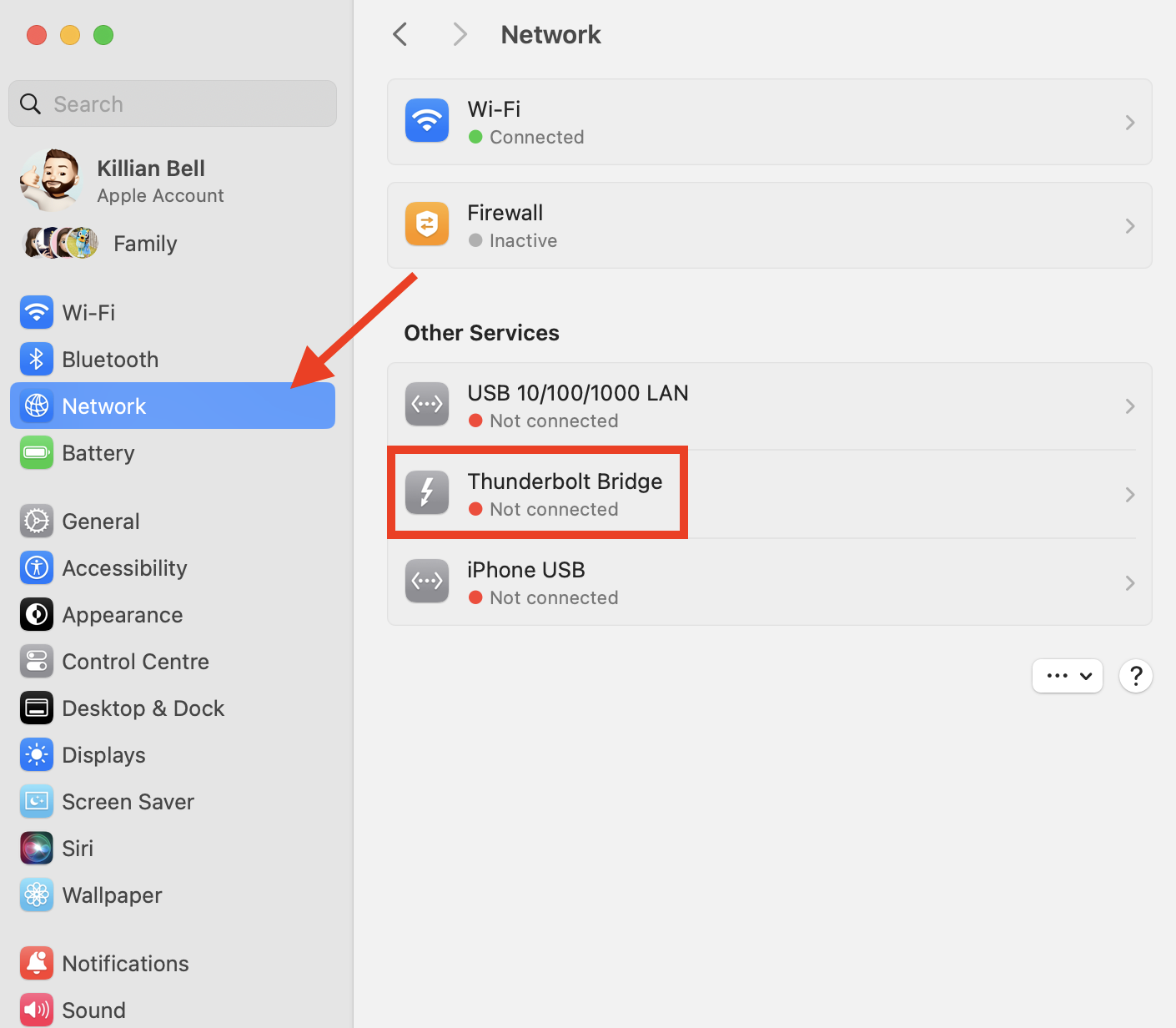
Open System Settings > Network.
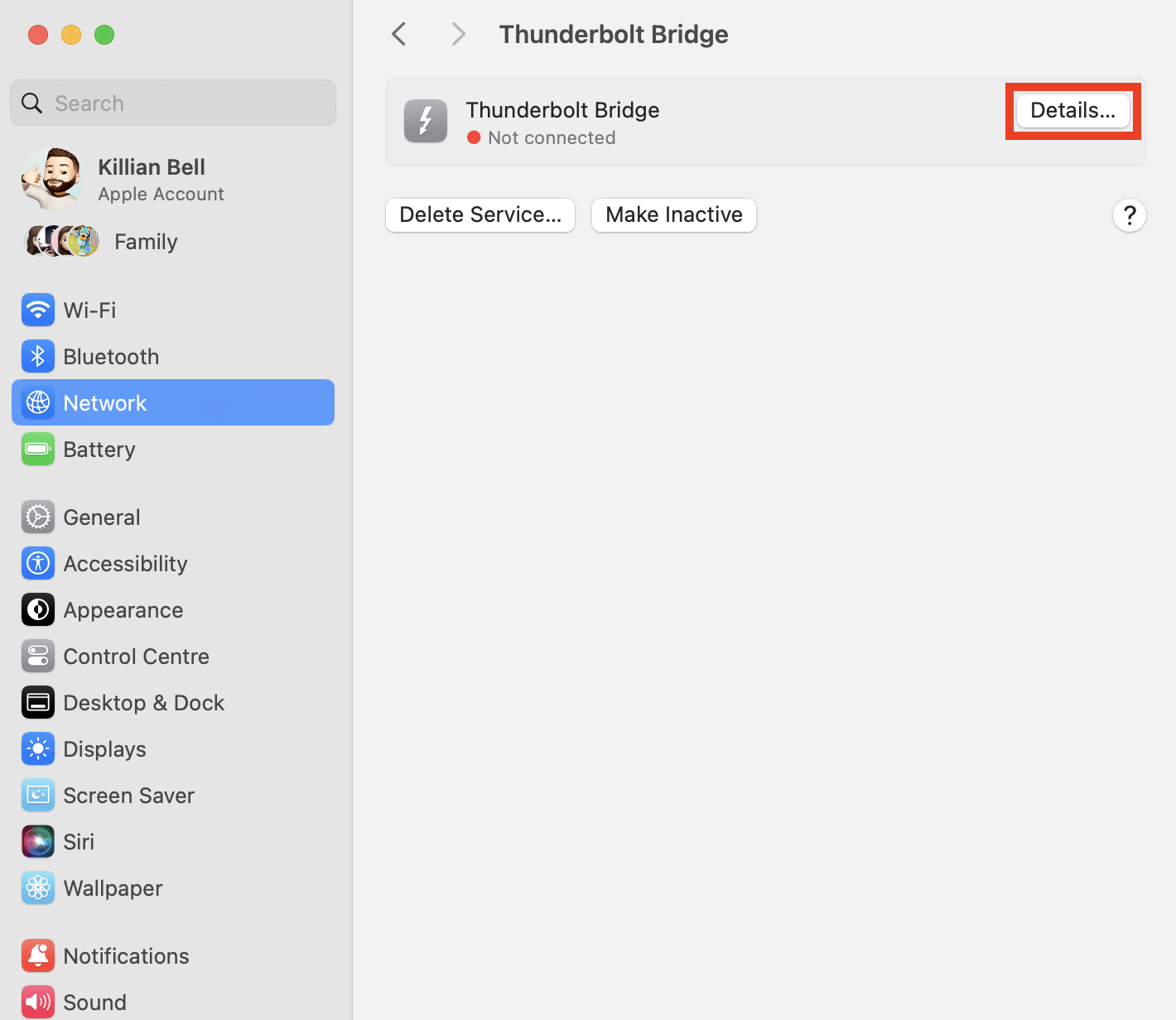
Click Thunderbolt Bridge, then choose Details.
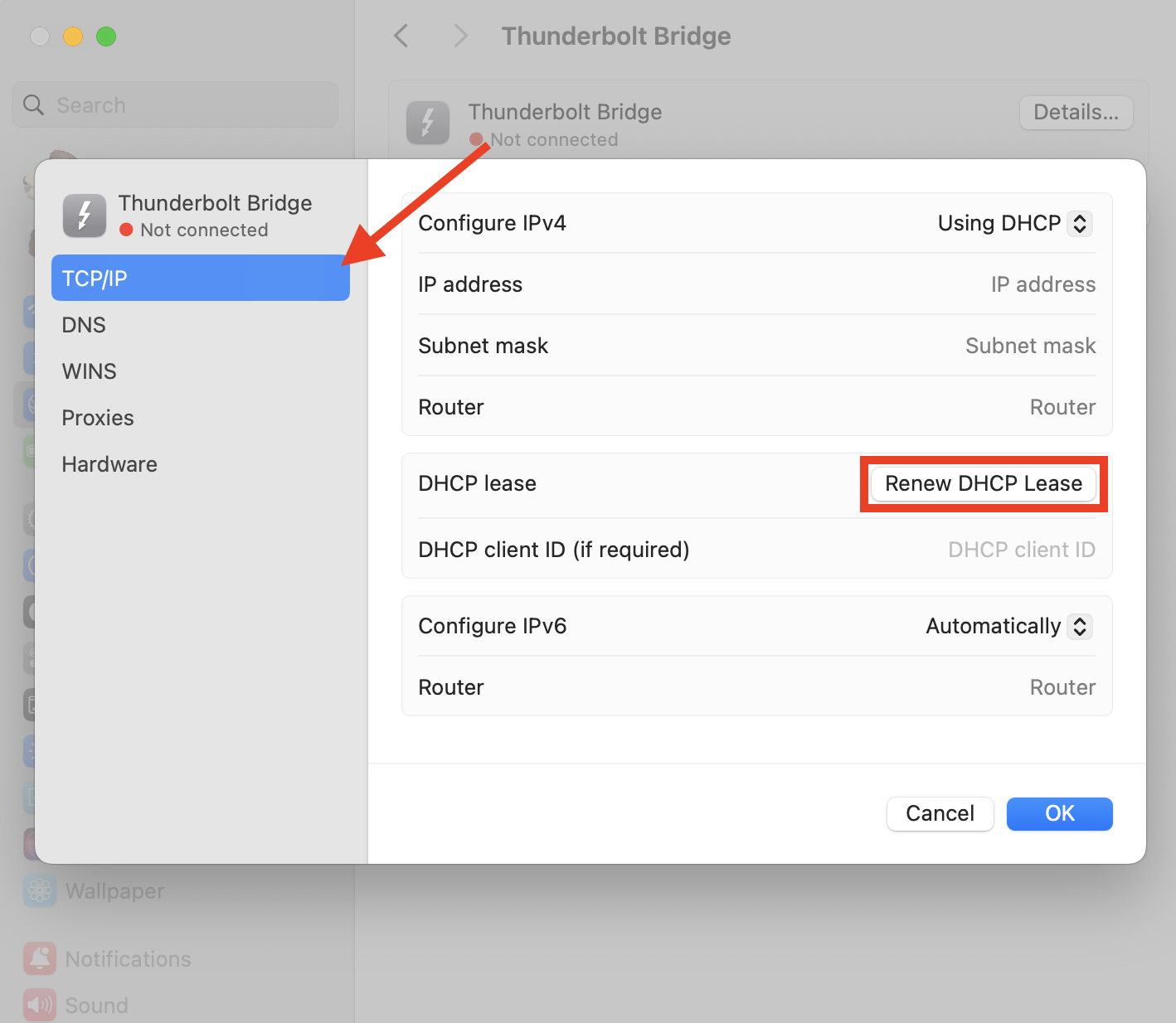
Select TCP/IP and ensure all settings are correct.
Click Renew DHCP Lease, then select OK to finish.
Step 1. In System Settings > Network, select Thunderbolt BridgeStep 2. Click DetailsStep 3. Select TCP/IP, then click Renew DHCP Lease
How to transfer files between two Macs with Thunderbolt Bridge
To transfer files and data over Thunderbolt Bridge, we recommend beginning by connecting both Macs using a compatible Thunderbolt cable. Your primary Mac will then show up as a Network device in Finder on your secondary Mac, and vice versa. If you don’t see it, make sure File Sharing is enabled in System Settings > Sharing.
How to remove Thunderbolt interface on Mac
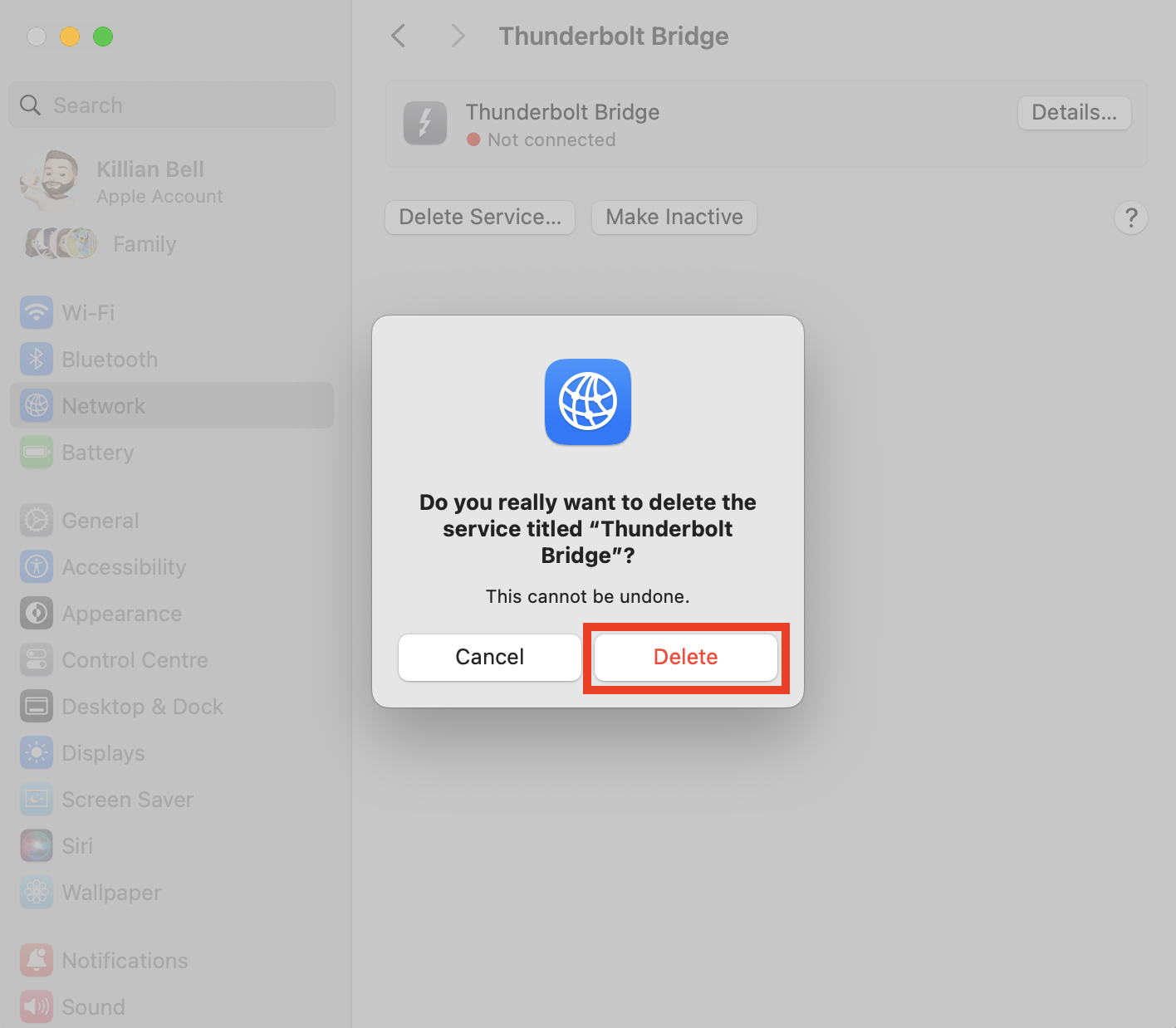
You can easily remove the Thunderbolt connection on Mac if you no longer want to use it. Here’s how:
Go to System Settings > Network, then select Thunderbolt Bridge.
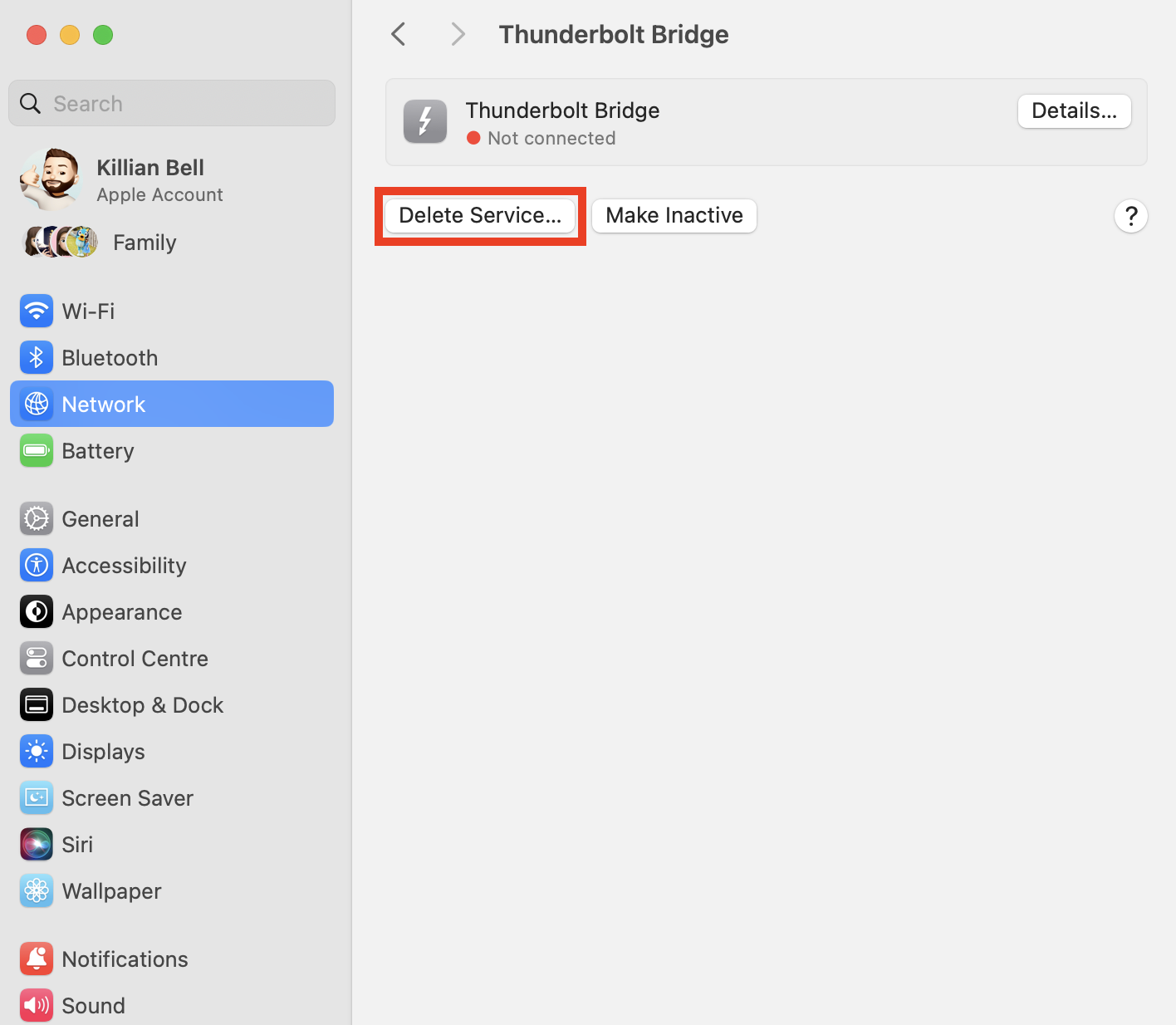
Click the Delete Service button.
Click Delete to confirm.
Step 1. In System Settings, select Network > Thunderbolt BridgeStep 2. Click Delete ServiceStep 3. Click Delete again to confirm
An extra hint from us:
We don’t recommend removing Thunderbolt Bridge from your Network settings unless it’s absolutely necessary, even if you prefer to use other data transfer solutions, like AirDrop from iPhone to Mac. It doesn’t hurt to leave it inactive.
Conclusion
Thunderbolt Bridge is one of the easiest and fastest ways to transfer data and share an internet connection between two Macs. It’s also great for setting up small P2P networks. Using the guide above, you’ll learn how to activate it, troubleshoot it, and remove Thunderbolt Bridge from your Mac.
Remember that before migrating data from one Mac to another, it’s important to run an antivirus scan to prevent a potential infection from corrupting a second machine. To do this, try the powerful Antivirus tool built into MacKeeper and safely remove any threats your Mac may have.
We respect your privacy and
use cookies
for the best site experience.
Privacy Preferences Center
We use cookies along with other tools to give you the best possible experience while using the
MacKeeper website. Cookies are small text files that help the website load faster. The cookies we
use don’t contain any type of personal data meaning they never store information such as your
location, email address, or IP address.
Help us improve how you interact with our website by accepting the use of cookies. You can change
your privacy settings whenever you like.
Manage consent
All cookies
These cookies are strictly necessary for enabling basic website functionality (including page
navigation, form submission, language detection, post commenting), downloading and purchasing
software. The website might malfunction without these cookies.