Your MacBook keeps freezing and crashing, so you figured it’s a good idea to delete dyld files to free up space and hopefully fix performance issues. Before you do, consider the risks listed in this article and use MacKeeper’s Memory Cleaner instead. This tool improves your Mac’s memory usage by freeing up RAM and closing high-consumption apps and processes, thereby enhancing device speed and performance.
On macOS, dyld is a critical tool that enables Mac apps and programs to run quickly and efficiently at startup and while running. It achieves this by identifying, linking, and loading the shared libraries and frameworks (also known as dynamic libraries or .dylib files) that apps require to launch and run. Dyld speeds up system library loading by reducing memory/IO overhead using a shared cache (dyld_shared_cache).
On macOS, dyld is specialized software that prepares and runs executables. It’s the first piece of code that runs when you launch an app.
Wondering what dyld is responsible for? Here are the key functions of dyld on macOS:
Loading dynamic libraries: It locates and maps into the process's memory space the dynamic frameworks and libraries (.dylib or.framework) needed by an executable.
Symbol binding: Dyld links the machine code in the loaded libraries to the "placeholders" in your code, such as a call to printf. This can happen immediately upon startup (a process known as non-lazy binding) or the first time a function is called (also known as lazy binding).
Rebasing (ASLR fixups): Address Space Layout Randomization (ASLR) causes libraries to be loaded at random memory addresses. To match these real locations, dyld rebases internal pointers in the binary.
Running initializers: It executes static constructors (such as Objective-C +load methods and C++ global object constructors) to ensure the environment is prepared for the program's logic.
Managing the shared cache: Dyld uses a system-wide shared cache with pre-linked versions of common system libraries (such as Foundation and UIKit) to speed up launch times.
Managing the shared cache: Dyld uses a system-wide shared cache with pre-linked versions of common system libraries (such as Foundation and UIKit) to speed up launch times.
Runtime services: Applications can manually load libraries or locate functions while the program is executing, thanks to dyld's dlopen(3) and dlsym APIs.
Security and interposing: It supports Interposing, which enables developers (or debuggers) to replace particular library functions with bespoke versions at runtime, and it enforces code signing requirements.
An extra hint from us:
Because dyld and its components reflect necessary background infrastructure rather than user-facing assets such as images or documents, they’re classified as System Data in macOS. MacOS combines thousands of system libraries into a single, sizable file known as the dyld shared cache to boost efficiency. Since it can frequently take up several gigabytes of space on your drive to ensure lightning-fast app launches, this cache is a major factor in why system data is so big on a Mac.
How dyld works on Mac?
To move an application from a static file on your disk to a running process in your memory on macOS, dyld adheres to a strict, sequential approach. As soon as the kernel detects that you are attempting to open a "Mach-O" executable, this procedure starts.
Below we’ve prepared a step-by-step launch sequence outlining how dyld works on a Mac:
Kernel hand-off: The macOS kernel maps the executable into memory when you open an application. After locating the path to the dynamic linker (usually /usr/lib/dyld) in the headers of the file, it jumps to the __dyld_start entry point.
Mapping dependencies: Dyld parses the app’s binary to determine its Load Commands. These instructions enumerate all the frameworks and libraries (such as Foundation or AppKit) that the program requires. Dyld then finds and maps these libraries into the application's memory.
Rebasing (ASLR): Address Space Layout Randomization (ASLR), which loads libraries at random addresses each time, protects macOS. By changing all internal pointers to correspond with these new, real memory addresses, dyld rebases the application.
Binding symbols: Dyld links the library code to the application's function calls.
Non-lazy symbols bind instantly and are necessary for the application to launch.
Lazy symbols link only when you use the program and call that particular function for the first time.
Running initializers: To make sure all libraries are "warm" and prepared, dyld calls static constructors and setup procedures, such as C++ global initializers or Objective-C +load methods.
Dyld only transfers control to your application's main function, enabling the actual program logic to start, once all libraries have been linked and initialized.
Common misconceptions about dyld folder on Macs
We’ve noted that macOS users often mistake dyld for junk because its shared cache can account for tens of gigabytes.
Since this data is buried under system directories and doesn't appear as a recognizable app or document, users running storage management tools typically see it as waste they need to get rid of to free up space.
Why is dyld shared cache so large?
Dyld shared cache is typically the largest part of macOS System Data, usually several gigabytes in size, because it contains a pre-linked copy of the hundreds of system libraries required to run Mac apps. Your Mac saves these system libraries in a single file for efficiency rather than rummaging through thousands of separate files.
Since this cache is vital for your computer to function properly, you shouldn't attempt to delete it manually; instead, we recommend that you to safely clear storage on your Mac by removing user-level junk and other unwanted files.
Where are dyld files located on different macOS versions?
Apple changed how dyld is stored as macOS evolved. In older versions (up to Catalina), files were located in /usr/lib/dyld. In newer versions, the linker stays there as a read-only part of the Signed System Volume. The shared cache was moved to Cryptexes.
Should you delete dyld files on Mac?
No, you should never delete dyld files on macOS. Since dyld acts as a gatekeeper for every process, deleting its files can lead to a host of issues. Your Mac apps may fail to launch, as dyld is responsible for linking and loading the libraries they need to function. Other potential issues include system crashes, boot failures, and security lockouts.
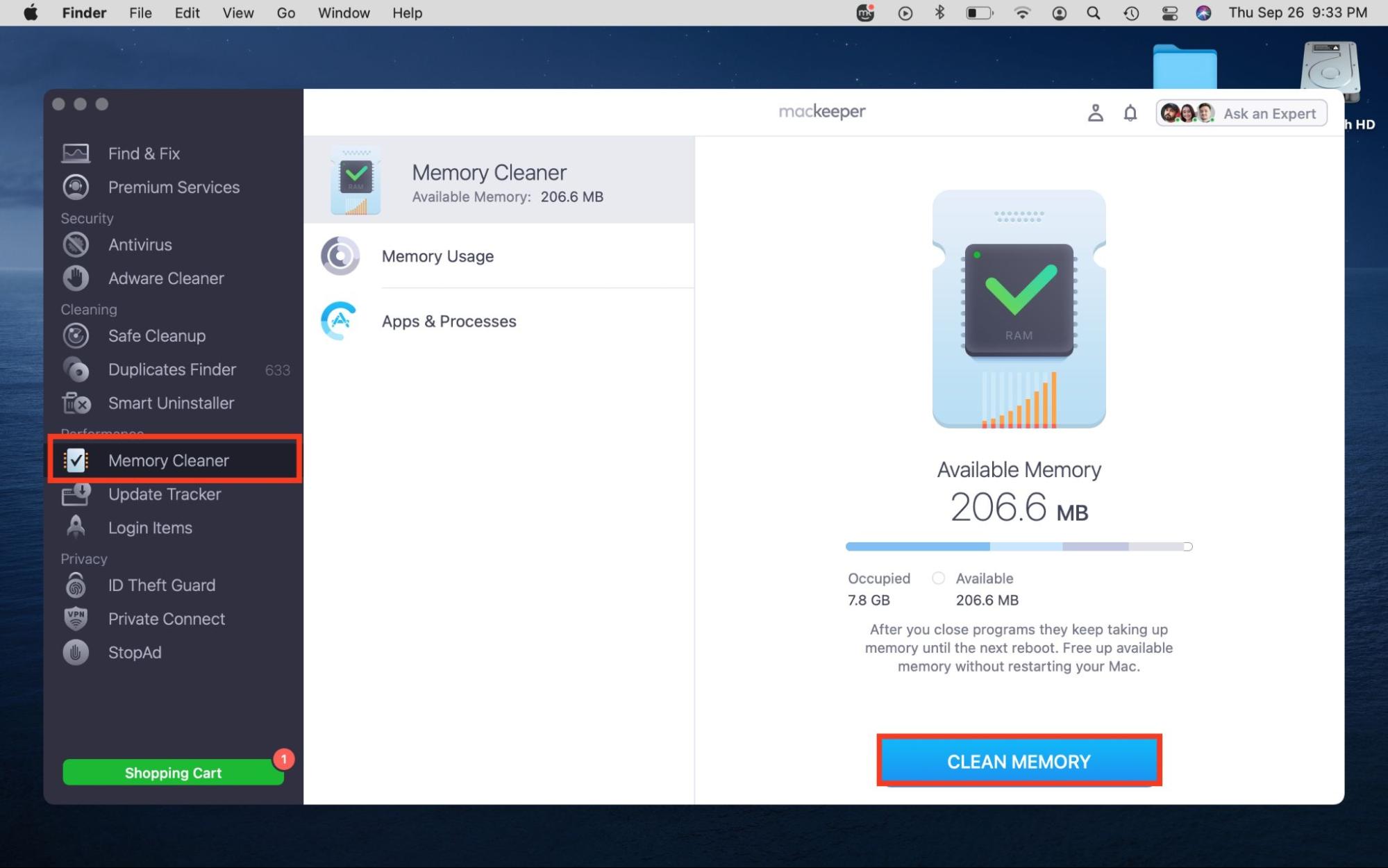
Has your Mac become sluggish? Does it either freeze or display the spinning wheel or a system memory error? You’re probably running too many high-demand apps simultaneously (video editors and web editors are common culprits). When this happens, macOS is known to use the disk as "swap" memory, which is significantly slower than actual RAM. Use MacKeeper’s Memory Cleaner to delete redundant processes and free up RAM on your Mac to restore system speed and responsiveness. Not only is MacKeeper notarized by Apple for your peace of mind, but it is also rated 4.3 on Trustpilot, with users describing it as “excellent” and “incredible in everything it does”.
Ready to join the thousands of users who trust MacKeeper with the health of their Mac devices? Follow our steps below:
Click on Open > Memory Cleaner, followed by Clean Memory when the button appears.
What happens after dyld cache is deleted?
Deleting the cache results in macOS failing to boot, as it can’t find instructions to load the desktop. On modern Macs, this breaks the system’s cryptographic seal. As a result, you may be forced into a full macOS reinstallation to restore the protected files and allow the operating system to verify itself again instead of a simple rebuild.
Why you shouldn’t delete dyld files on macOS?
Dyld is a critical macOS system component that plays a key role in starting every process on your Mac. Simply put, your operating system can’t function without it, and deleting or modifying its files could lead to immediate system crashes, app launch failures, and boot failures.
If you’re experiencing performance issues such as lagging and freezing, MacKeeper’s Memory Cleaner can help. Use our functionality to clear your Mac’s memory with a few clicks and restore your Mac’s performance.
We respect your privacy and
use cookies
for the best site experience.
Privacy Preferences Center
We use cookies along with other tools to give you the best possible experience while using the
MacKeeper website. Cookies are small text files that help the website load faster. The cookies we
use don’t contain any type of personal data meaning they never store information such as your
location, email address, or IP address.
Help us improve how you interact with our website by accepting the use of cookies. You can change
your privacy settings whenever you like.
Manage consent
All cookies
These cookies are strictly necessary for enabling basic website functionality (including page
navigation, form submission, language detection, post commenting), downloading and purchasing
software. The website might malfunction without these cookies.