When you notice your computer slowing down due to trustd Mac high CPU usage, identifying the specific background processes at fault is the first step toward reclaiming your system's speed. MacKeeper’s Memory Cleaner offers an efficient way to manage resource-intensive tasks, providing a professional, user-friendly interface to optimize your RAM and keep your device running smoothly.
The trustd process Mac is a legitimate macOS background daemon responsible for verifying digital certificates to ensure the security of your applications and web connections. It checks that certificates are valid and have not been revoked, which is essential for secure browsing in Safari and identity confirmation in Mail or Messages. While the process itself is a harmless system component, high CPU usage can occur if it encounters corrupt keychain files or struggles to reach Apple's verification servers.
Why is trustd process causing high CPU usage?
Corrupted certificate data or software conflicts often result in trustd using high CPU. Our team's tests show that outdated macOS builds or synchronization errors frequently trigger these resource spikes. Clearing corrupted keychains or rebooting your system typically restores stability by forcing the daemon to refresh its security database and stop the drain on your Mac's processing power.
A note from our experts:
Are you struggling with trustd using high CPU cycles that leave your device unresponsive? Since MacKeeper is a leading solution in Mac optimization and cybersecurity, we’ve proved throughout numerous tests that our Memory Cleaner is the perfect tool for terminating redundant background processes that drain your system resources. Plus, it’s a fast and reliable utility that provides performance monitoring to ensure your Mac runs smoothly without annoying lags.
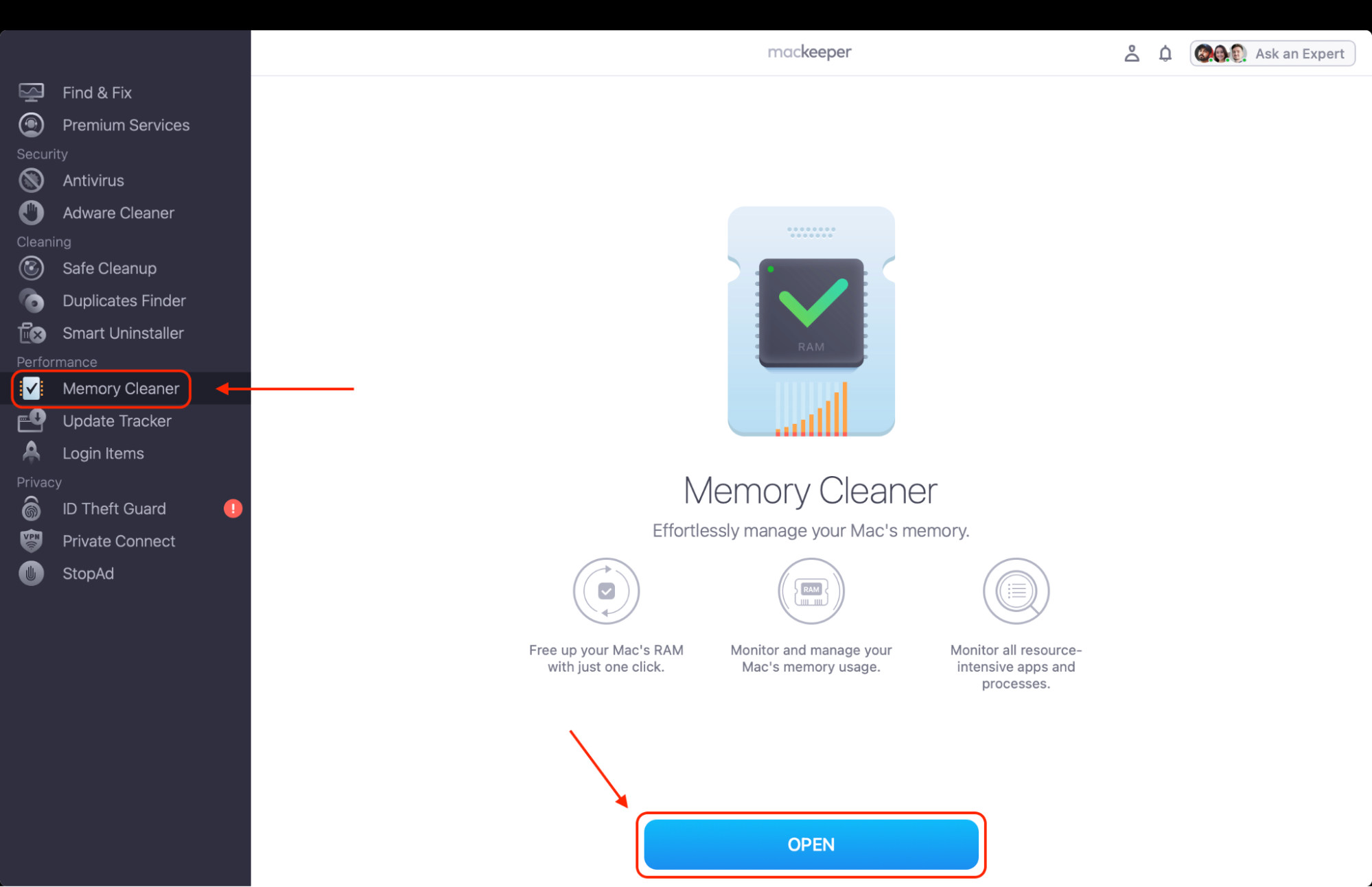
Select Memory Cleaner from the left-hand sidebar and click Open.
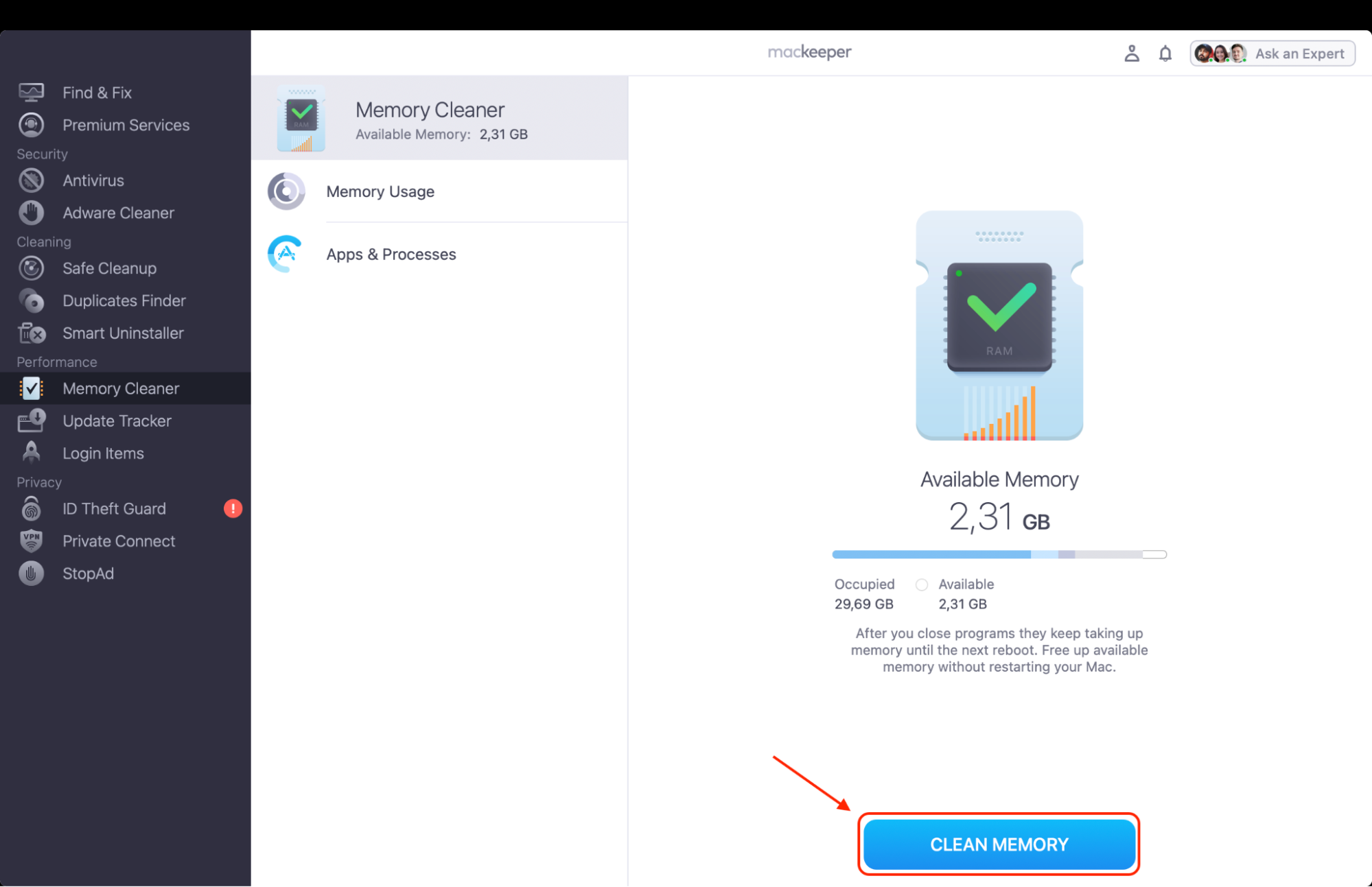
Click Clean Memory to instantly free up space and stop resource-hungry daemons from slowing you down.
Step 1. Open MacKeeper, go to Memory Cleaner, and click OpenStep 2. Look through your Memory usage and press Clean Memory to clear RAM
How to fix trustd high CPU usage on Mac?
To resolve high trustd cycles, first check CPU usage in Activity Monitor to confirm the drain. Our team's tests show that restarting your device, installing macOS updates, and running a malware scan often fix the issue. If it persists, however, try the following: rename the corrupted valid.sqlite3 files in the /private/var/protected/ folder and reboot your Mac.
1. Kill trustd process on Mac
When your MacBook feels sluggish, the quickest way to restore responsiveness is to manually kill a process that has become unresponsive. We've discovered that stopping this specific task allows macOS to reinitialize its security checks, often clearing glitches immediately.
Follow these steps to kill a process on Mac:
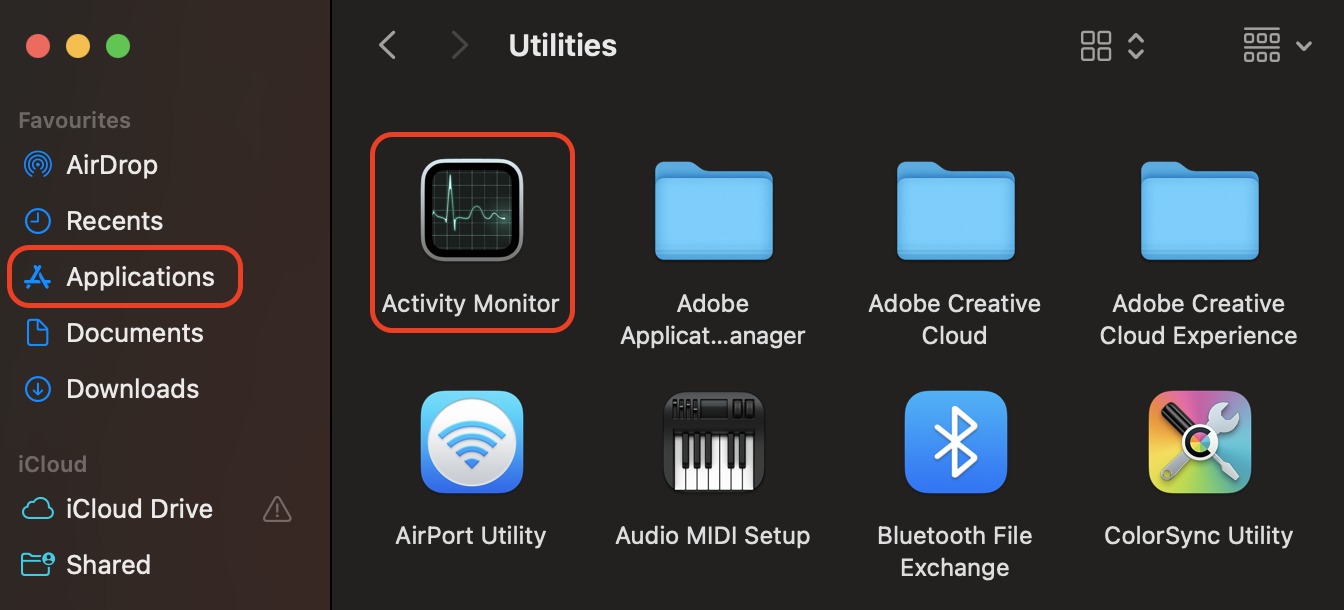
Open Activity Monitor by navigating to the Applications folder, then opening Utilities.
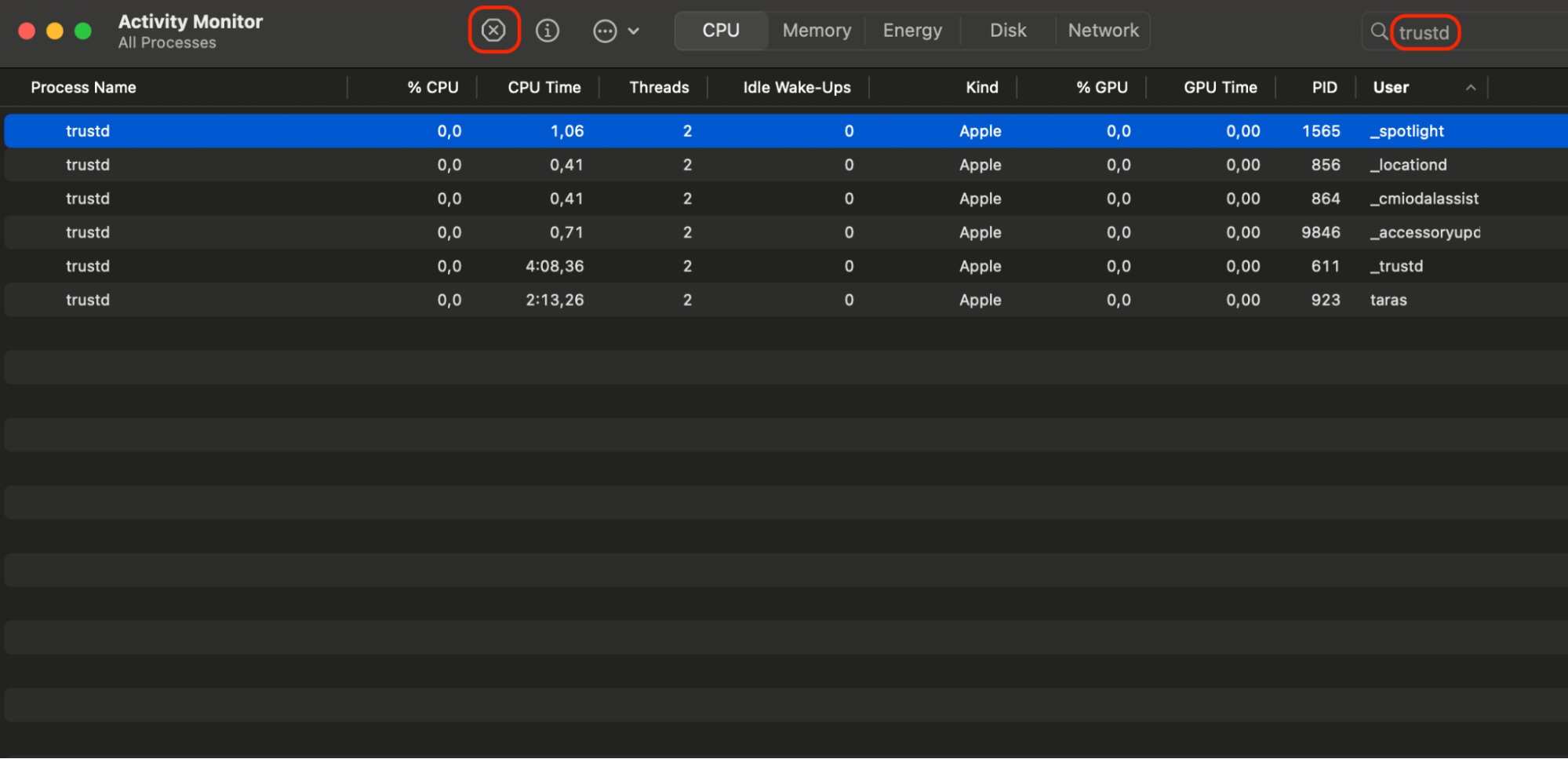
Click the CPU tab at the top of the window to sort active tasks by their current resource consumption.
Type "trustd" into the search bar located in the upper-right corner to quickly isolate the daemon.
Highlight the trustd entry by clicking on it once to select the process for termination.
Click the Stop icon (the X inside a hexagon) located in the upper-left area of the toolbar.
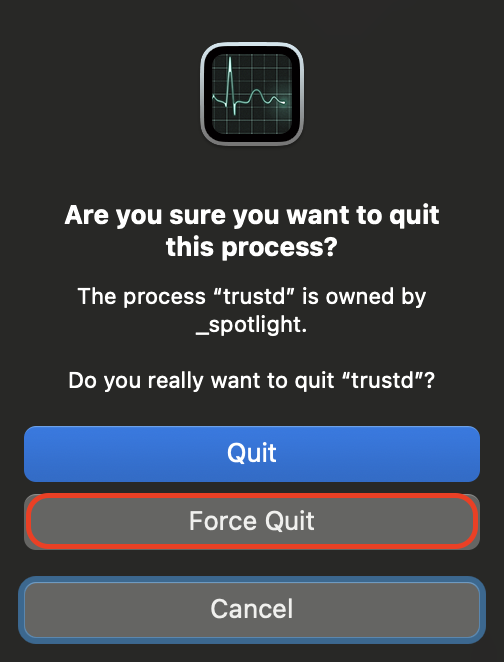
Select the Force Quit option from the pop-up dialog to instantly terminate the process and stop the CPU drain.
Step 1. Open Activity MonitorStep 2. Click the CPU, type “trustd” in the search bar, and click the Stop iconStep 3. Select the Force Quit option from the pop-up dialog
2. Delete Keychains file
If killing the task fails, we believe the root cause is a corrupted security database. While modern Macs utilize unified memory to access data quickly, a "bad" file forces trustd to waste RAM by repeatedly scanning broken certificates.
Apply our instructions to delete Keychains file:
Open a new Finder window to begin navigating your Mac's internal system library.
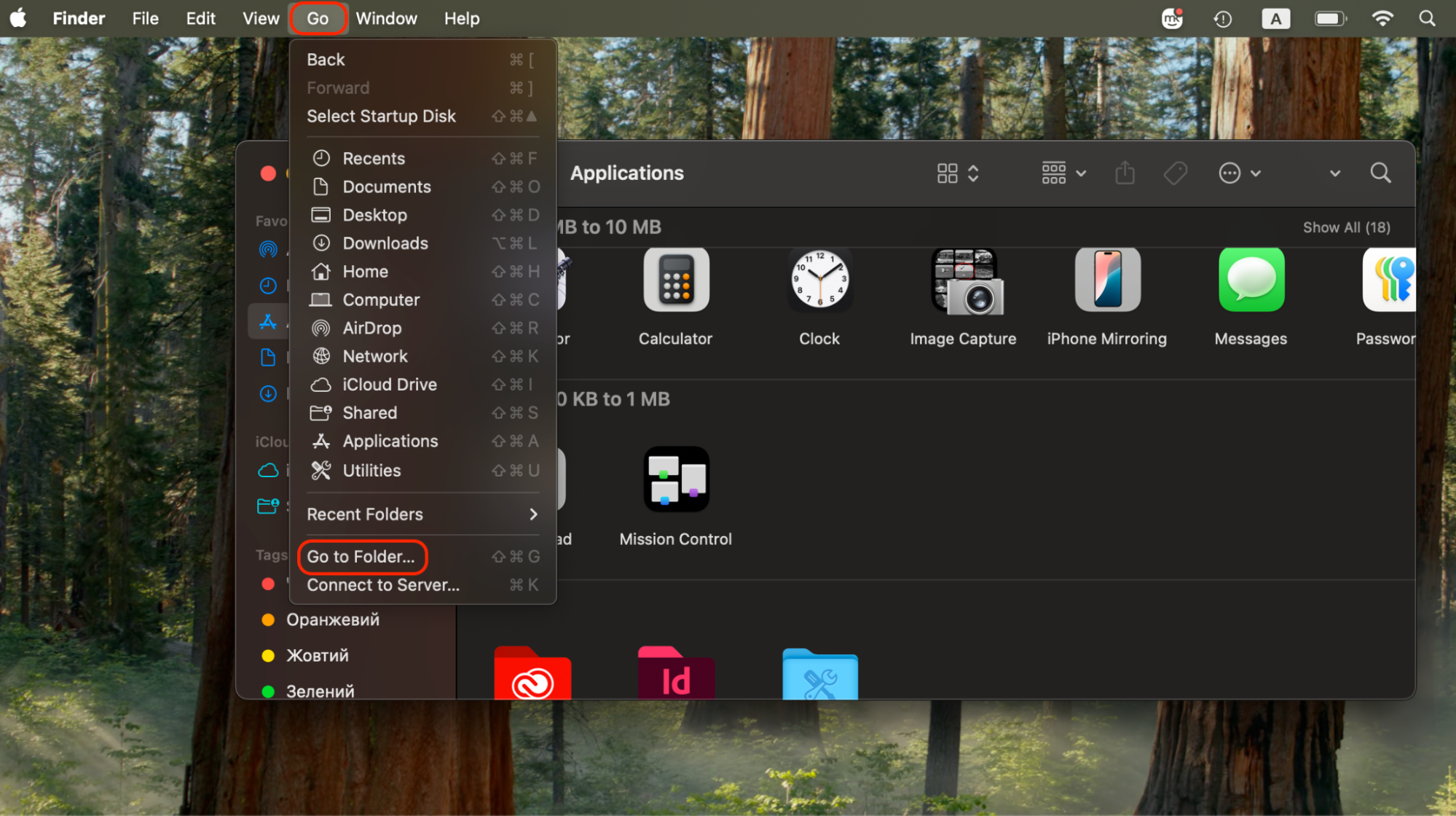
Click Go in the top menu bar, then select the Go to Folder option from the dropdown.
Enter the path /Library/Keychains into the text field and press Return to access the directory.
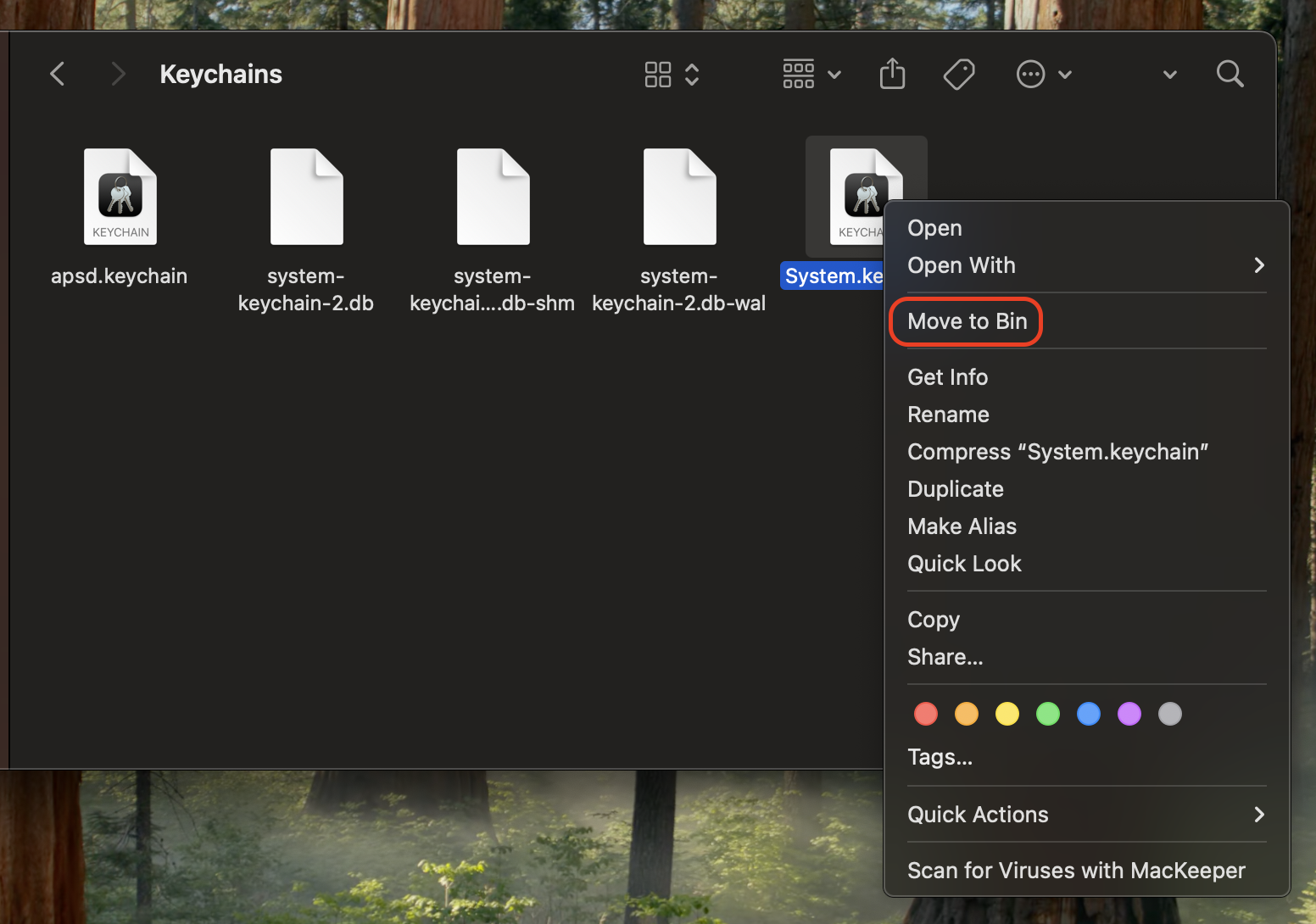
Locate the file named System.keychain within the folder displayed on your screen.
Right-click the file and select Move to Bin, or simply drag it directly to the trash icon in your dock.
Enter your administrator password if prompted by the system to authorize the removal of this protected file.
Restart your Mac immediately to allow the operating system to rebuild the database and restore normal performance.
Step 1. From Finder, click Go in the top menu bar, and choose Go to FolderStep 2. Enter the path /Library/Keychains into the text field and press ReturnStep 3. Locate the file named System.keychain, right-click the file, and select Move to Bin
3. Modify the trustd folder
For the most stubborn cases, our team suggests a deeper dive into protected directories to clear RAM of bloated certificate validation data. We've verified that renaming these files forces the OS to re-download official, clean security lists from Apple's servers.
Use our steps below to modify the trustd folder:
Shut down your Mac, then press and hold the power button or Command + R to enter Recovery Mode.
Click the Utilities menu in the top bar and choose Terminal to open the command-line interface.
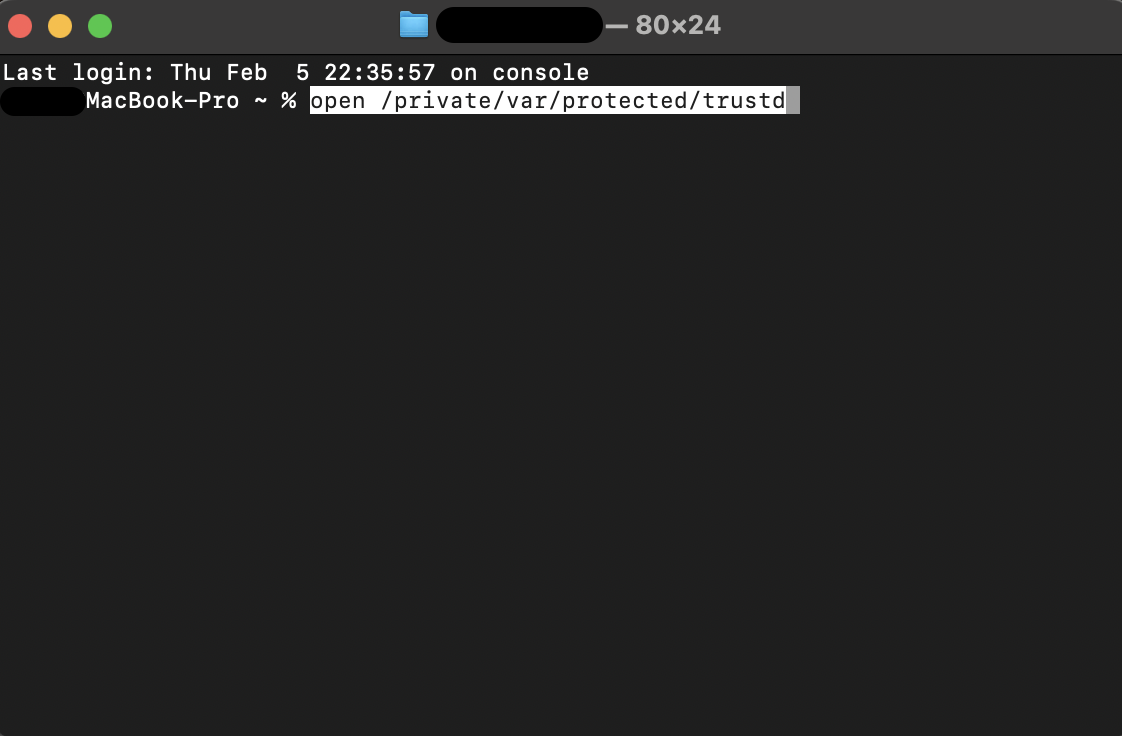
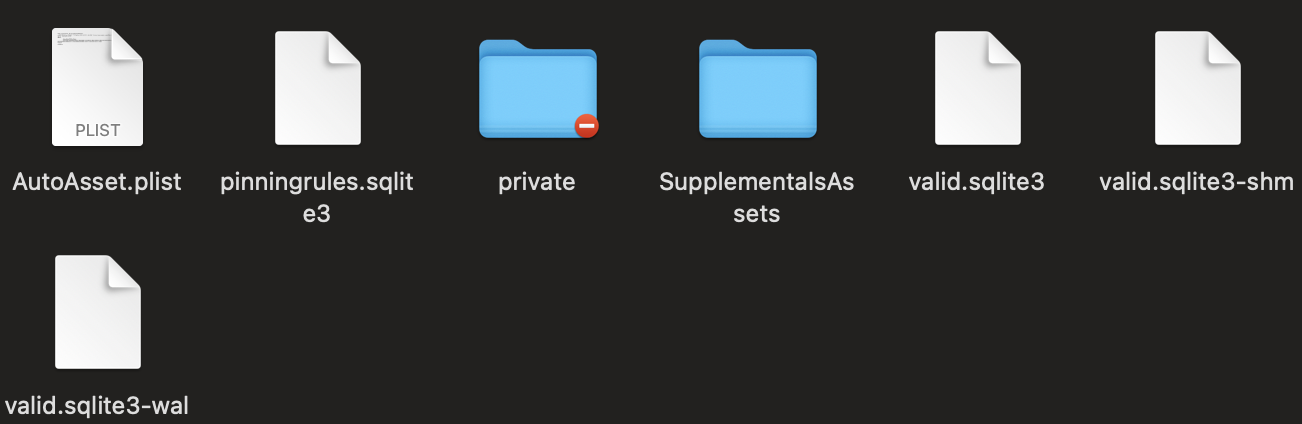
Type the command open /private/var/protected/trustd and press Return to reveal the hidden directory.
Identify any files in this folder that start with the specific name valid.sqlite3.
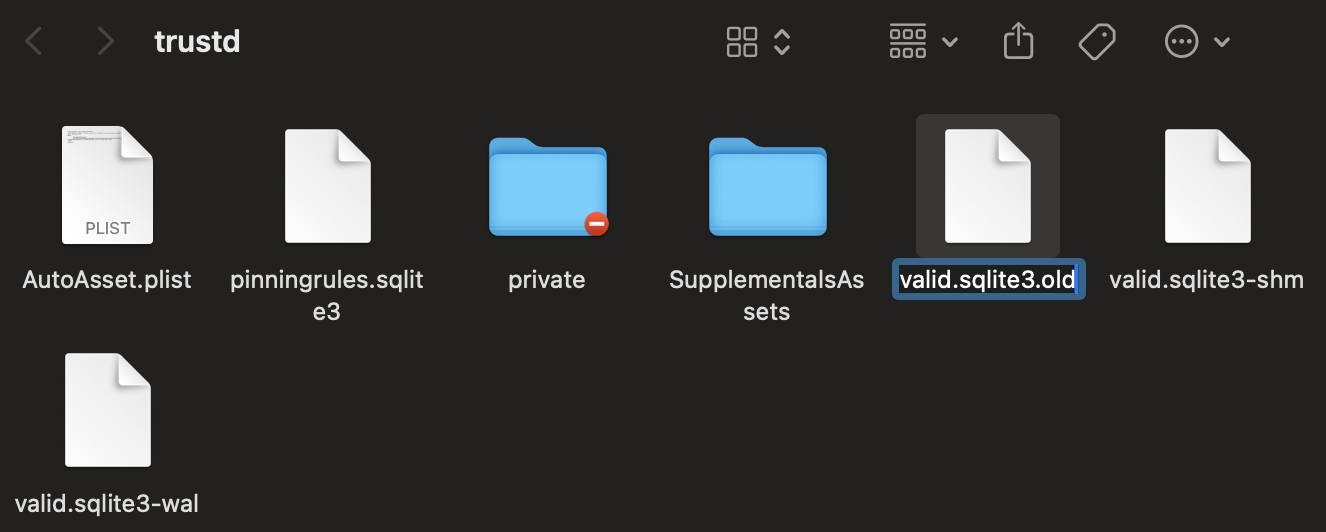
Rename each of these files by adding a suffix like .old or .backup to the end of the filename.
Confirm that the files have been renamed, then quit the Terminal and exit Recovery Mode.
Step 1. Shut down your Mac, then press and hold the power button or Command + R to enter Recovery ModeStep 2. Open Terminal and type the command open /private/var/protected/trustd and press ReturnStep 3. Identify any files in this folder that start with the specific name valid.sqlite3Step 4. Rename each of these files by adding a suffix like .old or .backup to the end of the filename
4. Reset the System Management Controller (SMC)
If you have tried software fixes and still check CPU usage only to find the daemon is still draining resources, the issue might be at the hardware level. The SMC handles low-level functions such as thermal management and power distribution, which can sometimes glitch and cause system daemons to hang.
Here’s how to reset the SMC on your device:
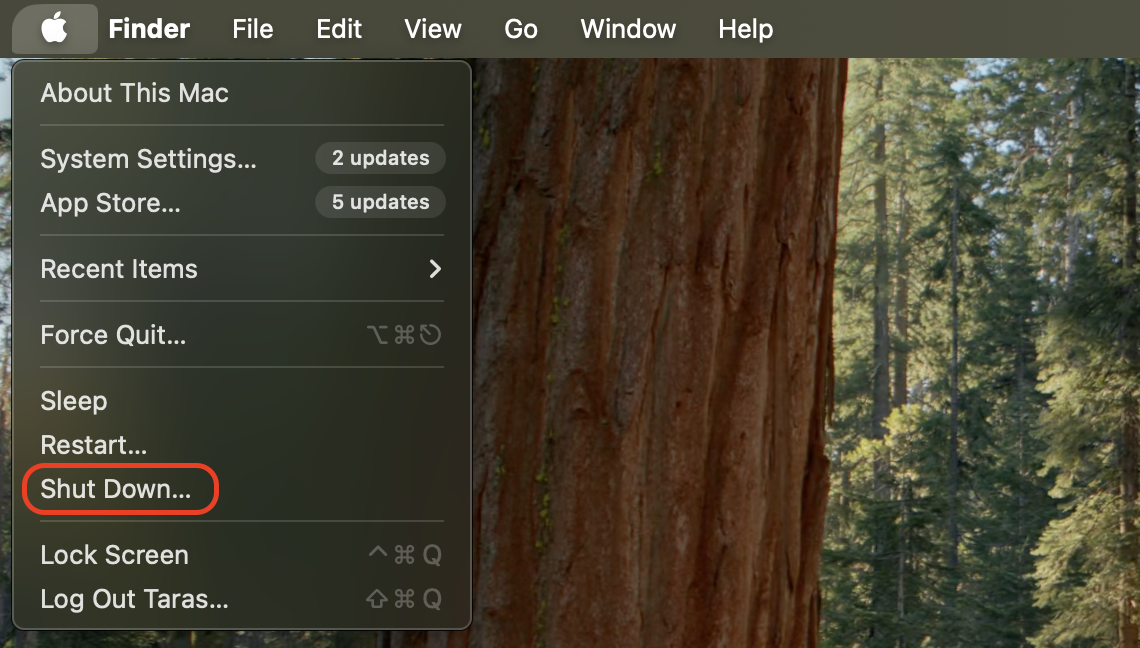
Shut down your MacBook completely by selecting Shut Down from the Apple menu.
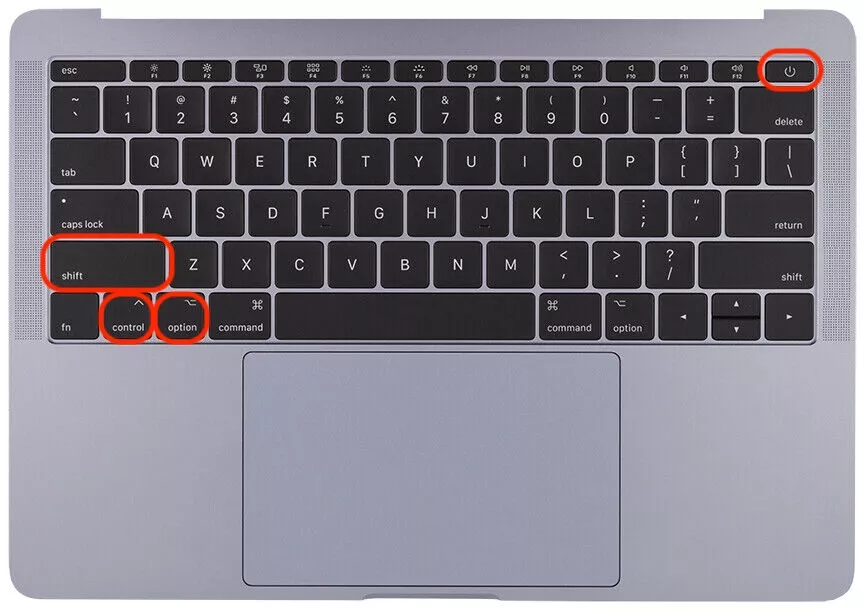
Press and hold Shift + Control + Option on the left side of your keyboard.
Simultaneously press and hold the Power button (or Touch ID sensor) along with these keys.
Keep all four keys held down for exactly 10 seconds, then release them all at once.
Press the Power button again to turn your Mac back on, then monitor its activity.
For Apple Silicon Macs (M1/M2/M3), simply restart the device, as the SMC functions are handled by the chip.
Step 1. Shut down your MacBook completely by selecting Shut Down from the Apple menuStep 2. Press and hold Shift + Control + Option + the Power button for 10 seconds
5. Block verification links via the Hosts file
For advanced users facing a persistent trustd process loop, redirecting the specific network request that confuses the daemon can offer a permanent fix. You might check RAM usage and find your system becoming overwhelmed by these constant reconnection attempts.
Apply these instructions to modify your Hosts file:
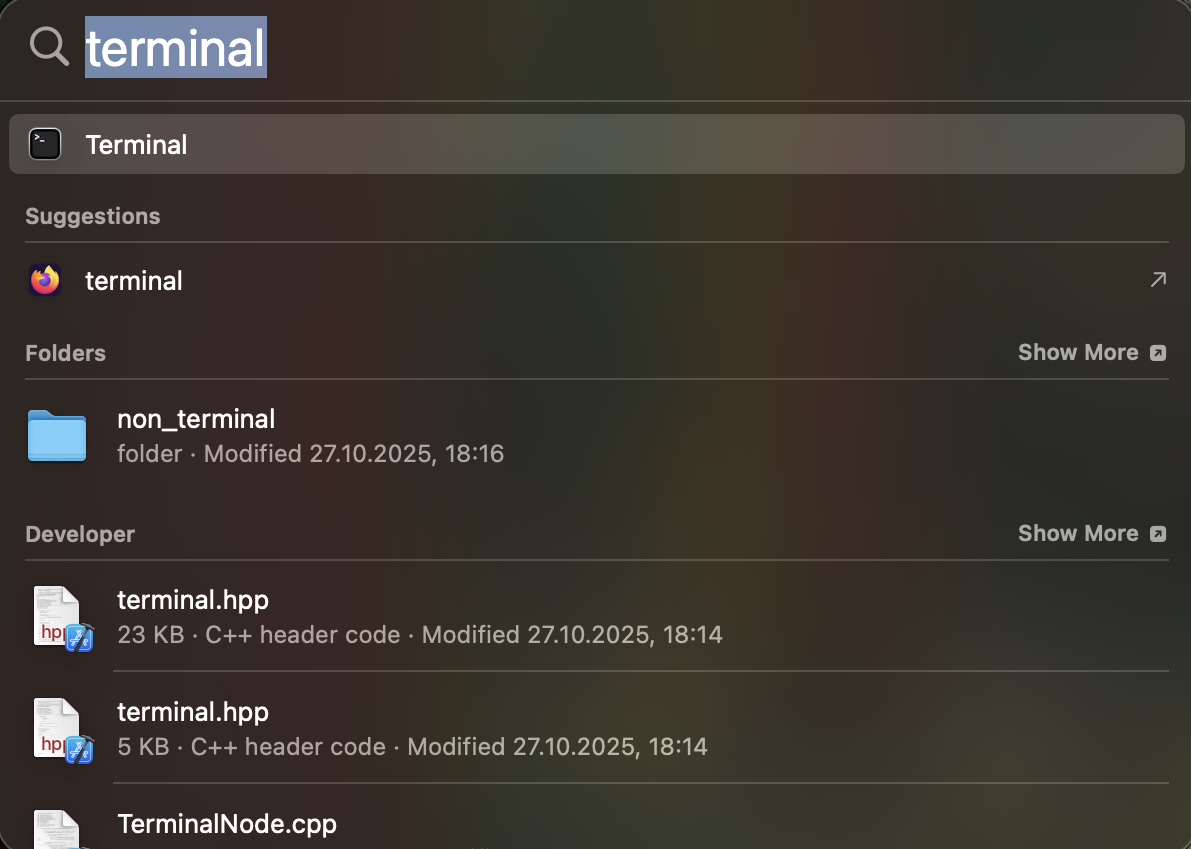
Launch the Terminal app by searching for it in Spotlight or via the Utilities folder.
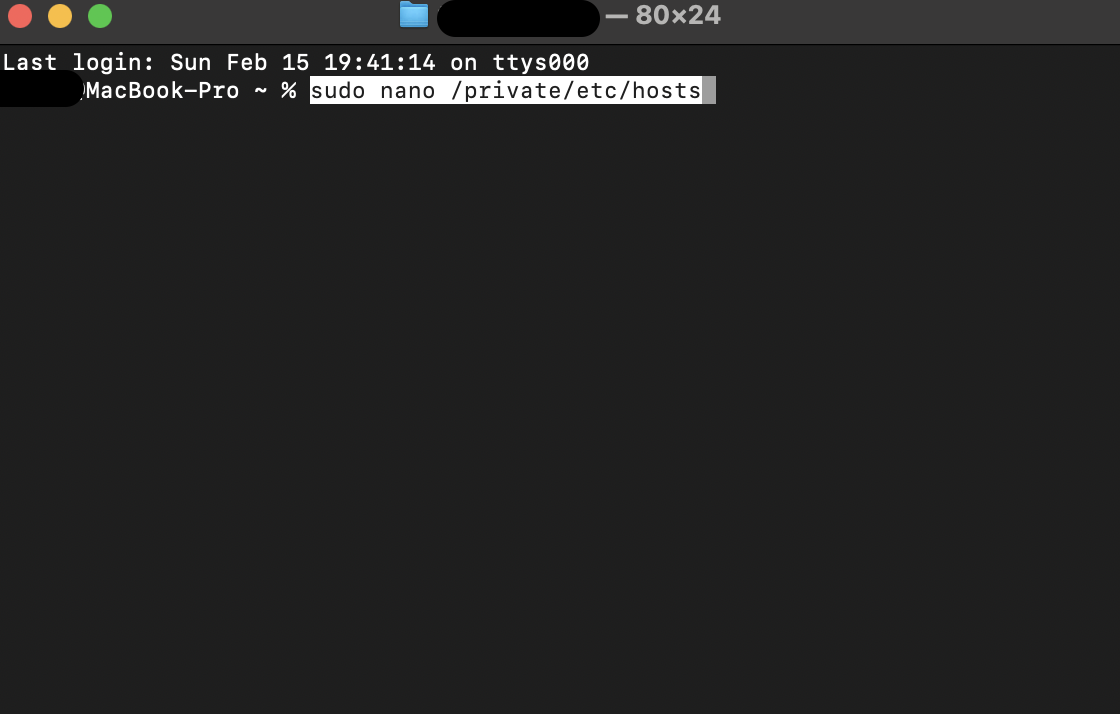
Type the command sudo nano /private/etc/hosts and press Return to access the protected system file.
Enter your administrator password when prompted and press Return again to open the text editor.
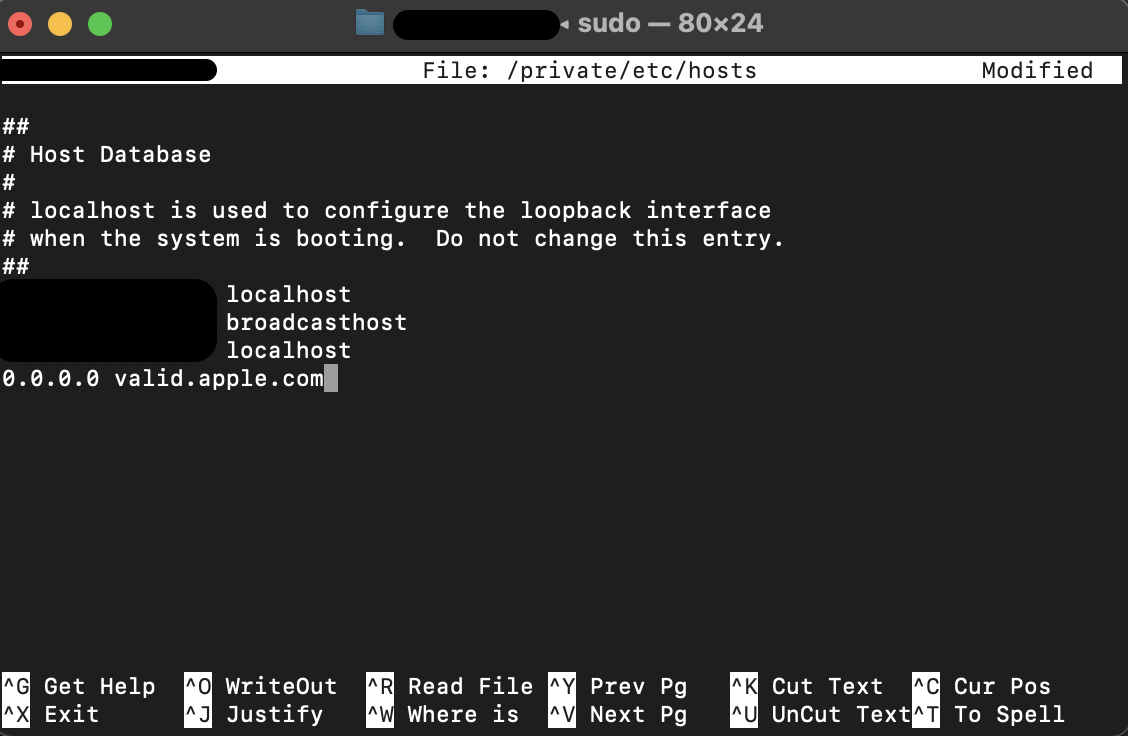
Use the arrow keys on your keyboard to navigate to the very last line of the document.
Type 0.0.0.0 valid.apple.com on a fresh line to redirect the verification request and neutralize the loop.
Press Control + O to save the modifications, then press Return to keep the current file name.
Press Control + X to quit the editor, then restart your Mac to finalize the network block.
Step 1. Launch the Terminal appStep 2. Type the command sudo nano /private/etc/hosts and press ReturnStep 3. Use the arrow keys on your keyboard to navigate to the very last line of the document and type 0.0.0.0 valid.apple.com
Conclusion
The trustd process is a critical macOS background daemon responsible for verifying digital certificates to ensure secure connections and app authenticity. While it usually functions silently, issues, like corrupted certificate data or synchronization errors, can lead to it consuming excessive system resources.
To maintain a responsive system, our experts recommend using MacKeeper to manage background tasks. Because MacKeeper is Apple-notarized, it’s a safe and reliable choice for maintaining your device. It offers performance monitoring to help you identify resource-heavy daemons in real time. By utilizing MacKeeper‘s Memory Cleaner, you can ensure your system stays optimized, allowing your device to run flawlessly.
We respect your privacy and
use cookies
for the best site experience.
Privacy Preferences Center
We use cookies along with other tools to give you the best possible experience while using the
MacKeeper website. Cookies are small text files that help the website load faster. The cookies we
use don’t contain any type of personal data meaning they never store information such as your
location, email address, or IP address.
Help us improve how you interact with our website by accepting the use of cookies. You can change
your privacy settings whenever you like.
Manage consent
All cookies
These cookies are strictly necessary for enabling basic website functionality (including page
navigation, form submission, language detection, post commenting), downloading and purchasing
software. The website might malfunction without these cookies.