If Microsoft Teams is not working on your Mac and no solution solves the issue, try contacting MacKeeper’s Premium Services. Our experts are trained to assist you with almost any hardware or software problem you’re facing.
Teams is a communication platform offered by Microsoft as part of the Office suite, or as a standalone program. It’s similar to a service like Discord or Slack in that it allows users to communicate by text as well as through audio and video calls. It supports group conversations, as well as direct communication.
Teams can also be used to share files and documents, and it integrates things like your calendar, to-do list, and OneDrive files—as well as third-party apps and services. This, as well as its inclusion in the Microsoft 365 bundle, has made Teams a vital tool for millions of professionals, students, and more.
Most common Microsoft Teams issue on Mac
When you encounter a problem with Microsoft Teams on Mac, the most common issue is usually a lack of system resources caused by other apps eating up your RAM and processing power in the background. Closing any software you’re not using to free up these things can make a big difference.
If this doesn’t work, it may be that Teams has frozen and needs to be restarted, that a bug in Teams or macOS is preventing the application from functioning correctly, or you need to delete cache on Mac—all of which are common reasons why Teams won’t work as it should.
Until Teams is fixed, you may encounter some of the following problems:
Teams won’t open or respond, or it frequently crashes.
Recent messages or missed calls don’t appear.
You can’t log in to your Microsoft account.
Your webcam and microphone won’t work.
You have no sound and can’t hear other people on a Teams call.
Teams notifications fail to appear.
A note from our experts:
When you face a non-working Microsoft Teams on your Mac and want to learn how to fix it, we have a solution. MacKeeper’s Premium Services tech experts help you to solve any Mac-related issue.
Here’s how to contact professionals in Premium Services:
Select Premium Services in the MacKeeper sidebar, then click Chat Now.
Describe the problem you’re experiencing to get immediate help.
Step 1. MacKeeper > Premium Services > Chat NowStep 2. Type in the details of your issue
How to fix Microsoft Teams not working on Mac
Whatever the cause of the problem, it’s usually fairly simple to fix Microsoft Teams on Mac. Here are 7 fixes you should try:
Force quit Microsoft Teams.
Delete application cache.
Restart your Mac.
Reinstall Microsoft Teams.
Check for Teams and macOS updates.
Access Microsoft Teams from your browser.
Disable VPN.
1. Force quit Microsoft Teams
If Microsoft Teams crashes and won’t respond, even when you try to close it, you can force quit. Here’s how:
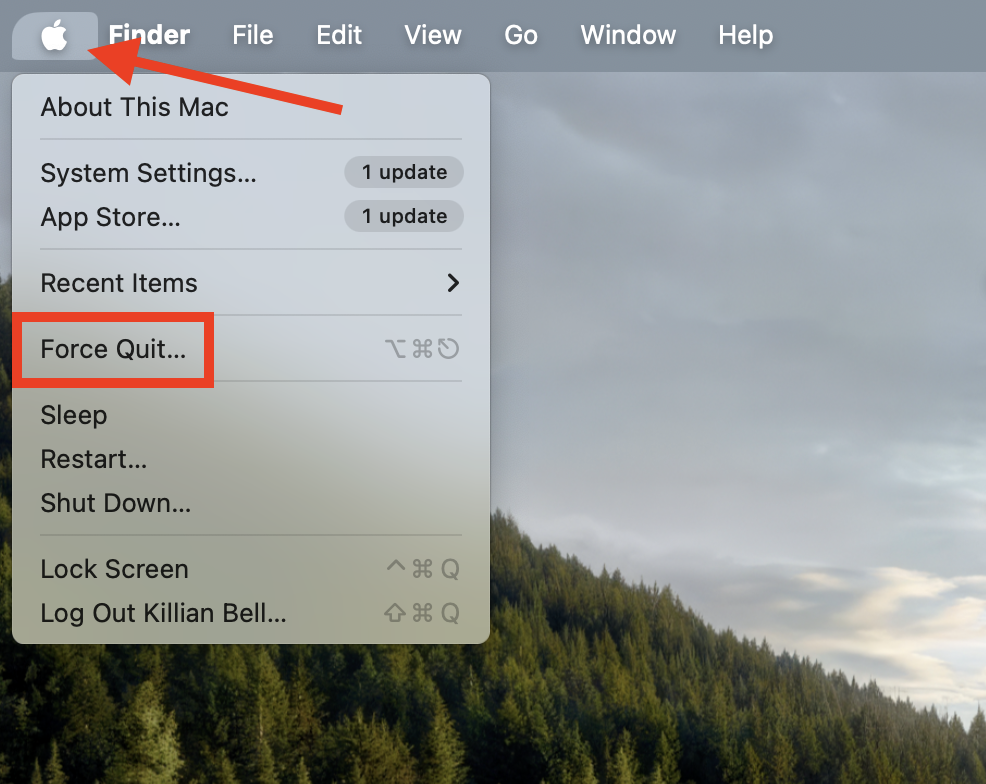
Click the Apple logo in the top-left corner of your screen.
Select Force Quit.
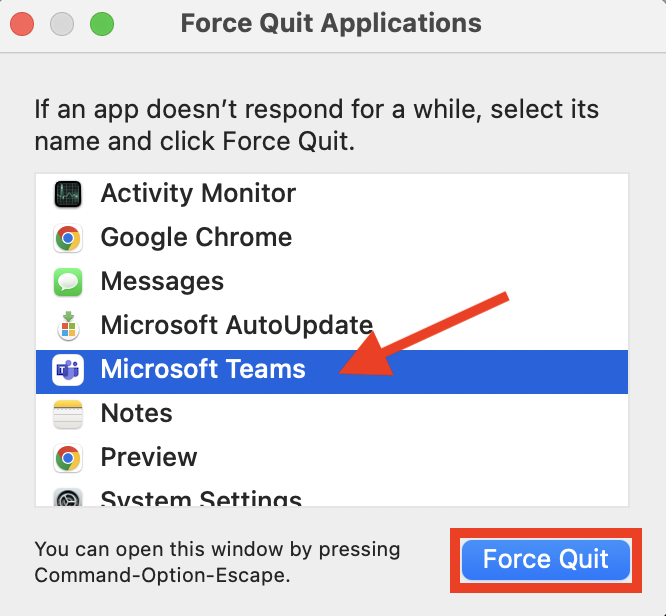
Choose Teams, then click Force Quit.
Click Force Quit again to confirm.
Step 1. Click the Apple logo, then select Force QuitStep 2. Select Teams, then click Force QuitStep 3. Click Force Quit again to confirm
You can also force quit Microsoft Teams using Activity Monitor, which may come in handy if the method above doesn’t work:
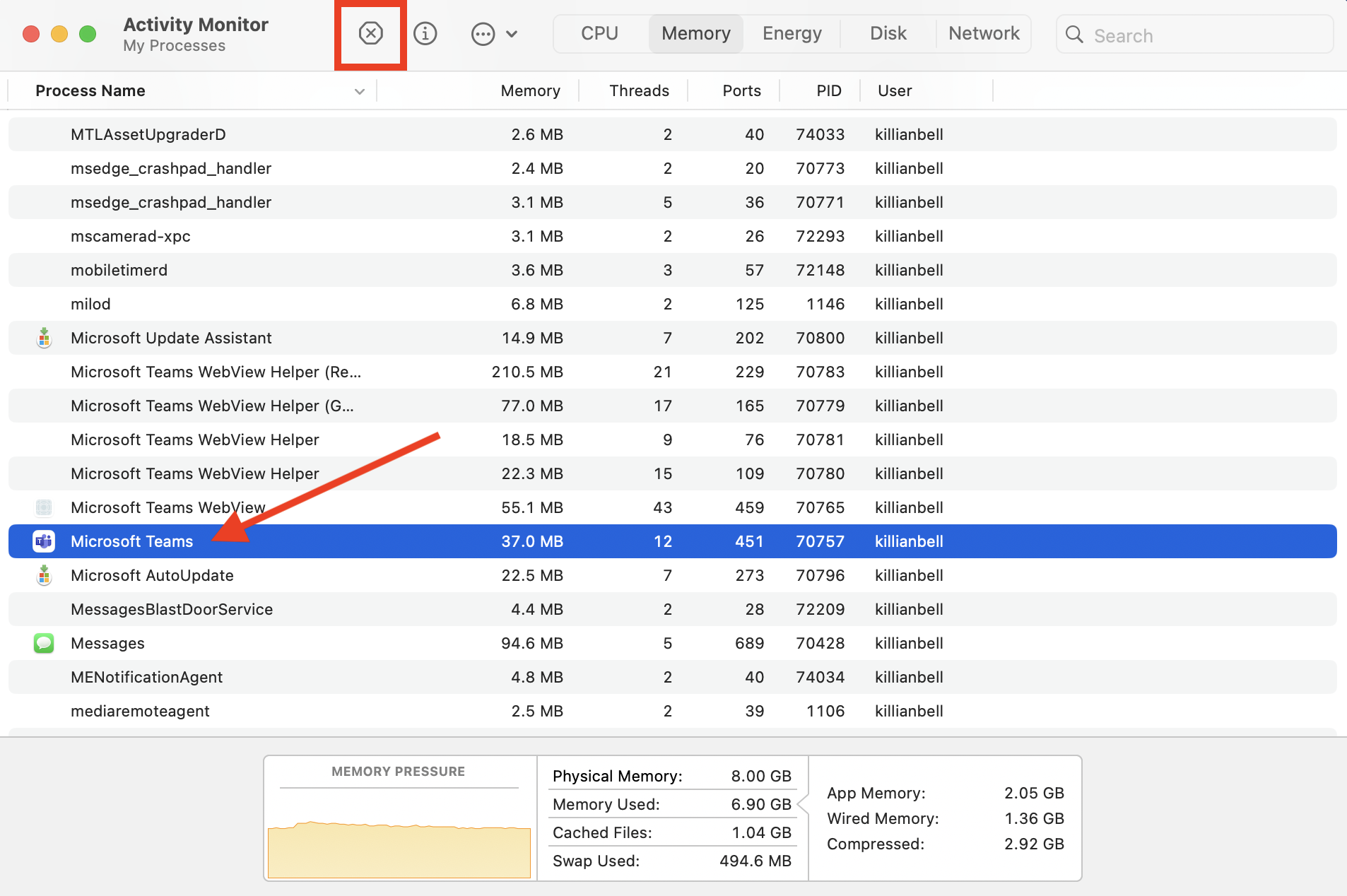
Launch Activity Monitor from Applications > Utilities in Finder.
Select the Microsoft Teams process, then click the X icon in the toolbar.
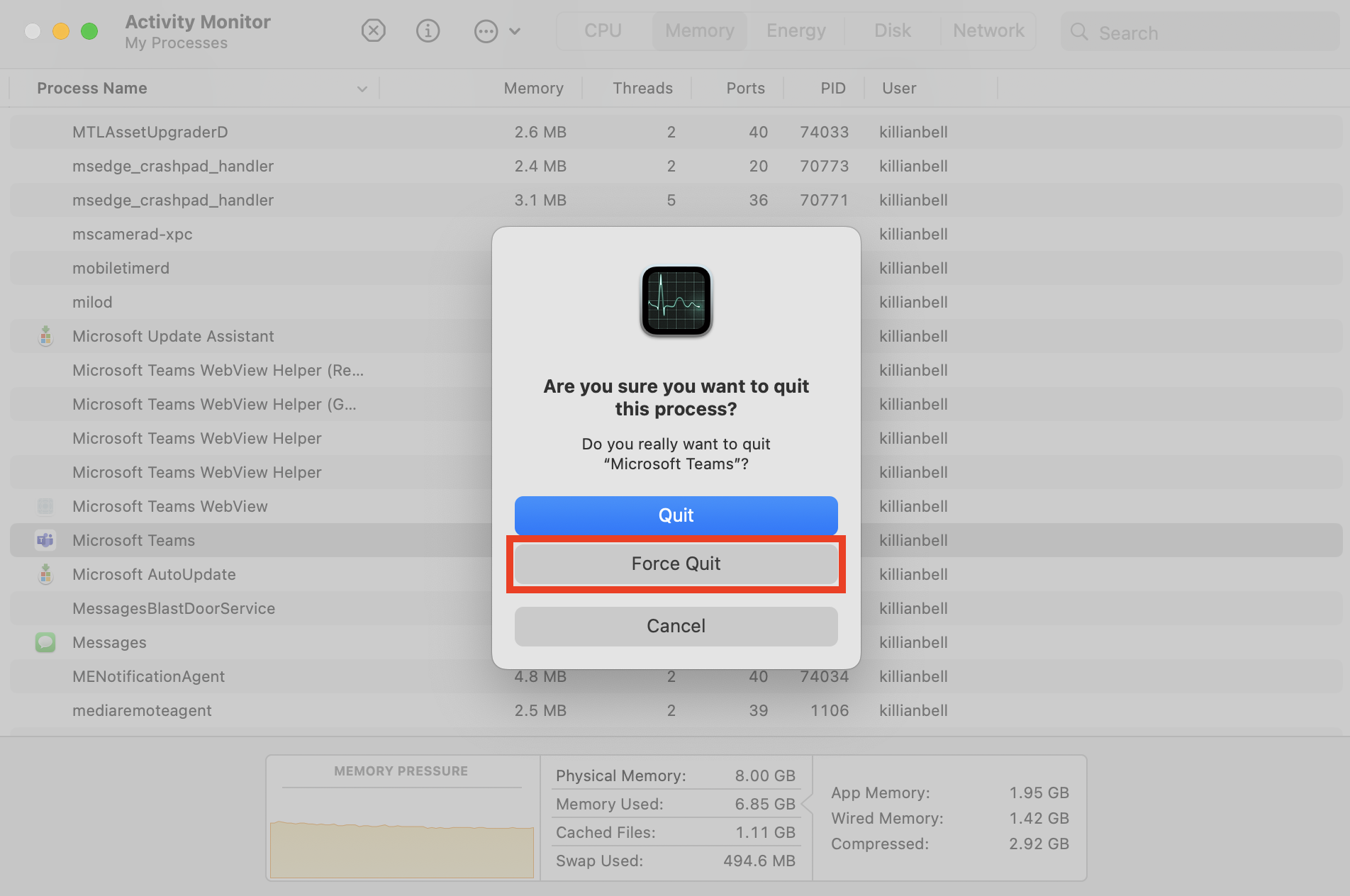
Click Force Quit to confirm.
Step 1. Select Teams in Activity Monitor, then click XStep 2. Select Force Quit to confirm
After killing Microsoft Teams, you should be able to reopen the app and continue to use it as normal. If a restart doesn’t fix your issues, or you find that Teams continually crashes over and over again, we recommend trying some of the other fixes below.
2. Delete application cache
We’ve found that macOS apps, including Teams, often misbehave due to corrupt cache files. When this happens, deleting the existing cache files and allowing Teams to create new ones the next time it runs usually fixes the problem. Here’s how to clear the Microsoft Teams cache:
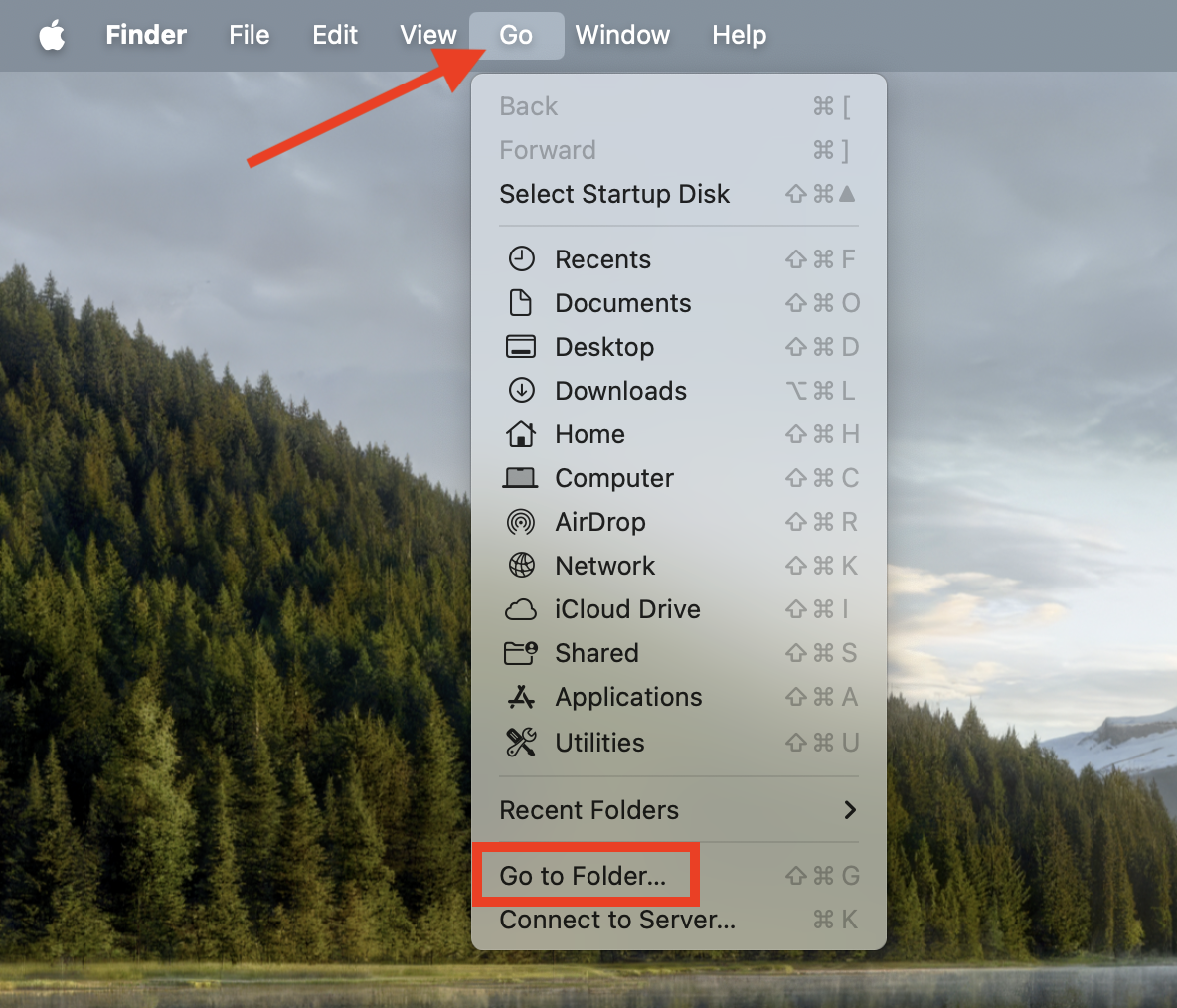
On the macOS desktop, click Go, then Go to Folder in the menu bar.
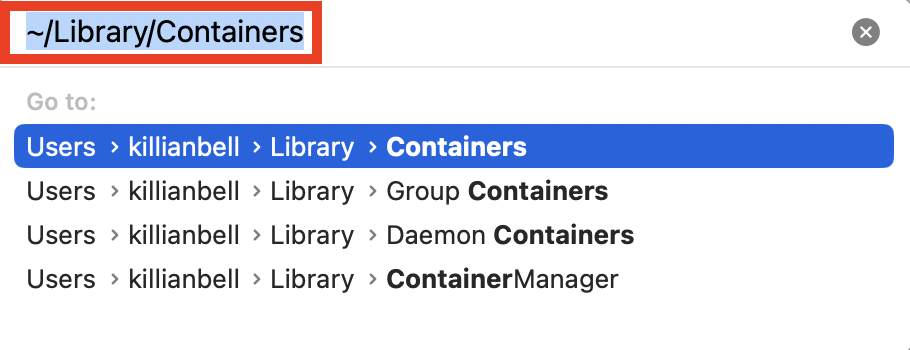
Type ~/Library/Containers, then press Enter to go to the Containers folder.
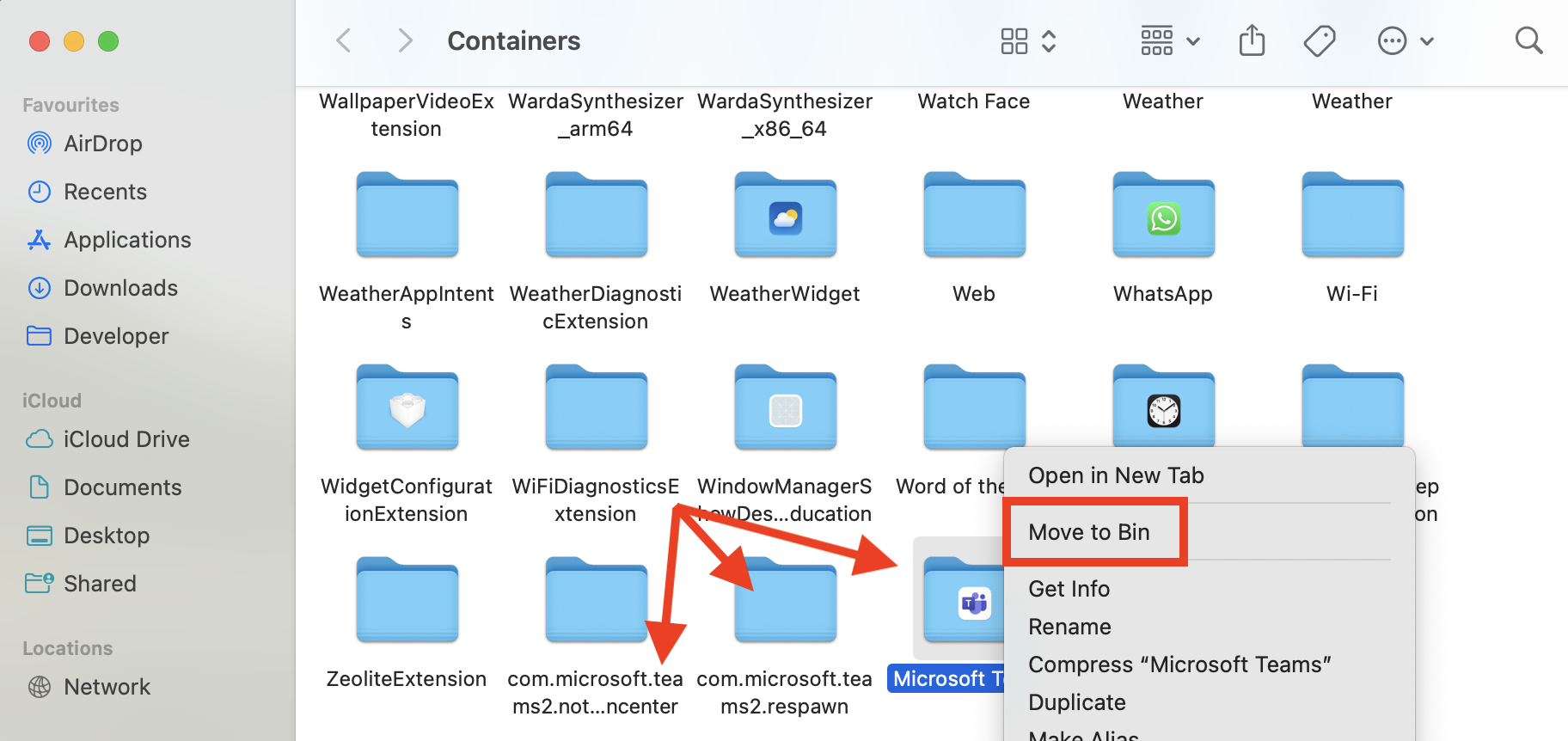
Locate any folders that include com.microsoft.teams in their name, then right-click them and select Move to Bin. There are usually several of these, so be sure to delete them all.
Repeat the same process for the ~/Library/Group Containers folder and remove all com.microsoft.teams folders there.
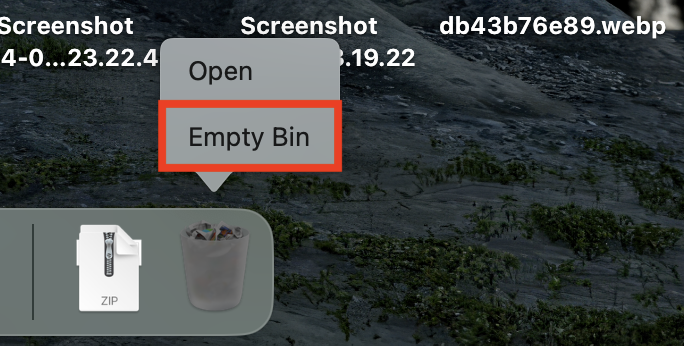
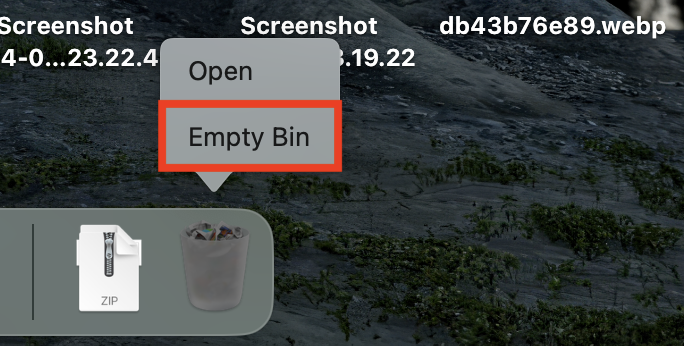
Right-click the Bin in your Dock, then select Empty Bin.
Click Empty Bin again to delete the Teams cache files.
Step 1. Click Go > Go to Folder in the menu barStep 2. Go to ~/Library/ContainersStep 3. Select all Teams folders, then delete themStep 4. Repeat the process in ~/Library/Group ContainersStep 5. Right-click the Bin, then choose Empty Bin
You can now try to run Teams again. If bad cache files were the problem, Teams should now behave normally again, and fresh cache files will be created as you use the app. Be careful when deleting files from the Containers folders because you may see issues with other apps if you wipe the wrong ones.
3. Restart your Mac
One of the simplest fixes for macOS software glitches is a quick device restart, which automatically kills any Teams processes that may have become stuck or frozen, preventing the program from functioning normally. Try this:
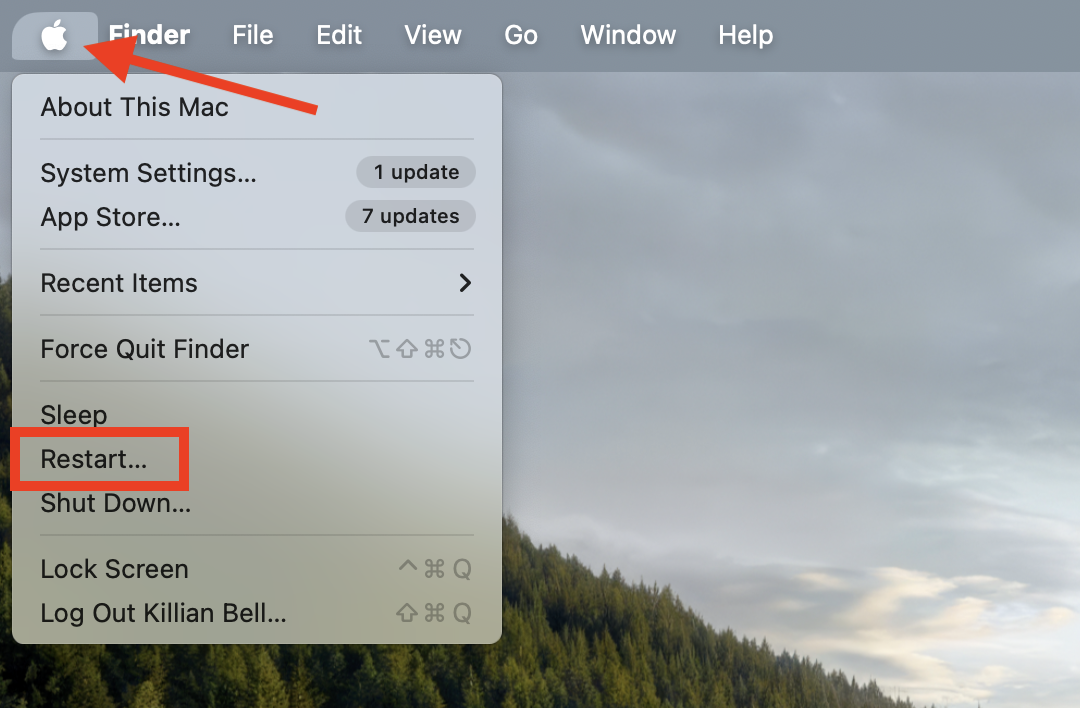
Click the Apple logo in your Mac’s menu bar.
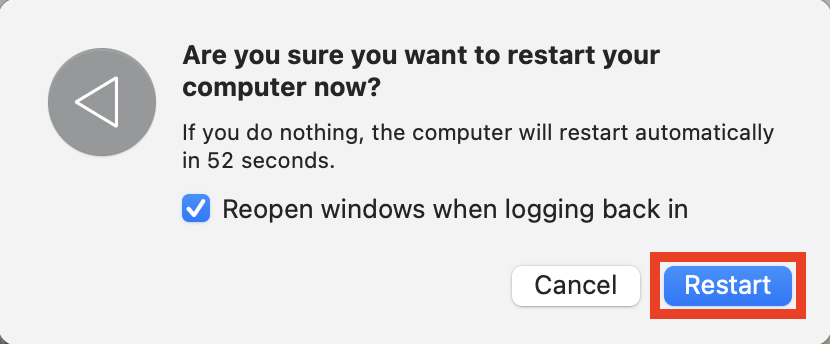
Choose Restart, then click the Restart button to confirm.
Step 1. Click the Apple logo, then select RestartStep 2. Select Restart again to confirm
4. Reinstall Microsoft Teams
Sometimes, the only way to overcome issues with a piece of software is to uninstall and reinstall it. This clears the existing application package data, which may have become corrupt, from your Mac and replaces it with a fresh copy of the latest Teams release. Here’s what to do:
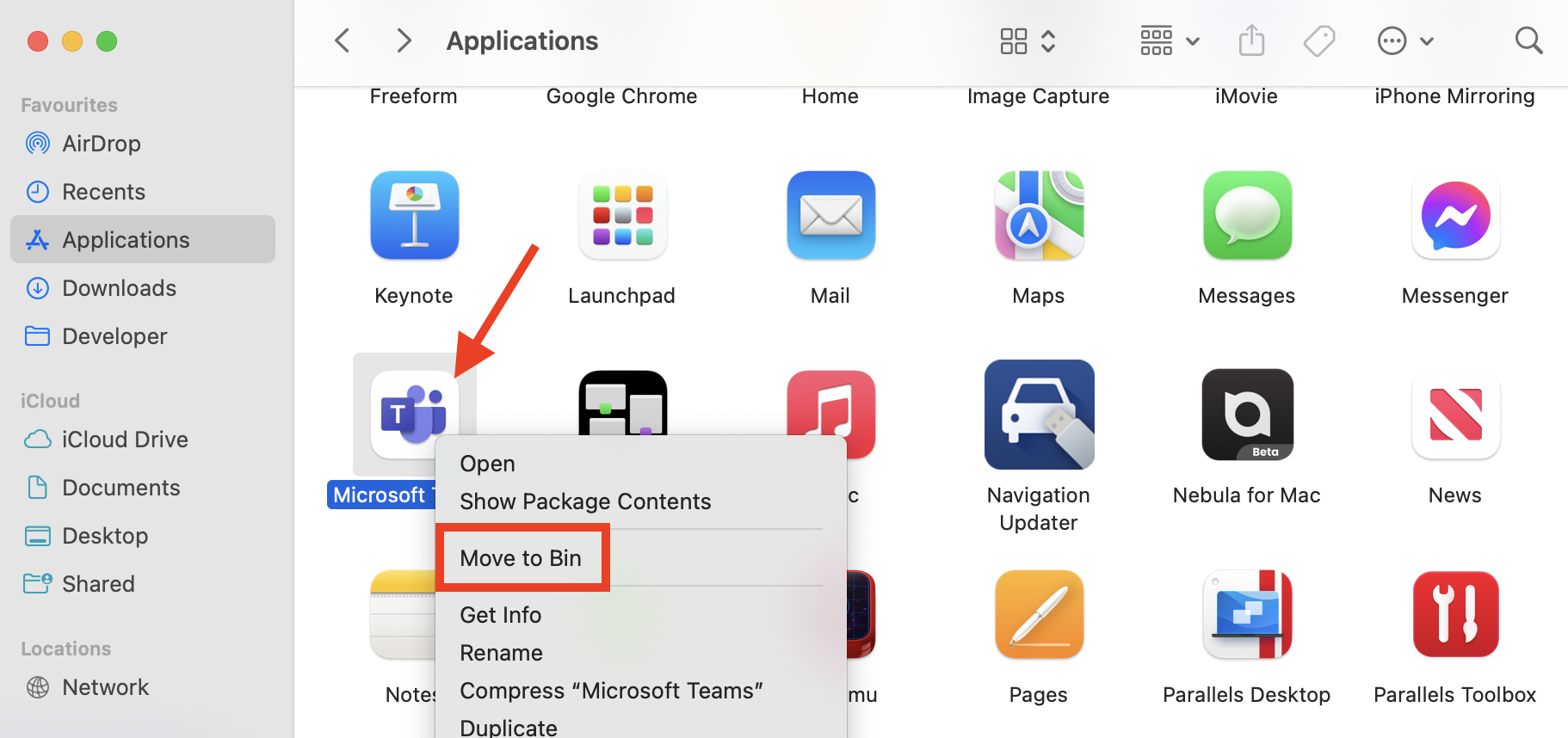
Open Finder, then select Applications in the sidebar.
Right-click the Microsoft Teams icon, then choose Move to Bin.
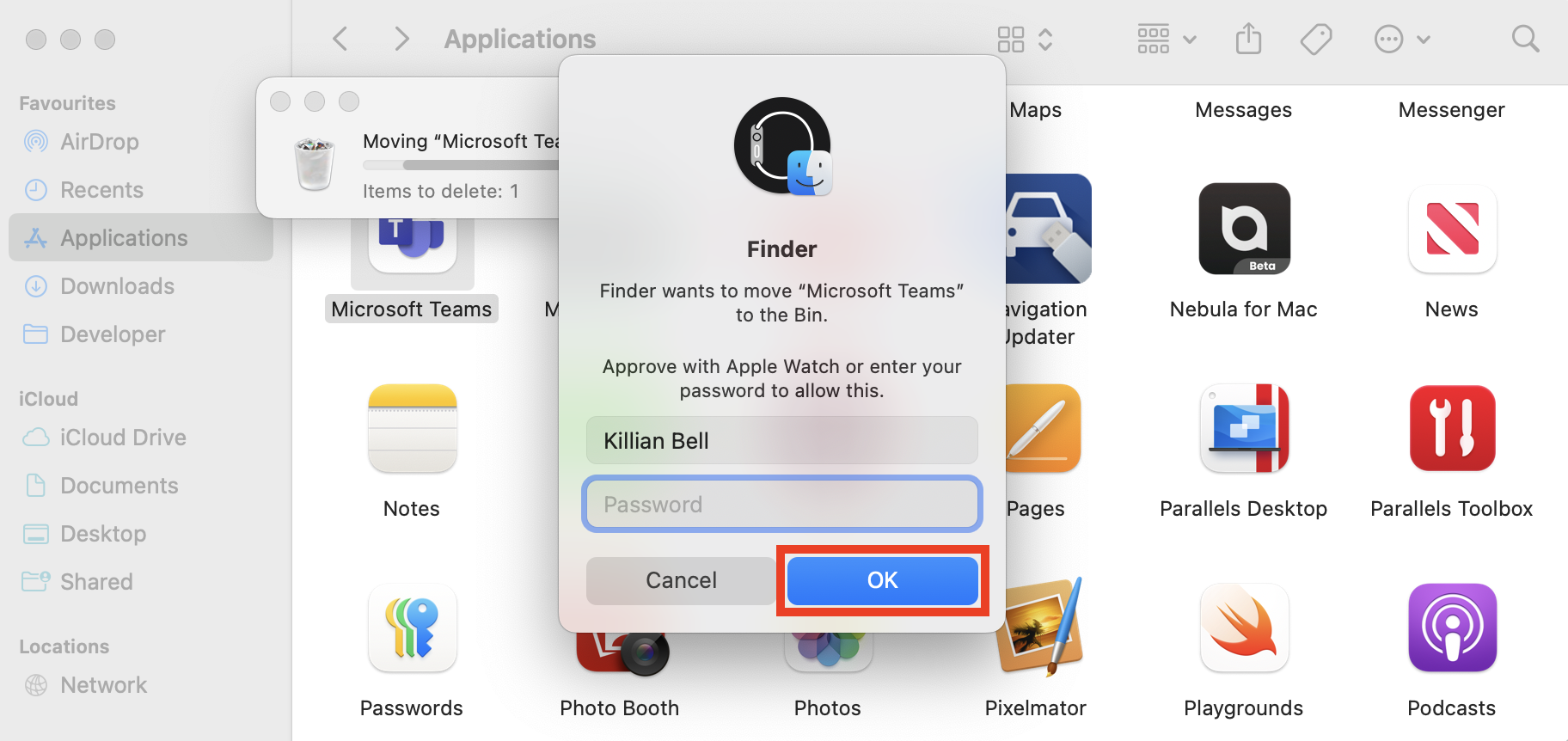
Enter your Mac’s password, then click OK to proceed.
Right-click the Bin in your Dock, then select Empty Bin.
Click Empty Bin again to confirm and remove Teams from your Mac.
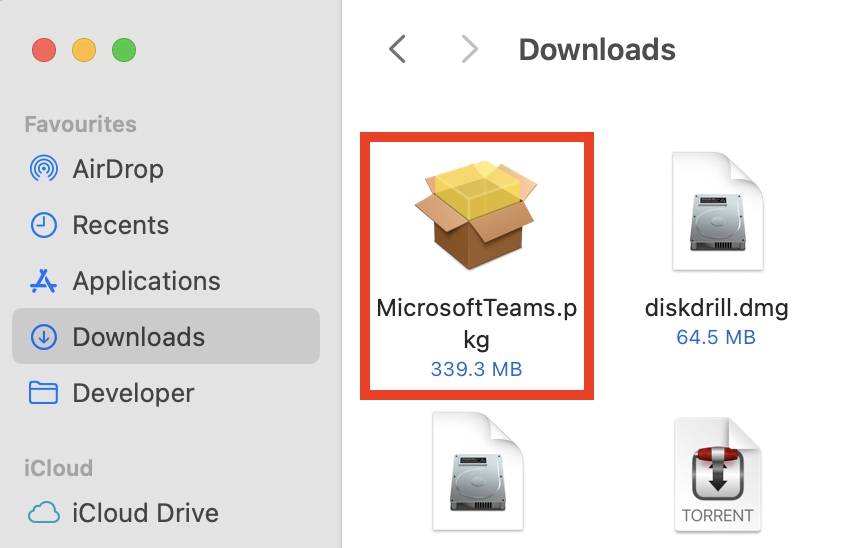
Once the installer has finished downloading, launch it from your Downloads folder.
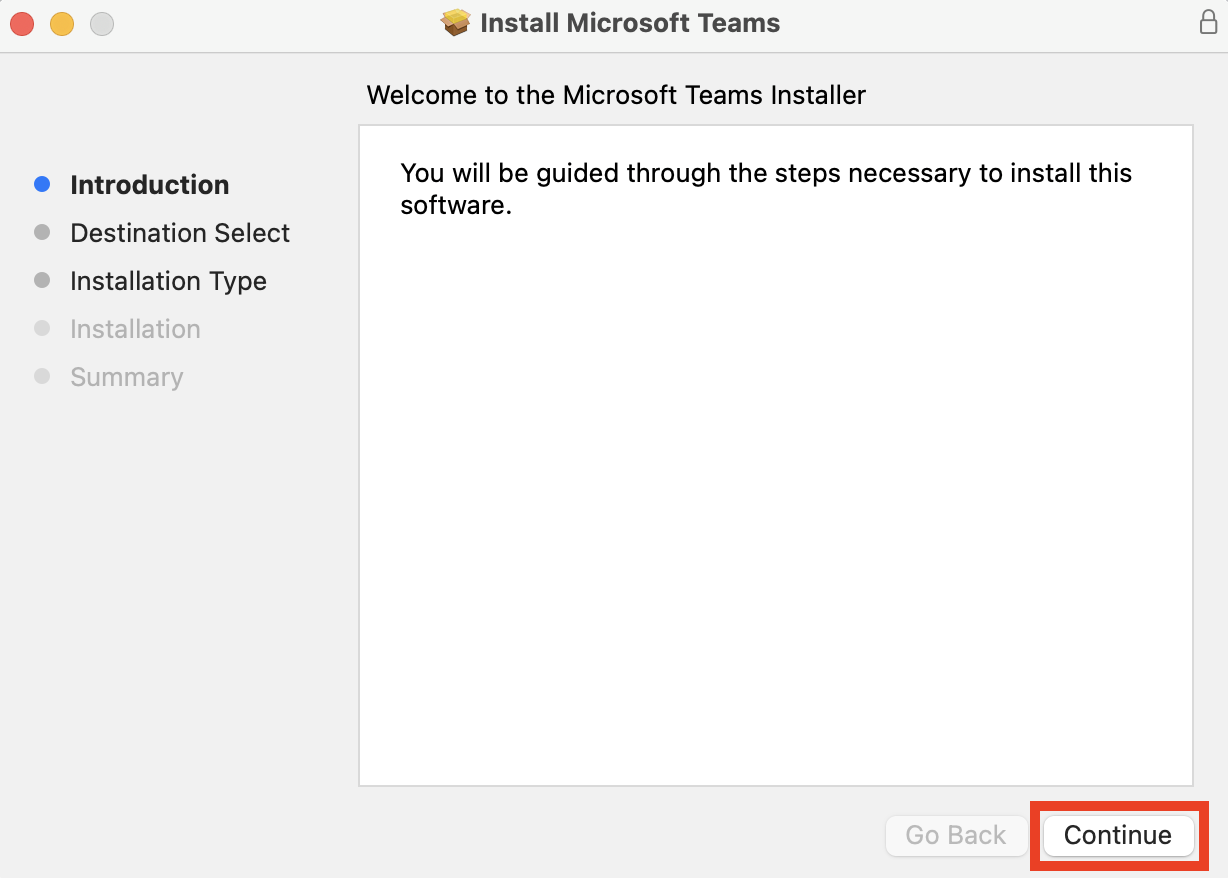
Click Continue, then follow the onscreen steps to complete the installation.
Step 1. In Applications, right-click Teams, then Move to BinStep 2. Enter your password, then click OKStep 3. Right-click the Bin, then select Empty BinStep 4. Go to the Teams website and click Download TeamsStep 5. Launch the Teams installer from DownloadsStep 6. Click Continue and follow the on-screen steps
Once Teams has finished installing, it will launch automatically. You should then be able to log in to your account and use the app without any issues.
A hint from our team:
Don’t forget to give Teams permission to use your Mac’s microphone and camera when it first launches otherwise you won’t be able to do voice and video calls. If you accidentally block the Teams app from accessing these features, you can change permissions manually in the privacy settings on Mac.
5. Check for Teams and macOS updates
Teams may encounter issues due to a bug in the release you have installed—or even because of a bug in macOS. Keeping your software and operating system up to date is a great way to ensure these are eliminated as quickly as possible. Here’s how to check for Teams and macOS updates:
Open Teams, then click Help > Check for Updates in the menu bar.
Microsoft AutoUpdate will launch and check for Teams updates automatically. If an update is available, click the Update button.
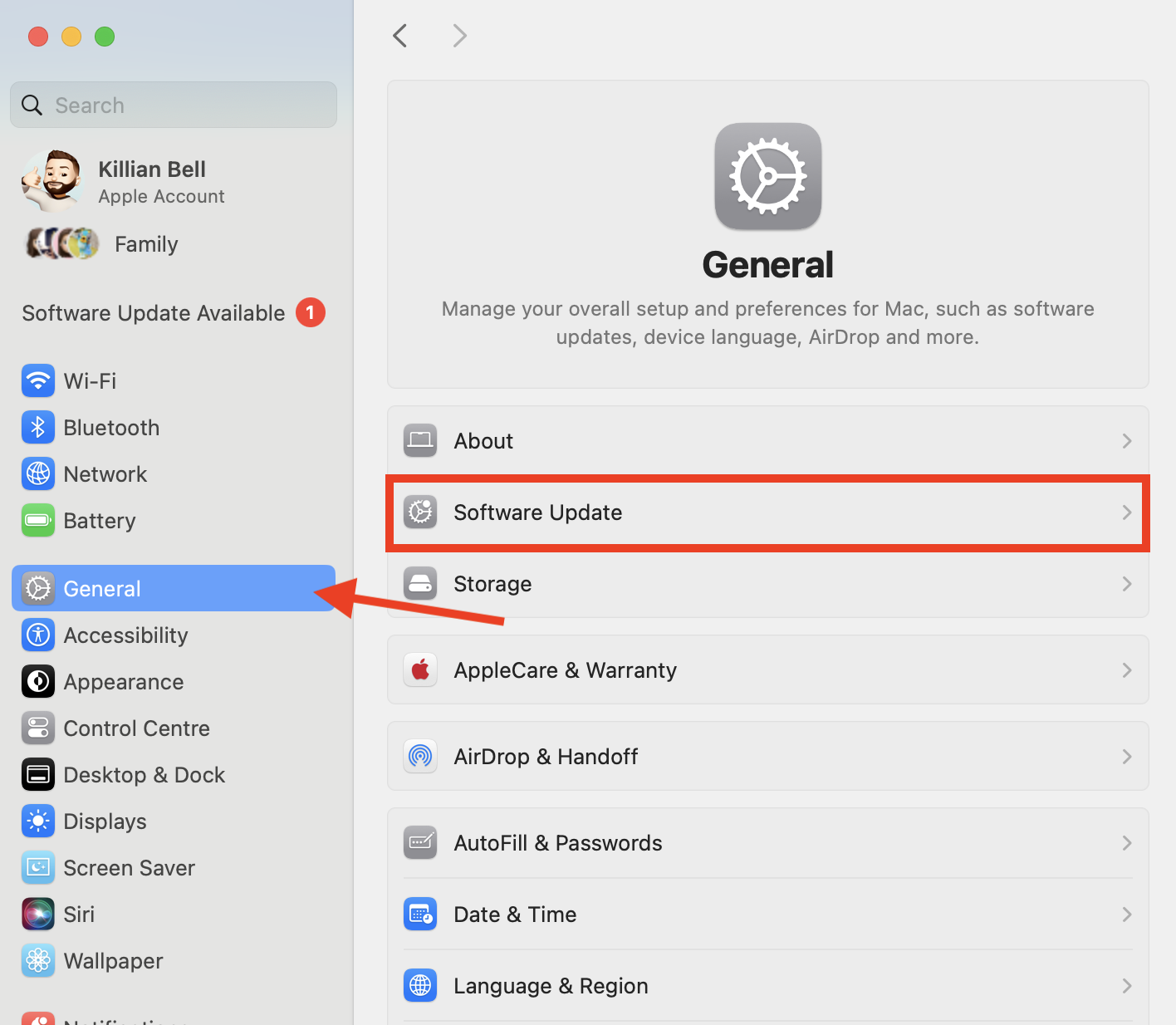
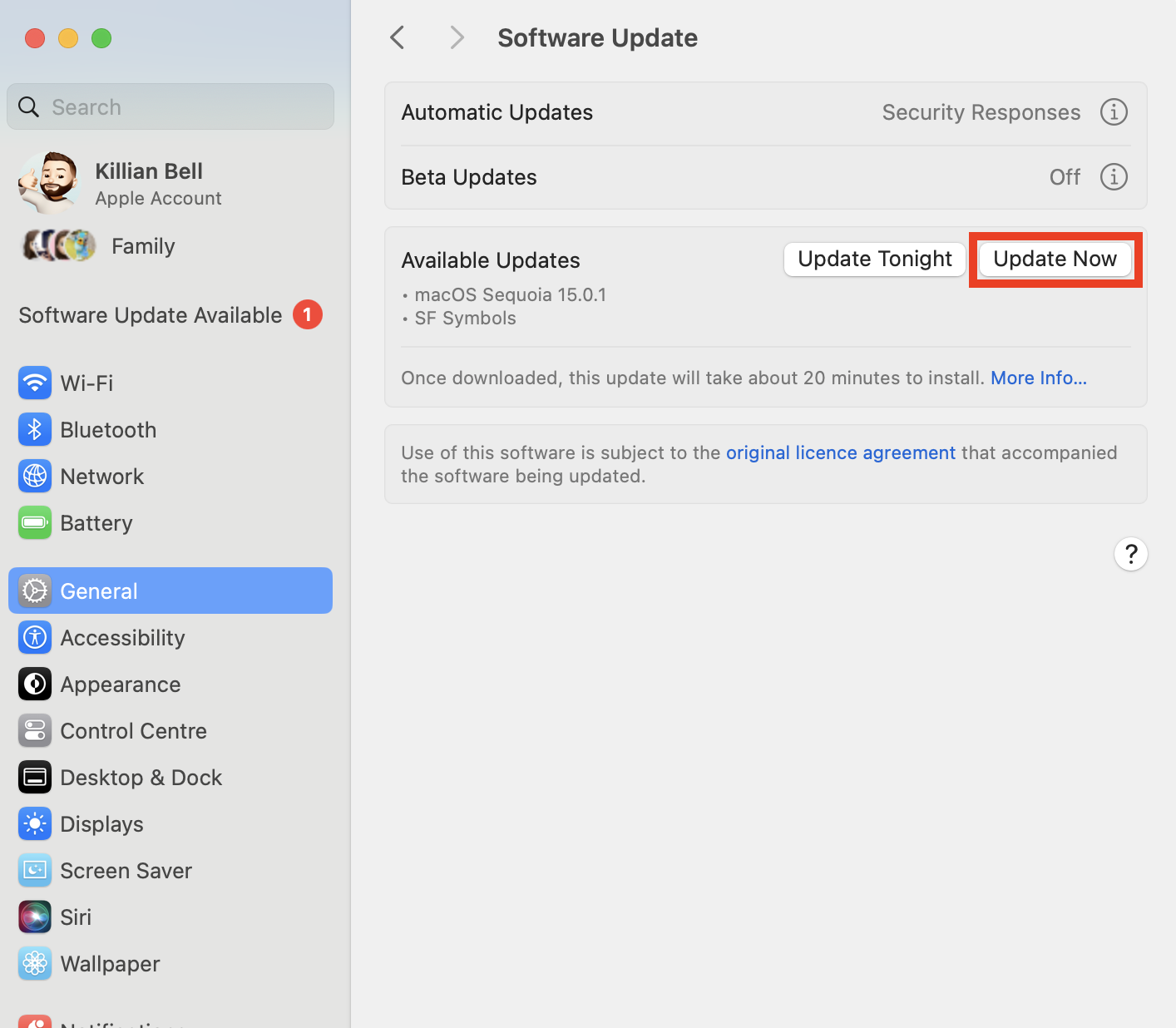
Open System Settings on your Mac, then navigate to General > Software Update.
macOS will check for updates, and if a new version is available, you can click Update Now or Restart Now to install it.
Step 1. In Teams, go to Help > Check for UpdatesStep 2. Install any updates in Microsoft AutoUpdateStep 3. In System Settings, go to General > Software UpdateStep 4. Install any available macOS updates
In our experience with Teams, thanks to Microsoft AutoUpdate, new updates are installed automatically soon after their release. However, once you have a version of Teams that works flawlessly on your machine, you may decide you don’t want to risk installing a newer version that could break it.
Important:
The best way to avoid this is to disable Microsoft AutoUpdate on Mac, which blocks new versions of Teams and other Microsoft applications from being installed and gives you complete control over them. You can then update each Office app individually whenever you see fit.
6. Access Microsoft Teams from your browser
If you’re unable to get Teams working after trying the fixes above, or you just need to gain access to the platform quickly because you rely on it for work, you’ll be pleased to know you can access Microsoft Teams from your browser instead. Here’s how:
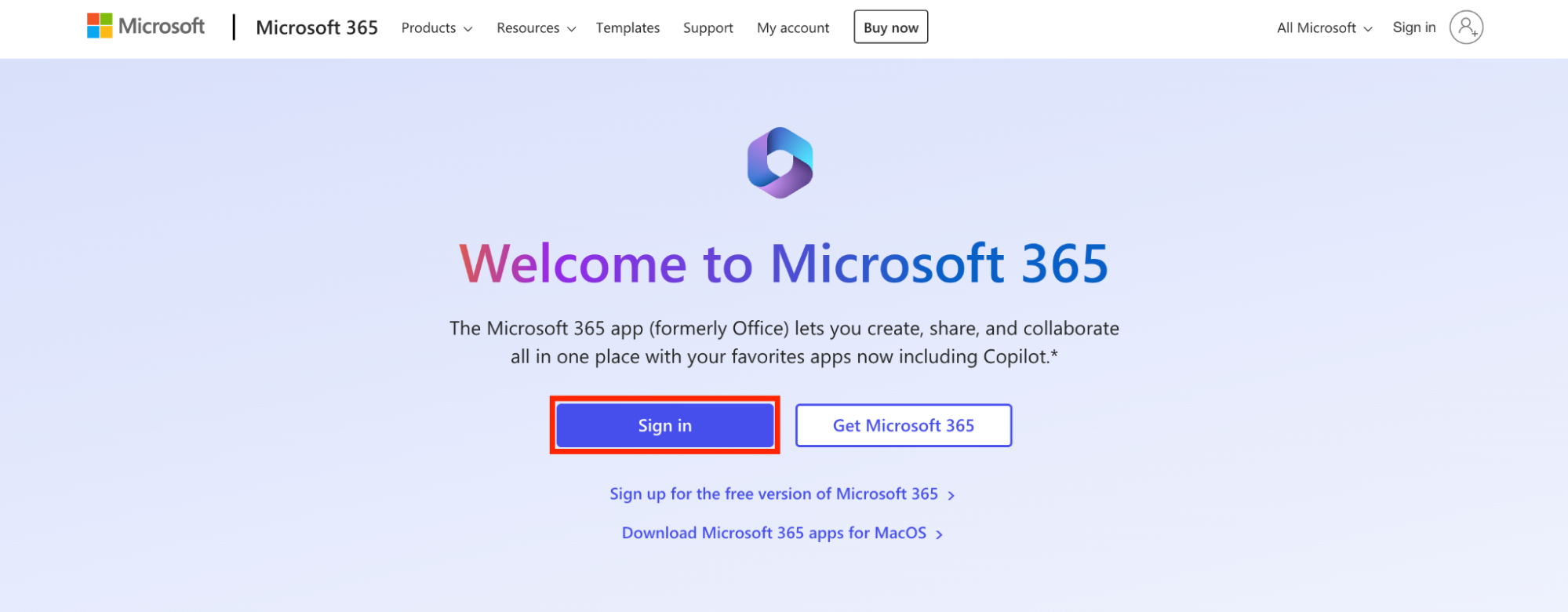
Enter the details for your Microsoft account and sign in.
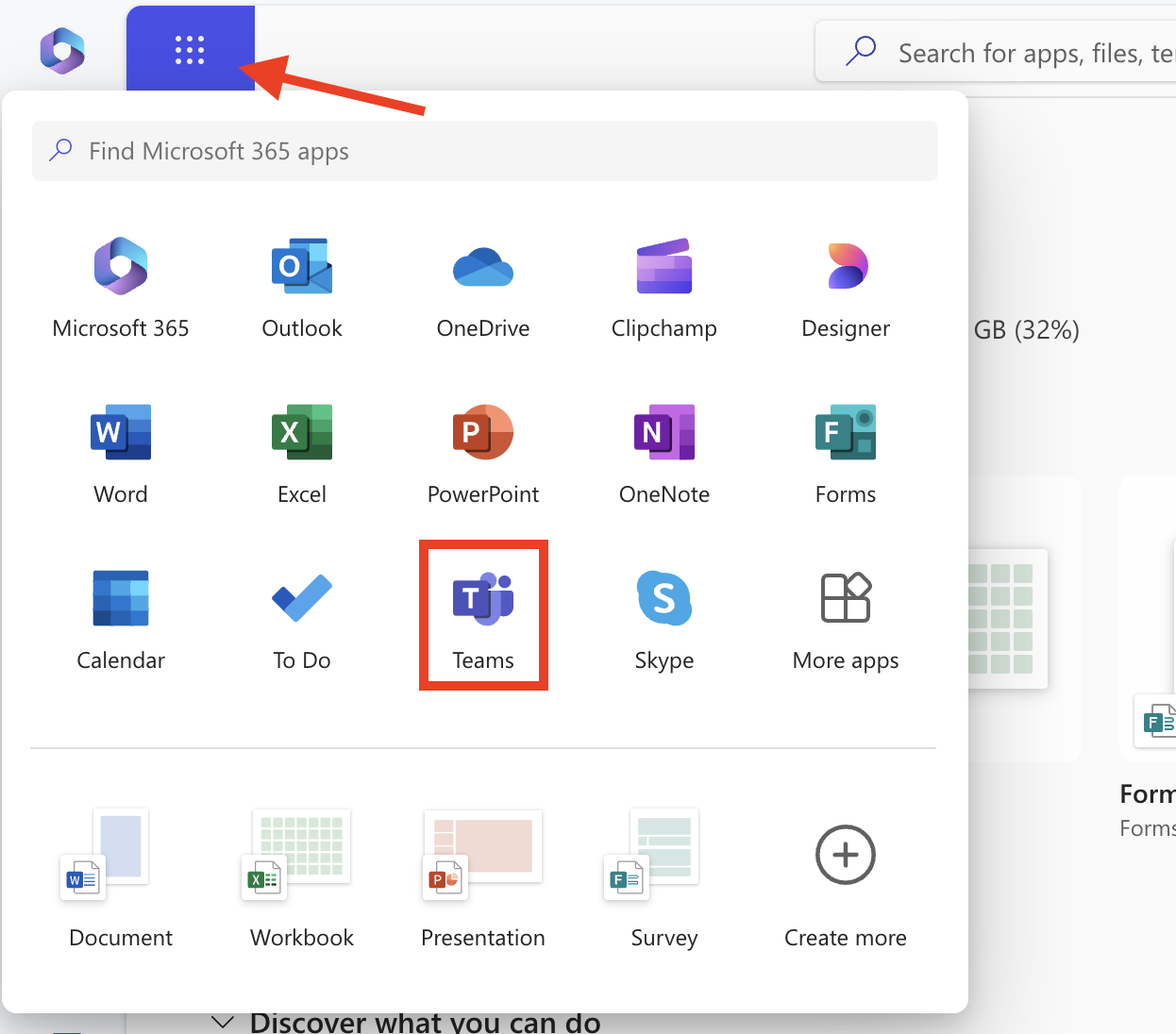
Select the apps menu in the top-left corner, next to the Office logo, then choose Teams.
Step 1. Go to the Microsoft 365 website and sign inStep 2. Open the apps menu, then select Teams
The Teams web app will now open in a new tab, and you’ll be able to use it just like you would the standard Teams app on Mac. You’ll be prompted to accept notifications through your browser, and we recommend agreeing to this so you don’t miss any messages.
7. Disable VPN
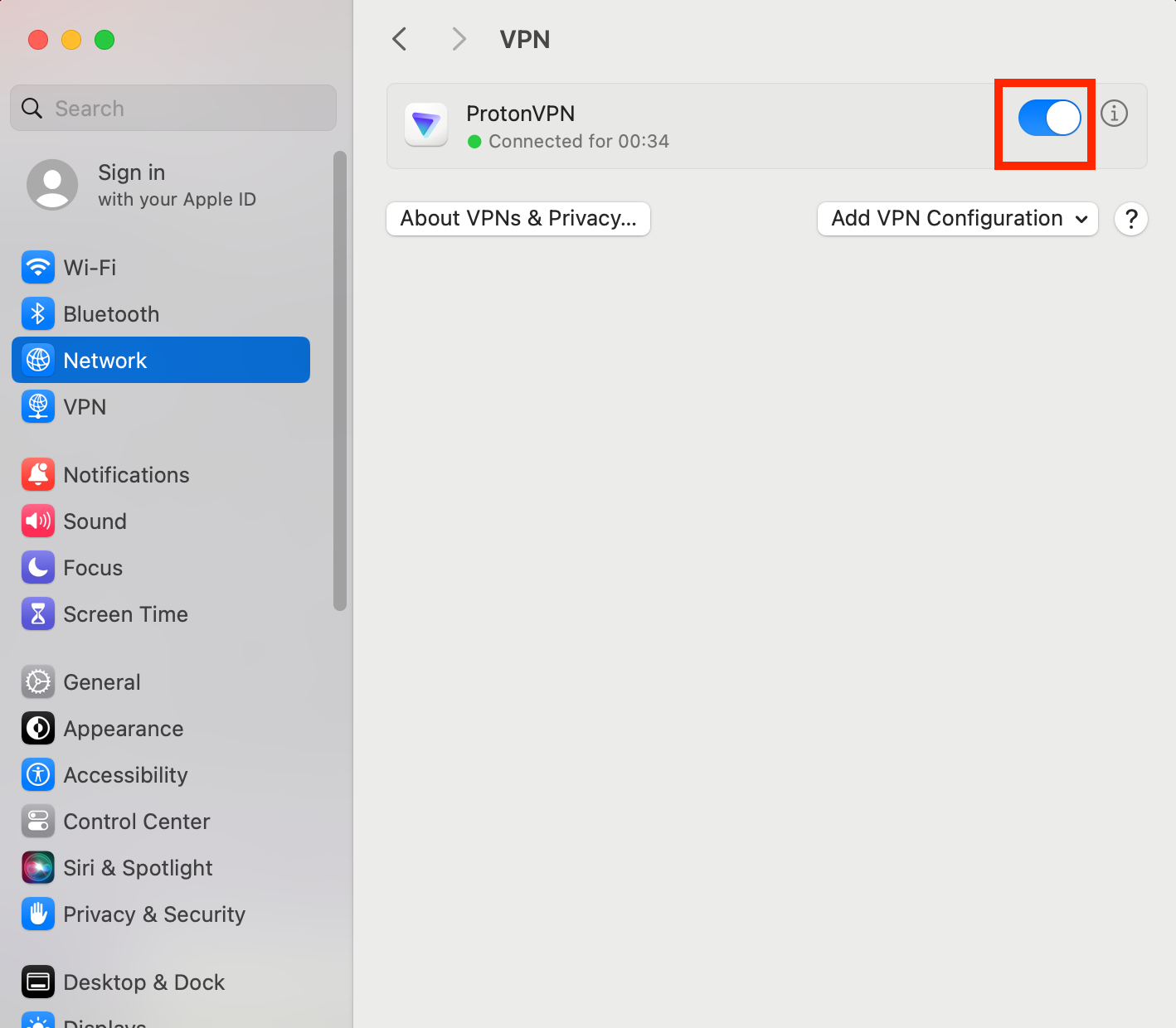
Although this issue isn’t as common as some of the other Teams glitches we’ve looked at so far, some users have found that using a VPN prevents Teams from connecting or operating as it should. The simple fix for this is to disable your VPN if possible. You can do this through System Settings like so:
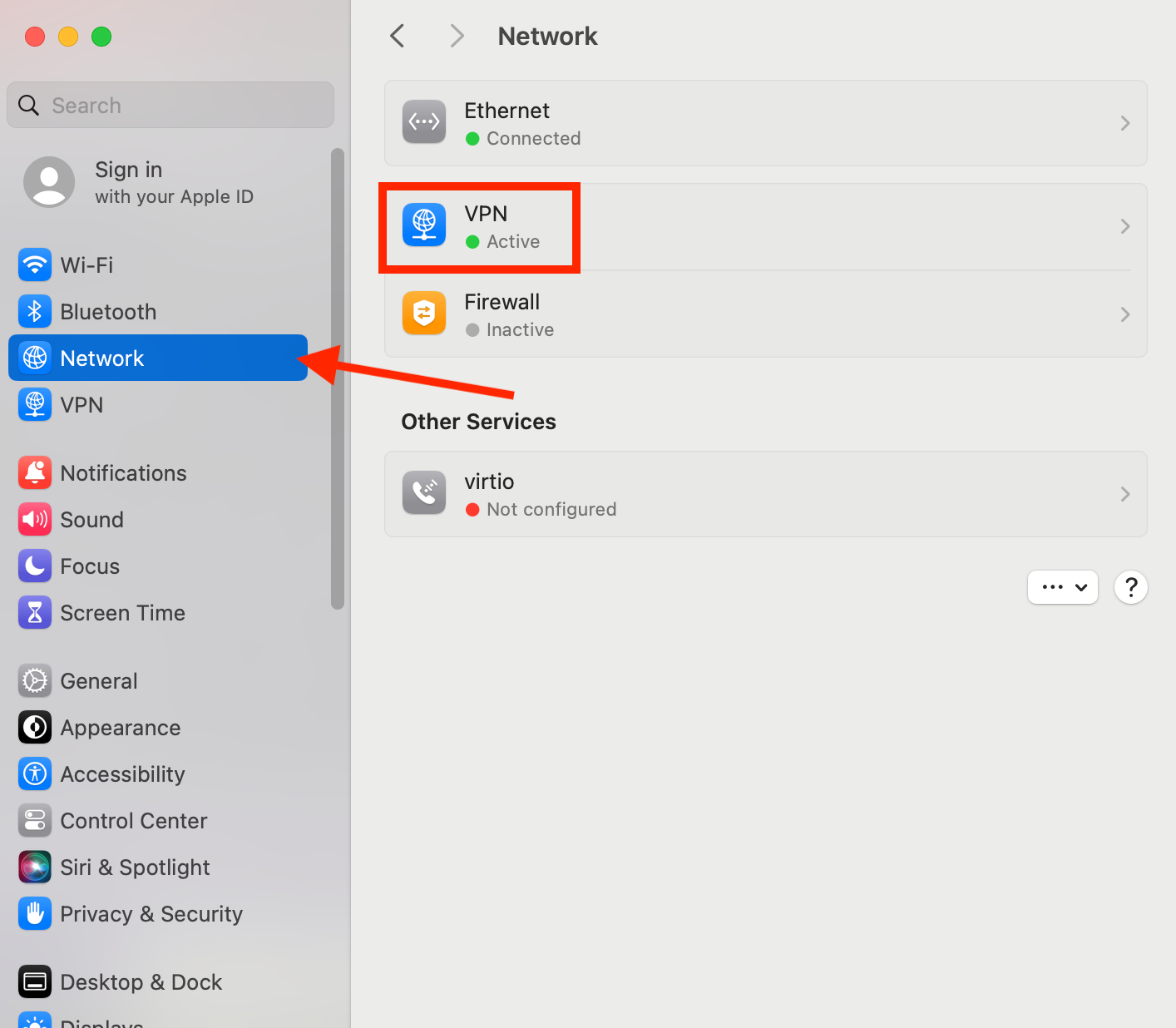
Open System Settings on your Mac, then choose Network.
Select the VPN you want to disable, then click the toggle to disconnect it.
Step 1. In System Settings, select Network > VPNStep 2. Click the toggle to disable your VPN
Many VPN clients on Mac also come with menu bar controls, which make it even easier to enable and disable your VPN connection. Look for the logo of your VPN provider in the top-right corner of your screen, near your Mac’s Wi-Fi indicator. Click it and then look for the Disconnect button.
Conclusion
Teams app isn’t known for being the most reliable app on Mac, and most users tend to run into odd issues from time to time, whether it’s connection problems, freezes, or the app refusing to launch at all. Whatever the case may be, Teams is usually easy to fix—simply follow the tips outlined above to get it working.
If you’re having trouble overcoming Teams issues on your own, why not reach out to MacKeeper Premium Services for help? Our trained experts are available 24/7 to assist you with fixing Teams and any other application or feature that’s refusing to work as it should.
We respect your privacy and
use cookies
for the best site experience.
Privacy Preferences Center
We use cookies along with other tools to give you the best possible experience while using the
MacKeeper website. Cookies are small text files that help the website load faster. The cookies we
use don’t contain any type of personal data meaning they never store information such as your
location, email address, or IP address.
Help us improve how you interact with our website by accepting the use of cookies. You can change
your privacy settings whenever you like.
Manage consent
All cookies
These cookies are strictly necessary for enabling basic website functionality (including page
navigation, form submission, language detection, post commenting), downloading and purchasing
software. The website might malfunction without these cookies.