Do you constantly experience AirDrop waiting when sending items from iPhone to Mac? We’ll shed light on why that happens and what you can do about it. But you can also reach out to expert technicians via MacKeeper’s Premium Services. They’re well-versed in troubleshooting Mac system-related issues, saving you time and preventing potentially costly mistakes.
Why is AirDrop waiting when sending from the iPhone to the Mac?
AirDrop keeps saying waiting when sending files from an iPhone to a Mac due to a communication breakdown between the two devices. This can happen for several reasons, such as the two devices being too far from each other. Restrictive firewall settings are also common culprits for AirDrop waiting, as well as personal hotspot and VPN services.
Curious about where AirDrop files go on Mac? Discover where to find them.
How to fix AirDrop waiting when sending from iPhone to Mac?
To fix AirDrop stuck on waiting from iPhone to Mac, check your Bluetooth connection. Enable your Wi-Fi connection and disable your personal hotspot. Remove any AirDrop restrictions. Unlock both devices. You should also check AirDrop settings. If those are fine, restart the devices. Next, try turning off your VPN service. Reset network settings and update both devices' OS. If all else fails, use an alternative service.
A note from our experts:
Delayed AirDrop sharing is a common issue faced by Apple users everywhere, but it’s possible that you’re encountering it for the first time after wondering why AirDrop is taking so long. If you’re unsure how to fix it, we recommend you use MacKeeper’s Premium Services. It’s a handy tool that connects you to an expert technician who fixes common Mac system-related problems like the one you’re facing. They’re professional and helpful, and get you sorted while you wait. MacKeeper is trusted by thousands of Mac owners worldwide and owned by Clario Tech, which has been helping Mac owners manage, optimize, and secure their Mac computers since 2019.
Follow these steps to use MacKeeper’s Premium Services feature:
While AirDrop uses Bluetooth to find the recipient device, it relies on Wi-Fi for sending files. We’ve found that Airdrop can get stuck in a waiting state because our Wi-Fi is either disabled or the connection is interrupted.
Here’s how to enable the Wi-Fi connection on your Mac:
Click on the Wi-Fi icon in the menu bar.
Enable Wi-Fi if it is disabled.
3. Disable personal hotspot
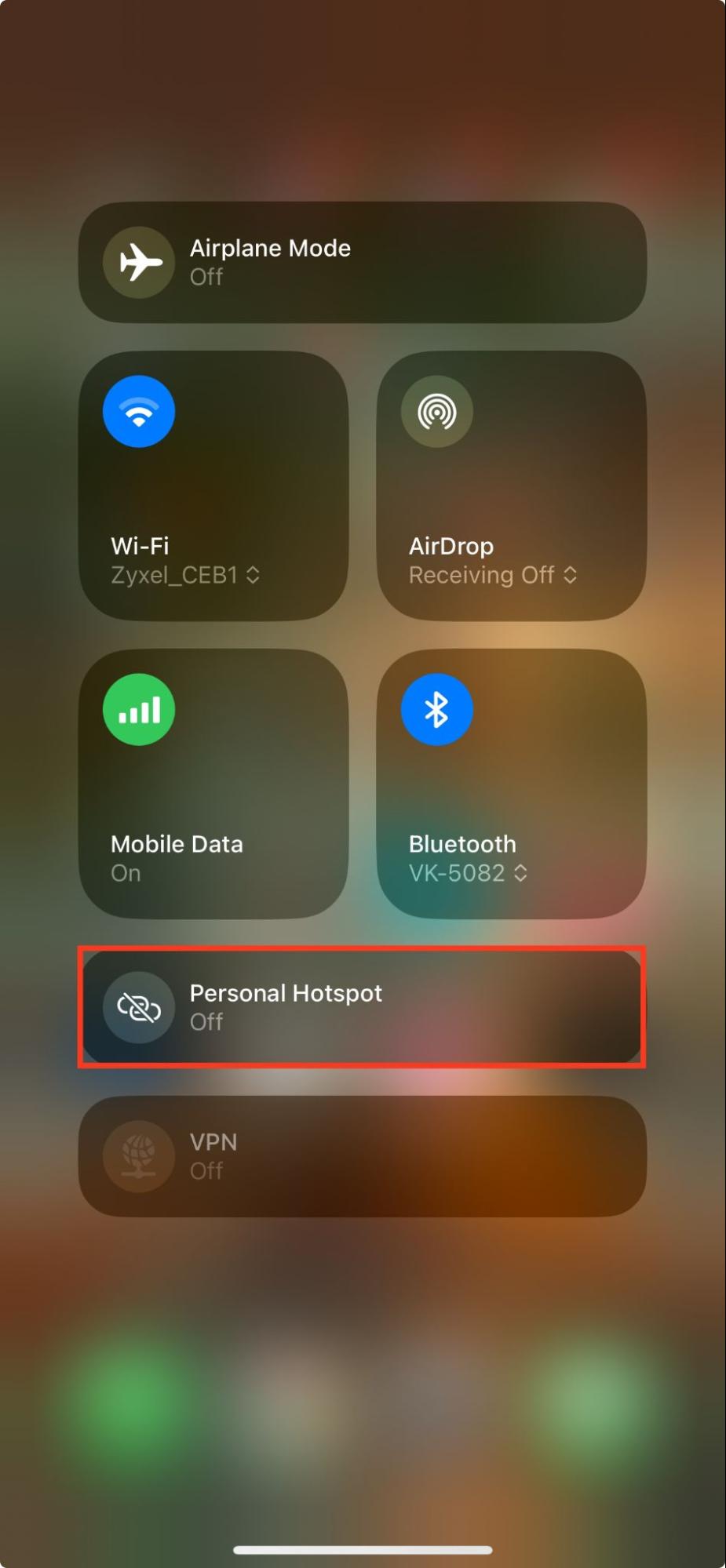
Your mobile phone’s Wi-Fi antenna can only focus on one large task at a time, and a hotspot relies on it to share internet. Since AirDrop uses that same antenna to send files, an active personal hotspot keeps the antenna busy, resulting in it getting stuck waiting for its turn. Therefore, disabling your personal hotspot is crucial if you want AirDrop to work. It frees up the antenna to build the fast connection needed to send your files to the Mac.
Disable your personal hotspot by following the steps below.
Swipe up or down your iPhone screen to reveal the Control Center.
Disable your personal hotspot by tapping on the settings.
4. Remove AirDrop restrictions
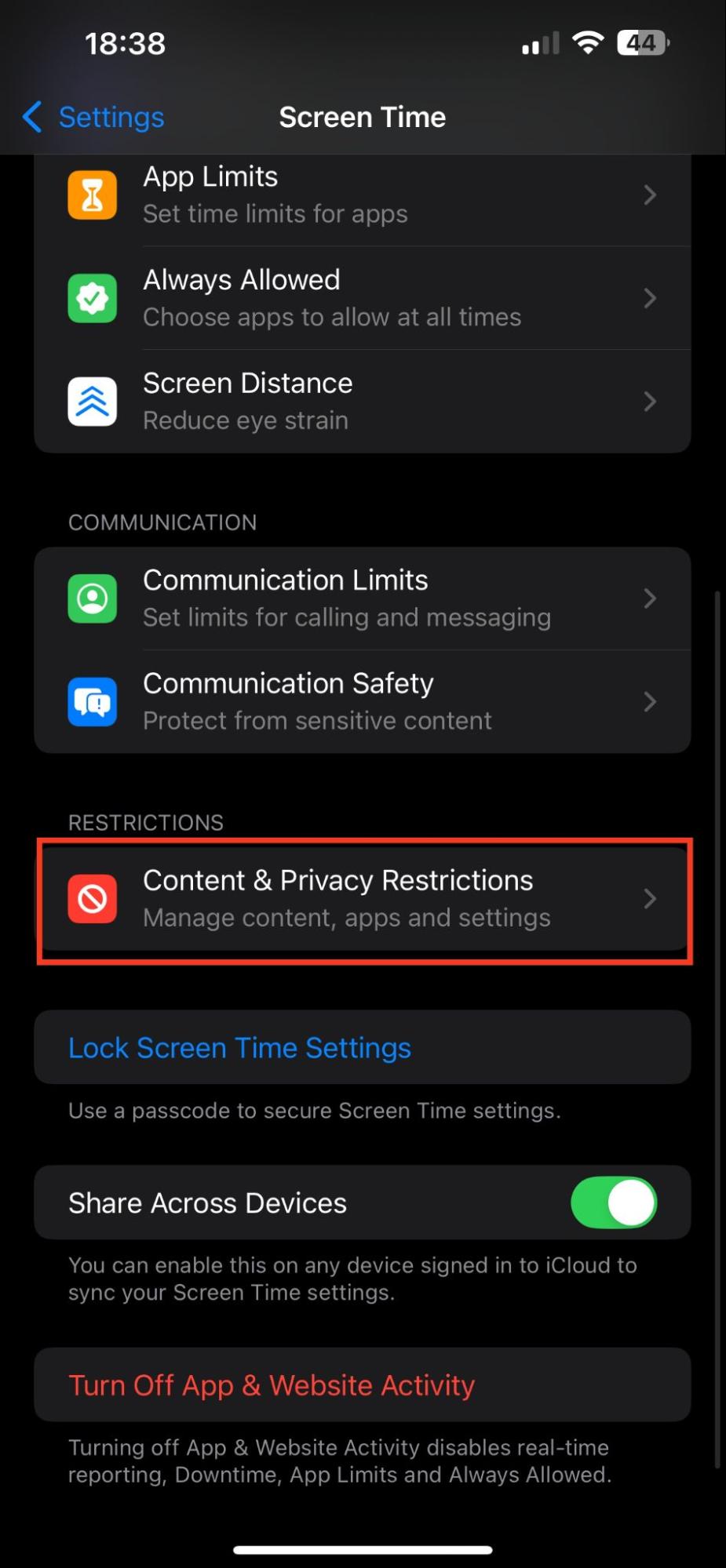
Sometimes, we set app restrictions and forget about them until they prevent us from carrying out daily tasks, like sharing files via AirDrop. Has this ever happened to you? While app restrictions can be helpful for managing screen time, they can be the reason you can’t AirDrop from iPhone to Mac. Note that this step only applies if you’ve enabled Content & Privacy Restrictions on your phone.
Remove AirDrop restrictions on iOS using this approach:
Open the Settings app and go to Content & Privacy Restrictions.
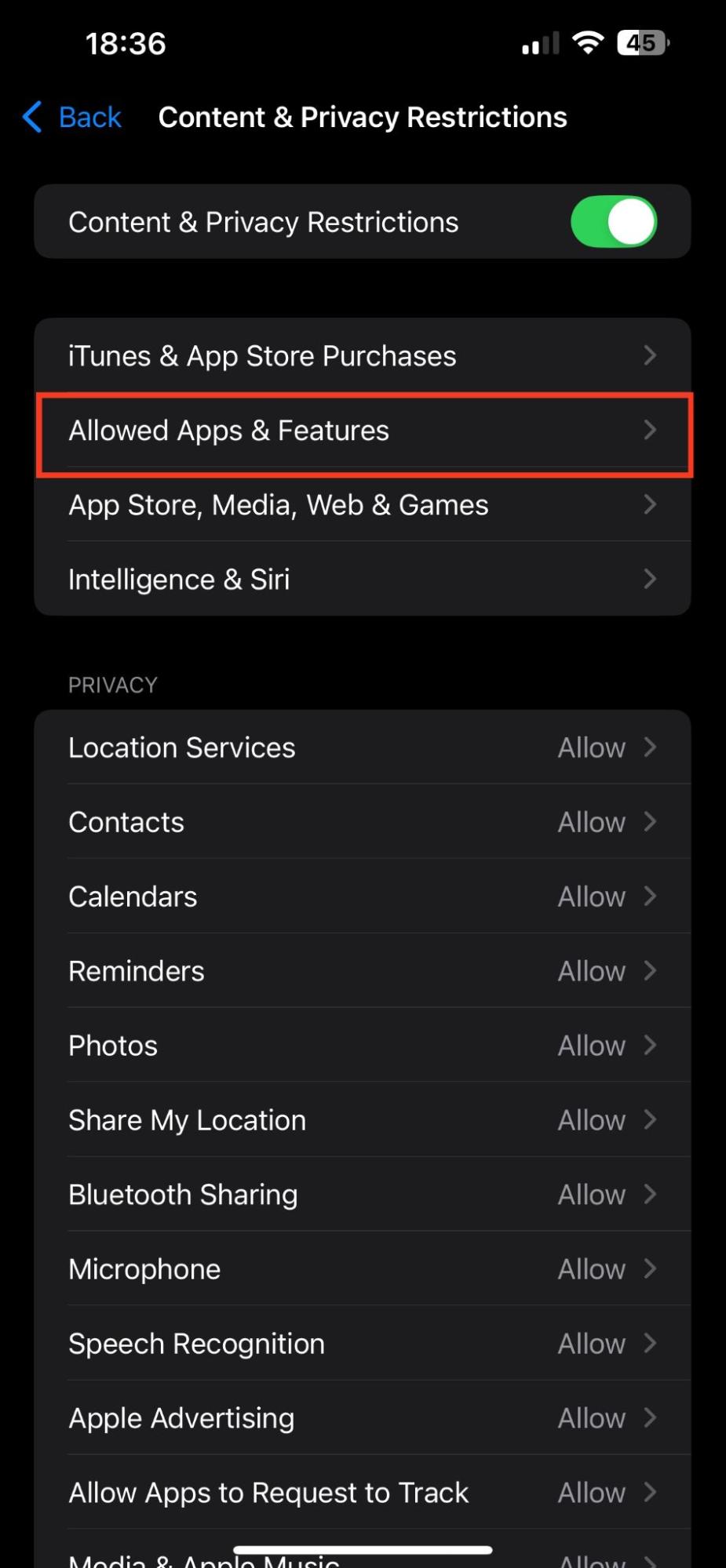
If the options are grayed out, skip this step. If not, choose Allowed Apps & Features.
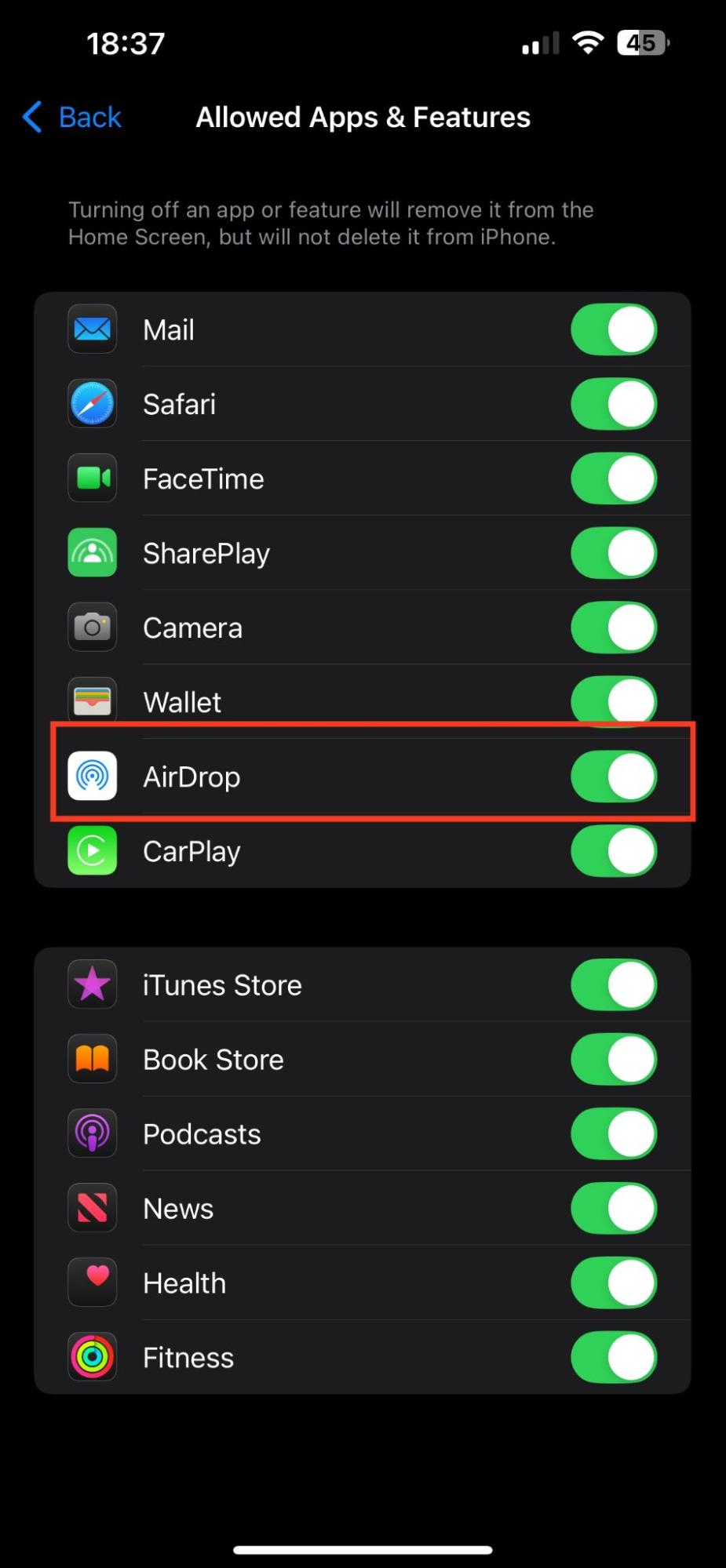
Make sure that AirDrop is enabled. If not, switch it on now.
Step 1. Open the Settings app and go to Content & Privacy RestrictionsStep 2. Tap the Allowed Apps & Features optionStep 3. Make sure that AirDrop is enabled
5. Unlock both devices
Both your iPhone and Mac must be unlocked to successfully share files via AirDrop. For this reason, we always unlock both devices before sending files between them. This action wakes up their security and radios, enabling them to communicate with each other.
How to unlock iPhone and MacBook devices:
Enter your Mac password to unlock it.
Use Face ID or your passcode to unlock your iPhone.
6. Check AirDrop Settings
Receiving AirDrop requests from strangers in public can be creepy, so we often disable or limit AirDrop settings when in public spaces. At times, we forget to go back and set AirDrop to receive from everyone, which can limit our ability to AirDrop files to our Mac.
Check AirDrop settings like this:
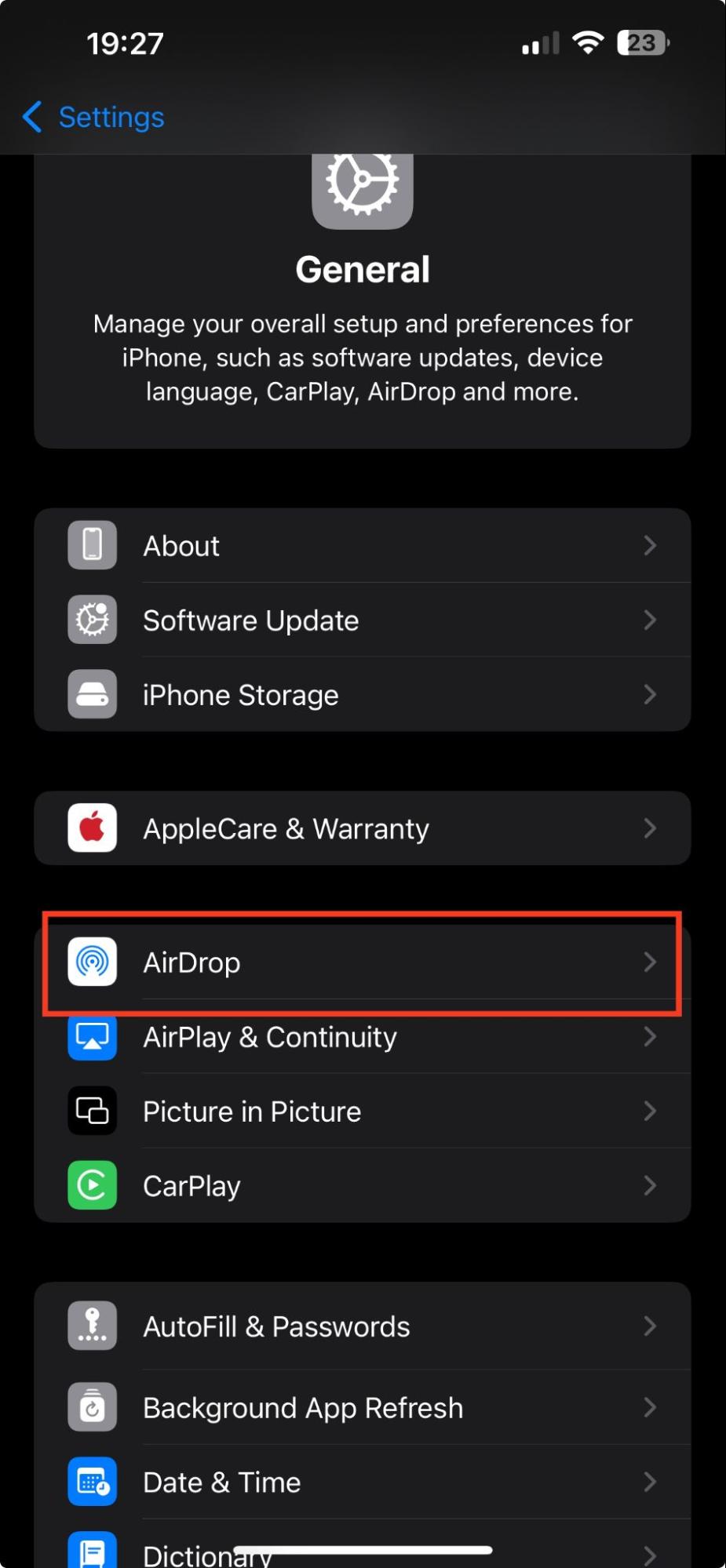
In your iPhone’s Settings app, tap General > AirDrop.
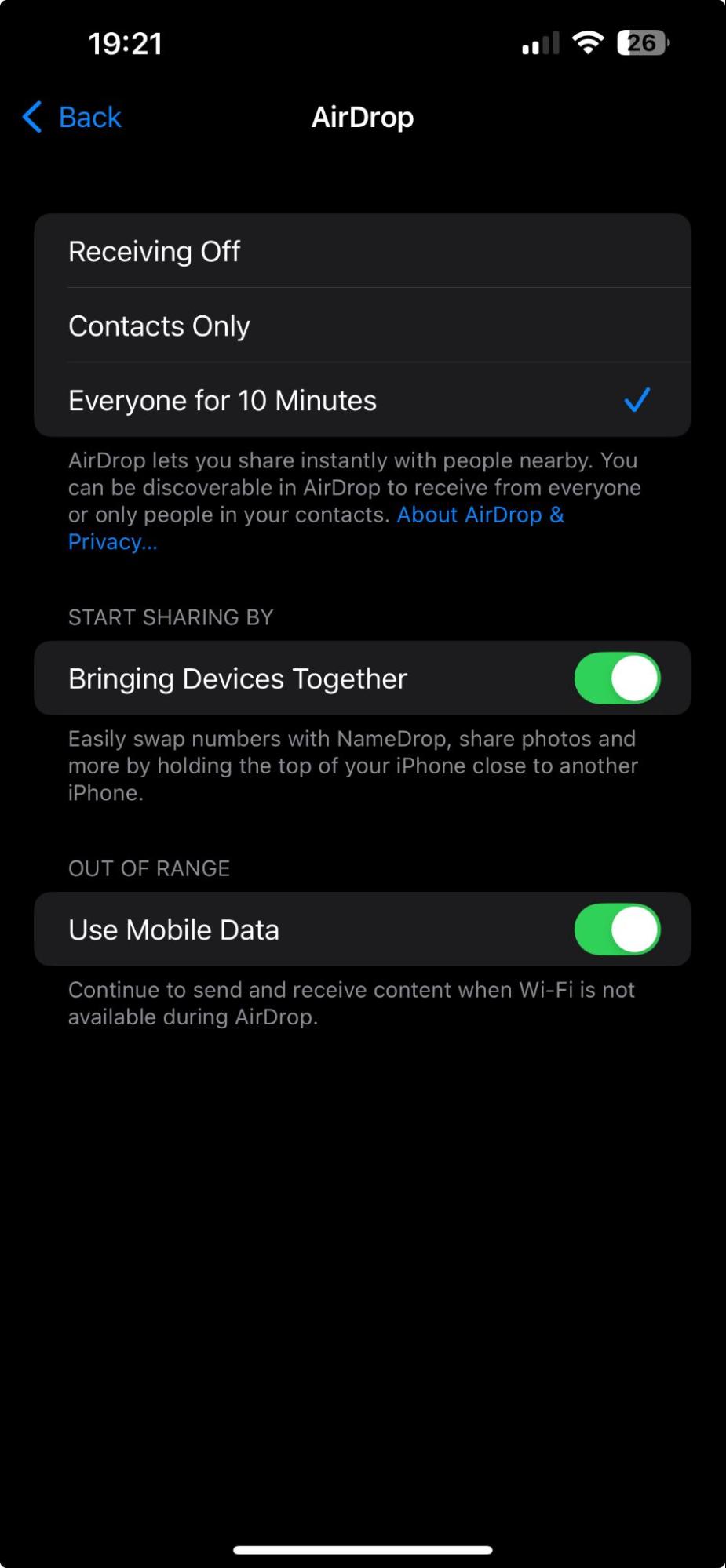
Select Everyone for 10 Minutes or Everyone, depending on your iOS version.
Step 1. In your iPhone’s Settings app, tap General > AirDropStep 2. Select Everyone for 10 Minutes or Everyone
7. Restart devices
System glitches can affect your devices’ performance. That’s why we always restart our devices when we encounter performance issues, like AirDrop delaying sending items from our iPhone to our Mav.
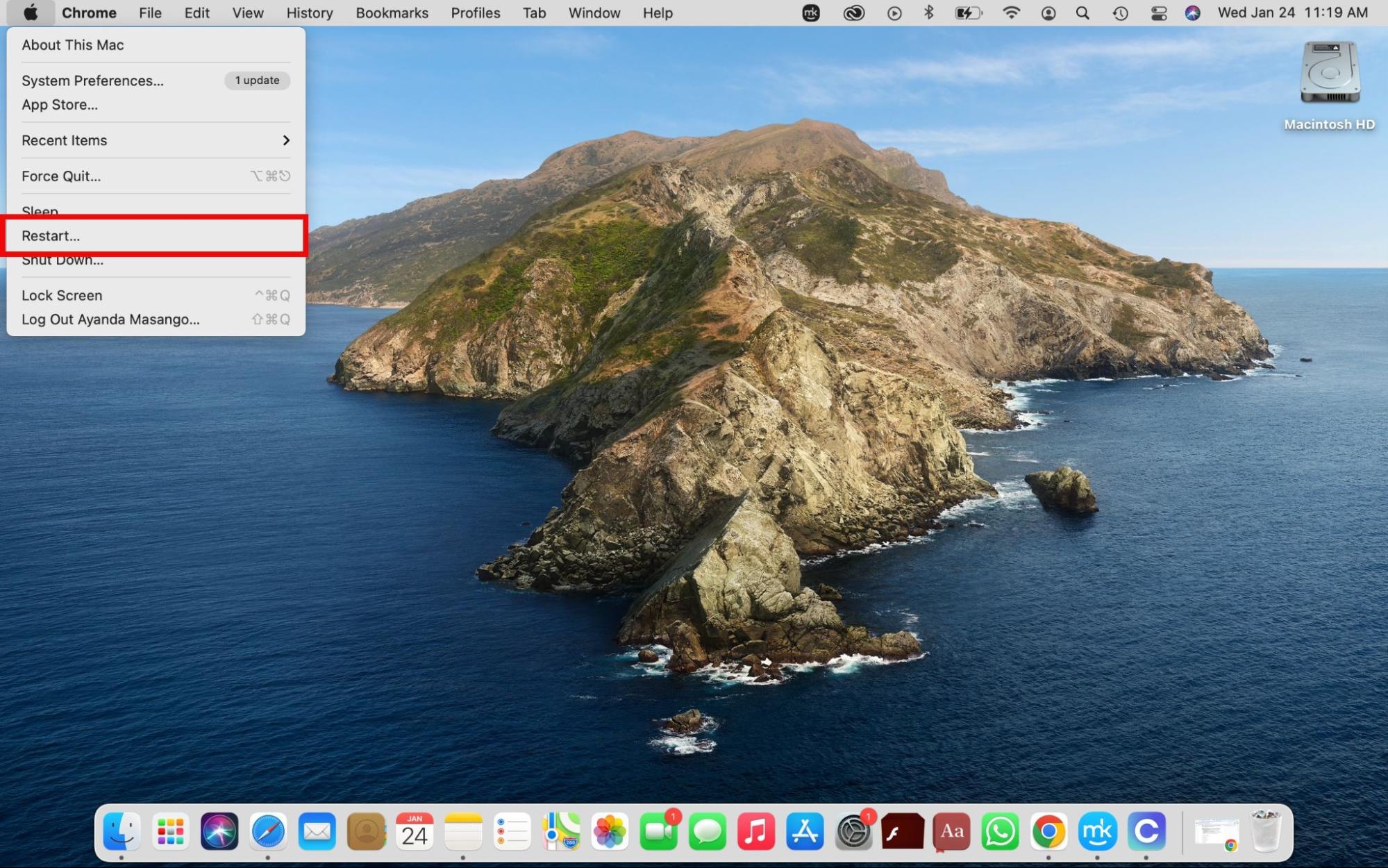
Restarting your Mac and iPhone is easy. Here’s how to do it:
Select the Restart option via the Apple menu.
On iOS, the steps differ slightly, depending on the iPhone model you own.
iPhone 8 or X and later: Hold down the Volume Up, Volume Down, and Side buttons until the Apple logo appears.
iPhone 7 and Plus: Hold down the Sleep/Wake and Volume Down buttons simultaneously until the Apple logo appears.
iPhone 6 and earlier: Hold down the Sleep/Wake and Home buttons until the Apple logo appears.
8. Turn off VPN
Since VPN services can interfere with Bluetooth and Wi-Fi, we disable them to fix AirDrop waiting when attempting to share items from an iPhone to a Mac.
To disable your VPN, do this:
Open your VPN app on your phone.
Disable VPN.
A tip from the MacKeeper team:
You can also turn off VPN on Mac if it causes your Mac’s performance to start declining or when you aren’t using it at the time.
9. Reset network settings
When apps like AirDrop start malfunctioning, we know it’s probably time to reset network settings on Mac. It fixes any glitches or bugs that could cause AirDrop to misbehave.
Try the method below to reset network settings:
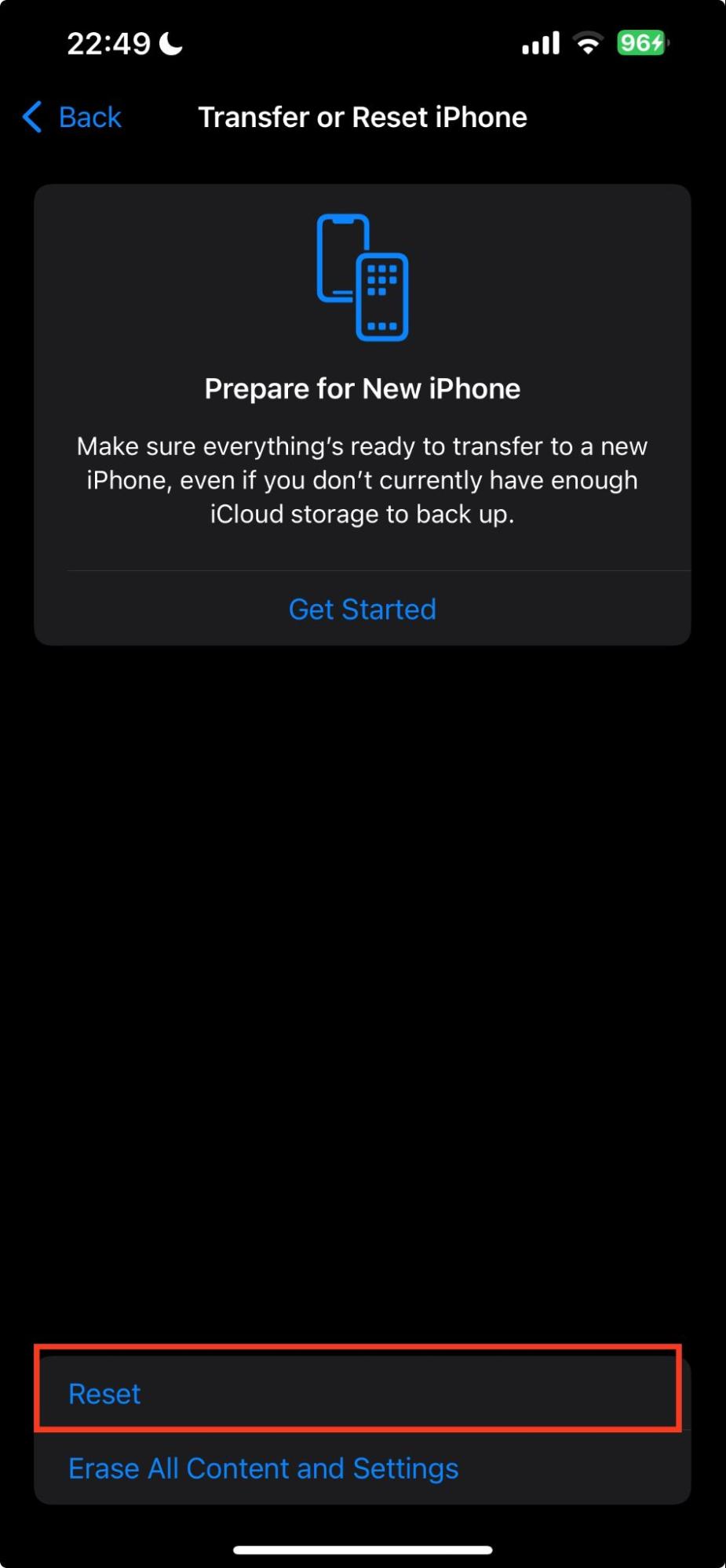
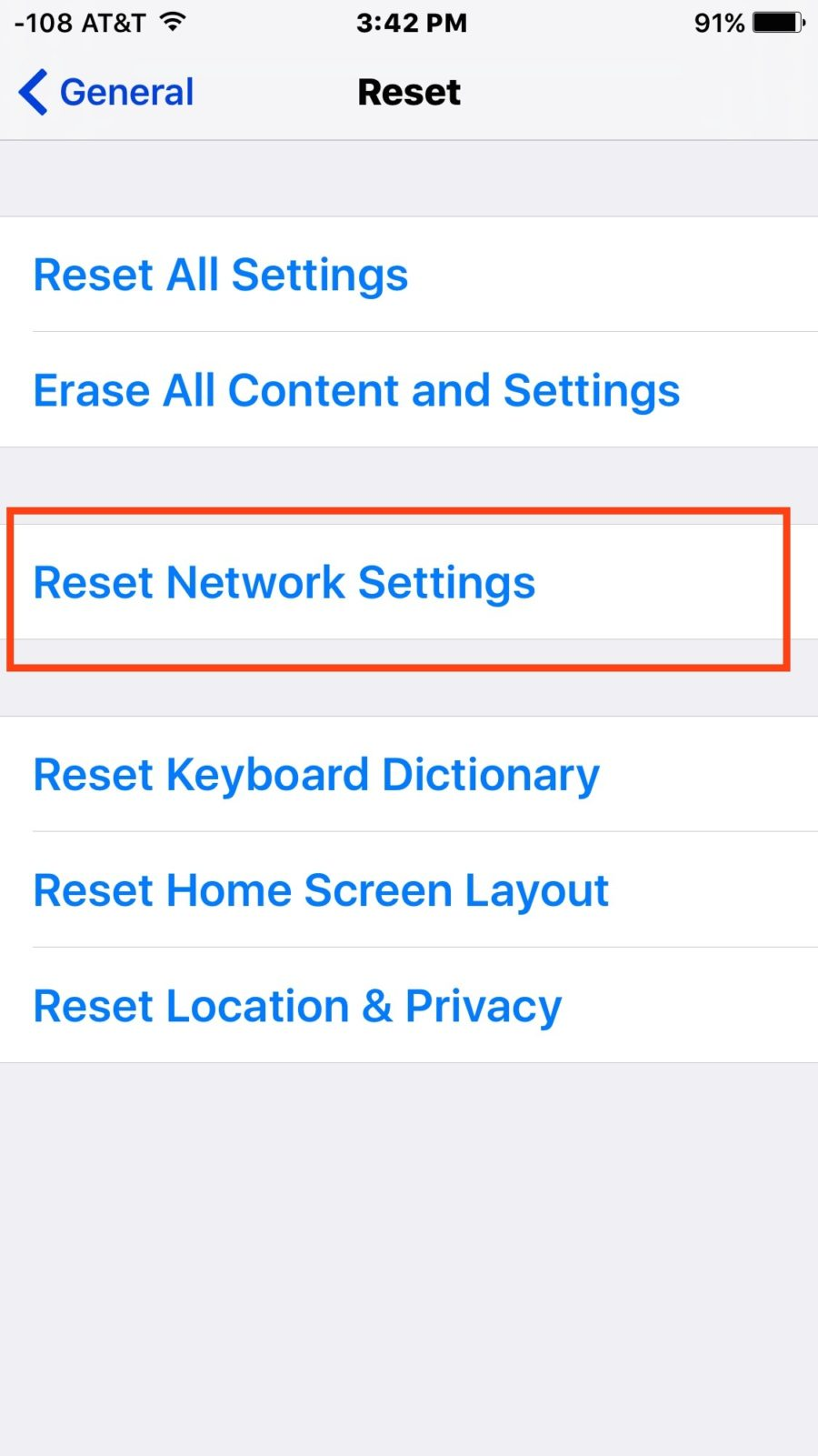
In your iPhone’s Settings app, tap General > Transfer or Reset iPhone > Reset.
Select the option to Reset Network Settings.
Step 1. Tap General > Transfer or Reset iPhone > ResetStep 2. Select the option to Reset Network Settings
10. Update devices’ OS
Keeping up with software releases is crucial for your device’s optimal performance—and for security reasons. But, as you may know, it’s easy to forget to implement updates. So, issues like AirDrop waiting when sending items from iPhone to Mac are reminders for us to update Mac or iOS.
Ready to update iOS? Just follow these steps:
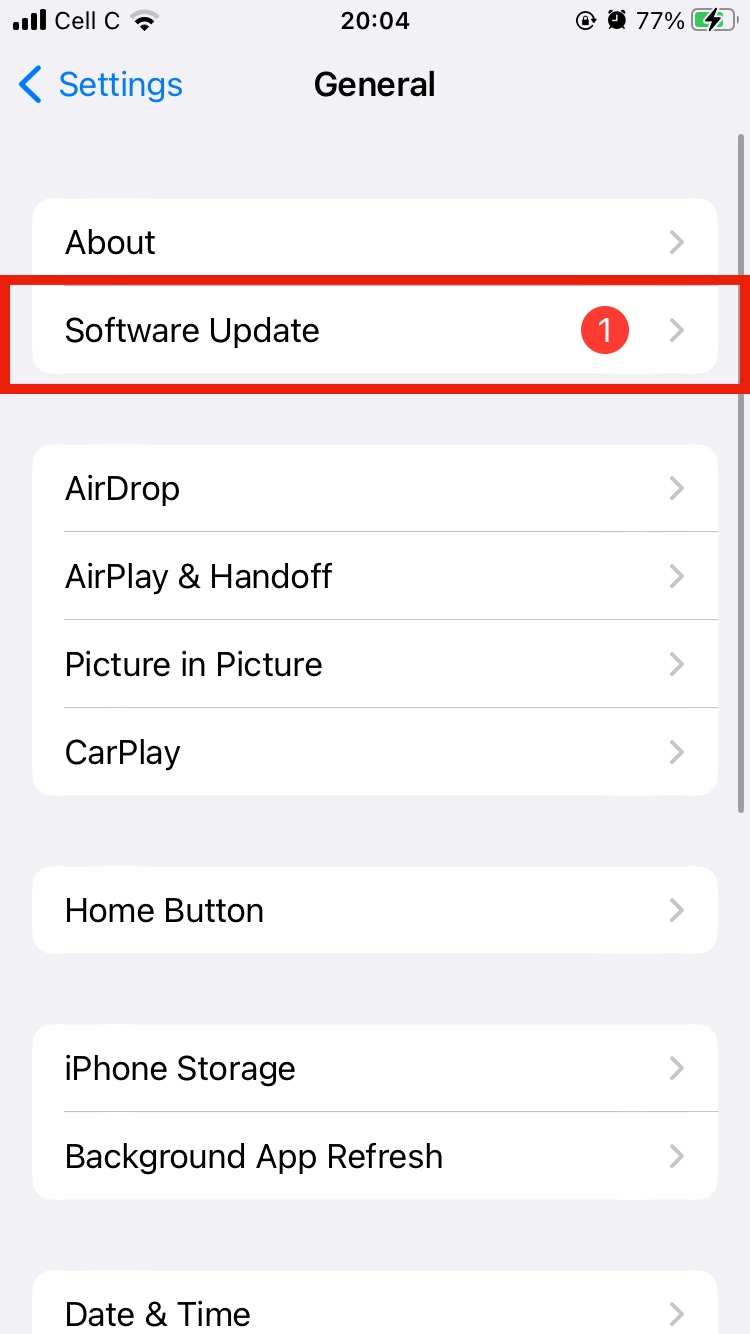
In General settings, select the Software Update option.
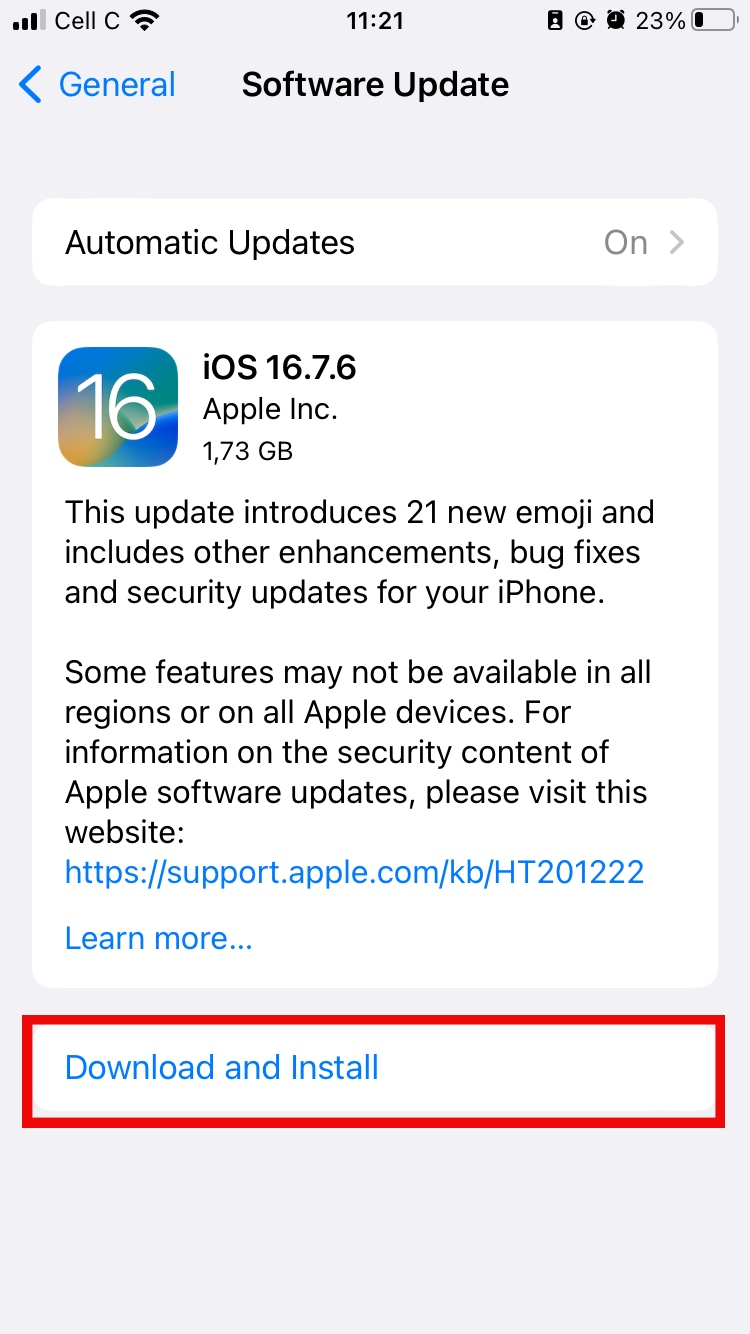
If new updates are available, select Download and Install.
Step 1. Select Software Update in General settingsStep 2. Tap Download and Install
11. Use an alternative service
Unfortunately, sometimes none of the fixes we try yield results. In such cases, we have no choice but to resort to alternative methods for sending files to our Mac, like email. It gets the job done, though it may not be as quick as using AirDrop.
Interested in sending files between Macs? It’s easy. Learn how to transfer data from one Mac to another.
Fix AirDrop waiting issues on a Mac
AirDrop waiting when sending files from iPhone to Mac can be a bit of an inconvenience, but it can usually be fixed using the solutions in our guide—from checking Bluetooth and Wi-Fi connections to implementing new software updates. Take your time going through these tips and you might find what works. And sometimes, we may have to simply try another way, like sending the items via email.
Though we’ve provided a comprehensive list of solutions, there’s a quicker and easier way to get results—using MacKeeper’s Premium Services feature. It connects you with an expert technician who handles the heavy lifting, fixing the problem while you wait, and saving you precious time. Try it and see for yourself.
We respect your privacy and
use cookies
for the best site experience.
Privacy Preferences Center
We use cookies along with other tools to give you the best possible experience while using the
MacKeeper website. Cookies are small text files that help the website load faster. The cookies we
use don’t contain any type of personal data meaning they never store information such as your
location, email address, or IP address.
Help us improve how you interact with our website by accepting the use of cookies. You can change
your privacy settings whenever you like.
Manage consent
All cookies
These cookies are strictly necessary for enabling basic website functionality (including page
navigation, form submission, language detection, post commenting), downloading and purchasing
software. The website might malfunction without these cookies.