Frustrated by the “Couldn’t open device 69877” error on Mac? Try using macOS Recovery or unmount the drive via Terminal. When none of these methods work, MacKeeper’s Premium Services offers 24/7 technical assistance.
The “Couldn’t open device 69877” error often appears when attempting to erase a disk on a Mac, whether through Terminal or Disk Utility. This error usually points to underlying issues with the disk, such as physical damage, software corruption, or permission conflicts. To address it, try repairing the disk with First Aid, unmounting or erasing it via Terminal, or utilizing macOS Recovery Mode or Safe Mode for further troubleshooting.
What does “Couldn’t open device 69877” error mean?
The “Couldn’t open device 69877” message appears when an error prevents your Mac from accessing a disk during erasure or reformatting in Disk Utility or Terminal. This issue most commonly affects external drives such as hard drives, SD cards, or USB flash drives, but in rare cases, it can also affect the internal startup disk.
Common causes of error 69877
The “-69877” error on a Mac can arise for multiple reasons. Common culprits include a physically damaged or faulty disk, a corrupted partition, or a software glitch that prevents macOS from recognizing the drive. Additionally, hardware-level protection or disk encryption might not allow you to write to it and trigger this error. Although it’s not always possible, identifying the root cause is essential for effective troubleshooting.
How to fix error 69877: couldn’t open device?
If you’ve encountered the error “-69877: couldn’t open device” on your Mac, there’s no need to panic. Start by restarting your computer. If the problem continues, check disk permissions, disable write protection, and attempt to repair or unmount the disk using Disk Utility or Terminal. Consider also using macOS Recovery Mode.
A note from our experts:
Having trouble with your Mac? Get in touch with MacKeeper’s Premium Services for expert assistance. With 150+ technicians and a 93% customer satisfaction rate, Clario Tech’s MacKeeper offers reliable 24/7 support whenever you need it.
This is how to benefit from MacKeeper’s Premium Services:
Type in your message and let our team know what you need.
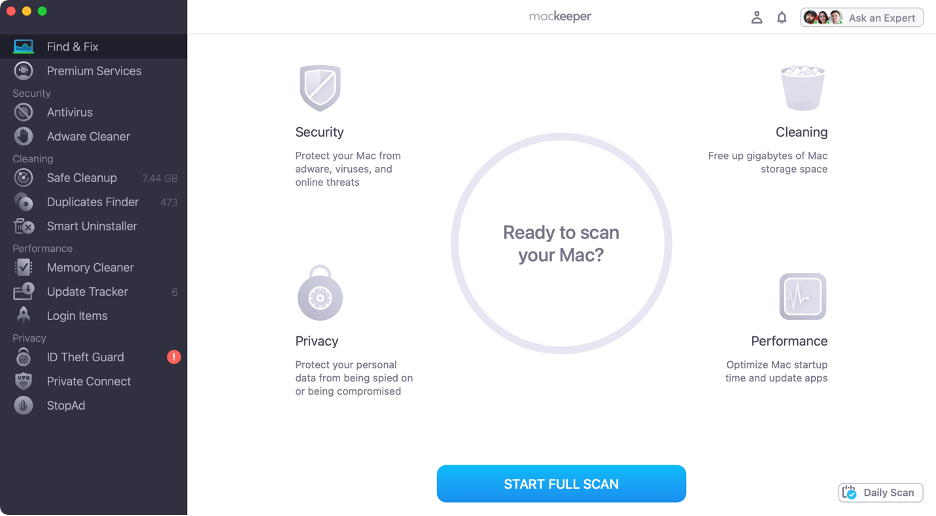
Step 1. Launch MacKeeperStep 2. Select Premium Services from the sidebarStep 3. Click Chat NowStep 4. Type in your message
1. Restart Mac
We’ll start with an easy fix that anyone can try: restart your MacBook. Sometimes, the “Couldn’t open device 69877” error pops up because of a minor software glitch. Based on our experience, a simple restart often clears the issue.
Here’s how to restart your Mac:
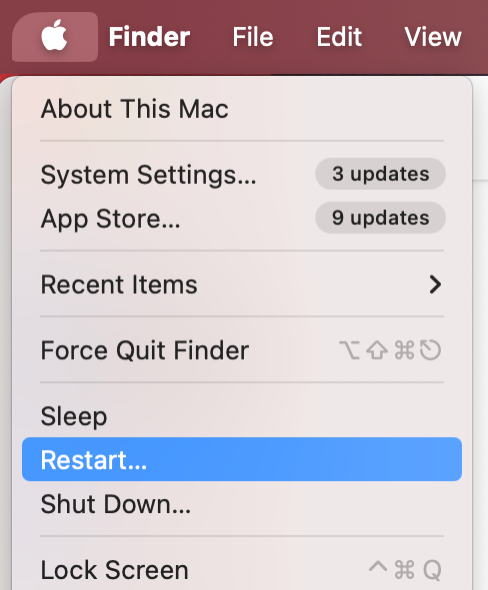
Go to the Apple logo in the menu bar.
Choose Restart from the dropdown menu.
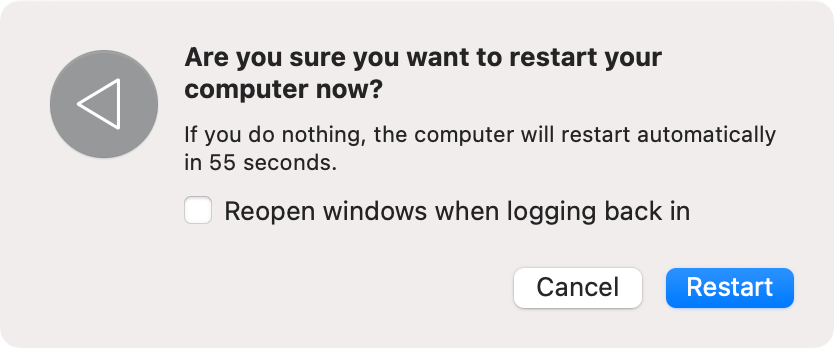
In the new window, click Restart again.
Step 1. Apple logo > RestartStep 2. Click Restart again
2. Check disk permissions
Another potential cause of the “Couldn’t open device -69877” error is not having permission to write on your disk. Before attempting other solutions, check your disk permissions on Mac to ensure you have full access.
To check disk permissions:
Plug in the external drive.
Launch Finder.
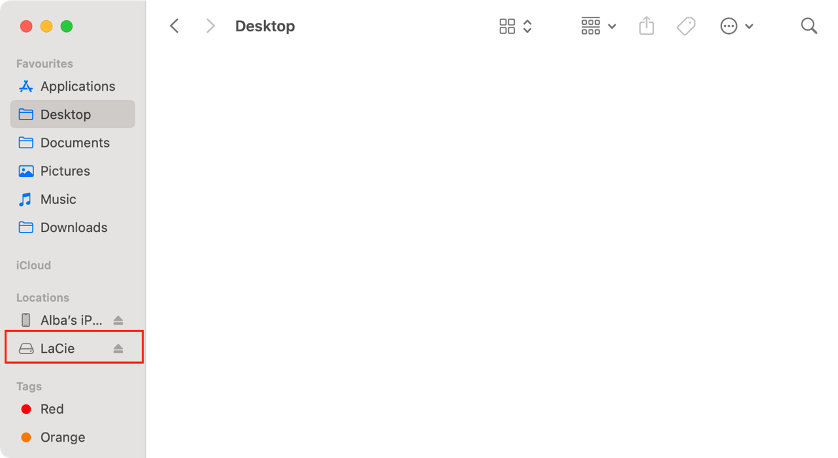
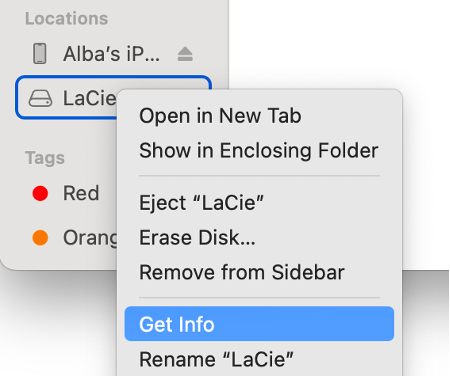
Locate the drive in the sidebar (under Locations) and right-click on it.
Select Get Info.
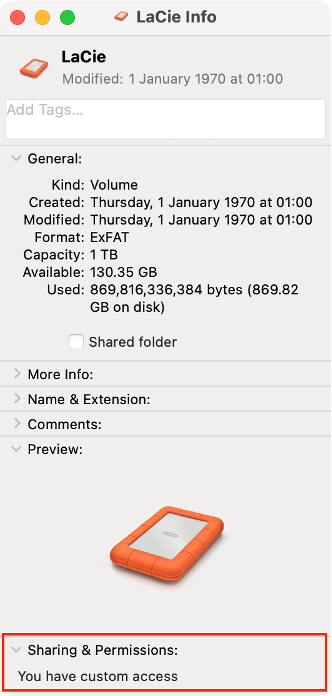
Check what access you have under Sharing & Permissions.
Step 1. Finder > LocationsStep 2. External drive > Get InfoStep 3. Check under Sharing & Permissions
3. Disable write protection
If your issue involves an SD card or USB flash drive, we suspect it may be due to a physical lock or write protection preventing access. This built-in security feature is easy to reverse. Simply slide the movable plastic tab to the unlocked position to regain write access to the drive.
4. Unmount and remount drive
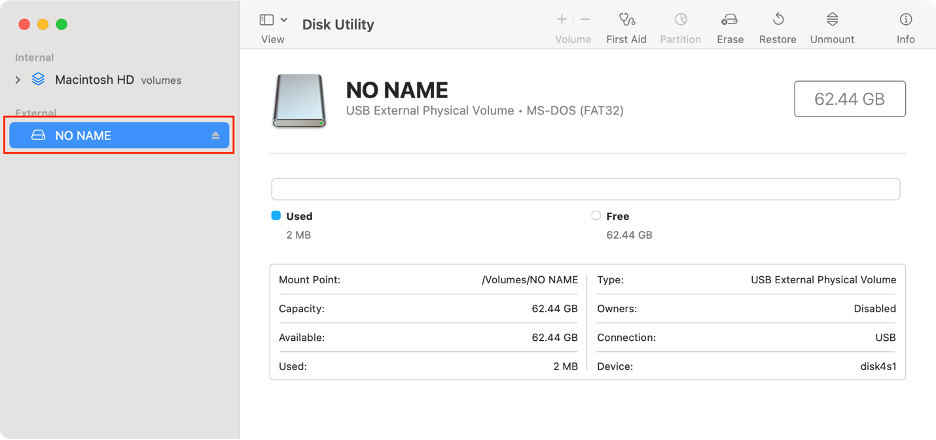
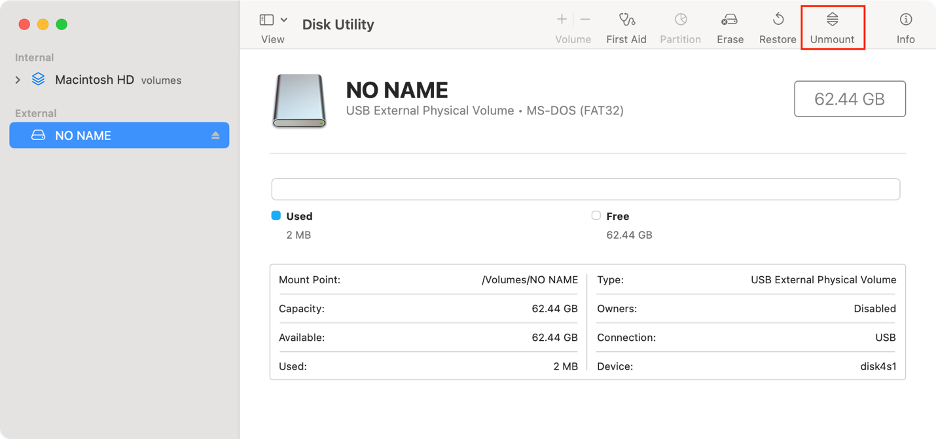
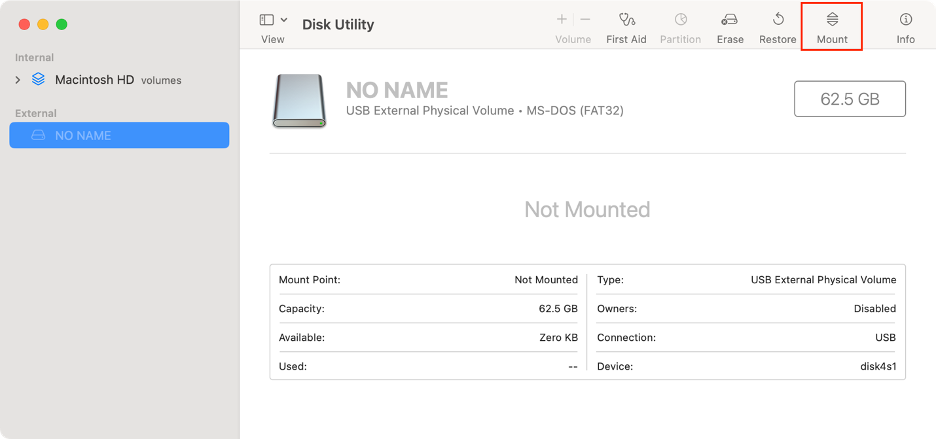
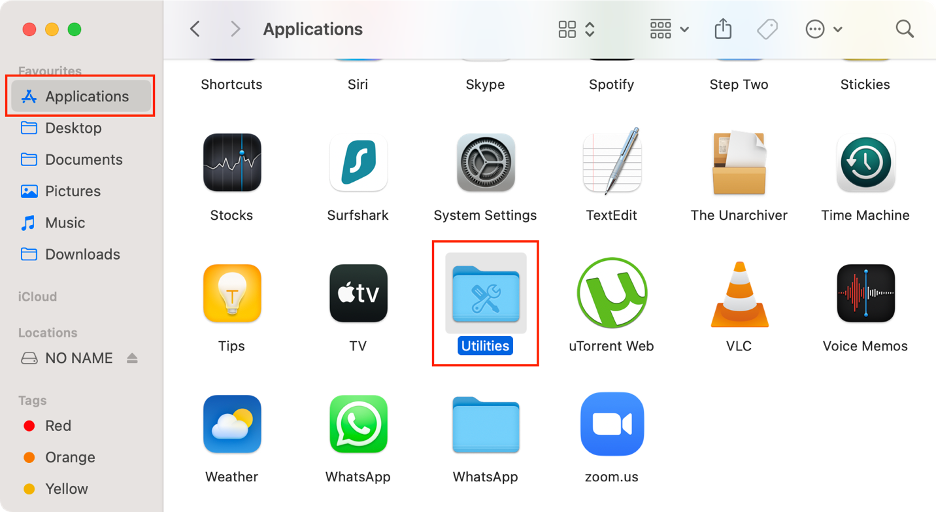
Once you’ve tried the basic solutions, our experts recommend progressing to more advanced steps. Start by unmounting and remounting the drive that triggered the “-69877” error. This can be done directly in Disk Utility, the same place you likely encountered the error.
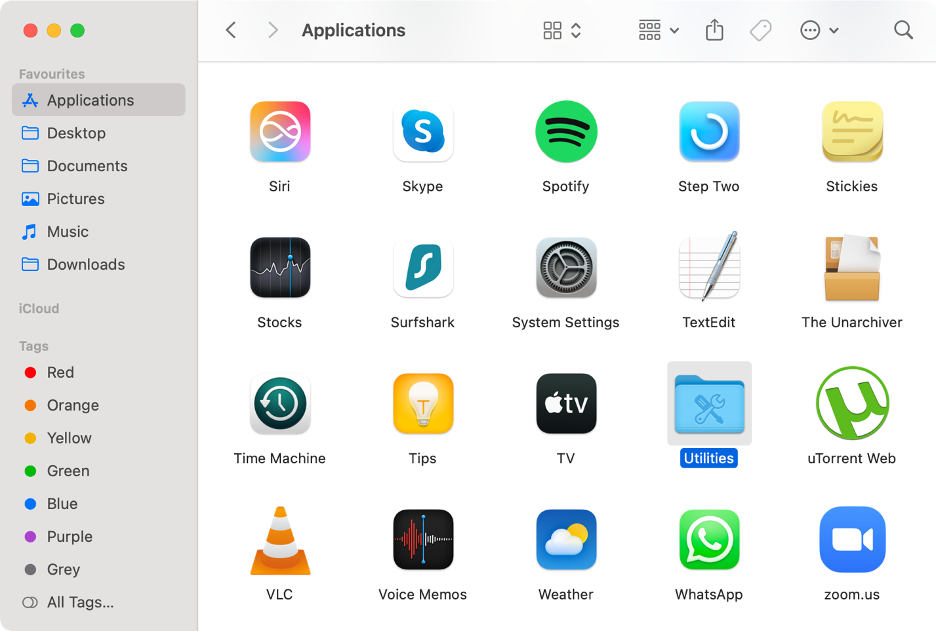
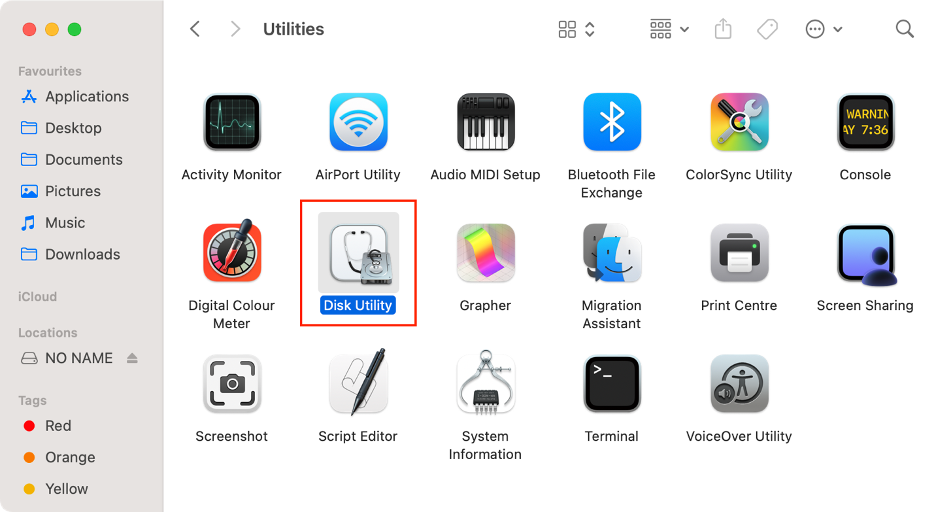
Step 1. Finder > Applications > UtilitiesStep 2. Launch Disk UtilityStep 3. Select your diskStep 4. Click UnmountStep 5. Click Mount
5. Repair with Disk Utility First Aid
If you suspect the “-69877” error is due to a corrupted disk, we also recommend using Disk Utility on Mac to attempt a repair. You should be able to use your Mac to read and write the disk after that.
Find the steps to repair your disk using First Aid:
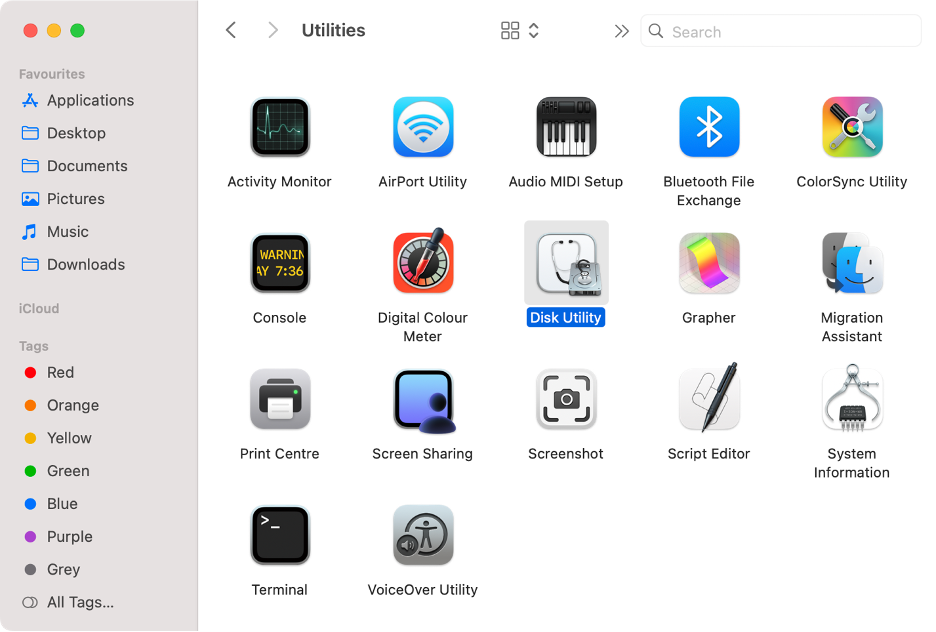
In Finder, click Applications.
Go to the Utilities folder.
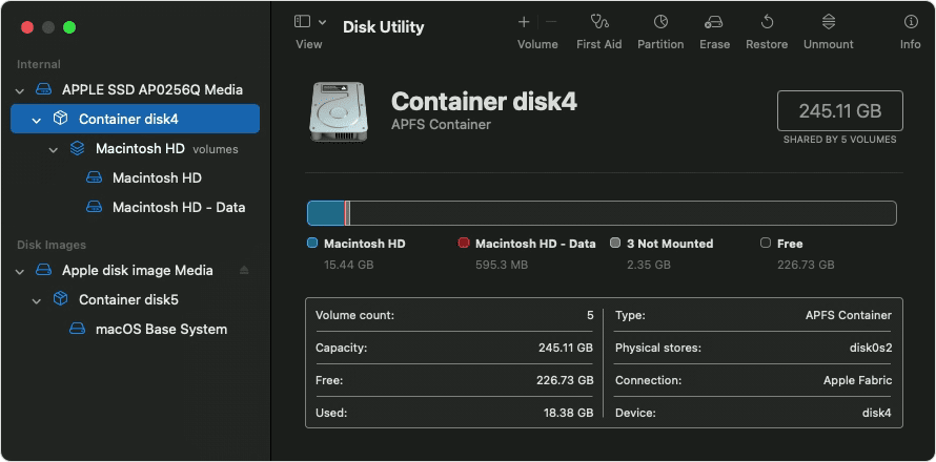
Launch Disk Utility.
Select your disk from the sidebar.
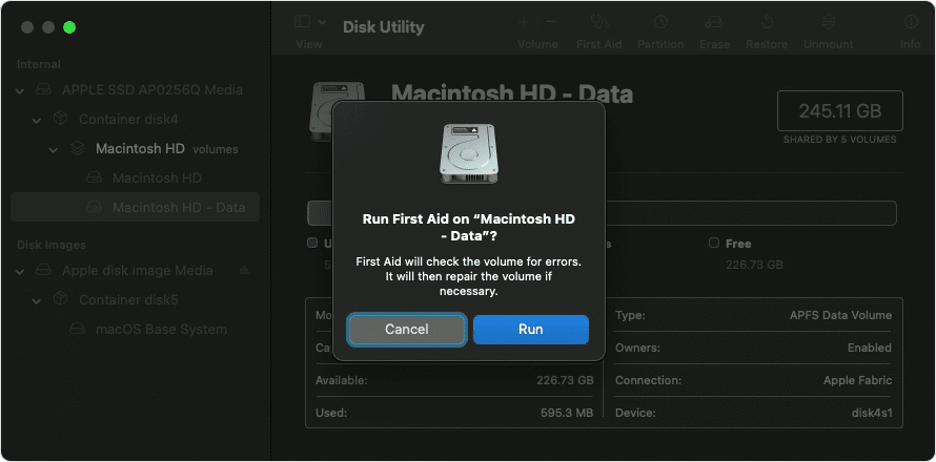
Click First Aid, then hit Run.
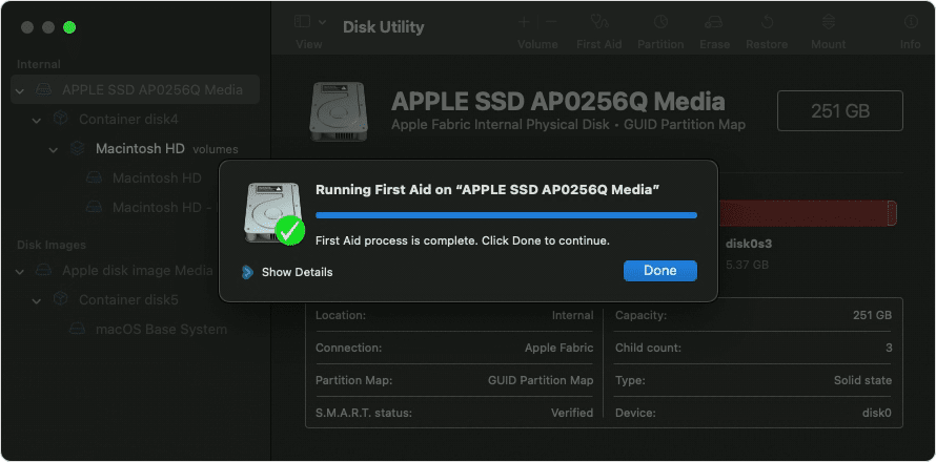
Click Done.
Step 1. Finder > Applications > UtilitiesStep 2. Launch Disk UtilityStep 3. Select your disk from the left-hand menuStep 4. First Aid > RunStep 5. Click Done to finish the process
6. Unmount or erase via Terminal
Terminal is another macOS utility commonly used for troubleshooting technical issues. We advise it only for advanced users. If you’re comfortable, follow our steps to unmount or erase your disk via Terminal.
First, we’ll show you how to unmount a disk and then mount it again:
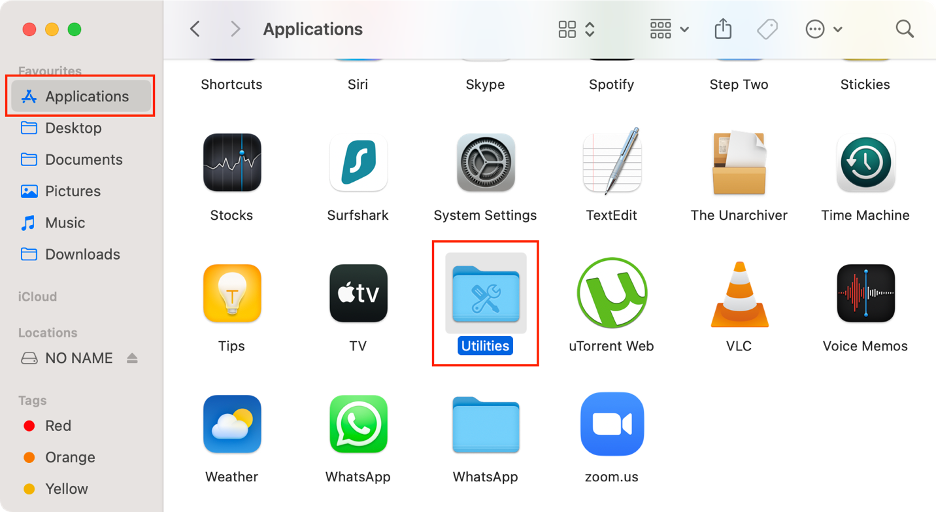
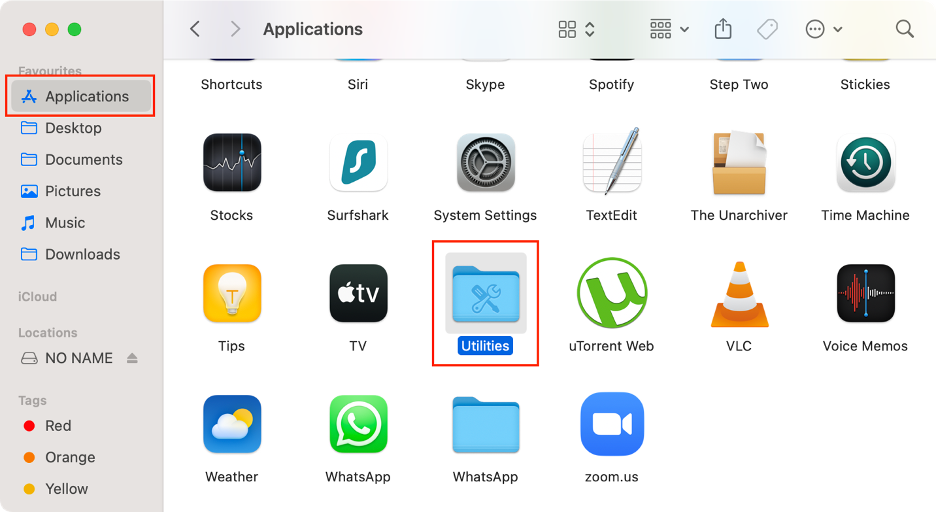
In Finder, click Applications.
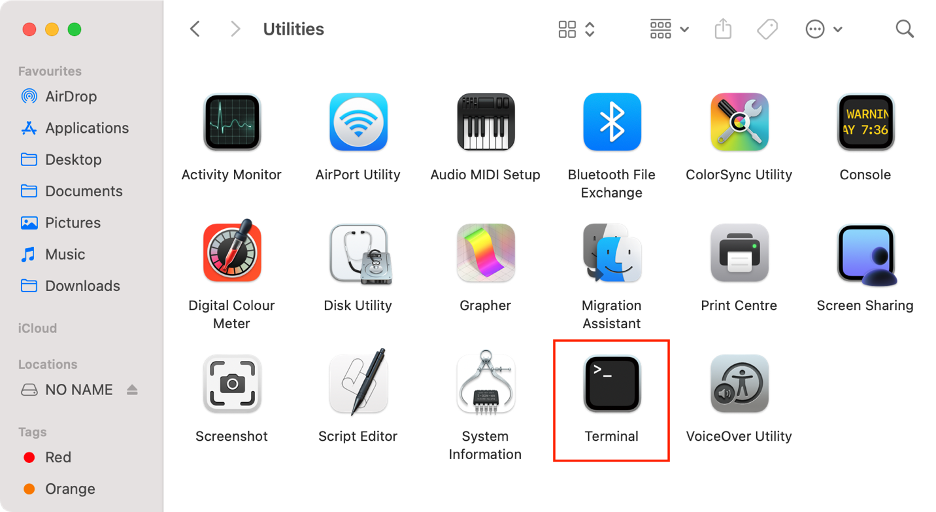
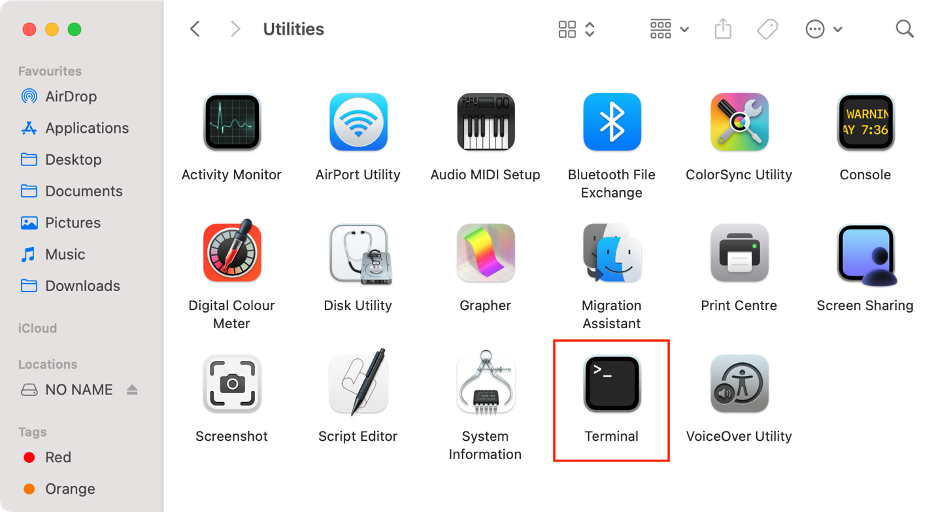
Go to Utilities.
Launch Terminal.
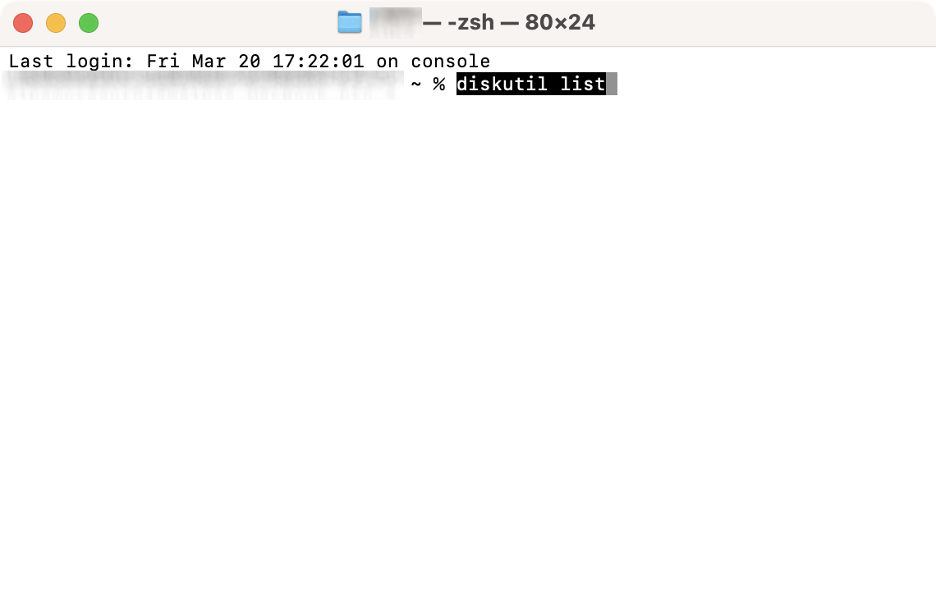
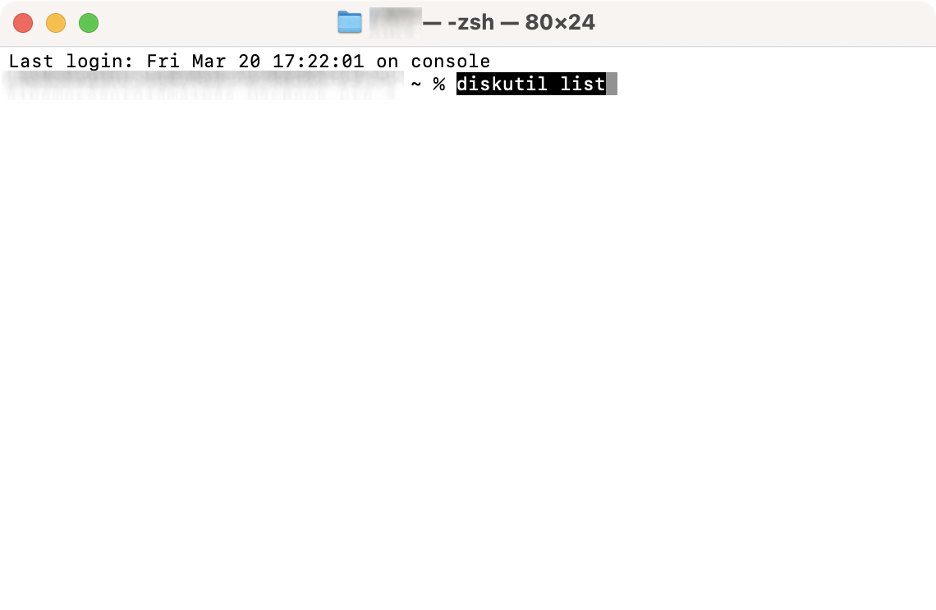
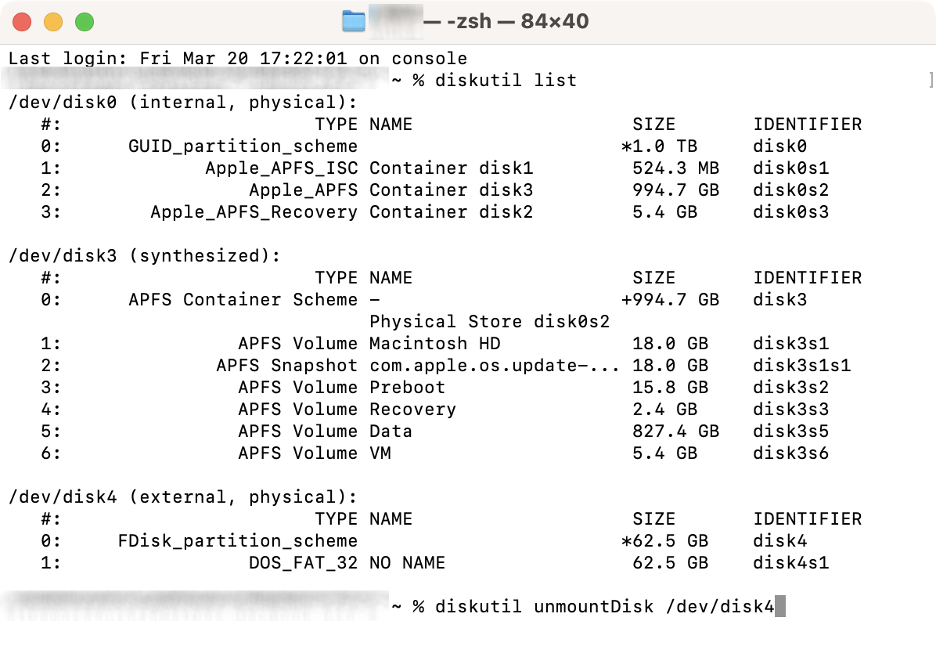
Type the following command: diskutil list, and press Enter.
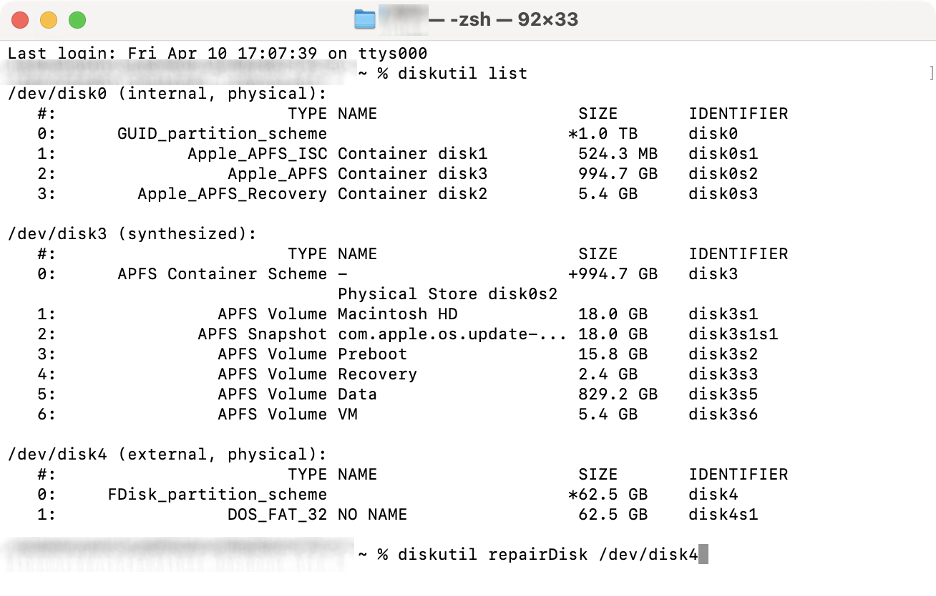
Note down the identifier of your disk (i.e., “disk4”).
Type this command: diskutil unmountDisk /dev/disk_identifier (replace “disk_identifier” with the disk number noted in step 5).
Press Enter again.
Step 1. Finder > Applications > UtilitiesStep 2. Launch TerminalStep 3. Type the command “diskutil list”Step 4. Type the command “diskutil unmountDisk /dev/disk_identifier”
Alternatively, here’s how to erase a disk using Terminal:
In Finder, click Applications.
Go to Utilities.
Launch Terminal.
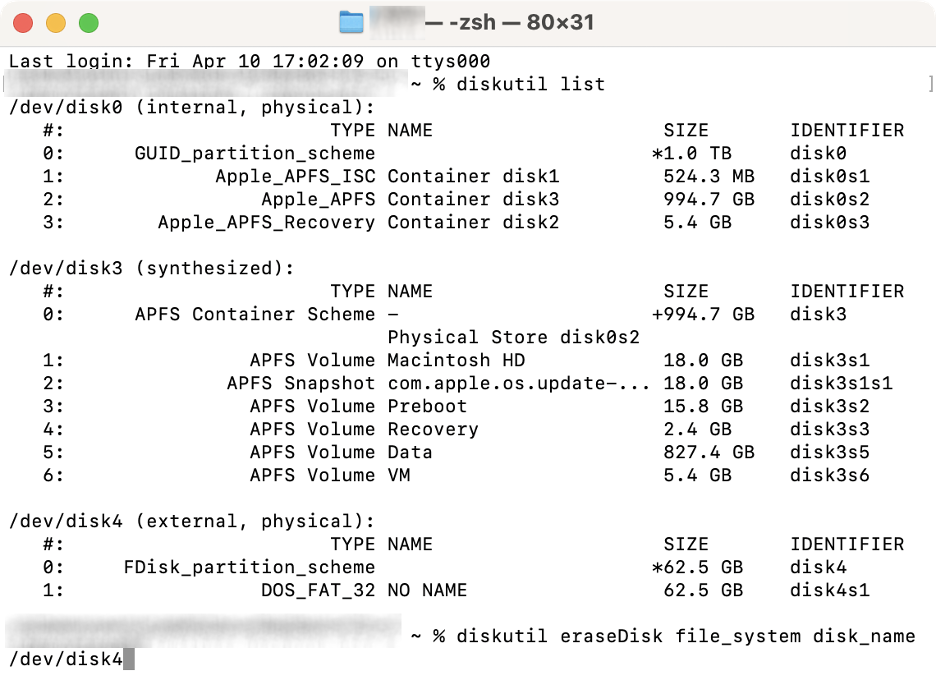
Type the following command: diskutil list, and press Enter.
Note down the identifier of your disk (i.e., “disk4”).
Type this command: diskutil eraseDisk file_system disk_name /dev/disk_identifier (replace “disk_identifier” with the disk number noted in step 5).
Press Enter again.
Step 1. Finder > Applications > UtilitiesStep 2. Launch TerminalStep 3. Type the command “diskutil list”Step 4. Type the command “diskutil eraseDisk file_system disk_name /dev/disk_identifier”
After unmounting the disk, we recommend attempting a repair before proceeding with a complete erase. This process also requires using the Terminal utility.
Here’s how to proceed:
In Terminal, type this command: diskutil repairDisk /dev/disk_identifier (replace “disk_identifier” with the disk number noted previously).
Press Enter.
For advanced repair, use the following command: sudo fsck_hfs -fy /dev/diskX (or sudo fsck_apfs -y /dev/diskX if your disk uses APFS).
Press Enter again.
Step 1. Enter the command “diskutil repairDisk /dev/disk_identifier”Step 2. Alternatively, use the command “sudo fsck_hfs -fy /dev/diskX”
8. Boot into macOS Recovery Mode
Our experts also suggest macOS Recovery Mode as a potential solution for the “Couldn’t open device 69877” error. But what is macOS Recovery Mode on Mac and why should you use it? It’s a built-in macOS troubleshooting tool that, among other functions, allows you to erase your disk.
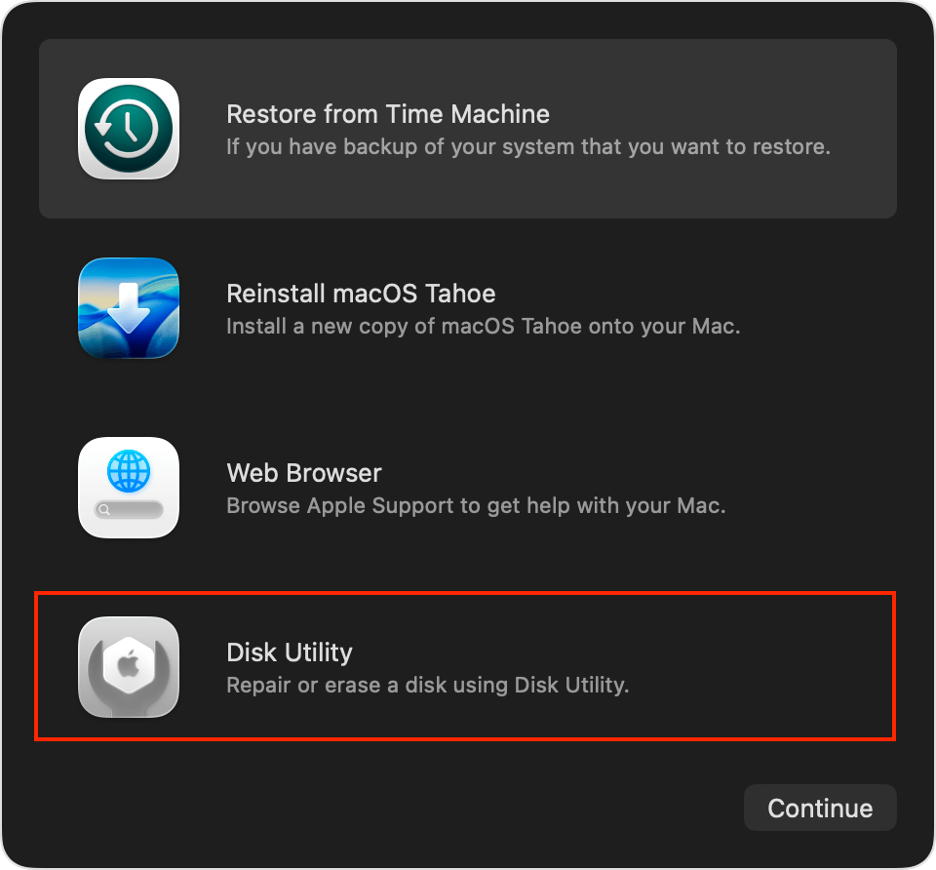
Follow this guide to erase the drive in macOS Recovery:
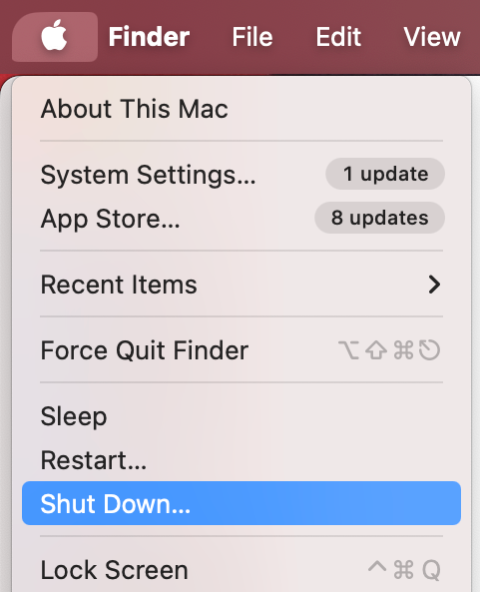
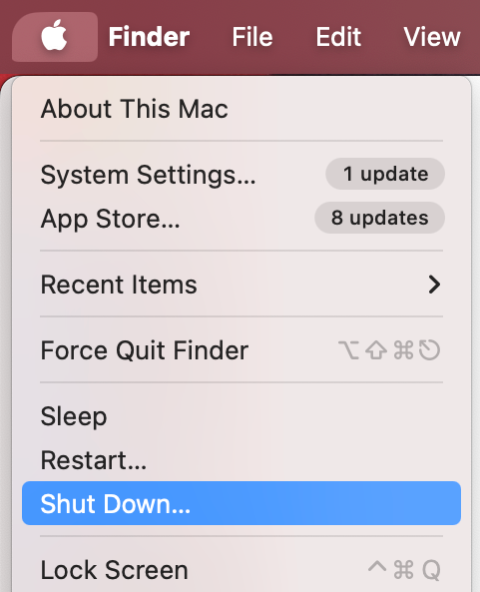
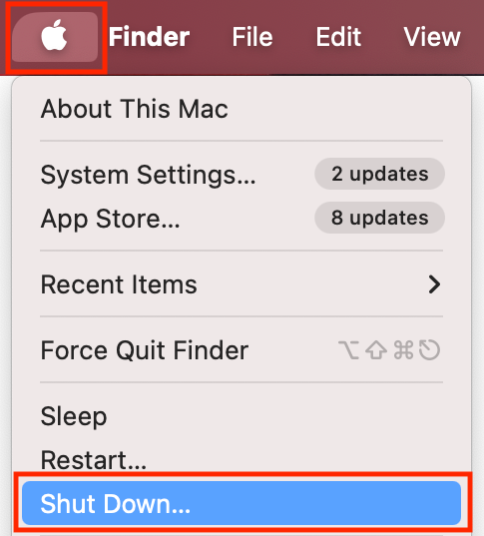
Go to the Apple logo in the menu bar.
Click Shut Down.
Wait until the Mac is completely shut down.
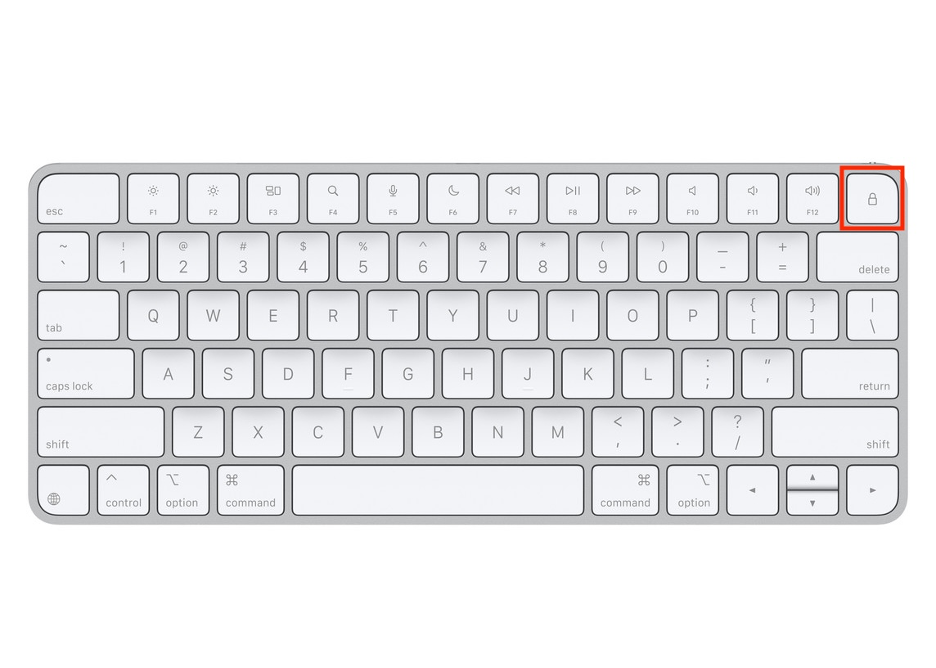
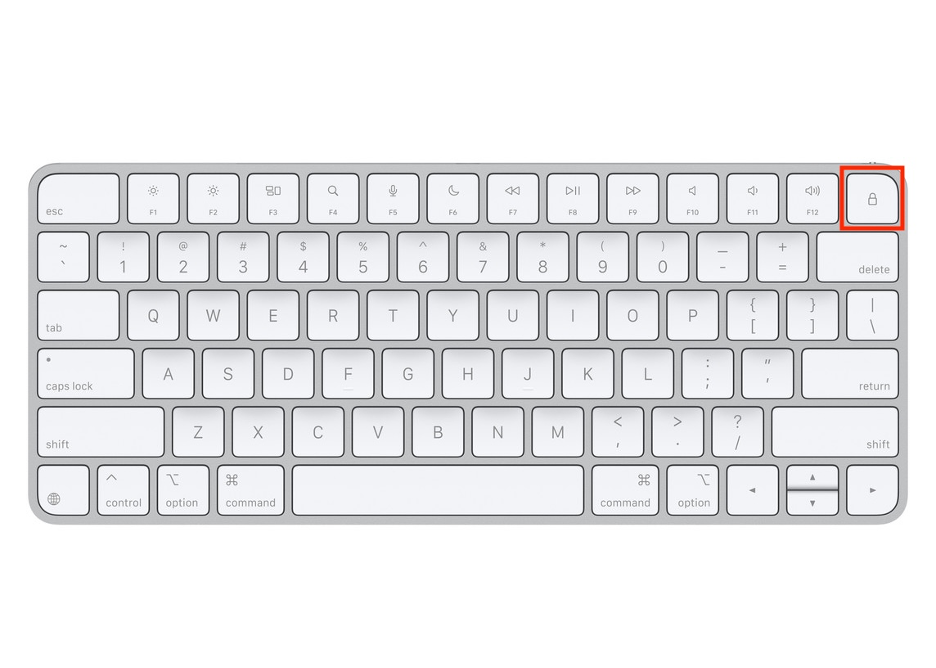
Hold down the Power button until you see the Options button.
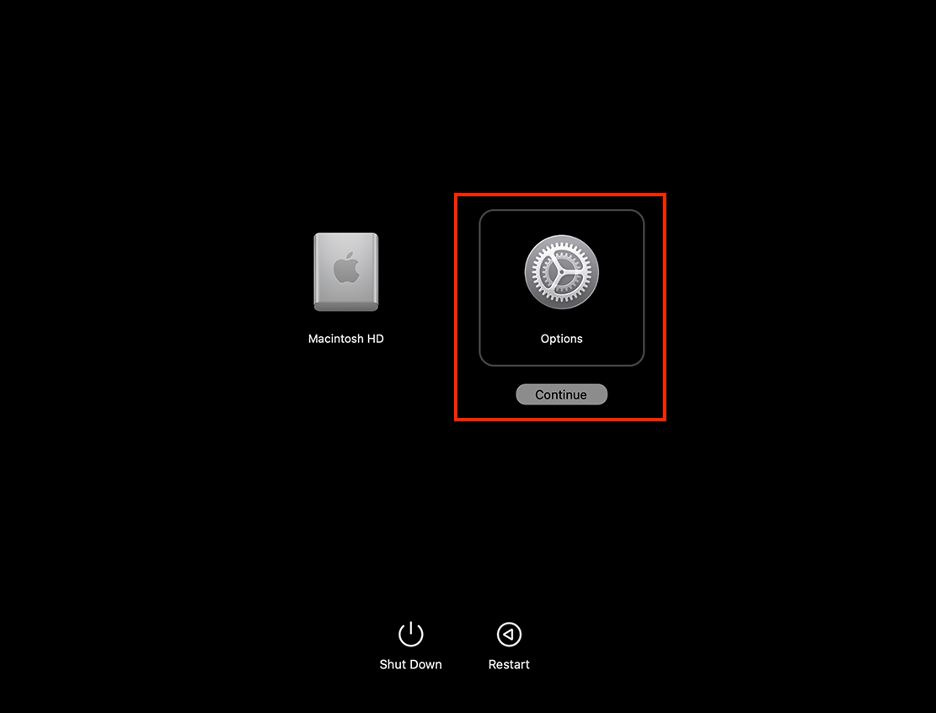
Click Options, then click Continue.
Click Disk Utility.
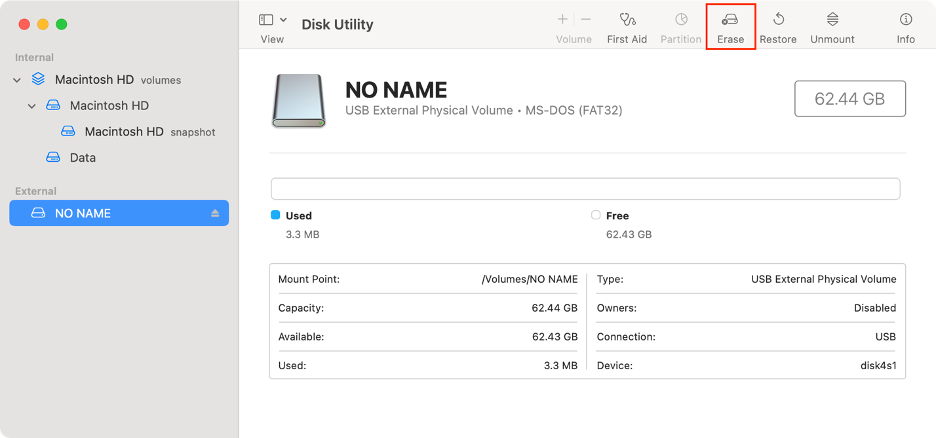
Select your drive and click Erase.
Rename your disk and choose your file system.
Click Erase again.
Step 1. Apple icon > Shut DownStep 2. Hold down the Power buttonStep 3. Options > ContinueStep 4. Disk Utility > ContinueStep 5. Click Erase
9. Boot into Internet Recovery Mode
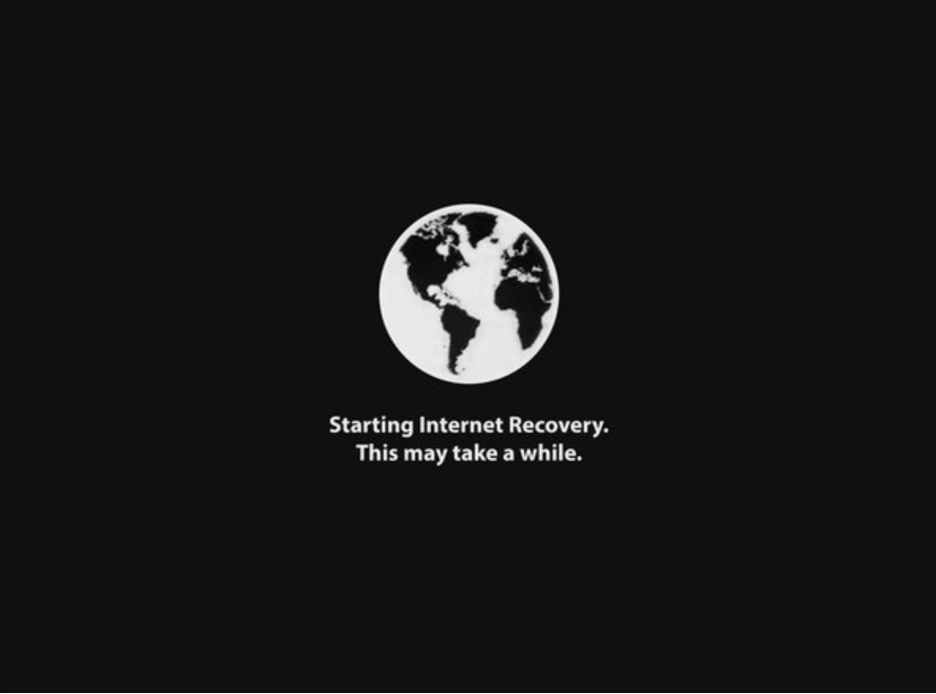
Is Mac Recovery Mode not working? If the standard version isn’t functioning, we suggest trying Internet Recovery Mode, the online alternative that operates independently of your startup disk.
Follow these steps to boot into Internet Recovery Mode:
Go to the Apple logo in the menu bar.
Click Shut Down.
Wait a few seconds.
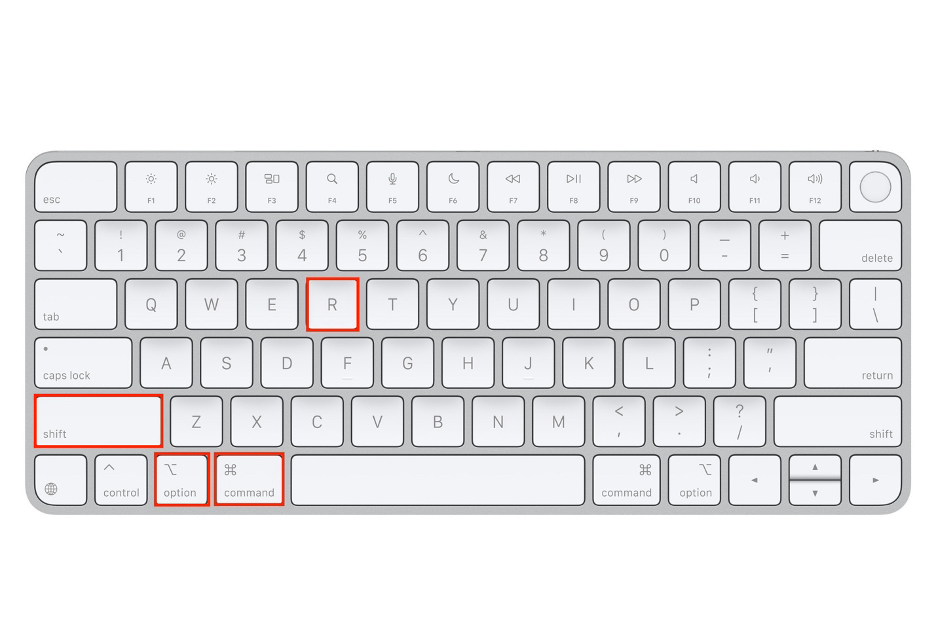
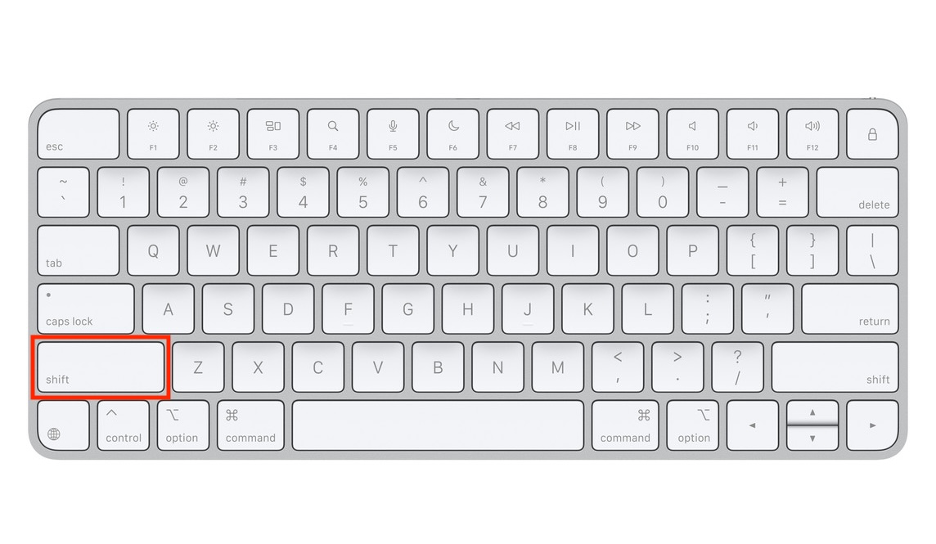
Hold down the Shift + Option + Command + R keys simultaneously.
Once you see the spinning globe icon, release the keys.
Connect to your Wi-Fi network.
Follow the steps on your screen.
Step 1. Apple icon > Shut DownStep 2. Shift + Option + Command + RStep 3. Wait until Internet Recovery Mode starts
10. Use Safe Mode to isolate extensions
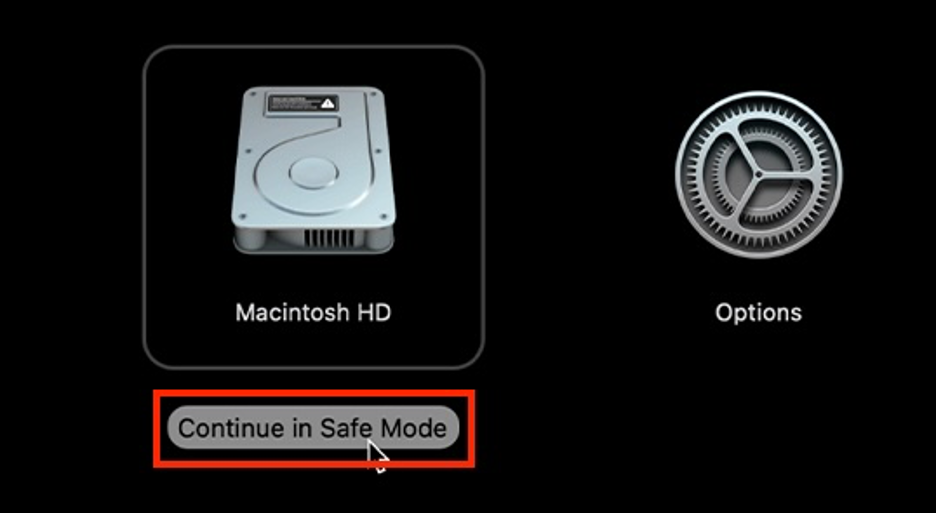
As a final tip, we recommend using Safe Mode to erase the drive and terminate any third-party extensions that could be triggering the “-69877” error on your Mac. Safe Mode will disable startup processes and clear the cache, thus helping resolve persistent issues.
After 10 seconds, press and hold the Power button.
Release it when you see the startup options.
Choose your disk.
Press and hold the Shift key, then click Continue in Safe Mode.
Step 1. Apple logo > Shut DownStep 2. Press and hold the Power buttonStep 3. Press and hold the Shift keyStep 4. Click Continue in Safe Mode
Is your MacBook’s Safe Mode not working? Our guide will walk you through the solutions.
The ultimate solution to the “Couldn’t open device 69877” error
Experiencing a disk failure can be frustrating, but the “Couldn’t open device 69877” error is often fixable. You have several options: start with a simple Mac restart to resolve minor software glitches, or move on to advanced solutions such as repairing the disk with Disk Utility’s First Aid or unmounting it via Terminal.
If you’ve tried everything and still need assistance, the FGF team is ready to help. Downloading MacKeeper, which is notarized by Apple and trusted by millions, also gives you access to a cybersecurity and Mac optimization toolkit to keep your device running smoothly.
We respect your privacy and
use cookies
for the best site experience.
Privacy Preferences Center
We use cookies along with other tools to give you the best possible experience while using the
MacKeeper website. Cookies are small text files that help the website load faster. The cookies we
use don’t contain any type of personal data meaning they never store information such as your
location, email address, or IP address.
Help us improve how you interact with our website by accepting the use of cookies. You can change
your privacy settings whenever you like.
Manage consent
All cookies
These cookies are strictly necessary for enabling basic website functionality (including page
navigation, form submission, language detection, post commenting), downloading and purchasing
software. The website might malfunction without these cookies.