When your Apple Watch won't unlock Mac, even the simplest daily routine turns into a frustrating loop of typing passwords and second-guessing your settings. If troubleshooting feels overwhelming, MacKeeper's Premium Services connect you directly with certified Mac specialists who can diagnose the exact cause and walk you through the fix in minutes.
If your Apple Watch is not opening Mac, the most common causes are disabled Auto Unlock settings, outdated macOS or watchOS, or weak Bluetooth and Wi-Fi connections. Based on our experience, the quickest fixes include toggling the unlock option off and on in System Settings > Touch ID & Password, restarting both devices, and ensuring they share the same Apple Account with two-factor authentication enabled.
How does Apple Watch auto unlock work?
Apple Watch Auto Unlock uses a combination of Bluetooth and Wi-Fi to detect when your unlocked Watch is near your Mac. Both devices must be signed into iCloud with the same Apple Account and have two-factor authentication enabled.
When you wake your Mac, it sends a secure request to the Watch, verifies the matching credentials, and automatically bypasses the login screen. From our perspective, it's one of the smoothest security features Apple offers—as long as all requirements are properly configured.
Common causes why Apple Watch doesn’t unlock Mac
The most common reasons your Apple Watch doesn't unlock your Mac include Auto Unlock disabled in System Settings, mismatched Apple Accounts on your devices, or inactive Bluetooth and Wi-Fi connections.
Outdated macOS or watchOS versions can also break compatibility. Additionally, missing two-factor authentication, a lack of a passcode on the Watch, enabling screen or internet sharing on your Mac, and being too far from your computer all prevent the feature from working.
How to fix Apple Watch won’t unlock on Mac?
To fix Apple Watch won't unlock on Mac, start by verifying that Auto Unlock is enabled in System Settings > Touch ID & Password. Make sure both devices share the same Apple Account with two-factor authentication turned on. Restart your Mac and Apple Watch, toggle Bluetooth and Wi-Fi off and back on, and check for software updates. If simpler fixes fail, we recommend you try unpairing and re-pairing your Watch or disabling internet and screen sharing.
A note from our experts:
Troubleshooting Auto Unlock issues can mean working through a long list of fixes without knowing which one will actually solve it. Instead of spending time on trial and error, a faster approach is getting direct help from a professional. MacKeeper is a leading solution in Mac optimization and cybersecurity developed by Clario Tech, and its Premium Services give you access to certified technicians who can pinpoint the issue quickly.
Here's how to get help from a MacKeeper expert:
Download MacKeeper from the official website and launch the app on your Mac.
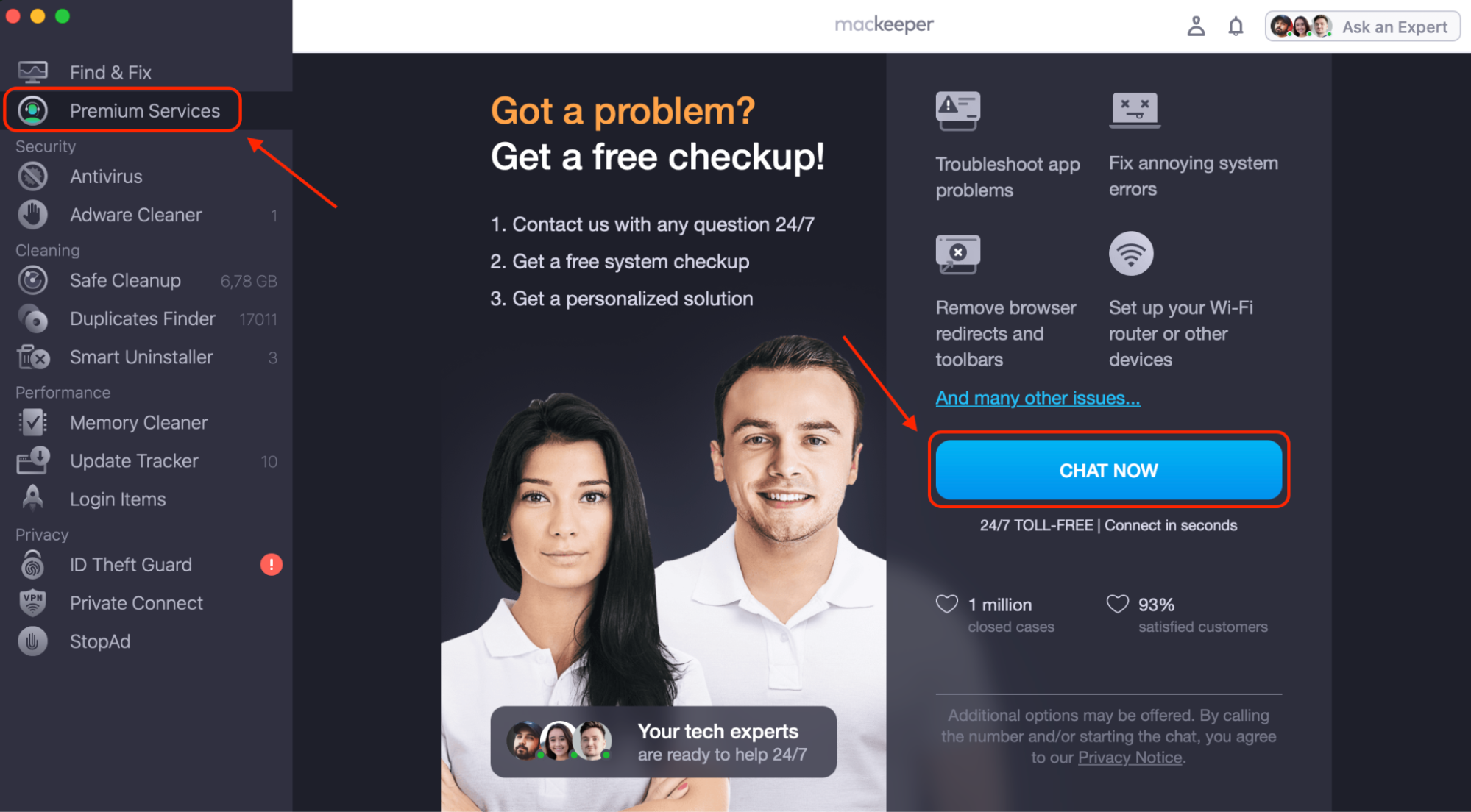
Open MacKeeper and select Premium Services from the left sidebar to access live technical support.
Click Chat Now to connect with a certified Mac specialist who'll diagnose why your Apple Watch won't unlock your Mac and guide you through the safest fix step by step.
Open MacKeeper, click Premium Services in the sidebar, and select Chat Now
1. Enable auto unlock on macOS
We've found that the unlock option sometimes gets disabled after a macOS update without any warning.
Here's what to do:
Click the Apple menu and open System Settings.
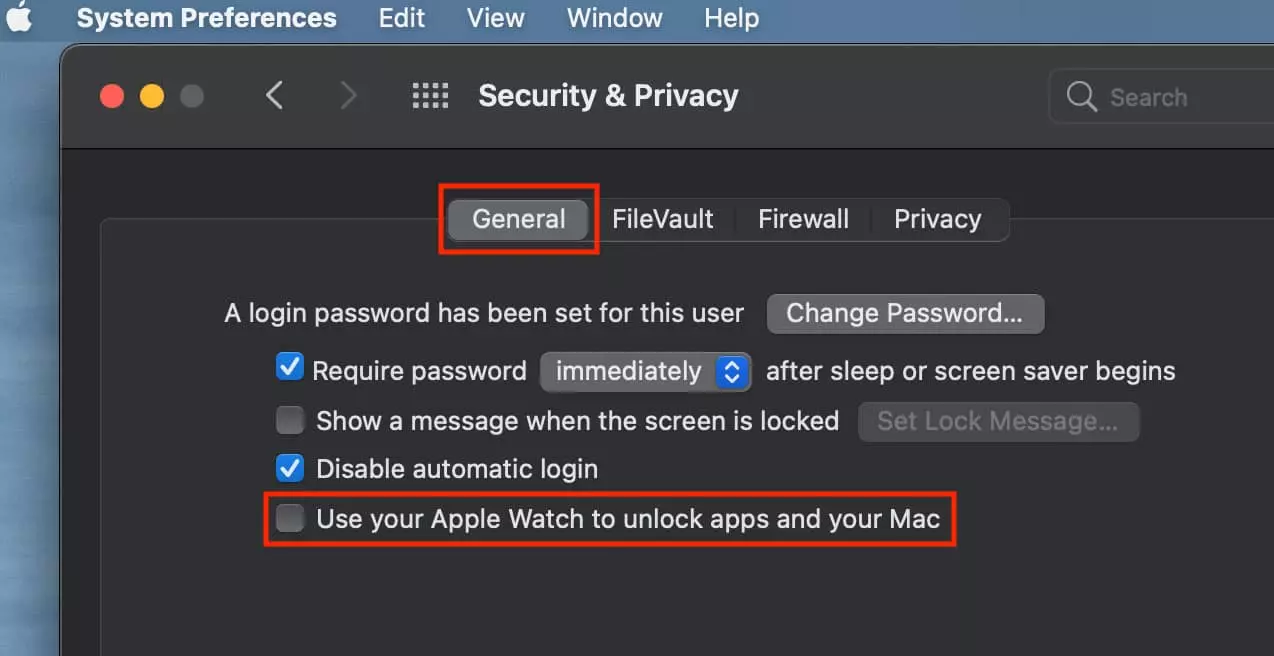
Go to Security & Privacy.
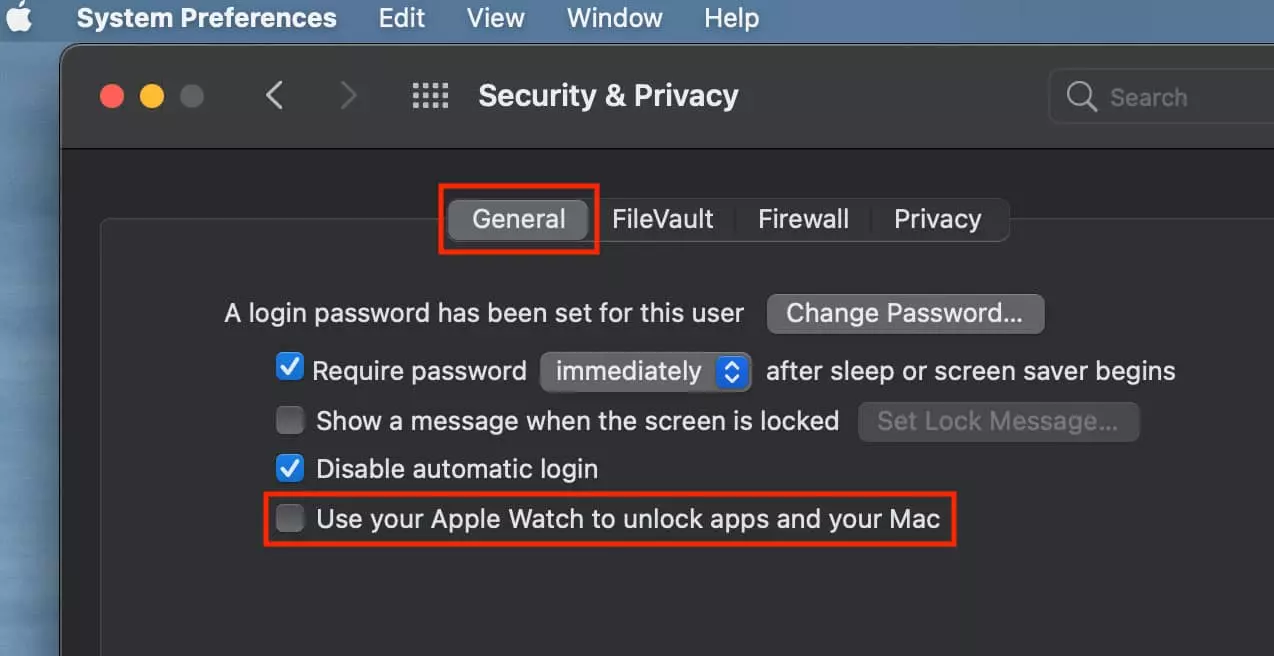
Toggle on Use your Apple Watchto unlock apps and your Mac.
From System Settings, go to Security & Privacy, then toggle on Use your Apple Watch to unlock apps and your Mac
2. Check Apple Watch passcode & pairing
In our experience, a missing Watch passcode is one of the sneakiest reasons Auto Unlock fails.
Follow these steps to check:
Open the Watch app on your iPhone.
Tap Passcode and make sure it's turned on.
Set a passcode if you haven't already.
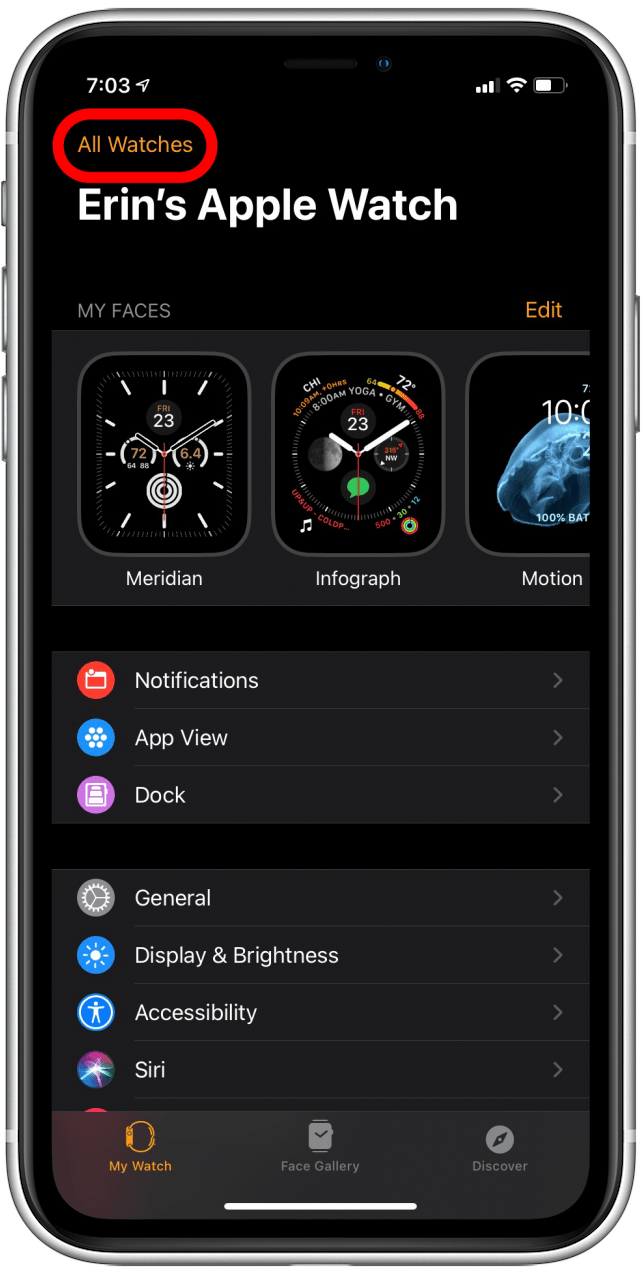
Confirm the Watch is paired under My Watch > All Watches.
Open the Watch app on your iPhone and confirm it’s paired to the Apple Watch
3. Confirm Apple ID and two-factor authentication
Auto Unlock won't work if your devices use different Apple Accounts or if two-factor authentication is off. If you can't sign into iCloud on Mac, resolve that first.
Here's how to verify:
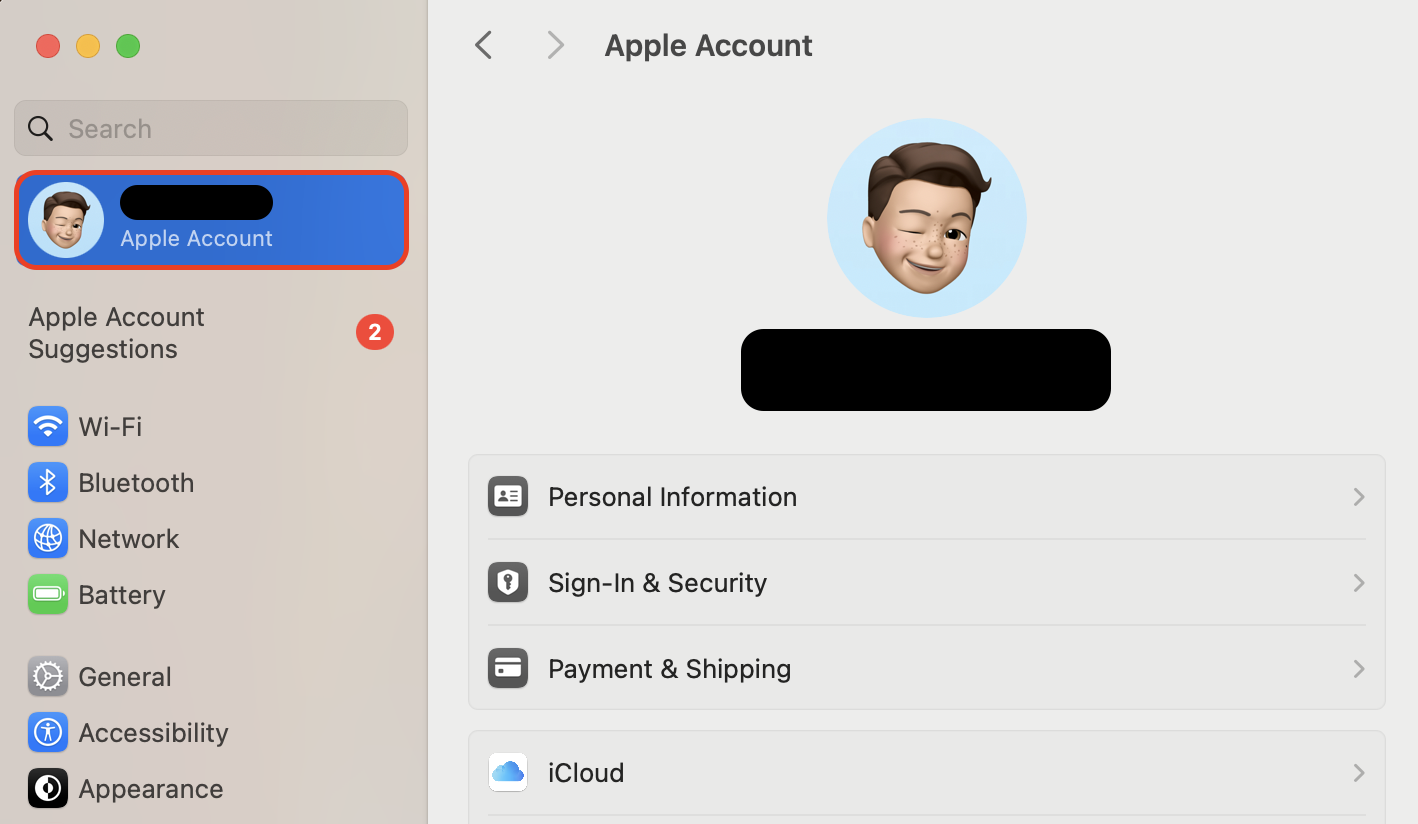
On your Mac, go to System Settings > Apple ID and verify your account.
Click Password & Security, then confirm that two-factor authentication is on.
On your iPhone, check Settings > [your name] to ensure the same Apple ID is active.
Check your Apple ID from Mac and verify it’s the same across all your devices
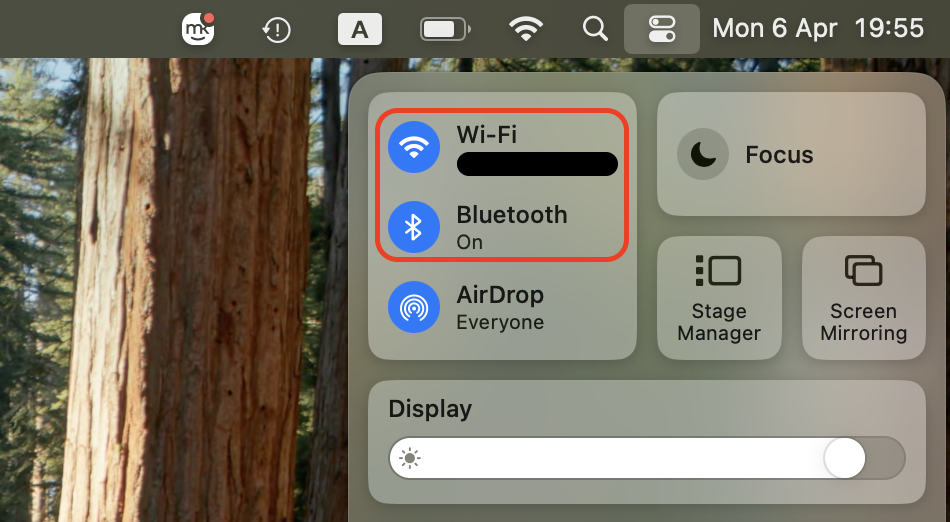
4. Toggle Bluetooth and Wi-Fi
A quick radio reset clears most minor connection hiccups. Based on our tests, this simple step resolves the issue more often than you'd expect, especially if your MacBook not detecting Bluetooth devices.
Do the following:
Click the Bluetooth icon in the menu bar and turn it off.
Click the Wi-Fi icon, then turn it off.
Wait about ten seconds, then re-enable both.
Restart your Wi-Fi and Bluetooth
5. Ensure devices are nearby
Auto Unlock relies on close-range Bluetooth, so distance matters more than most people realize.
Here's how we recommend fixing it:
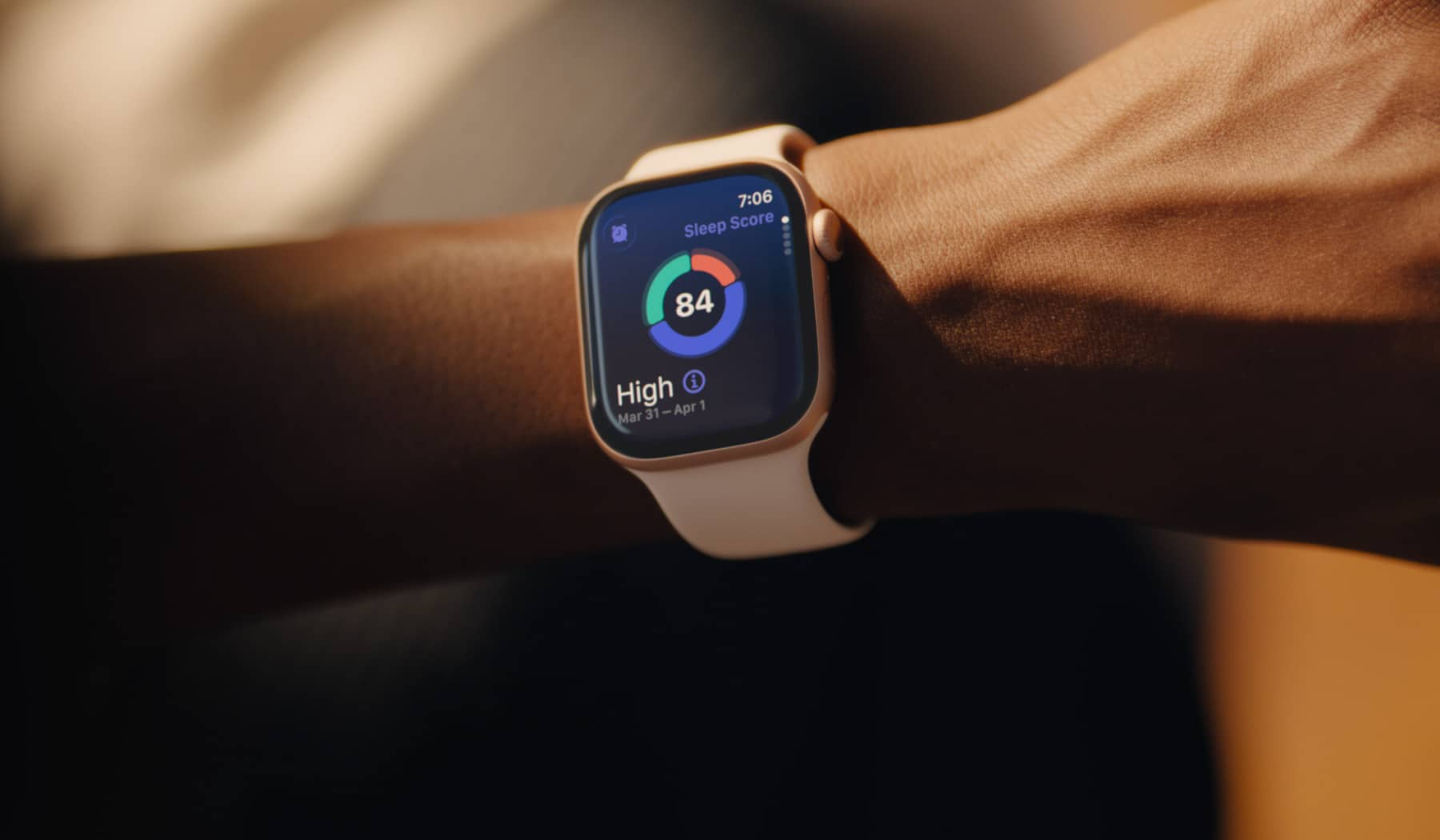
Wear your Apple Watch on your wrist. It won't work if it's just sitting on a desk.
Lean closer to your Mac when waking it from sleep.
Remove any physical obstructions between the two devices.
Make sure you’ve put on your Apple Watch
6. Restart Mac and Apple Watch
From our perspective, a fresh restart clears temporary glitches that no setting toggle can fix.
Follow these steps:
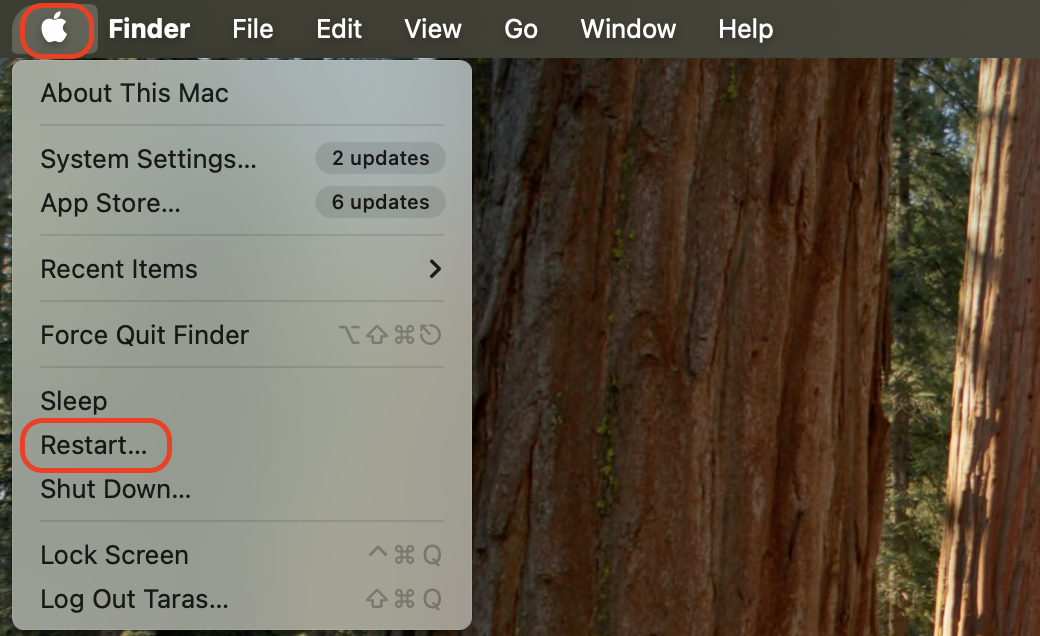
On your Mac, click the Apple menu and select Restart.
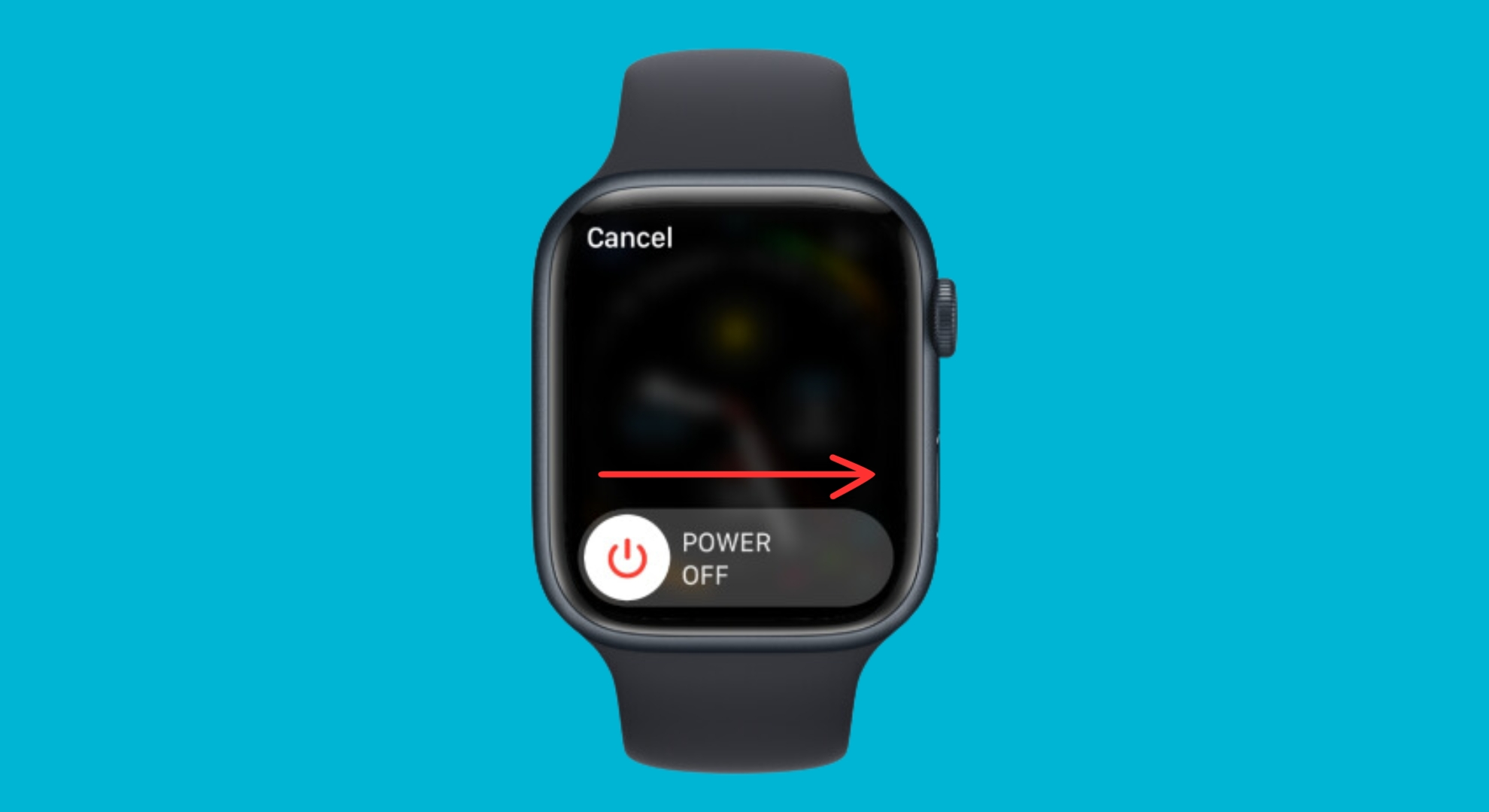
On your Apple Watch, press and hold the side button until the power menu appears.
Swipe the Power Off slider, wait a moment, then hold the side button again to turn it back on.
Step 1. On MacBook, click the Apple menu and select RestartStep 2. Restart your Apple Watch as well
7. Re-enable auto unlock setting
If a simple restart didn't help, we've seen that disabling and re-enabling the feature forces macOS to re-establish the secure handshake with your Watch.
Here's how to reset the handshake:
Go to System Settings > Security & Privacy.
Uncheck Use your Apple Watch to unlock apps and your Mac.
Restart both your Mac and Apple Watch.
Return to the same setting and re-enable it.
Go to System Settings > Security & Privacy and uncheck Use your Apple Watch to unlock apps and your Mac
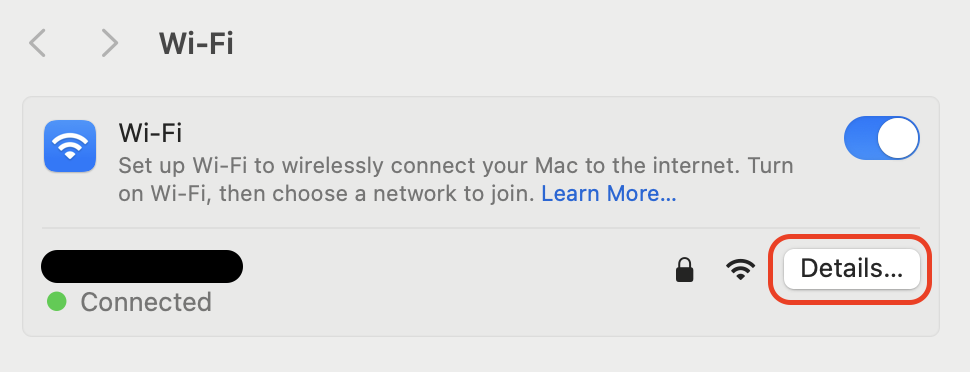
Open System Settings > Wi-Fi and click Details next to your network.
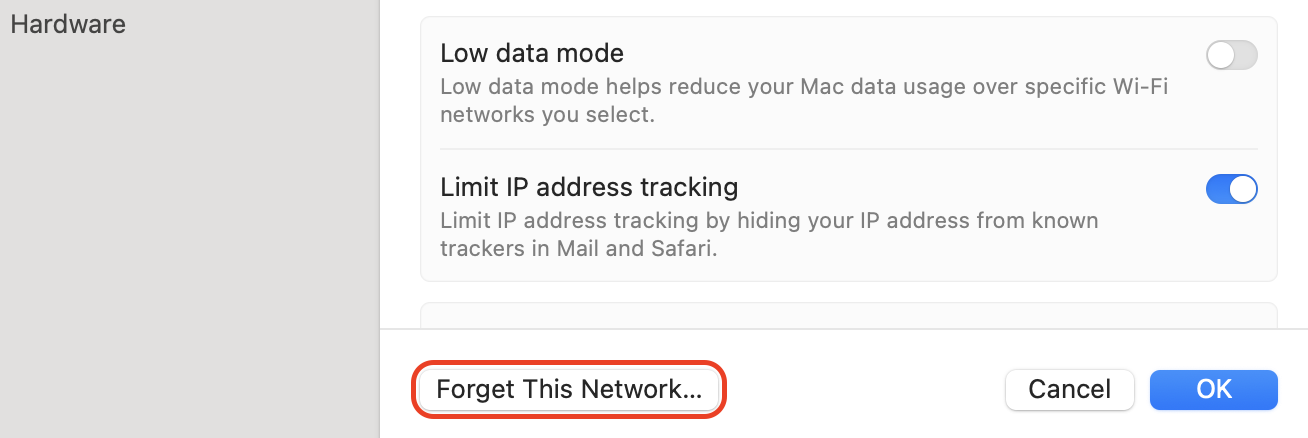
Click Forget This Network and confirm.
Reconnect to the same Wi-Fi network by entering the password.
Toggle Bluetooth off and on again for a clean slate.
Step 1. Open System Settings > Wi-Fi and click DetailsStep 2. Click Forget This Network and confirm
9. Unpair & re-pair Apple Watch
We typically reserve this step for stubborn cases where nothing else works.
Here's how to rebuild the pairing:
Open the Watch app on your iPhone.
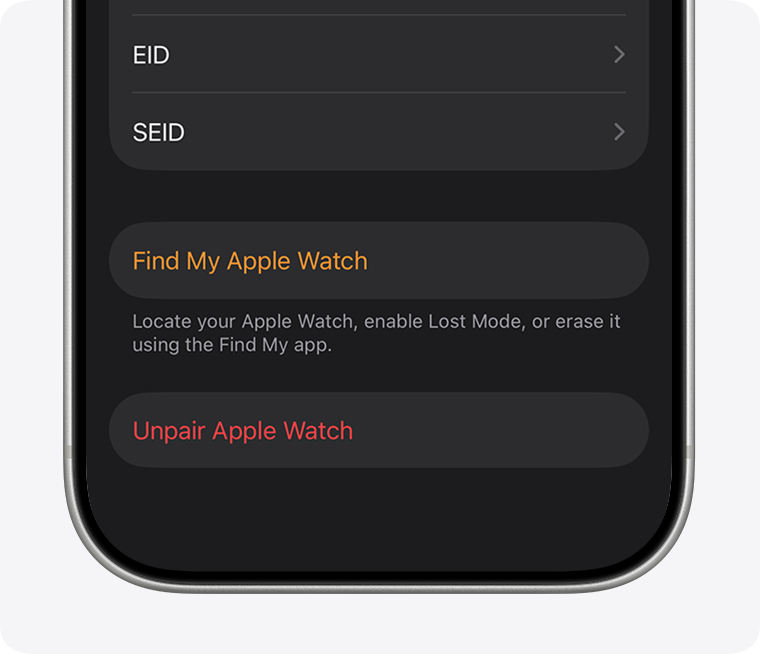
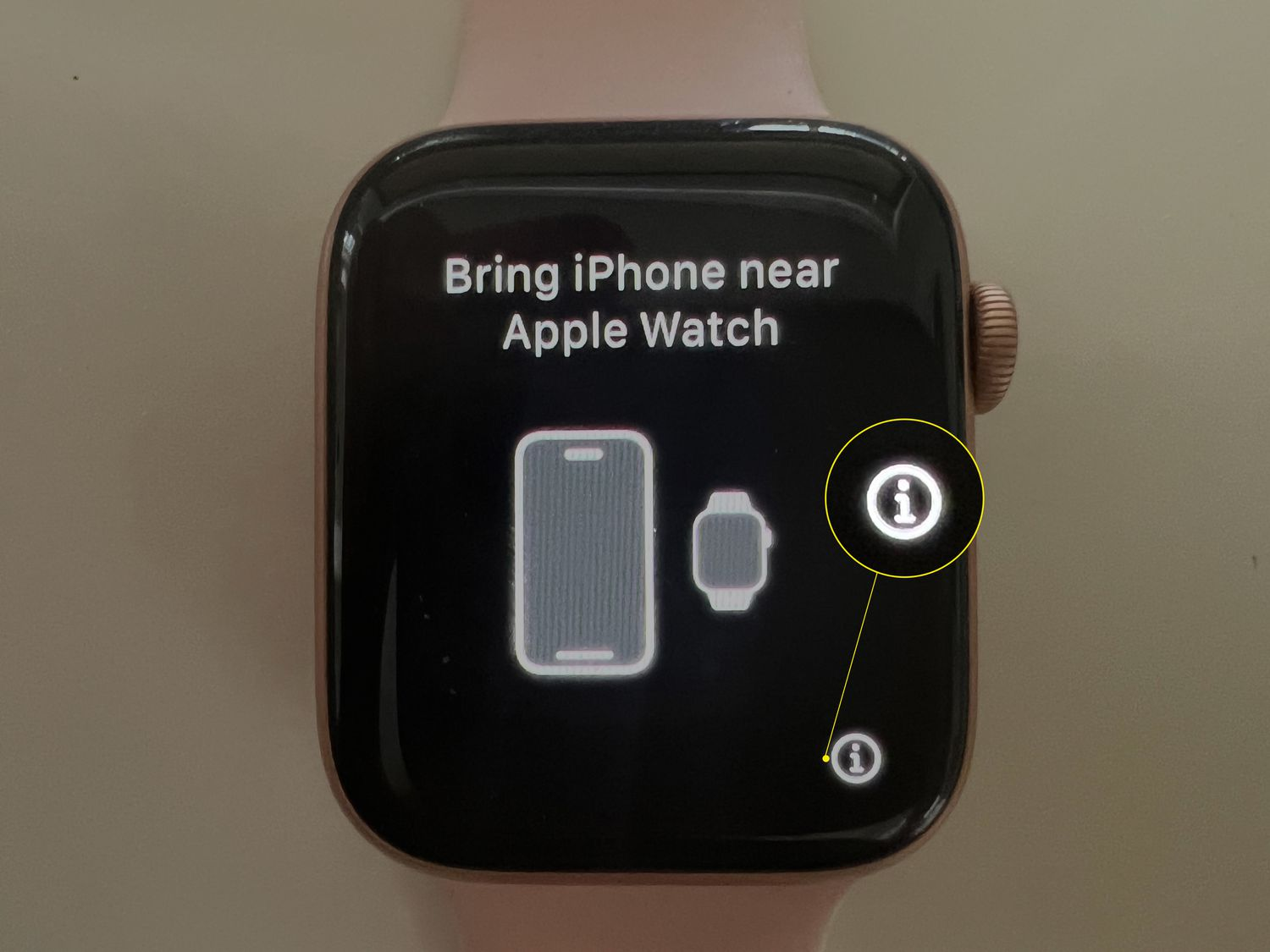
Tap All Watches in the upper left, then tap the i icon next to your Watch.
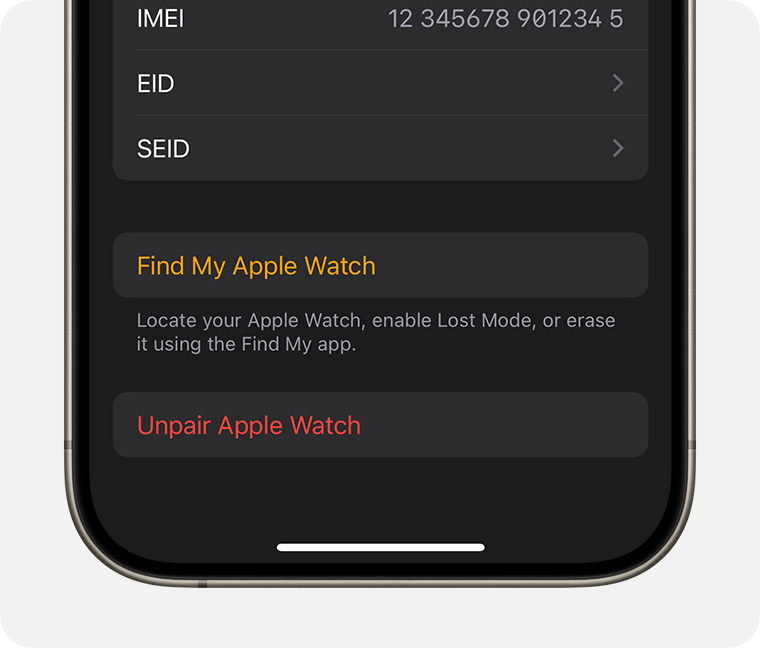
Select Unpair Apple Watch and confirm.
Re-enable Auto Unlock on your Mac.
Step 1. Open the Watch app on your iPhone. Tap All Watches in the upper leftStep 2. Tap the i icon next to your WatchStep 3. Select Unpair Apple Watch
10. Log out and log in to iCloud
A corrupted iCloud sync can quietly break Auto Unlock.
Do the following to refresh your account:
On your Mac, go to System Settings > Apple ID.
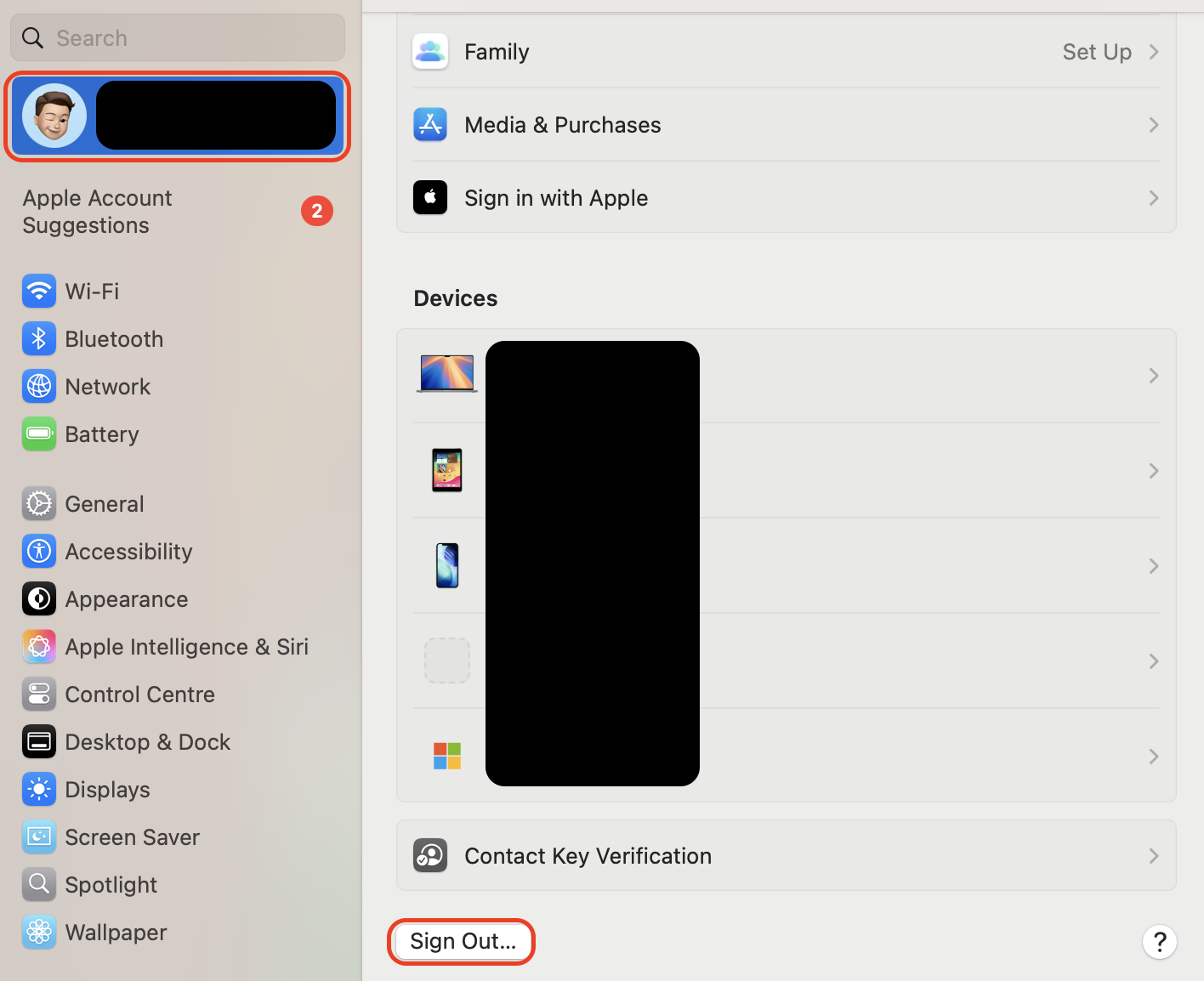
Scroll down and click Sign Out.
Wait a minute, then sign back in with the same Apple Account.
Re-enable Auto Unlock in Touch ID & Password if needed.
On your Mac, go to System Settings > Apple ID. Scroll down and click Sign Out
11. Check for system updates
We've noticed Apple frequently patches these issues in minor updates, so keeping both devices current is essential. If you ask yourself how can I update my Mac to the latest version, be calm, as it only takes a moment.
A couple of simple steps to get up to date:
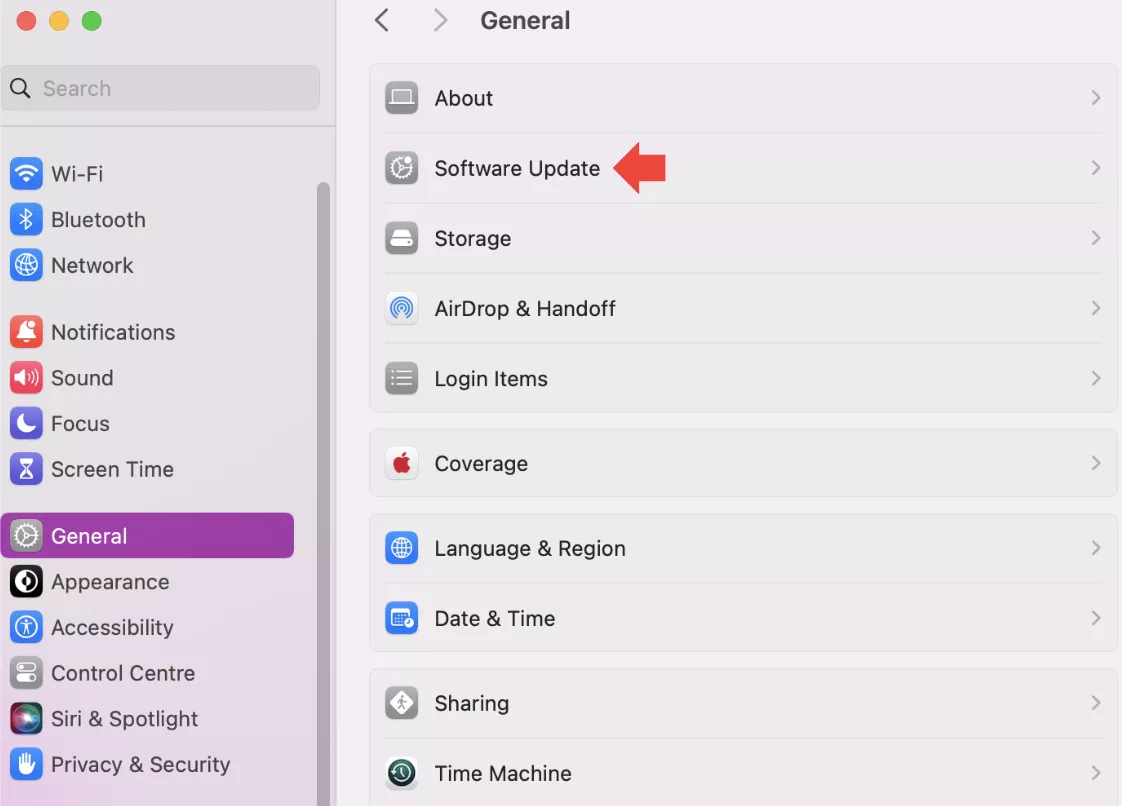
On your Mac, go to System Settings > General > Software Update.
If an update is available, click Update Now and restart when prompted.
On your iPhone, open the Watch app > General > Software Update to update watchOS.
Update your system via System Settings > General > Software Update
Conclusion
Fixing an Apple Watch that won't unlock your Mac usually comes down to checking settings, restarting devices, or updating software.
If troubleshooting takes too long, MacKeeper is Apple-notarized and trusted by millions of users. Its Premium Services connect you with certified experts who can resolve the issue quickly.
We respect your privacy and
use cookies
for the best site experience.
Privacy Preferences Center
We use cookies along with other tools to give you the best possible experience while using the
MacKeeper website. Cookies are small text files that help the website load faster. The cookies we
use don’t contain any type of personal data meaning they never store information such as your
location, email address, or IP address.
Help us improve how you interact with our website by accepting the use of cookies. You can change
your privacy settings whenever you like.
Manage consent
All cookies
These cookies are strictly necessary for enabling basic website functionality (including page
navigation, form submission, language detection, post commenting), downloading and purchasing
software. The website might malfunction without these cookies.