If you notice issues with your Mac’s audio or video settings, the culprit might be avconferenced—the macOS system process is struggling to handle all your devices' sound sessions or camera commands, triggering high CPU. To keep on top of your system’s processes, MacKeeper’s Memory Cleaner will come in handy.
Not sure what avconferenced Mac process actually means? Think of it as the name for all the OS background daemons that manage the audio-to-video software on all your devices. It manages camera and microphone access as well as in-app permissions for FaceTime and video conferencing. However, it can consume a lot of memory, and you might start to notice your MacBook fan keeps running as it can get overworked. This would trigger a high CPU.
Why does avconferenced cause high CPU usage?
The avconferenced process on your Mac can gradually become demanding on your system, as it may generate excessive background activity caused by stuck sessions, failed camera permissions, and video-related glitches. You may not notice these issues immediately, but over time, avconferenced will significantly slow down your MacBook and interfere with vital audio-to-video permissions. That’s why our team of Clario Tech experts recommends you regularly check performance on Mac to prevent dangerously high CPU usage and keep your system running smoothly.
A note from our experts:
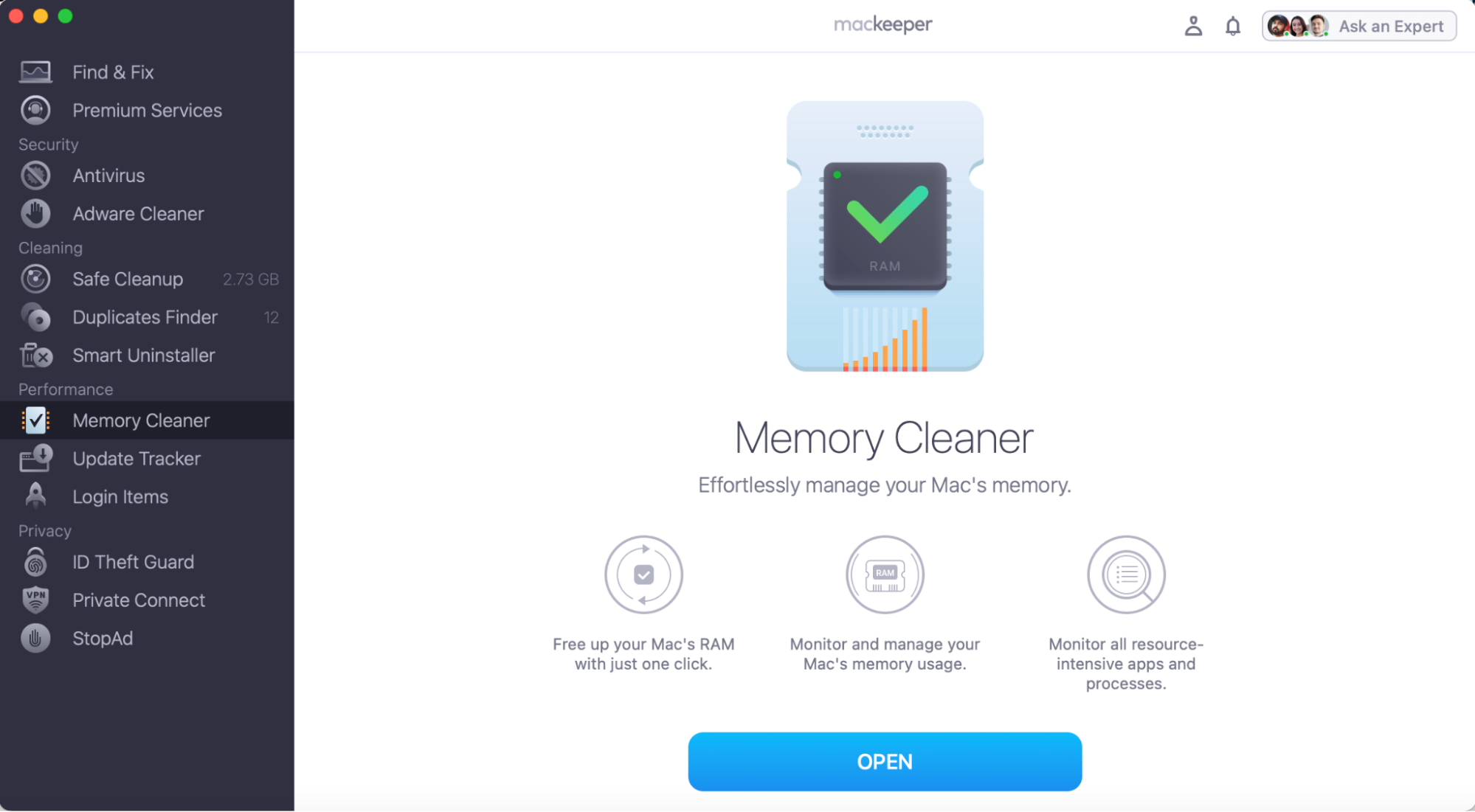
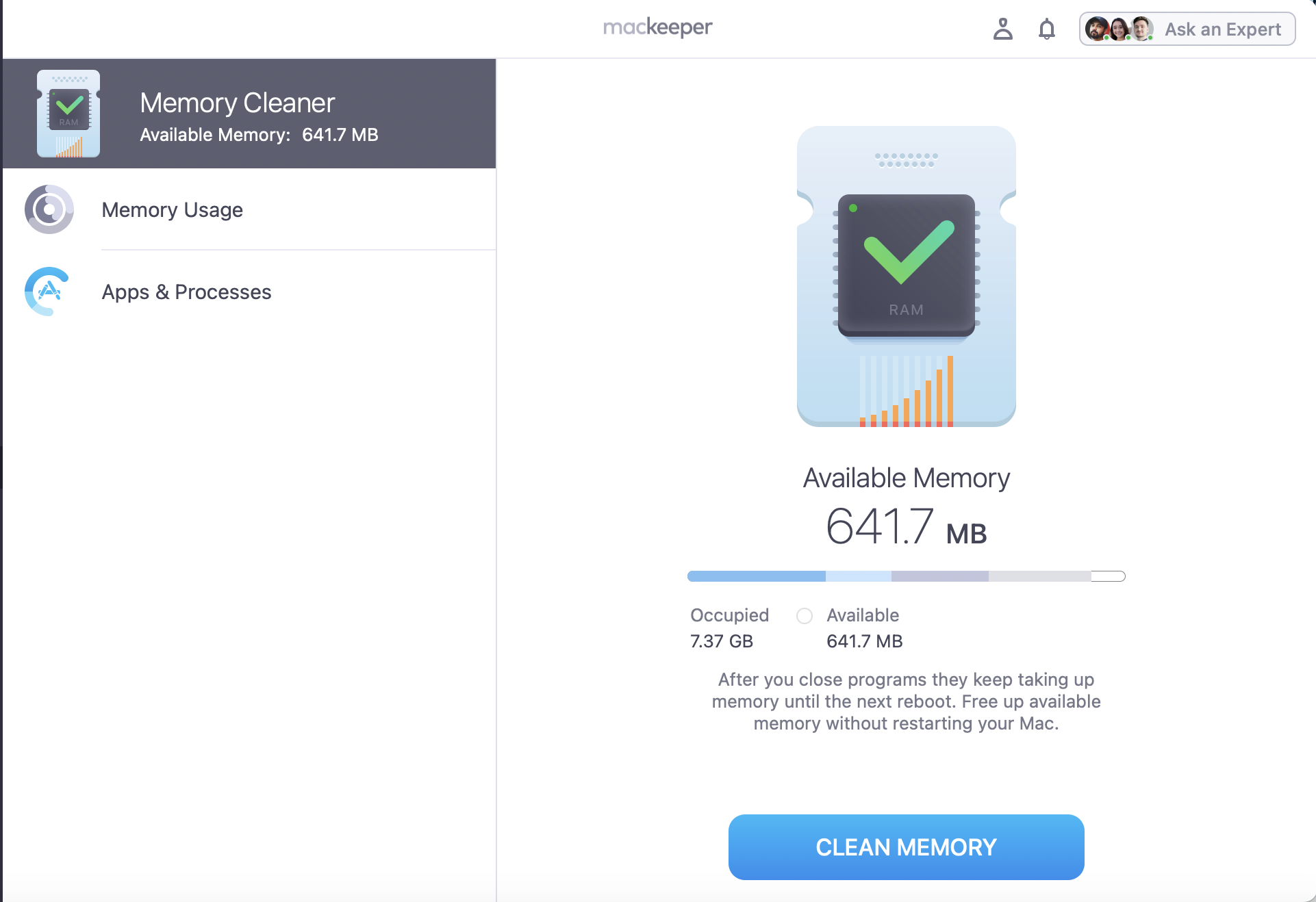
If your Mac’s resources are overworked, not only are you leaving your Mac vulnerable to system glitches, but the high CPU usage will hurt your device's RAM too. The best way to keep this under control is to regularly clean your laptop's memory. Manually, this can be a challenge, but with MacKeeper’s Memory Cleaner feature, it couldn’t be easier. Our tool will scan all your apps & processes–freeing up vital resources for you. And it’s done in just a few clicks.
Check your Memory usage and see your full list of apps & processes.
To help fix high CPU, press Clean Memory.
Step 1. Open MacKeeper, go to Memory Cleaner, and click OpenStep 2. Look through your Memory usage and press Clean Memory to free up RAM
How to know if avconferenced CPU usage is high?
Want to know how to check if avconferenced Mac OS has caused your Mac’s CPU to soar? You can easily check CPU usage on Mac via Apple’s built-in Activity Monitor app. You can check your entire list of apps and system processes. You can filter by high-to-low usage to help you easily spot the culprits. If avconferenced is among the list of demanding processes, it’ll be near the top.
How to fix avconferenced Mac high CPU?
If you’ve noticed that your Apple computer no longer seems to be keeping up when you use camera or video apps, it's a sign your system needs a refresh to fix your memory and CPU.
Below, we’ll walk you through the following methods to fix avconferenced high on Mac:
Force quit avconferenced on Mac.
Restart your Mac.
Check and quit conferencing apps.
Turn off continuity camera.
Disable display extension.
Reset camera and microphone permissions.
Update macOS.
1. Force quit avconferenced on Mac
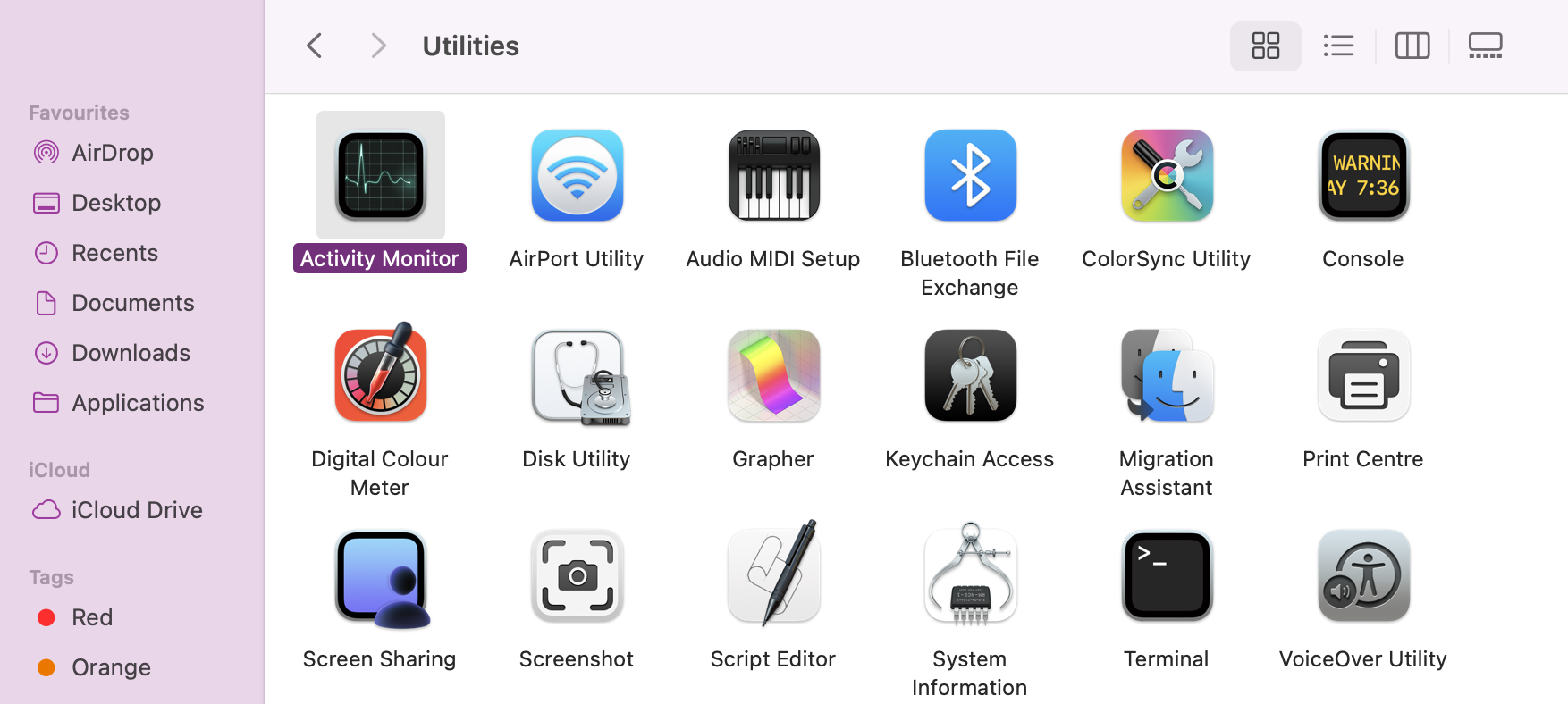
It can be common for os background daemons, like avconferenced, to affect your system services and apps. If you suspect avconferenced is the problem, we recommend you check its CPU via the activity monitor Mac. It’ll show you just how much CPU it's using and help you force-quit the process.
Here's how you can Force Quit avconferenced on Mac:
In Finder, go to Applications > Utilities.
Open Activity Monitor.
Click on the CPU tab.
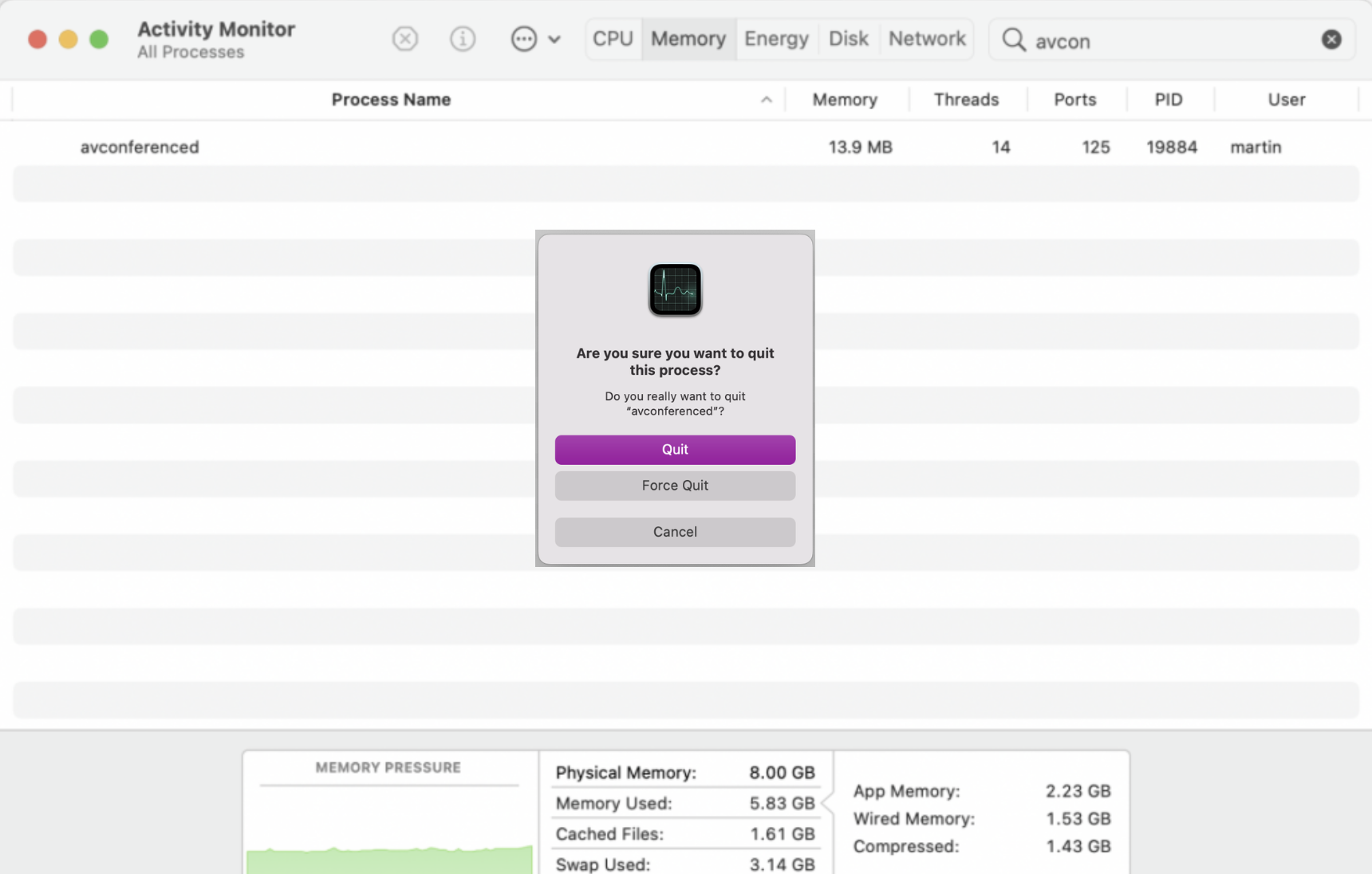
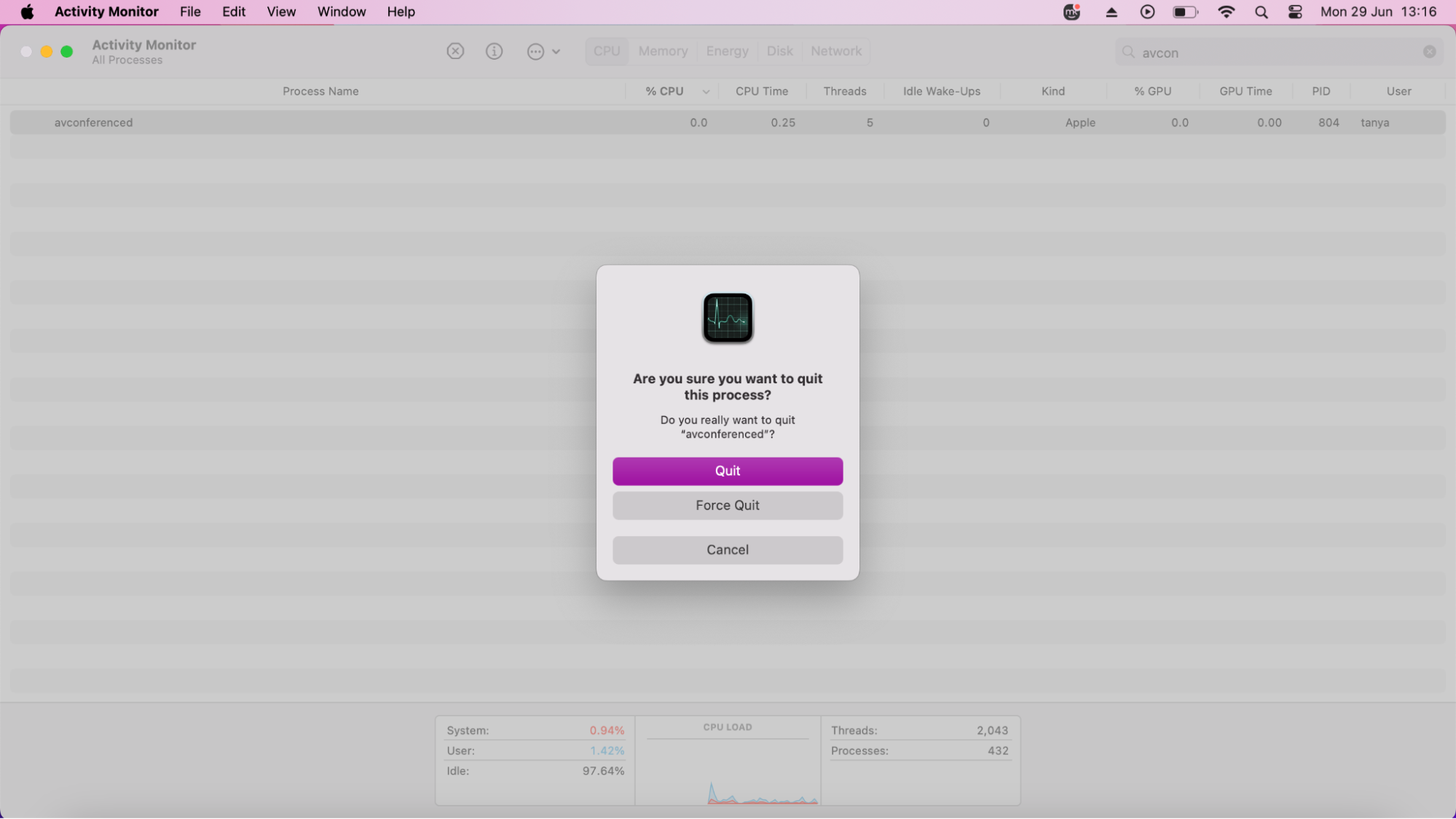
Search for avconferenced, highlight, and press Force Quit.
Step 1. Open Up Activity Monitor Step 2. With the CPU tab open, search for avconferenced, and with it highlighted, press Force Quit
2. Restart your Mac
Sometimes you can fix a lot of system slowness and software issues with a simple Mac restart, as it closes all your apps and processes–allowing them to re-open like new. In case you’re unsure how to restart a MacBook, we’ll walk you through our top recommendation below for both ease and speed.
Here’s how to restart your Mac:
Close apps in your Dock by right-clicking icons with a dot and selecting Quit.
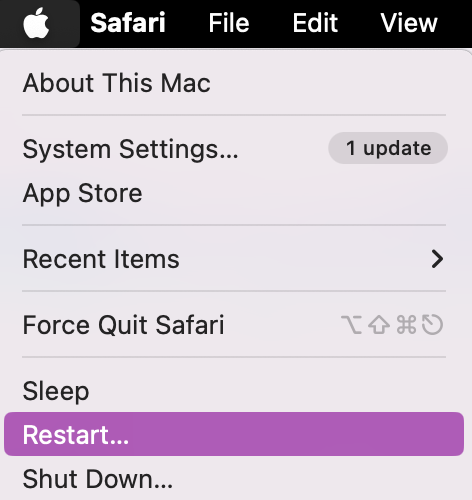
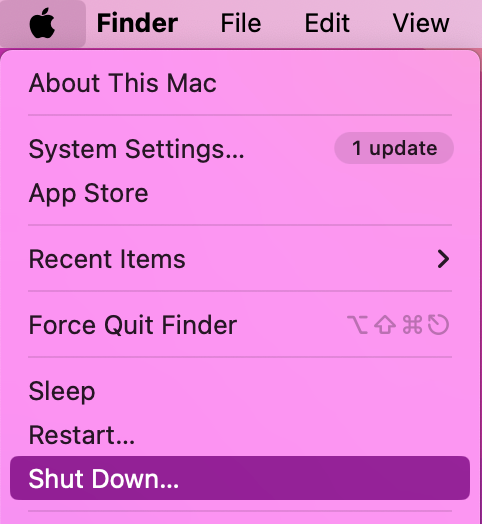
Click on the Apple Icon in the Menu Bar and select Restart.
After quitting all your apps, click on the Apple Icon and select Restart
3. Check and quit conferencing apps
Not sure what conferencing apps are running in the background? The easiest way we recommend you see running apps on Mac is to open the Force Quit Window. This will list all the apps currently running and allow you to easily quit them.
Here’s how to check and quit conferencing apps on Mac:
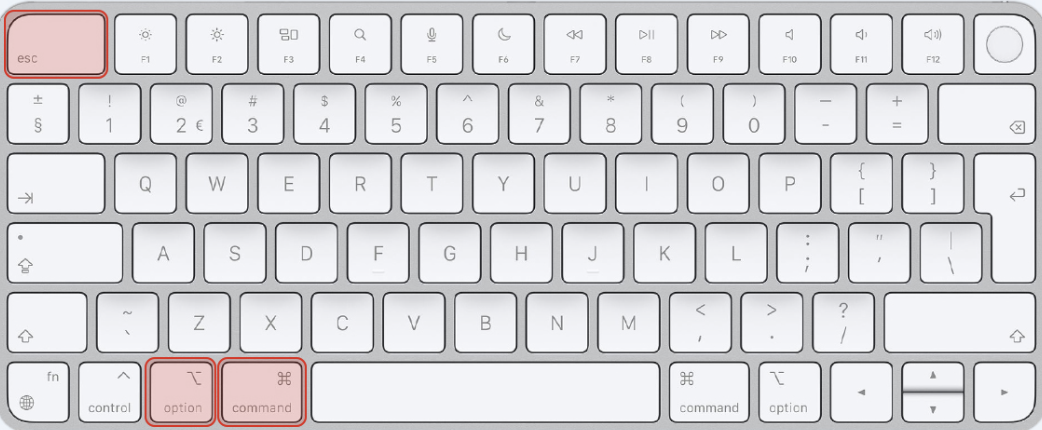
On your keyboard, press Command + Option + Escape.
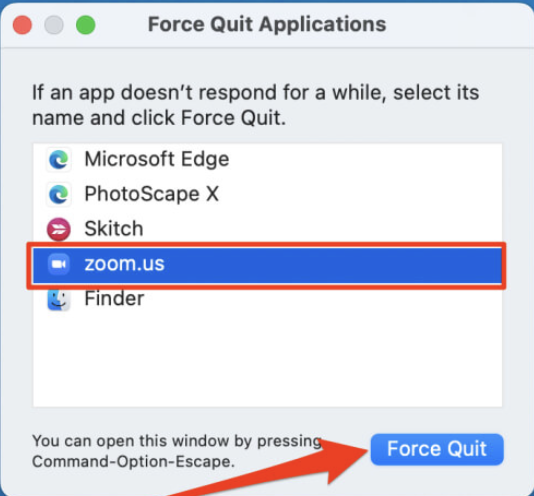
Highlight any apps you want to close and press Force Quit.
Step 1. Bring up the Force Quit window by pressing Command + Option + EscapeStep 2. Highlight the app you want to close and press Force Quit
4. Turn off continuity camera
If you keep getting bombarded with Continuity Camera notifications, the good news is that it can be turned off. Disabling it can be helpful if you don’t regularly use your iPhone as a webcam or if you’re trying to reduce background activity. It can also prevent accidental connections between your devices and limit unnecessary prompts that interrupt your workflow.
Here’s how to disable and re-enable Continuity Camera:
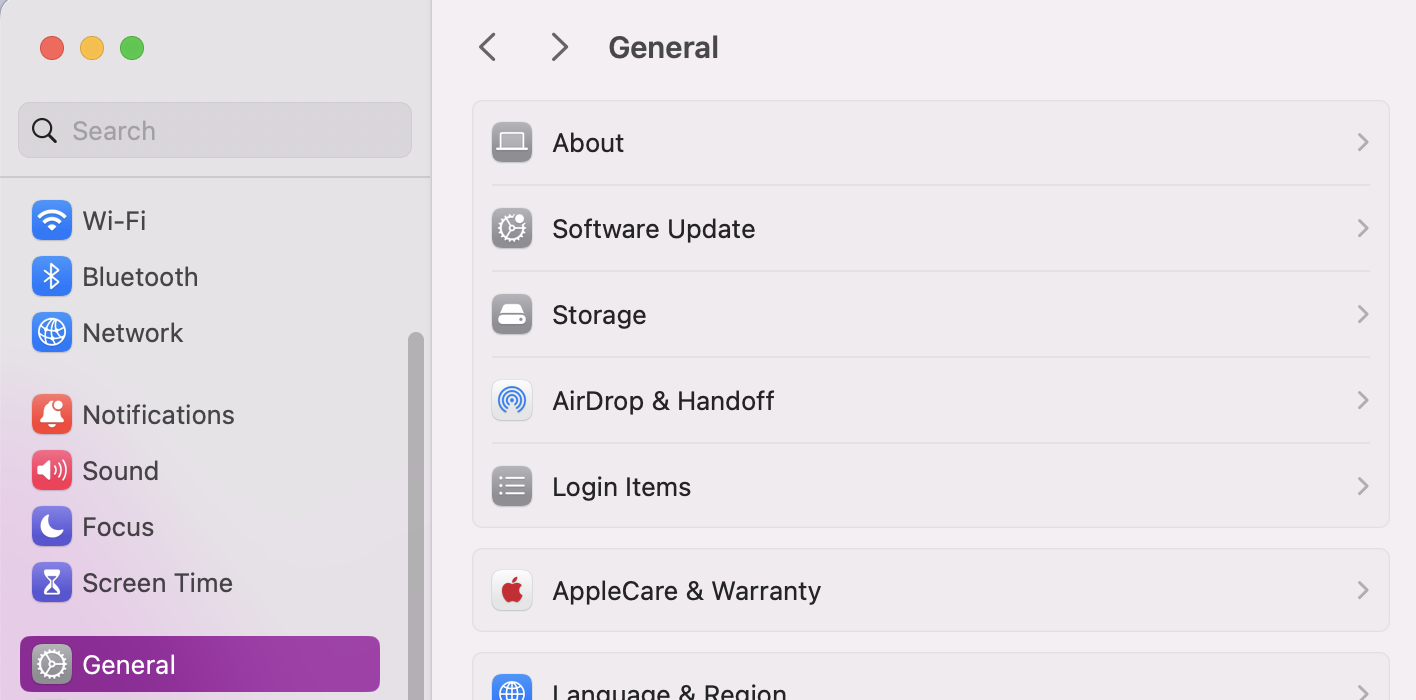
Open System Settings.
Go to General > AirDrop & Handoff.
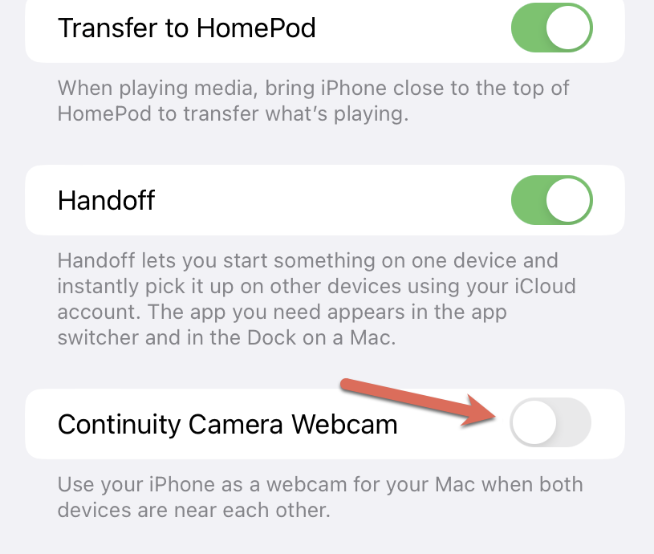
Find the Continuity Camera and swipe off to disable.
Alternatively, swipe on to re-enable.
Step 1. In System Settings, go to General > AirDrop & HandoffStep 2. Look for the Continuity Camera and toggle Off/On
5. Disable display extension
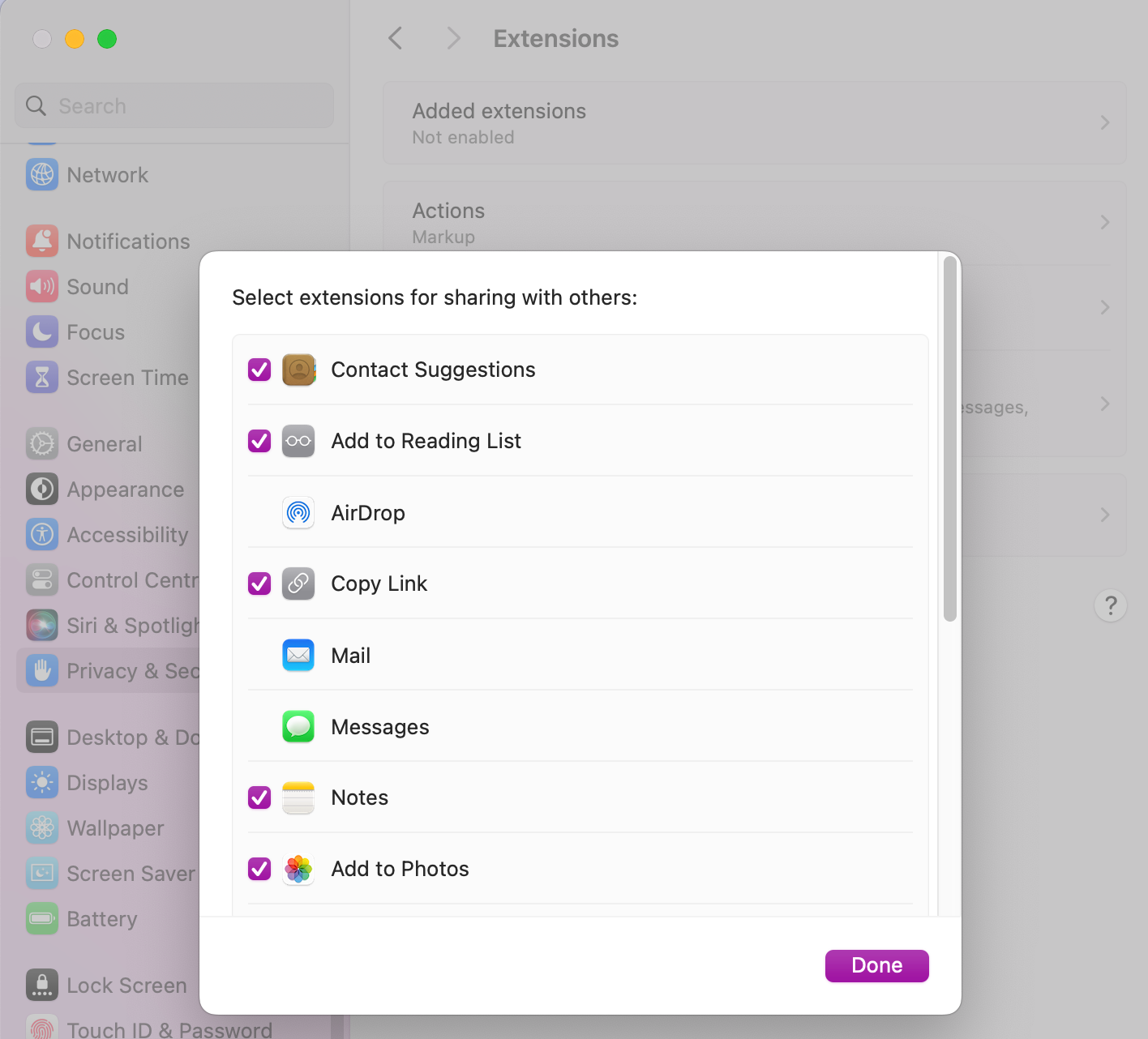
In case you’re still not having much luck with reducing avconferenced Mac process, it might be a good time to disable display extension features that could be running in the background and pushing your CPU into the red zone–which is not good for your Mac’s health.
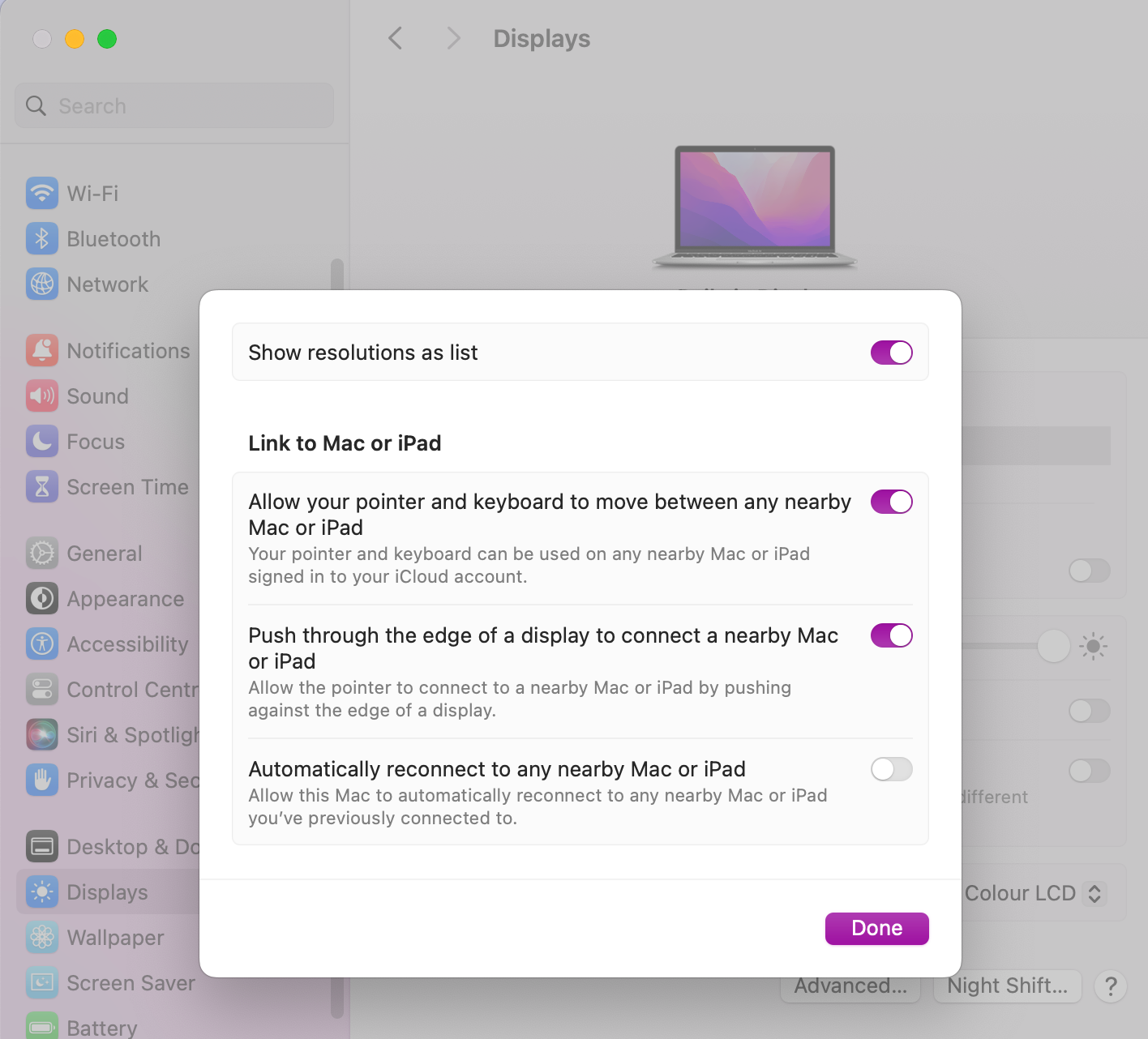
Eventhough these extensions are designed to support screen sharing and conferencing apps, they can easily get stuck and cause issues. While your MacBook doesn’t specifically support disabling your display extensions, there are ways around it.
Here’s how to disable the display extension:
Open System Settings.
Go to the Display tab.
Check for any active external or extended display options.
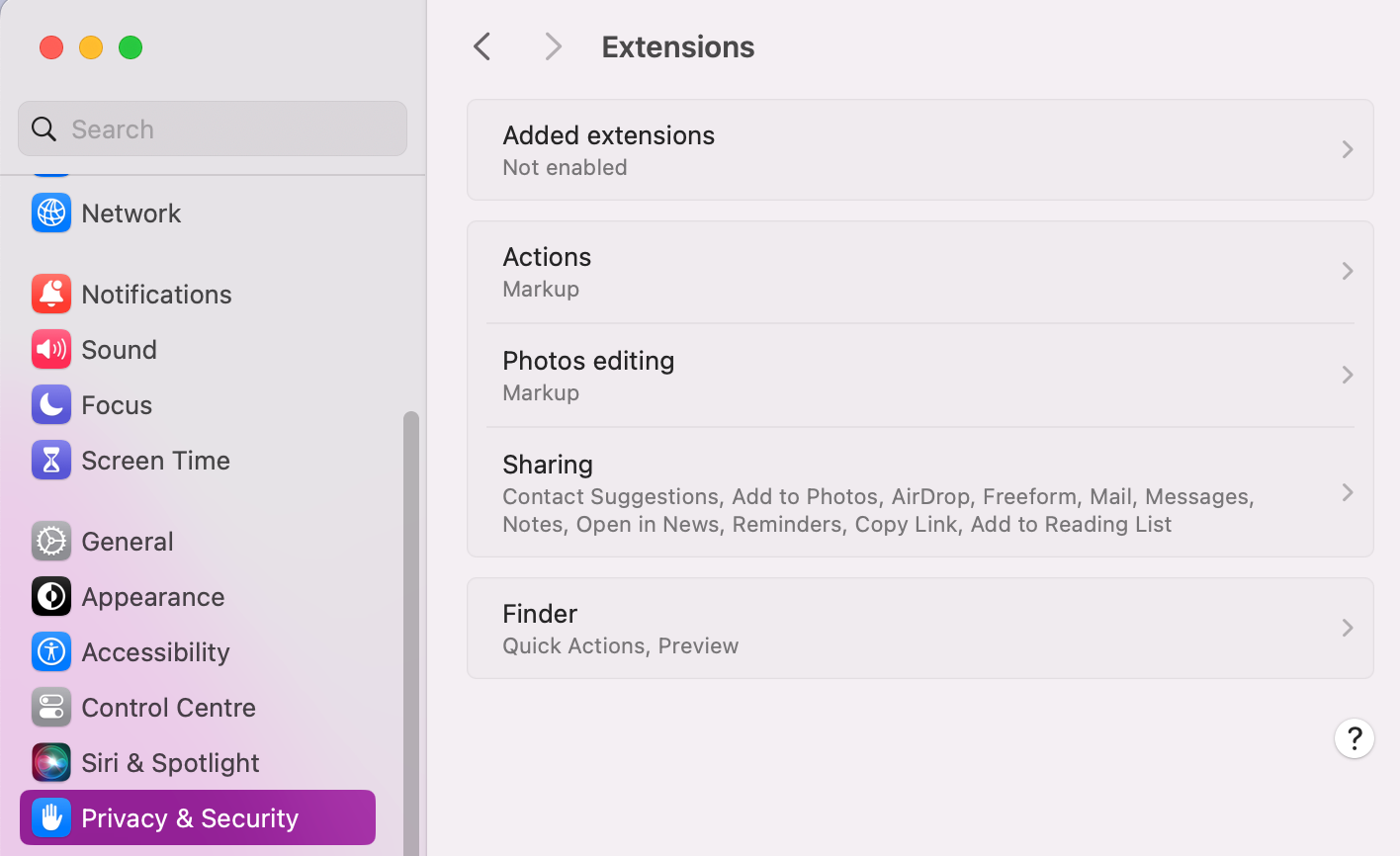
Then go to the Privacy & Security tab.
Review any screen-sharing or display-related permissions.
Select unnecessary apps or services that are using display access and Turn off to disable.
Quit the corresponding apps and restart your Mac to apply changes.
Re-open Activity Monitor to check if the avconferenced CPU has improved.
Step 1. In Settings, go to the Display tab and check for any active external or extended display optionsStep 2. Then open Privacy & Security and review your screen-sharing or display-related permissionsStep 3. Turn off and unwnecessary apps or services to disable display extensionsStep 4. Quit the corresponding apps you’ve disabled and reset your MacStep 5. Go back into Activity Monitor to check avconferenced levels
6. Reset camera and microphone permissions
After you’ve checked your avconferenced Mac process CPU again in Activity Monitor, if it’s still not lowered, you might want to try resetting camera and microphone permissions. If nothing else has worked so far, altering these permissions might just be the thing that’s behind your high CPU. This is considered a deeper reset, but it could be what's needed to fix the issue and bring your Mac back under control.
Here’s how to reset camera and microphone permissions on Mac:
Open System Settings.
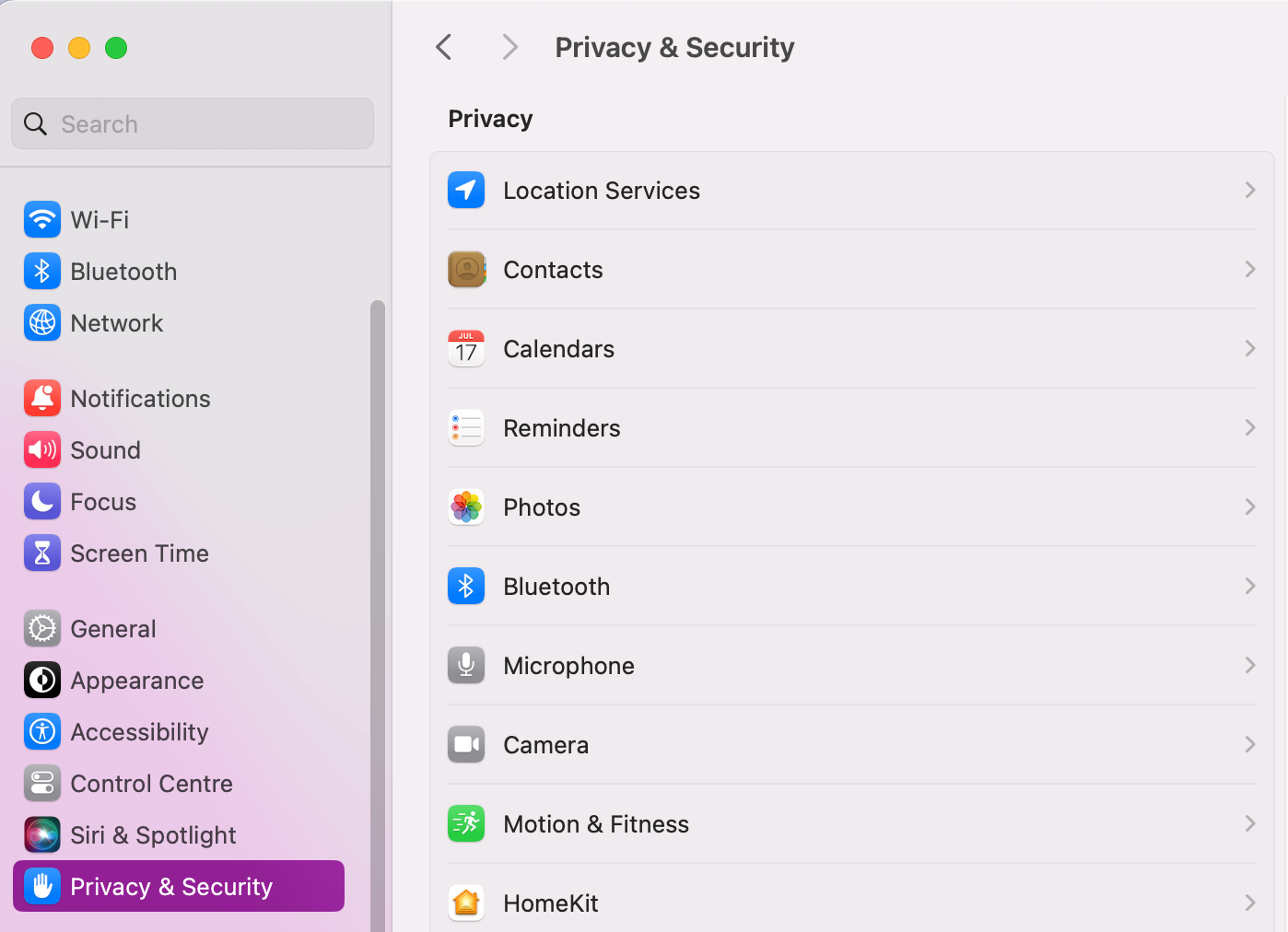
Go to Privacy & Security.
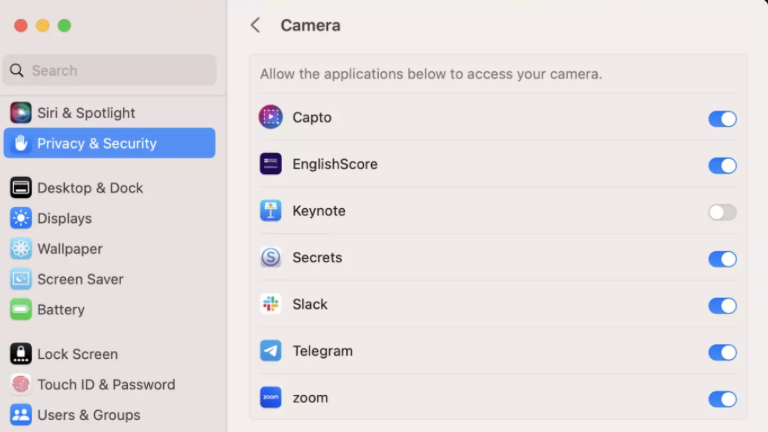
Click on Camera and toggle the permissions, switching on or off next to the suitable apps.
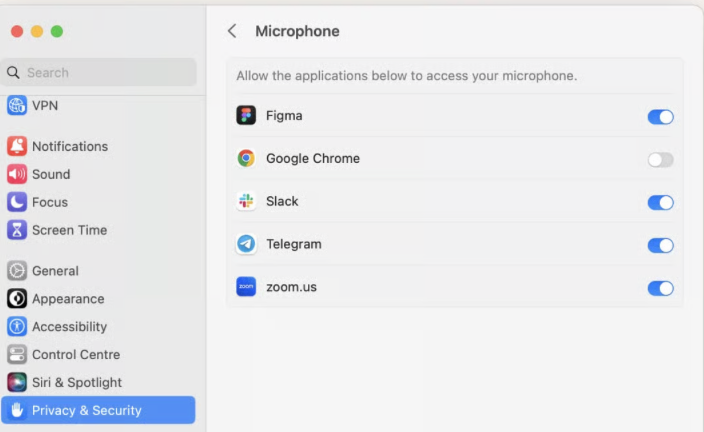
Then do the same for Microphone apps to reset permissions.
Restart your Mac to apply changes.
Check avconferenced process in Activity Monitor to see if it’s improved.
Step 1. In System Settings, go to Privacy & SecurityStep 2. Click on Camera and toggle the permissions next to the suitable apps Step 3. Click on Microphone and toggle the permissions on your apps
7. Update macOS
All that’s left to try now is to check for an upgrade Mac operating system, as an outdated patch could be causing glitches with avconferenced and halting your audio-video tasks in their tracks.
Here’s how we recommend checking for macOS updates:
Open System Settings.
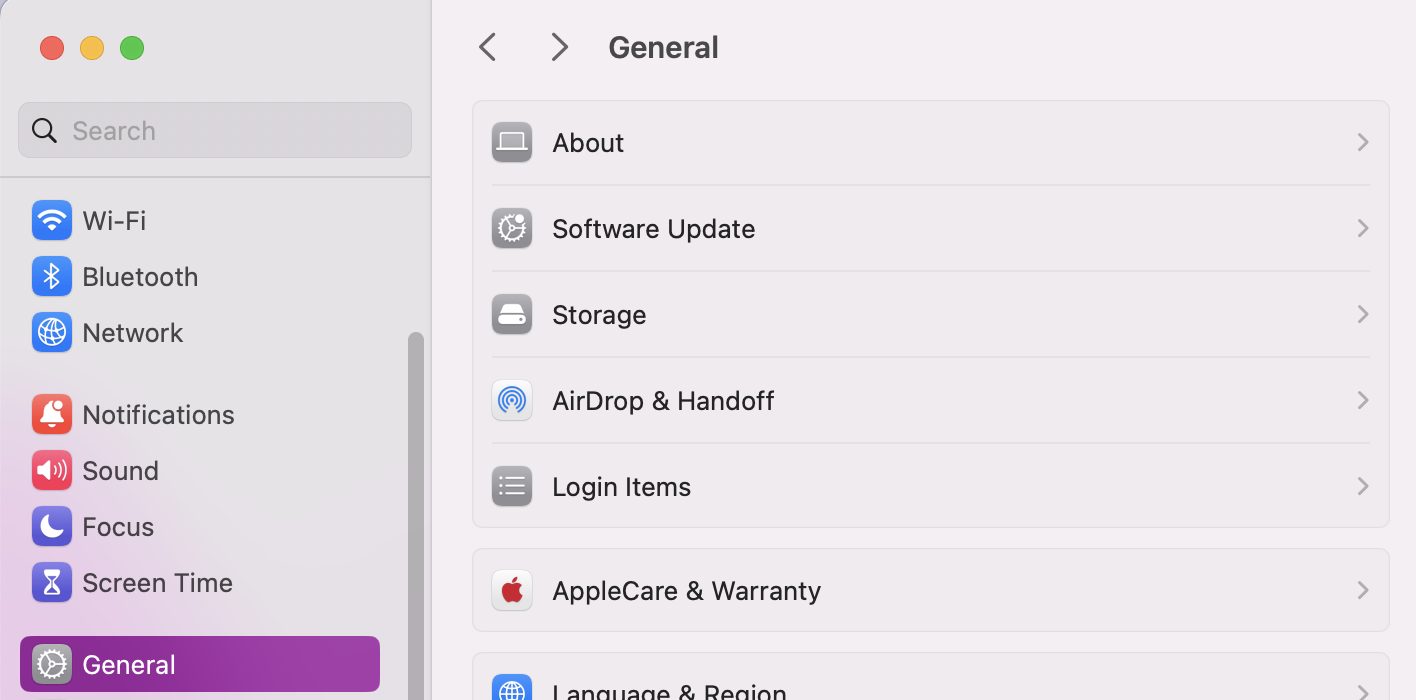
Go to General > Software Update.
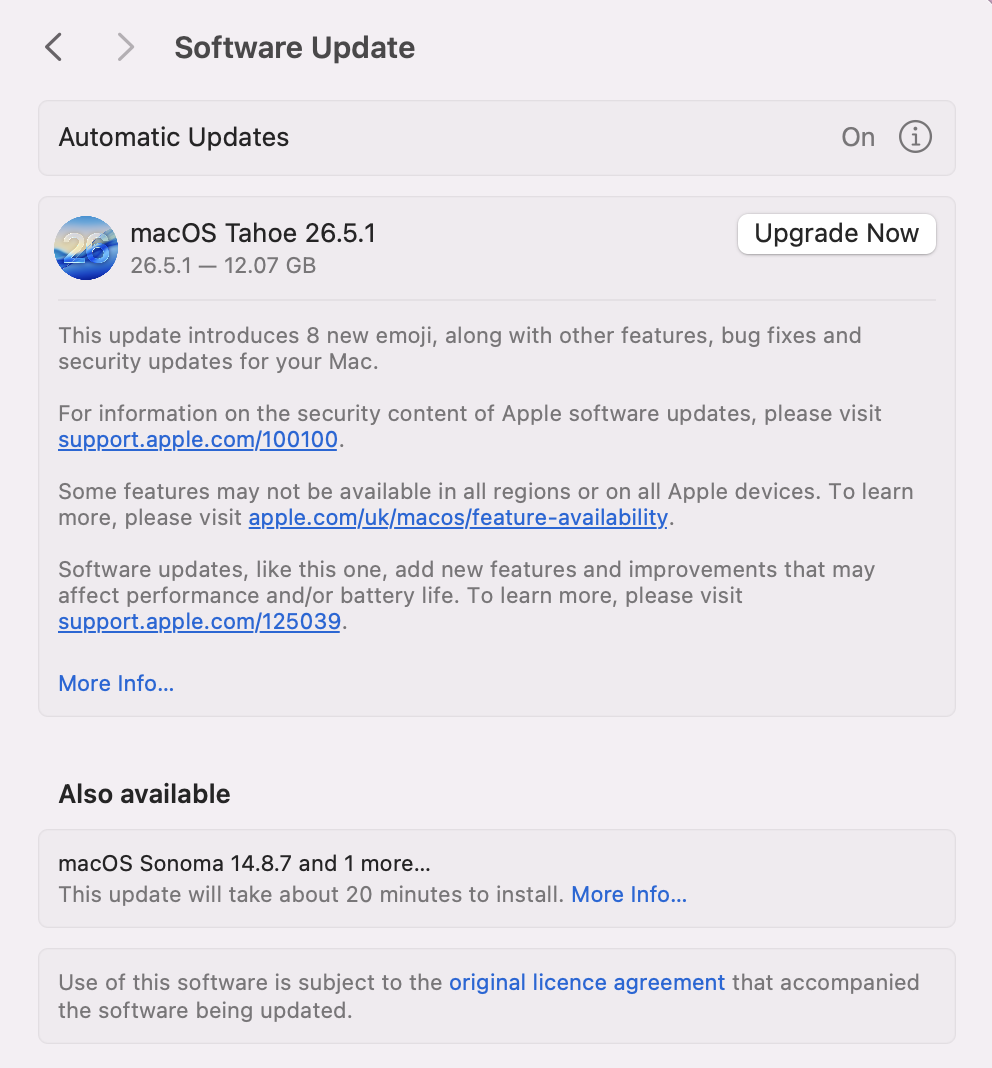
If an update is available, press the Update Now button.
Step 1. Open System Settings and navigate to the Software Update tabStep 2. If an update is available, click on the Update or Upgrade Now button
Freeing up CPU with MacKeeper’s help
We’ve now shown you how to troubleshoot your device in case avconferenced Mac high CPU has become a nuisance that needs to be dealt with. You can force-quit the process in Apple’s Activity Monitor, reset your camera and microphone permissions, or check to see if you need to install a new OS version update. We do recommend checking your CPU regularly to help you spot any suspicious background activity early and keep your system running safely and smoothly.
For an extra hand, we recommend MacKeeper’s Memory Cleaner tool. In just a few clicks, it’ll do all the hard work for you– it’ll keep your system running smoothly without you needing to hunt down and quit every process manually. Our tool will free up space, clear RAM, and speed up your device in seconds. Your Mac will soon be reliable and steady again.
We respect your privacy and
use cookies
for the best site experience.
Privacy Preferences Center
We use cookies along with other tools to give you the best possible experience while using the
MacKeeper website. Cookies are small text files that help the website load faster. The cookies we
use don’t contain any type of personal data meaning they never store information such as your
location, email address, or IP address.
Help us improve how you interact with our website by accepting the use of cookies. You can change
your privacy settings whenever you like.
Manage consent
All cookies
These cookies are strictly necessary for enabling basic website functionality (including page
navigation, form submission, language detection, post commenting), downloading and purchasing
software. The website might malfunction without these cookies.