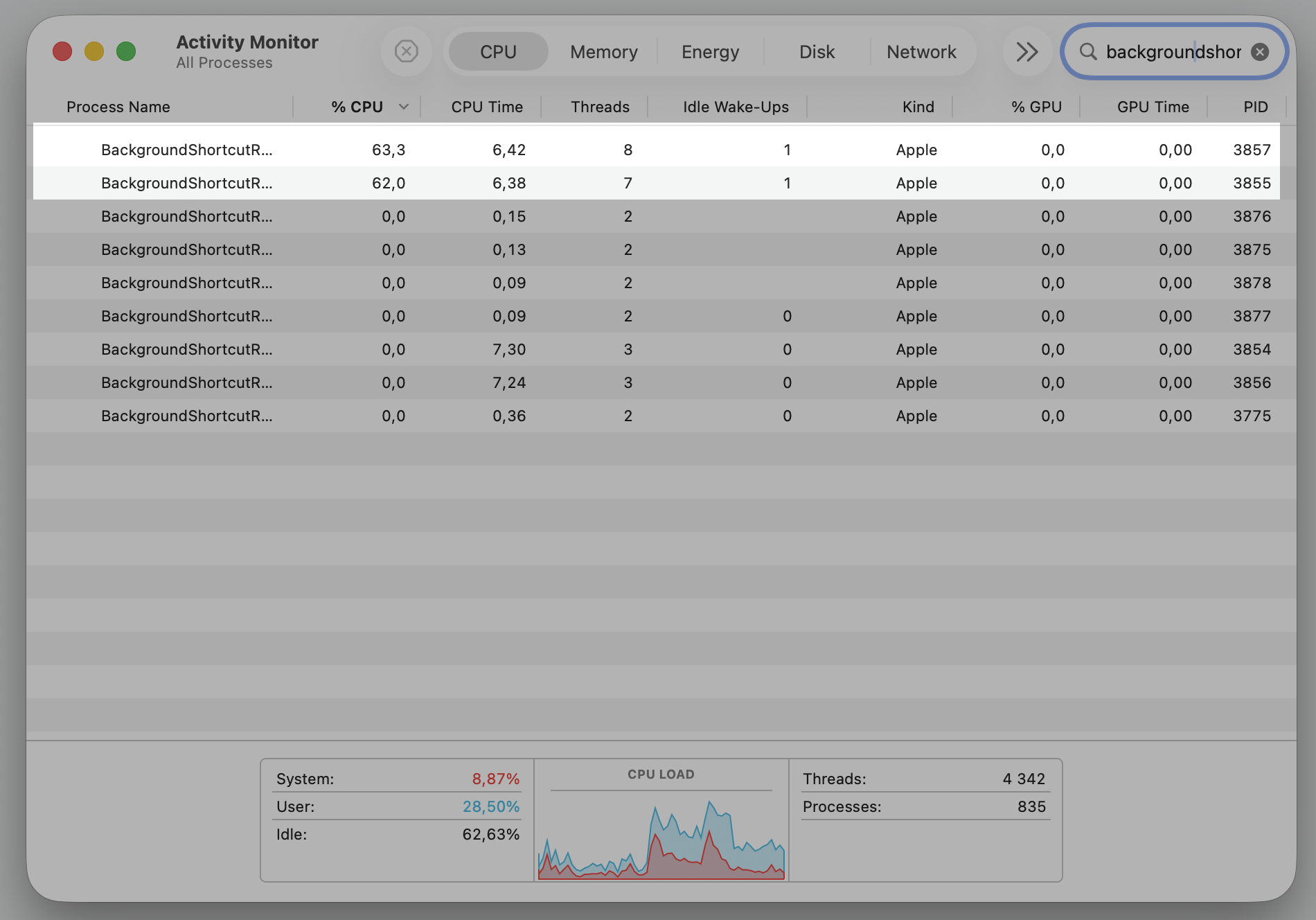
Is your fan spinning loudly while BackgroundShortcutRunner pushes your Mac CPU to the limit? It’s a known macOS background process that can run wild after updates, especially if your Mac is running low on storage. MacKeeper’s Memory Cleaner frees up memory by stopping draining processes with a click.
BackgroundShortcutRunner—also known as WorkflowKit.BackgroundShortcutRunner in the Shortcuts background mode—is a system-related process tied to the Shortcuts app on macOS. Think of it as a quiet helper working behind the scenes. It handles automation tasks, syncing, and shortcut execution.
Because it’s built into the system, the runner can wake up on its own to finish small jobs. Most of the time, you won’t notice it. When it gets stuck, though, you’ll feel your Mac slow down.
Why may BackgroundShortcutRunner use high CPU on Mac?
So why does this tiny helper sometimes hog so much power? BackgroundShortcutRunner high CPU usage usually comes down to a handful of common causes rather than anything you did wrong—check out our list below.
1. macOS update bugs or system glitches
High CPU usage sometimes shows up right after a fresh macOS update. New versions also might be shiped with temporary bugs, and, as a result, background processes can stay unstable for a while as the system settles.
In rare cases, damaged or conflicting shortcuts data may interfere with background execution. However, full iCloud storage itself isn’t a confirmed cause of high BackgroundShortcutRunner CPU usage.
Sometimes the issue sits inside a single damaged file. A corrupted shortcut or broken configuration can trigger the process to retry the same task over and over, repeatedly spinning up background activity it never finishes.
4. Conflicts with third-party apps or services
Other apps lean on system automation too. Office suites, cloud apps, and similar tools can ask macOS to run jobs in the background, and a clash there can send the runner’s CPU usage spiking unexpectedly.
If one app seems linked to the spikes, you can force close it and watch whether the activity calms down.
5. Background processes restarting repeatedly
Here’s the frustrating part. Even after you quit it, the process can relaunch within seconds. This repeatedly reopening loop means your Mac never gets a break, and the CPU stays busy.
To see it for yourself, you can check processor usage on Mac and watch the runner climb back to the top of the list moments after you stop it.
How to fix BackgroundShortcutRunner high CPU on Mac?
The good news—there’s plenty of solutions you can try, and none of them is risky. Since BackgroundShortcutRunner using high CPU on macOS can stem from system bugs, syncing snags, or app conflicts, work through our list in order and stop once your Mac feels normal again.
Important:
Before you start, it helps to test Mac performance so you have a clear baseline to compare against once you’ve tried a fix.
1. Force-quit the process in Activity Monitor
Stopping the process by hand is the quickest way to reduce the CPU load and see whether it stays gone. Here’s how to launch Activity Monitor and quit the runner:
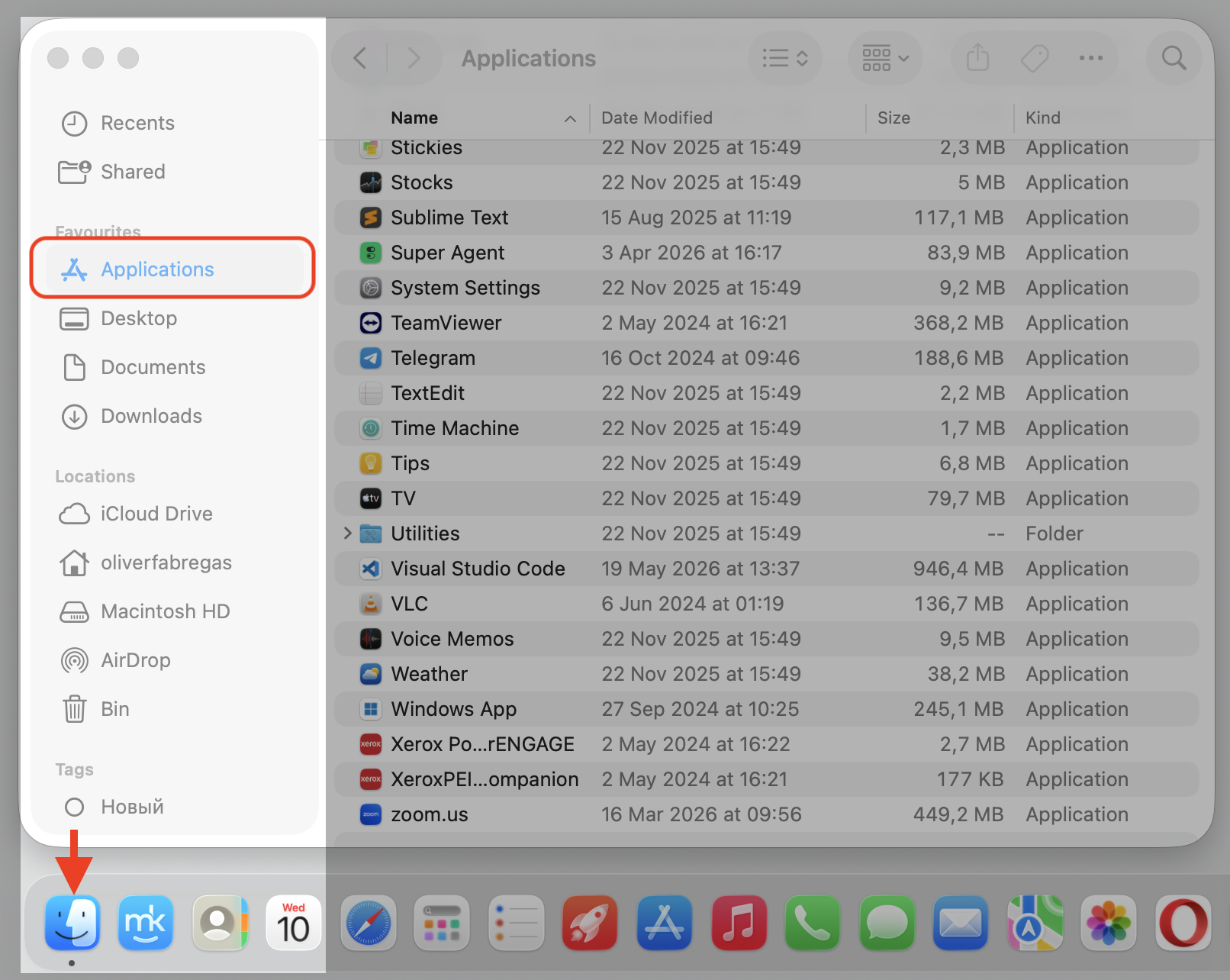
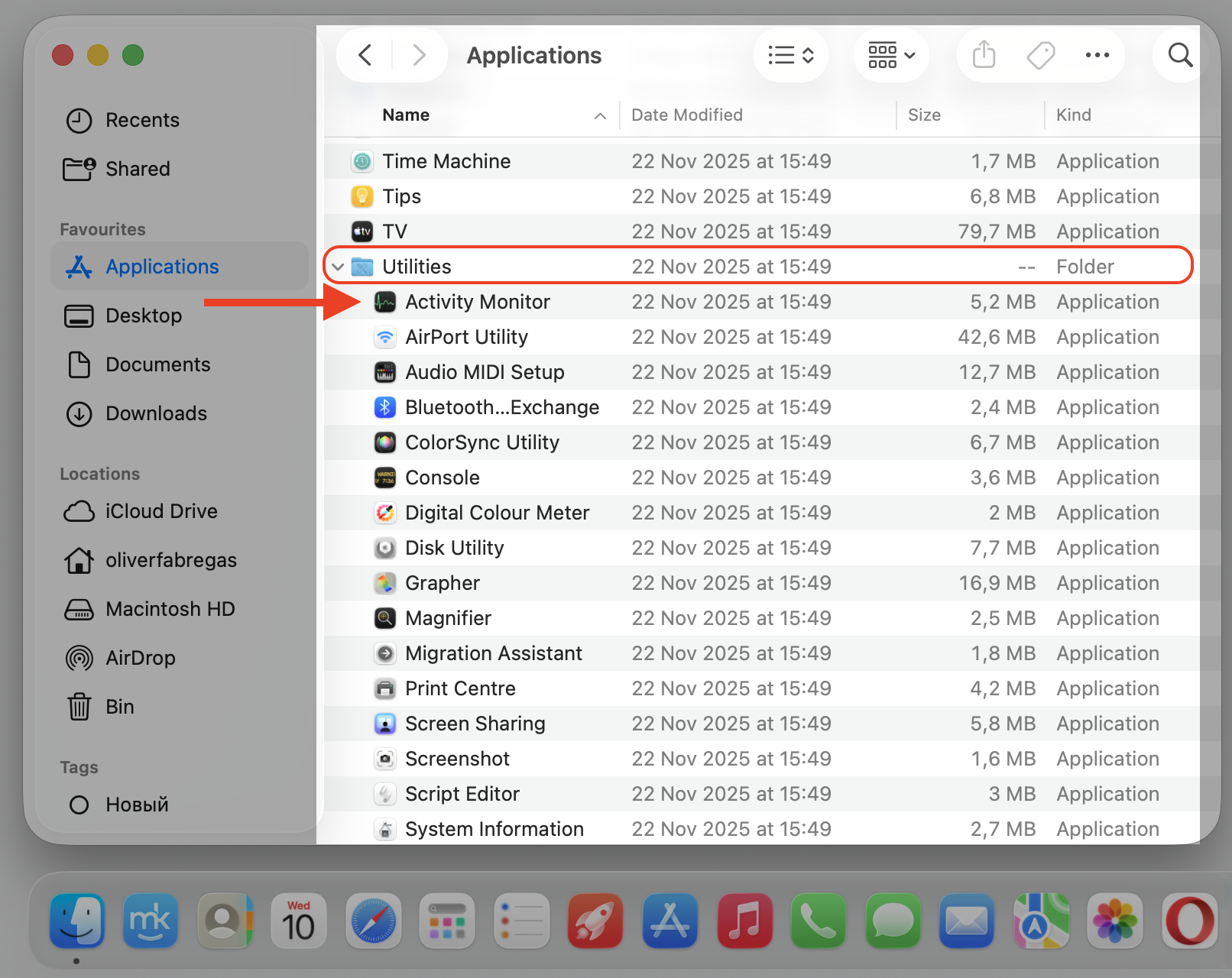
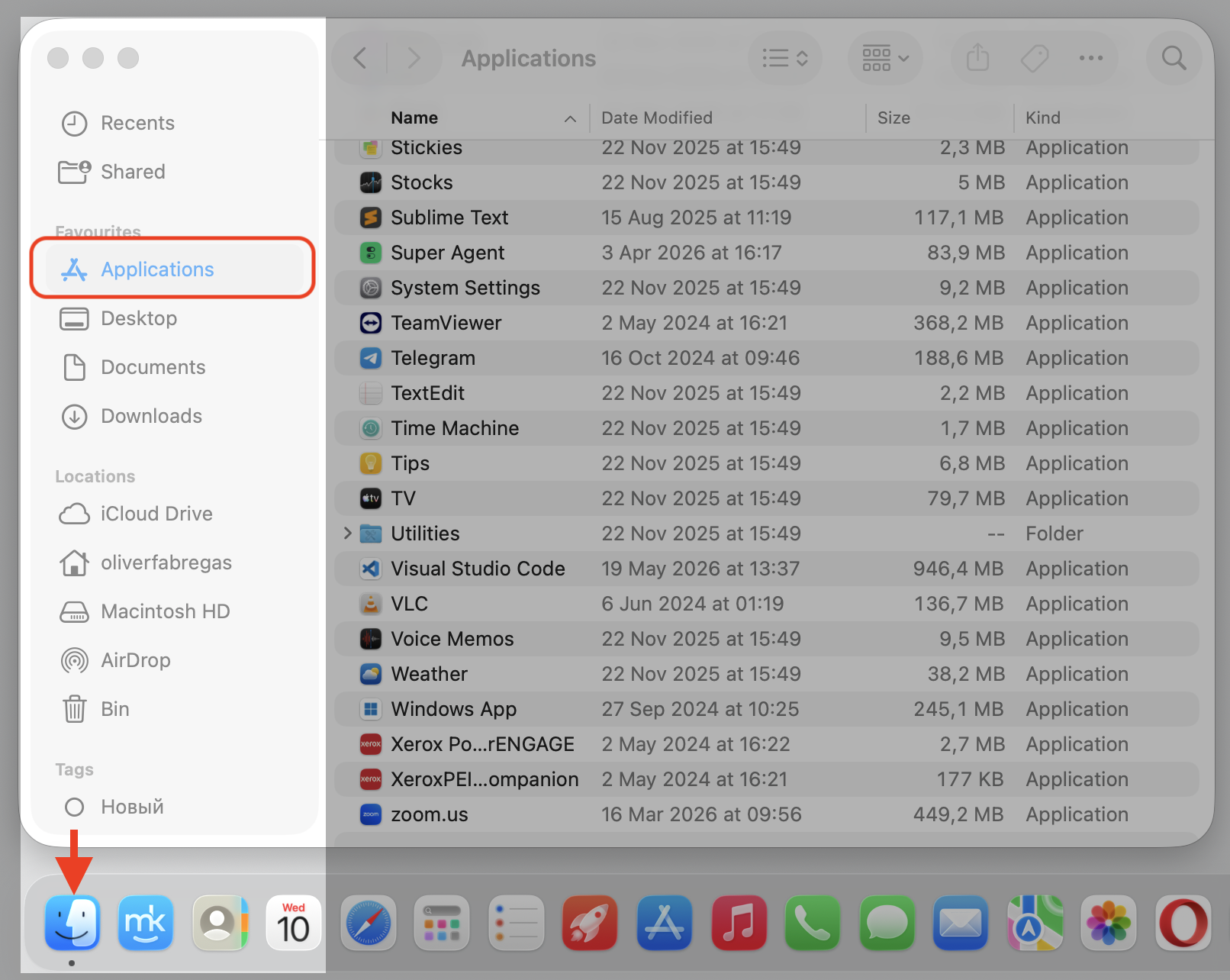
Open Activity Monitor from your Applications folder, then the Utilities folder.
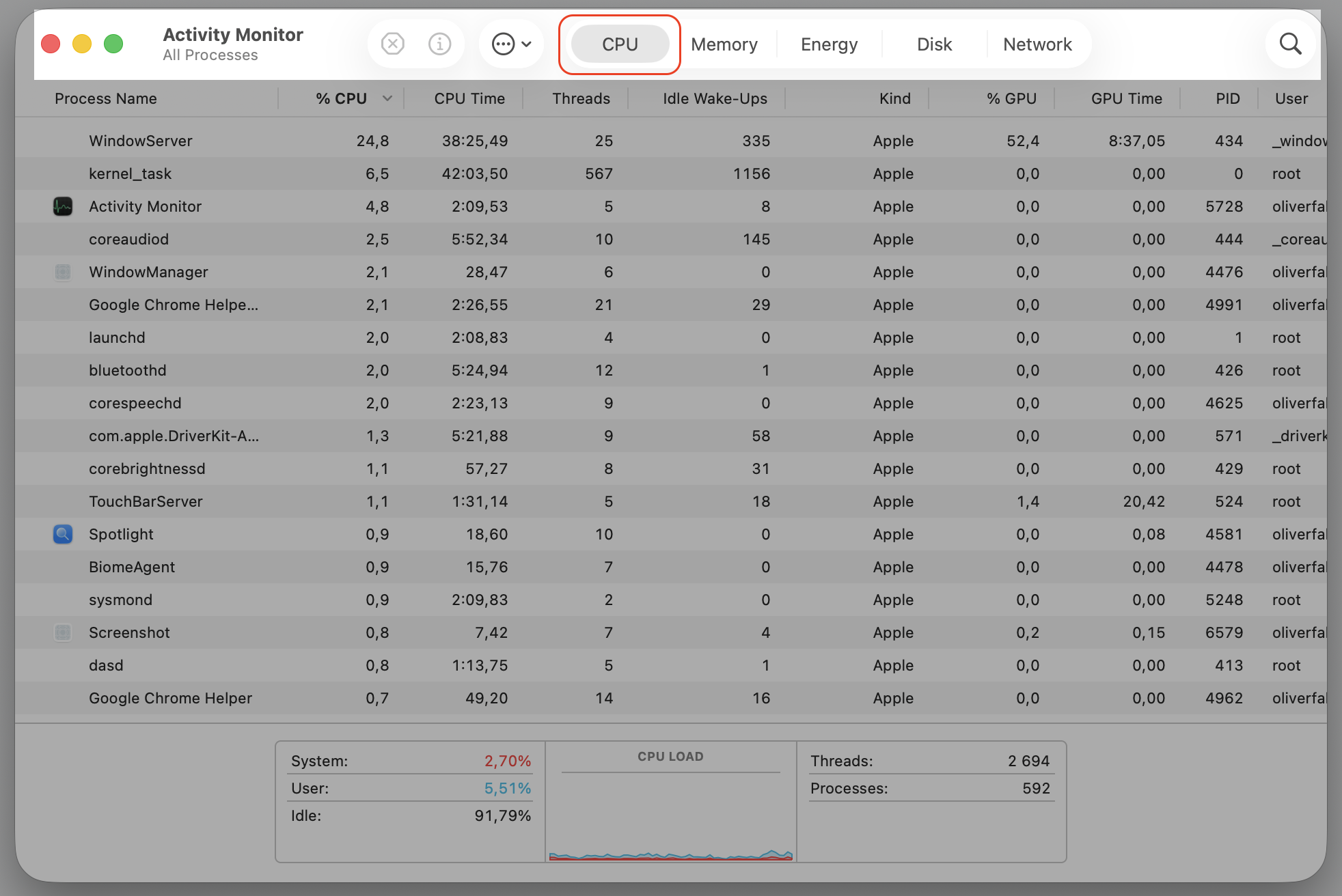
Select the CPU tab to sort running processes by usage.
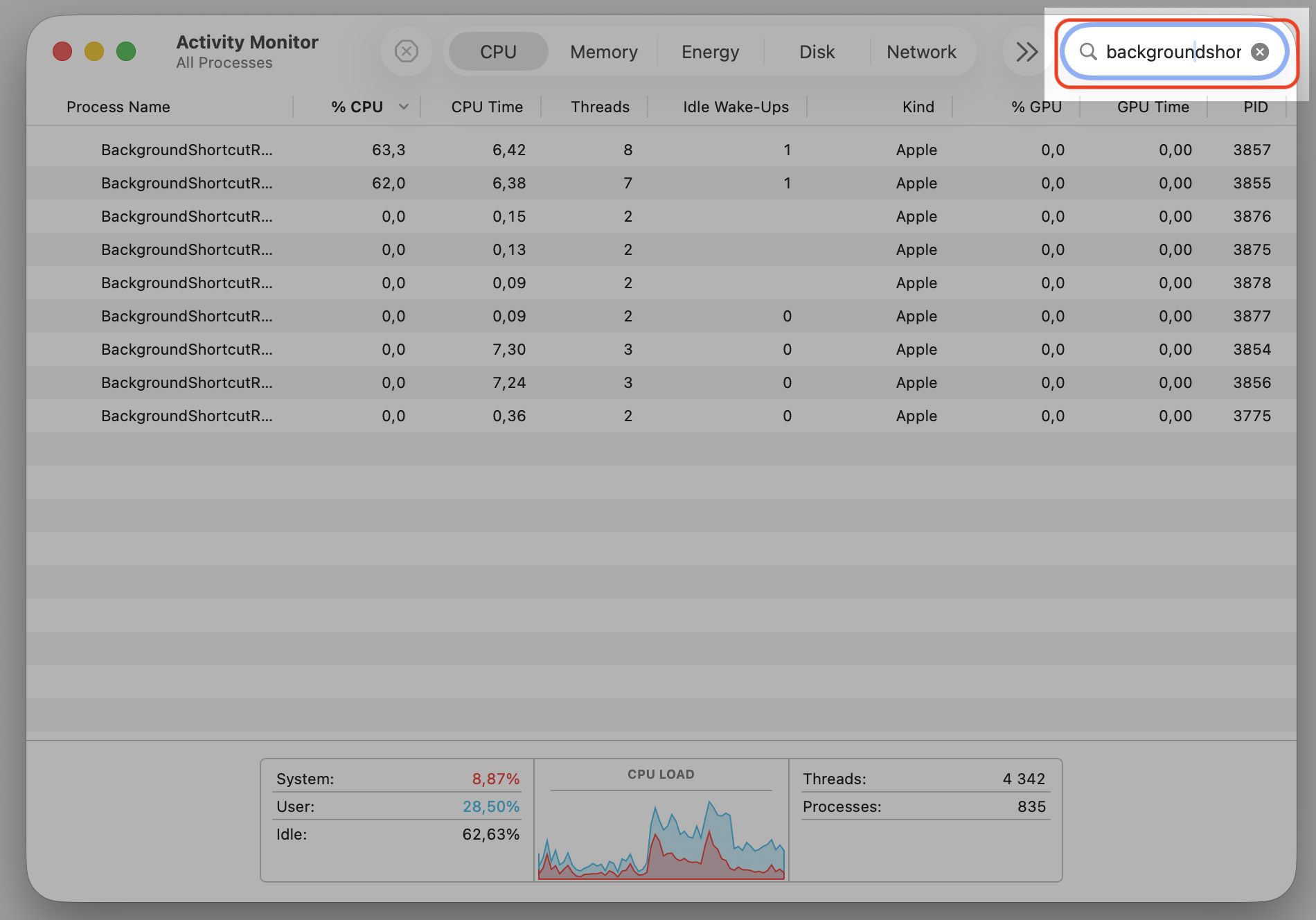
Type BackgroundShortcutRunner in the search window.
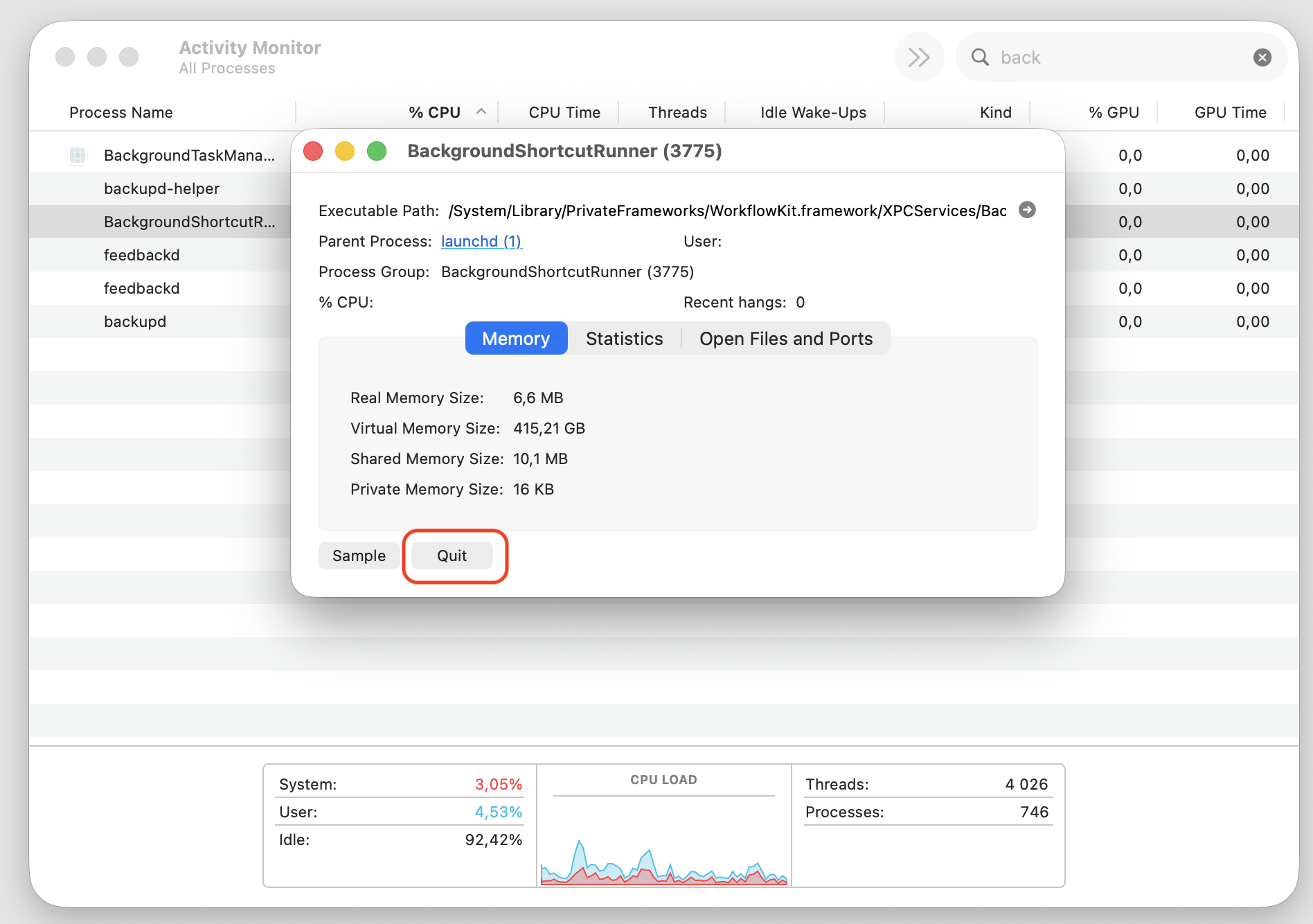
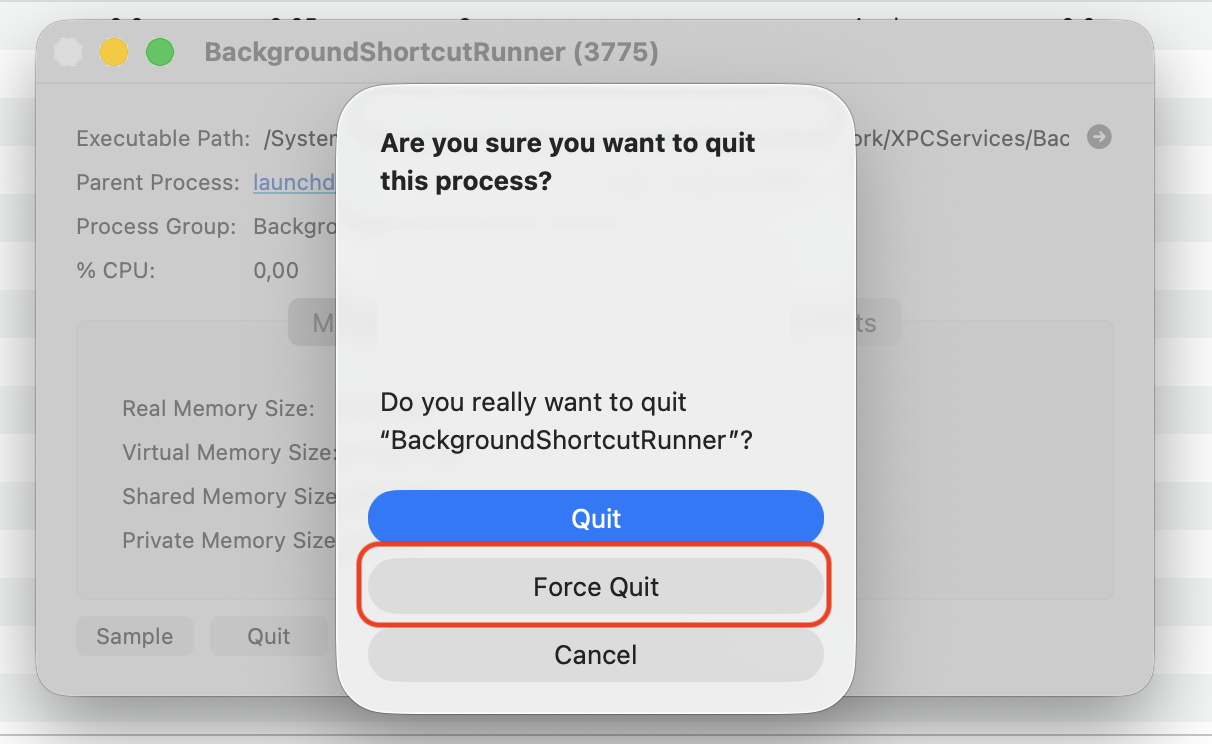
Select the process by double-click, then click Force Quit.
Watch the list for a minute. If the runner climbs straight back to the top, move on to the next fix.
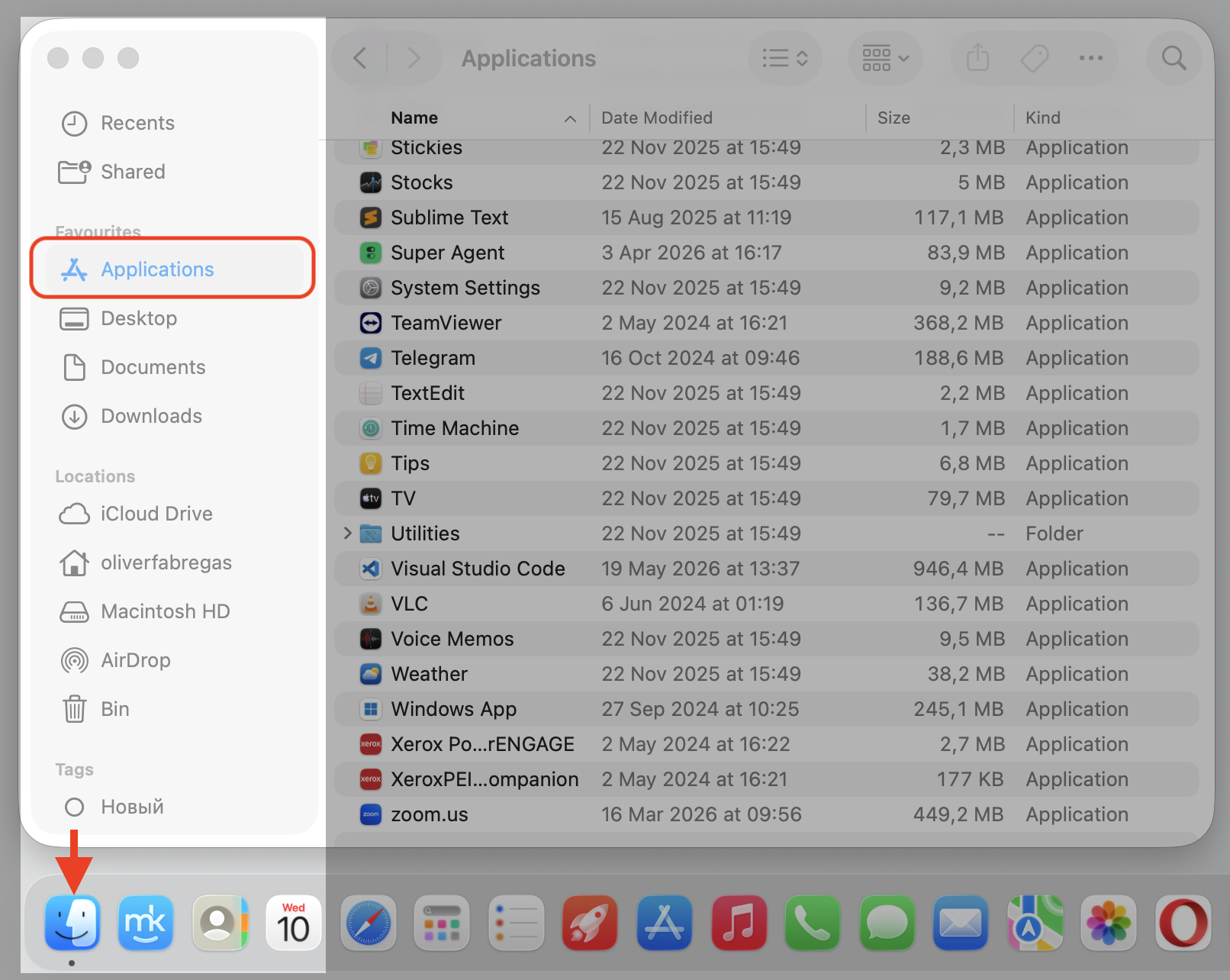
Step 1. Go to Finder > ApplicationsStep 2. Expand the Utilities folder and select Activity MonitorStep 3. Select the Tab CPUStep 4. Type the BackgroundShortcutRunner command in the search windowStep 5. Select the process and double-click on themStep 6. Select the Quit buttonStep 7. Confirm the action by the Force Quit option
A note from our experts:
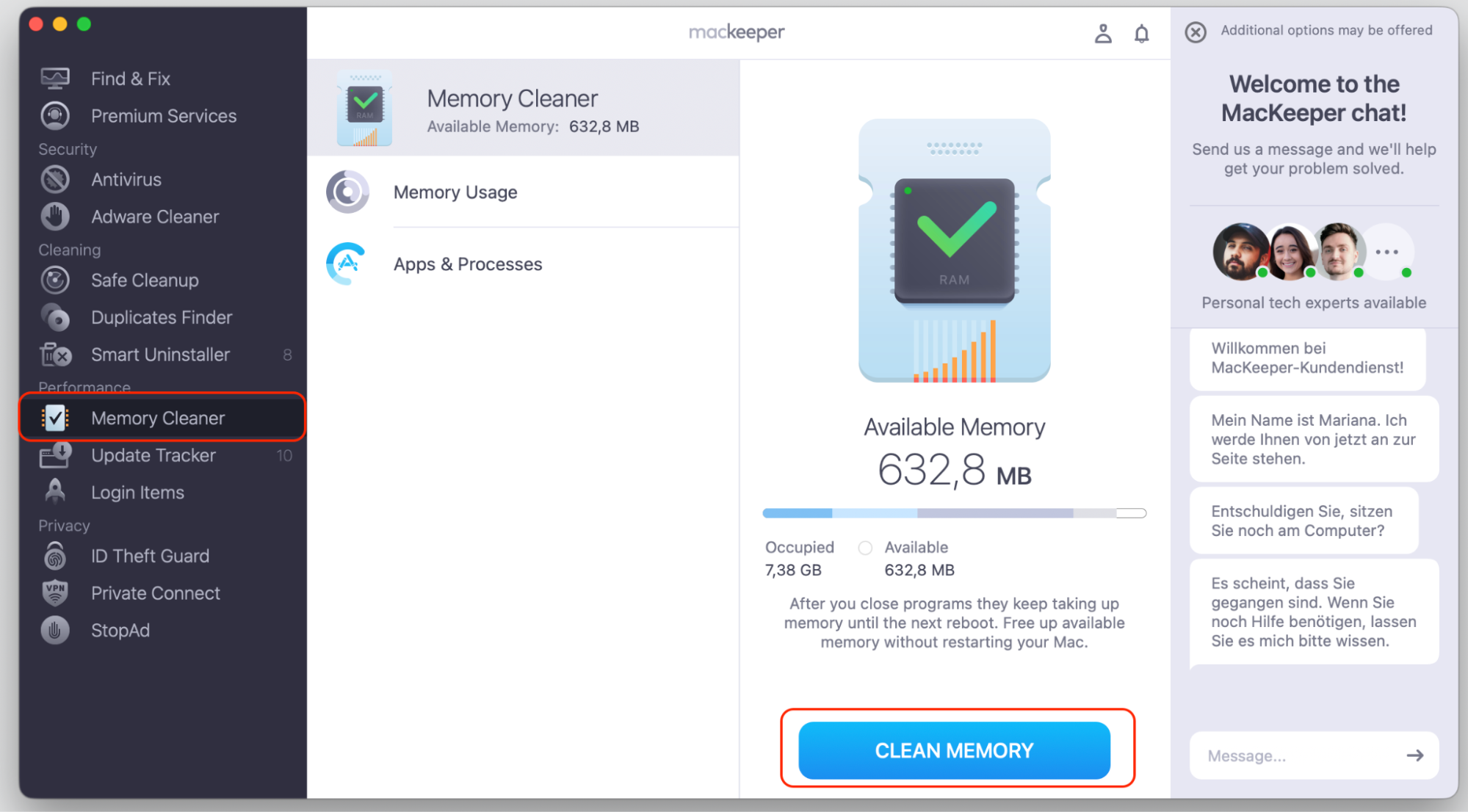
If you clearly see how slowly your Mac runs because of the multiple simultaneous processes in actio, including the BackgroundShortcutRunner, it’s time to give it a remedy. Try MacKeeper’s Memory Cleaner as a safe and easy-to-handle alternative that frees your Mac’s CPU usage and let it work better.
Here’s how to do the RAM cleaning with our Memory Cleaner tool:
See the memory scan results and click Clean Memory. Or you can also choose the particular processes to stop navigationg through the Apps & Processes category.
2. Restart your Mac
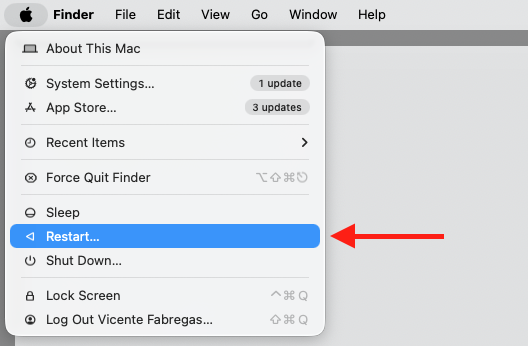
A simple restart clears stuck background processes and gives the system a clean startup. For many people, this alone settles the runner down after a few minutes. Try it with us:
Select the Apple menu in the top-left corner of your screen.
Choose Restart, then confirm.
Go to the Apple menu and select Restart
A heads-up from us:
If a normal restart doesn’t help, a hard restart MacBook can clear a truly stuck process.
3. Check Shortcuts app settings
Open the Shortcuts app and look through your automations. An active automation or syncing option you forgot about could be keeping the runner busy in the background. Do the following:
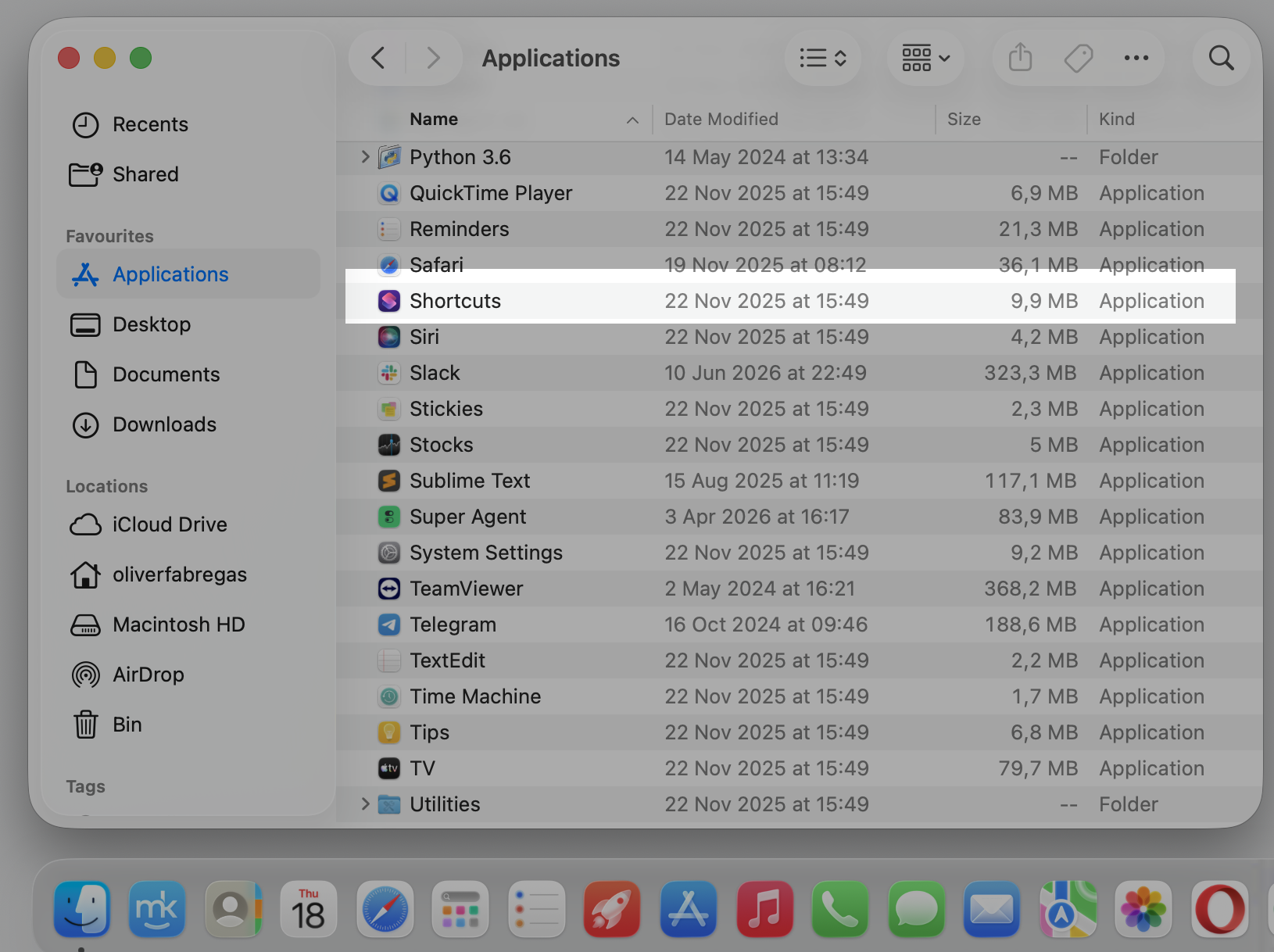
Open the Shortcuts app from your Applications folder.
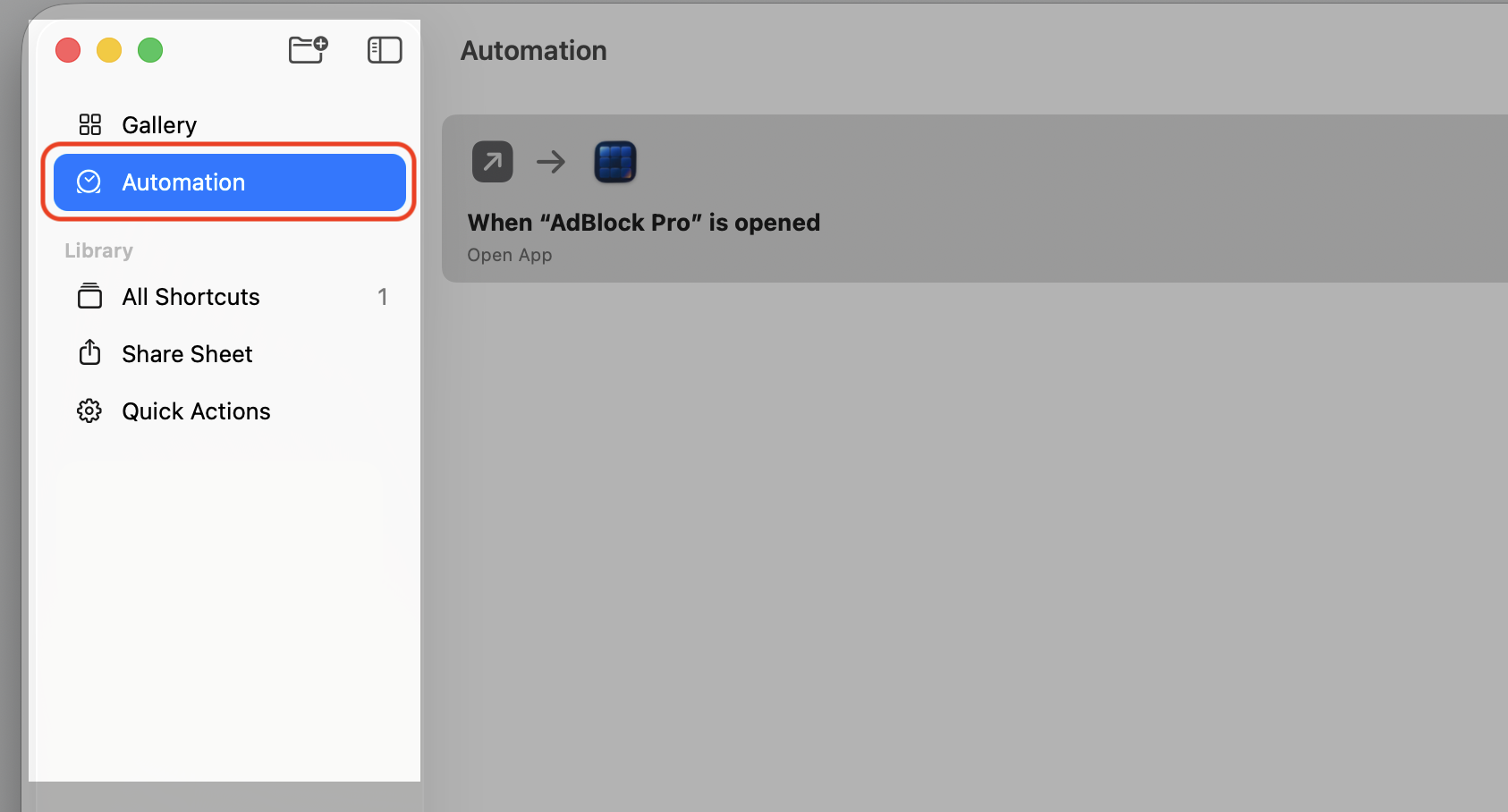
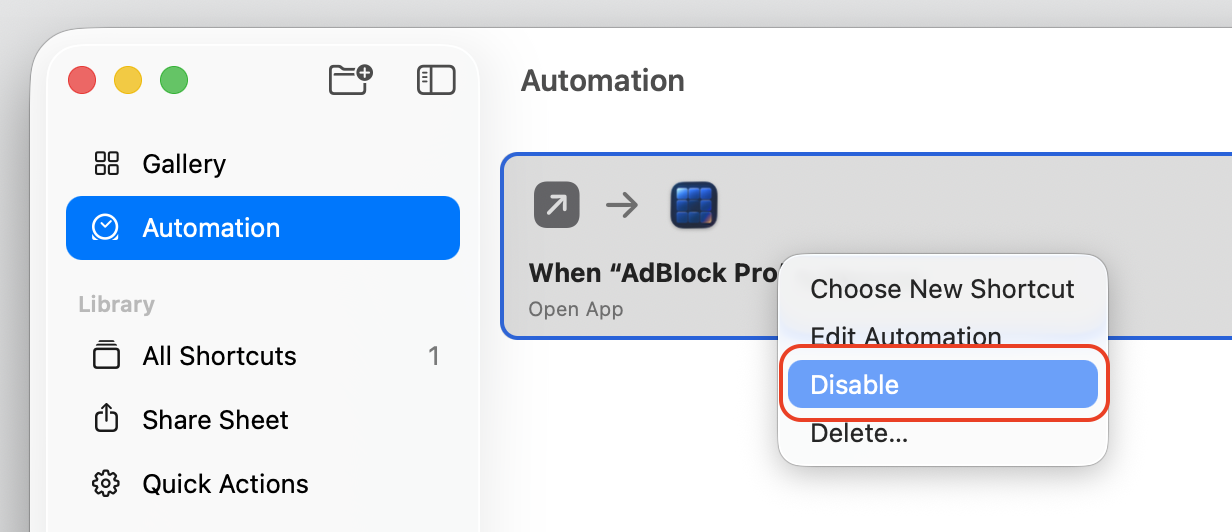
Select the Automation tab and review anything listed there.
Turn off any automation you don’t recognize or no longer need.
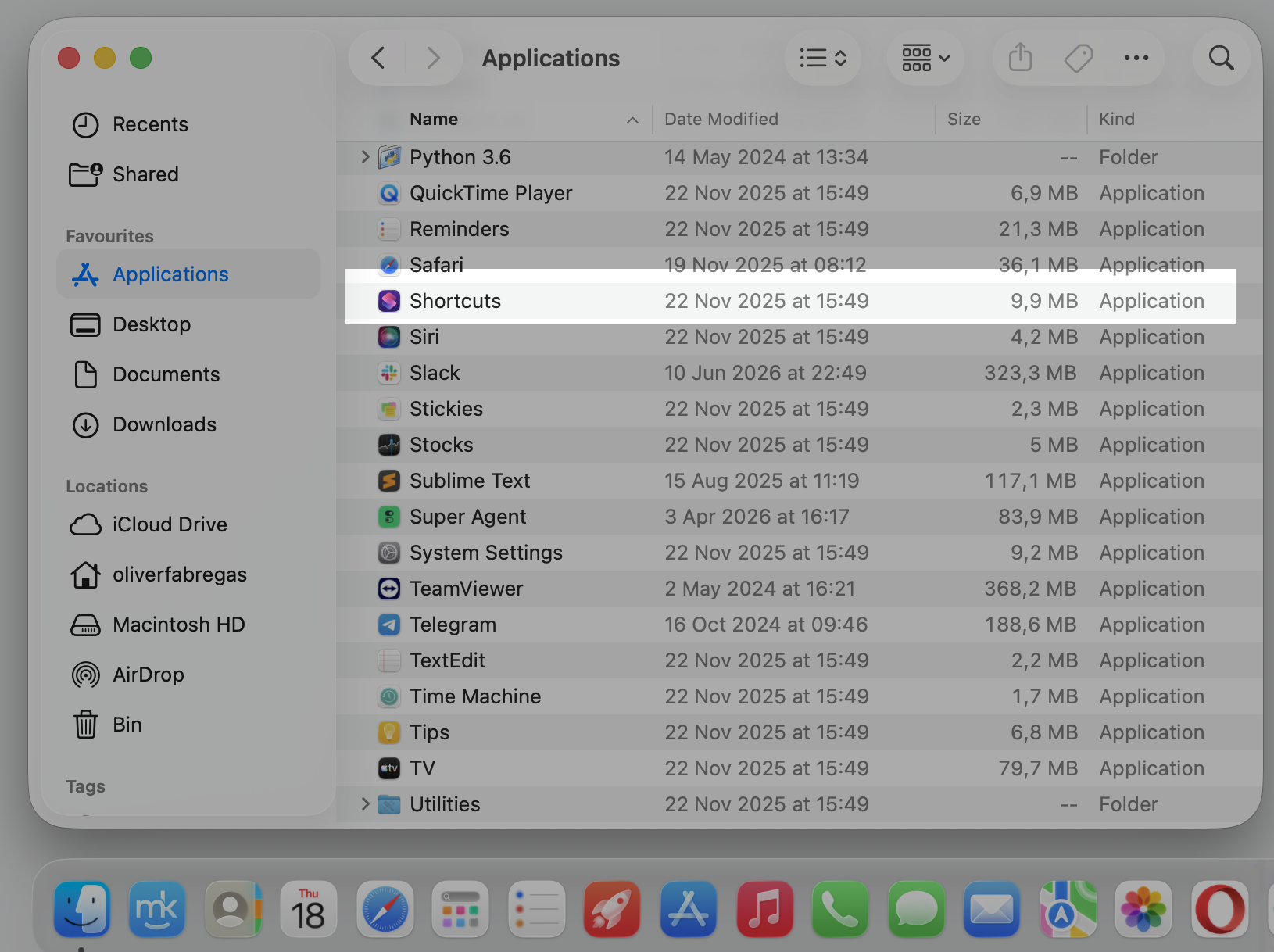
Step 1. Go to Finder > ApplicationsStep 2. Open the Shortcuts appStep 3. Go to the Automation tab from the top left sidebarStep 4. Control-click on the shortcut you don’t recognize and select the Disable option
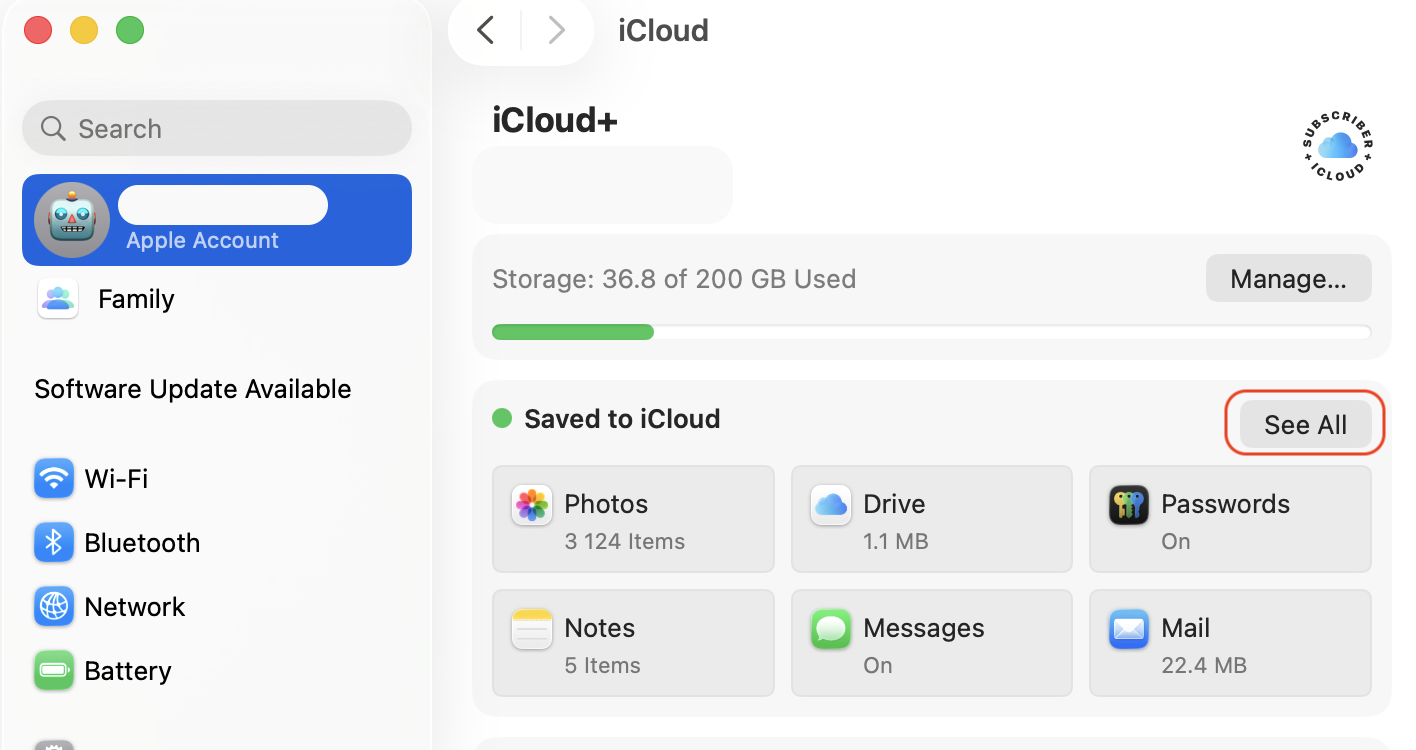
4. Disable iCloud sync for Shortcuts
If the background activity is tied to data syncing, turning off iCloud for Shortcuts may settle it. Here’s how:
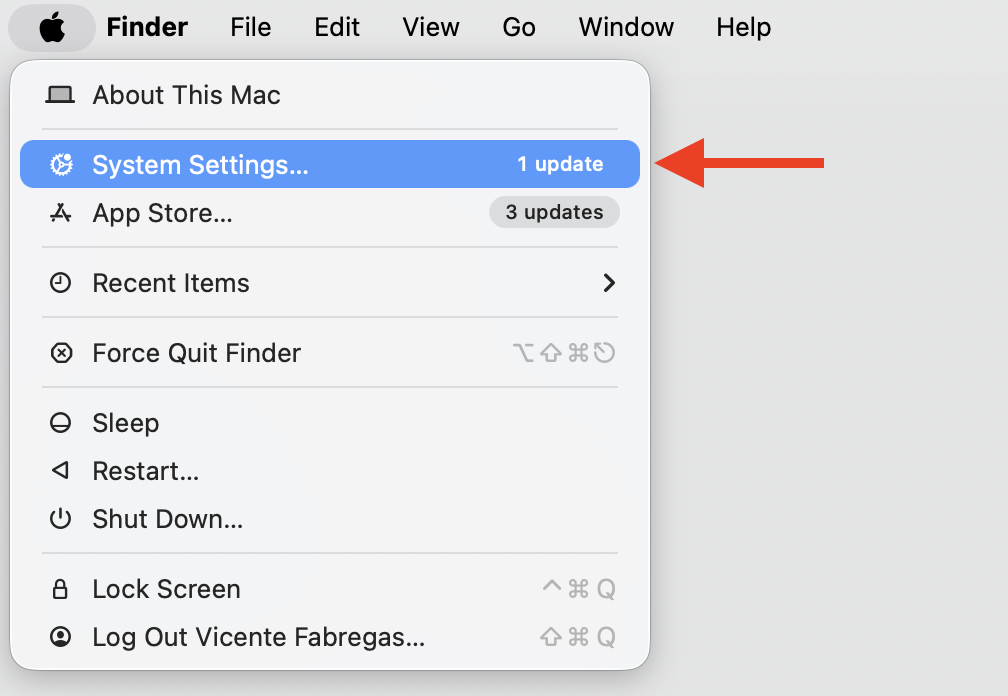
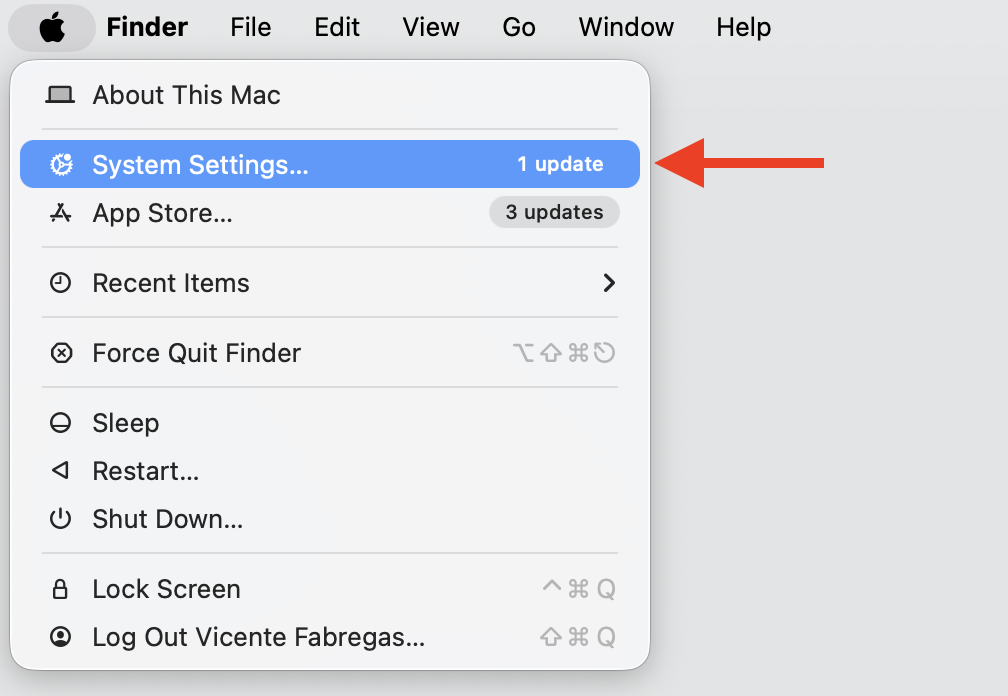
Open System Settings.
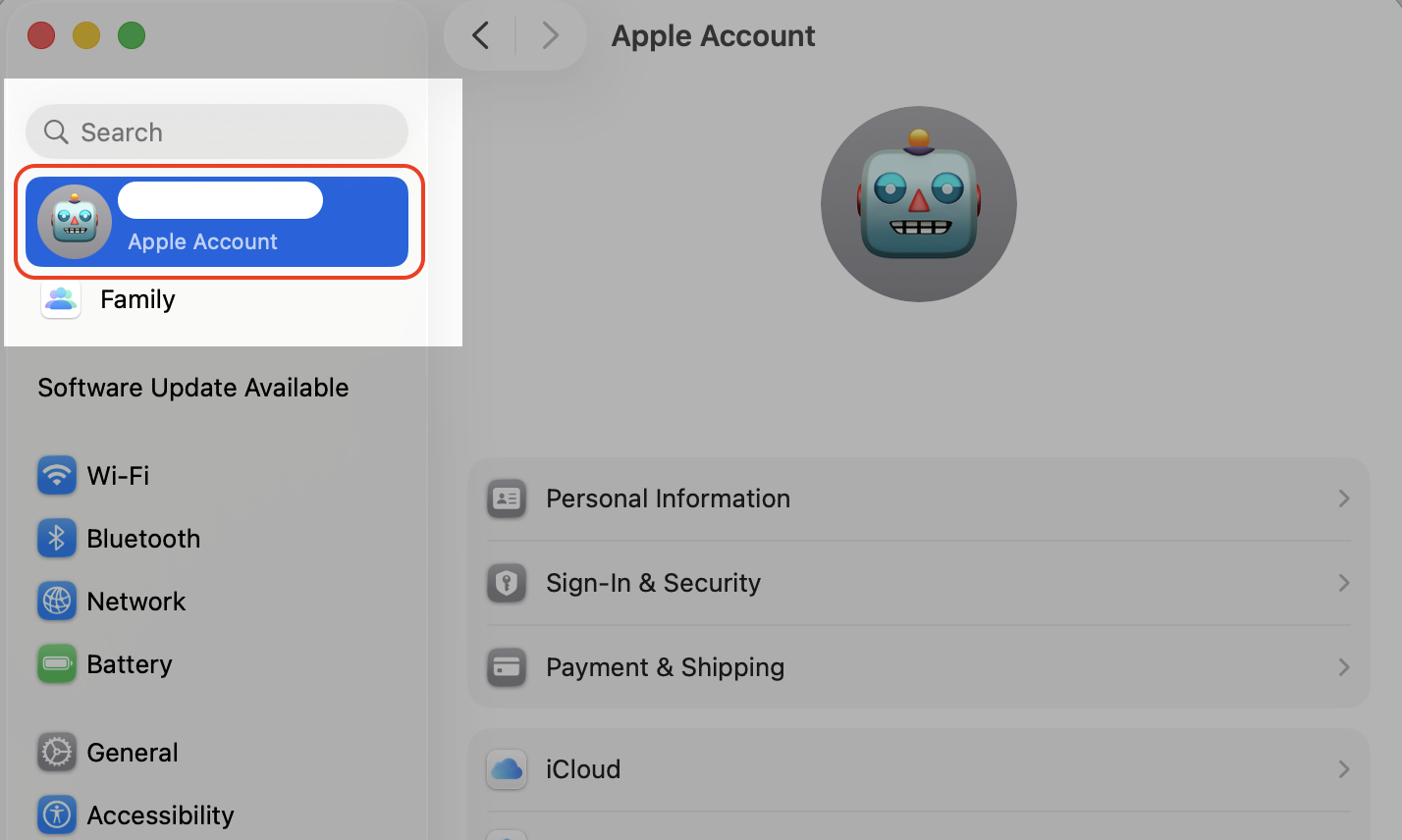
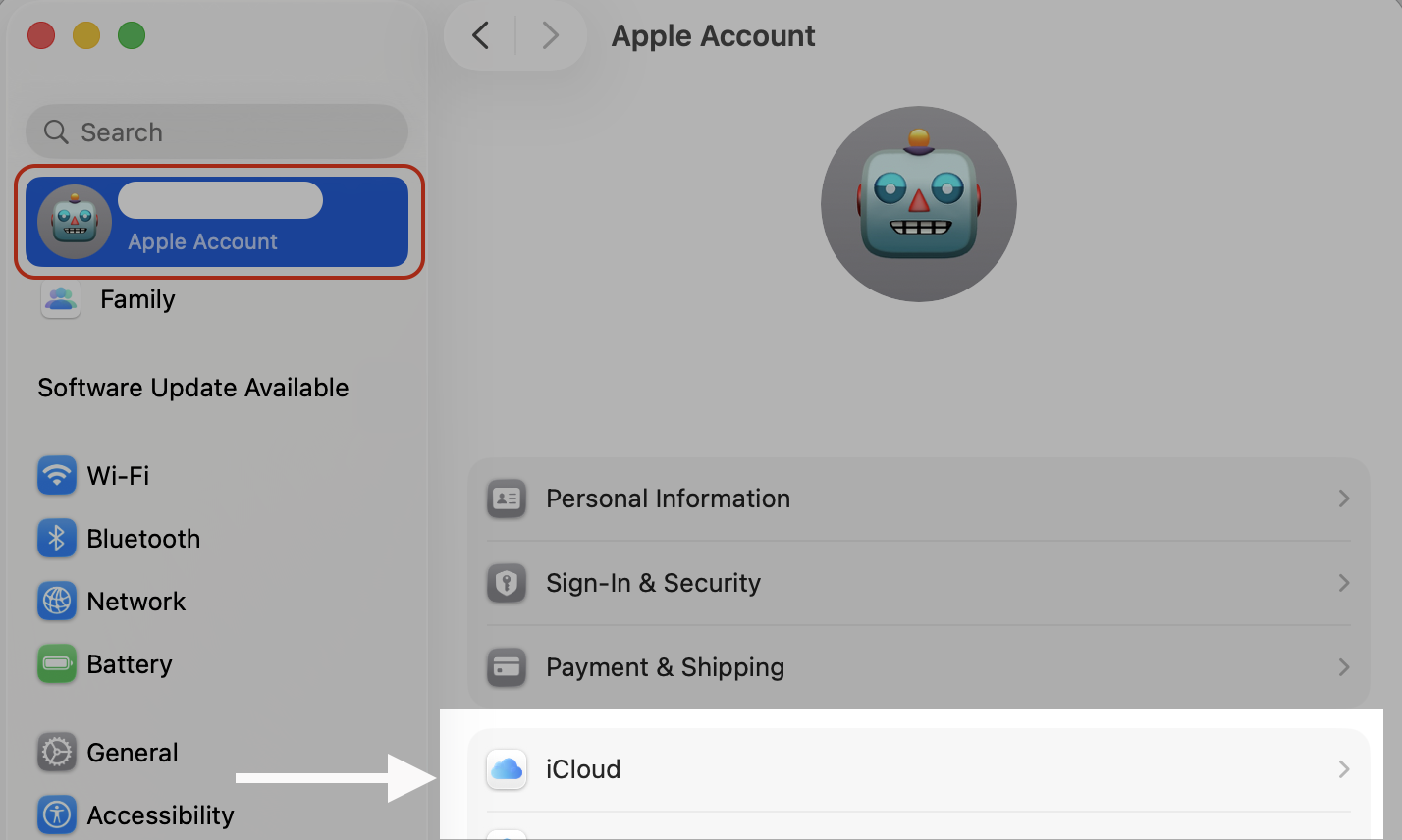
Select your Apple Account, then iCloud.
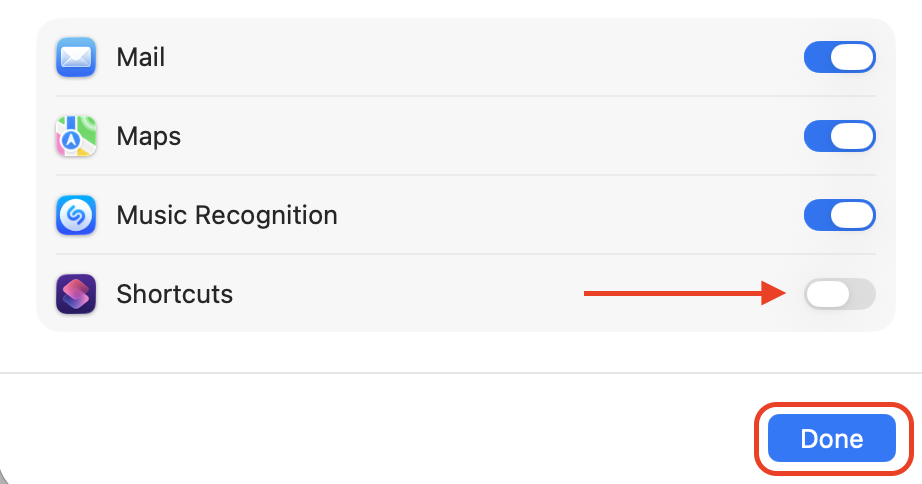
Switch Shortcuts off under the apps using iCloud.
Step 1. Go to Apple logo > System SettingsStep 2. Go to your Apple AccountStep 3. Select iCloudStep 4. Choose the See All optionStep 4. Find Shortcuts, turn it off, and click Done
If you’d rather rule out account-level snags entirely, you can sign out of iCloud on Mac through System Settings and sign back in afterward.
5. Update macOS
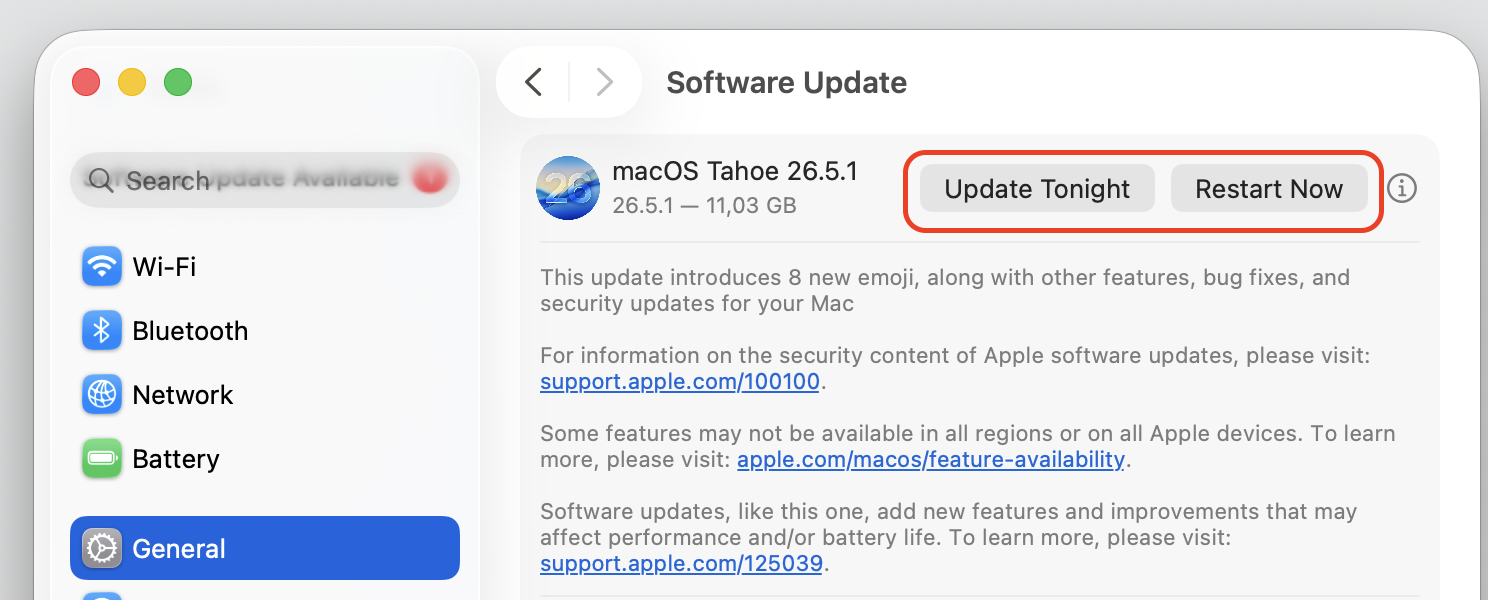
Since many cases trace back to update bugs, in our opinion, the cleanest cure is often the next macOS release. Apple fixes system processes and background services in these updates, so staying current pays off. Just follow our hints:
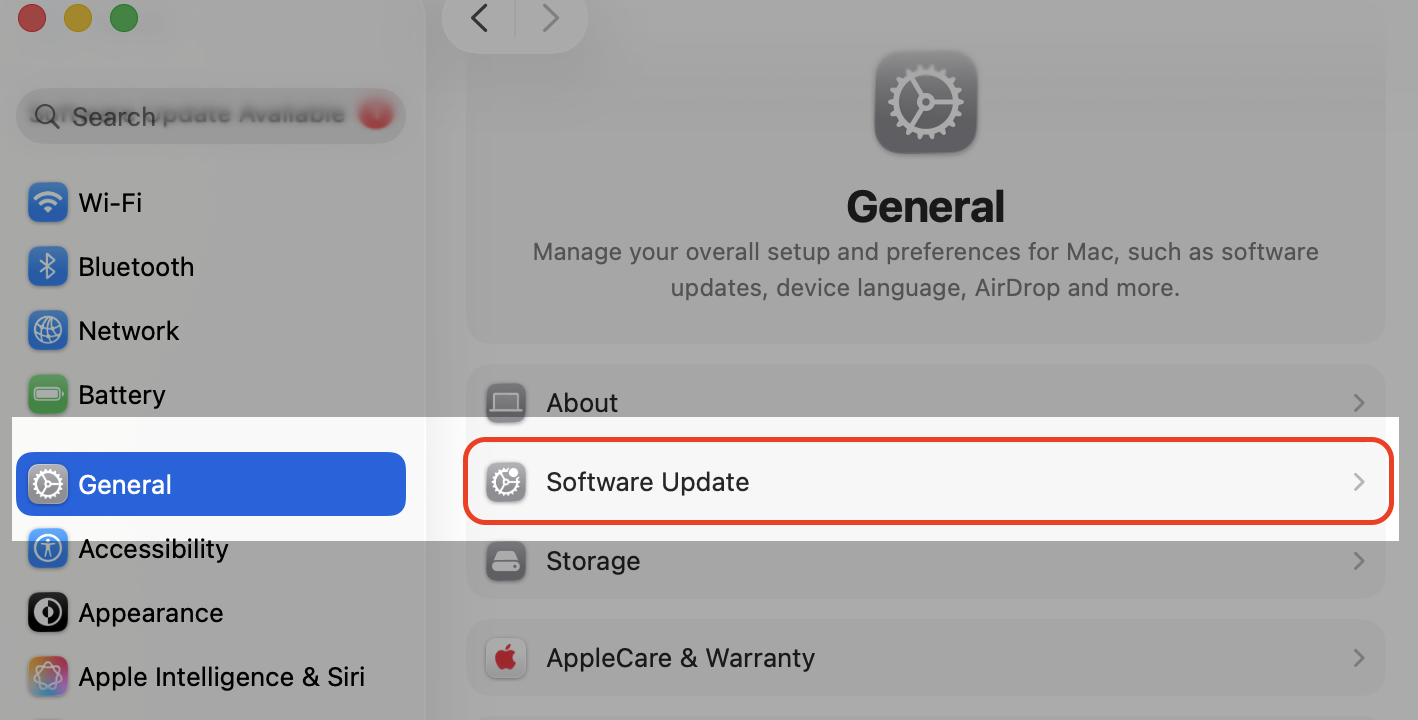
Open System Settings, then select General.
Select Software Update and wait for it to check.
Install anything available.
Step 1. Go to Apple logo > System SettingsStep 2. Go to General > Software UpdateStep 3. Update MacOS if an update is available
Walking through a full Mac update keeps you on the most secure, stable version. Make it your regular habit!
6. Test in Safe Mode
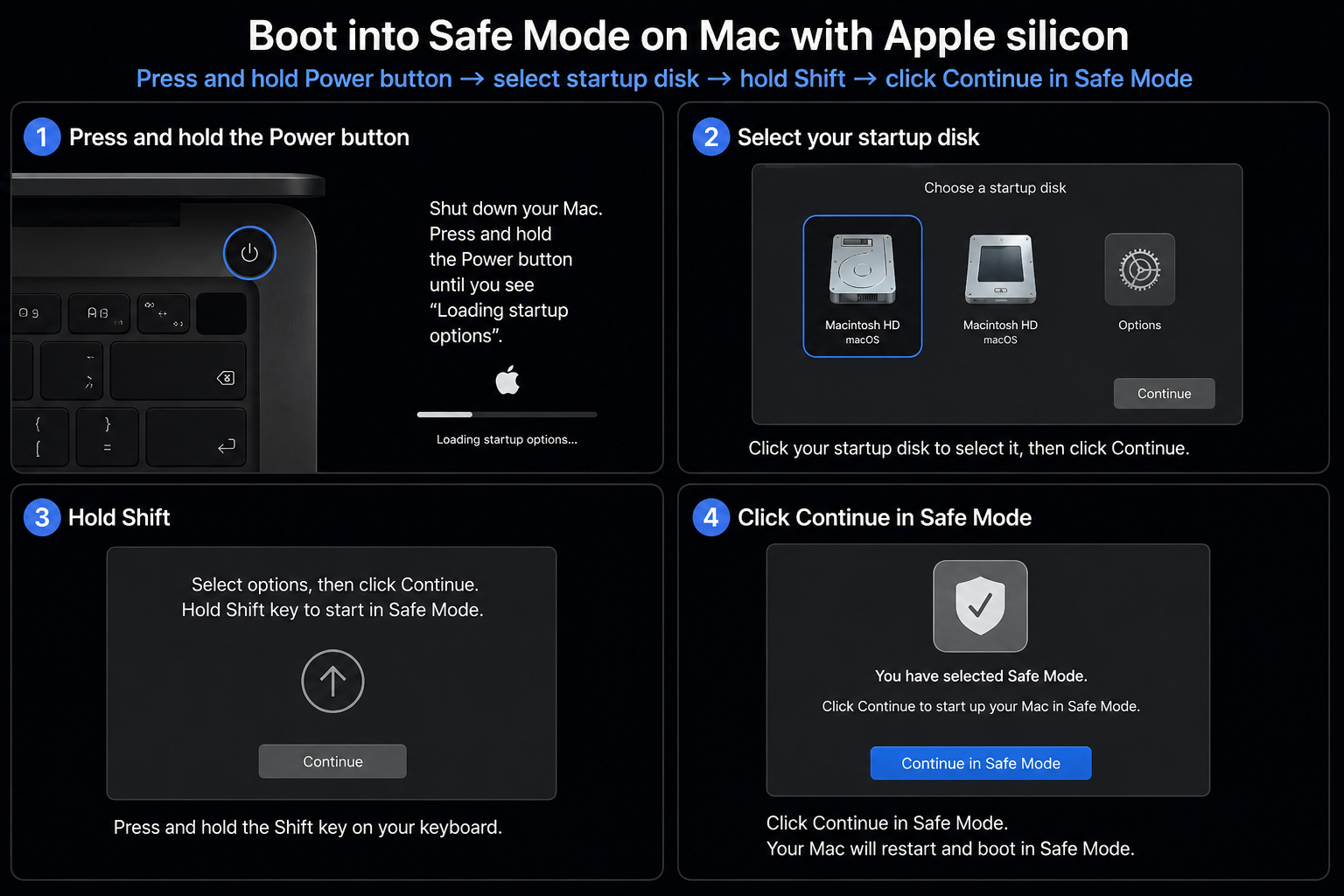
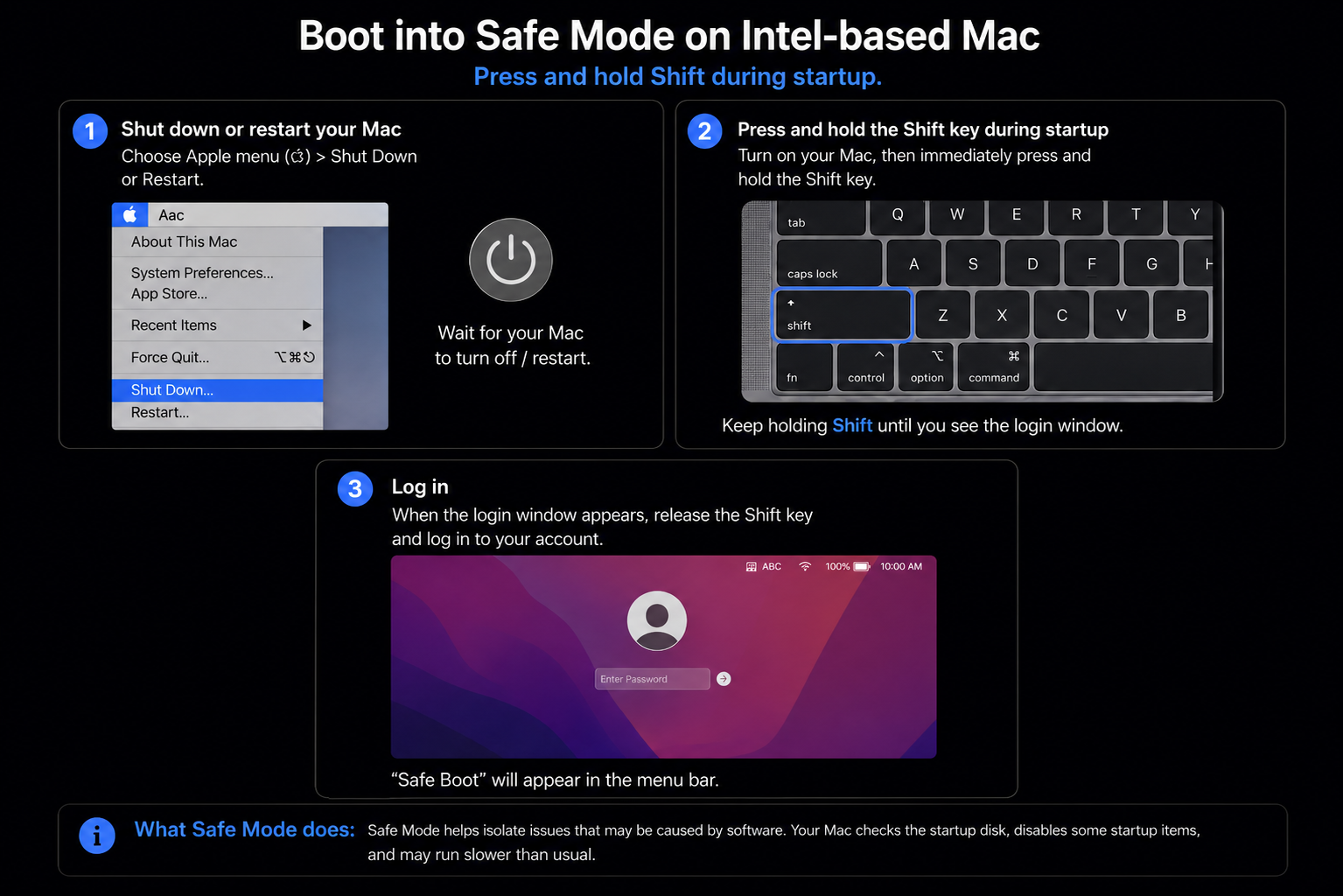
Safe Mode loads only the essentials and skips third-party extensions. If the runner behaves there, you’ve likely found a conflict with another app. Here’s how to boot Mac in Safe Mode depending on your chip:
Apple silicon (M1, M2, M3, and newer)—shut down, then hold the Power button until startup options appear, pick your disk, and hold Shift while selecting Continue in Safe Mode.
Intel—restart and hold Shift until the login window appears.
Apple silicon (M1, M2, M3, and newer)Intel Chip
7. Remove or reset problematic shortcuts
If a damaged shortcut is the root cause, clearing it out can stop the repeatedly looping activity. Review your saved shortcuts and remove any you don’t use or that look broken. Here’s how:
Open the Shortcuts app.
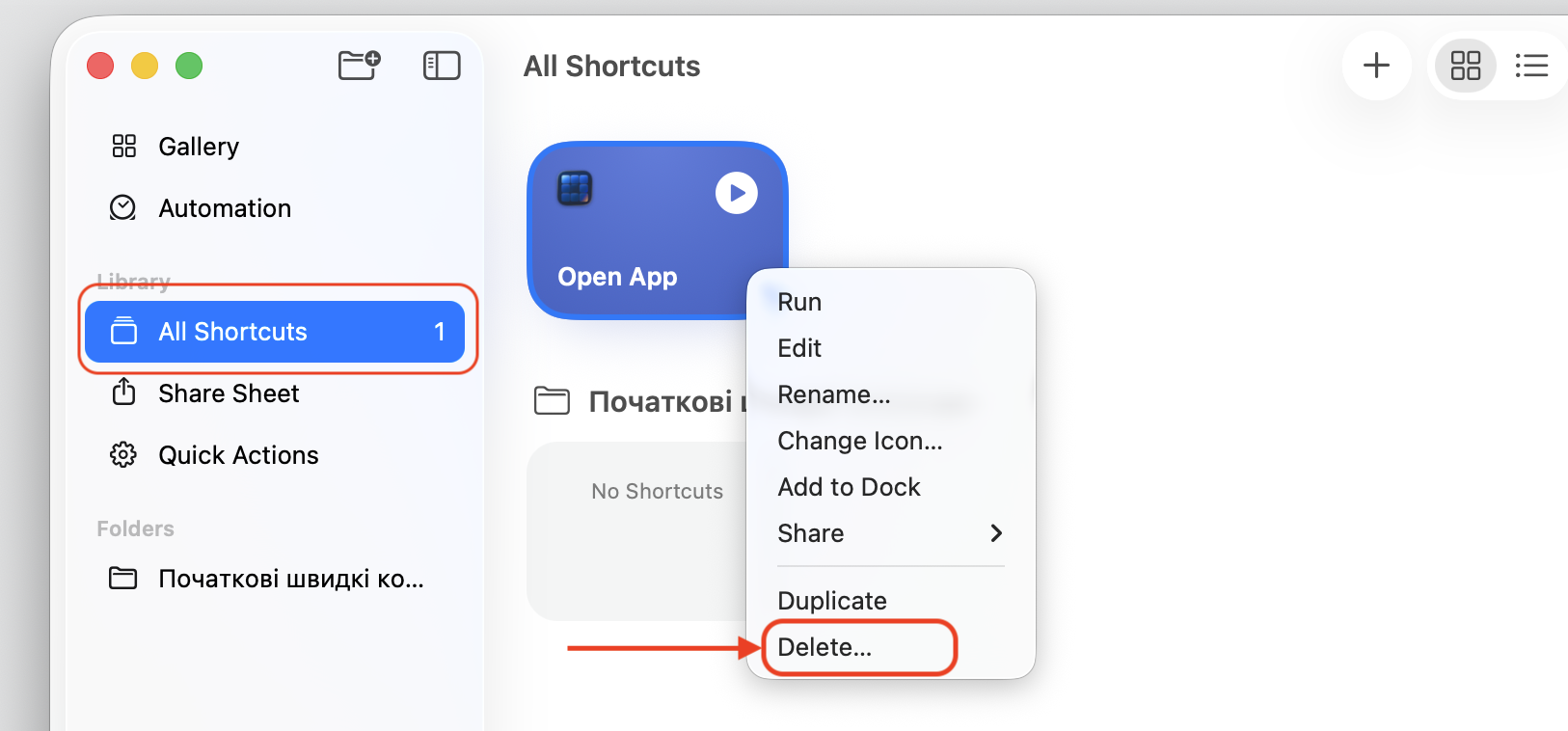
Right-click any shortcut you no longer need and choose Delete.
Restart your Mac and see whether the CPU usage drops.
Step 1. Go to Finder > ApplicationsStep 2. Open the Shortcuts appStep 3. Select a shortcut > Control-click > Delete
What to do if BackgroundShortcutRunner runs even without using Shortcuts?
This is the part that confuses most people—the runner doesn’t overload CPU itself, but it does it through launching the Automation Script. Or it can also happen as a consequence of Siri or App Intents indexation errors.
That’s because system-level features lean on the same engine. Siri requests, Apple Intelligence tasks, and built-in automations can all wake the process without any shortcut of your own.
If that’s your situation, we suggest you to focus on the calmer fixes—restart, update macOS, and turn off Shortcuts syncing. These simple solutions tackle the triggers without touching anything you rely on.
Can you disable BackgroundShortcutRunner on Mac?
Not really—and it’s wise not to try. BackgroundShortcutRunner is part of macOS itself, so there’s no clean switch to turn it off for good.
Forcing it down with Terminal commands tends to backfire. The system simply relaunches it, and you may break automations, Siri actions, or other features that quietly depend on it.
Conclusion
BackgroundShortcutRunner indirectly causing high CPU on Mac usually points to a passing macOS quirk, not a real threat. While you wait it out, MacKeeper’s Memory Cleaner frees up memory and quiets draining apps. Get a smoother Mac today!
We respect your privacy and
use cookies
for the best site experience.
Privacy Preferences Center
We use cookies along with other tools to give you the best possible experience while using the
MacKeeper website. Cookies are small text files that help the website load faster. The cookies we
use don’t contain any type of personal data meaning they never store information such as your
location, email address, or IP address.
Help us improve how you interact with our website by accepting the use of cookies. You can change
your privacy settings whenever you like.
Manage consent
All cookies
These cookies are strictly necessary for enabling basic website functionality (including page
navigation, form submission, language detection, post commenting), downloading and purchasing
software. The website might malfunction without these cookies.