Is your Mac running hot, with loud fans and a draining battery? Open Activity Monitor, and you might spot ReportCrash high CPU usage on Mac, which is the result of the crash → relaunch → crash again sequence, slowing things down. MacKeeper’s Memory Cleaner quits memory-draining processes and frees up resources in a few clicks, especially if your RAM shortage is the thing.
ReportCrash is a built-in macOS process, so it’s a normal part of your system—not something you accidentally installed. Its job is quiet and helpful—whenever an app crashes, ReportCrash steps in to gather diagnostic information about what went wrong.
That information gets saved as a crash report on disk. Developers and Apple use these reports to understand bugs and make apps more stable over time. On a healthy Mac, you’d rarely notice ReportCrash at all.
Here’s the key thing to remember—when nothing is crashing, ReportCrash uses almost no CPU. It only wakes up when there’s a crash to record, does its work, and goes back to sleep.
Why ReportCrash may use high CPU on Mac?
So if ReportCrash is supposed to be quiet, why is it suddenly using so much of your Mac’s resources? The answer is almost always the same—something on your Mac is crashing over and over, and ReportCrash is dutifully recording every single crash.
Think of it like a smoke detector that won’t stop beeping. The detector isn’t the issue—it’s reacting to smoke that keeps appearing. In the same way, the Mac ReportCrash process's high CPU usage is a symptom, not the root cause. If your Mac feels like it’s MacBook lagging whenever ReportCrash spikes, one of the situations we’ve covered below is usually behind it.
1. The app is crashing in a loop
When an app fails, launches again, fails again, and keeps repeating, it creates a crash loop. Each failure invokes ReportCrash to write a new report, so the process never gets a chance to rest.
From our experience, this is one of the most common reasons for ReportCrash's high CPU on Mac. You might even notice a message saying the application isn’t open anymore while the loop continues in the background.
2. The background process or helper is failing
Not every crash comes from an app you can see. Login items, Launch agents, Launch Daemons, and small helper tools all run quietly behind the scenes, and any of them can get stuck in the same failing cycle.
Because these run automatically, you might not realize anything’s wrong until you open Activity Monitor and see ReportCrash using CPU on macOS more heavily than expected. A failing helper can relaunch every few seconds, which keeps ReportCrash busy nonstop.
An alternative for you:
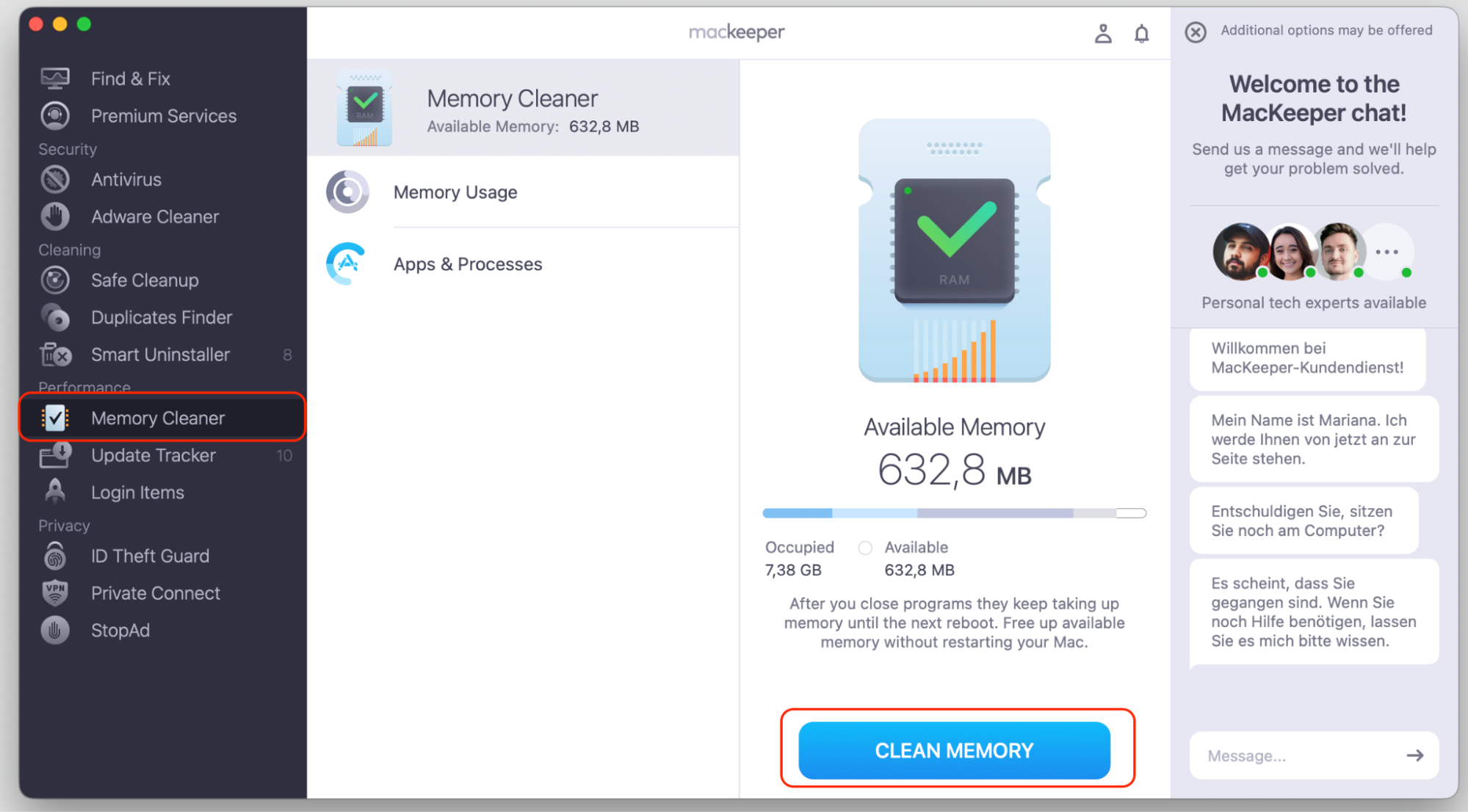
Instead of using the manual way of handling the process management on your MacBook, it’s always better to go with the automated hints, no? We suggest you using MacKeeper’s Memory Cleaner as the smarter way to inspect hidden background processes and stop them easily and safely. Try it out today!
3. Leftovers from removed apps
When you drag an app to the Trash, bits of it can stay behind—launch items, helper components, or configuration files. These leftovers sometimes keep trying to run, even though the app they belong to is long gone.
Since the app itself is missing, these orphaned components fail, triggering crash reporting again and again. When you delete leftover files from an uninstalled program on your Mac, you clear out these stragglers and break the cycle.
4. Corrupted logs, cache, or diagnostic data
Over time, your Mac builds up diagnostic files, system logs, and caches. Tidying up this clutter often helps. Choosing to empty cache early on keeps corrupted temporary files from muddying the picture while you troubleshoot.
5. Software conflicts or unstable system components
Sometimes the trouble starts after a macOS update or after installing a utility that doesn’t play nicely with your system. Incompatible software and low-level instability can cause repeated crashes, keeping ReportCrash active.
A hint from us:
Conflicts like these are more common right after a MacBook update, when older apps haven’t yet caught up to the new system. Read on our attached guide to know how to proceed with the update safely.
How ReportCrash high CPU affects your Mac?
When ReportCrash runs nonstop, you’ll usually feel it before you see it. The constant activity puts real strain on your hardware, and a few familiar signs tend to show up together, such as:
Sluggish performance. Apps take longer to open, and everyday tasks feel slow and choppy.
Overheating and loud fans. Your Mac works hard to cool itself, so the fans get noisy. If your MacBook gets so hot to the touch, this is often why.
Faster battery drain. A process running at full tilt burns through your charge much quicker than usual.
The process keeps coming back. You quit ReportCrash, and it reappears in Activity Monitor within seconds.
But worry not, none of these signs means your Mac is broken. They’re simply clues pointing you toward the real cause—the thing that keeps crashing underneath it all.
How to fix ReportCrash high CPU on Mac?
The goal here is simple—find the app or service that keeps crashing, then stop that loop. Once the underlying crash stops, ReportCrash settles down on its own.
Start by checking what is all usage on your Mac so you know which processes are active. From there, work through our suggested solutions in order—each one gets you closer to the real culprit.
1. Find what is crashing in Console
Your Mac keeps detailed records of every crash, and the Console app is where you can read them. Do the following:
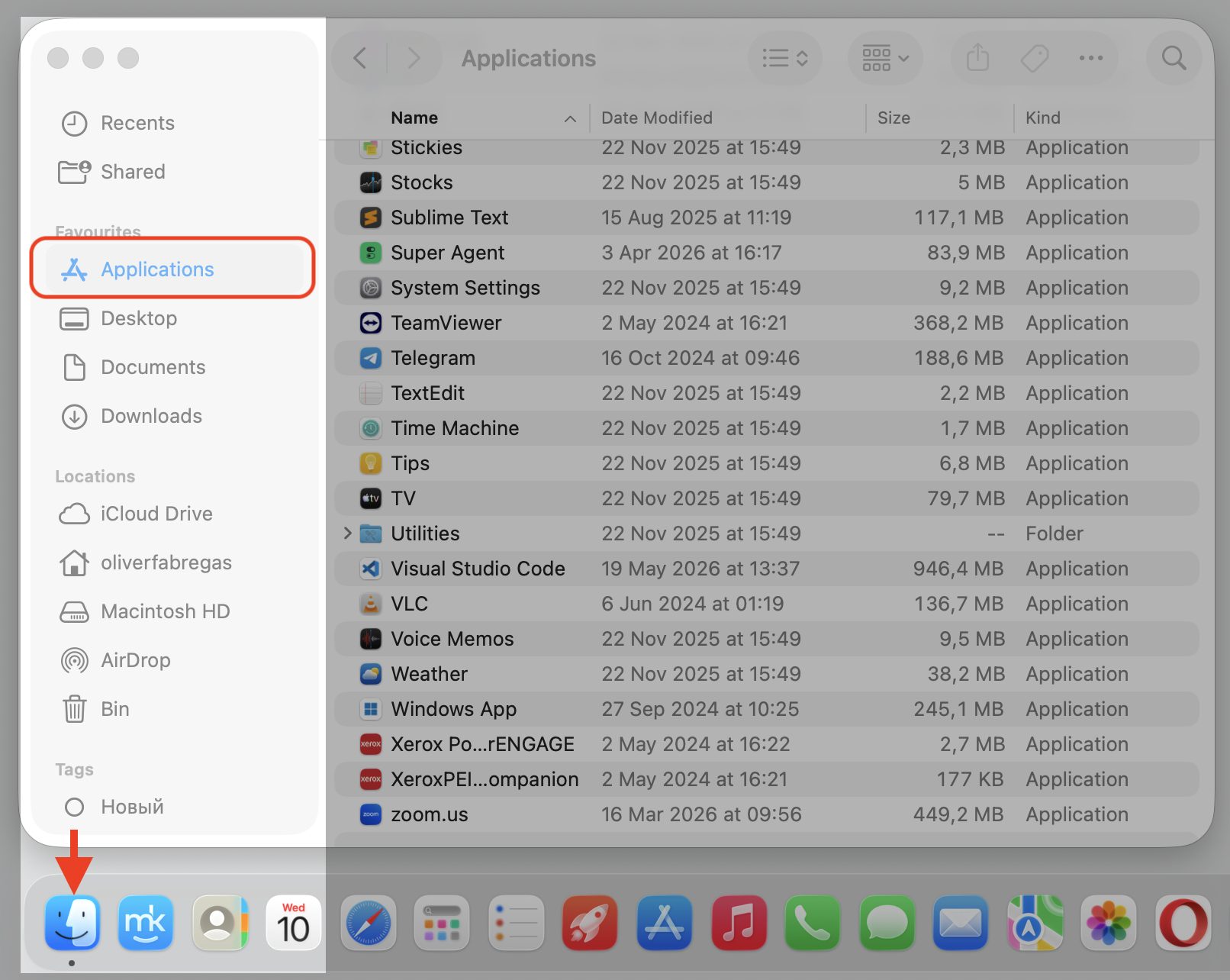
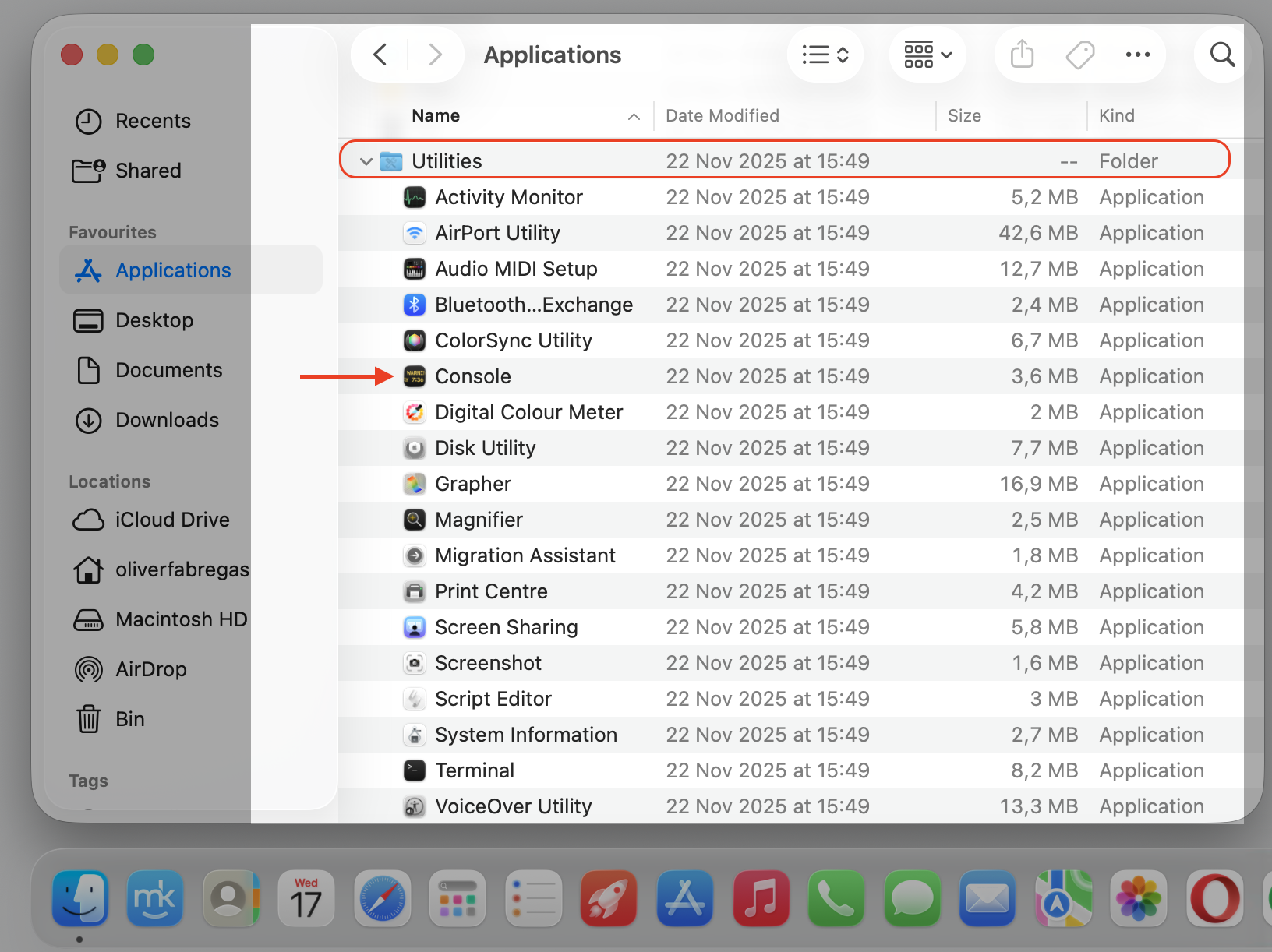
Open Finder, then go to Applications > Utilities and open Console.
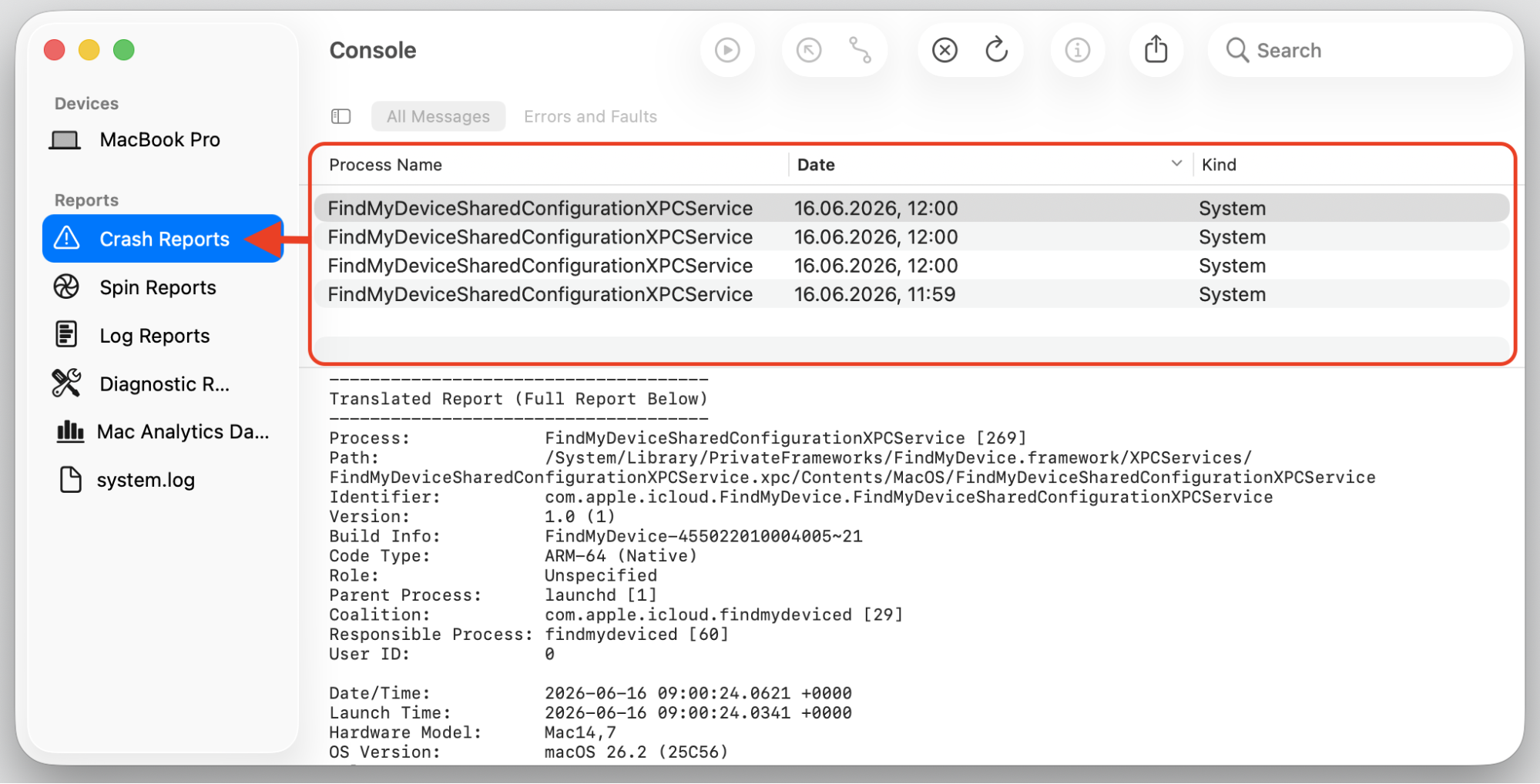
Select Crash Reports in the left sidebar to see which app or process has been failing.
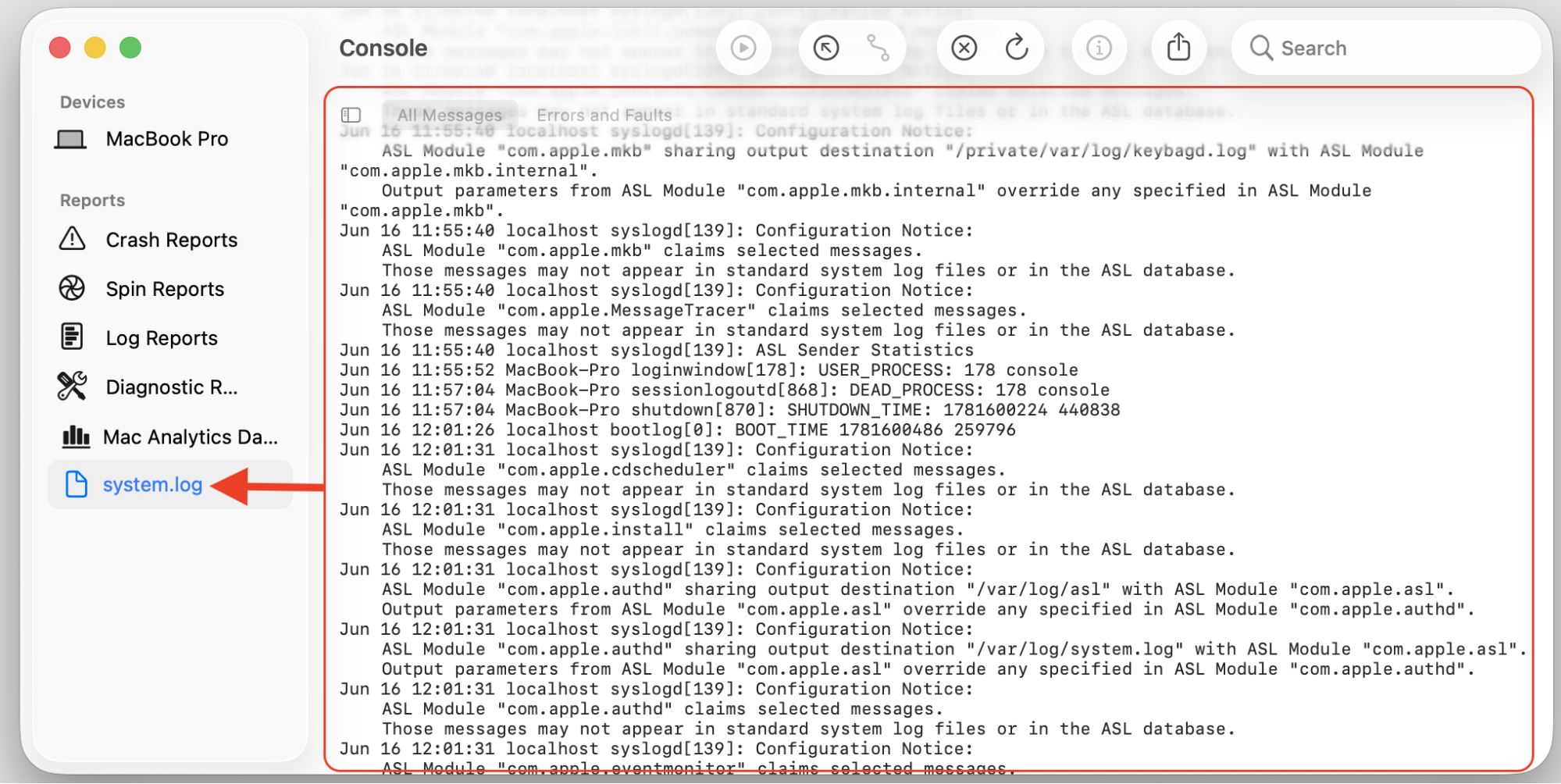
For more details, check system.log and look for the same message repeating, such as a service that only ran for a few seconds before respawning.
Note the name of the app or component that appears again and again—that’s your likely culprit.
Step 1. Go to Finder > ApplicationsStep 2. Expand Utilities folder and select Console appStep 3. Select Crash Reports in the left sidebar to see which process has been failingStep 4. Check system.log and look for the same message repeating
2. Update, reinstall, or remove the problematic app
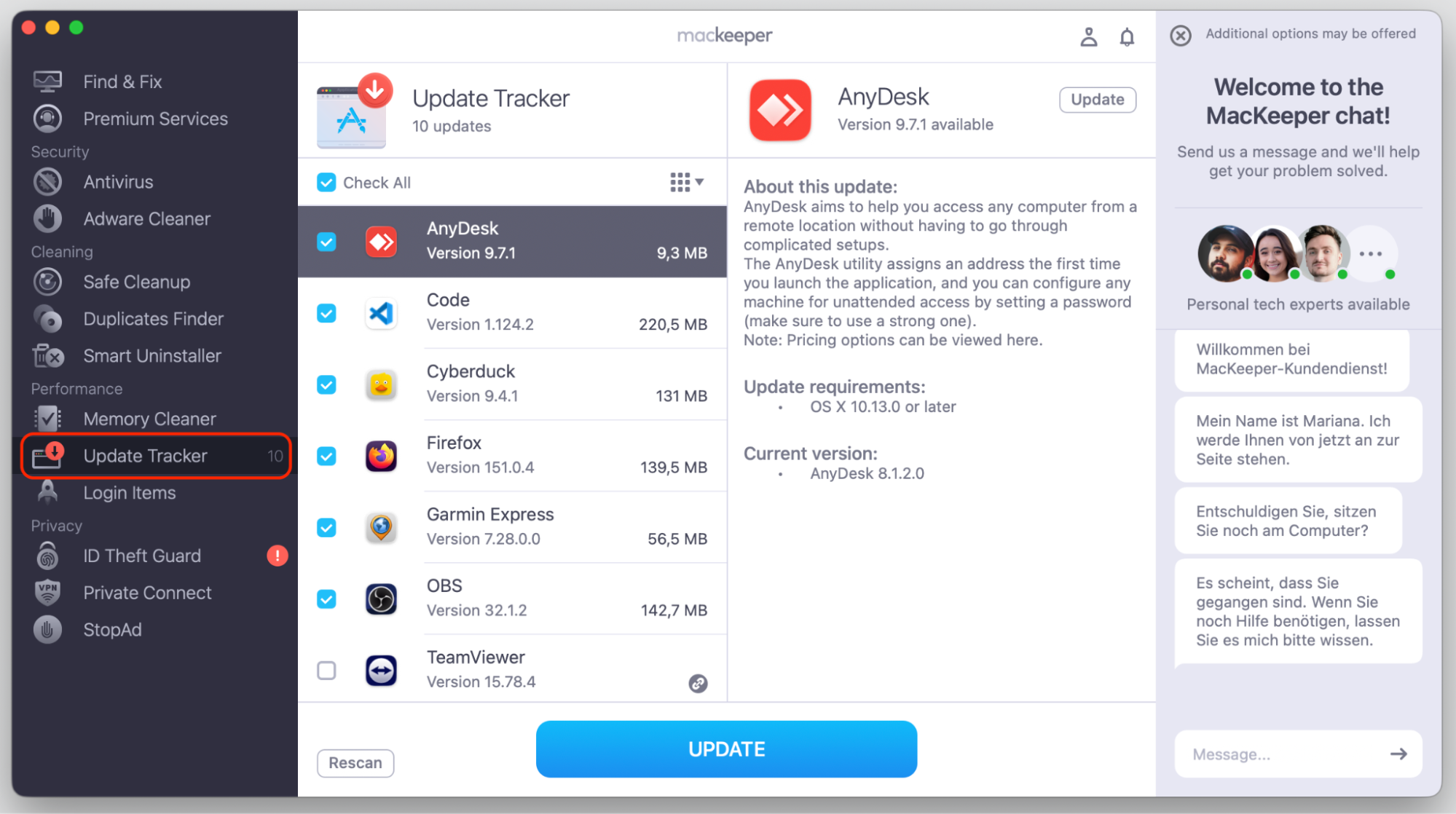
If it’s an app you use, check for an update first—the newer version may include a stability fix. Follow our hints now:
Select the app(s) to update and confirm your action with the Update button.
If updating doesn’t help, reinstall the app from scratch to replace any damaged files. Or if you don’t need the app, uninstall it fully, including its leftover components, so nothing’s left to crash. Both actions can be done with the help of MacKeeper’s Smart Uninstaller—just choose the app and click Remove Selected.
3. Clear old crash reports and diagnostic logs
Piles of old crash reports won’t fix the loop, but clearing them reduces clutter and makes it easier to spot fresh, relevant errors. Here’s how:
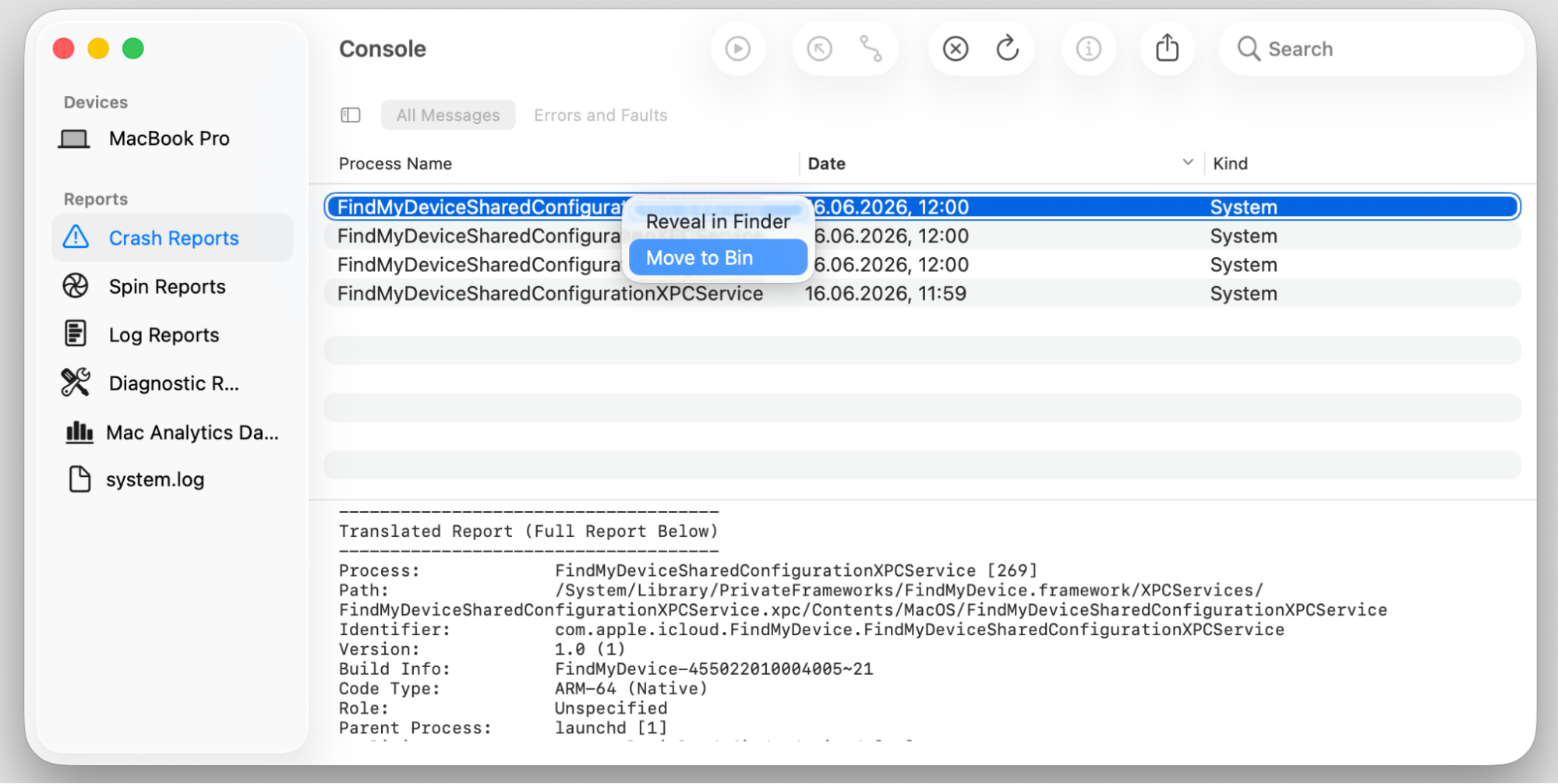
In Console, look under Crash Reports for old entries you no longer need. You can safely delete these—your Mac creates new ones automatically when the next crash happens.
Control-click the file and choose Move to Bin.
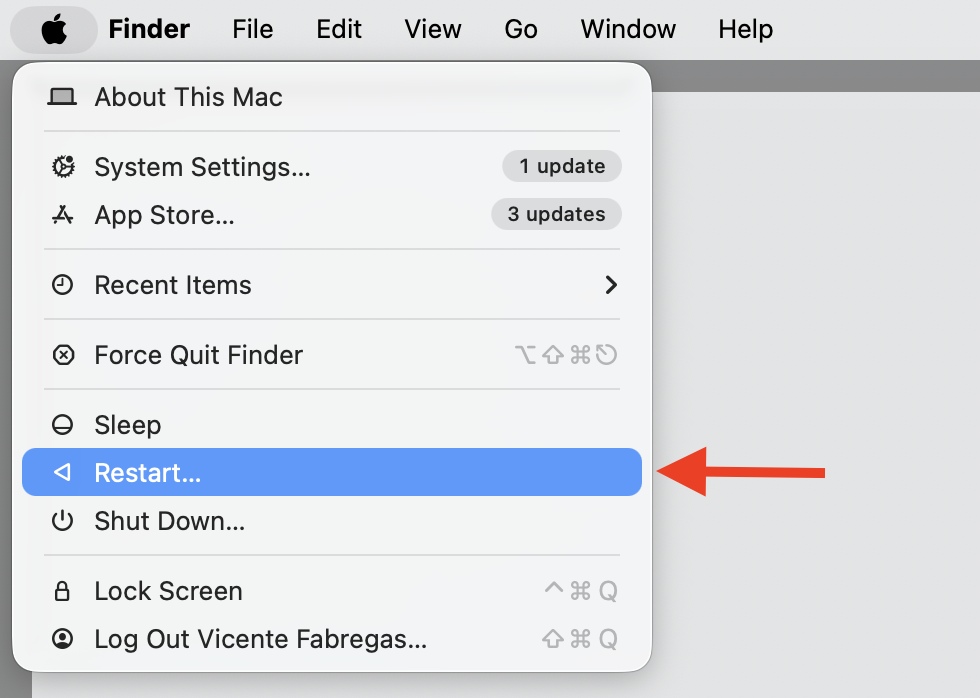
Restart your Mac afterward so it starts with a clean slate.
Step 1. Select the log report > control-click it > Move to Bin Step 2. Restart your Mac
4. Check login items and background helpers
If something keeps launching and crashing on its own, your startup list is a good place to look. This is also where you can change startup apps and stop unnecessary items from opening every time your Mac boots. Here’s how:
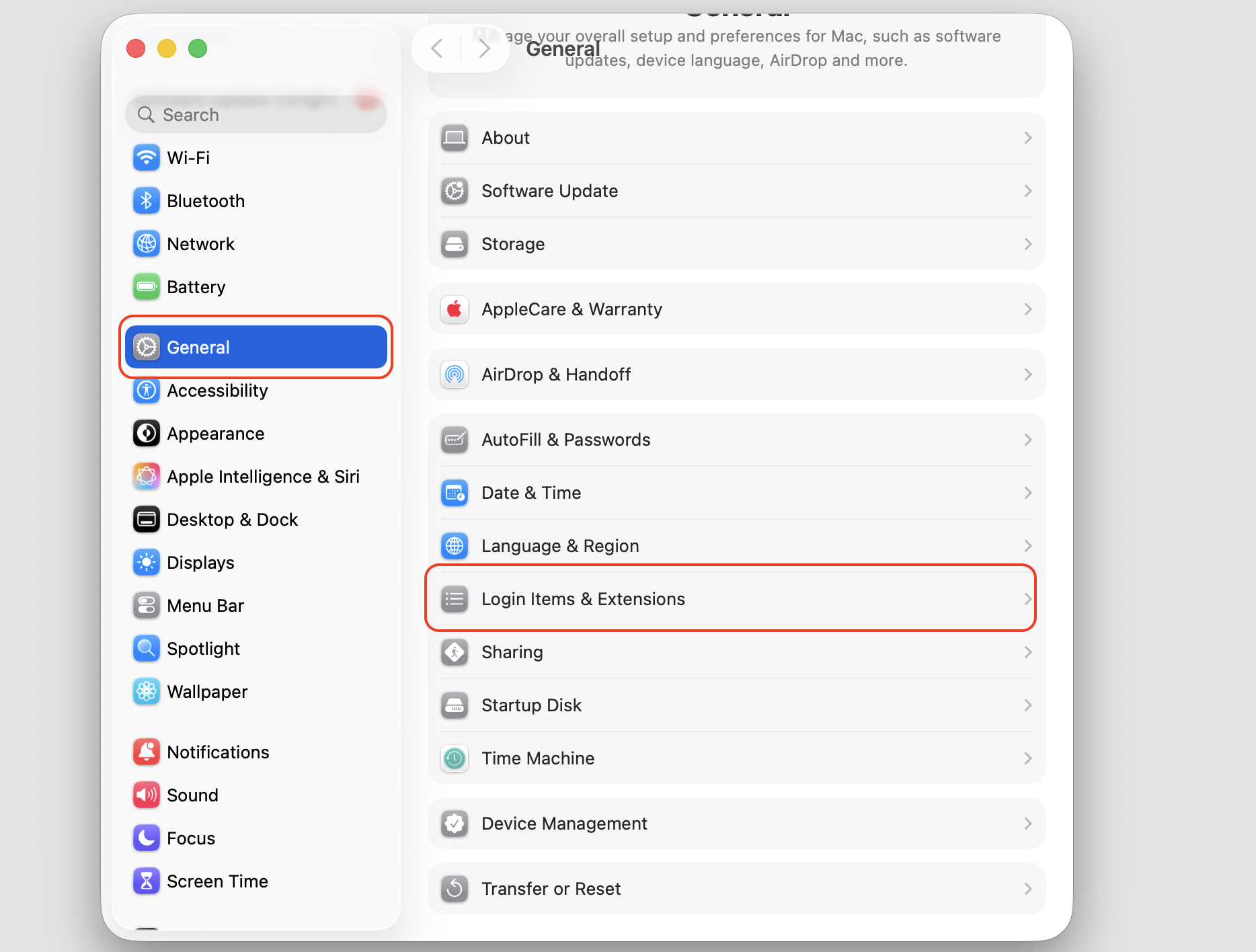
Open System Settings > General > Login Items & Extensions.
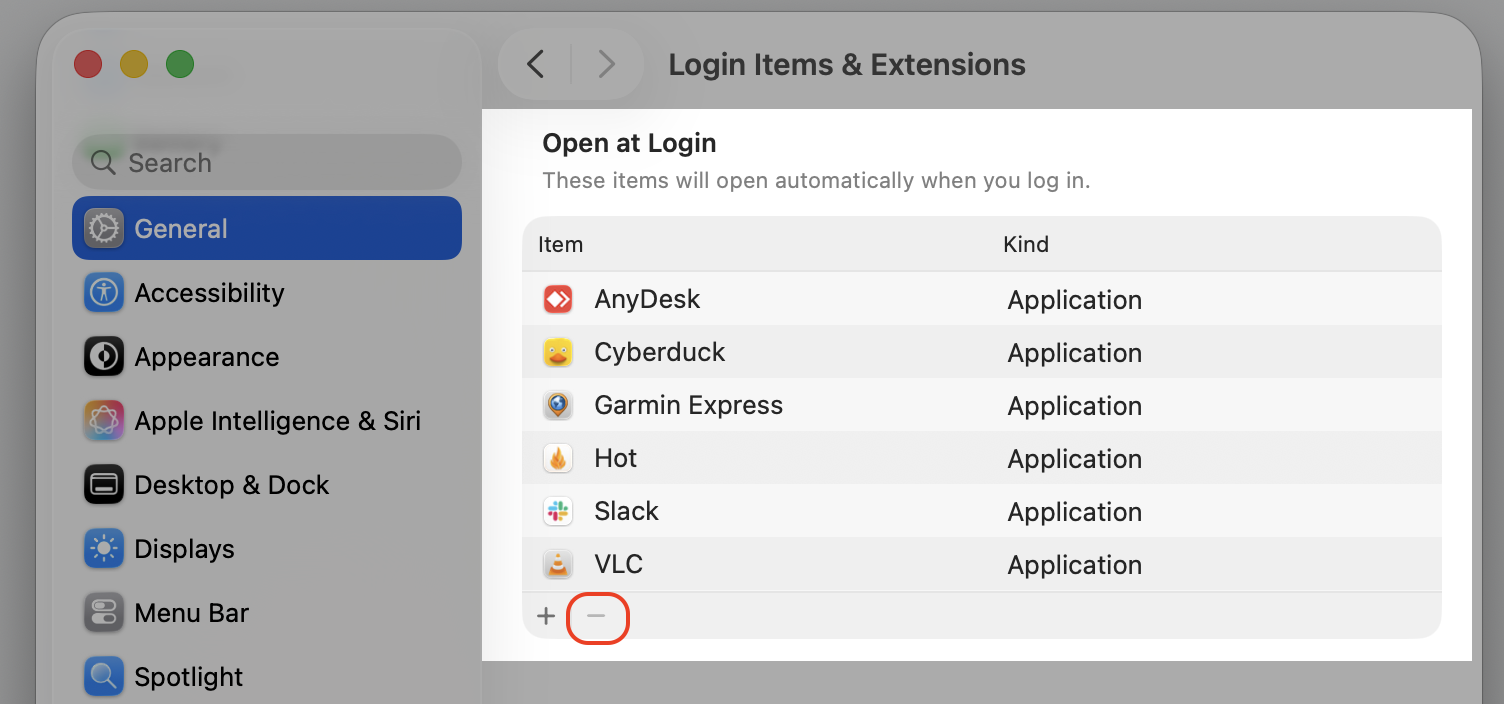
Review the apps set to open at login and the helpers running in the background.
Turn off anything you don’t recognize or don’t need on every boot.
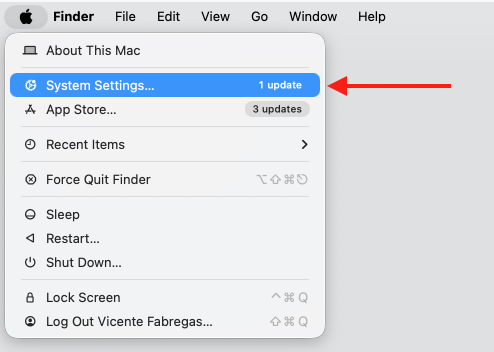
Step 1. Go to Apple Logo > System SettingsStep 2. Go to General > Login Items & ExtensionsStep 3. Remove anything you don’t recognize
5. Test the Mac in Safe Mode
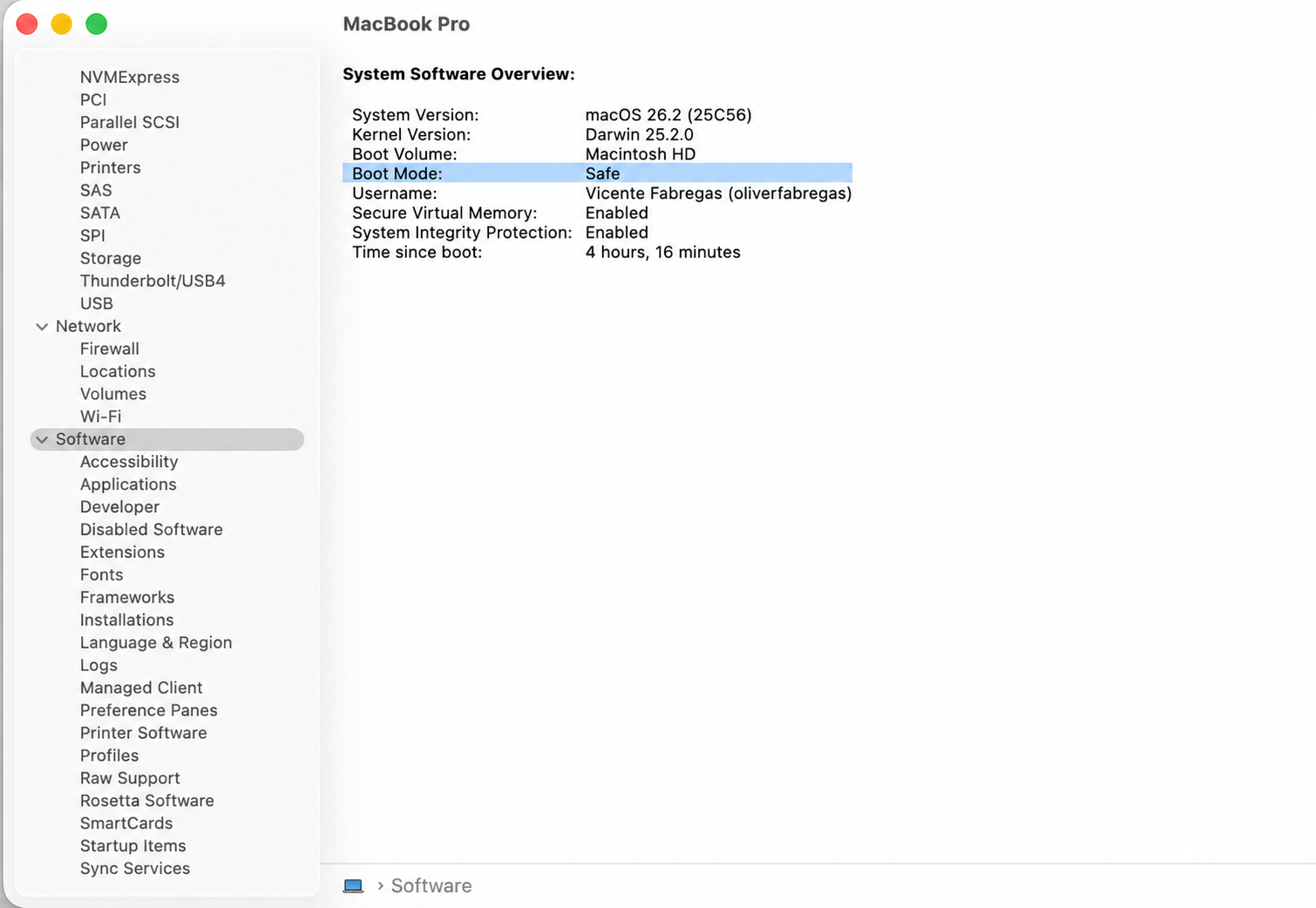
Starting your MacBook in safe mode loads only its essential software, which is a handy way to tell whether a third-party item is involved. It works on both Apple Silicon and Intel Macs. Just consider the following nuances:
If ReportCrash behaves normally in Safe Mode, the cause is likely something outside the core system.
If the issue continues even here, the trouble points more toward the system itself.
6. Restart the Mac and reset system settings if needed
A simple restart clears temporary glitches and stops processes that are stuck. It’s an easy step that solves more issues than people expect.
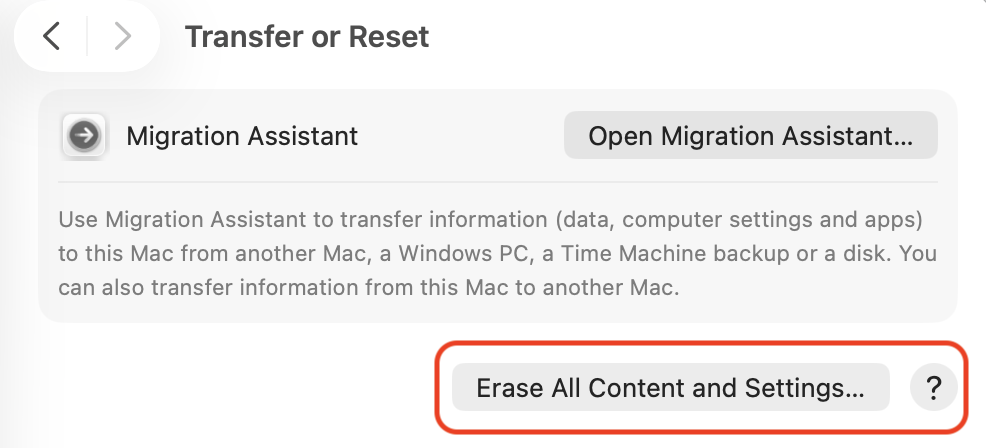
Apple menu > System Settings > General > Transfer or Reset > Erase All Content and Settings
For more stubborn cases, resetting certain low-level settings can help restore stability. Start with rebooting the MacBook and move on to deeper resets only if the problem keeps returning.
7. Temporarily disable ReportCrash
We should warn you that this is an advanced option, not a first step. Turning off ReportCrash hides the symptom without addressing what’s actually crashing.
We’ve noticed that experienced users in specific situations sometimes pause crash reporting with Terminal commands while they track down the real cause. If you go this route, treat it as a short-term workaround and re-enable reporting once the underlying issue is solved.
Is it safe to force quit ReportCrash?
Forcequitting ReportCrash is generally safe, and it may bring your CPU usage down for a moment. The catch is that it rarely lasts—if another app is still crashing, the system simply relaunches ReportCrash within seconds.
That’s why force quitting is a temporary breather rather than a real solution. Still, it’s useful when you want a quick pause while you investigate. You can learn the force quit commands on Mac to handle any unresponsive process, not just this one.
Action
What it does
Lasting result?
Force quit ReportCrash
Stops the process for a moment
No—it relaunches if crashes continue
Fix the crashing app
Removes the reason ReportCrash runs
Yes
Disable ReportCrash
Hides the symptom only
No—the crash loop remains
How to prevent ReportCrash high CPU in the future?
A little routine maintenance goes a long way toward keeping crash loops from starting in the first place. We recommend developing such habits to keep your Mac stable and quiet:
Keep macOS and your apps updated. Most updates include fixes that prevent the crashes ReportCrash reacts to.
Be selective with startup items. Review your login list regularly and remove anything you don’t use.
Uninstall apps fully. Clearing out leftovers prevents orphaned components from failing.
Tidy up regularly. Removing junk files and old logs keeps your system clean and easier to troubleshoot.
Watch your resources. Learning to see CPU usage on Mac lets you catch a runaway process early, before it heats things up.
Conclusion
A ReportCrash crash that causes high CPU usage is a sign that something is constantly crashing in the background—it's annoying, but fixable. MacKeeper’s Memory Cleaner frees memory and quickly stops draining processes. Download it today and breathe easy!
We respect your privacy and
use cookies
for the best site experience.
Privacy Preferences Center
We use cookies along with other tools to give you the best possible experience while using the
MacKeeper website. Cookies are small text files that help the website load faster. The cookies we
use don’t contain any type of personal data meaning they never store information such as your
location, email address, or IP address.
Help us improve how you interact with our website by accepting the use of cookies. You can change
your privacy settings whenever you like.
Manage consent
All cookies
These cookies are strictly necessary for enabling basic website functionality (including page
navigation, form submission, language detection, post commenting), downloading and purchasing
software. The website might malfunction without these cookies.