You spend a lot of money on your MacBook and want to take care of it to ensure you can keep it for years to come. It’s about cleaning your Mac consistently to preclude performance problems. You can use CleanMyMac, but we recommend MacKeeper’s Safe Cleanup. This tool finds pesky files and gets rid of them in just a few clicks, eliminating any hard work on your part.
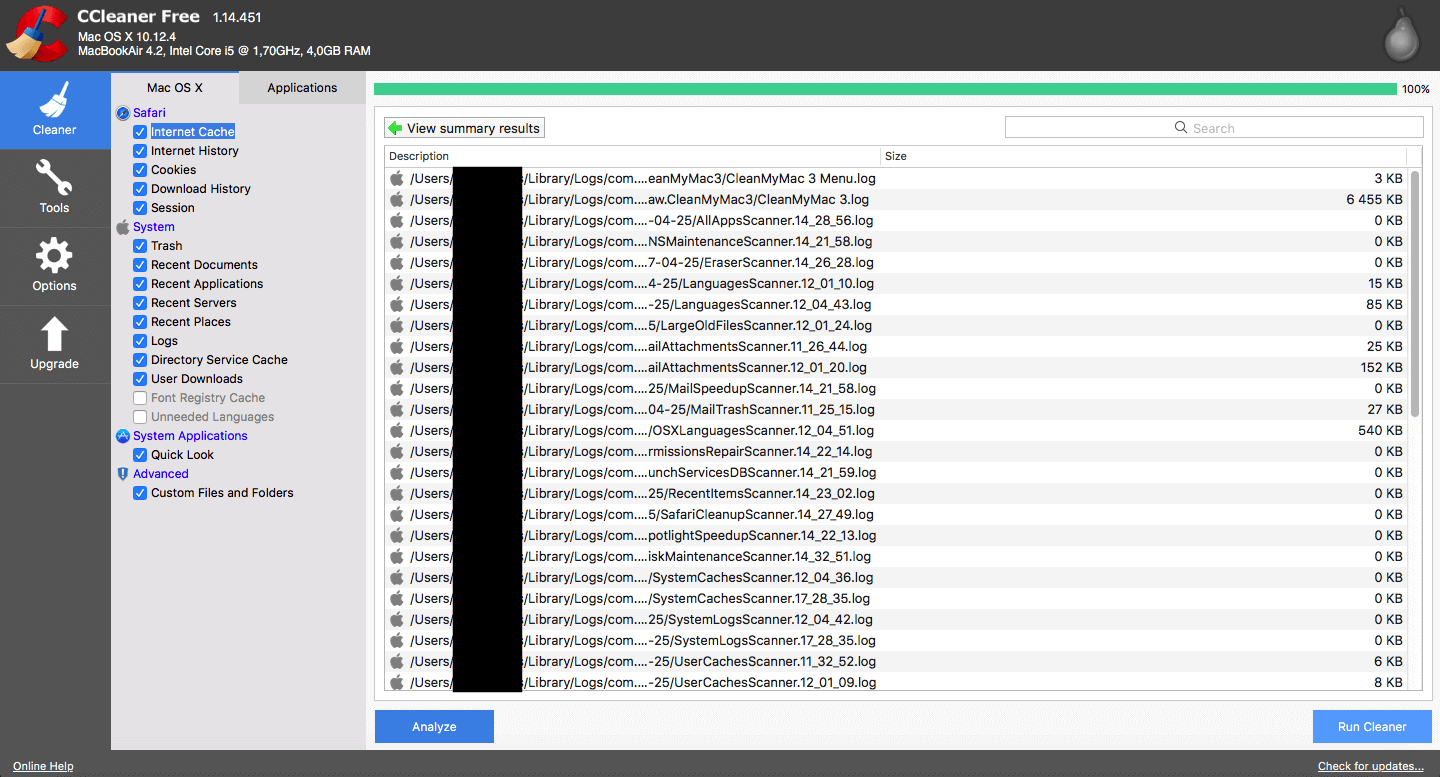
CleanMyMac and CCleaner are well-known applications used for cleaning Mac devices. The former works exclusively on MacBook devices, while the latter is compatible with Mac, Windows, and Android devices. While the two apps fundamentally do the same thing, they have their differences. Your preferences will determine which one to use.
Normally, to take care of your Mac, you implement regular maintenance practices, including cleaning it often. Though you can do that manually, this way is prone to gaps, as the human eye can miss a lot of hidden files on your Mac. However, choosing a cleaning tool can be difficult, and today we’ll compare CleanMyMac vs CCleaner.
If you’re debating what to choose—Cleaner vs CleanMyMac? Continue reading to find out our comparison verdict.
A note from our experts
Your Mac optimization prolongs its high performance and smooth work. It includes its regular storage decluttering. MacKeeper’s Safe Cleanup makes the task easier. Our tool removes digital junk from your Mac in a few moments. Try it out today.
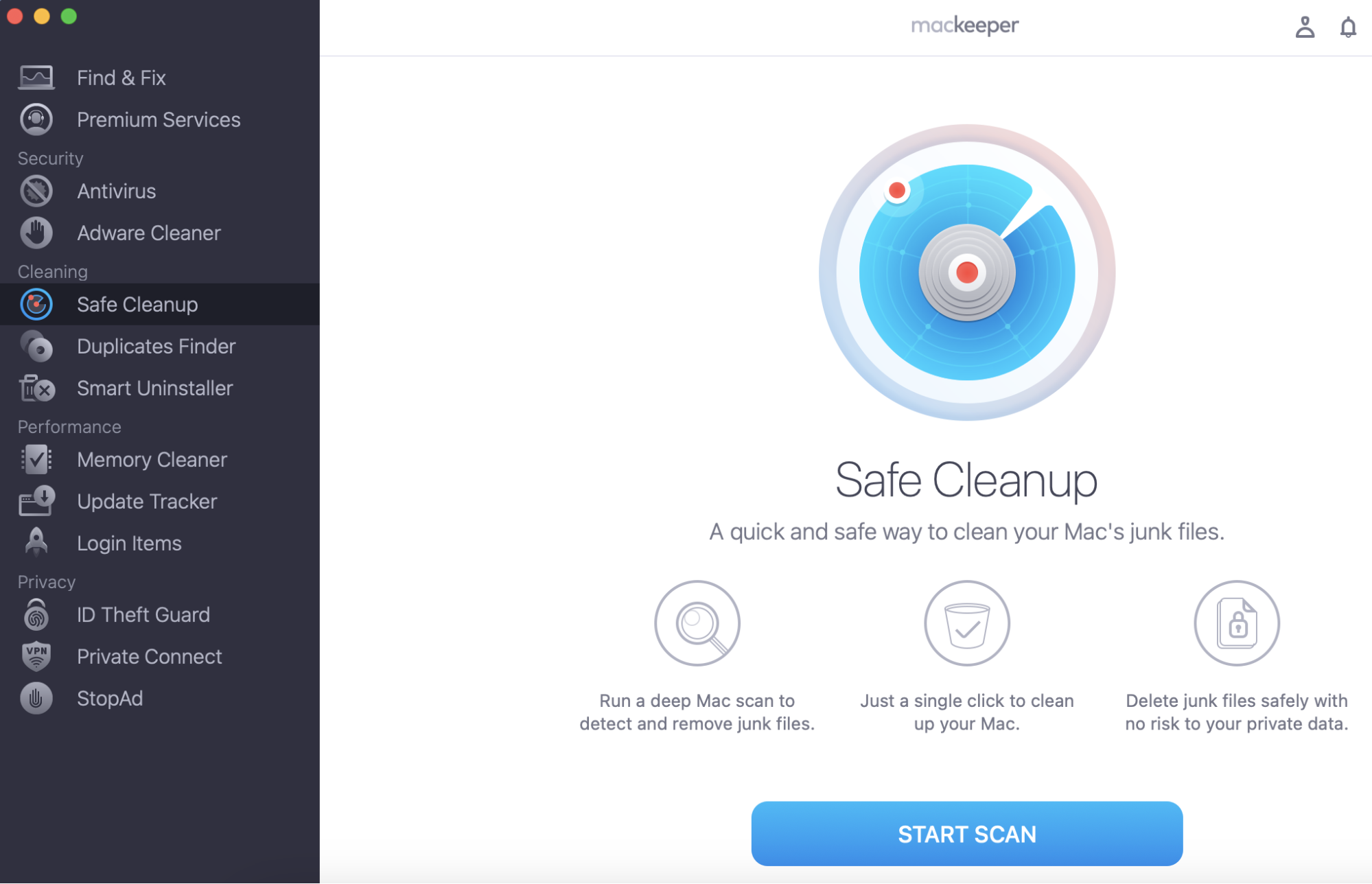
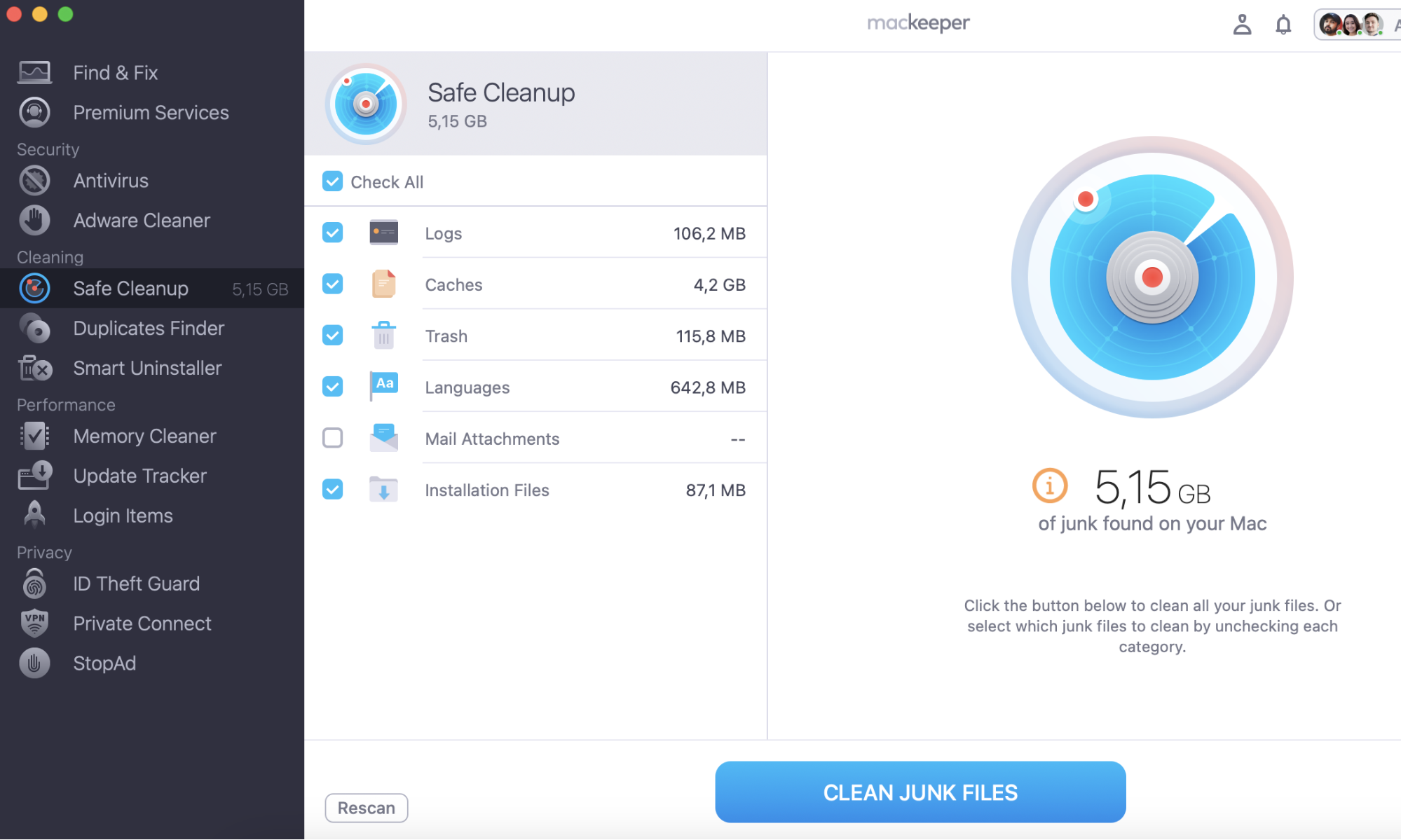
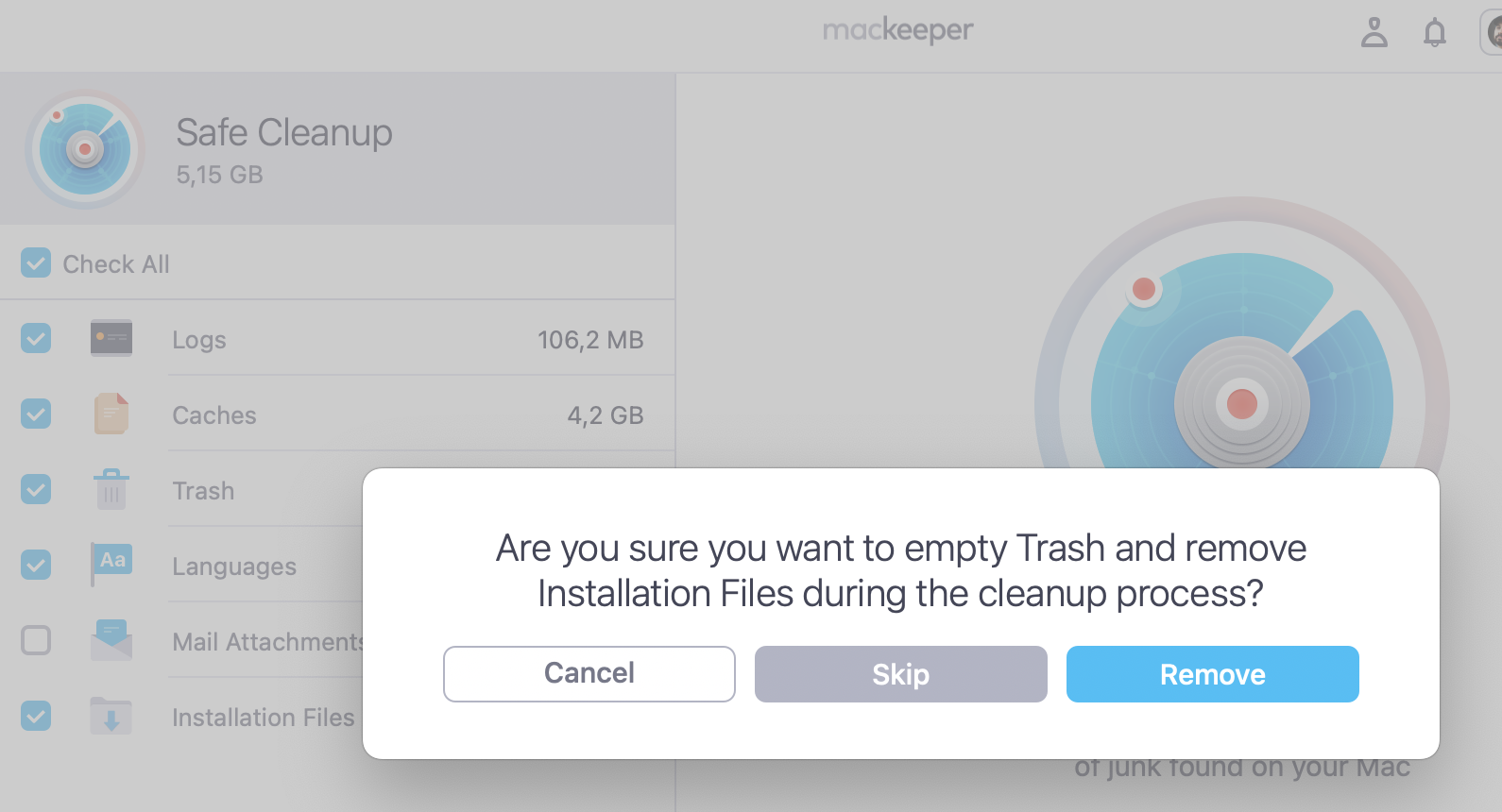
How to use MacKeeper’s Safe Cleanup tool to clean your Mac:
Click the Start Scan button and wait a few moments.
Finally, click Clean Junk Files when the scan is complete.
Step 1. MacKeeper > Safe Cleanup > Start ScanStep 2. Click Clean Junk Files to remove unnecessary itemsStep 3. Hit Remove in a pop-up
What are the similarities between CleanMyMac and CCleaner?
Running out of storage? Both CleanMyMac and CCleaner allow you to uninstall unused apps and free some space on your Mac. The cleaning apps will also help you get rid of cache and browser history, which is an effective measure considering that cache buildup slows down your Mac device’s performance.
If you’re bothered by this problem, learn how to clear disk space on Mac before diving deep.
It allows you to choose between automated and manual cleaning.
It offers various pricing options, thereby making it accessible to more Mac users.
It's a comprehensive tool offering various features apart from cleaning.
It supports up to five MacBook devices.
The free version includes useful features, including deleting system junk files and mail attachments.
It helps you manage hung apps and delete unused ones.
It frees up 135 GB of space on average.
The Menu allows you to review the status of your hard drive, memory, battery, CPU, network speed, and even your Dropbox space in real-time.
A free version is available.
The app clears your Trash bin.
It finds and deletes larger, older files taking up space.
It's compatible with macOS 10.13 and higher.
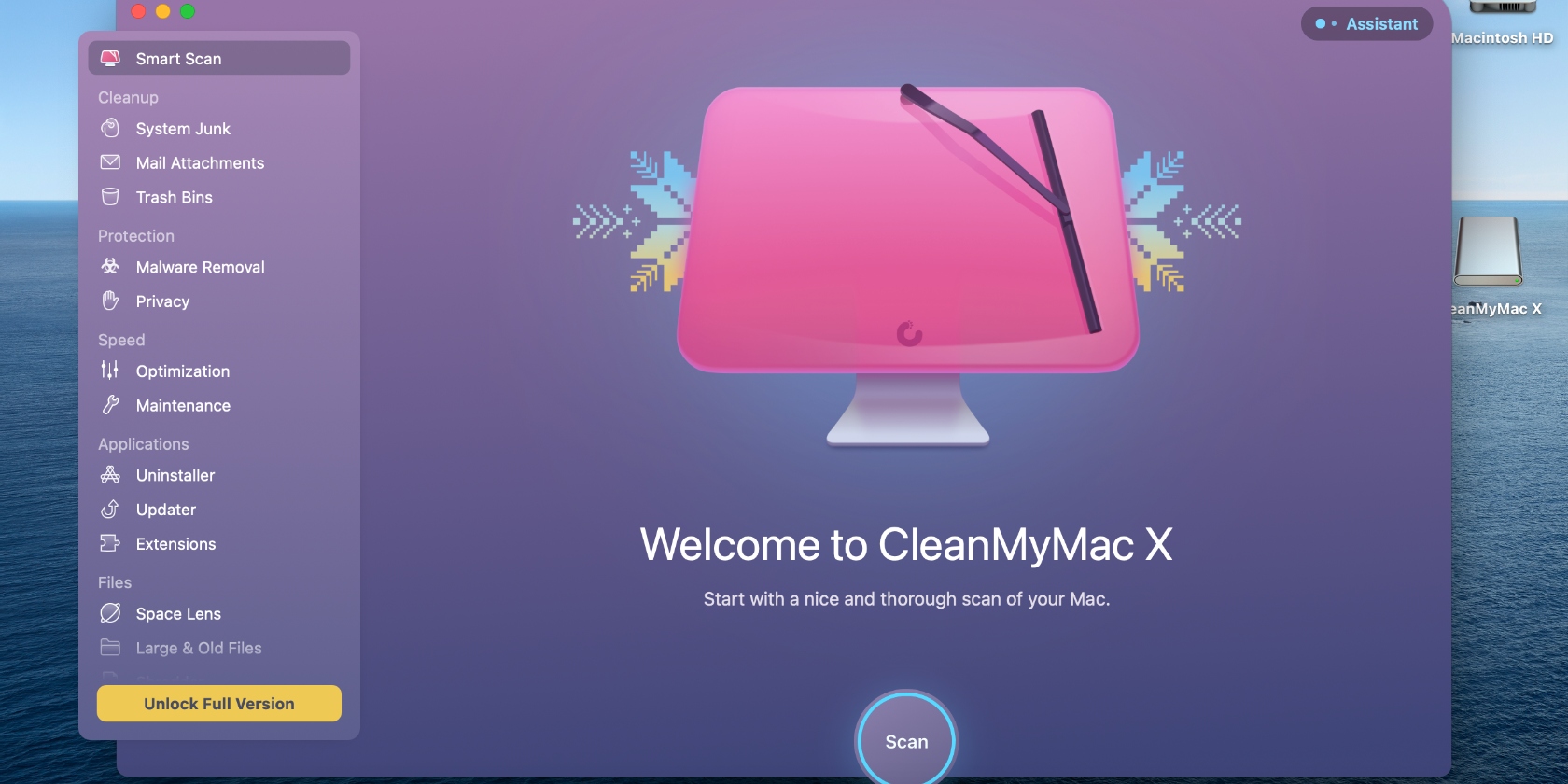
CleanMyMac X also offers more features aside from cleaning. These include malware removal, privacy, optimization, and maintenance features. Review CleanMyMac to determine whether it's the right choice for you.
Features and tools of CleanMyMac
Features and tools
Explanation
Malware Detection
Performs a meticulous check of your Mac for threats and vulnerabilities and removes them on your behalf
System Junk Removal
Removes useless, pesky files that can weigh your Mac down over time
Smart Scan
Clears your mail, system, photos, trash, and junk files, and then scans it for malware
Privacy
Clears up your browsing history and other traces of your online and offline activity
Optimization
Helps you manage the functions and features that could potentially slow your Mac down
Maintenance
Optimizes your Mac’s performance by running a set of scripts when your system is lagging, or you open a heavy file or app
Mail Attachment Removal
Deletes local copies of your email downloads and attachments (like company logos) to free up disk space
Clearing of Trash Bins
Cleans up your Mac’s the trash in all apps and drives to prevent encountering errors in Finder
Uninstaller
Deletes unnecessary apps, including their contents and leftover files, and resets apps
Updater
Checks for available app updates and implements them to help you avoid software incompatibilities
Extensions
Manages your device’s system extensions, like widgets, plugins, dictionaries, and more
Space Lens
Gives you a visual snapshot of your files and folders, including what’s taking up space
Large & Old Files
Identify large files and folders you haven’t touched in months to get rid of them and lighten the load on your device
Shredder
Allows you to delete unwanted files and folders quickly, including sensitive data
Smart Assistant
Guides you through regular disk cleanups and shows you more areas that can be cleaned
Pros of CleanMyMac:
Runs fast and thorough scans.
Finds potential threats hidden on your laptop.
Provides personalized cleanup tips.
Removes malware from your device to prevent attacks.
Removes login items, which can slow down your computer.
A virtual assistant is there to help if you run into any problems.
Helps protect your privacy by deleting private data.
Cons on CleanMyMac:
The free version limits the amount of junk you can delete.
You can’t overwrite the storage you’ve removed.
You can’t delete items in specific folders.
The premium version is costly, at $39.95.
How much does CleanMyMac cost?
Like many other cleaning software programs, CleanMyMac offers a free version and a paid version for $39.99 a year to accommodate more users. While the free version has the basic features, it also has its limitations. Upgrading to a premium subscription gives you access to premium features.
Additionally, prices differ depending on how many MacBooks you intend to clean:
For 1 Mac
For 2 Macs
For 5 Macs
One-time purchase
$89.95
$179.90
$449.75
One-year subscription
$39.95
$79.90
$199.75
As always, it’s cheaper to get a yearly subscription than make a one-time purchase.
Is CleanMyMac safe to use?
Since being released in 2008, CleanMyMac has been one of the cleaning apps of choice for MacBook devices for years. However, Apple doesn’t recommend using it, so you may wonder if CleanMyMac is safe to use.
CleanMyMac is considered safe to use, but given that it’s a third-party app, you should always proceed with caution and ensure it stays updated to avoid security compromises.
Compatible with a variety of devices, including Mac, Windows, and Android.
Overwrites unused space.
Cleans the browser.
Clears custom folders.
Removes login items.
Gets rid of unused and unnecessary apps.
Features and tools of CCleaner
Features and tools
Explanation
Scans
Determine which apps and system settings should be cleaned and quickly delete junk, including logs, caches, and other trash files
Startup Optimizer
Manages your Mac’s login items to optimize your device from the startup moment
Erase Free Space
Removes hidden traces of files that have been deleted in your hard drives to free up space
Cookie Manager
Lets you view a full list of the cookies in your browser and decide which ones you want to keep
Pros of CCleaner:
Offers a reasonable price of $24.99.
Performs unlimited scans regardless of the plan you’re on, including the free plan.
Comes with unique features, including the ability to overwrite unused space.
List cookies you can get rid of.
Includes the ability to delete browser junk on the free version.
Straightforward interface.
Cons of CCleaner:
No malware removal tool
No updater
No space visualization
No fix for hung apps
Unable to clean large and old files
Fewer maintenance options and features
CCleaner pricing
CCleaner offers a free version, and the Pro version costs $29.95. However, there are two more paid plans available, depending on the number of devices you plan to use.
Plan
Price
Pro with Driver Updater (1 PC)
$29.95
Pro Plus with Driver Updater (up to 3 PCs)
$49.95
Premium Bundle with Driver Updater (up to 5 PCs)
$79.95
Is CCleaner safe?
Concerns have been raised about CCleaner’s security after its acquisition by Avast. Cybernews reports that in 2017, approximately 2.27 million devices were affected by a backdoor attack that compromised software installed on 32-bit Windows systems. And in 2019, Avast announced that it had foiled a breach on its network that was likely aimed at attacking CCleaner.
While CCleaner is considered safe, you must use it with caution, given the past attacks and the fact that it’s a third-party app. It’s also best to download it from trusted sources, including the app’s website.
Final comparison
Both CleanMyMac and CCleaner are decent cleaning software, and you can use either one to maintain your Mac device. Fundamentally, they achieve the same goal, which is to clean and optimize your Mac. However, the main difference between CleanMyMac and CCleaner is that CleanMyMac offers more features in the free version, including malware detection, which makes it more desirable.
Below is a comparison of the tools and features that each app either offers or lacks.
Key tools and features
CleanMyMac X
CCleaner
Browser cleanup
✅
✅
Overwriting unused space
⛔
✅
Clearing login items
✅
✅
Cleaning custom folders
⛔
✅
Uninstaller
✅
✅
Malware removal
✅
⛔
Cleaning up large files and old files
✅
⛔
Updater
✅
⛔
Fixing hung apps
✅
⛔
Custom cleanup tips
✅
⛔
Space visualization
✅
⛔
Time machine thinning
✅
⛔
App reset
✅
⛔
How does MacKeeper’s Safe Cleanup tool differ? It allows you to remove various categories of unwanted files fast and with one click—including logs, caches, languages, and mail attachments. It also offers 24/7 virtual assistance in case you run into any issues using it. Download MacKeeper to maintain your Mac with the Safe Cleanup tool and experience its benefits firsthand.
We respect your privacy and
use cookies
for the best site experience.
Privacy Preferences Center
We use cookies along with other tools to give you the best possible experience while using the
MacKeeper website. Cookies are small text files that help the website load faster. The cookies we
use don’t contain any type of personal data meaning they never store information such as your
location, email address, or IP address.
Help us improve how you interact with our website by accepting the use of cookies. You can change
your privacy settings whenever you like.
Manage consent
All cookies
These cookies are strictly necessary for enabling basic website functionality (including page
navigation, form submission, language detection, post commenting), downloading and purchasing
software. The website might malfunction without these cookies.