The “Congratulations, you won” virus is usually removed by stopping suspicious processes, deleting the unwanted app behind the pop-ups, resetting infected browser settings, and scanning your Mac for hidden malware. MacKeeper’s Antivirus gives you an easier way to detect and block these threats with real-time protection, helping you scan your Mac for malicious files, quarantine suspicious items, and keep your files safe.
The “Congratulations, You Won” virus is a scam pop-up tied to browser hijackers, adware, or other unwanted programs that flood your device with fake prize alerts, redirects, and intrusive ads. To remove it, close the browser, delete suspicious apps or extensions, reset browser settings, and run a malware scan immediately.
What is the “Congratulations, you won” pop-up virus?
The “Congratulations, you won” pop-up virus is a scam notification tied to adware or browser hijackers that tricks users into believing they’ve won a prize such as a phone, gift card, or cash reward. Instead of giving a prize, it attempts to collect personal information, install unwanted programs, or redirect you to malicious websites that may compromise your device and privacy.
How to spot the “Congratulations, you won” scam?
You can spot the “Congratulations, you won” scam by looking for fake prize alerts that appear suddenly while browsing, often claiming you’ve won an iPhone, gift card, or cash reward. These pop-ups usually pressure you to act quickly by completing a survey or clicking a button. Be sure that legitimate companies rarely award prizes through random browser notifications. If the message redirects you to unfamiliar websites, asks for personal details, or keeps reappearing across pages, it’s most likely a scam.
A note from our experts:
When dealing with threats like fake prize pop-ups or browser hijackers, it’s important to make sure no hidden malware remains on your device. MacKeeper protects your Mac, safeguarding your files, apps, and system folders from malicious activity. Its Antivirus feature scans your entire system and detects suspicious programs before they can steal personal data or compromise your privacy.
Here’s how to secure your Mac with MacKeeper’s Antivirus:
Download, install, and open MacKeeper on your Mac or MacBook.
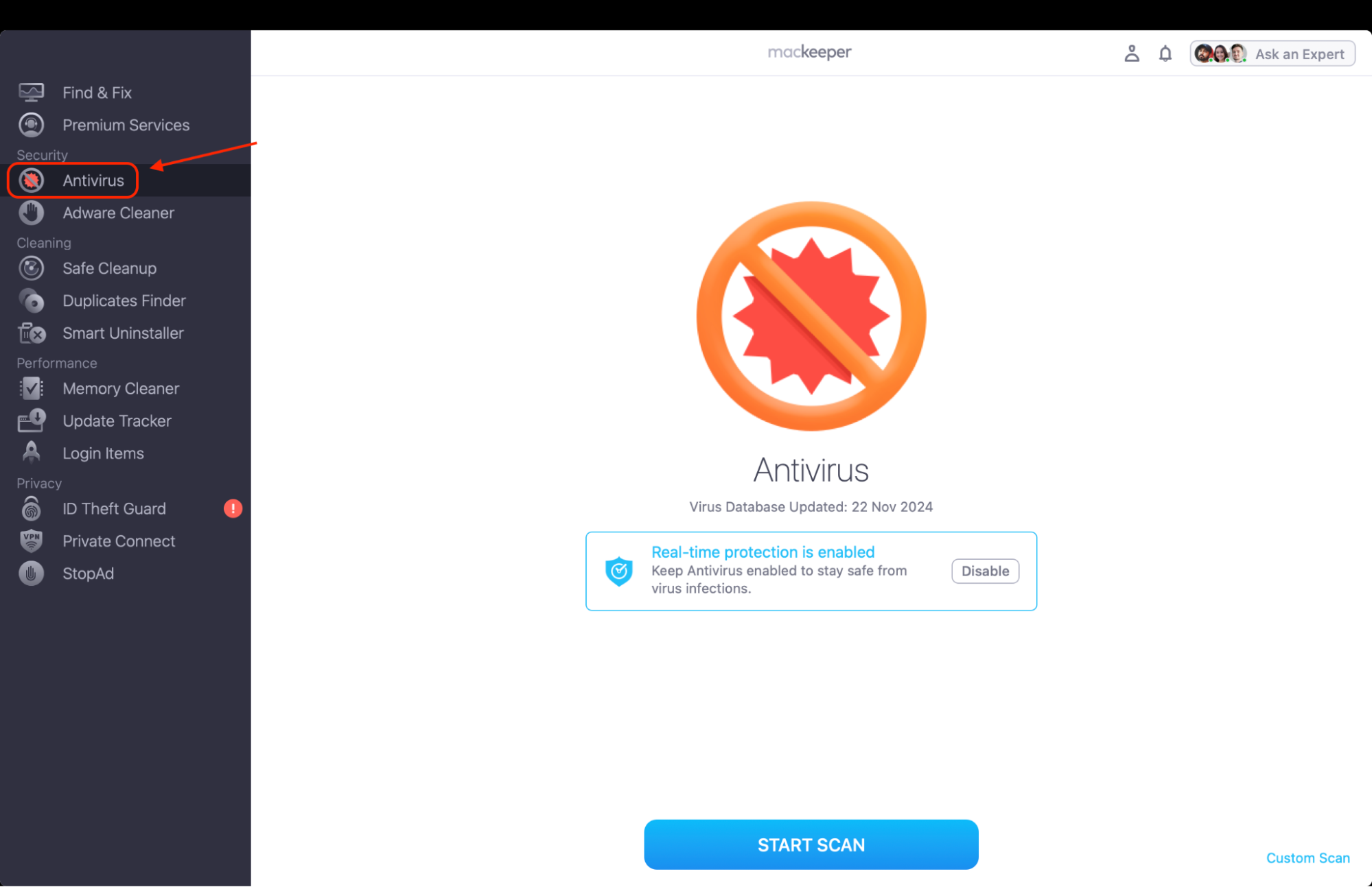
In the left sidebar, select Antivirus under the Security section.
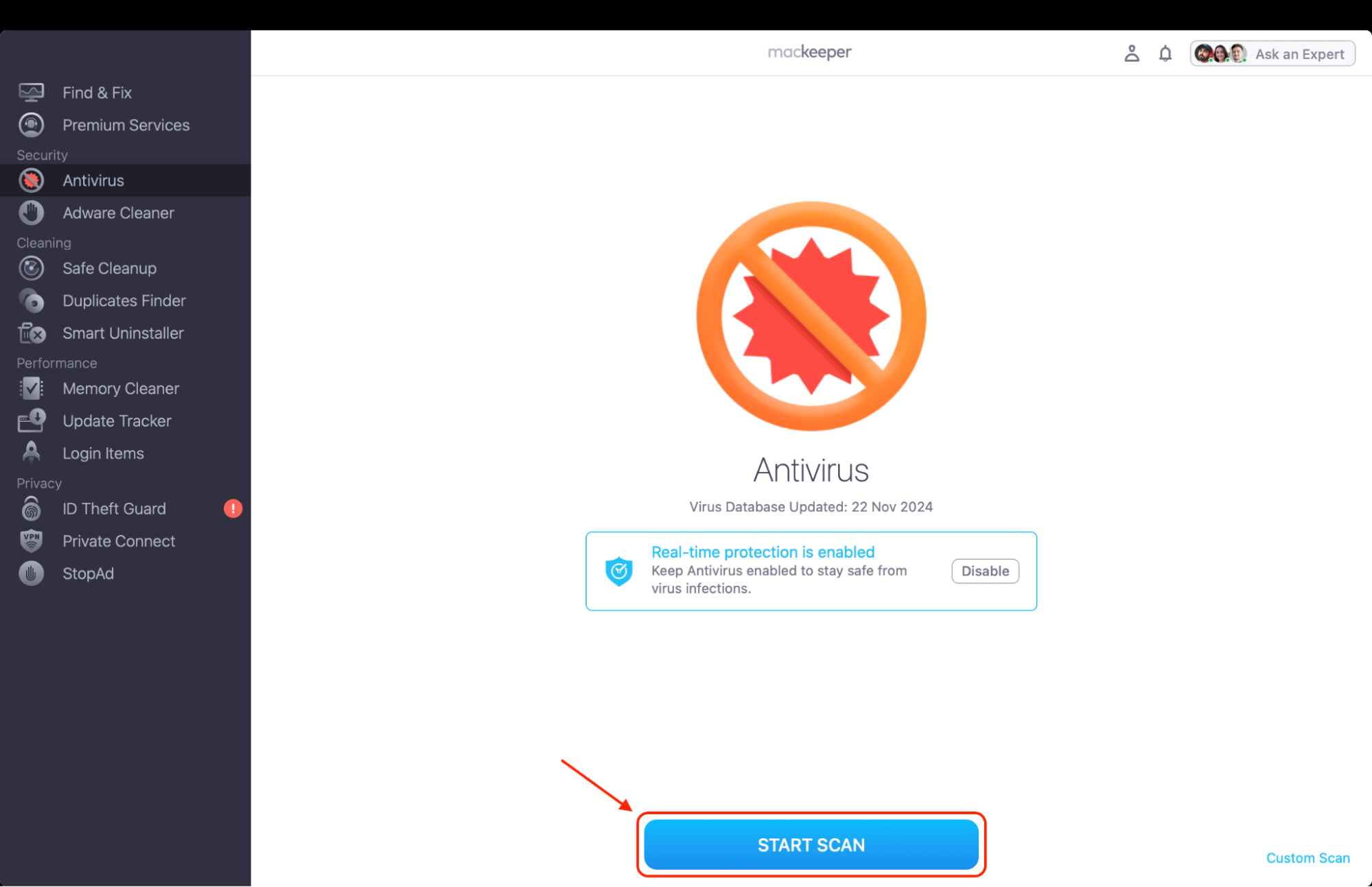
Click Start Scan to perform a full system scan for malware and potentially unwanted programs.
Wait while the tool checks your files, apps, and system folders for hidden threats.
Review the detected items in the scan results window.
Select suspicious files and quarantine them to stop further activity.
Restart your Mac, then permanently delete the quarantined items if they’re confirmed threats.
Step 1. Find the Antivirus section in the left-side menu barStep 2. Click the Start Scan button to launch the scanning process
How to remove the “Congratulations, you won” virus on Mac?
To remove the “Congratulations, you won” virus on Mac, close the suspicious browser tab immediately and avoid clicking the pop-up. Then check for unknown apps, remove suspicious browser extensions, and reset your browser settings. Scan your Mac with reliable antivirus software to detect hidden adware, browser hijackers, or unwanted programs that may be generating the scam alerts.
1. Update macOS
Keeping your system current is one of the simplest ways to eliminate vulnerabilities that malware exploits. From our experience, when you update Mac software regularly, you close security gaps that adware, browser hijackers, and pop-up threats often rely on. Updating also refreshes system protections and removes outdated components that may allow malicious scripts to run.
Check for system updates and install them using the steps below:
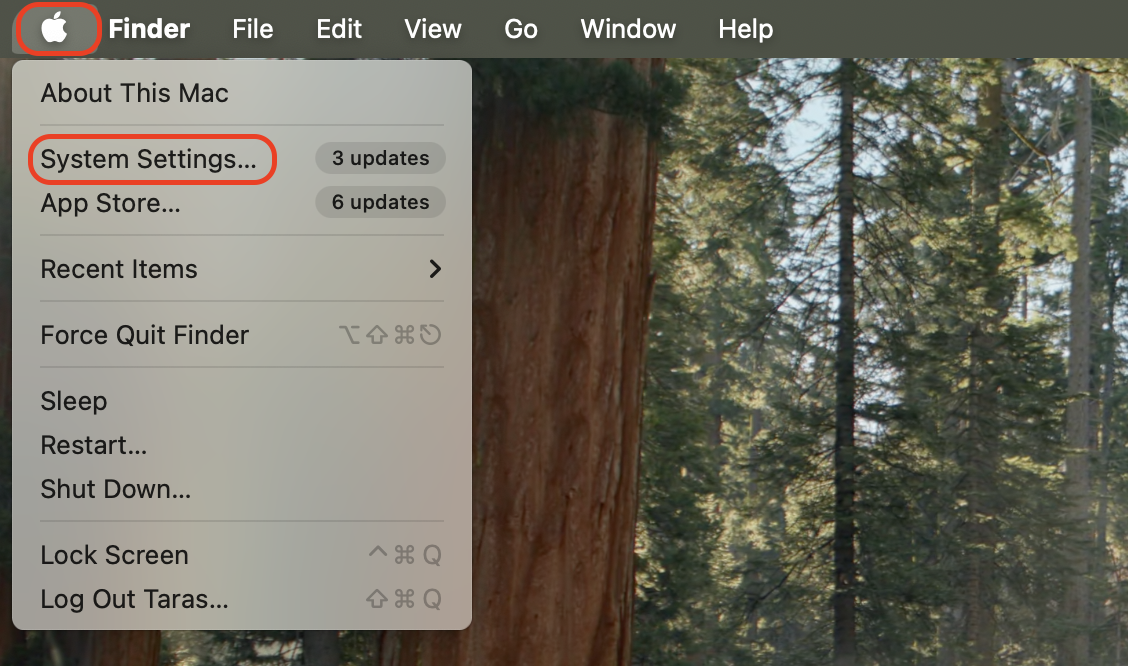
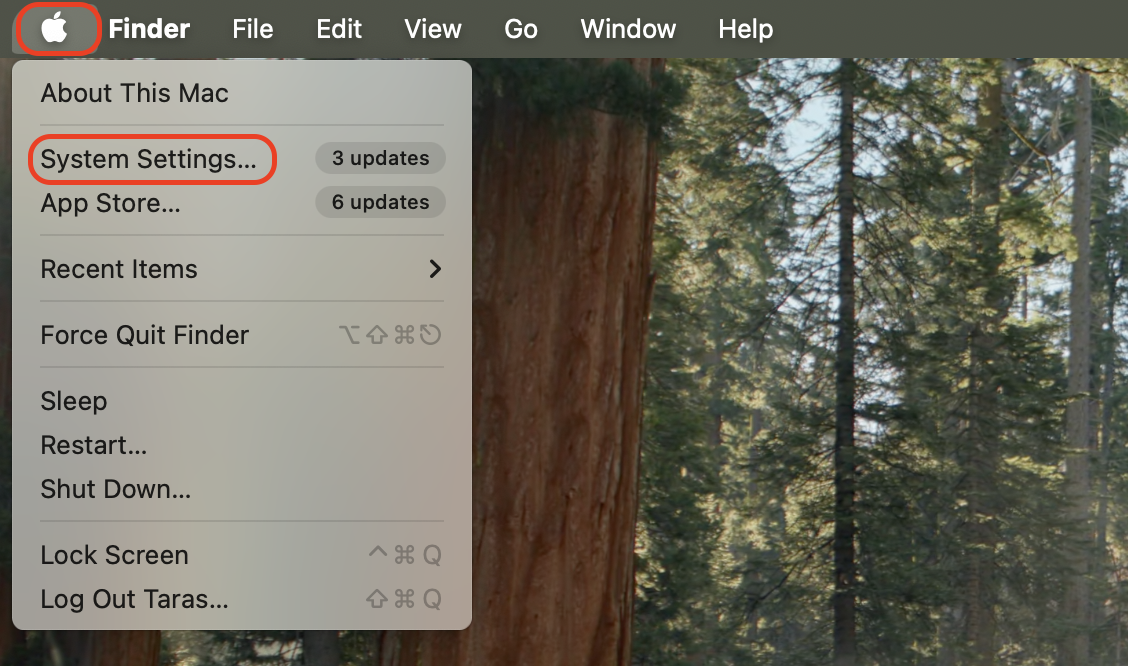
Click the Apple menu in the top-left corner of your screen.
Select System Settings from the dropdown list.
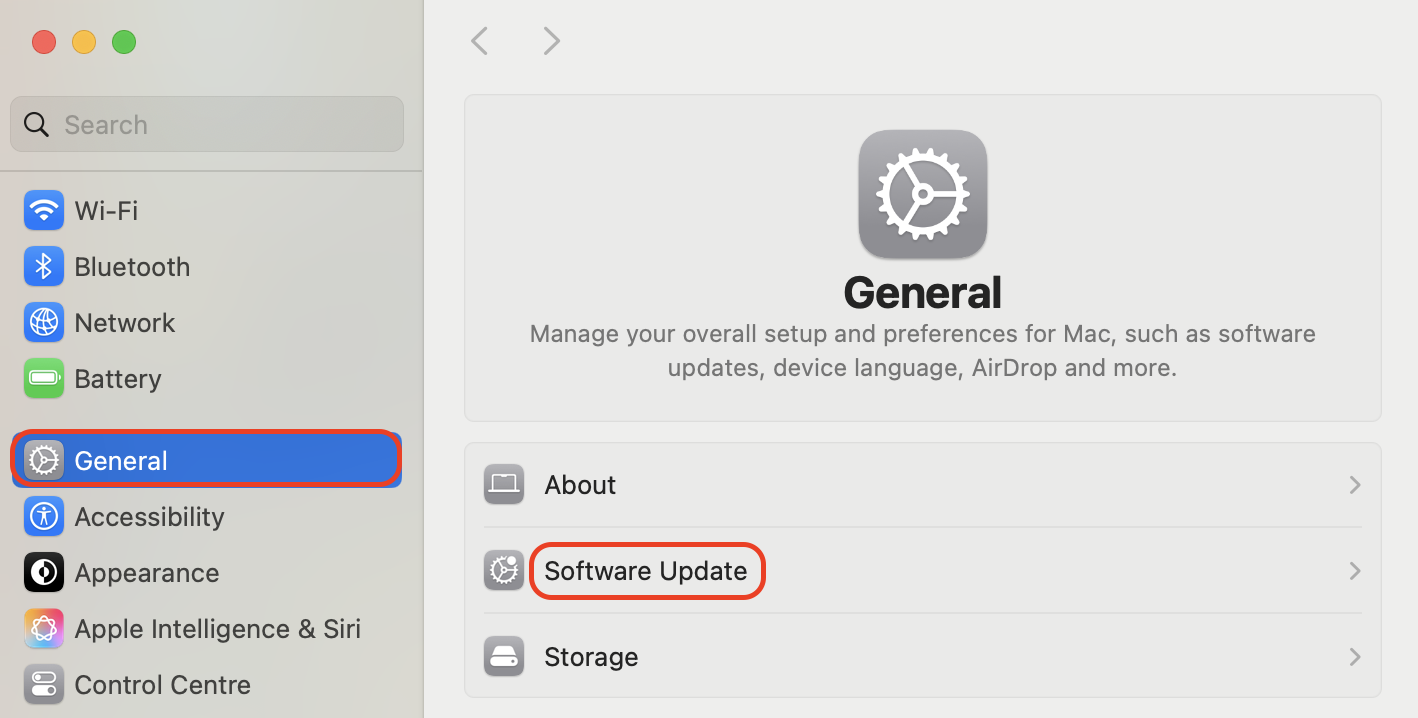
Navigate to General in the sidebar.
Click Software Update.
Wait while macOS checks for available updates.
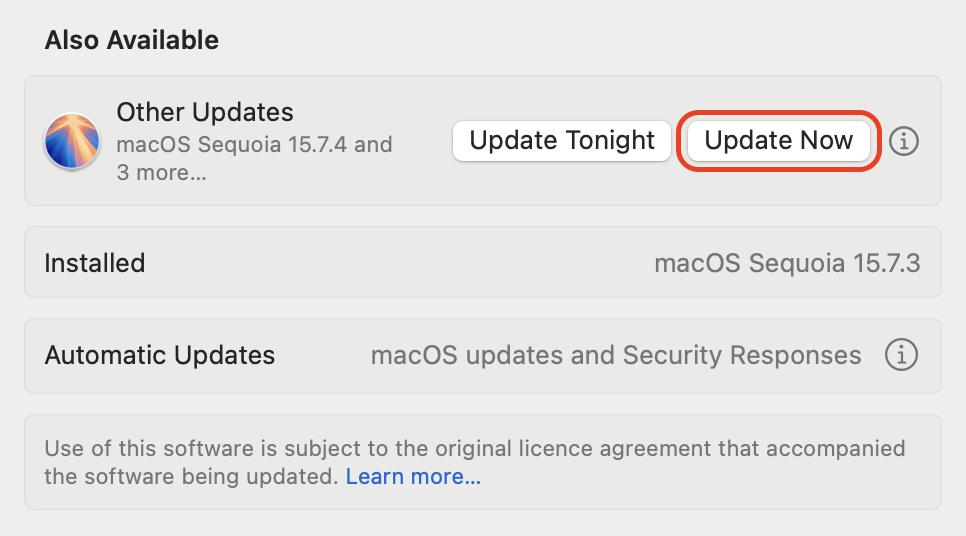
If an update appears, click Update Now.
Enter your administrator password if prompted.
Allow the update to download and install.
Restart your Mac if prompted to do so.
After restarting, verify that the latest macOS version is installed.
Step 1. Click the Apple menu in the top-left corner of your screen and select System Settings from the dropdown listStep 2. Navigate to General in the sidebar and click Software UpdateStep 3. If an update appears, click Update Now
2. Disable unwanted app processes
Stopping suspicious processes is often the fastest way to interrupt active infections. Based on our tests, many forms of pop-up malware constantly run background processes that trigger fake prize alerts or redirect you to malicious websites.
Stop suspicious background activity by following this process:
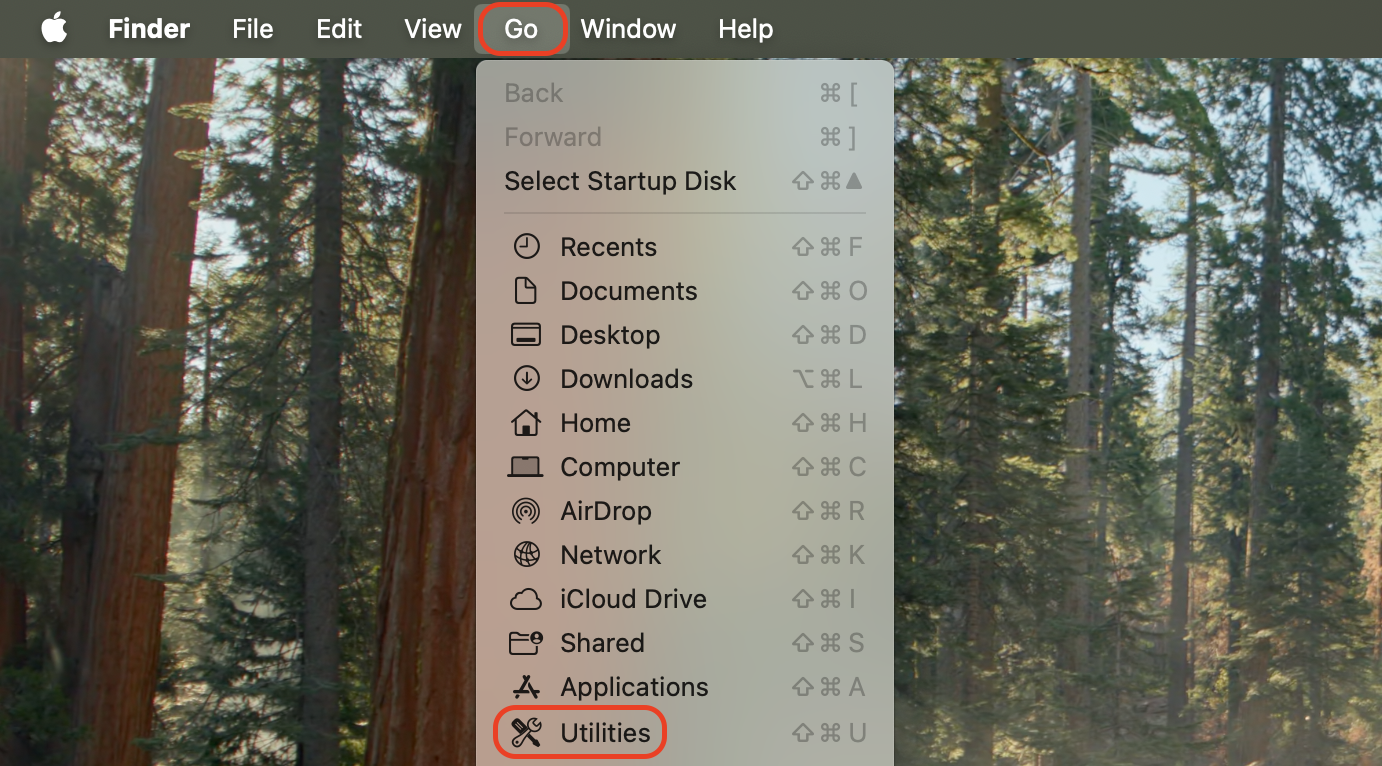
Click the Apple menu and choose Go in the menu bar.
Select Utilities from the dropdown menu.
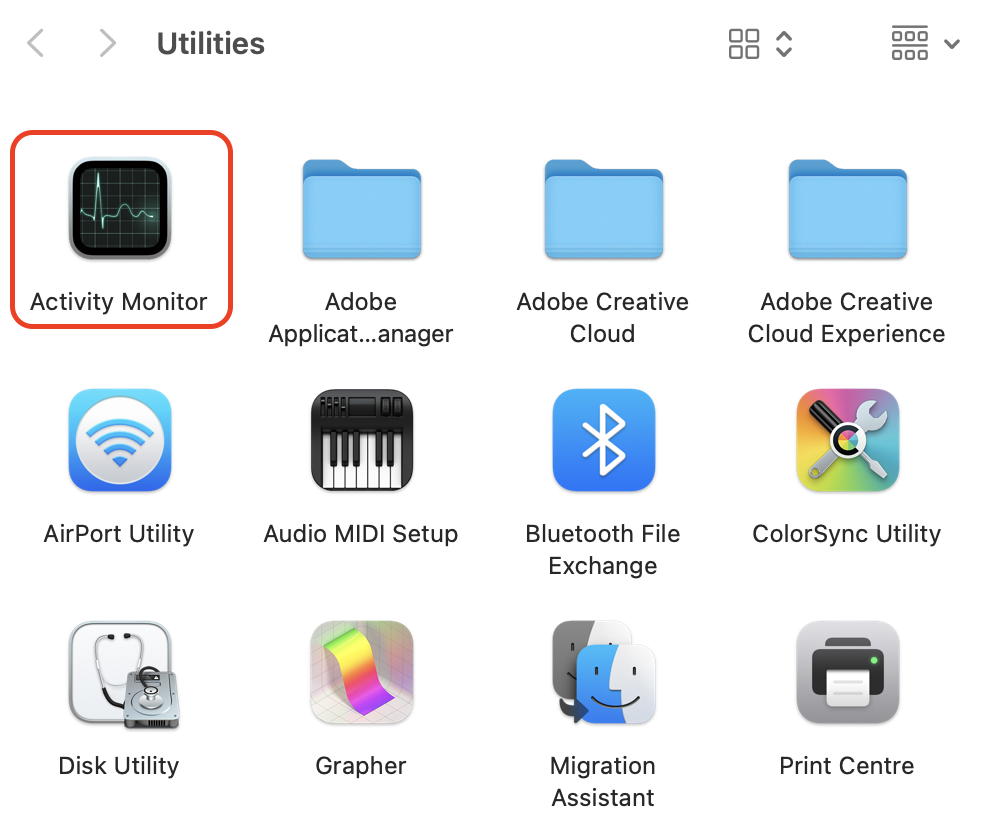
Open Activity Monitor.
Review the list of running processes.
Look for unfamiliar or suspicious applications using high CPU or memory.
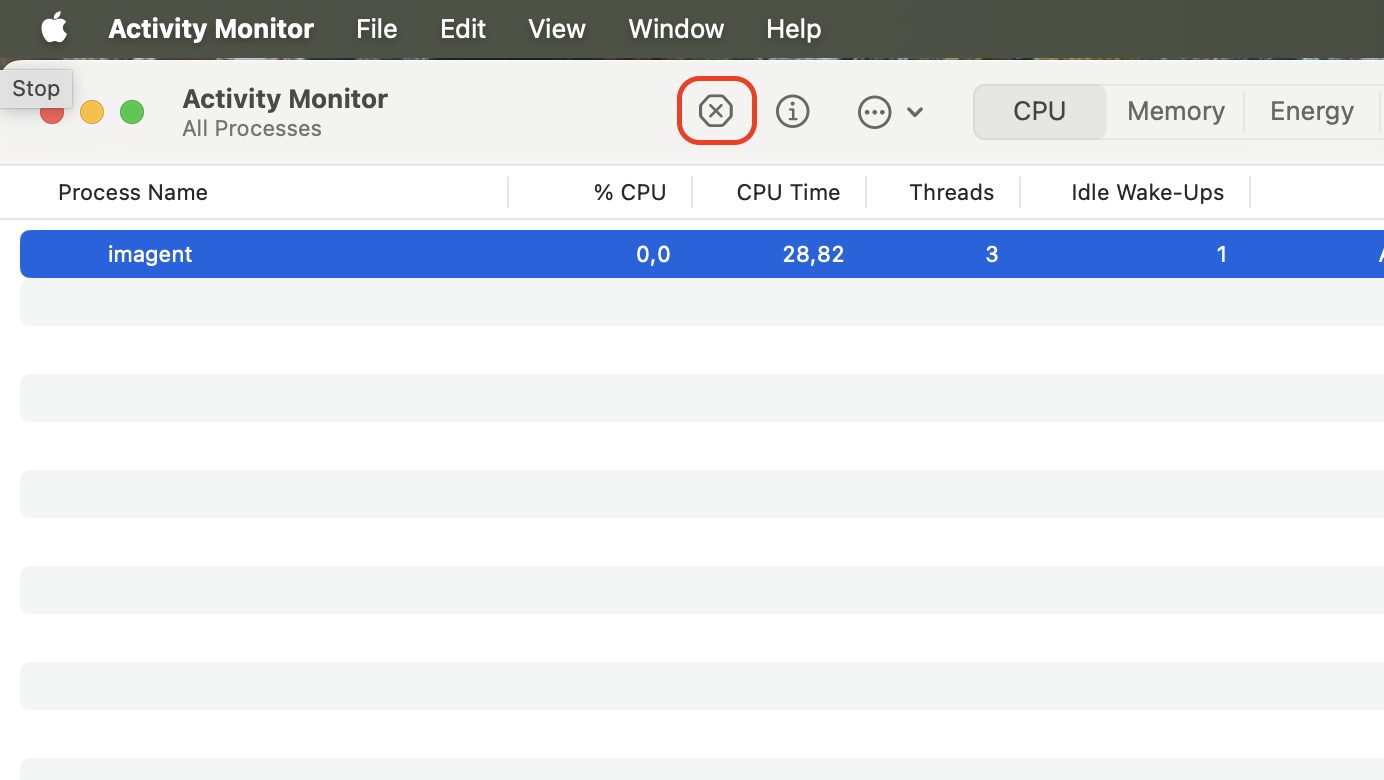
Select the suspicious process.
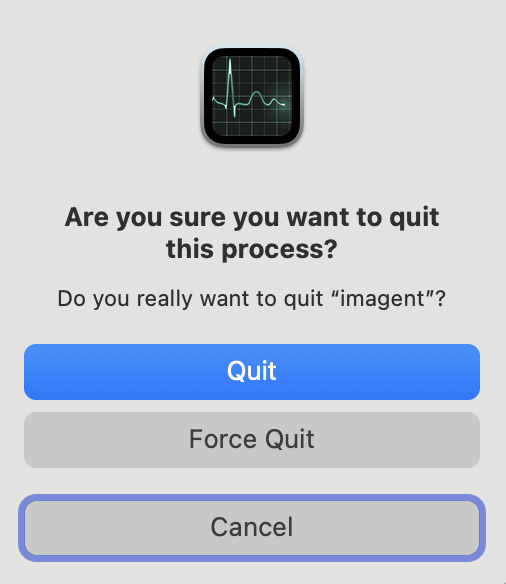
Click the X button at the top of the window.
Choose Force Quit to terminate the process.
Repeat the steps for other suspicious processes.
Close Activity Monitor once the processes are stopped.
Step 1. Click the Apple menu and choose Go in the menu bar and select Utilities from the dropdown menuStep 2. Open Activity MonitorStep 3. Select the suspicious process and click the X button at the top of the windowStep 4. Choose Force Quit to terminate the process
3. Delete suspicious apps
Malicious pop-ups often originate from hidden adware installed alongside other software. In our experience, learning how to remove adware virus threats usually starts with identifying unfamiliar apps that appeared after installing freeware or clicking suspicious links.
We’ll guide you now how to remove potentially harmful programs from your Mac—follow these steps:
Open Finder from the Dock.
Click Applications in the sidebar.
Review the list of installed programs.
Identify unfamiliar apps or programs installed recently.
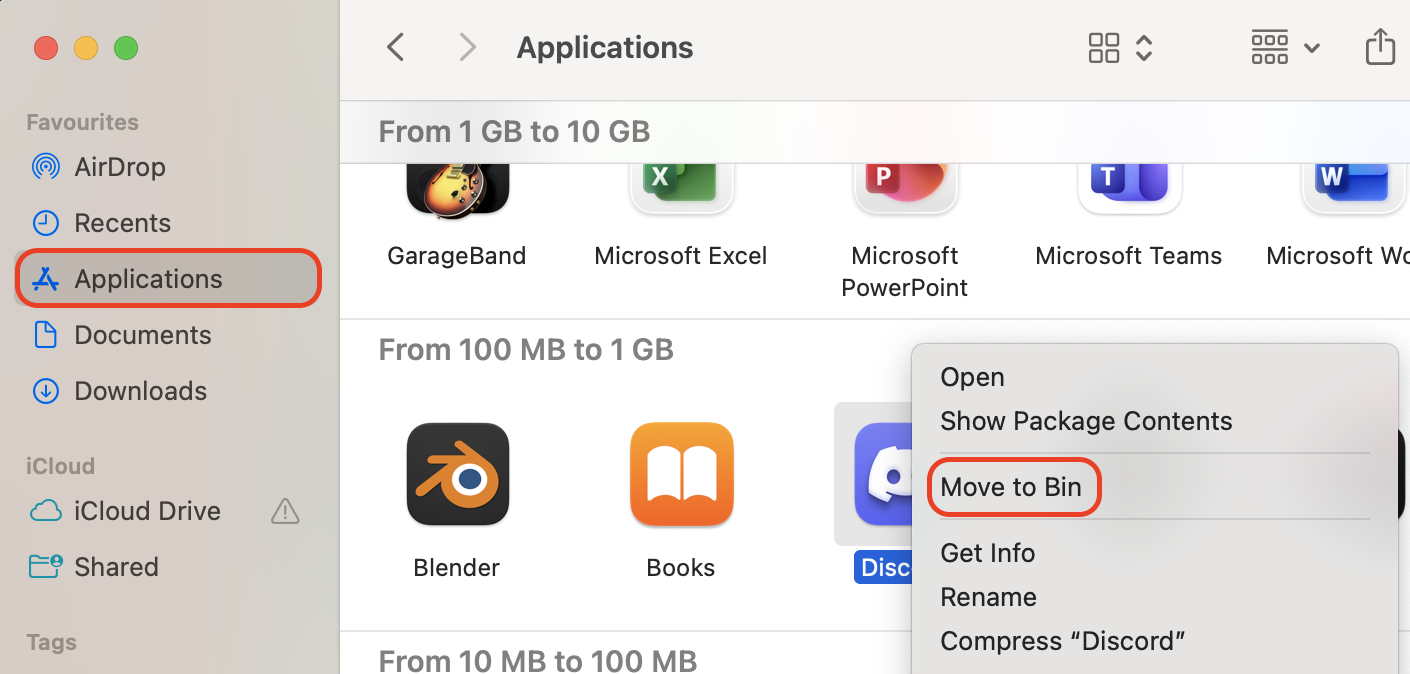
Right-click the suspicious application.
Select Move to Bin.
Enter your administrator password if required.
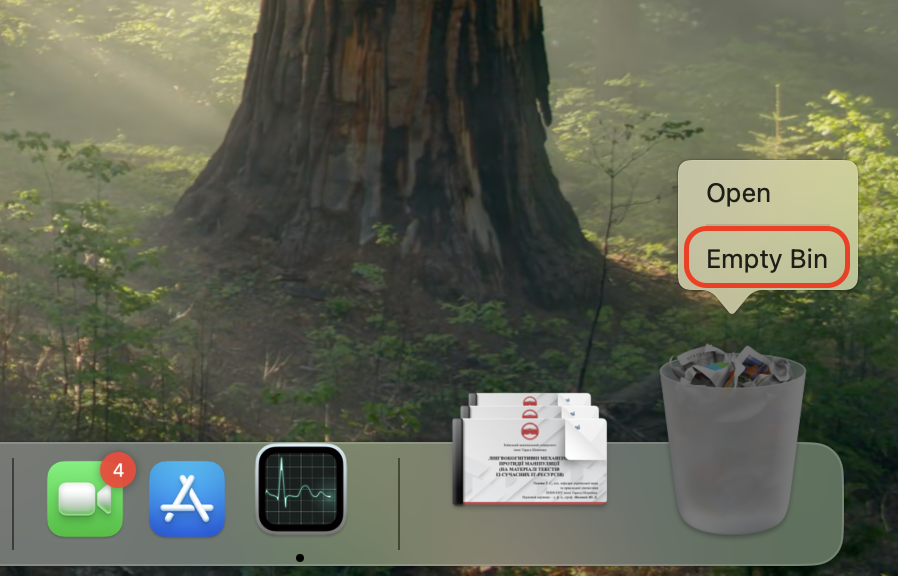
Open the Bin from the Dock.
Click Empty Bin to permanently remove the app.
Restart your Mac to ensure the removal is complete.
Step 1. Open Finder from the Dock and click Applications in the sidebar. Identify unfamiliar apps, then select Move to BinStep 2. Open the Bin from the Dock and click Empty Bin
4. Get rid of user profiles
Sometimes malware hides inside user configuration profiles that automatically launch harmful scripts or browser settings at login. As our team has observed during malware removal tests, a virus from email attachments or suspicious downloads may create hidden profiles that maintain control over system preferences or browser behavior.
Follow this method to remove suspicious user profiles:
Click the Apple menu and open System Settings.
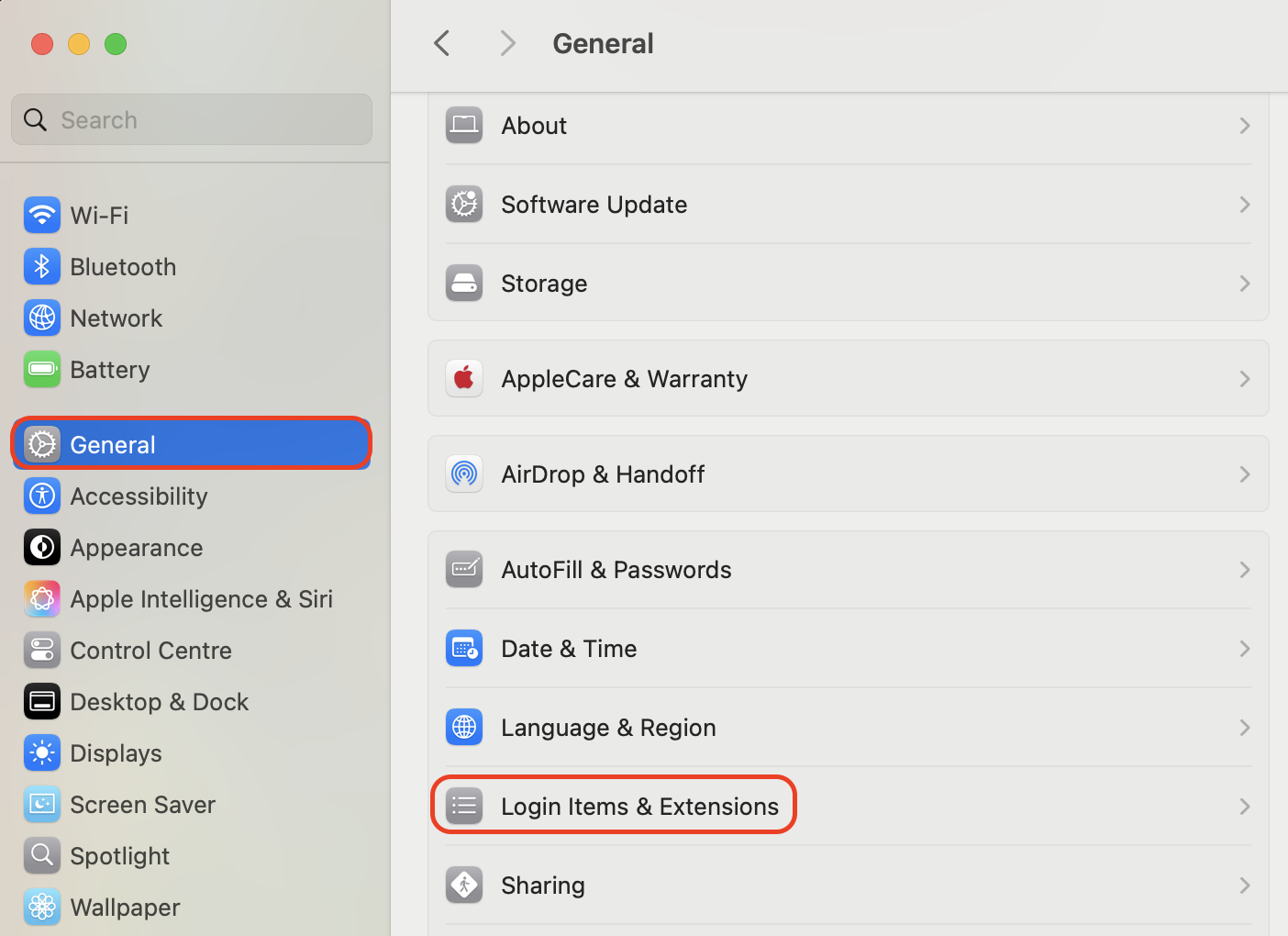
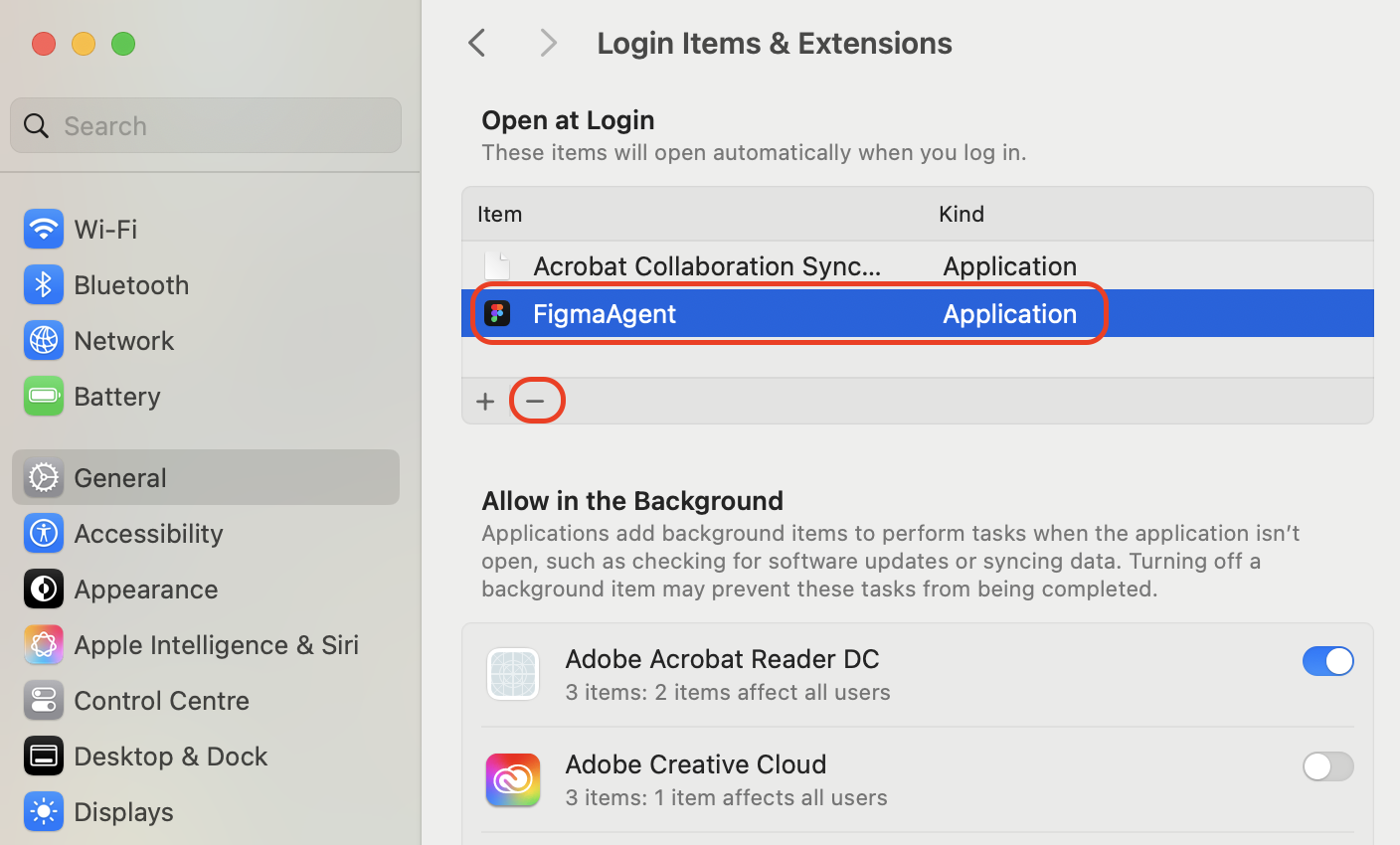
Navigate to Login Items & Extensions.
Select the current user account.
Click Login Items.
Review all items that start automatically at login.
Look for unknown or suspicious entries.
Select the unwanted item.
Click the - button to remove it.
Repeat for any other suspicious login items.
Restart your Mac to apply the changes.
Step 1. In System Settings, go to General > Login Items & ExtensionsStep 2. Review all items that start automatically at login, select one, and click the - button to remove it
How to delete “Congratulations You Won” virus from browser?
To get rid of the “Congratulations, you won” pop-ups from your browser, start by closing the malicious tab and avoiding interacting with the fake prize alert. Then remove suspicious extensions, clear browsing data, and reset your browser settings to eliminate redirects. Finally, run a full malware scan to detect hidden adware or browser hijackers that may be generating the scam notifications and causing the pop-ups to reinstall.
1. Safari
If scam notifications keep appearing in Apple’s browser, we suggest resetting Safari settings, as it usually helps restore normal browsing. You can also compare suspicious extensions with a viruses list online to see if they’re associated with known browser hijackers.
Use the following Safari cleanup routine:
Open Safari, click Safari → Settings, and check the General tab to verify your homepage isn’t set to a suspicious website.
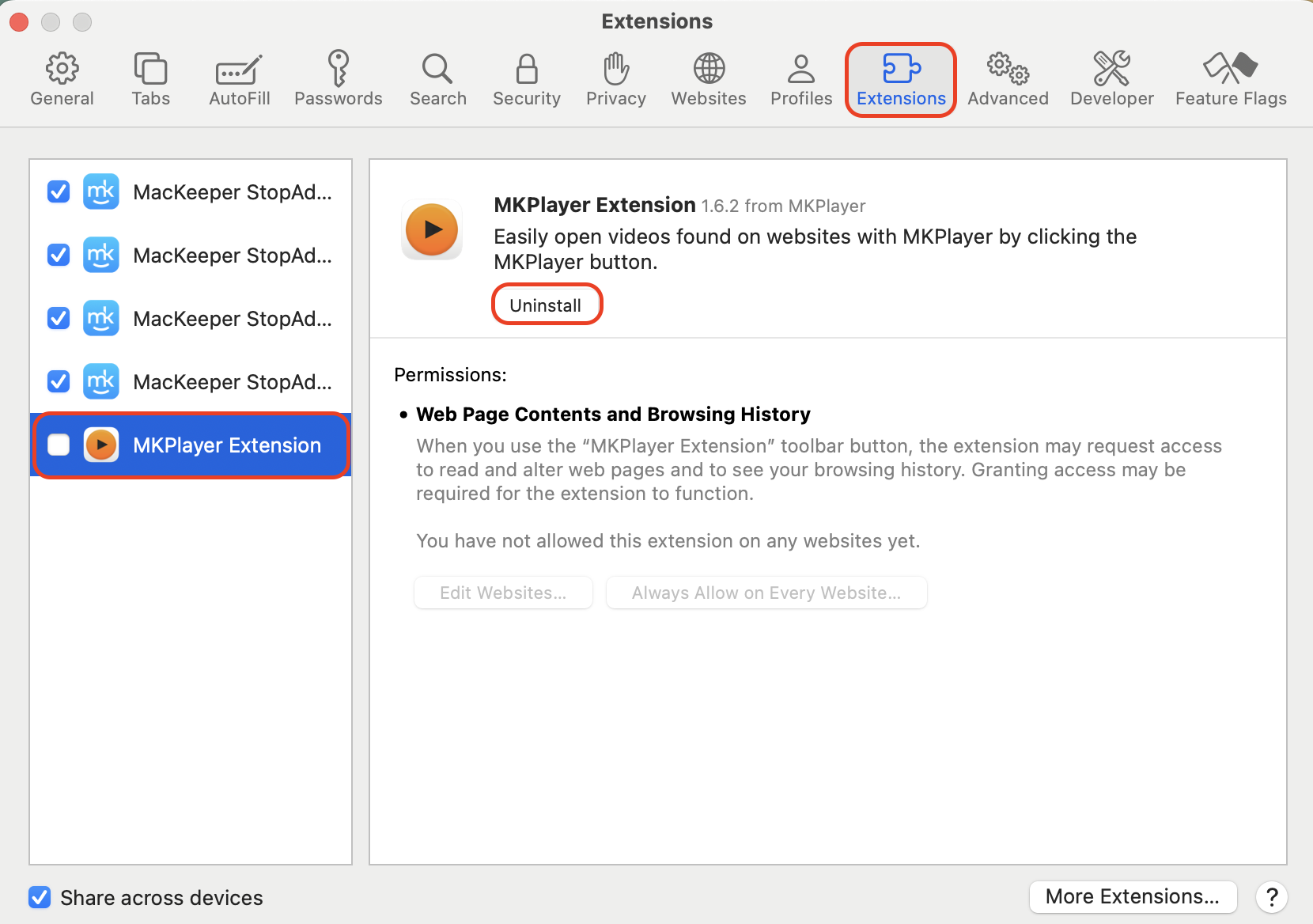
Go to Extensions, review installed add-ons, and click Uninstall for any unknown extension.
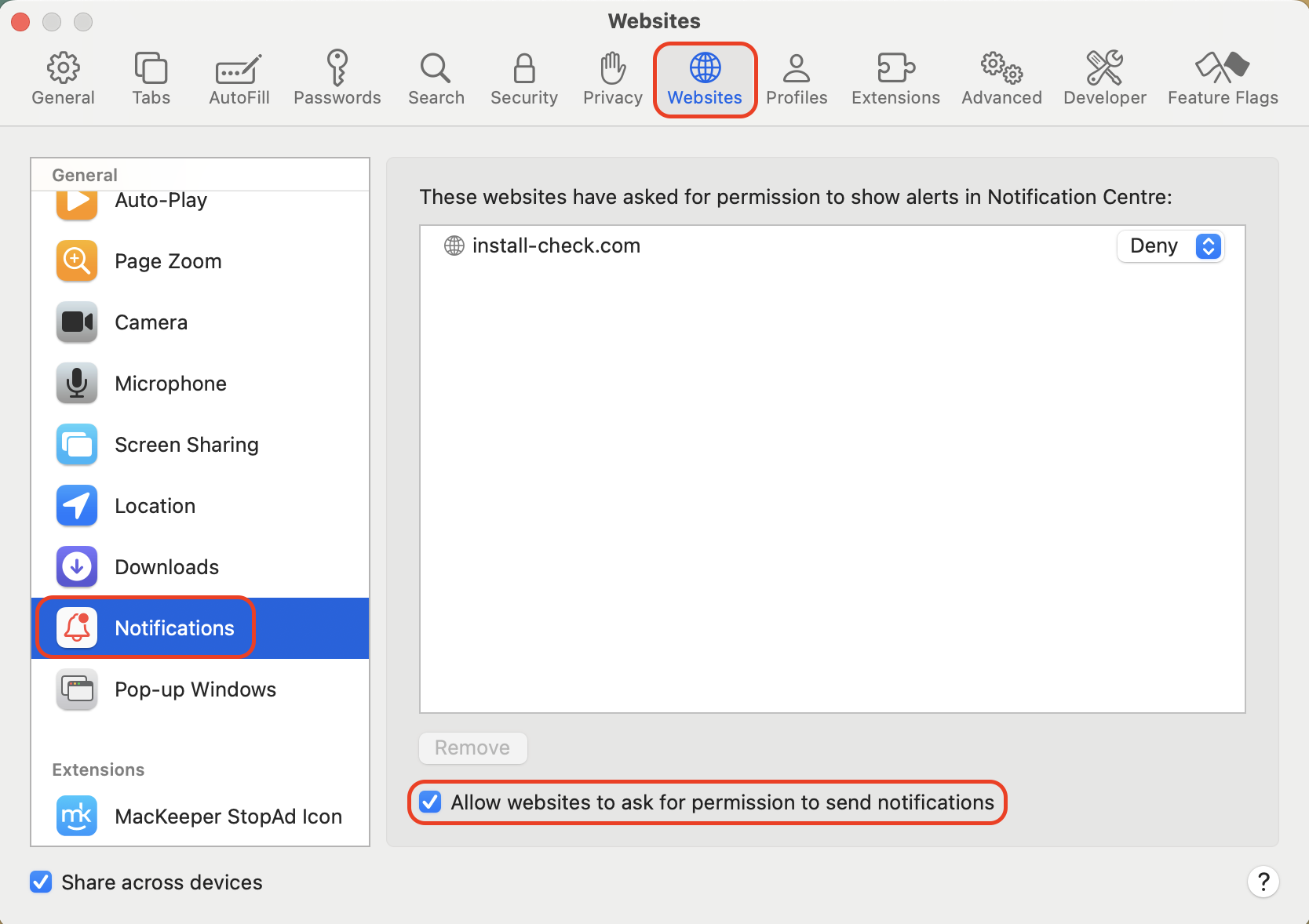
Open Websites → Notifications, then disable "Allow websites to ask for permission to send notifications."
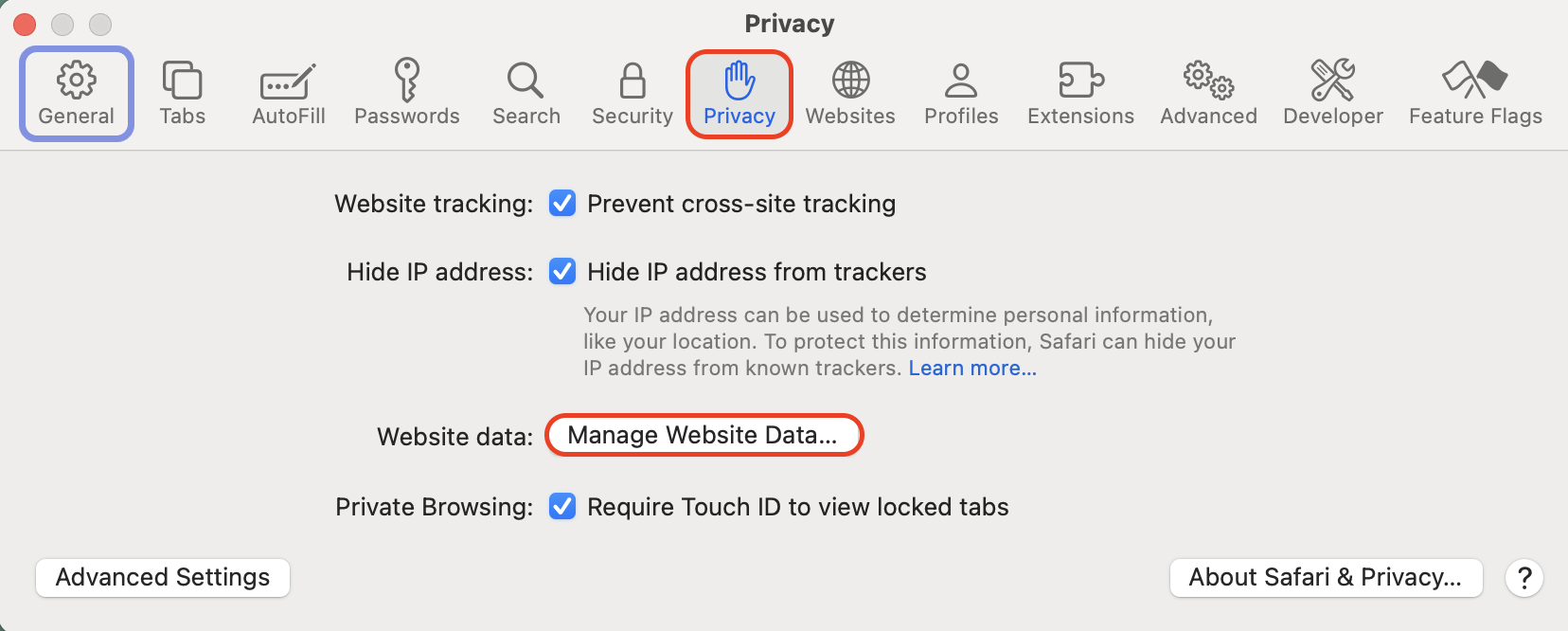
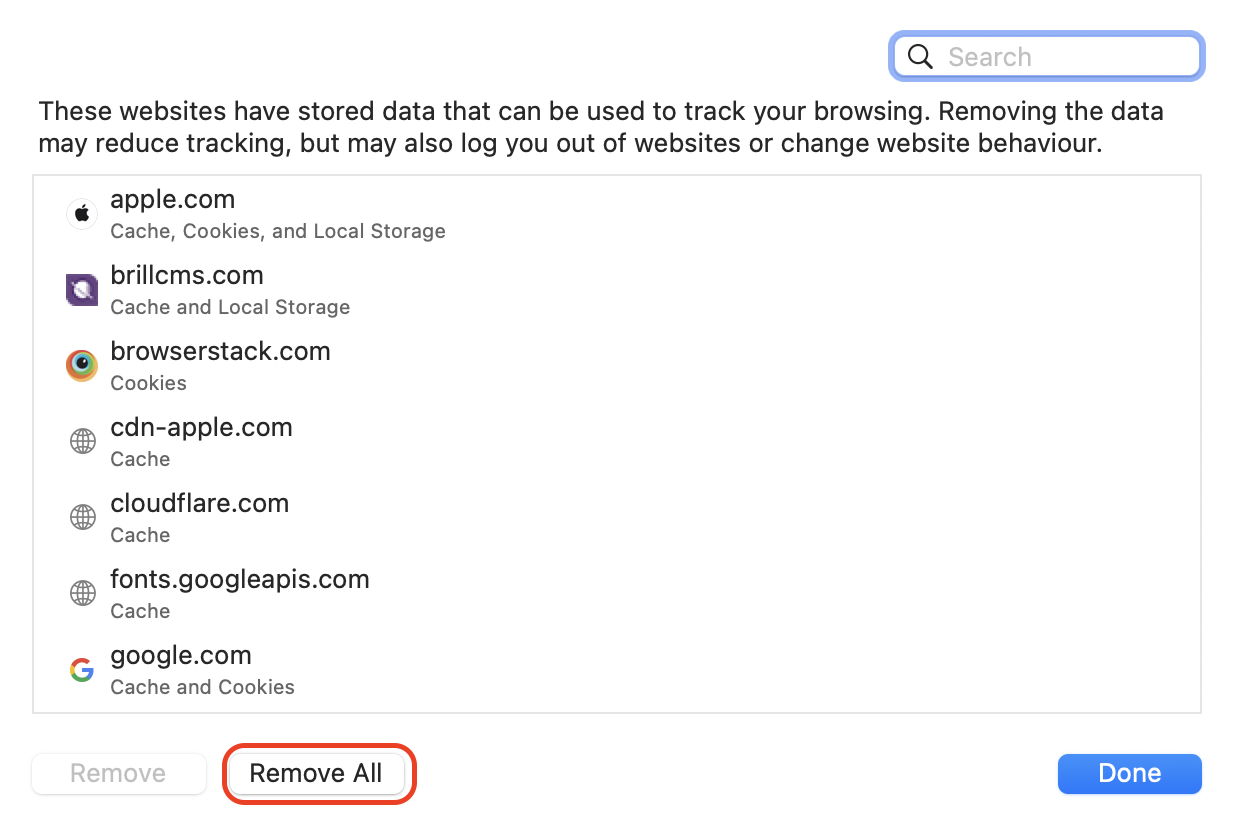
Navigate to Privacy → Manage Website Data, then click Remove All to delete stored site data.
Step 1. Open Safari, click Safari → Settings, and check the General tab to verify your homepage isn’t set to a suspicious websiteStep 2. Go to Extensions, review installed add-ons, and click Uninstall for any unknown extensionStep 3. Open Websites → Notifications, then disable "Allow websites to ask for permission to send notifications"Step 4. Navigate to Privacy → Manage Website DataStep 5. Click Remove All to delete stored site data
2. Google Chrome
In Chrome, these fake prize alerts are usually tied to browser hijackers or malicious extensions. As our tests show, resetting the browser configuration is the most effective way to remove redirects, as it disables harmful add-ons and restores the original settings.
Reset Chrome using the steps below:
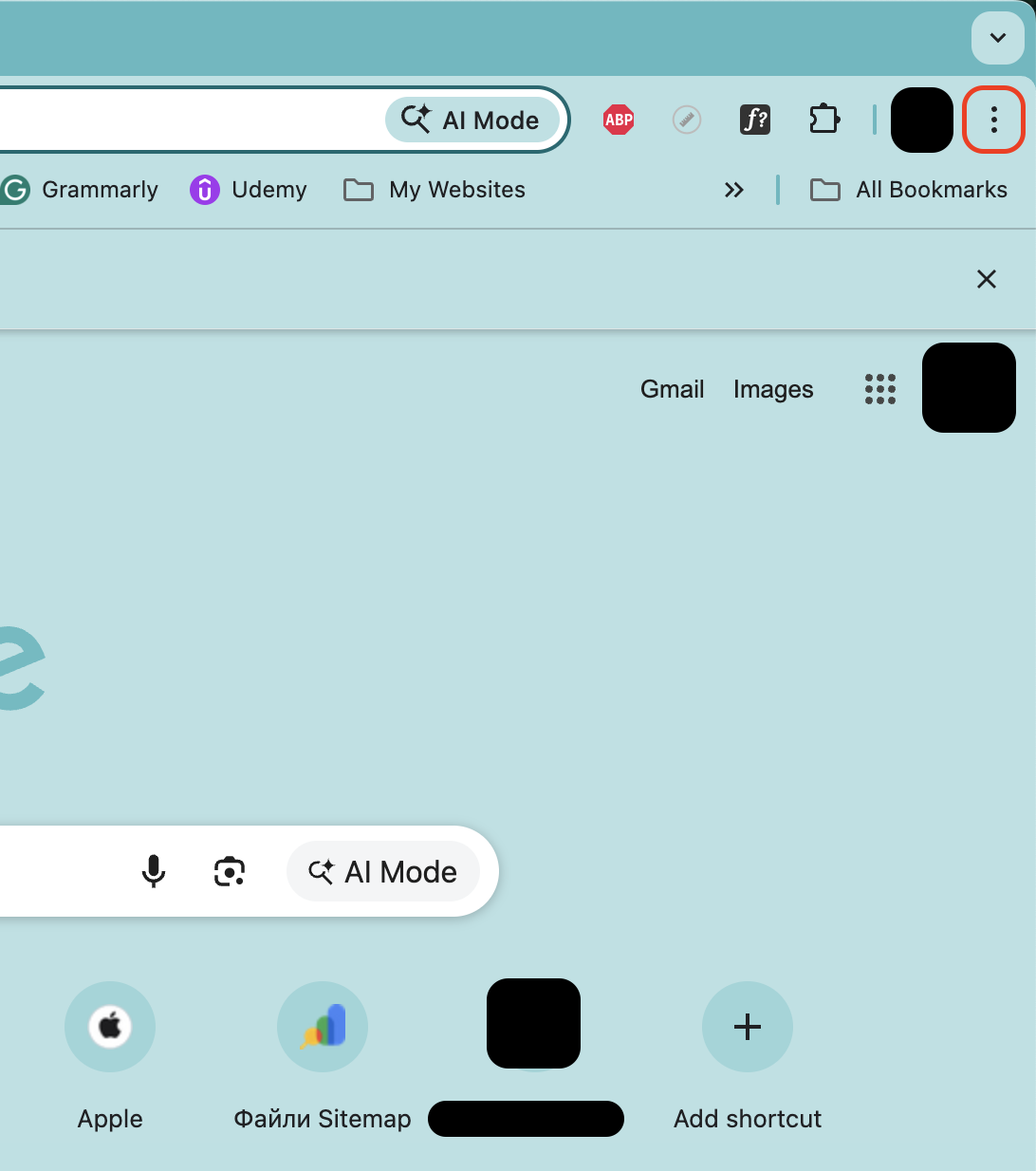
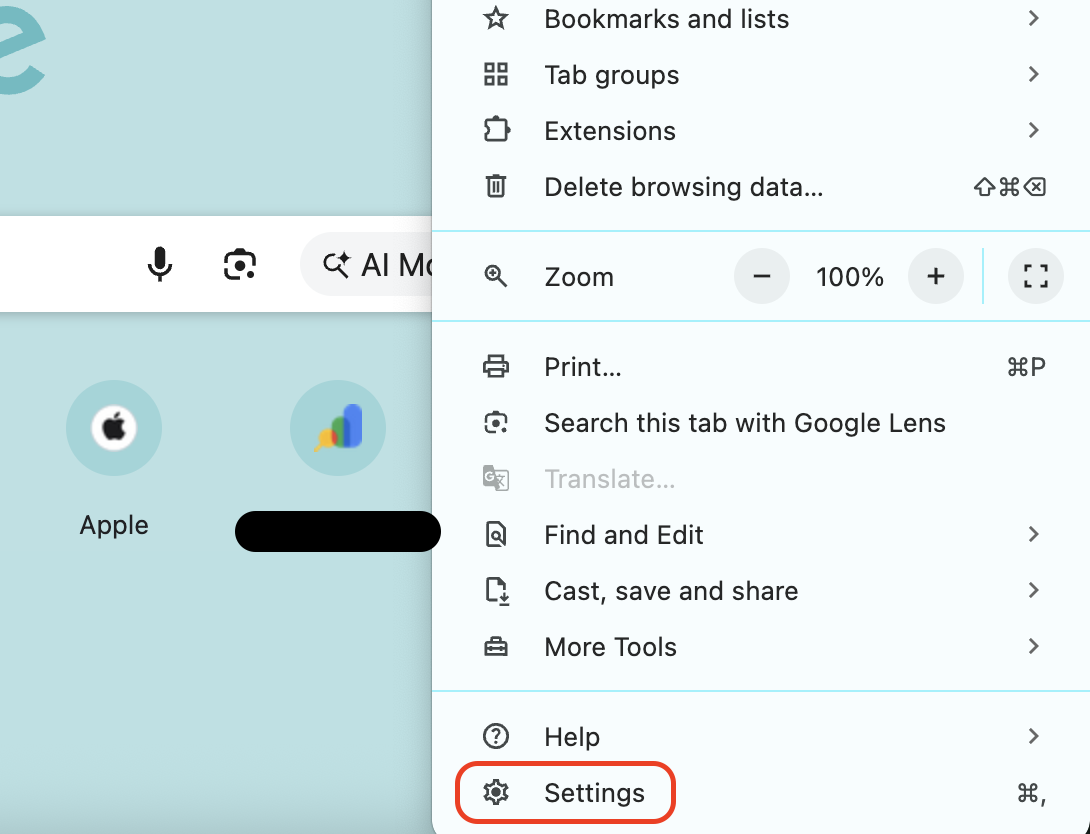
Launch Google Chrome, click the three-dot menu, and open Settings.
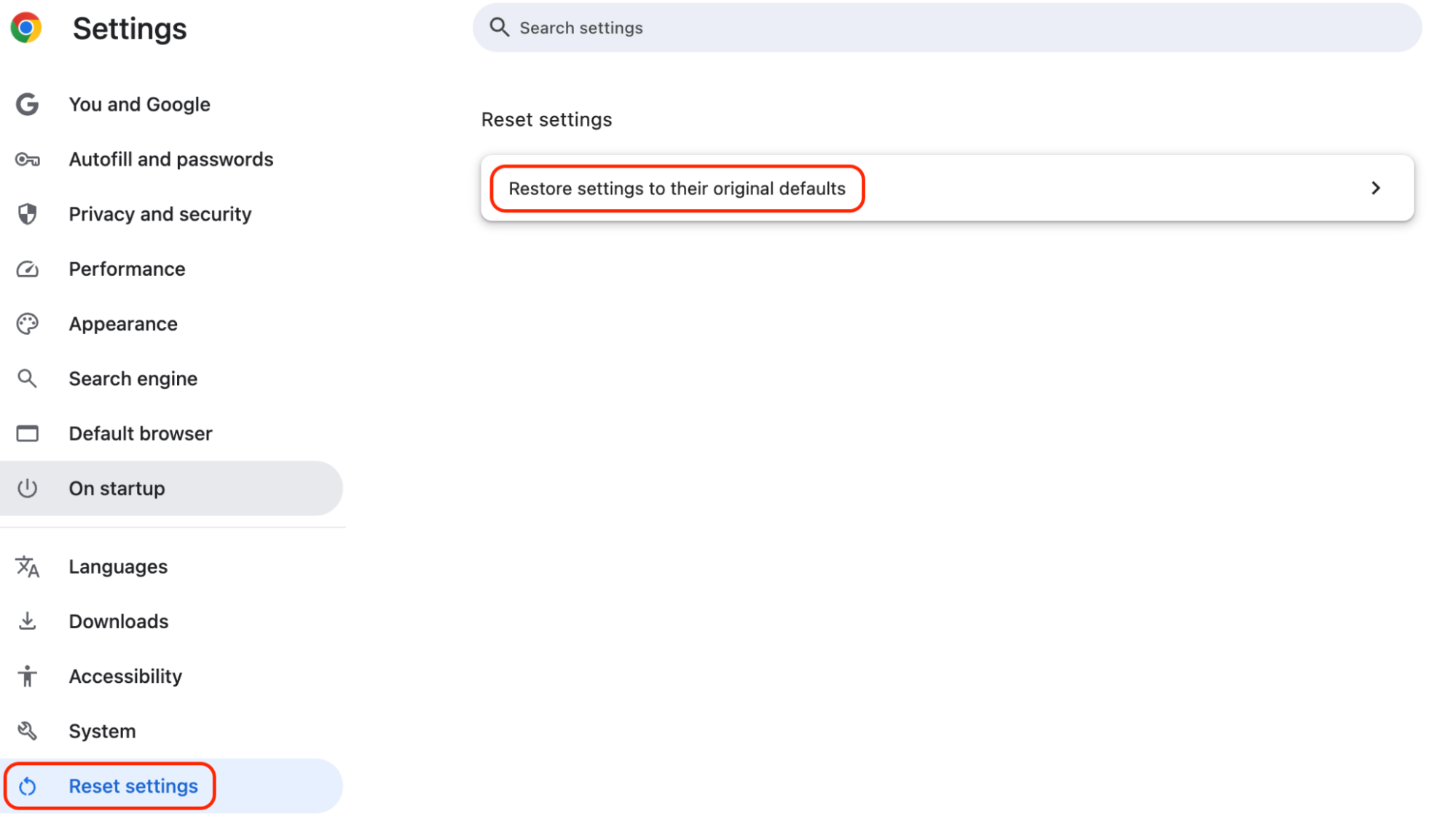
Scroll to Reset settings and select Restore settings to their original defaults.
Confirm by clicking Reset Settings to remove suspicious extensions and reset search engines.
Restart Chrome and verify that the pop-ups and redirects are gone.
Reinstall only trusted extensions from the official Chrome Web Store.
Step 1. Launch Google Chrome and click the three-dot menuStep 2. Open SettingsStep 3. Scroll to Reset settings and select Restore settings to their original defaults
3. Mozilla Firefox
Firefox includes a built-in troubleshooting tool that can quickly remove hijacked settings. From our expertise, the Refresh Firefox feature works well for removing congratulations-you-won scams caused by malicious extensions or altered browser preferences.
Restore Firefox safely using this method:
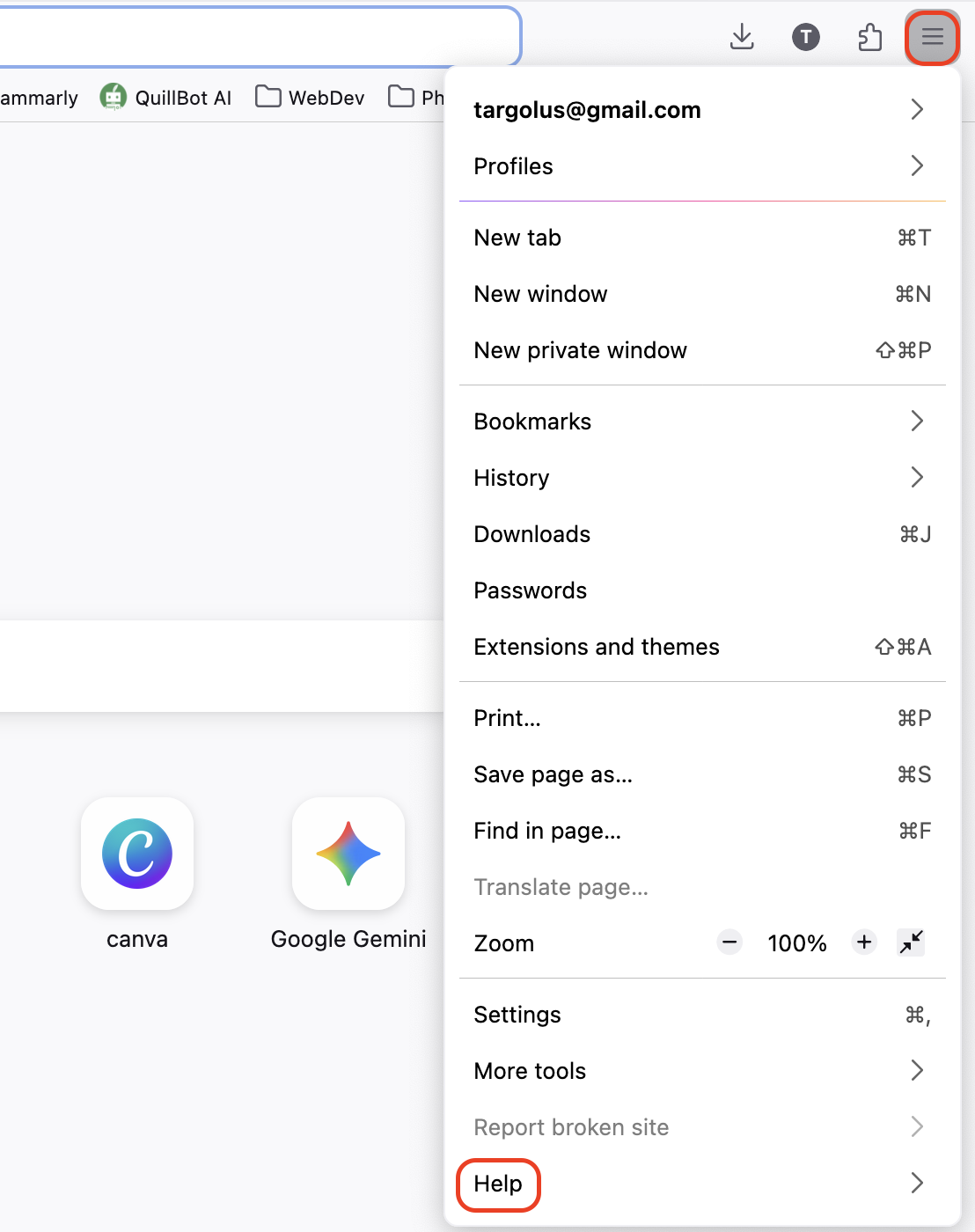
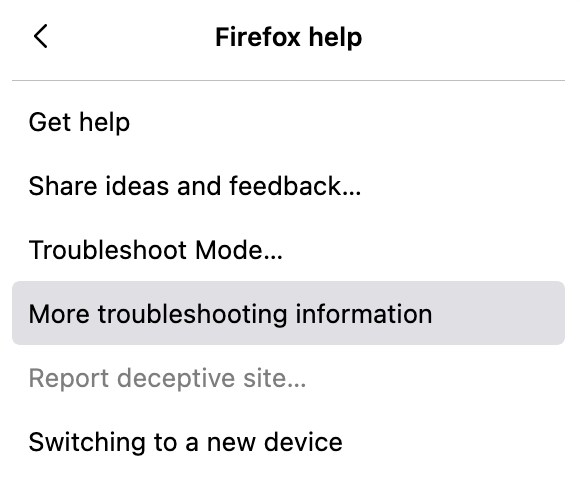
Open Mozilla Firefox, click the menu icon, and select Help → More Troubleshooting Information.
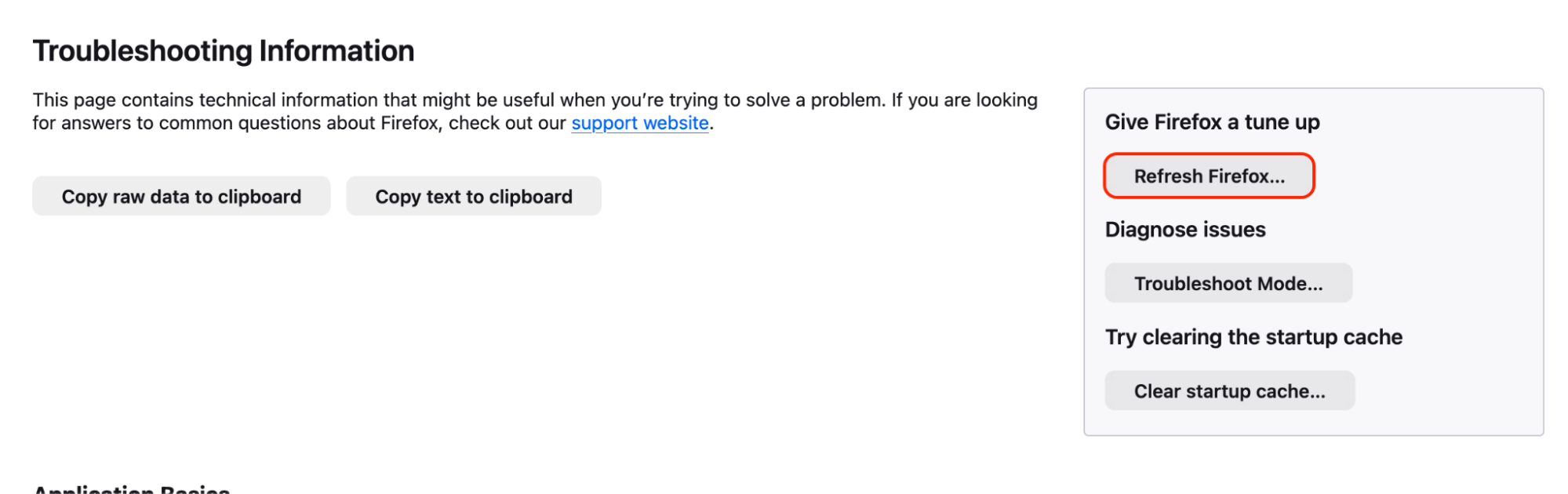
Click Refresh Firefox, then confirm the reset when prompted.
Wait while Firefox removes extensions and restores default settings.
Restart the browser automatically and verify normal browsing behavior.
Install only trusted extensions after confirming that the pop-ups no longer appear.
Step 1. Open Mozilla Firefox, click the menu icon, and select HelpStep 2. Click More Troubleshooting InformationStep 3. Click Refresh Firefox, then confirm the reset when prompted
Conclusion
The “Congratulations, you won” virus is a deceptive pop-up scam designed to trick users into sharing personal data or installing unwanted programs. In this guide, we showed how to recognize the warning signs and remove the threat by updating macOS, stopping suspicious processes, deleting unknown apps, and resetting affected browsers.
For stronger protection going forward, we highly recommend that you consider using MacKeeper, which offers real-time Antivirus protection, helping scan files, apps, and system folders for hidden malware. Running regular scans with our solution helps detect suspicious activity early and keeps your Mac protected from similar pop-up threats.
We respect your privacy and
use cookies
for the best site experience.
Privacy Preferences Center
We use cookies along with other tools to give you the best possible experience while using the
MacKeeper website. Cookies are small text files that help the website load faster. The cookies we
use don’t contain any type of personal data meaning they never store information such as your
location, email address, or IP address.
Help us improve how you interact with our website by accepting the use of cookies. You can change
your privacy settings whenever you like.
Manage consent
All cookies
These cookies are strictly necessary for enabling basic website functionality (including page
navigation, form submission, language detection, post commenting), downloading and purchasing
software. The website might malfunction without these cookies.