This Webpage was Reloaded Because a Problem Occurred
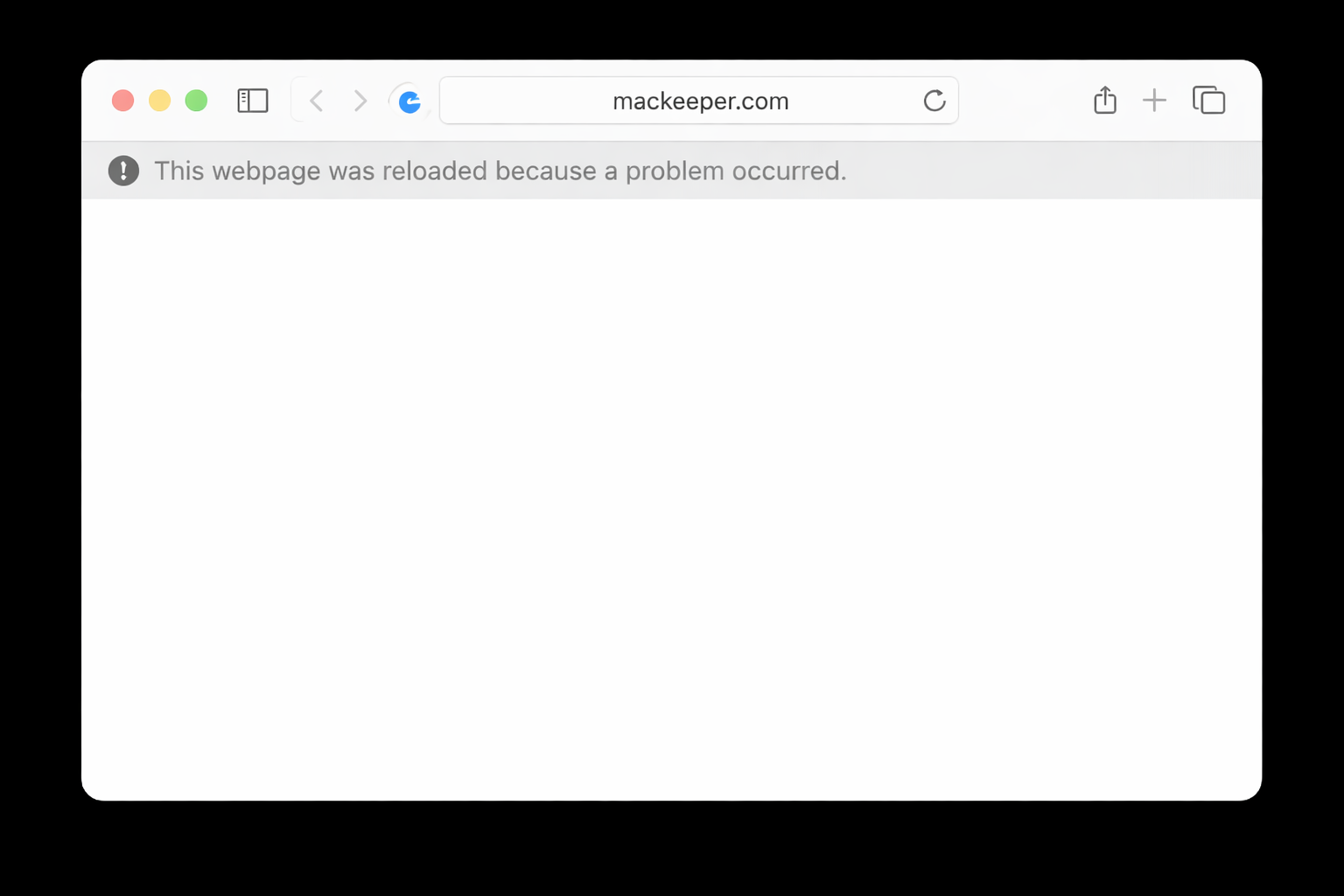
You’re reading an article, filling out a form, or checking your email—and Safari suddenly flashes the message “this webpage was reloaded because a problem occurred.” Everything you were doing vanishes. This Safari warning typically points to a memory, caching, or compatibility issue that is easy to resolve once you know where to look. If you’d rather prefer contacting a professional to sort it out, MacKeeper’s Premium Services are here for you to get Safari running smoothly again.
What does “This webpage was reloaded because a problem occurred” mean in Safari?
This warning appears when Safari’s WebKit engine detects that a page has crashed or become unresponsive. Instead of leaving you staring at a frozen screen, Safari automatically reloads the tab. You might also see a variation that reads “a problem repeatedly occurred,” which means the page keeps crashing every time Safari tries to reload it.
The message itself is vague on purpose. Safari doesn’t specify the exact cause, so the issue could stem from your Mac, the browser, or the website. If Safari isn't working in other ways too—freezing, refusing to open pages, or quitting unexpectedly—the root cause may be deeper than a single webpage.
Why does Safari show “This webpage was reloaded because a problem occurred?”
From our experience, several factors can trigger this Safari error. Understanding the cause helps you pick the right fix, so let’s walk through the most common ones.
1. High memory or CPU usage
Safari shares your Mac’s memory and processor with every other app running on your Mac. When a webpage loads heavy media, runs complex JavaScript, or streams video, it can consume a large chunk of those resources. Plus, if you open too many tabs on top of that, Safari may not have enough room to keep each page alive.
Older MacBook Air or MacBook Pro models with limited RAM are especially prone to this vulnetrability. You can see CPU usage in Activity Monitor to find out whether a specific page or process is hogging resources.
2. Website compatibility or page errors
Not every website is built to play nicely with Safari because of the incompatible or outdated technologies under its hood. Poorly optimized pages, broken JavaScript, or elements designed only for Chrome can cause Safari to choke. If a page works in another browser but crashes in Safari, compatibility is likely the culprit.
3. Browser extensions or content blockers
Extensions add functionality to Safari, but they also inject extra code into every webpage you visit. An outdated or buggy add-on can interfere with how a page loads—causing repeated crashes, reloading loops, or blank screens. Content blockers, while helpful for removing ads, sometimes strip out page elements that Safari needs to render the site correctly.
If you suspect an extension is behind the issue, you can uninstall extensions one at a time to isolate the problematic one.
4. Cached data or temporary browser files
Safari stores copies of websites locally so pages load faster on your next visit. Over time, these cached files can become outdated or corrupted. When that happens, Safari may try to load a broken local version of a page instead of fetching a fresh one—and the mismatch can trigger the reload warning.
5. Outdated Safari or macOS version
Apple regularly patches Safari through both macOS updates and separate software updates. This means that Safari can receive updates independently from the broader macOS updates, which may include specific fixes for Safari or other software components. That’s why running an older macOS version means you’re also running an older Safari build—one that may contain known bugs or lack support for modern web technologies. Remember that a simple macOS update can resolve crashes tied to outdated software.
A note from our experts:
After realizing the principal causes under “this webpage was reloaded because a problem occurred” in Safari, you logicaly want to solve the issue. This can be much easier done with our support team assistance.
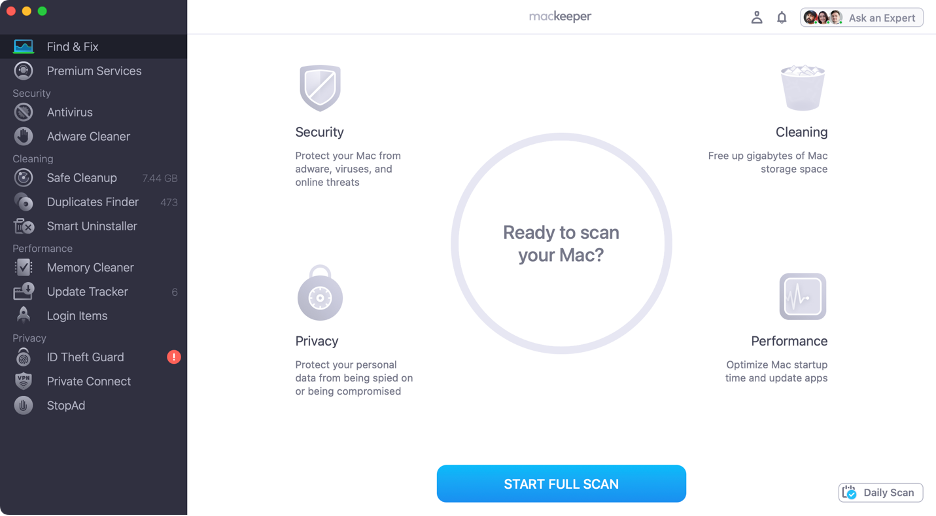
On the left, choose the Premium Services feature within the app.
Click on Chat Now to contact our support representative.
Type the message to explain your problem on Mac and follow the instructions of our expert.
Step 1. Run MacKeeper on your MacBookStep 2. Choose Premium Services from the sidebarStep 3. Click Chat NowStep 4. Type in your message
How to fix “This webpage was reloaded because a problem occurred?”
Now that you know what’s causing the issue, let’s go through the fixes. Start from the top and work your way down—most people find a solution within the first few steps. And if your Mac is running hot while Safari acts up, that’s worth investigating too—sometimes Safari causes overheating when a webpage is stuck in a crash-reload loop.
1. Close unused tabs and reduce memory usage
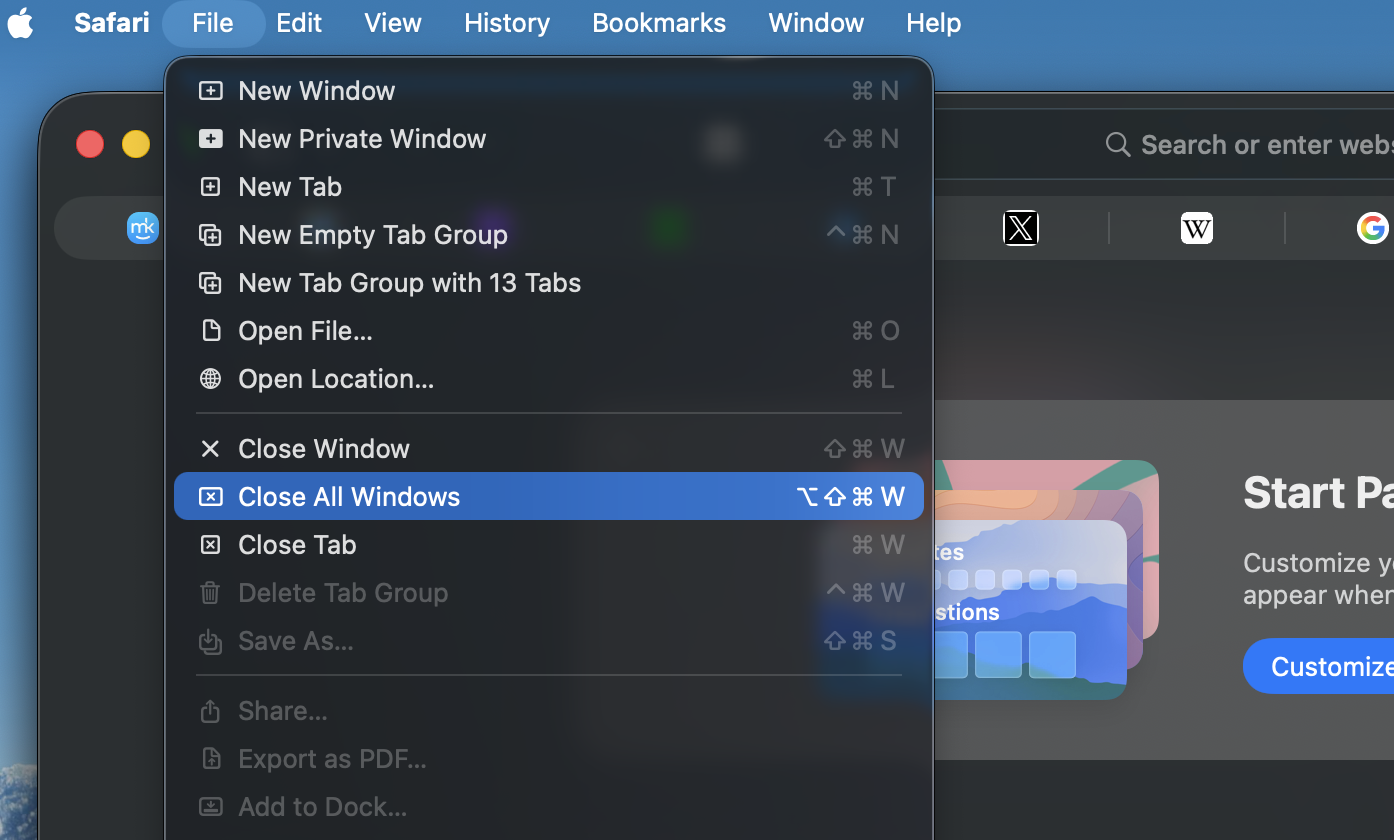
Every open tab uses memory, even if you’re not actively looking at it. Closing the ones you don’t need is the quickest way to free up resources and give Safari room to breathe. If your browser is Safari very slow in general, this step alone can make a noticeable difference. Learn how to do it below:
Look at your tab bar and identify pages you’re not using right now.
Close each unnecessary tab by clicking the small “x” on its left side.
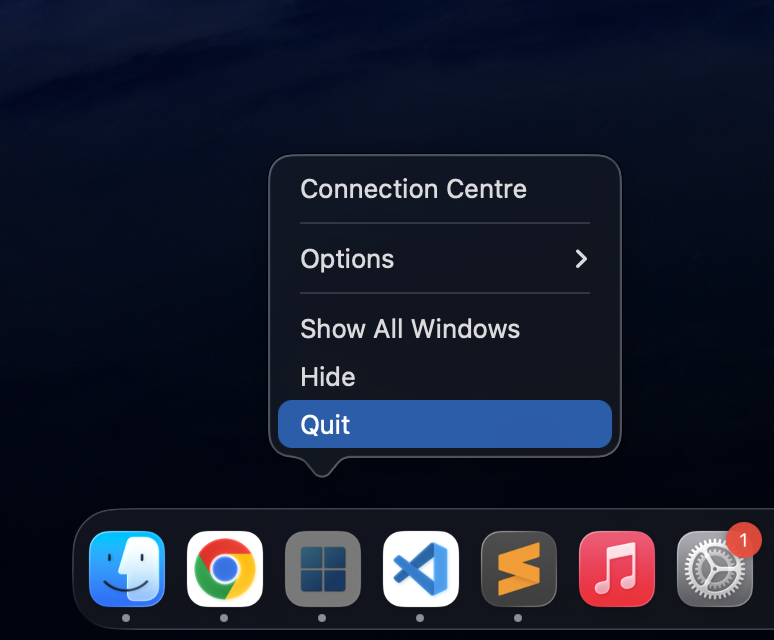
Quit any other memory-heavy apps running in the background—video editors, design tools, or virtual machines.
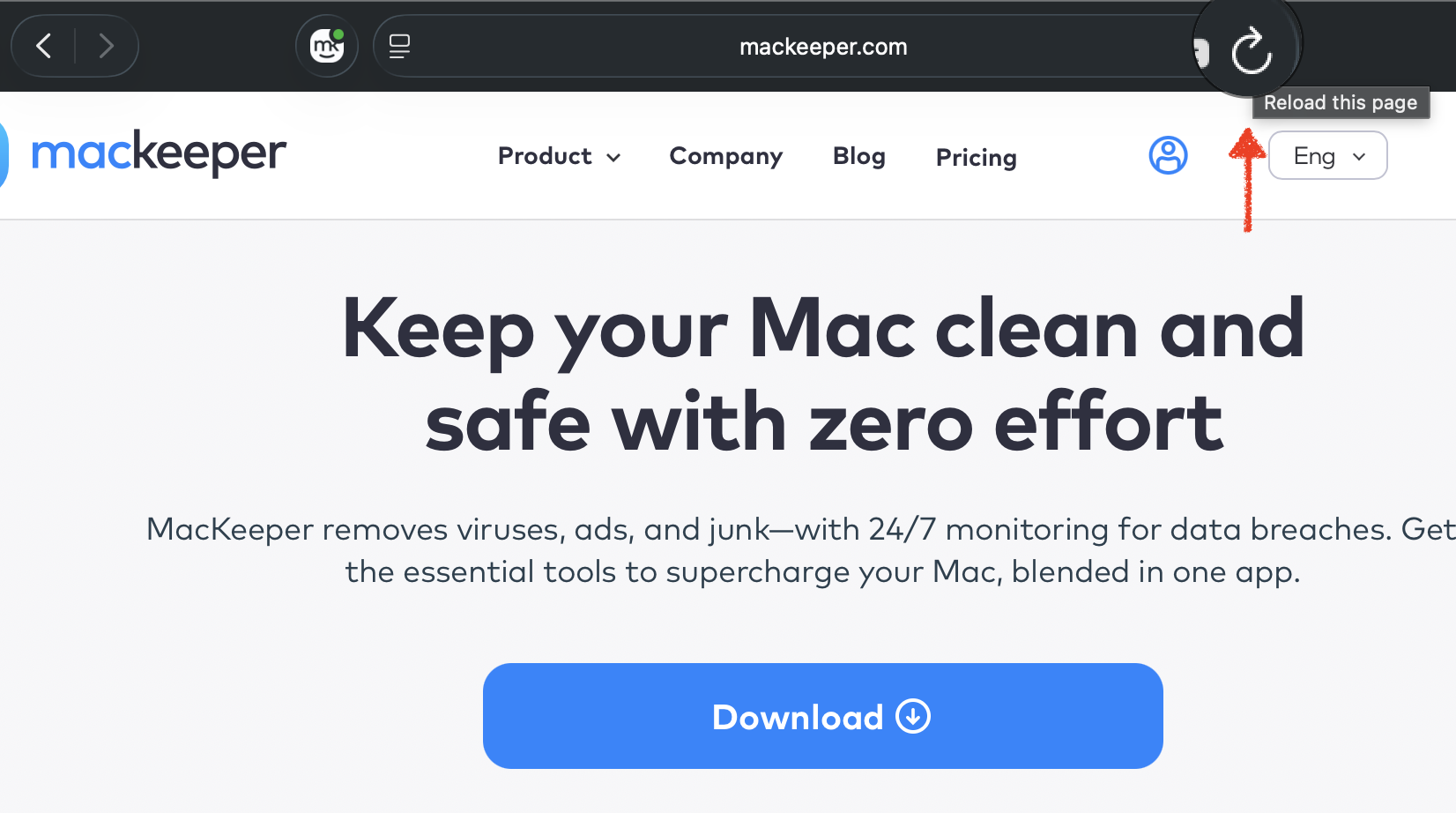
Try reloading the page that was causing the issue.
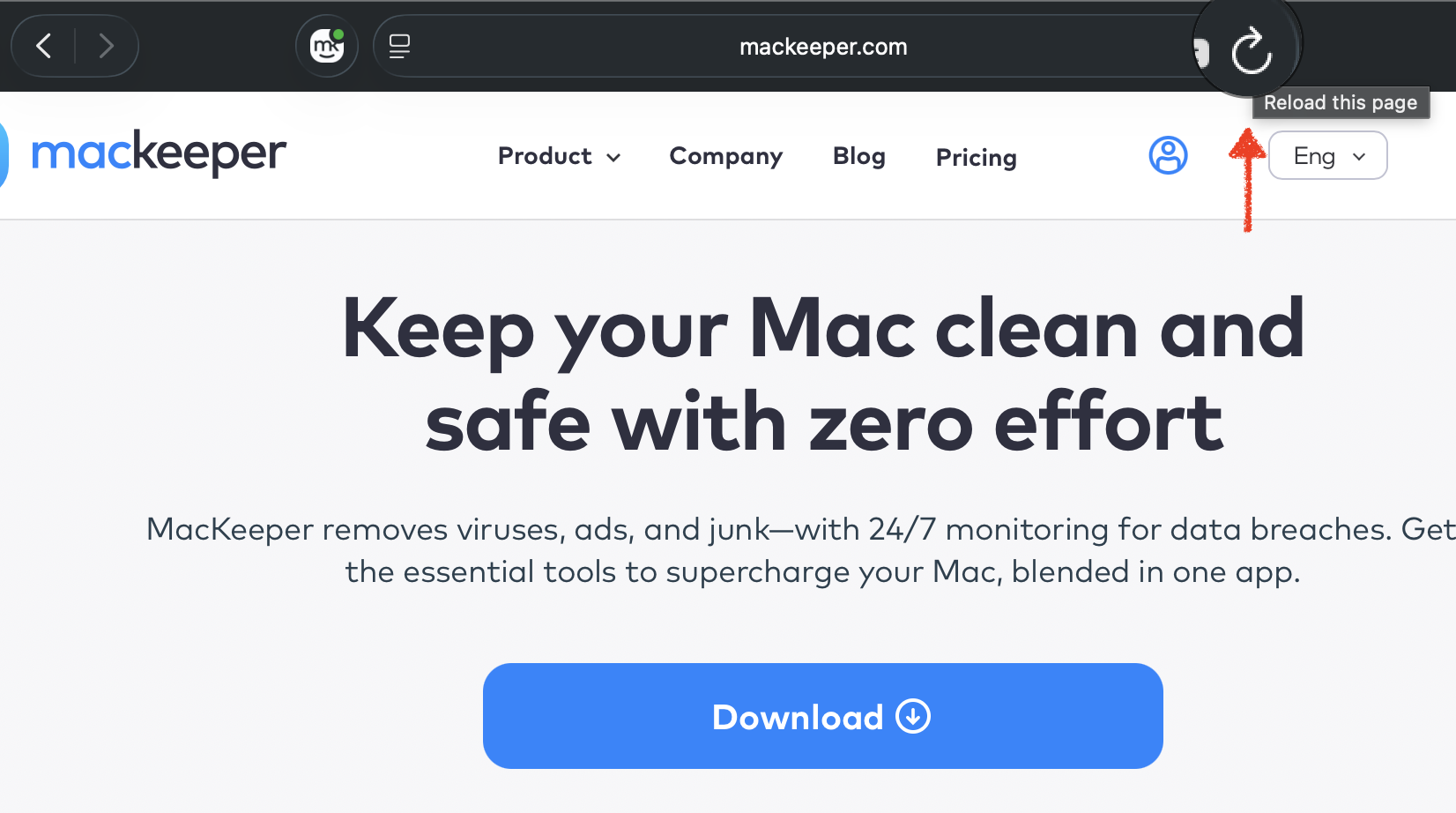
Step 1. Go to File (Next to Safari name) and choose Close All WindowsStep 2. Go to the Dock panel and close all unnecessary appsStep 3. Reload the page
2. Restart Safari
Restarting the browser clears out temporary processes, flushes short-term caches, and gives Safari a clean slate. It’s simple, but it resolves more issues than you’d expect—and here’s how to do:
Press Command + Q to quit Safari.
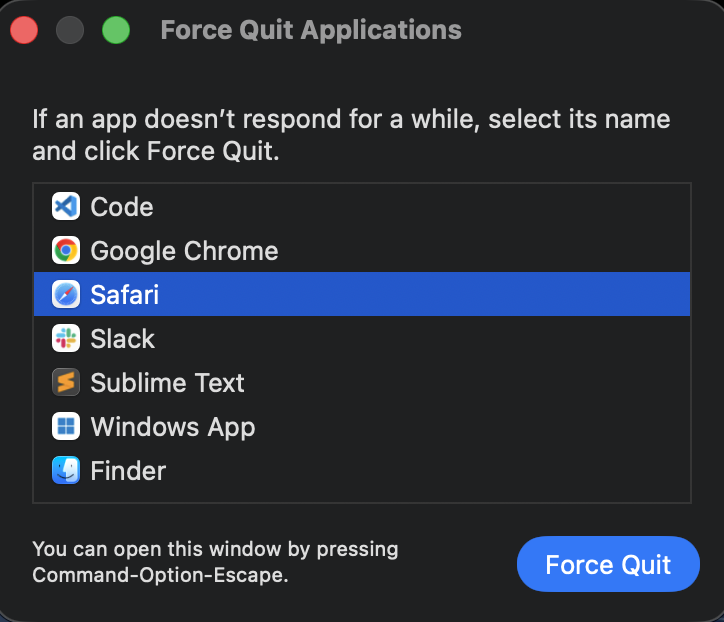
If Safari won’t quit, press Option + Command + Esc to open the Force Quit window, select Safari, and click Force Quit.
Wait a few seconds, then reopen Safari from the Dock or Applications folder.
Navigate back to the page and check if the issue persists.
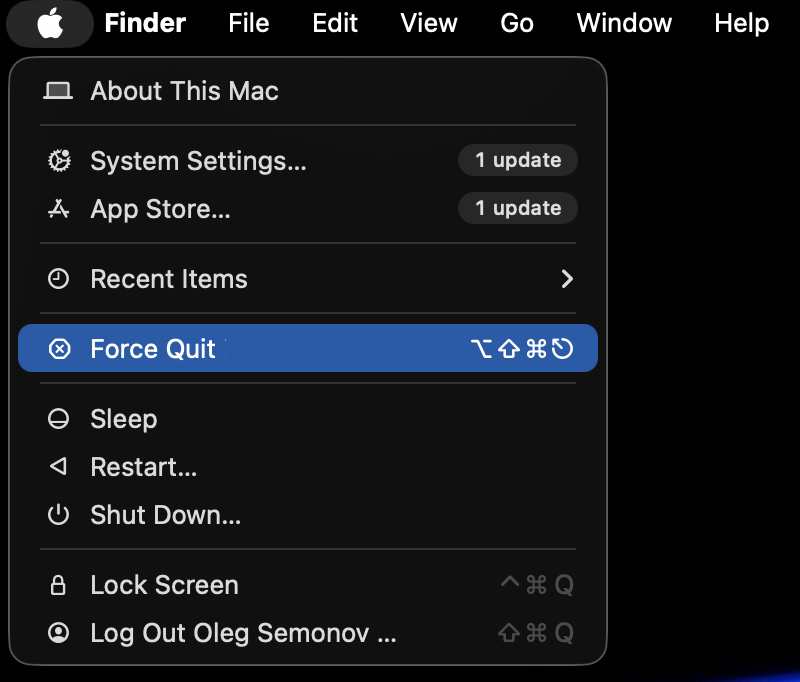
Step 1. Go to the Apple logo > Force QuitStep 2. Select Safari and press Force Quit button
3. Restart Mac
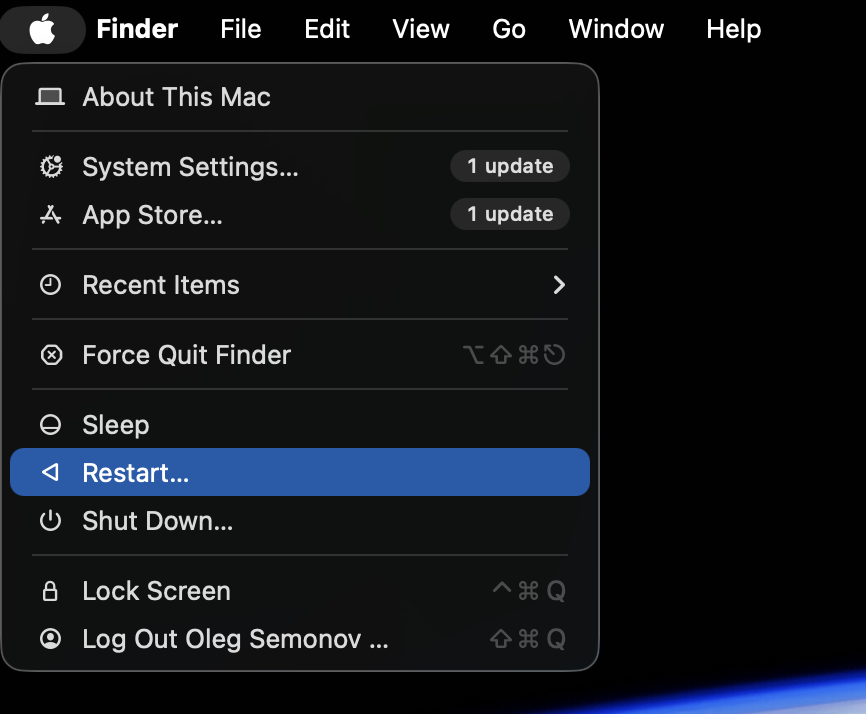
A full restart clears your Mac’s memory, stops lingering processes, and resets system-level caches. If Safari’s issue is tied to a broader system resource shortage, a reboot is often all it takes. Here’s how:
Save any open work across your apps.
Click the Apple menu in the top-left corner and choose Restart.
After your Mac boots up, open Safari and revisit the page.
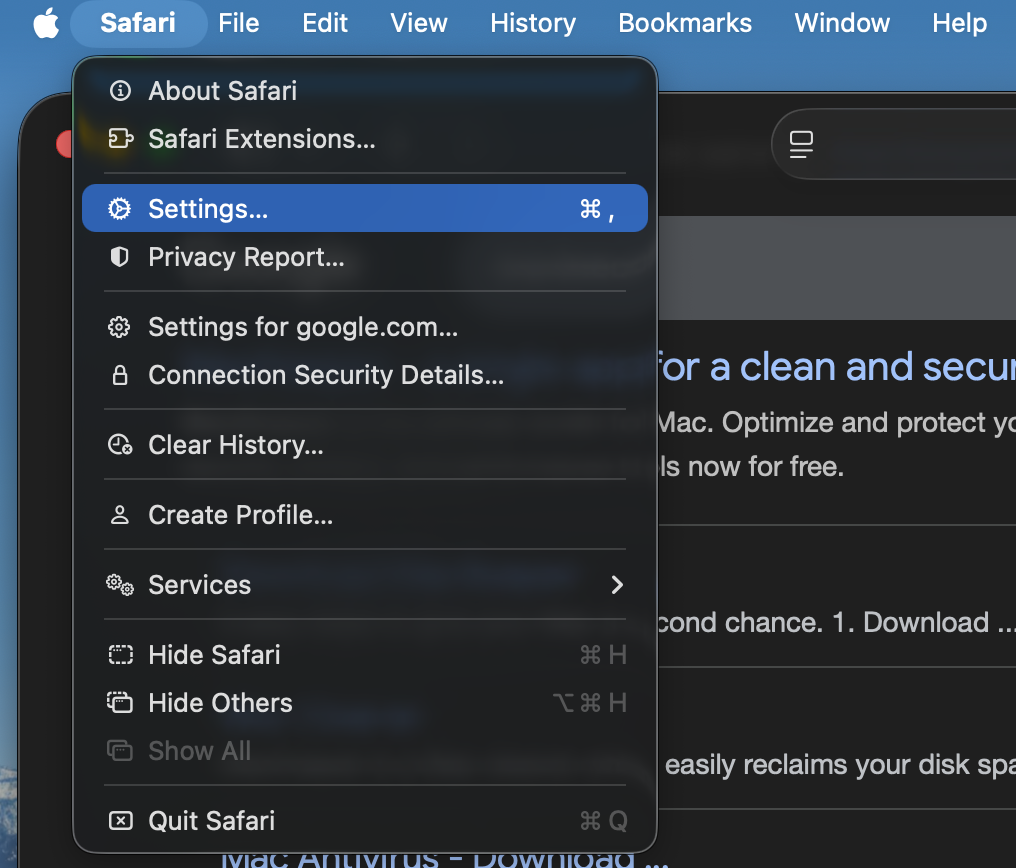
4. Clear Safari cache and website data
Clearing stored website data removes corrupted or outdated files that may be interfering with page loading. You can clear Safari cache in just a few clicks:
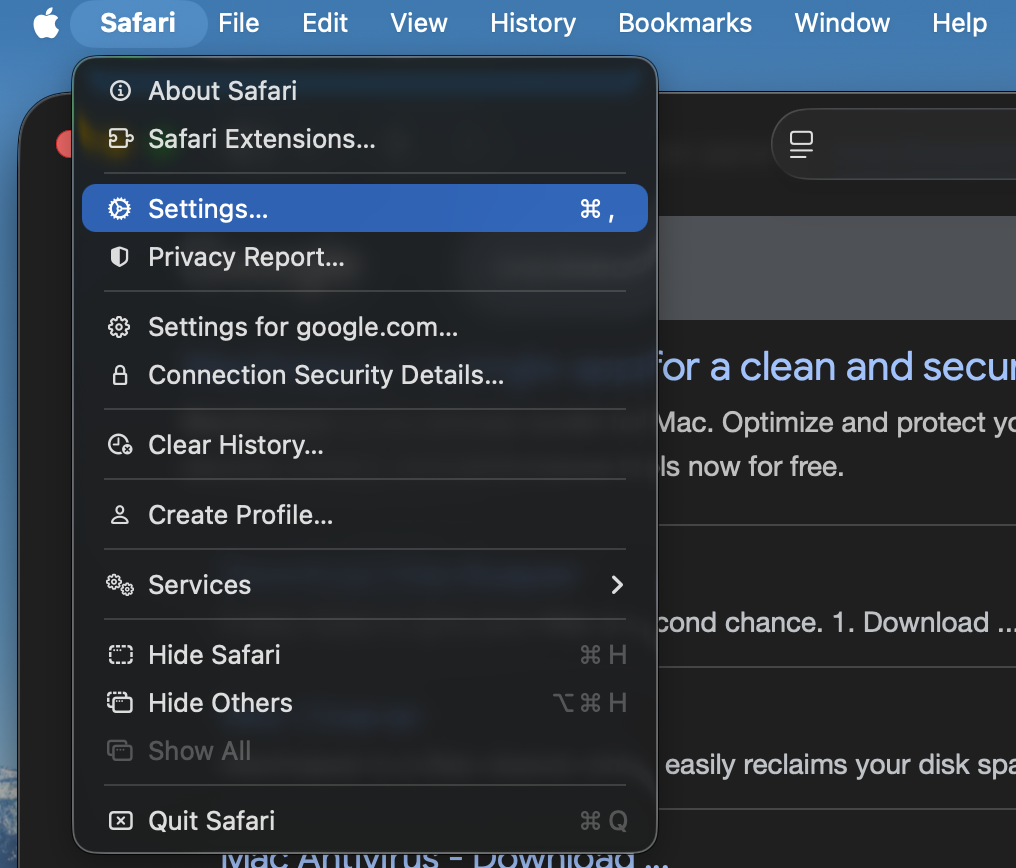
Open Safari and click Safari in the menu bar.
Select Settings (or Preferences on older macOS versions).
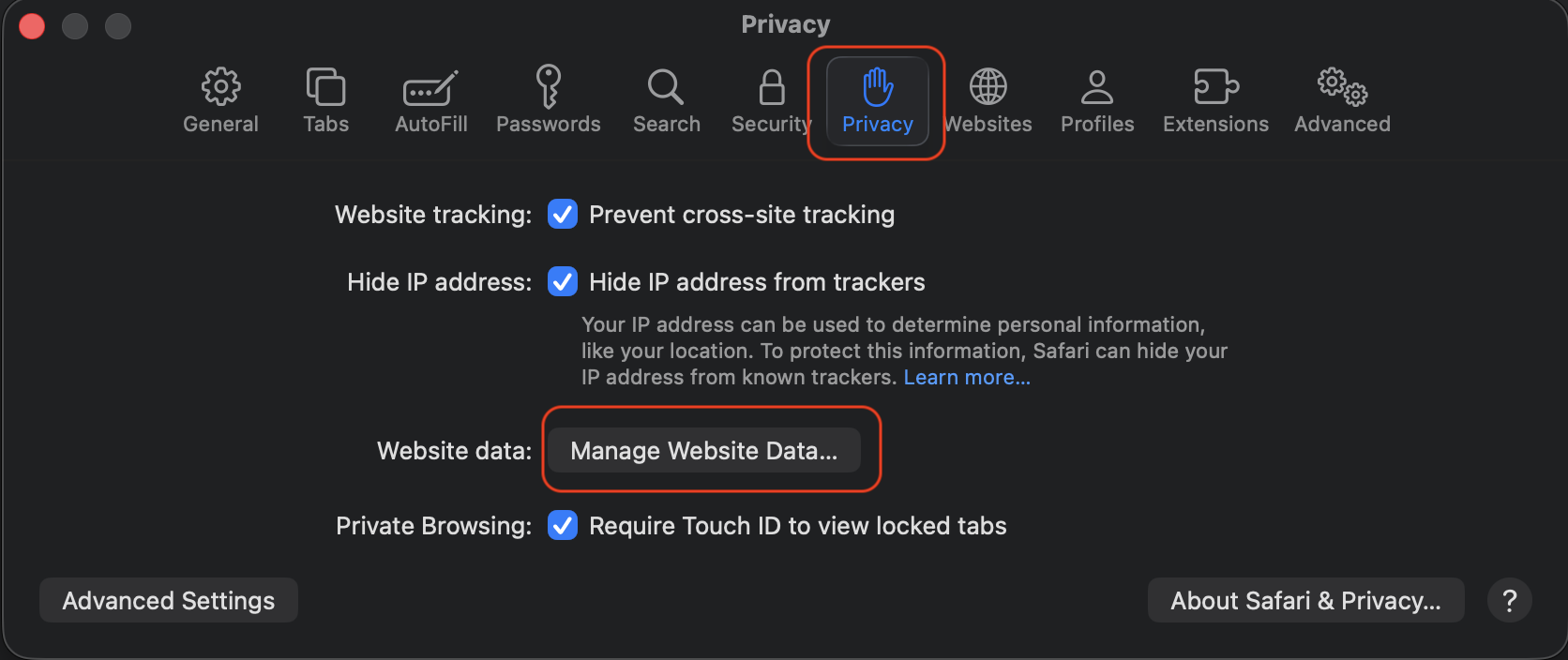
Go to the Privacy tab and click Manage Website Data.
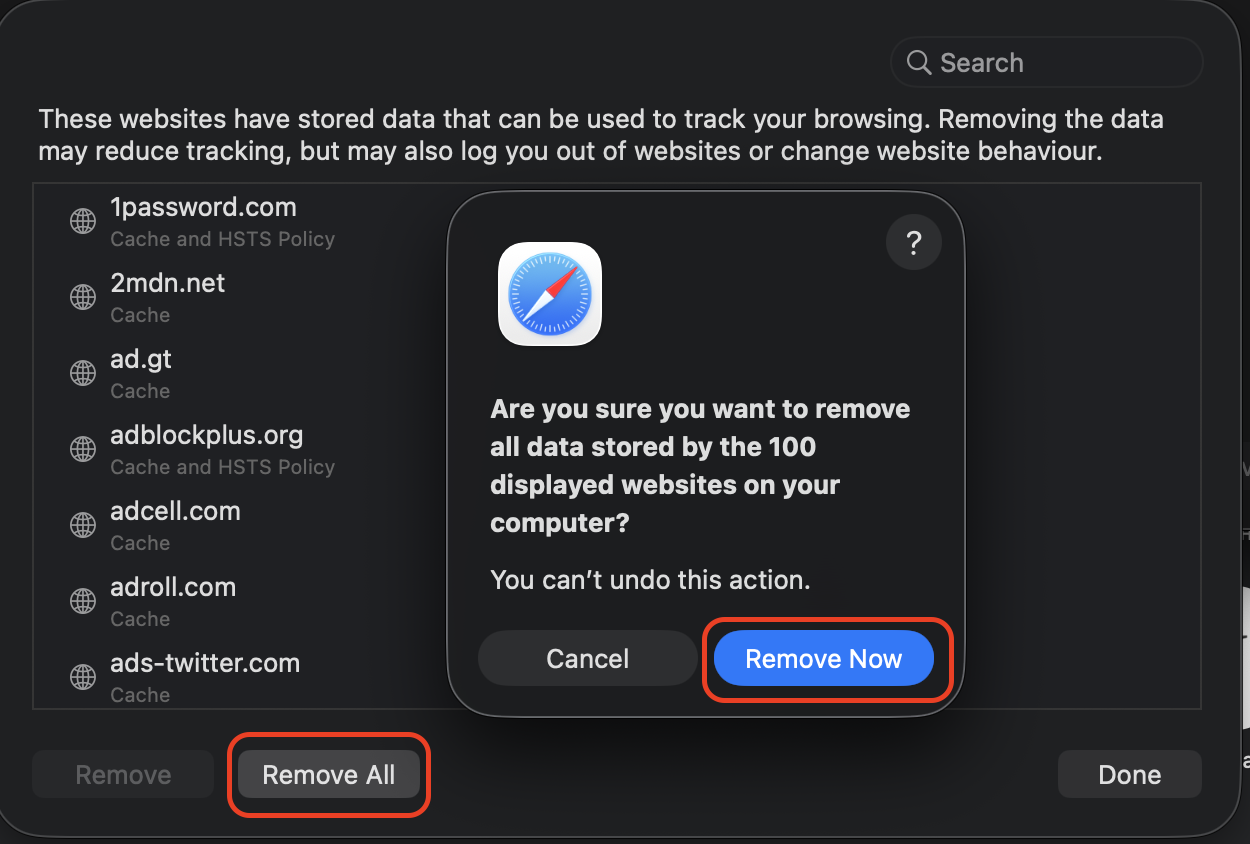
Click Remove All to clear the cached data, then confirm.
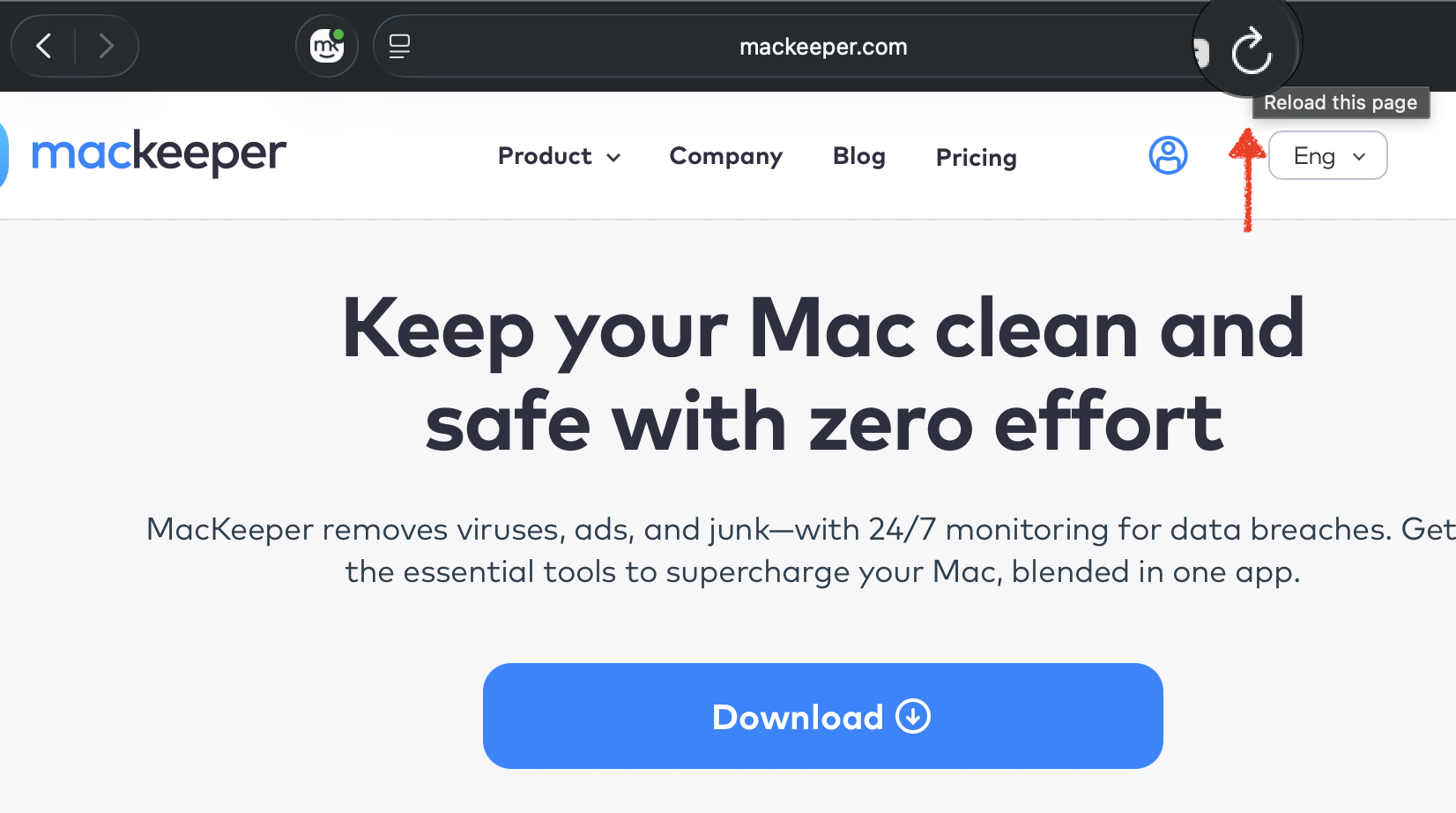
Reload the page.
Step 1. Go to Safari → Top-left menu bar → SettingsStep 2. Go to Privacy tab and press Manage Website DataStep 3. Press Remove All and Confirm the ActionStep 4. Once its done → Reload the page
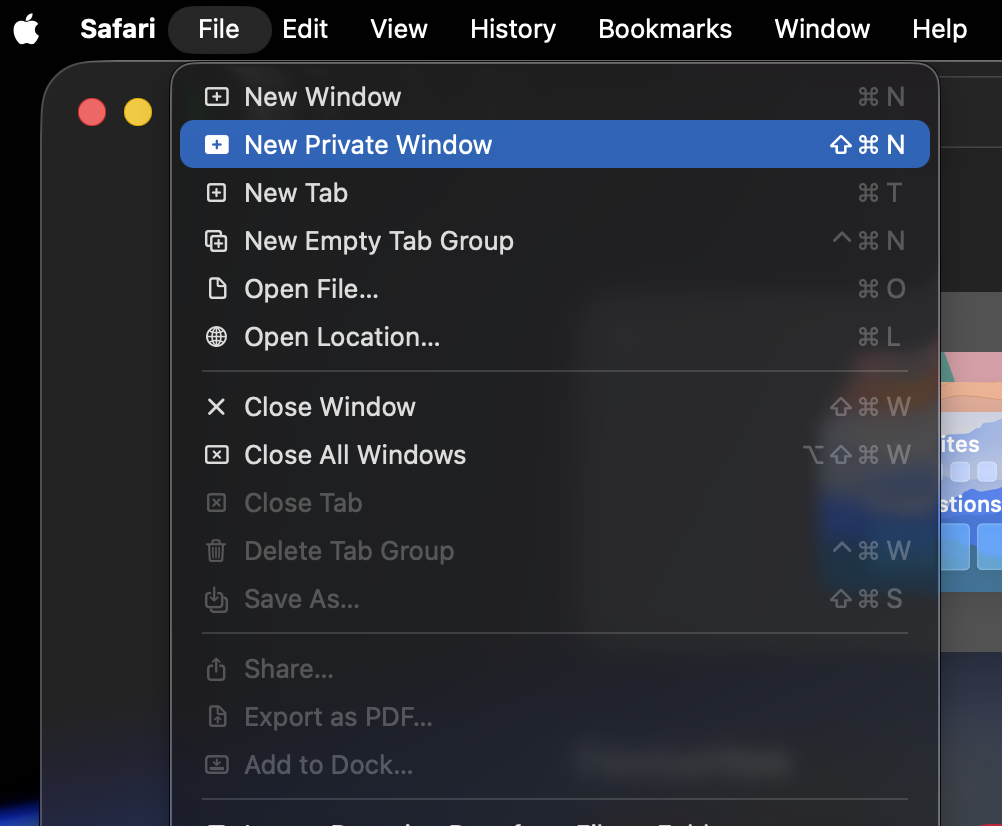
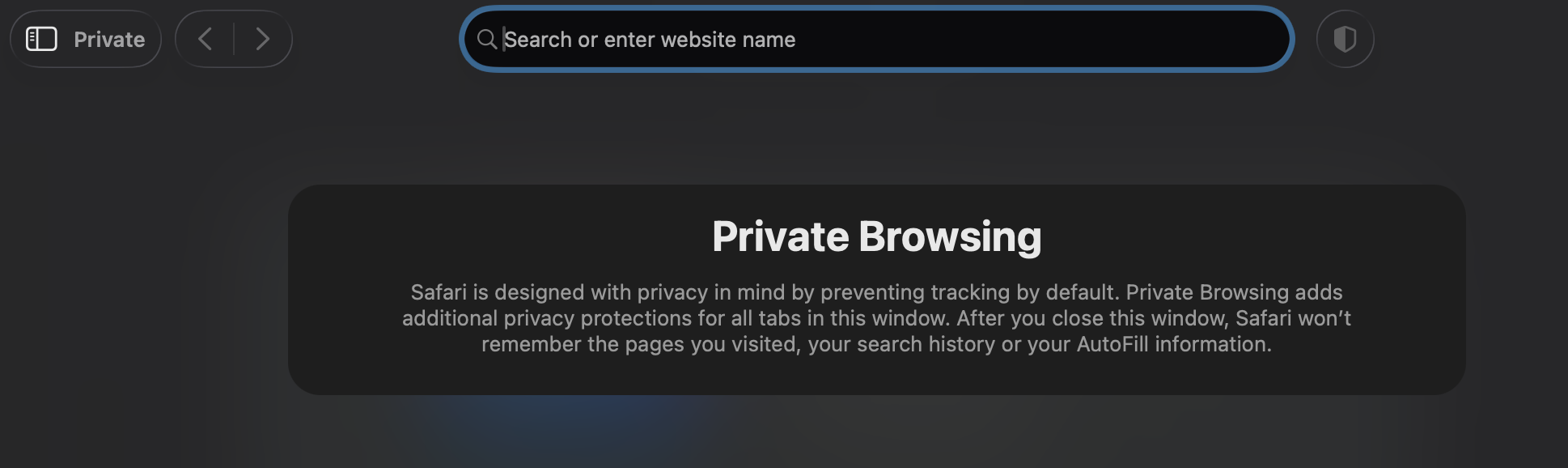
5. Test the website in a private window
A private browsing session disables extensions and ignores cached data—two common causes of this error. Opening the page in incognito mode helps you figure out whether the issue lies with Safari’s stored data or add-ons. Follow our instructions:
Paste or type the URL of the webpage that’s been crashing.
If the page loads without issues, the cause is likely an extension or cached data.
Step 1. Go to File (Next to app name) → New Private WindowStep 2. Paste or type the URL of the web page you are having trouble with
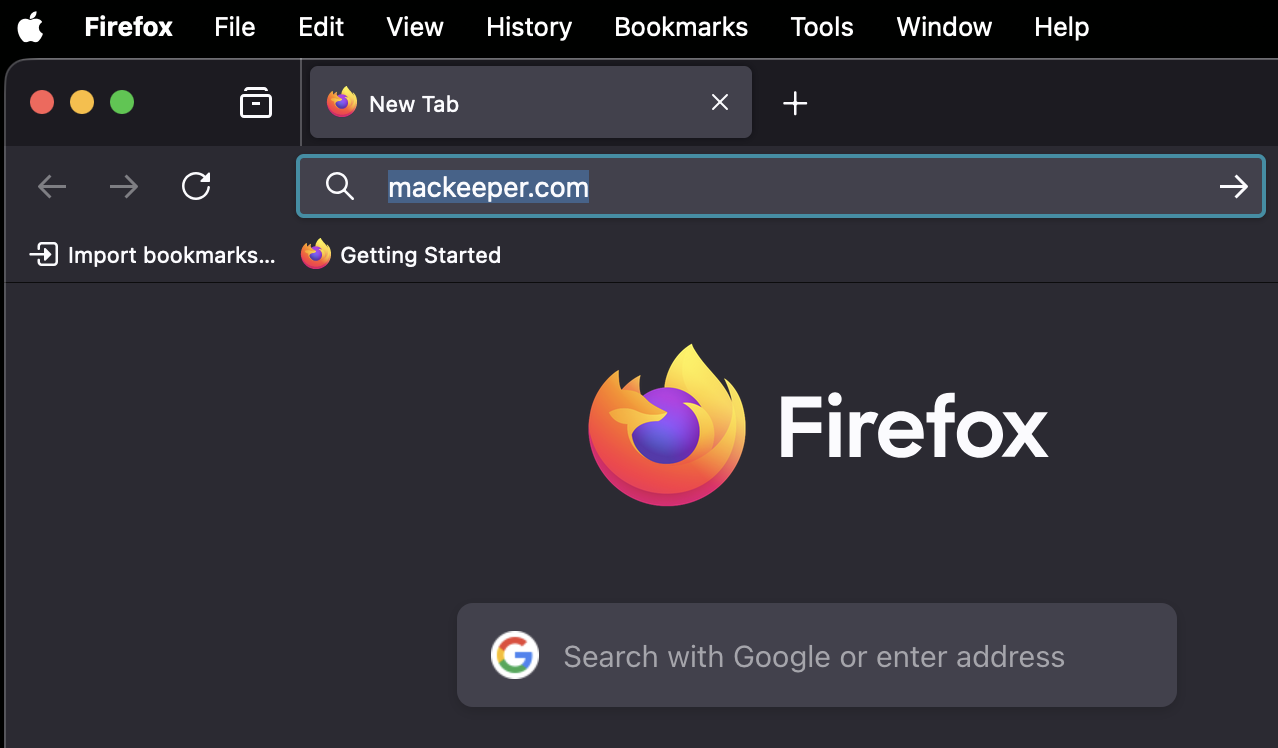
6. Try opening the page in another browser
This step helps you determine whether the issue is on Safari’s side or the website’s. If the page loads in Chrome, Firefox, or another browser, the problem is specific to Safari. If it crashes everywhere, the website itself is likely at fault. Here are our instructions:
Open a different browser—Chrome, Firefox, or Edge.
Navigate to the same URL.
If the page works, the issue is Safari-specific. Continue with the remaining fixes below.
7. Disable or test browser extensions
Turning off extensions one by one is the most reliable way to find a problematic add-on. Follow our hints below:
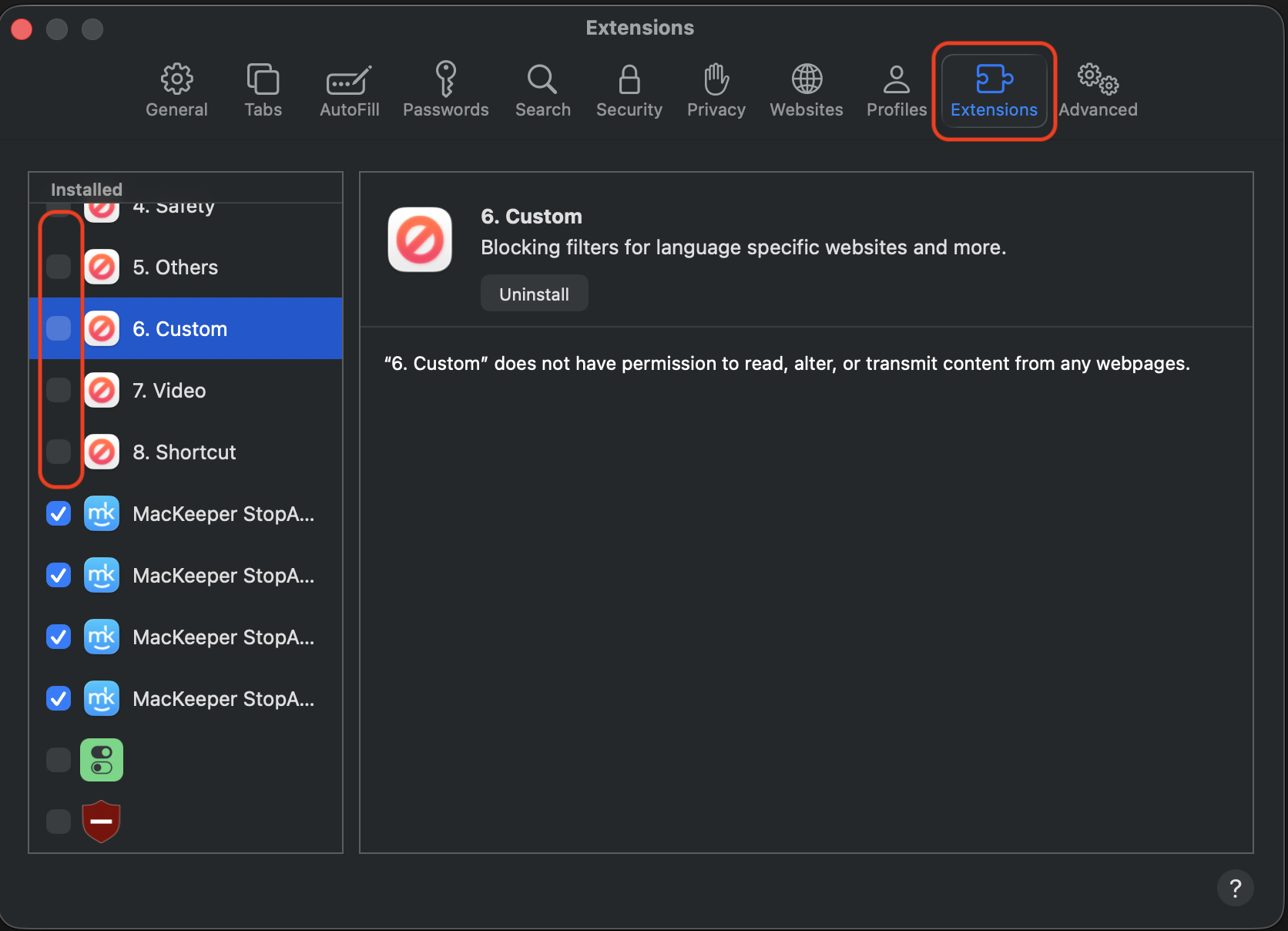
Open Safari > Settings > Extensions.
Uncheck every extension to disable them all at once.
Reload the page. If it works, re-enable extensions one at a time to find the culprit.
Once you’ve identified the faulty extension, remove it or check for an update from the developer.
Step 1. Go to Safari → Top-left menu bar → SettingsStep 2. Select ‘Extensions Tab’ and uncheck unnecessary extensionsStep 3. Reload the page
An extra help from our team:
Be aware of the changes in the Step 1 in newer versions like macOS Tahoe, Apple renamed the section slightly. So instead of “Extensions”, it may appear as:
👉 Safari → Top-left menu bar → Safari Extensions.
Whereas on older versions (like macOS Sonoma or earlier), you’ll see it as:
👉 Safari →Top-left menu bar → Settings → Extensions.
8. Check for macOS and Safari updates
Apple bundles Safari updates with macOS releases, so keeping your system current also keeps your browser current. You can also update Safari browser independently through the App Store in some cases. Below, here’s how:
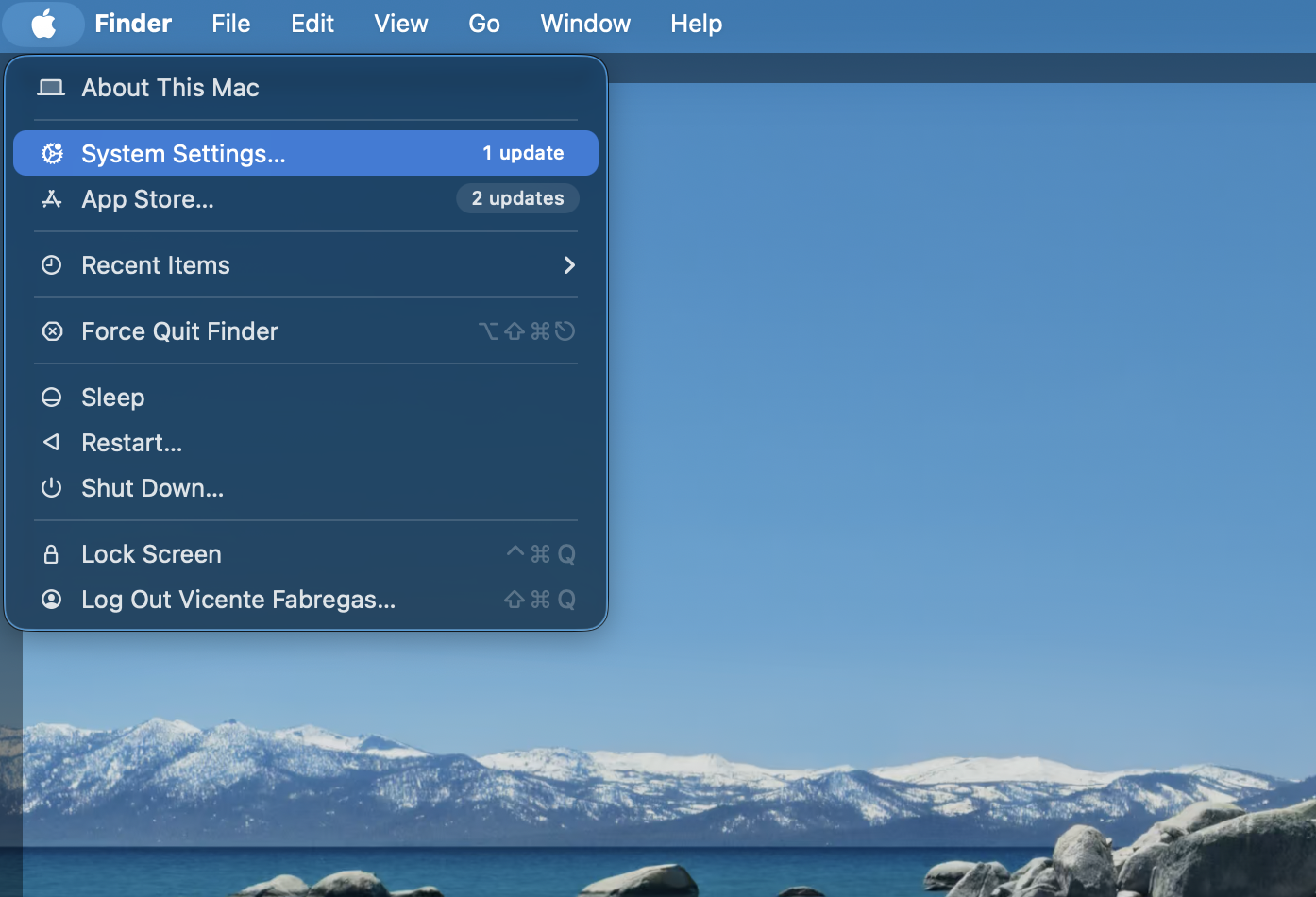
Click the Apple menu and select System Settings (or System Preferences on older macOS).
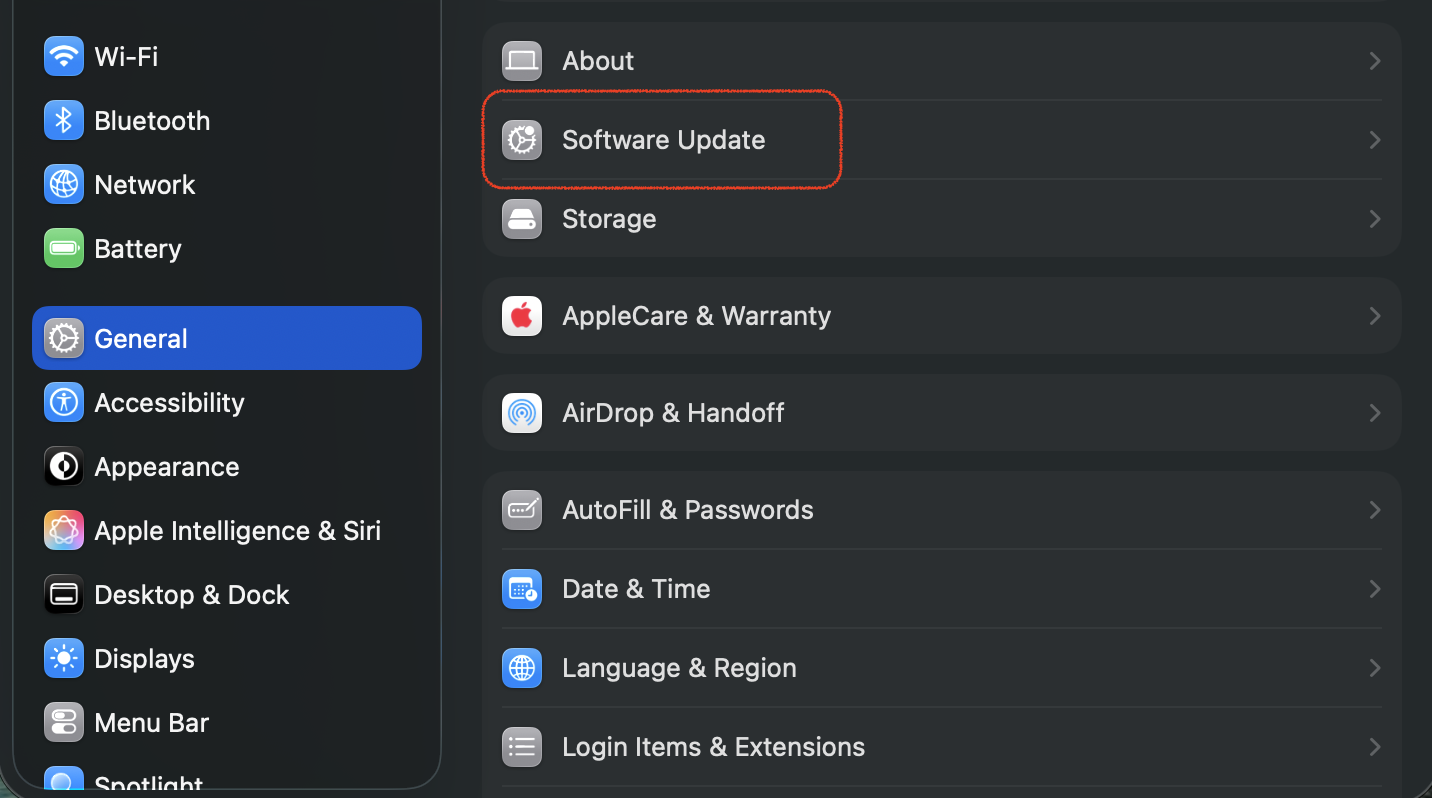
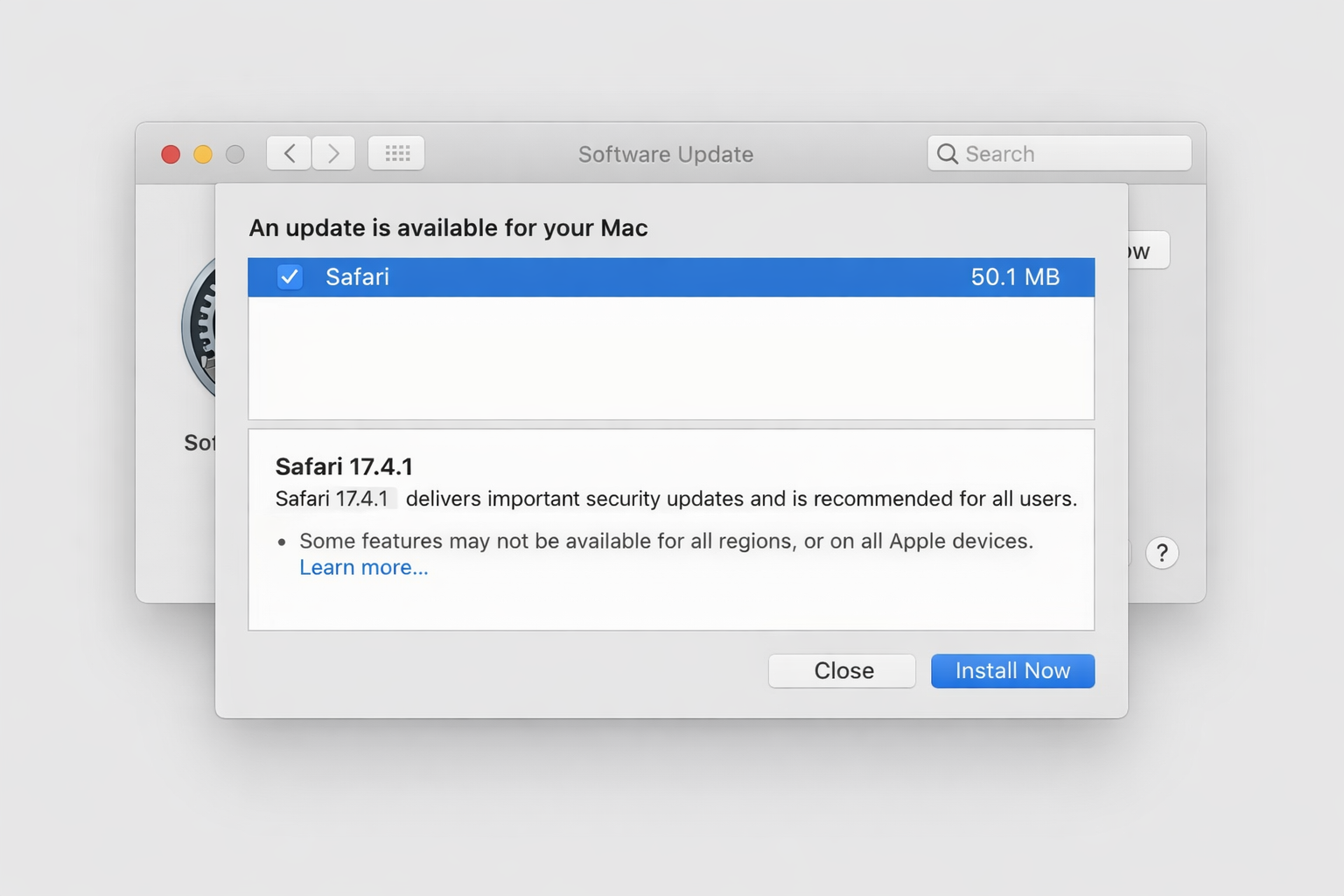
Go to General > Software Update.
If an update is available, click Install Now and follow the on-screen instructions.
After the update finishes, restart your Mac and test Safari.
Step 1. Click the Apple menu > System SettingsStep 2. Go to General > Software UpdateStep 3. Select ‘Safari’ and click Install Now
9. Monitor system resource usage
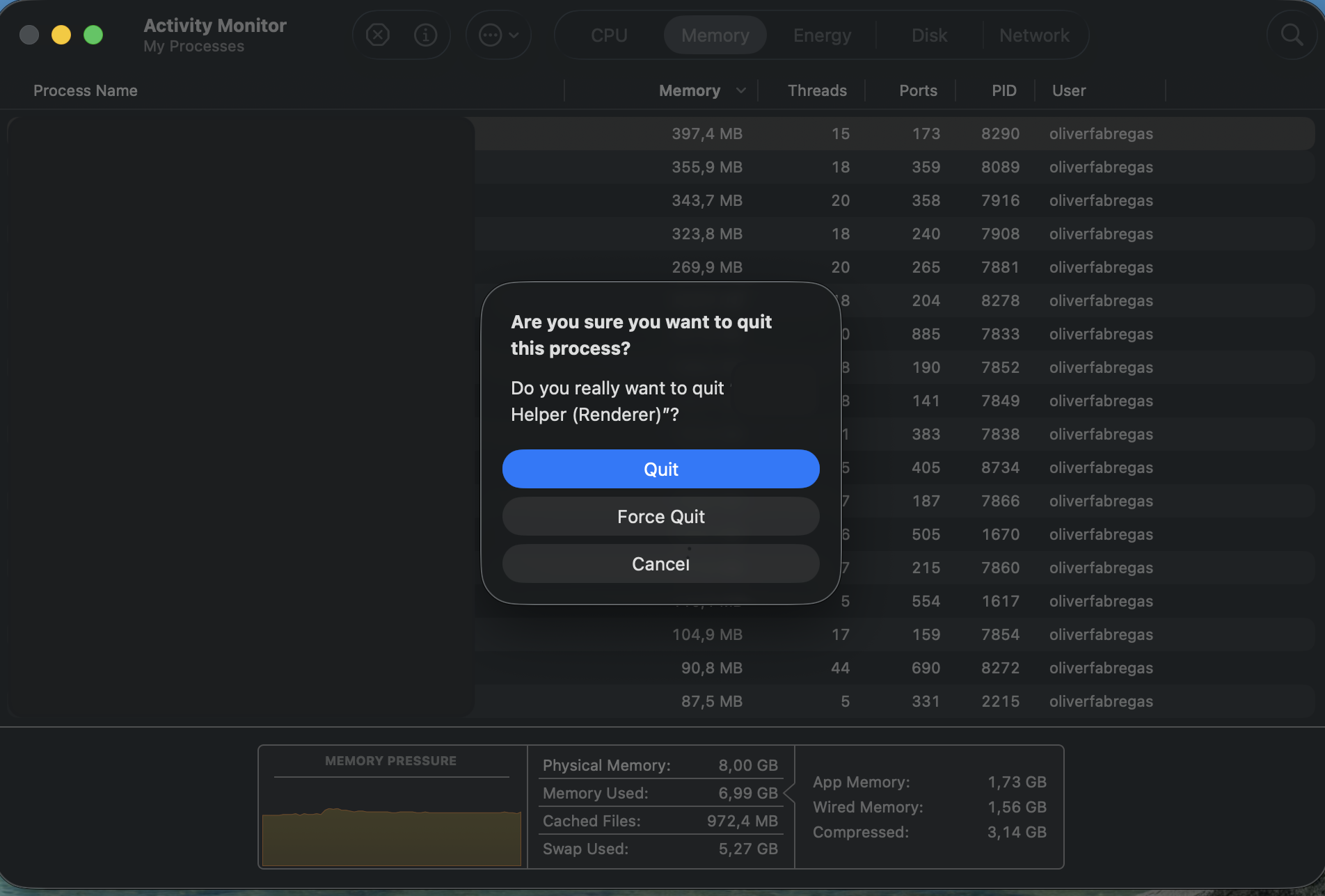
Activity Monitor—built right into macOS—lets you see what is running on your Mac and how much memory or CPU each process consumes. Just follow our steps:
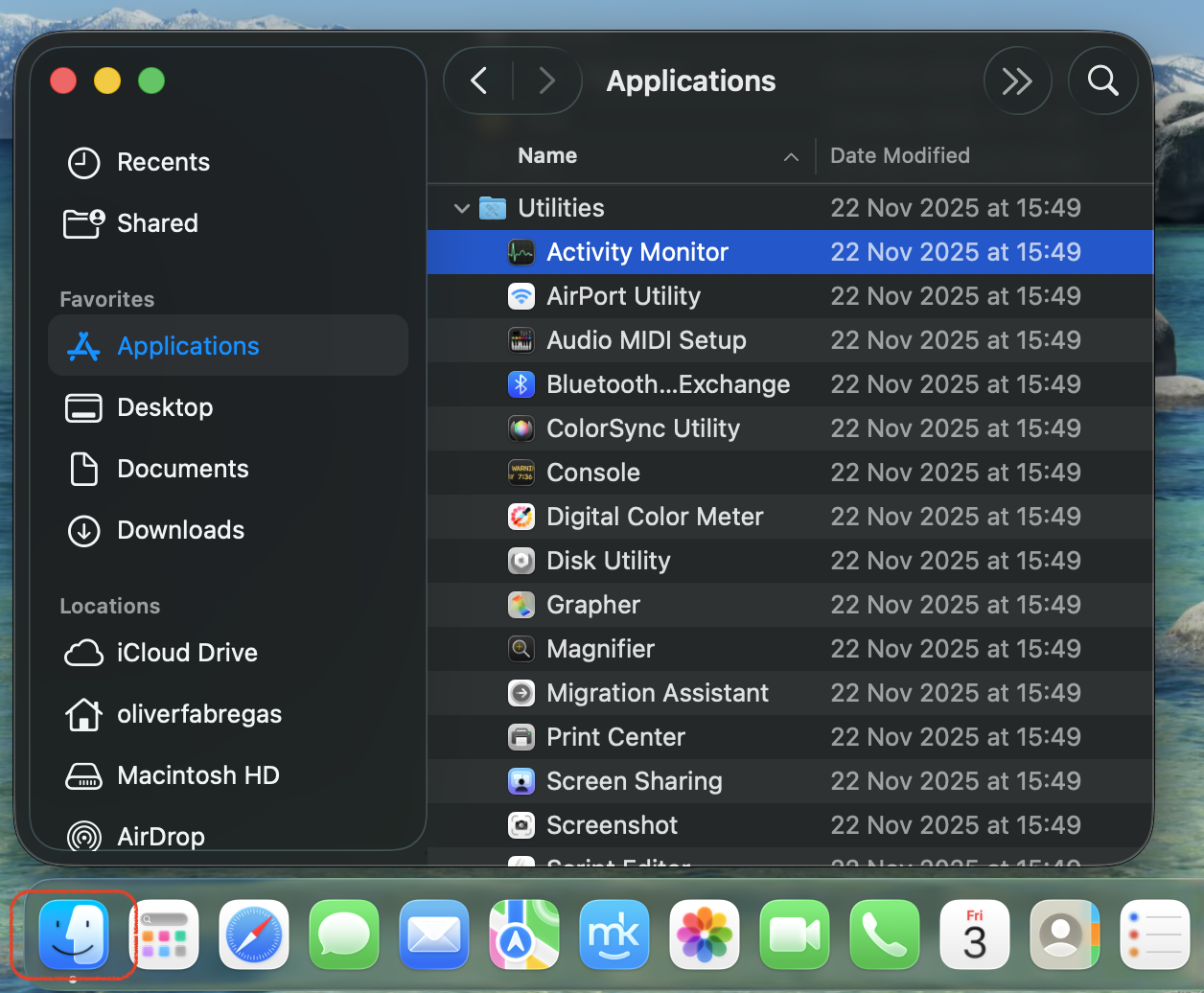
Open Finder > Applications > Utilities > Activity Monitor.
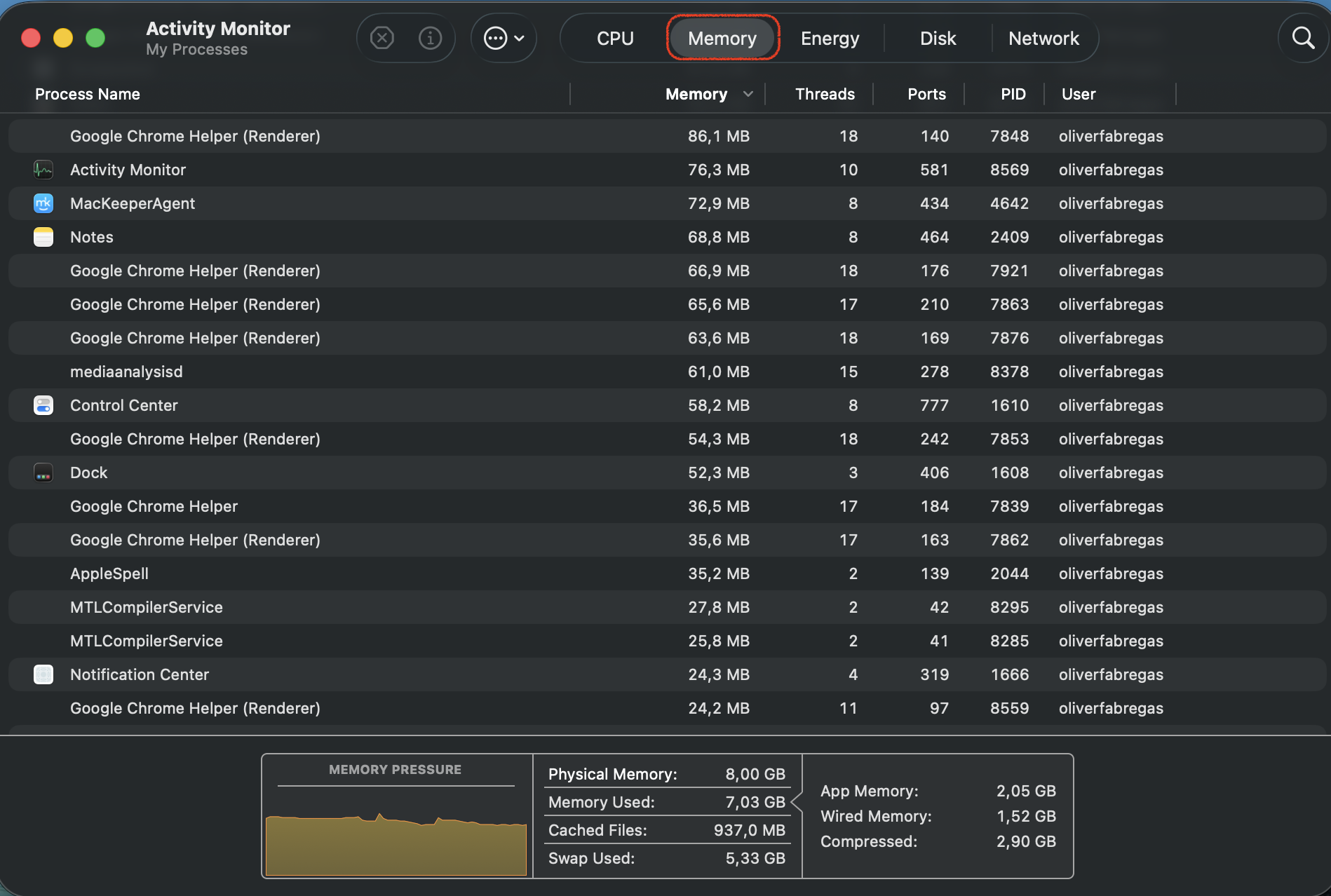
Click the Memory tab to sort processes by RAM usage.
Look for Safari or specific webpage processes consuming large amounts of memory.
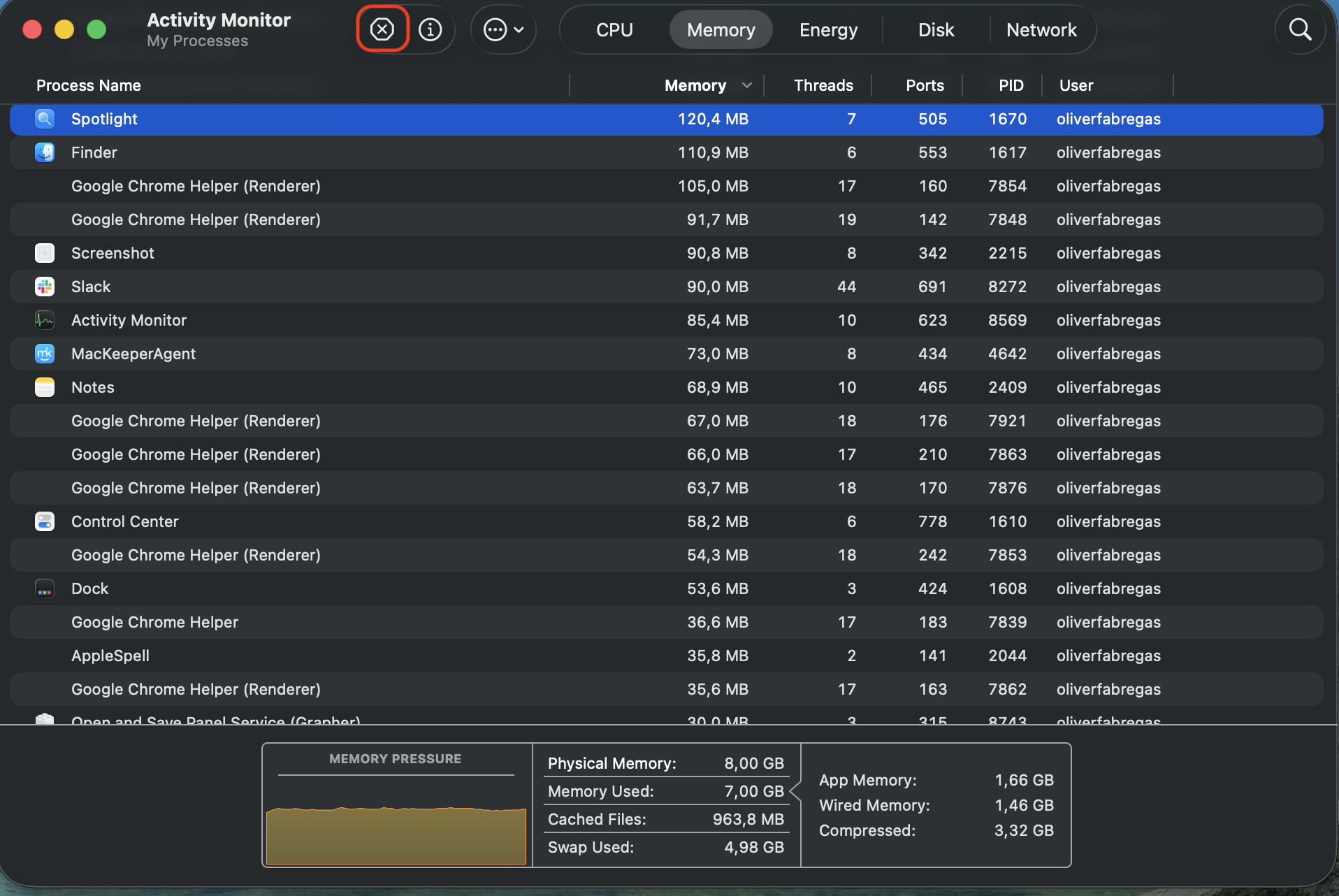
Select a resource-heavy process and click the “x” button in the toolbar to stop it.
Step 1. Go to Finder > Applications > Utilities > Activity MonitorStep 2. Click the Memory tabStep 3. Select the App and press the “x” button to quitStep 4. Confirm the action
When the problem is caused by the website?
Sometimes the issue isn’t your Mac or Safari at all—it’s the website. Pages loaded with heavy JavaScript, auto-playing video, or broken code can overwhelm Safari’s rendering engine. If you’ve tried every fix above and the page still crashes, the site’s code is likely to blame.
A few telltale signs that the website is the problem:
The page crashes in Safari but also behaves oddly in other browsers.
Other users report similar loading issues with the same site.
The page works on some visits but fails on others, suggesting the site’s server is unstable.
In these cases, there isn’t much you can do on your end. Try visiting the site later, or reach out to its support team to let them know about the issue.
How to prevent Safari “This webpage was reloaded because a problem occurred” in the future?
You can’t eliminate every webpage crash, but here are a few habits that will make them far less frequent:
Keep macOS and Safari updated. Apple patches known Safari bugs through system updates, so don’t skip them.
Limit the number of open tabs. Aim to keep it under 10–15 at a time, especially on older Macs.
Review your extensions regularly. Remove any you don’t actively use and make sure the rest are up to date.
Clear Safari’s cache periodically. A monthly cleanup prevents corrupted files from piling up.
Use MacKeeper’s Safe Cleanup. Our tool will help you to remove junk files, caches, and logs that accumulate across your Mac, freeing up memory and storage that Safari can use.
Monitor system resources with Activity Monitor. As an altentaive, you can also benefit from MacKeeper’s Memory Cleaner within our app to catch resource-heavy processes before they cause a crash.
Conclusion
The “this webpage was reloaded because a problem occurred” message usually stems from memory limits, cached data, or outdated software. If the steps above don’t resolve it, MacKeeper’s Premium Services can diagnose and address the issue remotely—so you can get back to browsing without interruptions. Try it today.
We respect your privacy and
use cookies
for the best site experience.
Privacy Preferences Center
We use cookies along with other tools to give you the best possible experience while using the
MacKeeper website. Cookies are small text files that help the website load faster. The cookies we
use don’t contain any type of personal data meaning they never store information such as your
location, email address, or IP address.
Help us improve how you interact with our website by accepting the use of cookies. You can change
your privacy settings whenever you like.
Manage consent
All cookies
These cookies are strictly necessary for enabling basic website functionality (including page
navigation, form submission, language detection, post commenting), downloading and purchasing
software. The website might malfunction without these cookies.






2.jpg "SOCD Report Detected: (AP Watchdog Expired)")