If you need a Mac cleaner—you’re at the right place! MacKeeper’s Safe Cleanup can scan your system and weed out all the unwanted data that’s clogging up your drive.
When your Mac is low on storage space, it’s just not as useful as it should be. You’ll likely struggle to install new apps and games, backup your photos, or download new music and videos. You may even find that your system fails to do simple things—such as browsing the web—and you’ll be constantly looking for ways to free up some storage space.
Fortunately, there’s an easy way to do this without manually deleting content and software that you actually want to keep. With a Mac cleaner, you can rid your machine of hidden junk and other unnecessary files that build up over time.
What is Mac cleaning software?
Mac cleaning software frees up system storage resources so that they can be reused. Over time, your machine becomes bogged down by junk and other unnecessary files that hog storage space until they’re properly removed. Cleaning software takes care of this process for you so that you don’t need to do it manually.
A note from our experts:
Mac cleaning is an integral part of optimizing its performance. The main challenge is selecting the most effective cleaning tool. We recommend using MacKeeper’s Safe Cleanup to get rid of caches, log files, mail attachments, and more in just a few clicks.
Mac cleaners are pretty simple tools. Most of them are designed to trawl through your Mac’s storage drive to identify hidden junk and other unnecessary files that you simply don’t need to keep. If you’ve been using your Mac for a while and you’ve never cleaned it, this could be dozens of gigabytes of data that could be used for other things.
Most Mac cleaners work by targeting the following things:
Temporary files: These include things like logs and caches, which tend to grow in size over time until they’re eventually removed
Trash: Many of us forget to empty our Mac’s trash can, which means all the files and folders we thought we deleted are actually still there, taking up space
Languages: By default, macOS includes a bunch of language files that most of us don’t need to keep. So, if you only use one or a couple of languages on your system, deleting the rest can free up a surprising amount of space
Mail attachments: If you use the built-in Mail app on your Mac, all the emails you receive with attached photos, videos, and other files take up space on your drive. Over time, this can add up to a lot of data, which you may not need to keep forever
Duplicate files: These are files, photos, and more that you may have downloaded twice or accidentally duplicated.
Some Mac cleaner apps offer additional tools, such as the Smart Uninstaller in MacKeeper, which lets you remove unwanted apps and games without leaving behind any files that clutter up your storage drive. Manually uninstalling apps on Mac doesn’t always remove these. Also, MacKeeper can clear RAM to make your machine snappier.
Can you clean your Mac without a special app?
You can manually clean your Mac by removing junk files, temporary log and cache files, unneeded language packs, mail attachments, and more. In what way? By using Mac’s built-in capabilities, like Finder. You can also empty your trash regularly manually, so that you don’t have data building up in there.
The problem with manual cleaning is that it’s difficult to locate all of the unnecessary files that should be removed. While some things are easy to get rid of—such as files in your trash can and mail attachments—others, like log and cache files, are typically hidden away. Thus, you have to go digging for them, and it’s almost impossible to keep track of them without assistance.
Also, as we mentioned above, manually removing apps doesn’t always delete all the files associated with them, so unwanted junk gets left behind. Hence, you need a Mac cleaner to properly remove all traces of an application without trying to locate those files yourself.
Best Mac cleaner apps
The good news is that using a cleaner app doesn’t have to be expensive, and there are plenty of great options to choose from on macOS—as we covered in our guide of the best free and paid Mac cleaners. Your best pick is obviously MacKeeper, which has an effective Safe Cleanup feature for removing all unnecessary junk, plus other great cleaning tools.
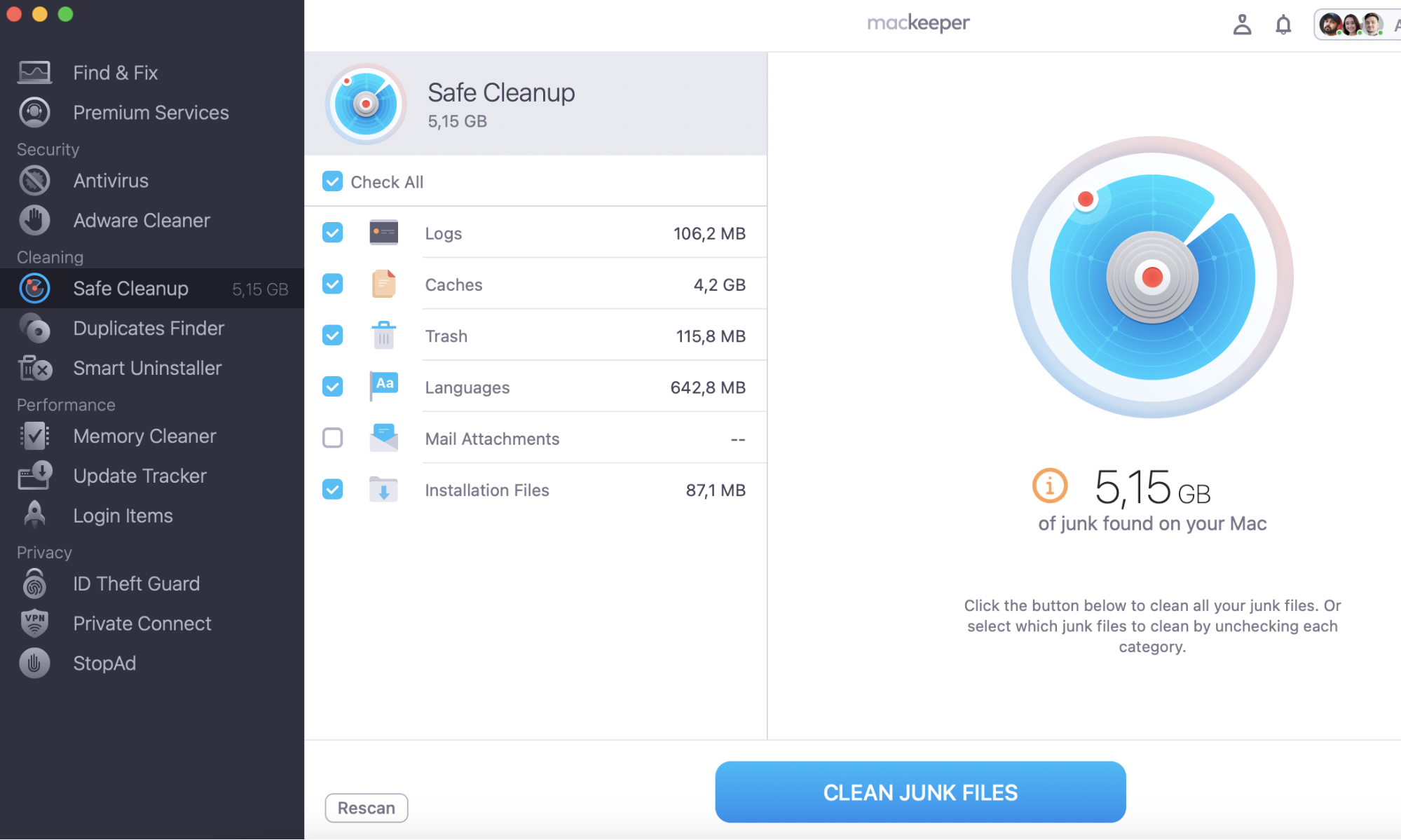
Safe Cleanup scans your entire storage drive to uncover anything that’s not needed and safe to remove. This includes all unnecessary logs, caches, trash files, languages, and mail attachments.
See how MacKeeper’s Safe Cleanup works:
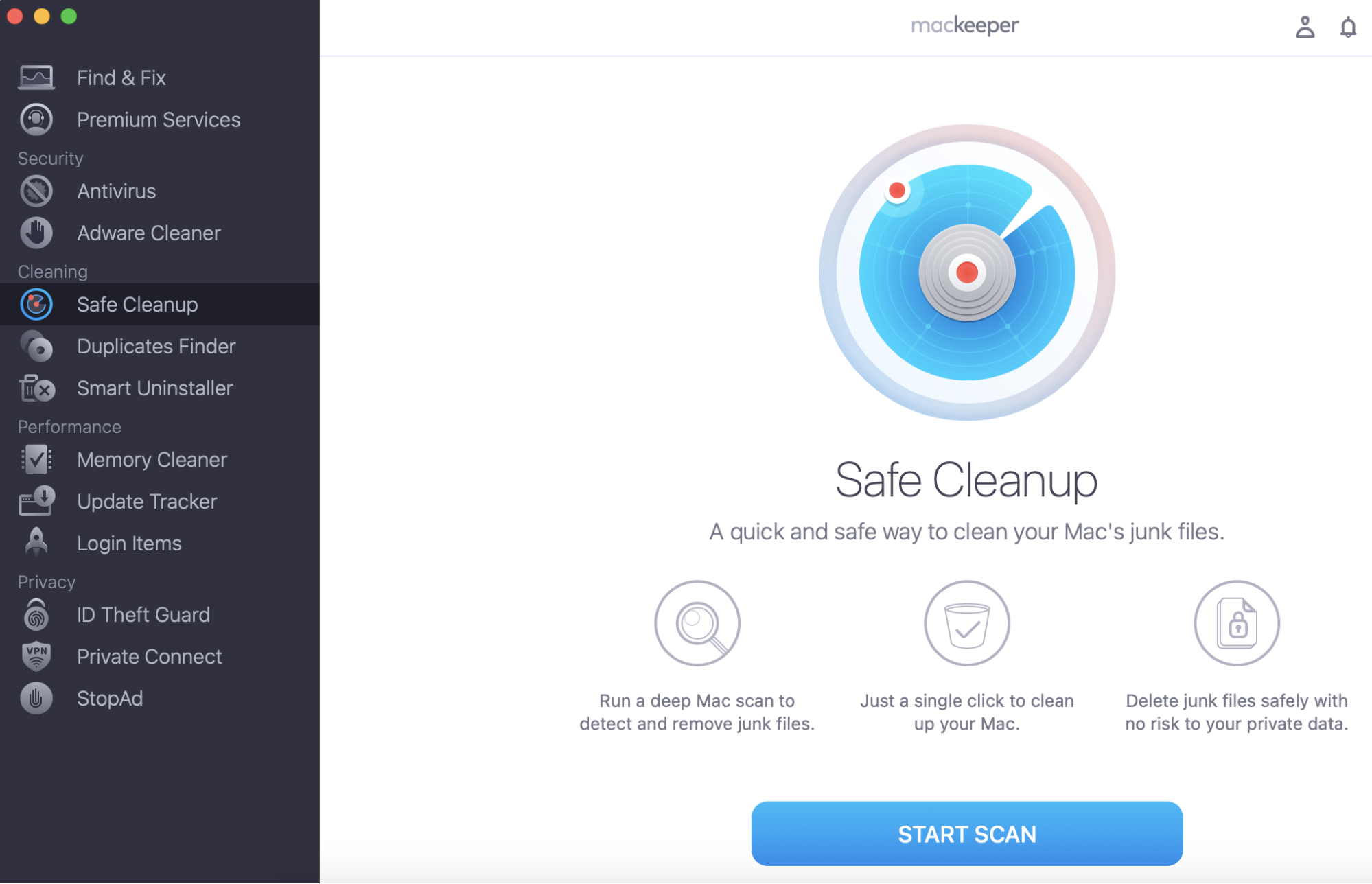
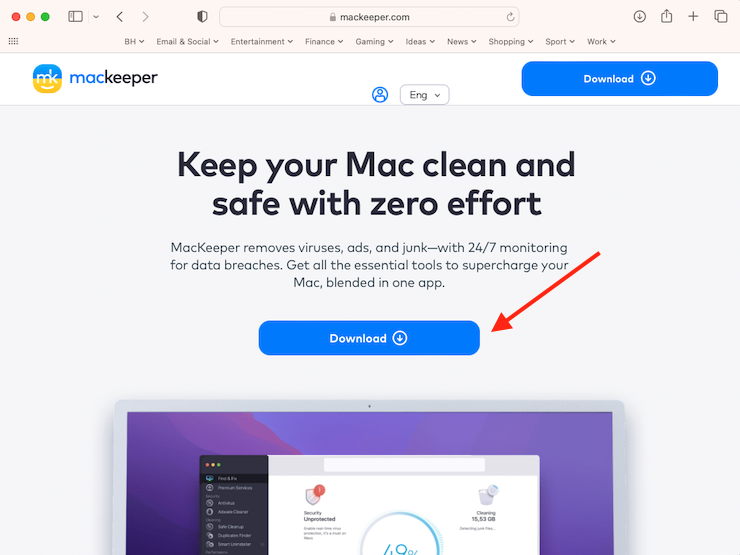
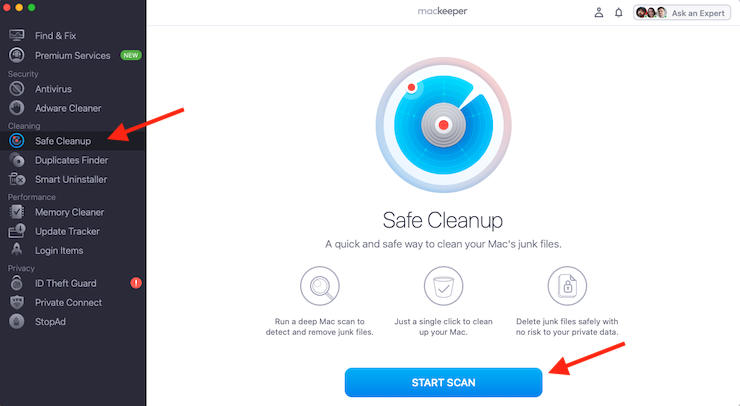
After you have downloaded and installed the MacKeeper app, open it and choose Safe Cleanup on the left.
Then click Start Scan.
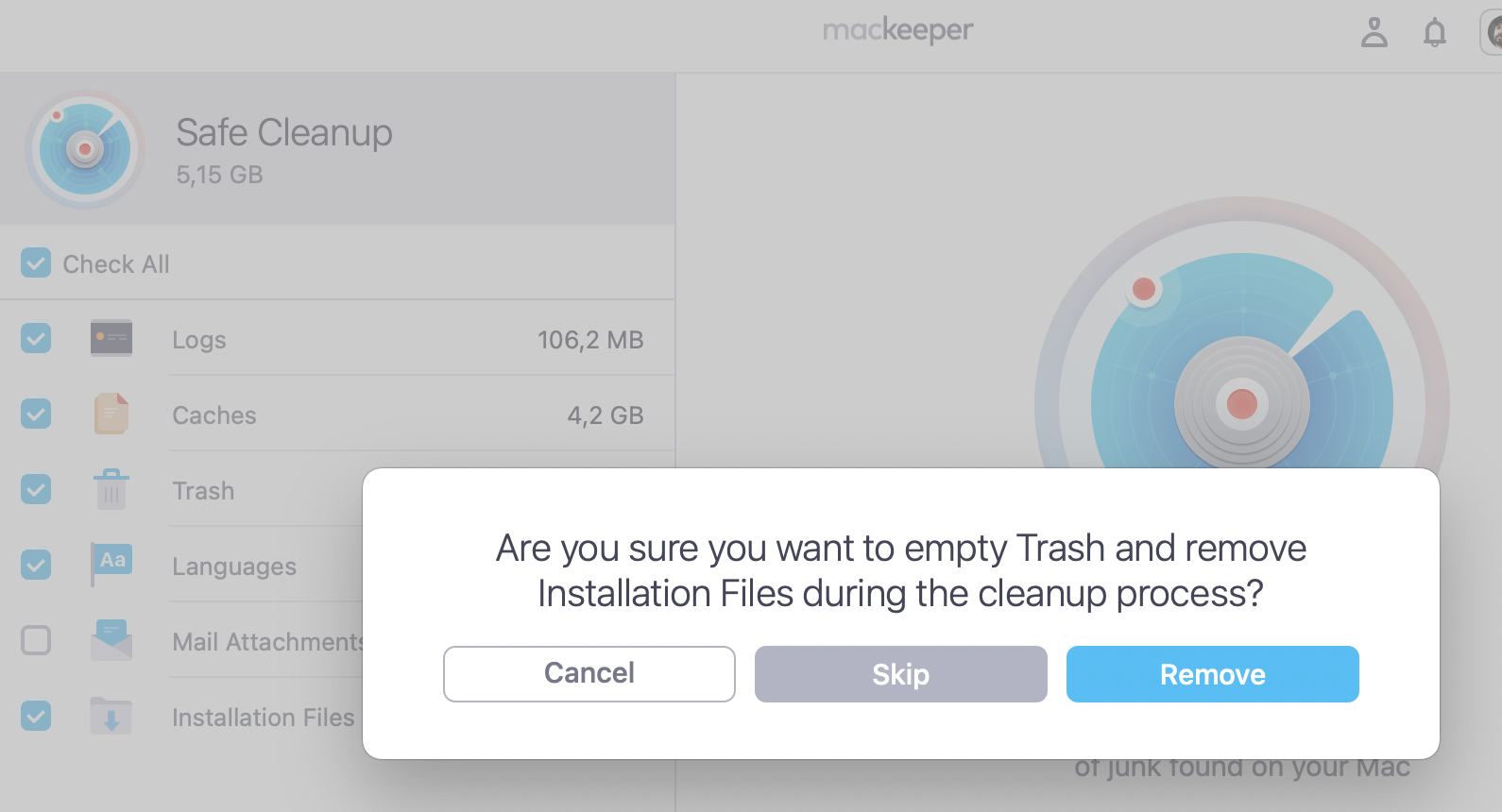
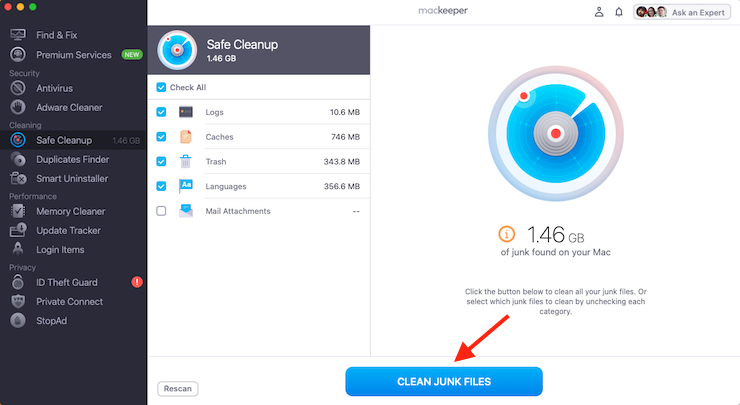
Once the scanning process is complete, click Clean Junk Files.
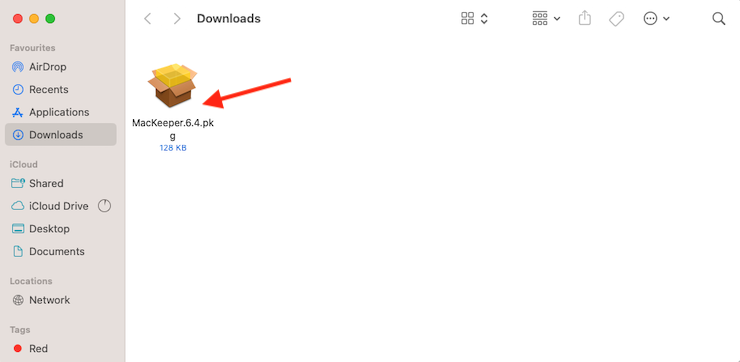
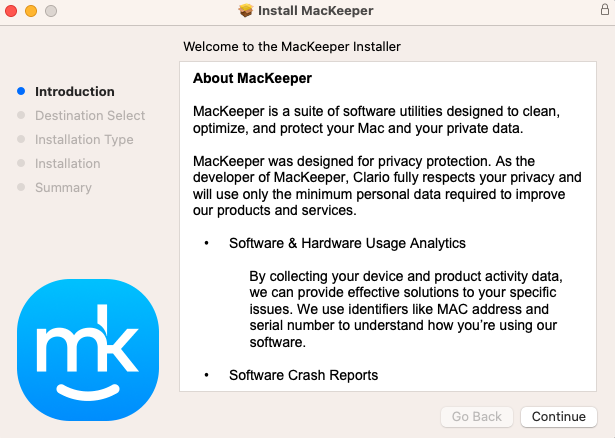
Step 1. Visit the MacKeeper website, then click DownloadStep 2. Open the MacKeeper installer from your Downloads folderStep 3. Click Continue to start the installationStep 4. Click Safe Cleanup, then click Start ScanStep 5. Click the Clean Junk Files button to remove all junk
A nuance to know: In addition to Safe Cleanup, MacKeeper offers a Duplicates Finder that can help you find and remove duplicate images, screenshots, and more. It also packs a Smart Uninstaller, which safely removes any apps or games you no longer need without leaving behind any data, and a Memory Cleaner, which removes unnecessary data from system RAM to speed things up.
Do you really need Mac cleaning software?
As we explained, it’s possible to manually clean your Mac without the use of a dedicated cleaning application. However, to do this effectively, you need to know where to find unnecessary data, such as temporary logs and cache files, unused language packs, and more, which are usually hidden away and very difficult to locate.
Besides, we need to warn you that manual cleaning can be risky. If you accidentally delete anything that your system or installed applications rely on to function properly, then you could make your software or macOS itself unstable or completely unusable without a full reinstall. With that in mind, our advice is that you really need Mac cleaner software to properly maintain your system.
When you use an affordable and effective cleaning tool like MacKeeper’s Safe Cleanup, you can remove all unnecessary junk from your Mac quickly and safely. This will free up system storage to make room for other, more important files.
We respect your privacy and
use cookies
for the best site experience.
Privacy Preferences Center
We use cookies along with other tools to give you the best possible experience while using the
MacKeeper website. Cookies are small text files that help the website load faster. The cookies we
use don’t contain any type of personal data meaning they never store information such as your
location, email address, or IP address.
Help us improve how you interact with our website by accepting the use of cookies. You can change
your privacy settings whenever you like.
Manage consent
All cookies
These cookies are strictly necessary for enabling basic website functionality (including page
navigation, form submission, language detection, post commenting), downloading and purchasing
software. The website might malfunction without these cookies.