Noticed the green light on MacBook camera and wondered what it means? It usually shows your camera is active. With MacKeeper’s Premium Services, you can check what’s using your camera, keep your Mac secure, and reach round-the-clock support whenever you need a hand.
The green light next to your camera is a built-in indicator that the webcam sensor is active. Apple designed it so you always know when your laptop is watching.
On both the MacBook Air and the MacBook Pro, the green indicator is located next to the camera at the top center of the screen (there’s, of course, an additional one on the screen itself as well—it lights up in the right corner).
The new MacBook Neo is an exception. It has an on-screen camera indicator rather than a separate physical LED next to the camera. A green dot appears in the upper-right corner of the screen, next to the Control Center.
You’ll see it the moment you open something that needs the camera. On any modern Macintosh laptop, it sits in the corner of the display, just above the screen. If it’s off, your webcam isn’t recording.
What other green indicators might users notice on MacBook models?
Not every green light is about the camera. On older MacBooks, the light on the MagSafe charger turns green when the battery is full and orange while it’s still charging. Some wireless accessories, such as a keyboard or mouse, use a green status light to indicate they’re powered on and working.
So a Mac green light next to the camera is about the webcam and microphone, while a MacBook green light on the charger means power. If the connector light has you guessing, we walk through the ways to know if MacBook is charging and tell a full battery from one that’s still topping up.
Below, we’ve left for you a quick overview of the common green lights and what each one points to:
Light location
Color
What it means
Next to the camera
Green
The webcam is active and in use
On the charger connector
Green
The battery is fully charged
On the charger connector
Amber
The Mac is still charging
On a wireless accessory
Green
The device is powered on and working
When the MacBook green camera light is a normal behavior?
Most of the time, a green light is exactly what you’d expect. It means an app or site is using your webcam right now, which is normal during everyday video tasks on a MacBook Air or MacBook Pro.
Here are common situations when the MacBook green light is normal:
During a FaceTime, Zoom, Microsoft Teams, or Google Meet call
While taking a photo or recording in Photo Booth
When a browser tab opens a video chat or a camera-based site
During screen recordings that include your webcam feed
In each case, the light turns off the moment you finish. If the camera won’t turn on during a call, we can help you sort out a Mac camera not working and get the picture back.
Why green light may stay on after using camera?
Sometimes the indicator stays green, or starts blinking, even after you’ve hung up. This is usually harmless and comes down to something still holding the camera in the background. Below, we’ll explain the most common reasons it keeps glowing instead of turning off:
A video meeting app is still open or minimized instead of fully quit
A browser tab kept camera access after the call ended
A frozen app is stuck holding the webcam, sometimes shown as a light that flashes
A temporary macOS glitch hasn’t released the camera yet
A note from our experts:
A lingering light is almost always one of these everyday causes rather than something sinister. Still, if you’d like reassurance, it helps to know the signs that your MacBook camera is hacked so you can tell normal behavior from something worth a closer look. To help you understand what’s active on your Mac behind the green light, we suggest contacting our tech support team within MacKeeper’s Premium Services.
Describe your problem and get the solution to try on.
How to turn off green light on MacBook camera?
The green light goes out on its own once nothing is using the camera, so the goal is to find what’s still active and stop it. Try our methods below, starting with the quickest checks and moving to the more thorough ones, to switch the light off.
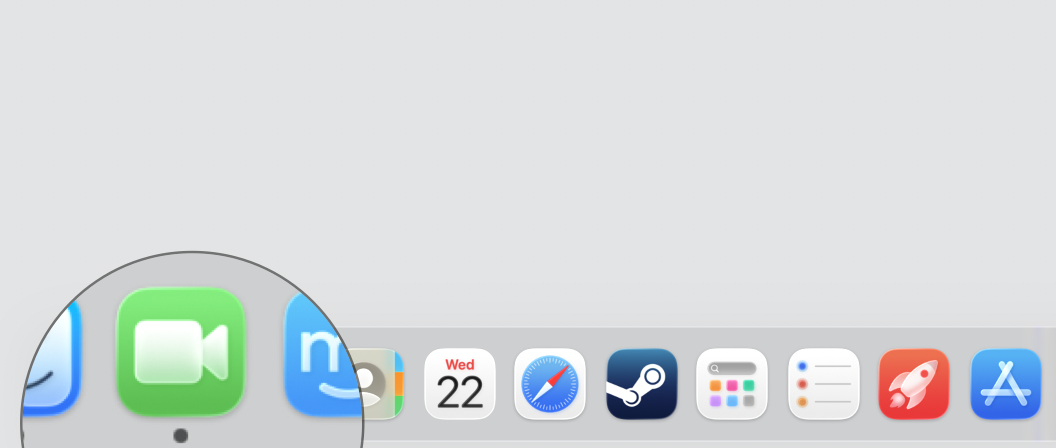
1. Close apps that may still use camera
In our experience, video meeting apps, messaging tools, and browsers often keep running quietly after you think you’re done with them. Quitting them fully releases the webcam.
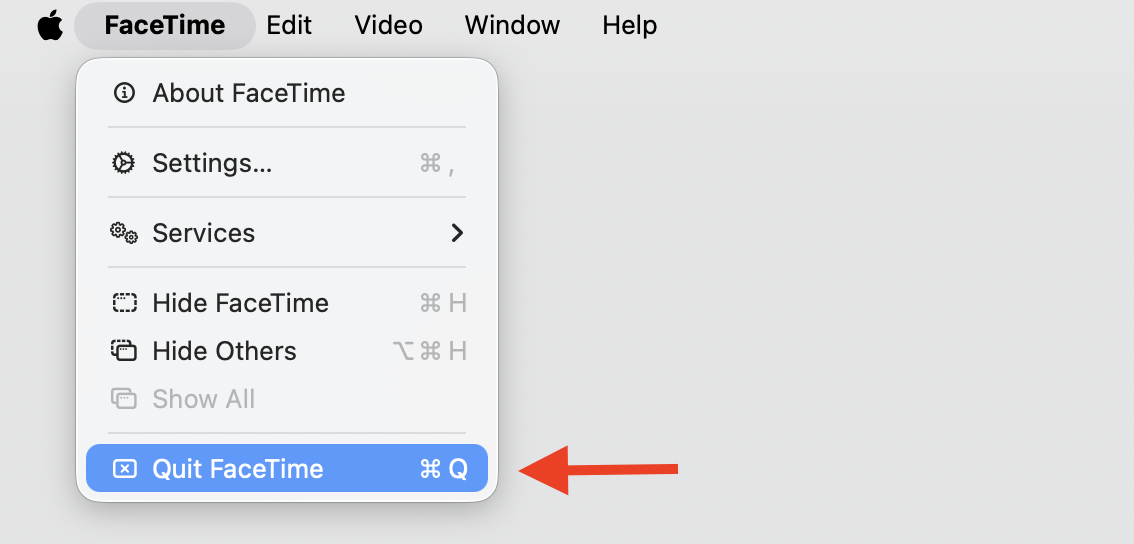
Quit them like this:
Look at your Dock for apps like Zoom, Teams, FaceTime, or your browser.
Click the app in the menu bar, then choose Quit.
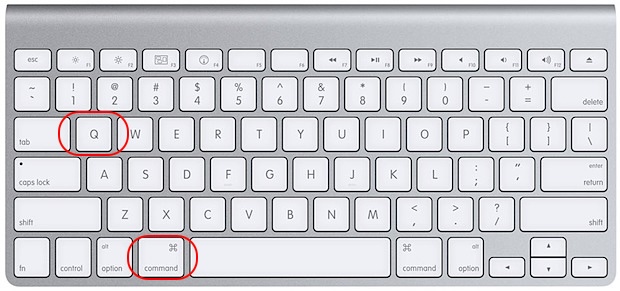
Alternatively, press Command + Q while the app is in front to quit it.
Check whether the green light turns off once the app is fully gone.
Step 1. Look at your Dock for apps like Zoom, Teams, FaceTimeStep 2. Click the app in the menu bar, then choose QuitStep 3. Choose the app and press Command + QStep 4. Check whether the green light turns off
2. Check browser tabs and websites with camera access
Some sites hold onto camera permission until you close the tab or the whole browser, which is also why you might run into Safari not allowing webcam access later if permissions get tangled.
Take these steps:
Look for any open tab that hosted a video call or camera-based site.
Close that tab or quit the browser entirely if you’re unsure which one it is.
Watch the indicator near the camera to confirm it switches off.
Look for any open tab(s) that hosted a video call and close them
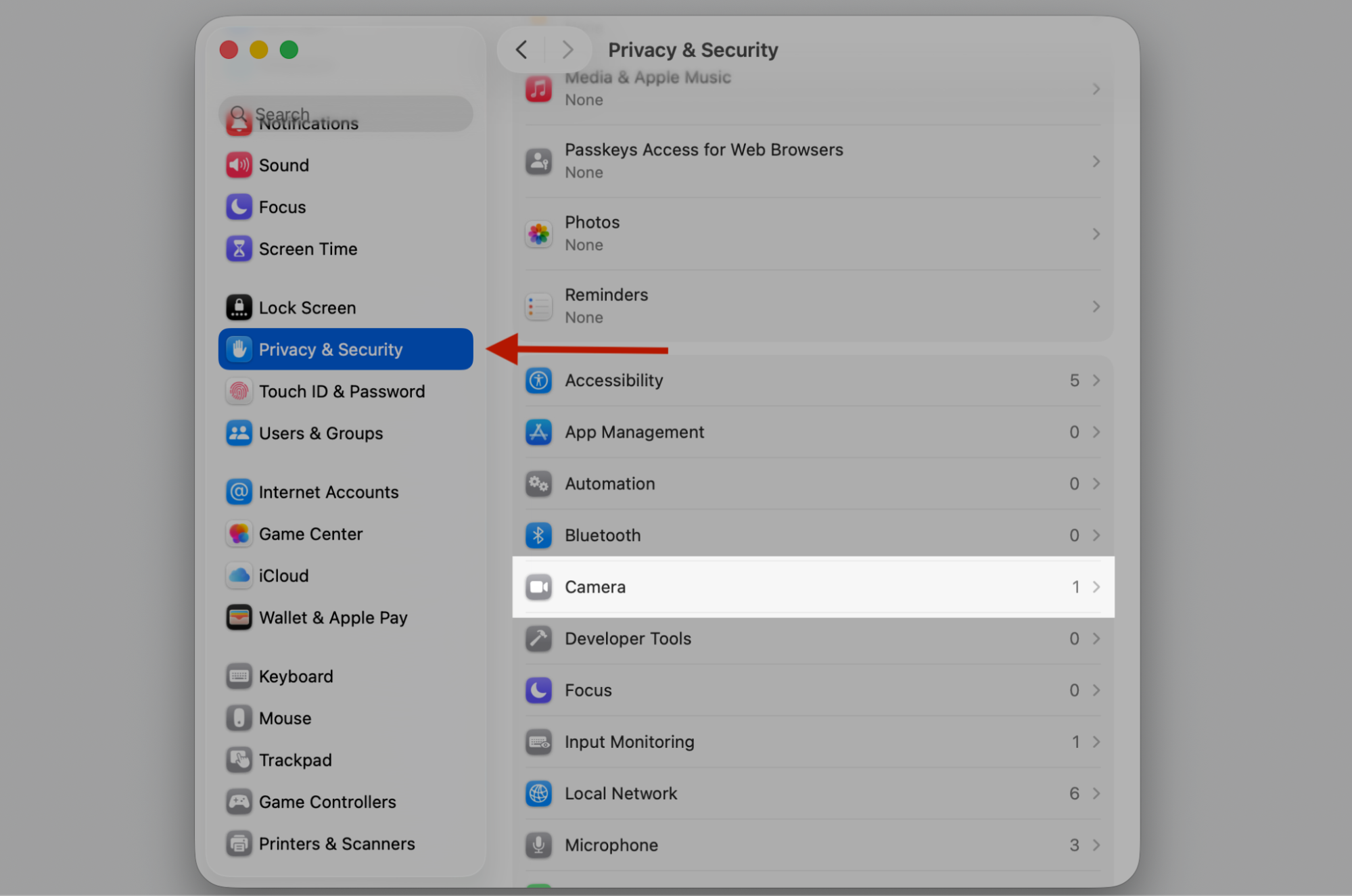
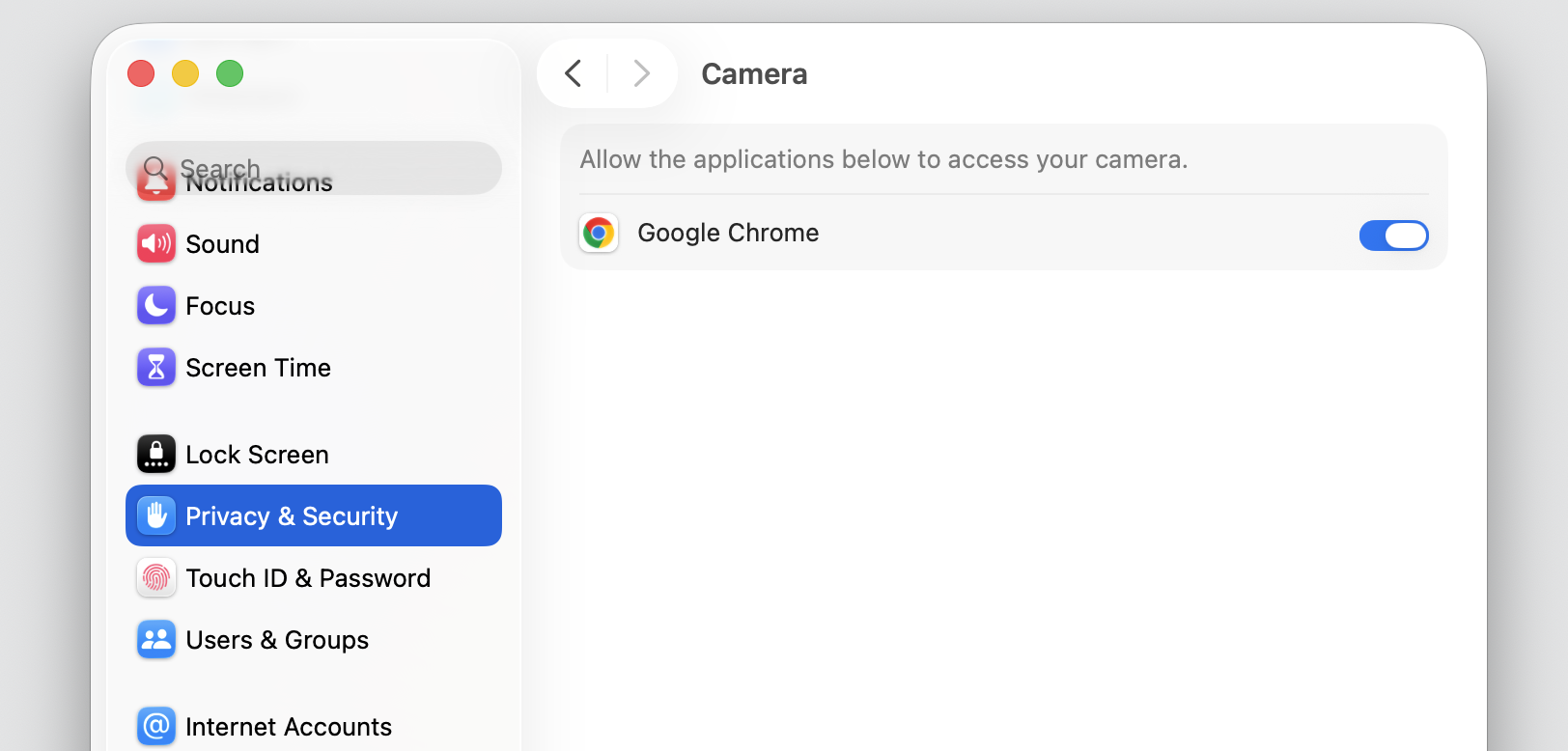
3. Review camera permissions in System Settings
Your Mac keeps a tidy list of every app allowed to use the webcam, and we’d suggest reviewing it so you can turn off access for anything you don’t recognize.
Here's where to look:
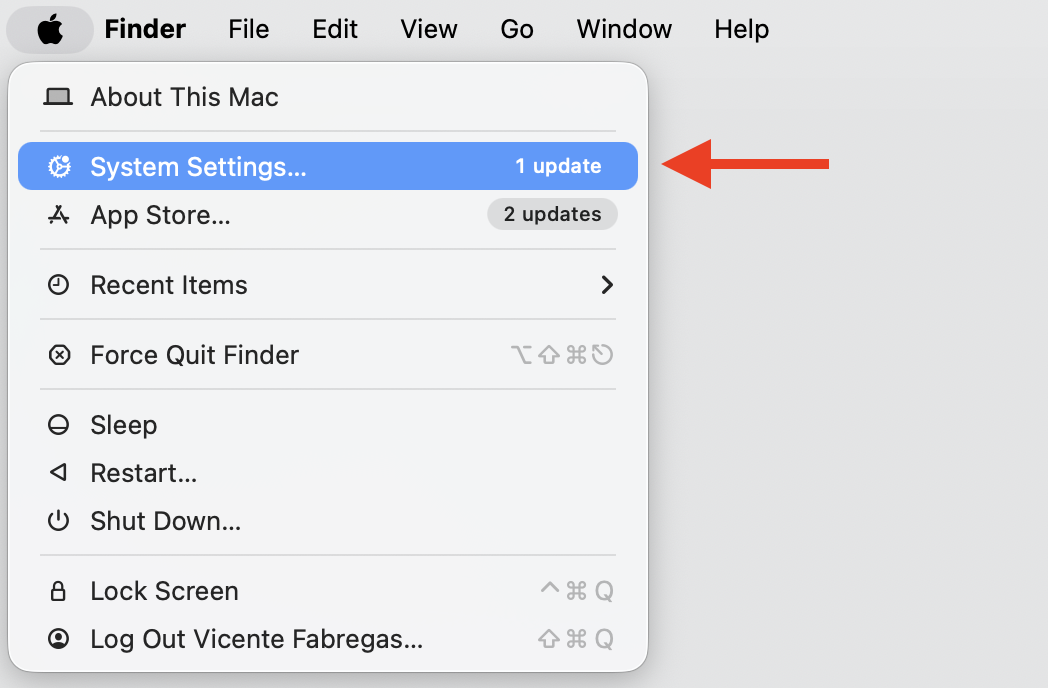
Open the Apple menu and choose System Settings.
Go to Privacy & Security, then select Camera.
Review the list of apps and switch off camera access for any you don’t need.
Step 1. Go to Apple Logo > System SettingsStep 2. Select Camera from the Privacy & Security sectionStep 3. Check which apps have access to the camera
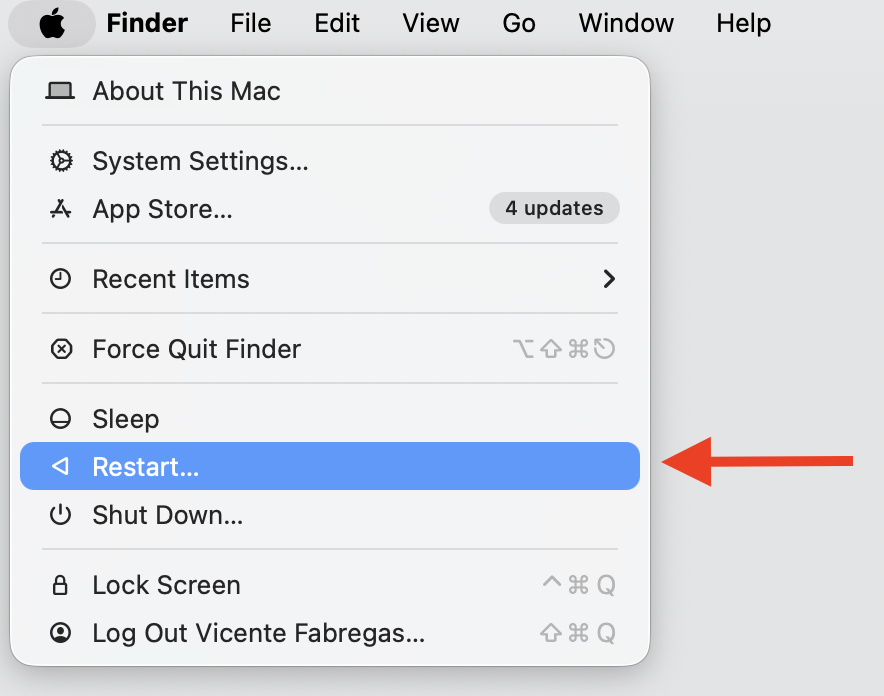
4. Restart your MacBook to clear stuck camera activity
A simple restart resets background processes and clears temporary glitches that keep the light on. When you reboot Mac, every stuck app that’s holding the camera lets go and starts fresh.
Follow these steps:
Open the Apple menu in the top-left corner.
Choose Restart and confirm if asked.
Once your Mac is back, check that the green light is off.
Restart your Mac from Apple menu
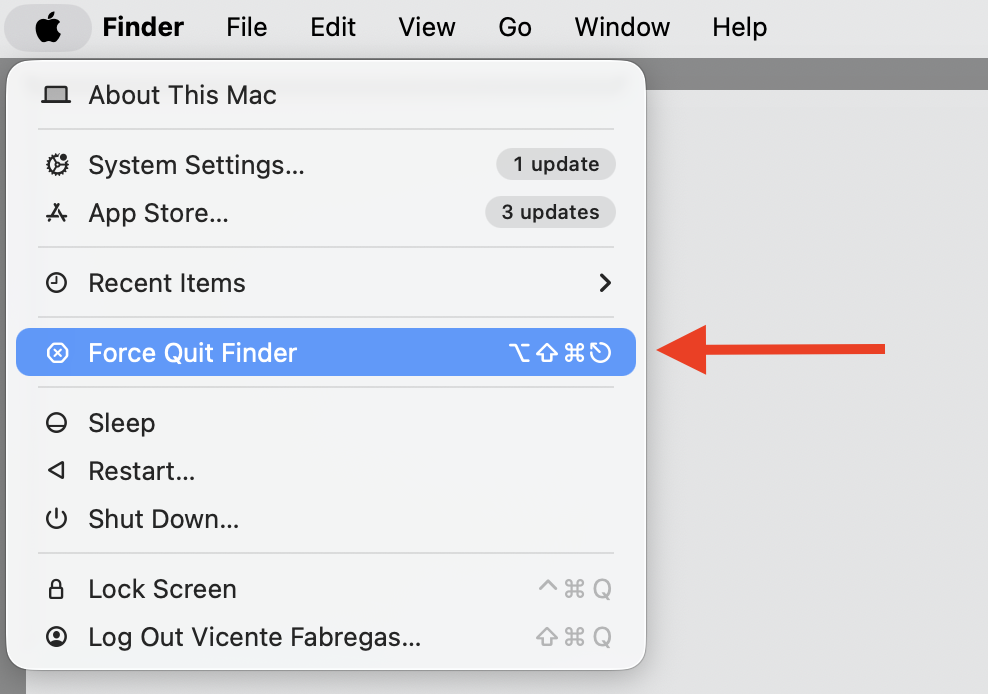
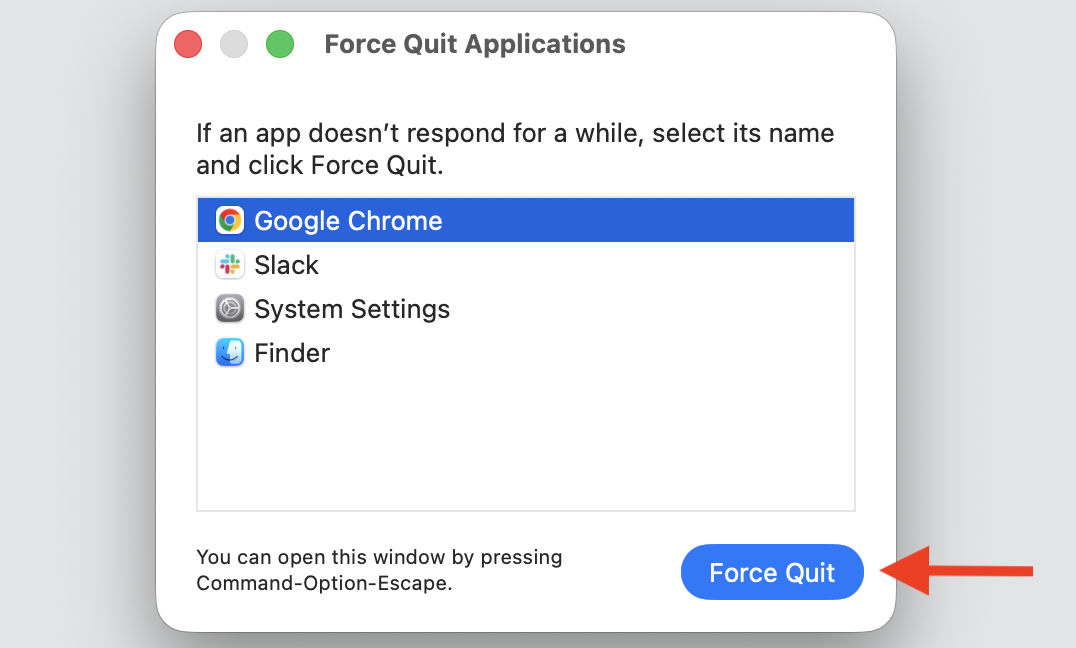
5. Force quit unresponsive apps using the camera
An app can look closed while it’s still running and holding the webcam. In that case, you can force close app to release it right away.
Give this a try:
Go to the Apple menu and select Force Quit or press Option + Command + Esc.
Select the app you suspect is using the camera, such as a video call tool.
Click Force Quit, then confirm to shut it down.
Step 1. Go to the Apple menu and select Force QuitStep 2. Select the app you suspect is using the camera and press Force QuitStep 3. Check whether the green light turns off
6. Update macOS and installed apps
Updates often clear up small bugs tied to camera indicators and app behavior, so we recommend running a quick macOS upgrade to settle a light that keeps misbehaving.
Check for updates like this:
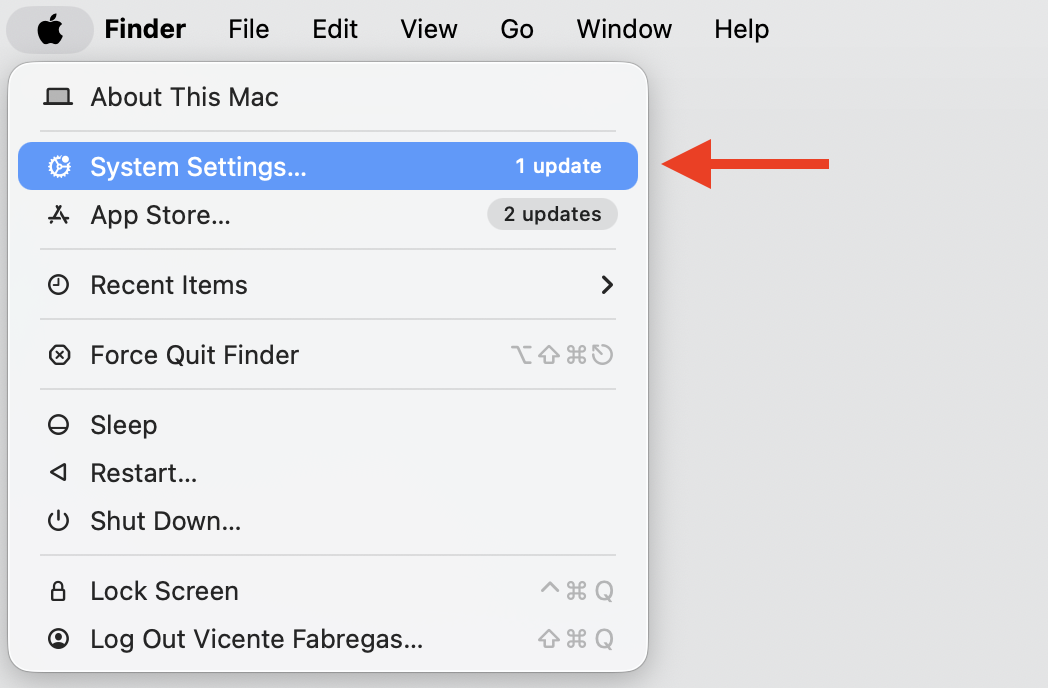
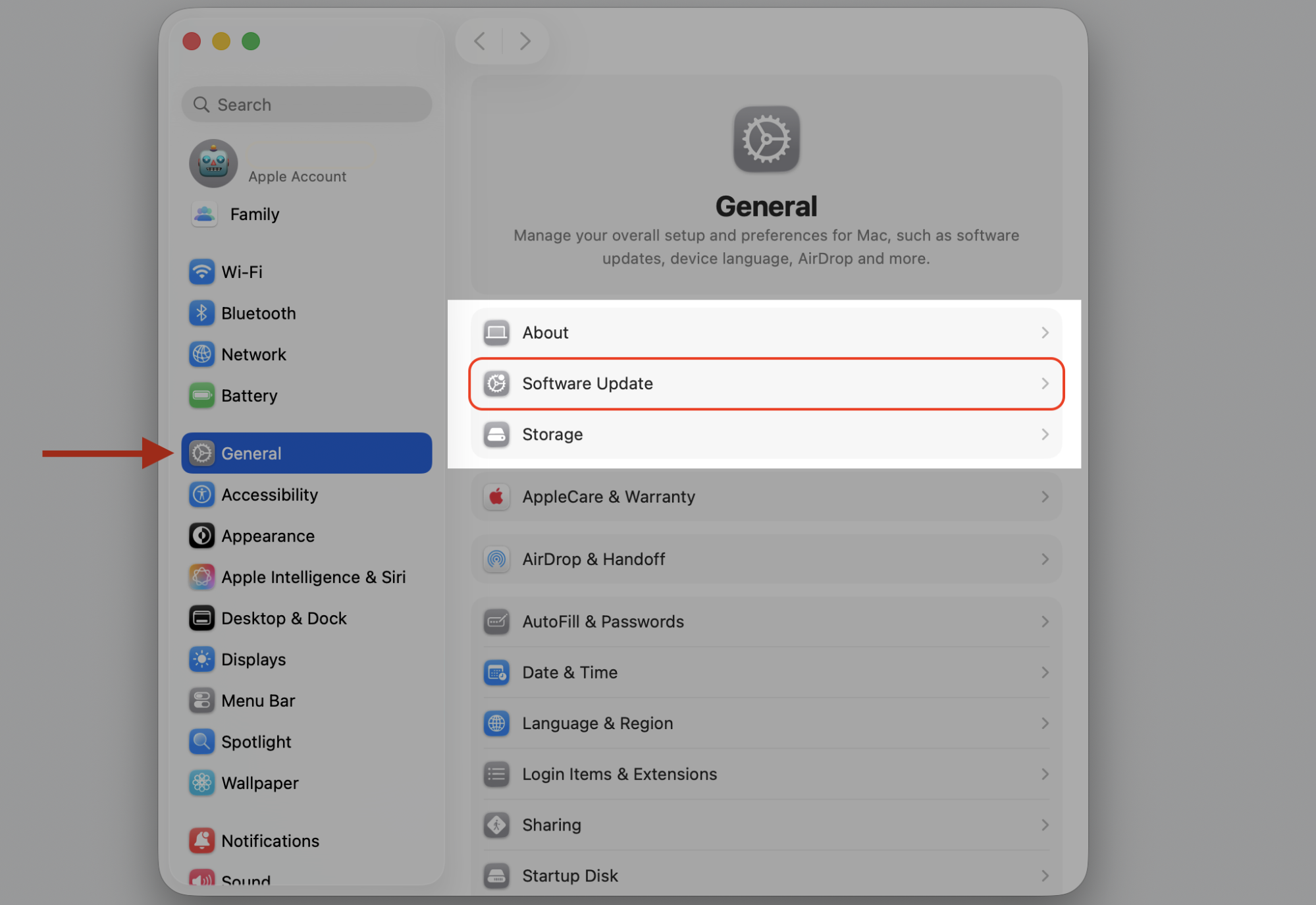
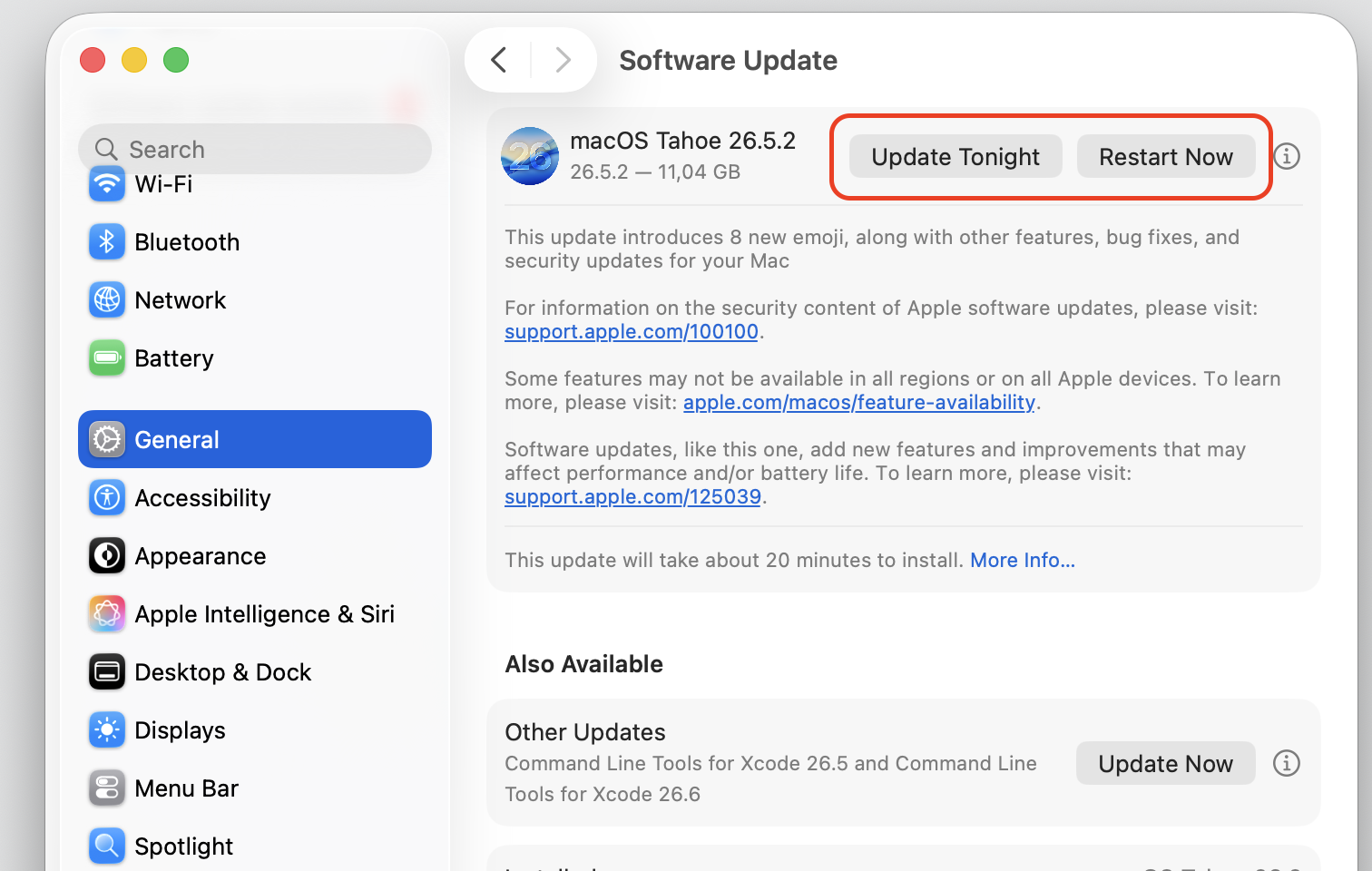
Open System Settings, then go to General and Software Update.
Install any available macOS update that appears.
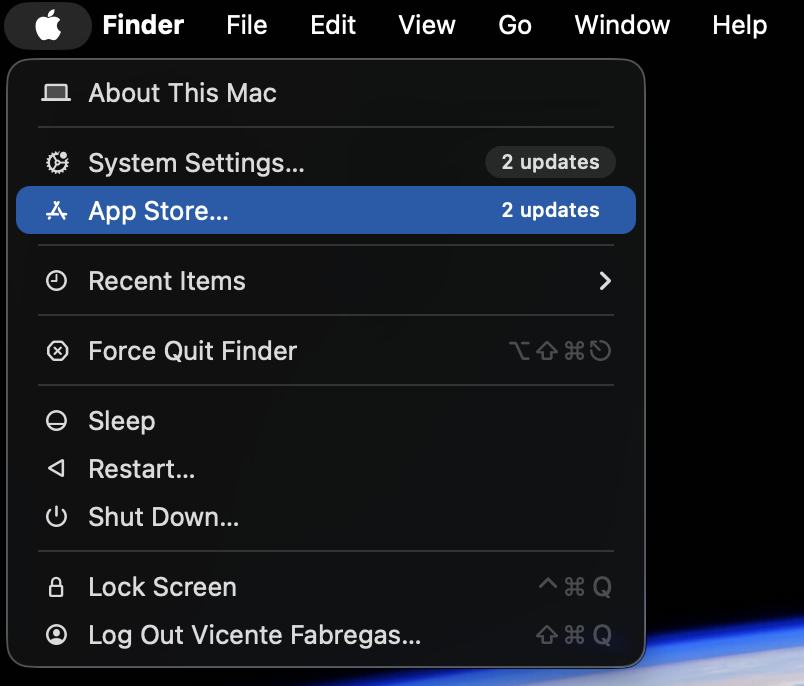
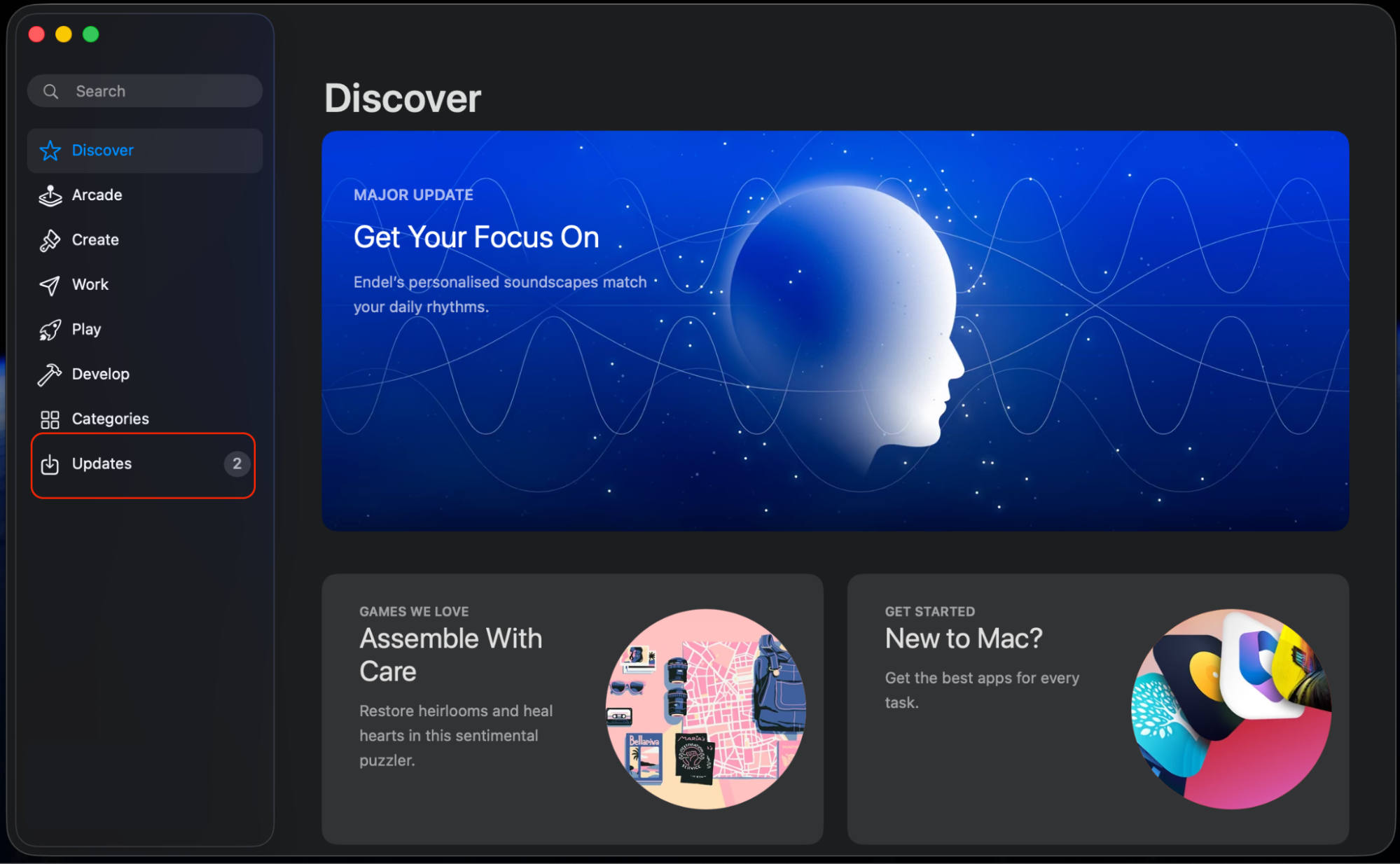
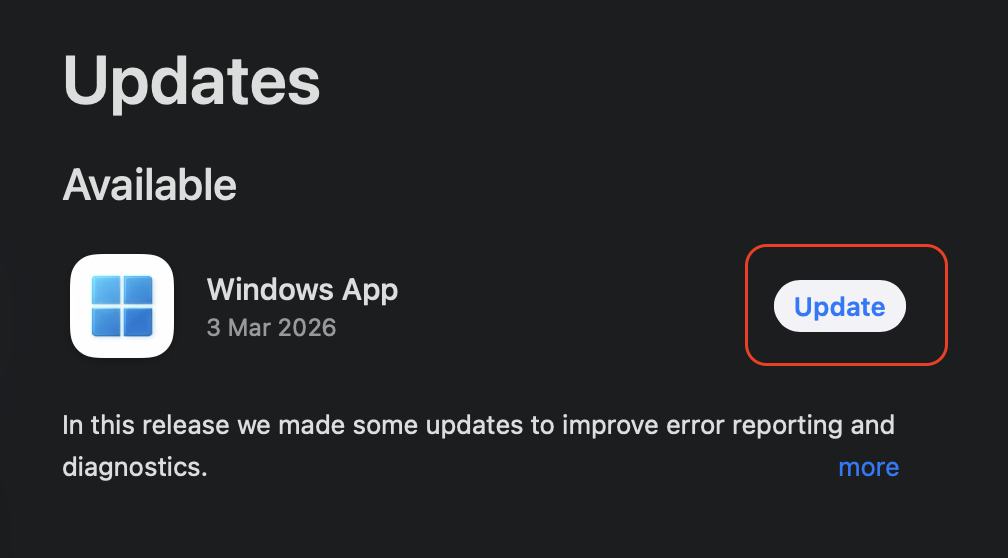
Update your apps from the App Store or each app’s own update option.
Step 1. Go to Apple logo > System SettingsStep 2. Go to General > Software UpdateStep 3. Install Update and restart / schedule to updateStep 4. Go to Apple menu > App StoreStep 5. Select the Updates sectionStep 6. Update the app
An extra help from our team:
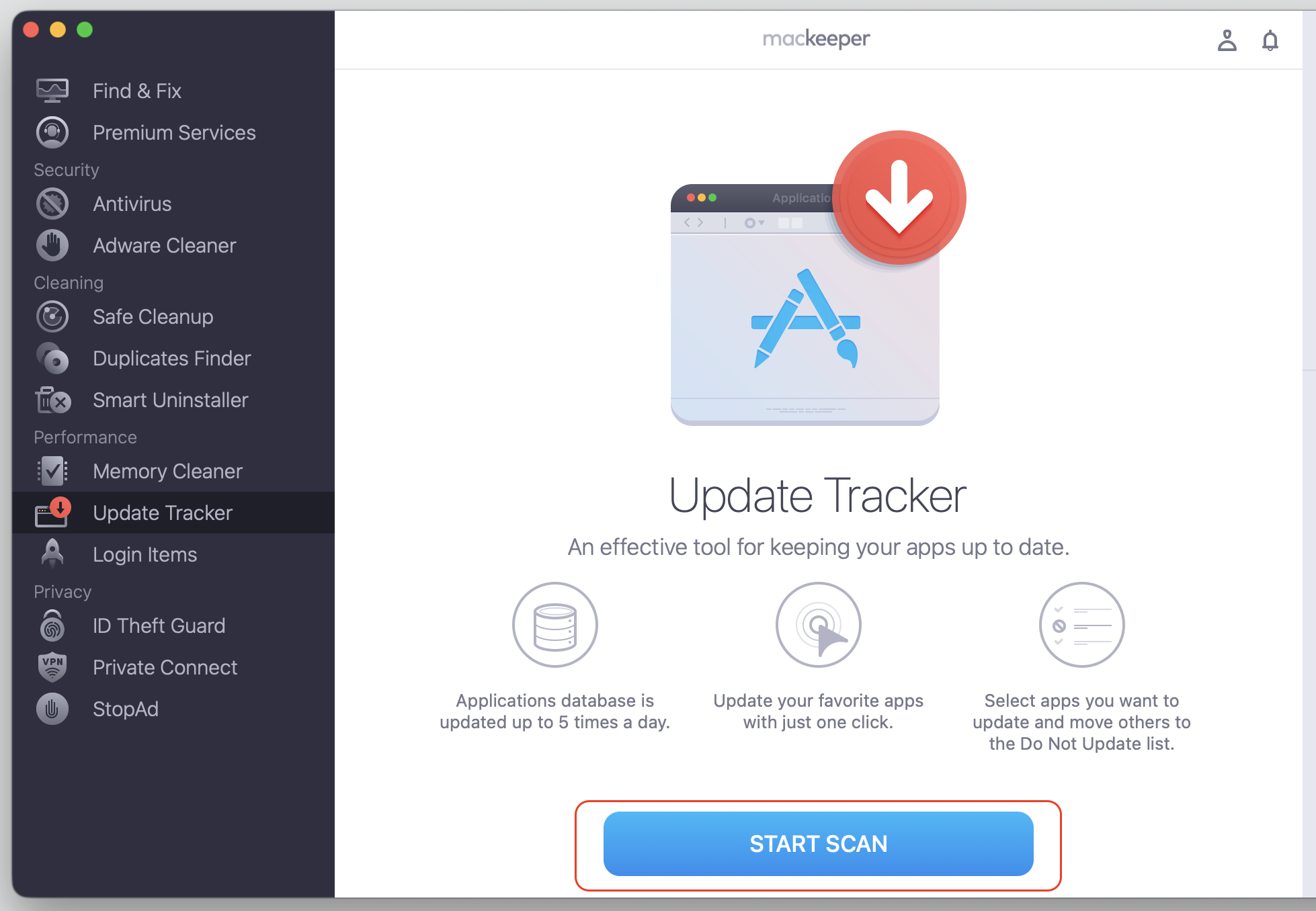
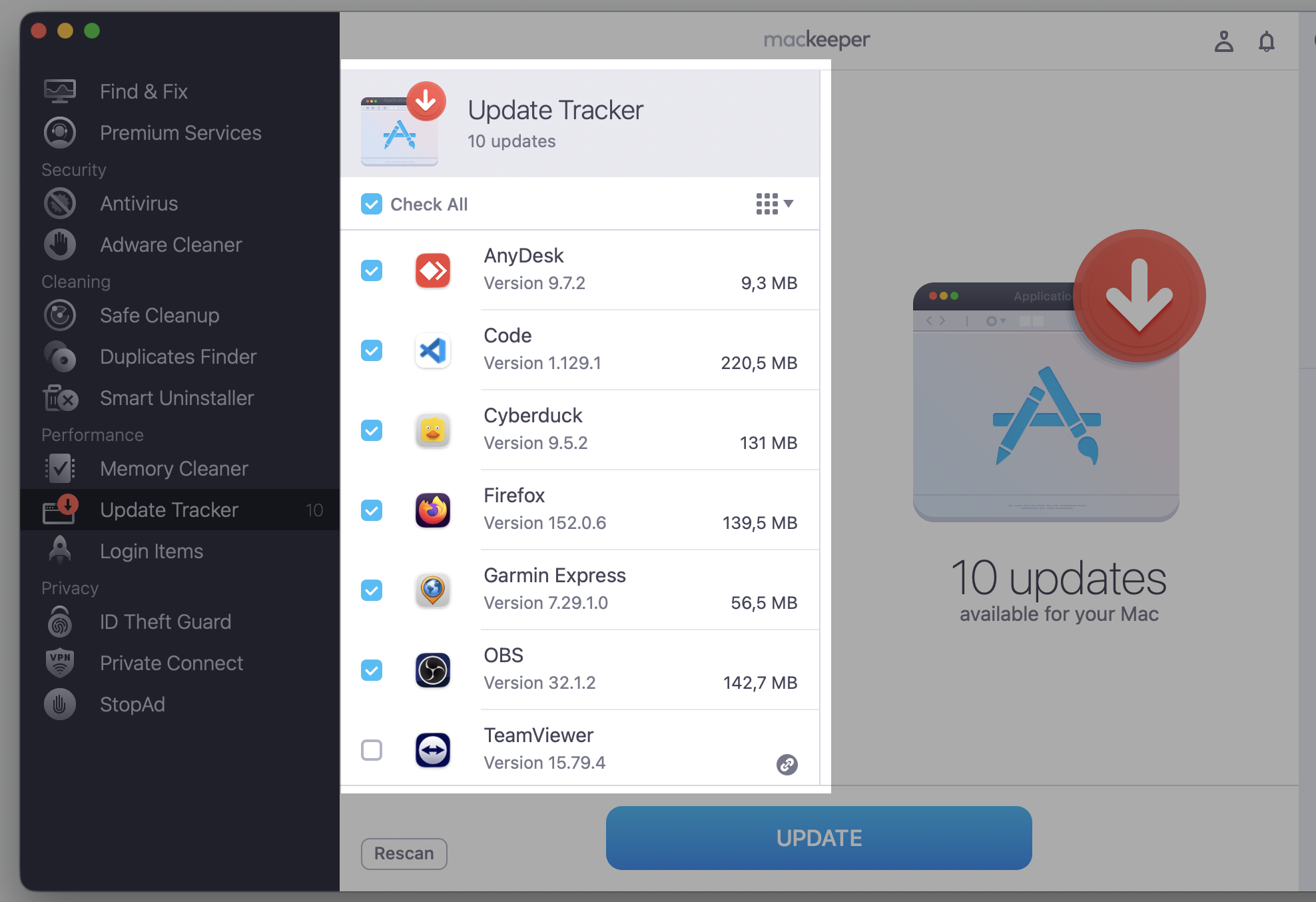
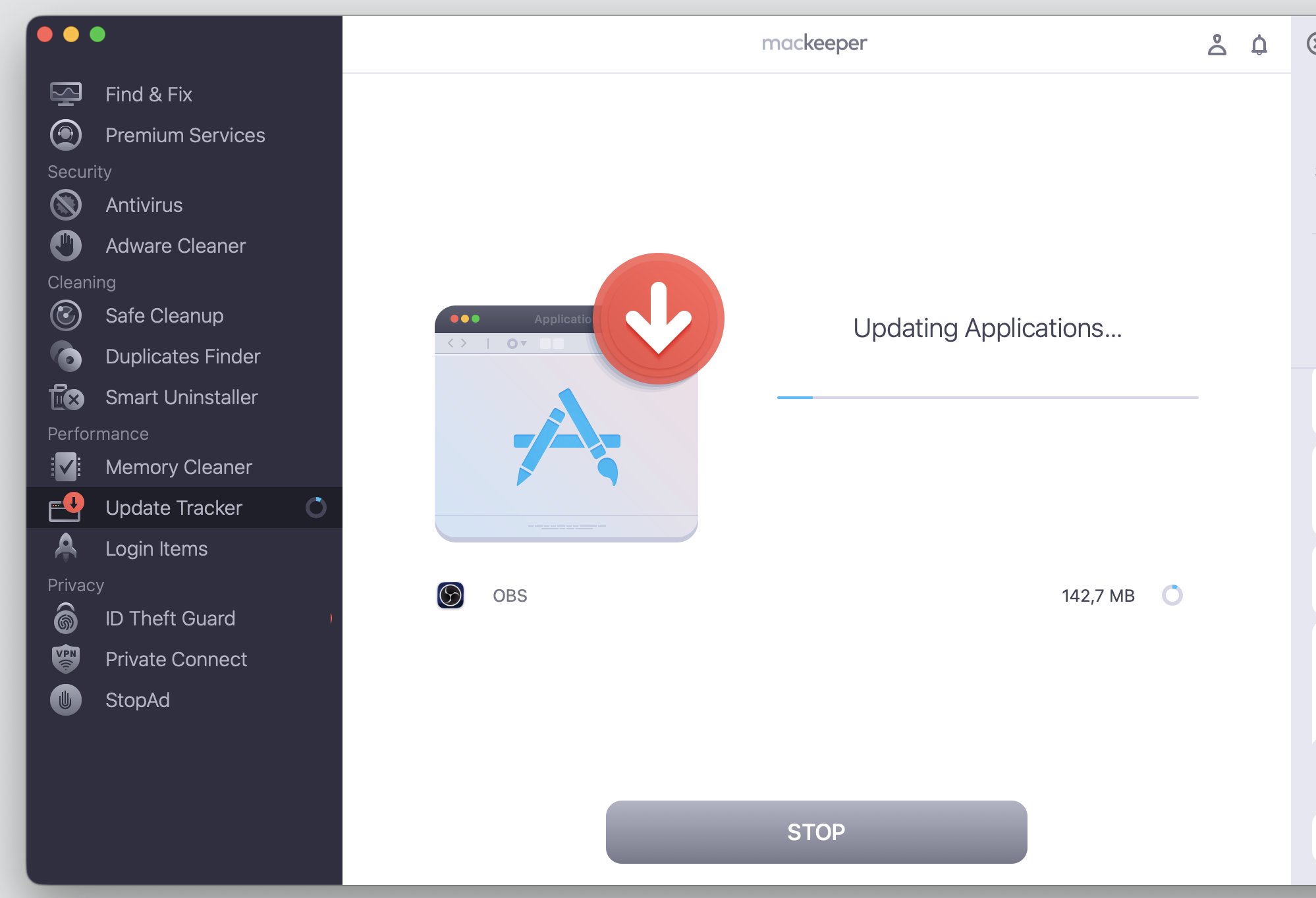
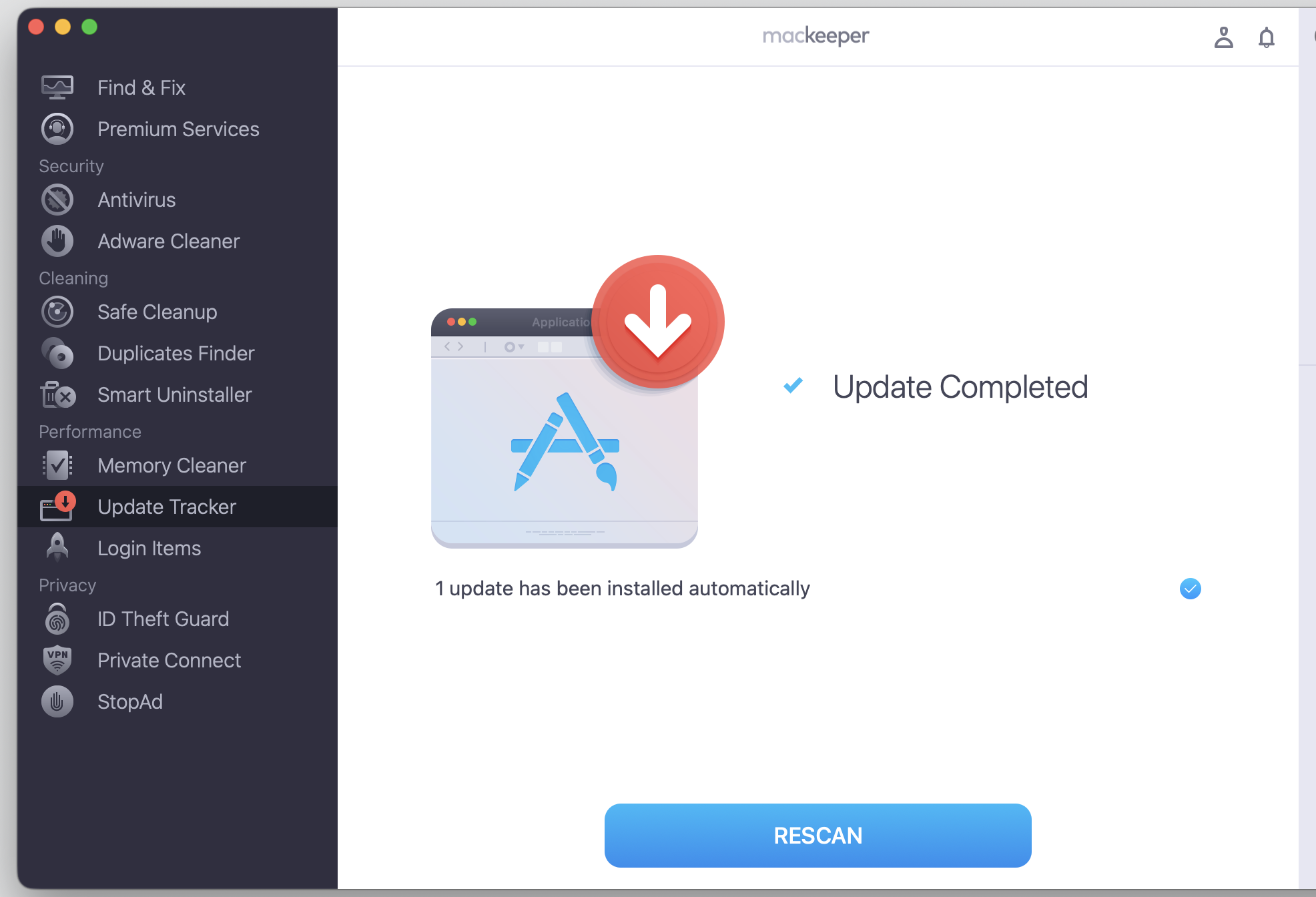
To keep this from becoming a chore, MacKeeper’s Update Tracker gathers every available app update in one place and helps you stay on the most secure versions, so your camera apps and the rest of your Mac run smoothly. Just follow our visual hints on how to update your Mac apps.
Step 1. Go to MacKeeper > Update TrackerStep 2. Select the app you want to updateStep 3. Update the appStep 4. Check the result
Keep your camera and your Mac in safe hands
The green light on the MacBook camera usually points to normal use, but when it lingers, checking your apps, browser tabs, and camera permissions almost always clears it up. If you’d rather not chase it down yourself, MacKeeper’s Premium Services will support you on every step to keep your Mac secure, watch over your camera and privacy, and put round-the-clock support at your fingertips whenever a light leaves you guessing.
We respect your privacy and
use cookies
for the best site experience.
Privacy Preferences Center
We use cookies along with other tools to give you the best possible experience while using the
MacKeeper website. Cookies are small text files that help the website load faster. The cookies we
use don’t contain any type of personal data meaning they never store information such as your
location, email address, or IP address.
Help us improve how you interact with our website by accepting the use of cookies. You can change
your privacy settings whenever you like.
Manage consent
All cookies
These cookies are strictly necessary for enabling basic website functionality (including page
navigation, form submission, language detection, post commenting), downloading and purchasing
software. The website might malfunction without these cookies.