Copied something on your Mac only to be stopped by “sorry, no manipulations with clipboard allowed”? It’s a common clipboard hiccup, and it’s usually simple to sort out. Below, we’ll explain what’s happening and how to unlock clipboard functions again—and MacKeeper’s Premium Services can walk you through every step.
What does “sorry, no manipulations with clipboard allowed” mean?
So what’s this message actually telling you? Let’s unpack the sorry, no manipulations with clipboard allowed meaning in plain terms—it means the part of macOS that stores your copied content has stopped responding. Your Mac can’t hand over what you copied, so pasting fails.
The clipboard relies on a small background function called the pasteboard (or pboard) process. When that process stalls or hits a system-level glitch, the copy-paste function breaks and this message appears. The good news—it’s rarely a sign of anything serious on your Macintosh.
What can trigger the “sorry, no manipulations with clipboard allowed” clipboard issue?
The “sorry, no manipulations with clipboard allowed” message can pop up for a handful of reasons, and knowing the cause makes troubleshooting quicker. Here are the usual suspects we’ve noted to be the potential culprits of the problem:
A temporary system glitch or stuck background process
A frozen pasteboard (pboard) process
A conflict with a third-party clipboard manager
Background apps competing for clipboard access
It also helps to know your clipboard history on Mac, since a quick look at your clipboard history can reveal exactly when your copied content stopped saving.
A note from our experts:
As you can see, there can be different reasons begins the “sorry, no manipulations with clipboard allowed” error on your Mac, so not to go through the investigation jungle, we suggest you immediately contact the professional support team provided within the MacKeeper app. To reach our MacKeeper’s Premium Services specialist, do the following:
Download MacKeeper on your Mac. Then, after installing the app, open it.
Choose Premium Services in the list of features.
Click Chat Now to start a chat with our support team representative.
Describe your problem in the message form and wait for the solution to try.
Step 1. Open MacKeeper Step 2. Choose Premium Services Step 3. Click Chat NowStep 4. Type in your message
How to fix the “sorry, no manipulations with clipboard allowed” issue on Mac?
Most fixes for this issue focus on restarting or resetting the clipboard-related processes and clearing out anything that conflicts with them. Let’s work through our seven methods together below, starting with the quickest, and test copy-paste after each one until the message clears.
1. Restart your Mac to reset clipboard behavior
A restart clears temporary glitches and lets background services start fresh, which in our experience often revives the clipboard on its own. Rebooting MacBook takes under a minute.
Here’s the quickest way to do it:
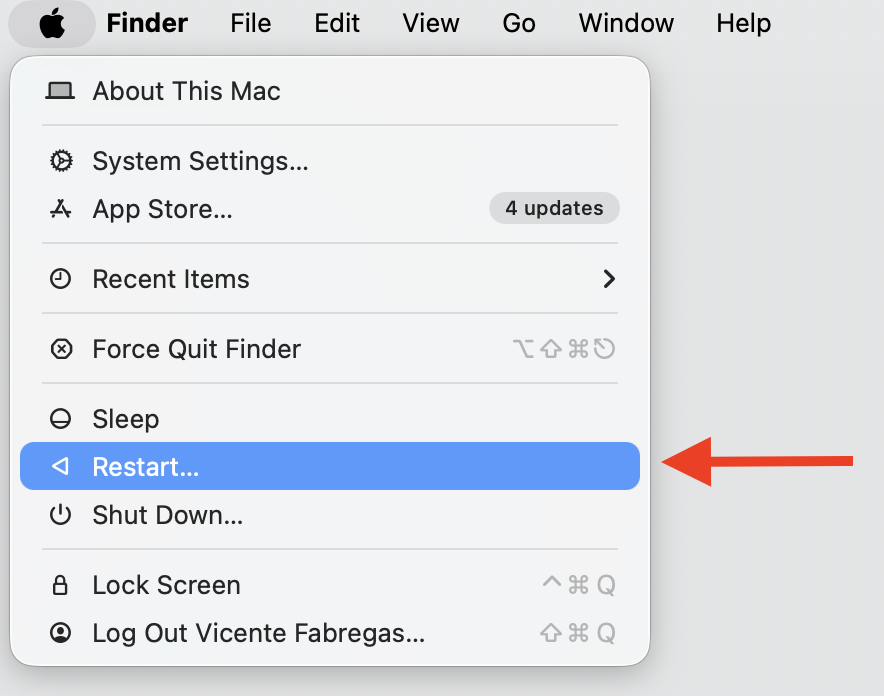
Apple menu — click it in the top-left corner of your screen.
Select Restart.
Confirm your choice and wait for your Mac to reboot.
Once it’s back, the clipboard often works automatically.
Go to the Apple logo and restart your Mac
2. Reset the pasteboard (pboard) process using Activity Monitor
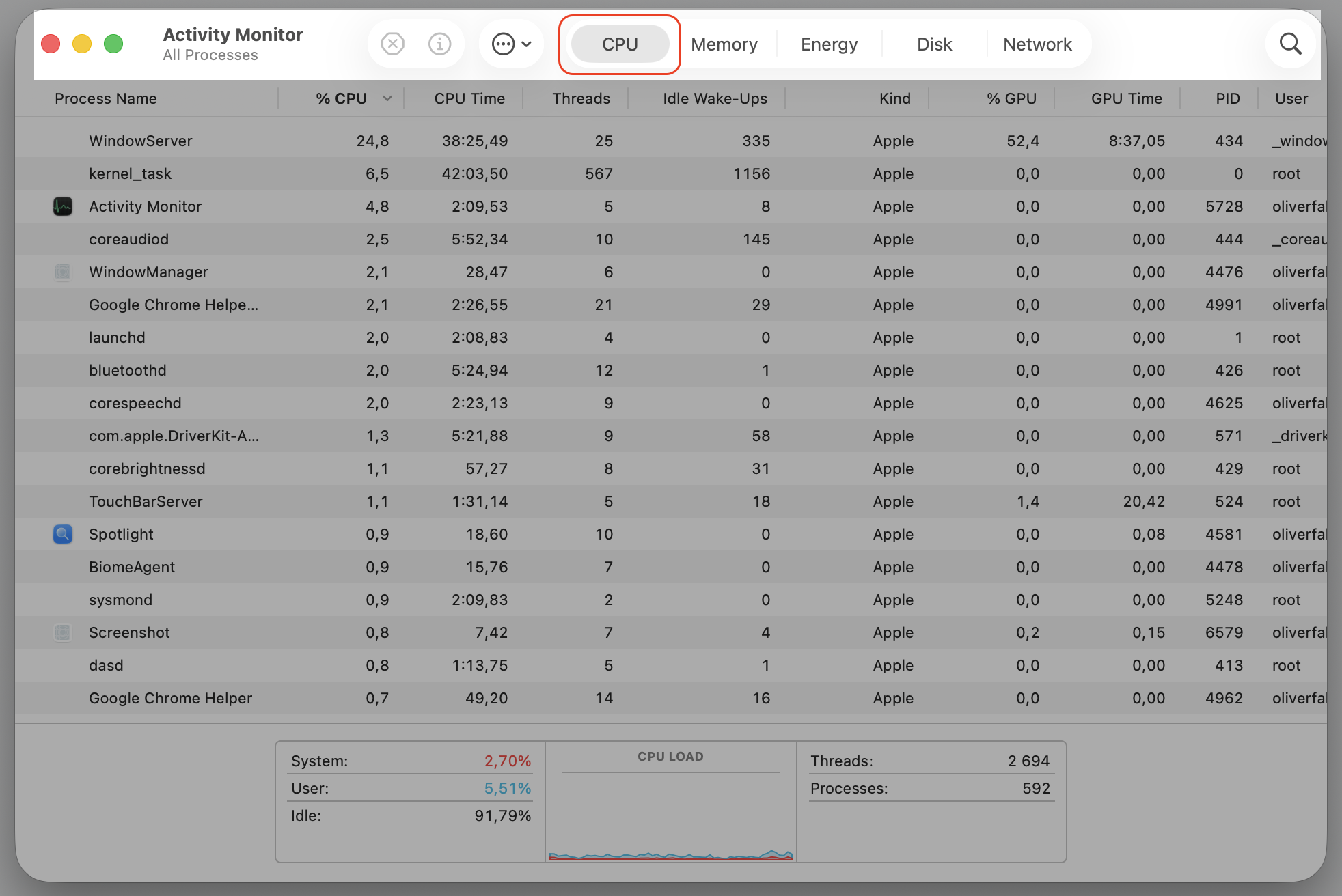
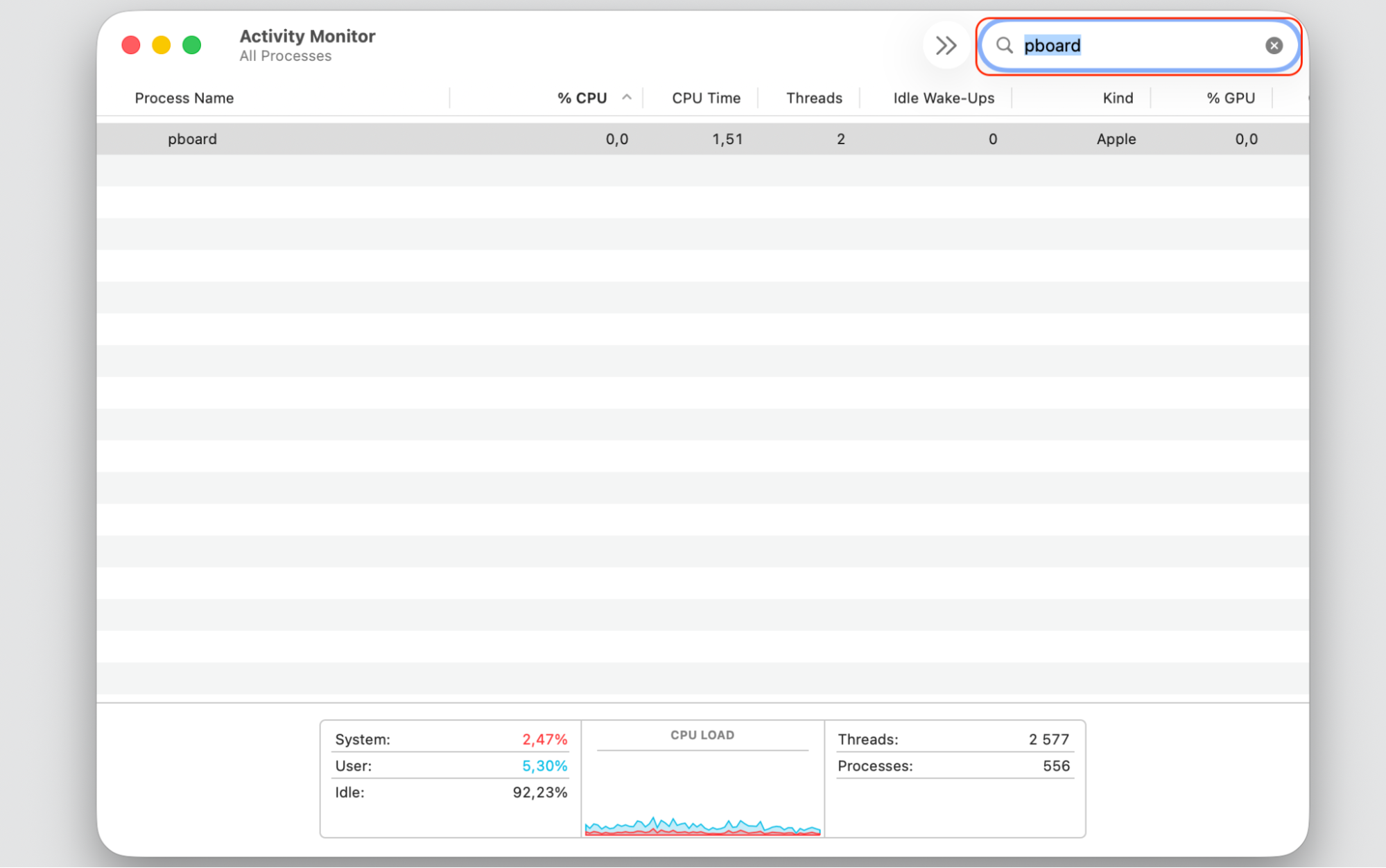
If a full restart feels like overkill, we can restart just the pasteboard process instead. To do this, open Activity Monitor on Mac and end the pboard task, and macOS relaunches it automatically.
Let’s reset it together:
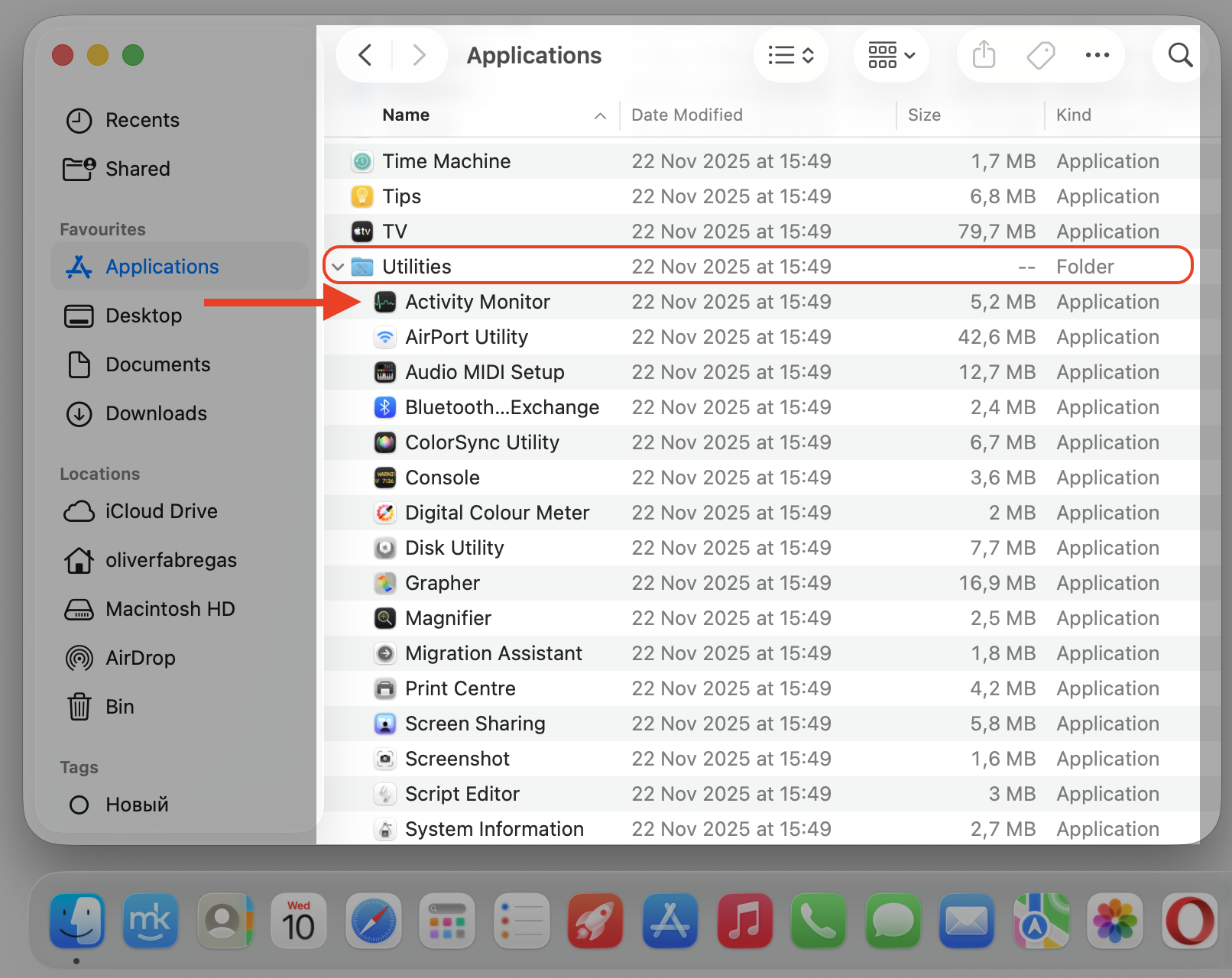
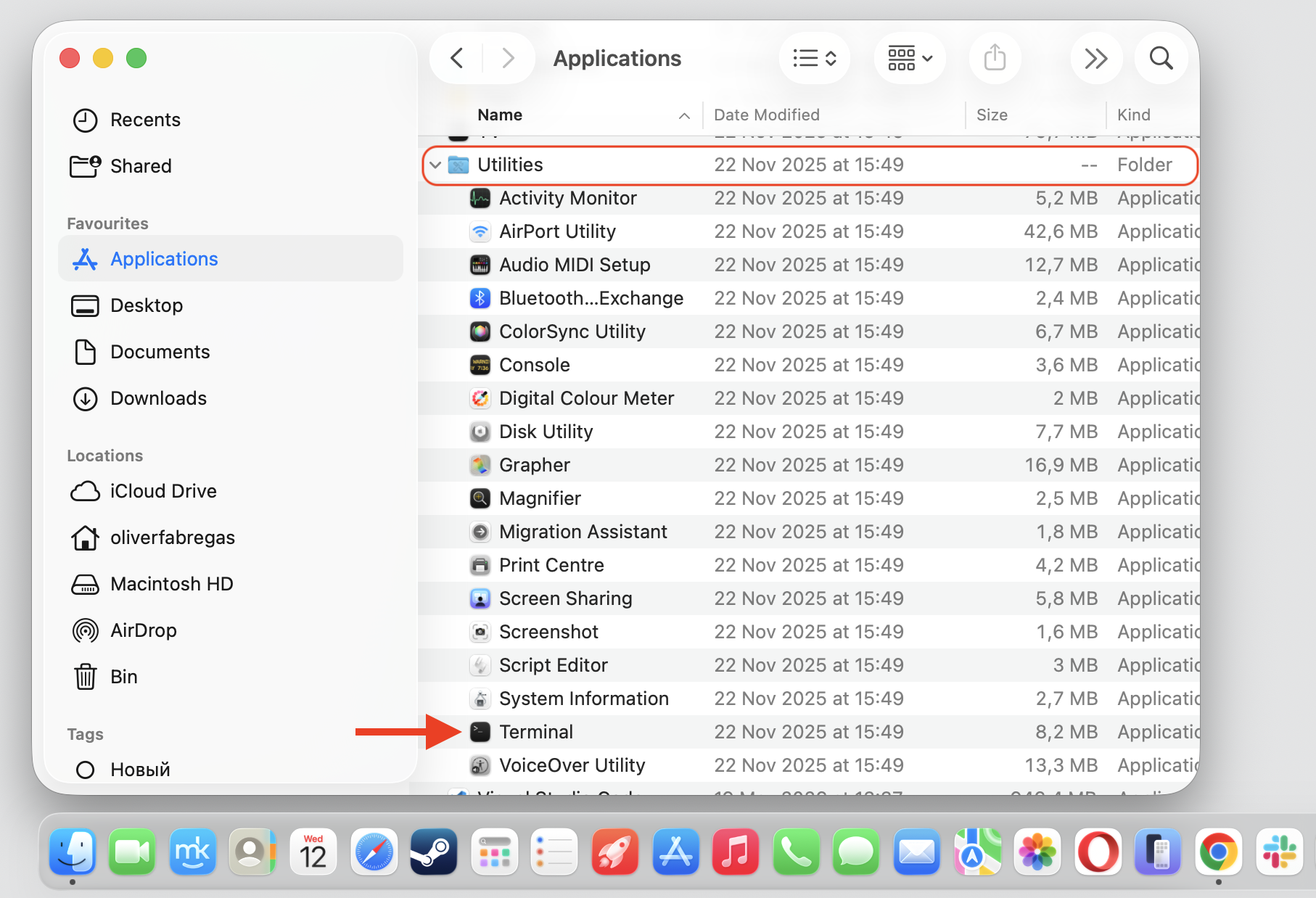
Open Finder > Applications > Utilities, then launch Activity Monitor.
Type pboard into the search field.
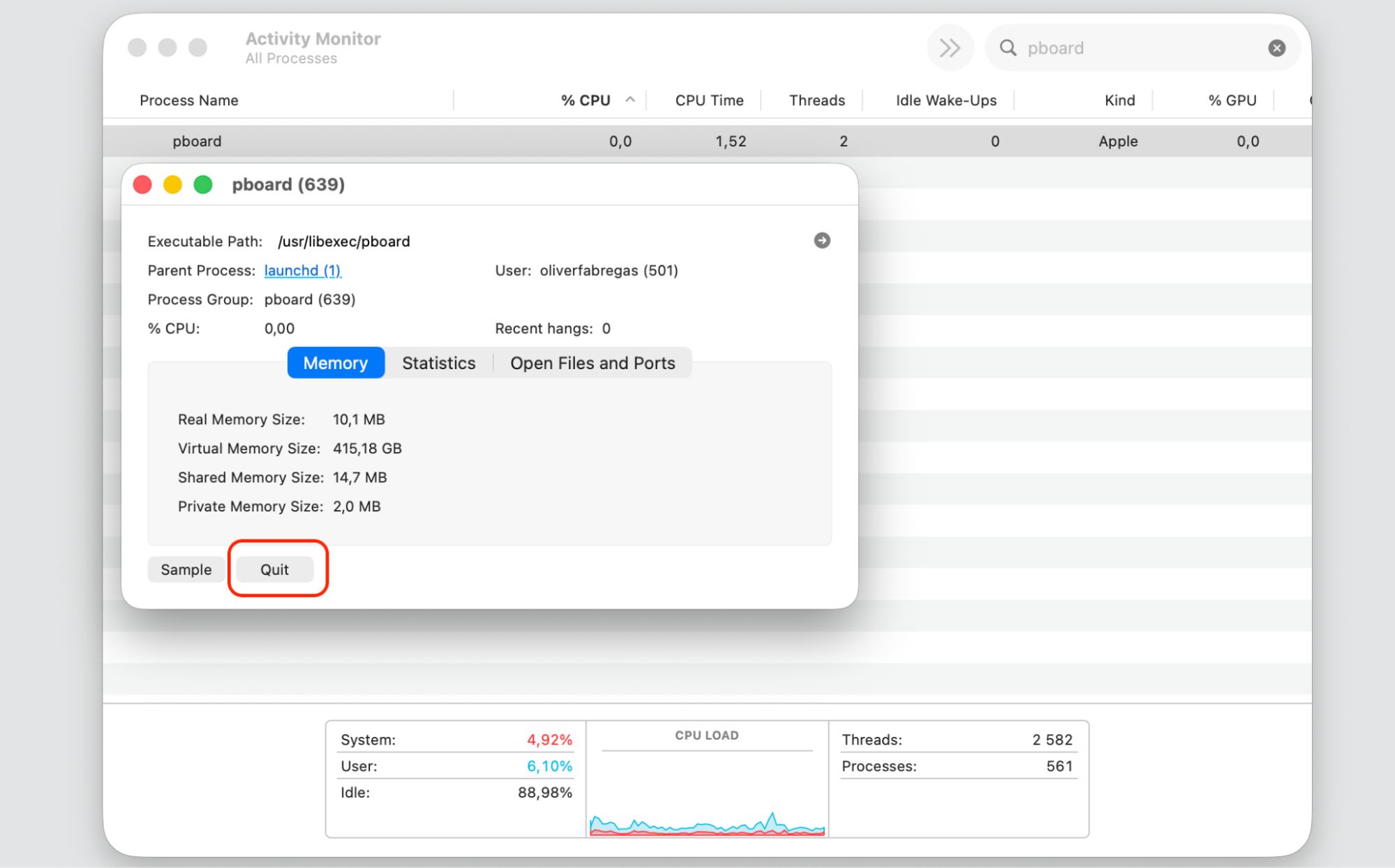
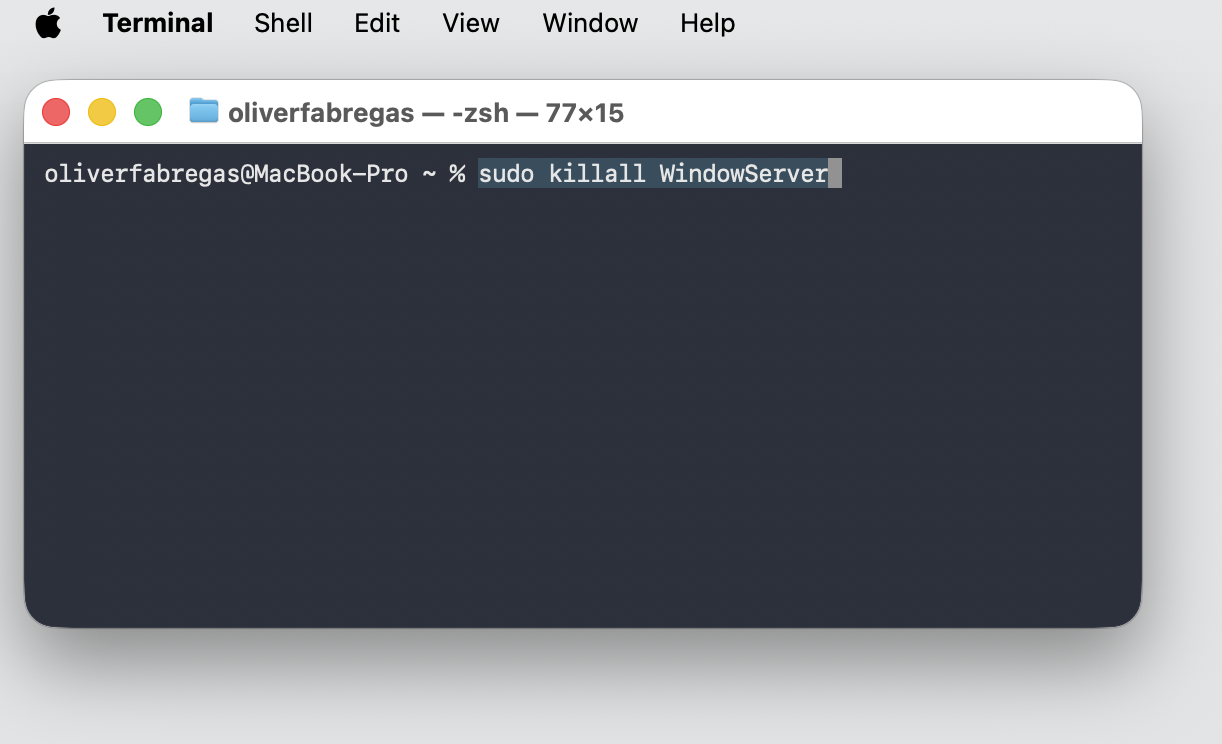
Select the pboard process, then click the Stop (X) button in the toolbar.
Choose Force Quit to confirm, and your Mac relaunches the process.
Step 1. Expand the Utilities folder and select Activity MonitorStep 2. Select the CPU tabStep 3. Type “phboard” in the search windowStep 4. Quit the process
3. Use Terminal to reset clipboard services
When the standard steps don’t help, you can run something in Terminal on Mac to force-restart the clipboard service directly.
Give this a go:
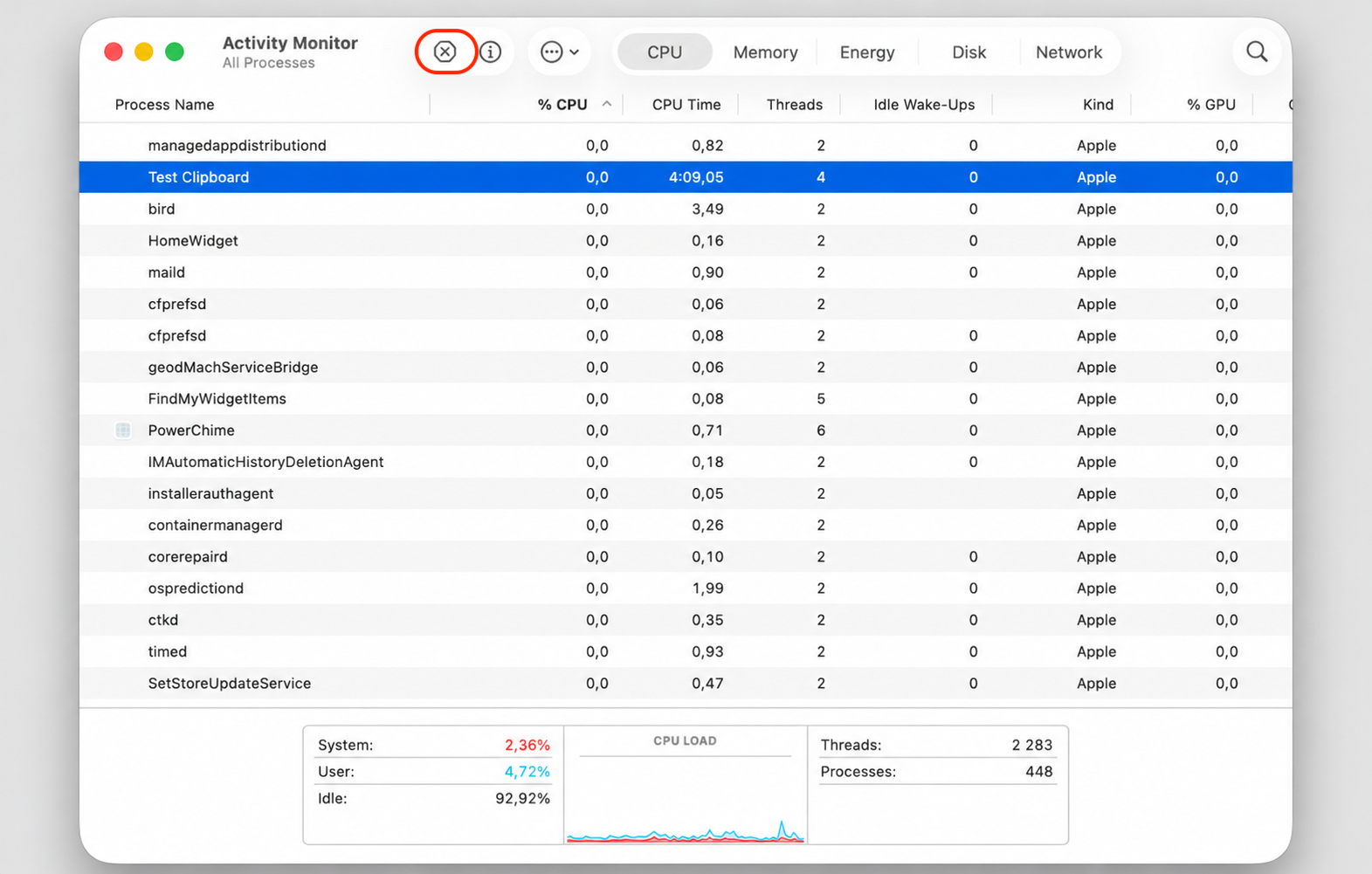
Open Terminal from Launchpad or the Utilities folder.
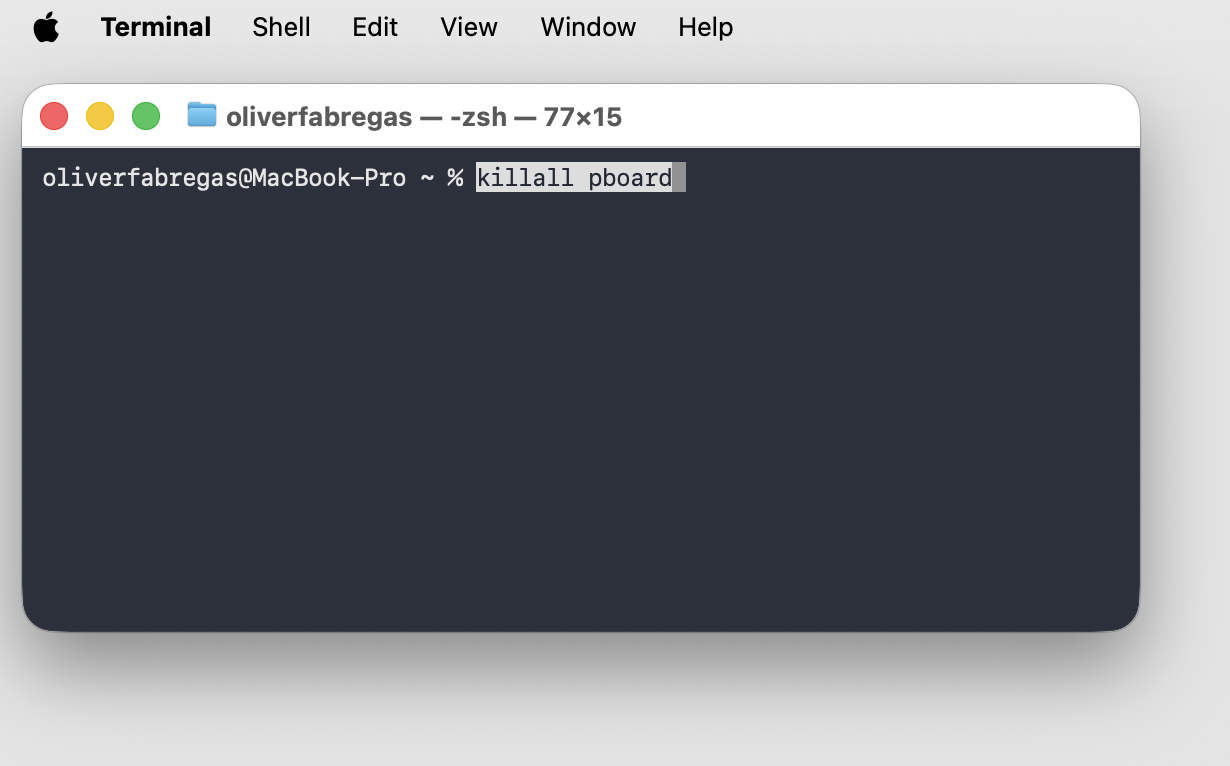
Type killall pboard and press Return.
Test copy-paste to confirm the clipboard responds again.
Step 1. Expand the Utilities folder and select TerminalStep 2. Type “killall pboard” and press Return
4. Restart the WindowServer process
Display-related processes can occasionally tangle with the clipboard, so let’s restart WindowServer—the process that manages your screen—to clear that up. It signs you out, so you should save any open work first.
When you’re ready, do the following:
Save and quit your open apps.
Open Terminal from the Utilities folder.
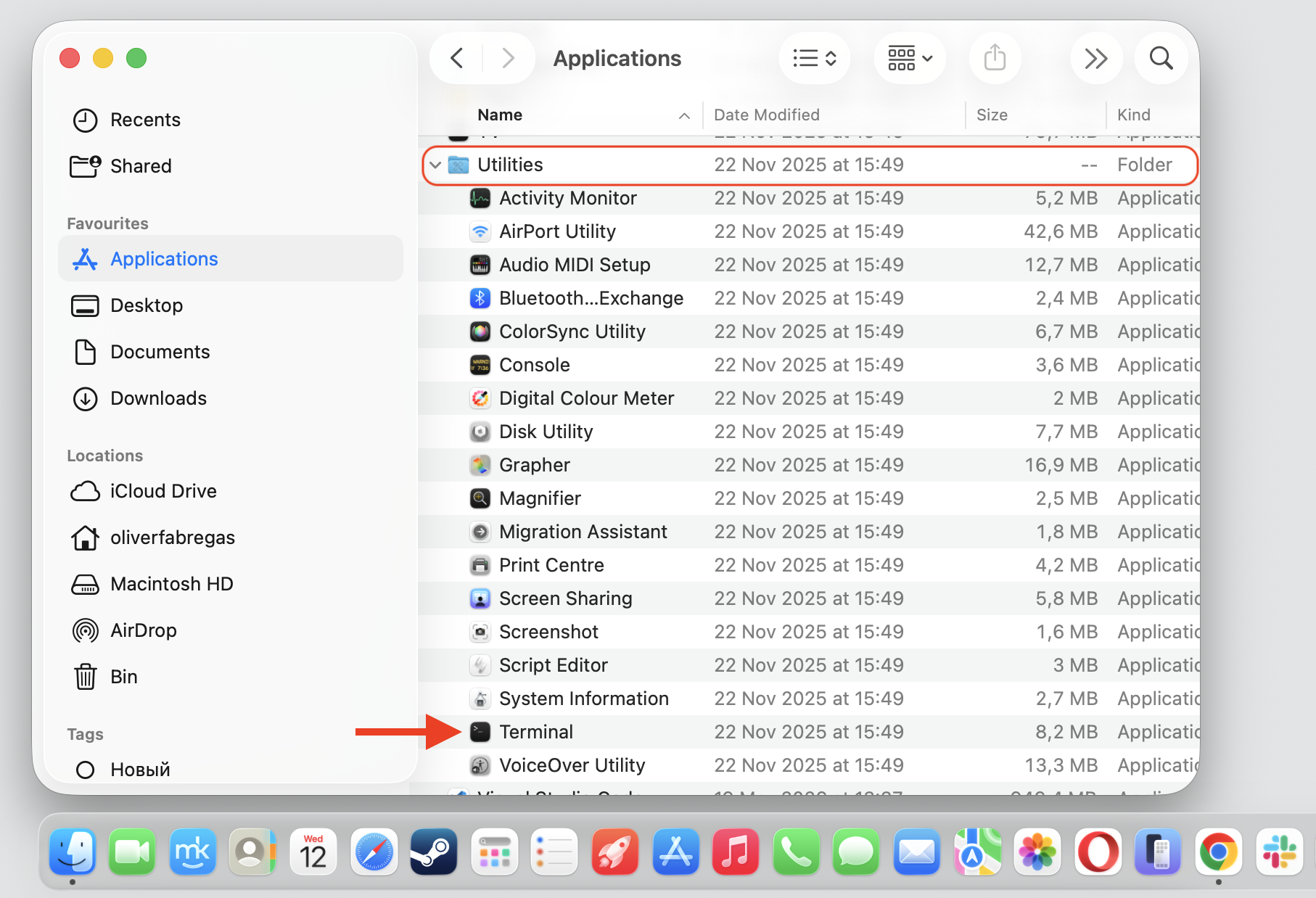
Type sudo killall WindowServer and press Return.
Enter your admin password to confirm, and your Mac signs you out and refreshes the display.
Step 1. Expand the Utilities folder and select TerminalStep 2. Type “sudo killall WindowServer” in the Terminal window and press Enter
5. Quit or remove third-party clipboard tools
Clipboard managers and similar apps can clash with the built-in macOS clipboard. If you use one, let’s quit it first and test copy-paste. If the message clears, that application is the culprit, and we’d suggest you delete applications you no longer need.
Start by quitting the app:
Open Activity Monitor and select your clipboard manager.
Click the Stop (X) button, then choose Force Quit.
Test the clipboard and remove the app for good if it’s the cause.
Select your Clipboard app and Click the Stop (X) button
6. Update macOS to resolve system-level bugs
An outdated system can carry small bugs that affect the clipboard, so we recommend you upgrade macOS to install the latest fixes and keep your Mac on a secure version.
Check for an update like this:
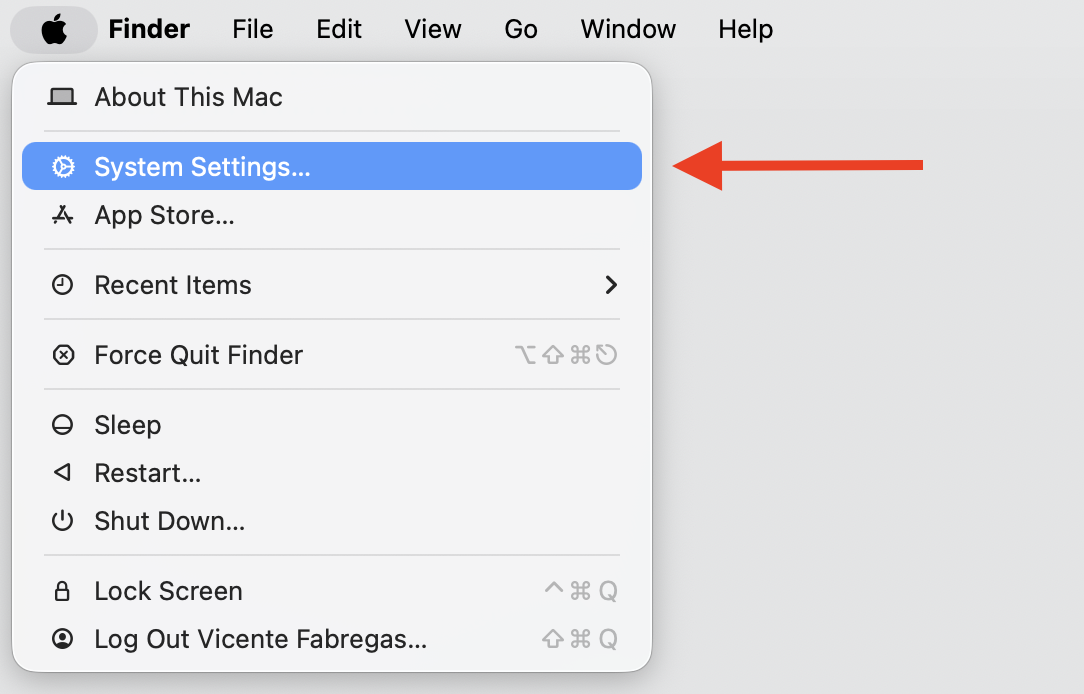
Open the Apple menu and select System Settings.
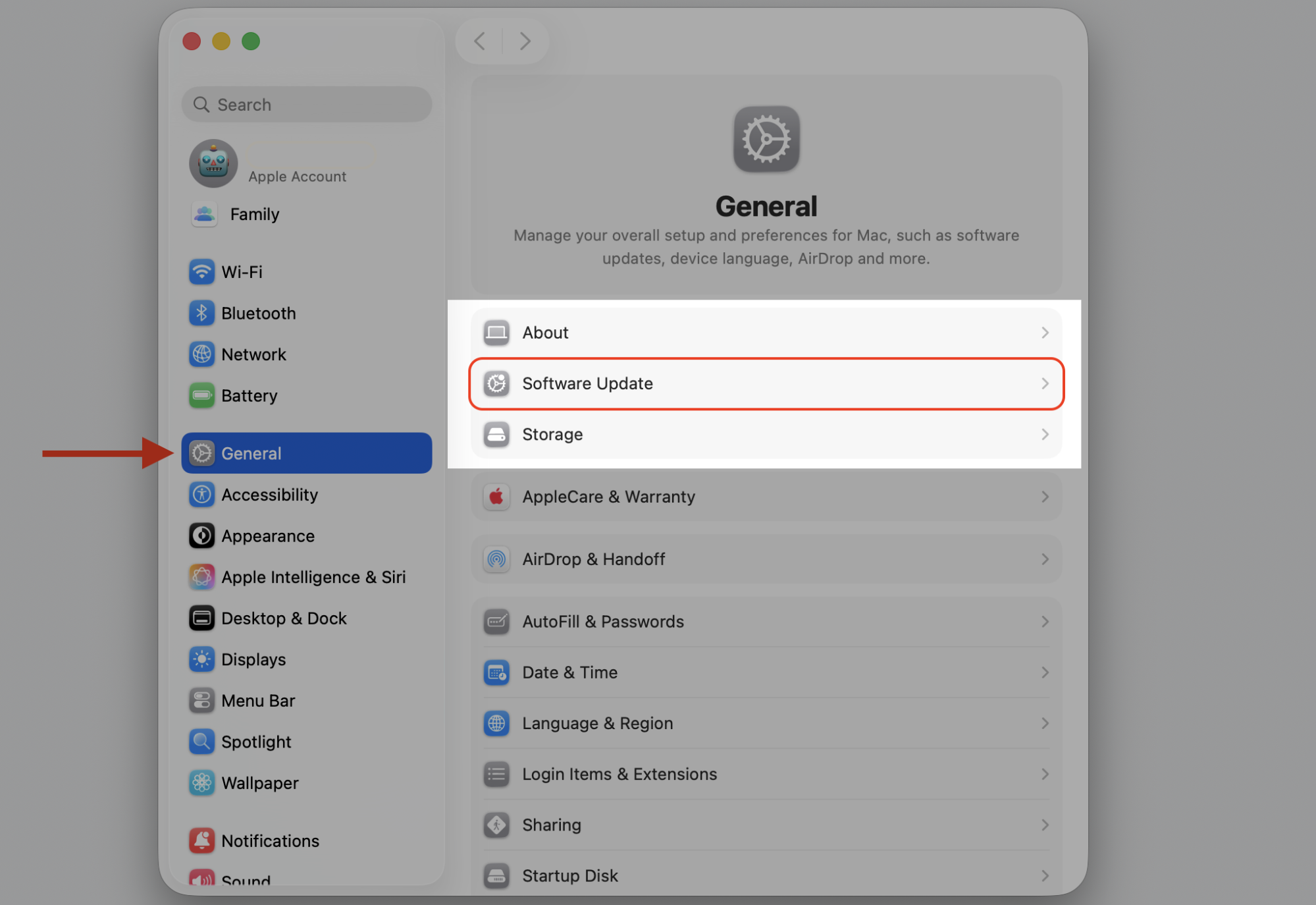
Click General > Software Update.
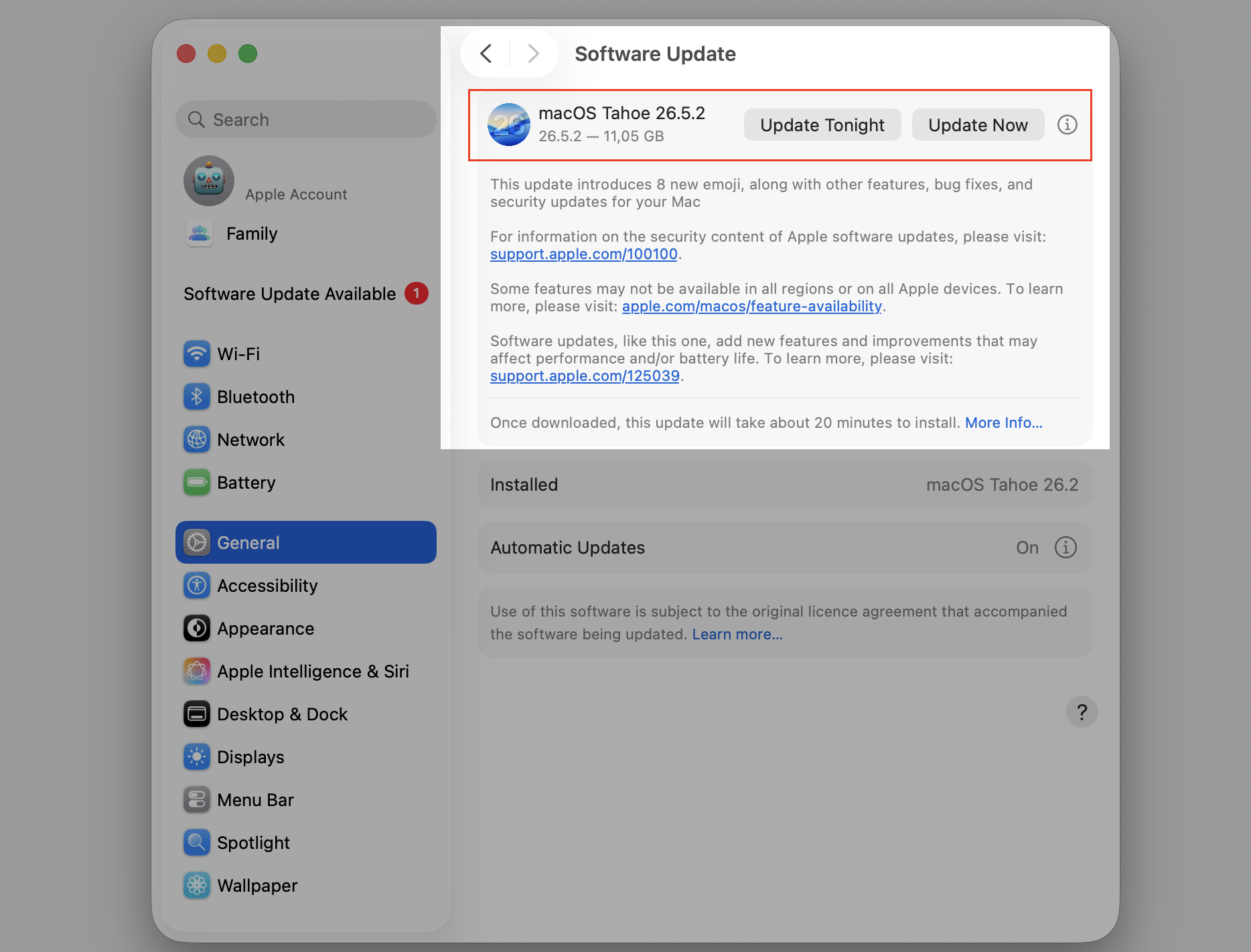
Install any available update, then restart if you’re prompted.
Step 1. Go to Apple Logo > System SettingsStep 2. Select Software Update from the General sectionStep 3. Select the Update Now option
7. Check your Mac for malware
On rare occasions, unwanted software interferes with clipboard operations, so we suggest you scan for malware on Mac to rule this out and keep your device clean.
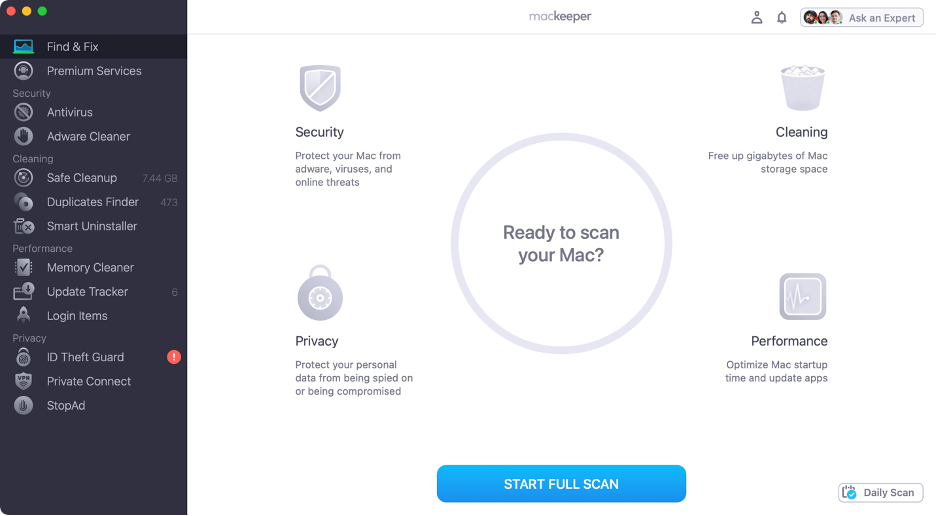
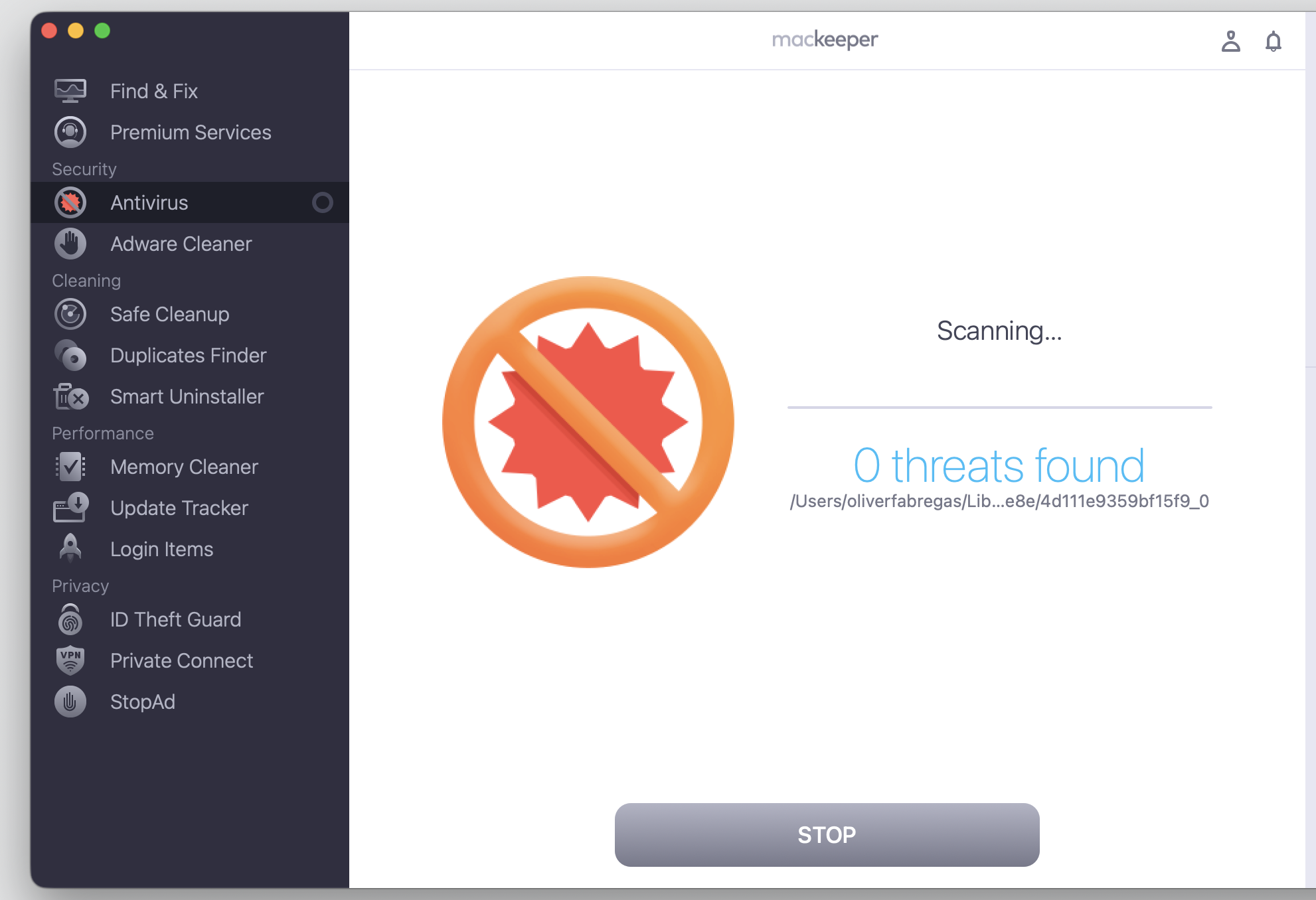
MacKeeper’s Antivirus offers full and custom scans, and it alerts you when it finds something that needs your attention.
Run a quick scan this way:
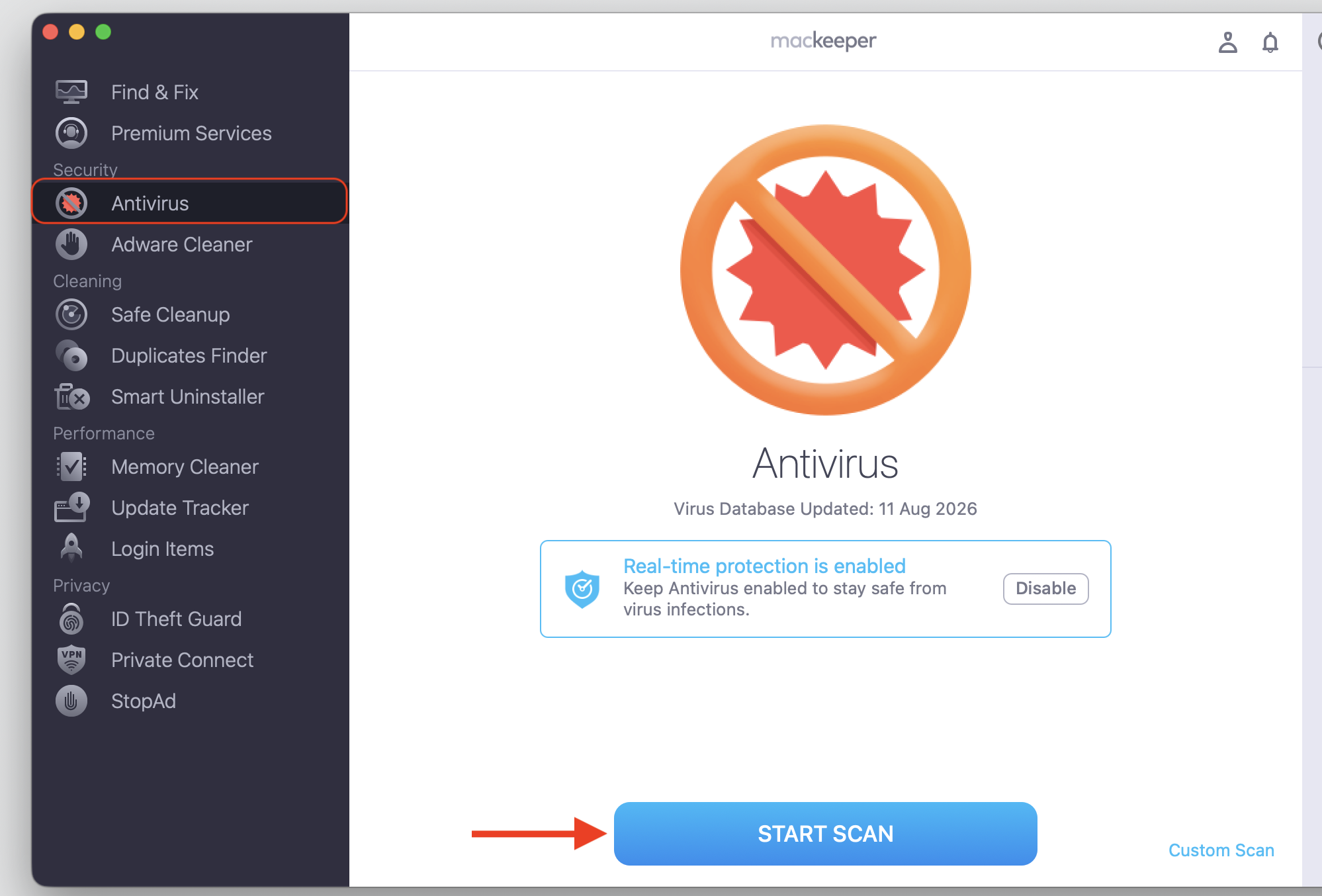
Open MacKeeper and select Antivirus from the sidebar.
Choose a full or custom scan, then click Start Scan.
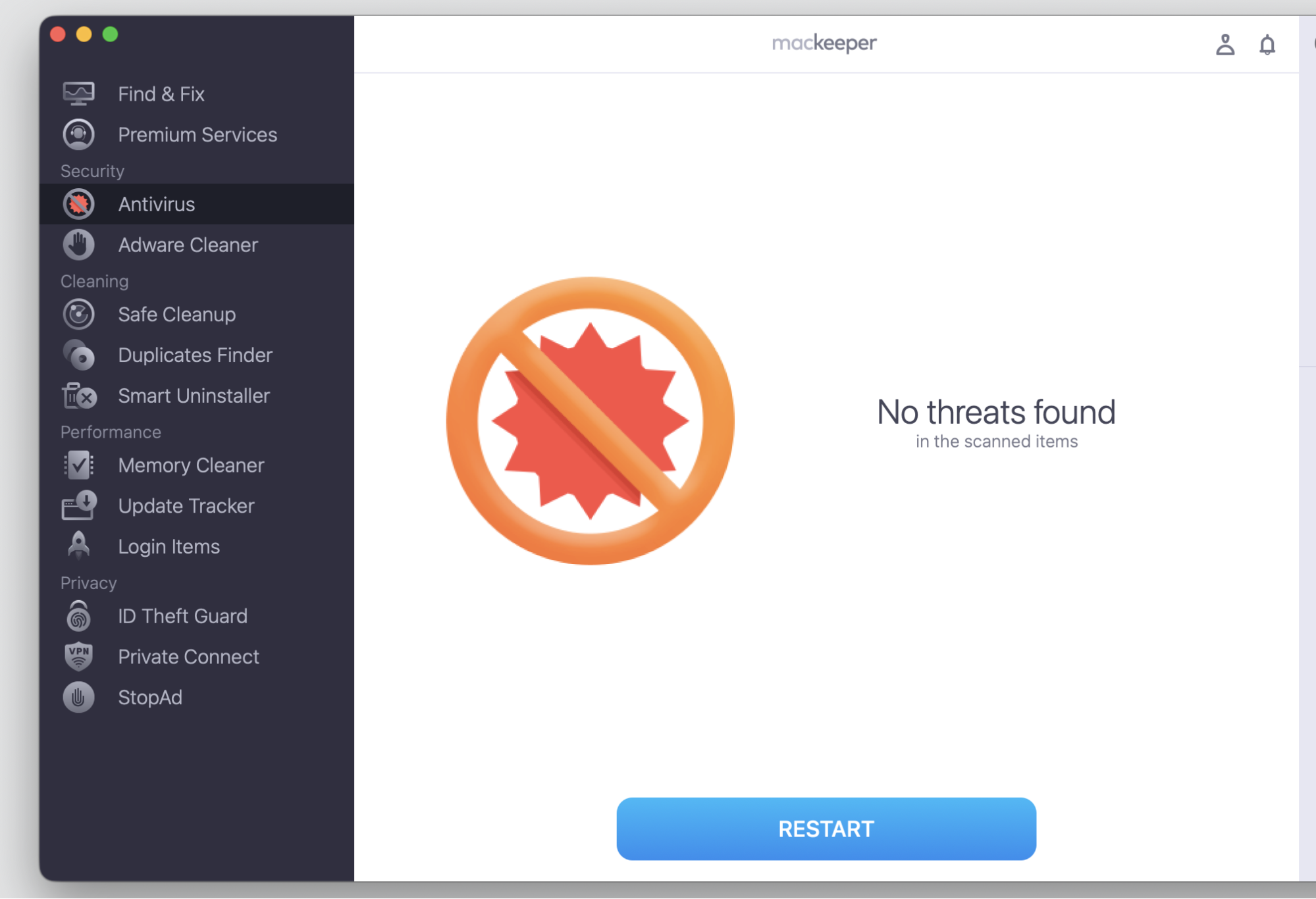
Review the results and remove anything flagged.
Step 1. Go to MacKeeper > Antivirus > Start ScanStep 2. Wait until our antivirus app process the scanStep 3. Check the result
Get your Mac’s clipboard working again
In most cases, “sorry no manipulations with clipboard allowed” on Mac comes down to a temporary system issue or a small conflict, and the methods above resolve it quickly. Start with a restart, work through the list, and your copy-paste function should return in no time.
Want a helping hand? With MacKeeper’s Premium Services, you have access to real experts that can guide you through fixing “sorry, no manipulations with clipboard allowed” and keep your Mac running smoothly. It’s a friendly, reliable way to sort out clipboard troubles without the guesswork.
We respect your privacy and
use cookies
for the best site experience.
Privacy Preferences Center
We use cookies along with other tools to give you the best possible experience while using the
MacKeeper website. Cookies are small text files that help the website load faster. The cookies we
use don’t contain any type of personal data meaning they never store information such as your
location, email address, or IP address.
Help us improve how you interact with our website by accepting the use of cookies. You can change
your privacy settings whenever you like.
Manage consent
All cookies
These cookies are strictly necessary for enabling basic website functionality (including page
navigation, form submission, language detection, post commenting), downloading and purchasing
software. The website might malfunction without these cookies.