Is the bluetoothd process hogging your Mac’s CPU? This background process can spike unexpectedly, leaving your MacBook sluggish. The good news—it’s usually an easy fix. MacKeeper’s Memory Cleaner helps you reclaim system resources and tackle bluetooth high CPU usage in one click.
Bluetoothd is a core macOS process that manages Bluetooth connections on your Mac. It handles device communication, data exchange, and keeps wireless peripherals—like your keyboard, mouse, and AirPods—connected and responsive.
It also powers system services like AirDrop, Handoff, and Apple’s device tracking. So even when you’re not actively using a wireless accessory, bluetoothd may run in the background to support synchronization. If your peripherals won’t connect at all, that’s a separate item—Bluetooth not working on Mac covers that situation in detail.
Why you may see high bluetoothd CPU usage on your Mac?
Opened Activity Monitor and spotted the bluetoothd process consuming far more CPU than expected? From our practice, here’s what could be going on:
Unstable connections. A device that keeps dropping and reconnecting forces bluetoothd to retry endlessly.
Device conflicts. Multiple peripherals or older Bluetooth protocols can cause the process to spike.
macOS bugs. A system update may introduce glitches that lead to bluetoothd high memory usage.
Waking from sleep. Your MacBook re-establishes connections when it wakes, and a failed handshake can get stuck in a loop.
Ghost devices. Peripherals you’ve previously paired but no longer use may trigger background connection attempts.
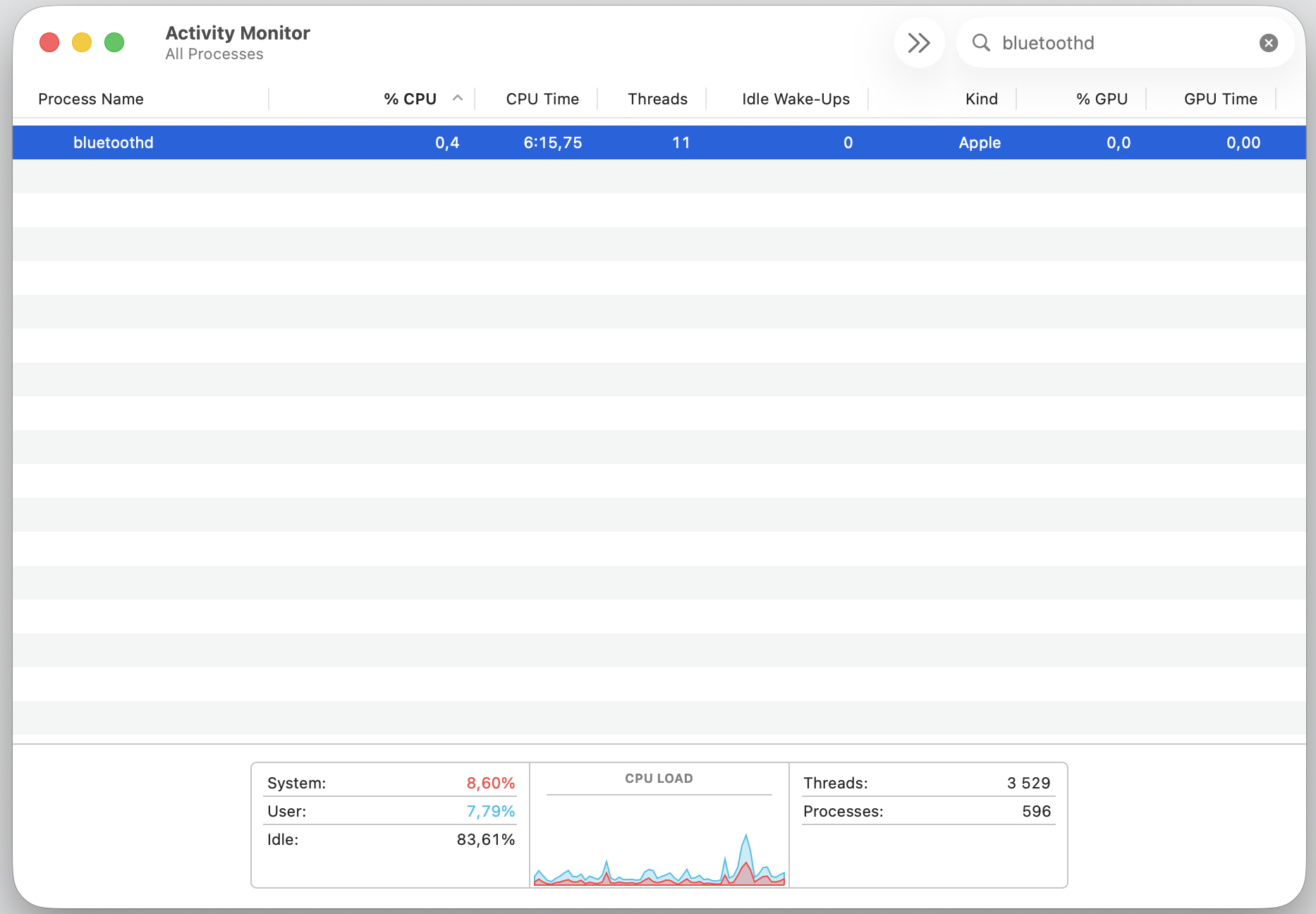
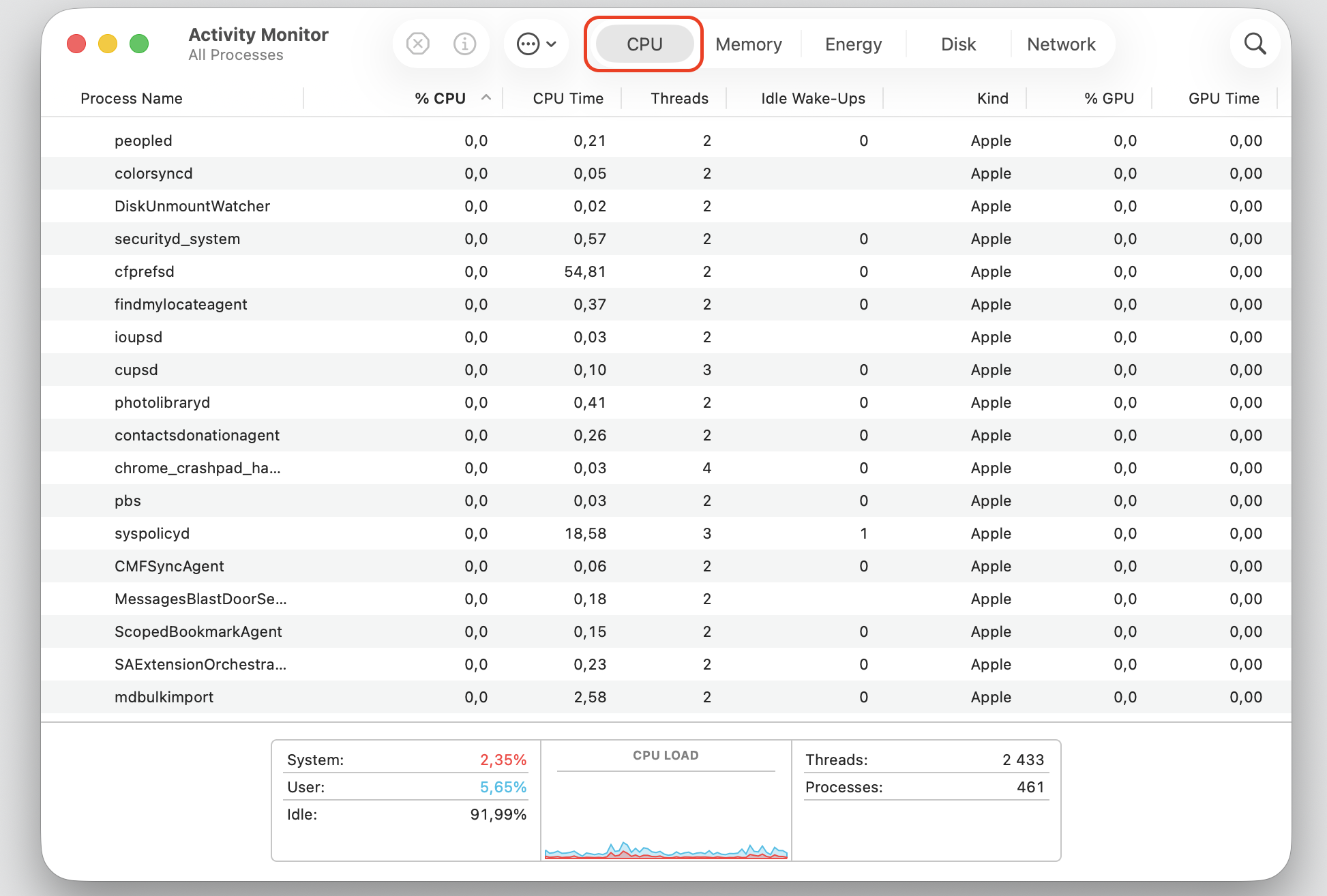
Not sure if bluetoothd is the culprit? You can find CPU usage on your Mac to confirm which processes are consuming the most resources.
When is high bluetoothd resource usage normal on Mac?
Not every spike is a problem. Temporary increases happen when pairing a new device, transferring files, or right after startup. Your Mac exchanges security keys and configuration data during these moments, which takes extra processing power.
The key difference is duration. A spike lasting a few seconds is expected. If it stays elevated for several minutes, it’s time to investigate. You can launch Activity Monitor to watch the process in real time.
A note from our experts:
As an alternative to the Mac’s built-in Activity Monitor process management, we suggest using a third-party solution. What for? For ease of use, safety, and navigation through the usually hidden files and folders. We’re referring to MacKeeper’s Memory Cleaner in this regard, and you can test it for free already today.
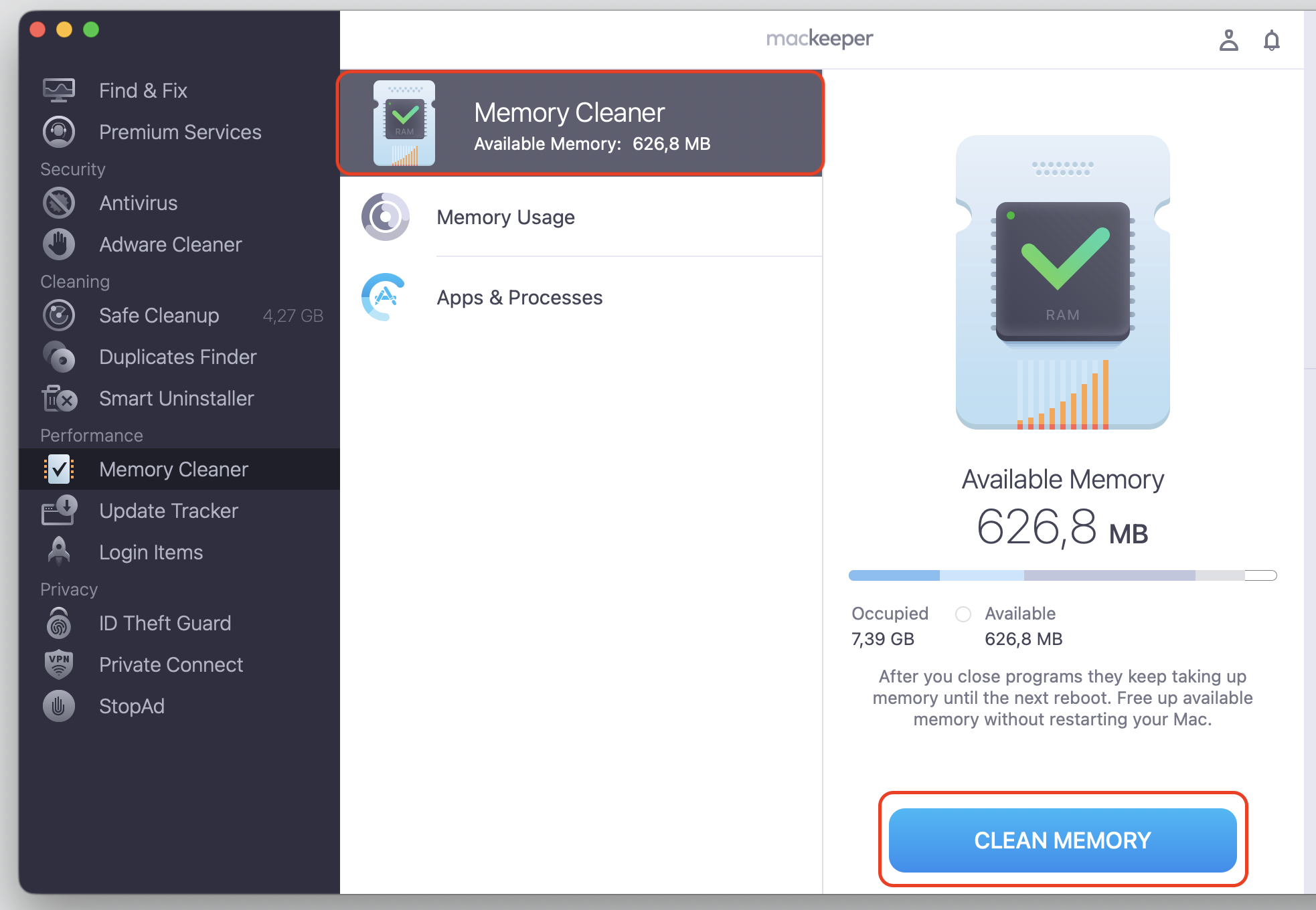
Follow our instructions for faster resource usage control with MacKeeper’s Memory Cleaner:
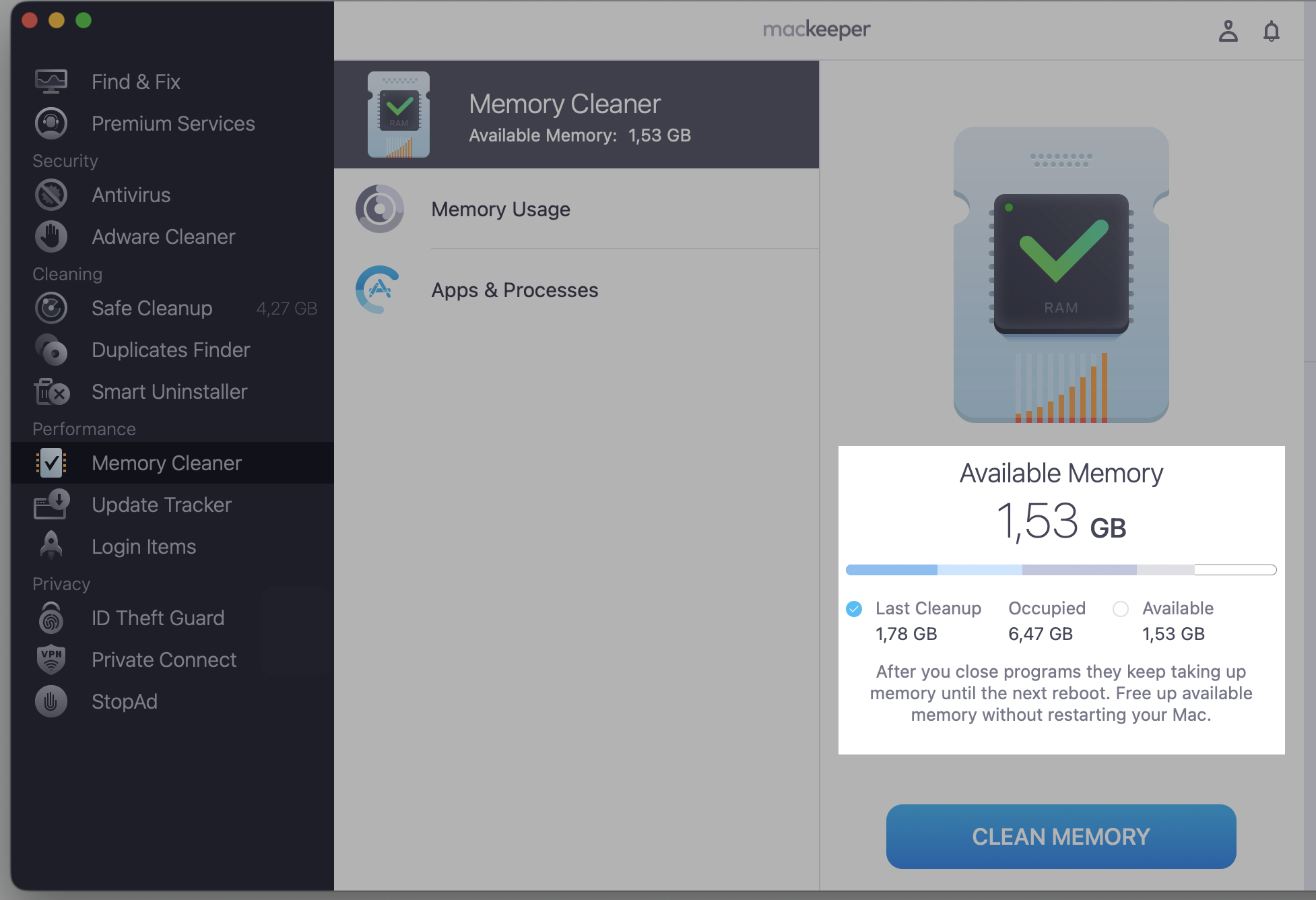
After MacKeeper completes the process scan, select the redundant process to stop, then quickly confirm the more thorough memory usage cleanup with the Clean Memory button.
See the result.
Step 1. Go to MacKeeper > Memory Cleaner > Select OpenStep 2. Select Memory Cleaner section, then click Clean MemoryStep 3. Check the result
How to fix bluetoothd high CPU on Mac?
If bluetoothd is persistently using too many resources, try the fixes below. Pay attention to how often the spikes happen and how long they last—this helps narrow down the cause. Is your Mac slowing down beyond just Bluetooth? A single runaway process can affect your entire system.
1. Turn Bluetooth off and on
Toggling Bluetooth forces your Mac to drop connections and re-establish them fresh, clearing out any stuck handshakes. We should mention that all Bluetooth devices, including a mouse and an external keyboard, will be disabled at this point as well. So, if you’re using an iMac, be ready to connect the wired mouse to turn Bluetooth back on. Then proceed with our hints:
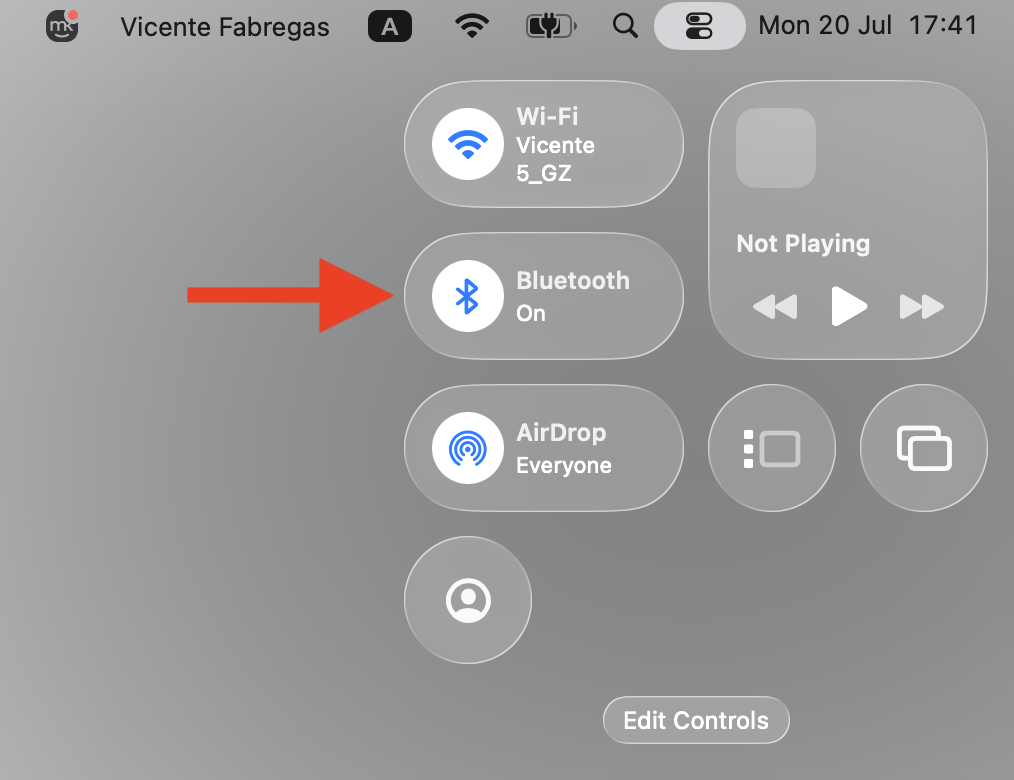
Click the Control Center icon in the menu bar.
Click Bluetooth to turn it off.
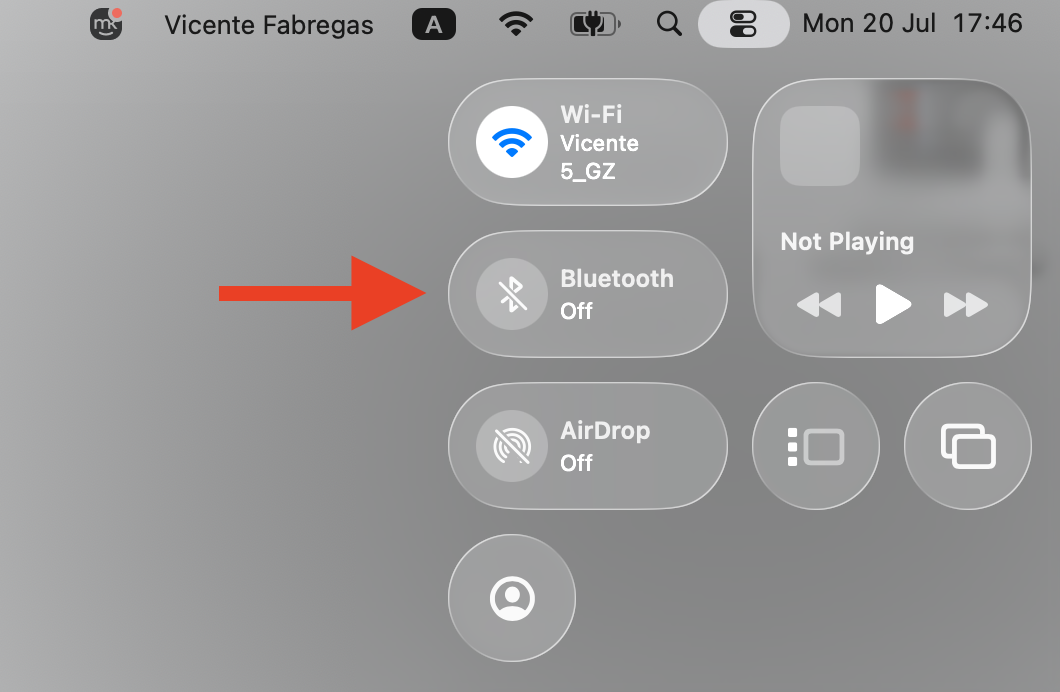
Wait about 10 seconds, then turn it back on.
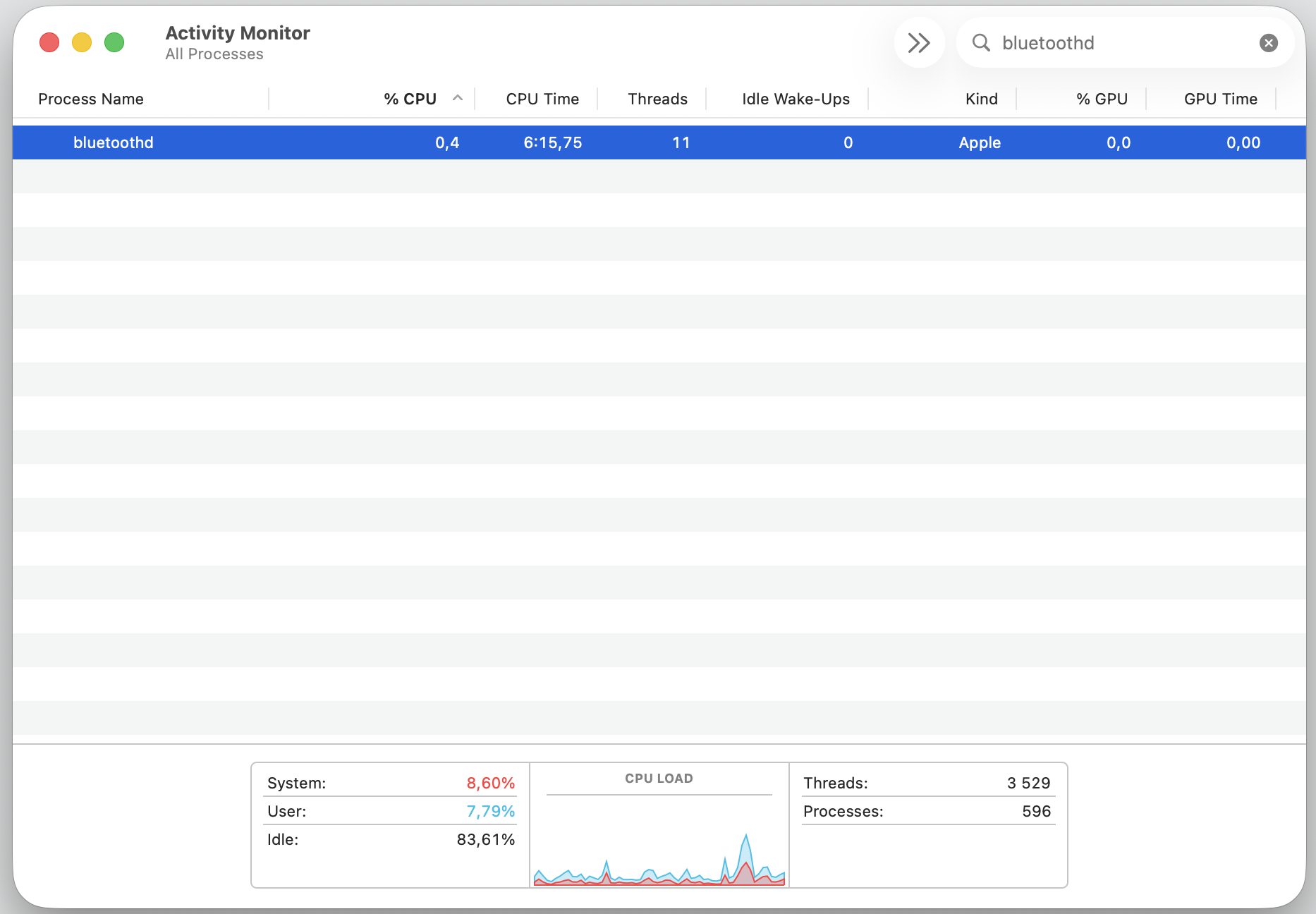
Check Activity Monitor to see if the CPU spike has settled.
Step 1. Go to Control Center and turn off Bluetooth for a whileStep 2. Turn on BluetoothStep 3. Check Activity Monitor > CPU > Bluetooth process
If the spike returns, move on to the next method.
2. Restart your Mac
A restart clears temporary data, resets background services, and gives macOS a clean slate. It’s especially helpful when Bluetoothd gets stuck after a sleep/wake cycle. Here’s what to do:
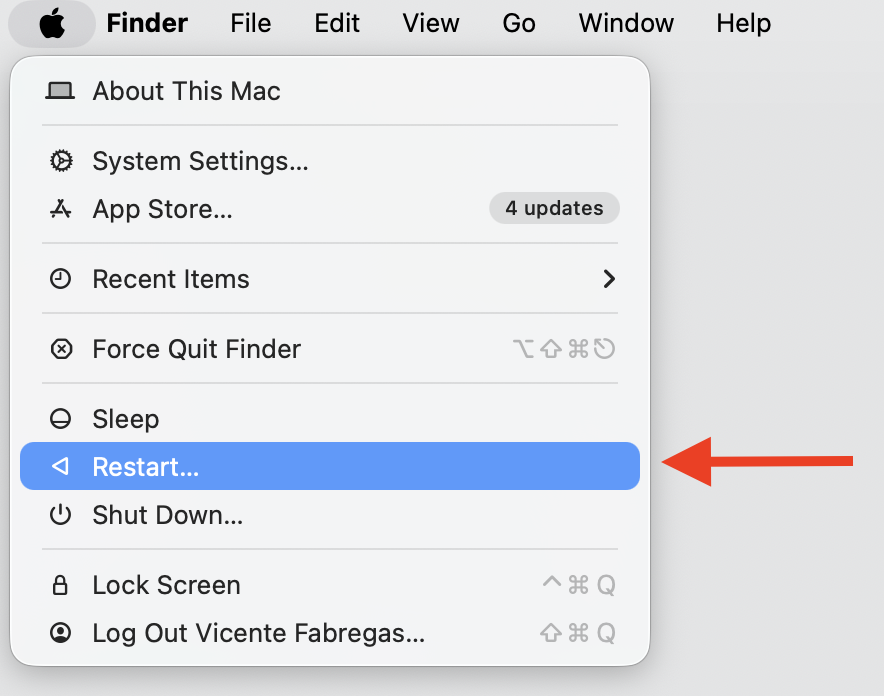
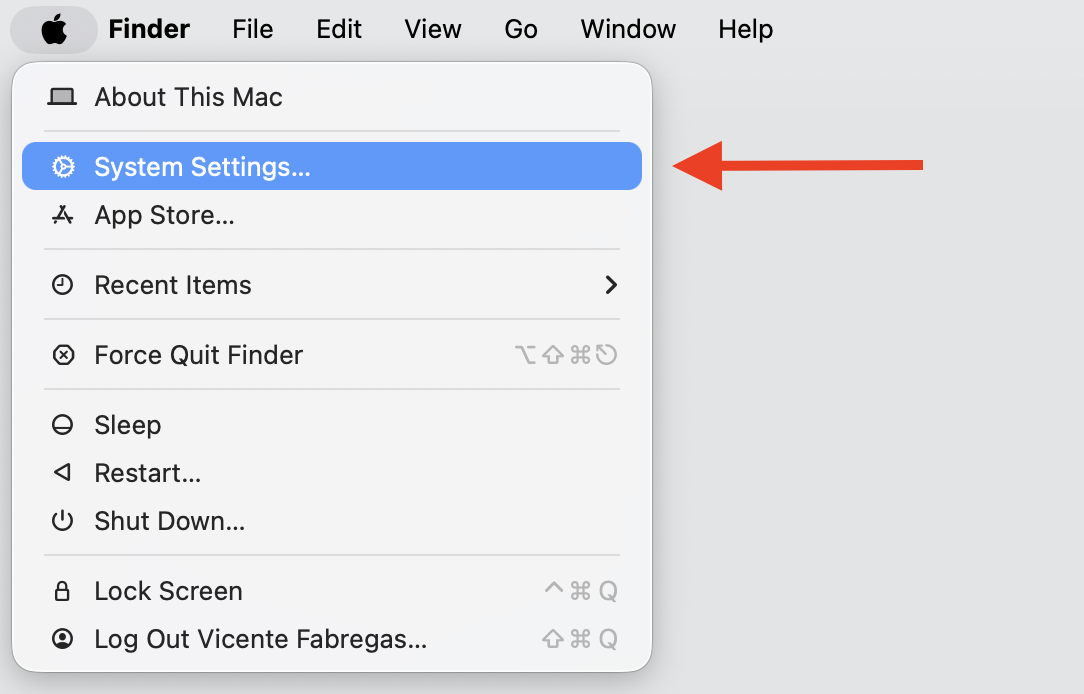
Click the Apple menu in the top-left corner of your screen.
Select Restart and let your MacBook reboot fully.
After rebooting MacBook, open Activity Monitor to confirm CPU usage has settled.
Step 1. Go to Apple Logo > Restart Step 2. Check Activity Monitor > CPU > Bluetooth process
3. Remove unused or problematic devices
Old paired devices can still trigger background connection attempts, wasting CPU cycles even if they’re nowhere nearby. To remove unnecessary devices, do the following:
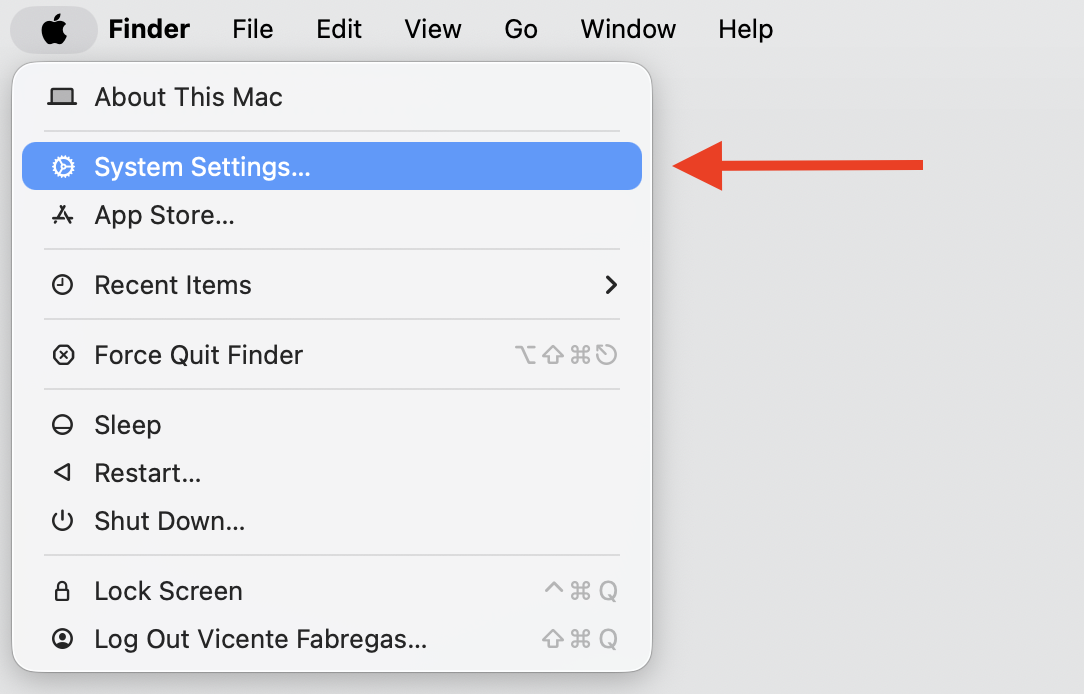
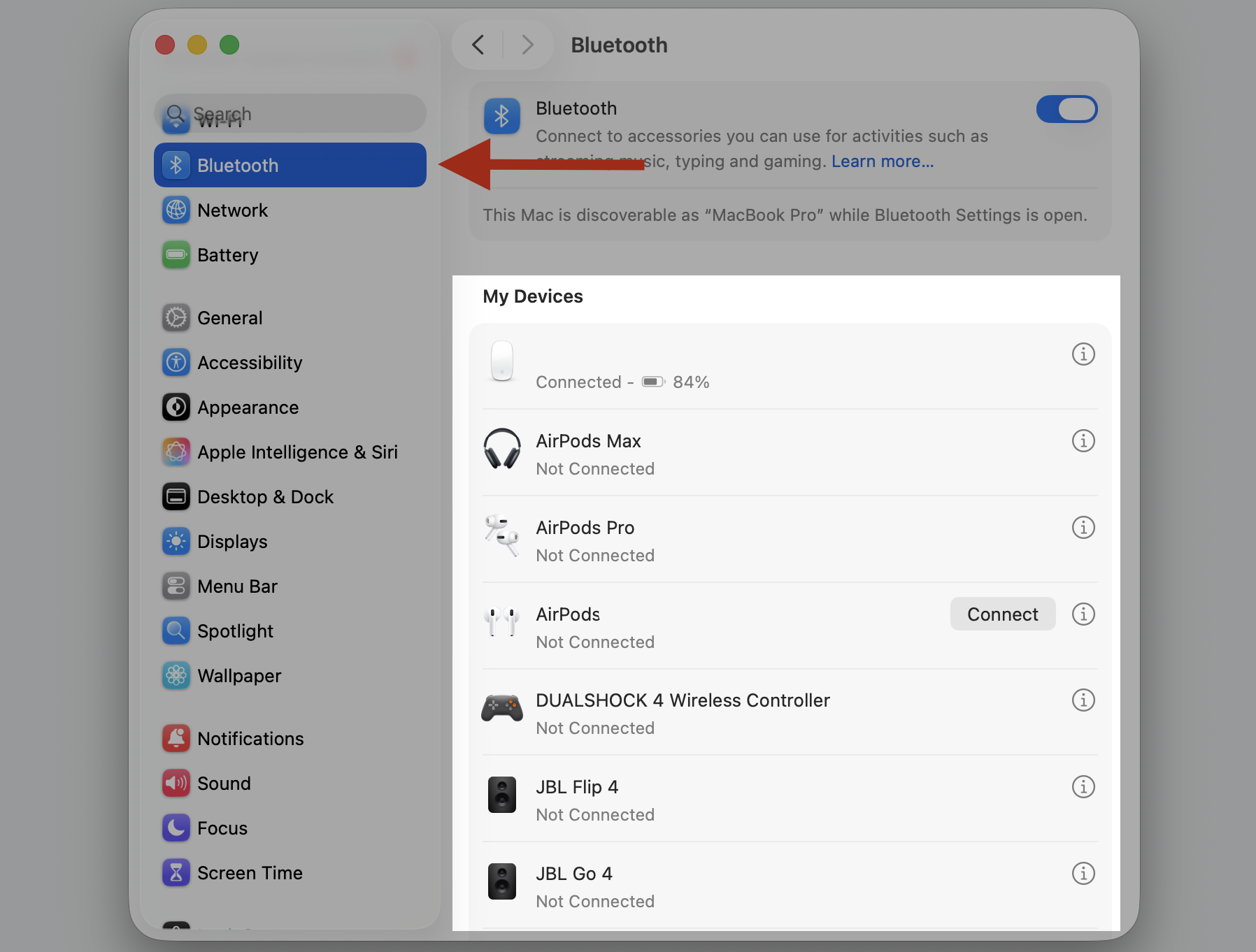
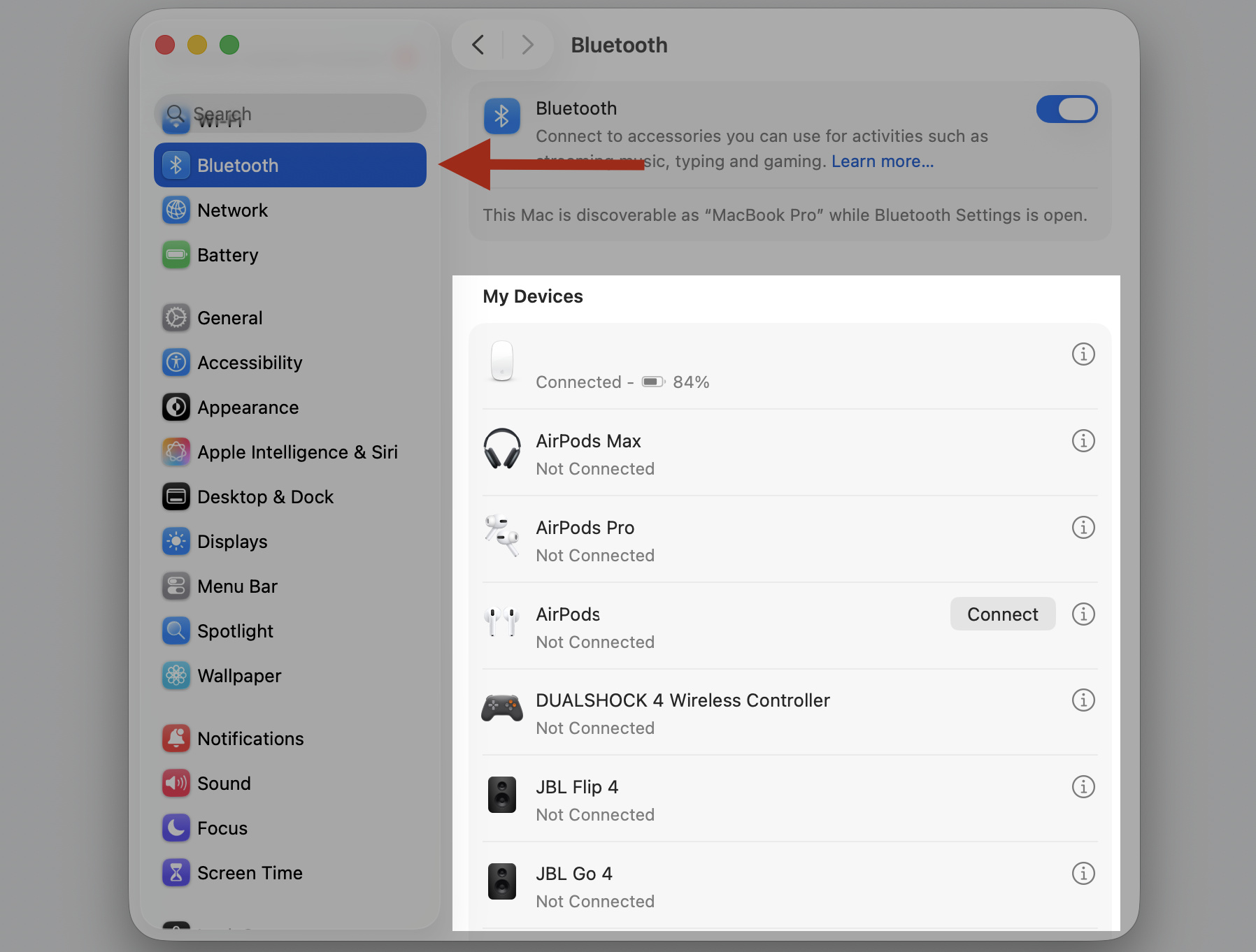
Open System Settings > Bluetooth.
Find devices you no longer use.
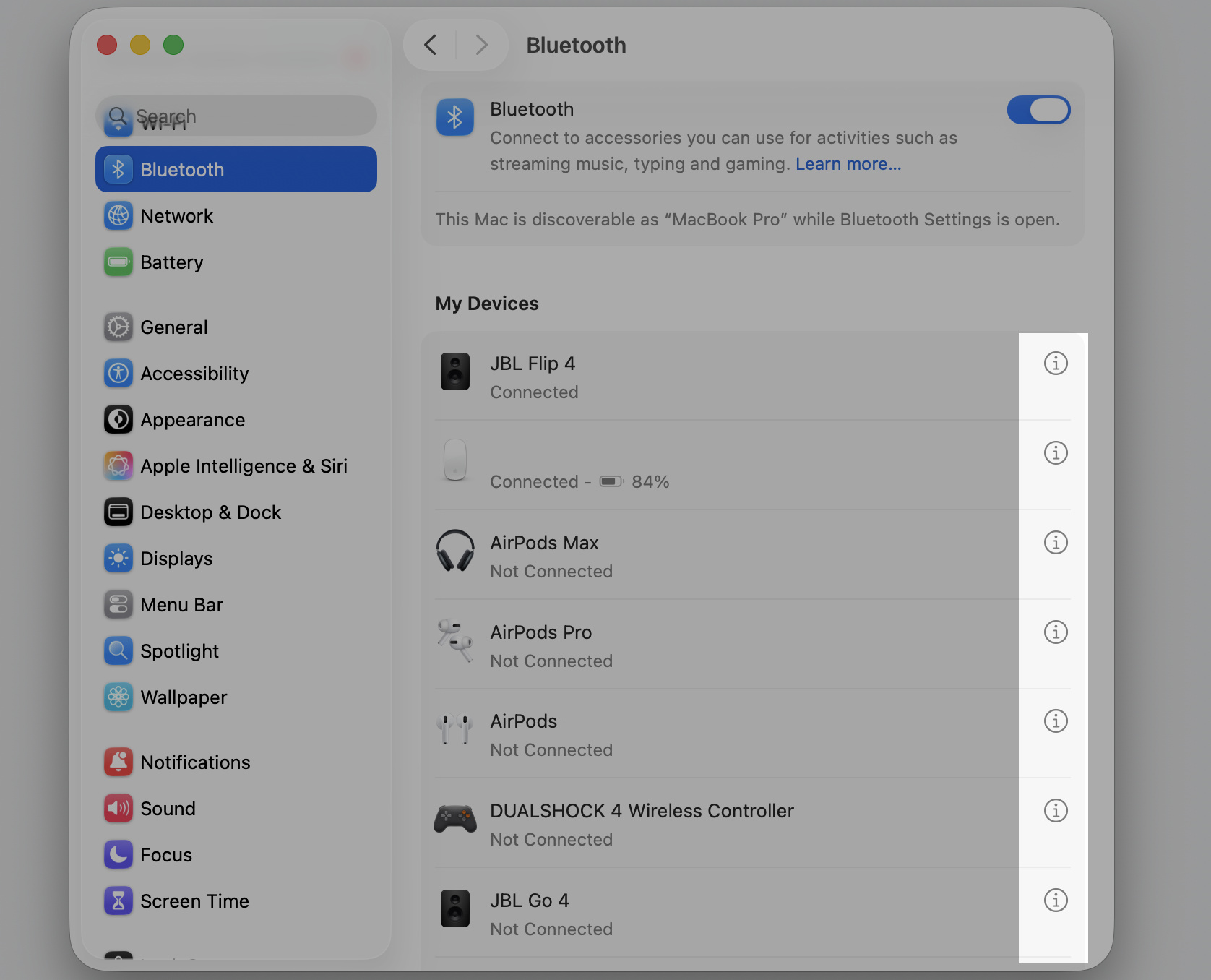
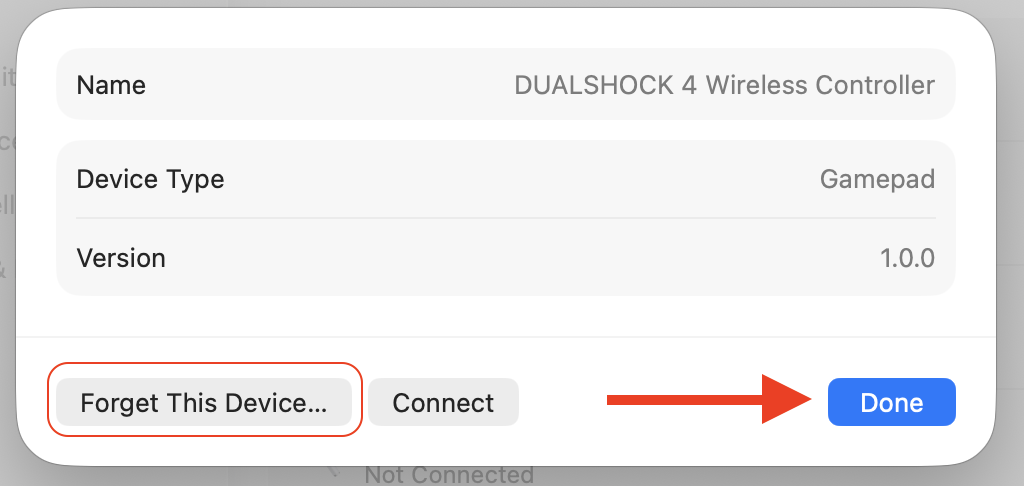
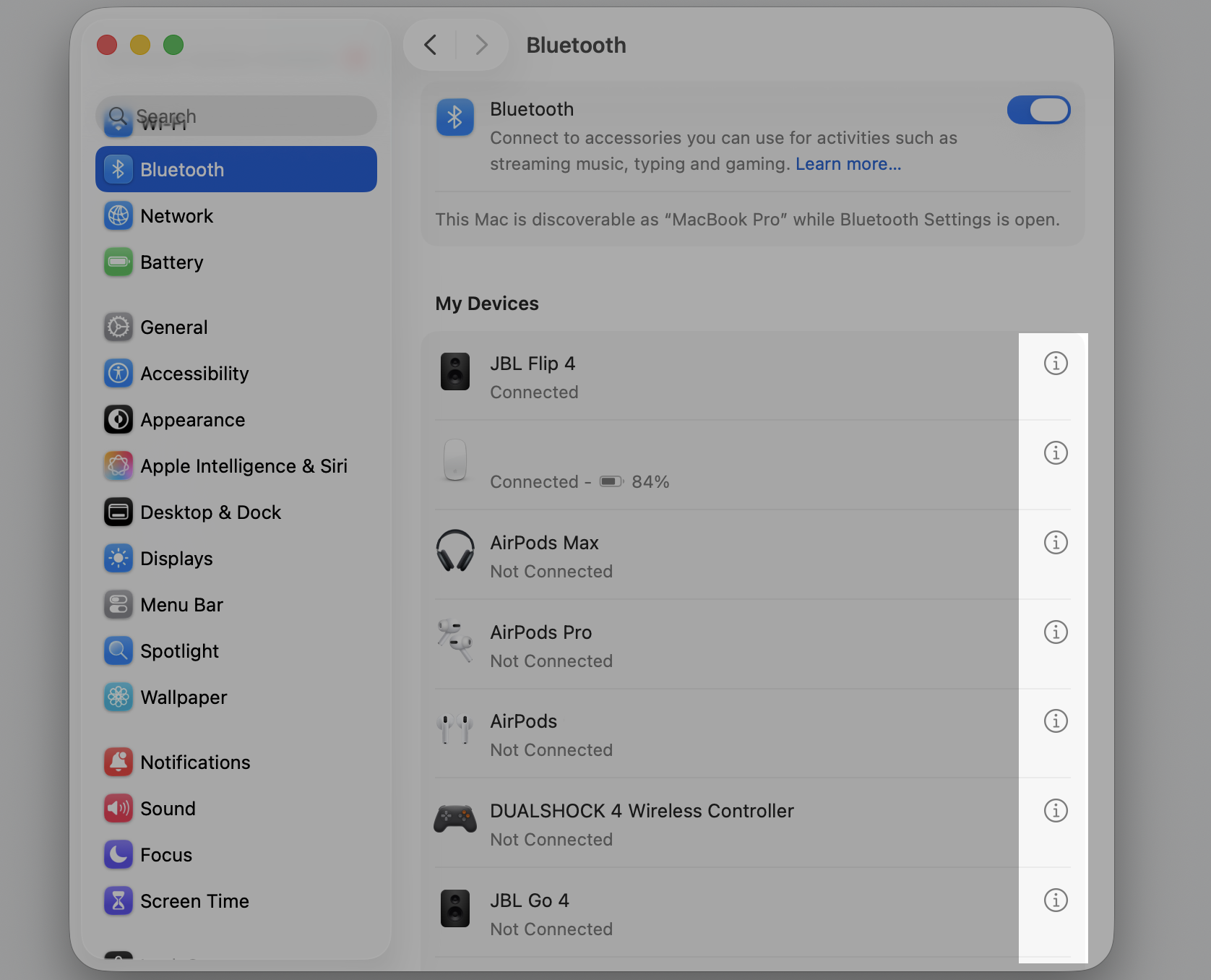
Hover over the device, click the i button, and select Forget This Device.
Repeat for any other unused peripherals on the list.
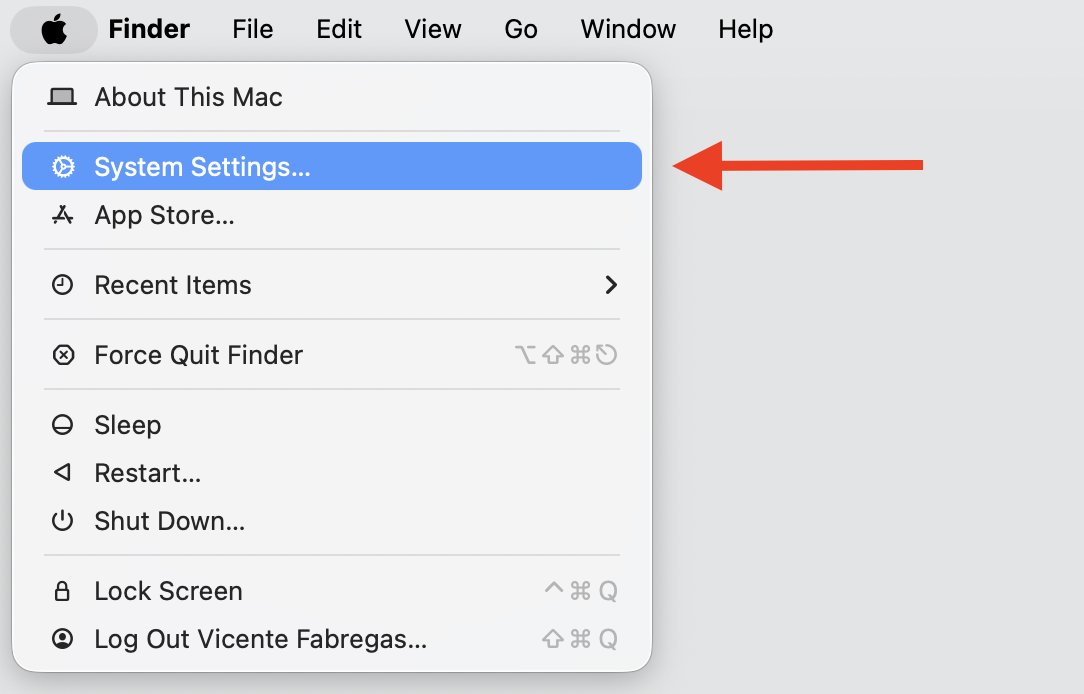
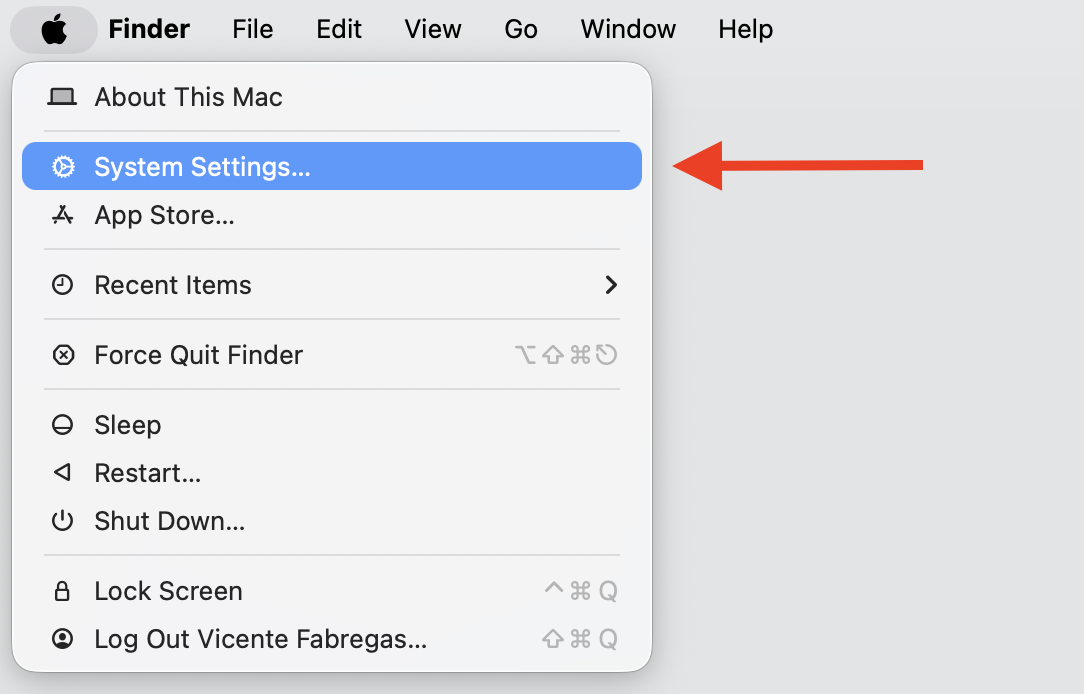
Step 1. Got to Apple logo > System SettingsStep 2. Go to Bluetooth > My DevicesStep 3. Click the Info (ⓘ) button next to your deviceStep 4. Choose Forget This Device and confirm the action
4. Reconnect Bluetooth devices
Corrupted pairing data can cause repeated connection failures, which can drive up CPU usage. Re-pairing resets the connection profile and resolves persistent bluetoothd high memory usage tied to a specific device. Do the following:
Go to System Settings > Bluetooth.
Forget the problematic device using the i button.
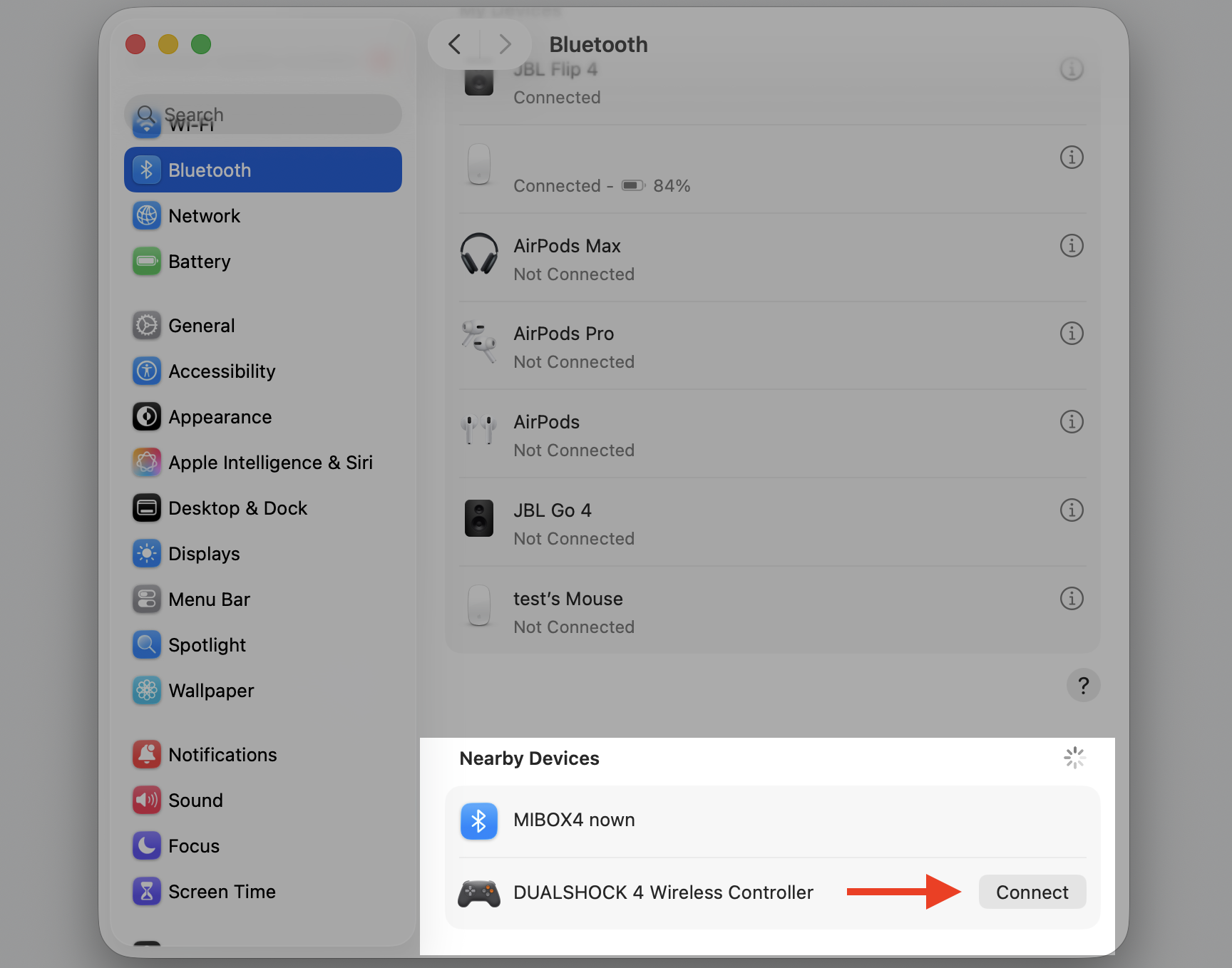
Put the device into pairing mode.
Reconnect the device from your Mac’s Bluetooth settings as if it was new.
Step 1. Go to Apple logo > System SettingsStep 2. Go to Bluetooth > My DevicesStep 3. Click the Info (ⓘ) button next to your deviceStep 4. Choose Forget This Device and confirm the actionStep 5. Put the device into pairing mode > go to Nearby Devices > select a device > Connect
5. Reset Bluetooth settings on Mac
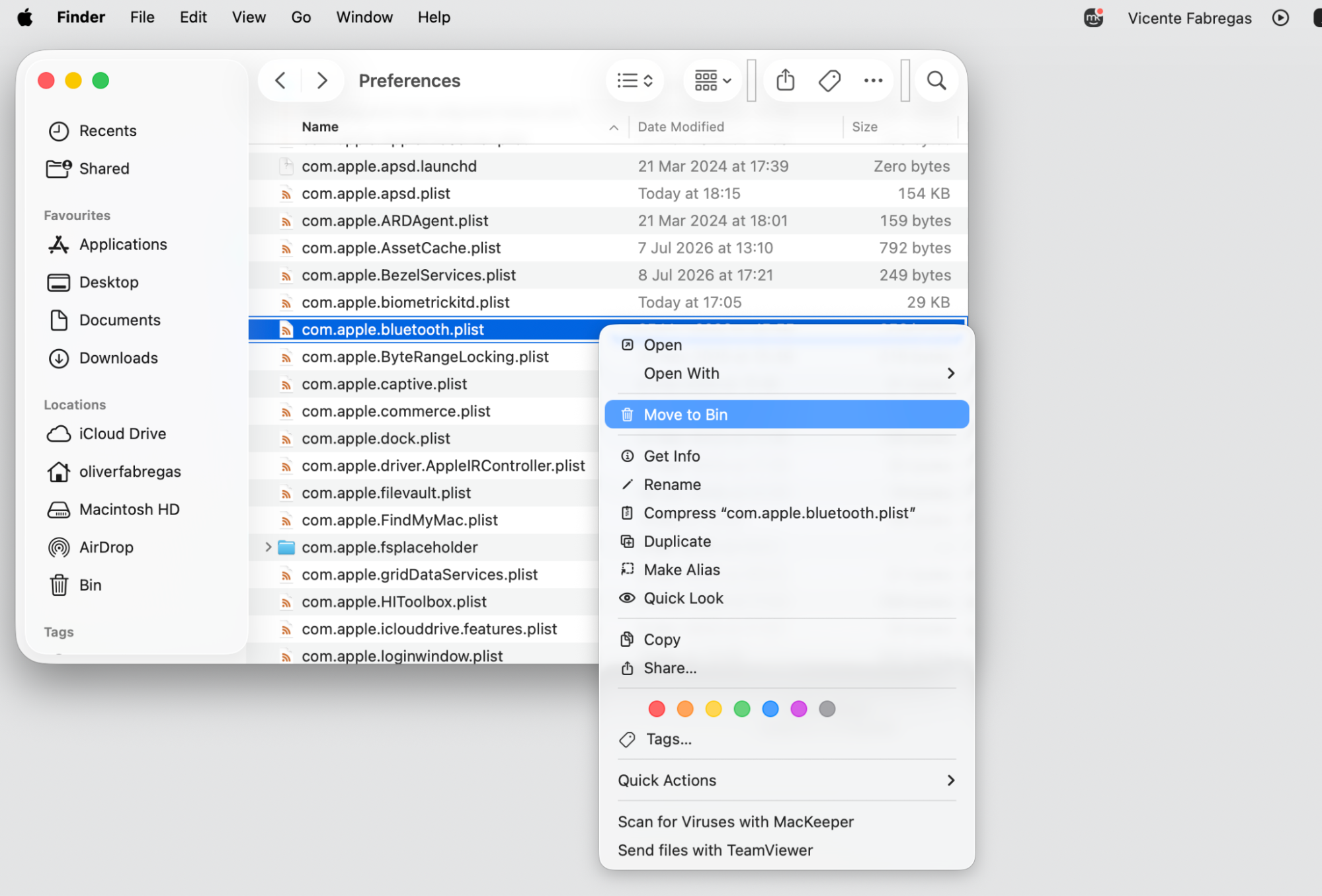
If individual fixes aren’t working, a full Bluetooth reset clears corrupted configuration files and gives your Mac’s wireless system a fresh start. In our opinion, this method is quite radical but effective. Try it with us:
Back up your list of paired devices so you can reconnect them later.
Reset Bluetooth on your Mac by removing the preference files and restarting the service.
Re-pair your devices one by one after the reset is done.
6. Check third-party or non-Apple devices
Non-Apple peripherals—especially older models—may use outdated Bluetooth protocols that force your Mac to work harder. To inspect your Mac devices more thoroughly, do the following:
Disconnect third-party Bluetooth devices one at a time.
After removing each device, check Activity Monitor to see if CPU usage drops.
If the spike stops after disconnecting a specific device, check the manufacturer’s site for firmware updates or consider replacing it.
7. Update macOS
Apple regularly releases updates that address Bluetooth-related bugs and performance issues. Running an older version might mean a known issue is causing the bluetoothd process to consume excessive CPU. Do this:
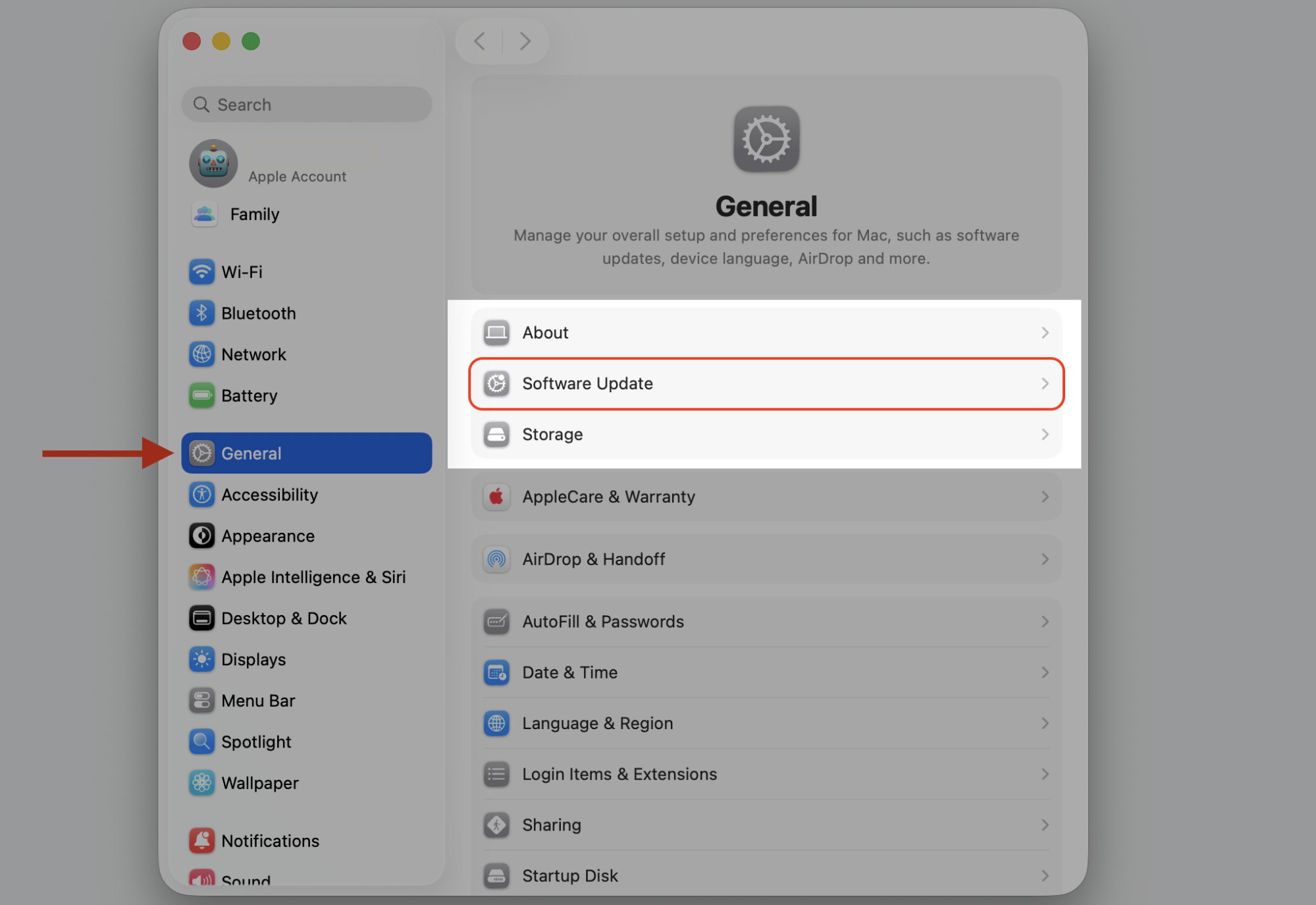
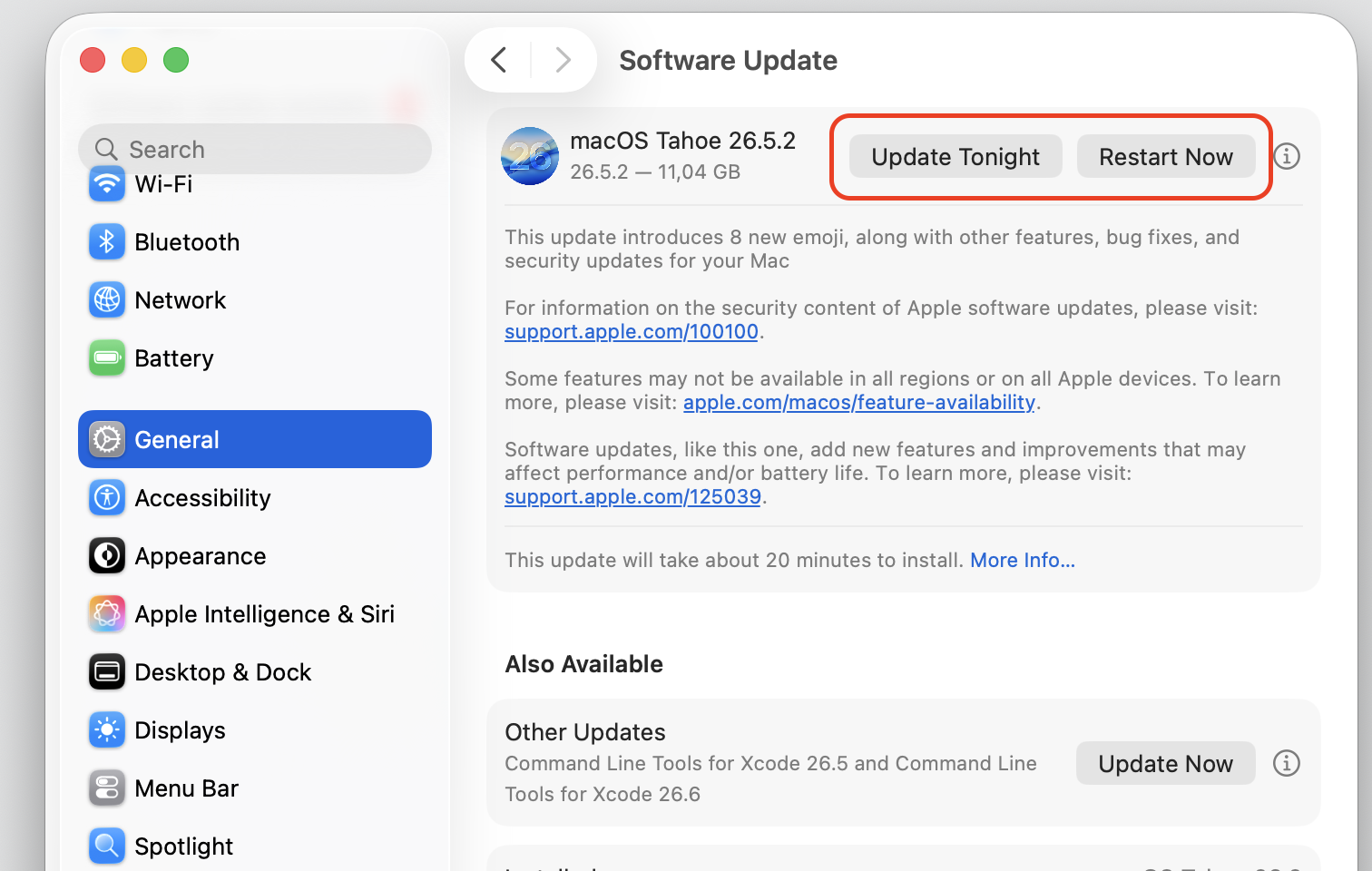
Open System Settings > General > Software Update.
If an update is available, click Update Now and follow the on-screen instructions.
Restart your Mac after the update finishes—if you’re unsure how to update Mac, the process only takes a few clicks.
Step 1. Got to Apple logo > System SettingsStep 2. Go to General › Software UpdateStep 3. Install and update and restart / schedule to update
8. Force quit the bluetoothd process
If you need immediate relief, you can stop the bluetoothd process directly. macOS will restart it automatically, so this is a temporary measure.
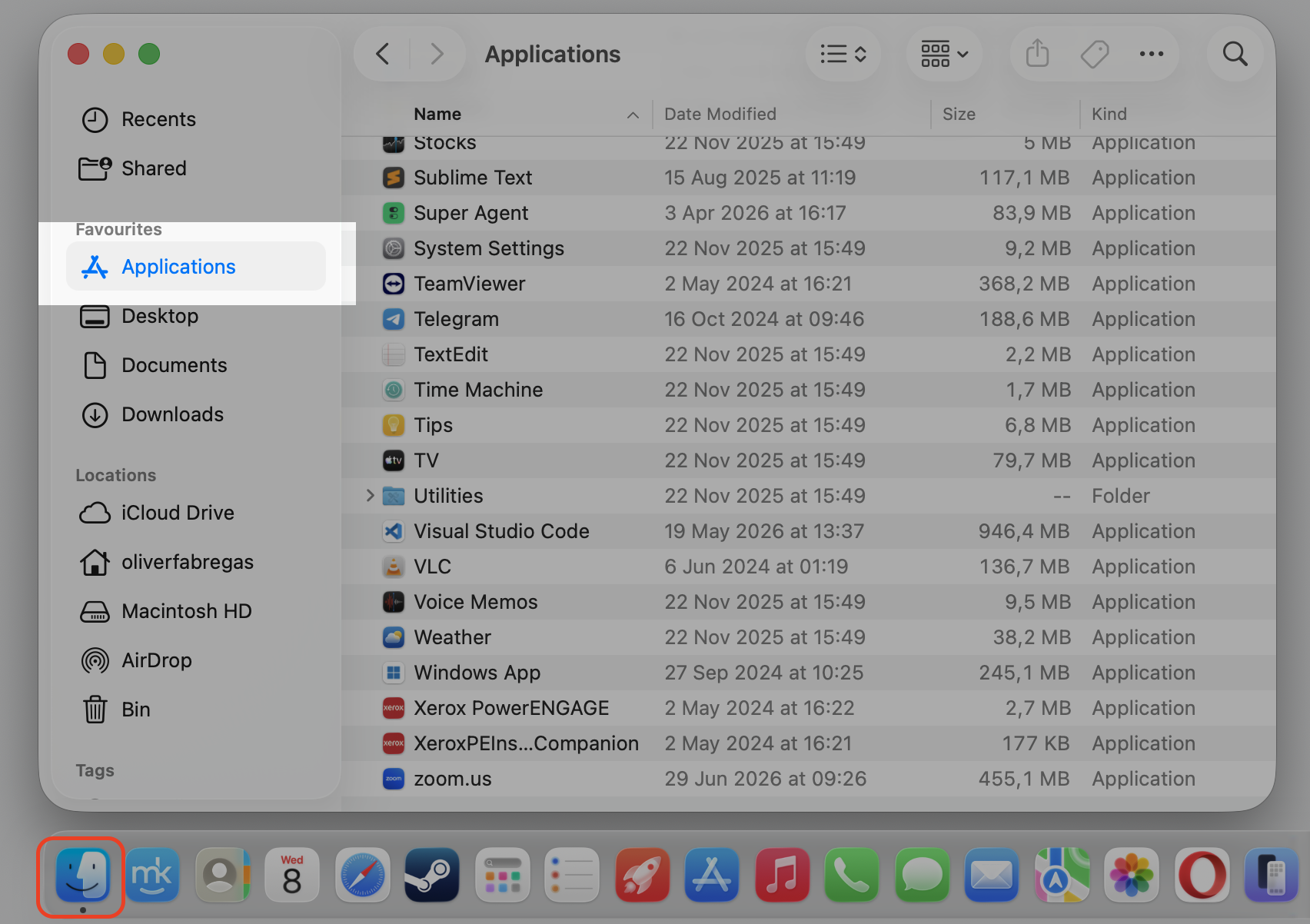
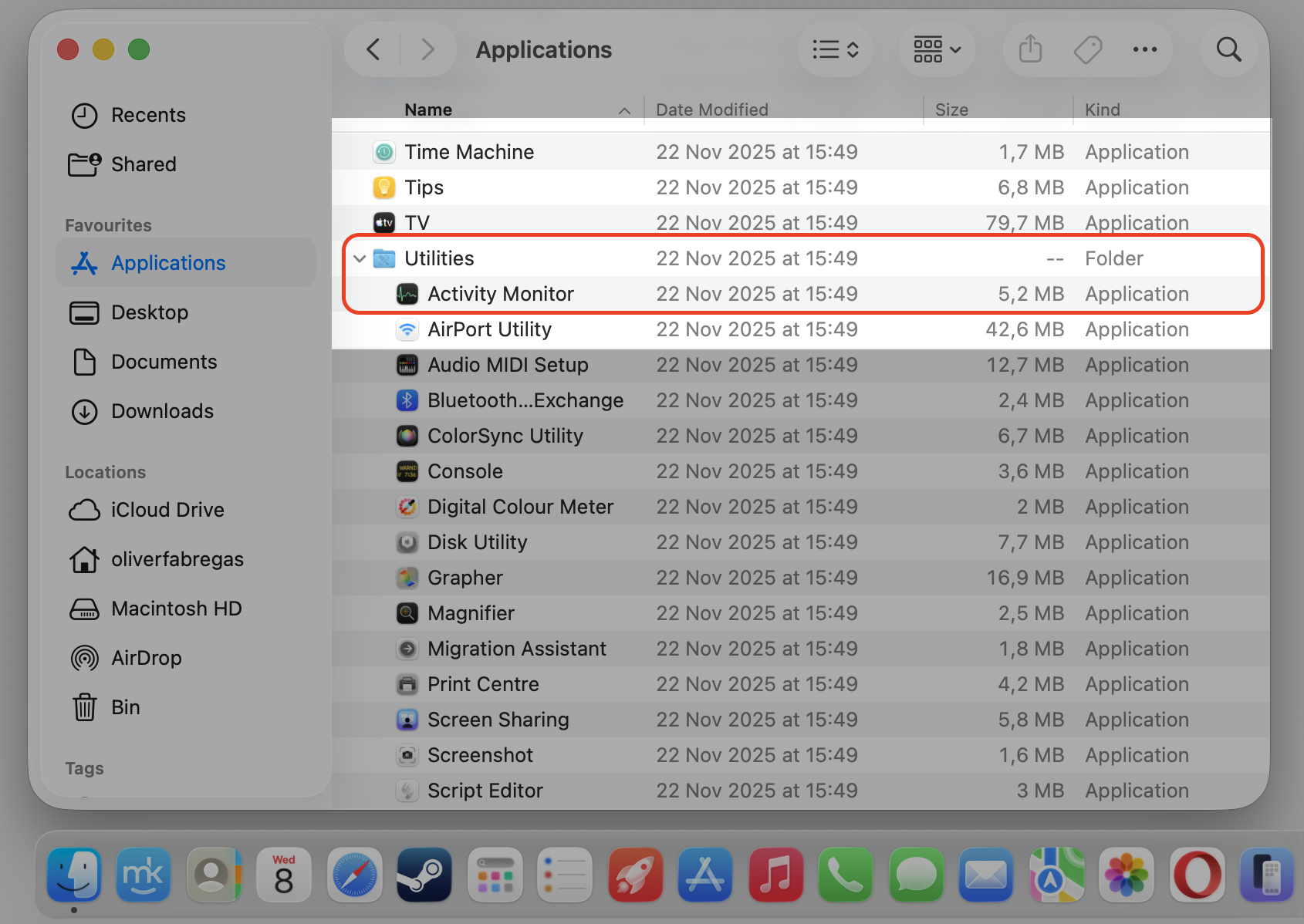
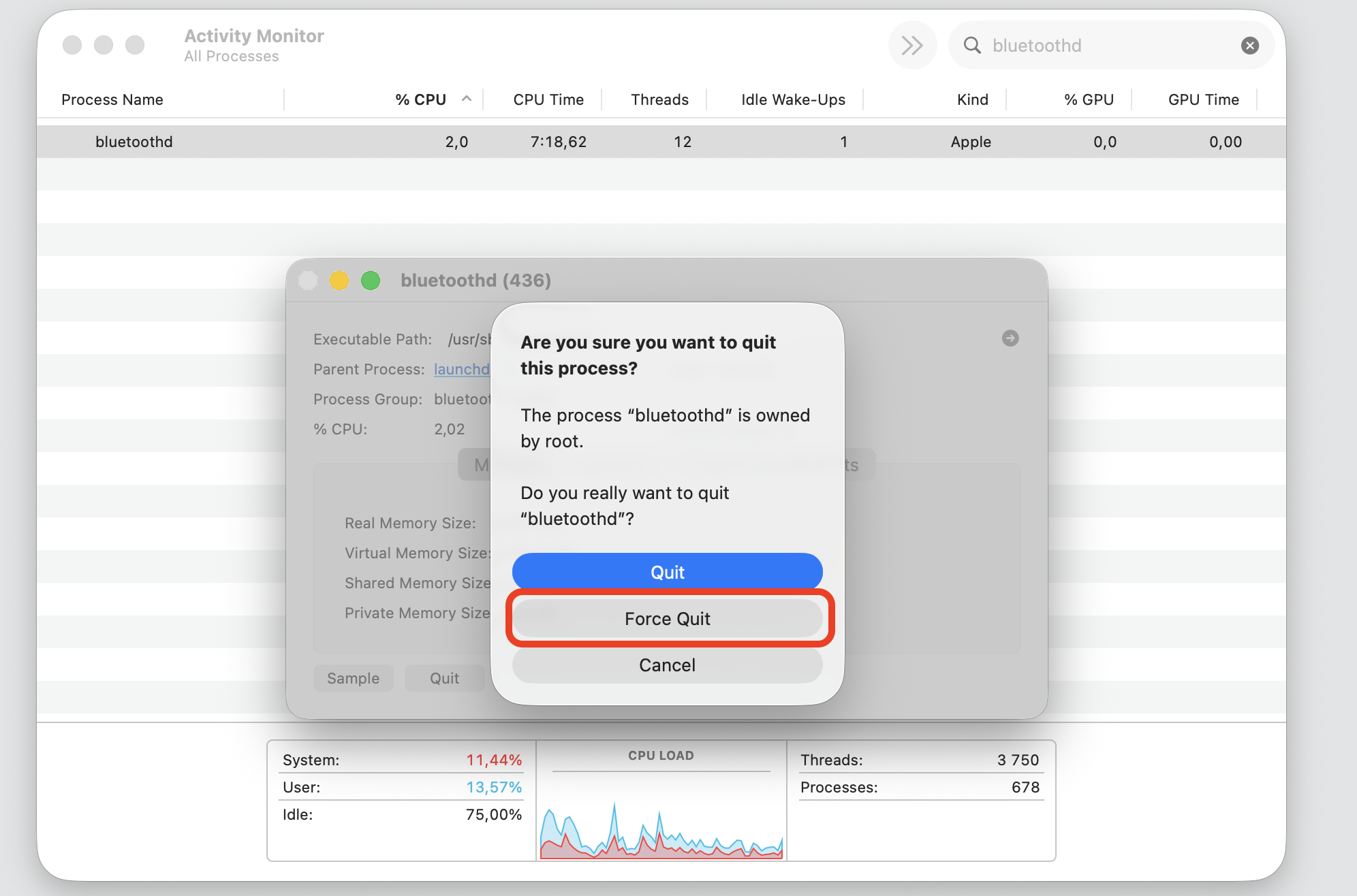
Open Activity Monitor from Applications > Utilities.
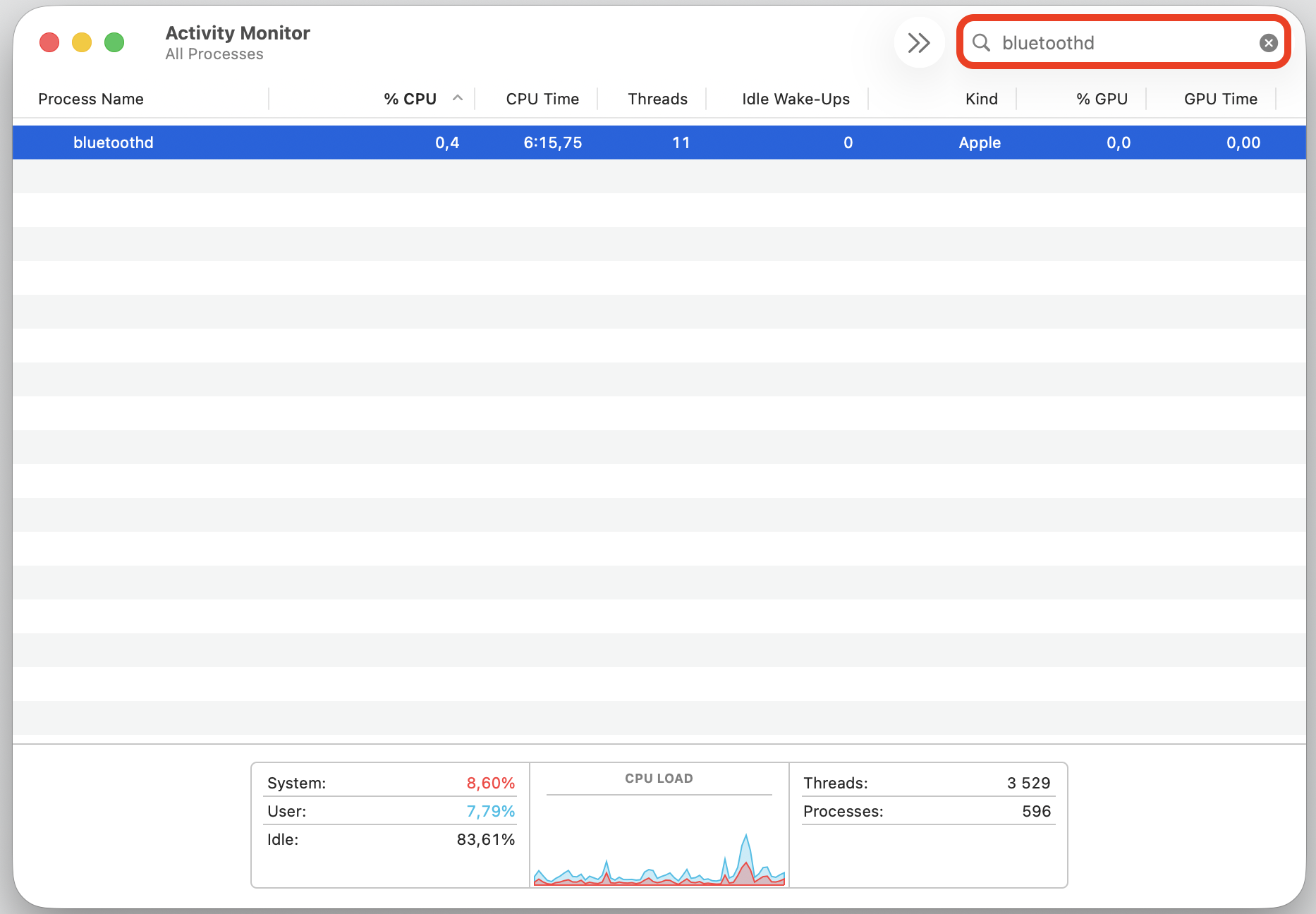
Type bluetooth in the search bar.
Select the bluetoothd process.
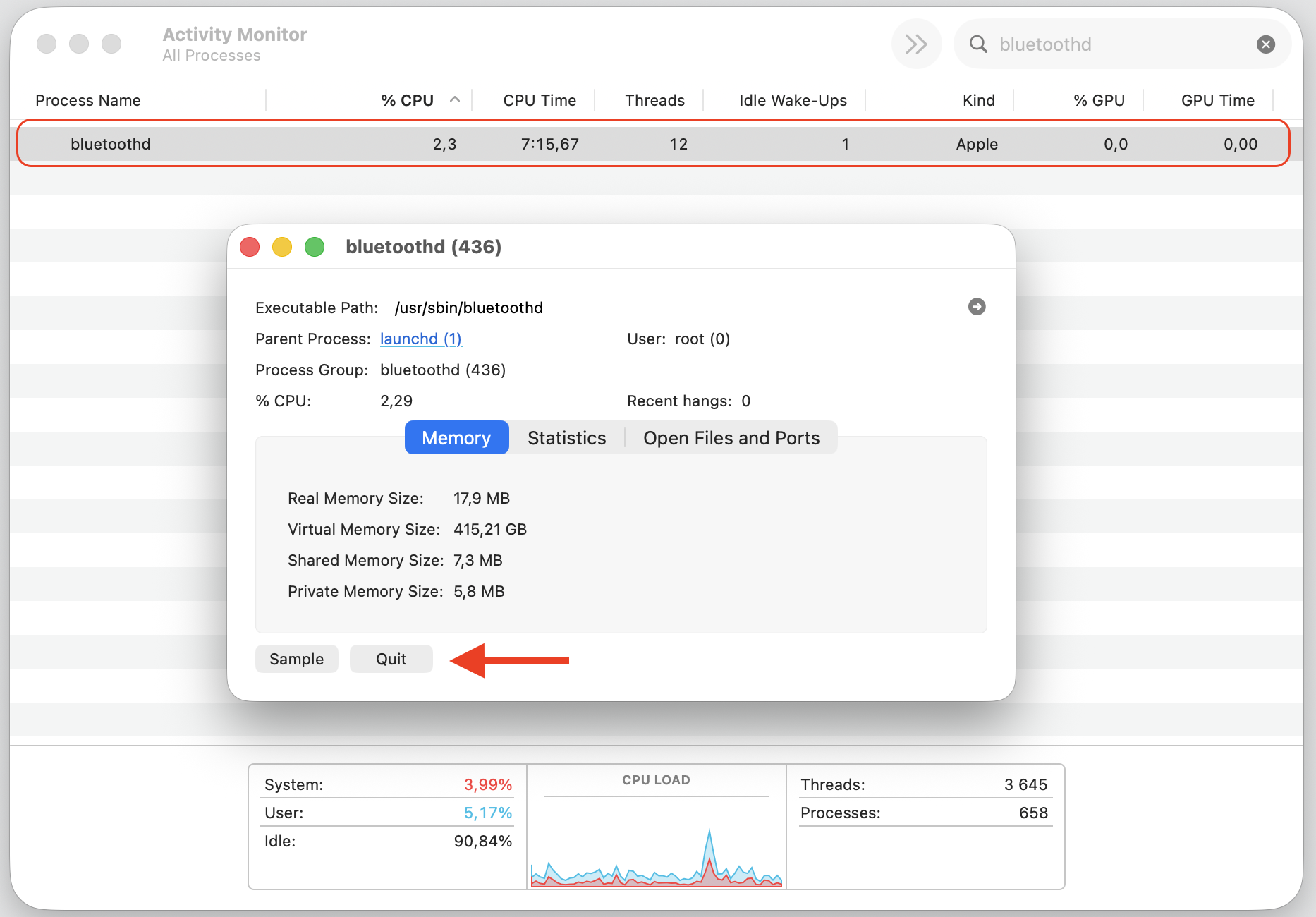
Double-click the process and choose Force Quit.
Step 1. Go to Finder > ApplicationsStep 2. Expand the Utility folder and select Activity Monitor Step 3. Select the CPU tabStep 4. Type bluetoothd in the search windowStep 5. Double-click on the process and select QuitStep 6. Confirm an action by clicking Force Quit
An extra help from our team:
The process will restart on its own—ideally with normal CPU usage. If not, we’ll get you equipped here with other ways to stop background process activity on Mac when something is consuming too many resources.
9. Disable Bluetooth features you don’t use
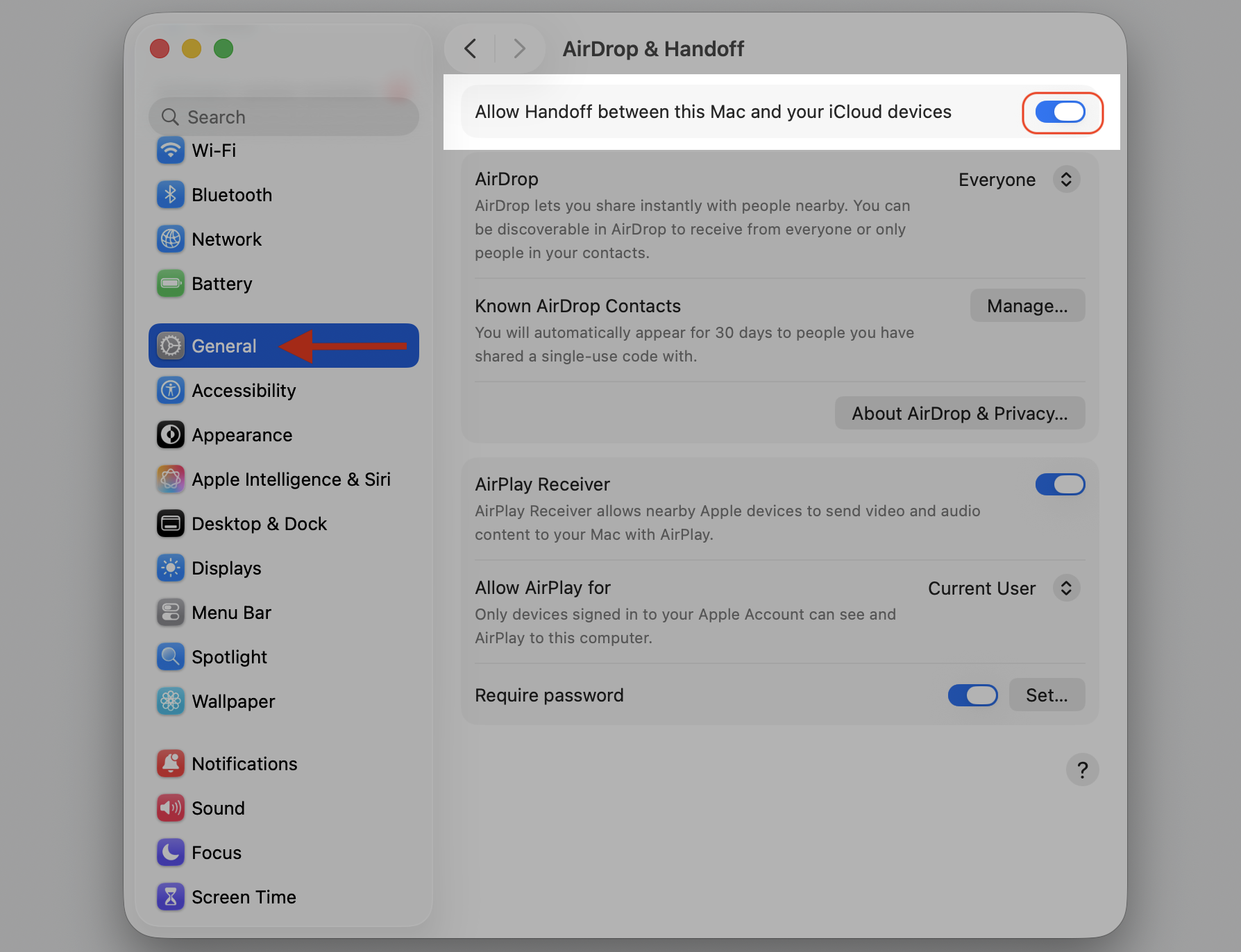
Features like Handoff and AirDrop run on Bluetooth in the background and create high CPU as a result. That’s why.turning off the ones you don’t need reduces the workload on bluetoothd. Just follow our instructions below:
To disable Handoff, go to System Settings > General > AirDrop & Handoff and toggle it off
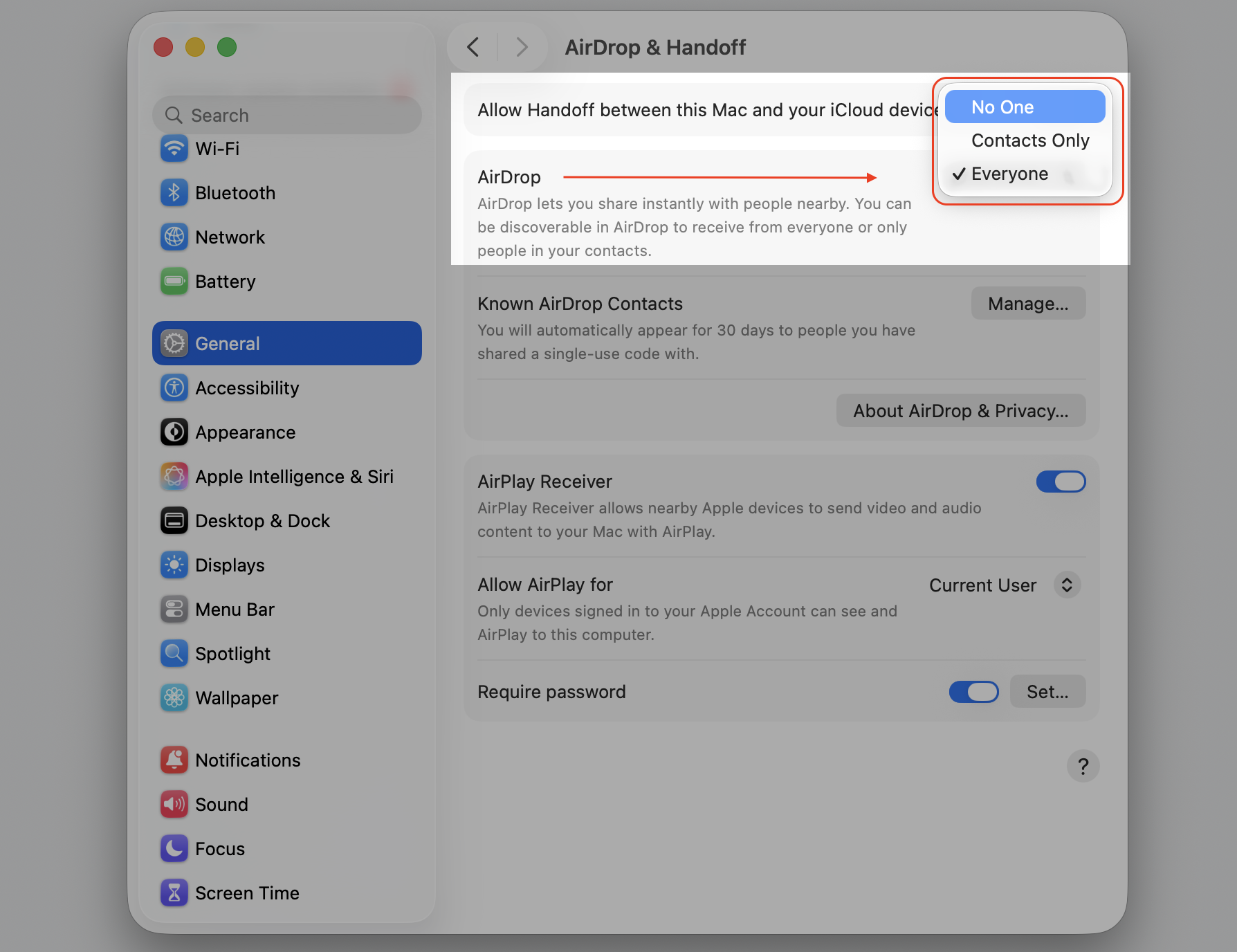
To limit AirDrop, set it to No One in the same menu.
Step 1. Go to Apple logo > System SettingsStep 2. Find General AirDrop & Handoff and toggle it offStep 3. Confirm your actionStep 4. To limit AirDrop, set it to No One in the same menu
What happens if you disable bluetoothd on Mac?
It’s tempting to shut down bluetoothd entirely, but it’s a core macOS process. Disabling it means losing your wireless keyboard, mouse, trackpad, and AirPods. AirDrop, Handoff, Continuity, and Find My would also stop working—all of these rely on Bluetooth to communicate between Apple devices.
Instead of disabling the process, focus on the troubleshooting steps above. In most cases, a simple restart or removing a problematic device is enough to bring bluetoothd’s CPU usage back to normal.
Keep bluetoothd in check on your Mac
Bluetoothd is a normal macOS process, and high CPU spikes are usually linked to connection conflicts or system glitches. Resolving device issues typically brings things back to normal. Want a fast way to manage memory and reclaim resources? MacKeeper’s Memory Cleaner can help reduce bluetoothd process Mac high CPU usage in one click. Try it out.
We respect your privacy and
use cookies
for the best site experience.
Privacy Preferences Center
We use cookies along with other tools to give you the best possible experience while using the
MacKeeper website. Cookies are small text files that help the website load faster. The cookies we
use don’t contain any type of personal data meaning they never store information such as your
location, email address, or IP address.
Help us improve how you interact with our website by accepting the use of cookies. You can change
your privacy settings whenever you like.
Manage consent
All cookies
These cookies are strictly necessary for enabling basic website functionality (including page
navigation, form submission, language detection, post commenting), downloading and purchasing
software. The website might malfunction without these cookies.